Documents & Contracts doesn't have to be a manual step in your process. With workflows, you can send a treatment consent, a membership agreement, or a financing contract the moment a patient reaches the right point in your pipeline, and you can trigger follow-up automation the instant a document is viewed, signed, or completed. This guide covers the workflow action that sends documents, the workflow trigger that reacts to document activity, and how to have an invoice generated automatically when a document is signed.
Send contracts and consent forms the moment a trigger condition is met, with no manual step for your front desk or sales team
Reuse the templates you already built, with custom values filled in automatically for each patient
Collect legally binding e-signatures without leaving the automation
Track delivery, viewing, and signing status without checking in manually
Kick off follow-up actions (internal notifications, tags, pipeline moves) as soon as a document is signed
The Send Documents & Contracts action lets a workflow send a saved template automatically. Before you use it, the template must be saved and the contact must have a valid email address on file, even if you plan to deliver the document by text message.
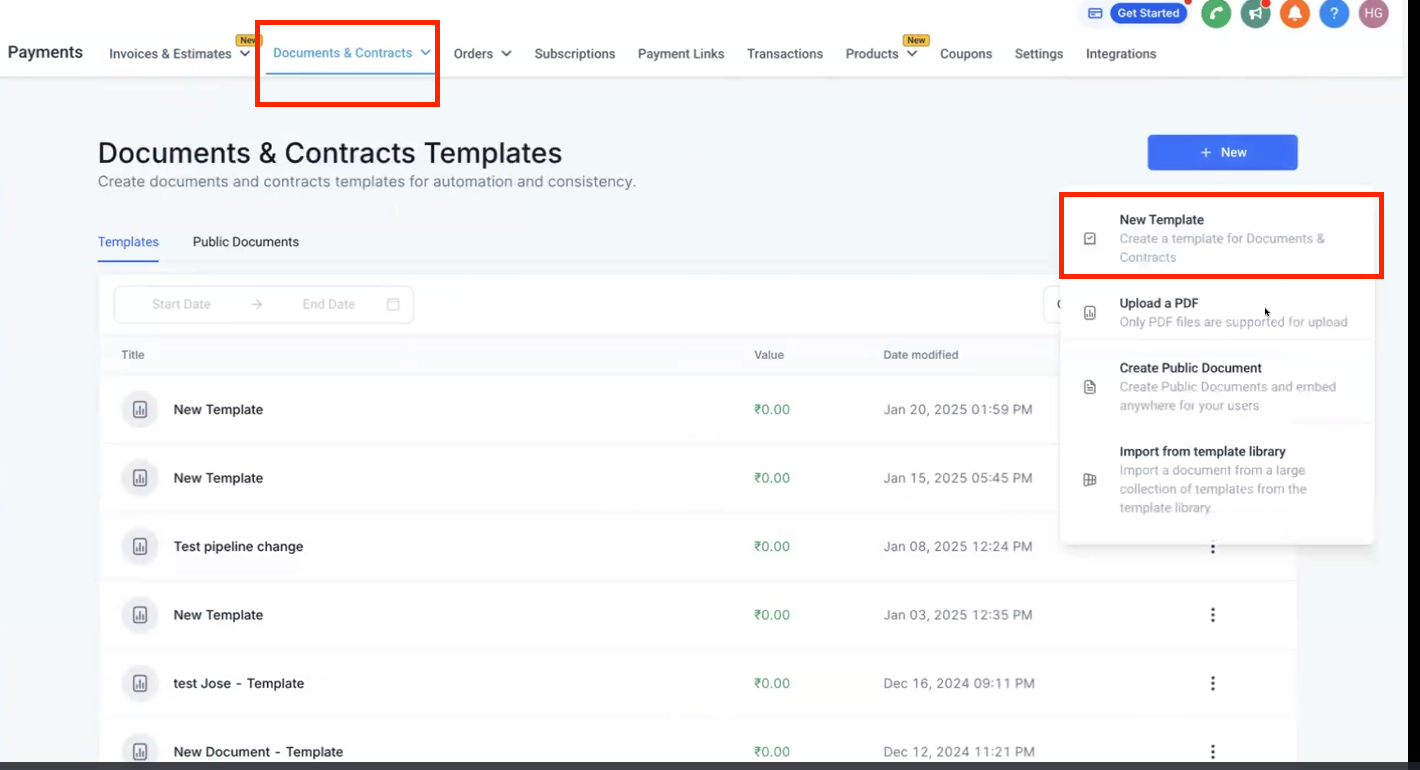
Go to Marketing → Workflows and open an existing workflow, or create a new one and start from scratch.
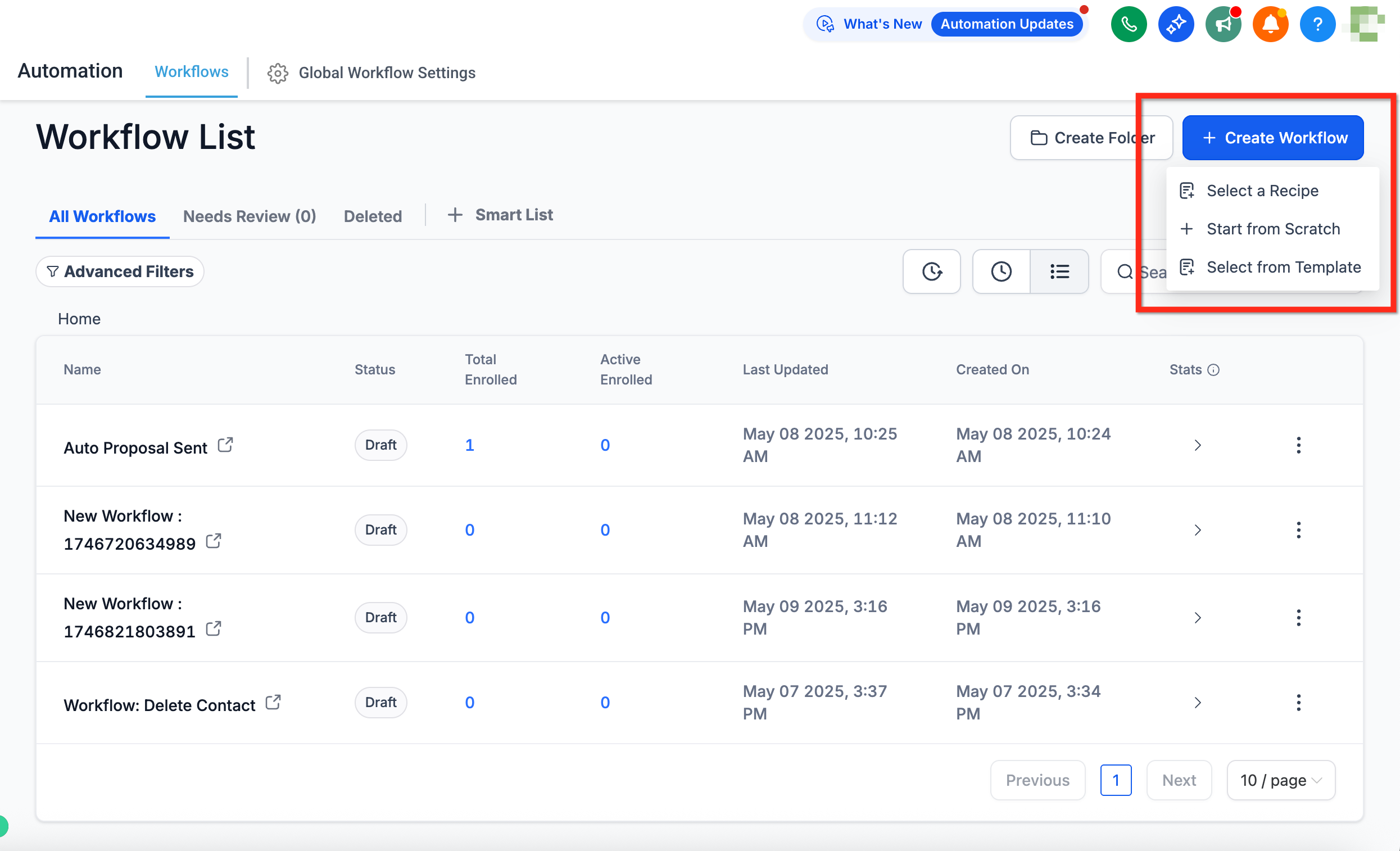
Add a trigger for the moment you want the document to go out. Common choices include a tag being added, an opportunity moving to a pipeline stage, an appointment being booked, or a form being submitted.
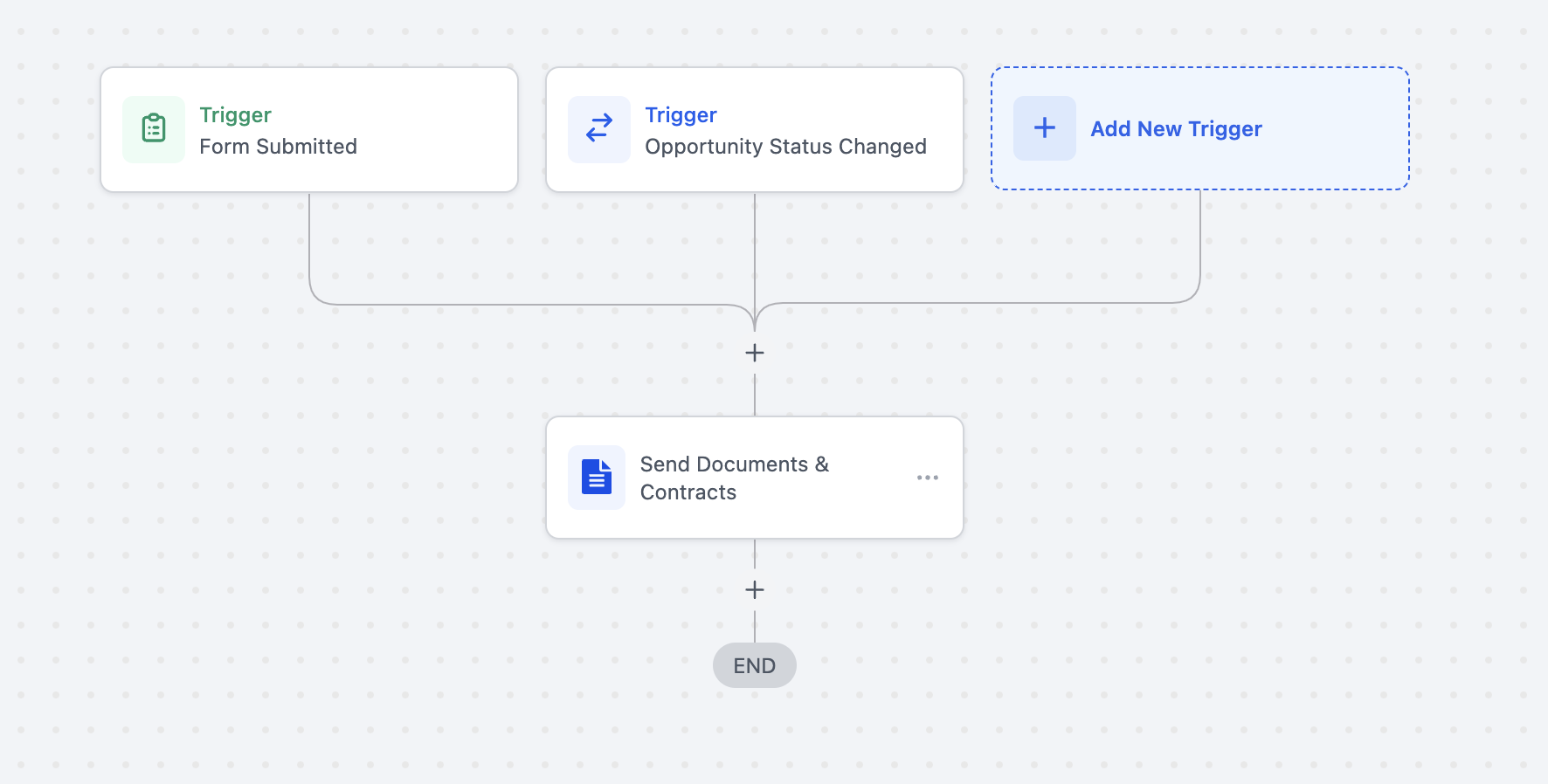
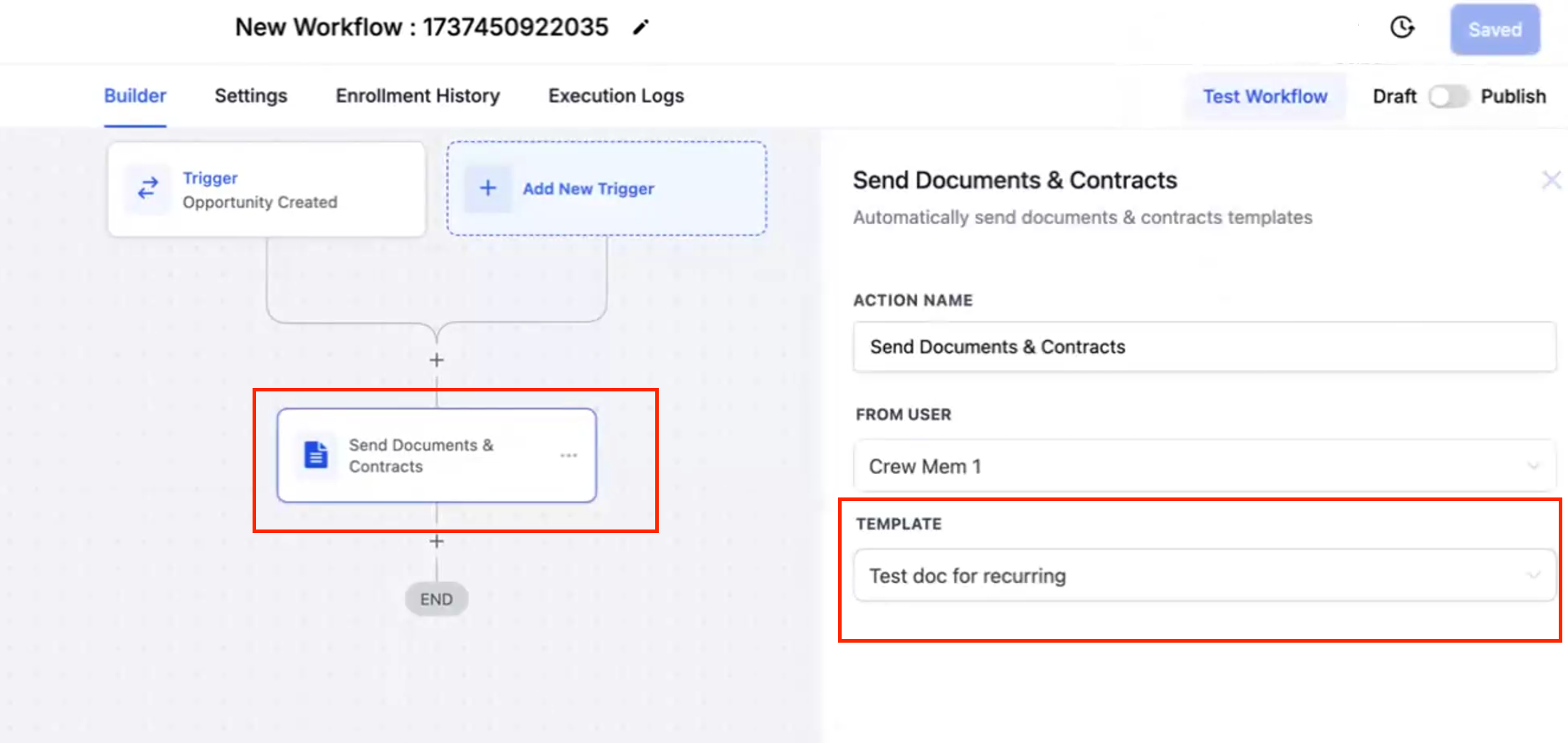
Add the Send Documents & Contracts action and configure it:
Action Name: something descriptive, like "Send Membership Agreement"
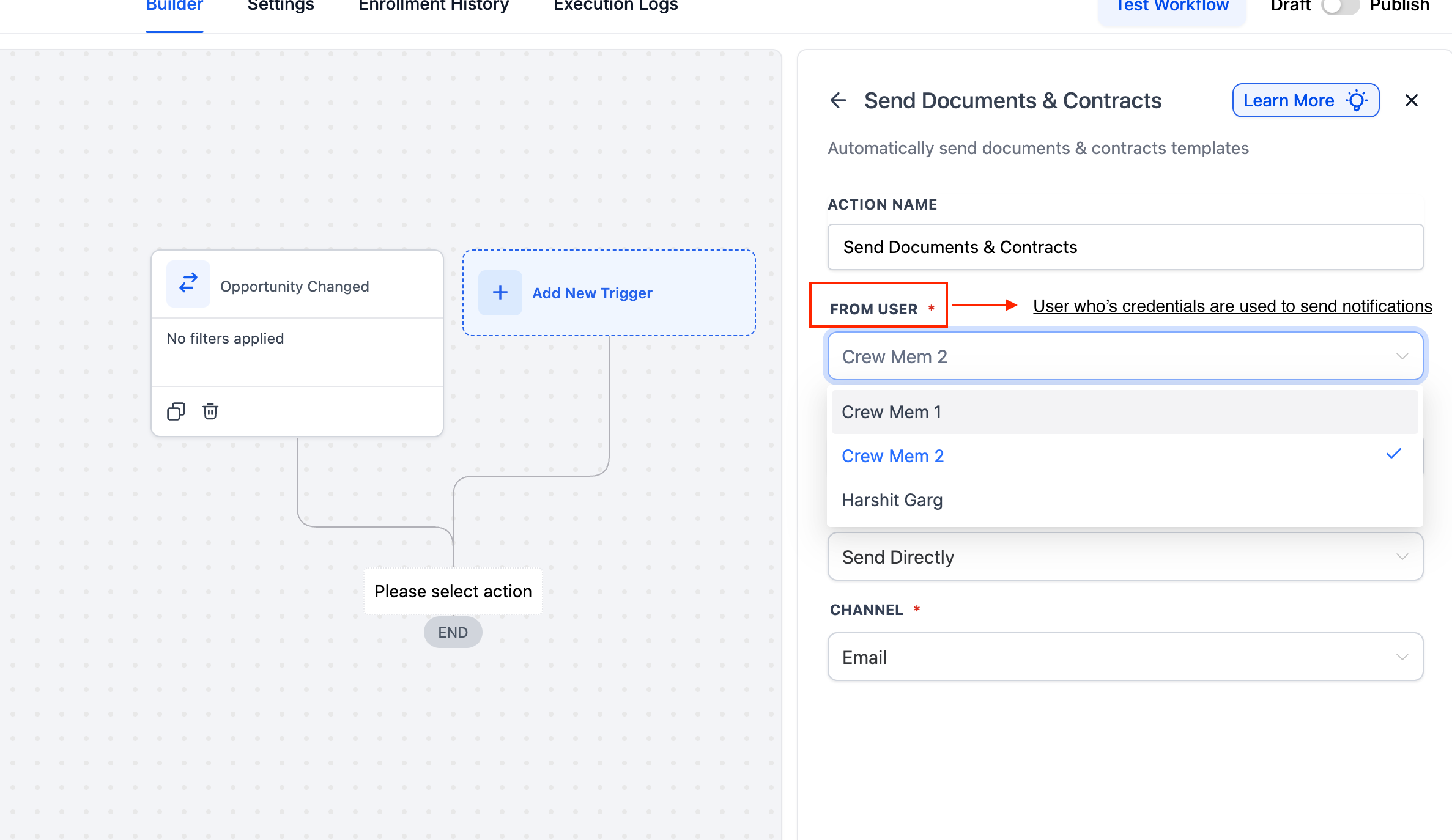
From User: the staff member the document should appear to be sent from
Template: the saved template to send
Sending Mode: choose Send Directly to deliver it immediately, or Create as Draft if you want a designated person to review and send it manually
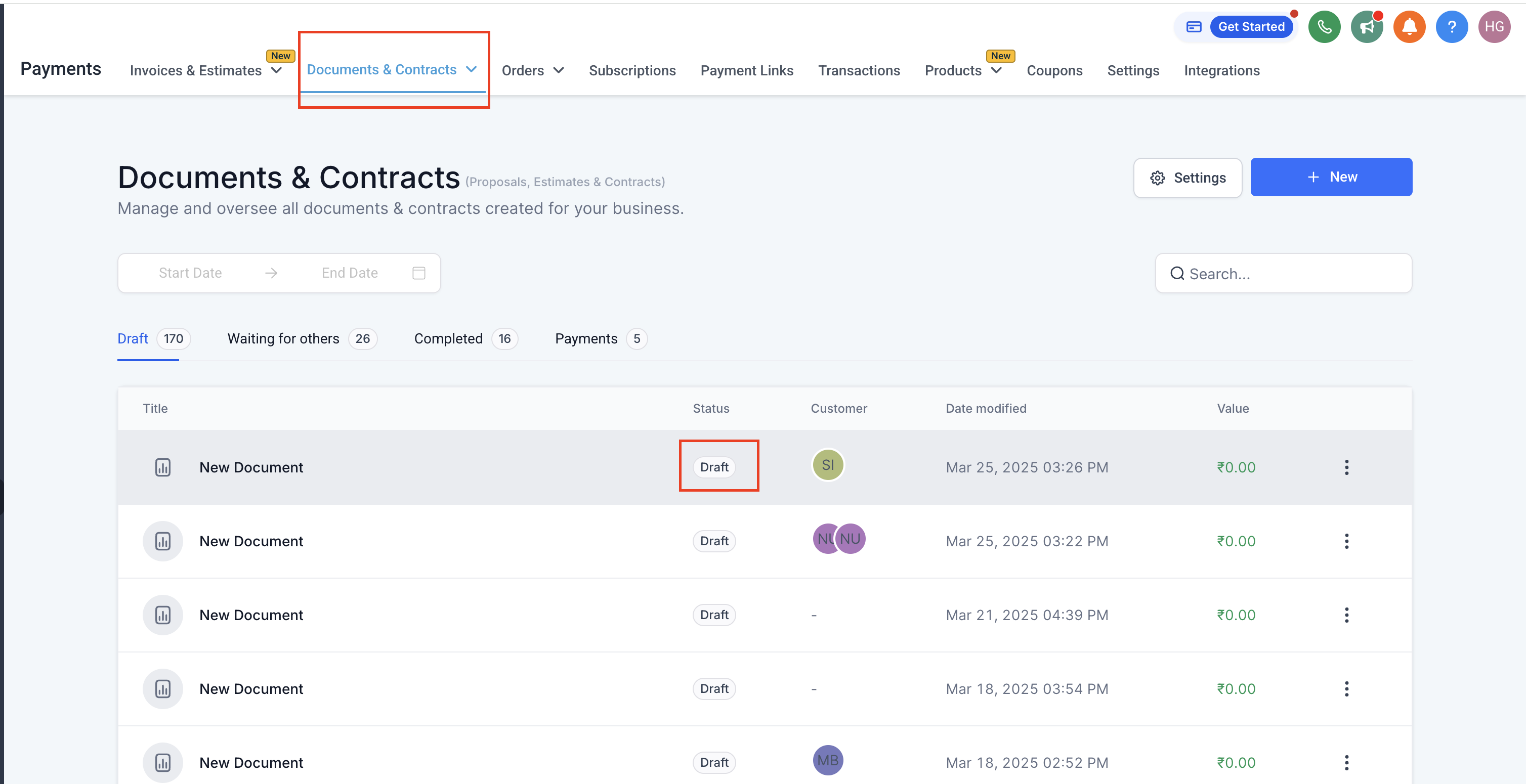
Channel: Email, SMS, or both. If you choose SMS, the contact still needs an email on file. Without one, the document generates but stays in Drafts until an email is added to the contact record
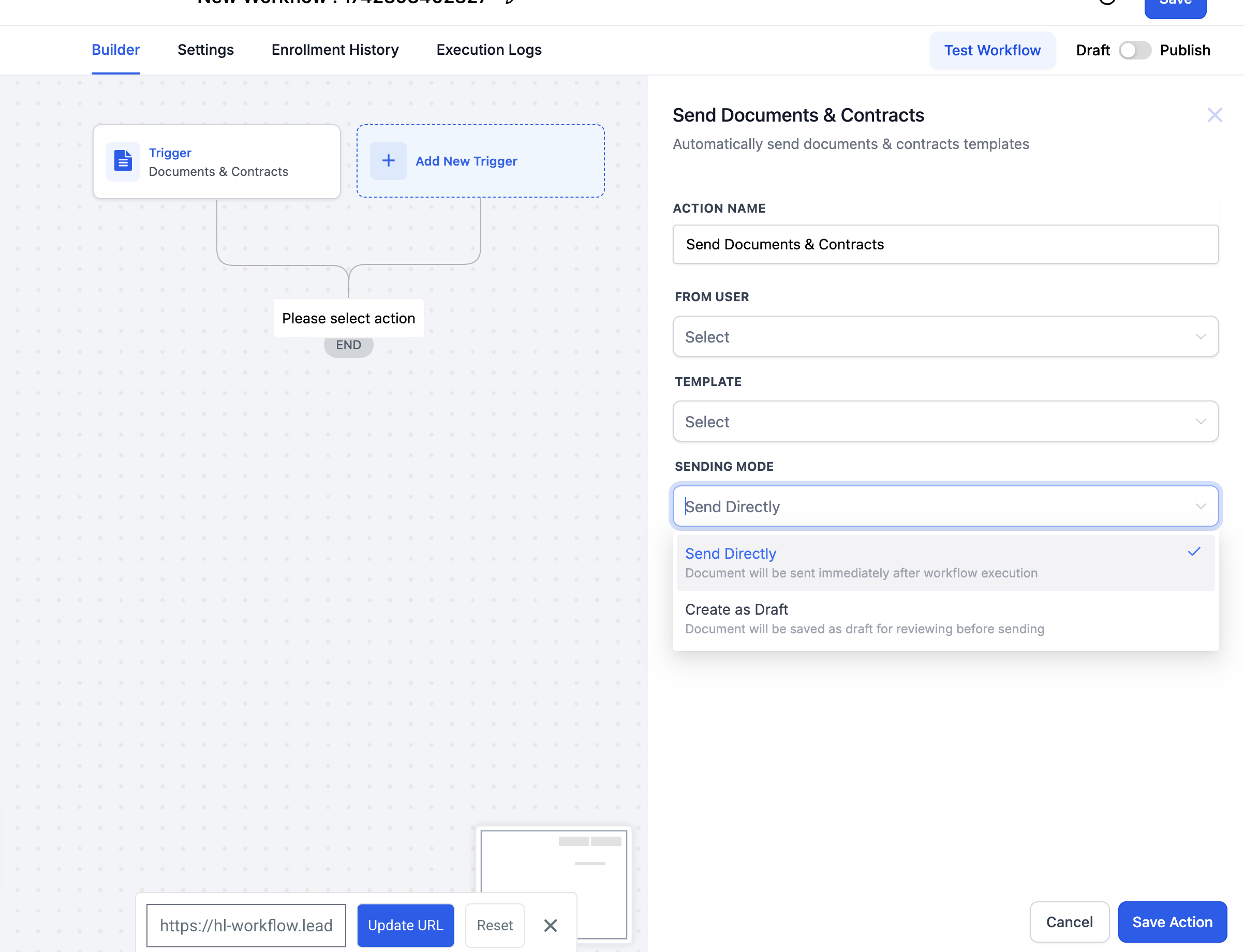
Save the action, then save and publish the workflow.
Use Create as Draft when you want centralized control, for example when only your office manager sends out final contracts even though the workflow prepares them automatically based on a sales rep's action or a patient's form submission.
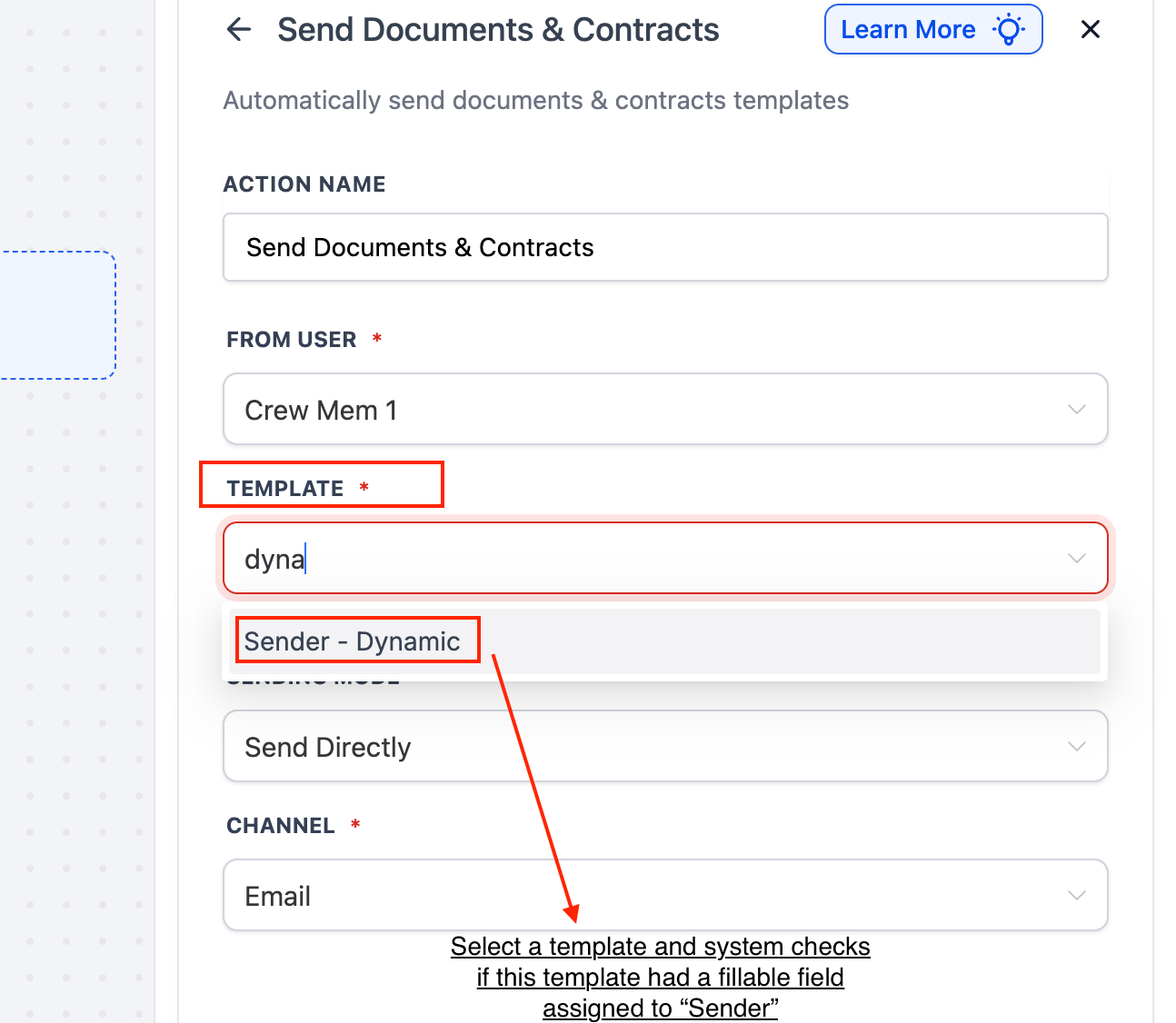
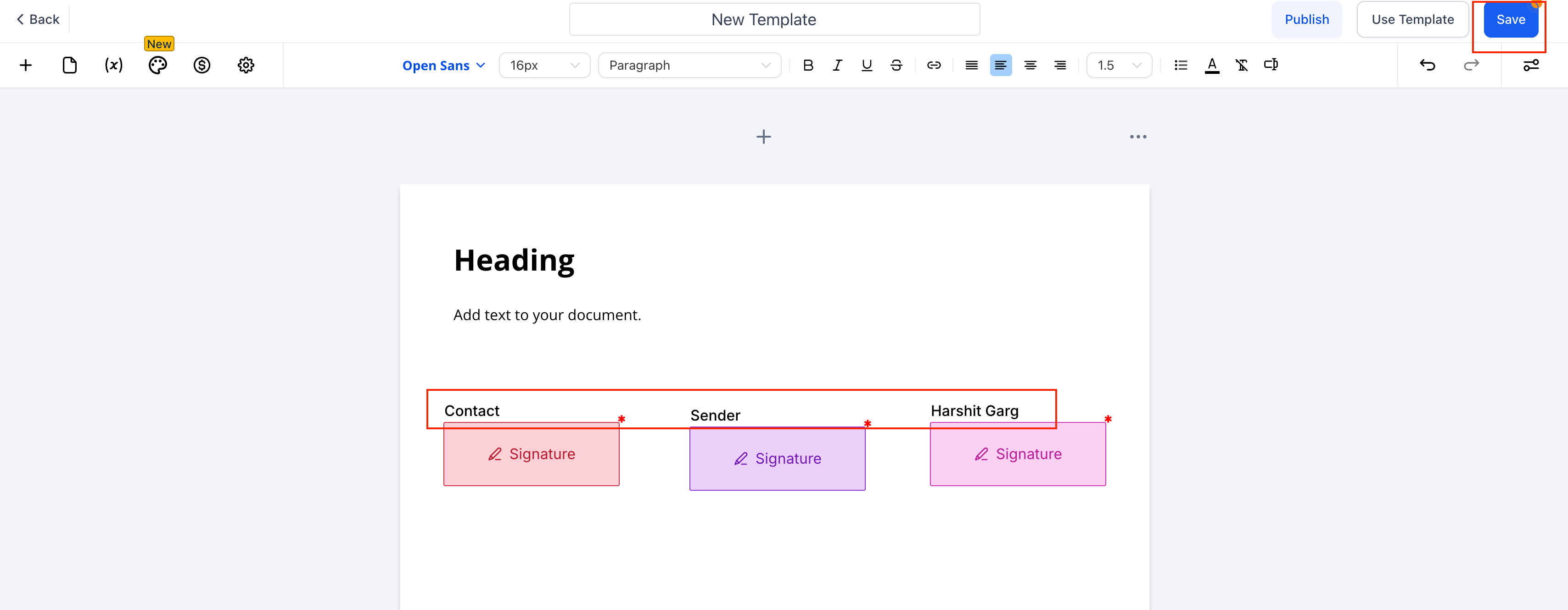
If a template has a field set to To be signed by → Sender (configured in the template editor, covered in the Building Document Templates guide), the workflow can assign that field to the right internal signer at send time instead of you editing the template for every run.
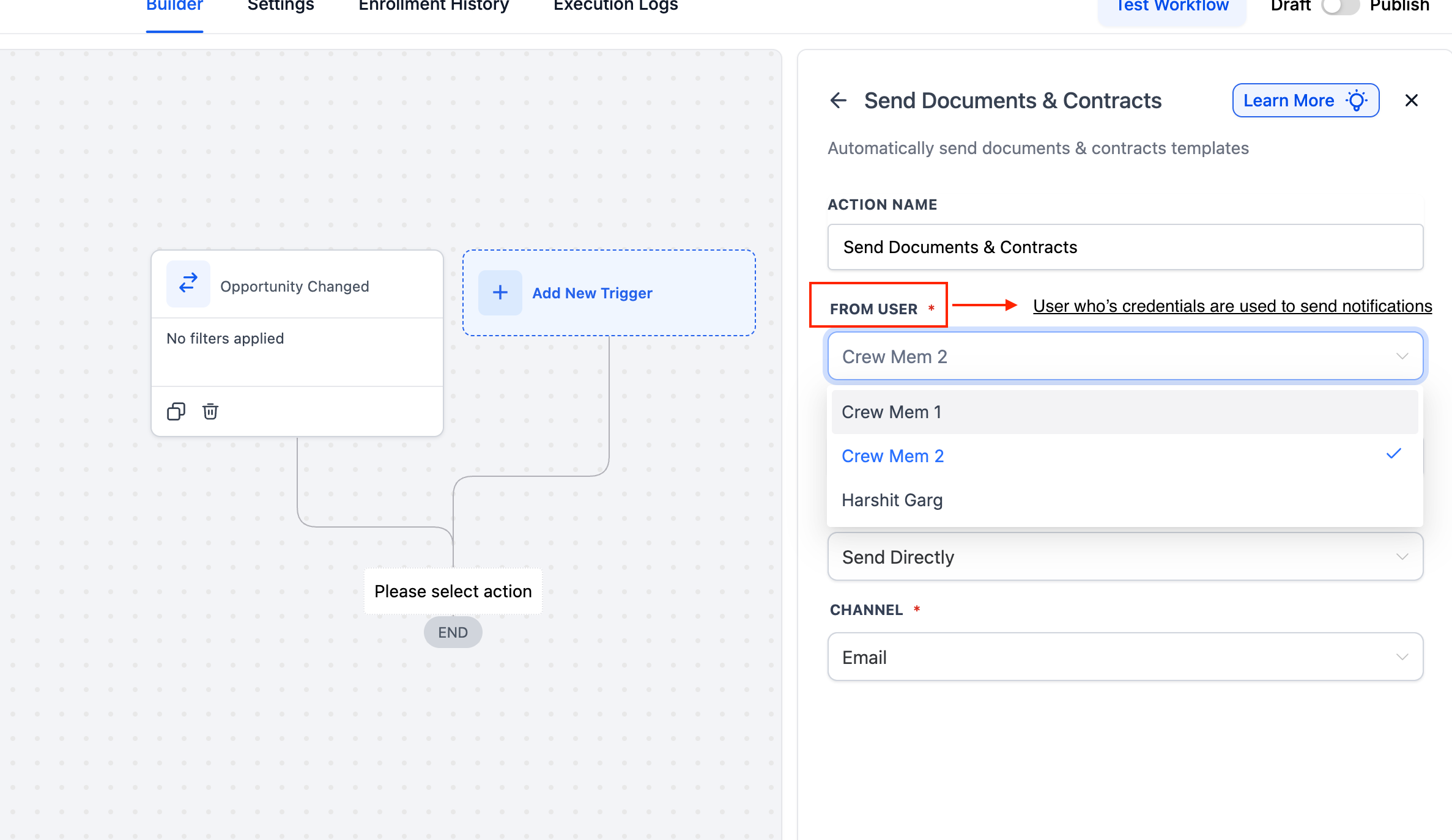
In the Send Documents & Contracts action, select the From User.
Choose a template that has a field set to To be signed by → Sender.
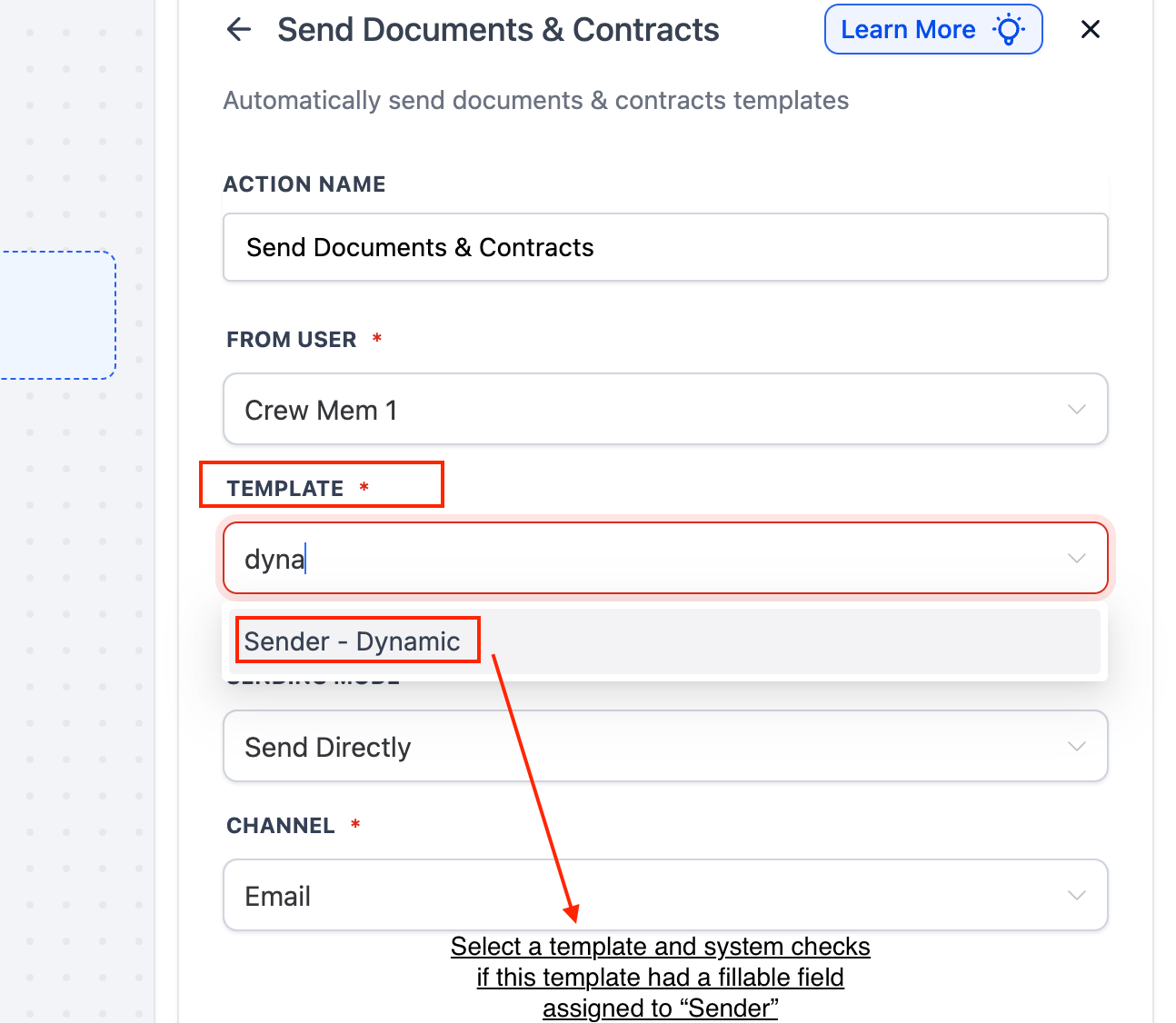
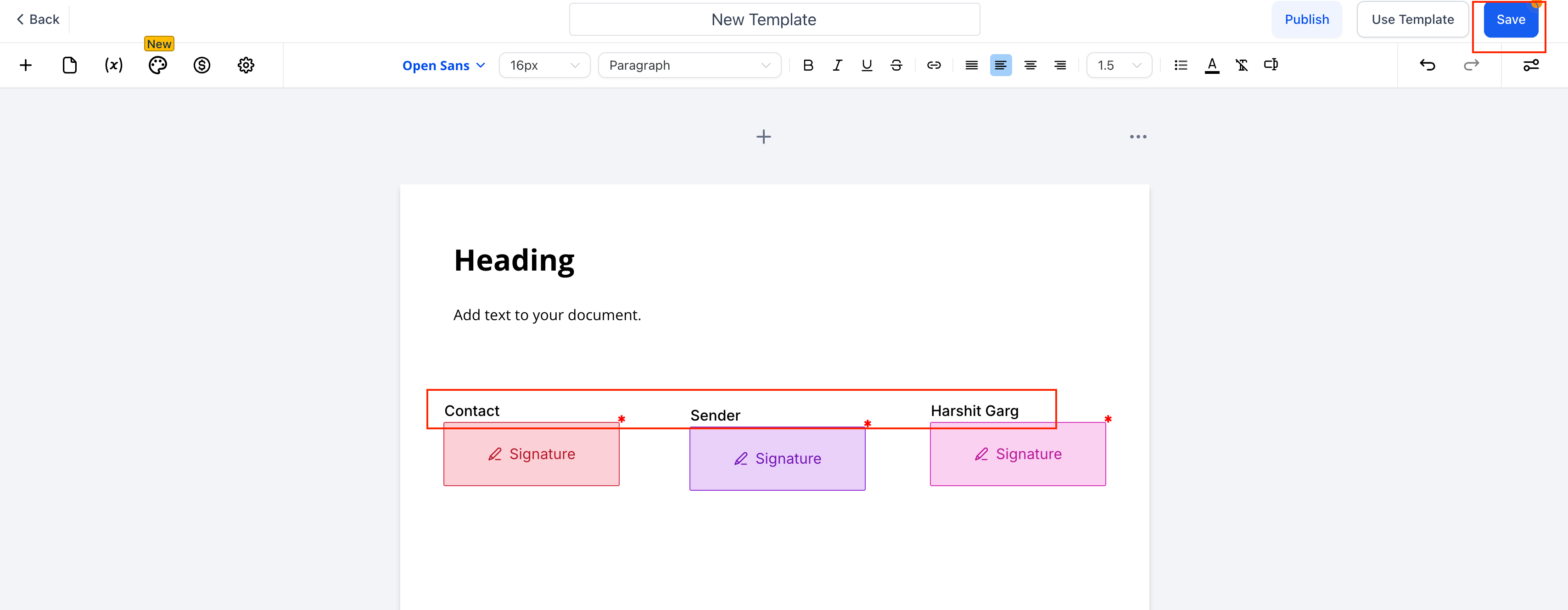
Under Assign Sender Fields To, choose either:
From User, so the workflow's sender signs, or
Template Owner, so the staff member who last updated the template signs
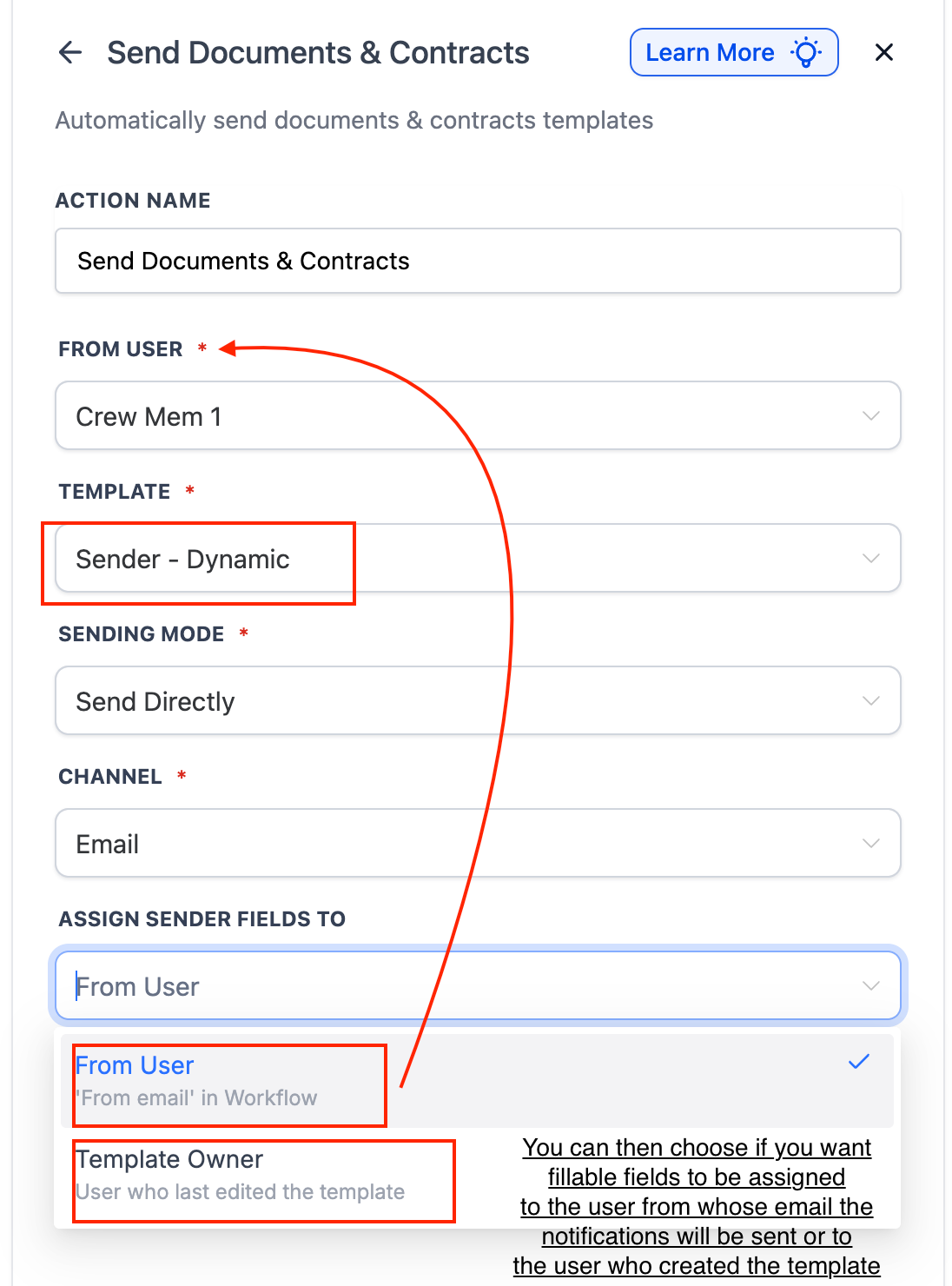
Choose the Sending Mode and Channel, then save and publish.
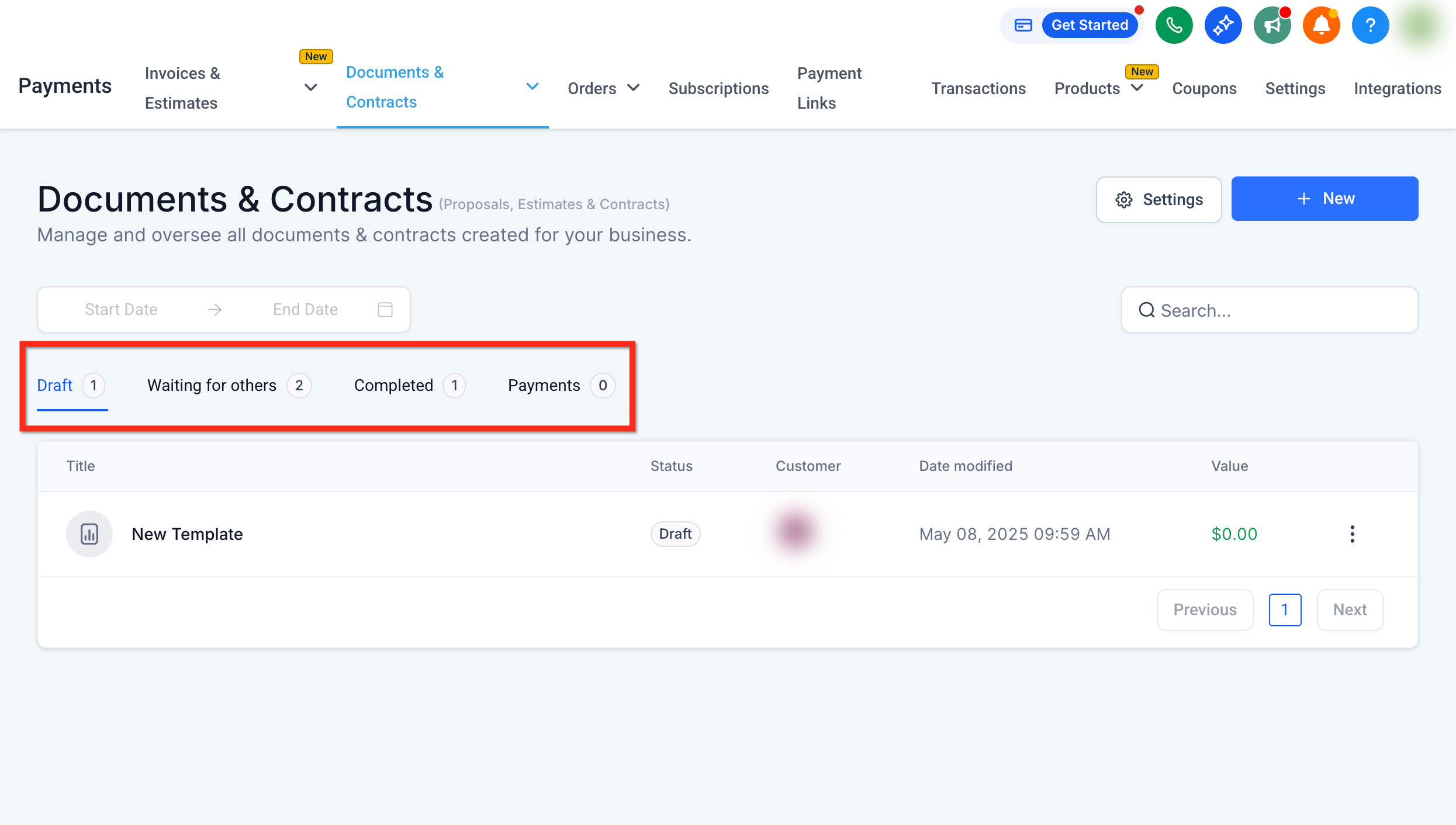
Use the Documents & Contracts trigger to start a workflow automatically when a document's status changes, whether it's sent, viewed, signed, or completed. This is the trigger to reach for when you need to react to what a patient does with a document rather than send one out in the first place, for example notifying your team the moment a membership agreement is signed.
In Marketing → Workflows, create a new workflow and choose Start from Scratch.
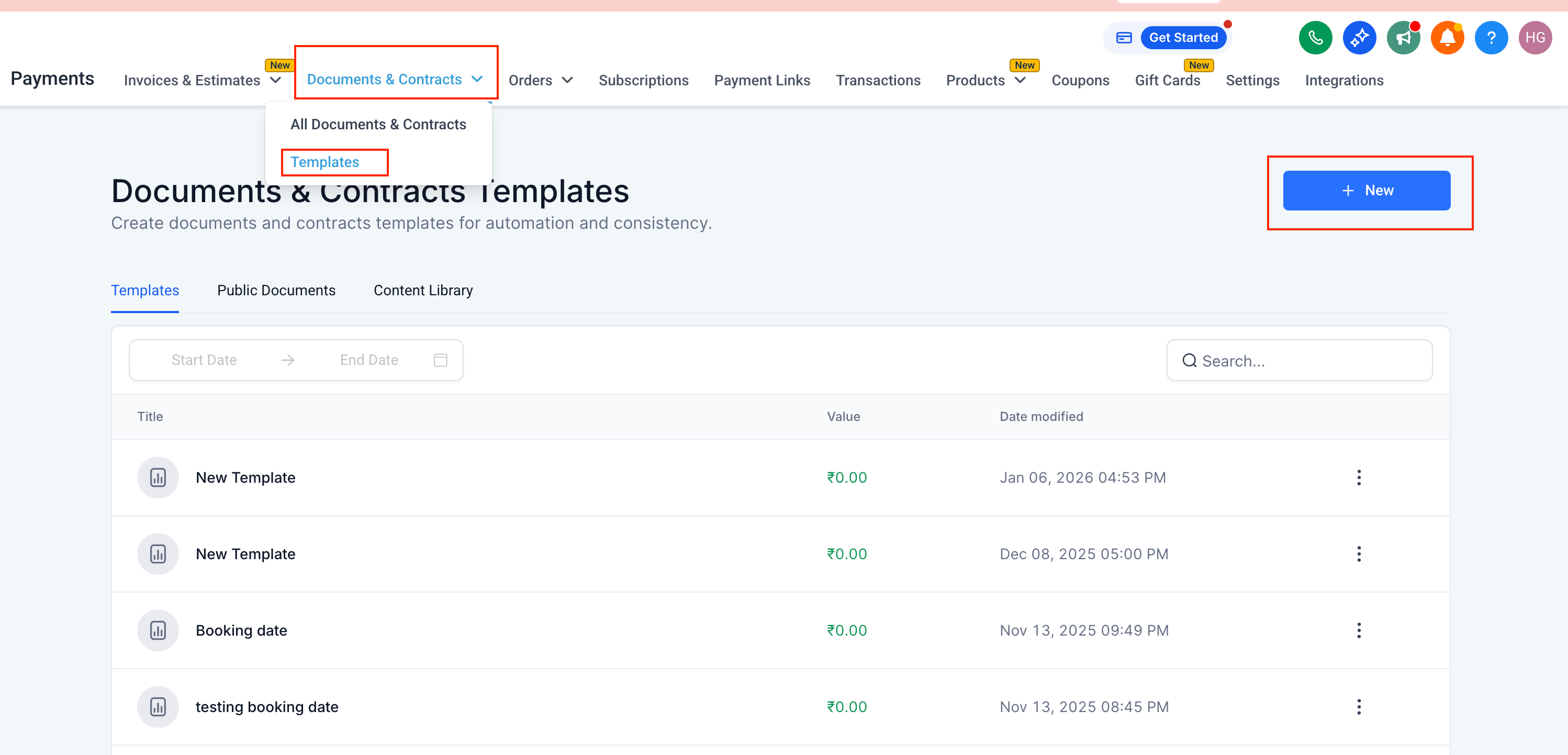
Add a new trigger and select Documents & Contracts from the Payments section of the trigger list.
Give the trigger a specific name, such as "Contract Signed: Membership Agreement."
Add filters to narrow when the trigger fires:
Recipient Type: Contact (a patient) or Business User (a staff member)
Status: Sent, Viewed, Signed/Accepted, or Completed
Template: a specific document template
Value: the dollar value attached to the document, using operators like "greater than" or "equals," useful for singling out high-ticket packages
Save the trigger.
Each status change fires as its own event. If a document is both viewed and then signed, the trigger can fire once for each status if both are configured, so add a condition inside the workflow (checking a tag or custom field) if you want to avoid sending duplicate follow-up messages.
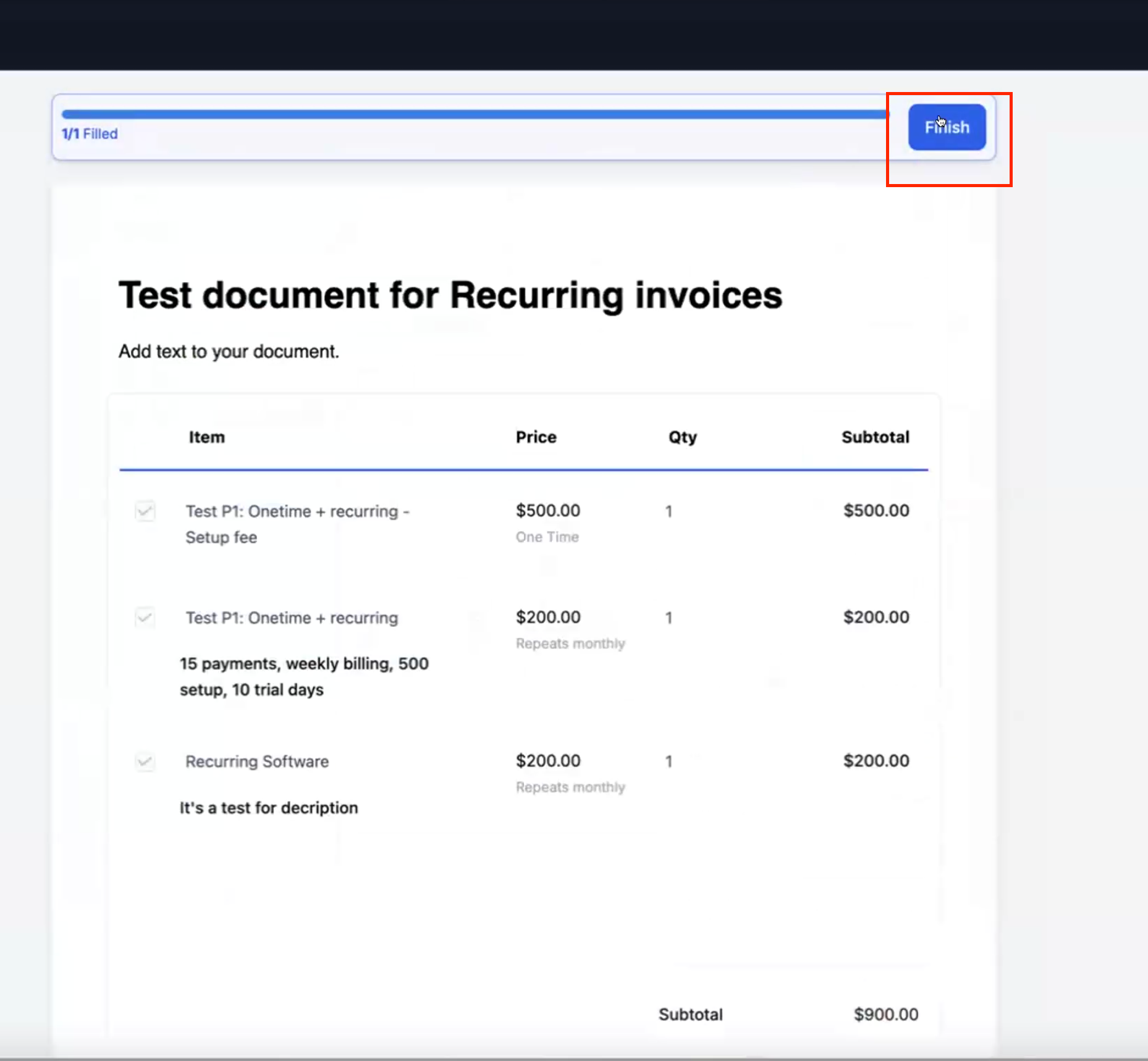
When a document template includes a product list with a recurring product, you can have Aesthetix CRM generate and send the invoice automatically as soon as the patient signs.
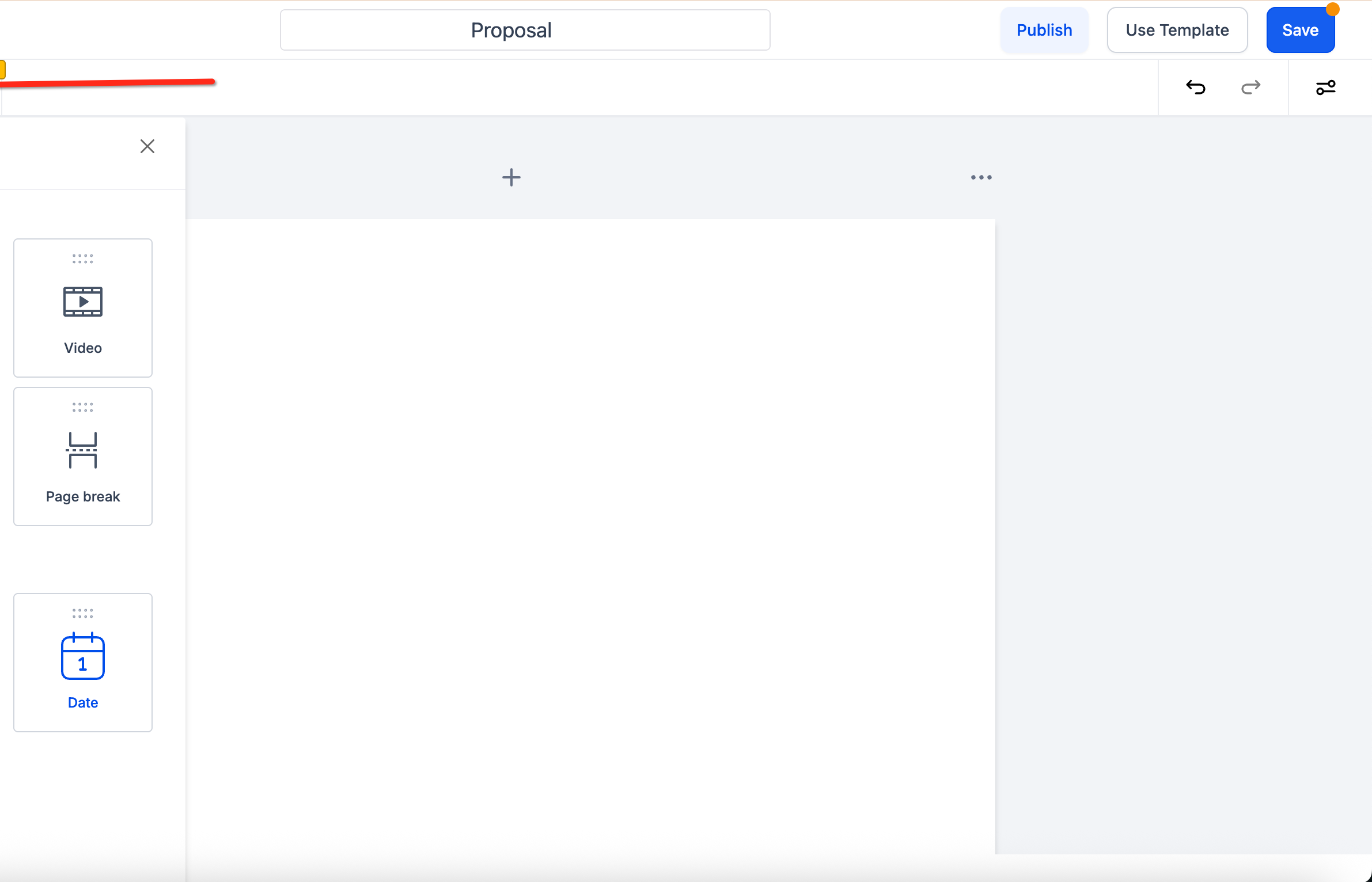
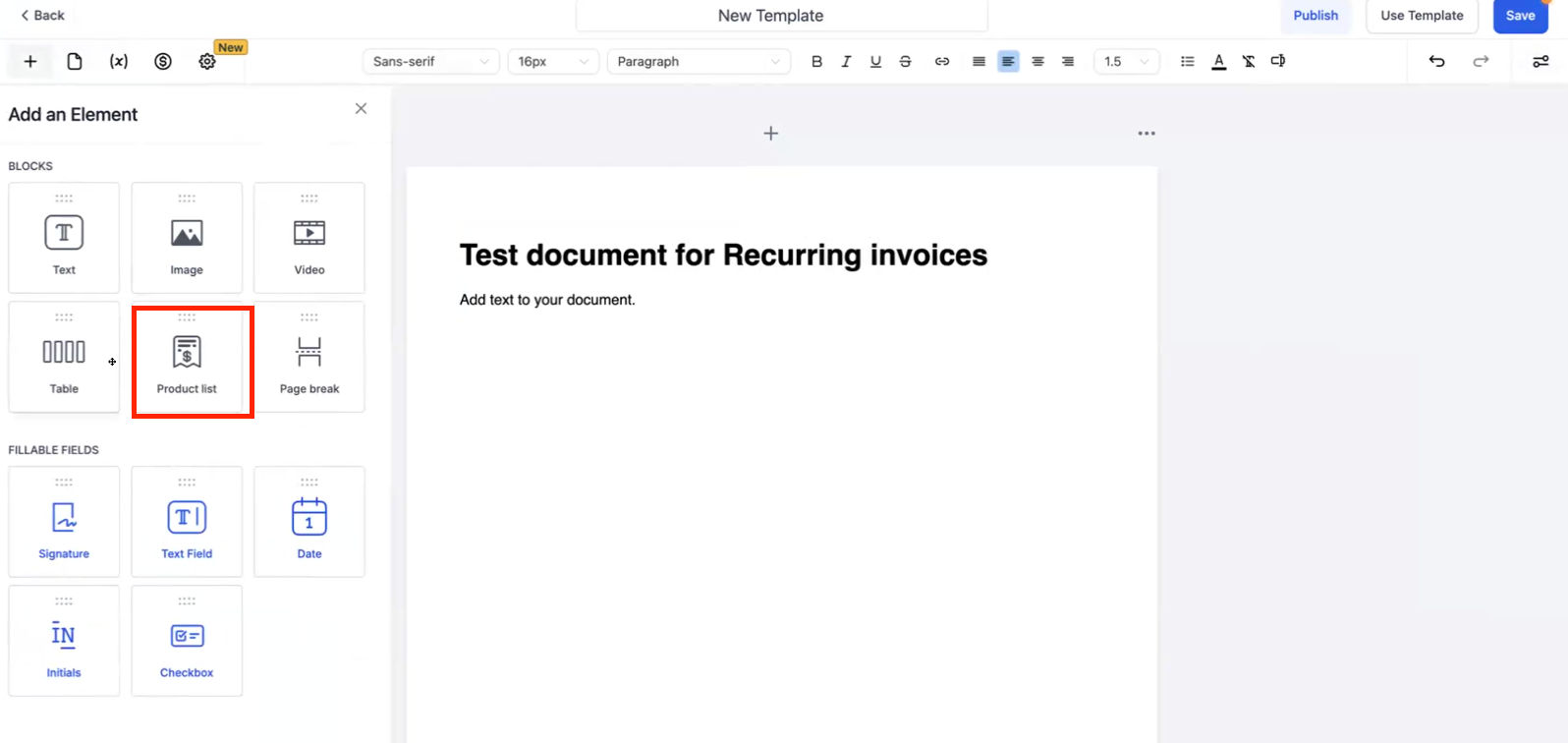
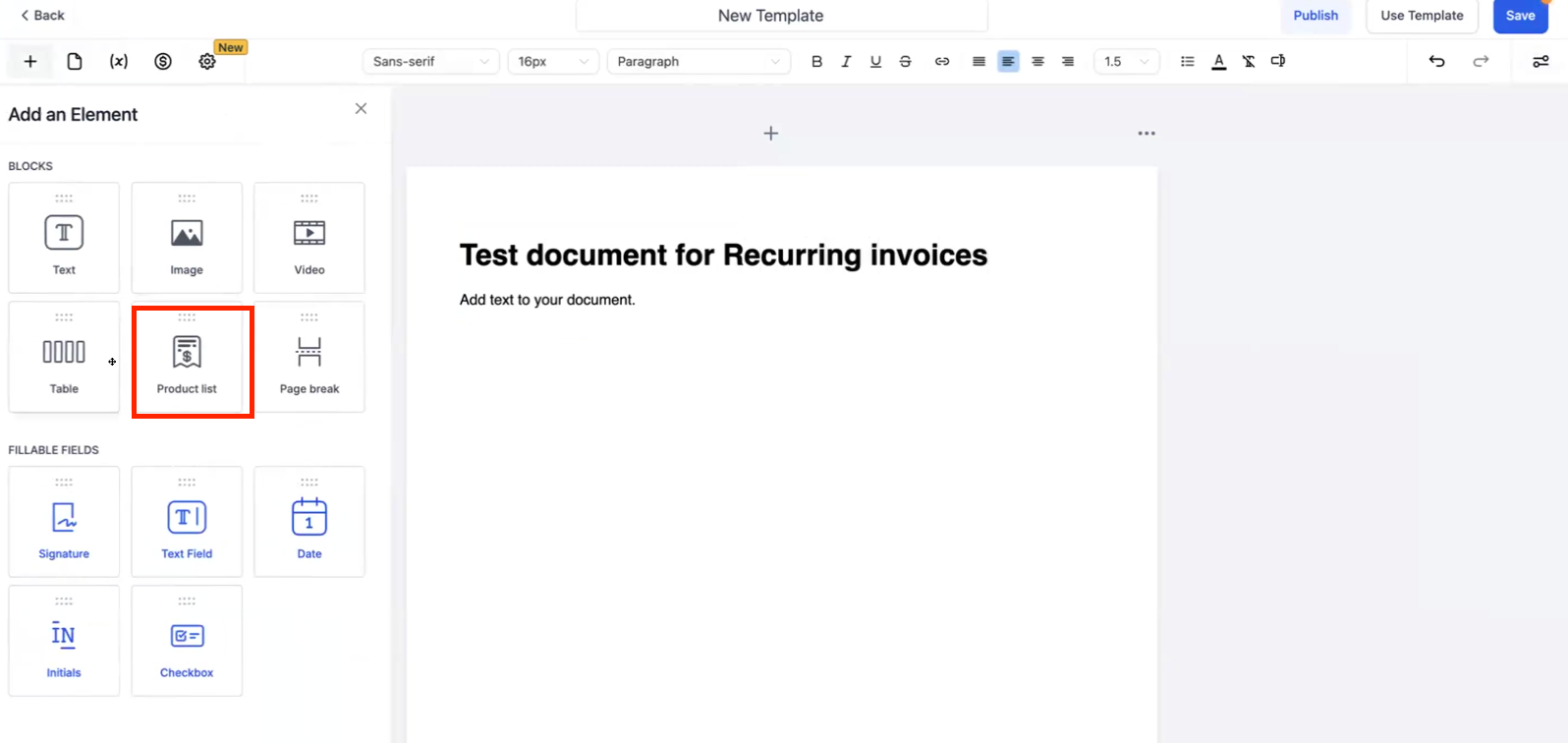
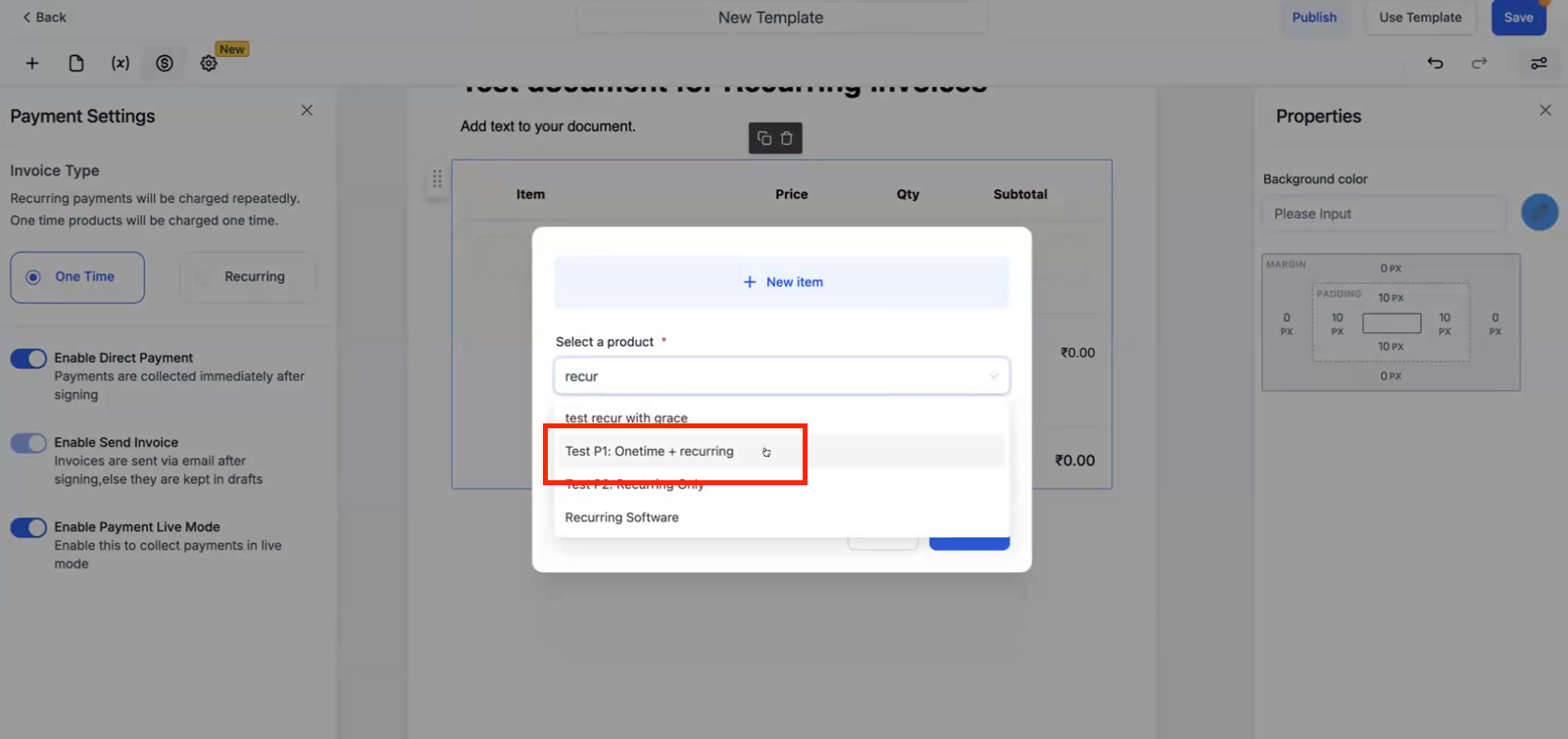
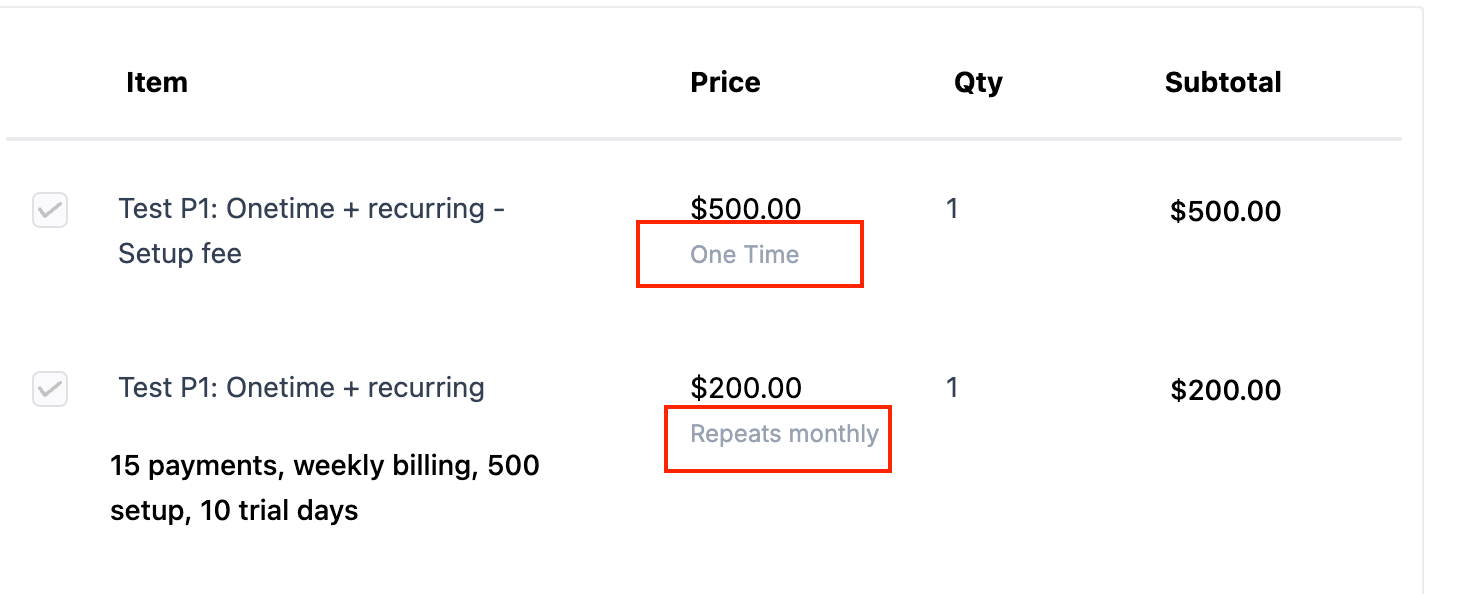
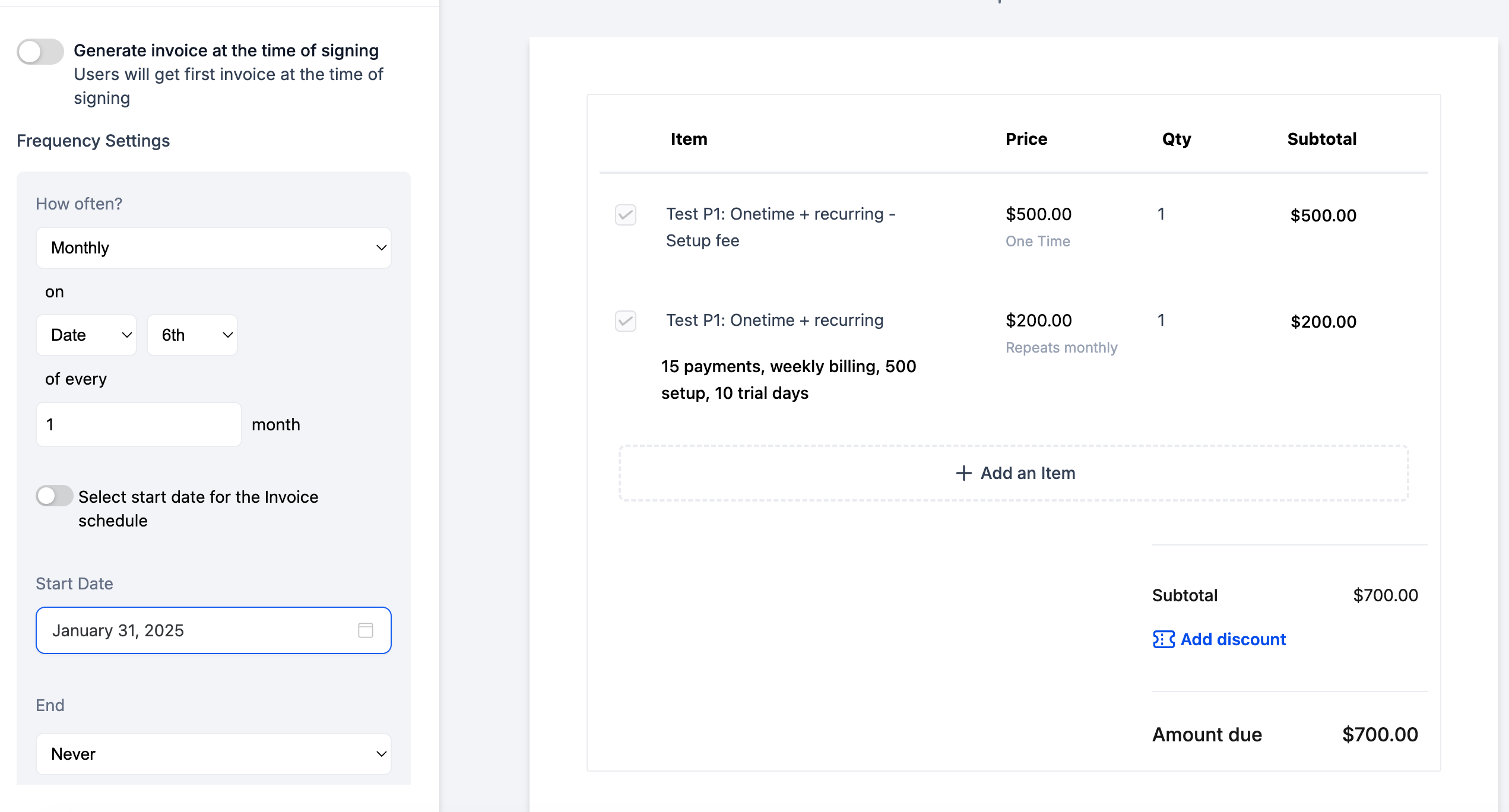
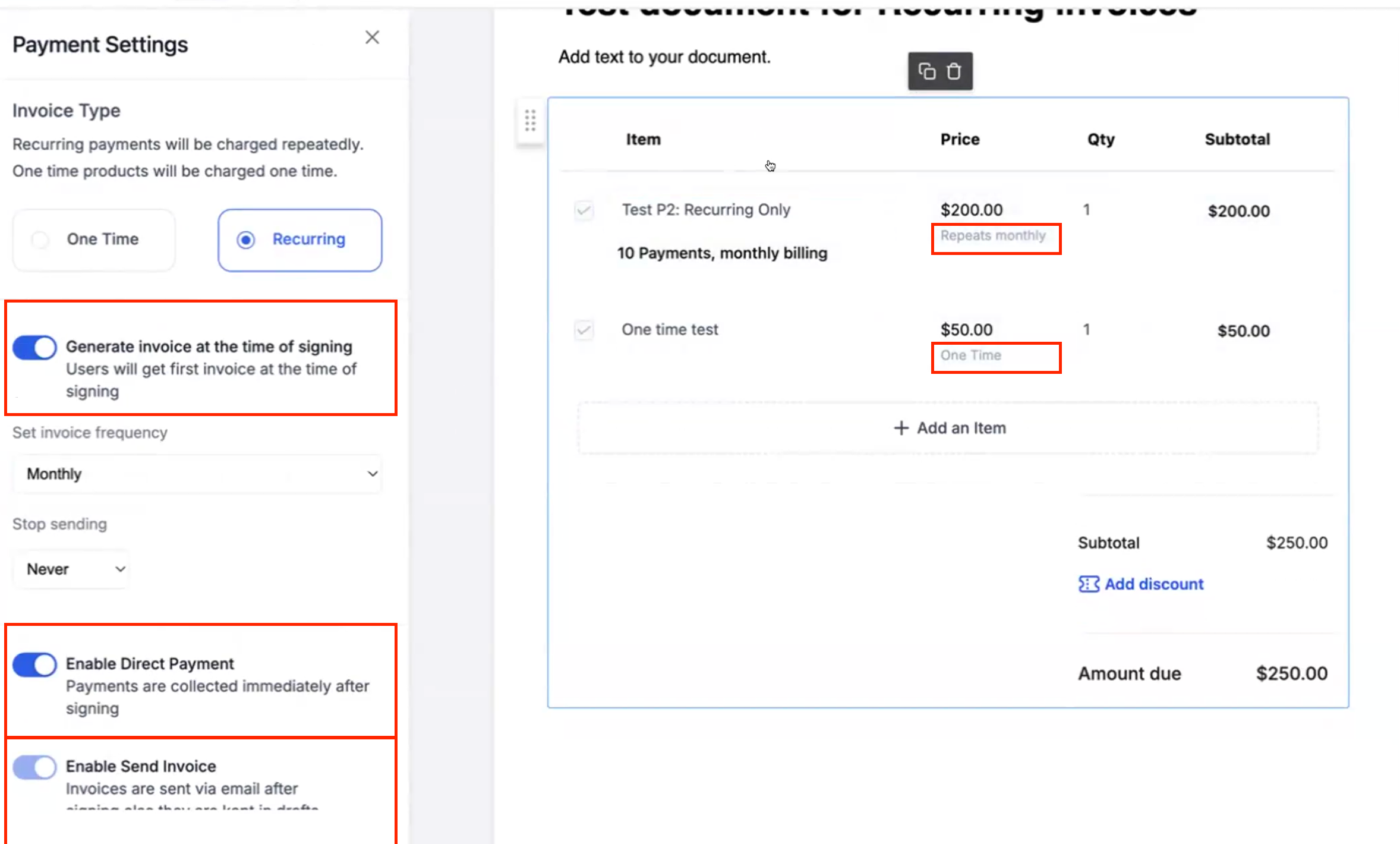
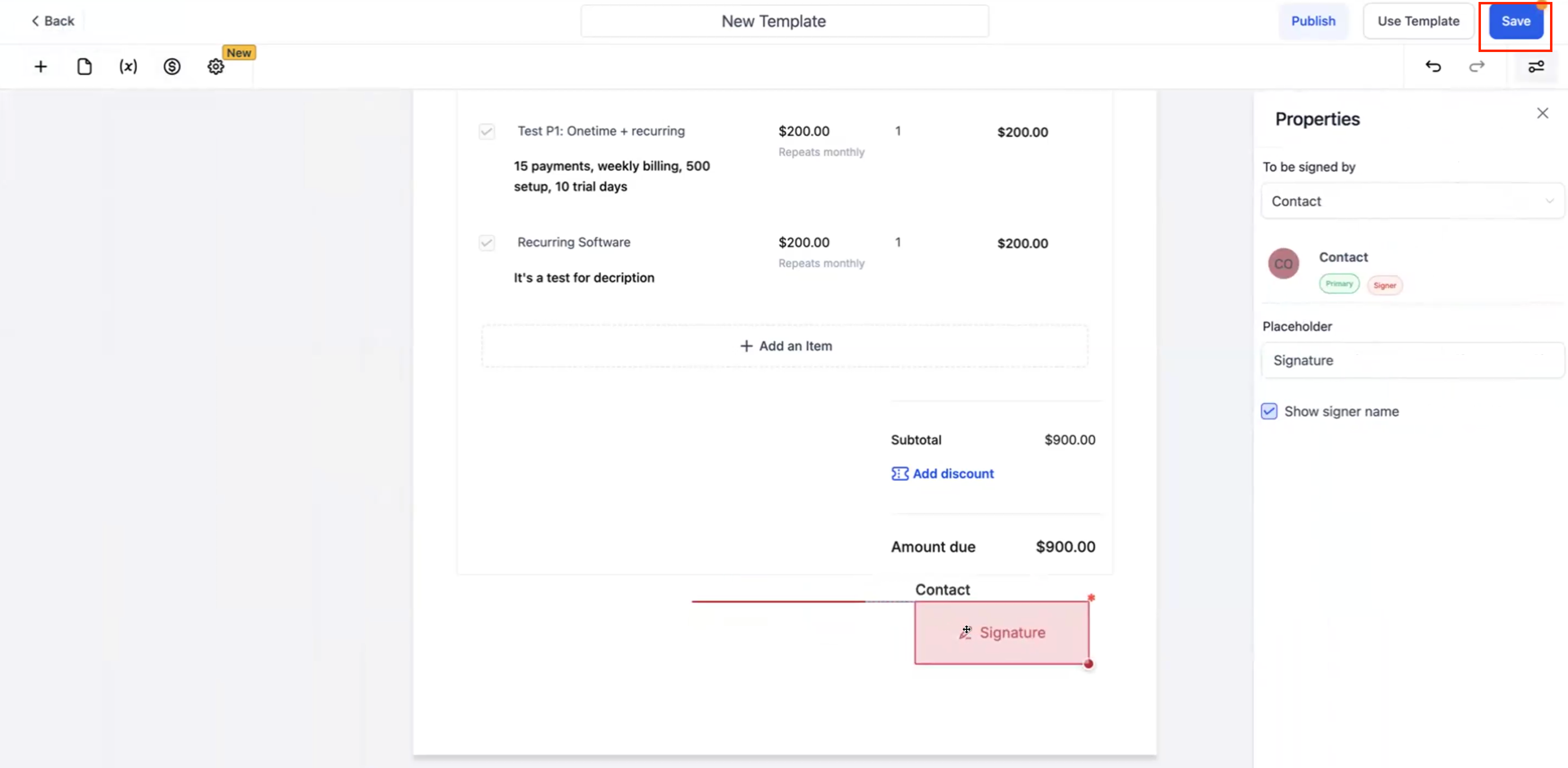
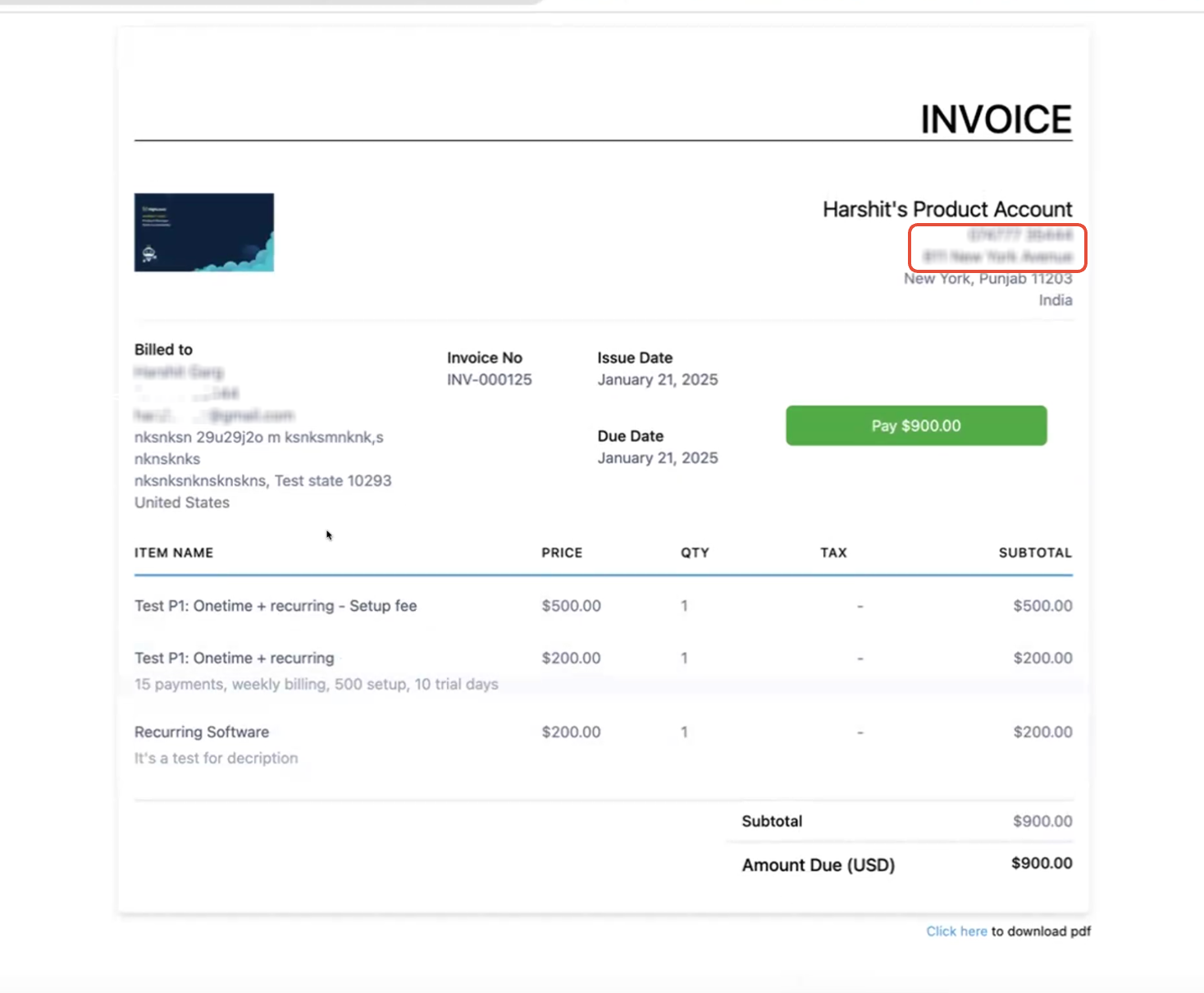
In the template editor, add a product list to your template alongside a signature field, then add a recurring product to the list. One-time products are always billed once; a recurring product with a setup fee shows as two line items, one for the recurring charge and one for the one-time fee. Only the recurring product is billed on later invoices.
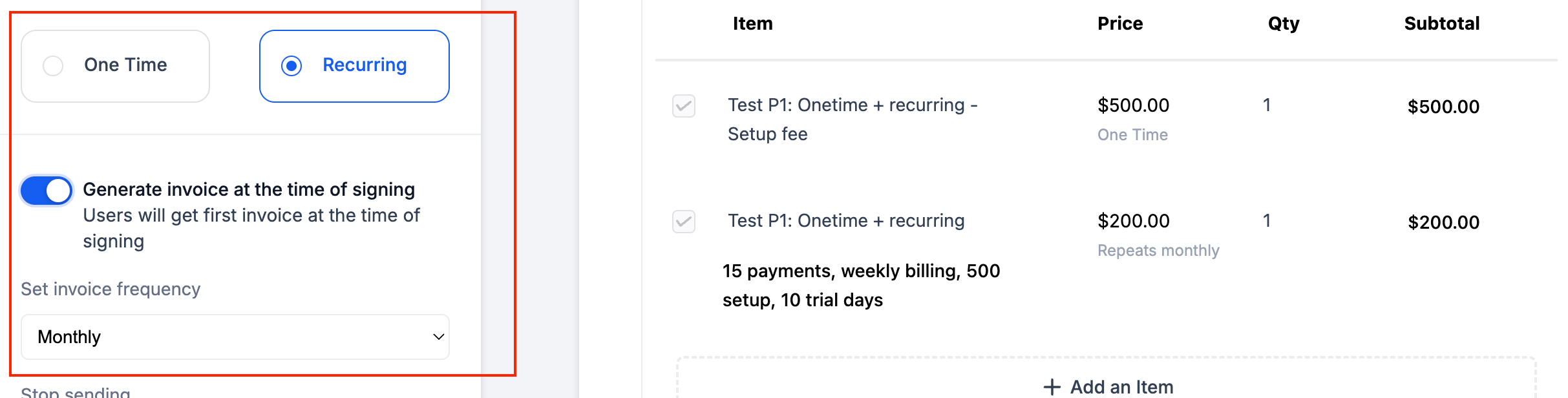
In the product list settings, configure:
Generate Invoice at Signing: turned on creates a recurring invoice schedule starting the moment the document is signed, with later invoices following your chosen frequency. Turned off lets you set a fixed date for the first invoice instead.
Enable Direct Payment: turned on redirects the signer straight to the invoice page after signing and emails them a copy as backup. Turned off saves the invoice as a draft for you to send manually.
Save the template, then build a workflow around it using the Send Documents & Contracts action described above.
Once the patient signs, they're redirected to pay the invoice (if Direct Payment is on) and receive it by email as well. Track payment status from the Documents section or the Invoices section.
Tip: Aesthetix CRM offers AX Pay, our own payment processing with rates better than Stripe, as the processor behind invoices generated from signed documents. See the AX Pay Overview and Setup Guide.
If a scheduled invoice doesn't generate, check the first payment date on the document's payment schedule. This usually happens when the first payment was set to a custom date that falls after the invoice's due date. Setting the first payment to "upon primary signature" keeps the schedule aligned so the invoice generates correctly.
Consult to consent: when an appointment for a consultation is booked, trigger a workflow that sends a treatment consent form automatically so it's signed before the visit.
Stage-based agreements: when an opportunity reaches a pipeline stage like "Ready to Enroll," send a membership or package agreement automatically instead of waiting on staff to remember.
Signed and paid in one step: attach a recurring product to a membership agreement template and turn on Generate Invoice at Signing, so the patient's first payment is collected the moment they sign, with no separate invoicing step for your team.
Internal handoff: use the Documents & Contracts trigger filtered to Status = Completed to notify your treatment coordinator the instant a financing agreement is finalized, so scheduling can begin right away.
Workflow filters based on document status are evaluated only at the moment a contact enters the workflow. If a contact enters on a trigger like "Document Sent" and a later step in that same workflow checks for "Status is Completed," that branch won't update even after the document is actually completed. Status changes outside the workflow aren't re-evaluated inside it.
If you need automation to react in real time as a document moves through its lifecycle, build a second workflow using the Documents & Contracts trigger itself, filtered to the status you care about (Viewed, Signed/Accepted, or Completed), rather than trying to check status inside the original sending workflow.
For the templates and sending steps referenced above, see the other guides in this section: Documents & Contracts Overview, Building Document Templates, Products, Pricing & Payments in Documents, Sending Documents for Signature, Document Notifications & Email Templates, and Declining Documents.
Can I edit a document after a workflow sends it? Only if the workflow's Sending Mode was set to Create as Draft. Once a document is sent directly, it's locked and can't be edited.
What happens if the patient doesn't sign? The document sits in "Waiting for Others" until it's signed. You can resend it manually or build a follow-up reminder workflow off the Documents & Contracts trigger filtered to Status = Sent.
Can a workflow send a document to more than one signer? Yes. Assign signature fields to multiple recipients on the template itself, and the workflow will send to all of them.
Can I collect payment as part of an automated send? Yes, when the template includes a product list with pricing. Enable payment collection on the product list and, where available, route it through AX Pay.
Are documents signed through an automated workflow legally binding? Yes. The e-signature process is the same whether a document is sent manually or through a workflow.
Can I preview a document before it goes out automatically? Yes. Set the Sending Mode to Create as Draft so you can review and send it manually instead of having the workflow deliver it right away.
What happens if I send via SMS but the contact has no email address? The document is created but stays in Drafts. Add an email address to the contact record before it can be delivered.
Will the Documents & Contracts trigger fire twice for one document? It can. A status change from Viewed to Signed/Accepted counts as two separate events, so if both statuses are configured as triggers, each one fires independently. Add a tag or custom field check inside the workflow if you want to avoid duplicate actions.
Can I limit a workflow to high-value contracts only? Yes, with the Value filter on the Documents & Contracts trigger. Use an operator like "greater than" to only trigger on documents above a dollar threshold.
Can I restrict a workflow to one specific document template? Yes, with the Template filter on the Documents & Contracts trigger, so you can build separate automation for, say, a membership agreement versus a financing contract.
Why didn't an invoice generate after a document was signed? This usually means a payment on the schedule has a custom date that falls after the invoice due date. Set the first payment to "upon primary signature" so the schedule lines up with the signing date.
