Not every document your practice sends gets signed. Aesthetix CRM lets a recipient formally decline a document, and lets your team mark one as declined on their behalf, so a stalled agreement never just sits there unanswered. Declines are captured with a reason, tracked in the document's history, and available to trigger automated follow-up.
Declining applies to anything sent through Documents & Contracts, including treatment consent forms, membership agreements, treatment packages and quotes, and financing agreements. Instead of a document going unsigned with no explanation, a decline gives your team a reason to work with.
When a document is declined:
Its status changes to Declined.
It moves automatically to the Archived area and can no longer be signed.
The decline reason, any notes the recipient added, who declined it, and when are all saved to the document's history.
This turns a lost signature into useful information. Instead of guessing why a patient didn't move forward, your team can see the actual reason, follow up appropriately, and spot patterns over time (price objections, scheduling conflicts, second thoughts about a treatment) that can improve how you present offers.
A patient or other recipient can decline directly from the document they received:
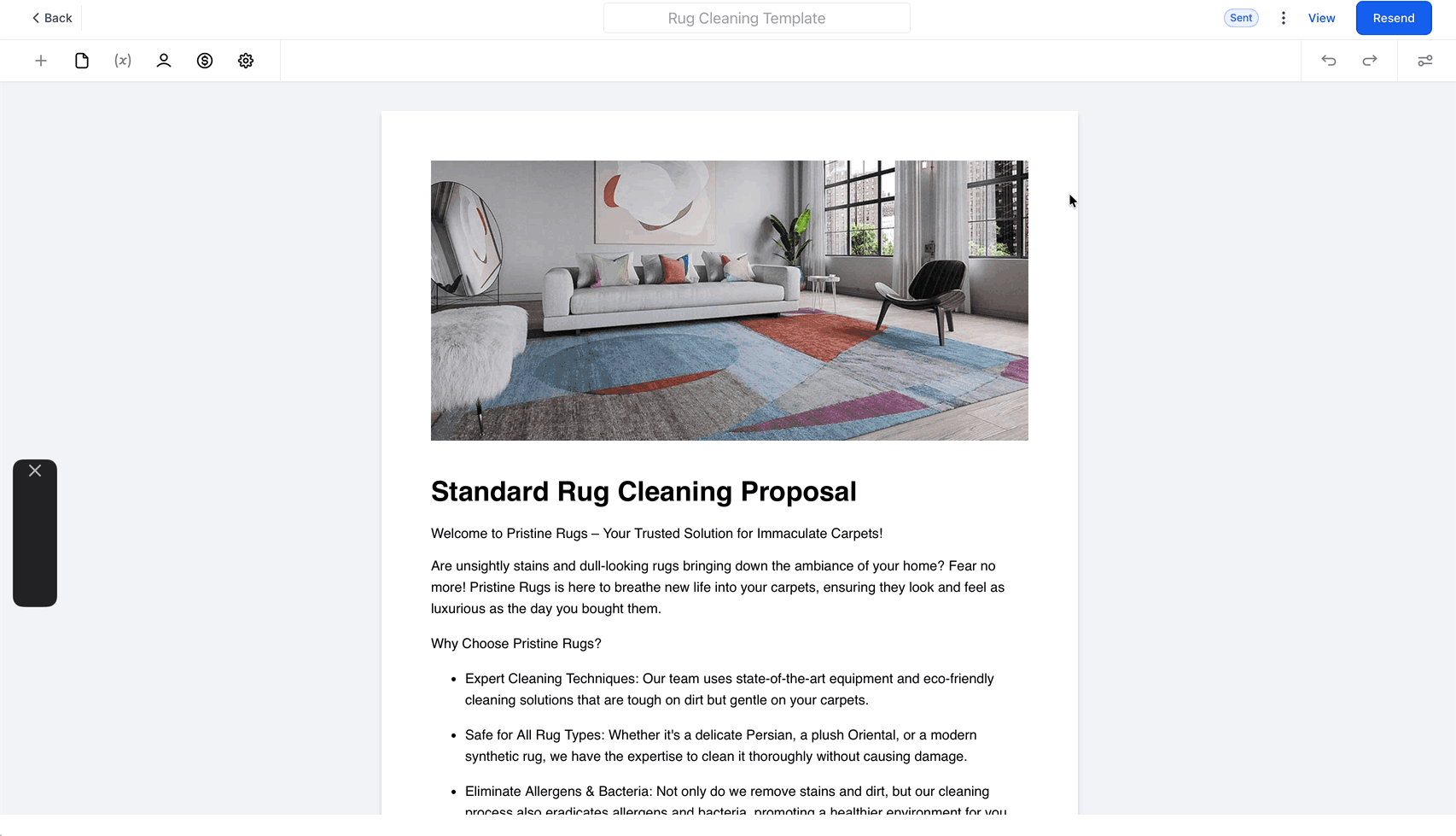
Open the document link.
Click the menu in the top-right corner of the document.
Select Decline Document.
Choose one or more decline reasons, if reasons are available on the document.
Add optional notes explaining the decision.
Click Submit.
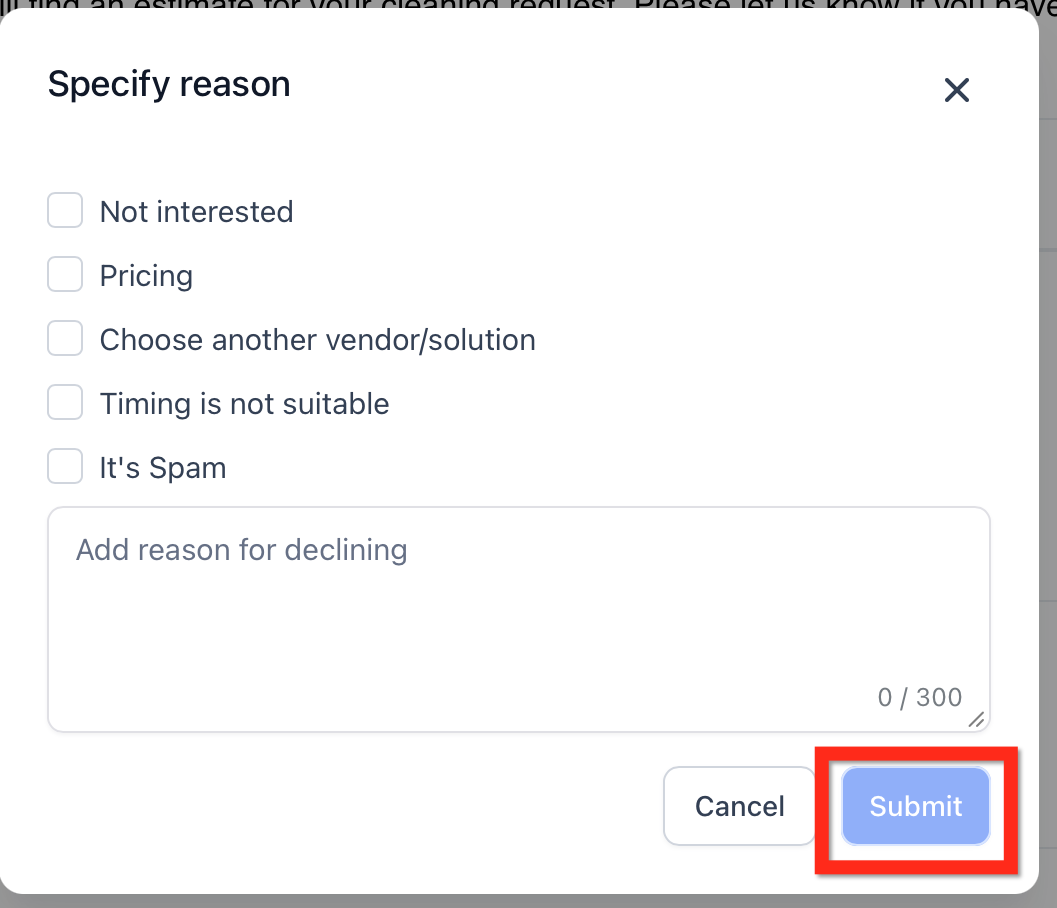
Once submitted, the document is marked Declined and moved to Archived immediately. The recipient can't go back and sign it after declining.
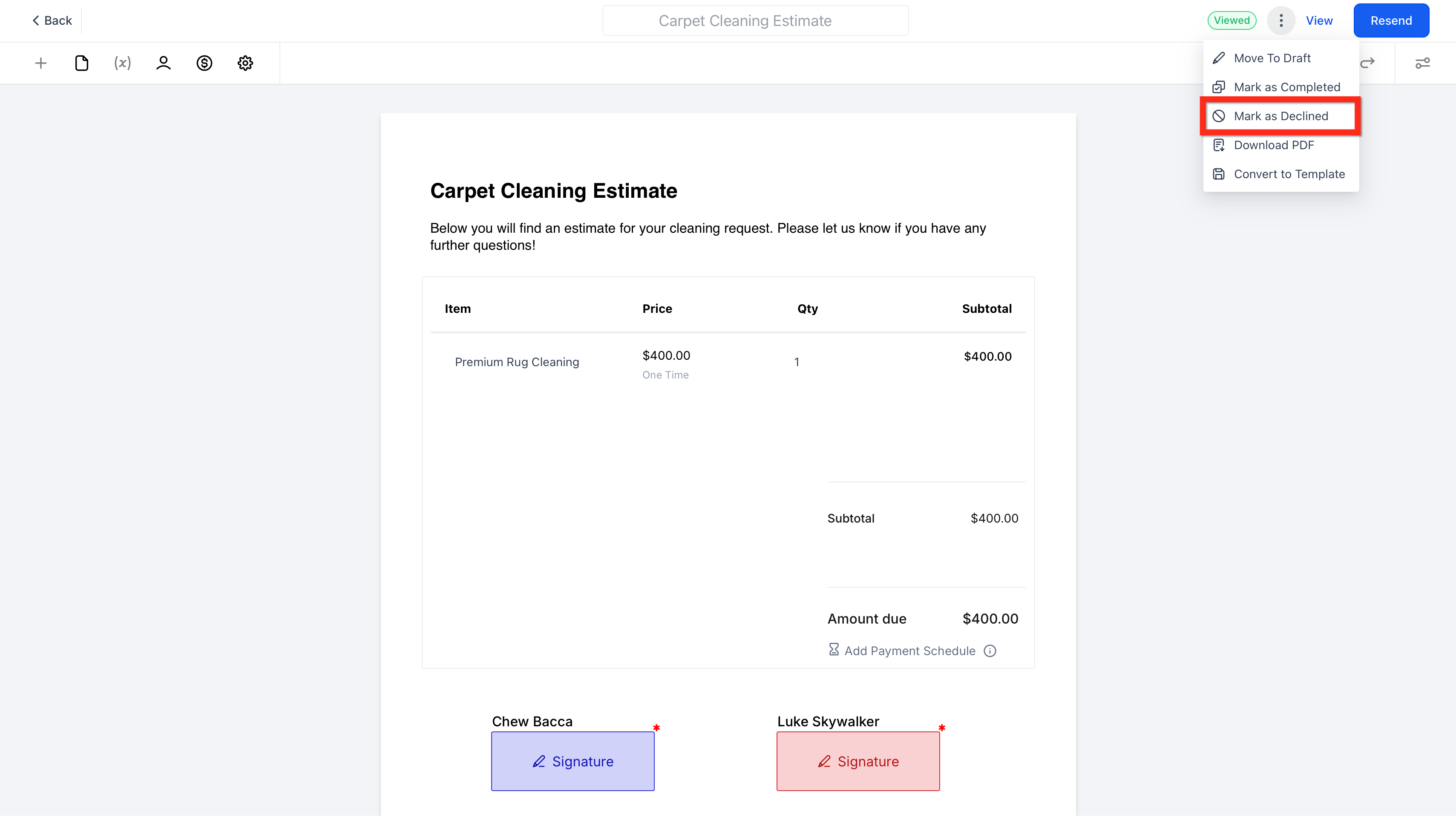
Sometimes a patient tells you by phone, in person, or by email that they aren't moving forward, rather than declining through the document itself. Your team can record that outcome directly so the document status stays accurate:
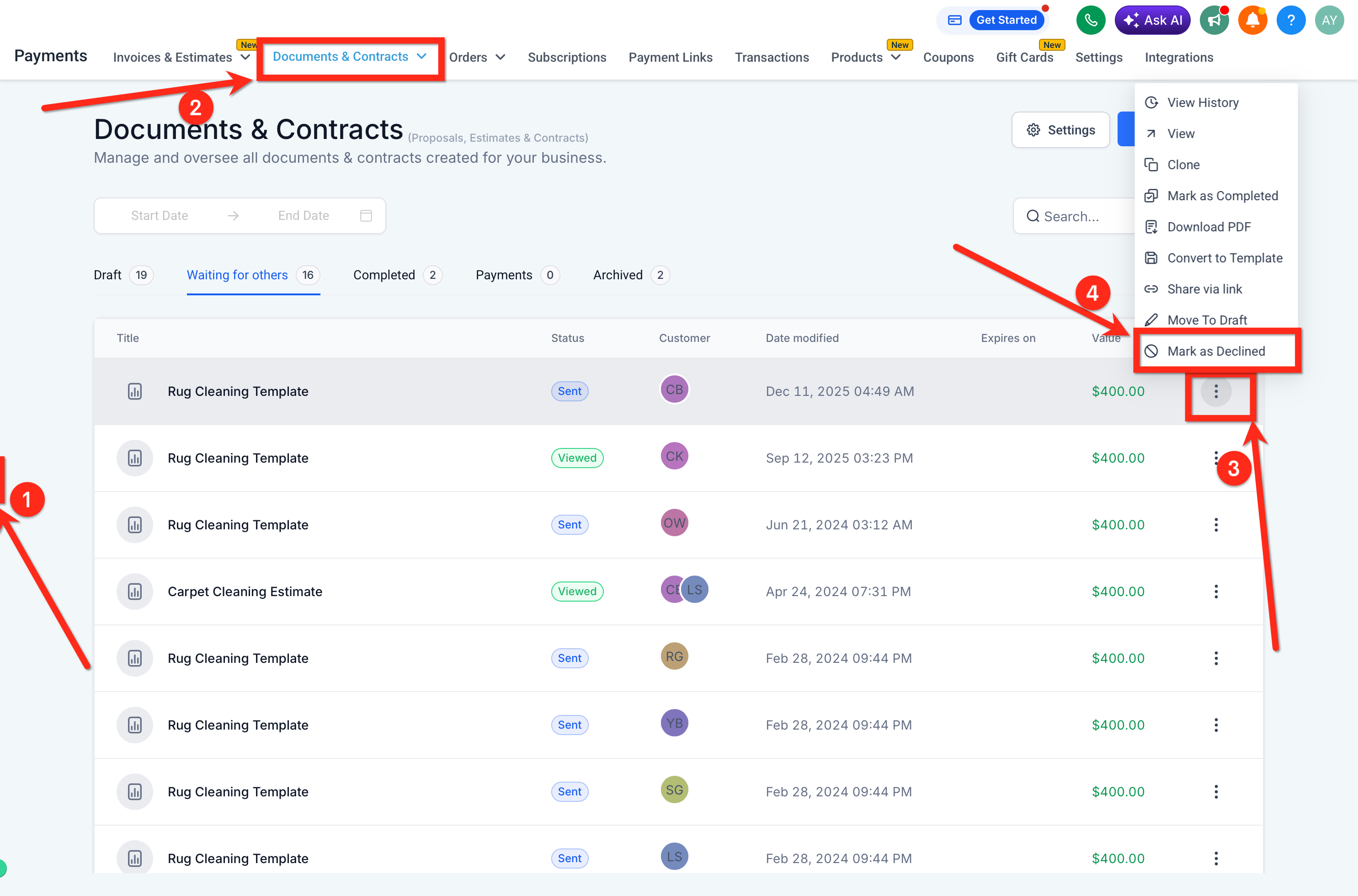
Go to Documents & Contracts.
Find the document under the documents waiting on a signature.
Click the three-dot menu on the document.
Select Mark as Declined.
Add a reason or note for the record.
From there, the document follows the same lifecycle as a recipient-initiated decline: status updates to Declined, it moves to Archived, and the details are saved to its history.
A quick note on notes: decline reasons and notes are free text, so a patient or team member may reference medical or personal details when explaining a decline. Keep that in mind before pulling those notes into emails or sharing them outside the people who need to see them.
Because a decline changes the document's status, you can build a workflow that reacts to it automatically, such as notifying a team member, creating a follow-up task, or starting a re-engagement nurture:
Go to Workflows and create a new workflow.
Add a trigger and choose Documents & Contracts.
Set the Status filter to Declined.
Add the actions you want, such as an internal notification, a task, a pipeline update, or an email or SMS to the patient.
This is a light overview. For the full breakdown of the Documents & Contracts trigger and its filters, along with more automation recipes, see the guide on Automating Documents with Workflows.
You can pull the decline reason and notes directly into an email so a follow-up message references the actual reason a patient gave, rather than a generic "just checking in."
In the Email Builder, open or create a template, click Custom Values, and look under Documents & Contracts for:
Document Decline Reasons: inserts the reason (or reasons) the recipient selected.
Document Decline Reasons Body: inserts any notes the recipient typed in.
Add either value to a decline follow-up email, an internal notification email, or any other message where the context of the decline is useful. For more on building and sending these notifications, see Document Notifications & Email Templates.
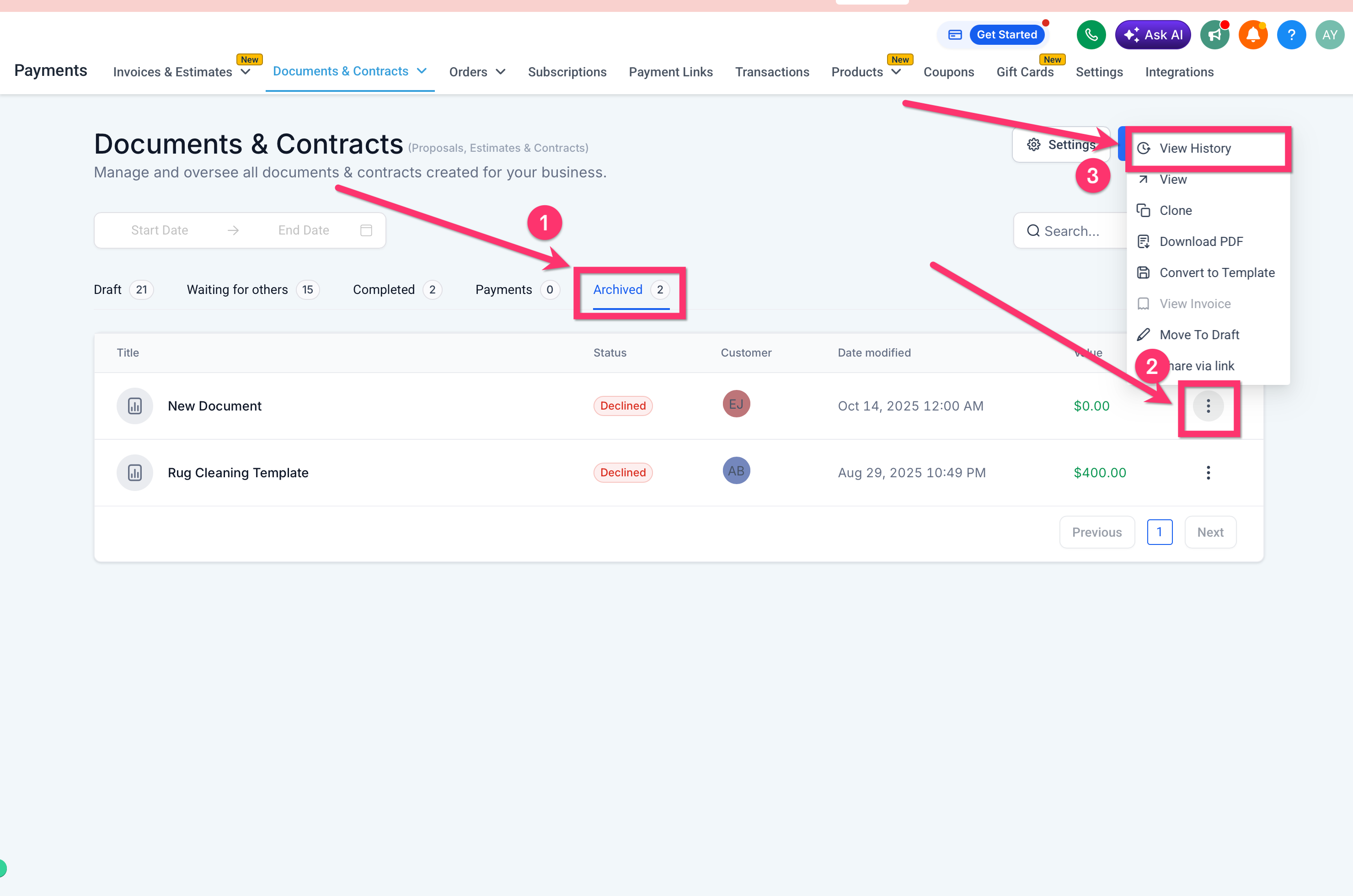
Declined documents don't disappear. You can review them, and the full decline record, at any time:
Go to Documents & Contracts.
Open Archived to find declined documents.
Select the document you want to review.
Open View History.
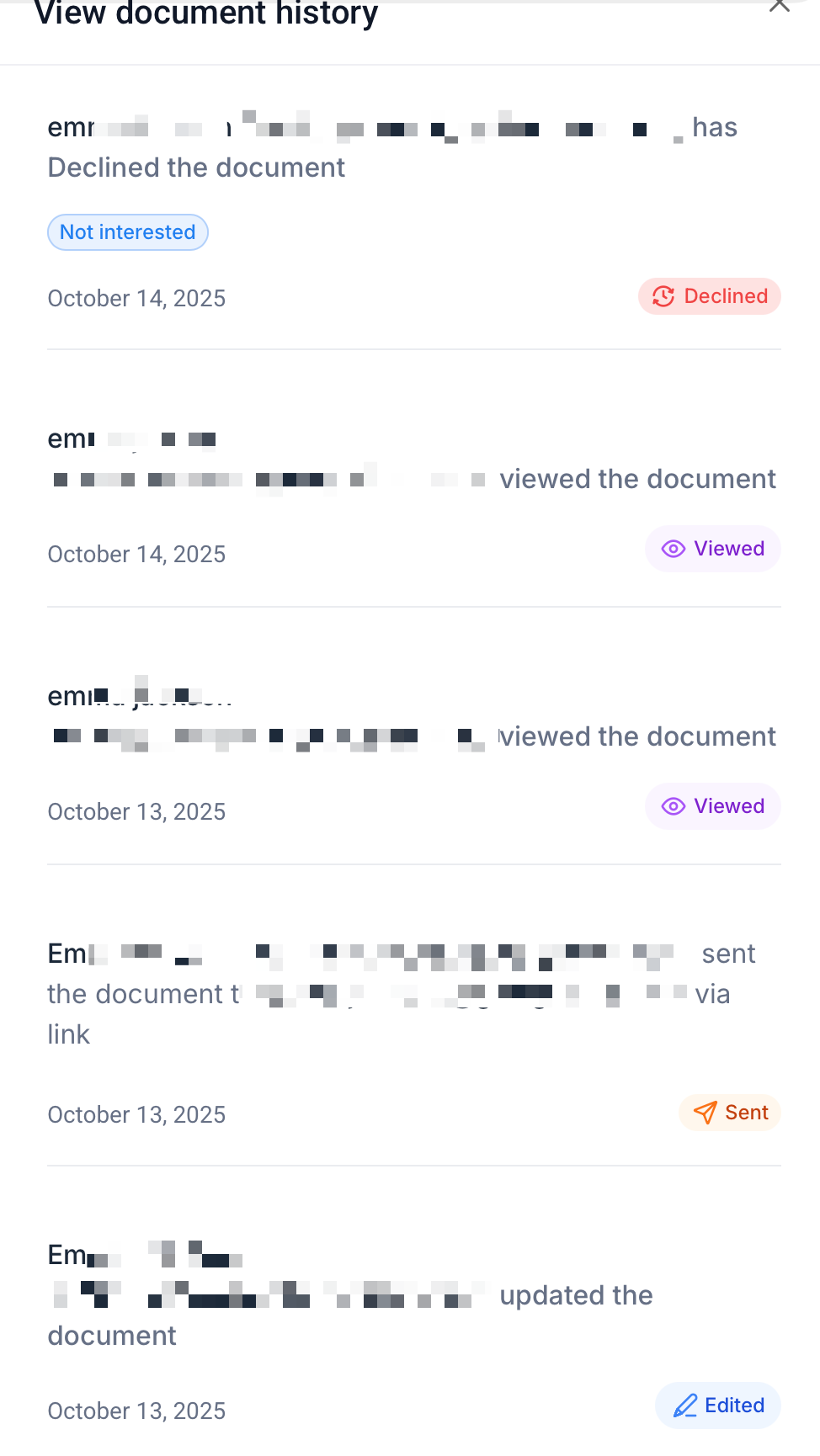
The history shows who declined the document, the date and time, the reasons selected, and any notes that were submitted, whether the decline came from the recipient or from a team member marking it declined.
What happens when a patient declines a document? The document's status changes to Declined, it moves to Archived, and it can no longer be signed. The decline reason and any notes are saved to the document's history.
Can my team mark a document as declined if the patient tells us by phone instead of through the document? Yes. Open the document in Documents & Contracts, use the three-dot menu, and select Mark as Declined.
Where do I find declined documents later? Go to Documents & Contracts and open Archived.
Can I automate what happens after a decline? Yes. Build a workflow with a Documents & Contracts trigger and set the Status filter to Declined, then add whatever actions you need, such as a task, a notification, or a follow-up message.
Can I reference the decline reason in a follow-up email? Yes. Use the Document Decline Reasons and Document Decline Reasons Body custom values in the Email Builder.
Does declining a document delete it? No. It's archived, not deleted, and the full history stays attached to it.
Can a declined document be reopened for signature? No. Once a document is declined, it can no longer be signed. If the patient changes their mind, send a new document.
Who can see the decline reason and notes? Anyone on your team with access to the document in Documents & Contracts can see its history, and anyone included on an automated email or notification that pulls in the decline custom values.
