Documents & Contracts lets you attach products, pricing, and payment collection directly to a document or contract. Instead of sending a consent form or treatment agreement and then following up separately for payment, you can build the pricing into the document itself so signing and billing happen in one flow.
This article covers adding one-time and recurring products to a document, letting patients choose optional items, collecting card details during signing, and automatically generating invoices once a document is signed.
From the document builder, you can:
Add a Product List with one-time products, recurring products, or a mix of both
Mark individual products as optional so the patient chooses what they want before signing
Allow the patient to edit the quantity on selectable items
Add a Card Details field so the patient's card is securely saved on file during signing
Turn on Direct Payment so the patient is redirected to pay immediately after signing
Automatically generate and send an invoice based on what the patient selected
You'll find all of this under Payments → Documents & Contracts, in both one-off documents and reusable templates.
Go to Payments → Documents & Contracts.
Open an existing document, create a new one, or open Documents & Contracts → Templates to build a reusable template.
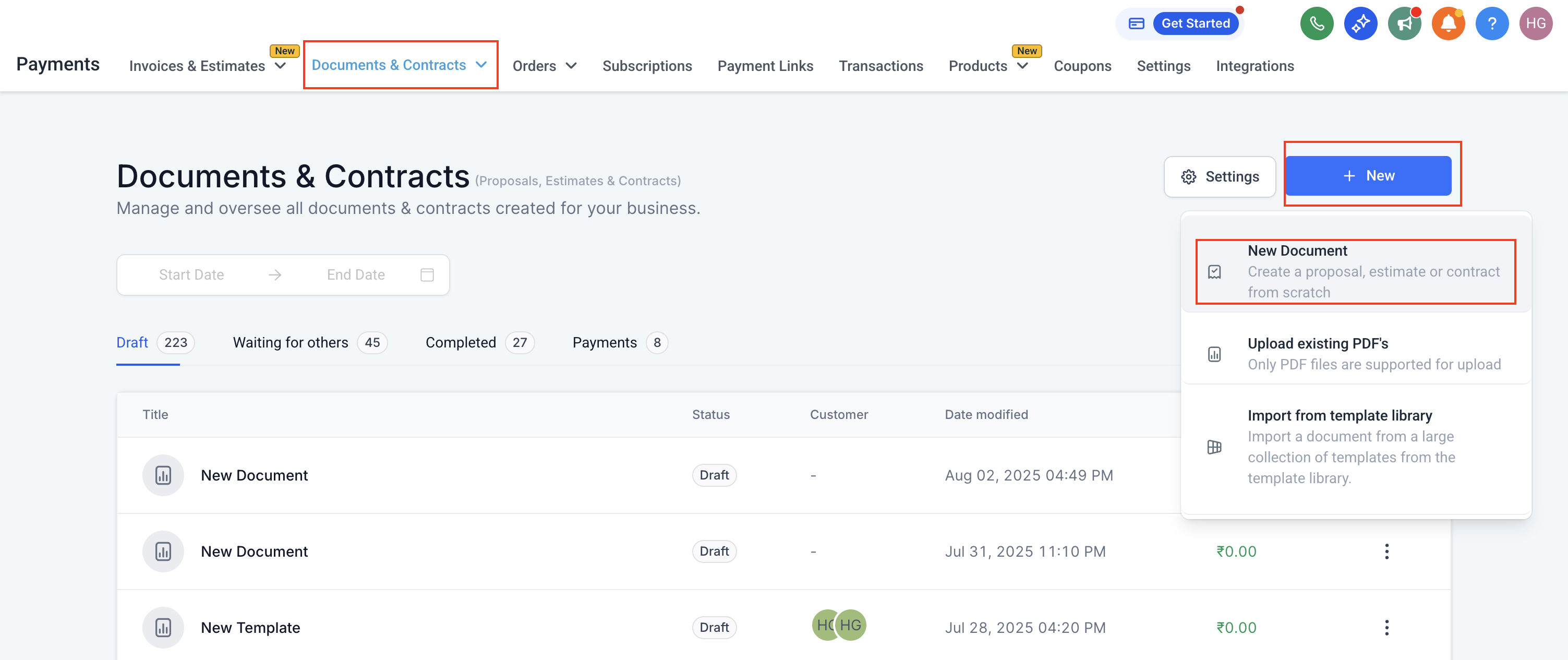
In the document editor, add a Product List.
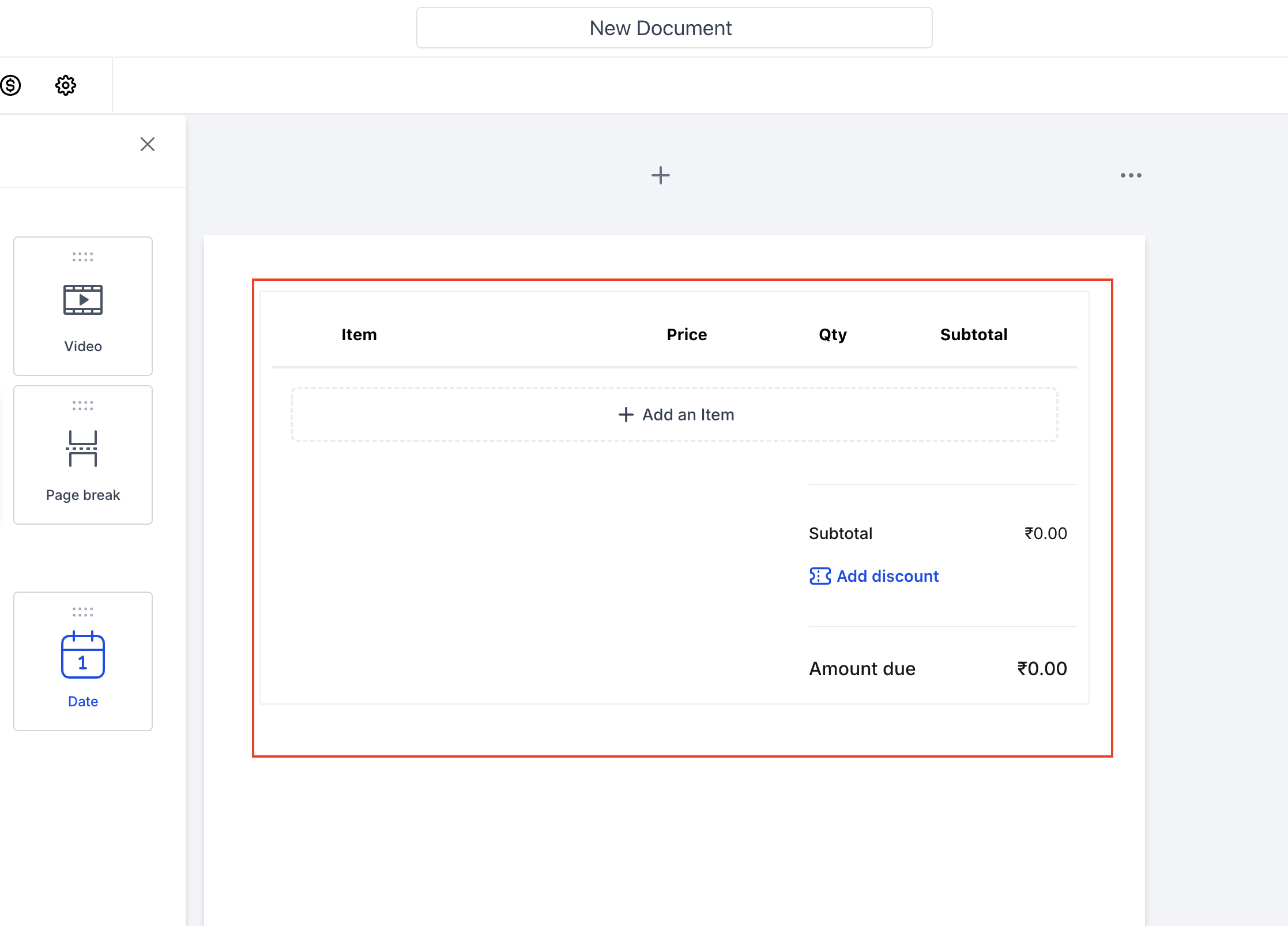
Click Add an Item and select the product you want to include. See Create and Manage Products if you haven't set up your product catalog yet.
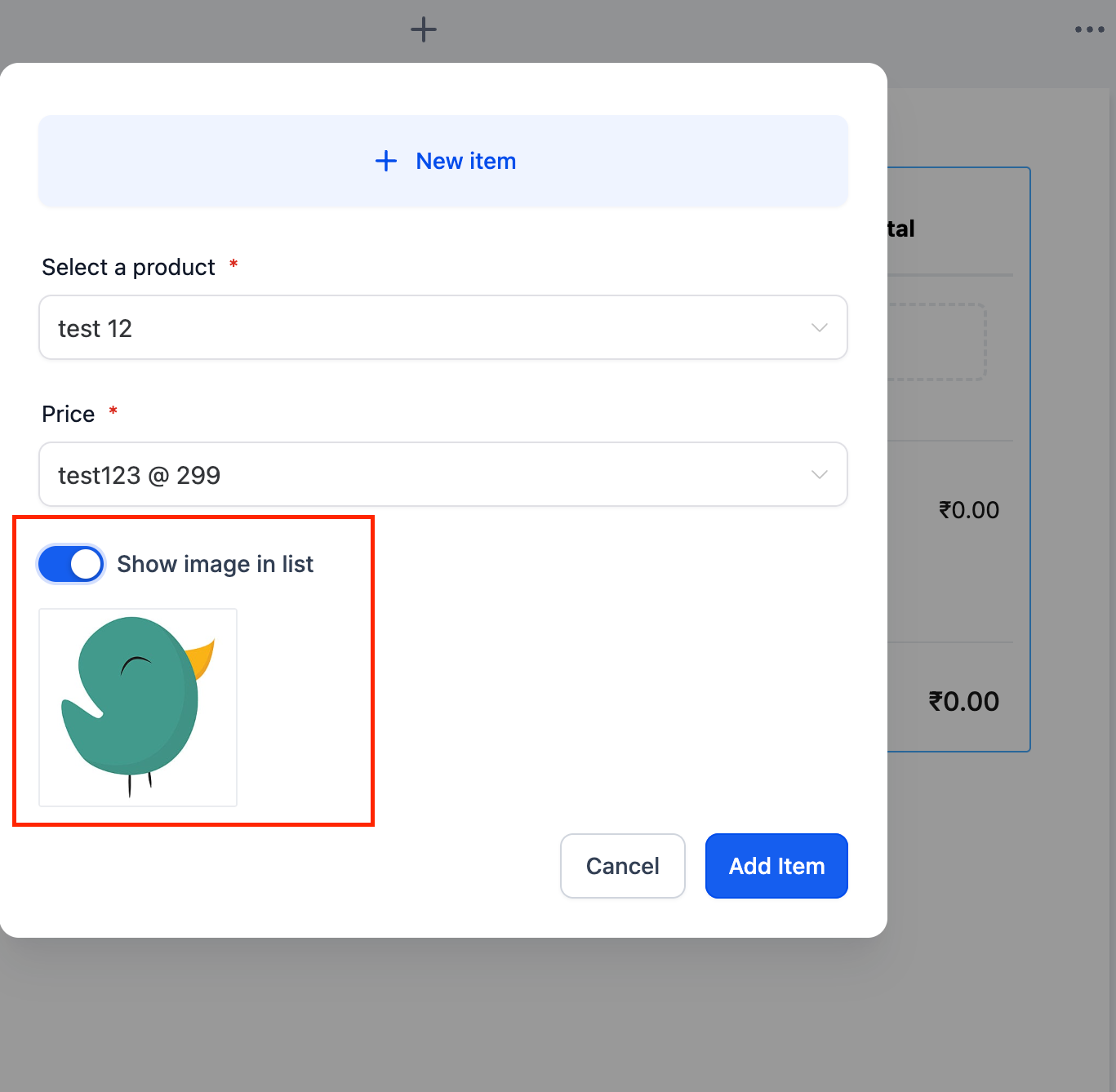
If the product has multiple prices, select the correct one. The platform automatically detects whether the price you chose is one-time or recurring.
Add any additional one-time or recurring products the agreement needs. If a recurring product has a setup fee, that fee appears as its own one-time line item rather than being folded into the recurring charge.
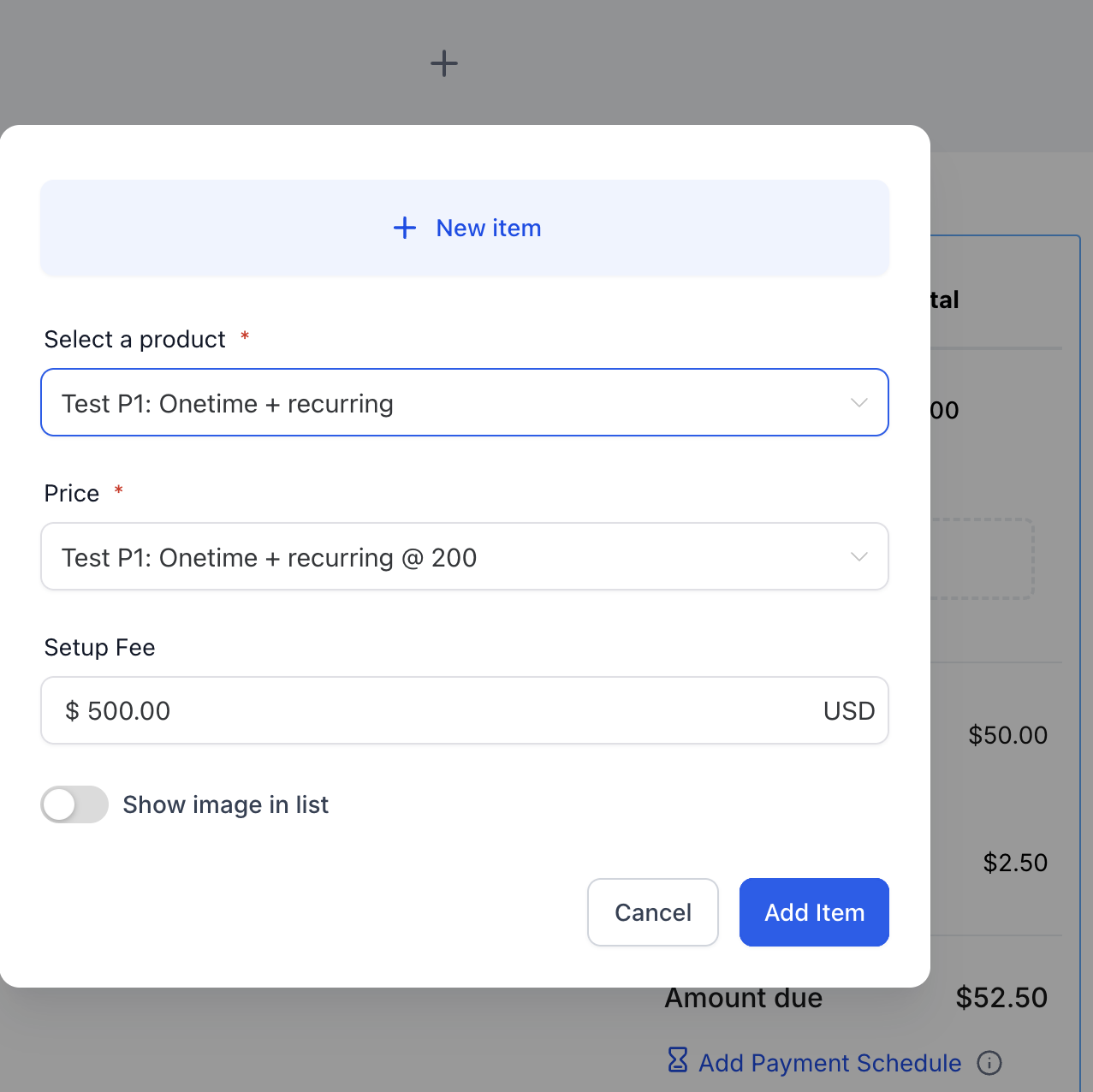
Configure each product's properties as needed: adjust pricing, toggle it as an Optional Item, allow the patient to edit quantity, and set applicable taxes.
For recurring products, set the invoice frequency (daily, weekly, monthly, or yearly), when the recurring schedule should start (at signing or on a later date), and an optional end condition (for example, ending after a set number of occurrences) if the billing shouldn't continue indefinitely.
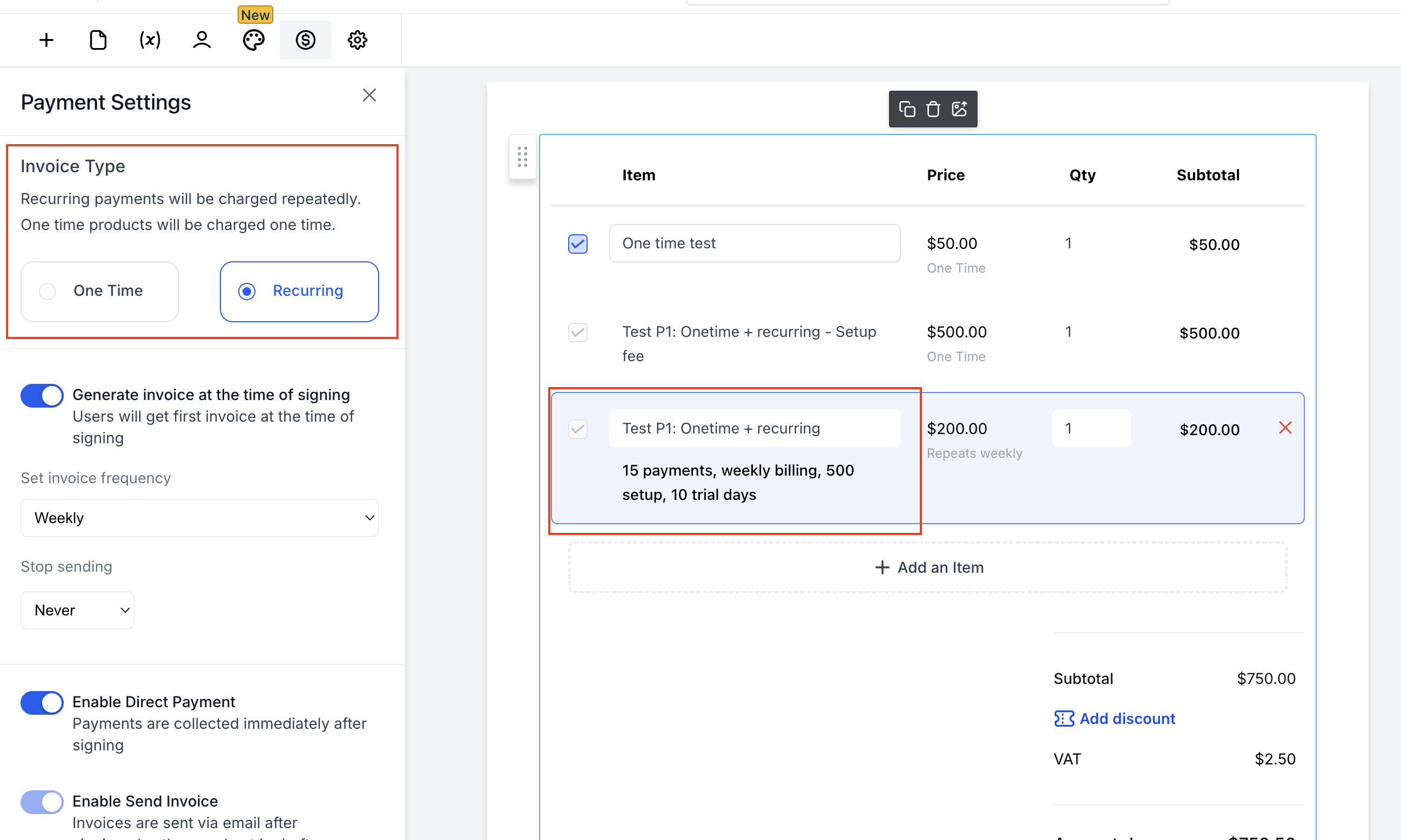
Review the product list to confirm each item has the correct price type, optional-item setting, quantity, taxes, and (for recurring items) schedule before sending.
A single document can combine one-time and recurring products. For example, a membership agreement might include a monthly treatment package as a recurring product alongside a one-time enrollment fee.
One-time and recurring behavior: A document can only carry one recurring frequency at a time. If the patient's final selection includes only one-time products, the platform generates a one-time invoice, even if an unselected recurring product was listed. If the selection includes a recurring product, the platform generates the matching recurring invoice schedule. If it includes both, the one-time items bill once and the recurring item continues on its schedule.
If you want a patient to choose between products rather than being locked into everything on the list, mark the relevant items as optional:
Toggle Optional Item on any product the patient should be able to select or deselect.
Toggle Edit Quantity on any product where the patient should control how many units they're purchasing, and set minimum and maximum limits if needed.
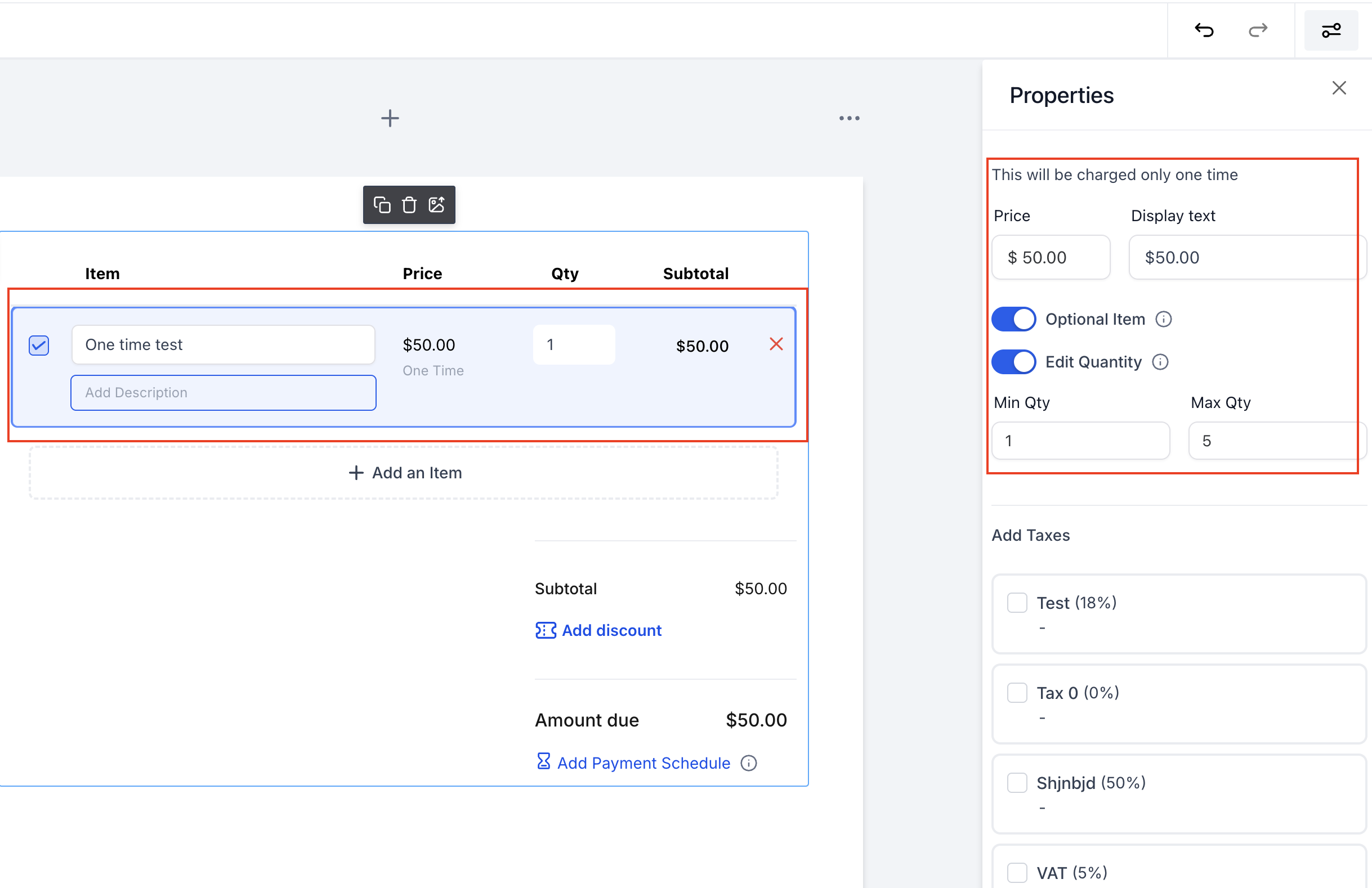
The product list is assigned to the primary signer by default, and the total amount shown updates in real time based only on the items currently selected. This is useful for treatment quotes where a patient might choose an add-on service, a package upgrade, or a different number of sessions before signing.
The Card Details field lets a patient securely save a card on file while they complete a document, without necessarily being charged right away. This is useful when you want to capture payment authorization upfront (for example, on a treatment consent or financing agreement) and use the card for a later invoice, subscription, or auto-pay workflow.
AX Pay note: Card Details requires a connected payment provider on your account. If you haven't set up payment processing yet, see AX Pay Overview and Setup Guide. AX Pay offers better processing rates than Stripe and is the recommended way to collect and save patient cards through Aesthetix CRM.
To add the field:
Go to Payments → Documents & Contracts and open a document or template.
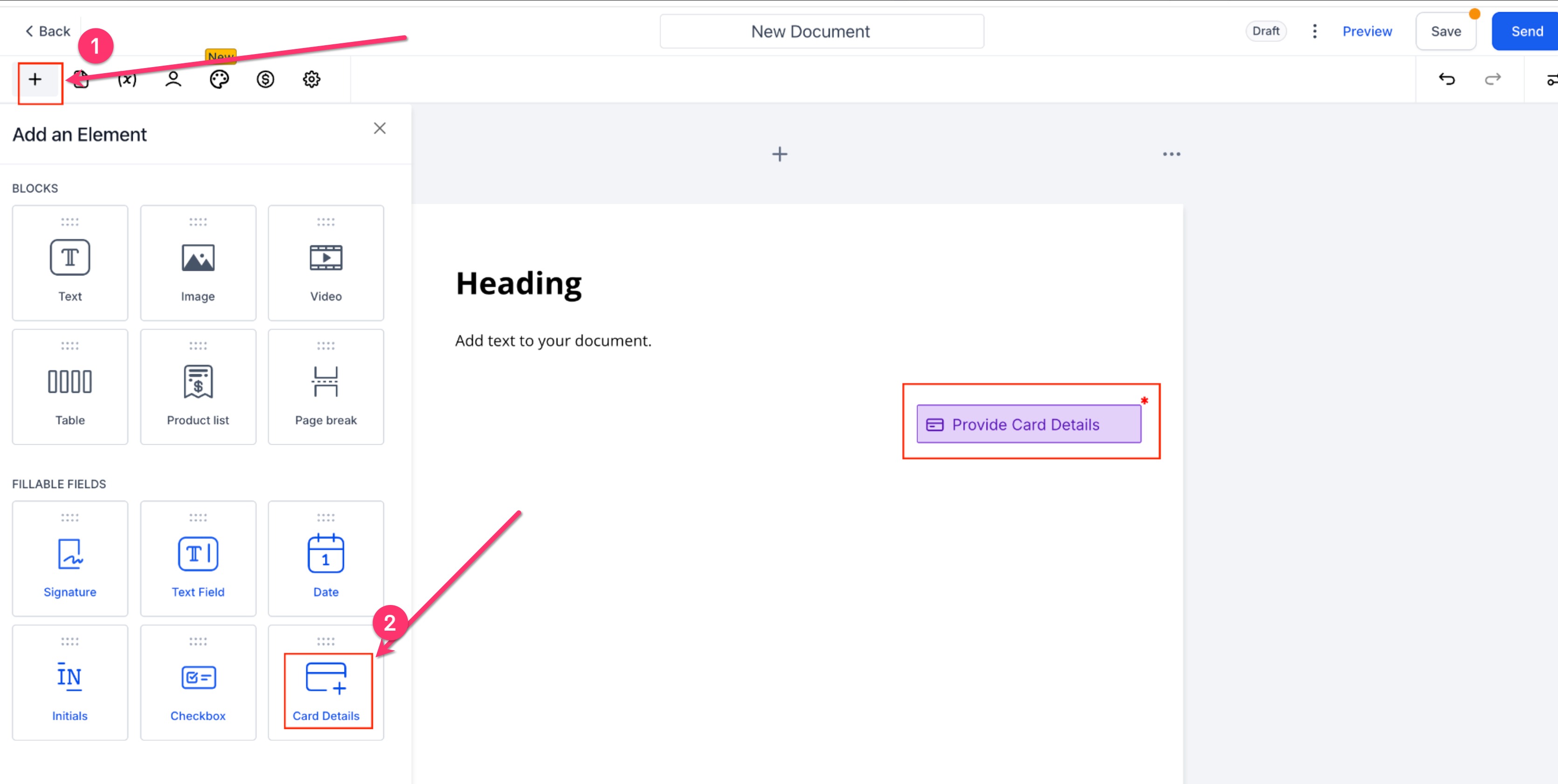
Click + Add Element, then under Fillable Fields, drag Card Details into the document.
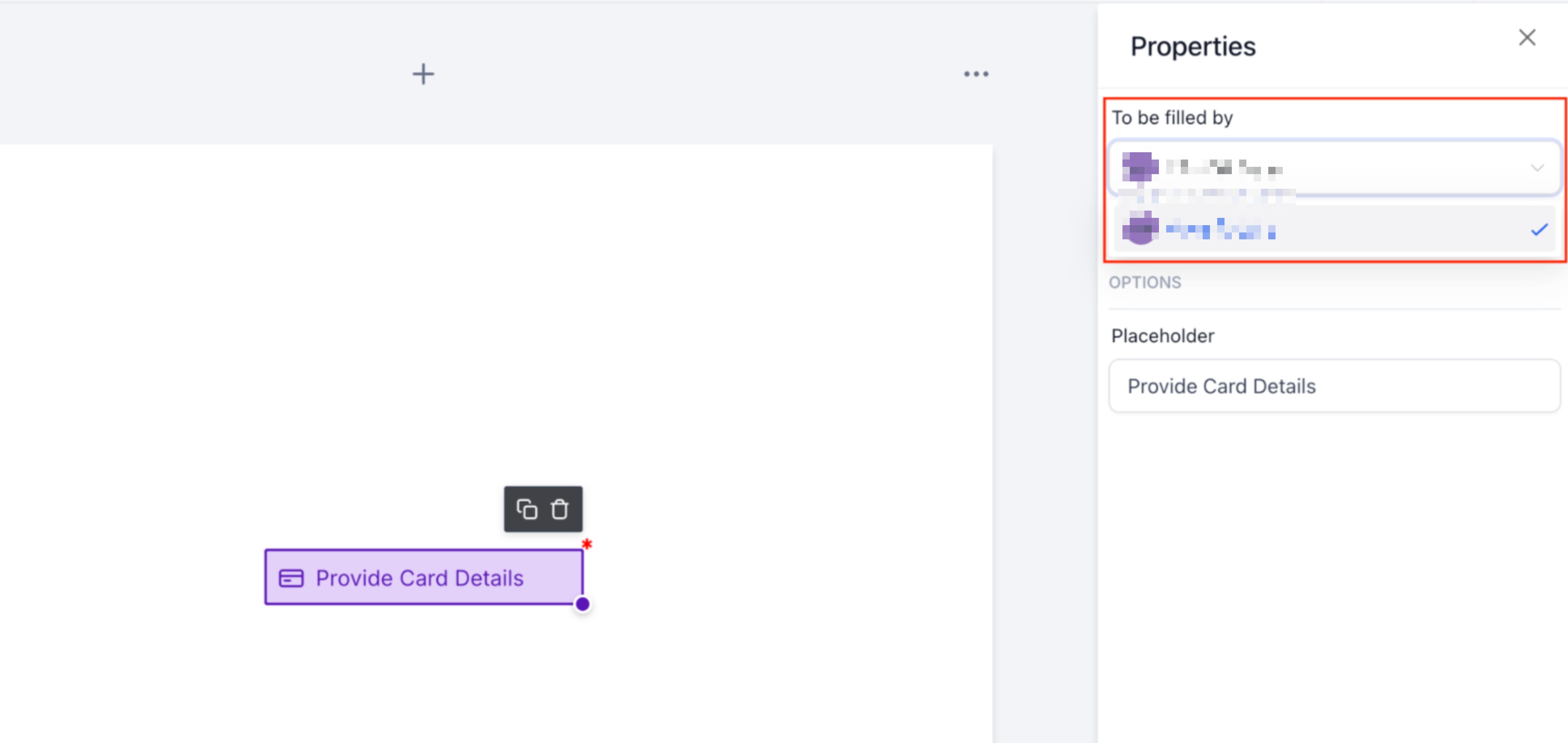
Click the field to open its Properties panel.
Under To be filled by, assign the field to the correct signer.
Enable Required if the signer must add a card before they can finish the document.
Update the Placeholder text if you want the field labeled differently than the default.
Confirm a payment provider is connected. If you see a Payment Provider Required warning, click Connect to link one, or click Sync Changes after updating your existing provider settings.
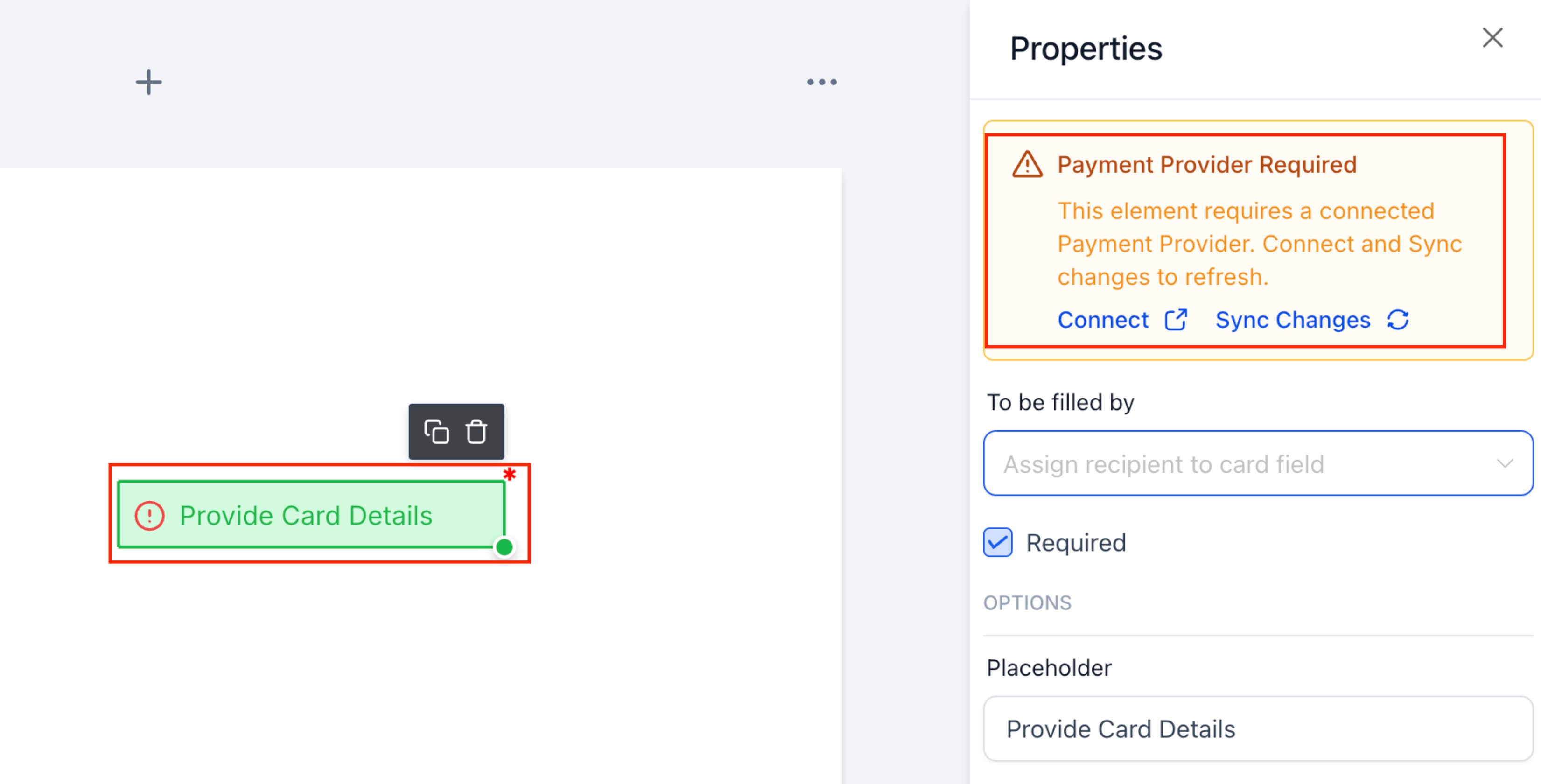
Save and send the document.
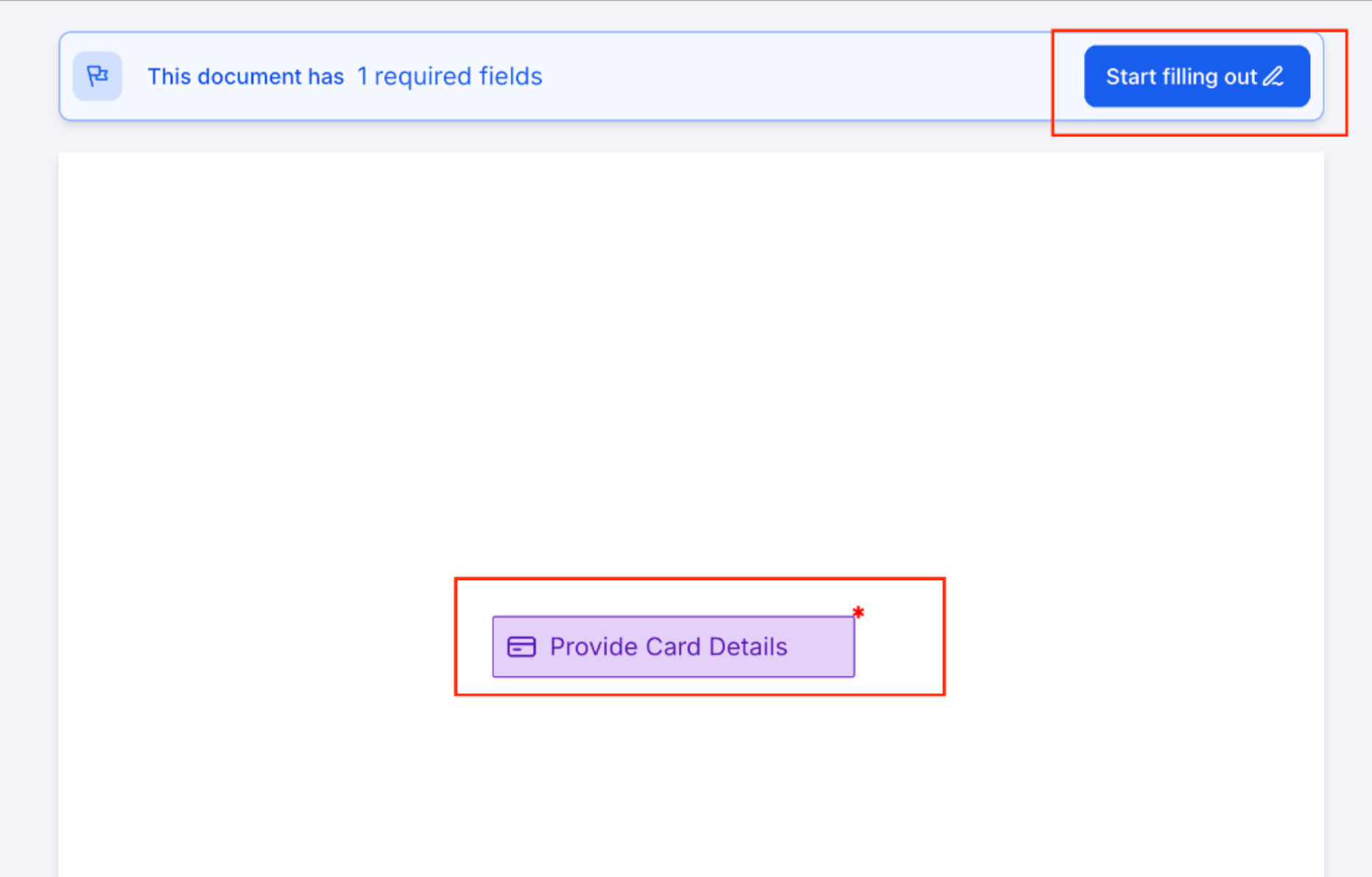
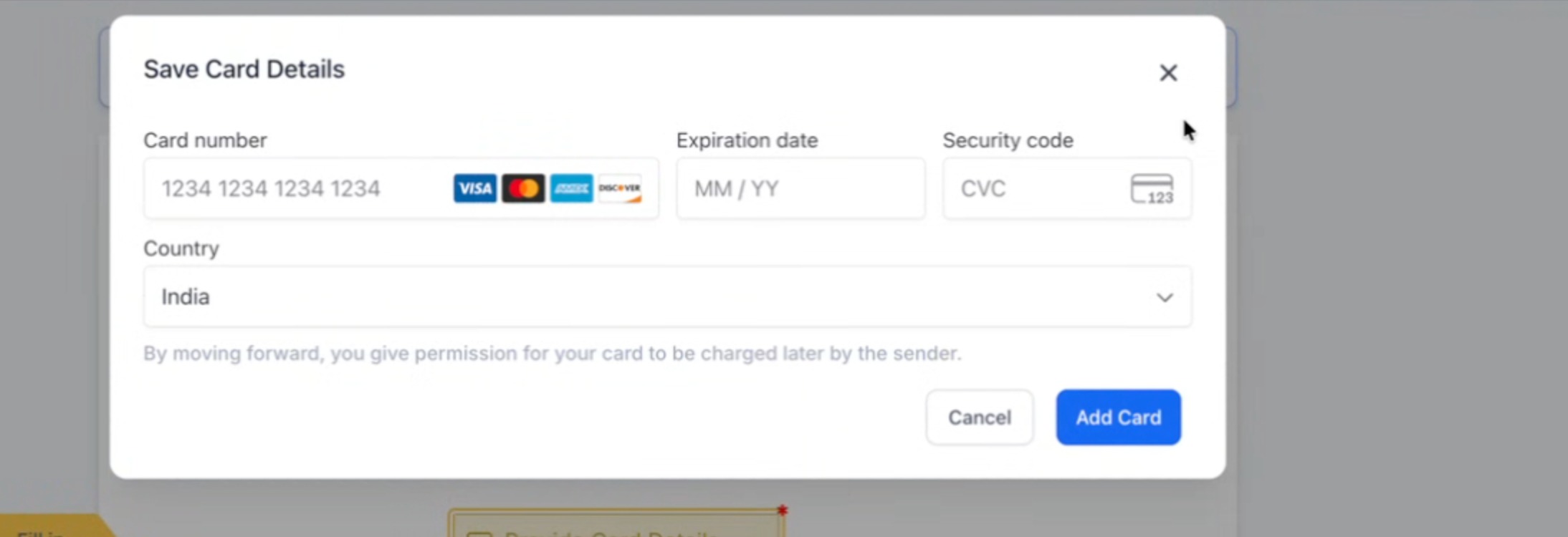
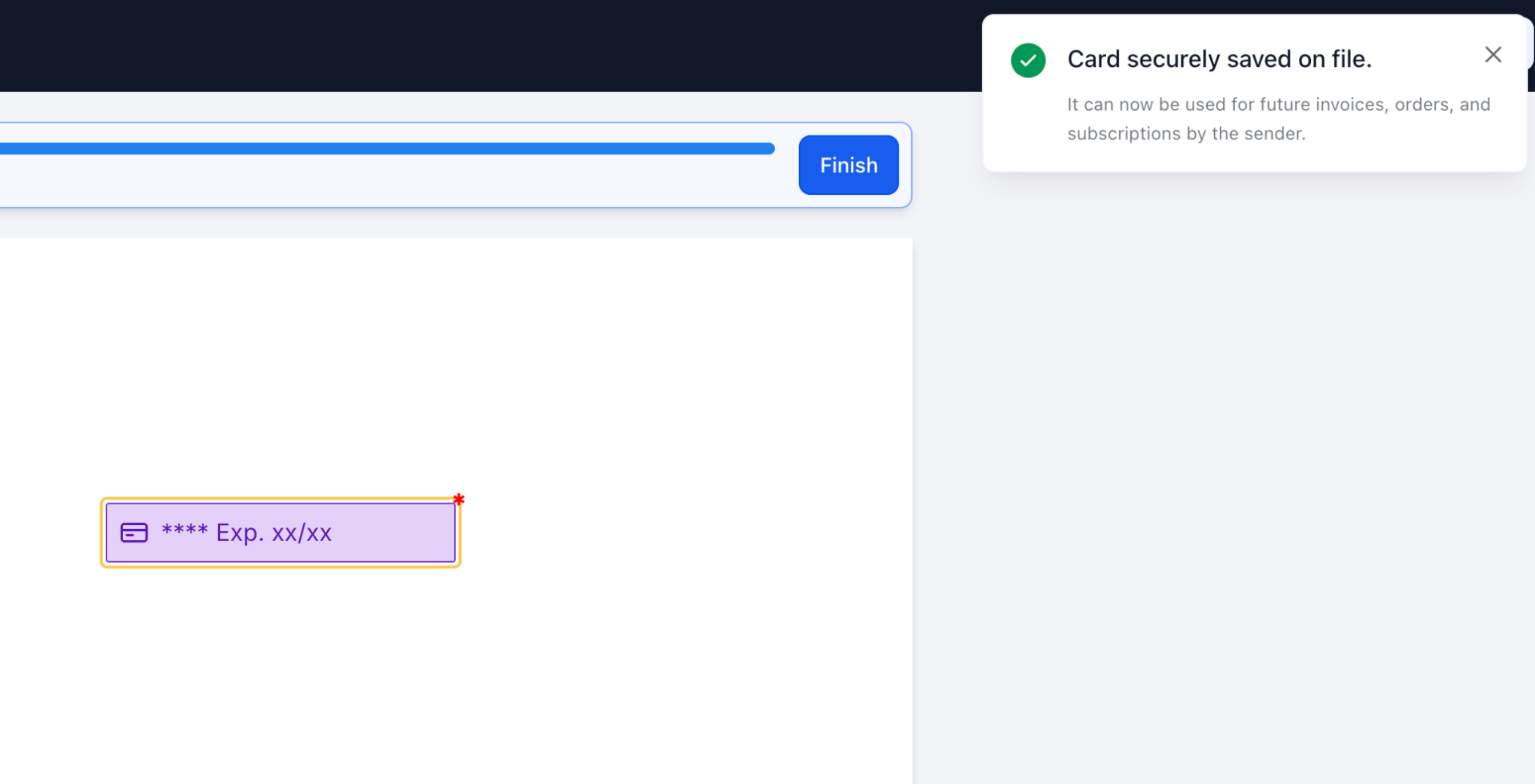
When the patient reaches the field, they click Start filling out, then enter their card number, expiration date, security code, and country in a secure entry window. Once saved, only the card brand, last digits, and expiration show on your end. You never see the full card number.
Card Details versus Direct Payments: Card Details only saves a card on file. It doesn't charge the patient. If you want the patient to pay immediately after signing, use a Product List with Direct Payment enabled (covered below) instead of, or in addition to, the Card Details field.
Once a document has a product list, you can configure it to generate and send an invoice the moment it's signed, rather than creating one manually afterward. See Create and Send Invoices for more on how invoices work outside of documents.
From the Payments section of the document editor, you can turn on:
Direct Payment: When on, the primary signer is redirected straight to the invoice to pay immediately after signing, as long as an invoice exists at the moment of signing.
Send Invoice: When on, the invoice is emailed automatically as soon as it's generated, either at signing or on its recurring schedule. When off, the invoice stays in draft so you can review it before sending.
Auto-Payment: When on, a supported card on file is automatically charged for each invoice in a recurring schedule. When off, the patient pays each invoice manually.
What happens at signing:
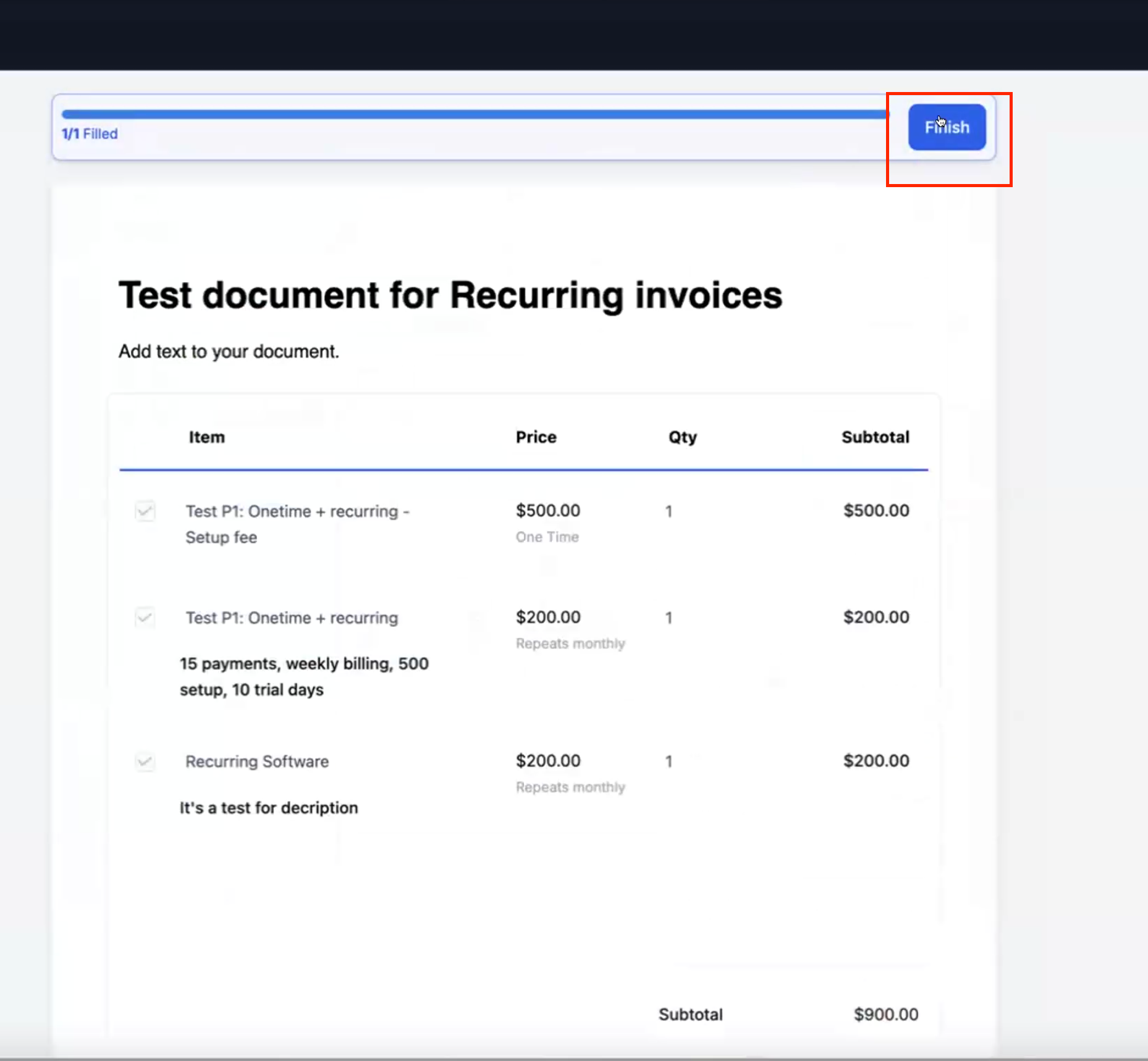
One-time products: The primary signer is redirected to pay the invoice immediately (if Direct Payment is on).
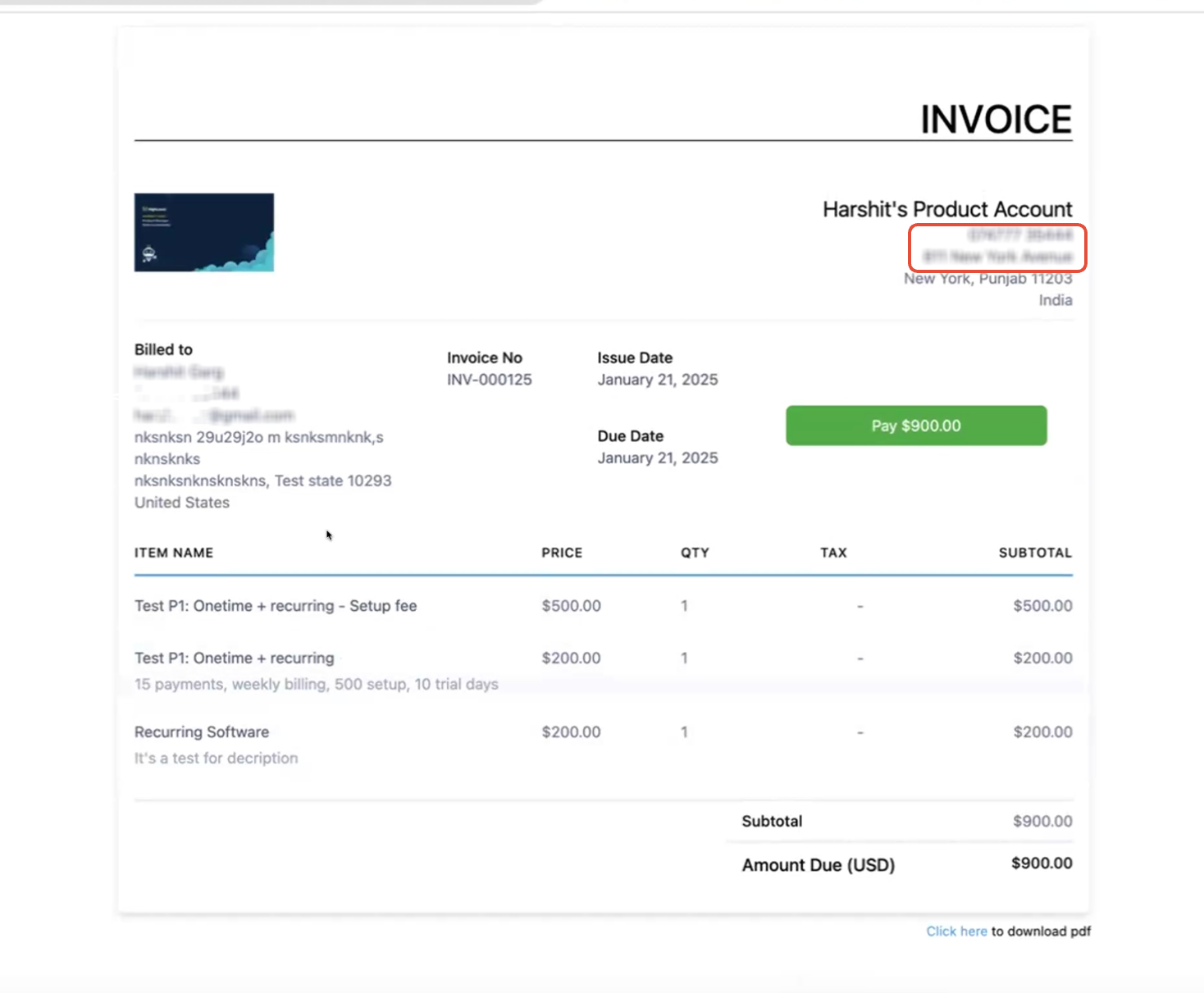
Recurring products, schedule starts at signing: The primary signer is redirected to pay the first invoice immediately.
Recurring products, schedule starts later: There's no redirect at signing. The first invoice is created and sent according to the schedule.
Only the primary signer is ever redirected to pay. Other signers just complete their fields, and everyone gets the invoice email when Send Invoice is on.
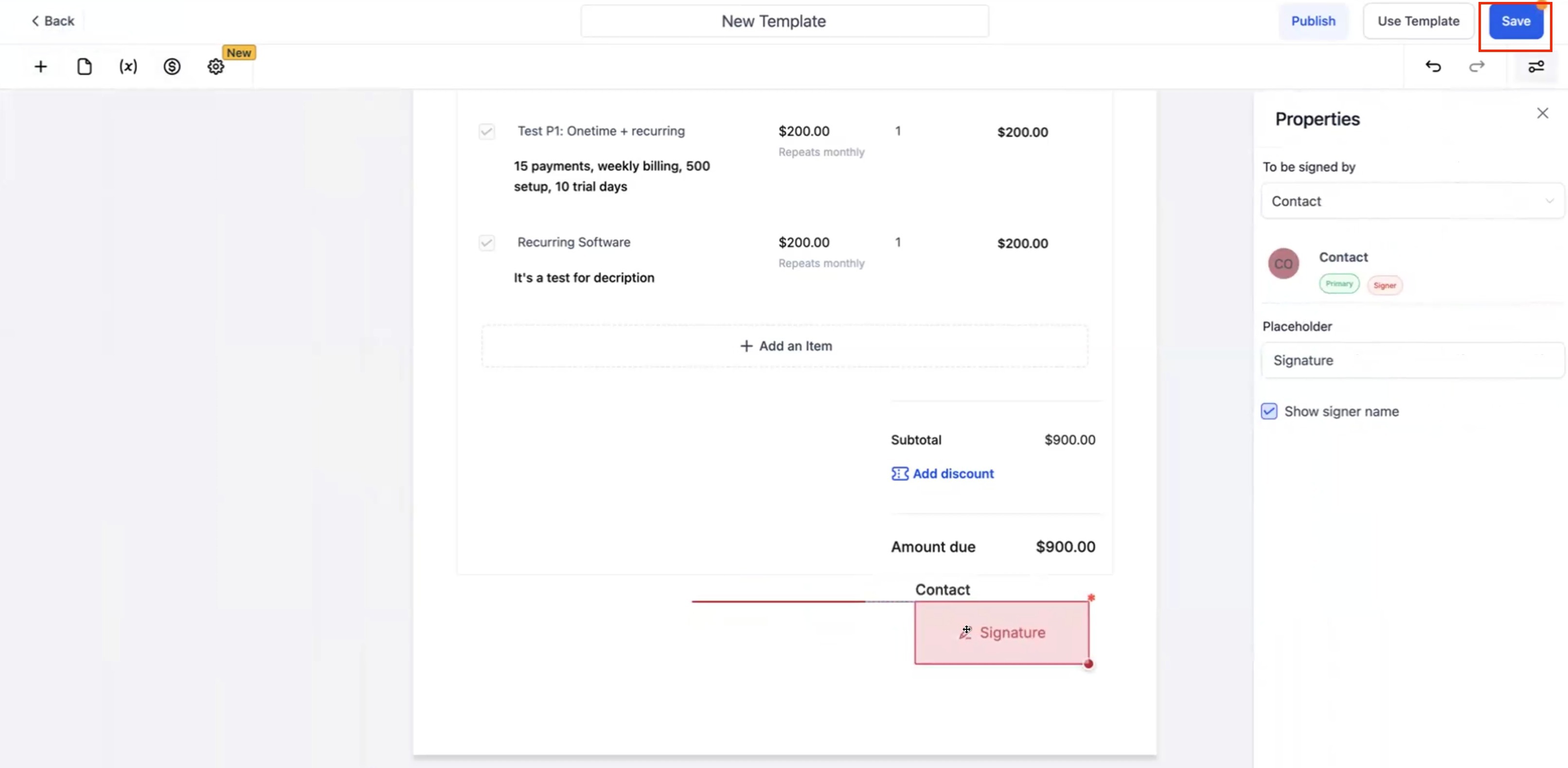
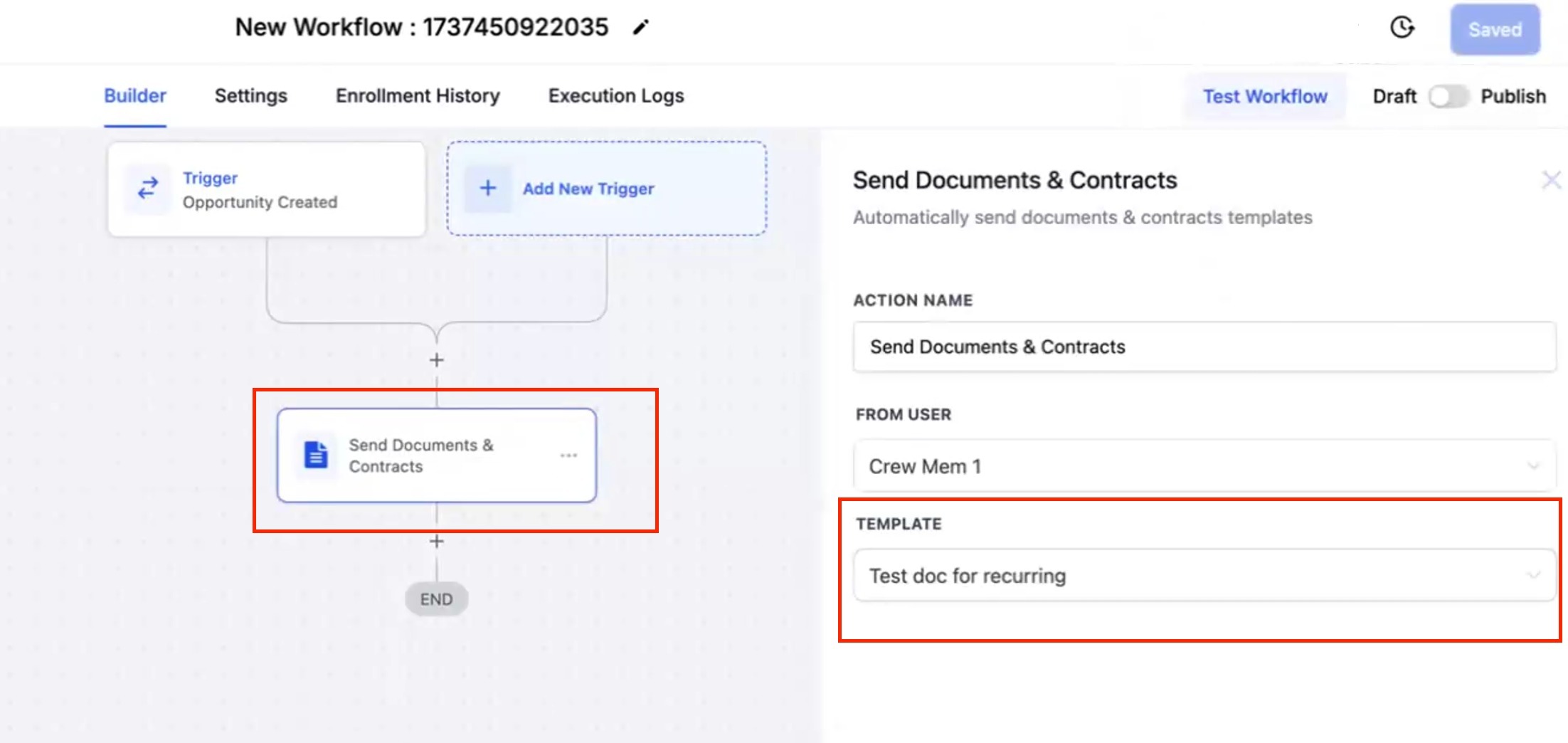
Using this in a template with a workflow: Add a product list and the payment settings above to a document template, then use a Send Documents & Contracts workflow action to trigger it automatically, for example, when an opportunity reaches a certain stage. The same signing and redirect rules apply whether the document was sent manually or through a workflow.
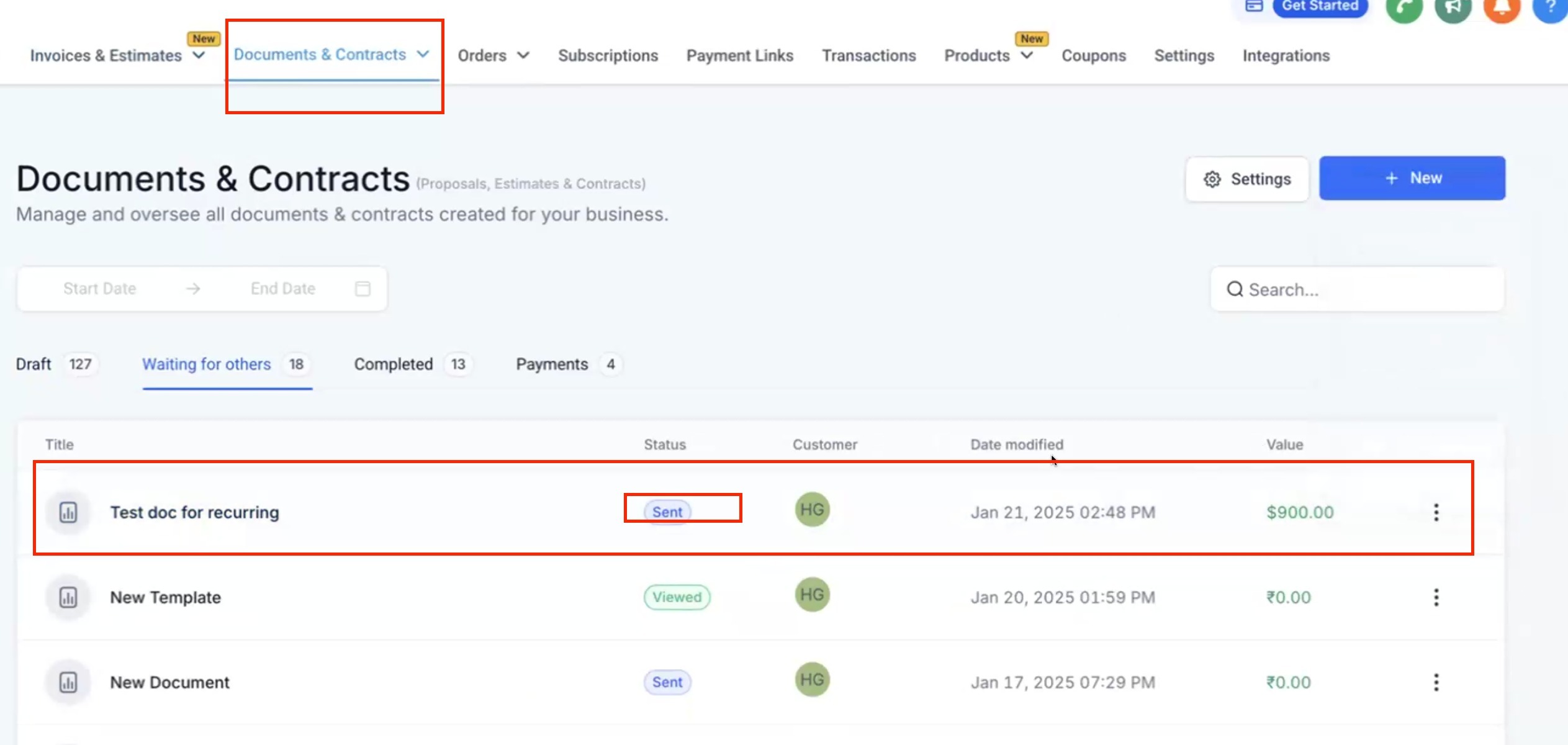
Where to track progress: Use Payments → Documents & Contracts to see document, signing, and payment status together, and Payments → Invoices to see each individual invoice, its payment status, and recurring schedule progress.
Setup fees on a recurring product always show as a separate one-time line on the first invoice. They aren't repeated on later recurring invoices.
Weekly and other recurring schedules generate the first invoice immediately if the document is signed on the scheduled day. Otherwise, the first invoice goes out on the next scheduled date.
If a document has a payment schedule and the invoice isn't generating as expected, check whether one of the scheduled payment dates falls after the invoice's due date. This commonly happens when the first payment is set to a custom date instead of "Upon primary signature." Setting it to "Upon primary signature" keeps the schedule aligned so the invoice generates correctly.
Documents & Contracts templates don't have a separate test/live toggle. To test a payment flow before sending it to patients, use a payment method that supports test mode, such as a payment link, or your payment provider's own test configuration.
Does adding a Card Details field charge the patient right away? No. Card Details only saves the card securely for future use. To charge the patient immediately after signing, use a Product List with Direct Payment enabled instead.
Can a patient choose only some of the products on the list? Yes, for any product marked as an Optional Item. The total updates automatically based on what's currently selected, and you can also allow quantity editing on selectable items.
What happens if a patient only selects one-time products when a recurring product was also available? The platform generates a one-time invoice. An unselected recurring product doesn't cause the document to be billed as recurring.
Can one document include both one-time and recurring products? Yes. One-time items bill once, and the recurring item continues on its own schedule. A document can only carry one recurring frequency at a time.
Is a payment provider required to use Card Details or Direct Payment? Yes. You need an active, connected payment provider before either feature will work. We recommend AX Pay for the best processing rates; see the AX Pay Overview and Setup Guide to get set up.
Can I reuse product lists and payment settings in a template? Yes. Product lists, optional-item settings, Card Details fields, and the Direct Payment, Send Invoice, and Auto-Payment toggles can all be built into a template and reused whenever you send that document.
Why wasn't my patient redirected to pay after signing? Either Direct Payment is turned off, or there wasn't an invoice to redirect to at the moment of signing (for example, a recurring schedule that starts later). Turn on Direct Payment, and for recurring products, set the schedule to start at signing if you want an immediate redirect.
Where do I see the invoices generated from a signed document? Check Payments → Invoices for the invoice and payment status, or Payments → Documents & Contracts for the combined document and payment status.
Can I see a patient's full card number after it's saved? No. Saved cards only display the card brand, last digits, and expiration date.
