Documents & Contracts is where your practice creates, sends, and tracks the paperwork patients sign outside of email or paper. Treatment consent forms, membership agreements, treatment packages and quotes, financing agreements, and vendor contracts can all be built, sent for e-signature, and stored here, with every action logged automatically.
This article is the starting point for the Documents & Contracts section. It covers where the feature lives, how the dashboard is organized, the difference between templates and documents, how documents connect to a patient's contact record, and how to track activity on anything you send. The other guides in this section go deeper on each piece: Building Document Templates, Products, Pricing & Payments in Documents, Sending Documents for Signature, Document Notifications & Email Templates, Declining Documents, and Automating Documents with Workflows.
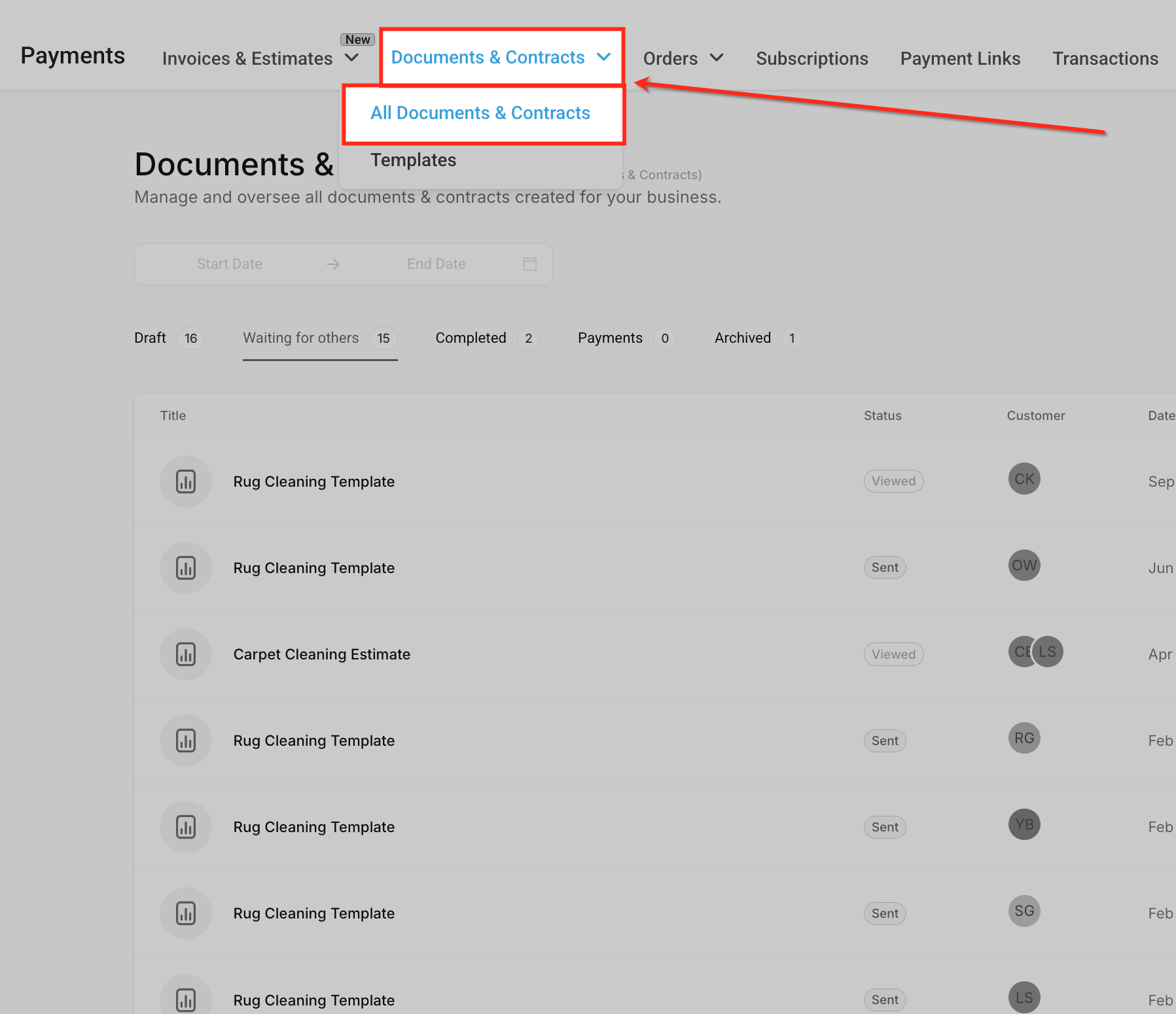
Documents & Contracts lives under Payments → Documents & Contracts in the left menu. Selecting All Documents & Contracts from the dropdown opens the dashboard, which shows every draft, sent, completed, or archived document across your practice in one place.
One place for every agreement. Consent forms, membership agreements, treatment quotes, financing paperwork, and vendor contracts are all managed from the same dashboard instead of scattered across email threads and paper files.
Reusable templates. Build a document once (a standard consent form, a membership agreement, a service contract) and reuse it for every patient instead of recreating it from scratch.
E-signatures with an audit trail. Signatures collected through Documents & Contracts are legally binding and come with a certificate recording the signer's details, IP address, and timestamp.
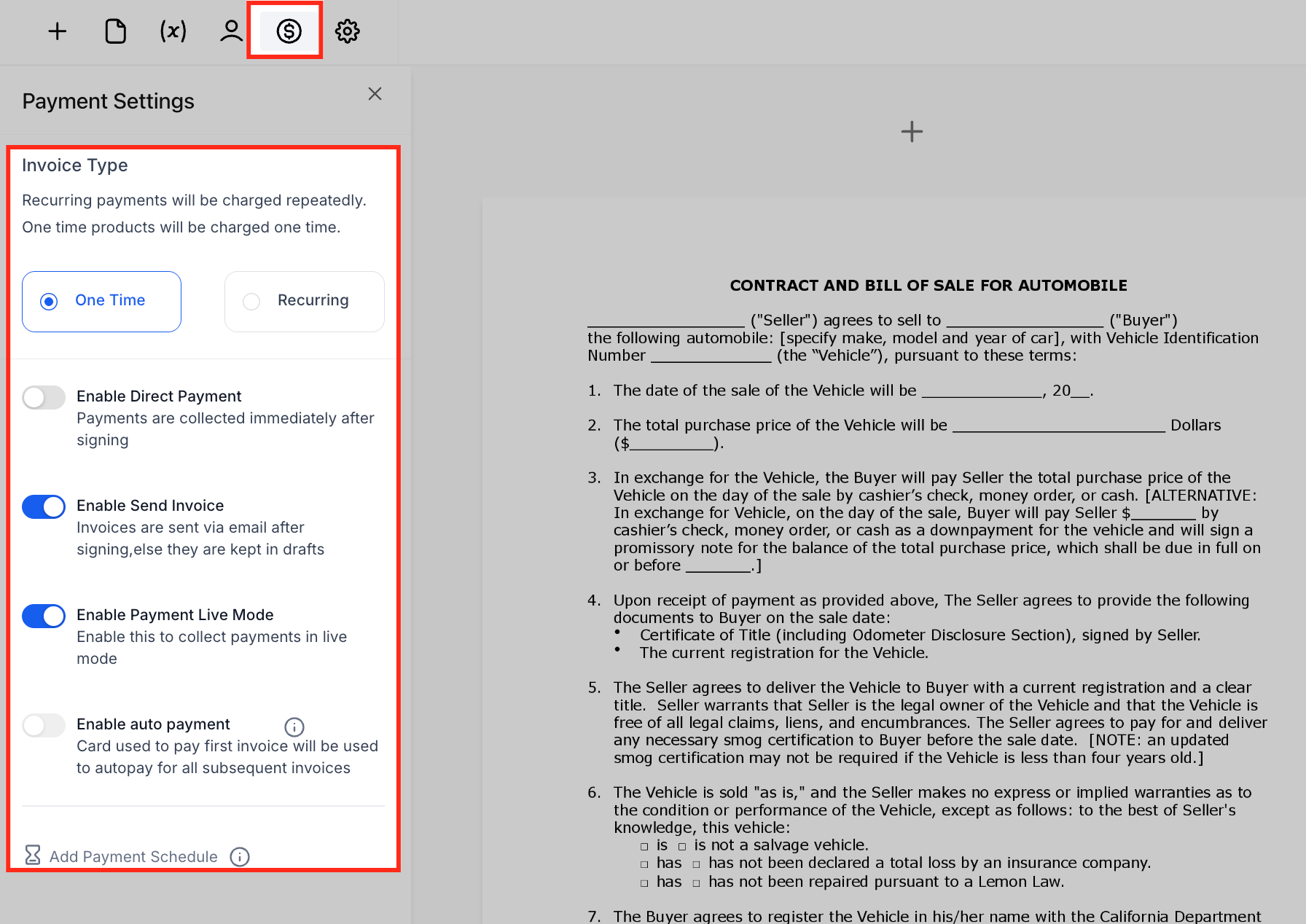
Payments built into the document. A document can collect a deposit or full payment as part of the signing flow, so a signed treatment agreement can also close out the payment in one step. See Products, Pricing & Payments in Documents for how that works.
Workflow automation. Documents can be triggered, and can trigger other automations, based on events like being viewed, signed, or declined. See Automating Documents with Workflows for the trigger and action details.
The dashboard is your control center for every agreement in the practice.
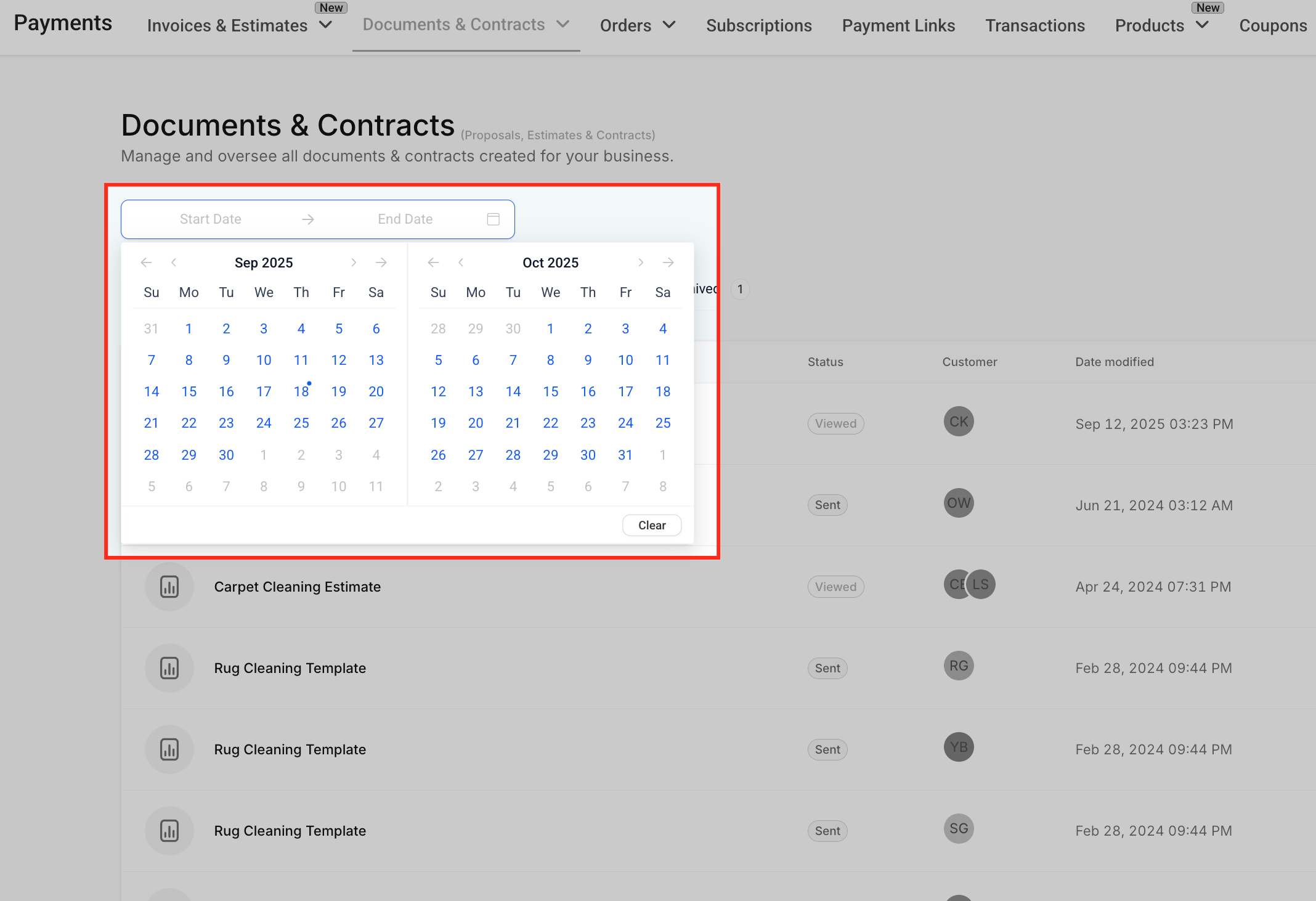
Filtering by date. Use the date filter to narrow the list to documents created or modified within a specific range, useful when you're reviewing everything sent during a particular billing cycle or promotion.
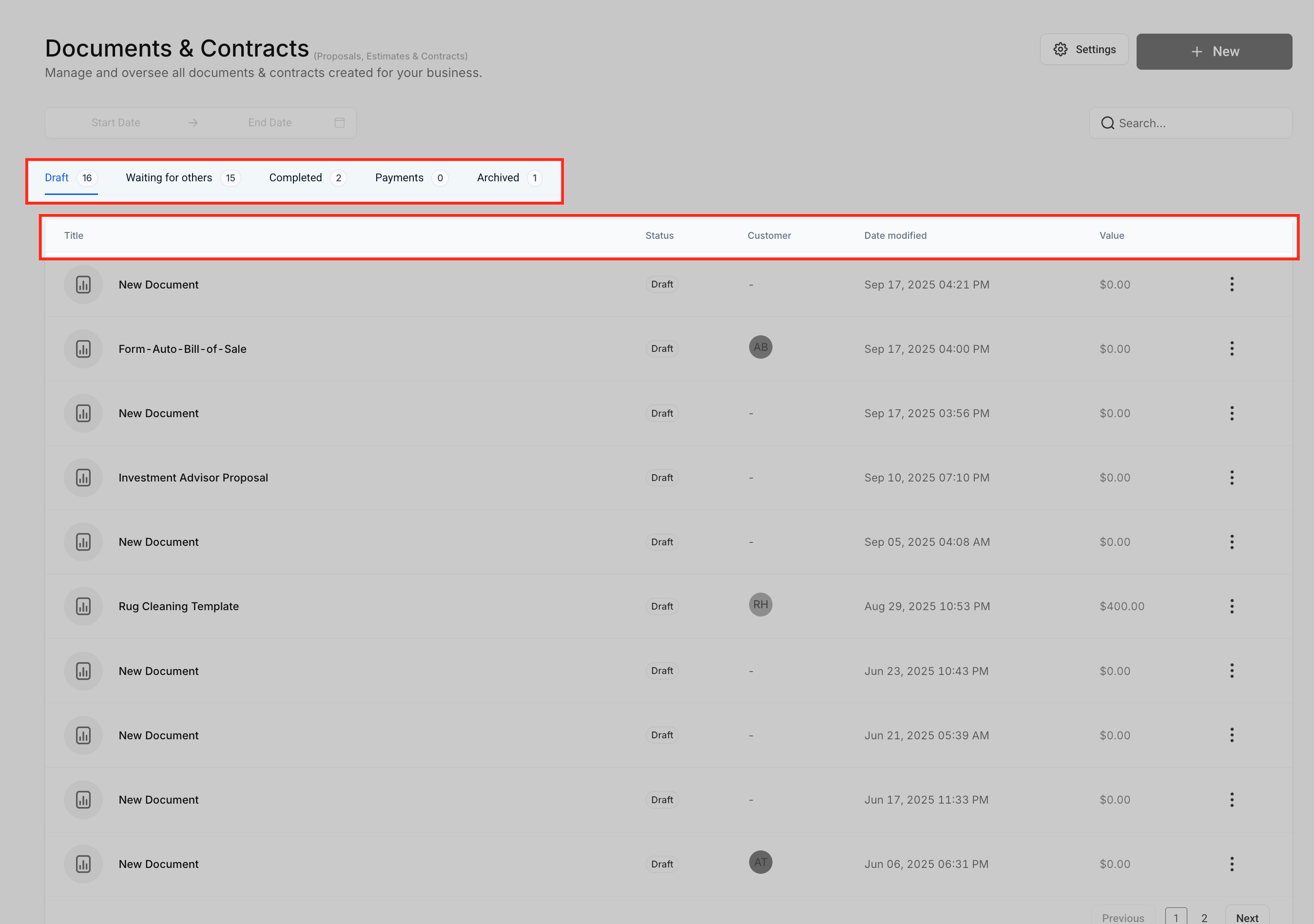
Status tabs. Documents are organized into tabs that track where each one stands:
Draft: created but not yet sent.
Waiting for others: sent and awaiting one or more signatures.
Completed: every required signer has signed.
Payments: documents with a payment attached, so you can see collection status alongside signature status.
Archived: documents you've filed away but kept for your records.
Columns. Each row in the dashboard shows the document's Title, Status, Customer (the patient or other recipient it was sent to), Date Modified, and Value (if a payment is attached).
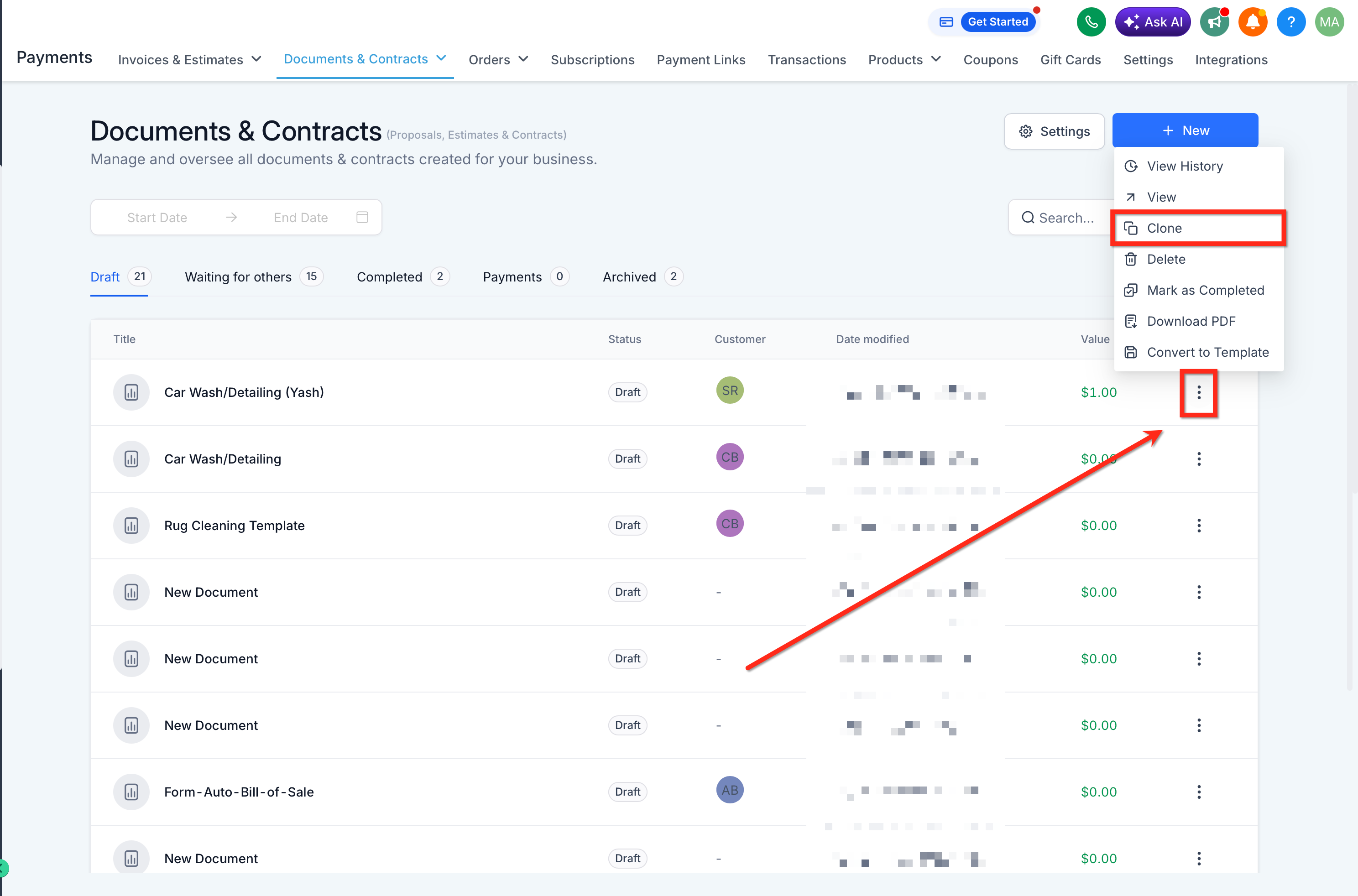
Quick actions. Opening the three-dot menu next to any document gives you View, Clone, Mark as Completed, Download PDF, Convert to Template, Share via Link, Move to Draft, or Mark as Declined, so you can manage most of a document's lifecycle without opening it.
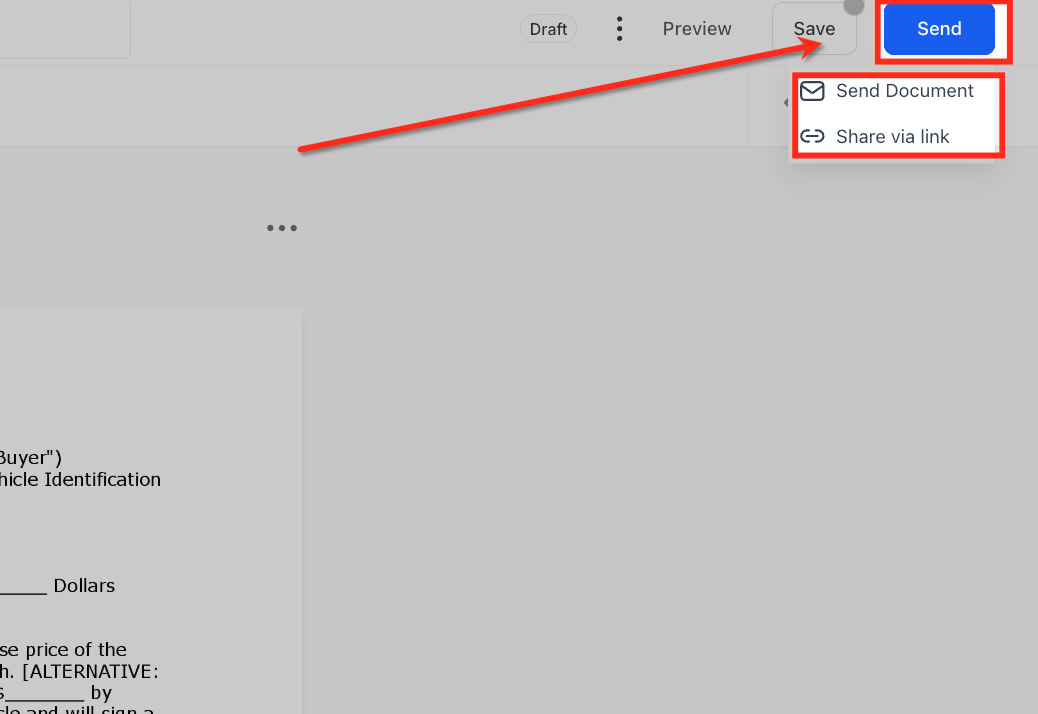
A template is a reusable master copy (your standard consent form, your membership agreement) that you fill in and send to a specific patient as a document. Editing a template later doesn't change documents you've already sent; it only affects new documents created from that template going forward, which protects the legal integrity of anything already signed or pending.
You can start a new document three ways from the + New button on the dashboard:
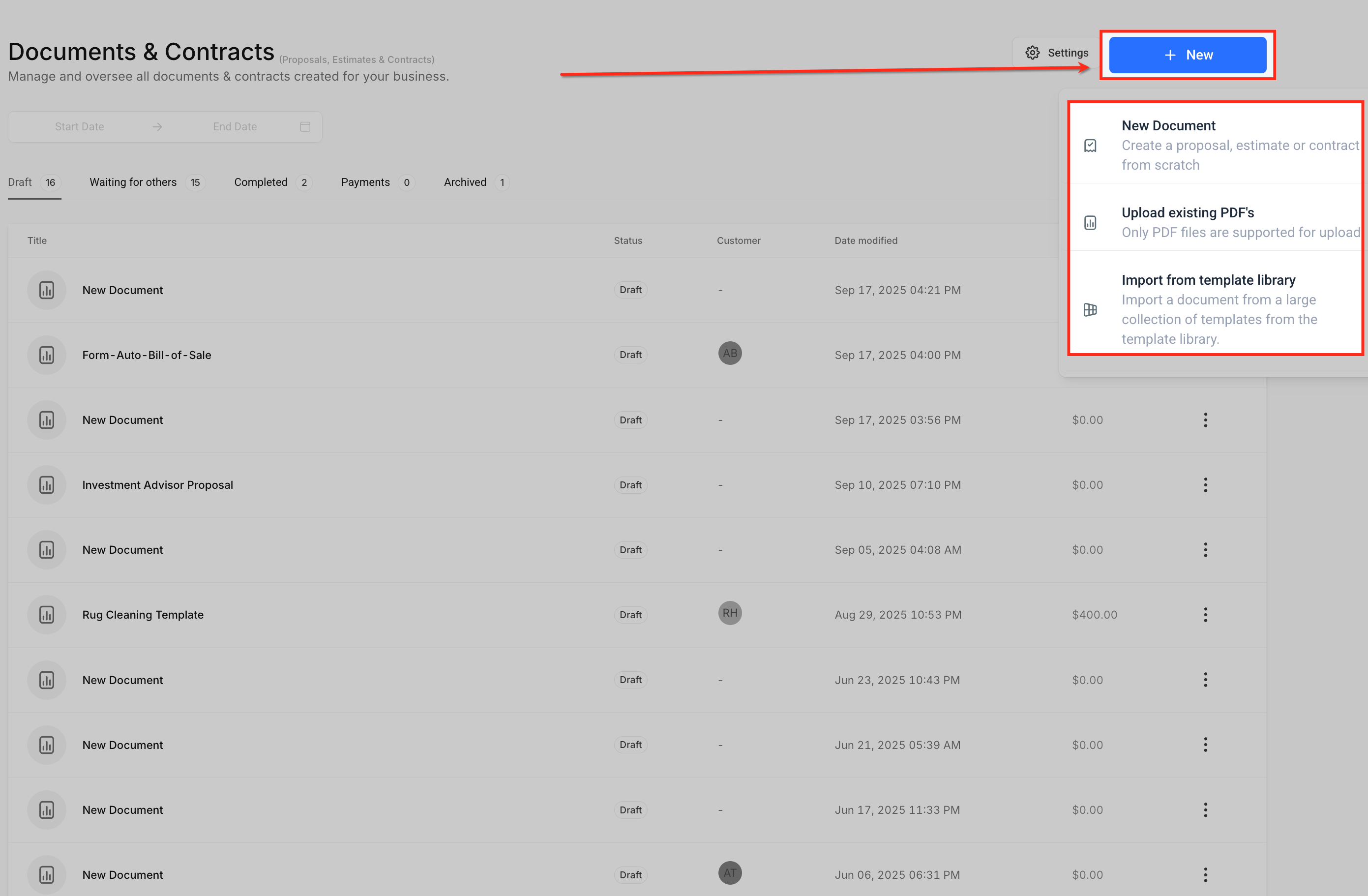
New Document: build from a blank page using the drag-and-drop editor.
Upload Existing PDF: bring in an existing PDF (a financing agreement from a lender, a vendor contract) and overlay signature and text fields on it.
Import from Template Library: start from one of your saved templates.
You can also Clone an existing document from its three-dot menu to create a duplicate without converting it to a template first. Template building, elements, custom values, and the content library are covered in full in Building Document Templates.
Every contact record has its own Documents section, separate from the shared dashboard, that shows only what's tied to that patient.
Open a contact, then click the document management icon to see every document associated with them, whether they were the primary or a secondary recipient. Sent and completed documents are both listed, and you can download the PDF, view the source in the editor, or copy the share link.
You can also store general files here that aren't part of a signing flow (intake paperwork, ID scans, insurance documents). Add a new file with +Add → New File. Supported file types include PDF, PPT, Word documents, CSV, and common image formats, with a 250MB limit per file.
Files attached to a custom field are automatically filed under a "Custom Fields" folder in this section and can't be deleted from here, since they're tied to the custom field itself.
Attachments a patient sends through email, SMS, or other connected messaging channels can be saved straight to their Documents section. Click the three-dot menu on the message and choose Add to Documents, or check the Add to Documents box while sending a message with an attachment. This is a fast way to keep a signed form or ID a patient texts in filed with the rest of their paperwork.
Documents are searchable by name from the contact record, so you don't have to scroll through a long list to find one.
Every document keeps a full history of what's happened to it. From the dashboard, hover over the recipient icons on a document's row to see the last action taken and its timestamp. For the complete picture, open the three-dot menu and choose View History to see every event (sent, viewed, edited, signed) in order. This lets your front desk confirm a patient has actually opened and reviewed an agreement without having to call and ask, and gives you a clean record if a signature or payment is ever questioned later.
If a patient has Client Portal access, documents you share with them appear there automatically alongside their subscriptions and estimates, and they can view, download, and (for portal uploads) submit files back to your practice. See Subscriptions, Estimates & Documents in the Portal for the full patient-side experience. For the full member-side walkthrough, see Subscriptions, Estimates & Documents in the Portal.
Where do I go to see every document my practice has sent?
Go to Payments → Documents & Contracts and select All Documents & Contracts from the dropdown. That's the shared dashboard covering every document across the practice, filterable by status and date.
What's the difference between a template and a document?
A template is the reusable master version you build once. A document is what you get when you send that template (or a blank page, or an uploaded PDF) to a specific patient to sign. Editing a template only affects documents created from it afterward, not anything already sent.
Can I collect payment as part of a signed document?
Yes. You can attach a one-time or recurring payment to a document so a patient pays as part of signing it. Documents with a payment attached also show up under the Payments tab on the dashboard. See Products, Pricing & Payments in Documents for setup details.
What happens if only some of the recipients on a document have signed?
The document stays in Waiting for others until every required signer completes their fields. You can check who's outstanding by hovering over the recipient icons on the dashboard, and resend a reminder from there.
Can I see documents for just one patient instead of the whole practice?
Yes. Open the patient's contact record and click the document management icon. It shows only the documents tied to that patient, whether they were a primary or secondary recipient.
How do I know if a patient has actually opened a document I sent?
Hover over the recipient icon on the document's row in the dashboard for the last action and timestamp, or open the three-dot menu and choose View History for a full timeline of every event on that document.
Can a patient upload documents back to us?
Yes, if they have Client Portal access. Files they upload through the portal land in their contact record's Documents section. See Subscriptions, Estimates & Documents in the Portal for how that works from the patient's side.
Are there file size or file type limits for documents I attach to a contact?
Yes. Files added directly to a contact's Documents section are limited to 250MB each, and supported types include PDF, PPT, Word documents, CSV, and standard image formats.
Can I edit a document after it's been sent?
Once a document has gone out for signature it shouldn't be changed, since that would affect the legal integrity of what the signer is agreeing to. If you need a different version, edit the template (which only affects future documents) or clone the original and send a new copy.
Does declining or expiring a document delete it?
No. Declined and expired documents stay in your dashboard for your records; they just move out of the active Draft and Waiting for others tabs. See Declining Documents for how declines are captured and how to follow up on them.
