When you send a treatment consent form, membership agreement, or financing agreement through Documents & Contracts, Aesthetix CRM automatically emails the patient at key points: when the document arrives, when it's signed, and if it's about to expire. Your team can also get notified when a patient views or signs a document.
This article covers customizing those client-facing emails, personalizing them with merge fields, and configuring who on your team gets notified and when.
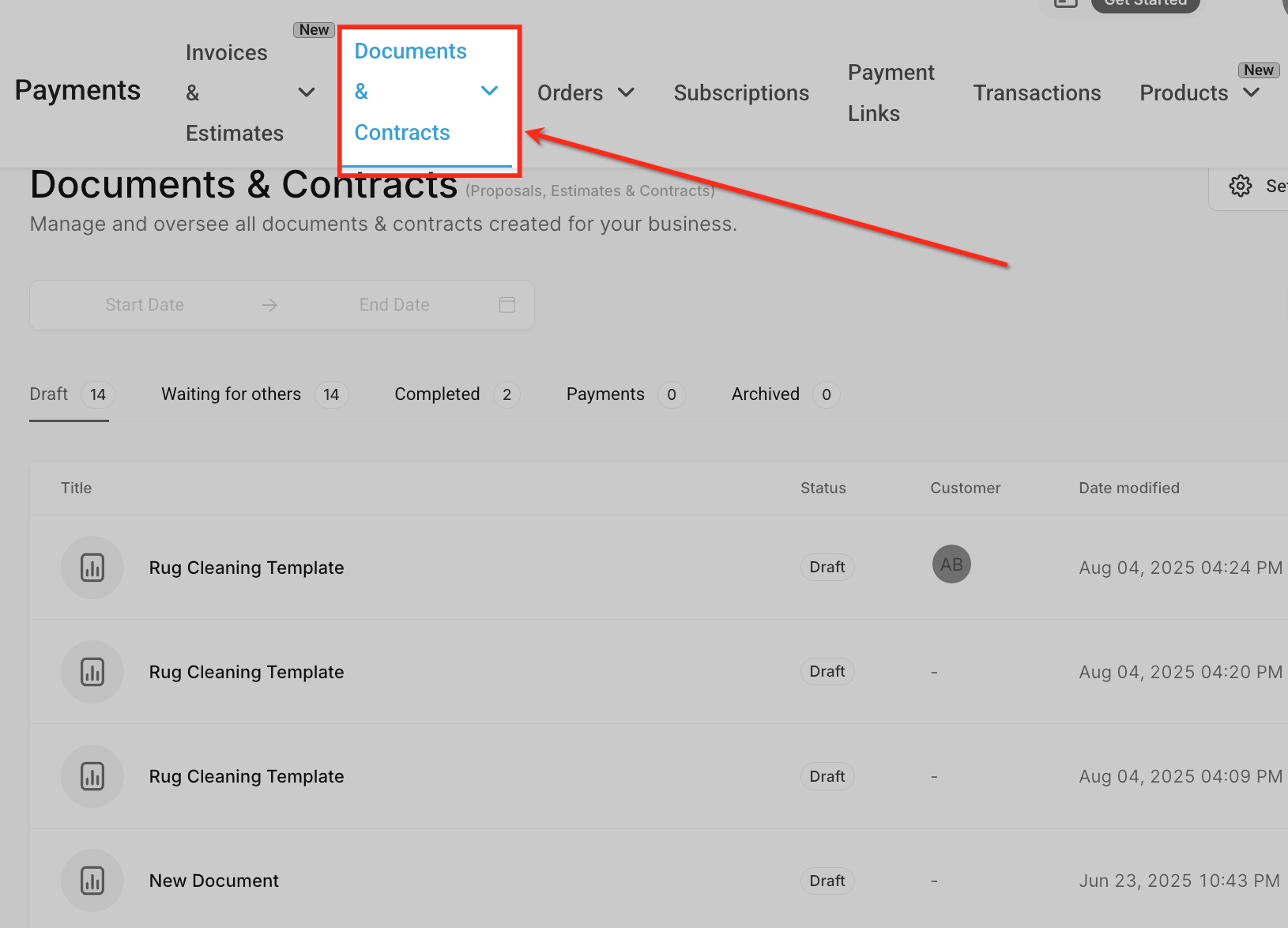
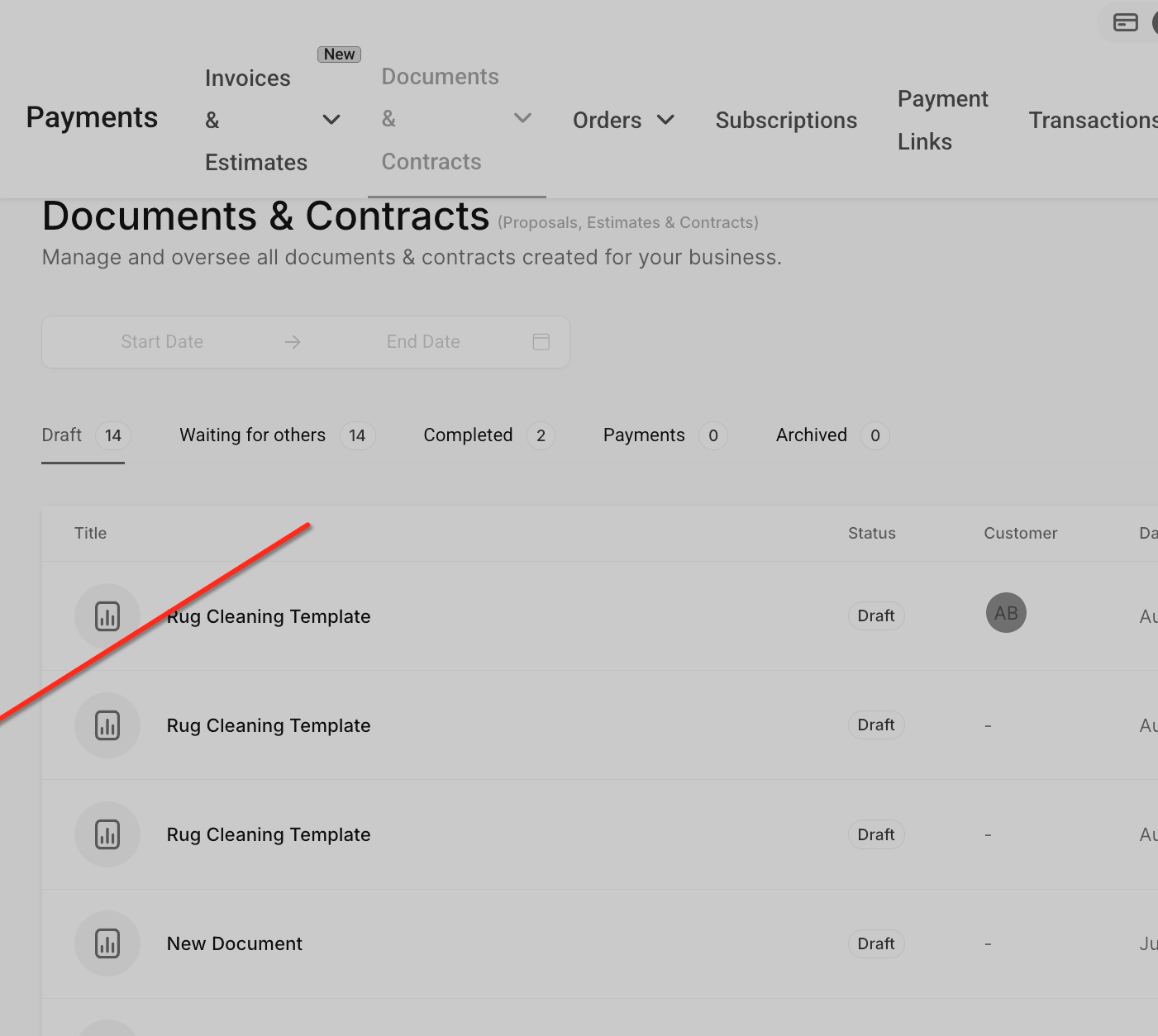
Go to Payments → Documents & Contracts.
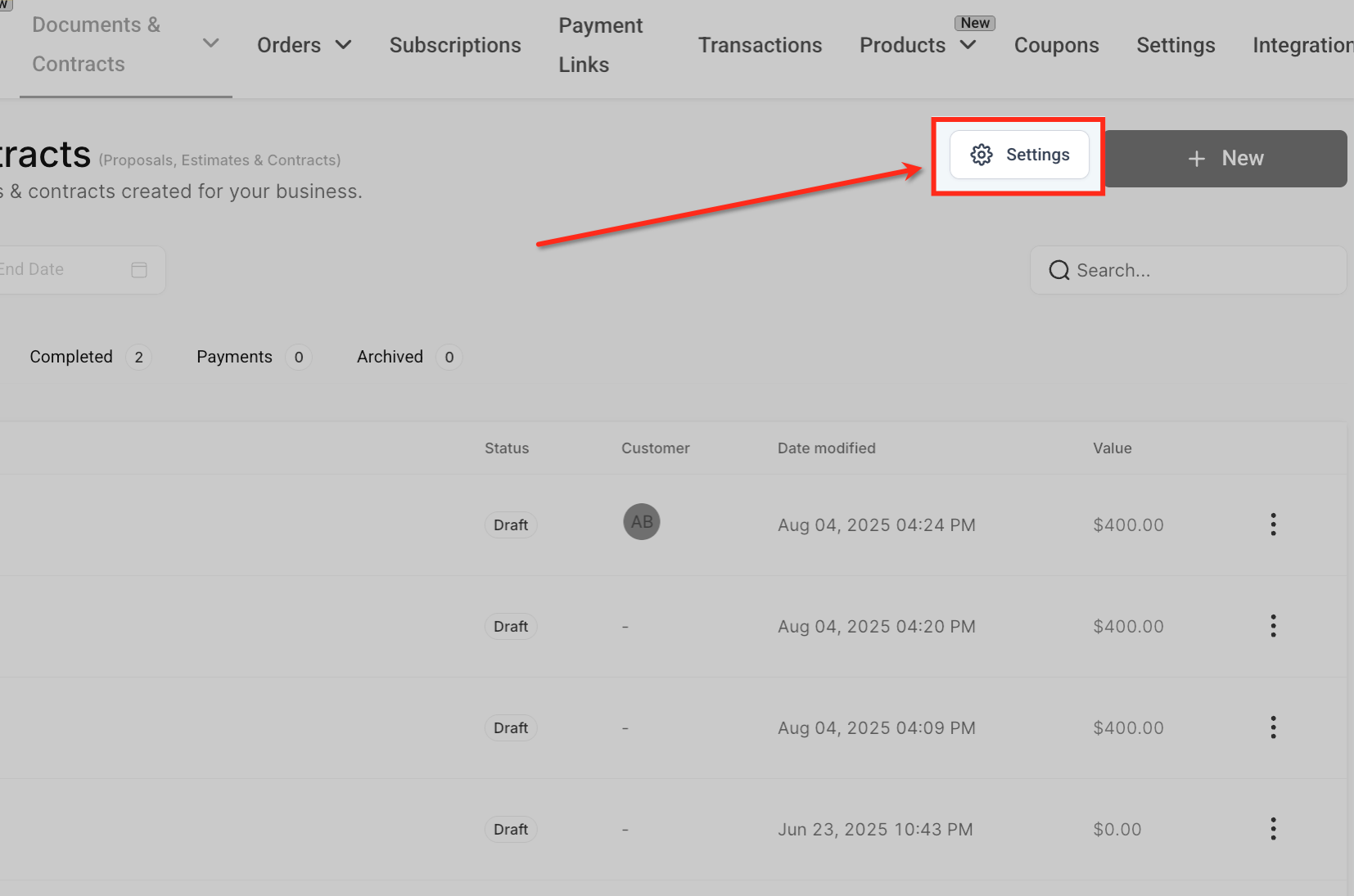
Click Settings in the top-right corner of the page.
You'll see two sections: Customer Notifications, which controls what patients receive, and Team Notifications, which controls what your internal team receives.
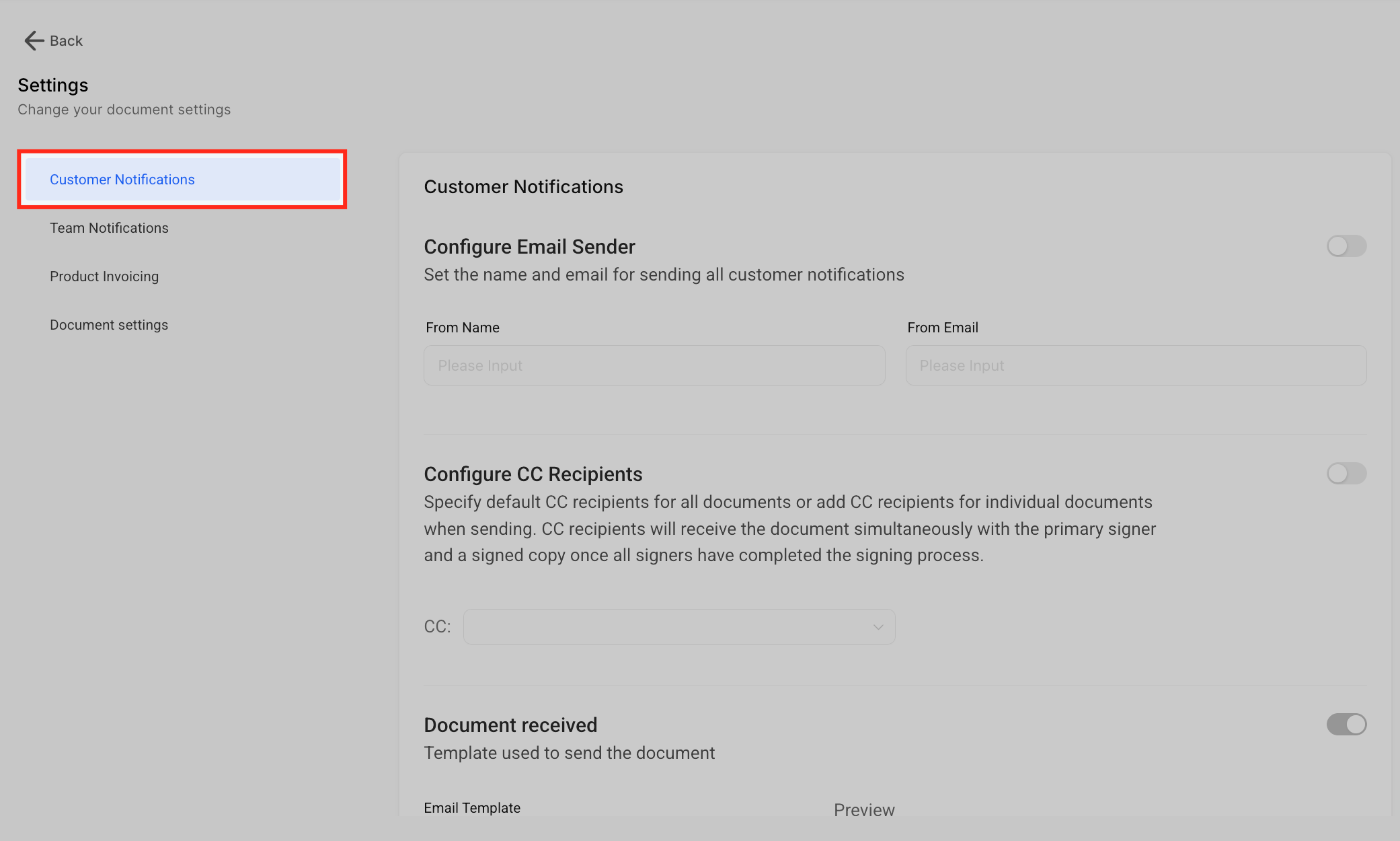
These are the client-facing emails sent to the patient signing (or being asked to sign) a document.
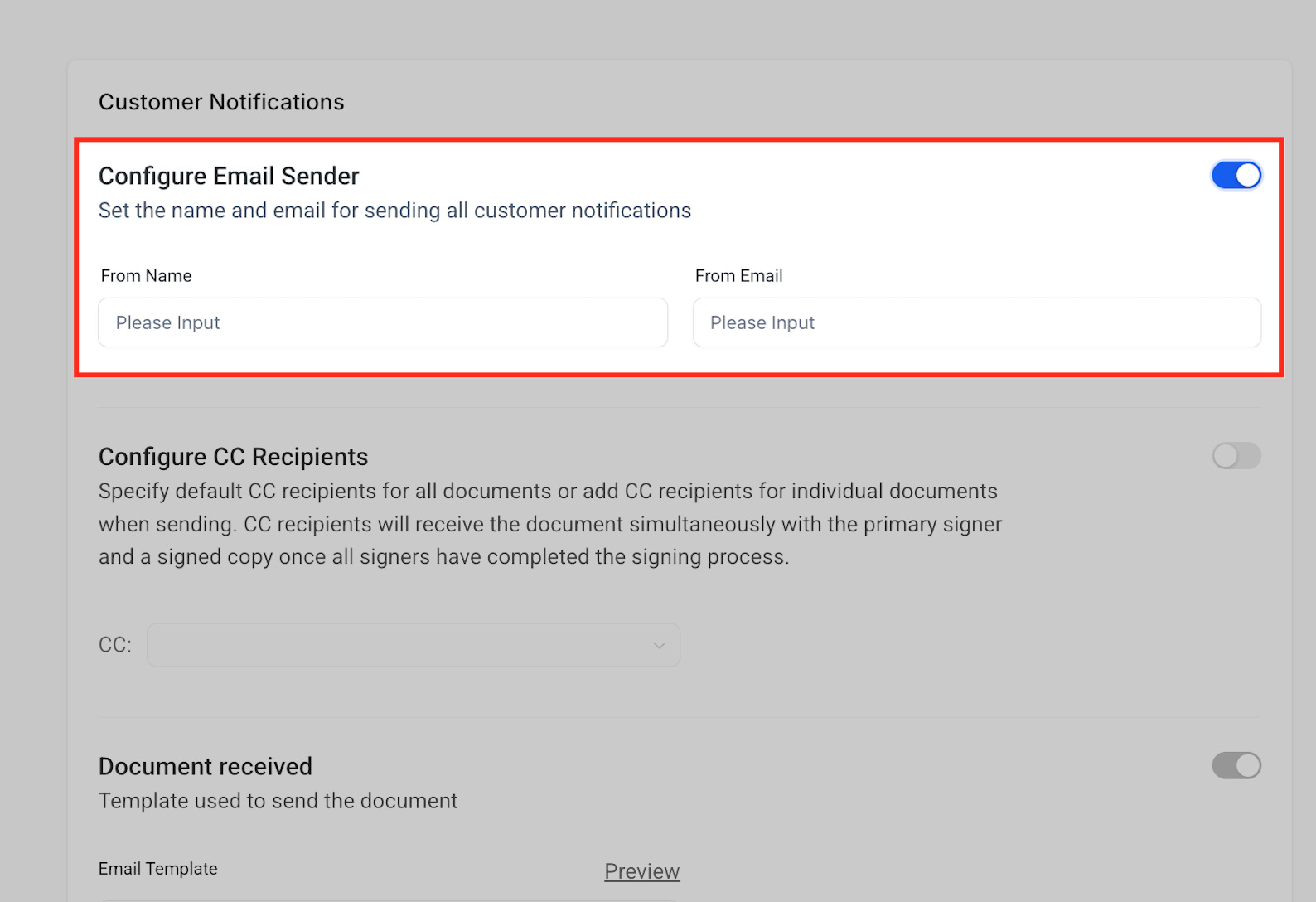
Configure Email Sender: Set a From Name and From Email so patients see a recognizable sender instead of a generic system address. Use the toggle to turn this on; if it's off, emails send from the system default.
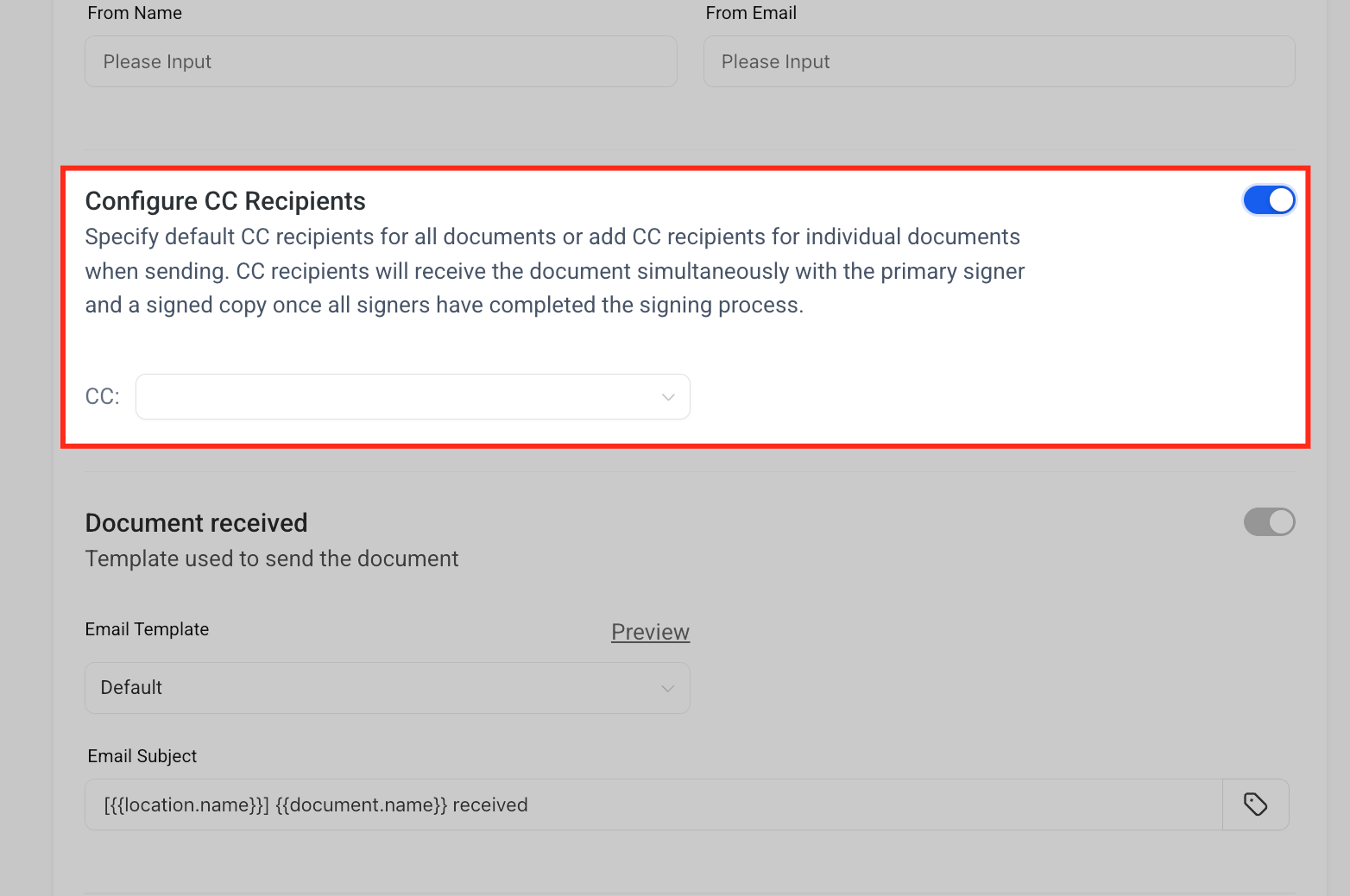
Configure CC Recipients: Use the toggle to add addresses that should be copied on every customer-facing email (the "document received" email, the "signed copy" email, and so on). Anyone CC'd here gets the exact same client email as the patient, not a separate internal version. If you want your team to get different copy for a different purpose, use a Workflow instead (see the Notifying Additional Team Members section below).
Templates can't be created inside Documents & Contracts settings. Build them first:
Go to Marketing → Emails → Templates.
Click Create Template.
Design the email and click Save as Template.
Once saved, the template appears in the Email Template dropdown for each notification below.
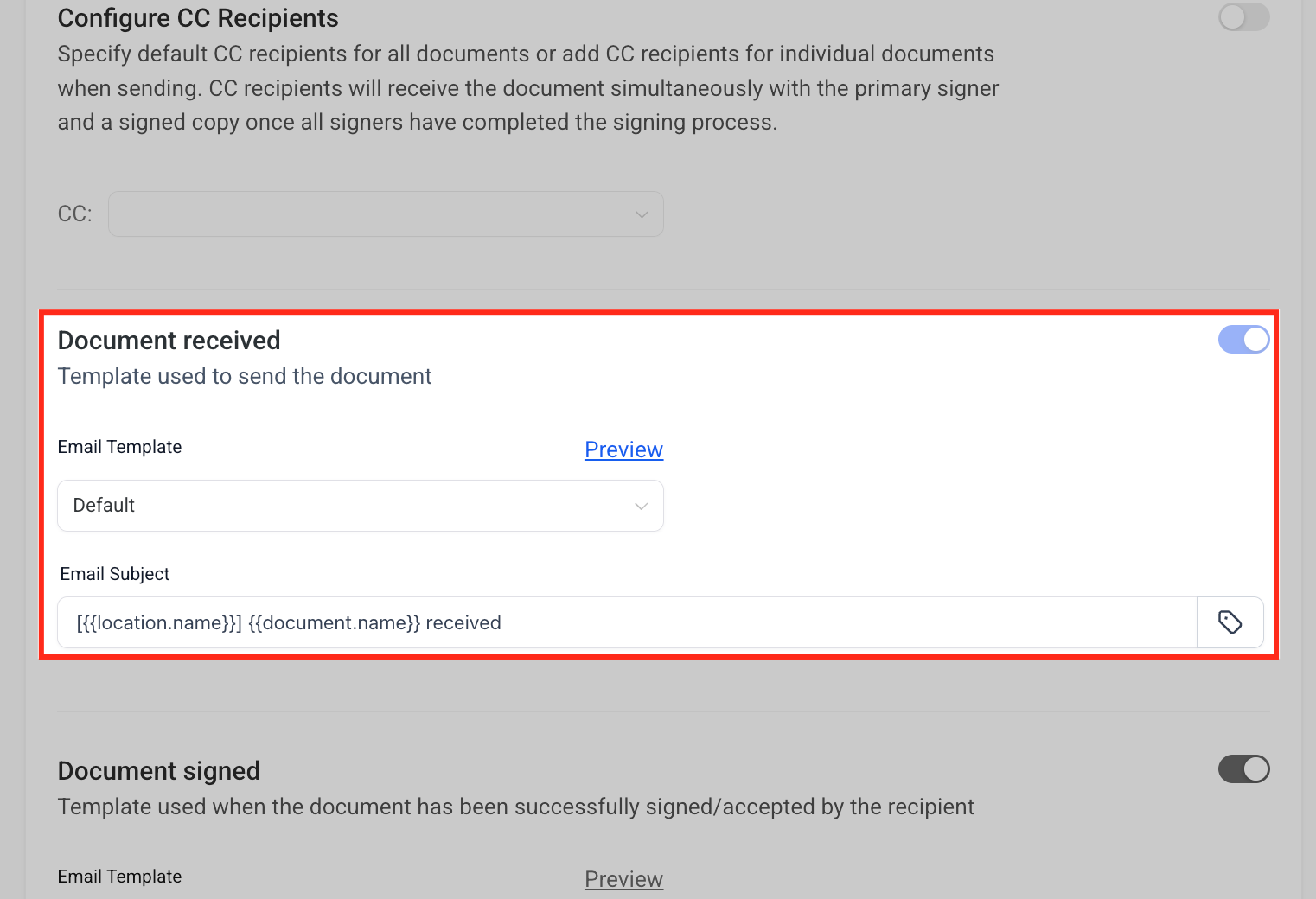
Document Received Notification: Sent when a patient first receives a document. Set the email subject and choose a template, then use Preview to check it before saving.
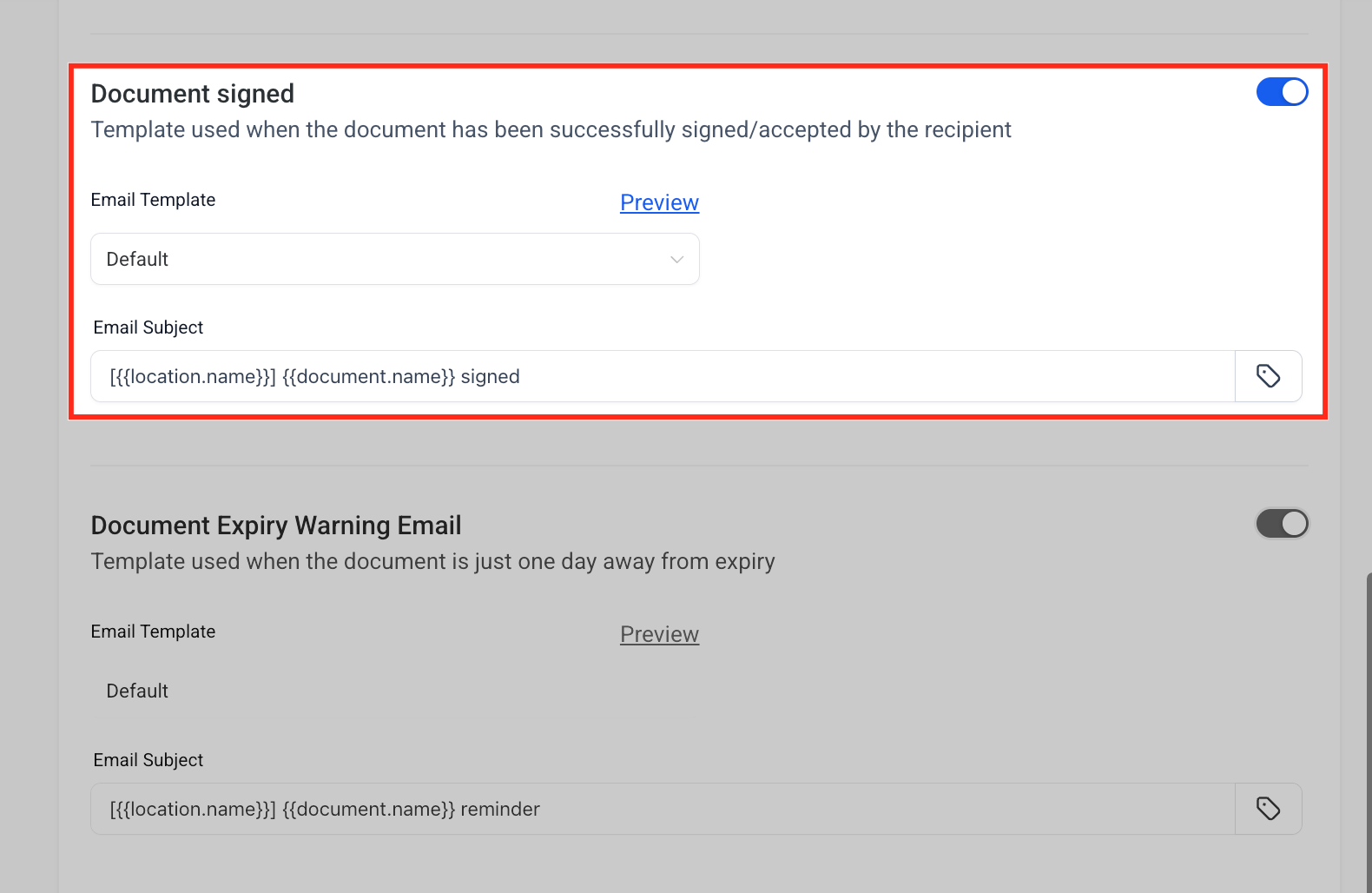
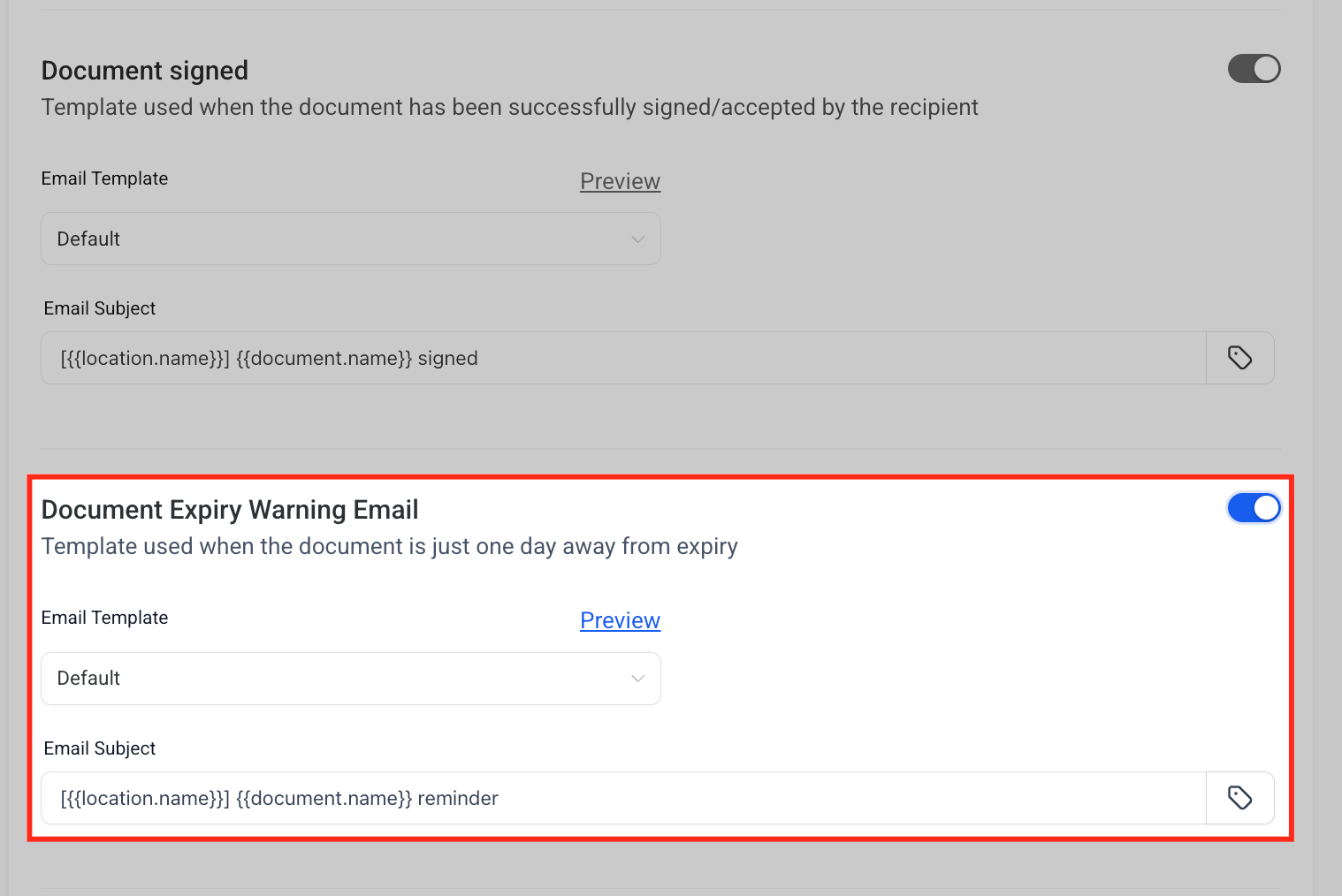
Document Signed Notification: Sent once a patient has signed or accepted a document. Set the subject and template, and preview it the same way.
Document Expiry Warning Email: An automatic reminder sent one day before a document expires, so patients don't miss the deadline. Use the toggle to turn it on or off.
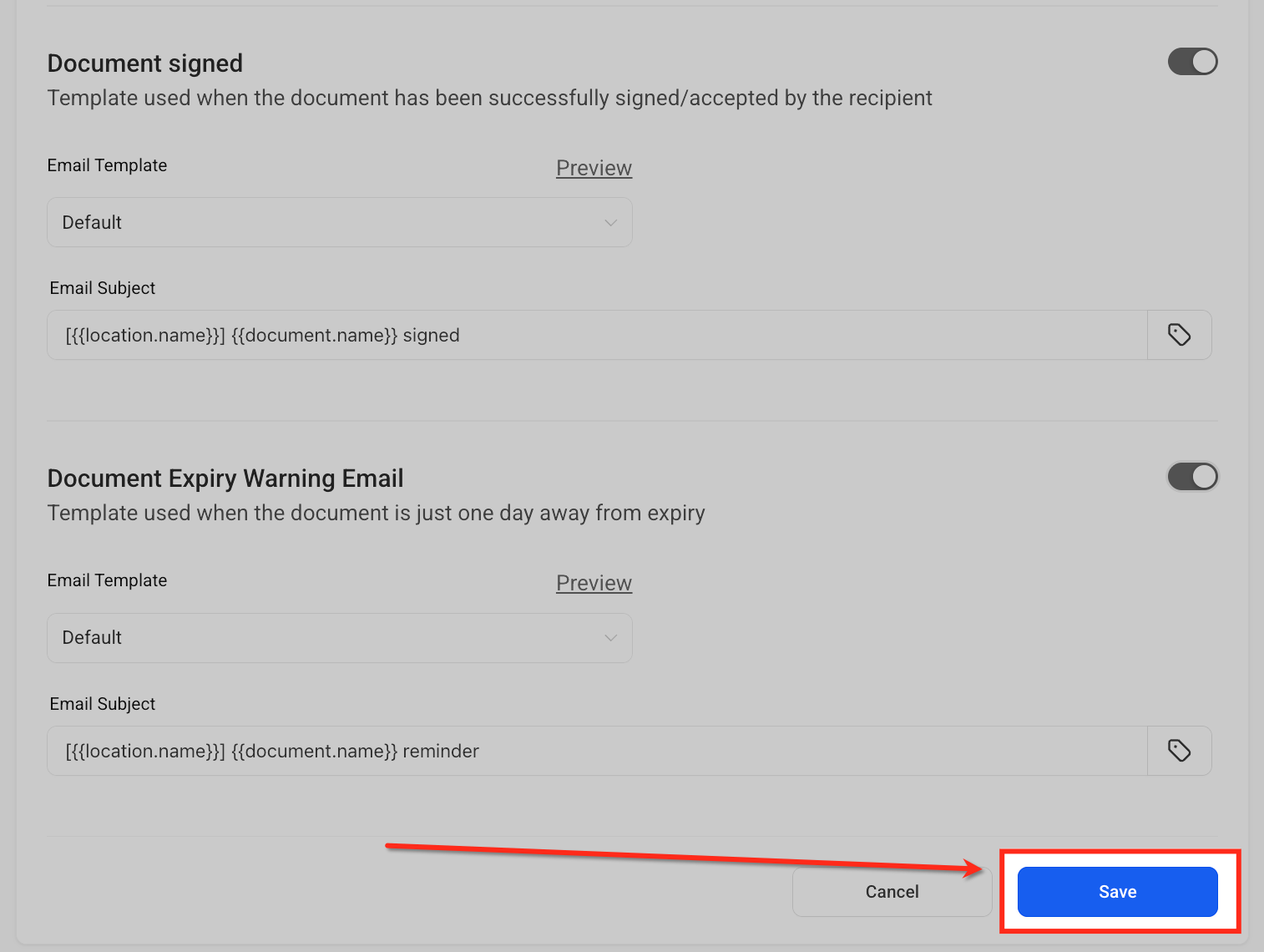
Click Save at the bottom of the page after making changes. Changes apply to documents and templates going forward.
You're not locked into the defaults above every time you send. From the send screen you can pick a different template or make a quick edit for one specific document:
Open the document and click Send.
Use the Email Template dropdown to pick the template you want for this send.
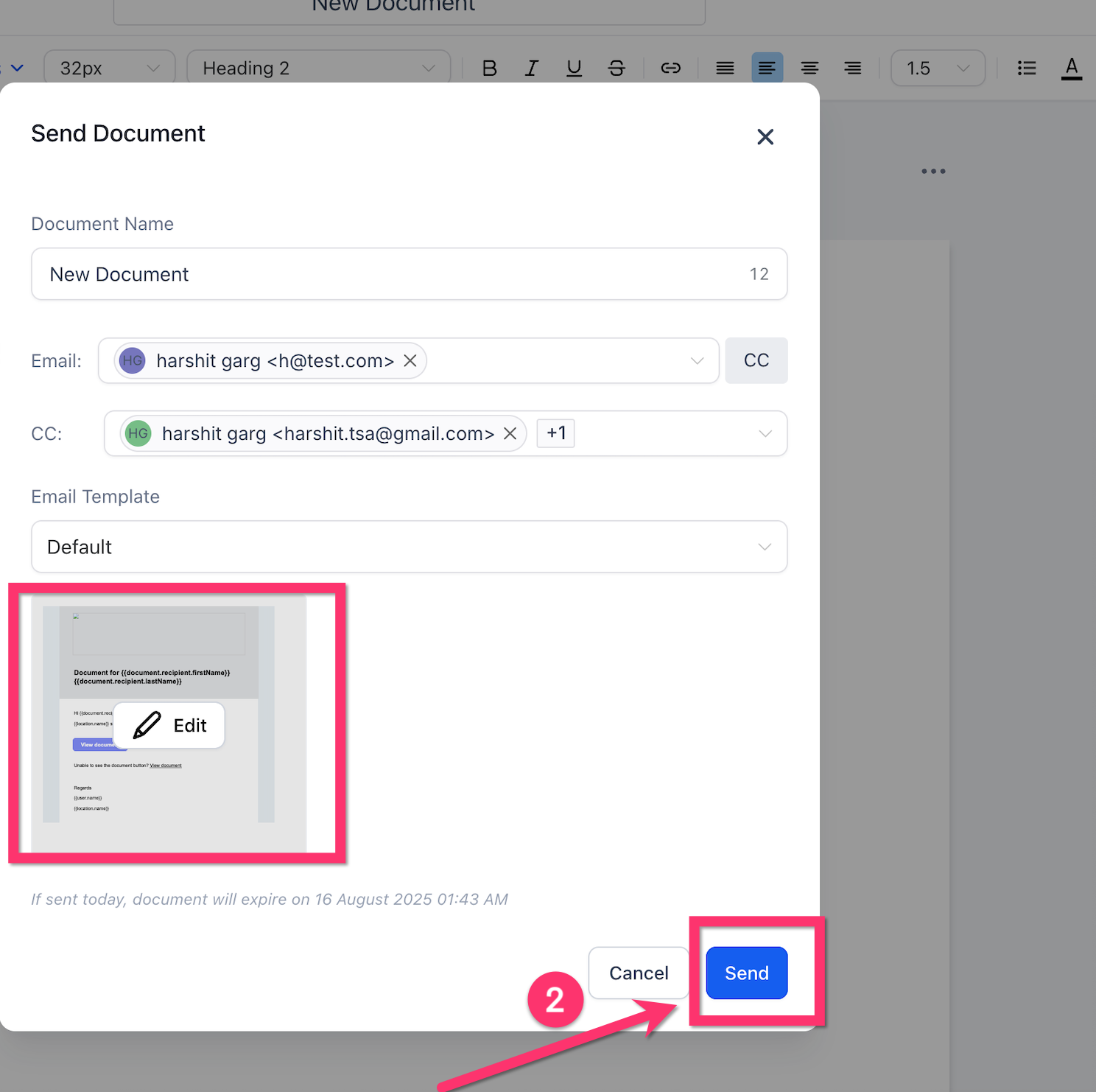
Click the Edit icon if you need to adjust the subject or body just for this message.
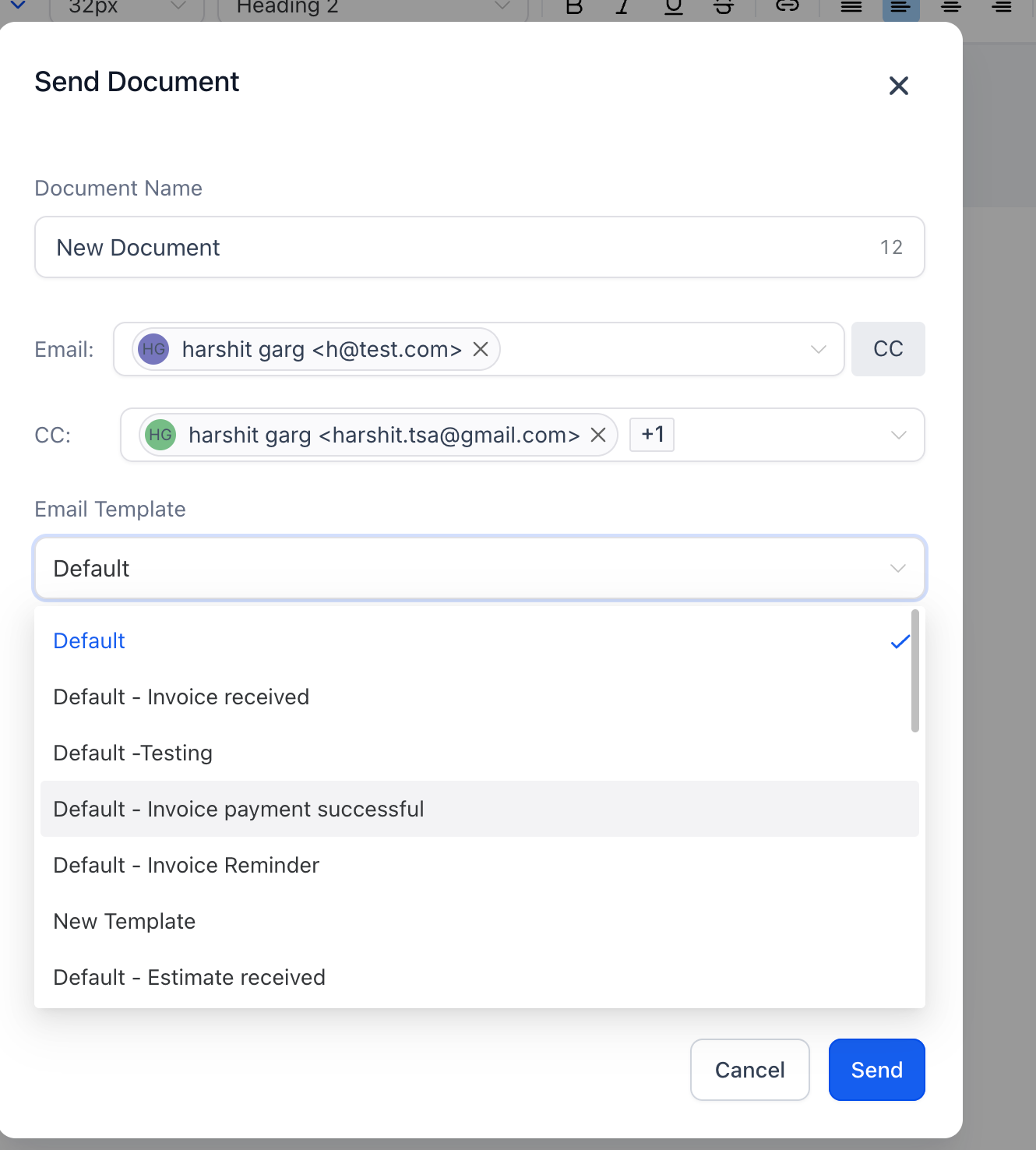
Review the preview, then click Send.
This is useful when you've built separate templates for different document types (a consent form versus a membership agreement, for example) and want to hand-pick one at send time rather than relying on a single default.
Document notification emails support two kinds of merge fields:
Contact fields, pulled from the patient's contact record, such as {{contact.first_name}} and {{contact.email}}. Manage these under Settings → Custom Fields → Contact.
Document fields, pulled from the document itself, such as {{proposal.url}}, {{proposal.total}}, and {{proposal.due_date}}.
For example: "Hi {{contact.first_name}}, your document is ready. View it here: {{proposal.url}}. The total is {{proposal.total}}."
If a document field doesn't have a value for a particular document, it shows up blank in the email rather than an error. Test your templates with a real document before relying on them, and consider adding fallback wording (for example, "Please contact us if you don't see a link above") so a blank field doesn't confuse a patient.
Keep in mind these are standard, unencrypted emails. Avoid putting specific treatment or diagnosis details in the subject line or body beyond what's already in the document itself.
These are internal alerts, separate from the customer-facing emails above. By default, they go to whoever sent the document (the document owner).
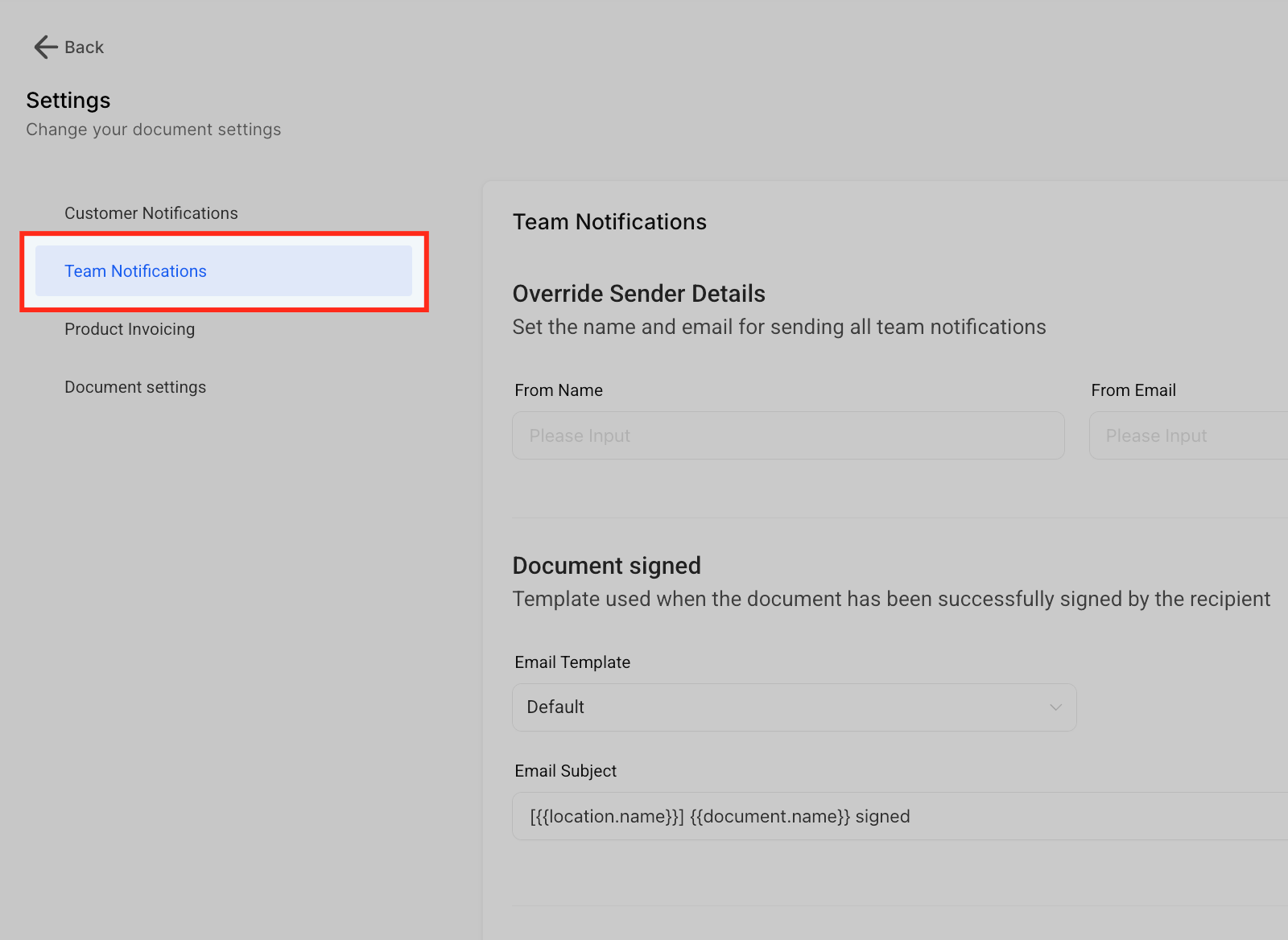
Use this toggle to set a custom From Name and From Email for internal alerts. This is independent of the sender settings under Customer Notifications, so you can have a patient-facing address and a different internal one.
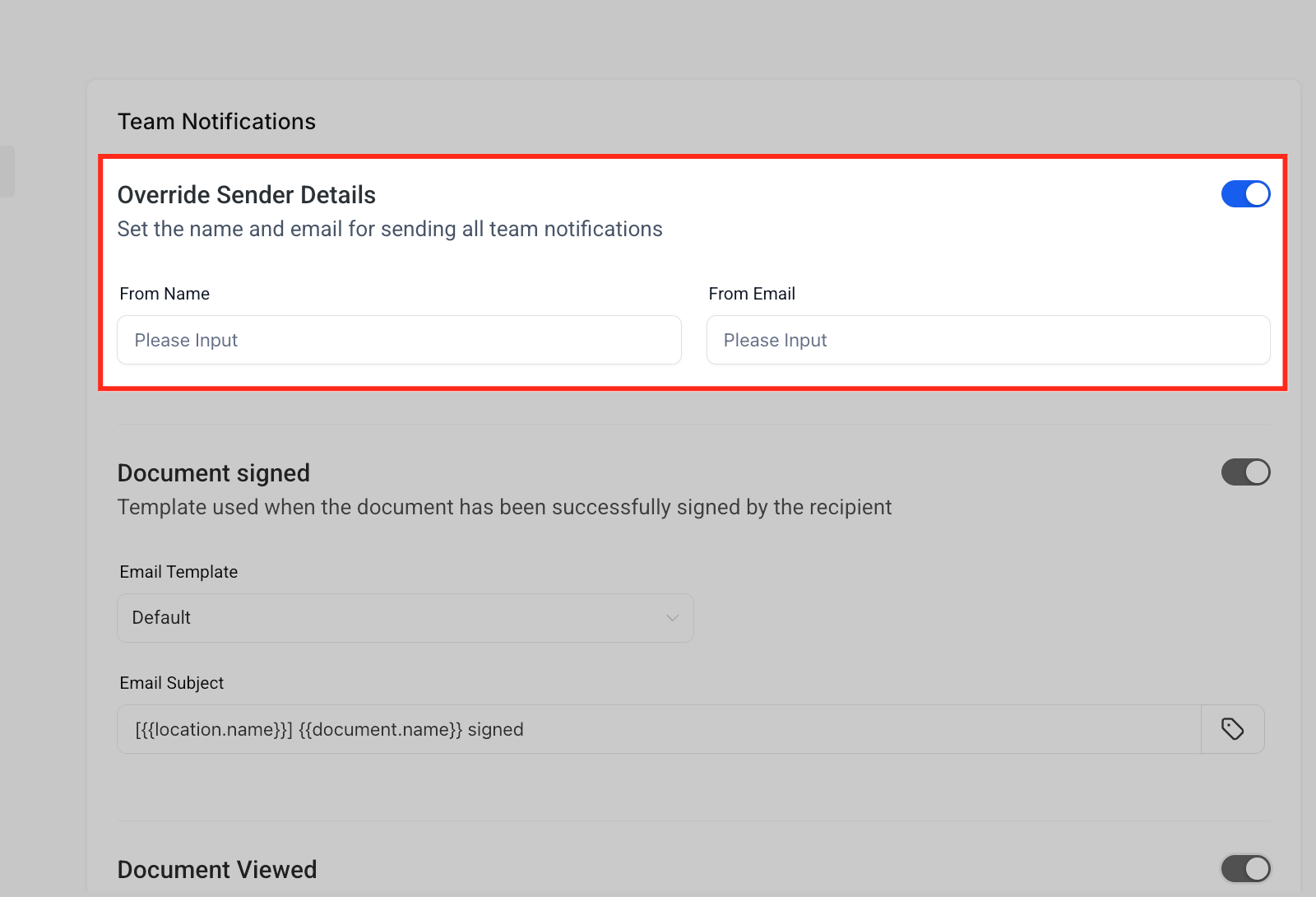
Notifies your team when a patient has signed a document. Edit the subject and choose a template style.
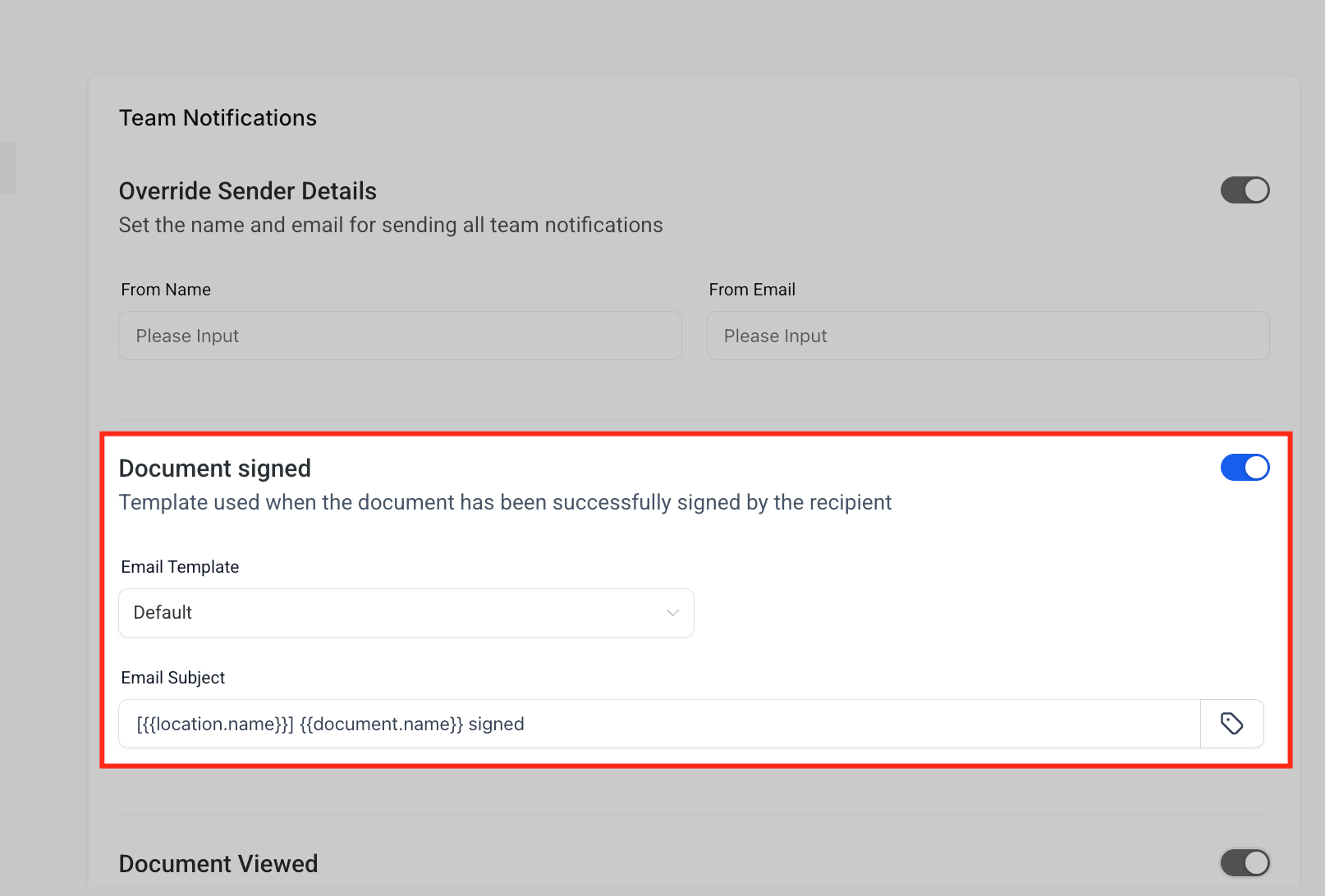
Turn this on to get an email the first time any recipient opens the document. Aesthetix CRM sends only one "viewed" alert per document, even if it has multiple recipients or gets opened more than once. You can edit the subject and body, and insert {{Preview URL}} in the body if you want the email to link directly to the document preview.
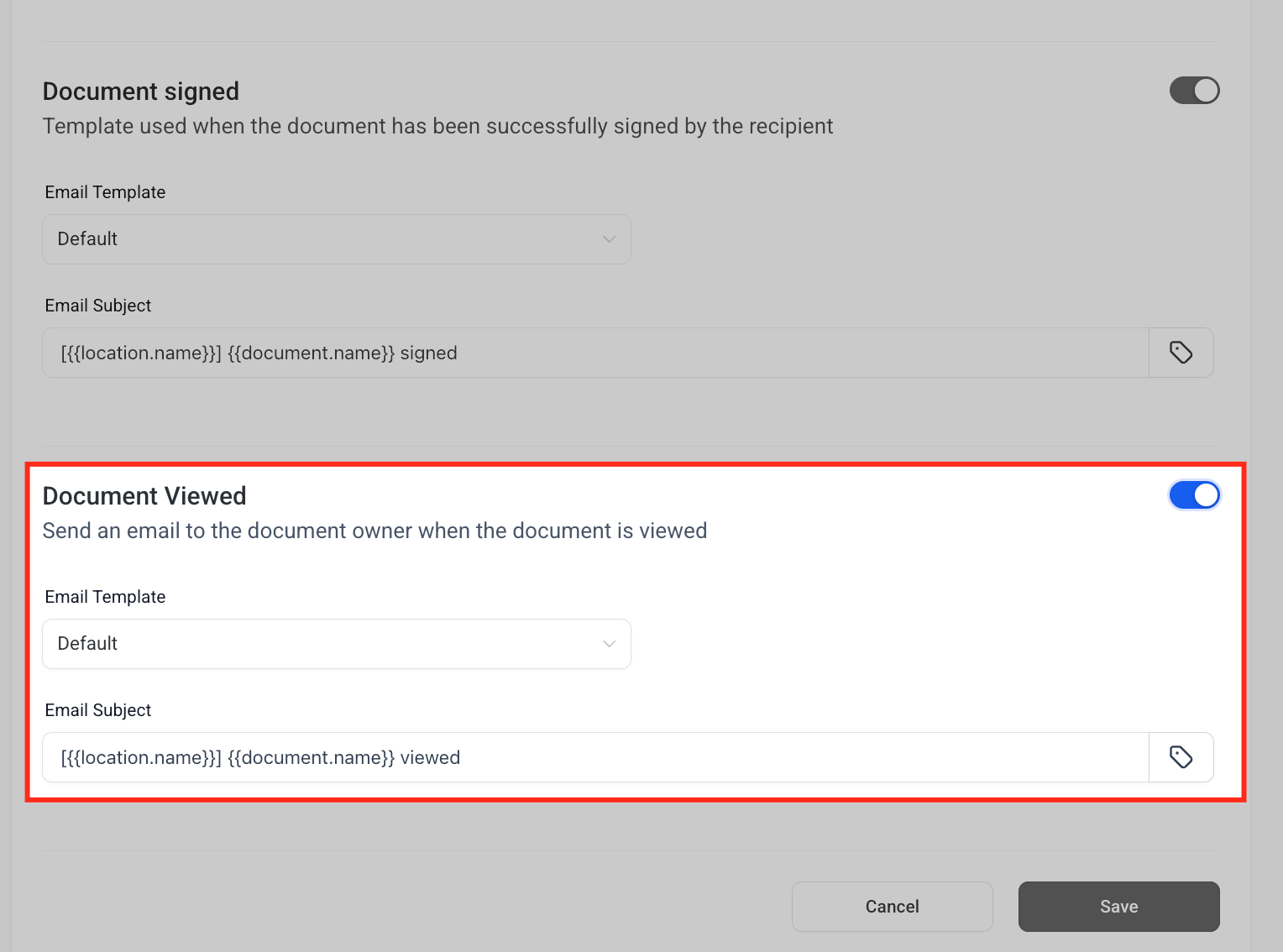
Click Save at the bottom of the page after making changes.
A few things to know:
Team Notifications apply globally. You can't currently set up "person A gets Signed alerts, person B only gets Viewed alerts" from these settings alone.
Overriding the sender in Team Notifications never changes what patients see in Customer Notifications, and vice versa.
The built-in Team Notifications only reach the single document owner (or the overridden sender address). To alert specific users, roles, teams, or extra email addresses whenever a document is sent, viewed, signed, or completed, use a Workflow instead:
Trigger: the Documents & Contracts event you want to act on (Sent, Viewed, Signed, or Completed).
Action: Internal Notification, sent to specific Users, Roles, or Teams, or to custom email addresses you type in.
Optionally add conditions (for example, only fire for a specific template or a deal value above a threshold) and additional actions, like tagging the contact or moving an opportunity to a new stage.
See Automating Documents with Workflows for a full walkthrough of the Documents & Contracts workflow trigger and action, and The Workflow Builder for general workflow setup.
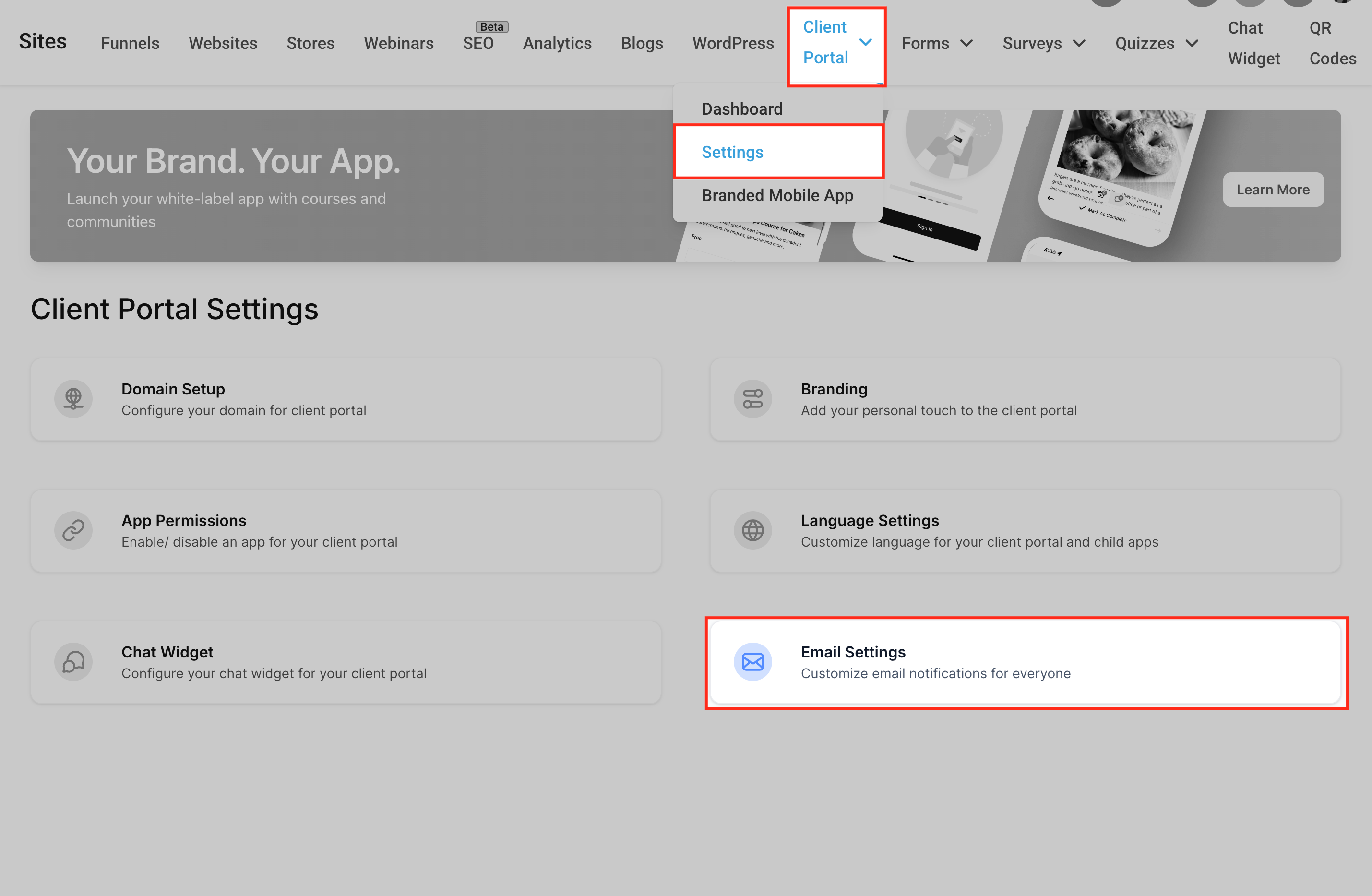
When a patient can also view their documents inside the Client Portal, portal-level email notifications are a separate setting from the Documents & Contracts notifications covered above. Turn portal document notifications on or off, and edit the default portal email template, from the Client Portal's own settings. See Client Portal Notifications and Setting Up the Client Portal.
This article covers documents and contracts only. For invoice-specific notification and reminder settings, see Invoice Notifications and Reminders.
What happens if a merge field like {{proposal.url}} doesn't have a value for a specific document?
The field shows up blank in the email rather than causing an error. Test templates with real document data first, and add fallback text where it makes sense.
Can I set up different notifications for different team members, like one person only getting "signed" alerts and another only getting "viewed" alerts? Not from Team Notifications settings alone, since those apply globally to the document owner or overridden sender. For role-specific alerts, build a Workflow with the Documents & Contracts trigger and an Internal Notification action.
If I override the sender in Team Notifications, does that change what patients see? No. Team Notifications and Customer Notifications are configured independently, so you can use one From Email for patient-facing emails and a different one for internal alerts.
Can I use a different email template for consent forms versus membership agreements versus estimates? Yes, two ways: assign different templates per notification type (received, signed, expiry warning) in Settings, or pick a specific template from the Email Template dropdown when you send an individual document.
Where do I actually build the email templates? In Marketing → Emails → Templates. Templates can't be created directly inside Documents & Contracts settings, but once saved they appear in the Email Template dropdowns there.
Will my team get notified every time a document is reopened? No. The Document Viewed Alert sends once per document, for the first view across all recipients, not on every subsequent open.
Do CC recipients on Customer Notifications get the same email as the patient? Yes. CC recipients receive the identical client-facing email. If you need internal-only wording for your team, use a Workflow with an Internal Notification action instead of CC.
Are document notification emails secure enough to include treatment details? Treat them like standard email. Keep subject lines and body copy limited to what's needed to direct the patient to the document, and avoid adding treatment or diagnosis specifics beyond what the document itself contains.
Does this cover invoice reminder emails too? No. This article is limited to documents and contracts. See Invoice Notifications and Reminders for invoice-specific settings.
