Aesthetix CRM can automatically notify both your patients and your staff at each stage of the invoicing process, and it can send automated reminders when an invoice is due. Customizing these messages lets you use your own branding and wording instead of the system defaults, and reminders help you collect payment without manual follow-up.
Notification settings let you personalize the email and SMS alerts used for invoicing. To access them, go to Payments → Invoices & Estimates, click the Settings (gear) icon, then select Notifications.
Under Customer Notifications, the email and SMS alerts sent to the patient receiving the invoice can be tailored to your needs. To choose a template, click the dropdown menus.
Under Team Notifications, email notifications can be customized for the staff member who sent the invoice.
To prevent a specific notification from being sent, switch its toggle to the off position.
In the email and SMS builder, use the Invoice custom values feature to insert dynamic details into your messages. These can include patient information, the total invoice amount, due date, invoice URL, and more.
The following notifications are available for patients (customer notifications) and staff (team notifications):
Customer notifications: Invoice Received, Estimate Received, Invoice Payment Successful, Invoice Payment Failed, Auto Payment Information, Auto Payment Amount Changed, Auto Payment Failed, and Payment Schedule Received.
Team notifications: Invoice Payment Successful, Invoice Payment Failed, Auto Payment Failed, Auto Payment Skipped, The Invoice Could Not Be Sent, Estimate Accepted Successfully, and Estimate Declined Successfully.
Invoice reminders automatically prompt patients to pay when an invoice is due. Reminders apply to all one-time and recurring invoices where automatic payment is disabled and no payment schedule exists.
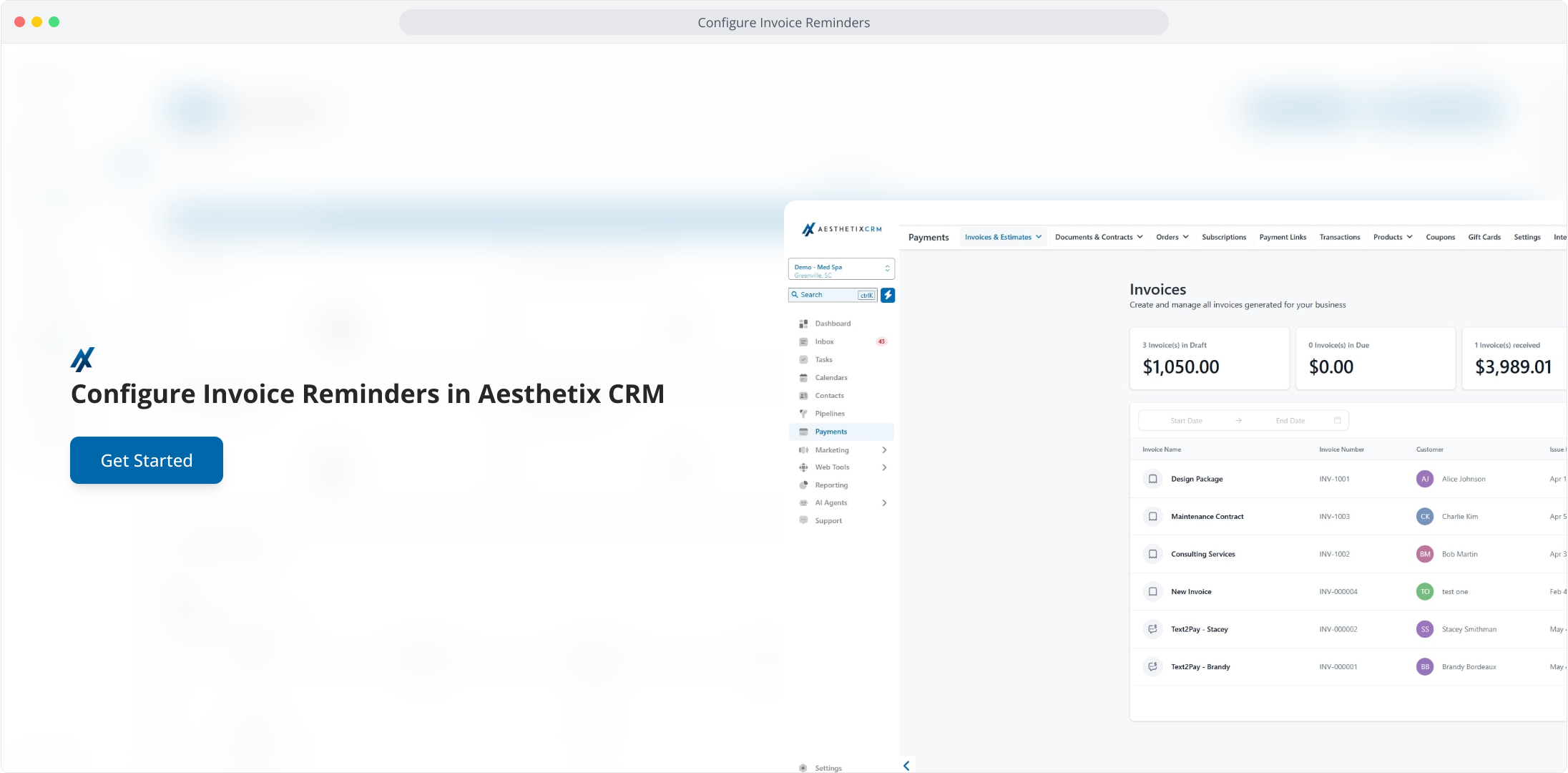
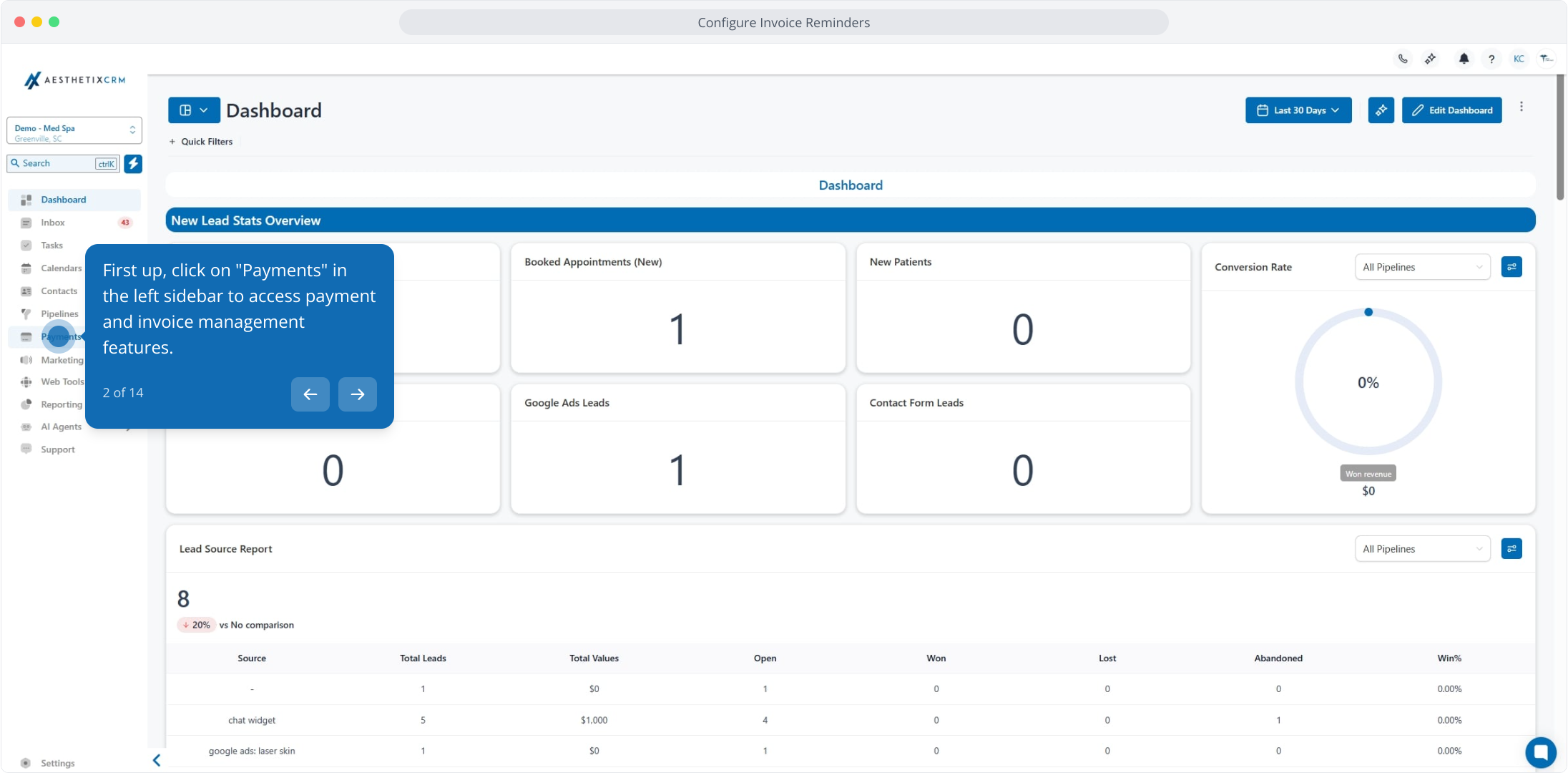
Click Payments in the left sidebar to access payment and invoice management.
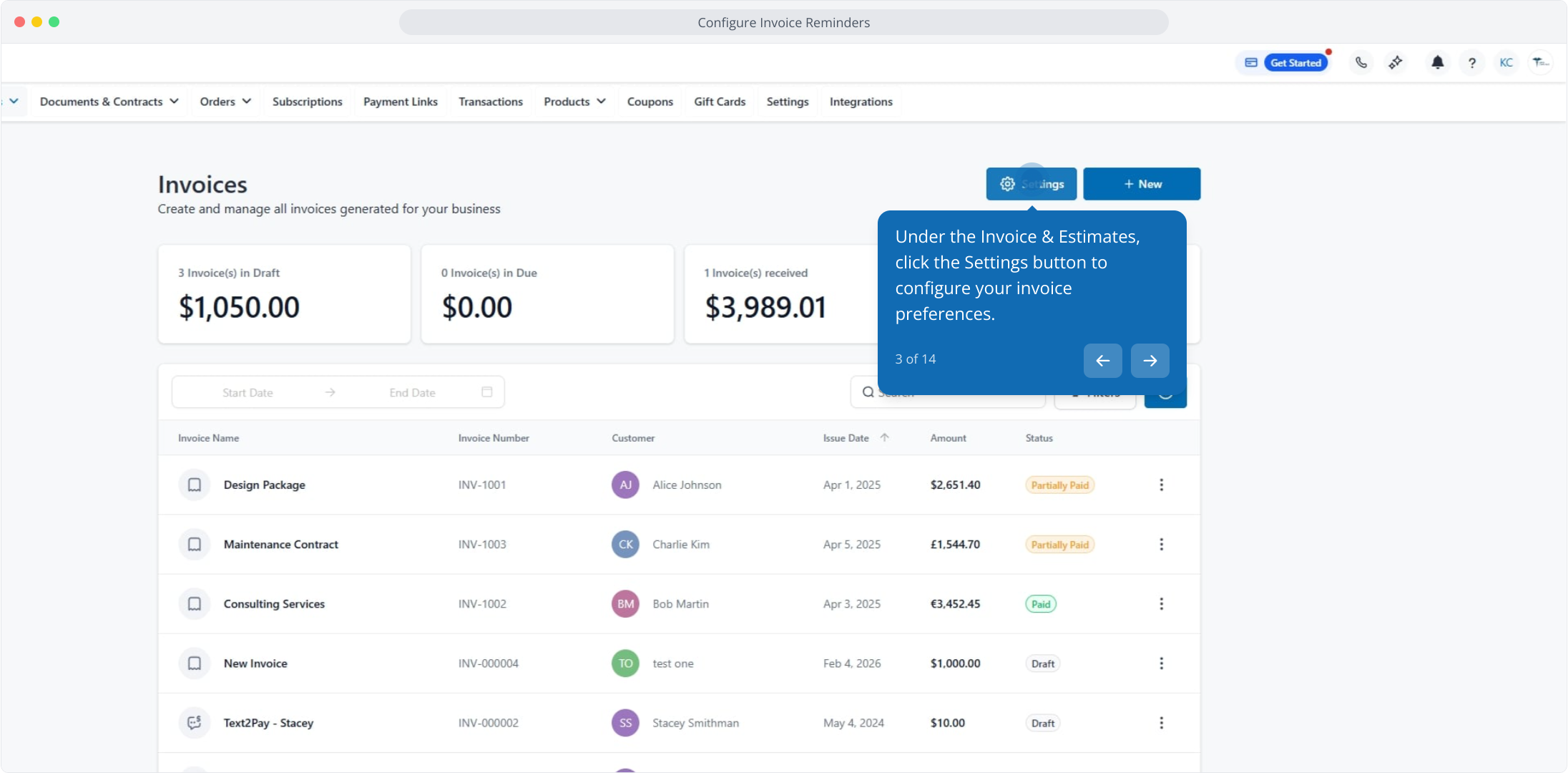
Under Invoices & Estimates, click the Settings button.
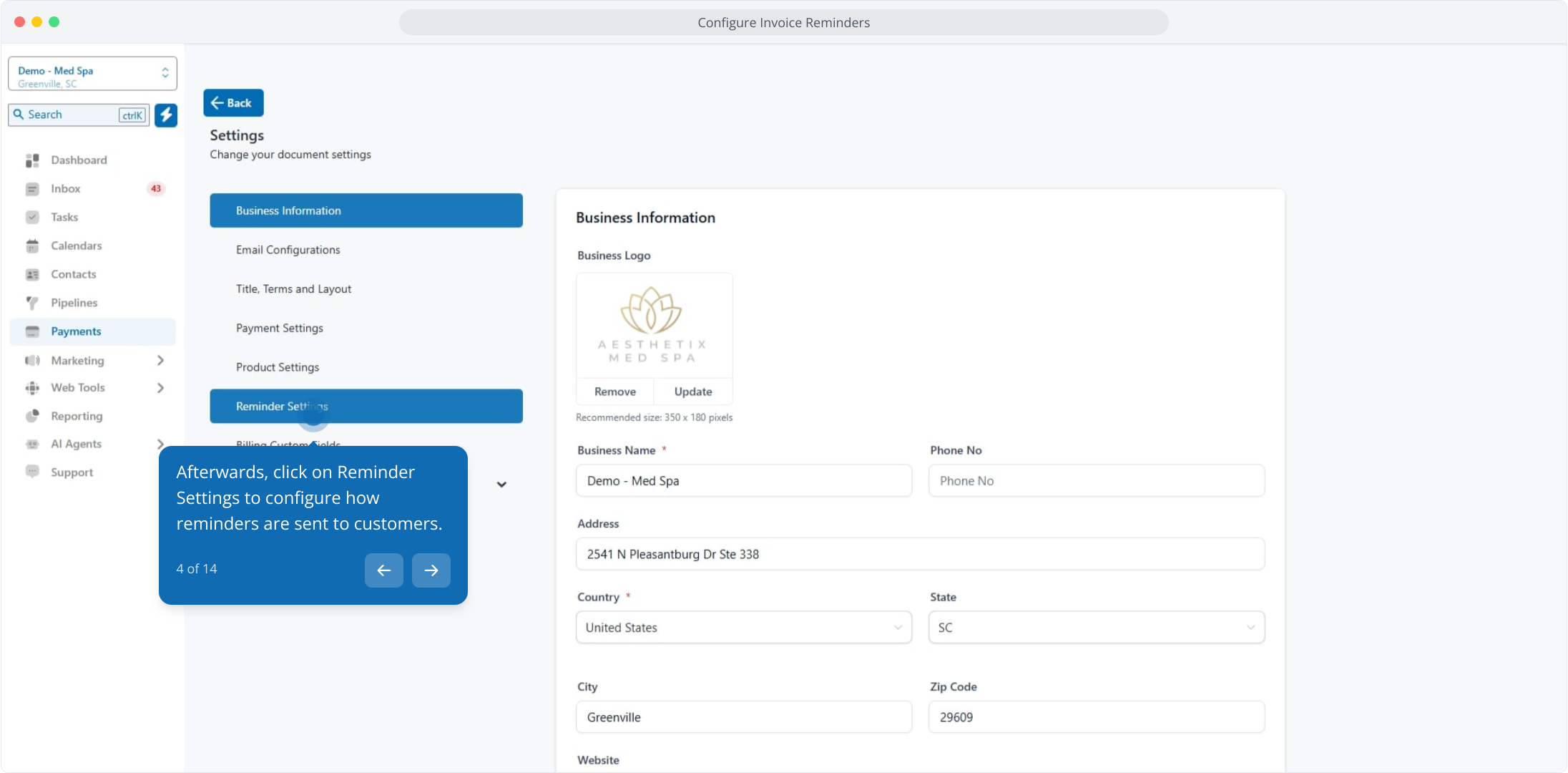
Click Reminder Settings to configure how reminders are sent to patients.
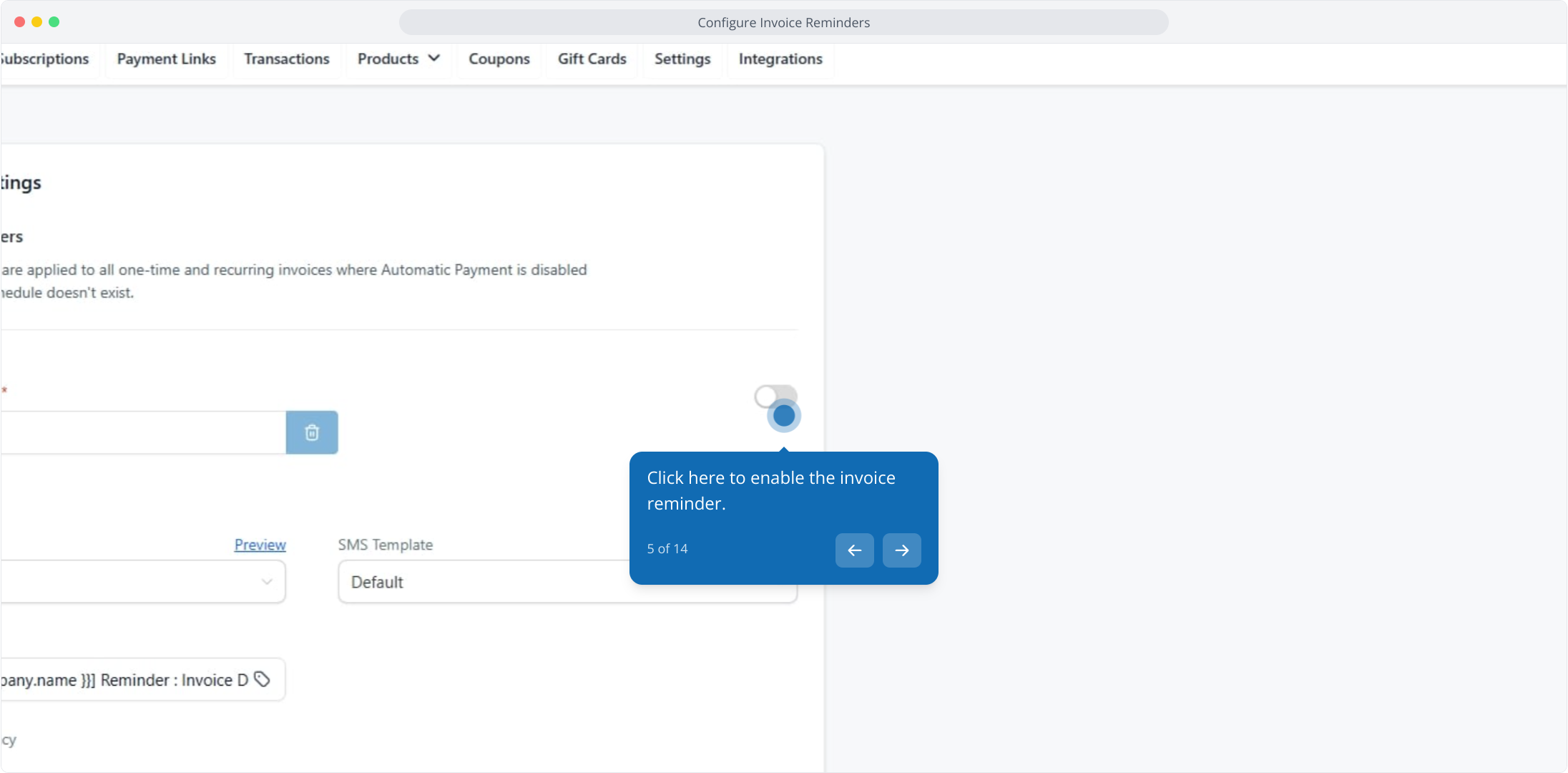
Click to enable the invoice reminder.
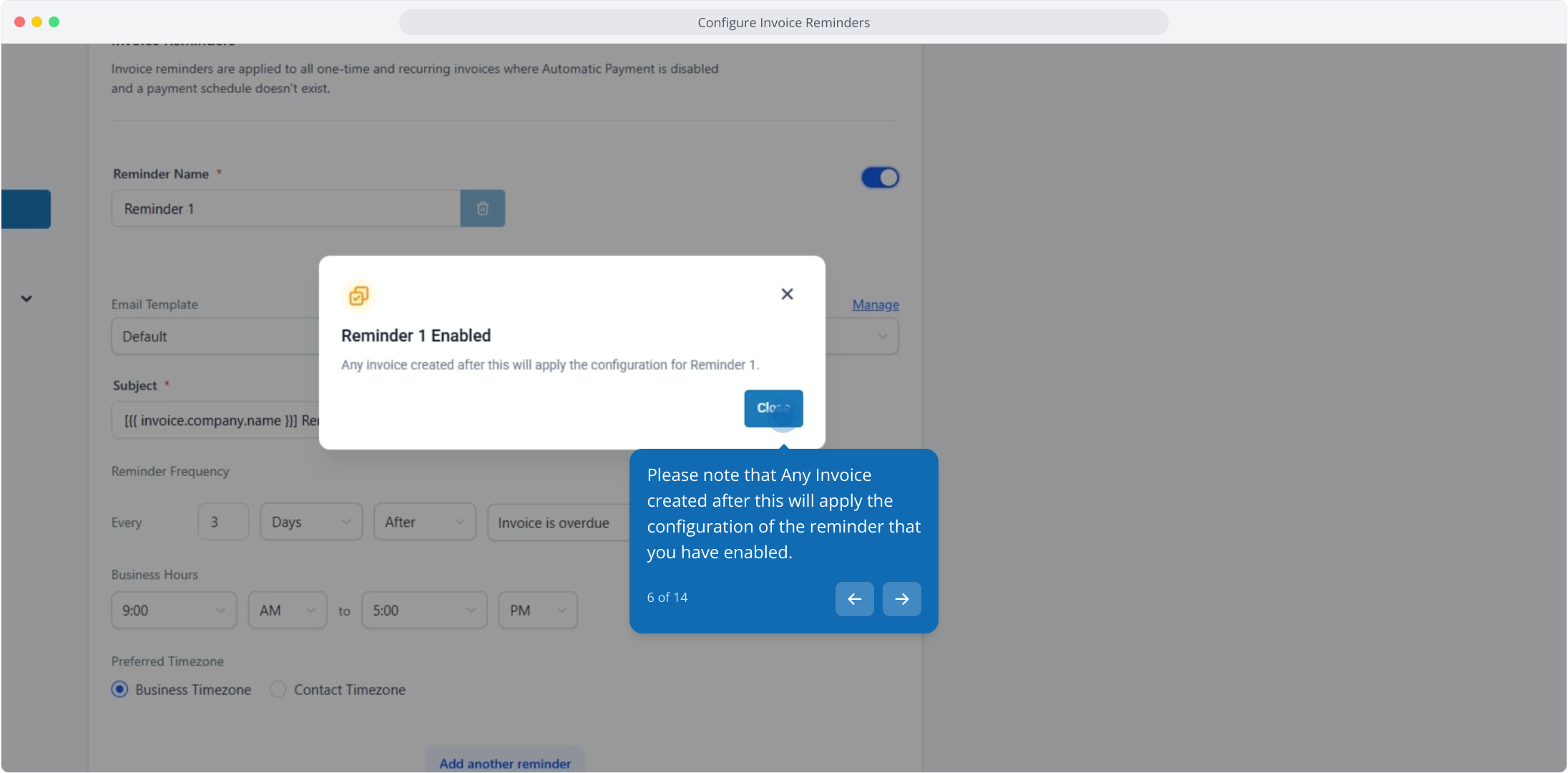
Please note that any invoice created after this will apply the reminder configuration you have enabled.
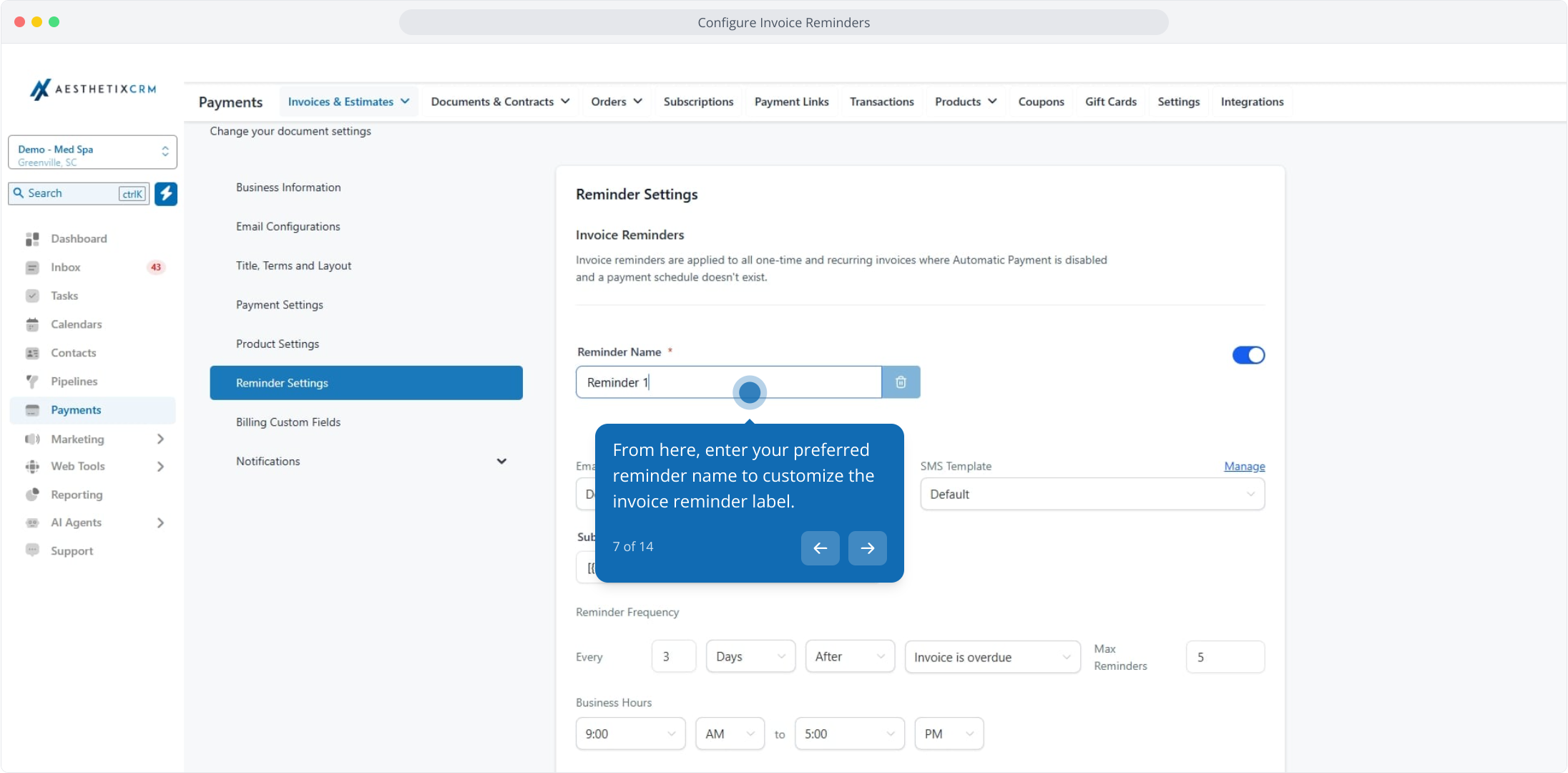
Enter your preferred reminder name to customize the reminder label.
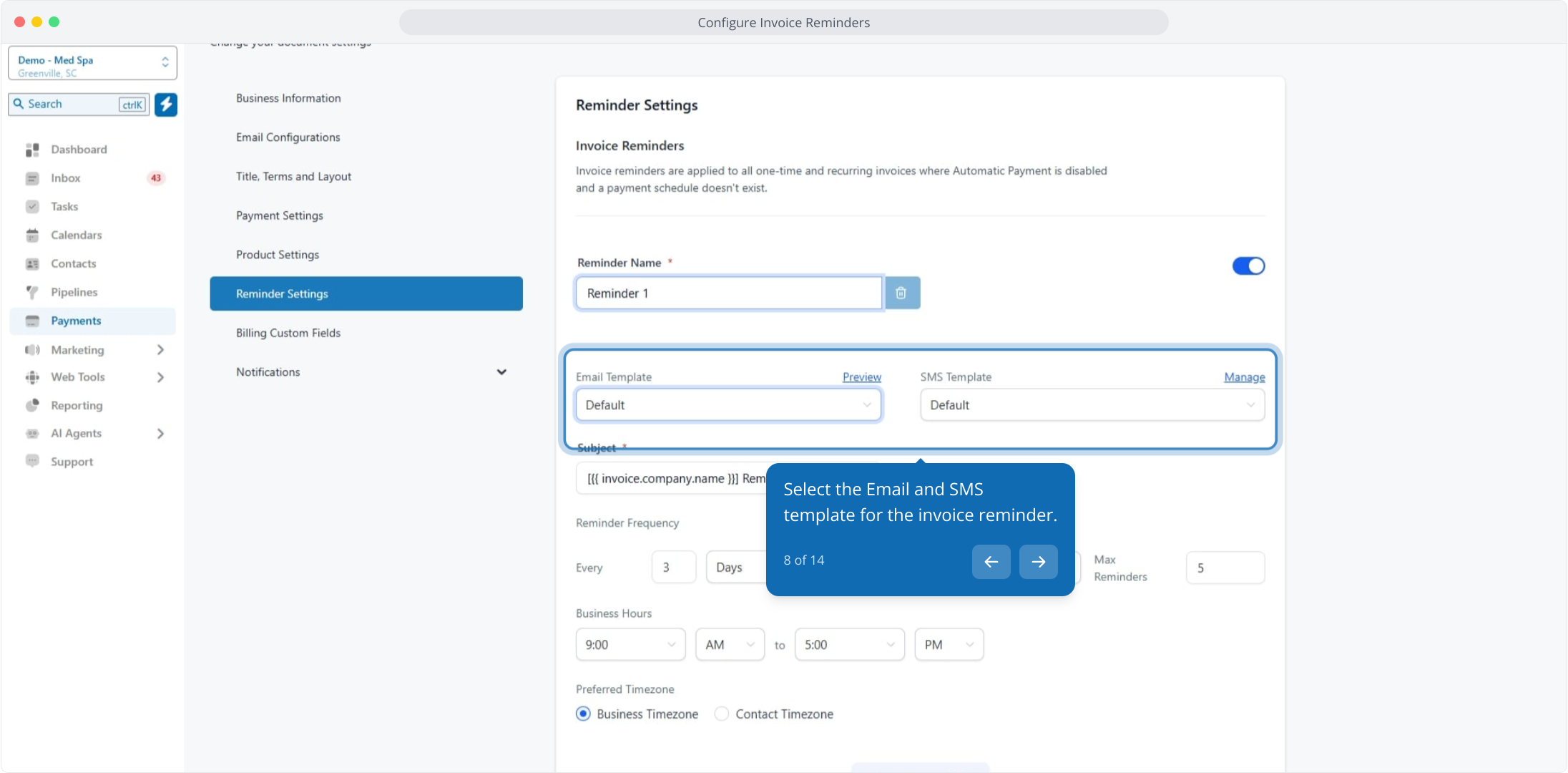
Select the email and SMS template for the invoice reminder.
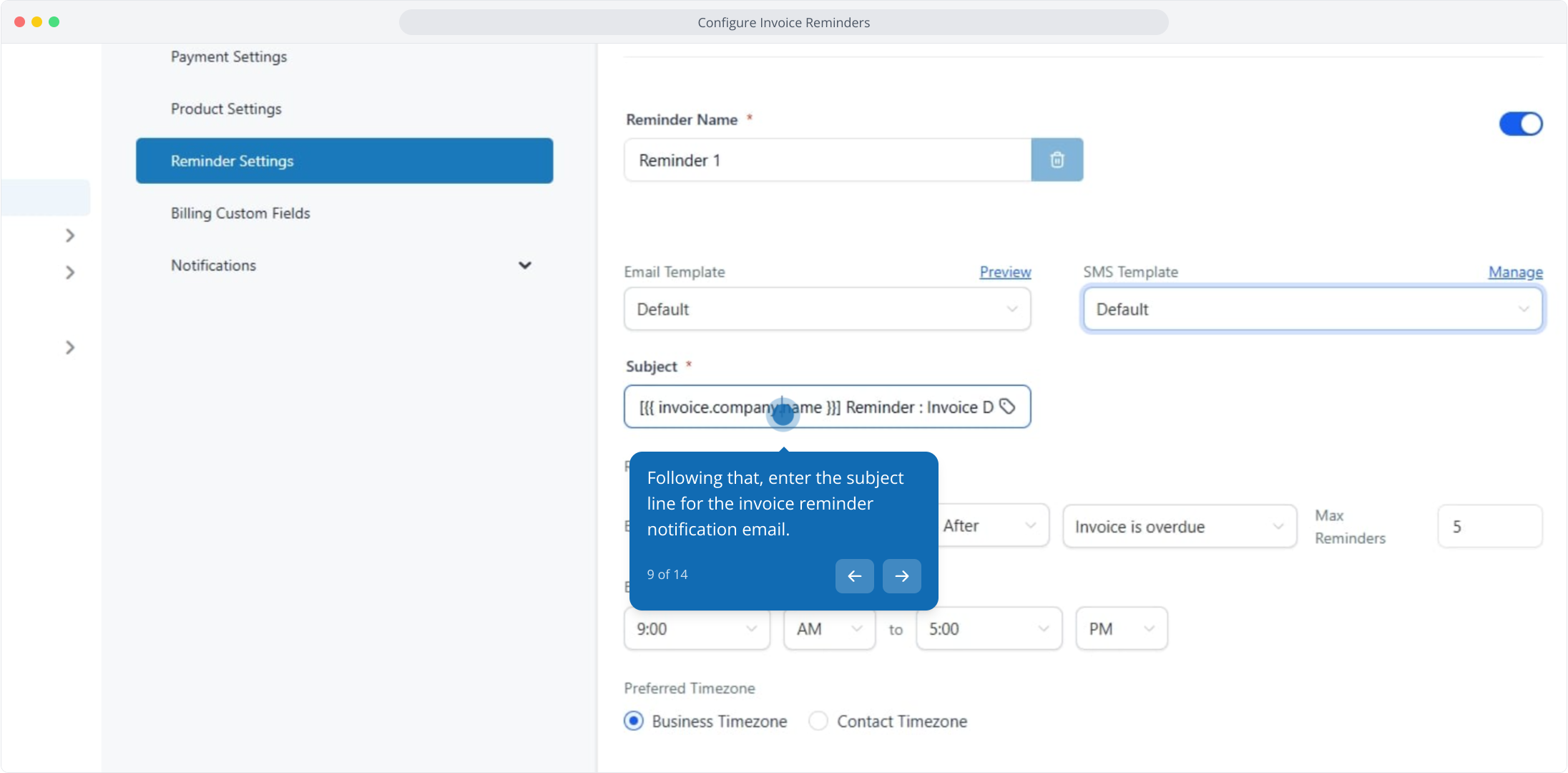
Enter the subject line for the reminder notification email.
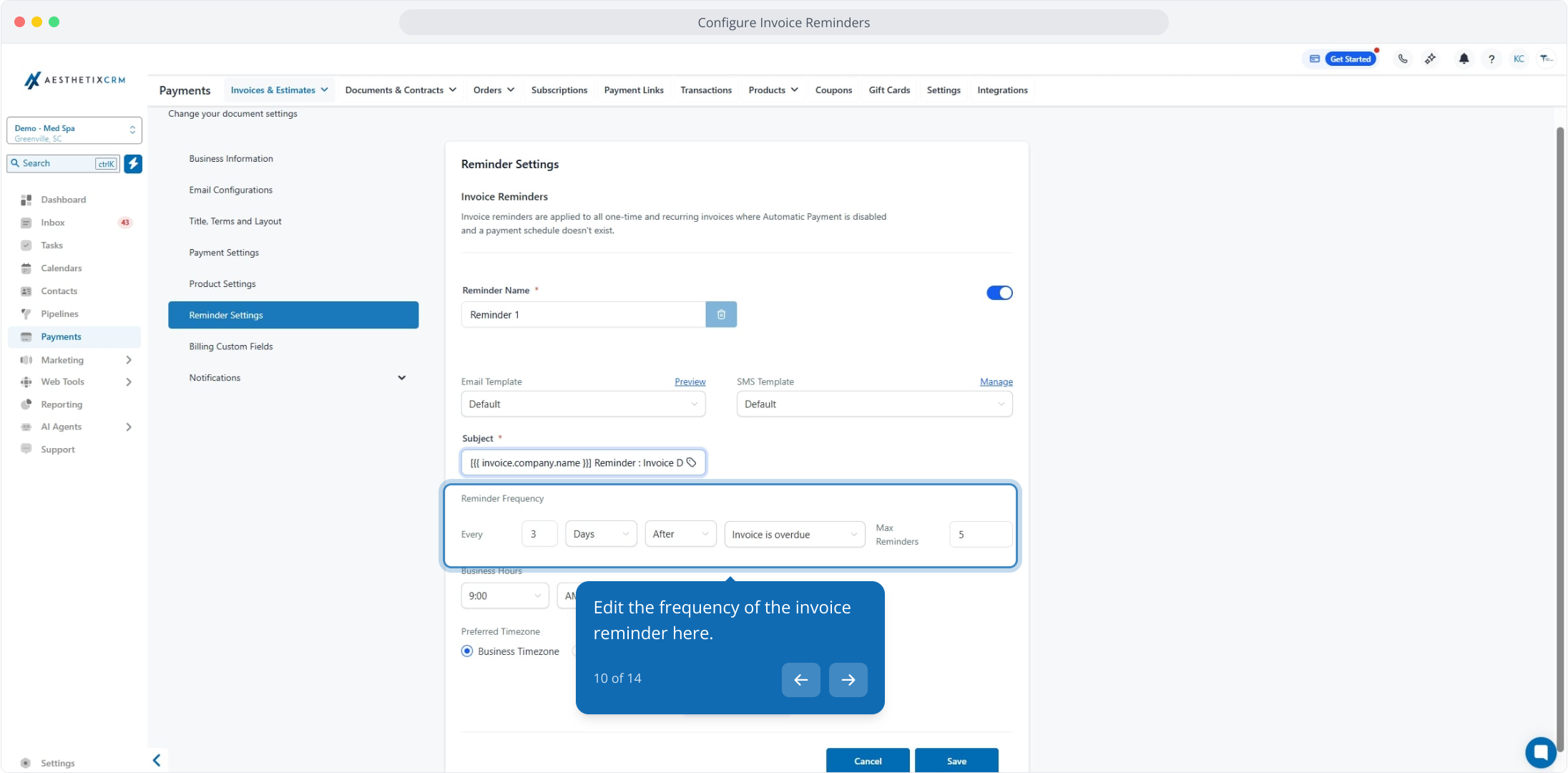
Edit the frequency of the invoice reminder.
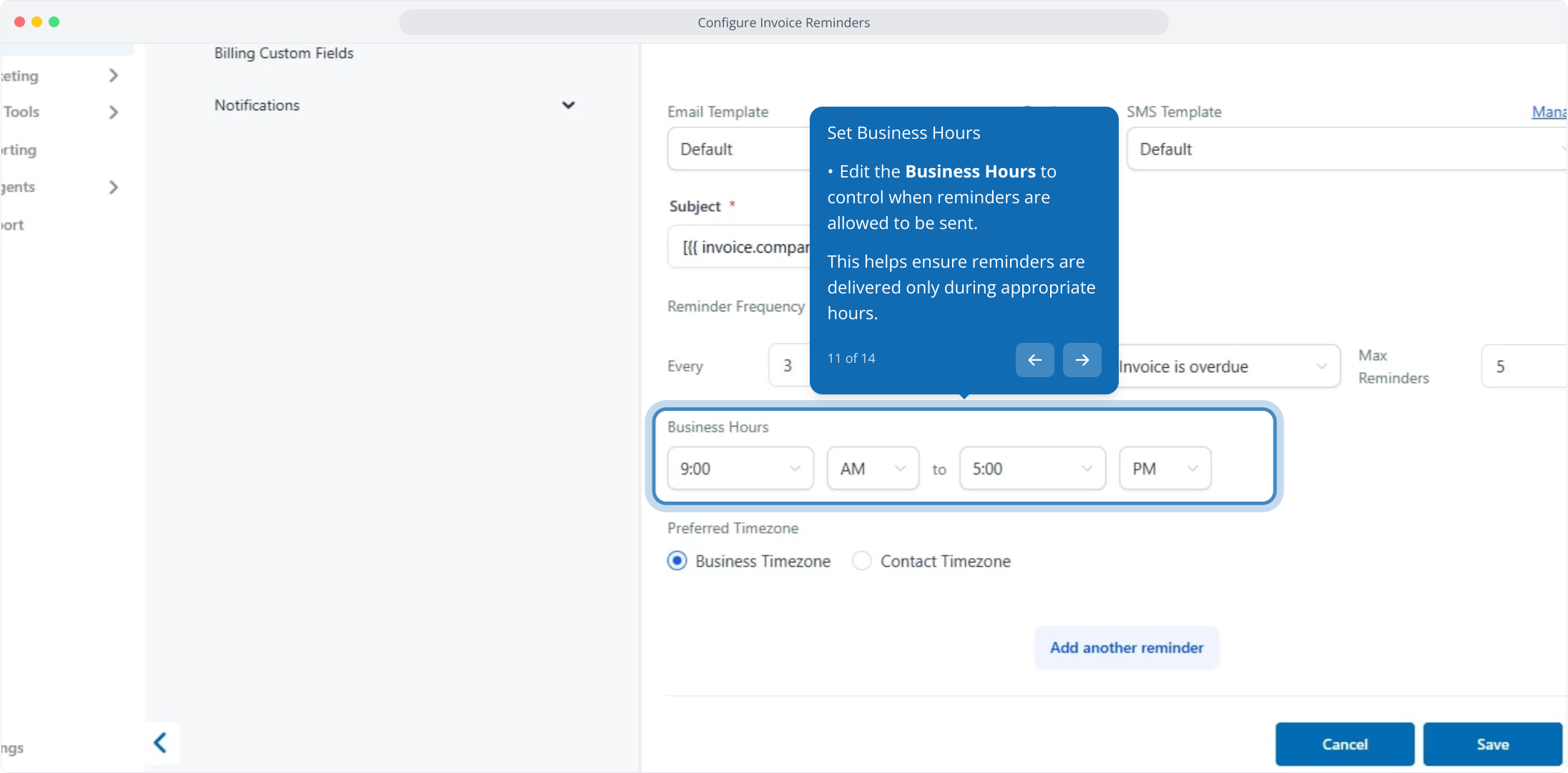
Edit the Business Hours to control when reminders are allowed to be sent. This ensures reminders are delivered only during appropriate hours.
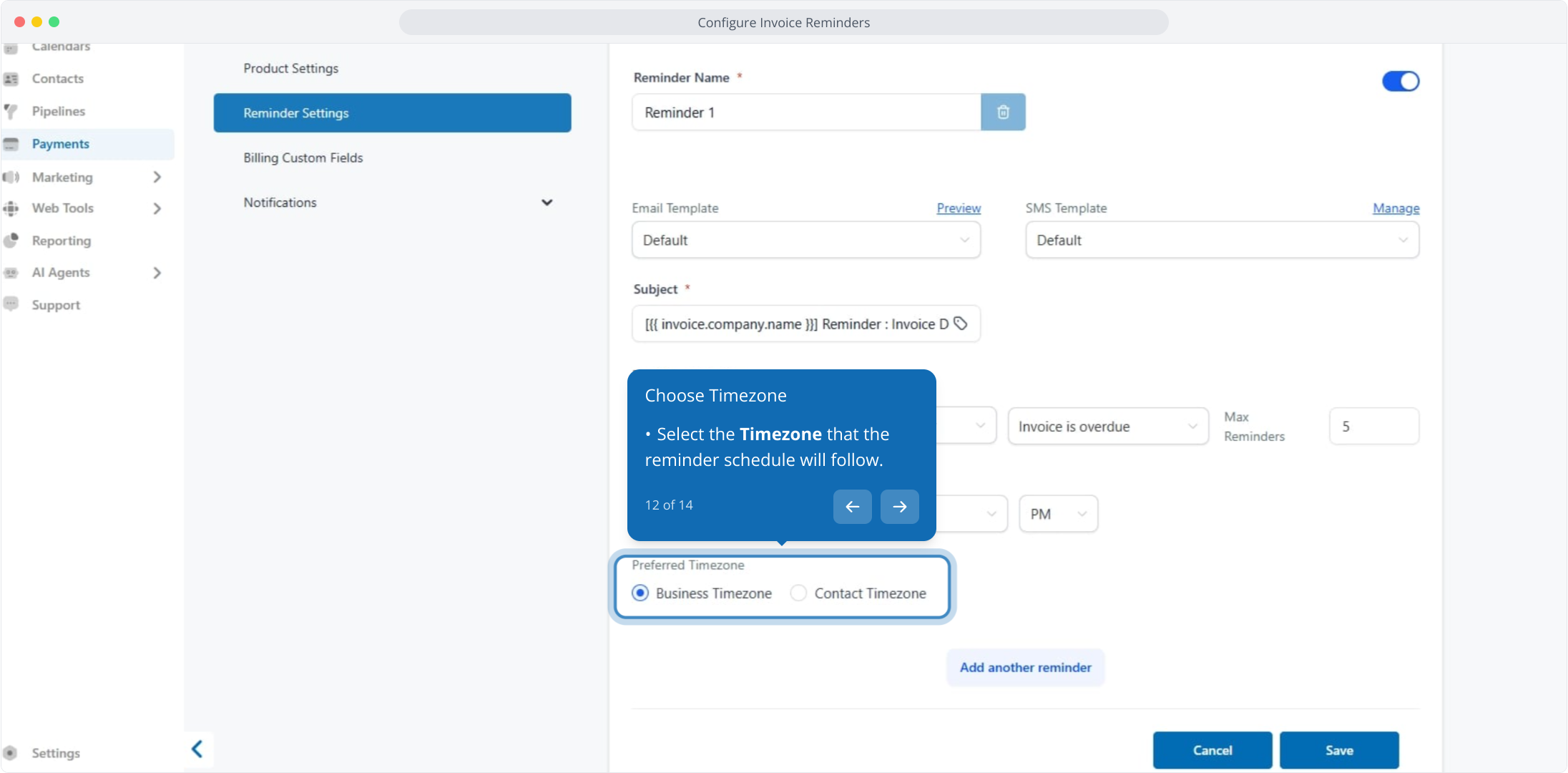
Select the Timezone that the reminder schedule will follow.
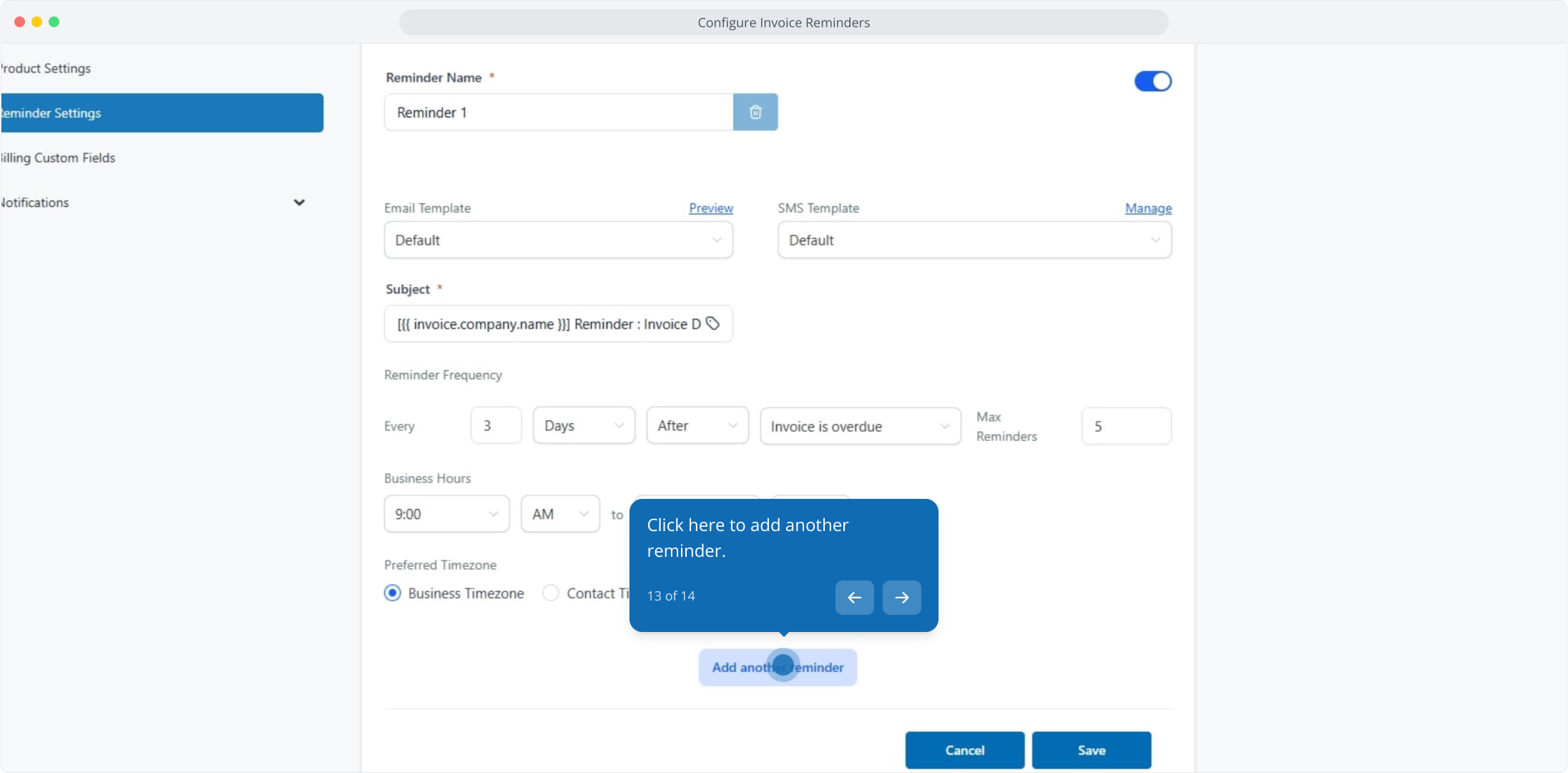
Click to add another reminder if you want multiple touchpoints.
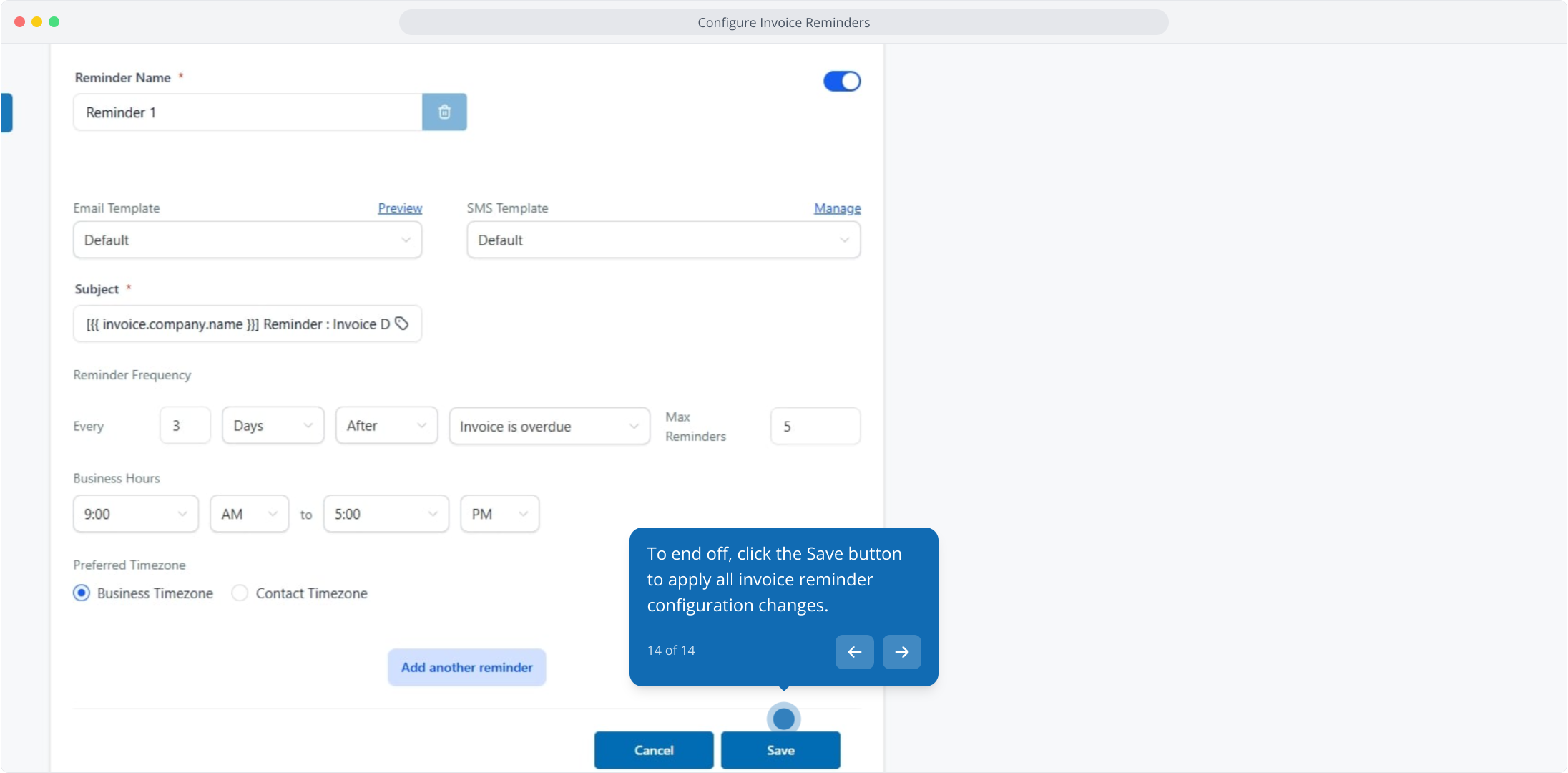
Click Save to apply all reminder configuration changes.
Understanding how reminders behave helps you avoid gaps in collection, especially for invoices that existed before you enabled reminders.
Reminder template behavior: The reminder template previewed in your invoice settings is the correct template used for automated reminders. You can configure multiple reminders (for example, Reminder 1 and Reminder 2), each with its own timing. Reminder automations only trigger after they have been enabled.
Existing overdue invoices: Automated reminders do not apply to invoices that were already overdue before the reminder feature was enabled. The system only sends reminders for invoices created after enabling the configuration. Previously overdue invoices must be handled manually.
Sending a manual reminder: You can manually send a reminder to a patient with an overdue invoice. When sending manually, selecting the contact populates only the contact information. Dynamic invoice fields (invoice amount, due date, invoice number) do not auto-populate when sending through the manual message composer. For that reason, manual reminders are recommended only when necessary, to avoid template mismatch.
Due-date configuration: Updating Invoice Due After (days) in Payment Settings affects future invoices only. Existing invoices, including recurring invoices already generated, are not updated retroactively.
Where do I customize invoice notifications? Go to Payments → Invoices & Estimates → Settings → Notifications, then choose Customer Notifications or Team Notifications and edit the email or SMS template.
How do I stop a specific notification from being sent? Open the notification in settings and switch its toggle to off.
What dynamic details can I insert into a notification? Using the invoice custom values feature, you can add patient information, the total invoice amount, due date, invoice URL, and other invoice details.
Do reminders apply to invoices I created before enabling the feature? No. Automated reminders only apply to invoices created after reminders are enabled. Invoices that were already overdue must be reminded manually.
Can I send more than one reminder per invoice? Yes. Click Add another Reminder in Reminder Settings to create multiple reminders, each with its own name, template, subject line, and frequency.
Which invoices do automated reminders apply to? Reminders apply to one-time and recurring invoices where automatic payment is disabled and no payment schedule exists.
Why don't the invoice amount and due date fill in when I send a reminder manually? Manual reminders sent through the message composer only populate contact information. Dynamic fields such as amount, due date, and invoice number do not auto-populate, so use the automated reminder where possible.
Why aren't reminders sending at the time I expect? Reminders respect the business hours and timezone you set in Reminder Settings. Confirm both are configured correctly so reminders send during your intended window.
