A Class Booking calendar lets multiple patients book the same appointment slot at once, so it's the right calendar type for group treatments, skincare workshops, injectable parties, wellness classes, and any event where one provider sees several patients at the same time. You create and manage Class Booking calendars from Calendars in your Aesthetix CRM account.
A Class Booking calendar is a one-to-many calendar: a single booking slot can hold many attendees instead of just one. It's built for events like:
Group treatment sessions (injectable parties, group facials, laser events)
Skincare or wellness workshops
Staff or patient training sessions
Practice-hosted events and open houses
Each Class Booking calendar has exactly one appointment owner (the provider or host running the class), and you set the maximum number of seats per slot. You can allow up to 9,999 attendees in a single slot, but if you're also using a conferencing tool for a virtual class, that tool's own attendee limit still applies (for example, some Zoom plans cap out around 500 participants), so check your conferencing provider's limits before setting a very high seat count.
Efficient organization: one booking slot accommodates every attendee instead of creating separate appointments.
Customizable capacity: set the number of seats per slot to match your room size or provider capacity.
Centralized management: manage all bookings, cancellations, and reschedules for the class from one place.
Clearer communication: attendees see the same date, time, and location details, which cuts down on no-shows and confusion.
Time savings: the booking, cancellation, and reschedule flow is automated for both your team and your patients.
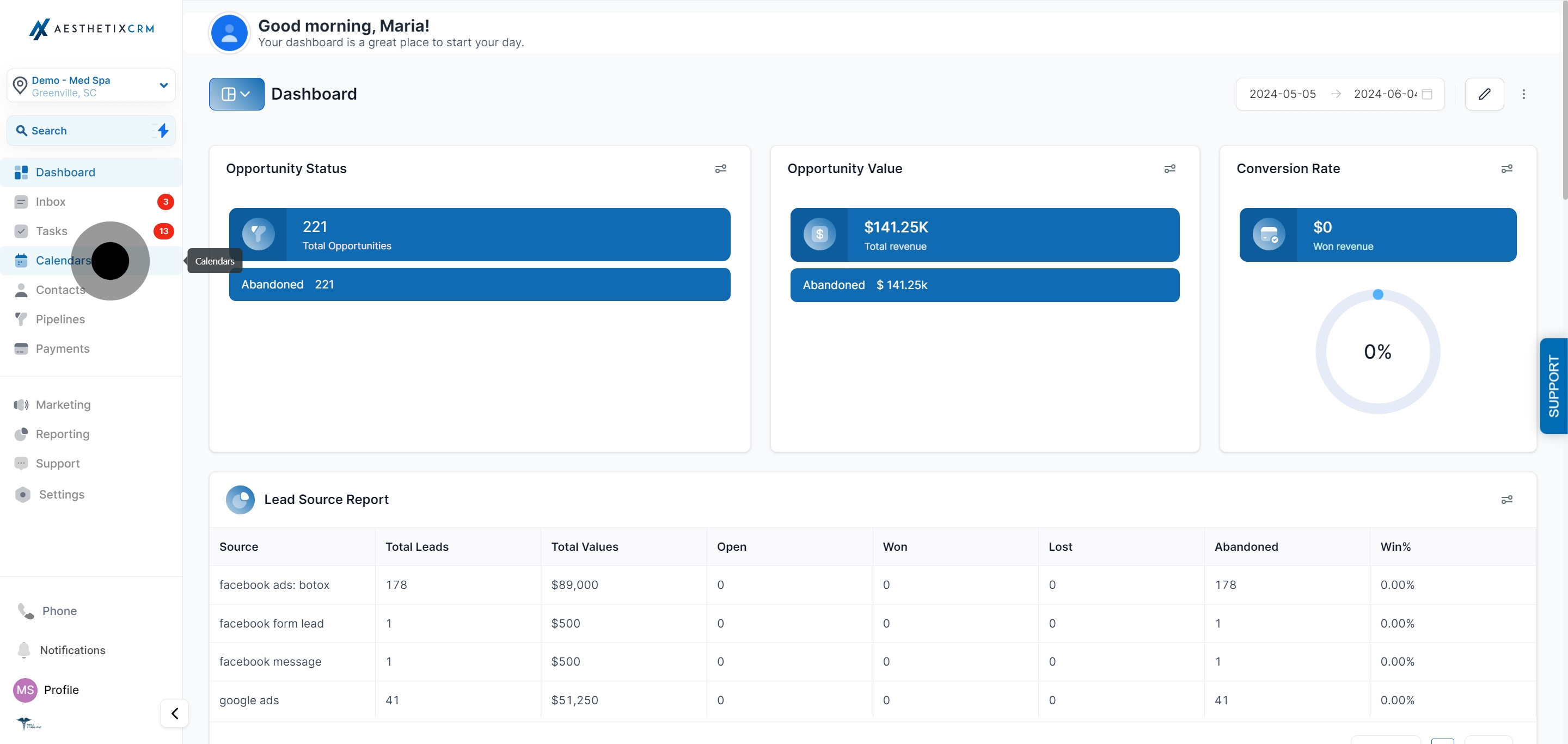
Click on Calendars.
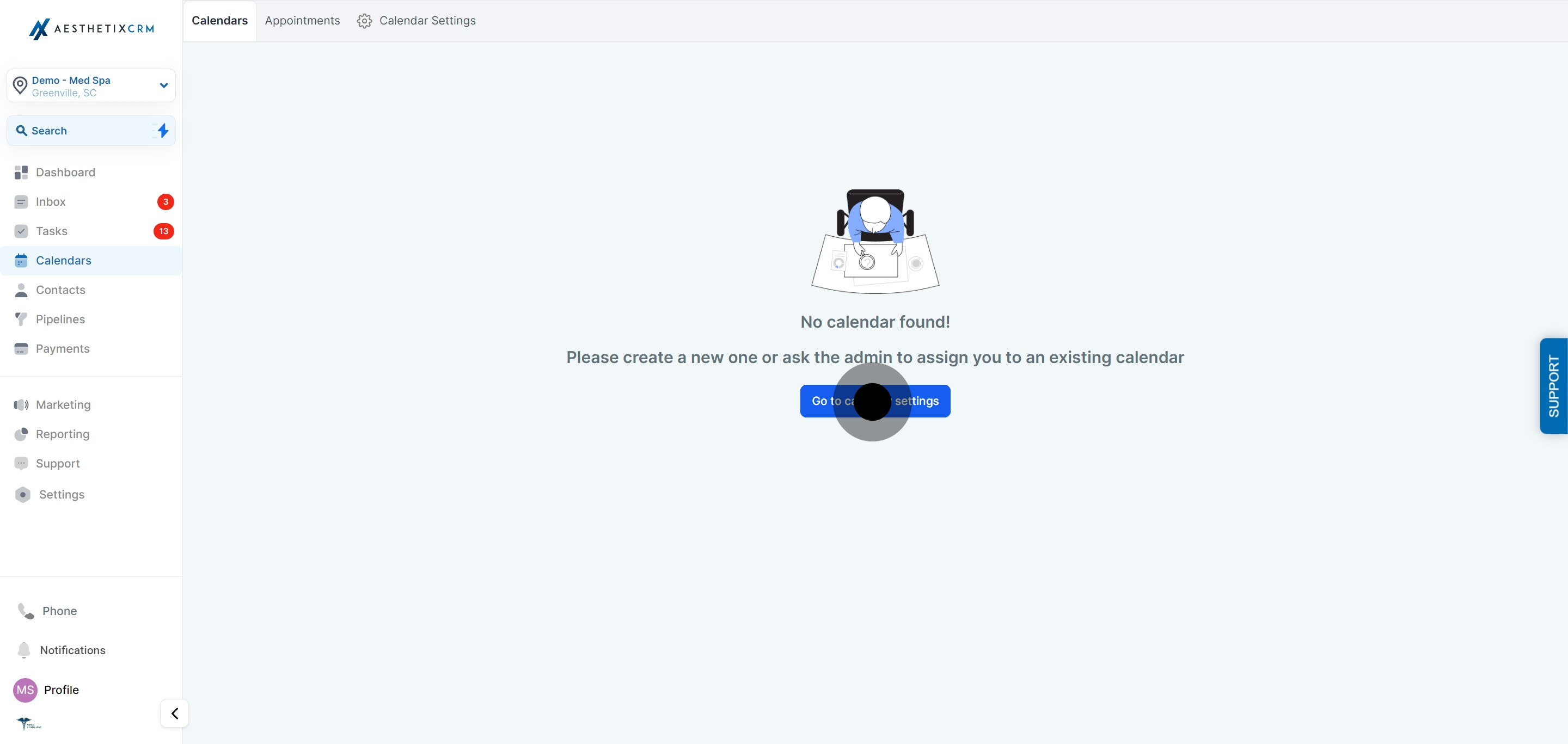
Select Go to Calendar Settings.
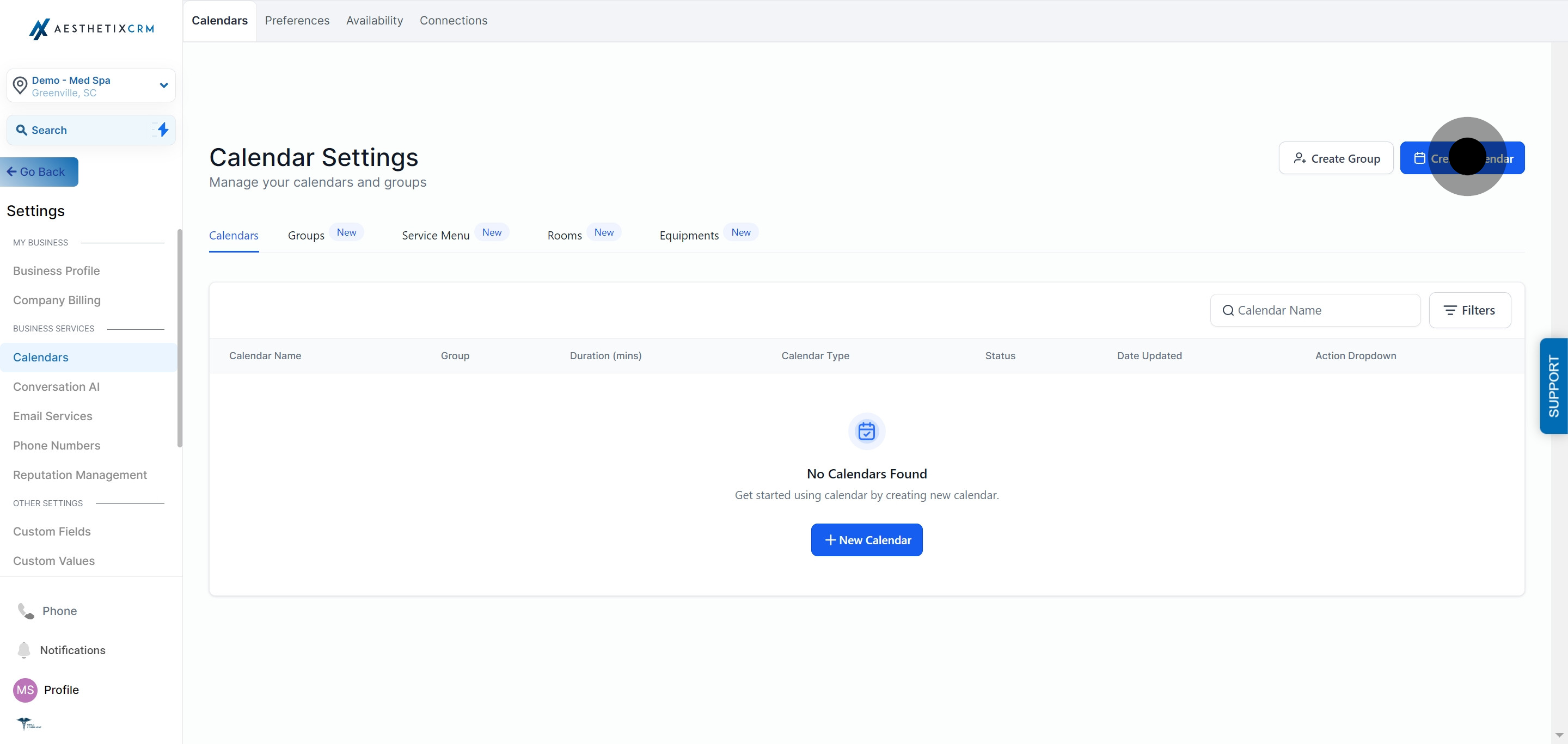
Click Create Calendar.
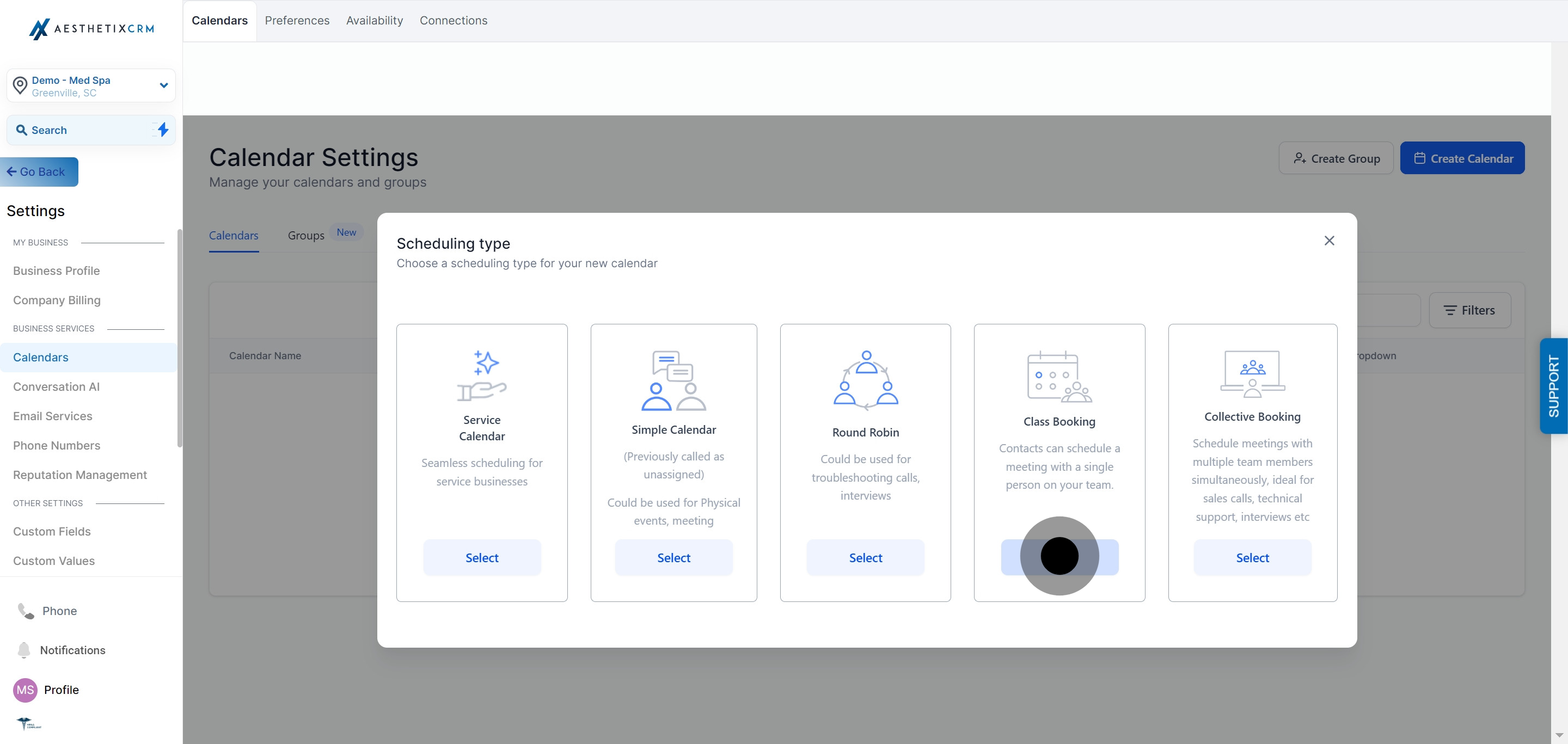
Choose Class Booking from the calendar type options.
Enter a name for your calendar.
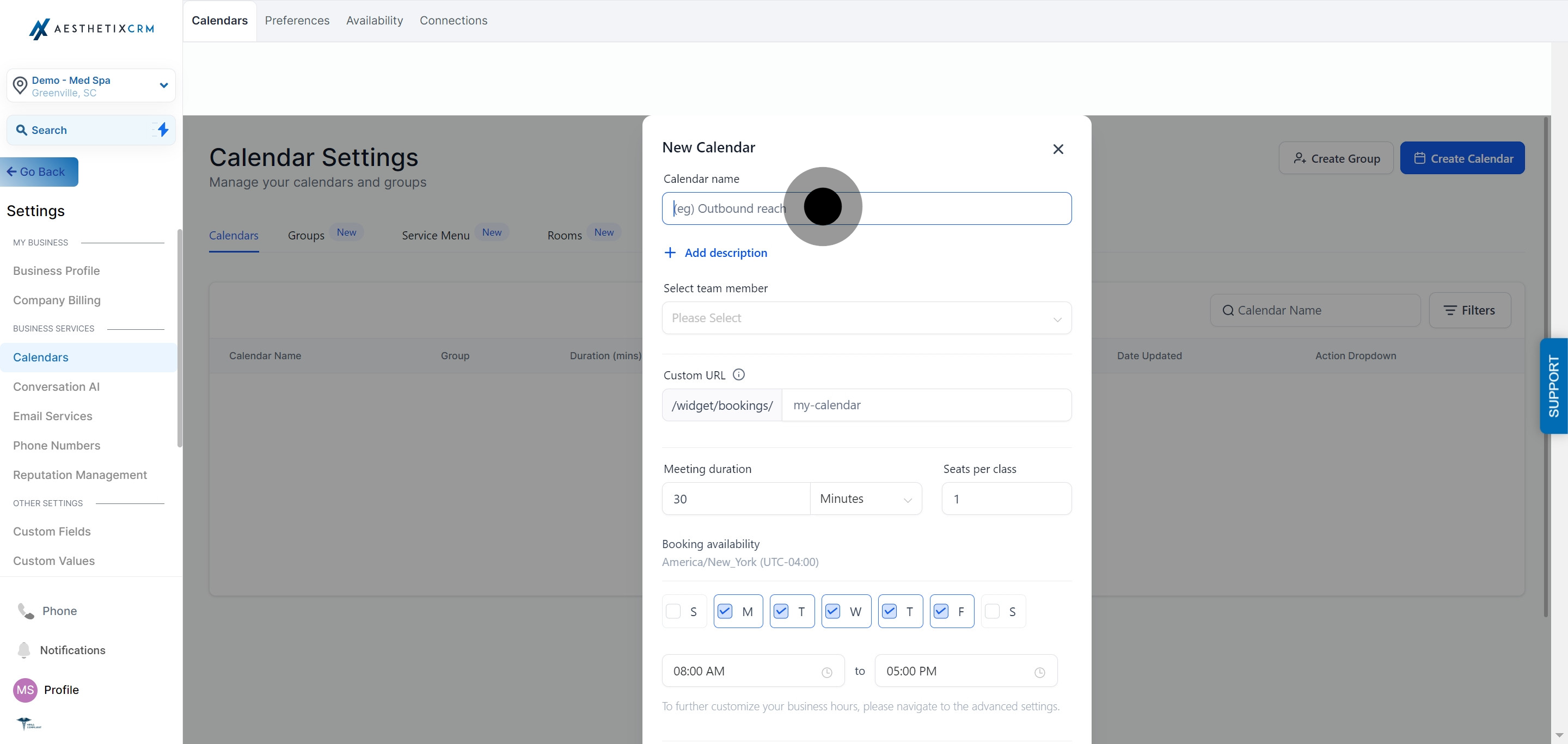
Click Add Description.
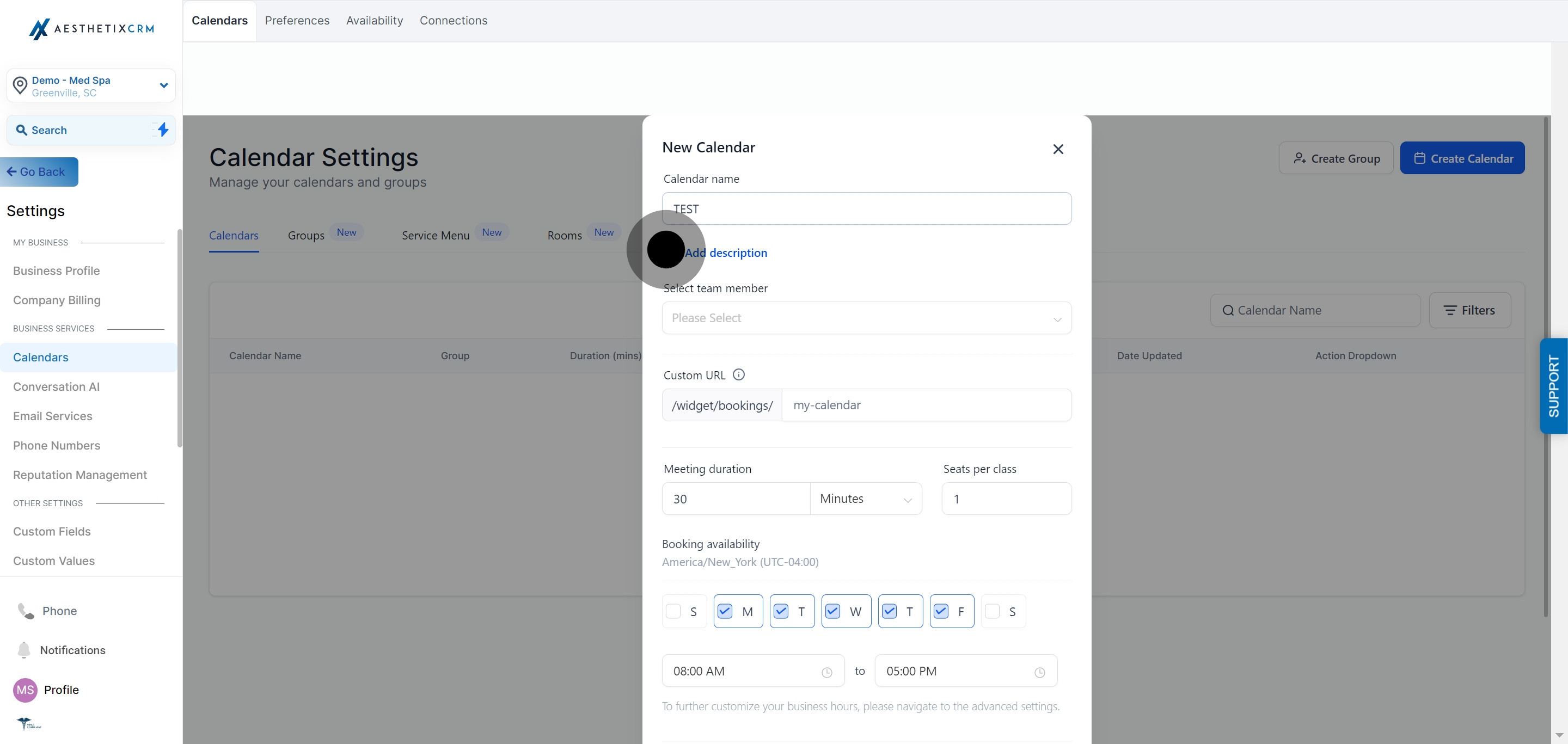
Write a description for the calendar so patients know what to expect.
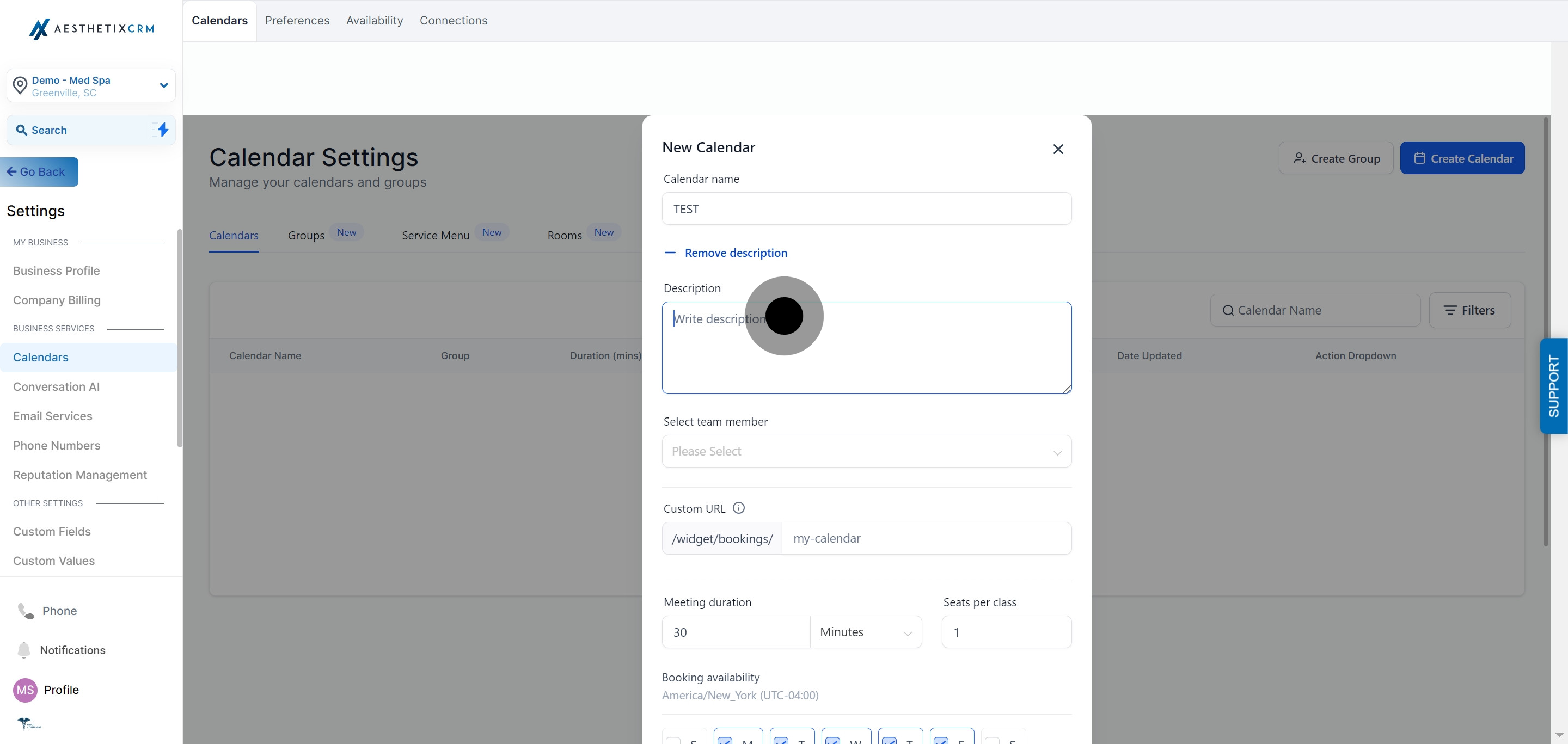
Add a team member as the appointment owner. At least one team member must be assigned before you can save the calendar. This is the provider or host running the class, and a Class Booking calendar can only have one appointment owner.
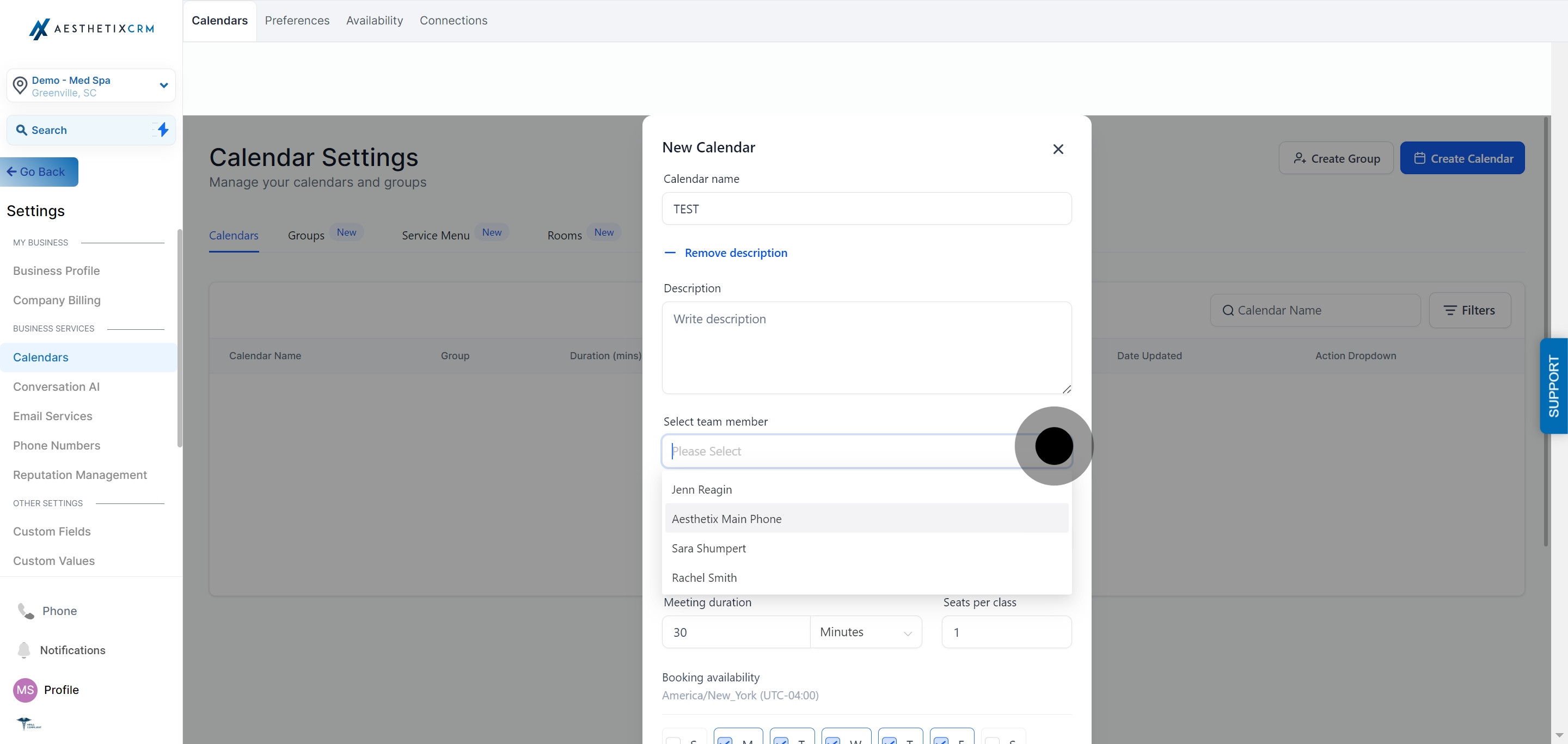
Enter a custom URL slug for the calendar. It needs to be unique, since it can't match the slug of any other calendar in your account.
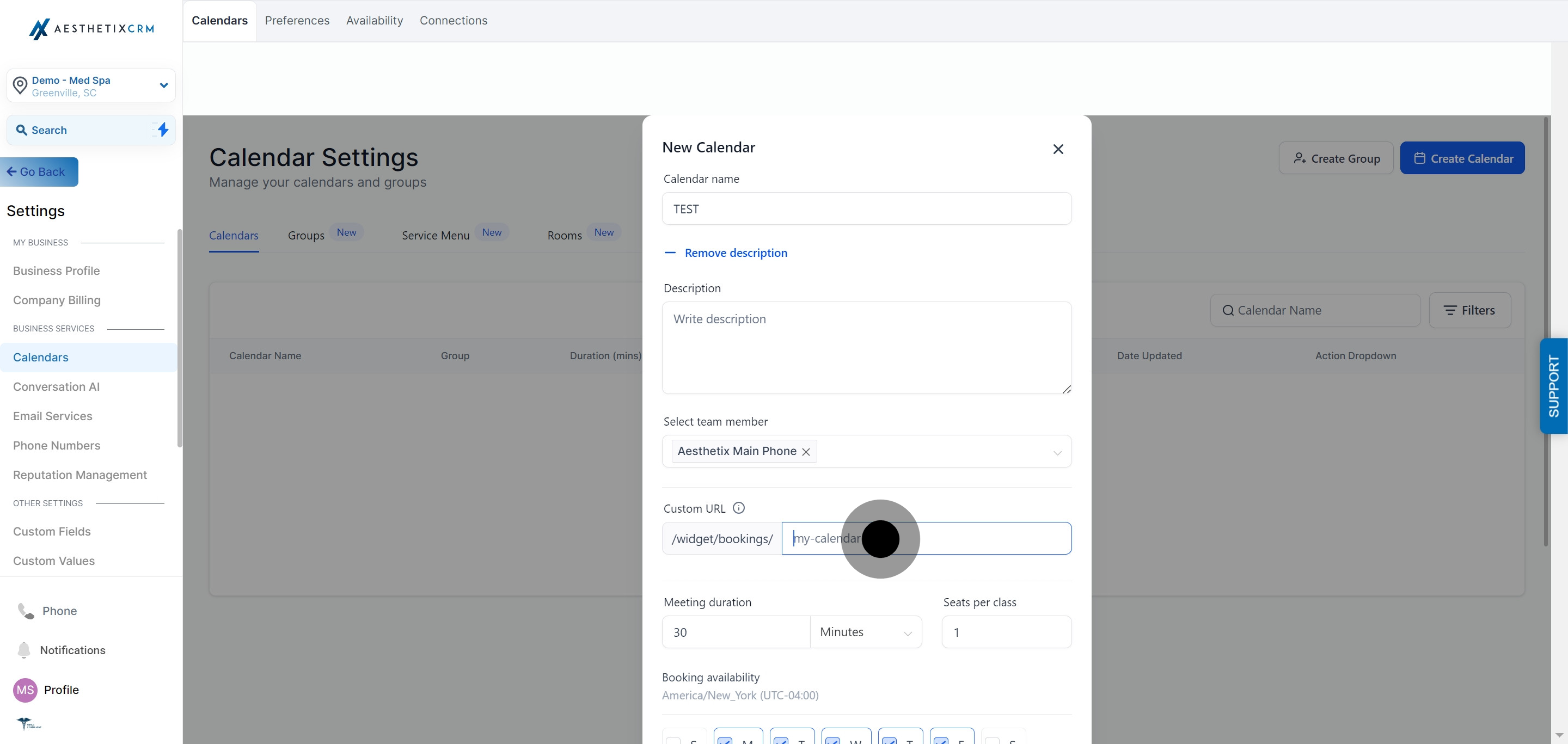
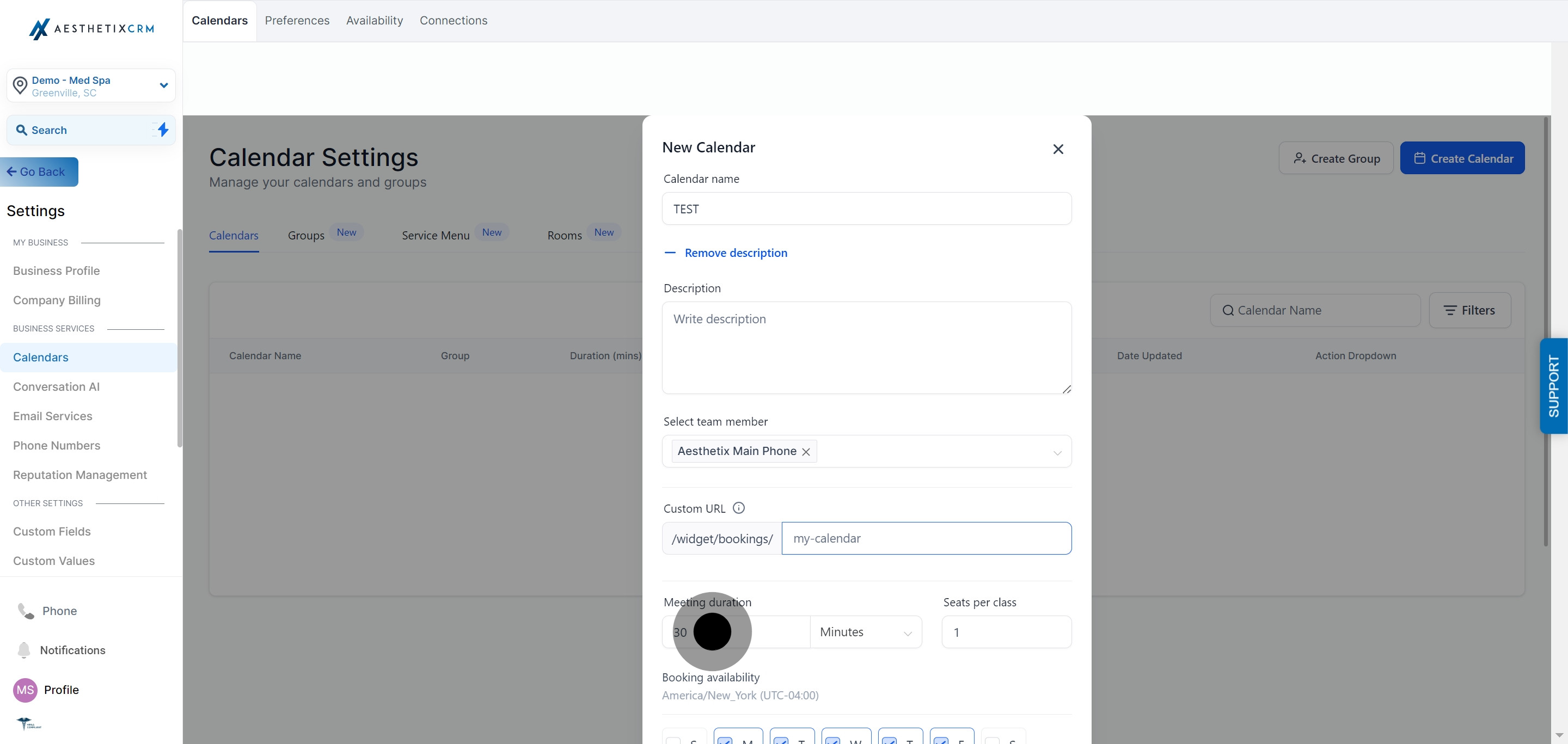
Set the meeting duration for each slot.
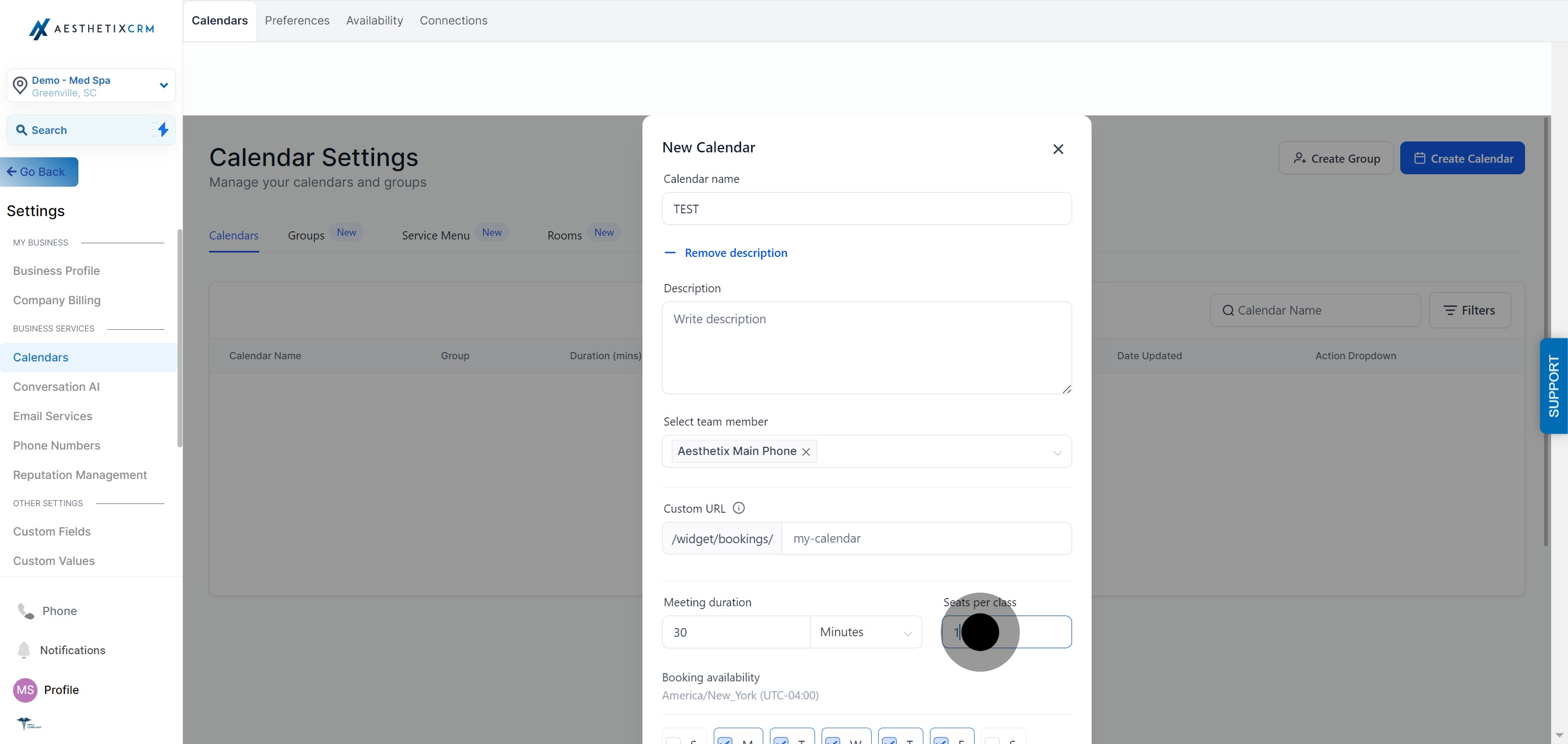
Enter the number of seats per class (the maximum attendees allowed per slot).
Set your Booking Availability, meaning the days and hours patients can book this class.
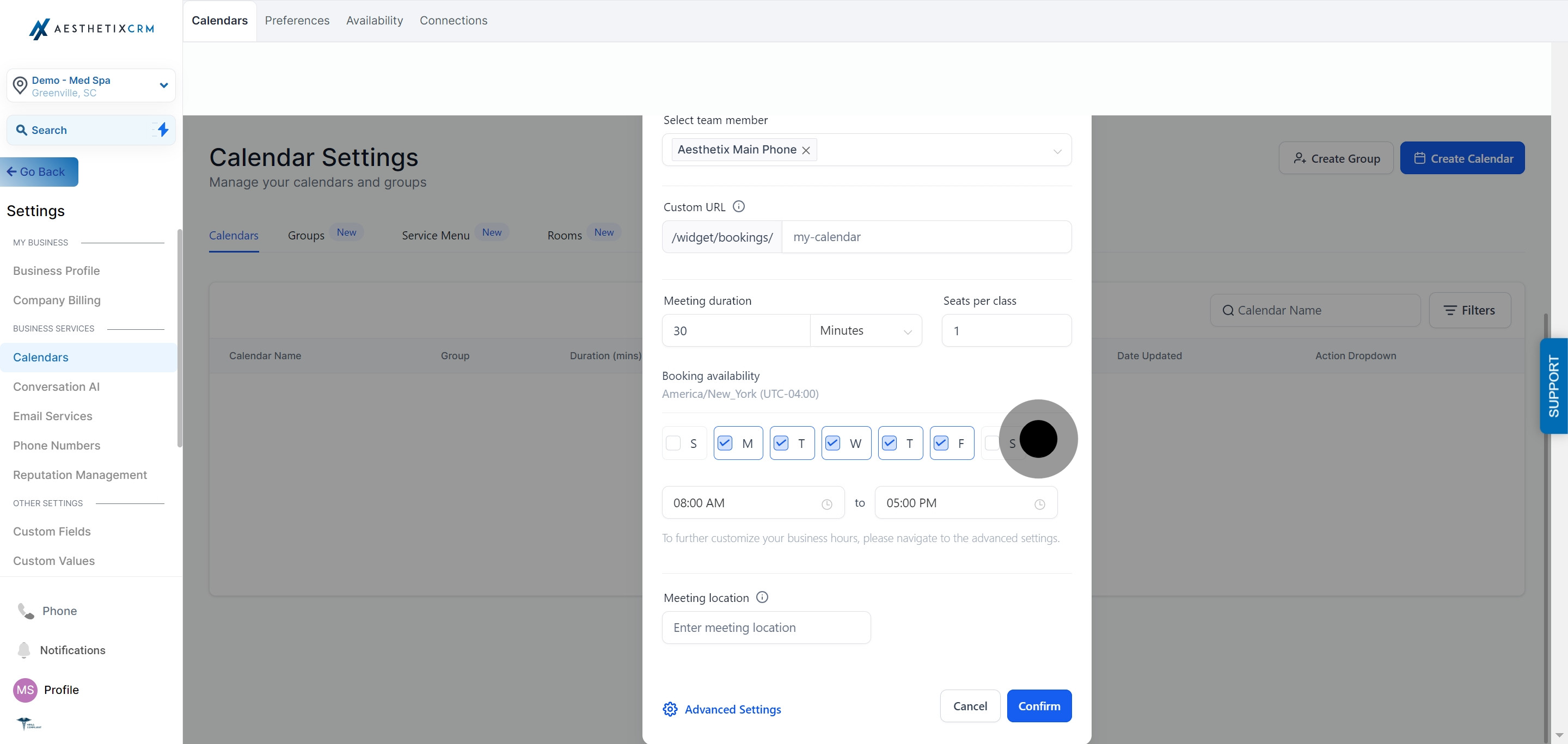
Enter the start time and end time for available booking windows.
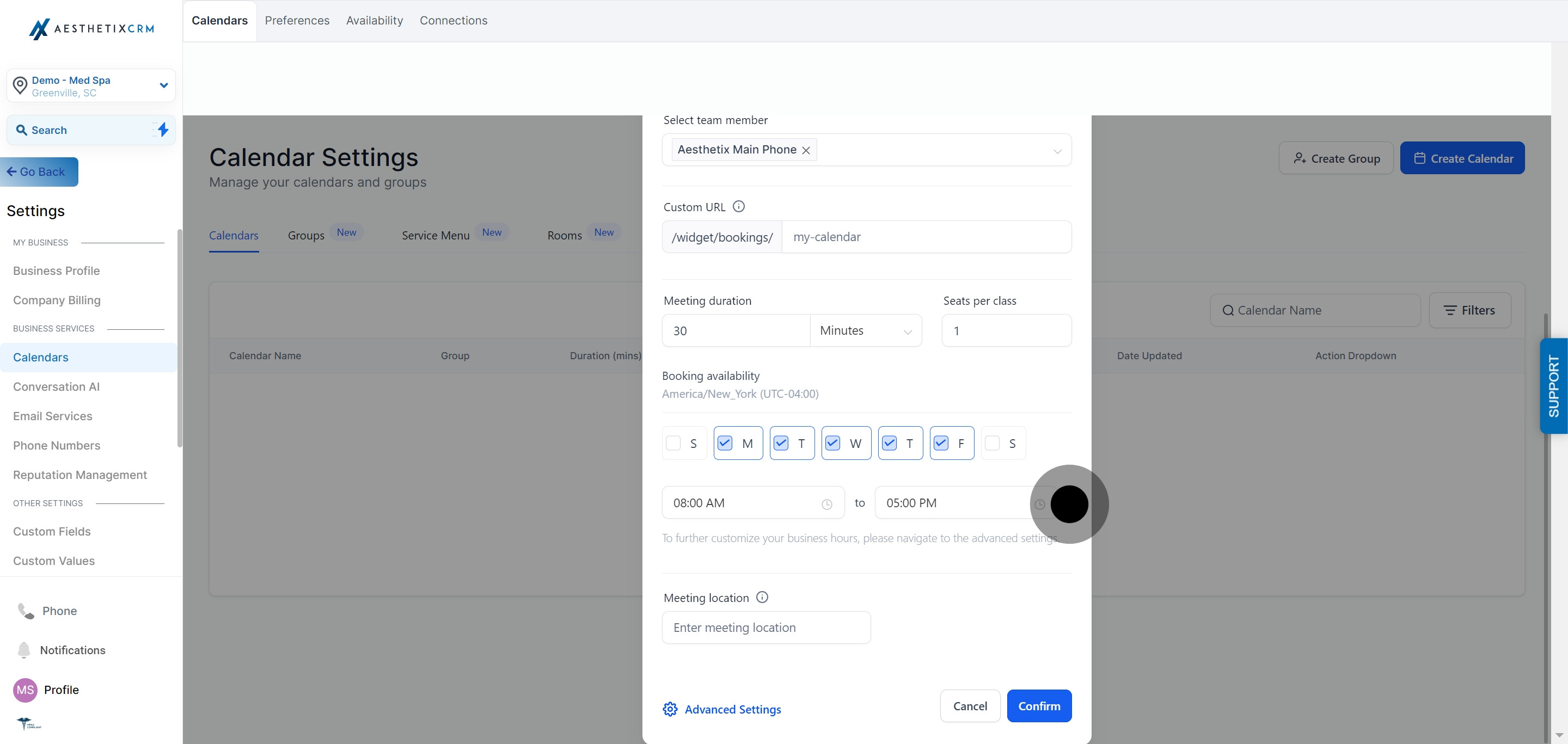
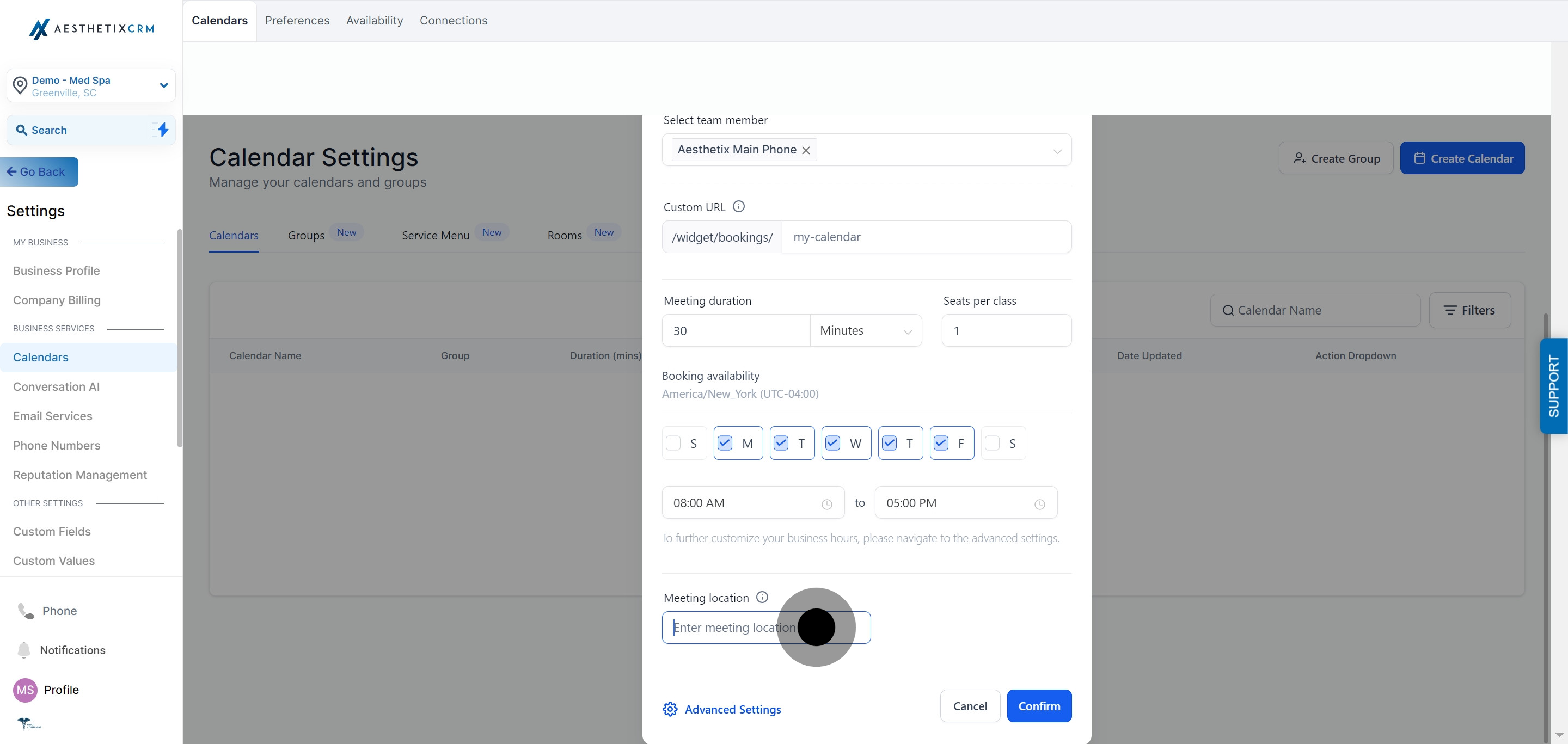
Enter the meeting location. Class Booking calendars are currently limited to a Custom location type, so you'll enter your address or event details manually rather than pulling from a connected conferencing tool.
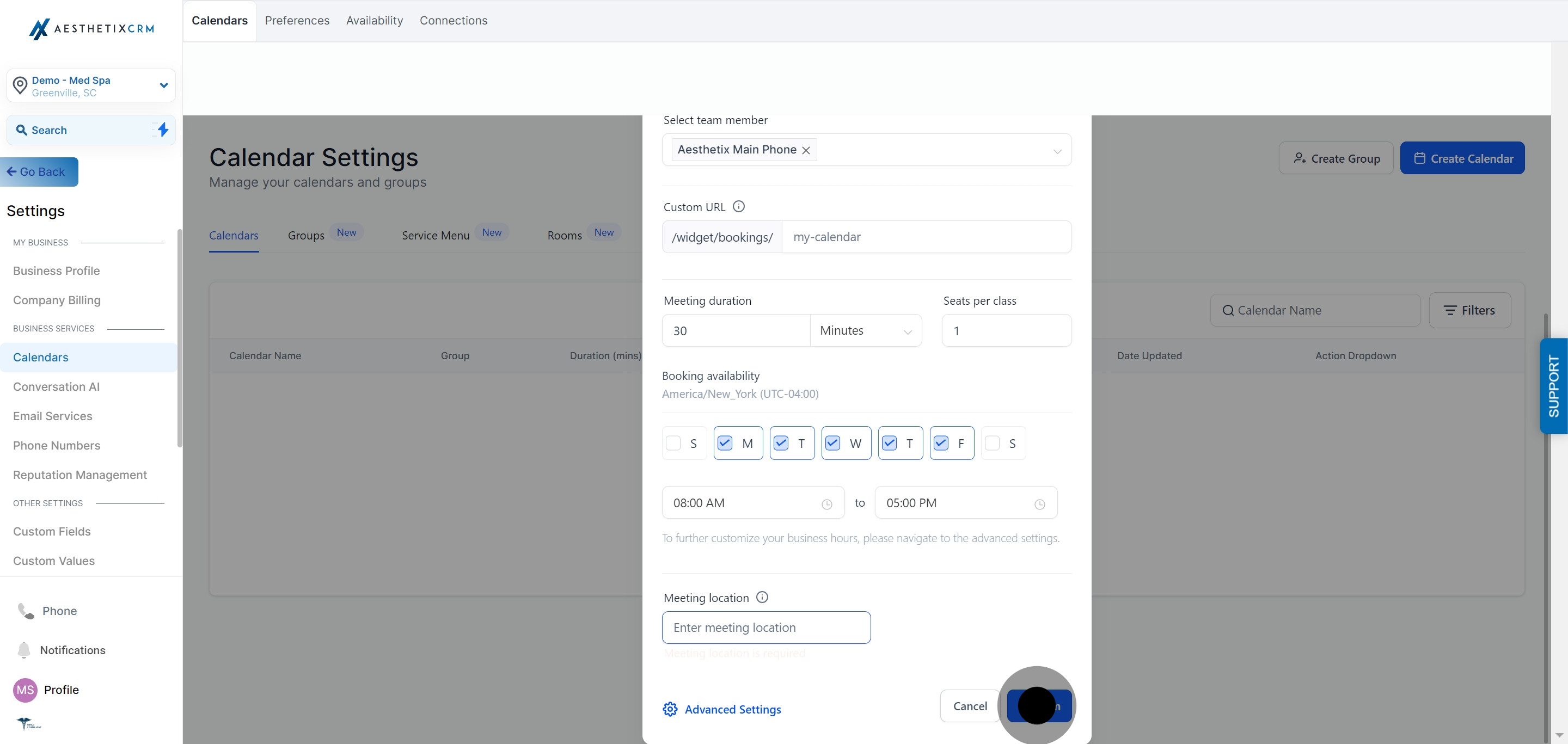
Click Confirm to finish creating the calendar.
Class Booking calendars use the Neo widget style. Older Classic widget styles aren't available for this calendar type.
If you plan to accept payment for a class (a paid workshop or ticketed event, for instance), set up your product pricing and checkout through Payments.
Tip: If you're charging for classes or events, use AX Pay, Aesthetix CRM's built-in payment processor, for better rates than Stripe. See the AX Pay help article for setup details.
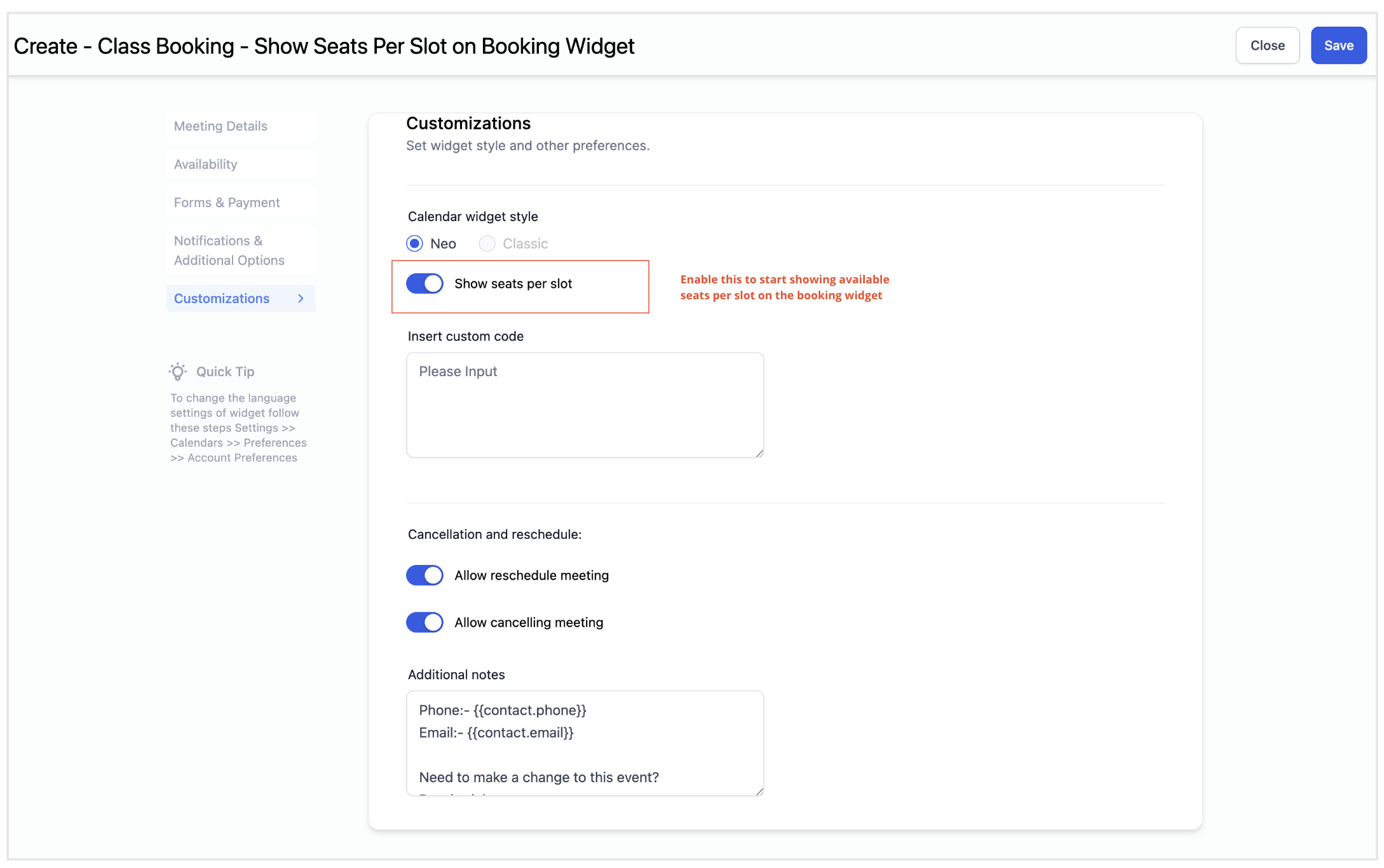
The Show seats per slot setting displays the remaining seat availability for each time slot directly on your public booking widget, so patients can see how full a class is before they book.
To turn it on:
Open your Class Booking calendar.
Click Edit.
Go to Customizations.
Under Calendar Widget Style, toggle Show seats per slot.
Click Save.
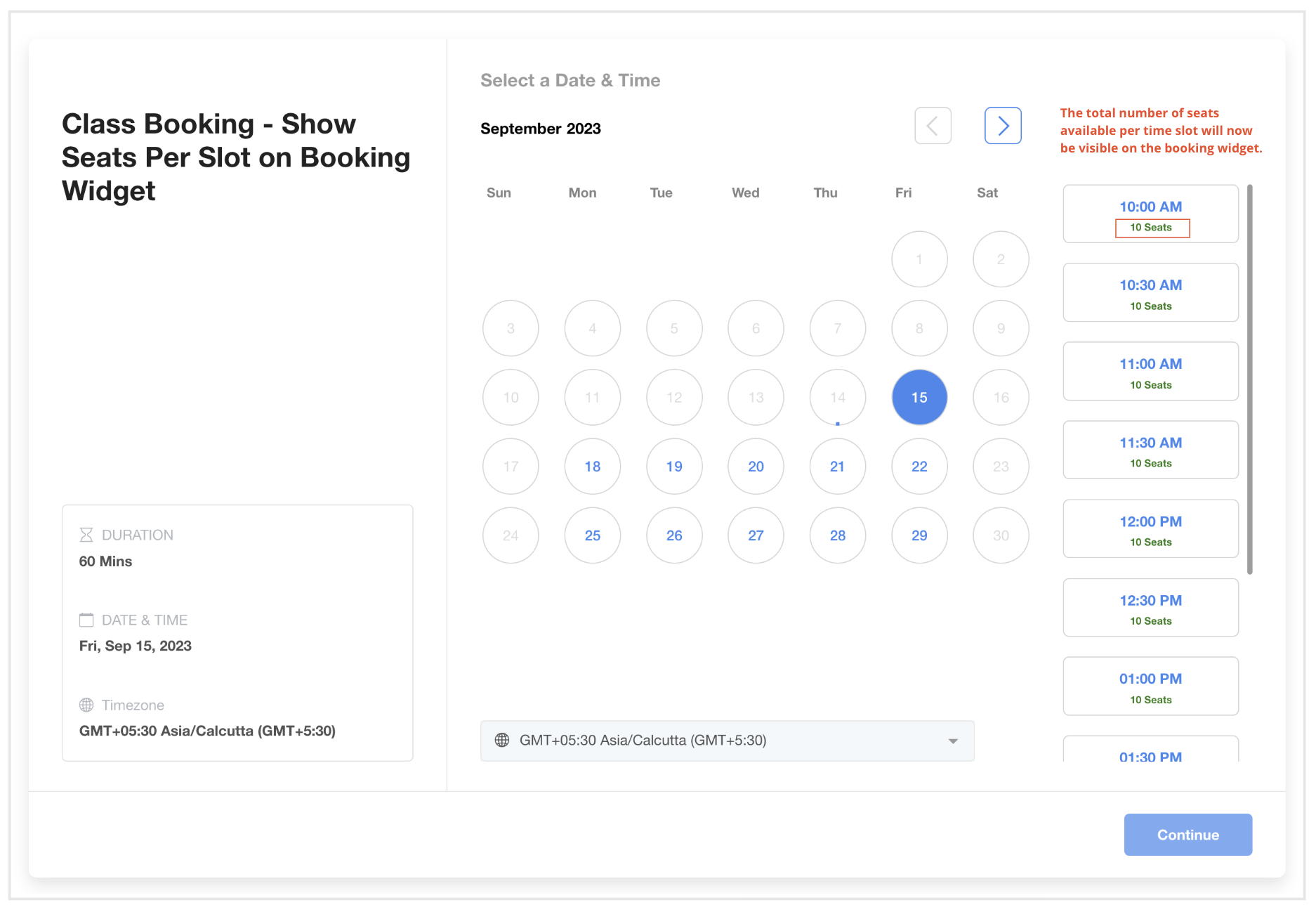
Once enabled, the total remaining seats for each time slot appear right on the widget so patients can check availability before selecting a time.
Seat availability is based on the Seats per class value you set when creating the calendar:
Each confirmed appointment reduces that slot's remaining seats by 1.
If an appointment overlaps more than one slot, only 1 seat is deducted from each affected slot, not the full class capacity.
A slot only becomes fully booked once its total seat capacity is reached.
This means overlapping appointments no longer block an entire slot prematurely, so high-capacity classes get more accurate, more usable availability.
Show Seats Per Slot only works on Class Booking calendars, and only when Seats per class is set to more than 1. It requires the Neo widget. The updated seat-capacity logic behind it applies across the public booking widget, the in-app appointment modal, and other calendar types (Personal, Round Robin, and Event calendars) wherever slots have overlapping appointments.
To cancel or reschedule an entire class:
Open the class appointment.
Click Cancel All to cancel the class for every attendee, or Reschedule All to move the whole class to a new time.
To cancel or reschedule just one attendee:
Open the class appointment and find the attendee in the list.
Click the options menu next to their name.
Choose Cancel or Reschedule for that attendee only. Other attendees keep their spot.
If you want patients to be able to cancel or reschedule their own class booking, turn on Allow Cancellation and Allow Reschedule in the Confirmation tab of your calendar settings.
If you sync a third-party calendar like Google Calendar or Outlook (from the Connections sub-collection), a class booking shows up as separate events on that calendar, one per attendee. For example, a class booked with 5 attendees appears as 5 separate events at the same time on your connected calendar.
You can book a patient directly into a class instead of waiting for them to self-book:
Click Book Appointment.
Select the patient (contact) you want to add.
Choose the Class Booking calendar.
Select the available slot.
Confirm the booking.
Intake forms for a class or workshop are built in Forms, then attached to your calendar's booking flow.
Embedding your Class Booking widget on a landing page happens in Funnels/Websites.
Automated booking confirmations, reminders, and follow-up work through Workflows, triggered off calendar events.
If you want AI-driven appointment booking for classes, note that AI booking only works with native calendars, not the EMR calendar. Cross-check your AI Employee setup if you're automating class bookings.
Because attendee lists for group treatments can include patient names tied to aesthetic procedures, treat class rosters as protected health information under your practice's HIPAA policies, the same as any other appointment data.
What's the difference between a Class Booking calendar and a regular Service calendar? A Service calendar books one patient per slot. A Class Booking calendar lets multiple patients book the same slot at once, up to the seat limit you set, which makes it the right choice for group treatments and events rather than one-on-one appointments.
How many attendees can I allow in a single class slot? Up to 9,999, though a virtual conferencing tool you use alongside the calendar may cap attendees lower than that. Check your conferencing provider's plan limits before setting a very high seat count.
Can a Class Booking calendar have more than one host? No. Only one team member can be set as the appointment owner for a Class Booking calendar.
Can I use the Classic widget style for a Class Booking calendar? No. Class Booking calendars only support the Neo widget style.
Does "Show seats per slot" work on every calendar type? The toggle itself is only available on Class Booking calendars, and only when seats per class is set above 1. The underlying seat-capacity calculation also improves accuracy on Personal, Round Robin, and Event calendars when appointments overlap.
If a class fills up, does the whole slot lock immediately? No. Each confirmed appointment only reduces that slot's seats by 1, even if the appointment overlaps other slots. The slot locks only once its full seat capacity is reached, so overlapping bookings won't block a slot prematurely.
Can patients cancel or reschedule their own class booking? Only if you enable Allow Cancellation and Allow Reschedule in the Confirmation tab of the calendar's settings. Otherwise, your team needs to cancel or reschedule attendees manually.
What happens if I sync my Class Booking calendar with Google Calendar or Outlook? Each attendee appears as a separate event at the same time on your connected calendar. A class with 5 attendees shows as 5 separate events, not one combined event.
Can I set a virtual meeting location for a class? Not directly. Class Booking calendars are currently limited to a Custom location type, so you'll need to include your video conferencing link or details manually in the location or description field.
Can I charge patients to attend a class? Yes, by connecting your class booking flow to a paid product or order form through Payments. Use AX Pay for processing so you get better rates than Stripe on class and workshop payments.
