Every calendar in Aesthetix CRM has its own scheduling link and embed code, so you can send patients straight to a booking page or place the calendar directly on your website. Both options live under Settings > Calendars.
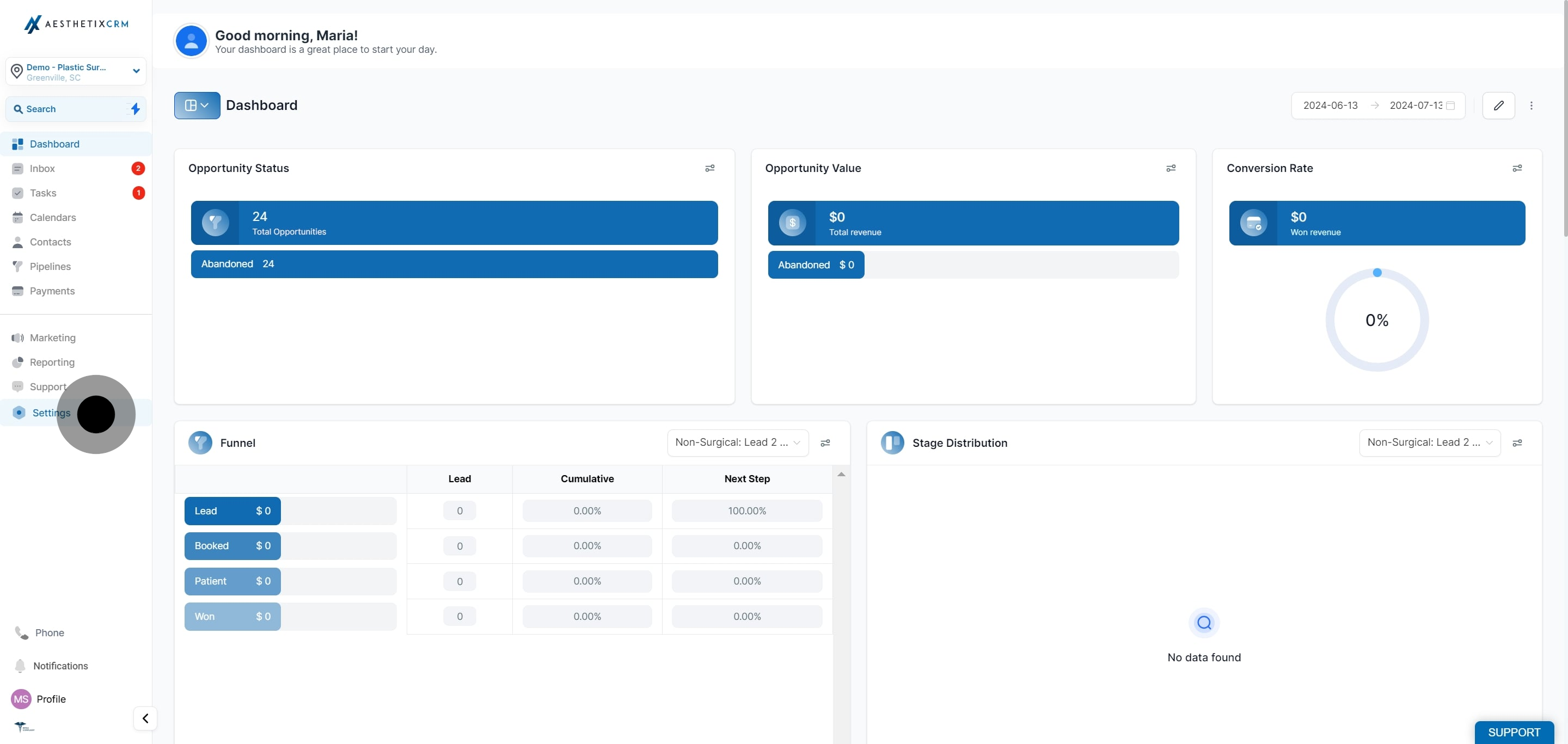
Click on "Settings".
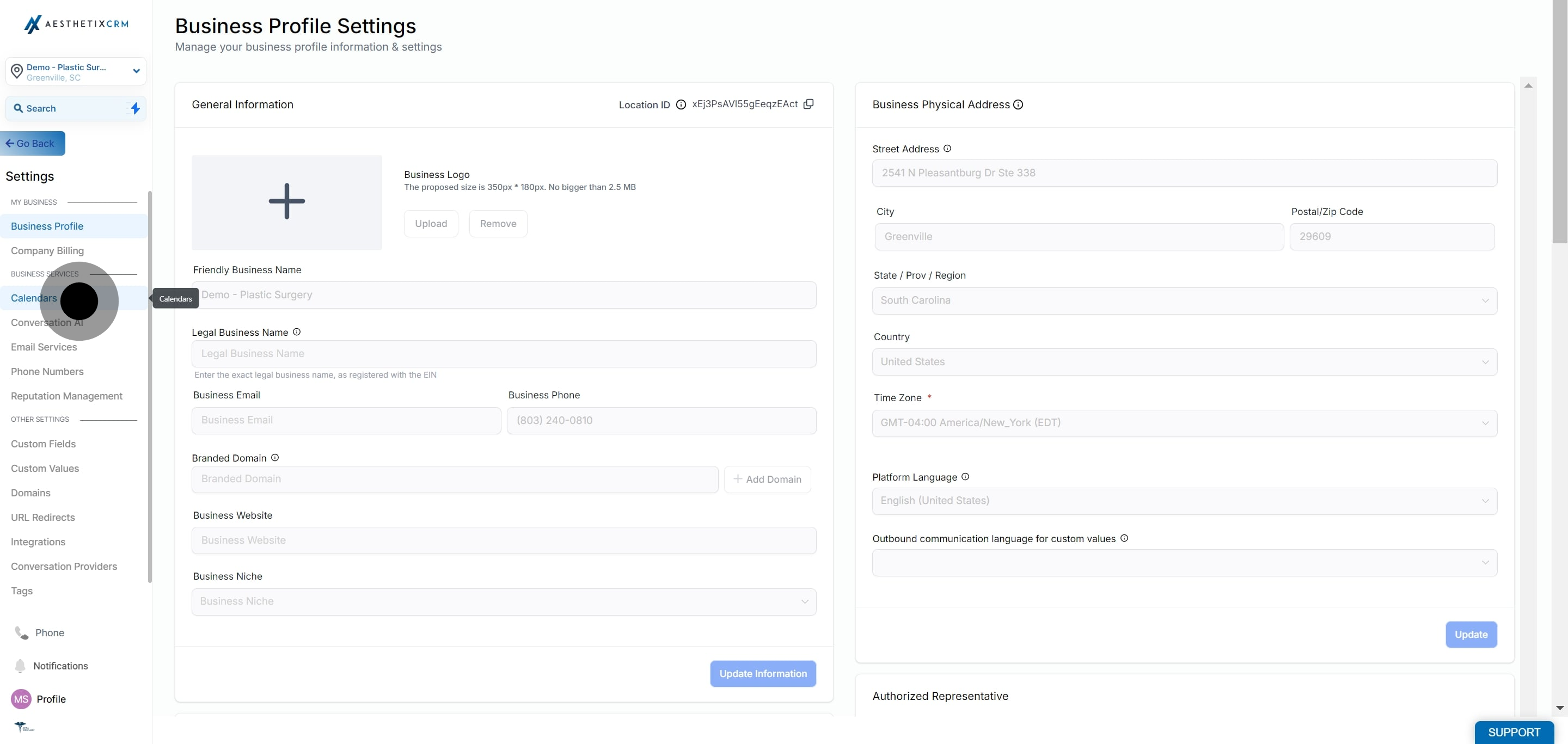
Select "Calendars" from the menu.
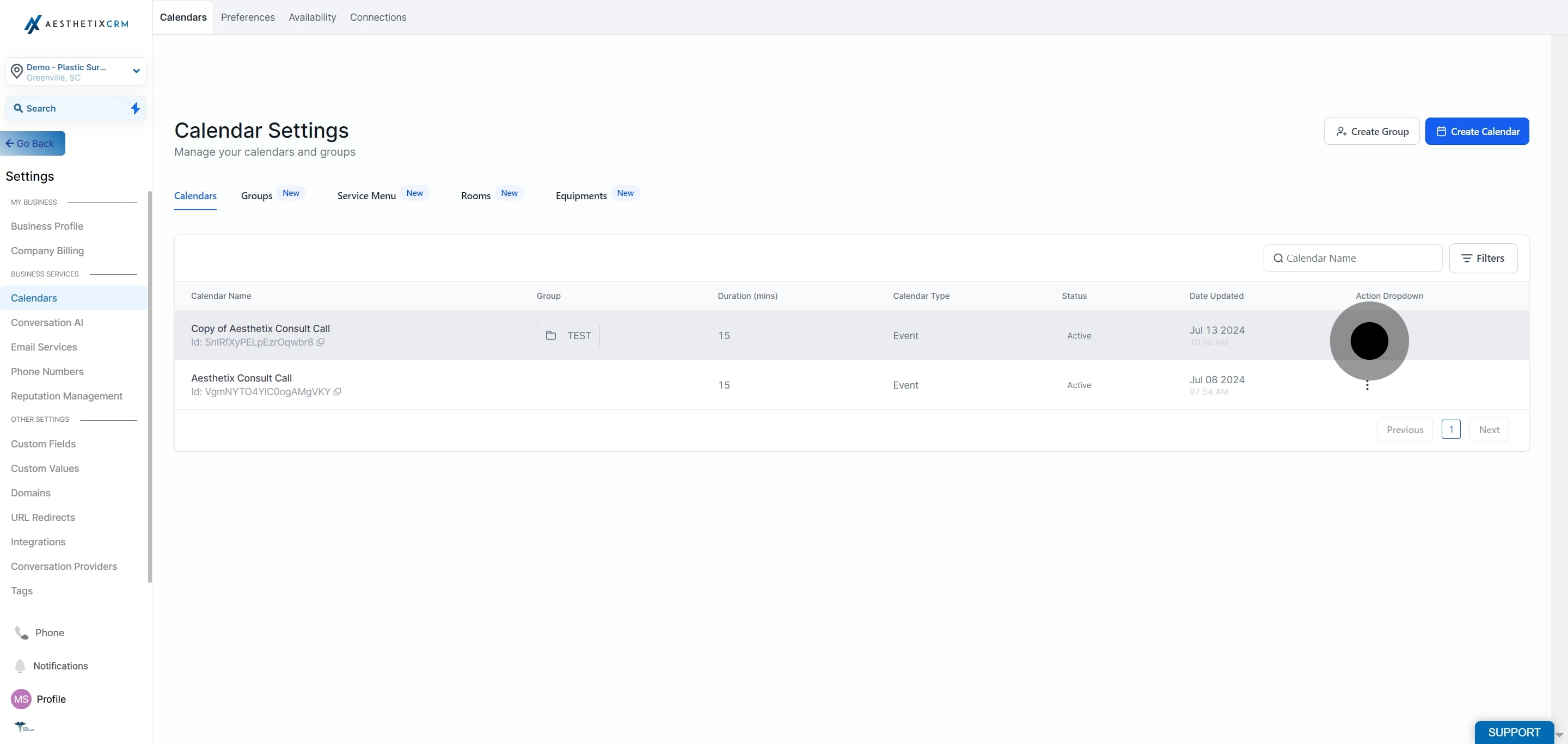
Find the calendar you want to share and click the three dots next to it.
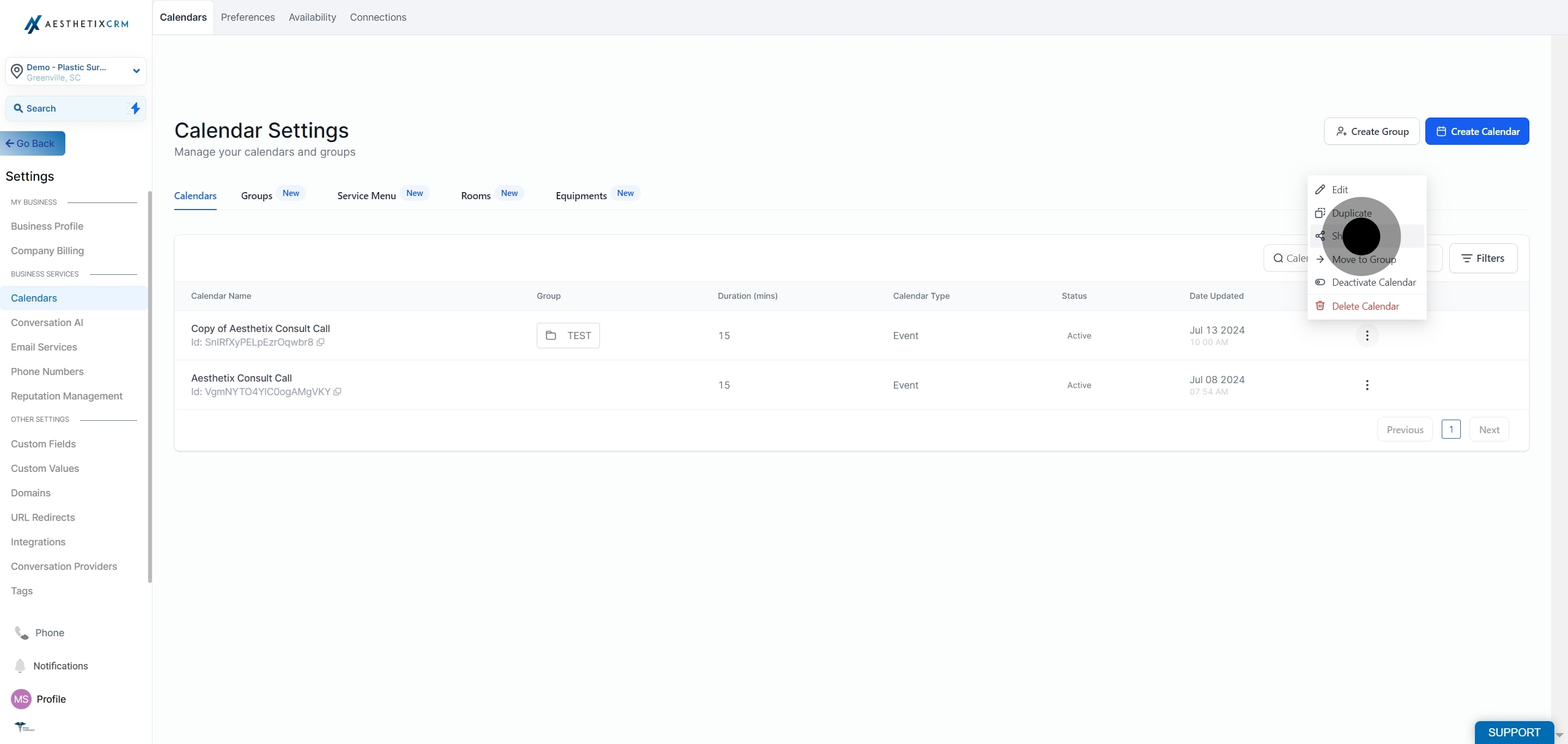
Click on "Share".
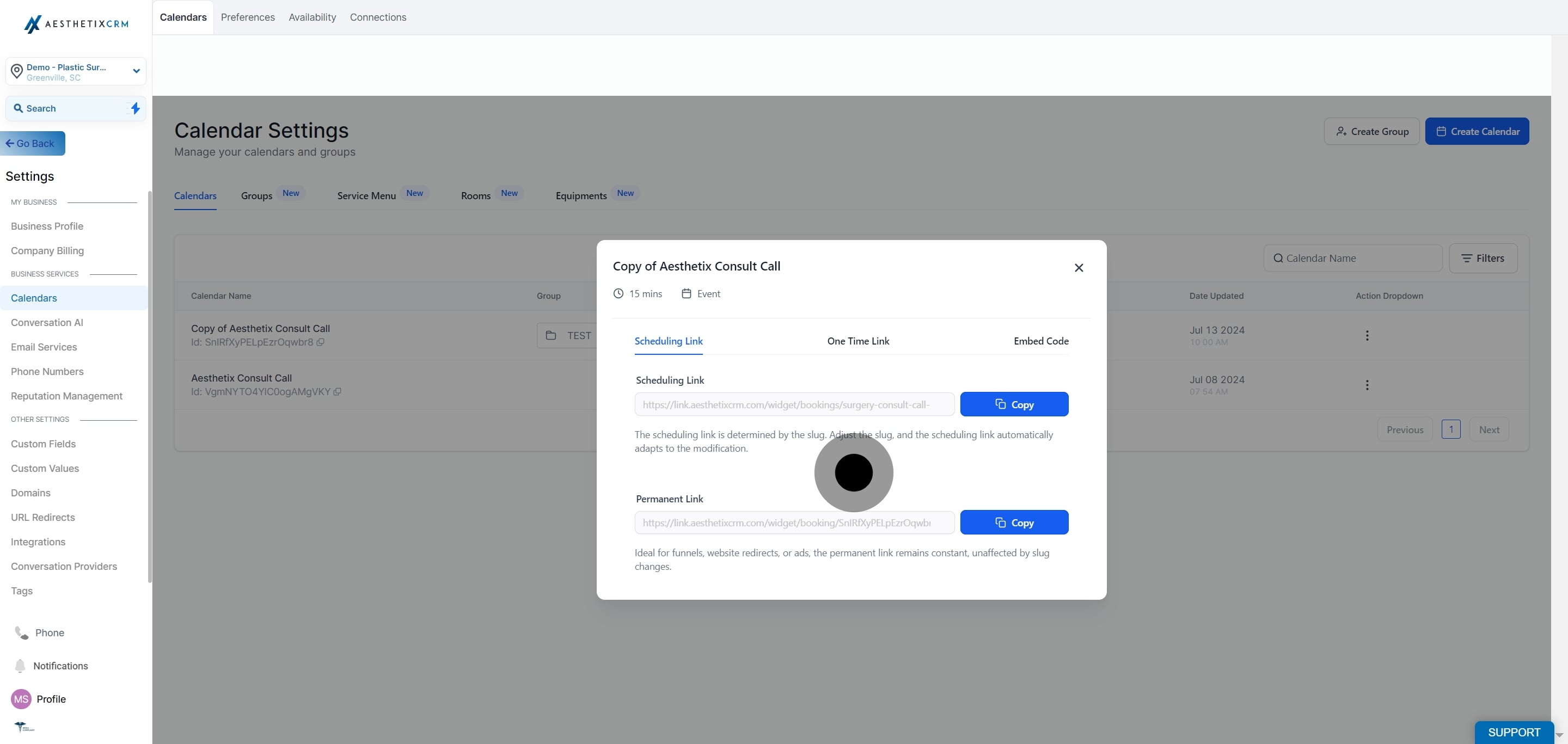
In the "Scheduling Link" section, copy the URL to send to a patient directly. This link opens your full booking page.
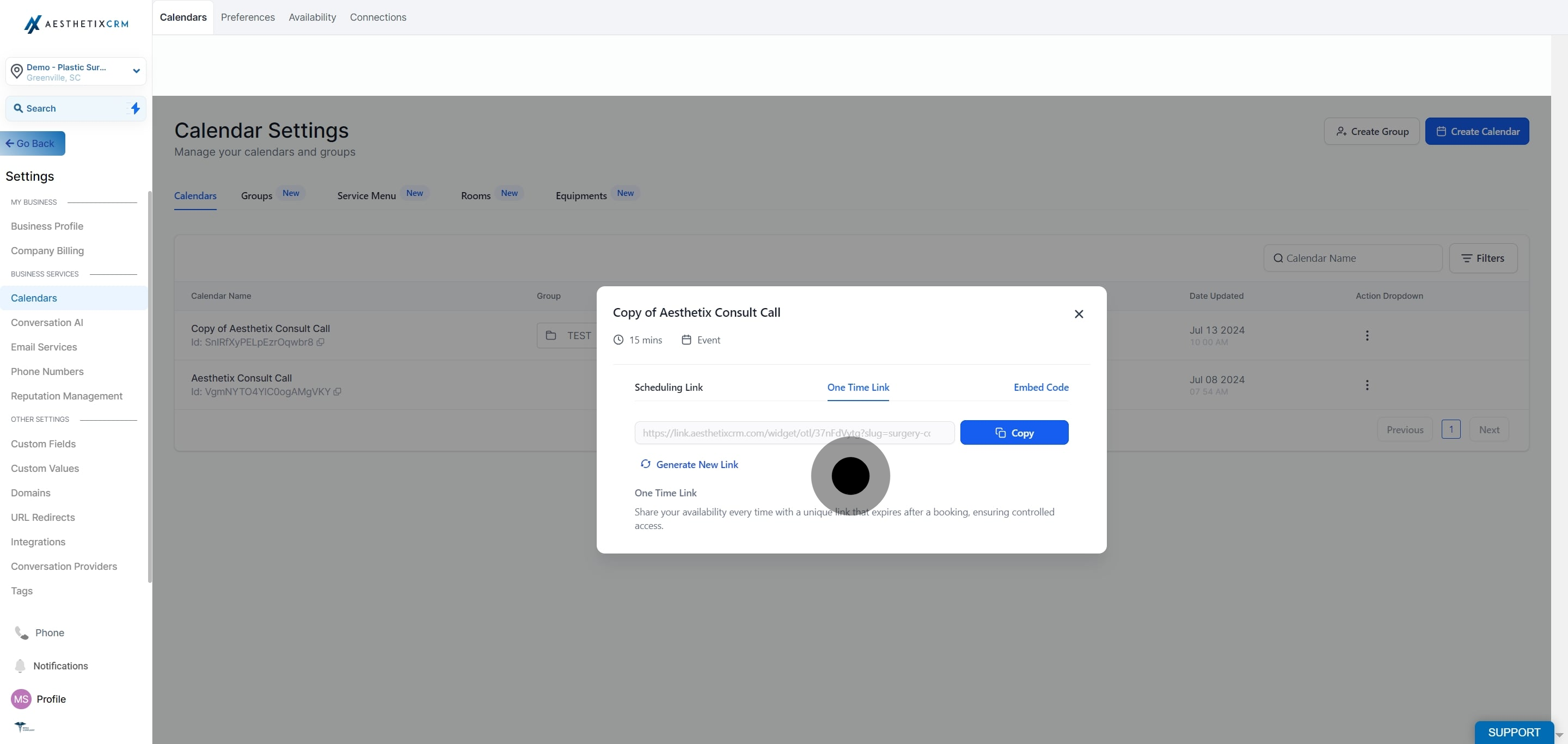
In the "One Time Link" section, copy the URL if you want to generate a single-use booking link, useful for a one-off consult invite that shouldn't be reused.
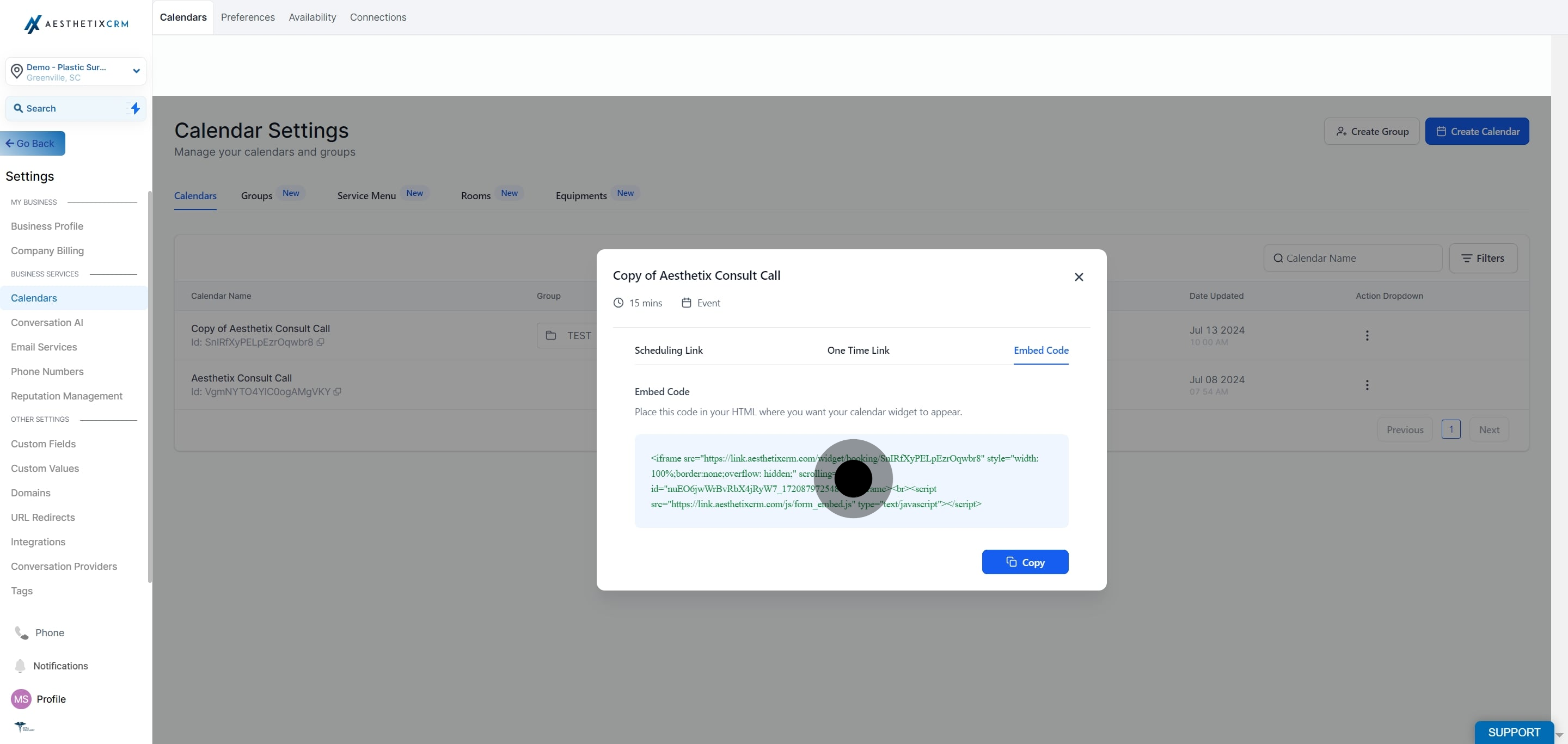
In the "Embed Link" section, copy the URL if you plan to link out to the calendar from another site without a full HTML embed.
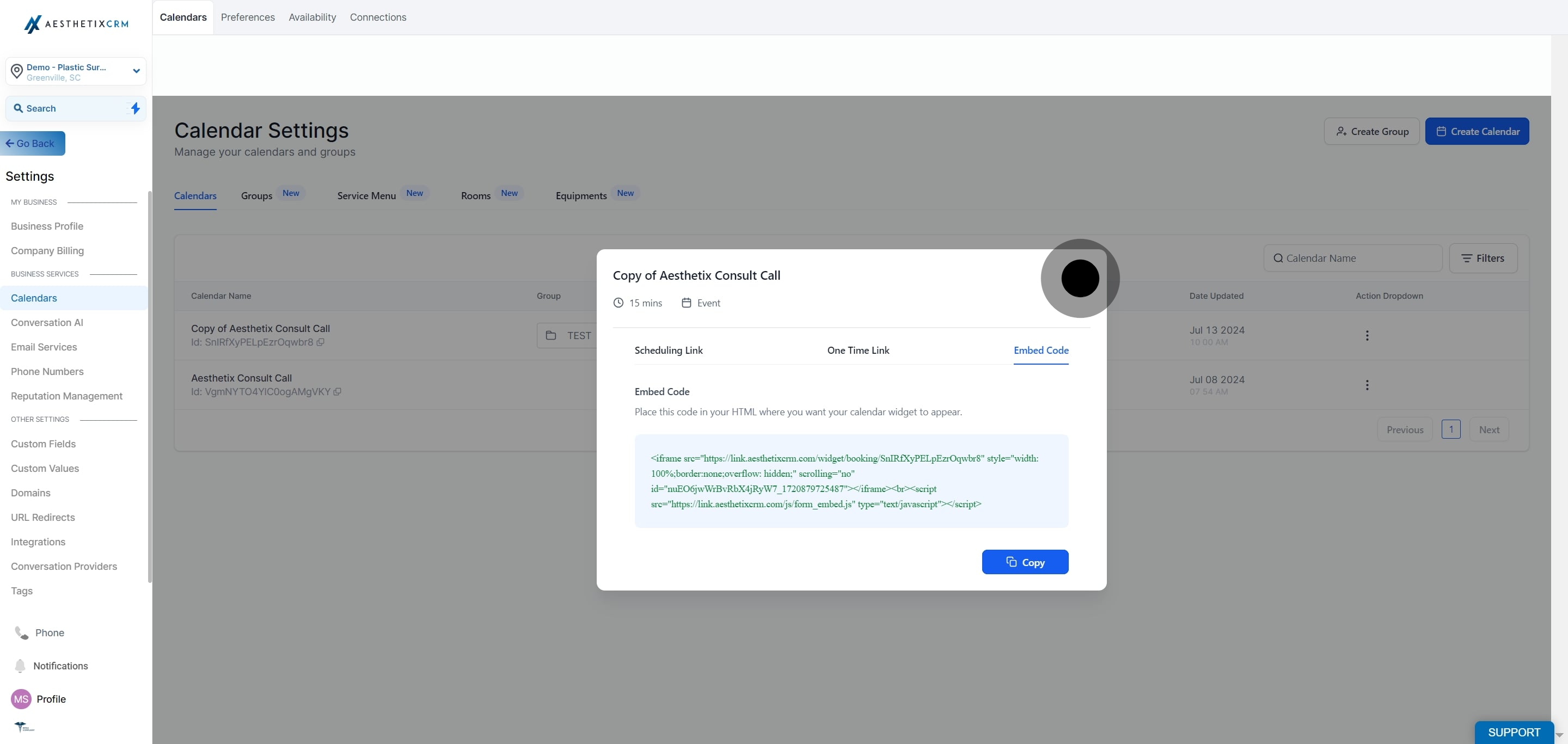
Click the "x" to close the share window when you're done.
If you'd rather have patients book without ever leaving your website, you can embed the calendar directly on a page using the embed code.
Go to Settings > Calendars.
Find the calendar you want to embed, click the three dots next to it, and select "Share".
In the pop-up window, open the "Embed Code" tab.
Click "Copy".
Paste the embed code into a custom HTML/code element on your website wherever you want the calendar to appear.
If the site you're embedding on is built with the Aesthetix CRM page builder (a funnel or website page), skip the manual embed code entirely. Use the Calendar element in the page builder instead: it lets you pick the calendar from a dropdown and drops it into the page automatically, no copy-pasting required.
Occasionally a practice will notice unrelated text near an embedded calendar, things like stray reviews, unfamiliar business names, or leftover promotional copy. This is unsettling, but it almost always has nothing to do with the calendar embed itself.
What's actually happening: The calendar embed script only renders the calendar. It does not inject outside text, links, or reviews. When something unrelated shows up next to it, that content is coming from the page the calendar is embedded on, not from the embed code.
Common causes:
A hidden or leftover block in your page builder content (often left over from a template) that happens to sit near the calendar.
On external sites like WordPress, an unrelated element already on the page, sometimes hidden with styling such as display: none, that becomes visible or noticeable once the calendar is added.
A broken embed code, most often a missing opening or closing bracket, which can cause the browser to render things incorrectly.
Copy the embed code fresh from Settings > Calendars > Share > Embed Code.
Paste it into a plain text editor (such as Notepad or TextEdit) instead of directly onto your page. You should see only a clean <iframe> or <script> snippet for the calendar. If unrelated text shows up here, that's unusual, reach out to support.
Check the embed code closely for missing brackets. A common mistake looks like this:
<script>
  ... lines of code ...
</script
Notice the closing > is missing after </script. Sometimes the opening < gets dropped instead. Either mistake can cause the browser to misrender the page. Fix the brackets and re-embed the corrected code.
Inspect the page where the calendar lives:
If it's a funnel or website built in Aesthetix CRM, open the page builder and look for hidden or unused sections near the calendar.
If it's an external site, use your site's editor or your browser's "Inspect Element" tool (right-click the page and choose Inspect) to see what's actually on the page.
On a funnel or website in Aesthetix CRM: open the page in the builder, look for hidden or unused blocks near the calendar, and delete or edit the unrelated text.
If you can't find the source: use search (Ctrl+F or Cmd+F) inside the page editor for keywords like "trial," "review," or "demo" to locate the stray content.
If it's still unclear: contact support with the page URL where the issue appears and a short screen recording showing the steps to reproduce it.
Key takeaway: the calendar embed code itself doesn't add outside text or hurt your site's SEO. Any unexpected content is coming from the page it's embedded on and can be cleaned up directly in the builder or site editor. Always double-check that the embed code was copied in full, brackets included, before troubleshooting further.
What's the difference between the Scheduling Link and the One Time Link? The Scheduling Link is a reusable URL that always opens your live booking calendar, ideal for your website, email signature, or social bio. The One Time Link generates a single-use booking link best suited for a one-off invite, like sending a specific patient a link to book a single consult.
Do I need to know HTML to embed a calendar? No. Copying and pasting the embed code into a custom HTML element on most website platforms is enough. If your website was built with the Aesthetix CRM page builder, you don't need the embed code at all, just drag in the Calendar element.
Can I embed a calendar on a page built outside Aesthetix CRM, like WordPress or Squarespace? Yes. Copy the embed code from Settings > Calendars > Share > Embed Code and paste it into a custom HTML or code block on that platform.
Why is unrelated text or a strange business name showing up next to my embedded calendar? That content is coming from the page itself, not the calendar embed script. Check for hidden or leftover blocks in your page builder, or inspect the page on an external site to find the source.
Will an embedded calendar affect my site's SEO? No. The calendar embed code doesn't add external links, text, or scripts that would affect search rankings. Any concerning content near the calendar comes from elsewhere on the page.
I embedded the calendar but nothing shows up on the page. What should I check first? Paste the embed code into a plain text editor to confirm it copied cleanly, with no missing opening or closing brackets. A broken <script> or <iframe> tag is the most common cause of a blank embed.
Can patients book directly from the embedded calendar, or does it just link out? Patients can book directly within the embedded calendar. It renders your live availability and booking flow on the page itself, they never have to leave your site.
Should I use the Calendar element or the HTML embed code on my Aesthetix CRM website? Use the Calendar element whenever your page was built in the Aesthetix CRM page builder. It's simpler, lets you pick the calendar from a list, and avoids any risk of a broken embed code. Save the HTML embed code for external platforms like WordPress.
Where do I go if I want to change the calendar's availability, staff, or booking questions instead of just sharing it? Those settings live on the calendar itself under Settings > Calendars, separate from the Share and Embed options covered here.
Can I change what the embedded calendar looks like (colors, layout) without touching code? Yes, calendar appearance is controlled in the calendar's own settings, not in the embed code. Update the look there and the change carries over automatically to every place the calendar is shared or embedded.
