When a referral partner stops promoting your practice, or you need to clean up your affiliate list, Affiliate Manager gives you two options: mark the affiliate inactive (reversible) or delete the affiliate entirely (permanent). You'll find both actions in Marketing > Email Marketing > Affiliate Manager > Affiliate.
Marking an affiliate inactive pauses their account without deleting their history. This is the safer option if you might reactivate the partnership later, since the affiliate's commission and referral records stay intact.
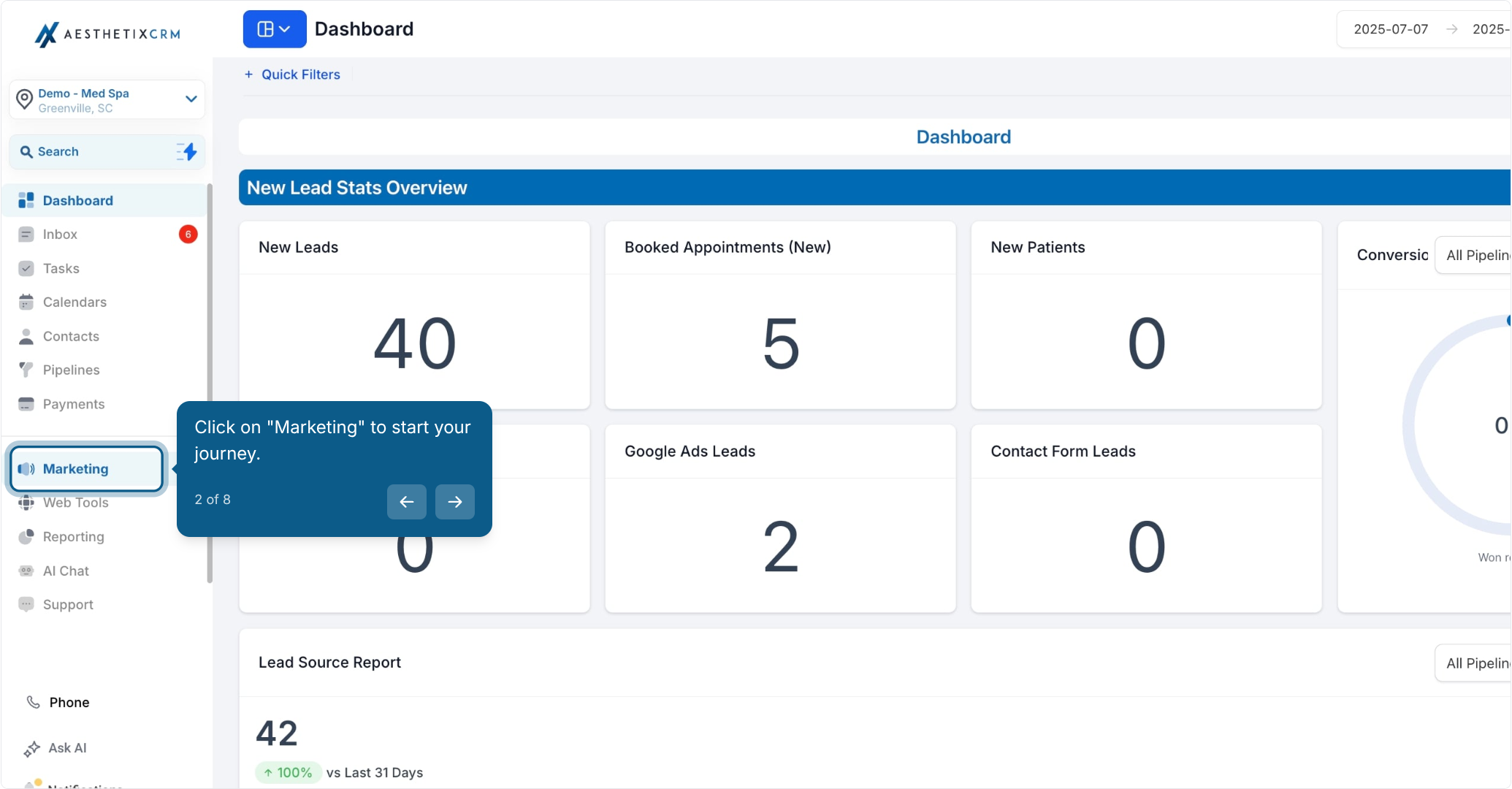
Click on Marketing in the left navigation.
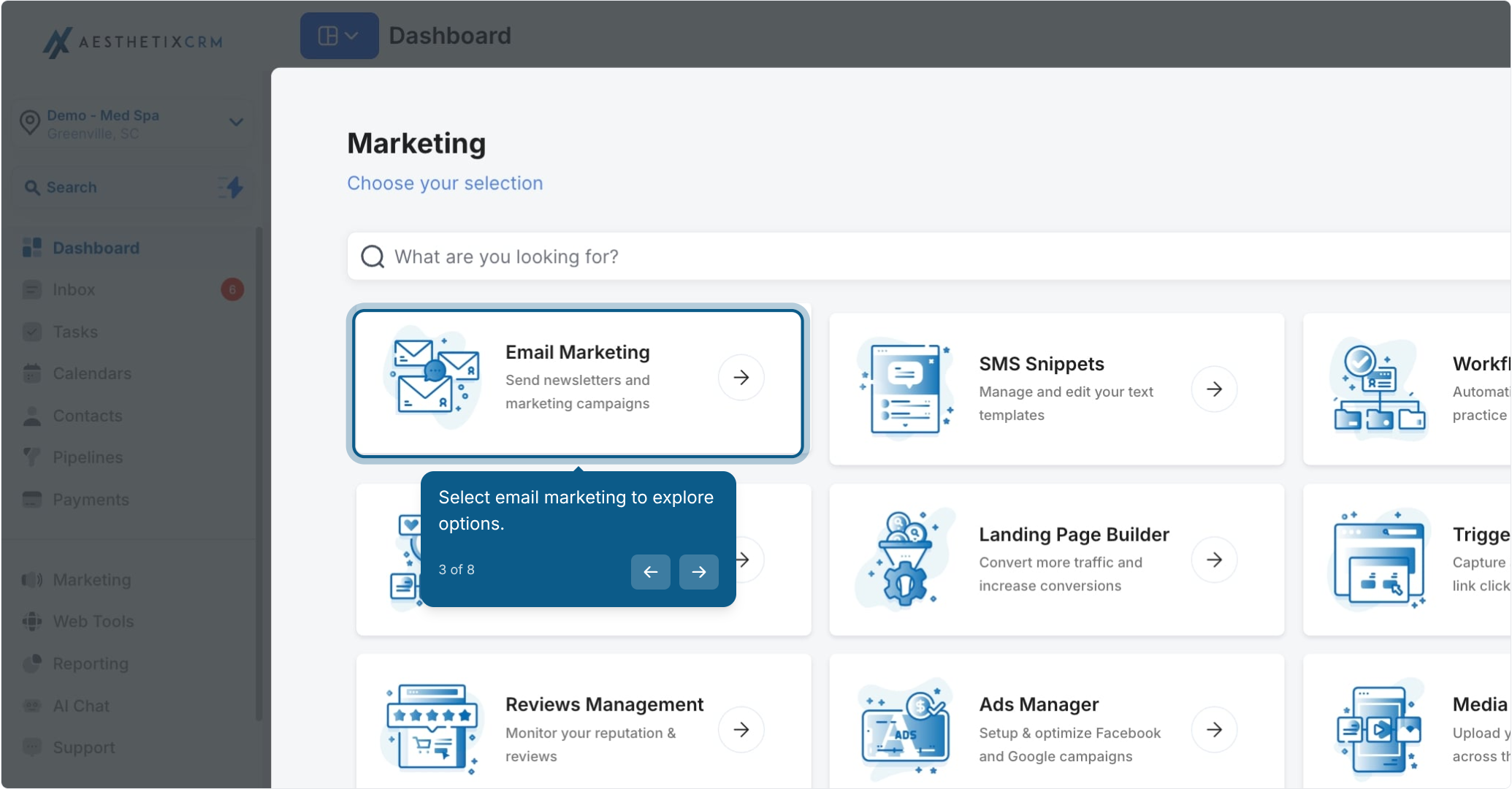
Select Email Marketing.
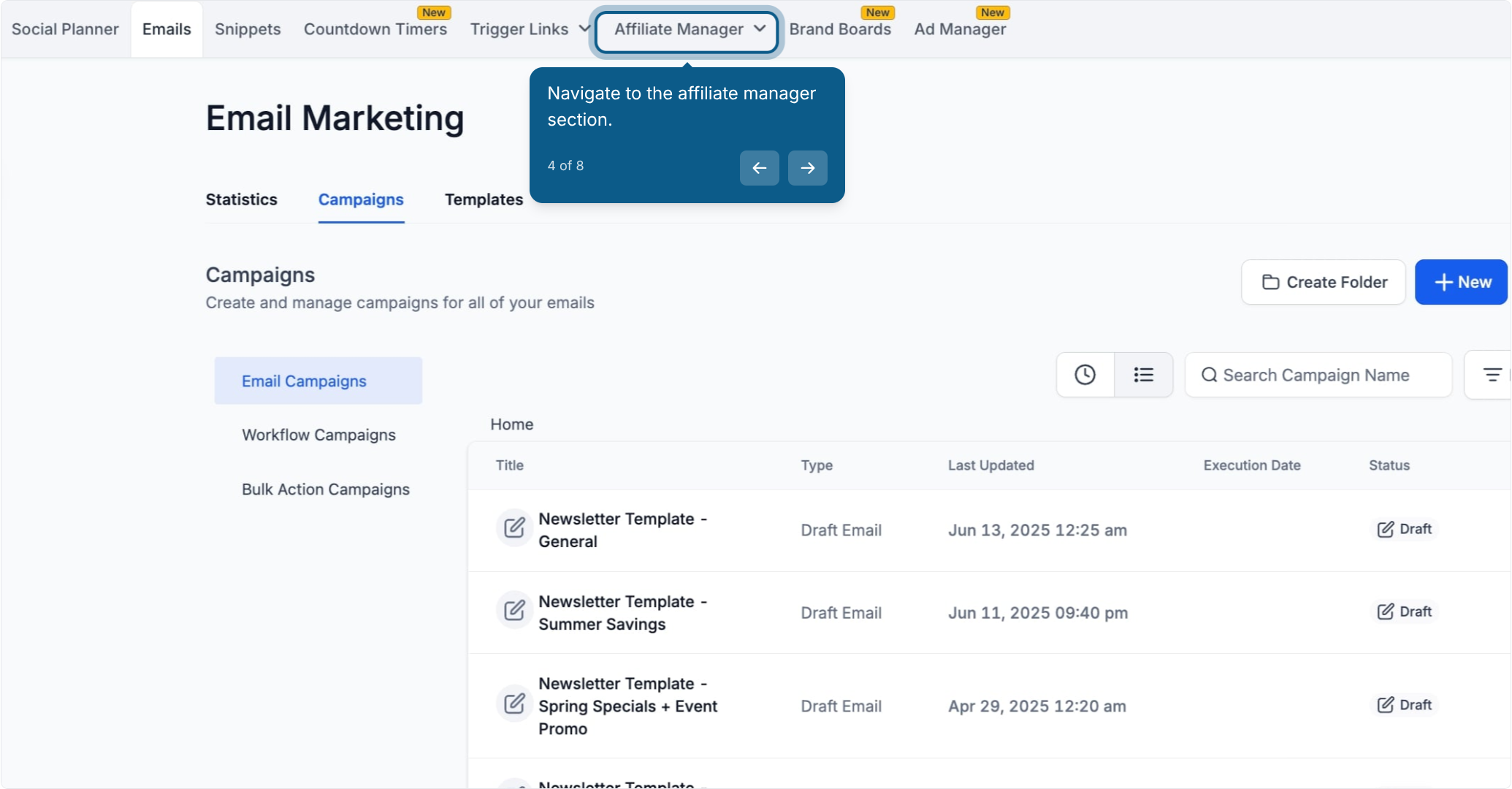
Navigate to the Affiliate Manager section.
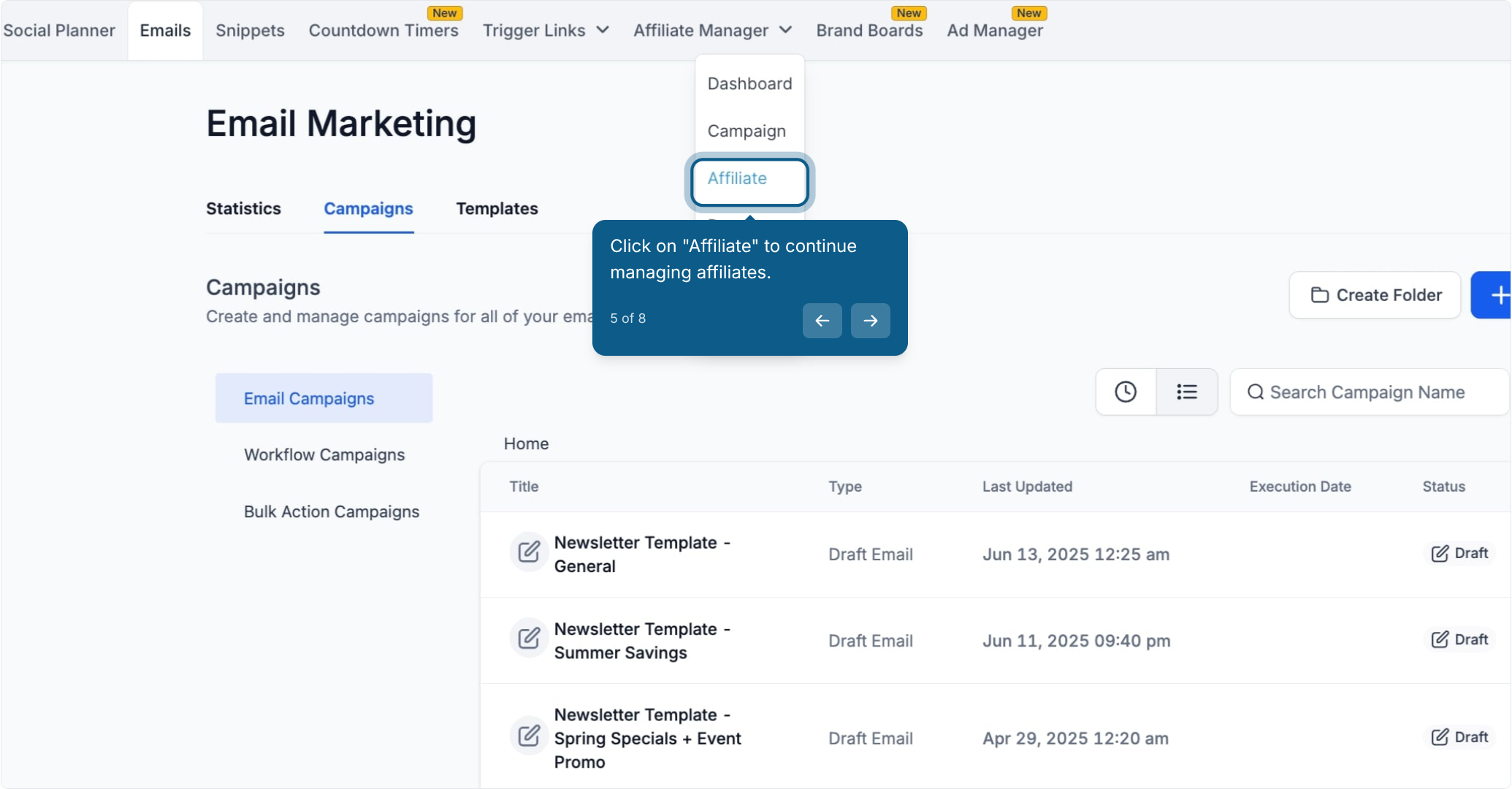
Click on Affiliate to open the affiliate list.
Check the box beside the affiliate's name. To set several affiliates inactive at once, check the boxes beside each name you want to update.
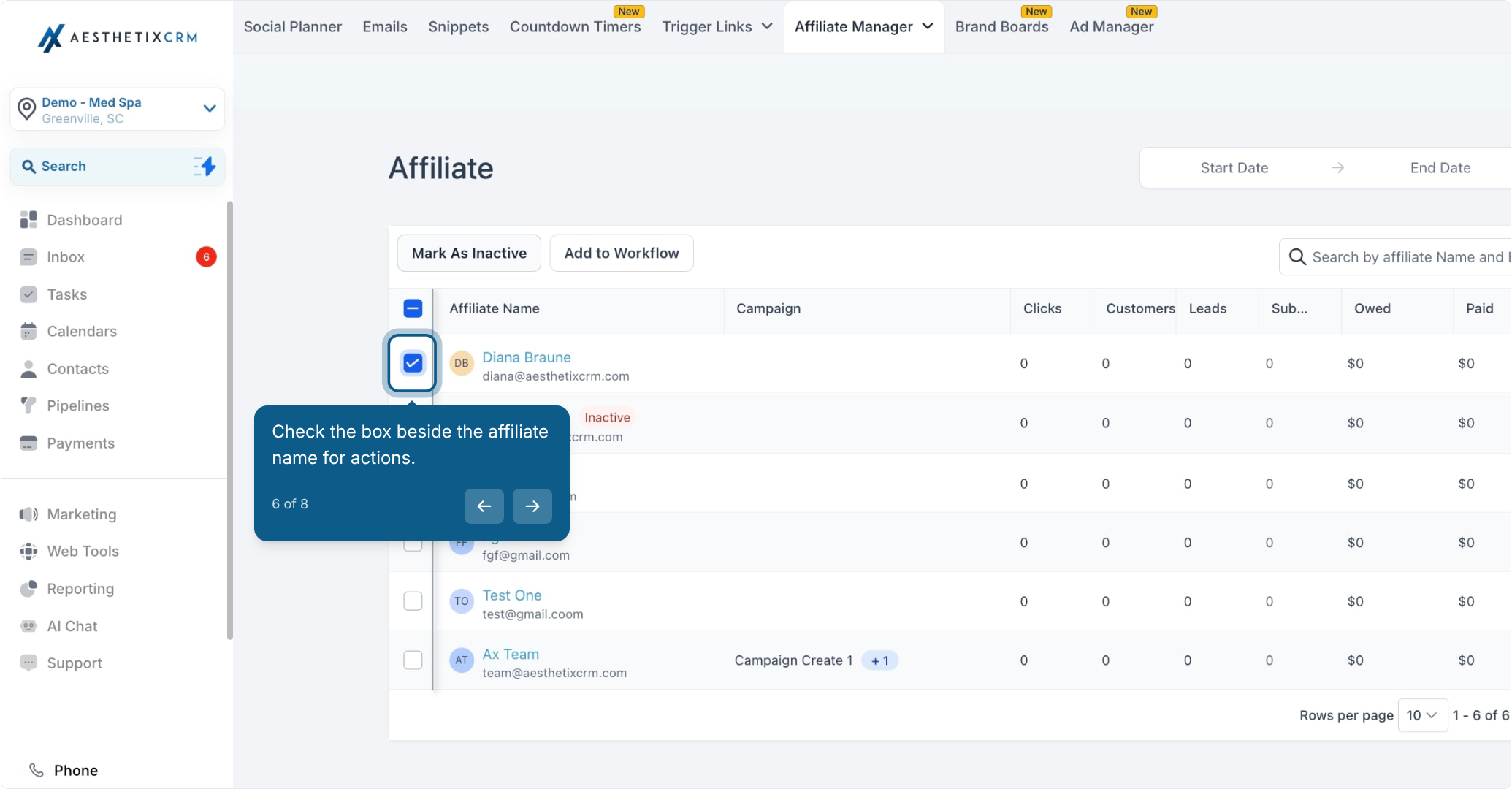
Click Mark As Inactive.
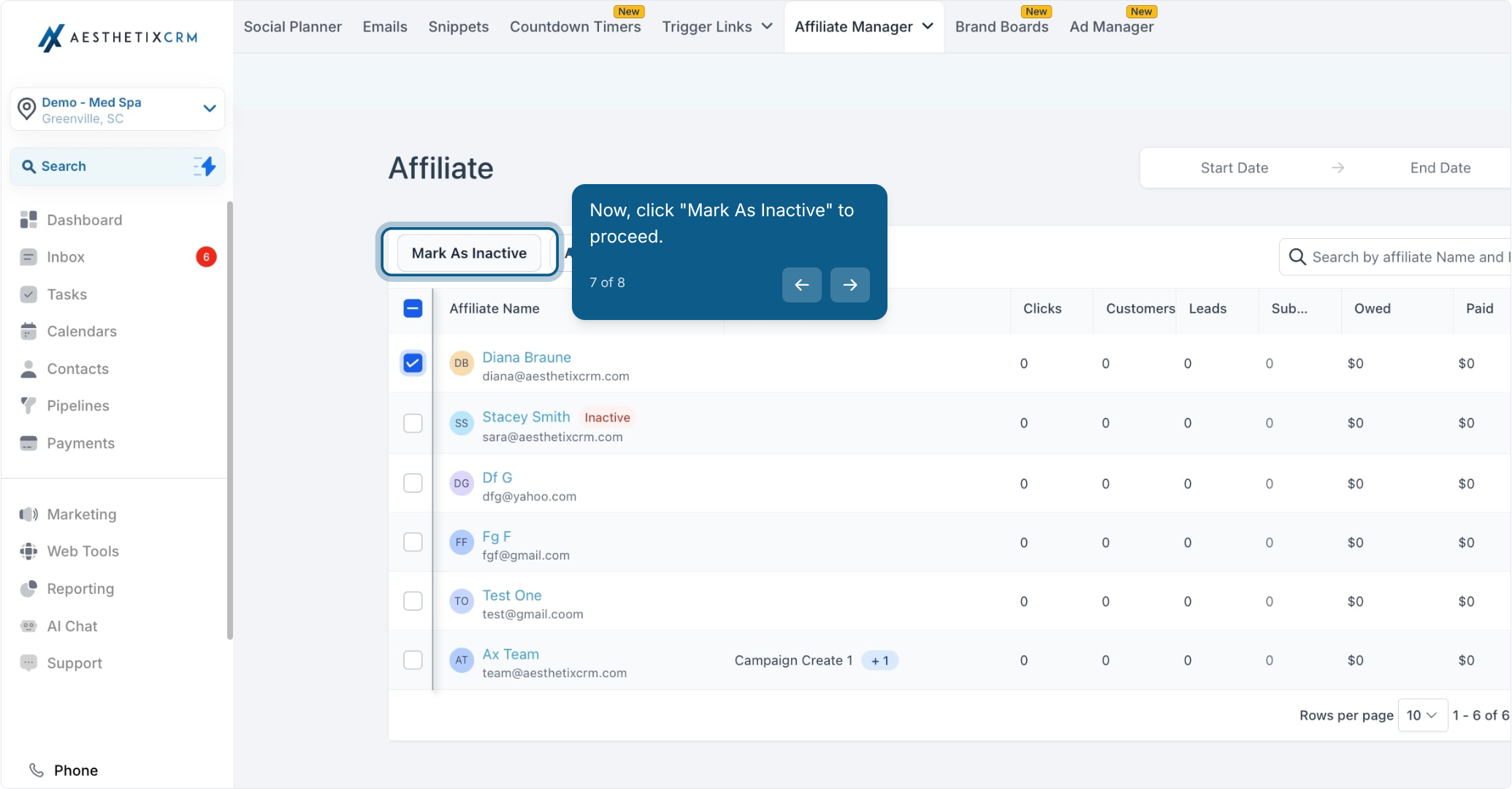
Confirm by clicking Mark as Inactive again in the popup.
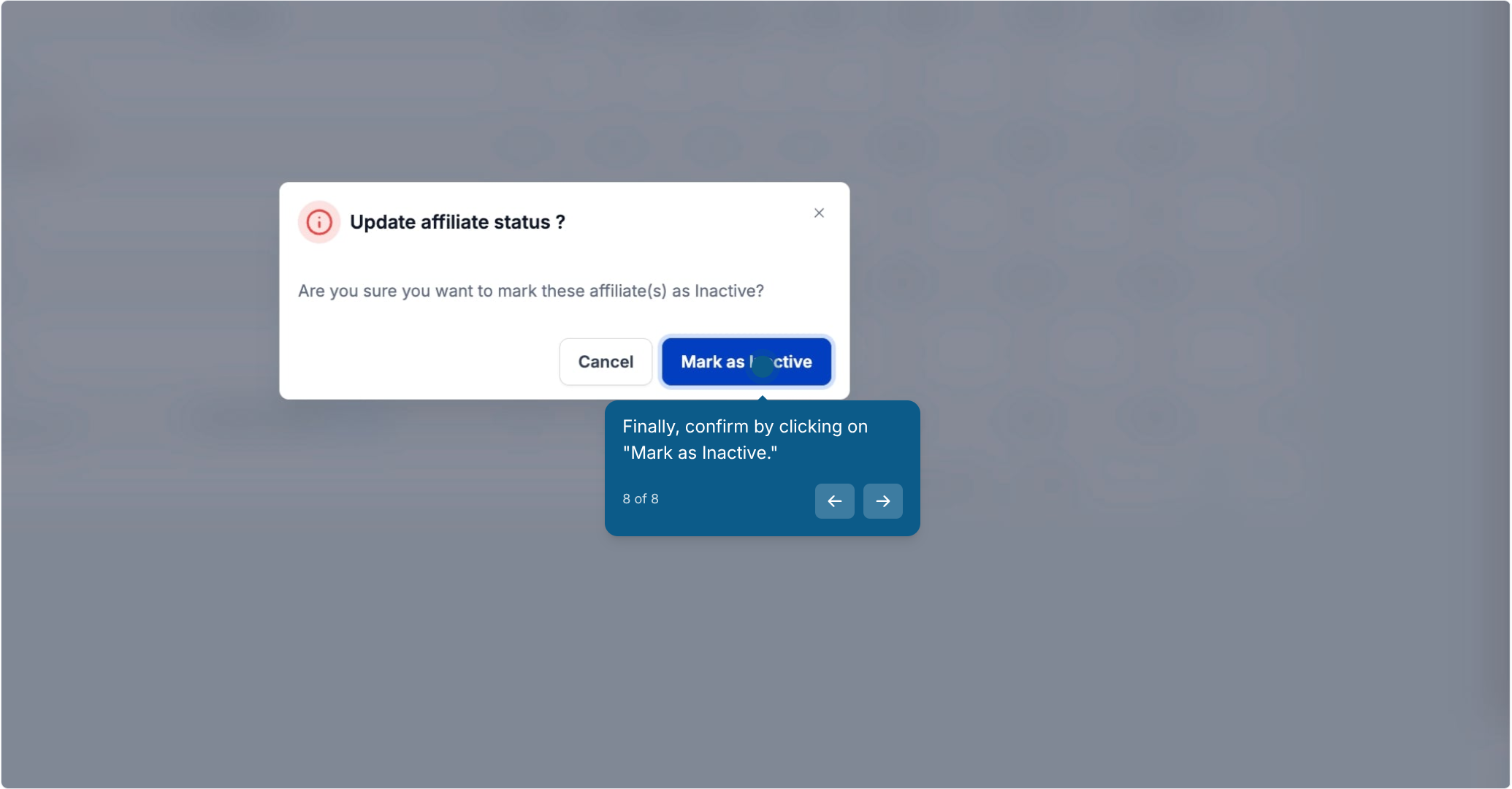
An inactive affiliate stops earning new commissions and loses access to their referral links and dashboard, but their profile, past commissions, and payout history remain in your account. You can reactivate the same affiliate later from this same list.
Deleting an affiliate permanently removes their profile and record from your account. Use this only when you're certain you won't need their history again, since this action cannot be undone.
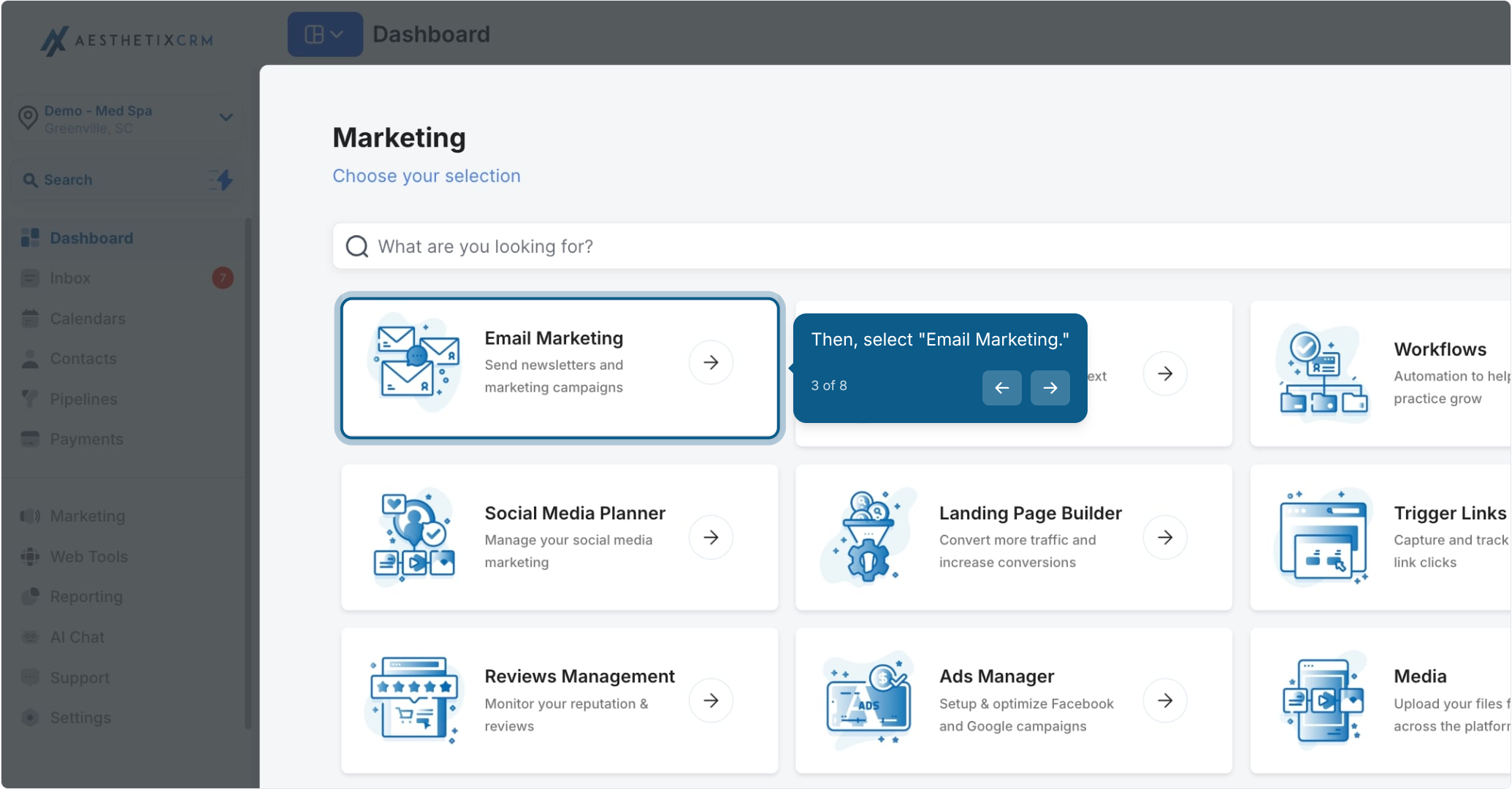
Click on Marketing.
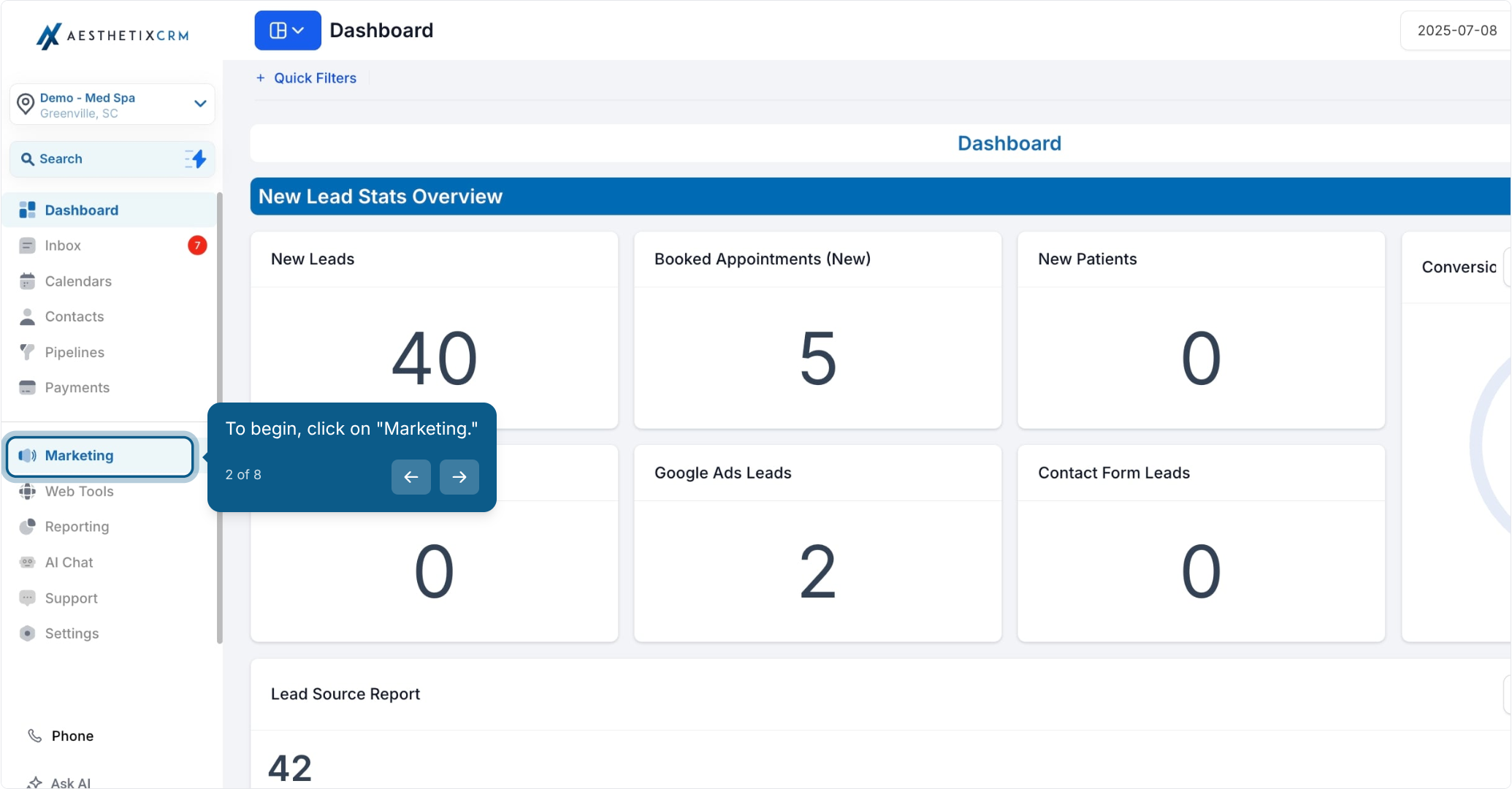
Select Email Marketing.
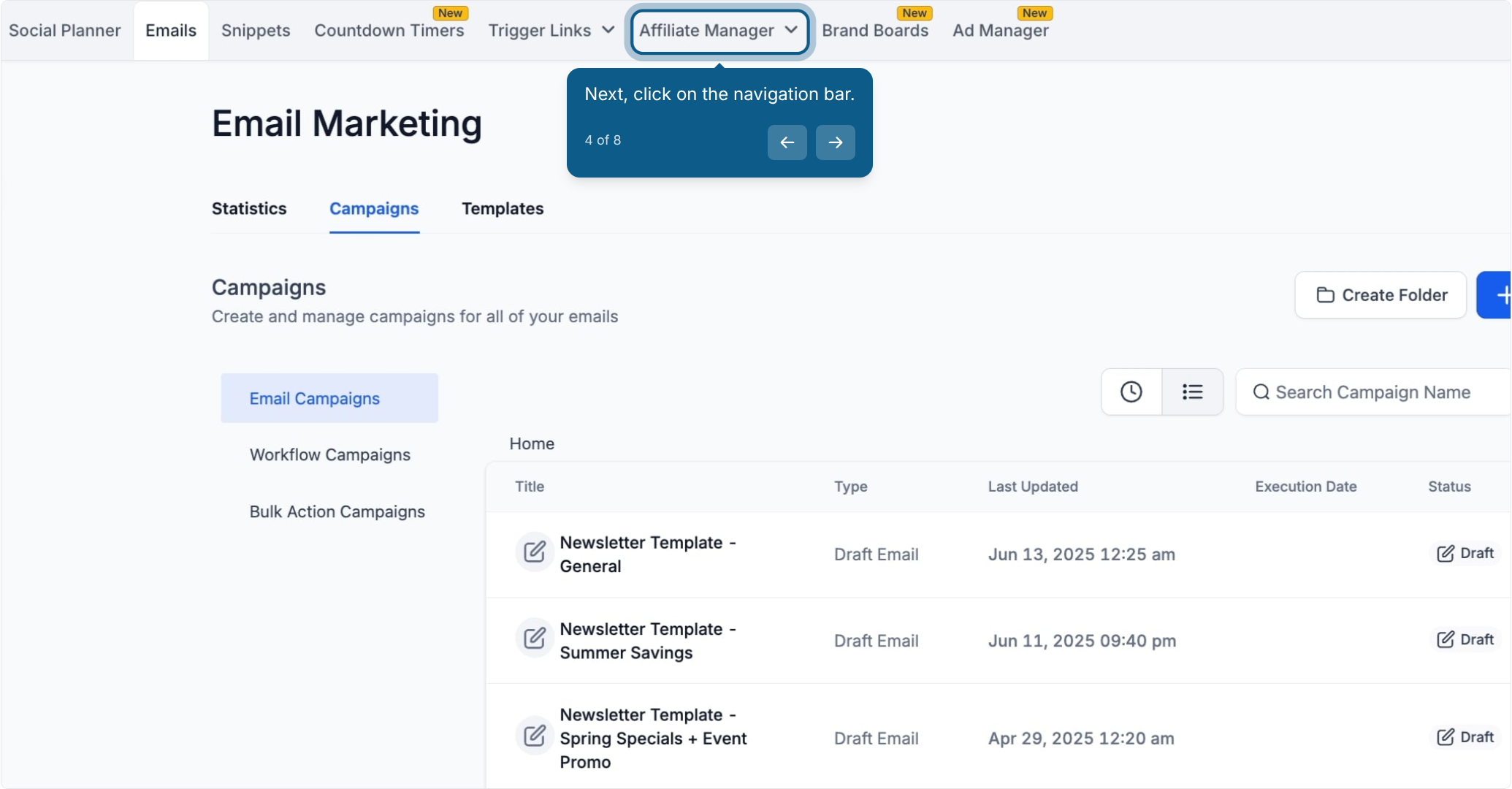
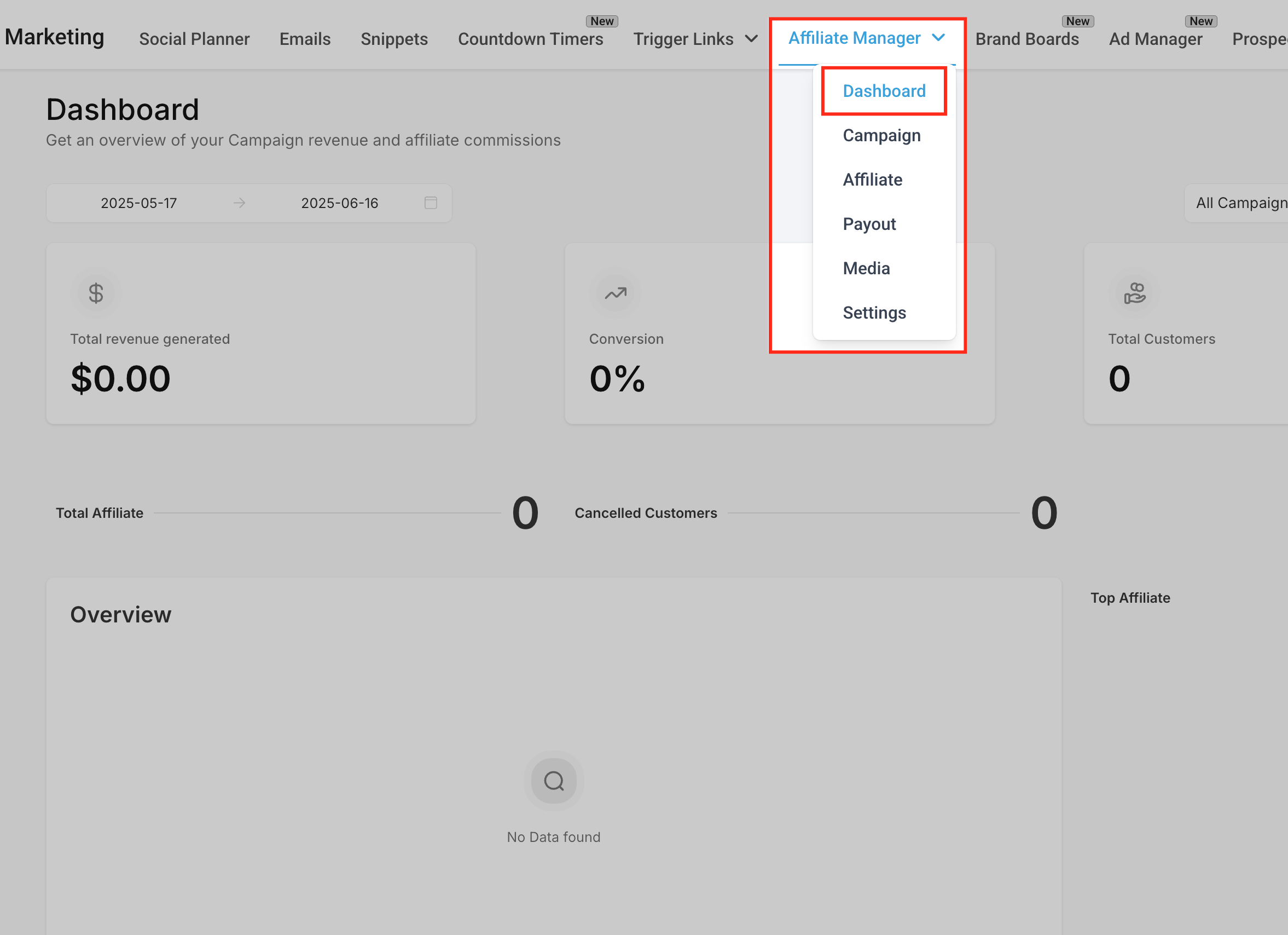
Click on the navigation bar to open the Affiliate Manager menu.
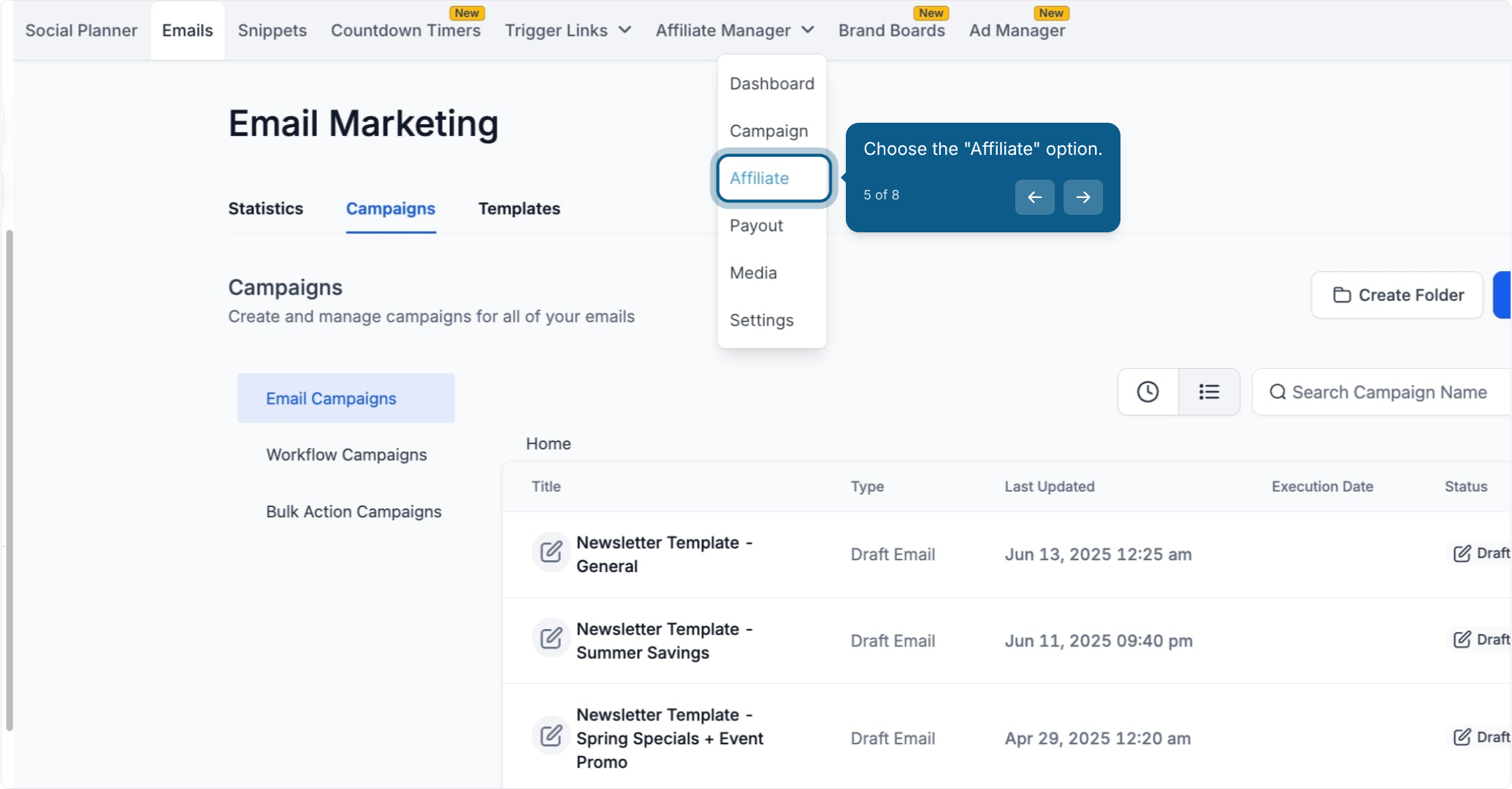
Choose the Affiliate option.
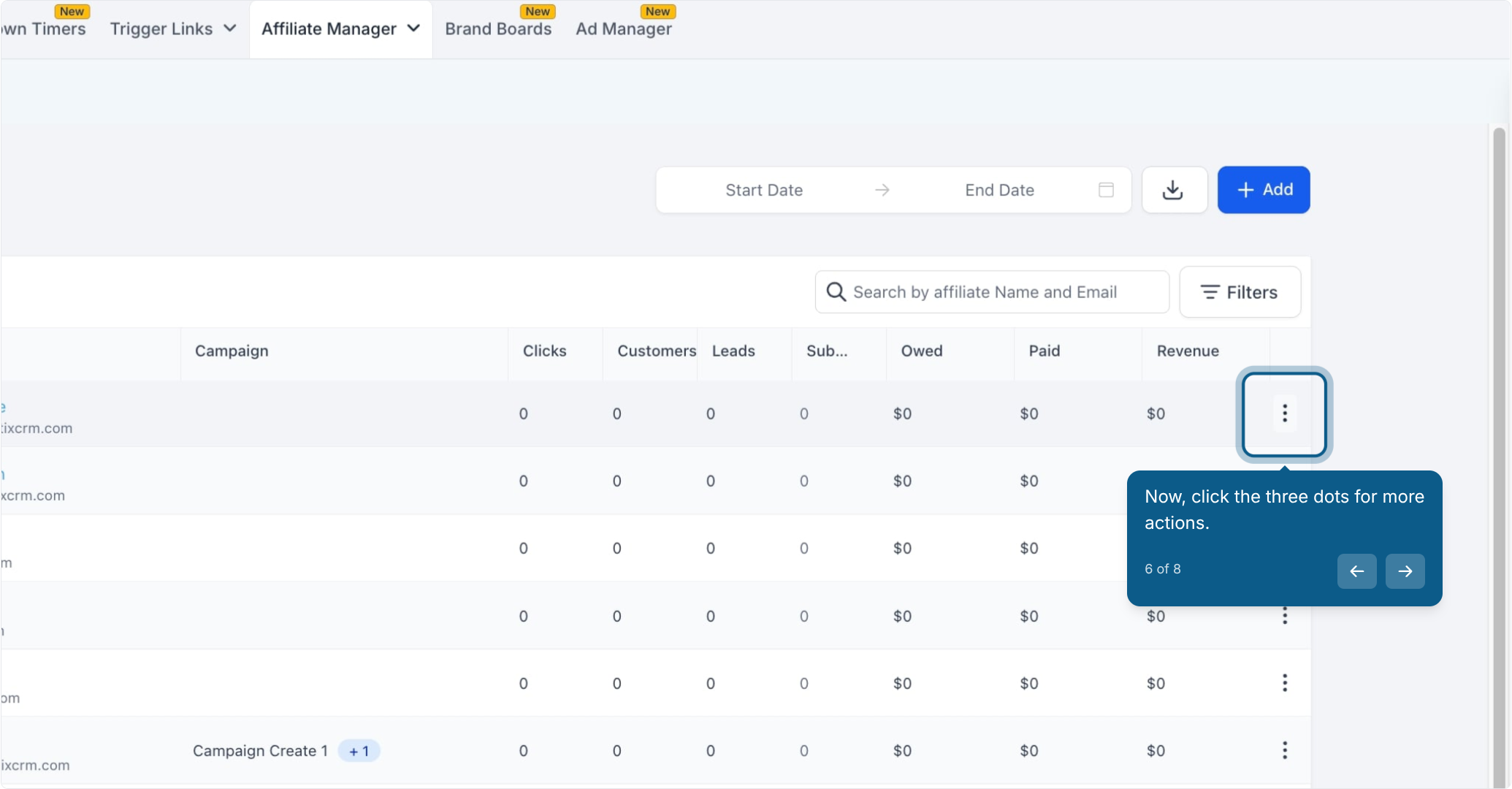
Click the three dots next to the affiliate's name for more actions.
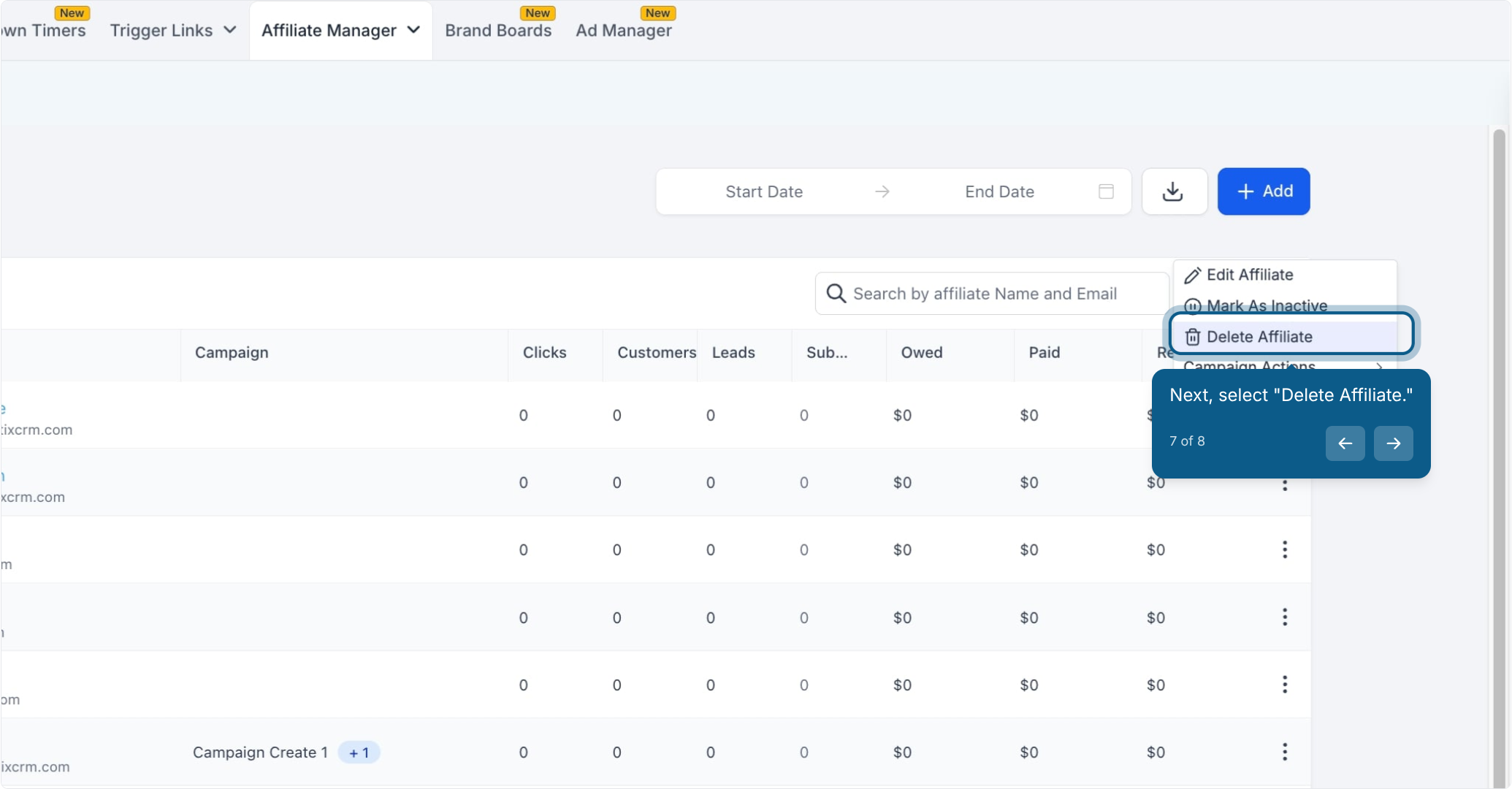
Select Delete Affiliate.
Click Delete to confirm your choice.
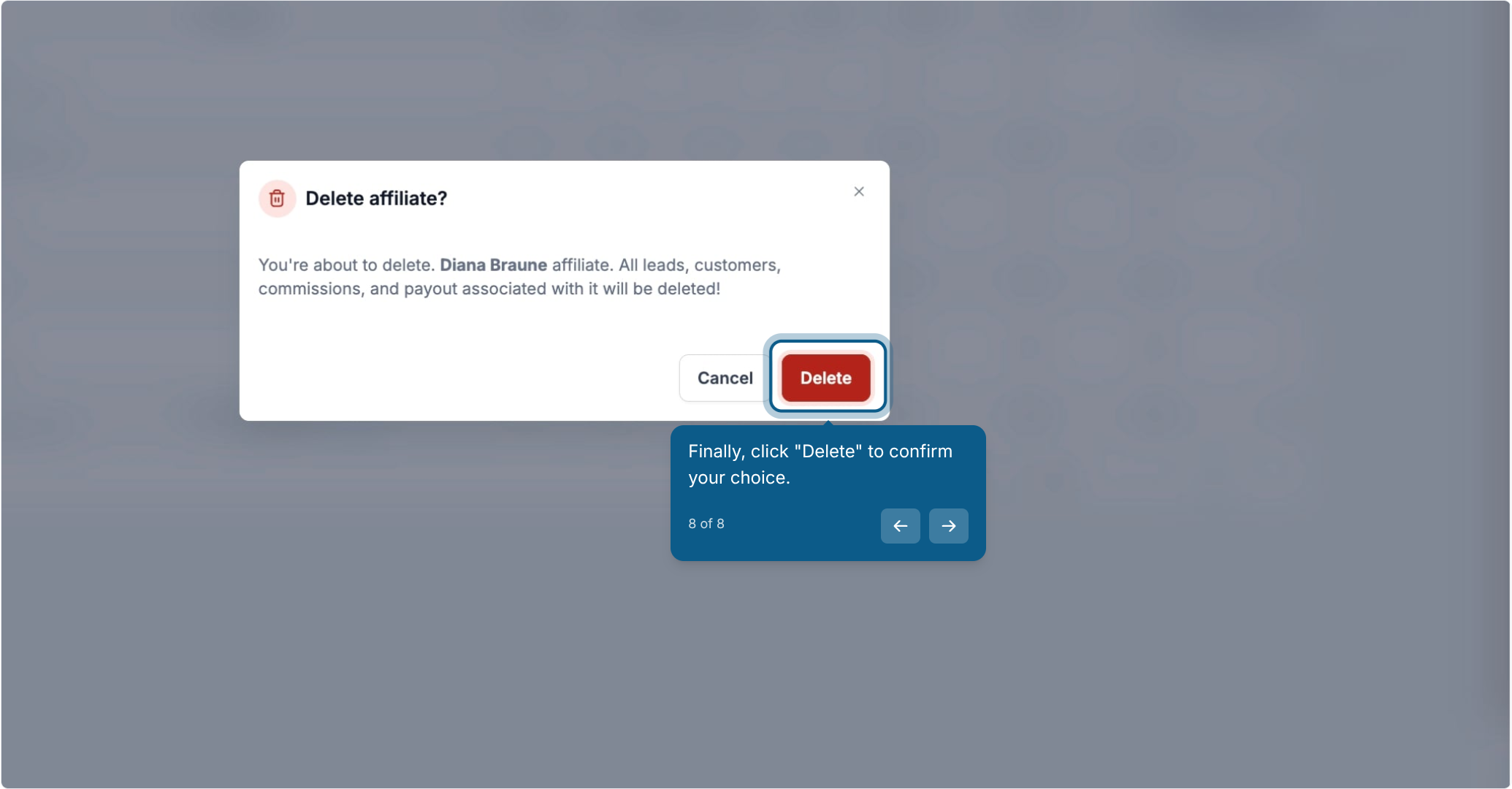
Once deleted, the affiliate's profile, referral links, and commission history are gone for good. If there's any chance you'll want that data later, use "Mark as Inactive" instead.
Beyond managing the affiliates themselves, you can also bulk-manage their individual commission records, approving, denying, or deleting several commissions at once instead of handling each one individually. This is especially useful during high-volume payout periods or when reviewing a backlog of pending commissions.
Go to Affiliate Manager within the Marketing section.
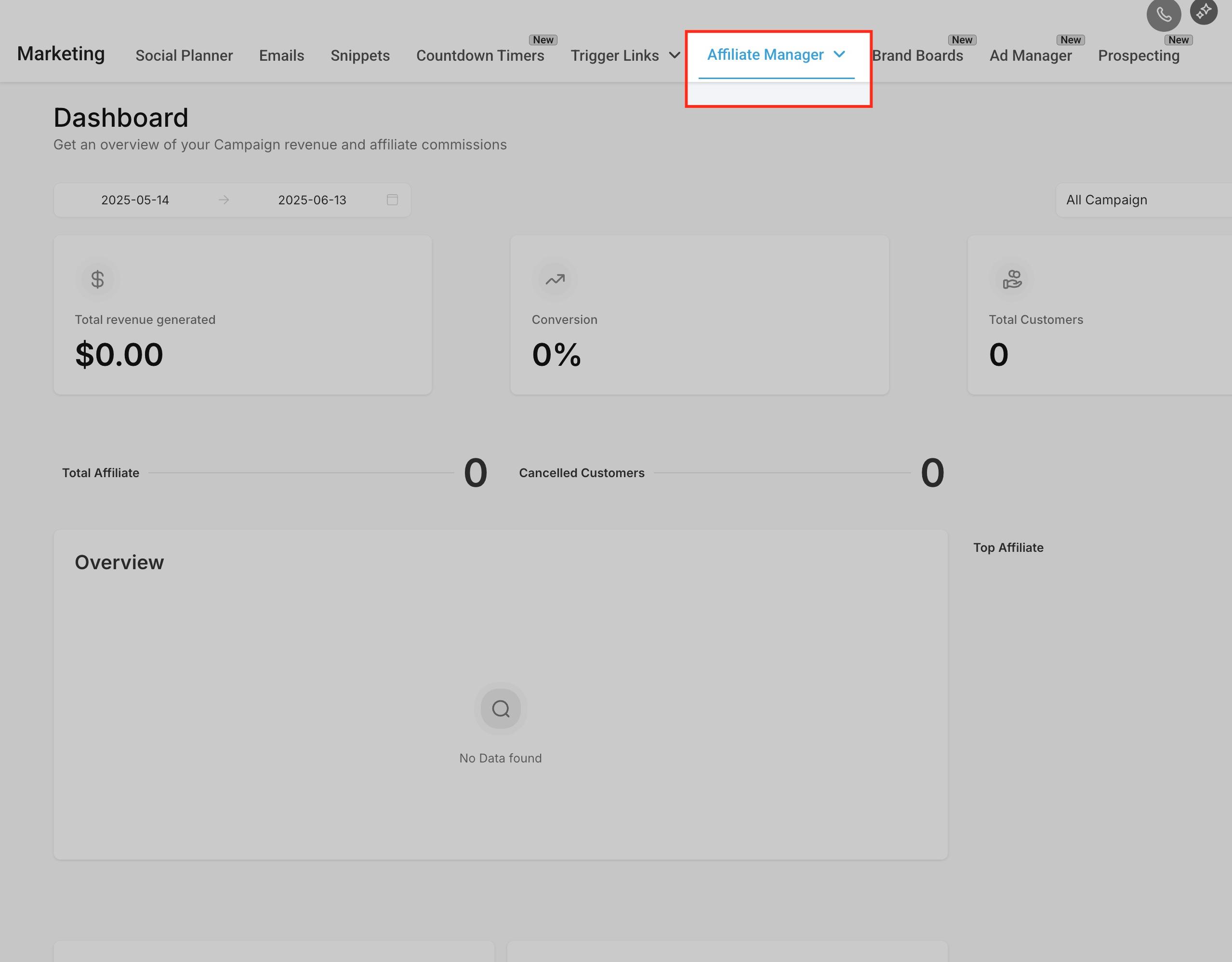
Under the Affiliate dropdown, click on the affiliate whose commissions you want to review.
Inside the affiliate's profile, click the Commissions tab.
Use the checkboxes to select one or more commissions.
Click the Bulk Actions button.
Choose Approve, Deny, or Delete.
You can perform the same bulk actions from the global commissions dashboard, which is useful for reviewing recent activity across all your affiliates at once.
Navigate to the Affiliate Manager Dashboard.
Scroll to the Latest Commissions section.
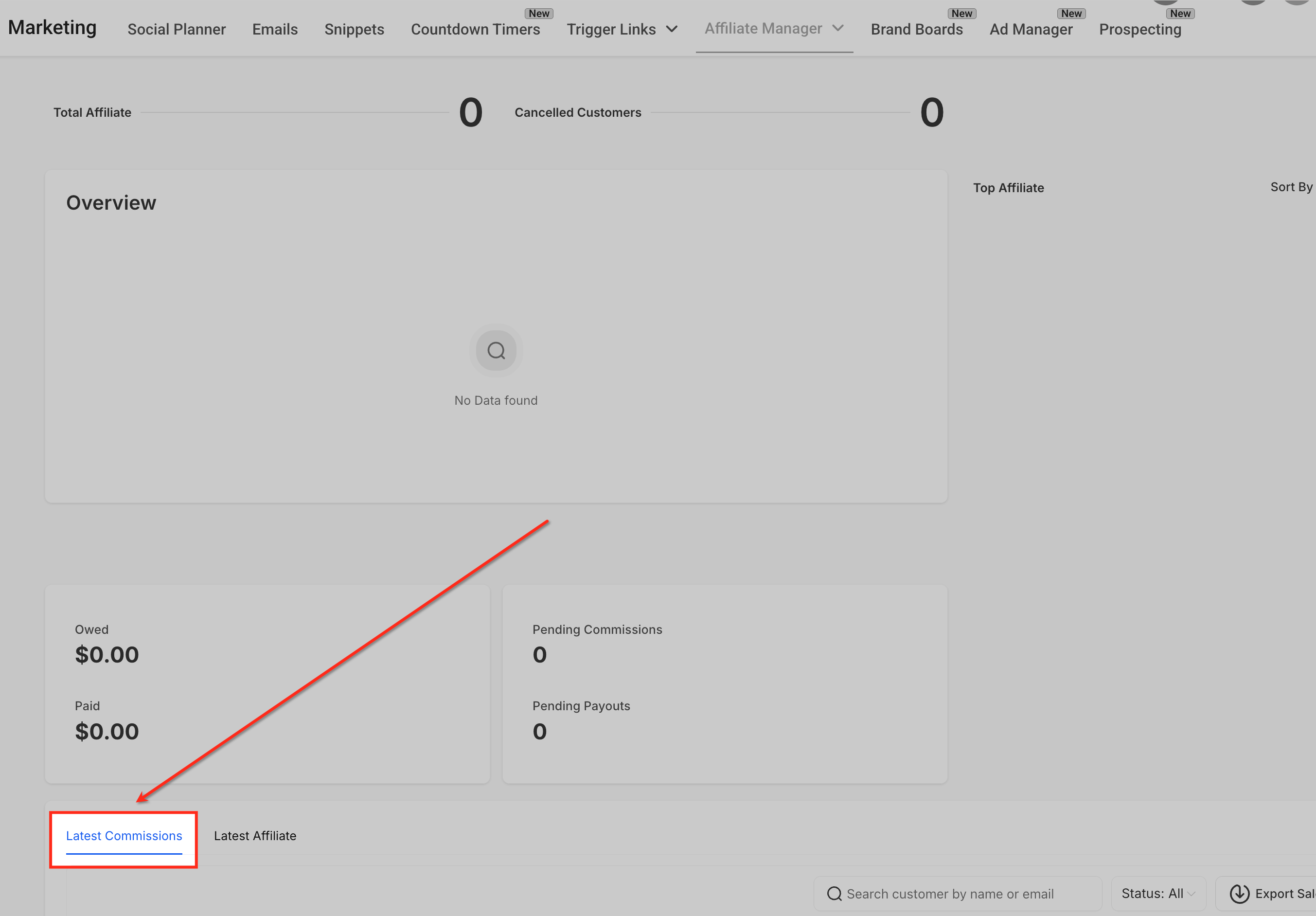
Use the checkboxes to select multiple commissions.
Click Bulk Actions and choose your desired action.
Filters help you narrow down commissions quickly, especially useful when you're managing a larger referral program.
Use the Status filter to view only pending, approved, or denied commissions.
Use the Campaign filter to isolate commissions tied to a specific referral campaign.
Combine both filters for more precise searches.
Bulk commission actions are final once submitted, so double-check your selections before confirming. Automations tied to affiliate status or commission changes (such as sending a payout notification) live in Workflows, not in Affiliate Manager itself.
What's the difference between marking an affiliate inactive and deleting them? Marking an affiliate inactive pauses their account but keeps their profile, referral links, and commission history in your account so you can reactivate them later. Deleting an affiliate permanently removes their profile and history, and cannot be undone.
Can I reactivate an affiliate after marking them inactive? Yes. Since inactive affiliates keep their profile and history, you can reactivate them from the same Affiliate list whenever you want to resume the partnership.
Can I undo a delete or a bulk commission action? No. Both deleting an affiliate and submitting a bulk commission action (approve, deny, or delete) are permanent. Review your selections carefully before confirming.
Can I set or delete multiple affiliates at the same time? Yes for marking inactive: check the boxes beside as many affiliates as you want to update, then click Mark As Inactive once. Deleting is done one affiliate at a time from the three-dot menu on their profile.
Will an inactive affiliate still earn commissions? No. Once an affiliate is marked inactive, they stop earning new commissions and lose access to their referral links and dashboard, though their existing commission history stays visible in your account.
Does deleting an affiliate also delete their past commission records? Yes. Deleting an affiliate removes their entire profile, including all associated commission and payout history. If you want to preserve that history, mark the affiliate inactive instead.
Are bulk commission actions available to everyone on my team? No. Only team members with permission to manage affiliate commissions can approve, deny, or delete commissions in bulk.
Can I apply bulk commission actions across multiple affiliates at once? Yes, but only from the Affiliate Manager Dashboard view. From an individual affiliate's profile, bulk actions apply only to that affiliate's commissions.
Do bulk commission actions send a notification to the affiliate? No. Bulk actions do not automatically notify affiliates. If you want affiliates to be notified when their status or commissions change, set that up as a separate automation in Workflows.
Is there a limit to how many commissions I can bulk approve at once? There's no fixed limit, but processing a very large batch may take a few extra seconds to complete.
