If you already have a list of referral partners, patients, or influencers you want to enroll as affiliates, you don't have to add them one at a time. The Affiliate Manager's bulk upload tool lets you import an entire list from a CSV file in a single pass, mapping each column to the right field and adding every row to your affiliate program at once.
Bulk upload lives inside the Affiliate Manager, which sits under Email Marketing in your account.
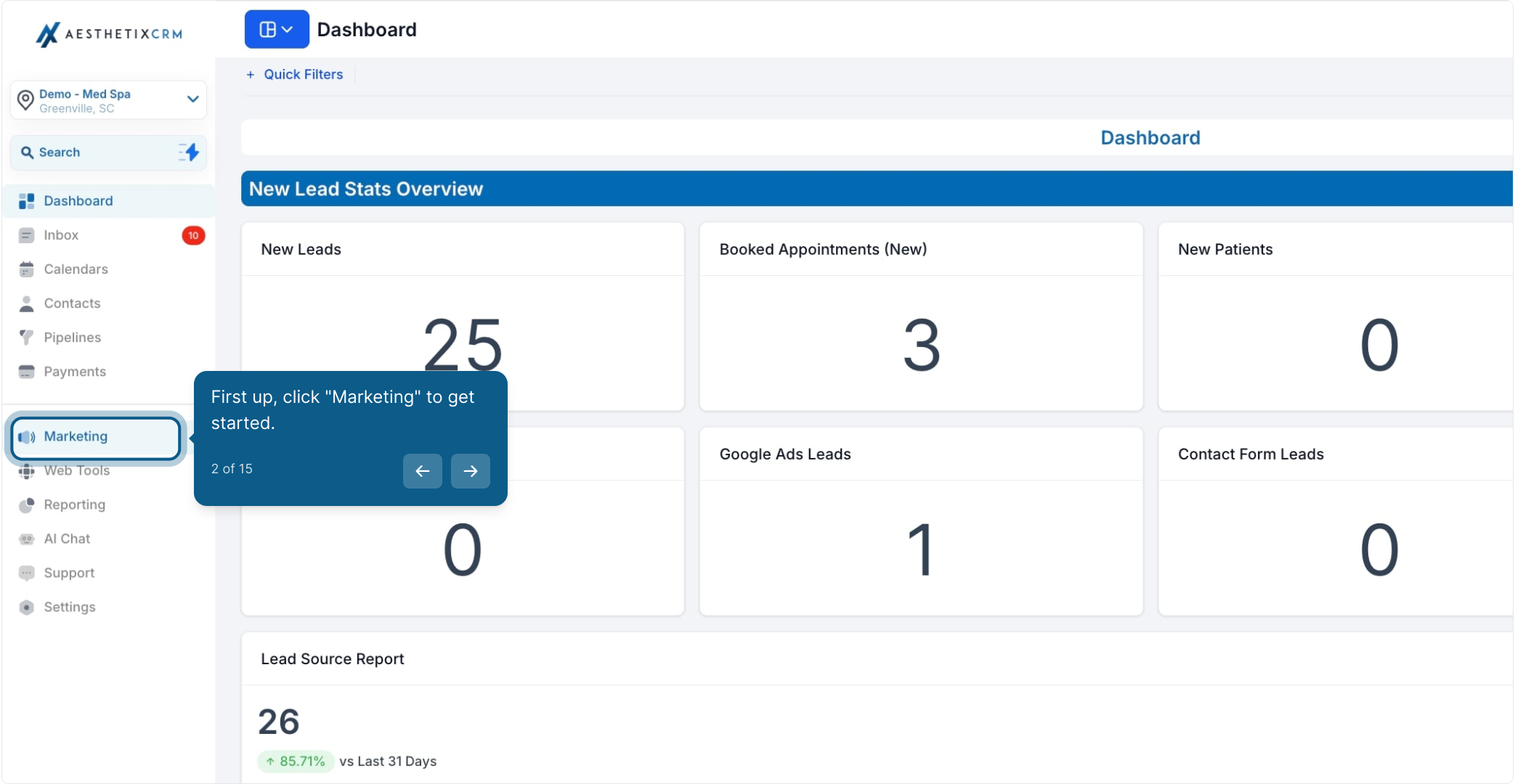
From the left navigation, click Marketing.
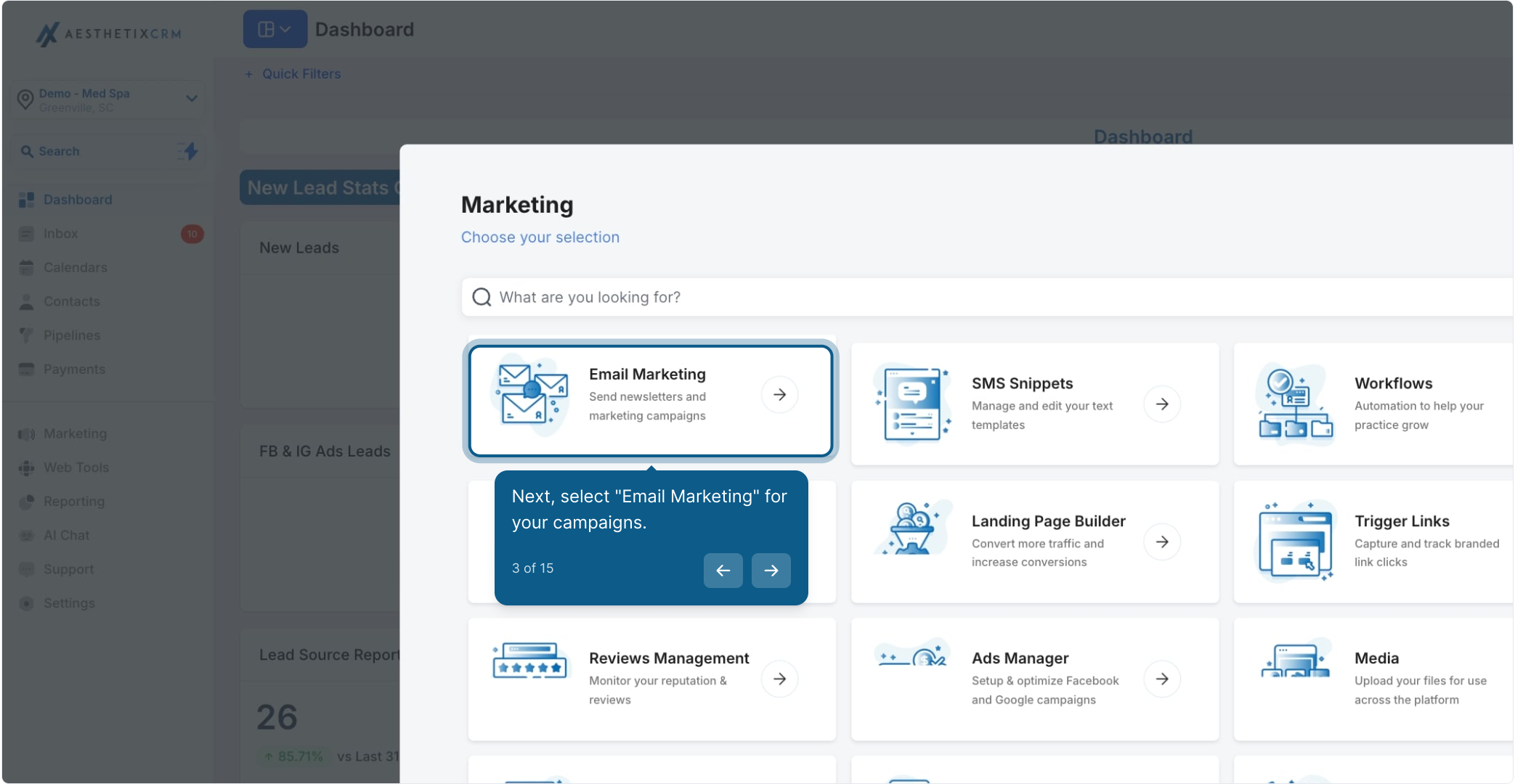
Select Email Marketing to open the marketing tools.
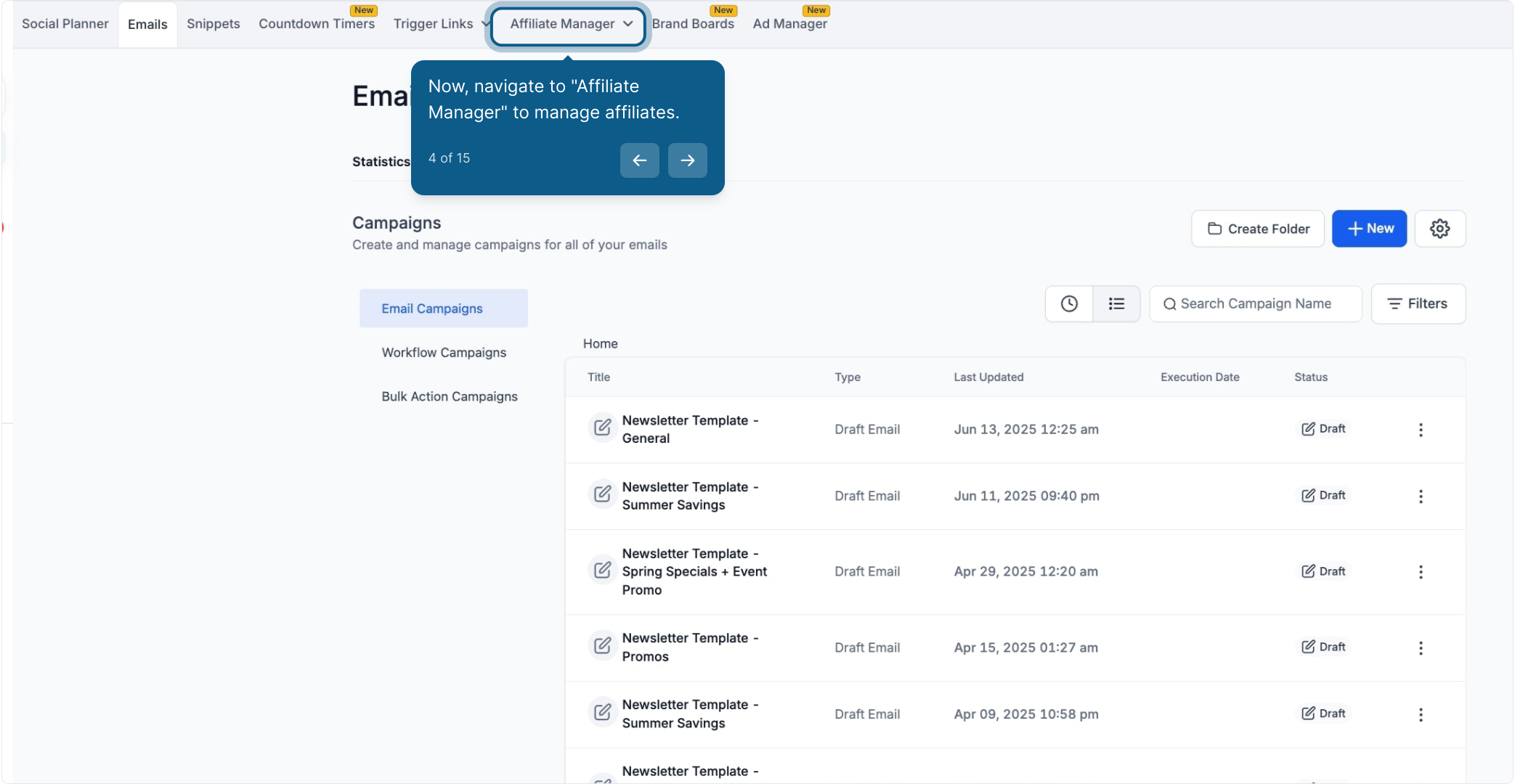
Choose Affiliate Manager from the menu.
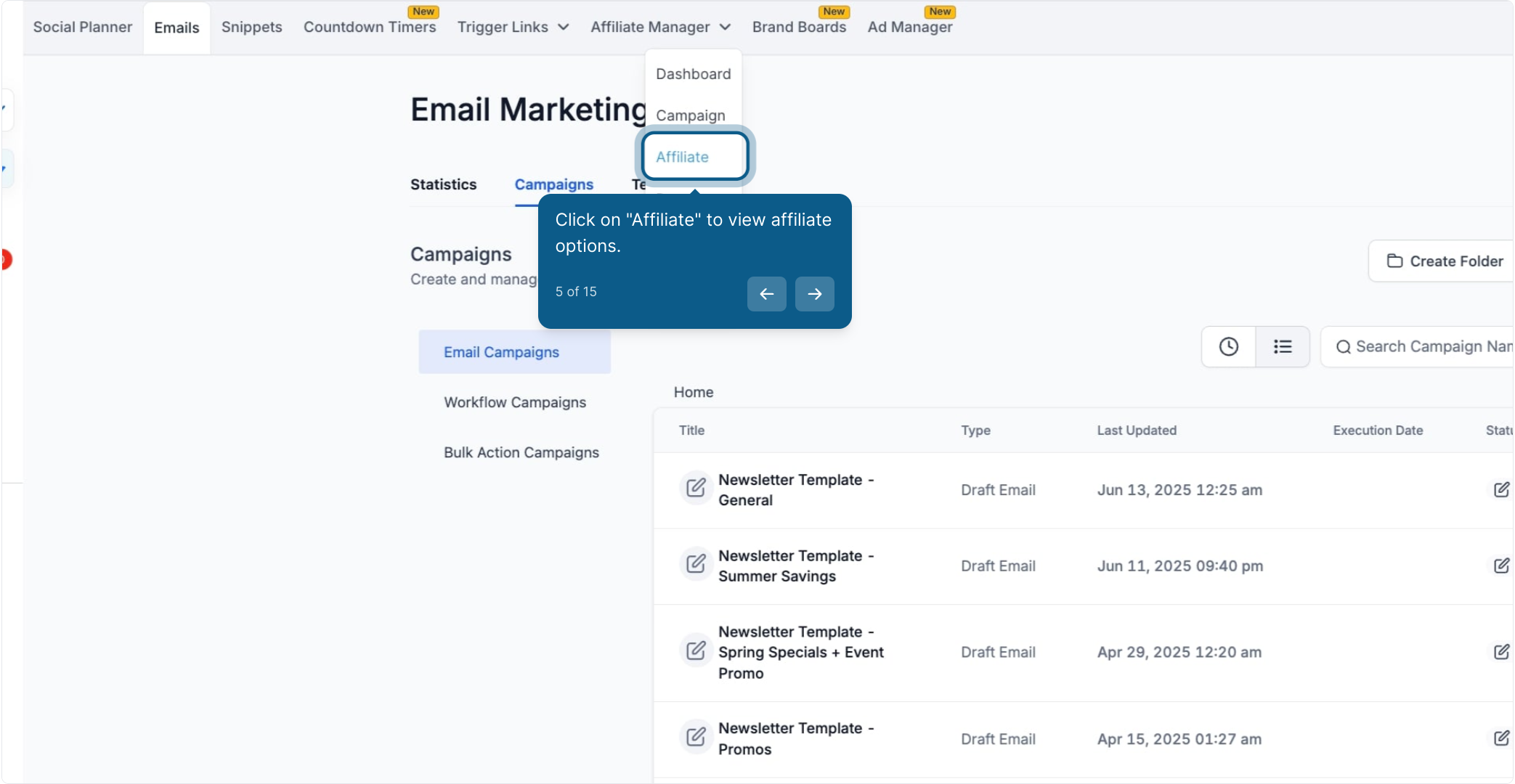
Click the Affiliate tab to view your affiliate options.
Click Add to start adding a new affiliate (or affiliates).
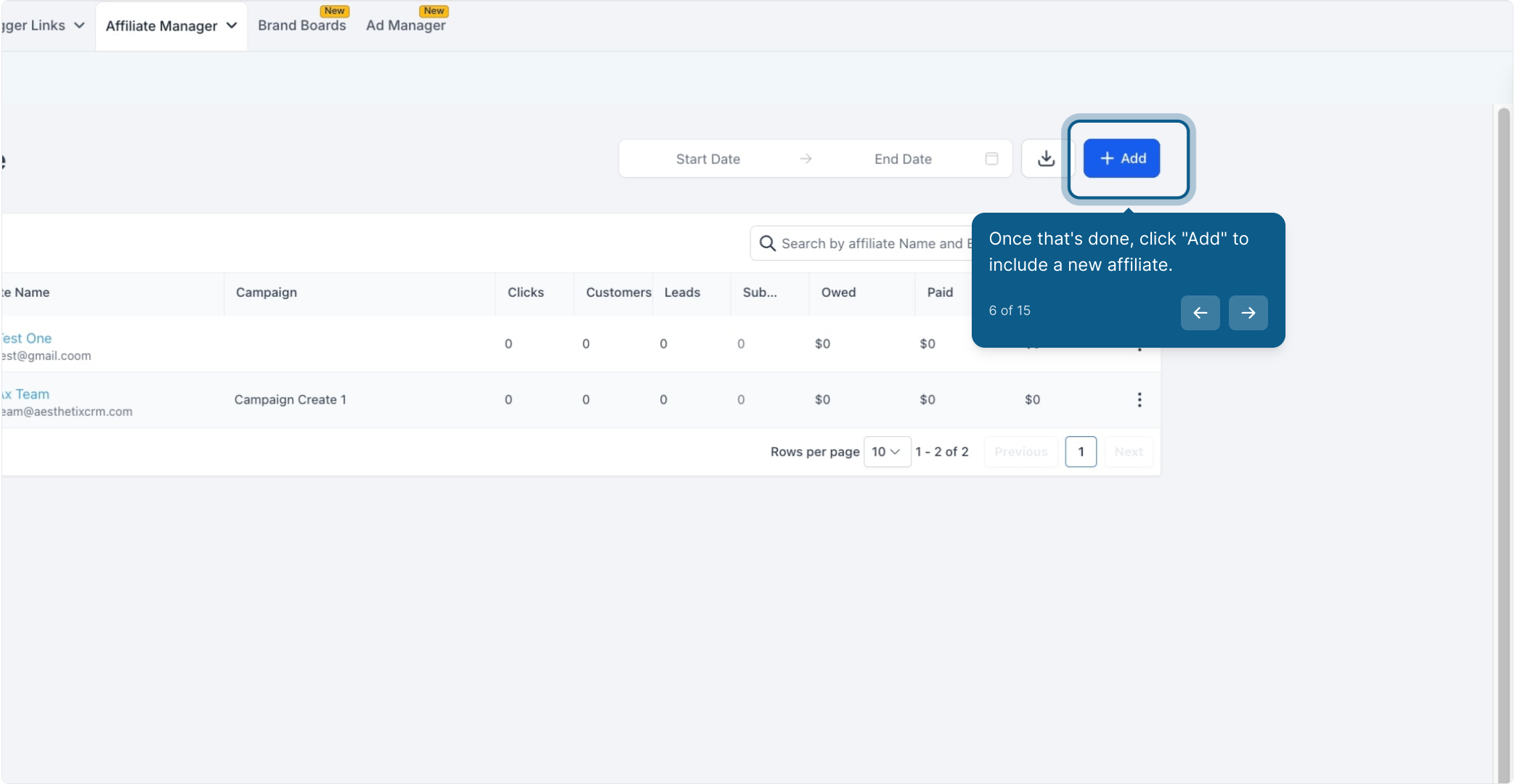
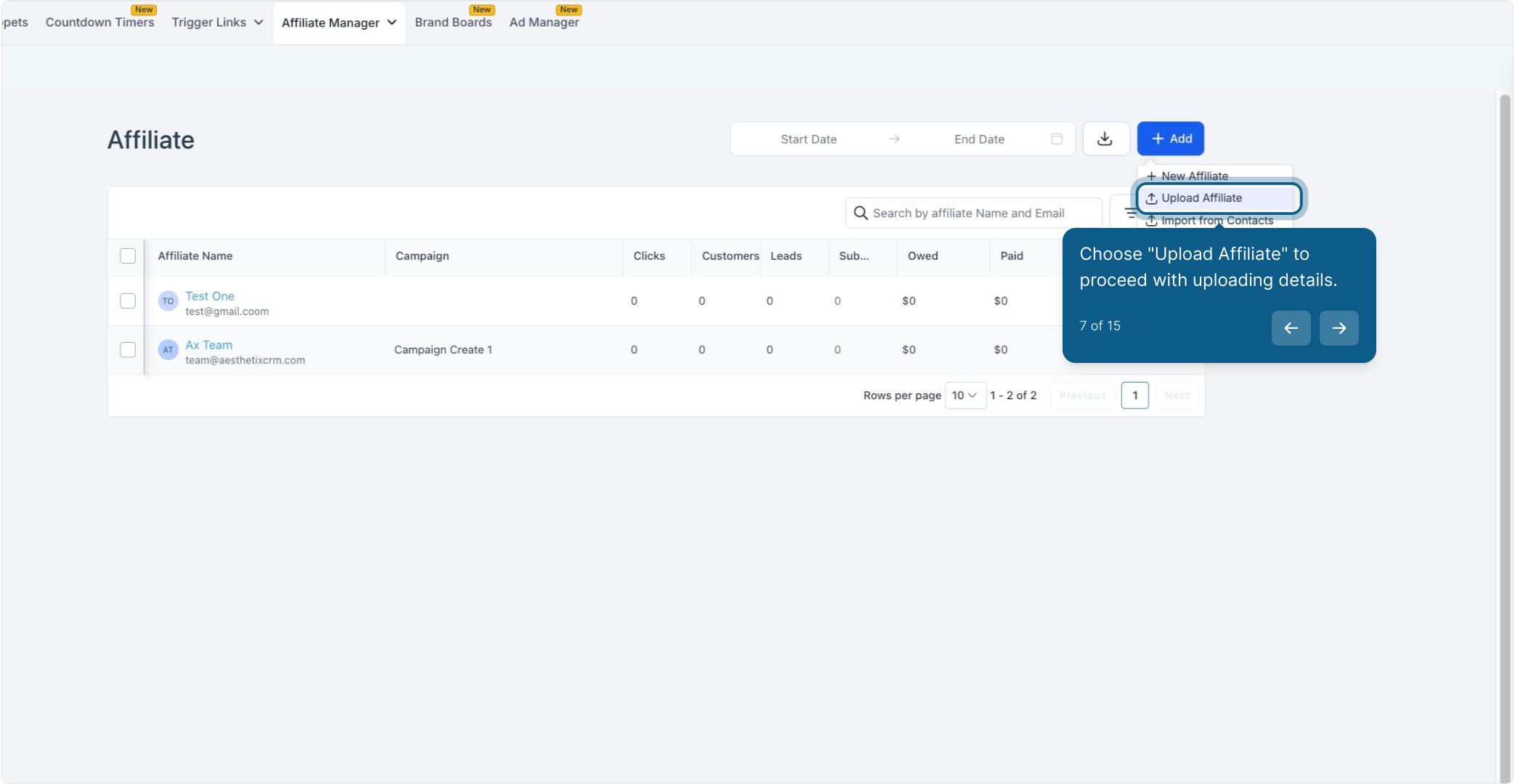
From the Add menu, choose Upload Affiliate.
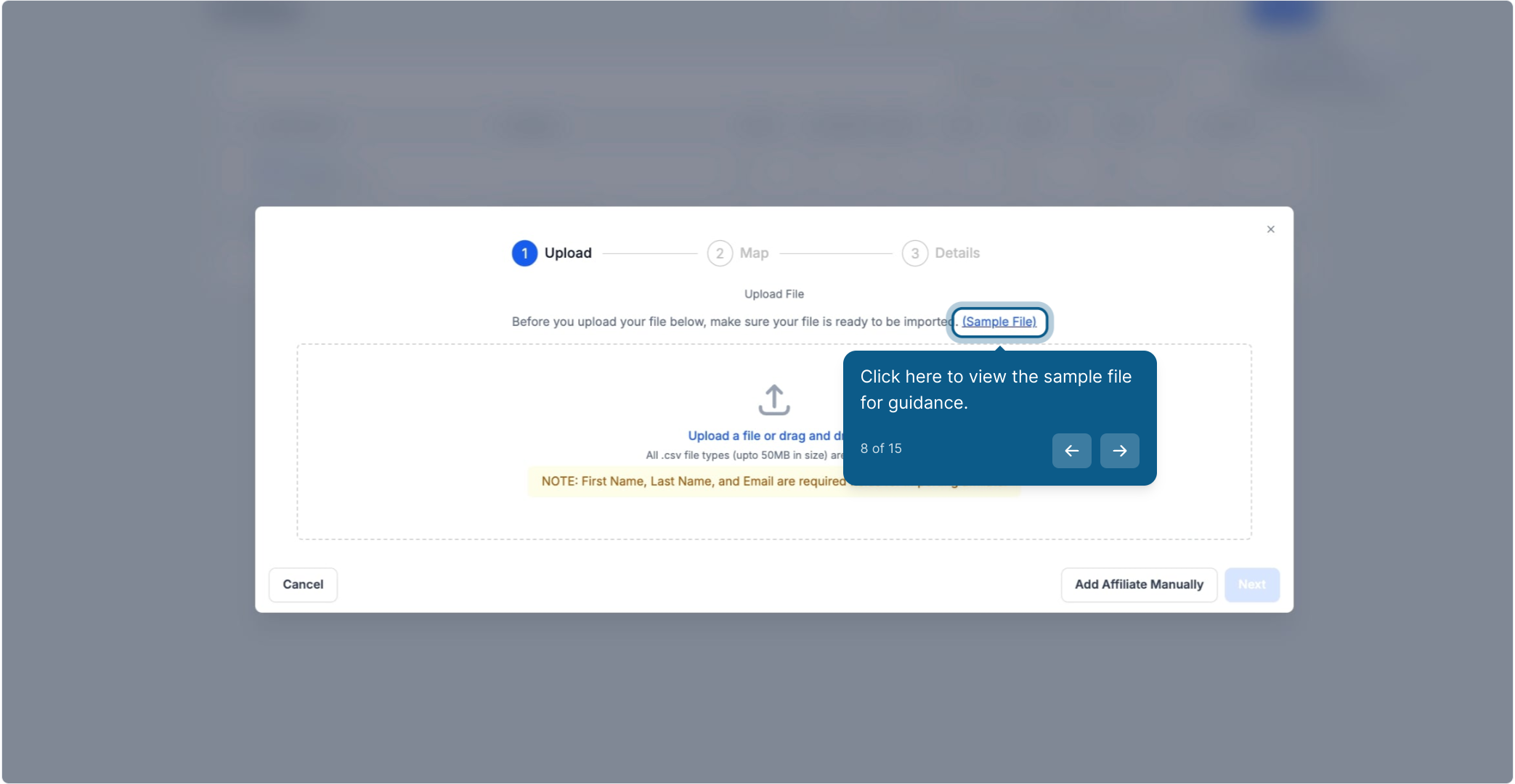
Click to view and download the sample CSV file. Use this template as your starting point so your columns line up with what the importer expects.
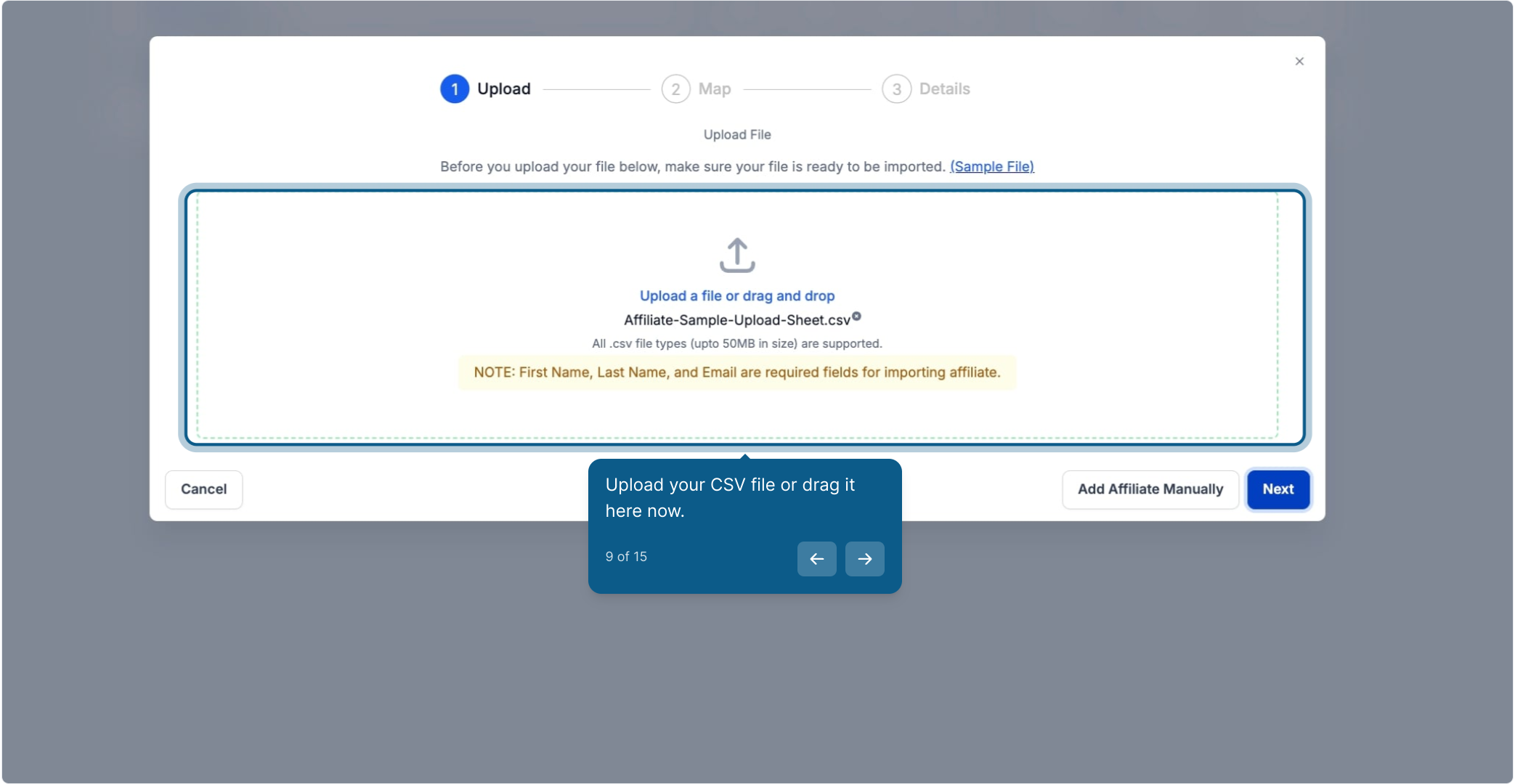
Fill in the sample file with your affiliates' details (name, email, and any other fields you're tracking), save it, then drag your completed CSV into the upload window or click to browse for it.
Check that each column in your file is mapped to the correct field. This step is where most import errors get caught, so take a moment to confirm names, emails, and any custom fields line up correctly before moving on.
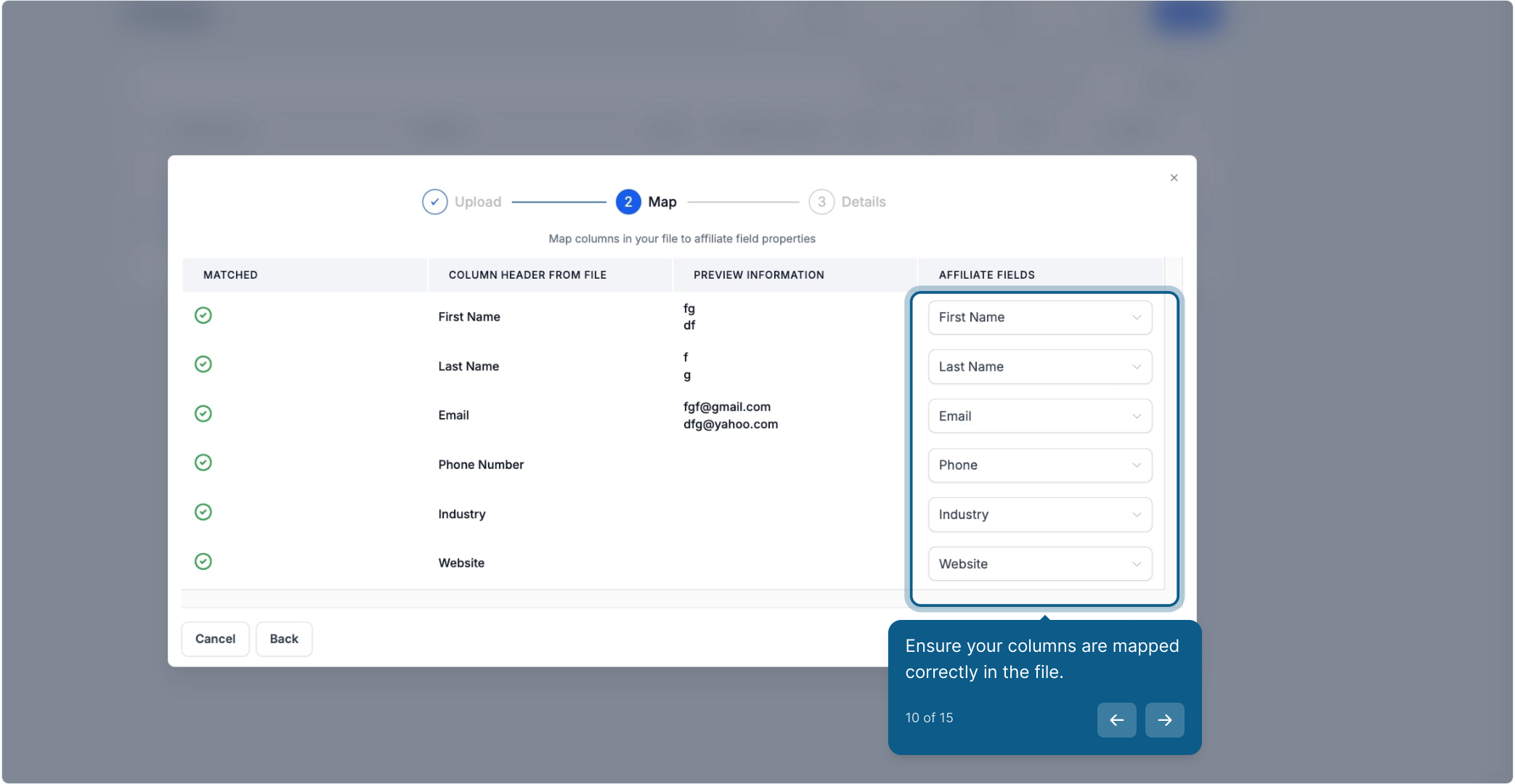
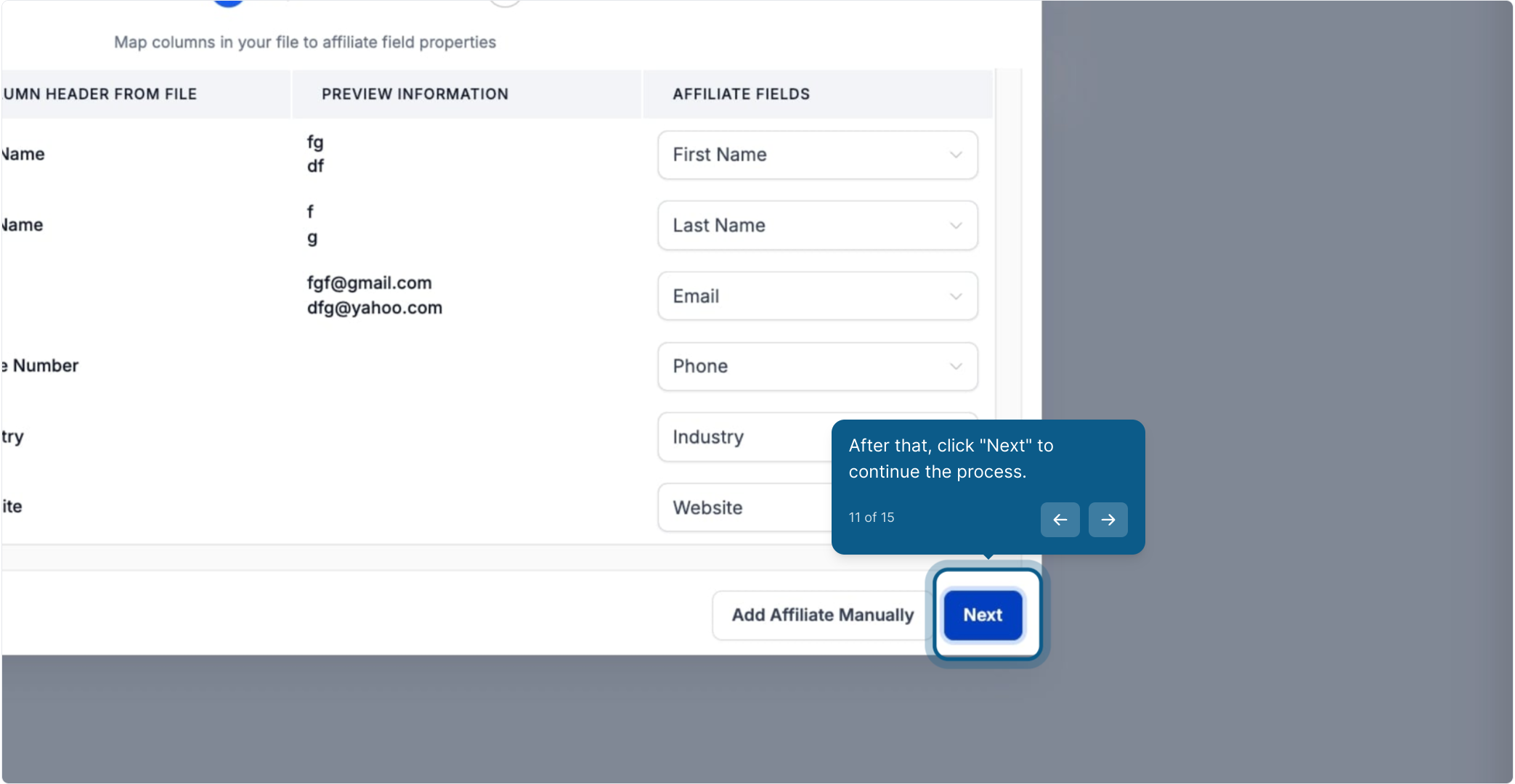
Click Next to continue.
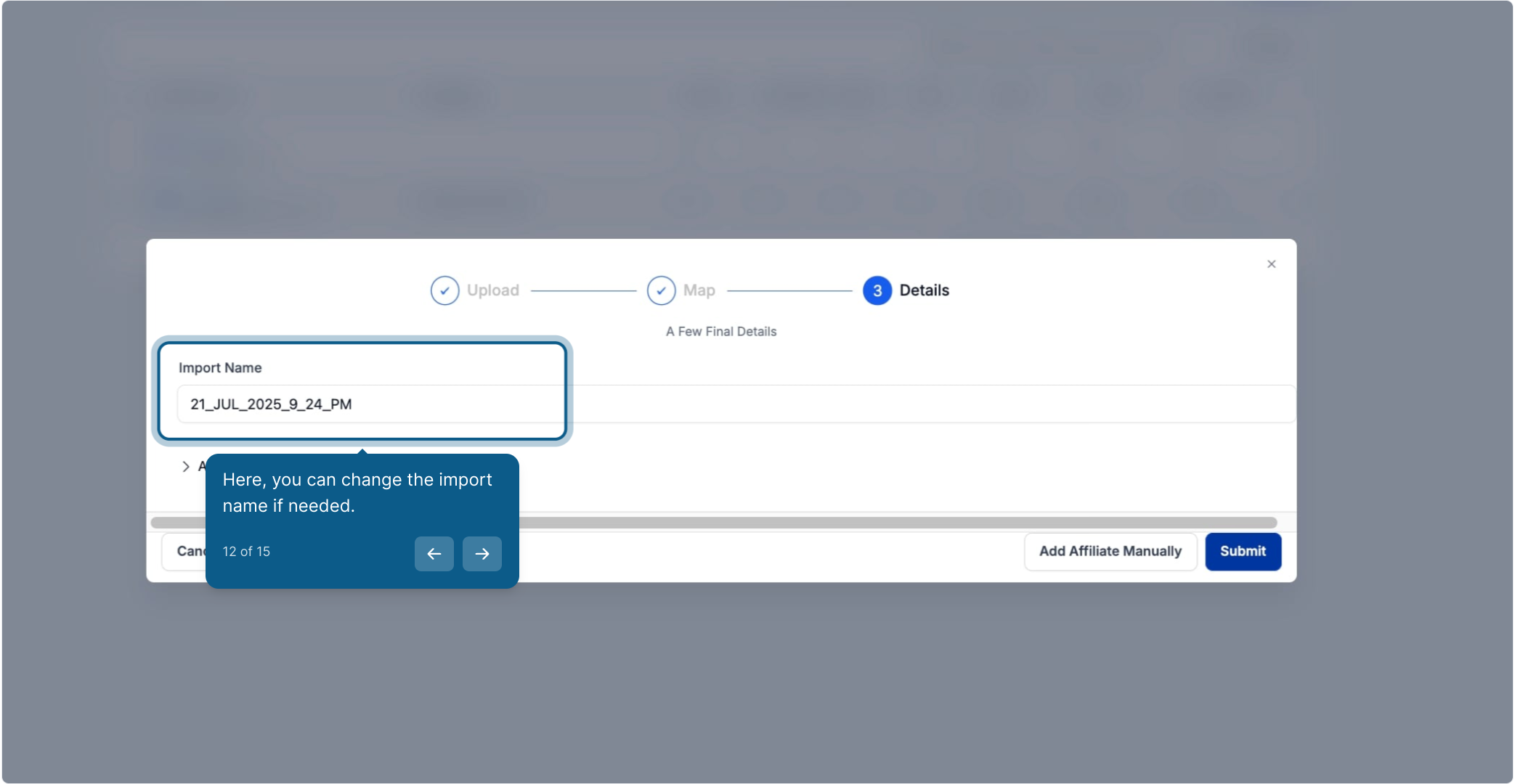
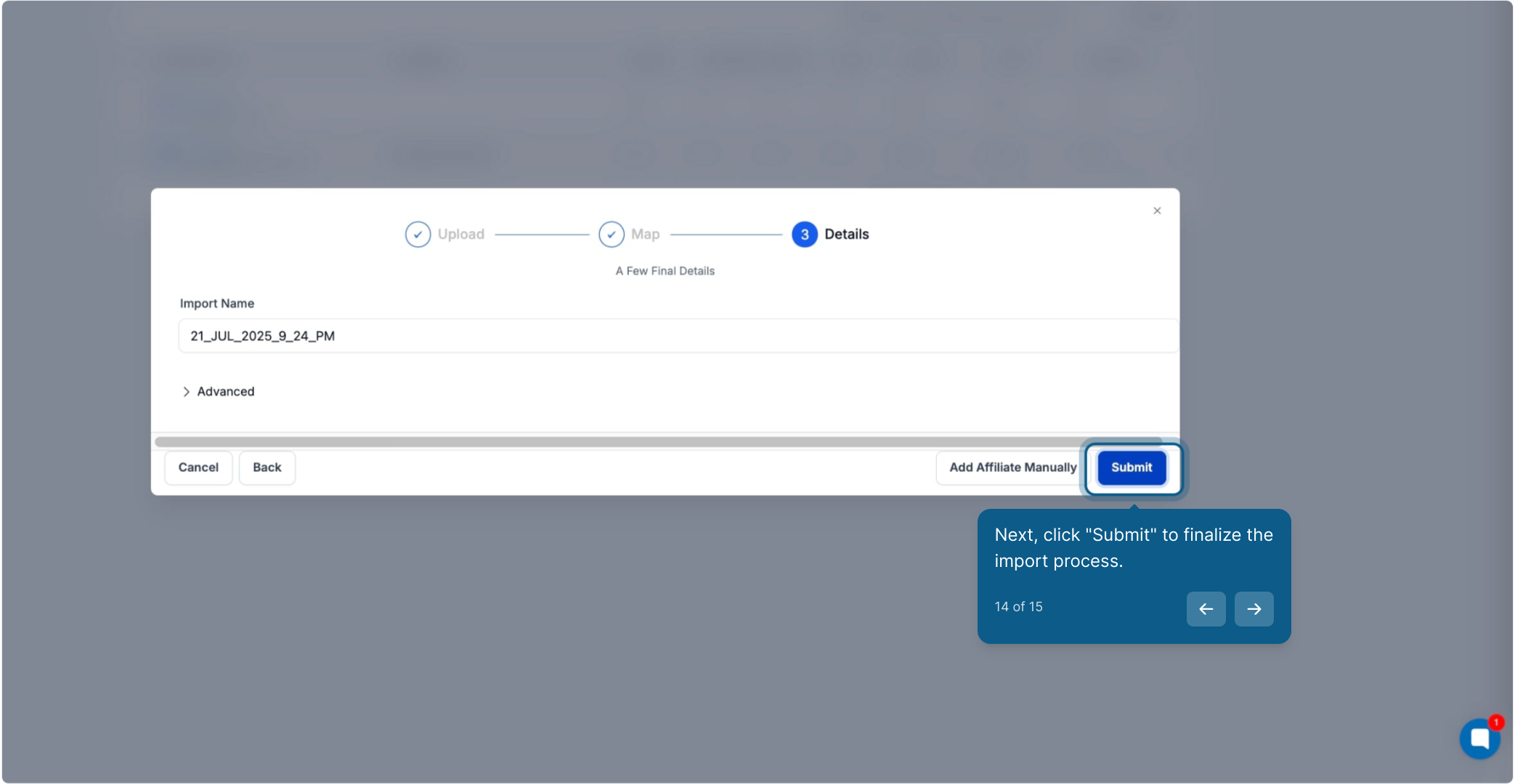
Give the import a name if you'd like to identify it later (useful if you're running multiple imports over time), or leave the default name in place.
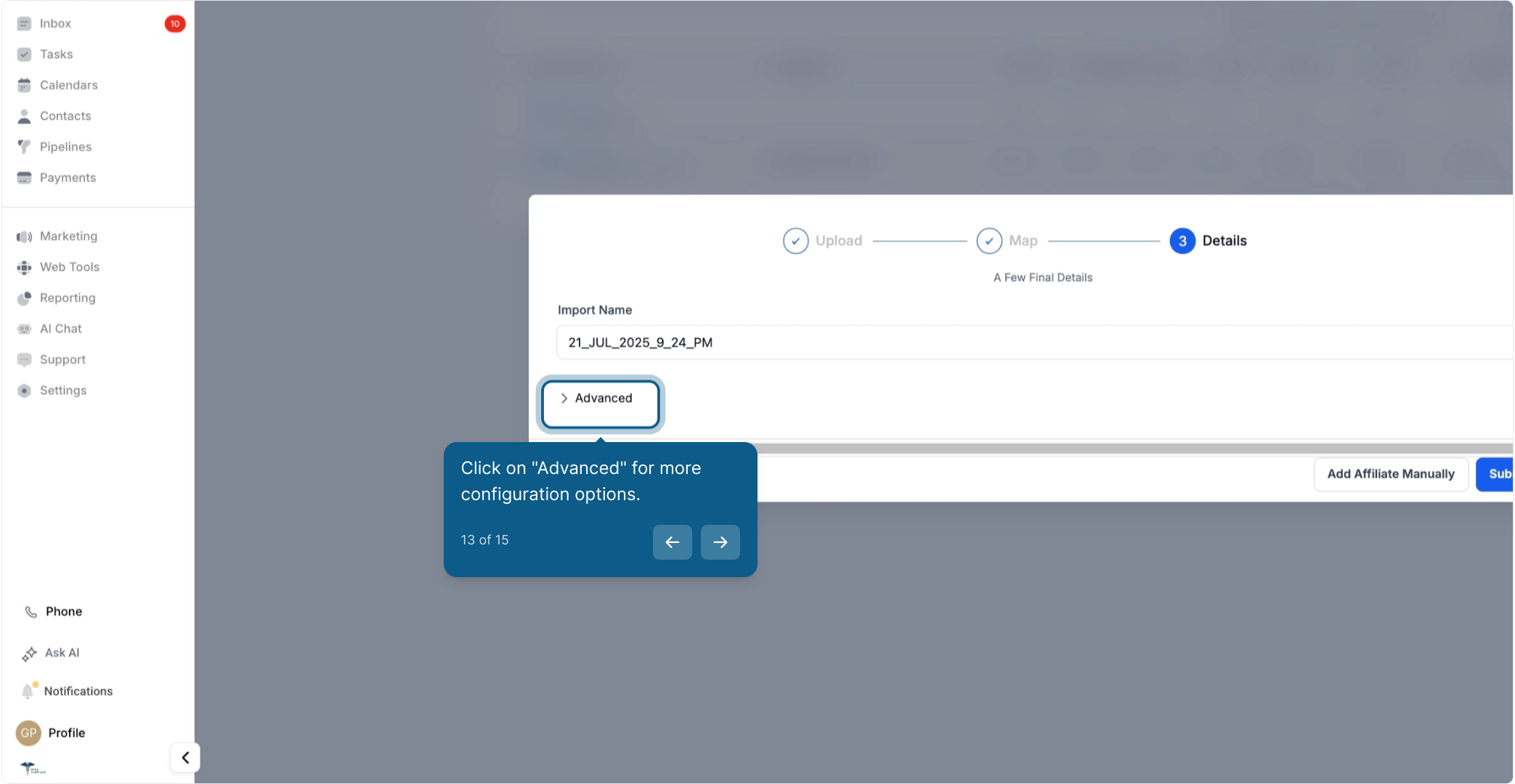
Open Advanced if you need additional import controls for this file. Most practices can leave these at their defaults.
Click Submit to finalize the import.
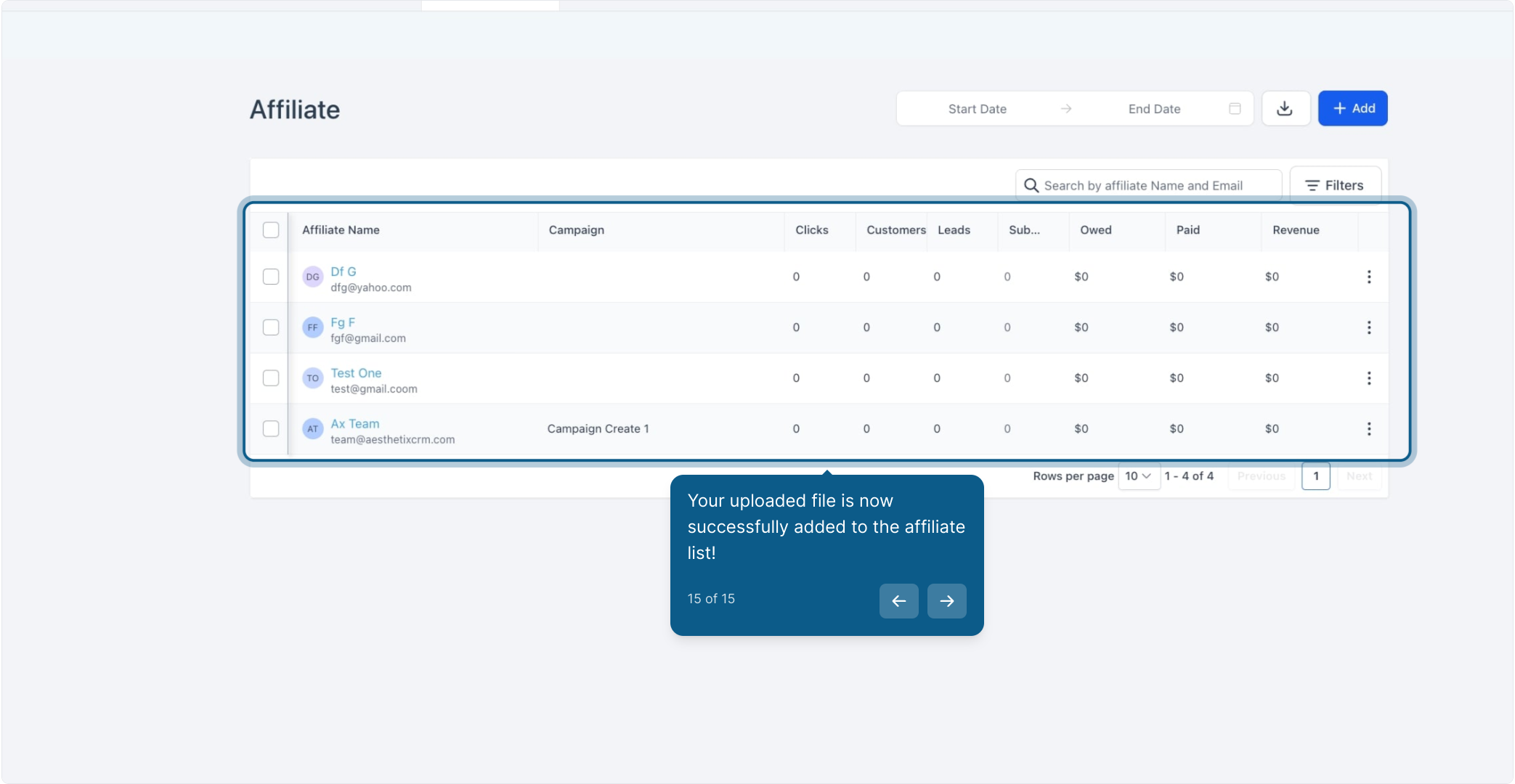
Your affiliates are now added to the list. You'll see the new records appear in the Affiliate Manager once the import finishes.
Start from the sample CSV rather than building your own file from scratch. It already has the column headers the importer expects.
Double-check email addresses before uploading. Affiliates use their email to log in to the affiliate portal, so a typo means that person can't access their dashboard or links.
If you're converting existing patients into affiliates and already have their records in your CRM, importing from Contacts may be faster than building a CSV. See "Importing Affiliates from a Contact List."
For one or two new affiliates, adding them manually is usually quicker than preparing a file. See "Adding Affiliates" for that workflow.
Once affiliates are enrolled, you can also add, update, or remove them automatically through workflow actions such as Add to Affiliate Manager and Update Affiliate, covered in the Workflows collection.
What file format does the bulk uploader accept? A CSV (comma-separated values) file. Download the sample file from the upload screen and use it as your template so the column headers match what the importer expects.
Where do I find the sample CSV template? Click Add > Upload Affiliate on the Affiliate tab, then click the link to view and download the sample file before uploading your own.
What happens if my columns don't map correctly? Review the mapping screen before clicking Next. If a column is mapped to the wrong field, your affiliate records will save with incorrect or missing data, so it's worth checking each row before continuing.
Can I name my import for reference later? Yes. On the naming step you can give the import a custom name instead of the default, which is helpful if you run multiple imports and want to tell them apart later.
Will uploading duplicate affiliates create duplicate records? Check your file for duplicate email addresses before uploading, since each affiliate typically needs a unique email to log in to the affiliate portal.
Can I bulk upload affiliates who are also existing patients? Yes, but if those patients already exist as contacts in your CRM, importing from Contacts is usually simpler than building a CSV from scratch. See "Importing Affiliates from a Contact List."
Is there a limit to how many affiliates I can upload at once? The tool is designed for list-sized imports. If you're uploading a very large file and run into issues, try splitting it into smaller batches and importing them one at a time.
Do uploaded affiliates need to do anything after the import? Once imported, affiliates can log in to the affiliate portal with the email on file to access their links and track their referrals. Make sure the email address in your CSV is one they actually check.
What's the difference between this and adding affiliates manually? Manual add is best for one or two affiliates at a time. Bulk upload is built for adding a whole list at once. Both methods land the affiliate in the same place in your Affiliate Manager.
Can I automate affiliate status changes after a bulk import? Yes. Workflow actions like Update Affiliate (mark active or inactive) and Add to Affiliate Campaign let you manage affiliates automatically after they're imported. These are set up in the Workflows collection.
