Connecting your Google account to Aesthetix CRM opens up several capabilities from a single sign-in. One connection gives your practice access to Google Business Profile (formerly Google My Business), Google Analytics, Google Ads, and Gmail sending, all managed in one place. This guide walks you through connecting your Google account, selecting your Analytics and Ads accounts, and linking your Google Business Profile so patient reviews and interactions flow directly into the CRM.
Centralized reviews: New Google reviews sync into Conversations so your team can reply without leaving Aesthetix CRM.
Reputation tracking: Monitor and respond to reviews from Google Search and Maps in one workspace.
Local visibility: Keep your Business Profile active and responsive, which supports local SEO and encourages patient engagement.
Analytics and Ads access: Pull Google Analytics data and connect Google Ads for conversion tracking.
Streamlined communication: Manage Google interactions alongside SMS, email, Facebook, and Instagram.
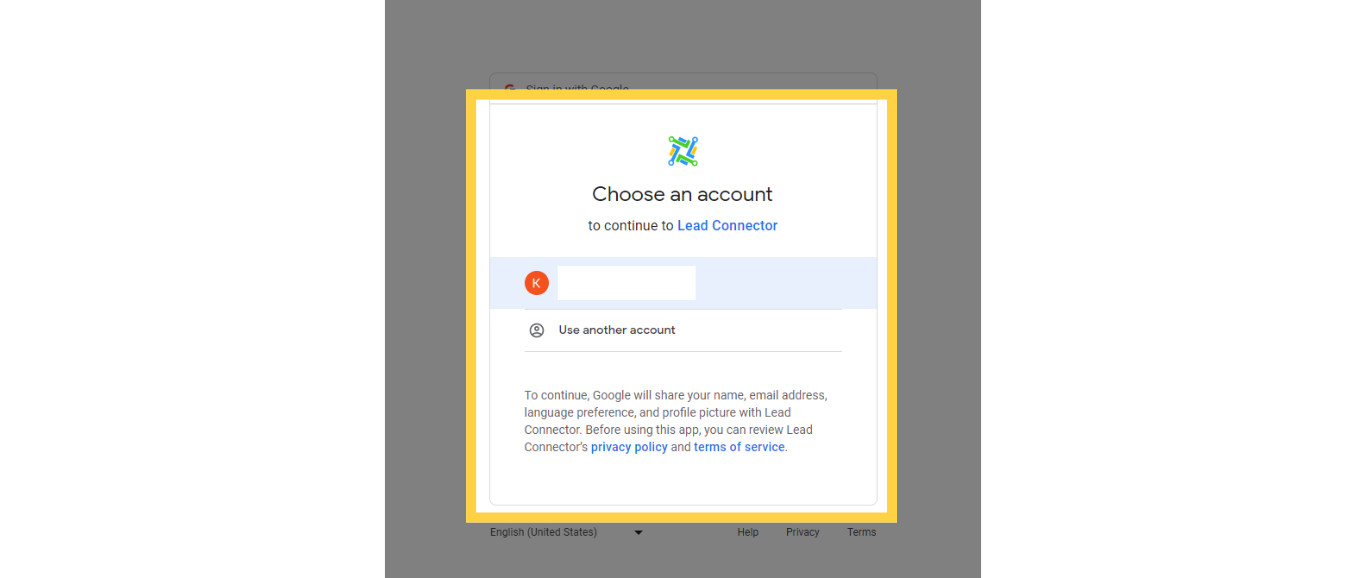
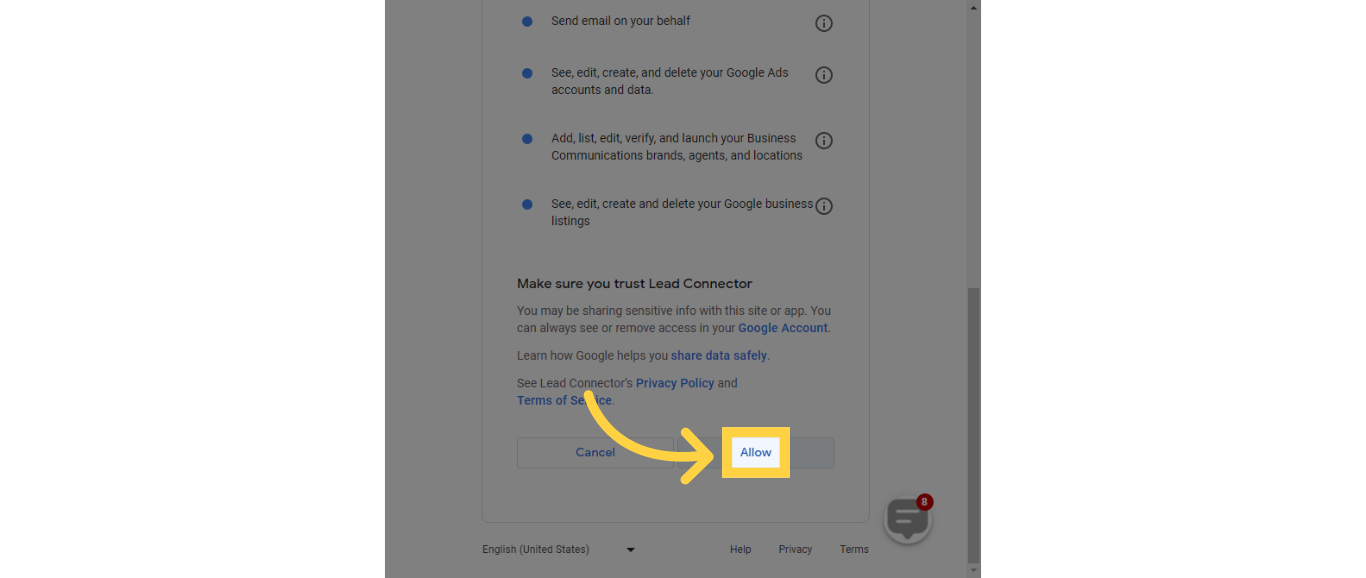
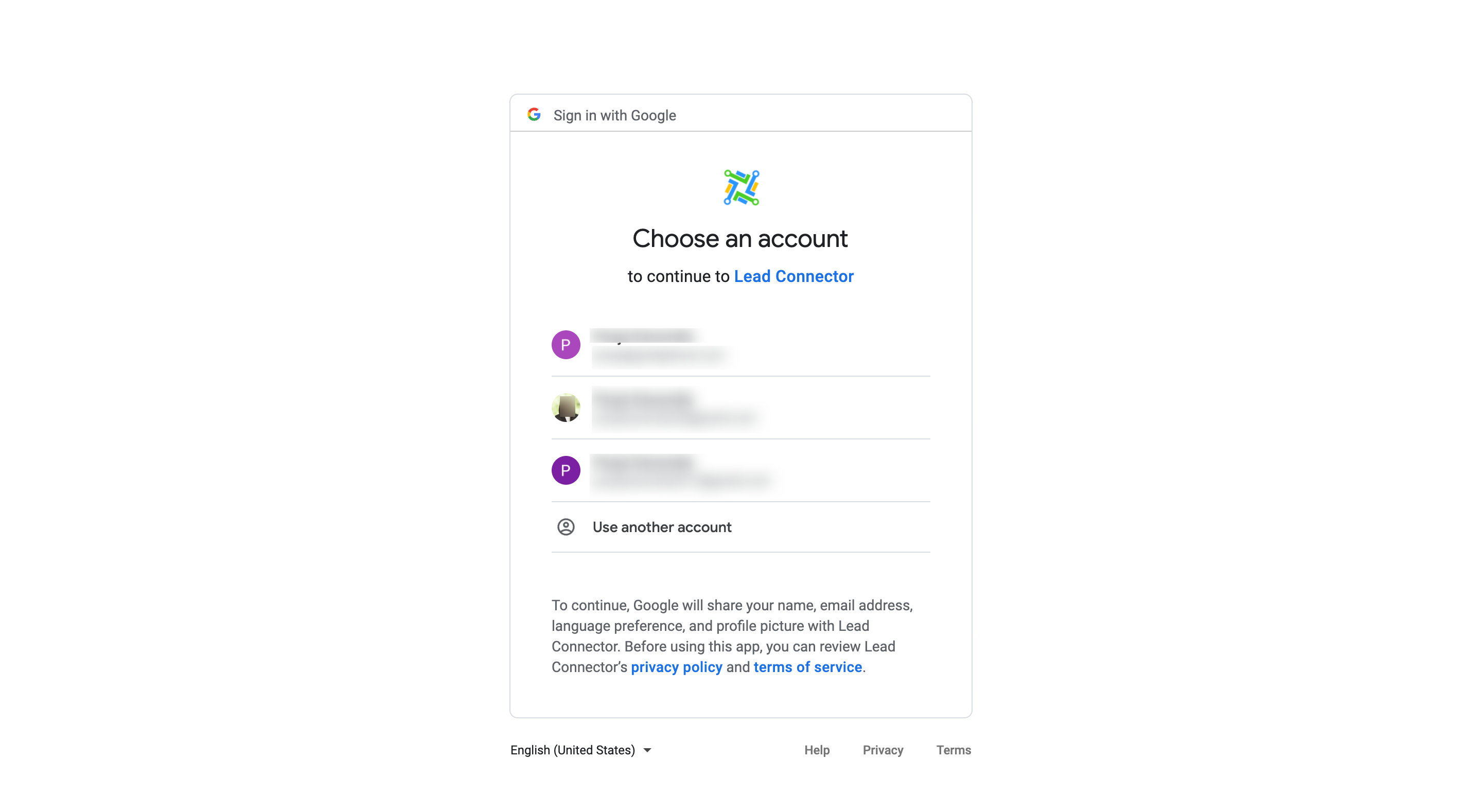
When you sign in, Google's consent screen may show the name LeadConnector rather than Aesthetix CRM. This is expected and safe. The Google connection is powered by our underlying integration provider, so seeing that name on the authorization screen is normal. Continue and approve the requested permissions to complete the connection.
Signing in with Google is the first step and grants the CRM access to your Analytics, Ads, and Business Profile data.
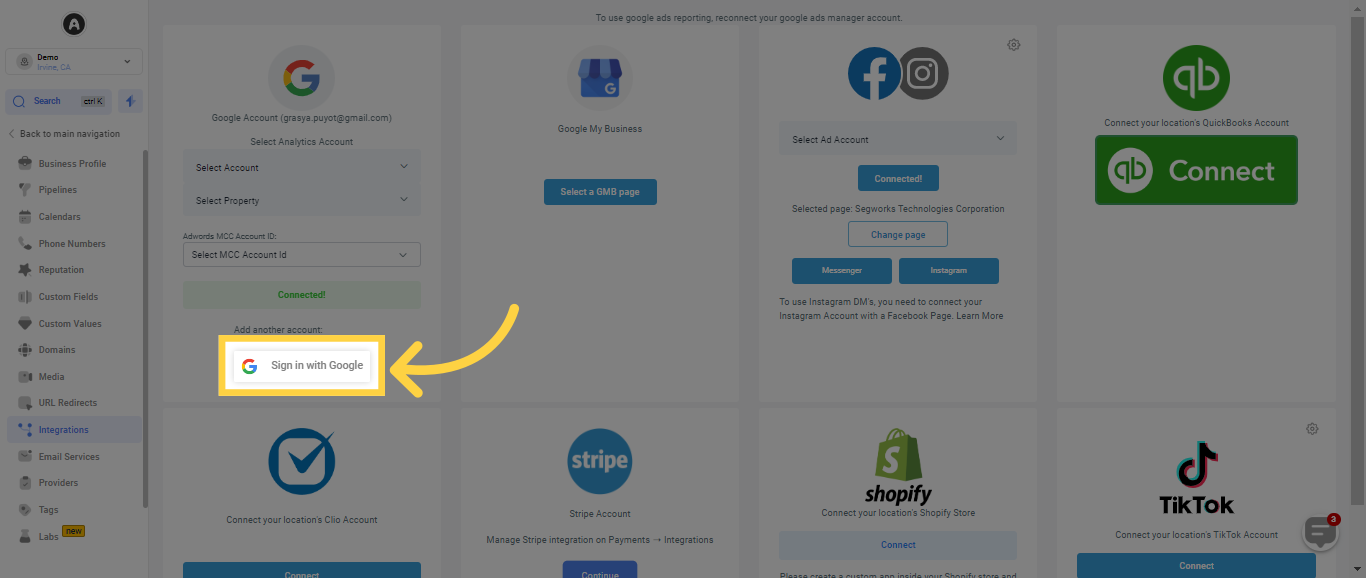
Select the Sign in option to start linking your Google account. You will be prompted to enter your Google username and password. After your credentials are verified, the system returns you to the CRM.
Select the Google account that has admin, owner, or manager access to the Business Profile, Analytics, and Ads accounts you want to manage.
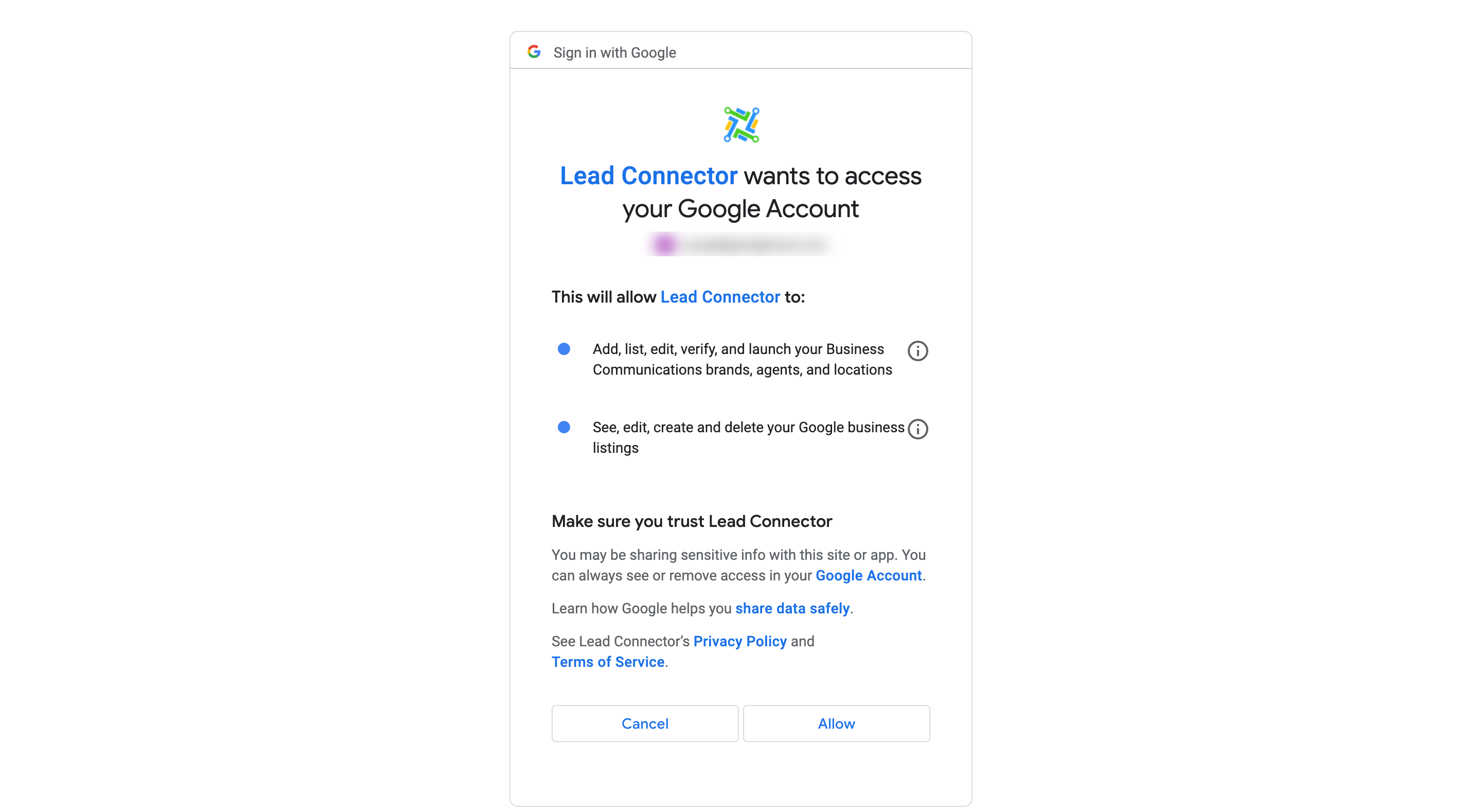
Click Allow to grant the requested permissions.
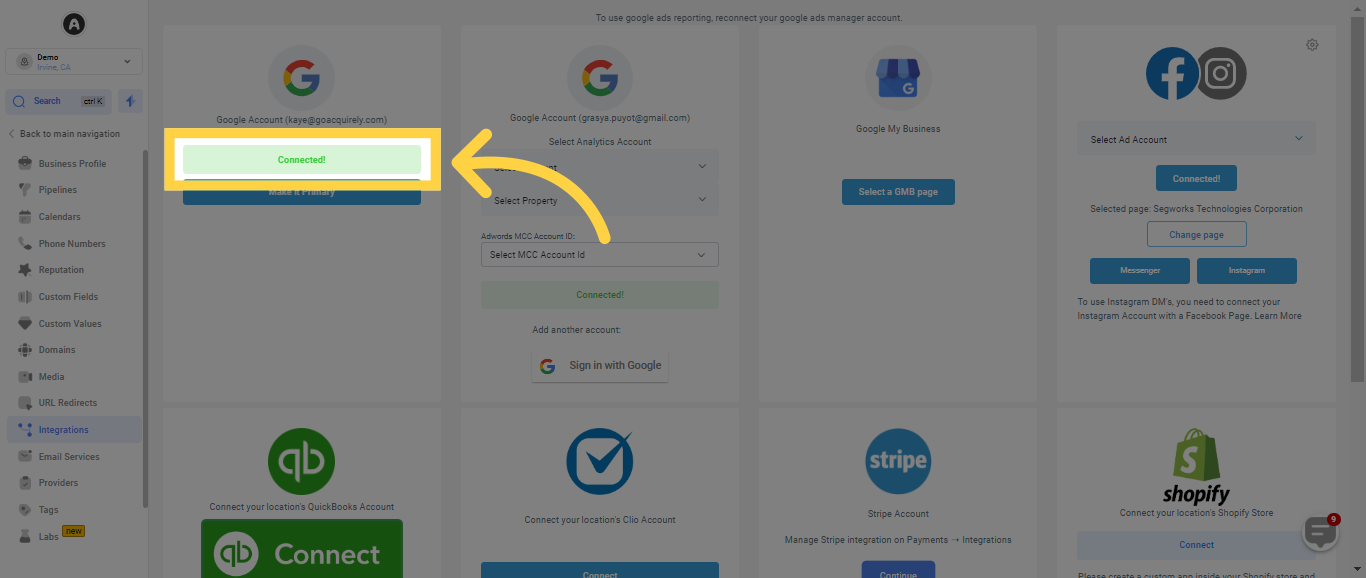
Once the connection completes, you will see a Connected status confirming the integration is active.
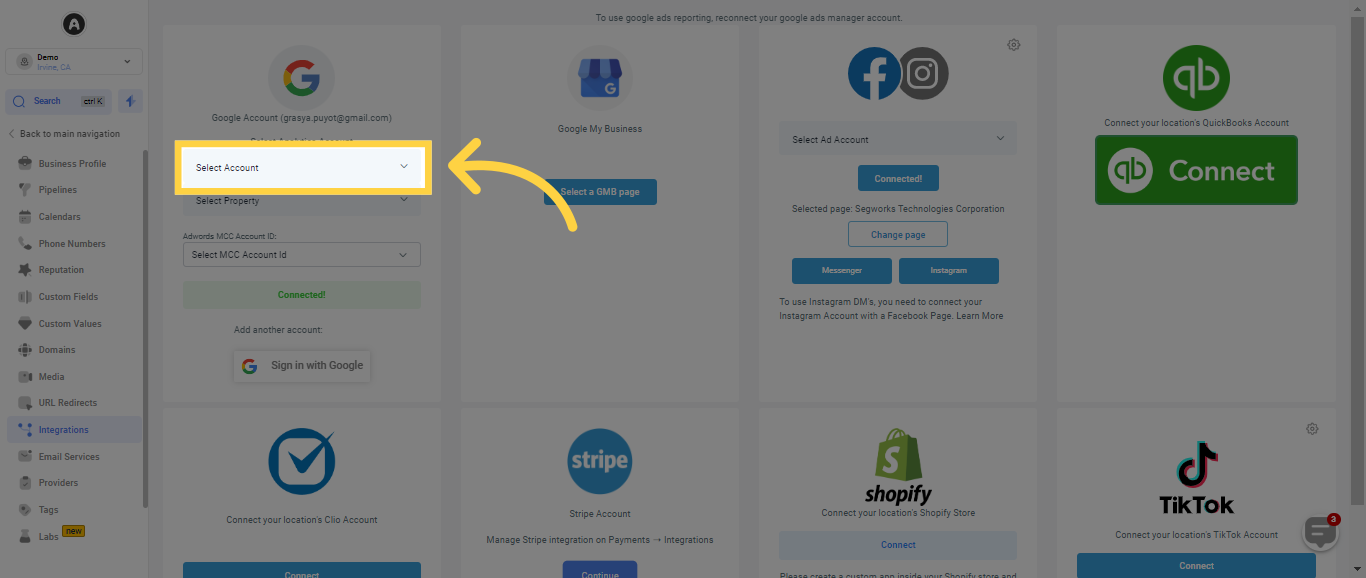
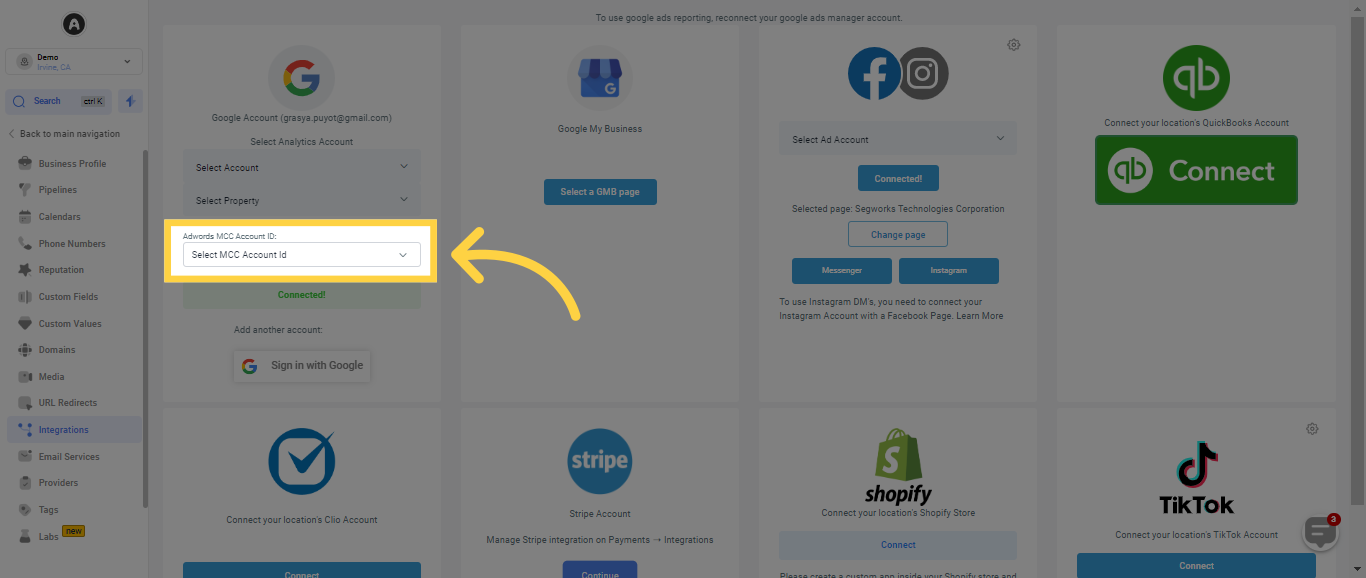
After signing in, choose which Analytics property and Google Ads account to link.
Click the dropdown menu and choose the Google Analytics account you want to connect to the CRM.
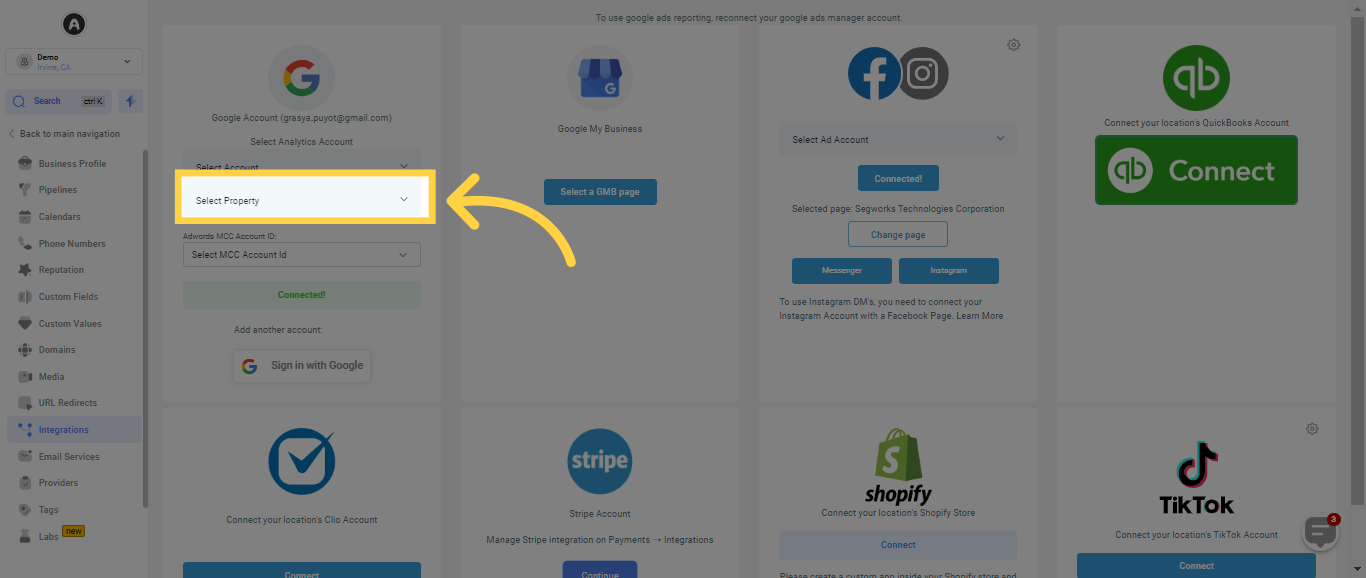
Then select the specific Analytics property you want to track.
Choose the Google Ads MCC account ID, then confirm it matches the one in your Google Ads account. You can verify this in Google Ads under the Customer ID menu. Once the correct account is selected, validate the details to establish the connection.
Connecting your Google Business Profile (GBP) lets you manage reviews, messages, and your online reputation directly inside the CRM. Your practice must already have a verified Google Business Profile, and you must sign in with a Google account that has Owner or Manager access to the profile.
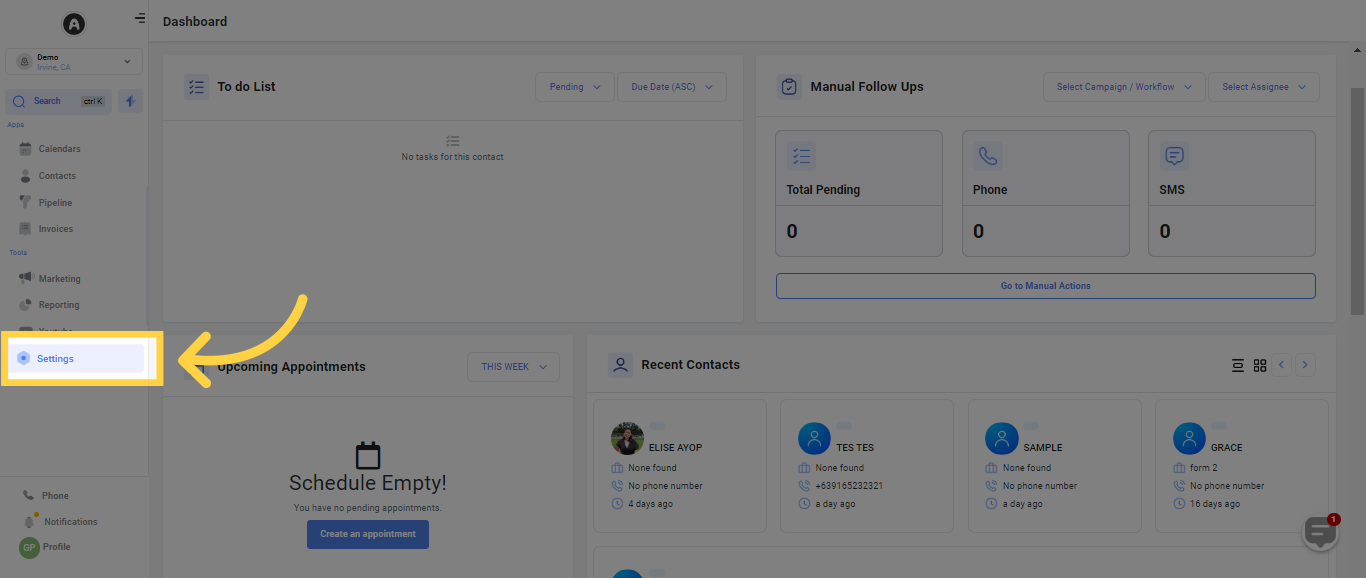
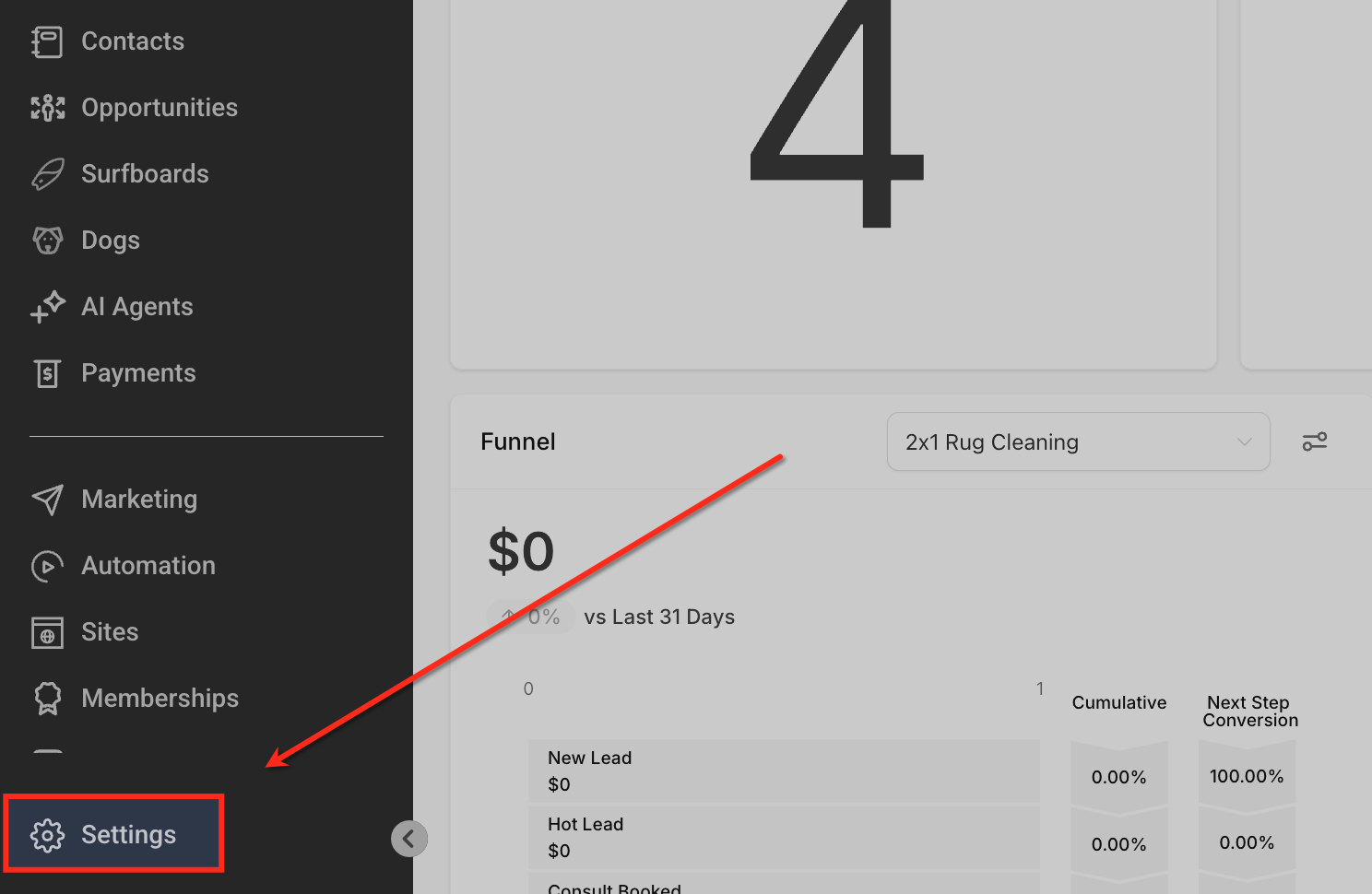
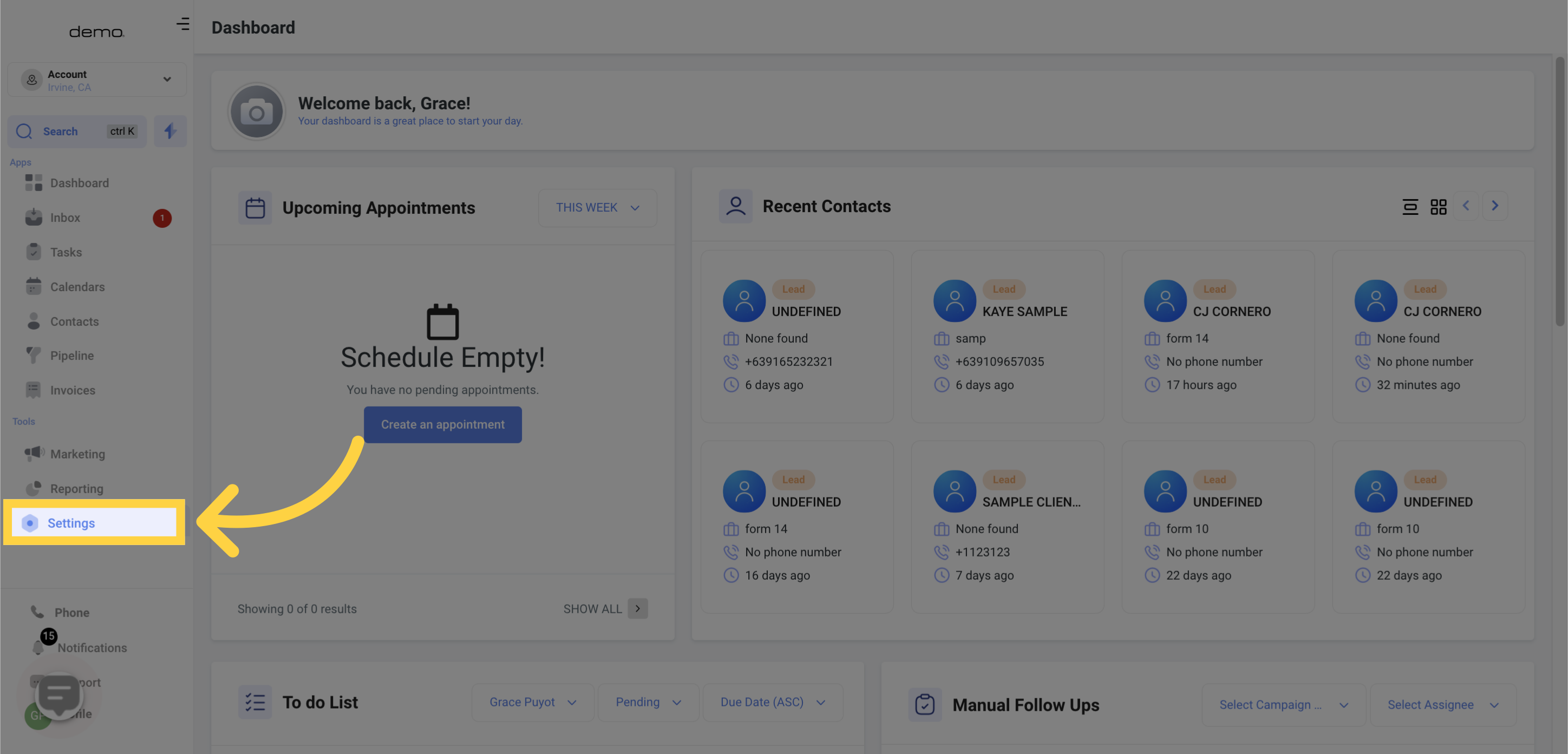
From the left-hand menu, click Settings. This is where you manage all account-level configurations, including integrations.
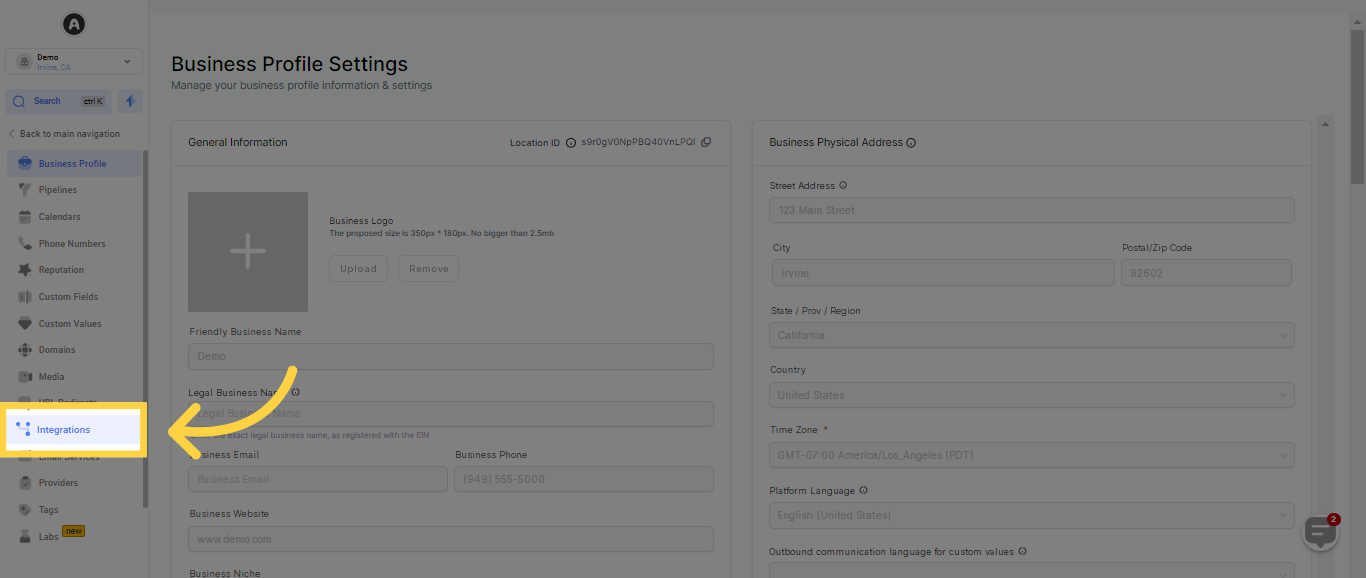
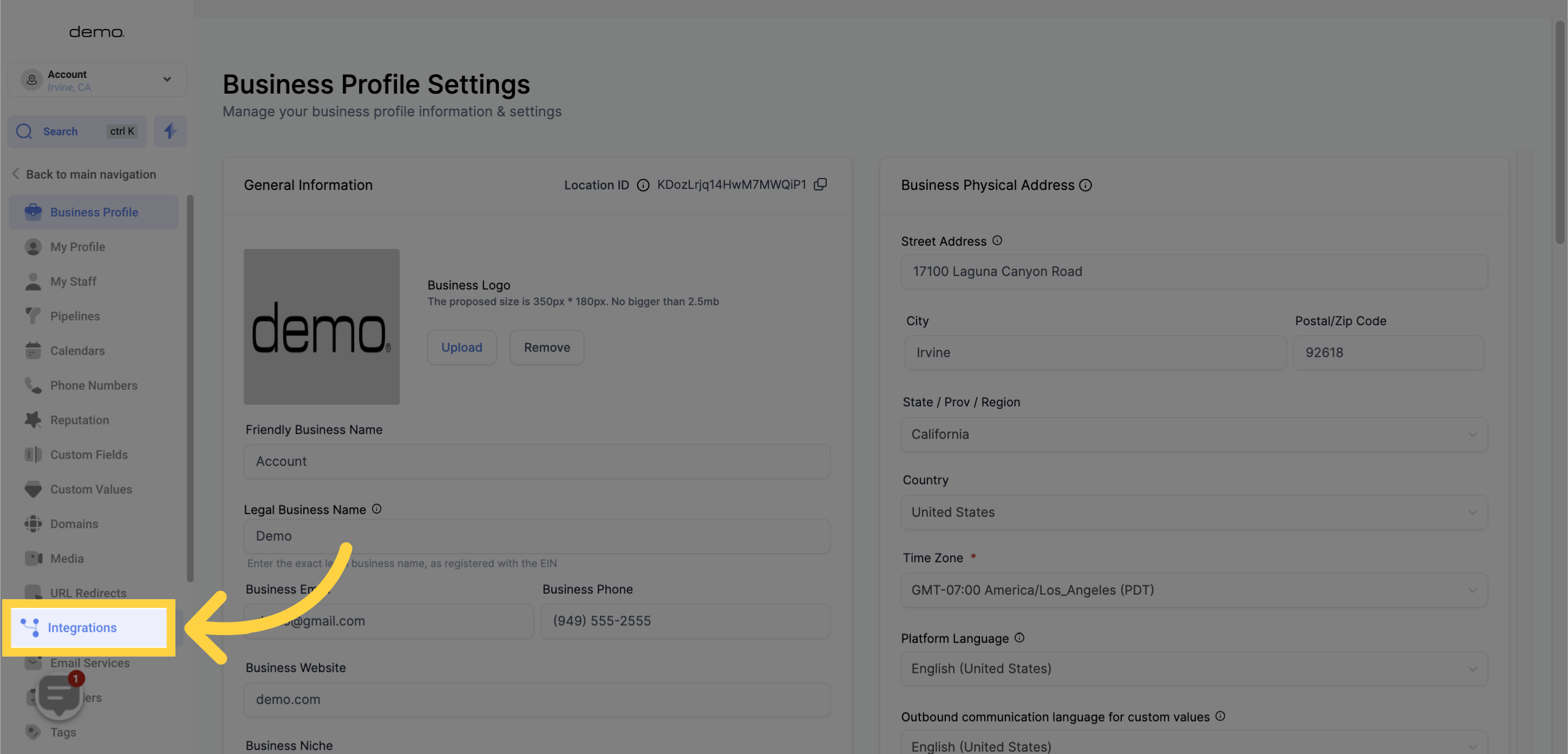
Click Integrations. This section is where you connect external accounts, including Google Business Profile.
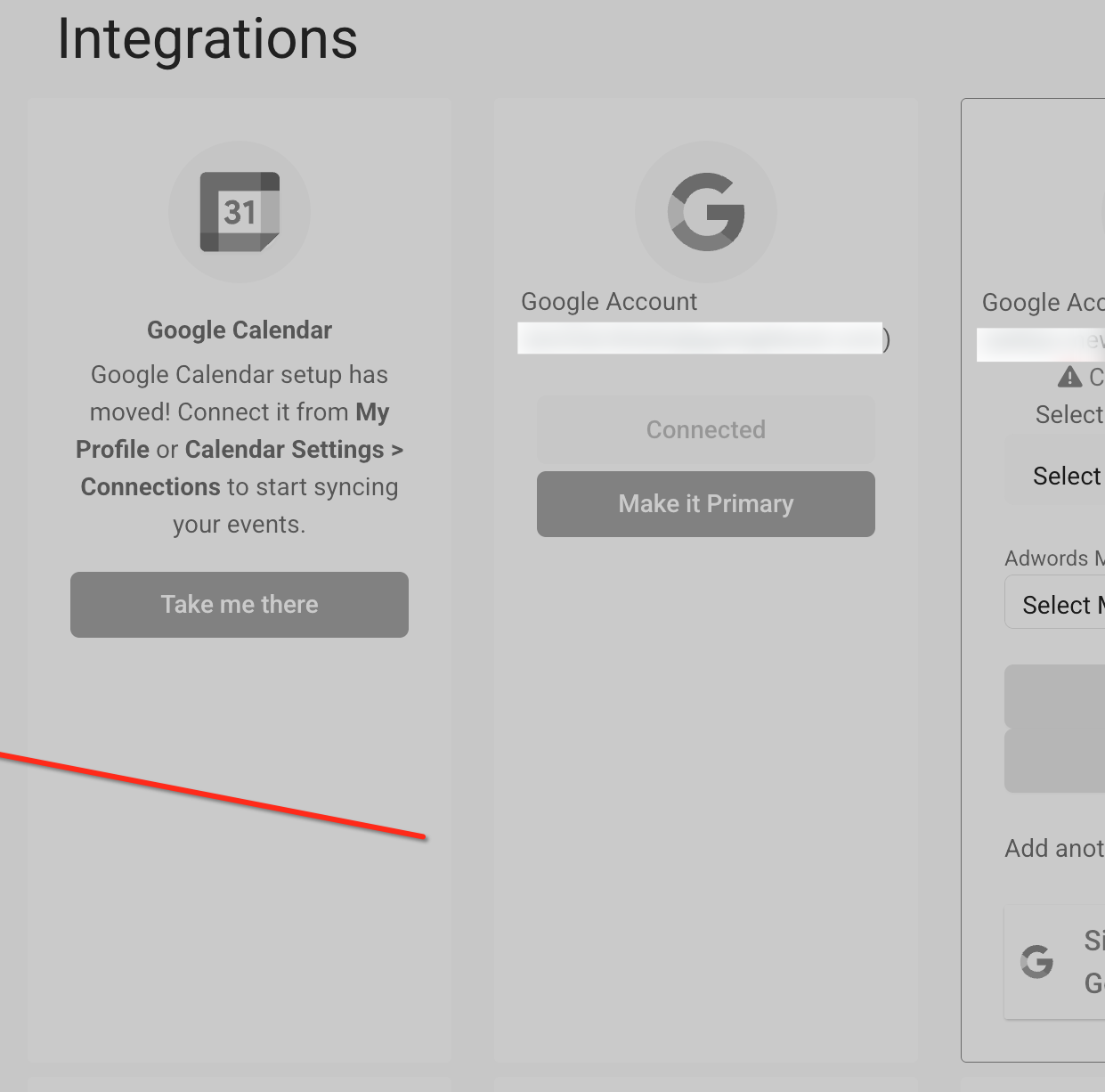
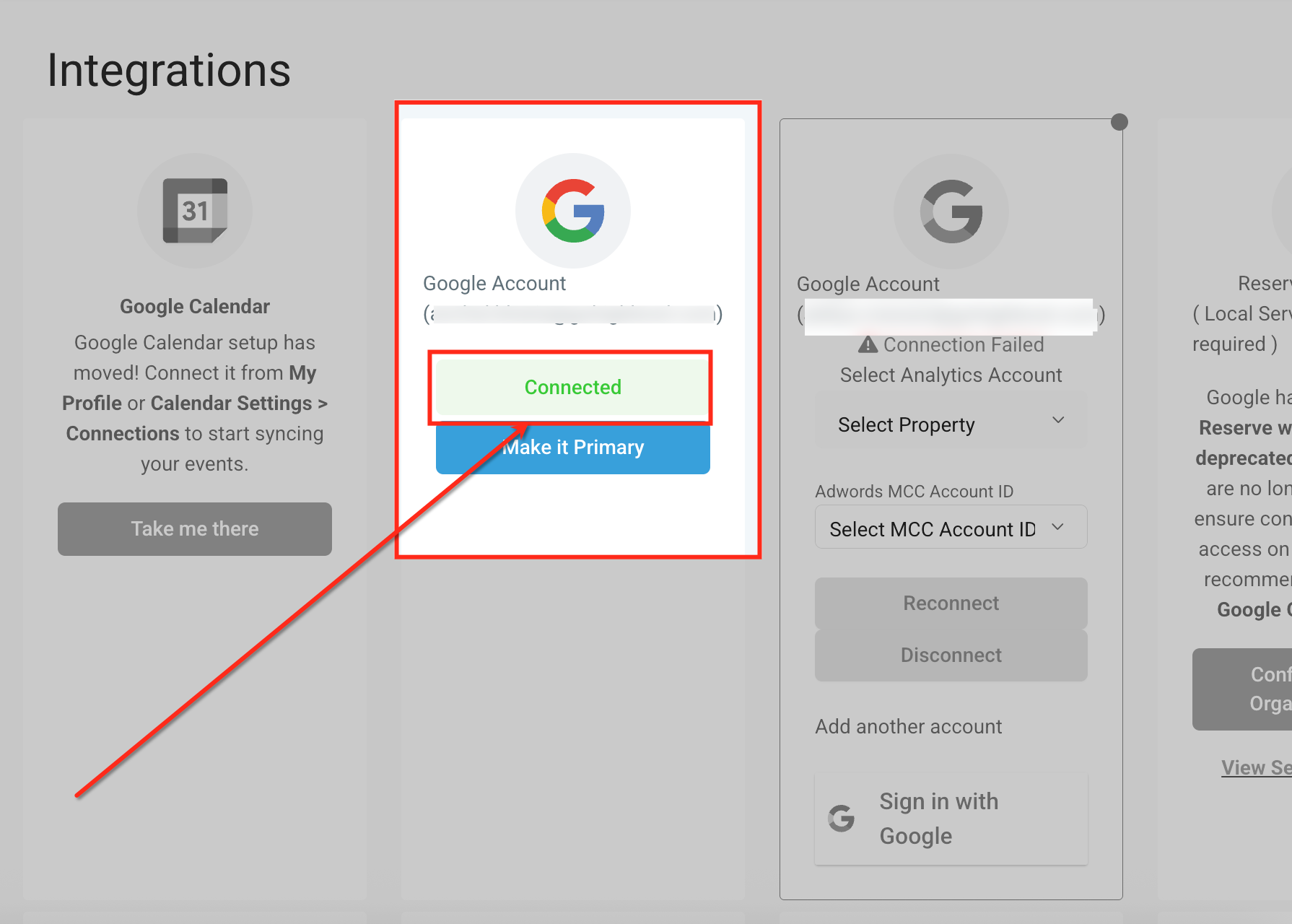
Sign in with your Google account and authorize access if you have not already. Once connected, the account shows a Connected status.
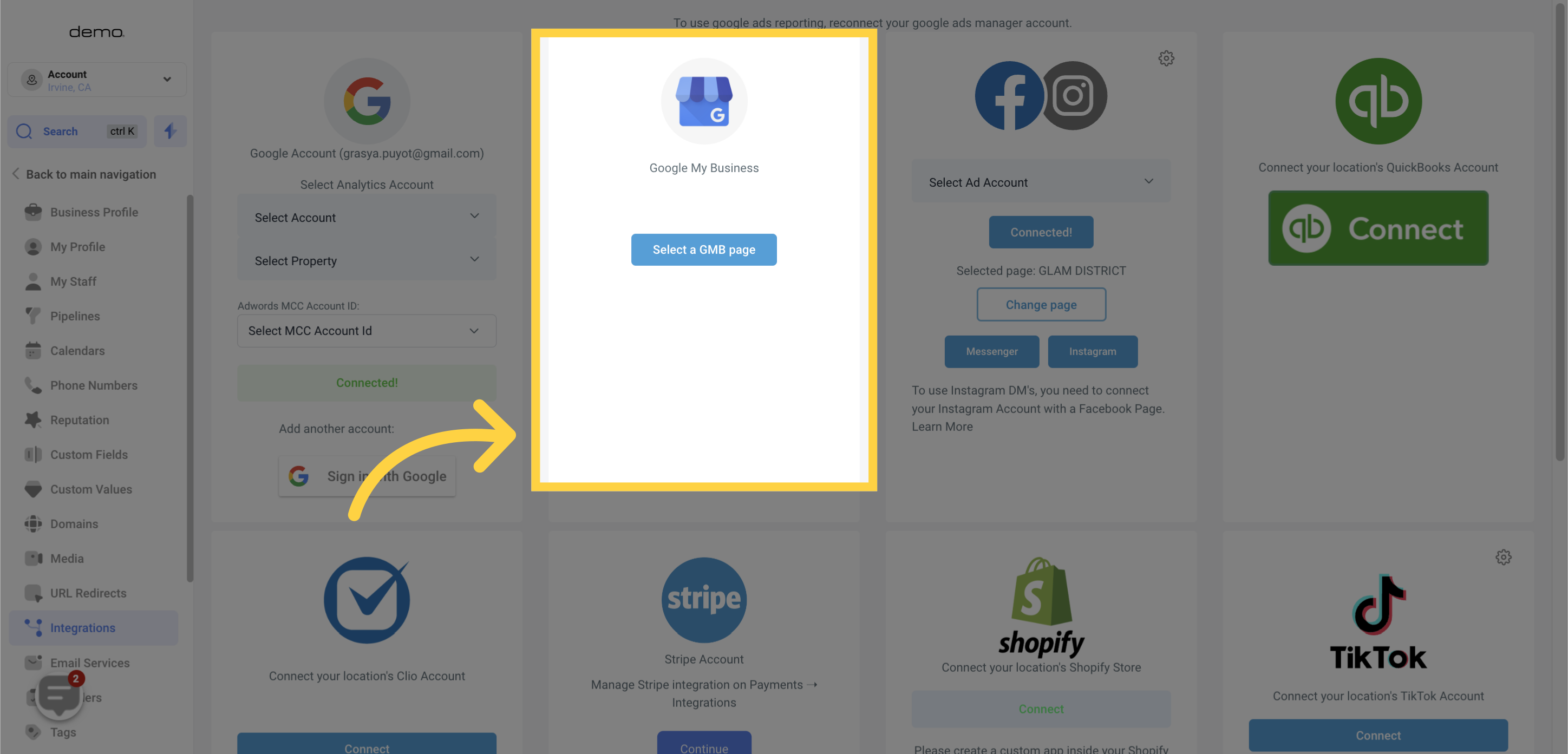
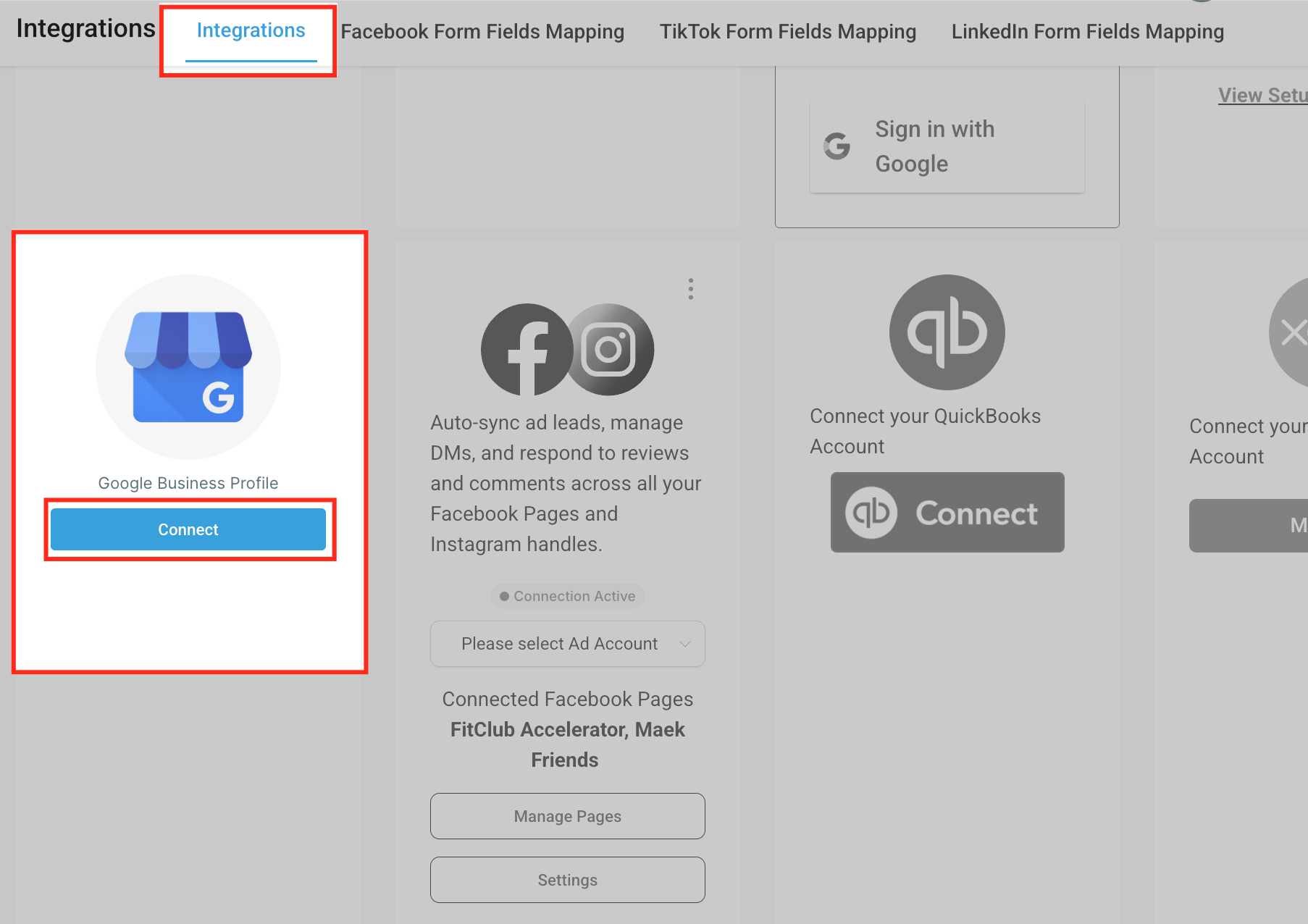
Locate Google Business Profile and click Connect. Your business must already have a verified Google Business Profile to proceed.
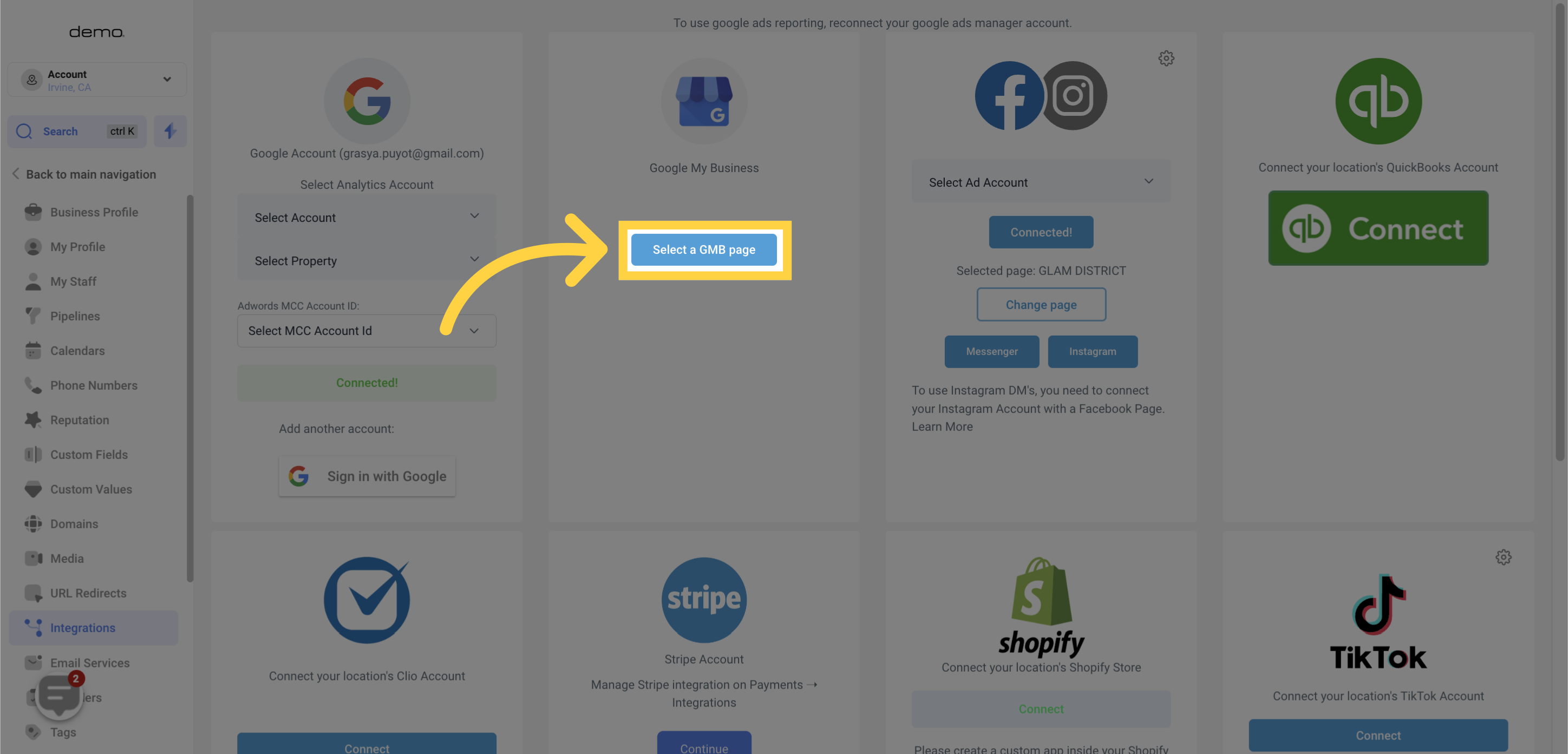
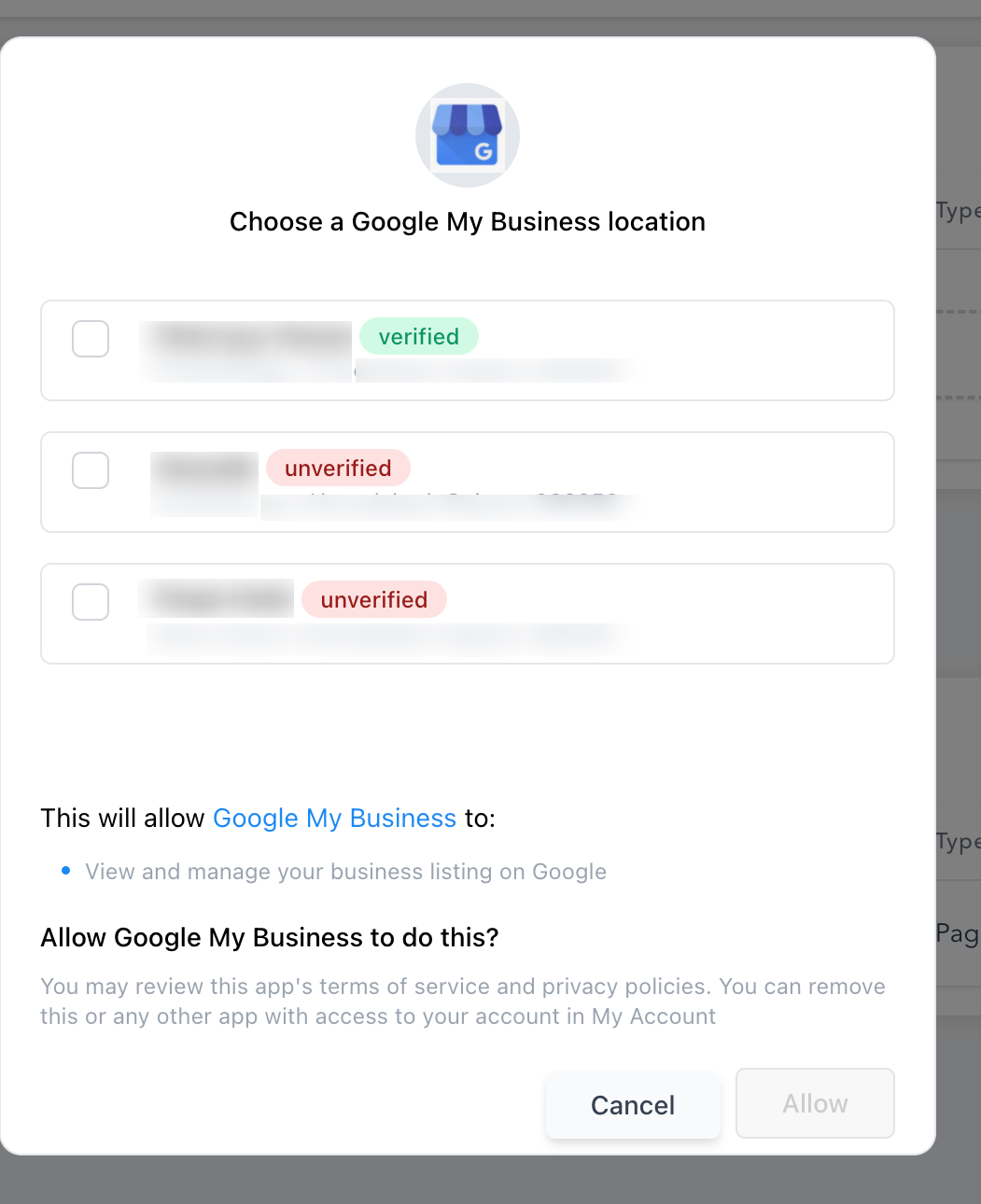
Select the correct Google Business Profile location from the list. If multiple pages are available, tick the box next to the correct business before connecting. You can use the search dropdown to filter locations by Page Name, Store Code, Postal Code, or Locality. If no locations appear, follow the on-screen guidance to connect a Google account that has access to the profile you want to manage.
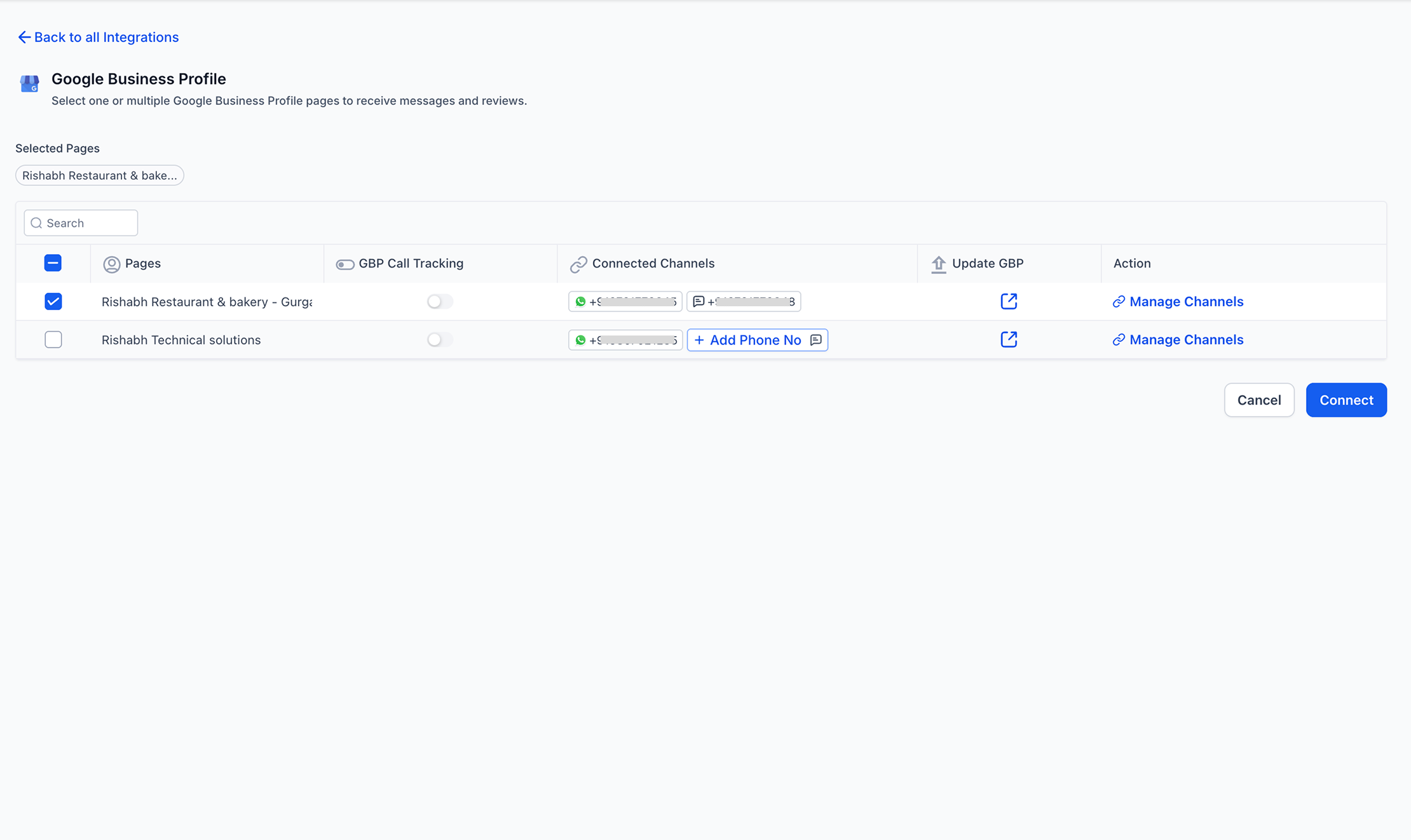
Select the Google Business Profile page you want to integrate.
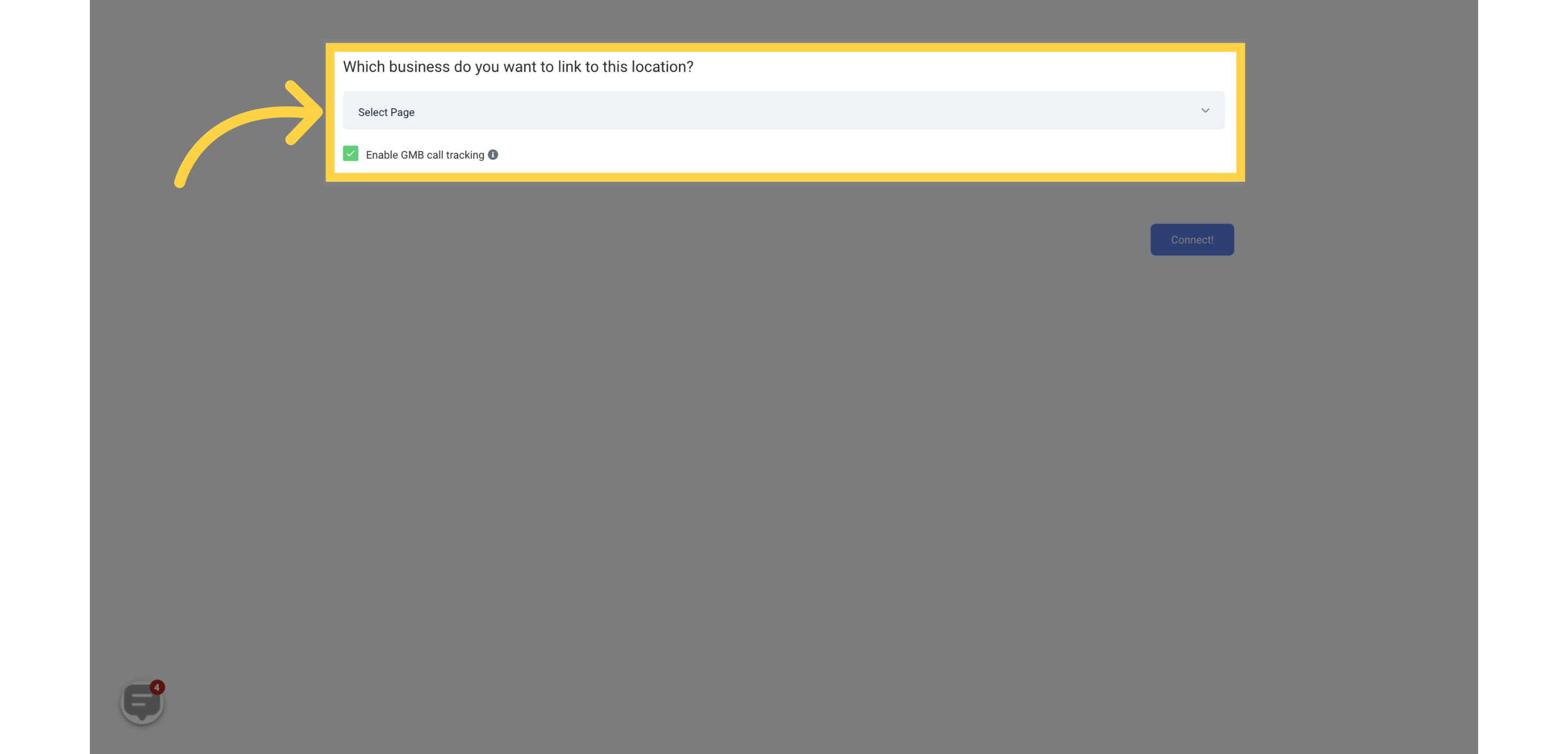
Toggle on GBP Call Tracking if you want to track patient calls made through your Google Business Profile. For the full details on how call tracking moves your numbers and works with Missed Call Text Back, see the Google Business Profile: Call Tracking & Phone Numbers article in this collection.
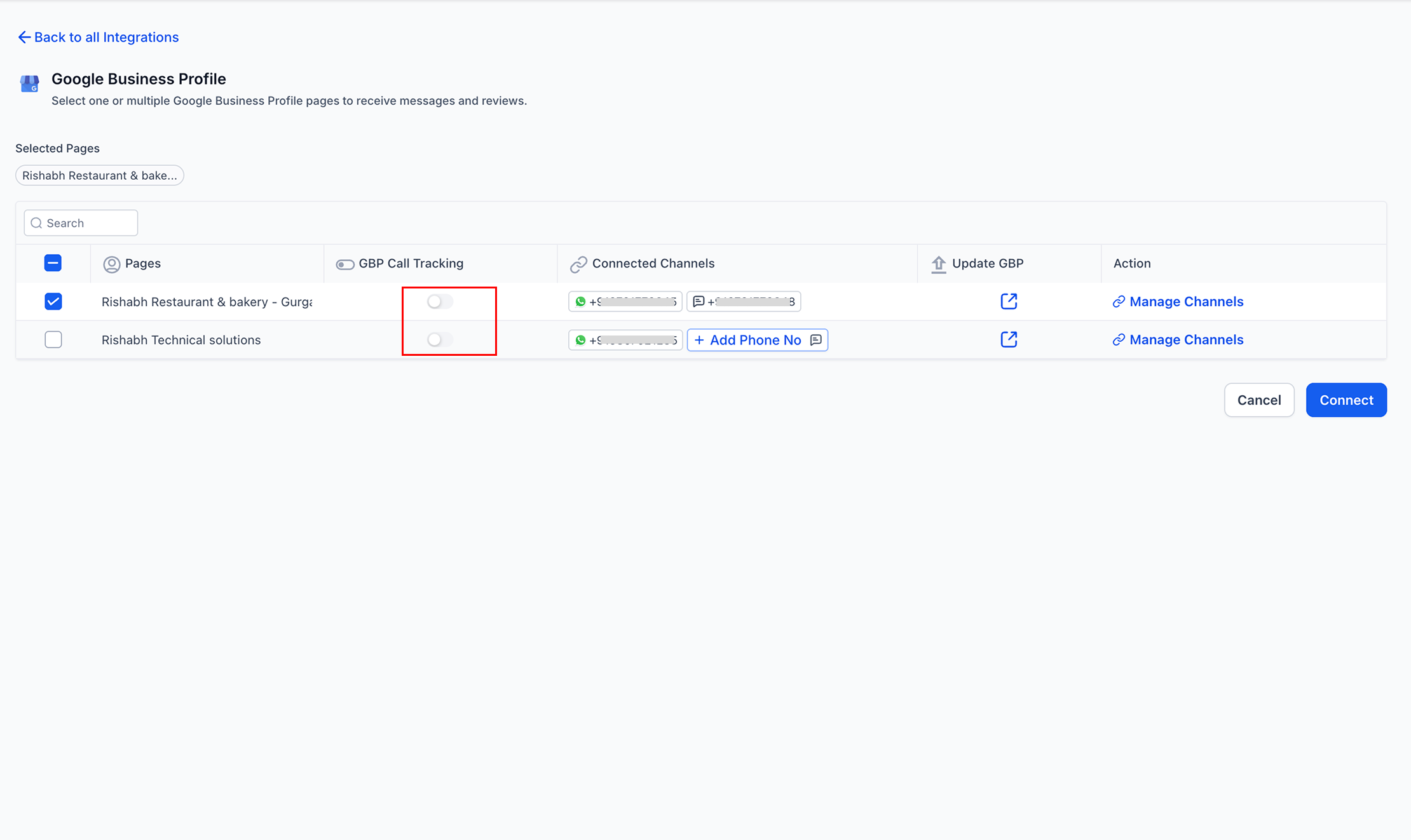
After selecting your business and preferences, click Connect to finalize the setup.
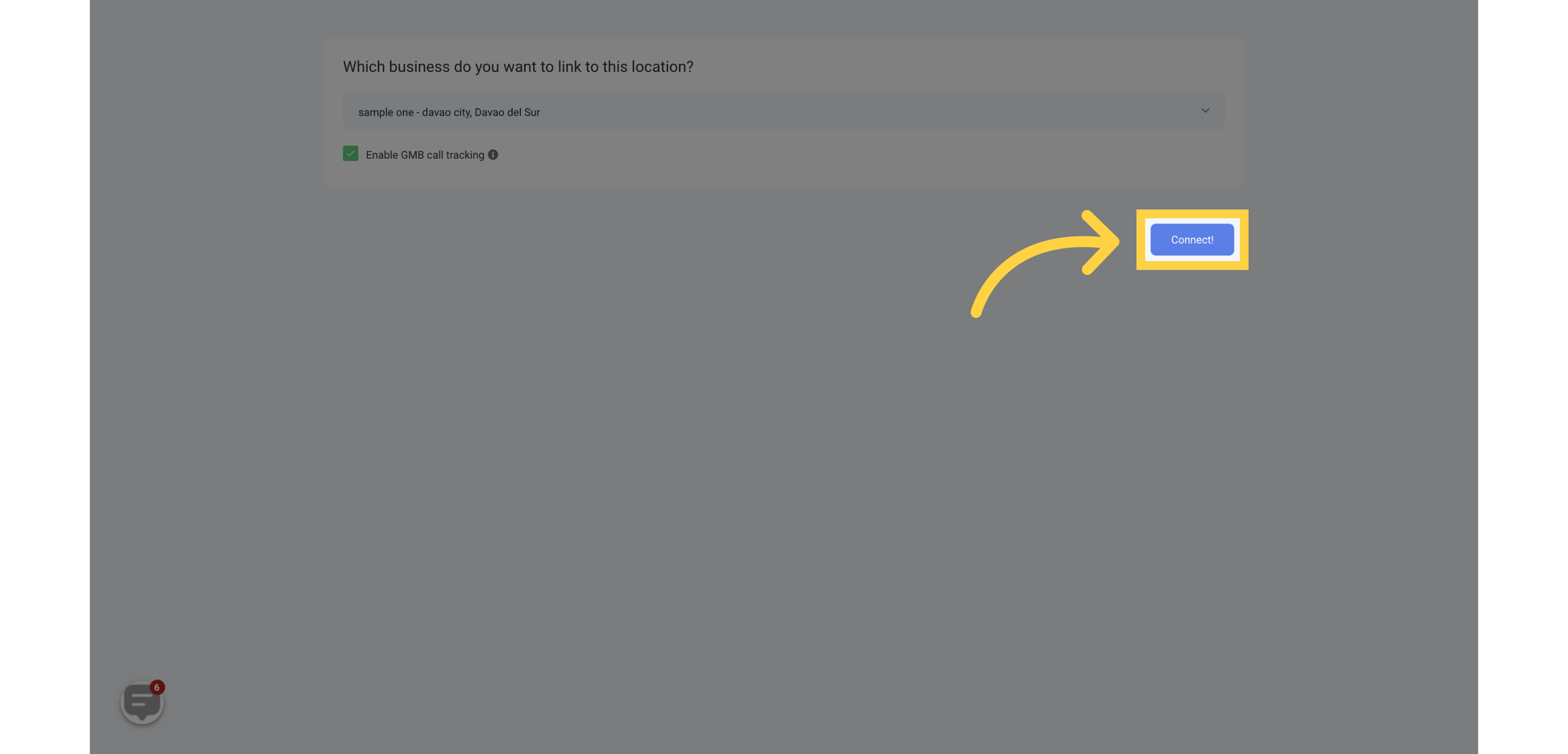
Save the changes for the selected Business Profile page.
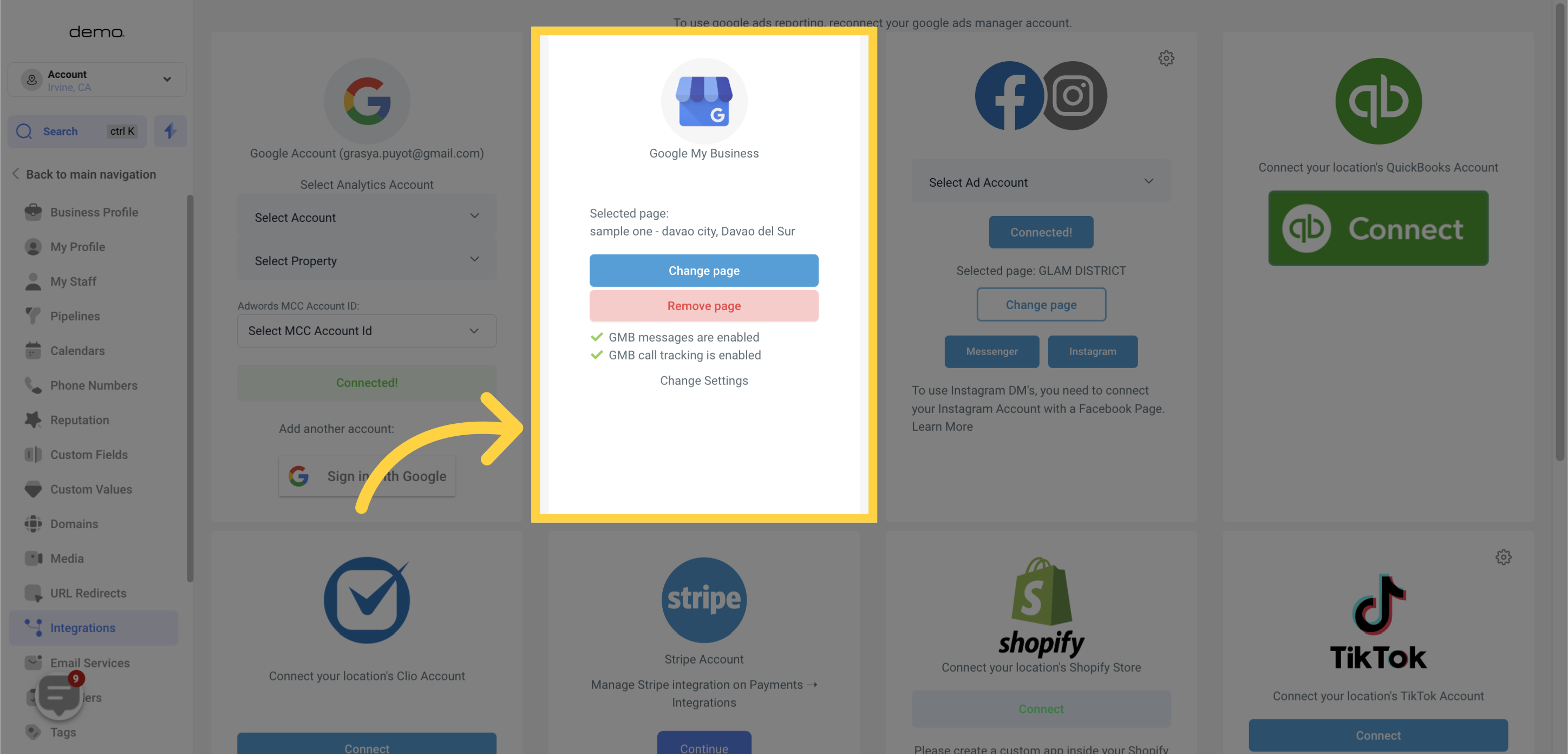
Once connected, you will see your Google Business Profile icon at the top with a green Connected status and a refresh option to sync data. The Connected Pages section shows the specific business name linked. Use Manage Pages to update locations, Disconnect to remove the integration, and check whether Call Tracking is enabled at the bottom.
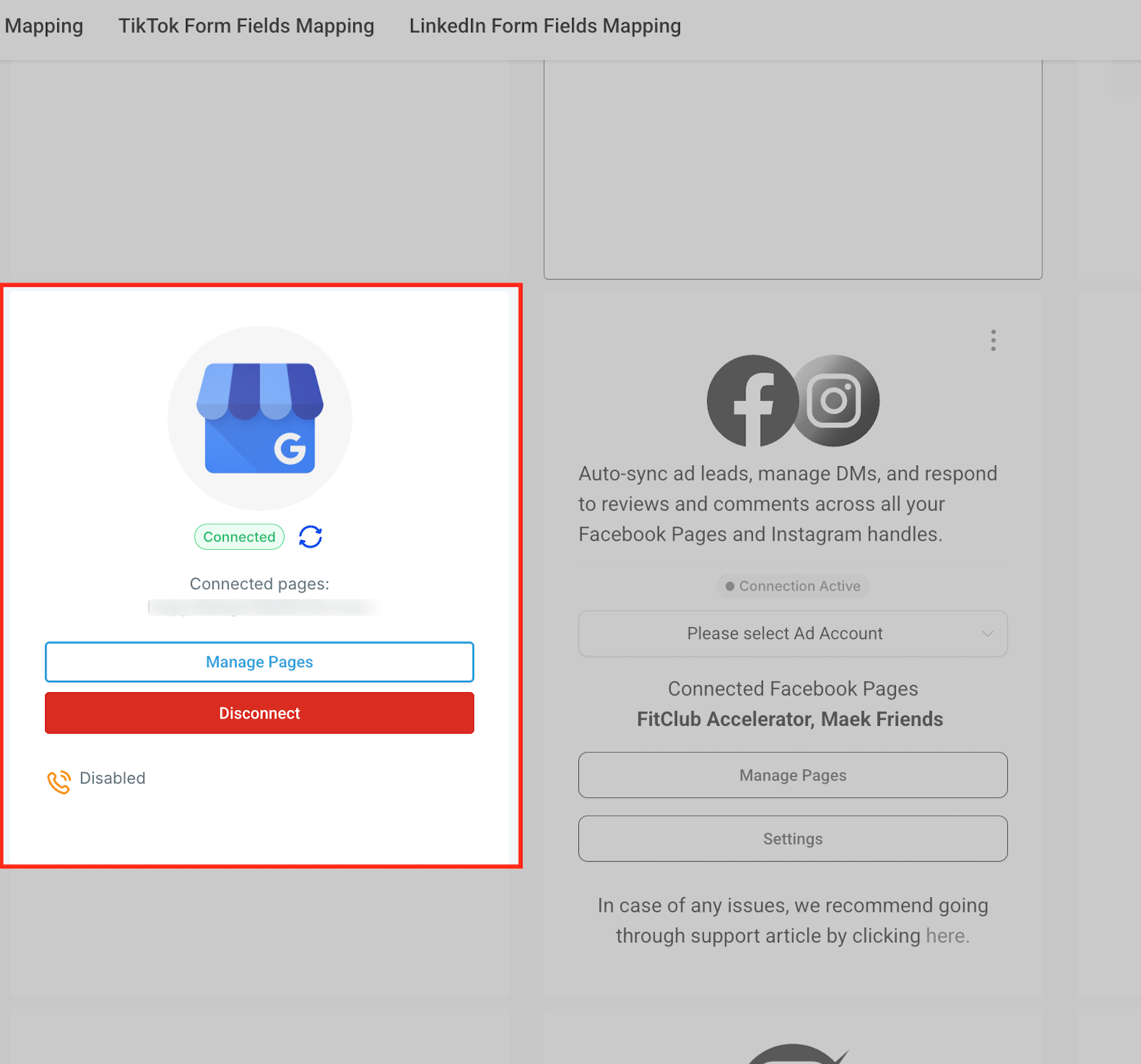
To integrate your Business Profile, make sure a Google account with admin access to your profile is connected to your account. This allows for a seamless connection.
When Google Business Profile reviews appear in Conversations, each review displays the associated page name in the thread. The page name also appears on outgoing review responses, so your team can confirm which business page a conversation belongs to before replying. This is especially useful when more than one page is connected.
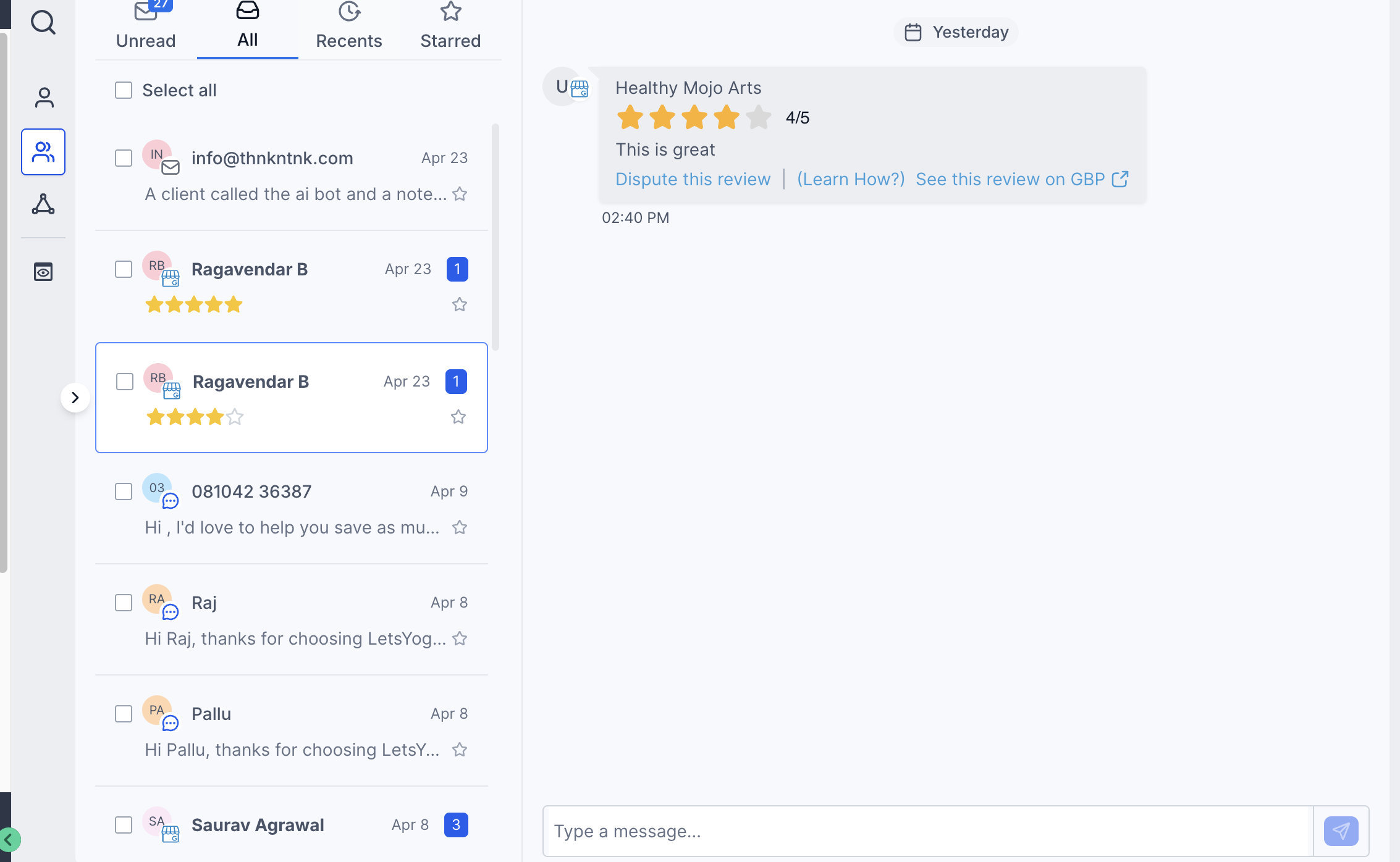
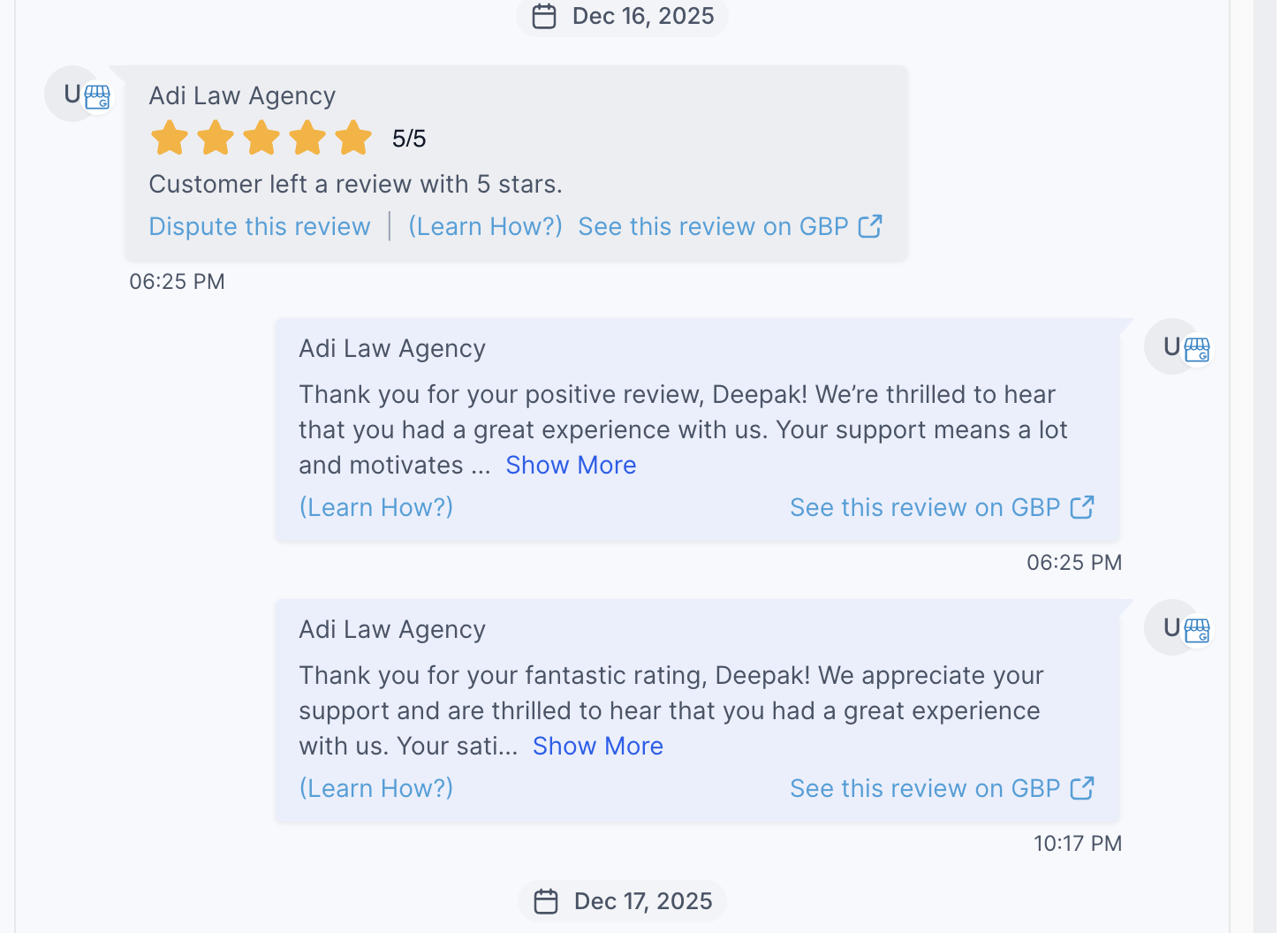
Google reviews and messages appear in Conversations in near real-time once connected. To learn how to respond to and request reviews, see the Review Management collection.
If you also want to publish posts to your Business Profile, connect it inside Social Planner. This is separate from the reviews and messaging connection above. For full posting instructions, see the Social Media Planner collection.
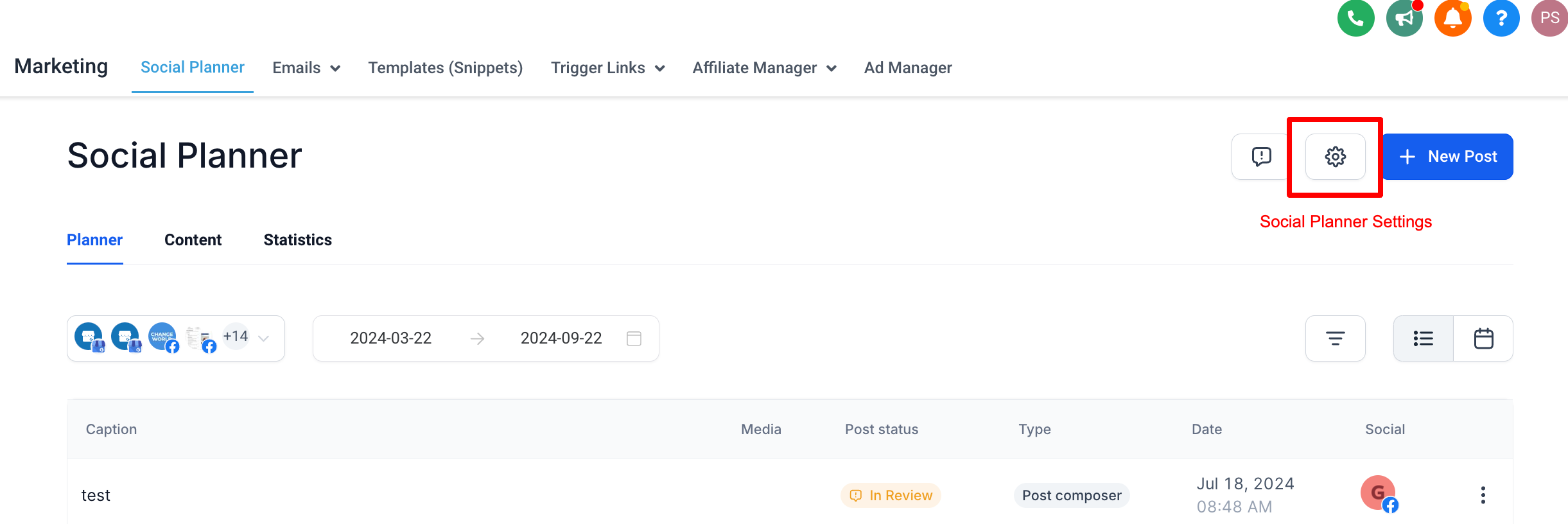
In Social Planner, click the gear (Settings) icon in the top-right corner.
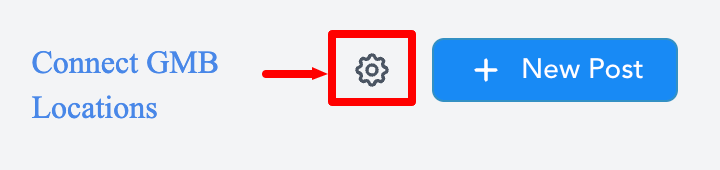
Click Connect a new Google My Business location to add and manage your locations.
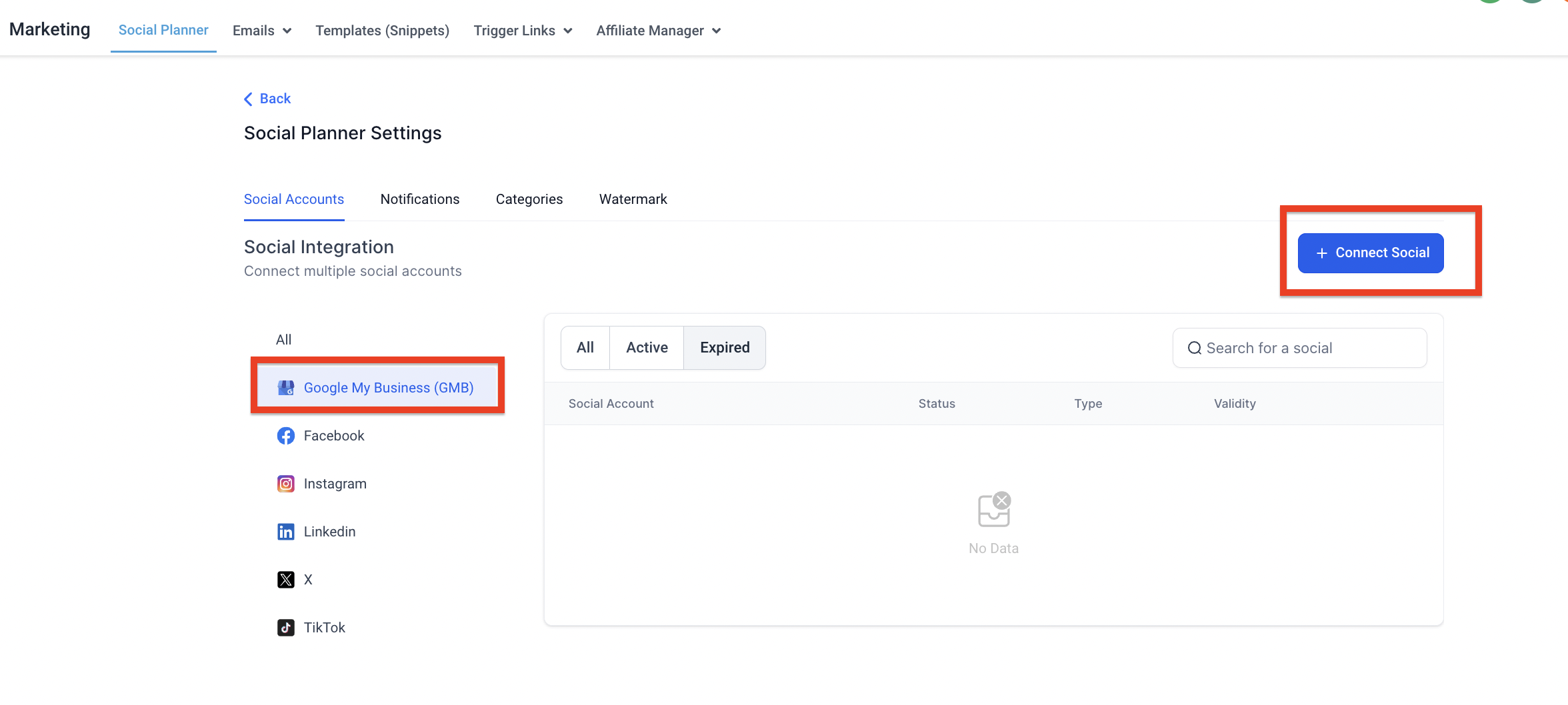
If you are connecting for the first time, choose the Gmail account that manages your Business Profile and grant the requested permissions.
Select the Business Profile locations you want available in Social Planner. If a location is already added, you will see a "location already added" message. If the Google account has more than 10 locations, Google may return an error that the location belongs to a chain and the Local Post API is disabled for it.
Aesthetix CRM can send events to Google Analytics 4 (GA4) from Workflows. Use the Add to Google Analytics workflow action, set the Action Type to Google Analytics 4, and provide your GA4 Measurement ID and Measurement Protocol API secret from your GA4 Data Stream. An optional Event Value field lets you send a numeric value such as revenue or a treatment package total. After a workflow runs, it can take 24 to 48 hours for data to appear in Google Analytics. For step-by-step GA4 event setup, see the Workflows documentation.
Can I connect multiple Google Business Profile locations? Yes. Repeat the connection steps for each location using the same or different Google accounts that have proper access.
Why does the Google sign-in screen say LeadConnector? That is our underlying integration provider. The screen is expected and safe to approve, and it does not change how the connection works inside Aesthetix CRM.
Do reviews and messages sync instantly? Yes. Reviews and messages appear in the Conversations stream in near real-time once the profile is connected.
Do I need a verified Google Business Profile before connecting? Yes. Your practice must be verified with Google before the integration will work.
What happens if my connection shows connected but features still fail? Go to Settings, then Integrations, then Google and look for a missing-permissions warning. Open it, review the missing permissions and affected features, then click Reconnect to grant the missing permissions in Google.
Does connecting my profile enable Google messaging automatically? Google deprecated its native business messaging in July 2024. You can now connect a WhatsApp number and a text number to your Business Profile pages, and those channels sync their messages into Conversations when integrated.
Can I disconnect my Google Business Profile later? Yes. Go to Settings, then Integrations, and click Disconnect next to your Google Business Profile.
What is the difference between connecting my profile here and in Social Planner? The Integrations connection handles reviews, messaging, and reputation. The Social Planner connection is only for publishing posts to your Business Profile.
