Google Business Profile (GBP) lets your practice register two phone numbers, which creates an opportunity to track calls generated from your Google listing while keeping SEO best practices intact. Moving your real business number to the secondary slot has not been found to negatively affect rankings. The Aesthetix CRM Google Business Profile integration can automatically move your main business number to the secondary slot and place your CRM tracking number in the primary slot, so every call from Google is captured in the CRM.
When you toggle on GBP Call Tracking during the Google Business Profile connection, Aesthetix CRM evaluates the number currently on your listing and takes one of the following actions.
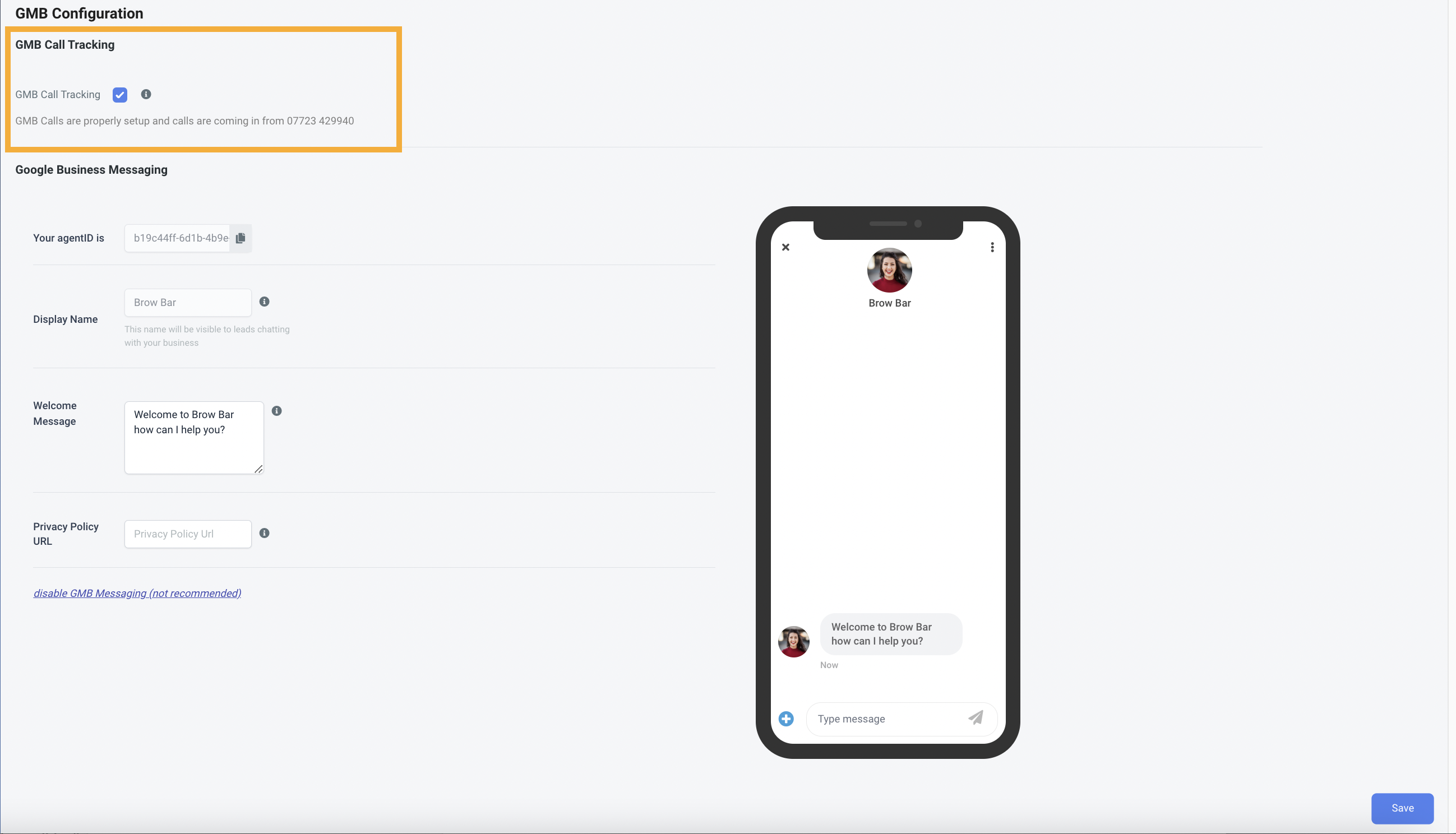
If the number in GBP is already an Aesthetix CRM (Twilio) number from your account, nothing changes, because your calls are already being tracked in the CRM.
If the number in GBP is also the forwarding number for one of your Aesthetix CRM numbers, the CRM moves the current number to the secondary slot and adds the CRM tracking number in the primary slot.
If the number in GBP is not the forwarding number for any of your Aesthetix CRM numbers, the CRM moves the current number to the secondary slot, adds the CRM tracking number in the primary slot, and sets the current number as the forwarding number for the CRM tracking number. This keeps calls ringing through to your practice while being tracked.
When you connect a Google Business Profile, the CRM automatically selects a tracking number to push as the primary phone number in GBP. Here is how that number is chosen, in order:
Primary location number: If your account has a dedicated number assigned under Settings, then Phone Numbers, that number is used as the default tracking number pushed to GBP. This is often the number created during onboarding or manual setup.
First number with call forwarding enabled: If no number is set as the primary, the CRM selects the first available number that has call forwarding enabled.
Any available number: If no call forwarding is configured, the CRM picks any available number in your account.
No number found: If your account has no phone number, the integration cannot complete. You will need to assign or create a number before Google Business Profile call tracking can function.
These examples show what changes in Google Business Profile, where calls go, how the CRM tracks them, and when Missed Call Text Back can fire.
Scenario: The Business Profile primary number is already an Aesthetix CRM tracking number from the connected account.
What happens when you toggle GBP Call Tracking on: Nothing changes in GBP, because calls are already going to a tracked number.
What it looks like in real life:
A patient searches for your practice on Google and taps Call.
The call goes to the CRM tracking number.
If your team answers, the call is logged in the CRM.
If nobody answers, Missed Call Text Back can automatically text the caller, if enabled in your settings.
Scenario: GBP shows your real number (such as a front-desk landline), and that same number is already set as the forwarding number for one of your Aesthetix CRM numbers.
What happens when you toggle GBP Call Tracking on:
The CRM moves the current GBP number to the secondary slot.
The CRM puts the tracking number in the primary slot.
What it looks like in real life:
Before toggle: GBP primary is (555) 111-2222, your real number.
After toggle: GBP primary is your CRM tracking number, and GBP secondary is (555) 111-2222.
A patient taps Call on Google, and the call hits the CRM tracking number.
The CRM forwards the call to (555) 111-2222, because it was already configured that way.
If the call is missed, Missed Call Text Back, if enabled, texts the caller from the tracking number.
Missed Call Text Back is configured in the Phone area of your account. See the Phone collection for how to set up call forwarding, Missed Call Text Back, and manage your numbers.
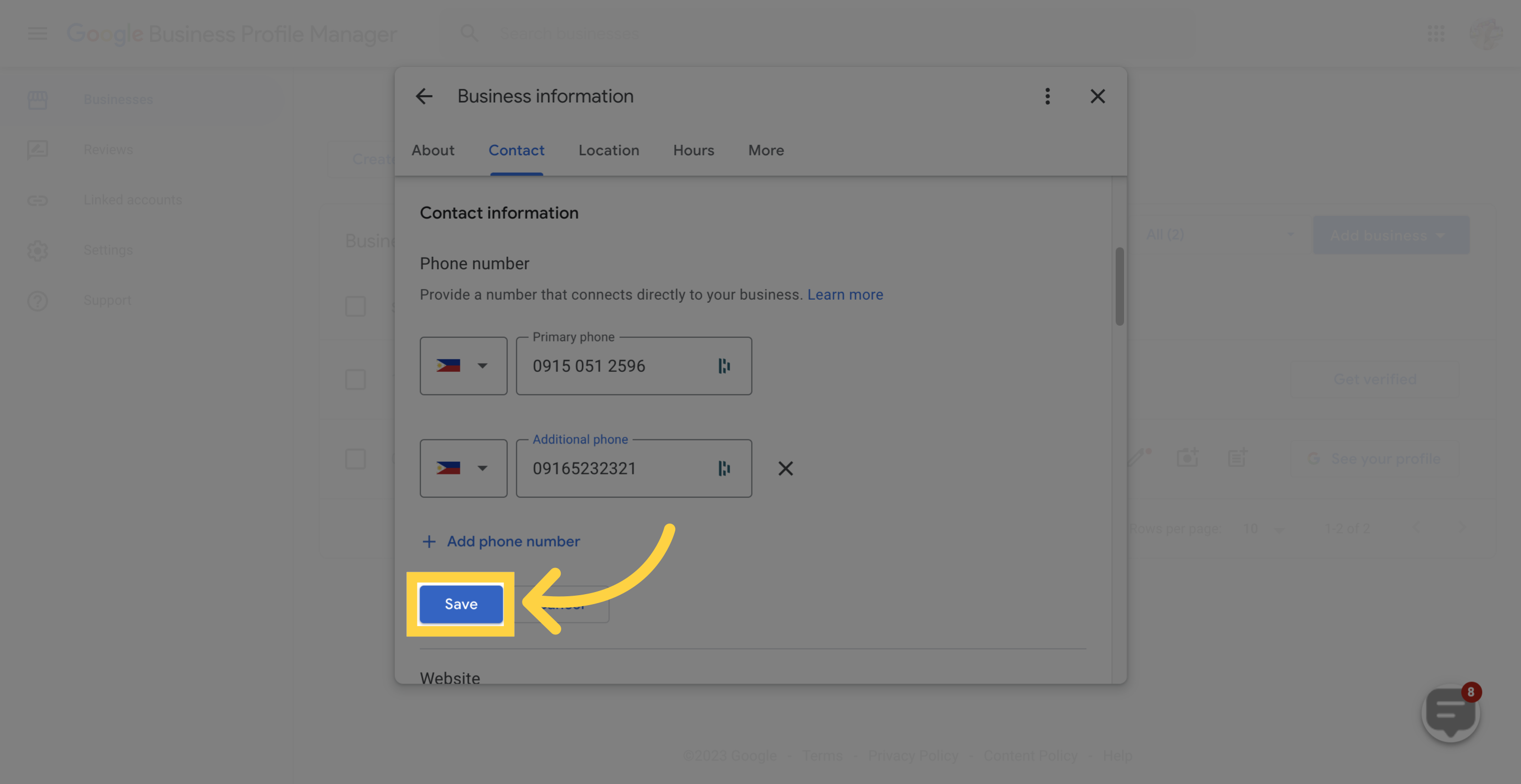
If you need to add or change the numbers shown on your Google listing directly, you can do this from your Business Profile Manager.
Go to your Google Business Profile.
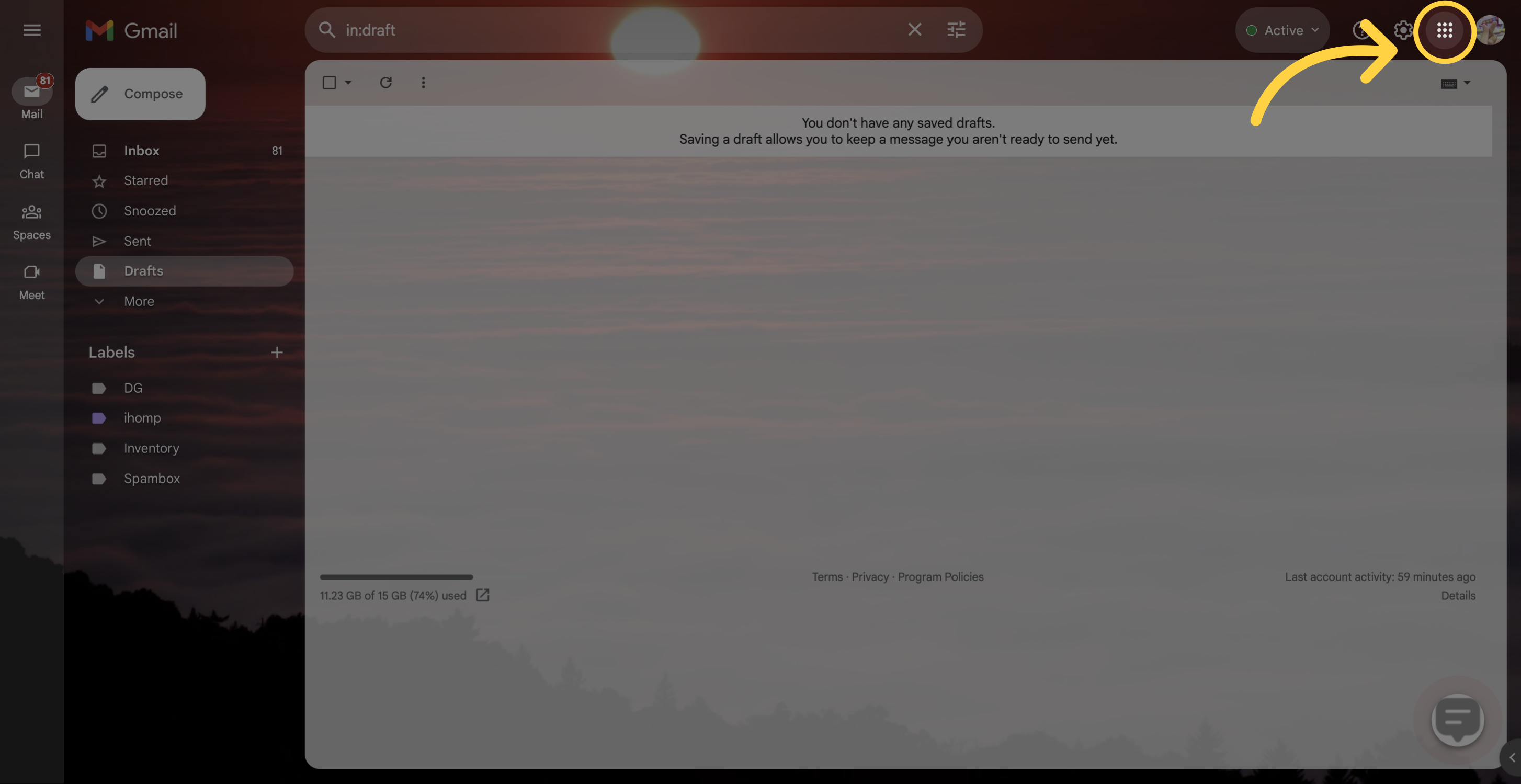
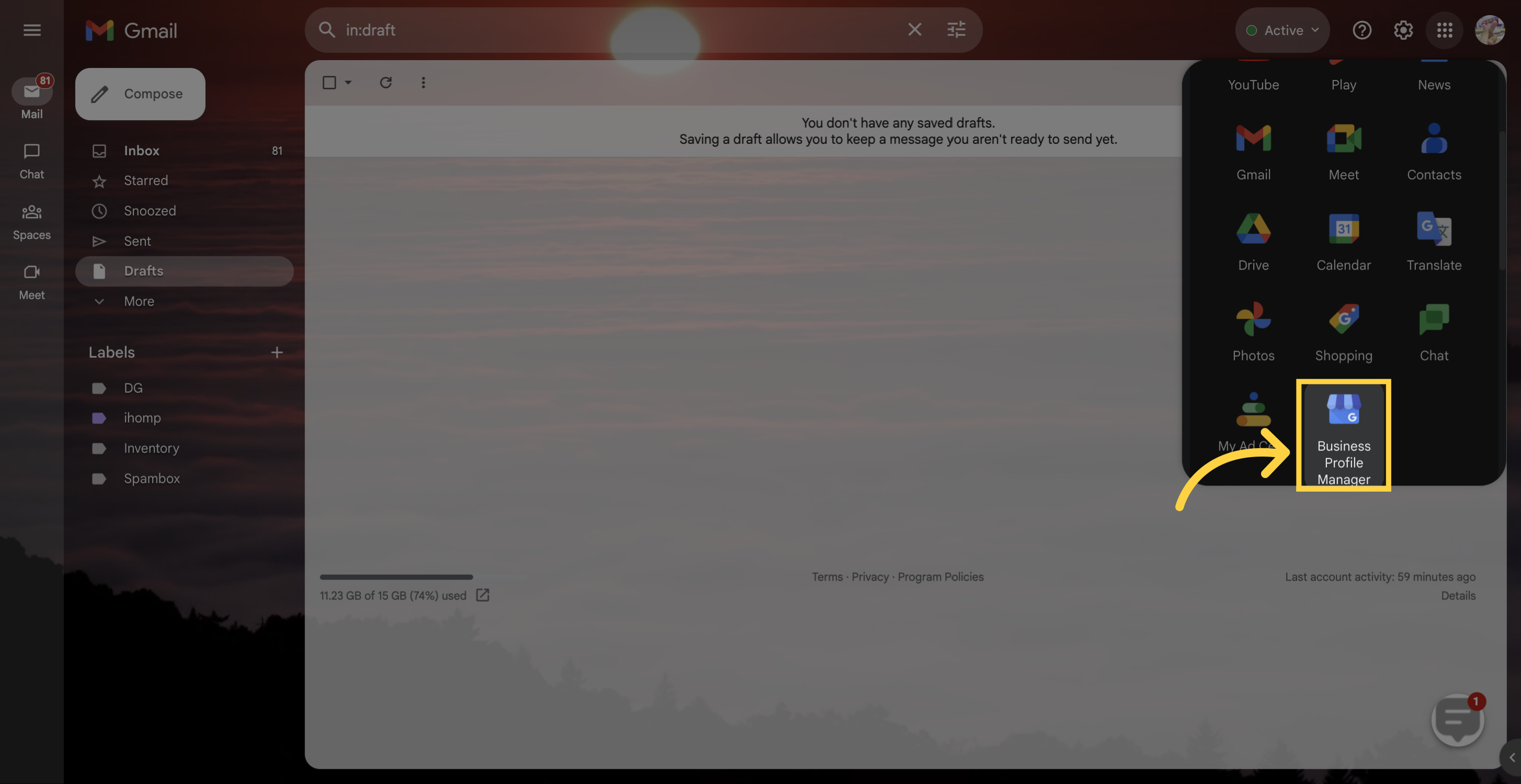
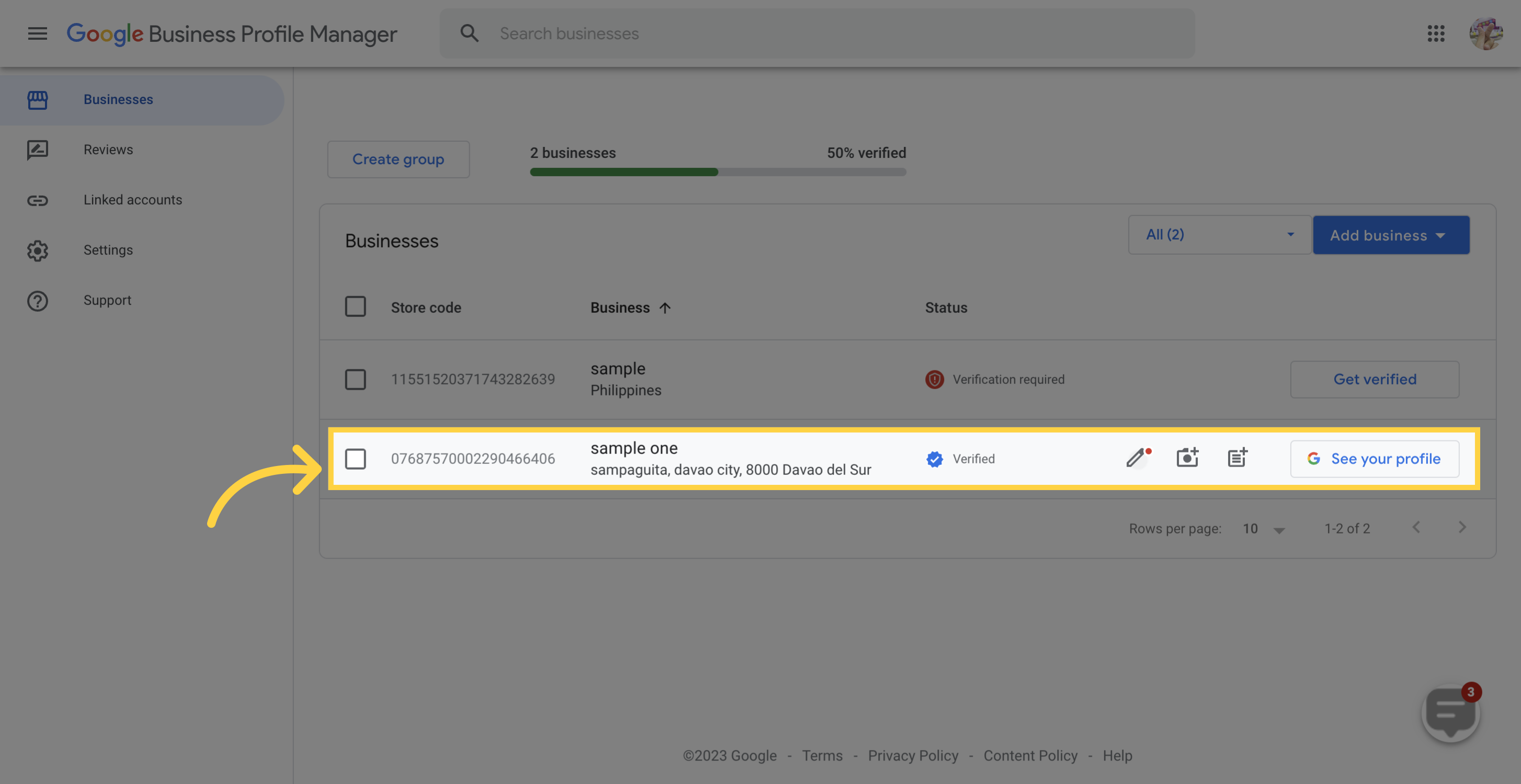
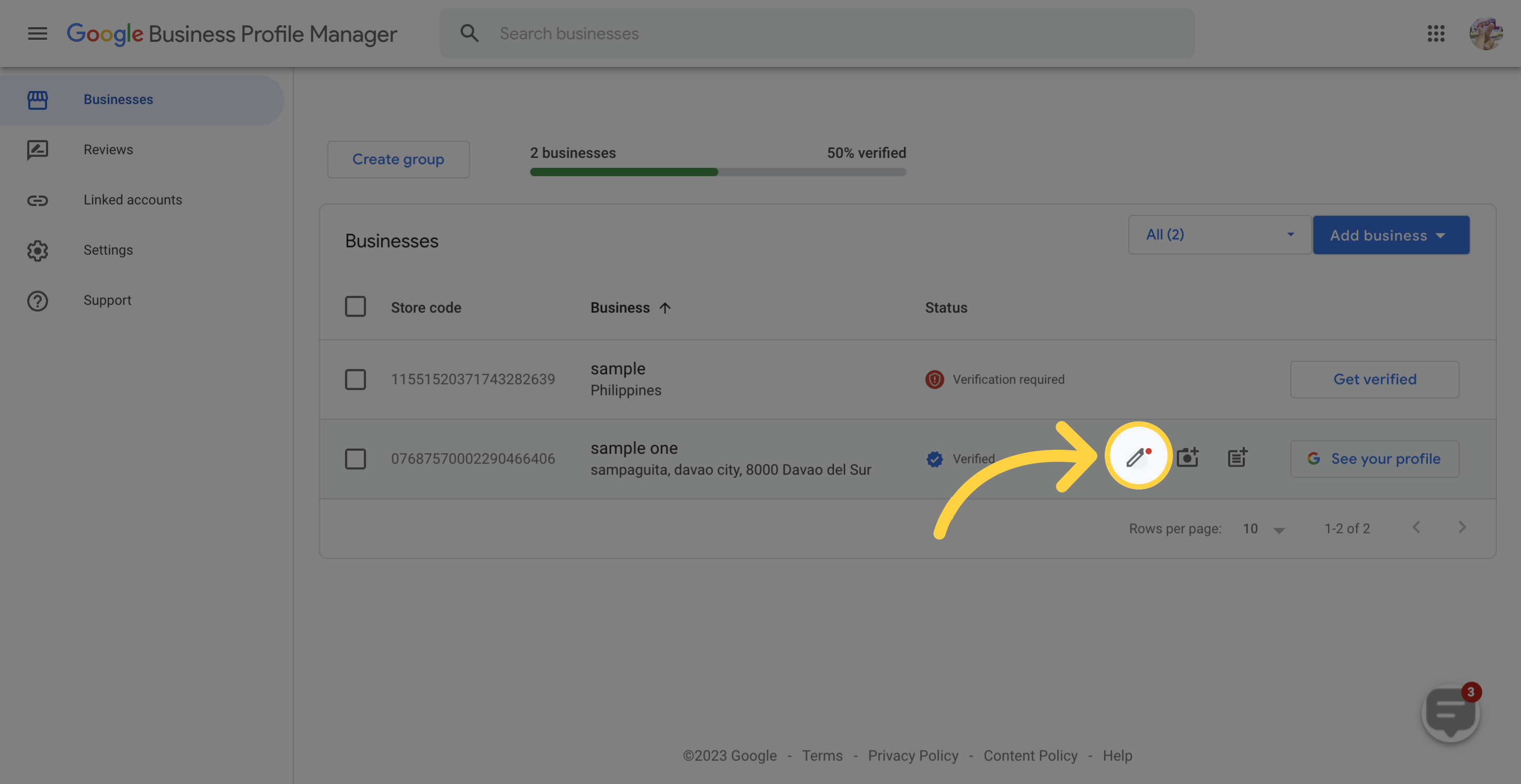
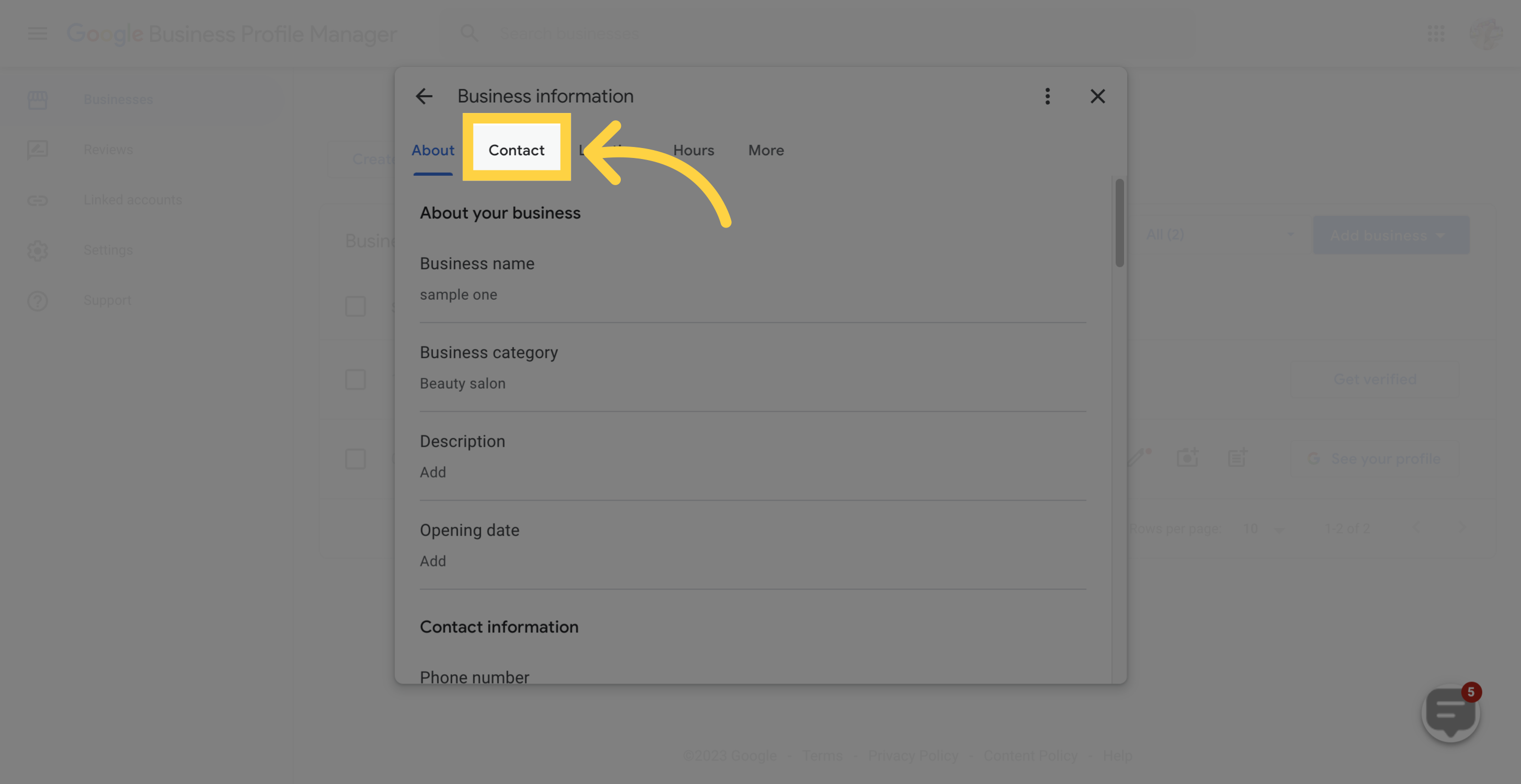
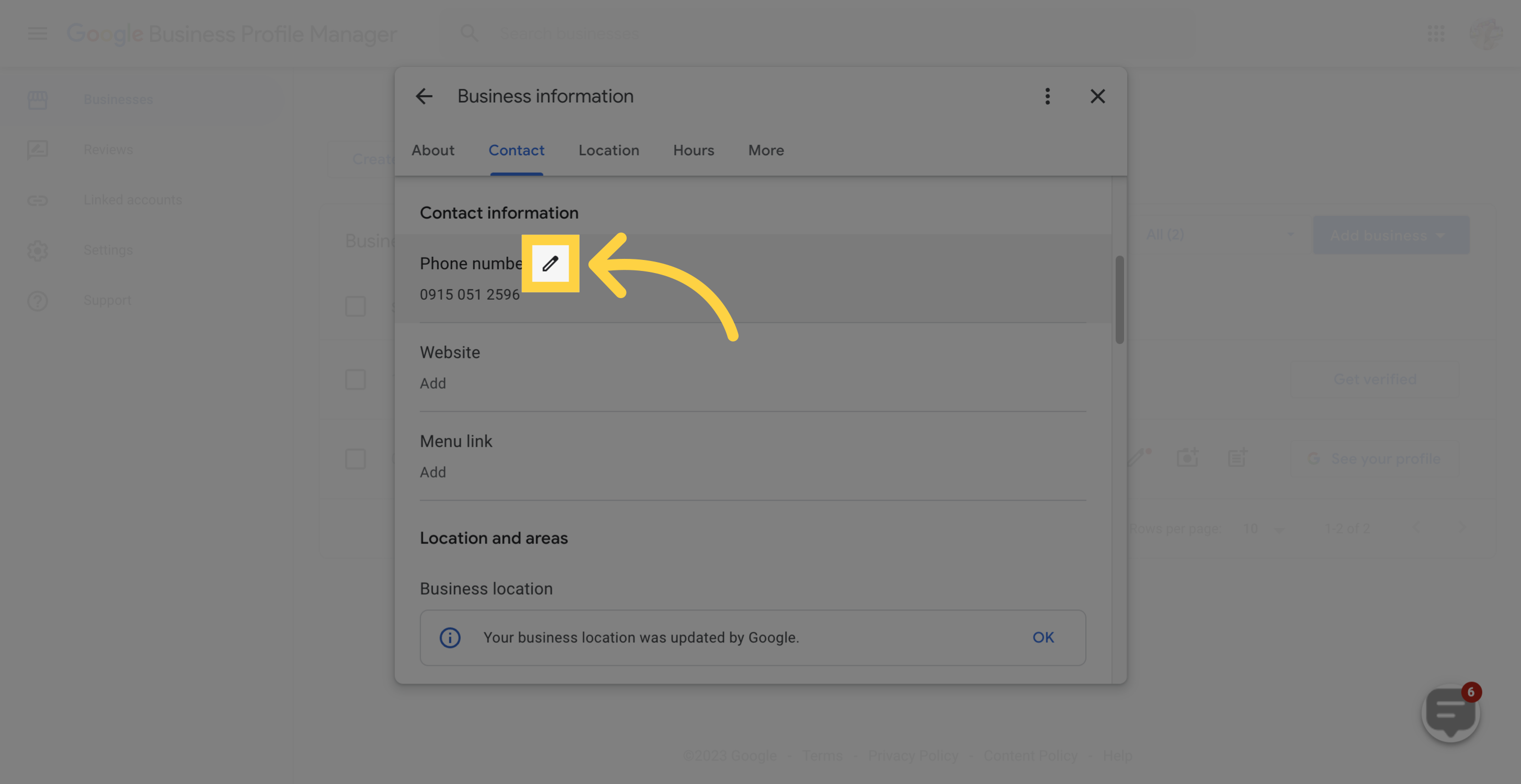
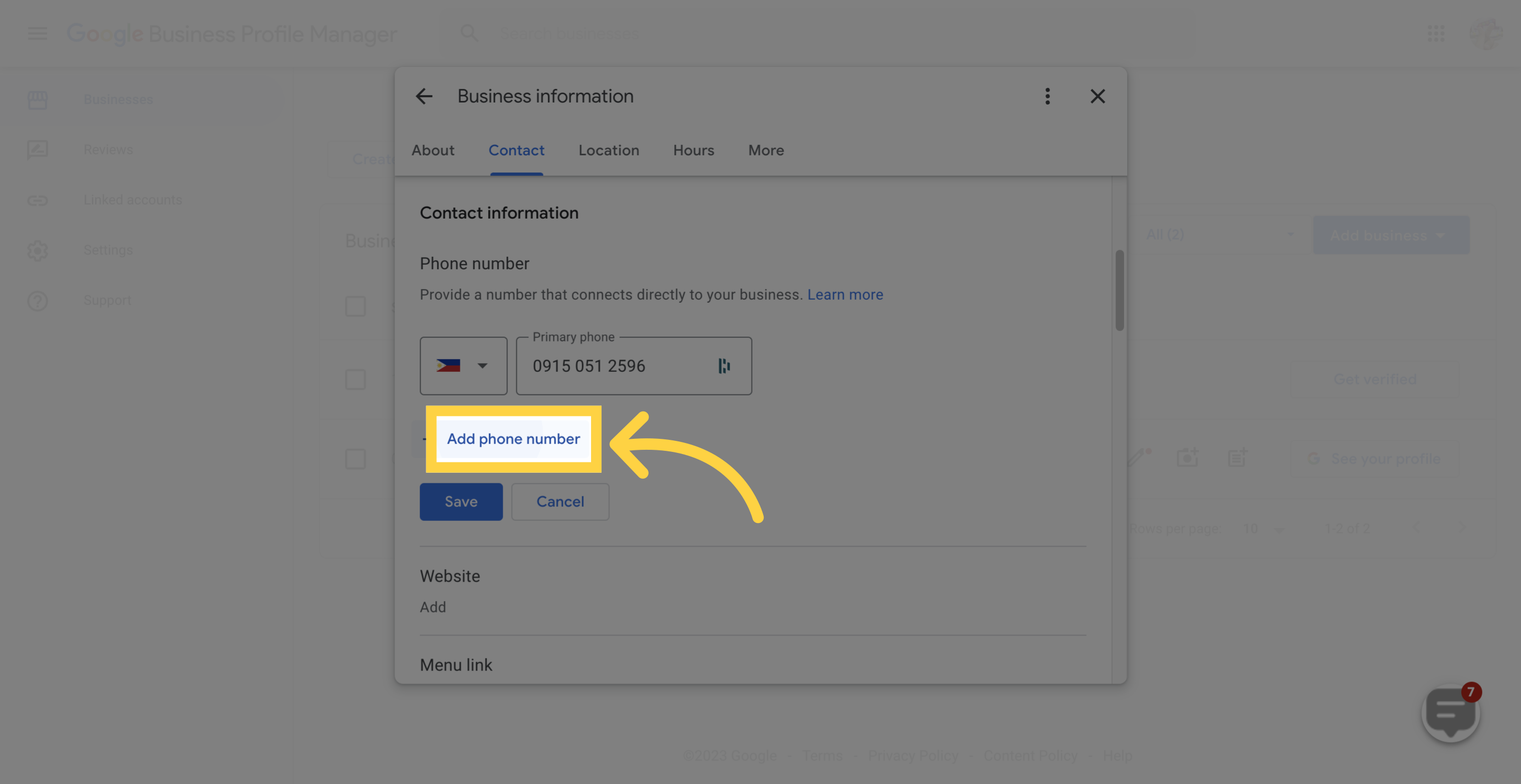
Add your primary and, if needed, secondary phone number.
Where do I turn on GBP Call Tracking? It is a toggle you enable while connecting your Google Business Profile under Settings, then Integrations. See the Connecting Google & Google Business Profile article for the full connection flow.
Will call tracking hurt my Google rankings? No. Moving your real business number to the secondary slot and placing a tracking number in the primary slot has not been found to negatively affect local rankings.
What number does the CRM push to my listing? The CRM uses your primary location number first, then the first number with call forwarding enabled, then any available number in your account. If no number exists, you must assign one before the integration can complete.
Will patients still reach my front desk? Yes. Calls ring the tracking number and forward to your real business number, so your team answers as usual while the call is logged.
What is Missed Call Text Back? If a call to your tracking number goes unanswered, the CRM can automatically text the caller so the lead is not lost. It must be enabled in your Phone settings.
Can I add two phone numbers to my Google Business Profile? Yes. Google Business Profile supports a primary and a secondary number, which is what makes tracking possible without removing your original number.
Why is my number not being tracked after connecting? Confirm that GBP Call Tracking is toggled on, that your account has an available phone number, and that call forwarding is configured. If the number on your listing is not a CRM number and is not set as a forwarding number, the CRM will move it and assign the tracking number automatically.
