Bulk Actions for Affiliate Commissions lets you manage multiple commission records at once, directly from an affiliate's profile or from the main Affiliate Manager dashboard. Instead of approving, denying, or deleting commissions one at a time, you can select several records and apply the same action in a single click. This is especially useful during high-volume payout periods or when you're reviewing commissions across a large referral program.
Approve, deny, or delete multiple commissions at once
Access bulk actions from both an affiliate's profile and the main Affiliate Manager dashboard
Save time during high-volume commission reviews or payout cycles
Filter commissions by status (approved, pending, denied) or campaign before acting
Cut down on repetitive clicks and manual admin work
Manage commissions more efficiently as your affiliate or patient referral program grows
Commission records themselves are typically created automatically by workflow automations tied to a sale or referral event. If you want to change how or when commissions are generated, that logic lives in Workflows, not in the bulk actions tools covered here.
Use this method when you're reviewing commissions for one specific affiliate or referral partner.
Go to Affiliate Manager within the Marketing section.
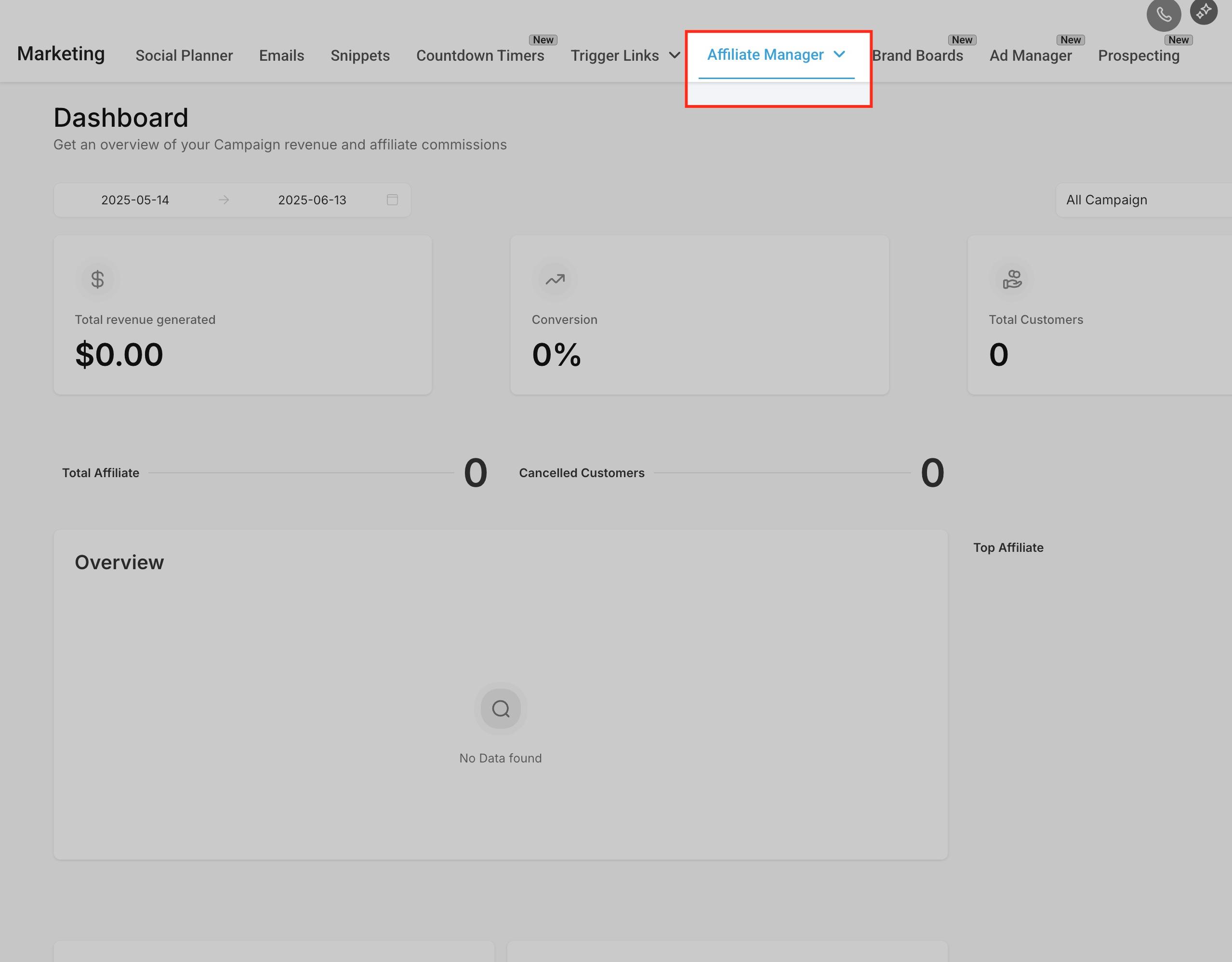
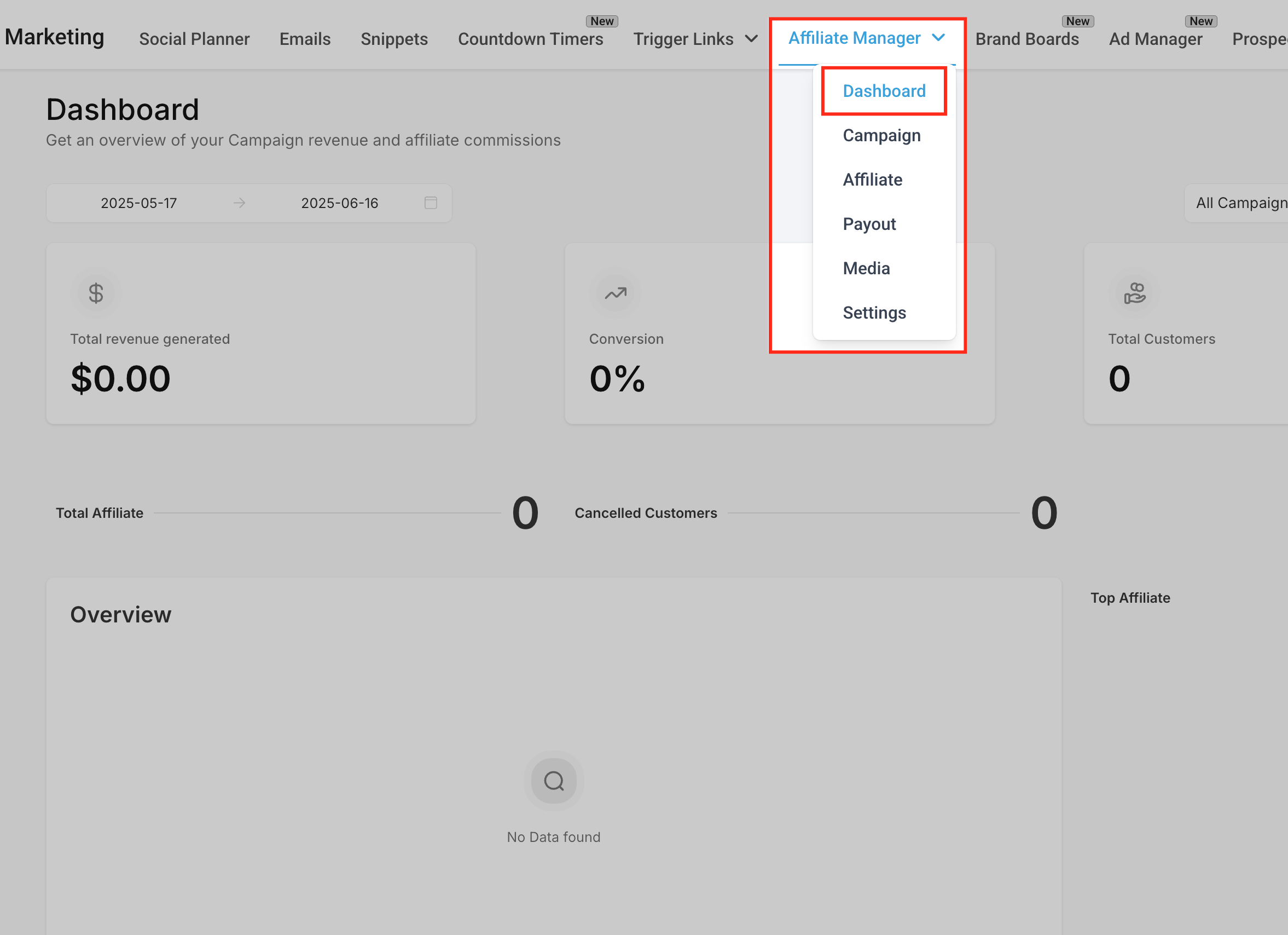
Open the Affiliate dropdown to see the full list of affiliates, then click on the affiliate whose commissions you want to review.
Once you're inside the affiliate's profile, click the Commissions tab.
Use the checkboxes next to each commission to select one or more records.
Click the Bulk Actions button.
Choose Approve, Deny, or Delete.
Use the dashboard view when you want to act on commissions across multiple affiliates at once, such as during a scheduled payout run.
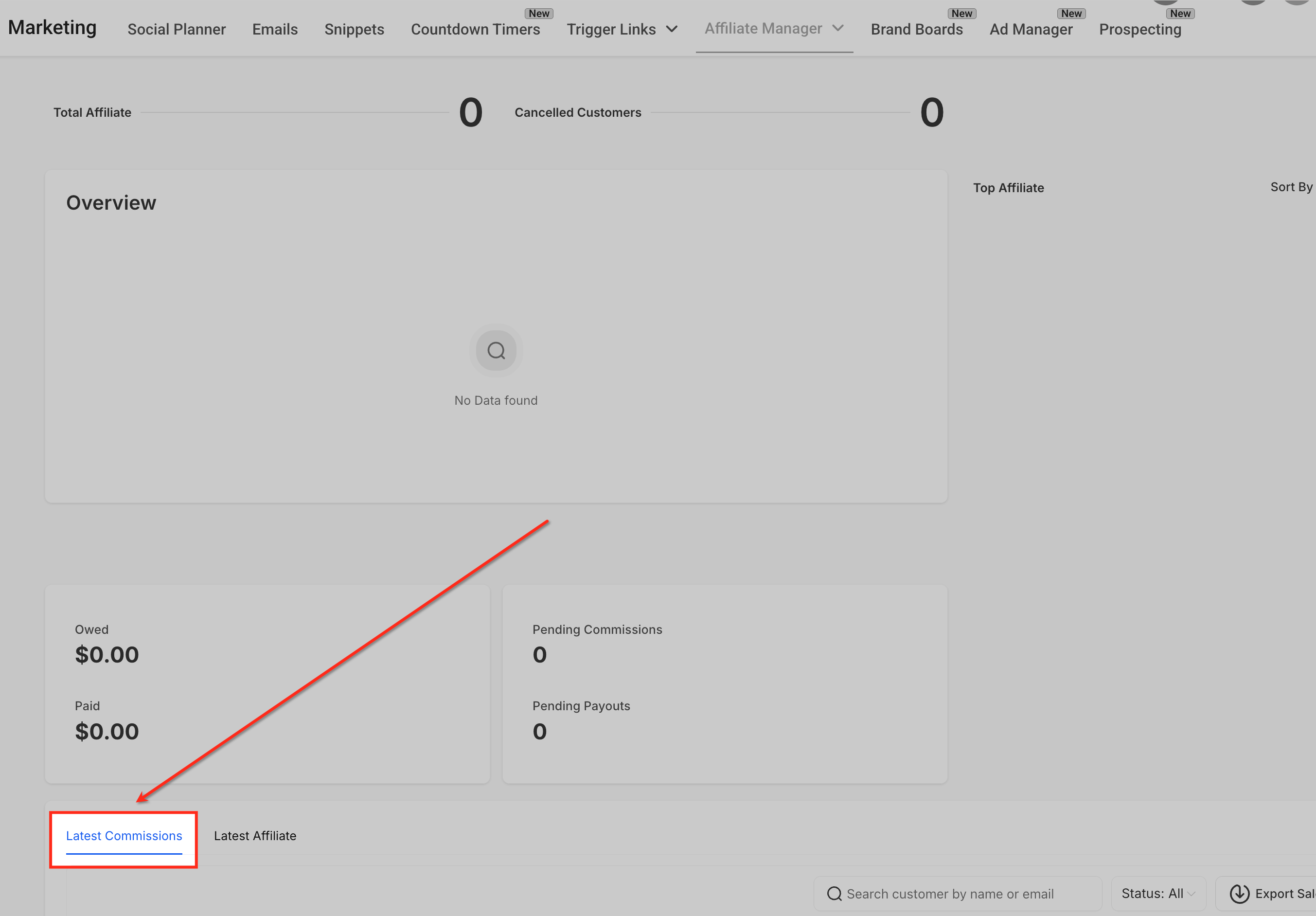
Navigate to the Affiliate Manager Dashboard.
Scroll to the Latest Commissions section.
Use the checkboxes to select multiple commissions, even across different affiliates.
Click the Bulk Actions button and choose Approve, Deny, or Delete.
Filters help you narrow the commission list down before you select records, which speeds up review on a large or active referral program.
Use the Status filter to view only pending, approved, or denied commissions.
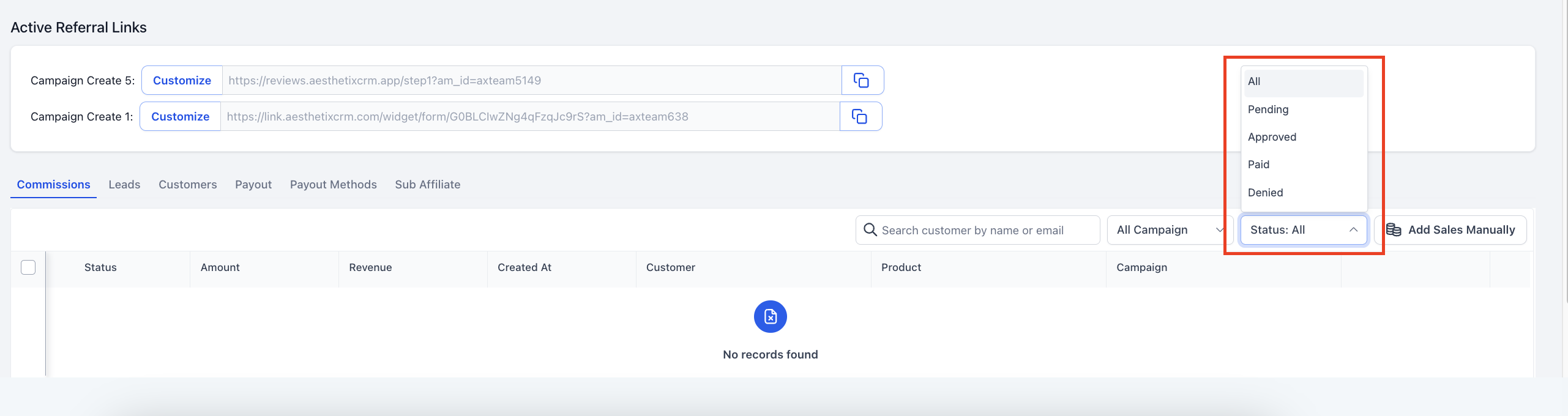
Use the Campaign filter to isolate commissions tied to a specific affiliate campaign.
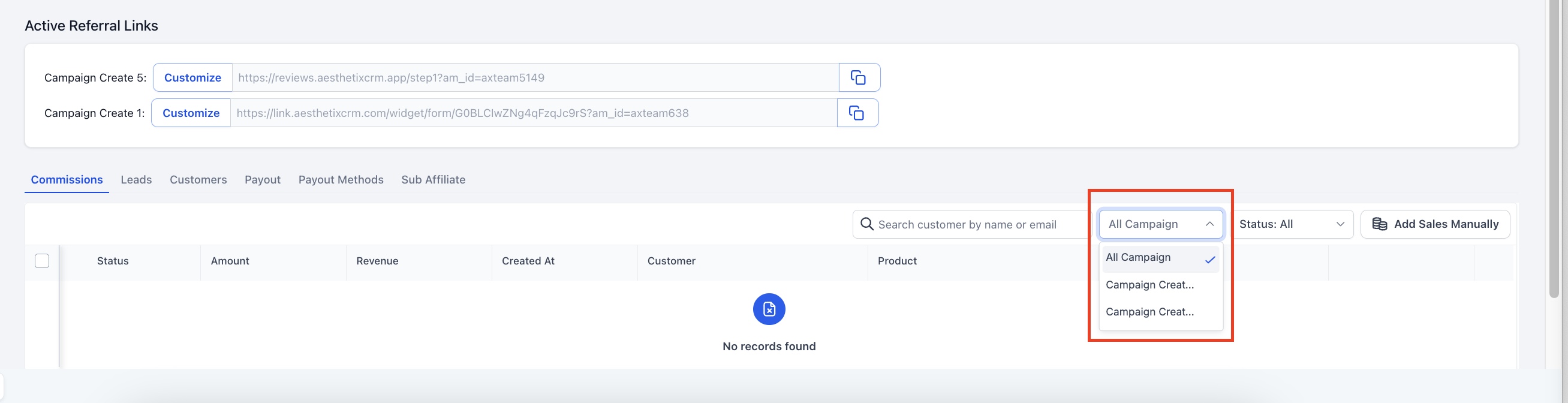
You can combine both filters for a more precise view, for example pulling up only pending commissions from a single referral campaign before approving them in bulk.
Can I undo a bulk action once it's submitted? No. Bulk approvals, denials, and deletions are final as soon as you confirm them. Always double-check your selections, especially in the Deny and Delete columns, before clicking through.
Are bulk actions available to every user in my account? No. Only users with permission to manage affiliate commissions can access and perform bulk actions. If a team member doesn't see the Bulk Actions button, check their user role and permissions.
Can I apply a bulk action to commissions from different affiliates at the same time? Yes, but only from the Affiliate Manager Dashboard view. The affiliate profile view only shows commissions for that one affiliate.
Do bulk actions send an email notification to affiliates? No. Bulk approving, denying, or deleting commissions does not automatically notify affiliates. If you want affiliates to be notified when their commission status changes, that would need to be built as a separate workflow automation.
Is there a limit to how many commissions I can bulk approve at once? There's no fixed limit, but processing a very large batch may take a few seconds to complete. Give the page a moment to finish before navigating away.
What happens after I bulk approve a commission? Approved commissions move into the pool of commissions eligible for the next payout run. Payout scheduling and processing are covered separately from the bulk approval tools on this page.
Does deleting a commission in bulk remove it from the affiliate's earnings history? Yes. Deleting a commission removes that record entirely, so it will no longer count toward the affiliate's total earnings or appear in their commission history. Use Deny instead of Delete if you want to keep a record of a rejected commission.
Can I filter first and then select all matching commissions in one step? Yes. Apply a status or campaign filter to narrow the list, then use the checkboxes (or a select-all checkbox where available) to select every commission currently shown before clicking Bulk Actions.
