AI Studio builds forms and booking sections on your pages, then connects them to your Aesthetix CRM account so submissions create contacts, bookings land on a calendar and workflows can run. Open AI Studio from AI Agents > AI Studio in the left sidebar.
Protect patient privacy: AI features are not approved for processing Protected Health Information (PHI). Do not ask AI Studio to build forms that collect health history, medical conditions, medications, treatment photos or other PHI, and do not type PHI into prompts. Keep form fields to basic contact details and a general reason for the inquiry. Use your clinical intake process for anything clinical.
Forms and calendars begin as front-end page designs. AI Studio can create:
Contact forms
Registration forms (for example an open house or injector-training signup)
Lead capture sections
Appointment booking pages
Consultation request pages
AI Studio can place a form in the page layout, in a section or in a popup flow, depending on your prompt. If a request is broad, it may first ask what kind of form you want.
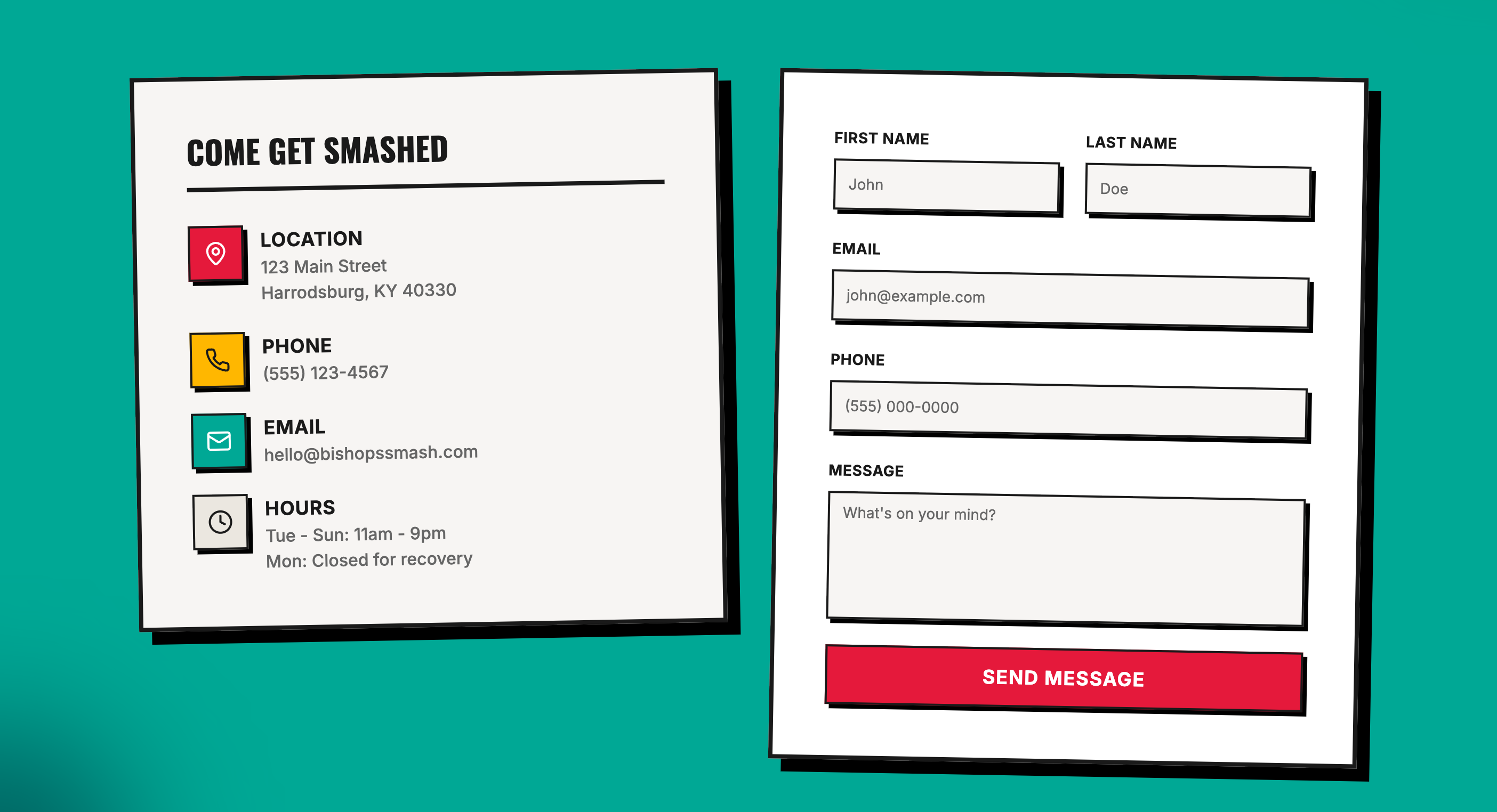
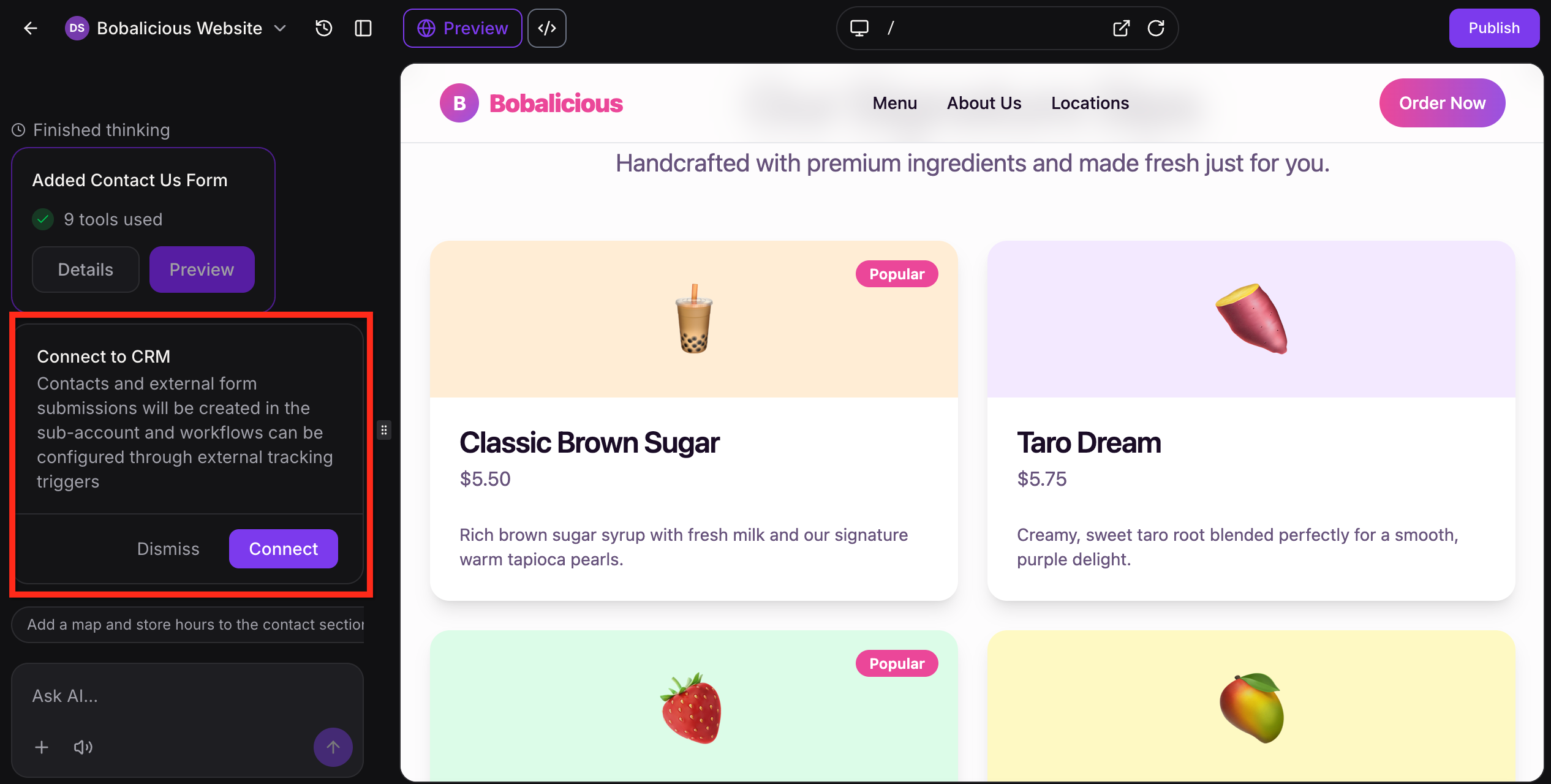
Important: forms and calendars are not connected automatically. Seeing a form on the page does not mean it is collecting submissions. You must ask AI Studio to connect it, or click Connect when the chat prompts you.
Benefits of connecting:
Faster setup: Build the page and the action area together.
Controlled connection: You decide when each form or calendar goes live in your account.
CRM-ready lead capture: Connected forms send submissions into your account.
Simpler scheduling: A connected calendar turns a booking section into live scheduling.
If a build needs you to choose a calendar or form, AI Studio pauses the request and shows a selection card in the chat.
Choose the form or calendar.
Click Connect to continue the same request. You do not send a new prompt.
Other buttons on the card:
Check again: If nothing is available to connect, create the form or calendar in your account, return to AI Studio and click this.
Try again: If the list fails to load.
Dismiss: Continue building without the connection and connect it later.
Ask AI Studio to add a form (for example "Add a consultation request form with name, email, phone and a message").
When you want it to collect submissions, tell AI Studio to connect it (for example "Connect forms to my CRM") or click Connect in the chat. This starts the Connect to CRM flow.
Publish the project.
Submit a test entry on the published page and confirm the contact appears.
What the connection does: the page uses external tracking to send submission activity back to your account. That creates or updates a contact, captures the submission and lets workflows react to it.
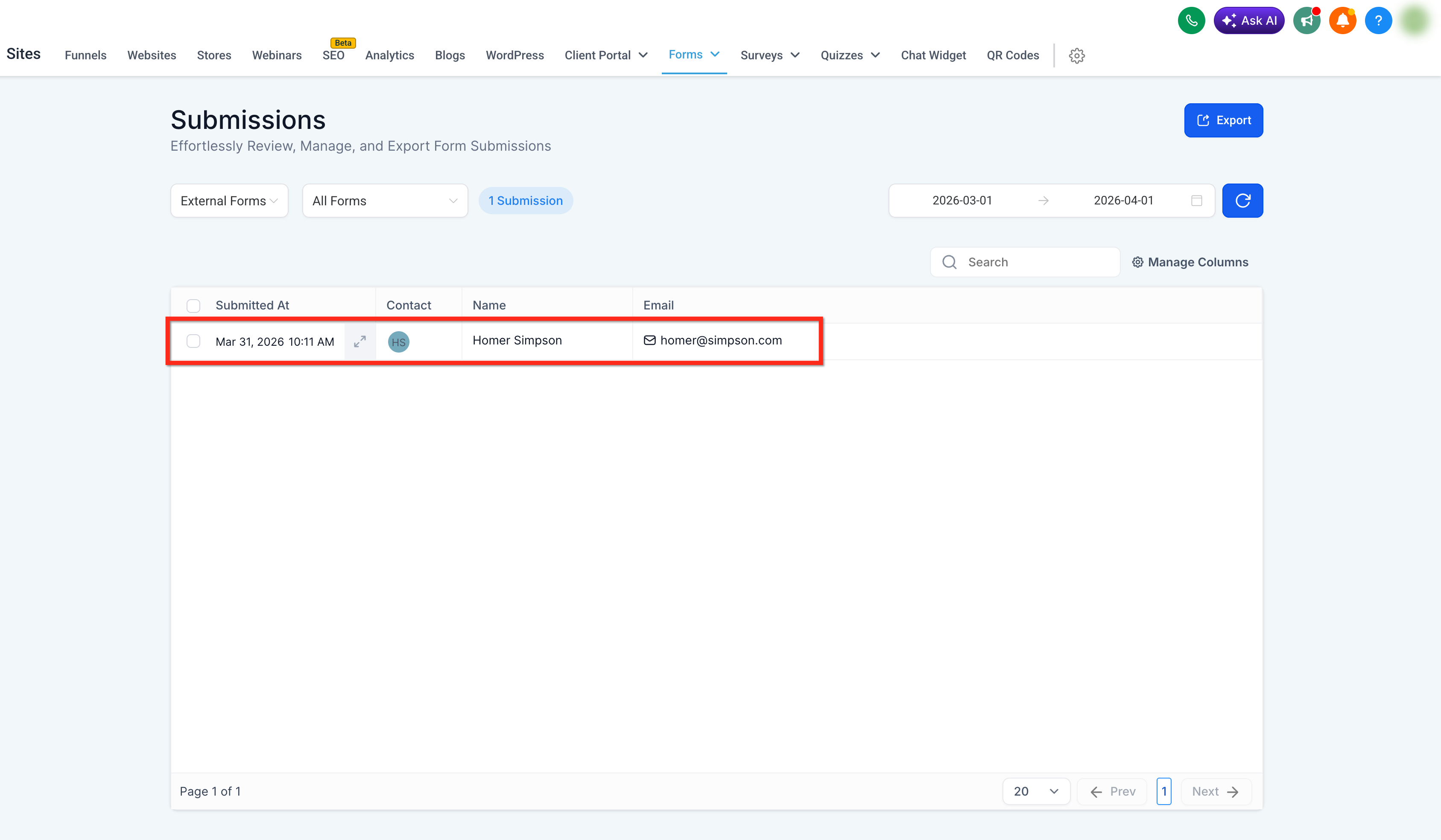
Where submissions go: the page lives in AI Studio, but responses, contacts and submission activity go into your account, not into the AI Studio project. View them in:
Contacts
Web Tools > Forms > Submissions > External Forms (connected AI Studio forms show up as third-party submissions)
AI Studio > project > More > Analytics > Form Submissions (described below)
Field mapping and required fields: AI Studio designs the form fields from your prompt and maps standard fields such as name, email and phone to the matching contact fields. Tell AI Studio which fields are required (for example "make phone required"). Name and email are the most useful fields because they identify the contact. Ask AI Studio to adjust fields at any time, then publish again.
You can keep refining the page after the form is connected. You do not need to create a form in Web Tools first; AI Studio generates it from your prompt.
Calendar caution: AI Studio booking works only with native Aesthetix CRM calendars. It does not work with EMR calendars. If your practice books through an EMR, link visitors to your EMR booking page instead.
AI Studio can create a custom booking experience instead of only embedding a standard calendar widget. Once connected, the page uses the selected calendar in the background for scheduling.
Ask AI Studio to create an appointment page, consultation page, discovery call page or a booking section.
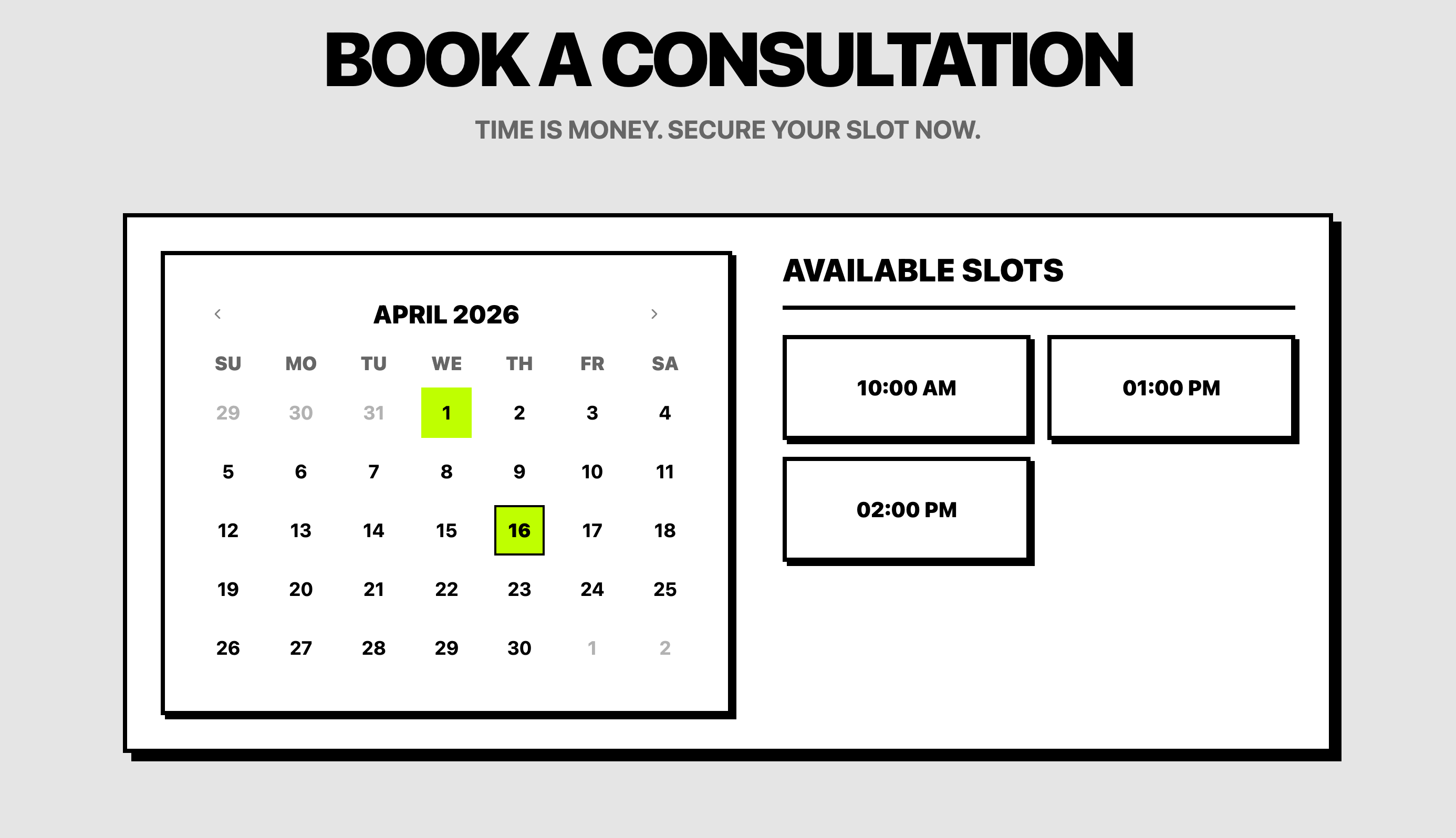
When the chat prompts you, choose the native calendar you want from your account.
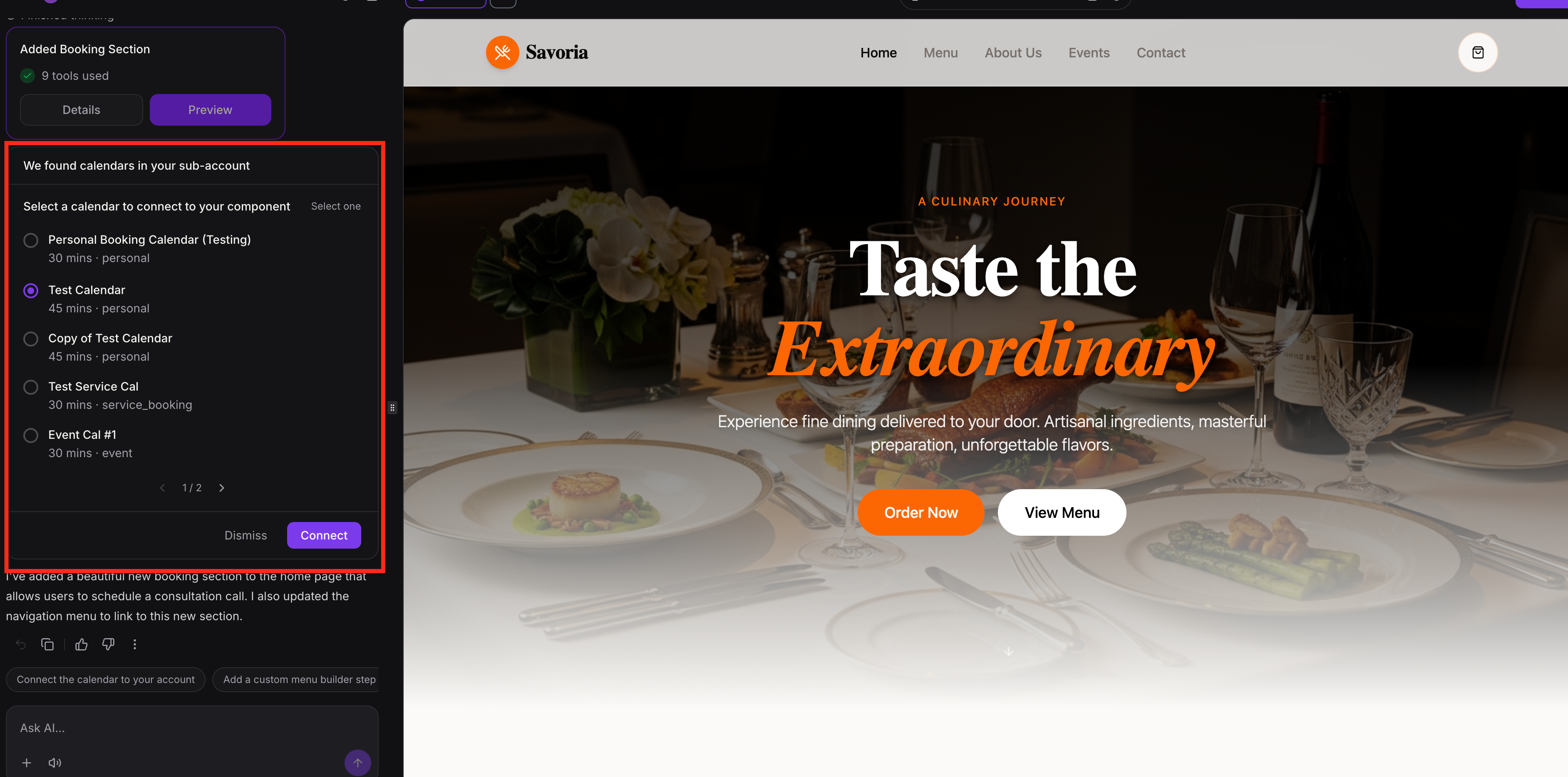
Connect the calendar to the page component.
Preview and test the booking experience, then publish.
After connection:
Visitors can book available times from the page.
Booked meetings are added to the selected calendar in your account.
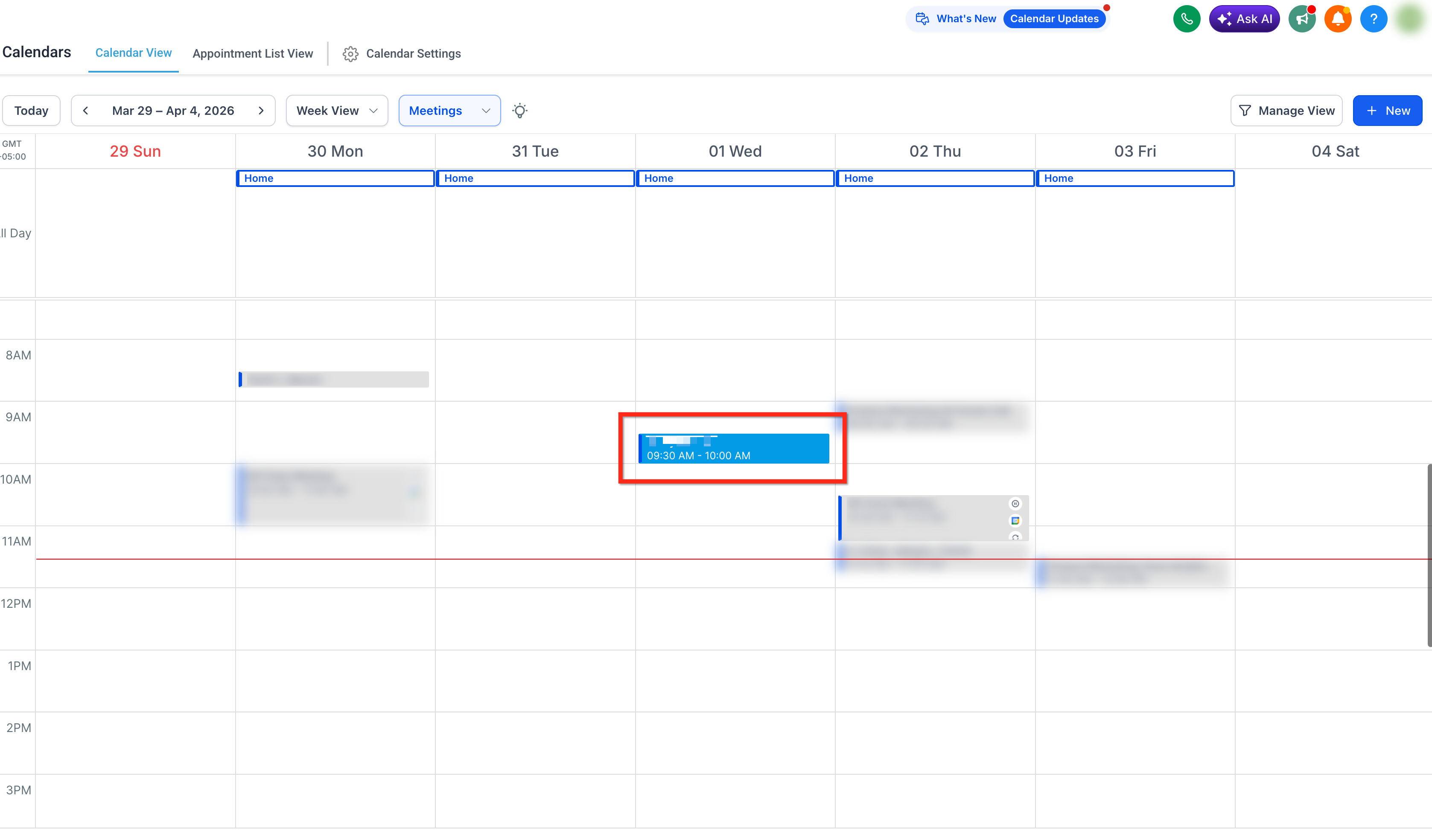
The booking uses the availability and settings already configured on that calendar.
Confirmations, reminders and automations tied to that calendar continue to run as configured.
Payments are not supported for AI Studio calendar experiences. See the guide Accept Payments in AI Studio for selling products and deposits.
The AI Studio Form Submitted trigger starts a workflow whenever a visitor submits a connected form on an AI Studio site. It is built specifically for AI Studio forms, so you can manage AI Studio lead follow-up separately from other form sources. This feature may not be enabled on every account yet.
Older forms keep working with the External Tracking Event > Form submission trigger. You do not have to change them. Reconnect an existing form only if you want it to use the new trigger.
Benefits:
A dedicated trigger for AI Studio form submissions
Automatic contact creation plus immediate follow-up
Filtering by project, form, page path and domain
Works alongside External Tracking with no conflict
Any workflow action is available, such as email, SMS, tags, opportunities, field updates and task assignment
Make sure AI Studio is enabled for your account.
Make sure your project has a form.
Connect the form to CRM tracking.
Publish the project.
Submit a test form entry so the trigger can load its filter options.
If a form was connected before this trigger existed, refresh it so the trigger can identify the project and form. Do this for each existing form you want to use with the trigger. Forms connected after the trigger release work without reconnecting.
Open the AI Studio project that has the form.
In the AI Studio chat, send the prompt: Re-trigger form integration. Let AI Studio finish updating the integration.
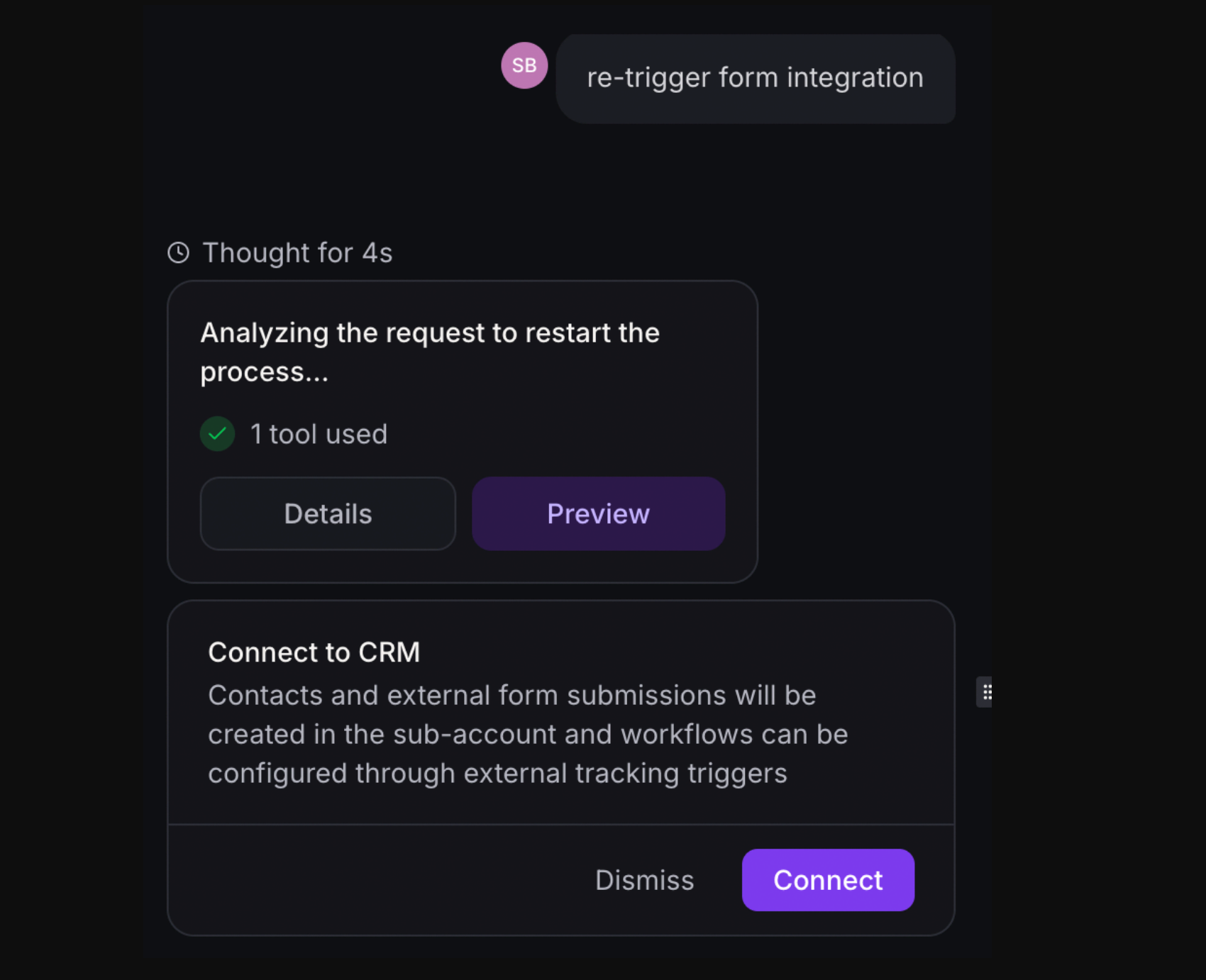
Connect the form to CRM tracking again when prompted.
Publish the project again to apply the updated tracking to the live site.
Visit the published site and submit a test entry.
Go to Marketing > Workflows and create a workflow or open an existing one. (You can also click Create workflow from the Form Submissions view in AI Studio.)
Click Add New Trigger.
Search for and select AI Studio Form Submitted.
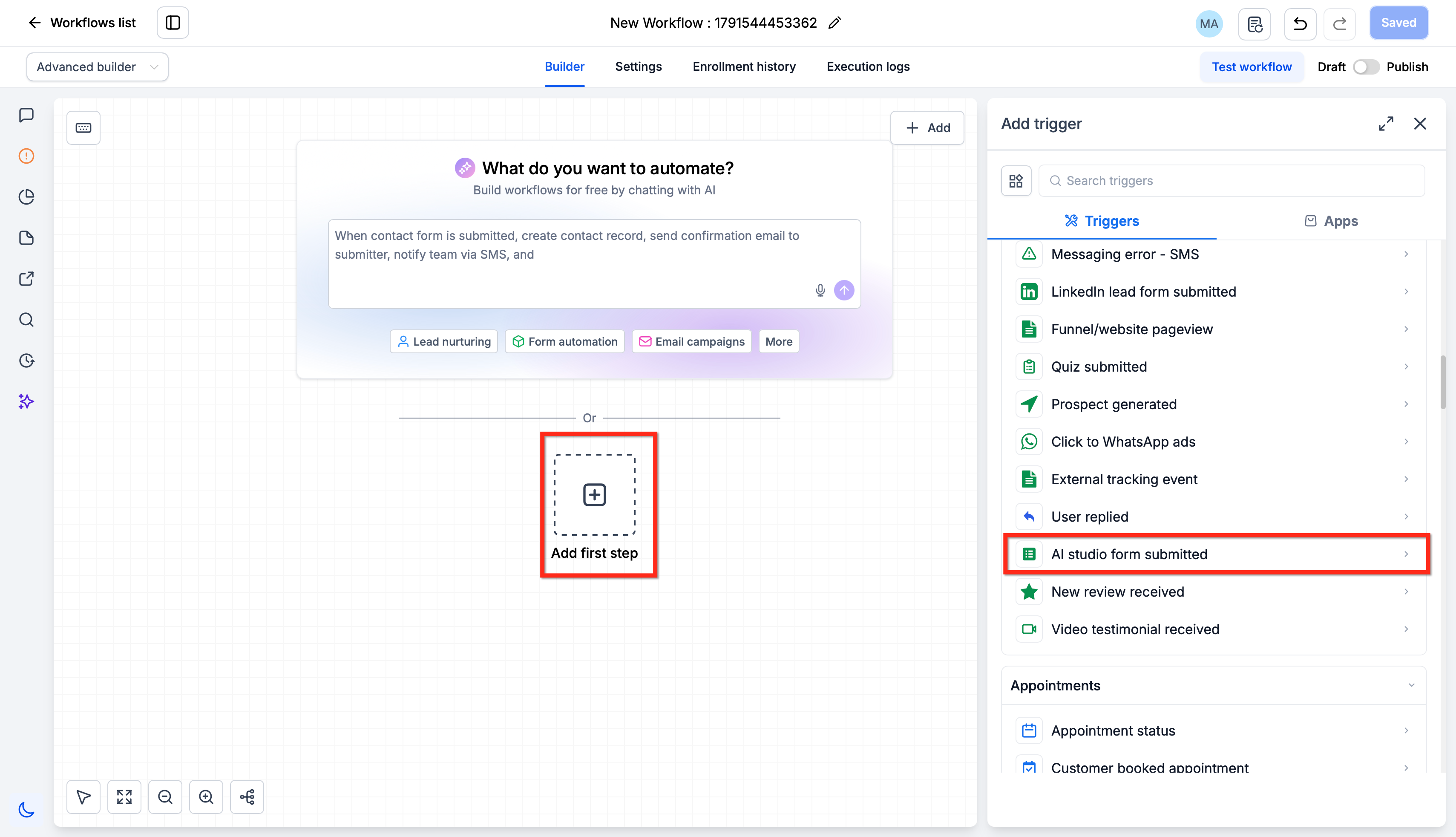
Add filters if needed (optional).
Add your actions.
Save, then toggle the workflow to Published.
If you add no filters, the workflow runs for form submissions from every AI Studio project in your account.
Filter | What it does |
|---|---|
AI Studio Project | Runs only for submissions from the selected project |
AI Studio Form | Runs only when the selected form is submitted |
Page Path | Runs only for submissions from the selected page paths |
Domain | Runs only for submissions from the selected domains |
Select an AI Studio Project first. Doing so narrows the form, page path and domain options in the other filters. You can combine filters.
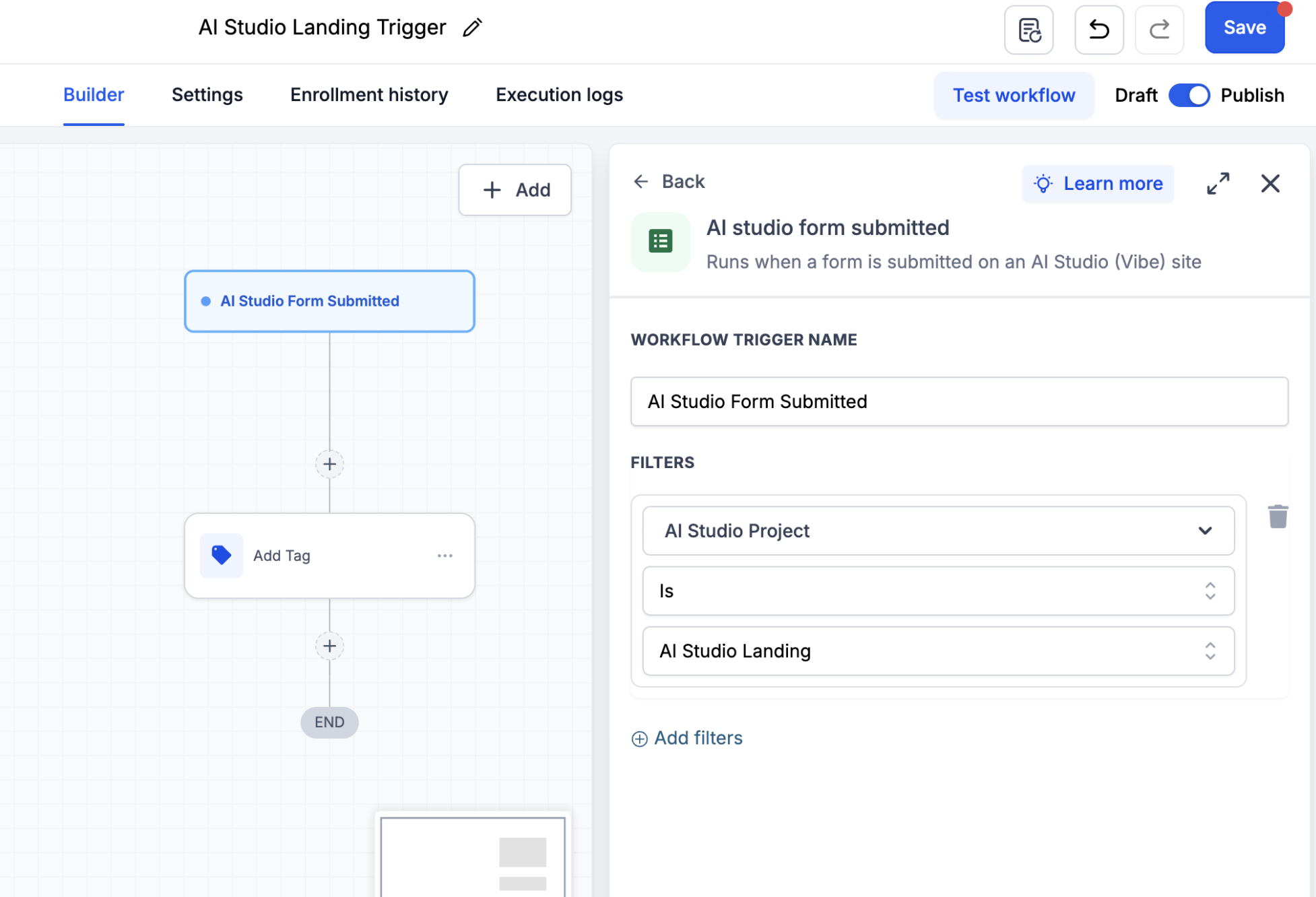
When a visitor submits a form with CRM tracking on, a contact record is created in your account automatically and the trigger fires on that submission, so actions can act on the contact immediately. Actions can use the standard contact merge fields (for example first name) in emails and texts. Keep message content free of PHI.
Consultation request: Trigger on the "Consultation" form, add a tag such as "Consult Requested", send a confirmation text and email, wait one day, then send a nurture message with treatment information.
Internal alert: Trigger on a "Contact Us" form, create a task for the front desk to call the lead within one business day.
Event registration: Filter by the project and the "Open House Registration" form, send a confirmation and add the contact to a reminder sequence.
Page-specific follow-up: Use the Page Path filter so an injectables page and a skin page send different follow-ups.
Use workflow actions that match your contact types (Lead or Patient) in general terms. This trigger does not sync anything to an EMR.
I do not see my project or form in the filter list.
Confirm the form is connected to CRM tracking.
For an existing form, ask AI Studio to re-trigger form integration.
Connect the form to CRM tracking again.
Submit a new test entry.
Refresh the workflow builder and try again.
The workflow does not run after a submission.
Confirm the workflow is published.
Confirm the form is connected to CRM tracking.
For an existing form, re-trigger the form integration and reconnect it.
Submit a new entry on the published AI Studio page.
Check that your filters match the project, form, page path or domain you used in the test.
To confirm a run, open the workflow's Execution Logs and check the contact record.
This trigger only works for forms submitted on AI Studio sites. For forms on other pages, use the standard form triggers or External Tracking.
AI Studio has built-in analytics and form tracking for published projects. You do not install tracking code.
Important: forms connected before this feature release continue counting opt-ins. To associate new submissions with the pages visitors viewed beforehand, ask AI Studio to reconnect form tracking and publish the site again.
Click AI Studio in the left sidebar (AI Agents folder).
Open the published project.
Click More in the top bar.
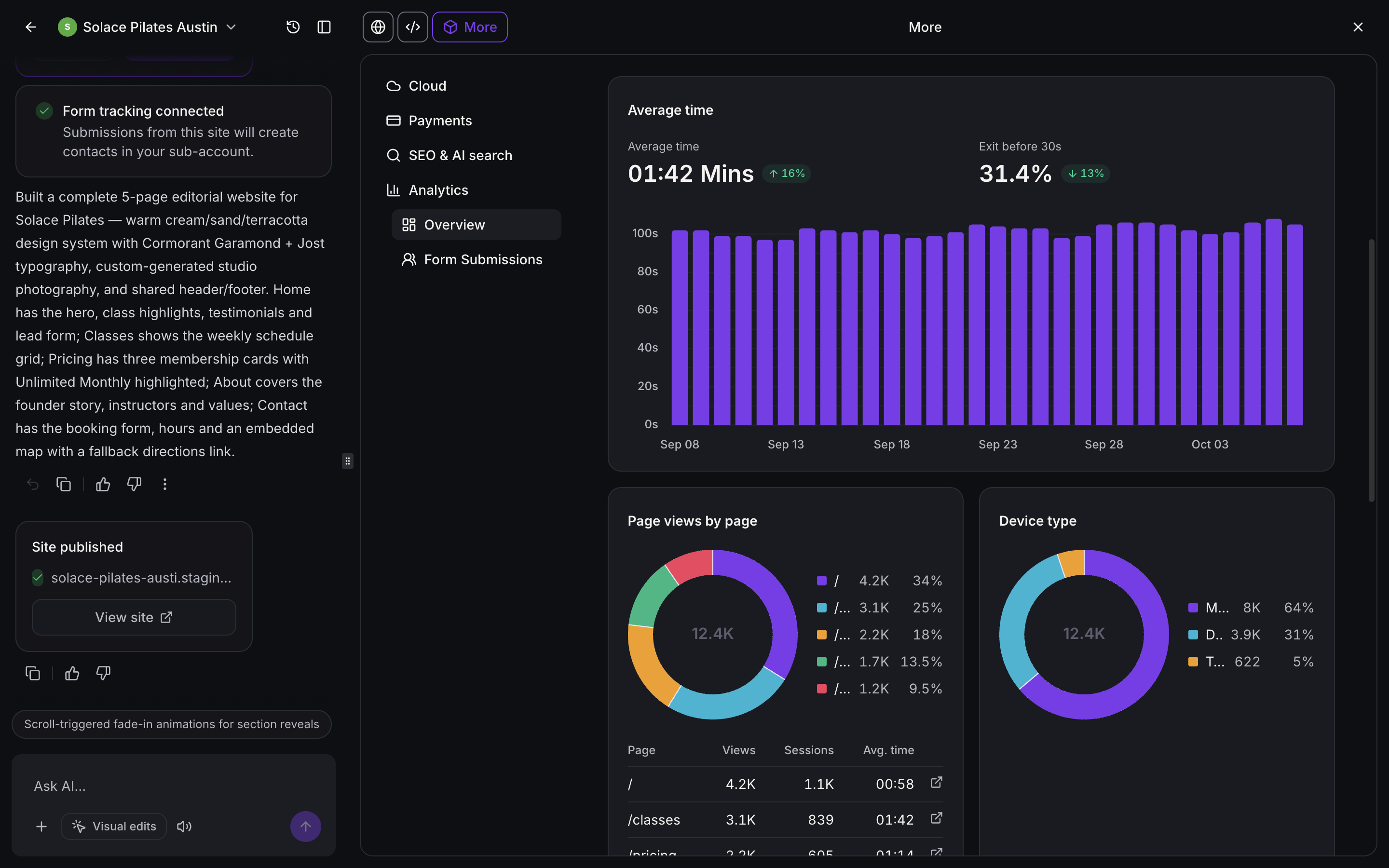
Select Analytics.
Click Overview.
The Overview shows:
Page views
Unique page views
Opt-ins
Opt-in rate
Change from the previous reporting period
Average time on site and early exits
Top-performing pages
Visitors by traffic source, device, browser and location
Visitor trends
Open the project, click More > Analytics.
Click Form Submissions.
Review the All submissions table.
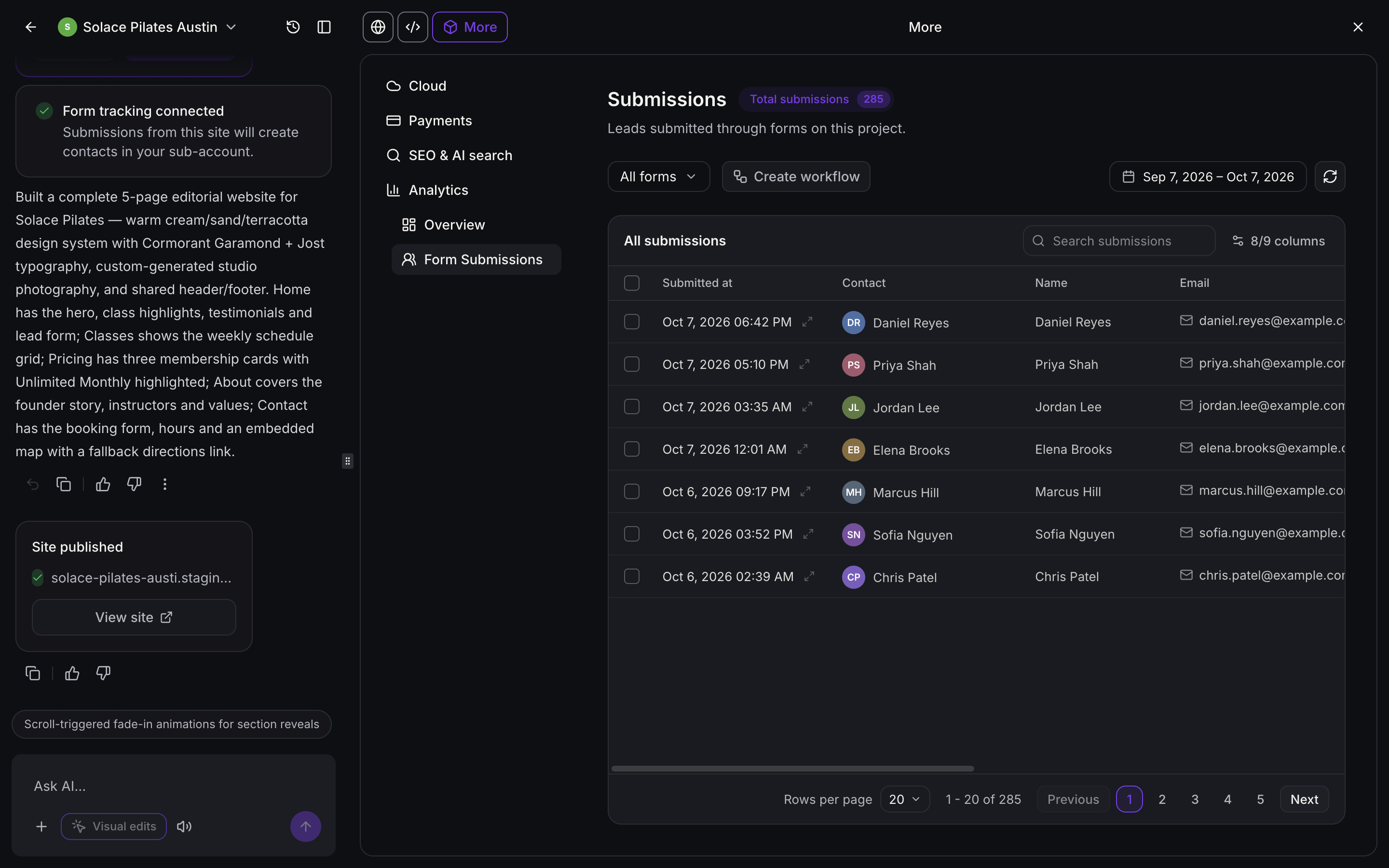
You see total submissions and a list of captured leads with submission dates, contact names and available contact details. You can filter by form or date, open the related contact and click Create workflow to start an automation.
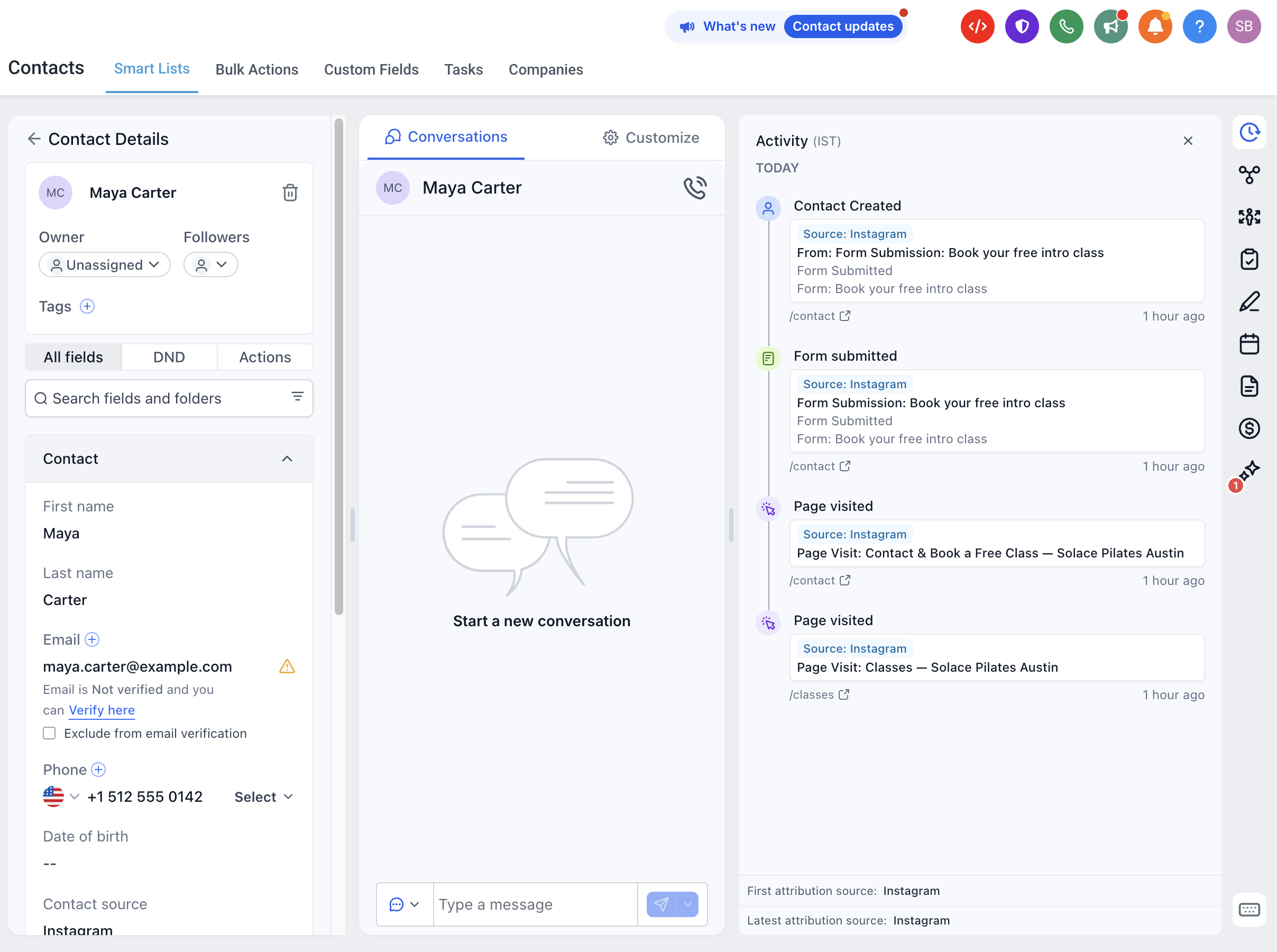
When a visitor submits a connected form, their page visits, traffic source and submission can be attached to the contact record.
Go to Contacts and open the contact.
Open the Activity panel.
Review the Page visited and Form submitted events and the attribution details.
Go to AI Agents > AI Studio and open Analytics.
If an asset-type dropdown appears at the top, select AI Studio.
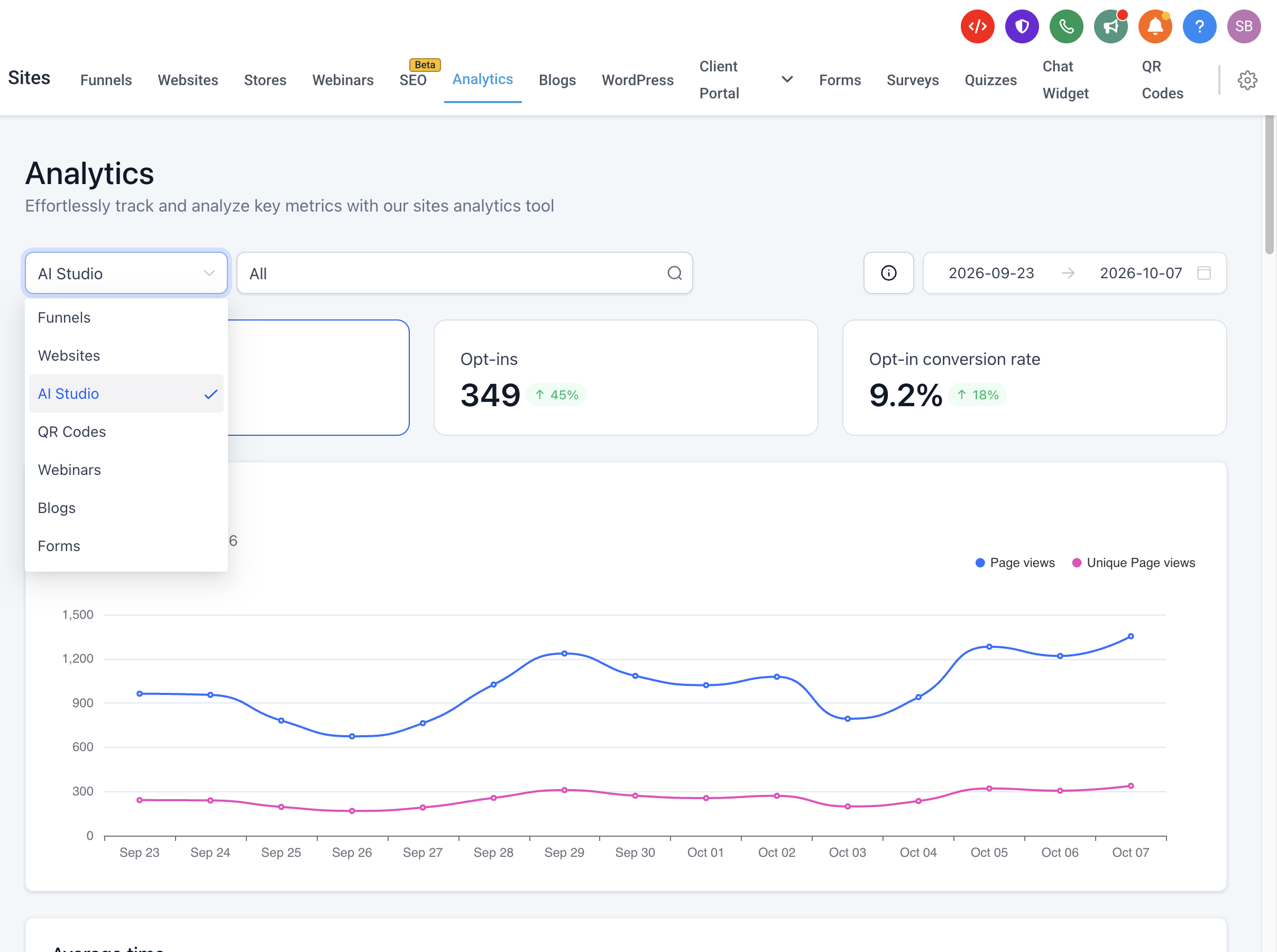
Use the project filter to choose All or one project.
Adjust the date range.
This lets you compare several AI Studio projects side by side.
Problem | Fix |
|---|---|
Form shows on the page but no contacts arrive | Connect the form to CRM, publish and test again |
Submission is missing from Forms submissions | Look under Web Tools > Forms > Submissions > External Forms |
Workflow trigger does not list my form | Re-trigger form integration, reconnect, publish, submit a test entry |
Selection card shows nothing to choose | Create the form or calendar first, then click Check again |
Selection card list fails to load | Click Try again |
Analytics shows no data | Confirm the project is published and has traffic |
Page visits are missing from Contact activity | Ask AI Studio to reconnect form tracking, then publish again |
Bookings do not appear | Confirm a native calendar is connected, not an EMR calendar |
Are forms connected automatically?
No. Ask AI Studio to connect them or click Connect in the chat. Until then the form is only a page design.
Do I need to build the form in Web Tools first?
No. AI Studio generates the form from your prompt and guides you through connecting it.
Where do submissions appear?
In Contacts, under Web Tools > Forms > Submissions > External Forms, and in the Form Submissions view inside AI Studio analytics.
Can I use EMR calendars for AI Studio booking?
No. Booking works only with native Aesthetix CRM calendars.
Does the new trigger replace External Tracking?
No. They work side by side. Existing forms keep working, and you reconnect one only if you want it to use the new trigger.
What filters does the trigger have?
AI Studio Project, AI Studio Form, Page Path and Domain. With no filters it runs for every AI Studio form in your account.
How do I test the trigger?
Publish the workflow, submit a test entry on the published page, then check the workflow's Execution Logs and the contact.
Can I edit the page after connecting a form or calendar?
Yes. Keep refining in AI Studio and publish again.
Do confirmations and reminders still come from my calendar settings?
Yes. Bookings use the selected calendar, so its confirmations, reminders and automations run.
Can visitors enter health information in these forms?
Do not collect PHI in AI Studio forms. AI features are not approved for it.
