AI Studio gives you three ways to change a project after it is generated: chat prompts, Visual Edits and the Code Editor. This guide covers the last two. Both live inside the AI Studio project builder, which you open from AI Agents > AI Studio in the left sidebar.
Protect patient privacy: AI features are not approved for processing Protected Health Information (PHI). Do not type patient names, health history, treatment details, photos or other PHI into AI Studio prompts, page copy, code, comments or project data.
Method | Use it when | Uses AI tokens |
|---|---|---|
Chat prompt | You want a new section, a new page or a big rewrite | Yes |
Visual Edits (direct controls) | You want to polish copy, colors, spacing, icons or images | No |
Visual Edits (prompt on a selected element) | You want AI help on one element or a group of elements | Yes, only when you send the prompt |
Code Editor | You need precise control over files, styles, routes or logic | No, unless you click Try to fix or send a prompt |
Visual Edits lets you refine a project directly in the live preview. You can click into text, select page elements, change styling or send a targeted prompt. It is ideal when a generated site is close to finished and you want to polish copy, spacing, colors, buttons, images, icons or layout. Changes show in the live preview first, and nothing is applied to the project until you save.
The AI model is only used when you explicitly send a prompt. Direct changes made with the editing controls do not call the AI and do not consume tokens.
Direct page editing: Click elements in the preview and update them without opening the Code Editor or using AI.
Faster copy updates: Double-click text and type on the page.
Targeted prompt changes: Select one or more elements and describe the change.
No token use for direct edits.
Preview before saving: Review updates before applying them.
The panel shows only the options that apply to the element you click.
Element | What you can change |
|---|---|
Headings and text | Copy, typography, alignment, text color, style |
Buttons | Label, button style, button type, spacing, colors |
Images | Image source, image fit, alt text |
Icons | Swap the icon, adjust size or styling |
Containers and sections | Spacing, borders, shadows, backgrounds, layout styling |
Open AI Studio and click into the project you want to update.
Click Visual Edits in the prompt area at the bottom left of the builder.
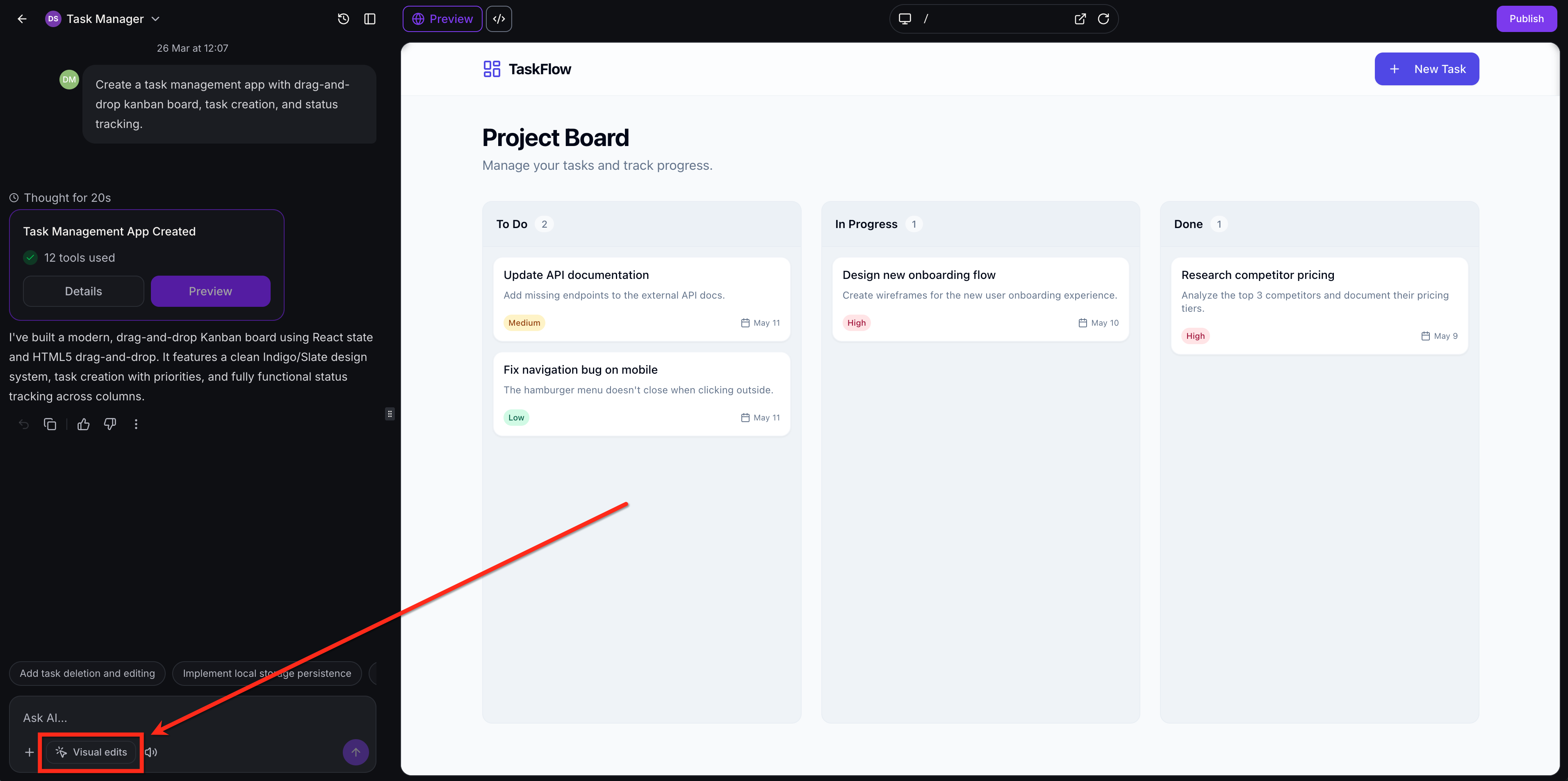
Click an element in the preview to begin editing.
No setting needs to be enabled first. Once the mode is on, the preview becomes interactive.
Click to select. Click any element to open the Visual Edits panel. The controls adapt to what you selected (text, button, image, icon, container or layout element). Color and spacing controls appear when they apply. Your project theme colors are listed alongside the full Tailwind color palette, and margin and padding controls let you adjust spacing.
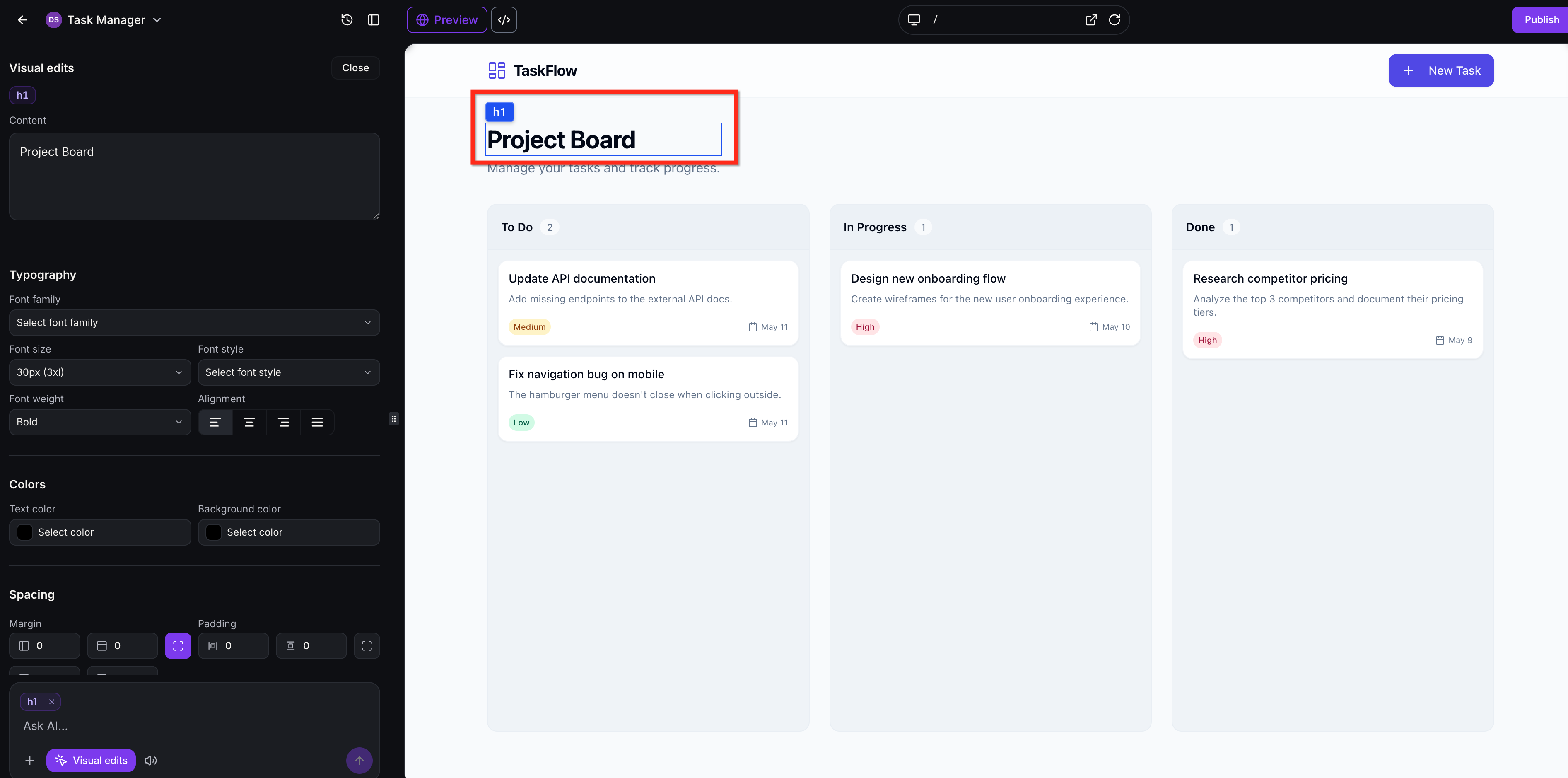
Edit text inline. Double-click a text element and type directly on the page. This is best for quick copy changes, such as correcting a treatment name or a headline.
Update icons. When you select a Lucide icon you can open a searchable library of more than 1,600 icons and pick a replacement. The swap happens instantly without a reload. You can also resize selected Lucide icons.
Adjust image layout. When you select an image you can change the image URL to replace the picture, update the alt text and use the Layout dropdown to choose how the image fills its assigned area. Do not use real patient photos.
Use prompts on selected elements. Select one or more elements and describe the change in plain language.
For a single element: make a section feel more modern, improve spacing inside a container, soften a button style or make one component better match the rest of the page.
For multiple elements (multi-select): match button styles, align spacing between containers, update repeated cards or columns, or apply the same color to a group of elements.
Visual Edits is preview-first.
Click Save to apply the edits to the project.
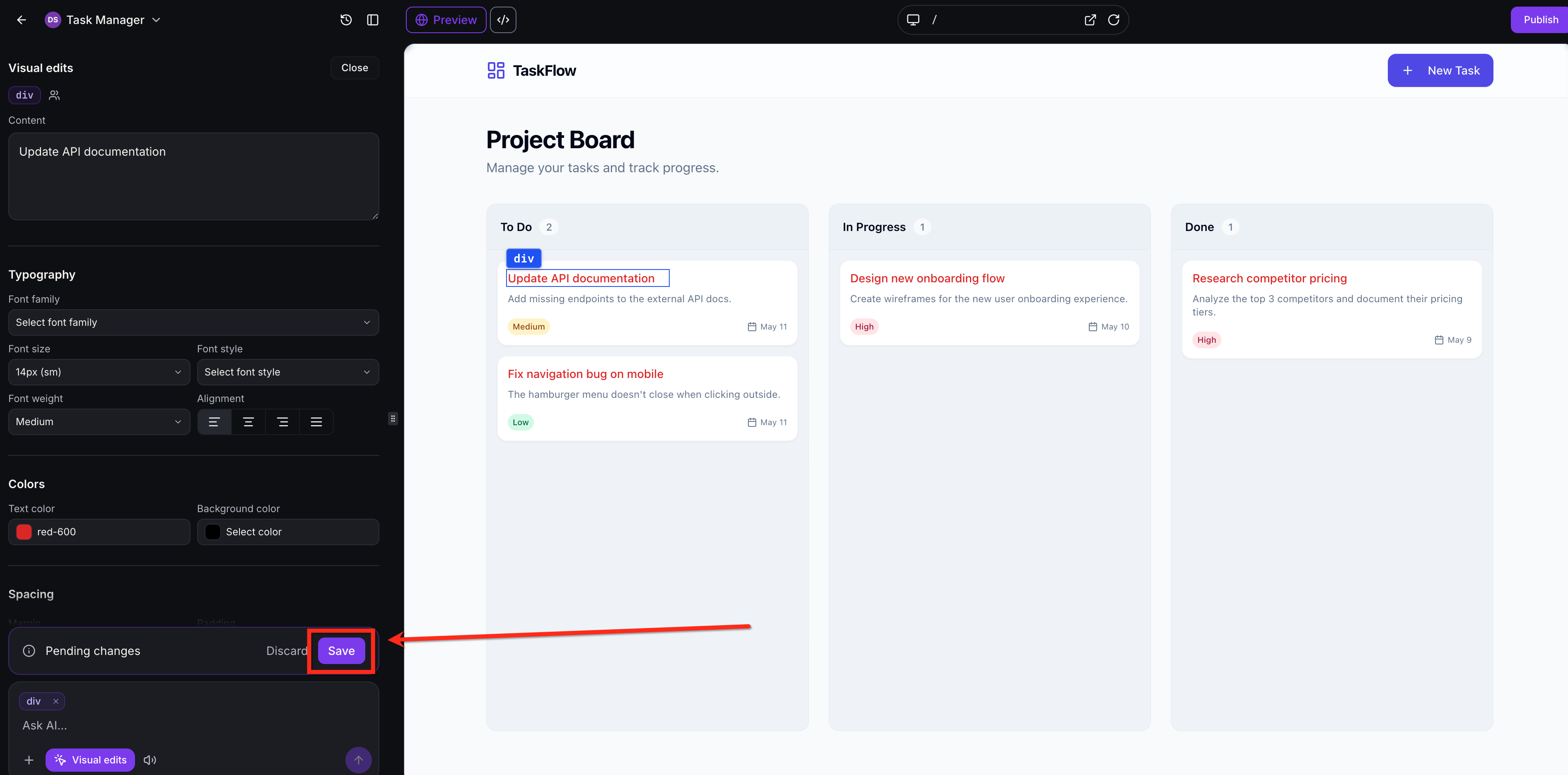
If you leave visual editor mode without saving, your changes are discarded.
If an edit hits the wrong element, creates an unwanted style or does not match your intent, click Discard to remove unsaved changes and return to the previous version.
Direct controls cover the element types listed above. For new sections, new pages or logic, use a chat prompt or the Code Editor.
Unsaved edits are lost when you leave the mode.
Prompts sent from Visual Edits use AI and count toward AI Studio usage.
The AI Studio Code Editor is a built-in coding environment powered by CodeMirror inside the project builder. It lets you view, edit and manage the code behind your generated websites and web apps without an outside editor or a separate deploy step. It supports TypeScript, JSX, CSS, JSON and other text-based project files. Edit where you build, see changes in the live preview and use AI to diagnose and fix errors.
You do not need the Code Editor to benefit from AI Studio. It is for users who want deeper control over layout, styling, logic or integrations than chat and Visual Edits provide.
More control: Direct code-level updates when AI editing is not precise enough.
Granular changes: Adjust specific text, styling, components, routes or file behavior without reworking the project.
No context switching: Edit in AI Studio without downloading files.
Fast debugging: See errors as they appear and use Try to fix.
Safer experimentation: Preview, bookmark and roll back with version history.
Smarter navigation: Find & Replace and Global Project Search take you to the right file and line.
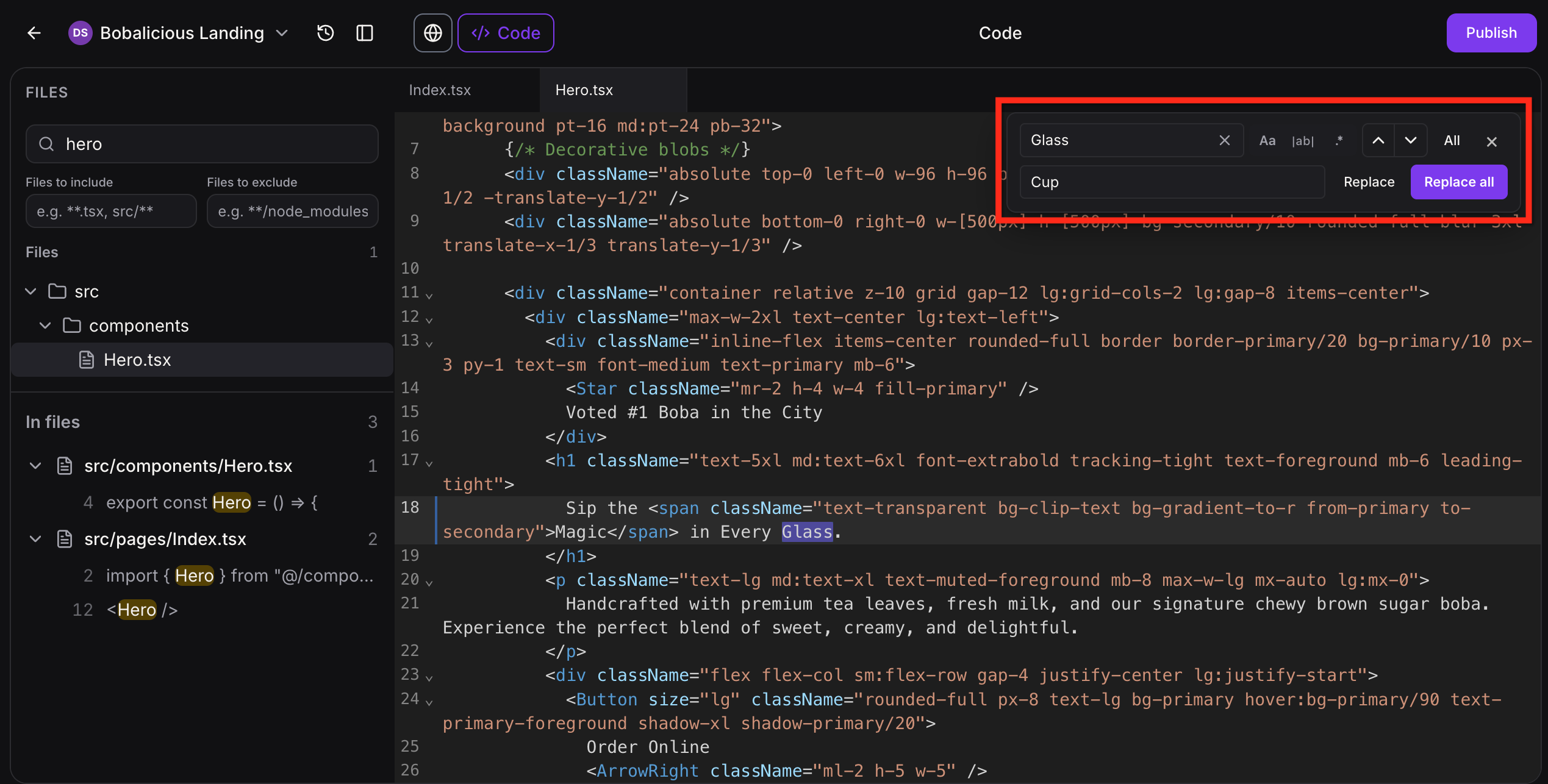
Find & Replace. Press Cmd/Ctrl + F to open a VS Code-style search in the current file. Type a term to highlight all matches. Use the case-sensitive and whole-word options to avoid partial matches. Replace matches one at a time or use bulk replace. Useful for renaming components, updating hard-coded copy or renaming variables consistently.
Global Project Search. Search across the whole project, not just the open file.
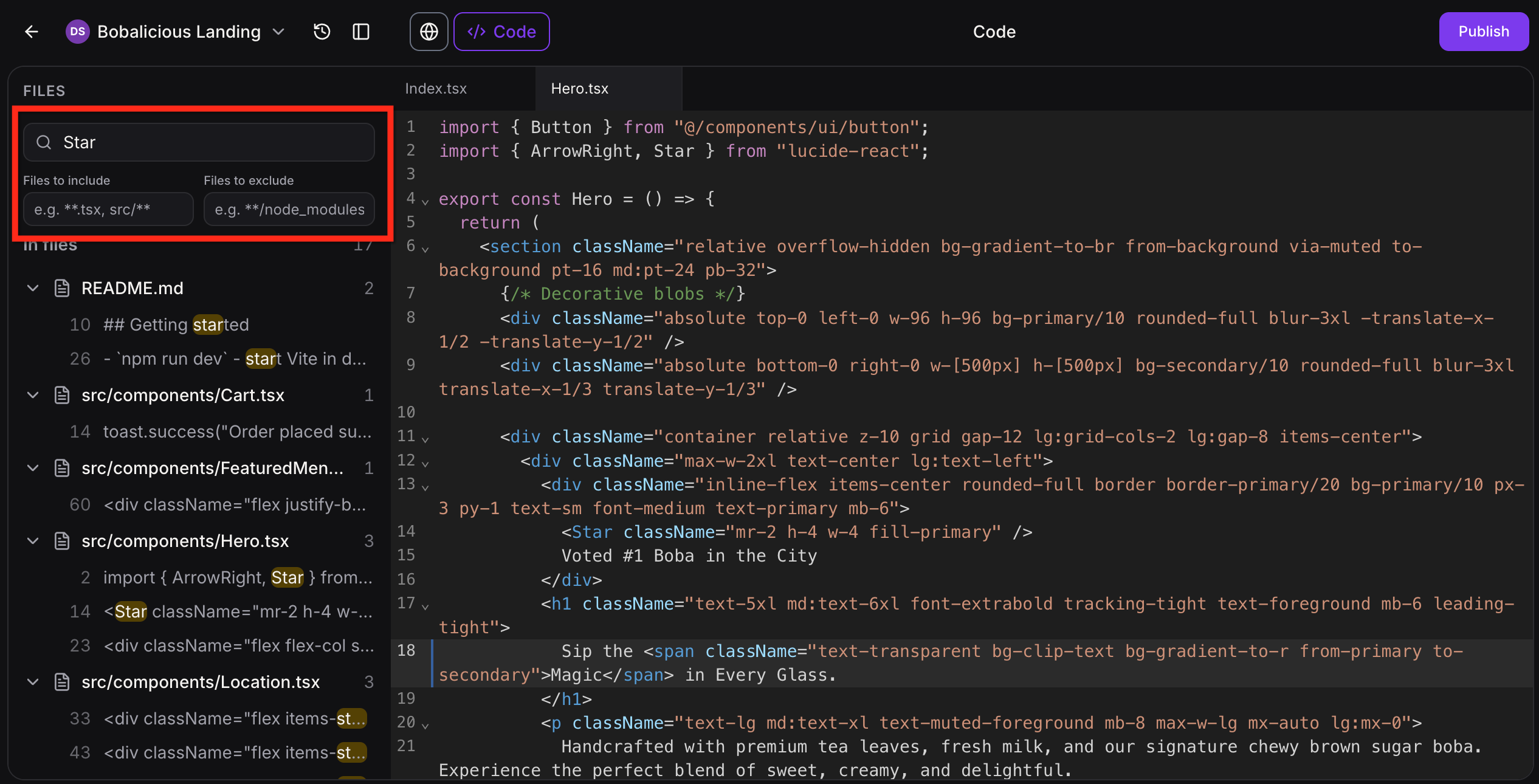
Results are grouped by file.
Results include unsaved changes in project files, so you can find matches before saving.
Matches are highlighted on each line.
Line numbers are shown for every result.
One click jumps to the matching file and line in the editor.
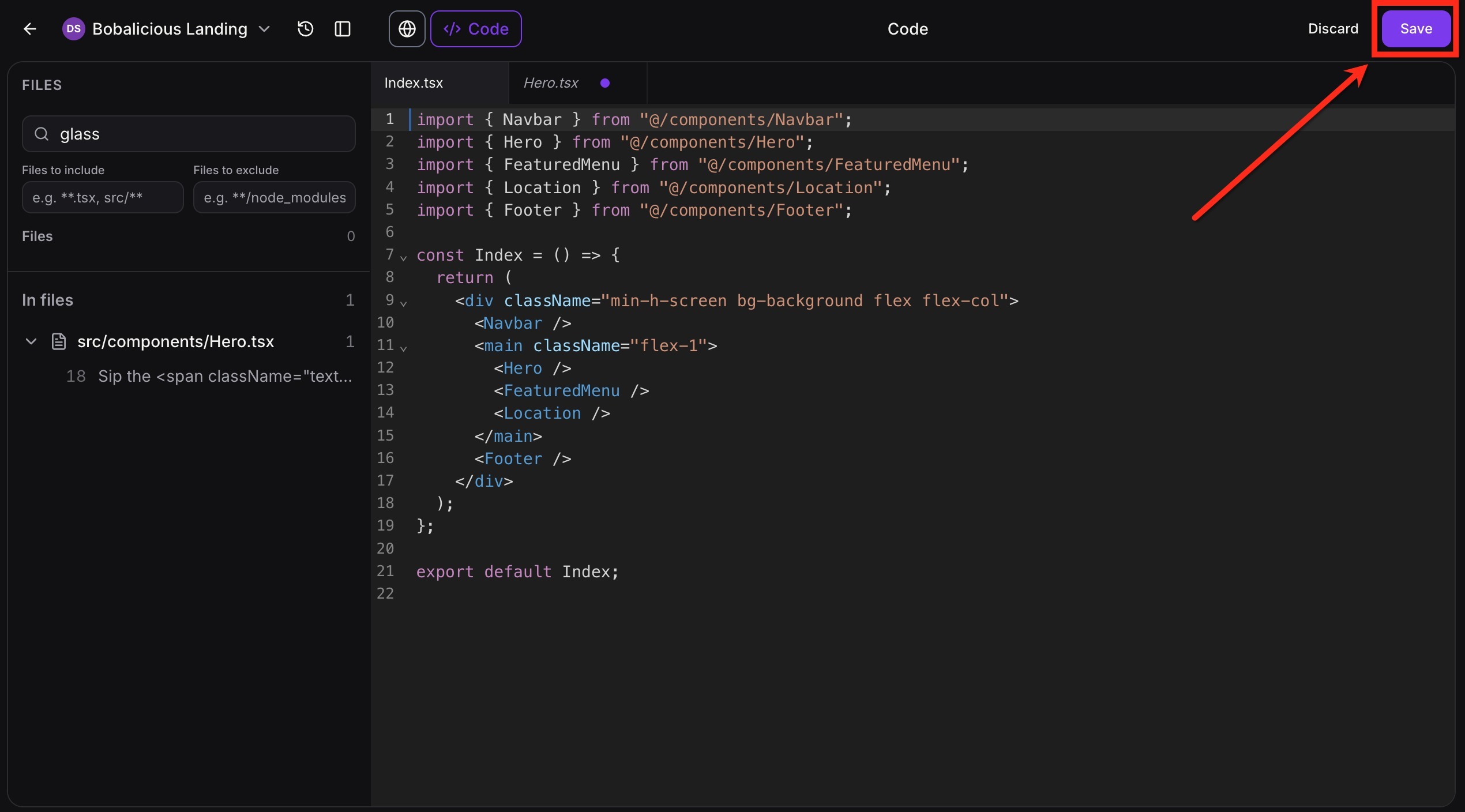
Instant Save and Live Preview. Click Save in the builder and the live preview updates in seconds. There is no commit step and no separate deploy wait.
Smart Error Detection. If a change stops the preview from building or starting, a Build unsuccessful message appears in the chat.
Click Details to review the error.
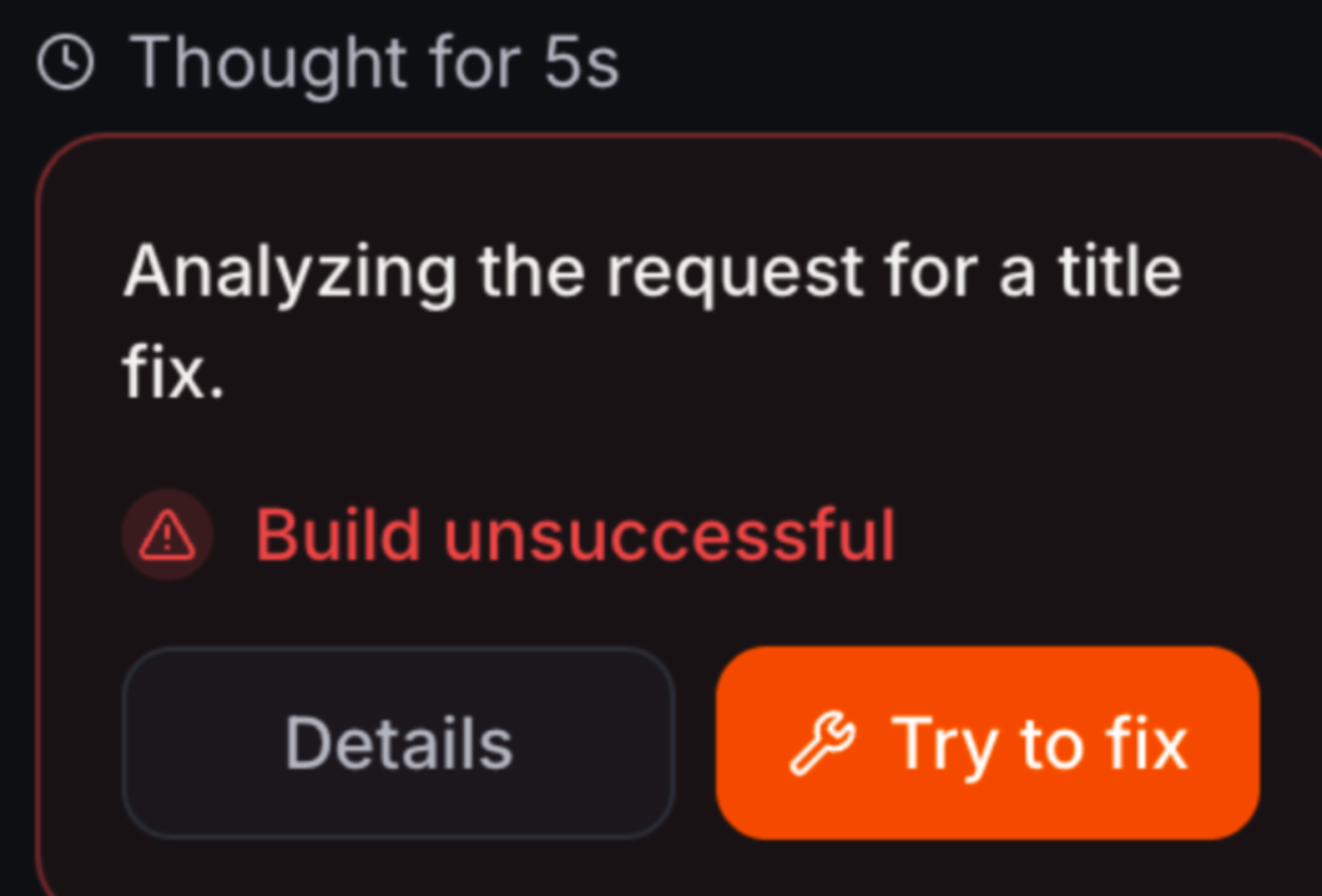
Click Try to fix. AI analyzes the error, updates the project files and posts a follow-up message explaining the fix.
After a successful fix, AI Studio rebuilds the preview automatically. Review the refreshed preview.
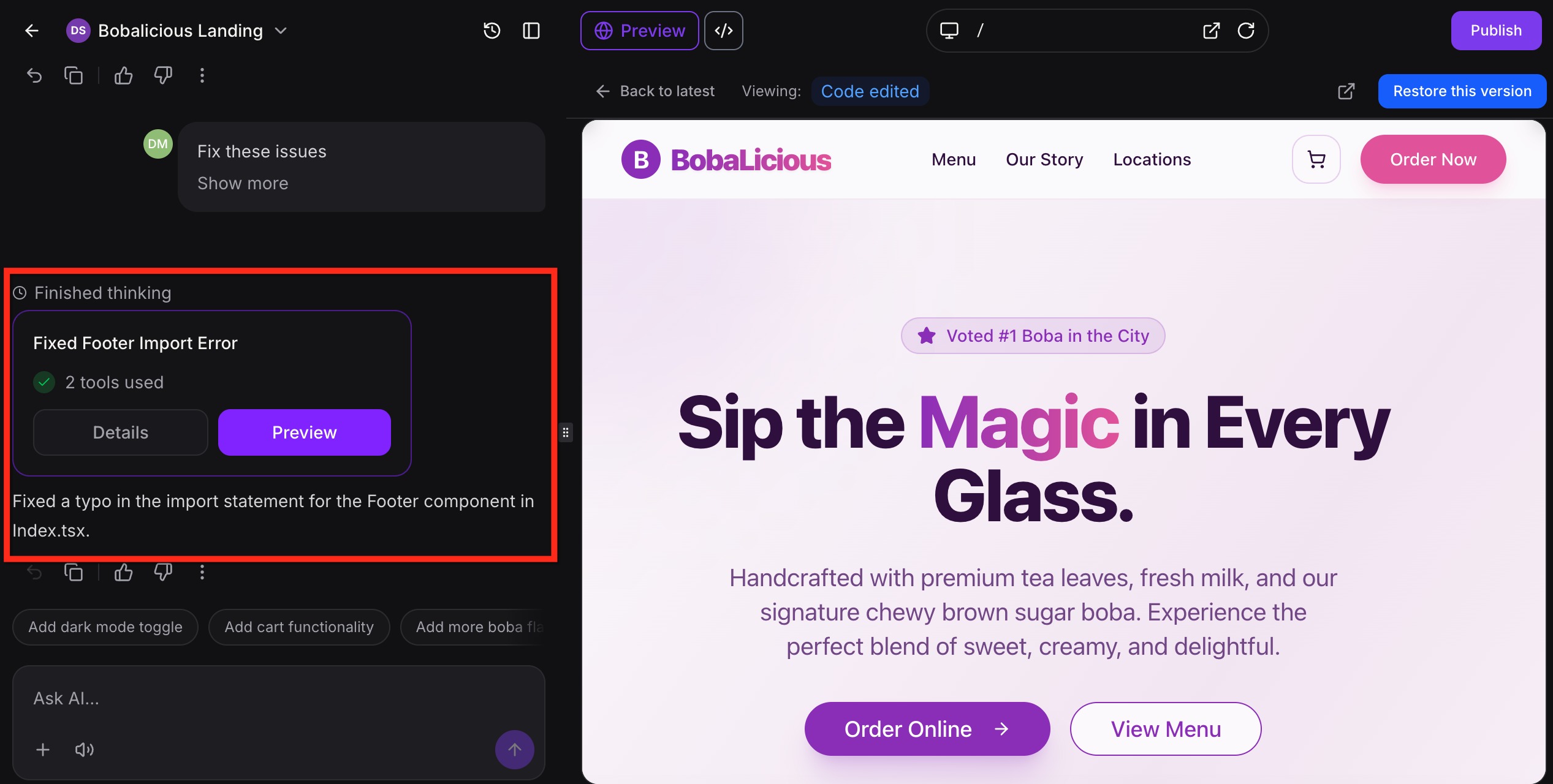
For harder problems AI Studio can inspect the running project and test its real behavior before changing anything. This helps tell a code problem apart from an outdated preview or an unavailable external resource. After a fix it can re-check that the issue is resolved.
Automatic Route Detection. When you add a new route in code, it appears automatically in the route selector, so you do not manage navigation by hand.
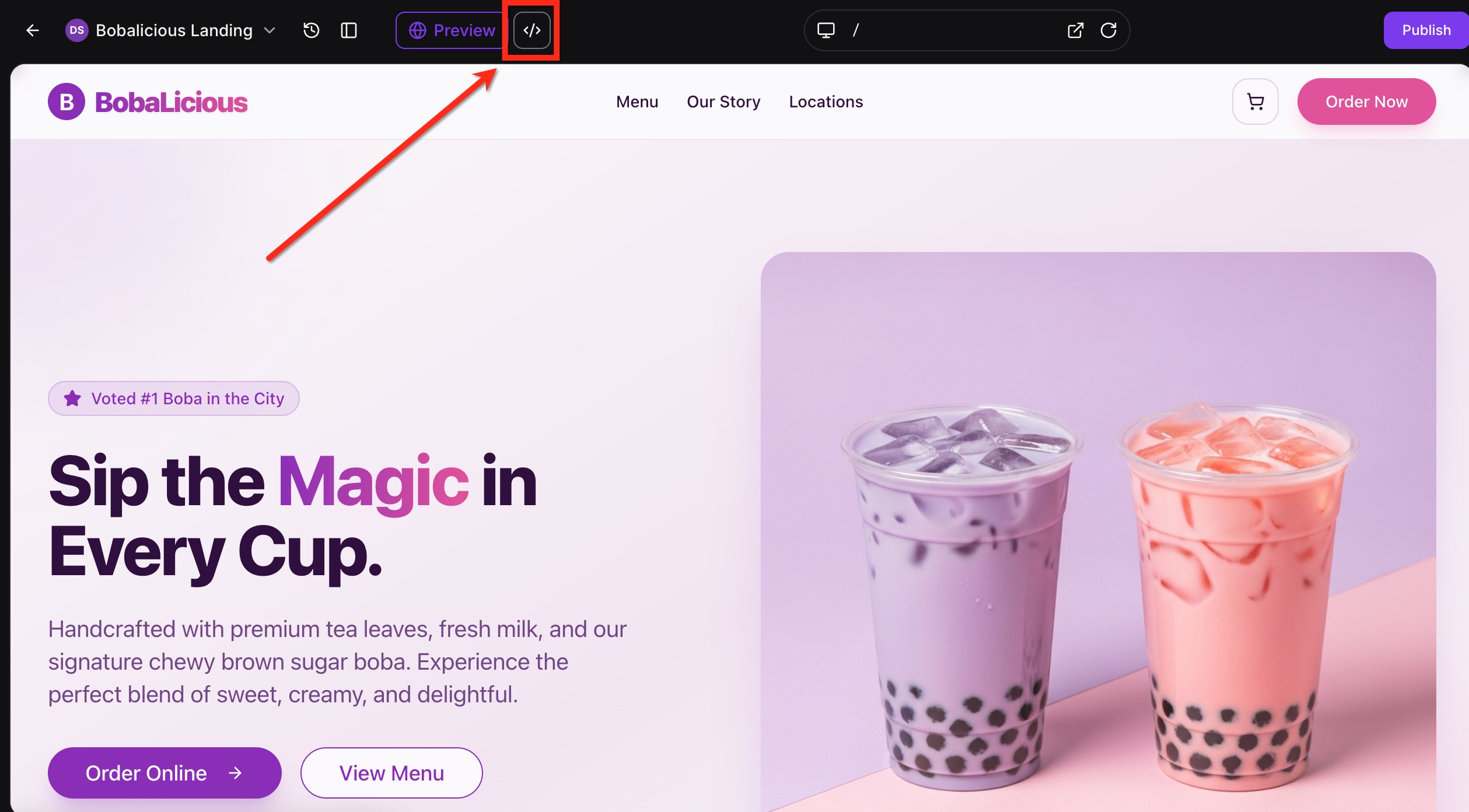
Version History. Every save creates a new version. Click the Clock icon at the top of the builder to open it, then preview, bookmark or restore earlier versions.
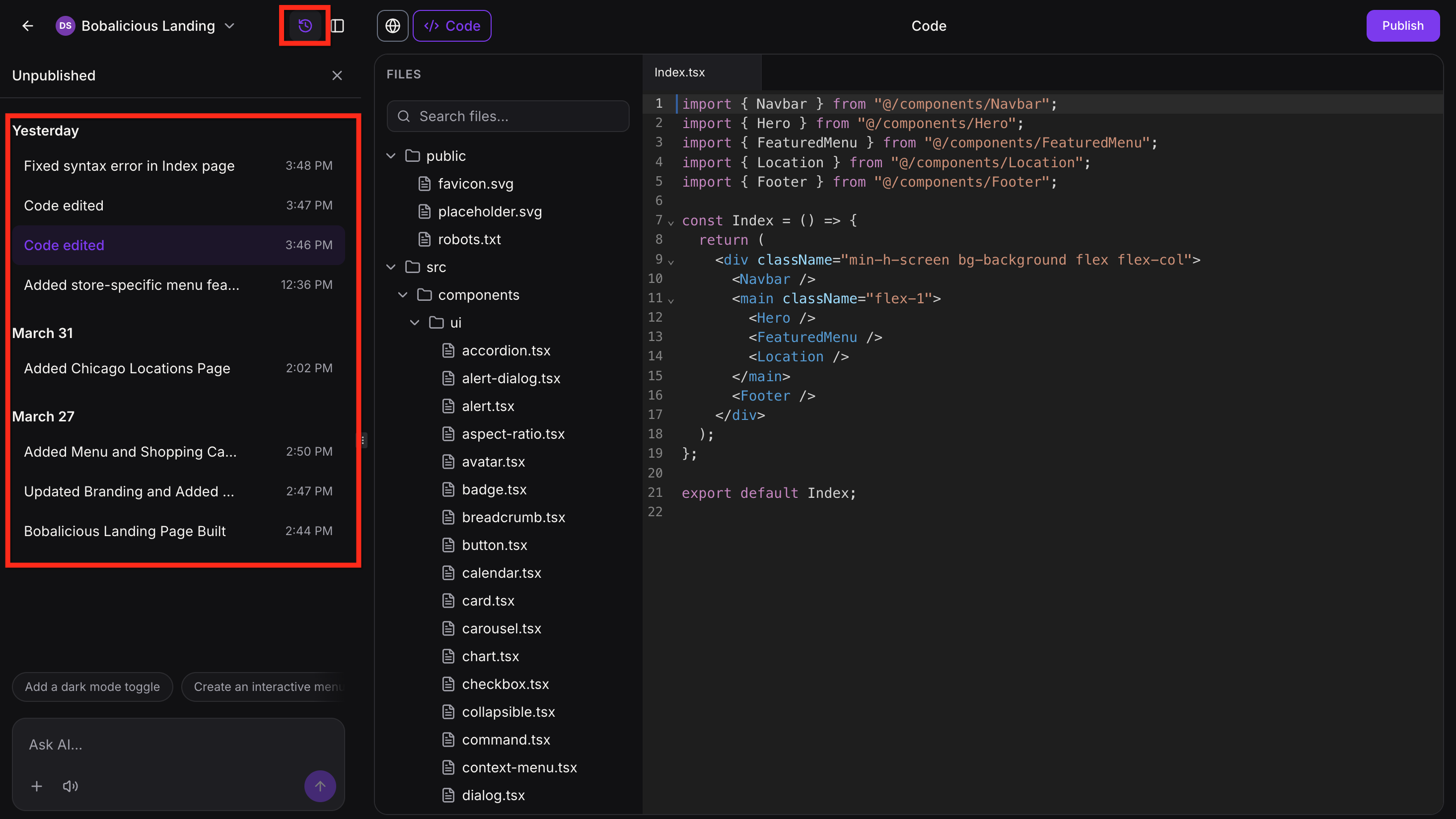
Unsaved Changes Protection. If you try to leave with unsaved code changes, a warning appears so you can save first. The editor does not auto-save. Changes are saved only when you click Save.
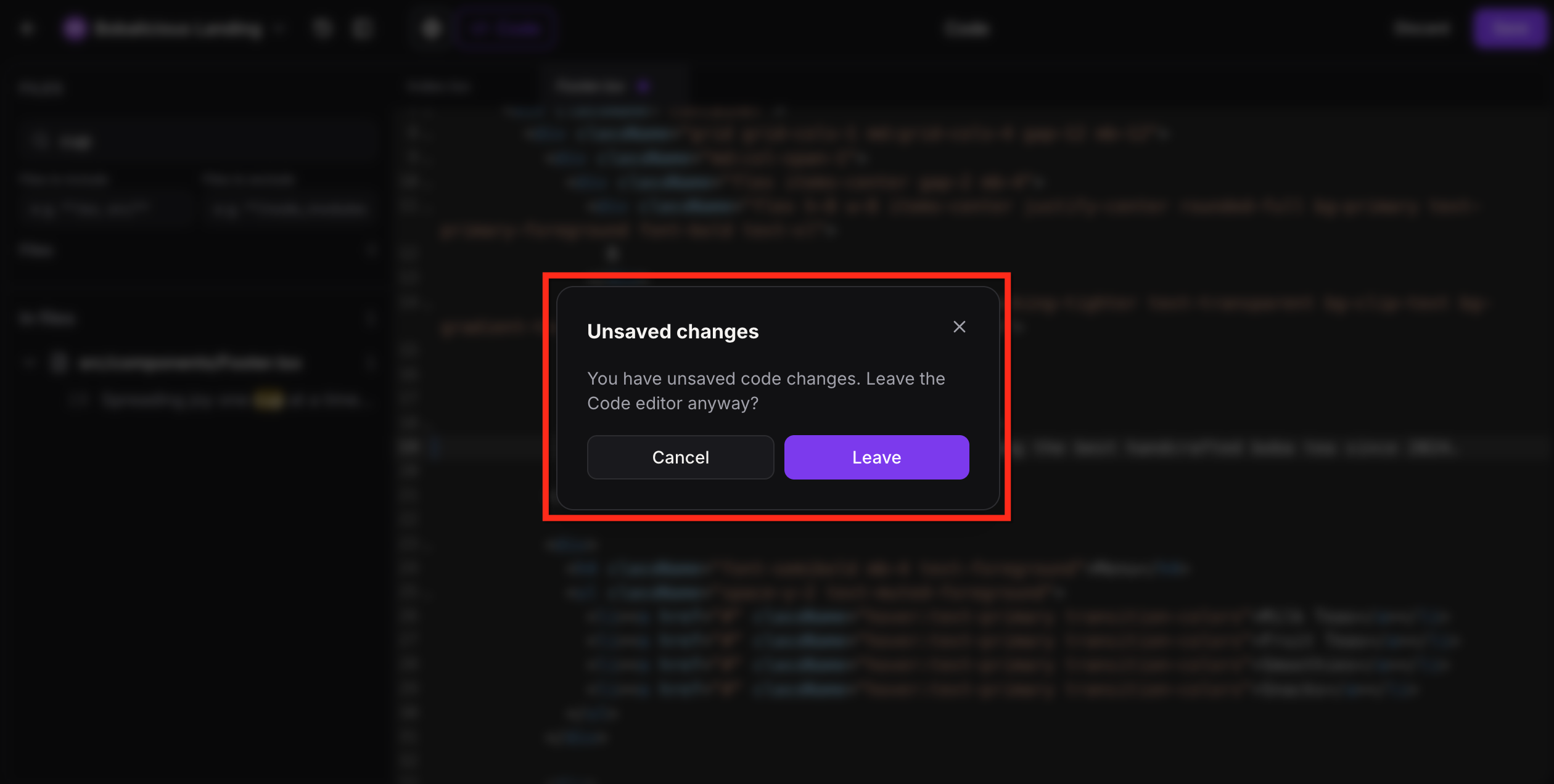
Open the Code Editor. Open the project and click Code in the project workspace.
Select a file and edit. Pick the file from the file tree and make your changes. Use Find & Replace or Global Project Search to locate content.
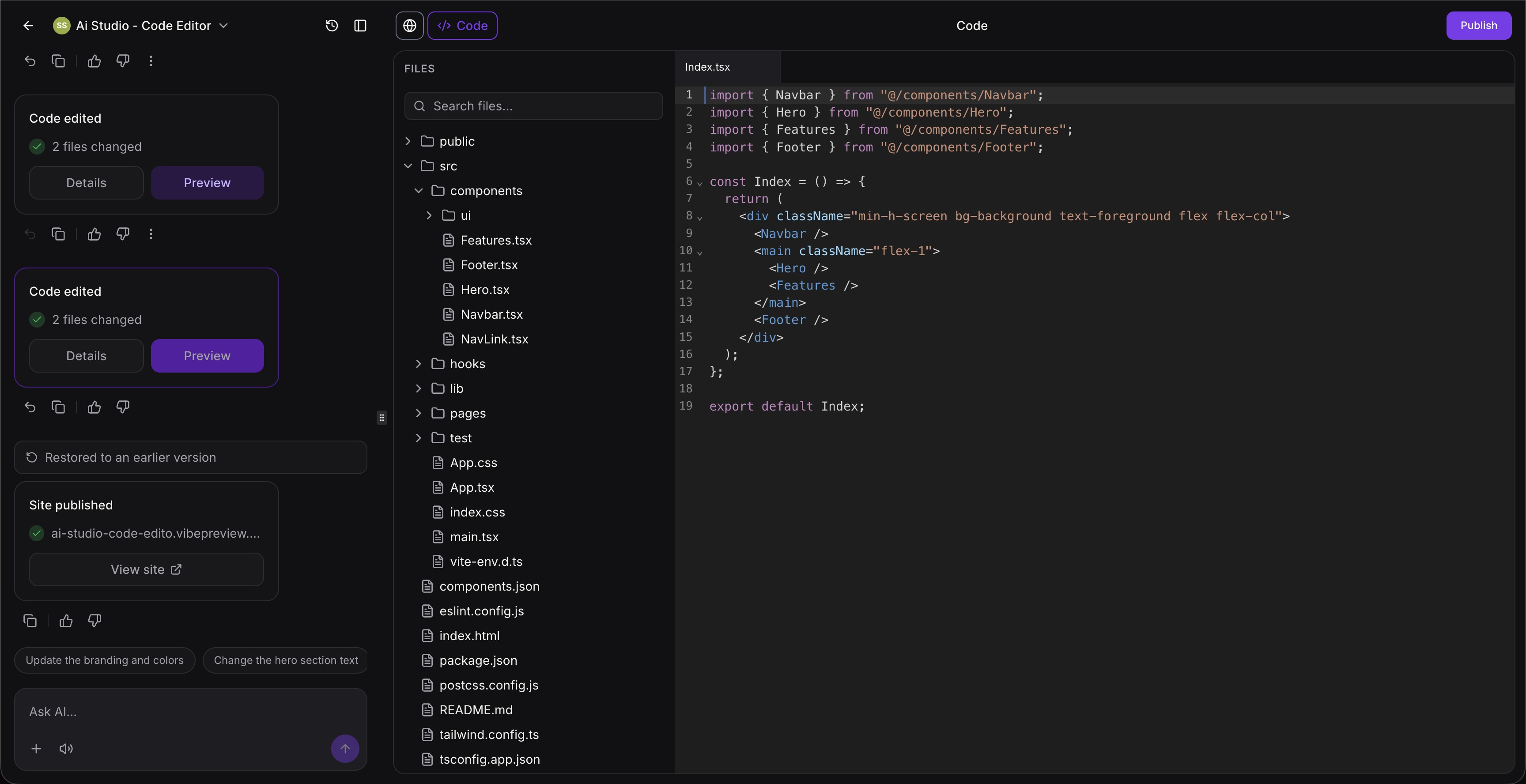
Save. Click Save to apply the update and refresh the preview.
Review and fix errors. Check that content, layout and behavior look right. If a build error appears, click Details, then Try to fix.
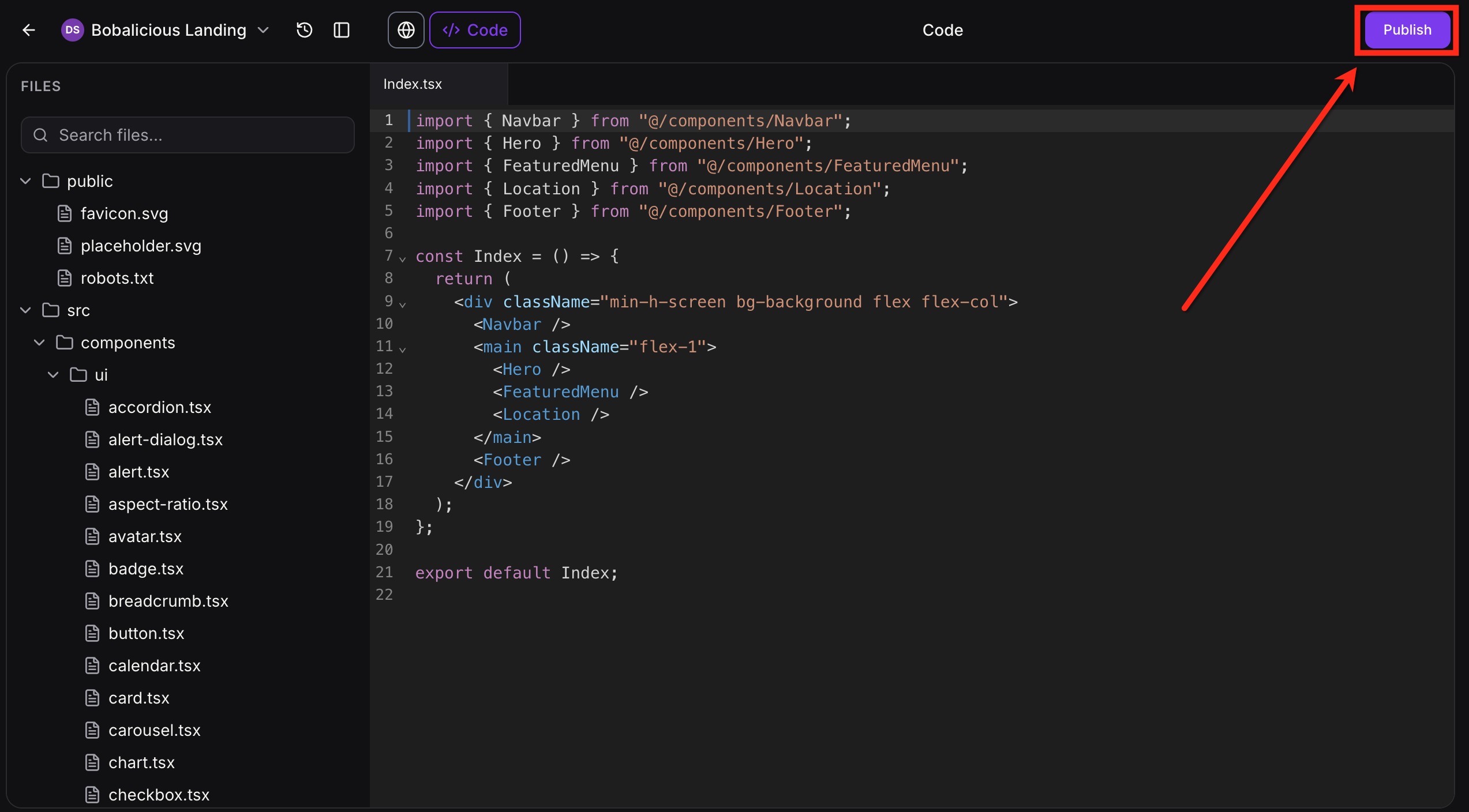
Publish. Saving only updates the preview. Your public site changes when you publish the project. See the guide Getting Started with AI Studio for publishing.
Click the Clock icon at the top of the builder.
Open or preview the version you want.
Bookmark it if you want to find it again, or revert to it.
Manual code changes can break a project. Make small changes and save often so each version is easy to restore.
A later chat prompt may rewrite code you edited by hand. After manual edits, review the preview after your next prompt and restore a version if needed.
Do not paste secrets, patient data or PHI into code, comments or sample content.
Saved edits do not affect your live site until you publish.
Do I need to turn on a setting before using Visual Edits?
No. Open a project and click Visual Edits at the bottom left of the prompt area.
Do Visual Edits use AI tokens?
Direct edits made with the controls do not. Only a prompt you send from the Visual Edits prompt area uses AI.
Can I edit more than one element at a time?
Yes. Multi-select lets you apply consistent spacing, shared styling or repeated layout changes.
What happens if I leave Visual Edit mode without saving?
Your unsaved changes are discarded. Click Save first to keep them.
Which file types can the Code Editor edit?
TypeScript, JSX, CSS, JSON and other text-based project files.
Does the Code Editor auto-save?
No. Changes save when you click Save, and a warning appears if you try to leave with unsaved code changes.
Do code edits change my live site right away?
No. Saving updates the preview. The public site changes only when you publish.
What should I do if my edit breaks the preview?
Click Details on the Build unsuccessful message, then Try to fix. If that does not help, restore an earlier version from Version History.
Can I use AI Studio with patient information?
No. AI features are not approved for PHI, so keep it out of prompts, code and content.
