Folder management keeps the Agent Studio list tidy as your library of agents grows. You use it from AI Agents > Agent Studio, and it applies to the agent list on both the Managed Agents and Flow Agents tabs. This guide also explains how to reuse an agent's design inside your account and what carries over when you copy parts of an agent.
HIPAA caution: AI features are not approved for processing Protected Health Information (PHI). When you copy or reuse an agent, check its instructions, files, memory, Knowledge Bases and prompts, and remove any PHI before you reuse it. Keep reusable agents built on generic, non-patient examples.
Folders add a grouping layer to the Agent Studio list. Use them to separate experiments from live agents, or to group by team, location or project (for example "Consult Follow-Up", "Marketing", "Front Desk"). Create as many folders as you need. Renaming or deleting a folder never deletes the agents inside it.
Benefits: clear status labels (Draft or Published), fast bulk actions, and server-side pagination so large lists stay quick. Folders support one level only. Nested folders are planned for a future update.
Go to AI Agents > Agent Studio.
Click New Folder in the top-right corner.
Enter a clear name in Folder Name.
Optional: open the Associated Agents dropdown and pick any ungrouped agents to include.
Click Save. Any selected agents appear grouped under the folder.
Open the Sort by dropdown to change how the list is shown.
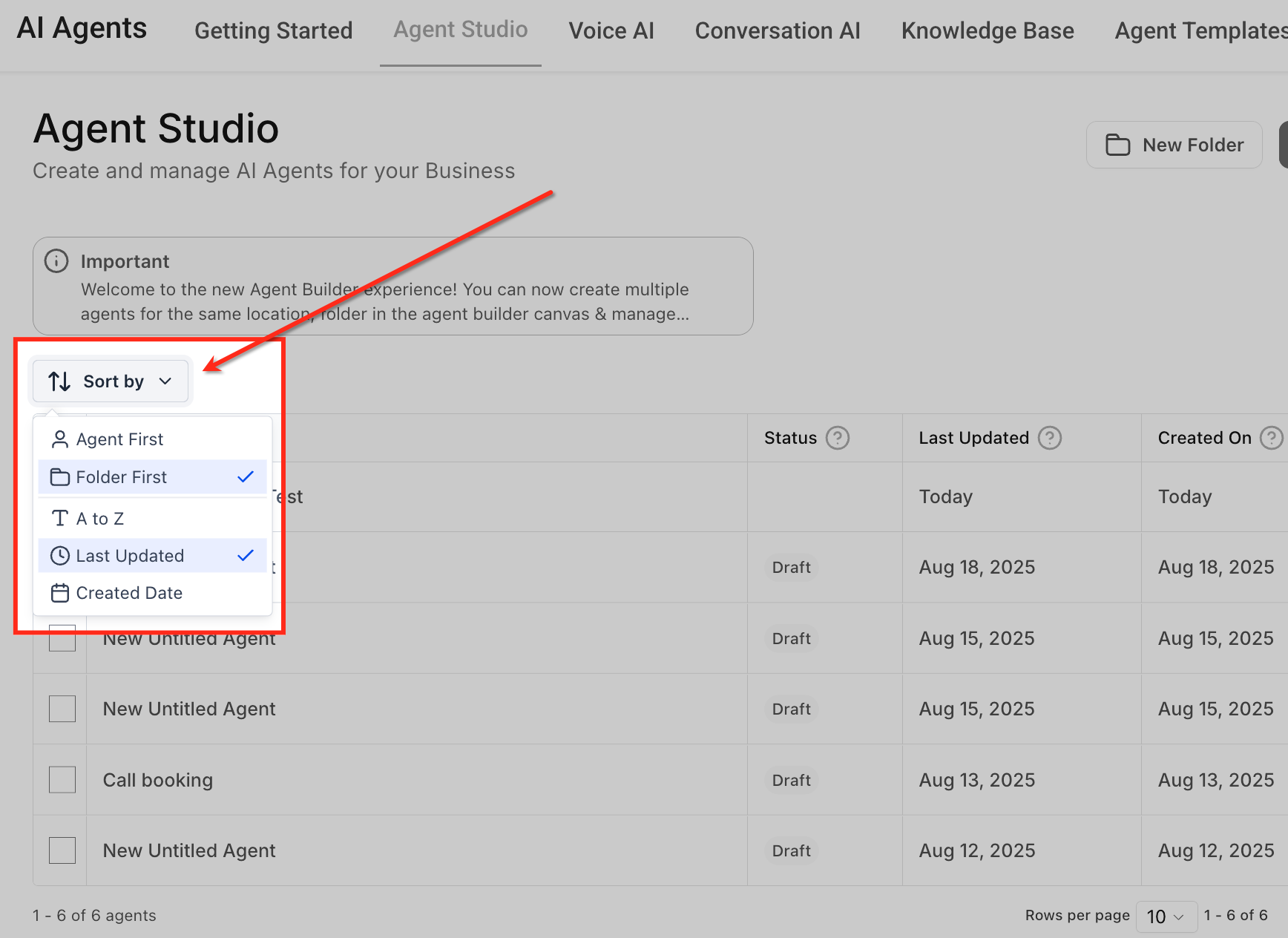
Setting | Options |
|---|---|
Grouping | Agent First or Folder First |
Sort field | Name, Last Updated, Created Date |
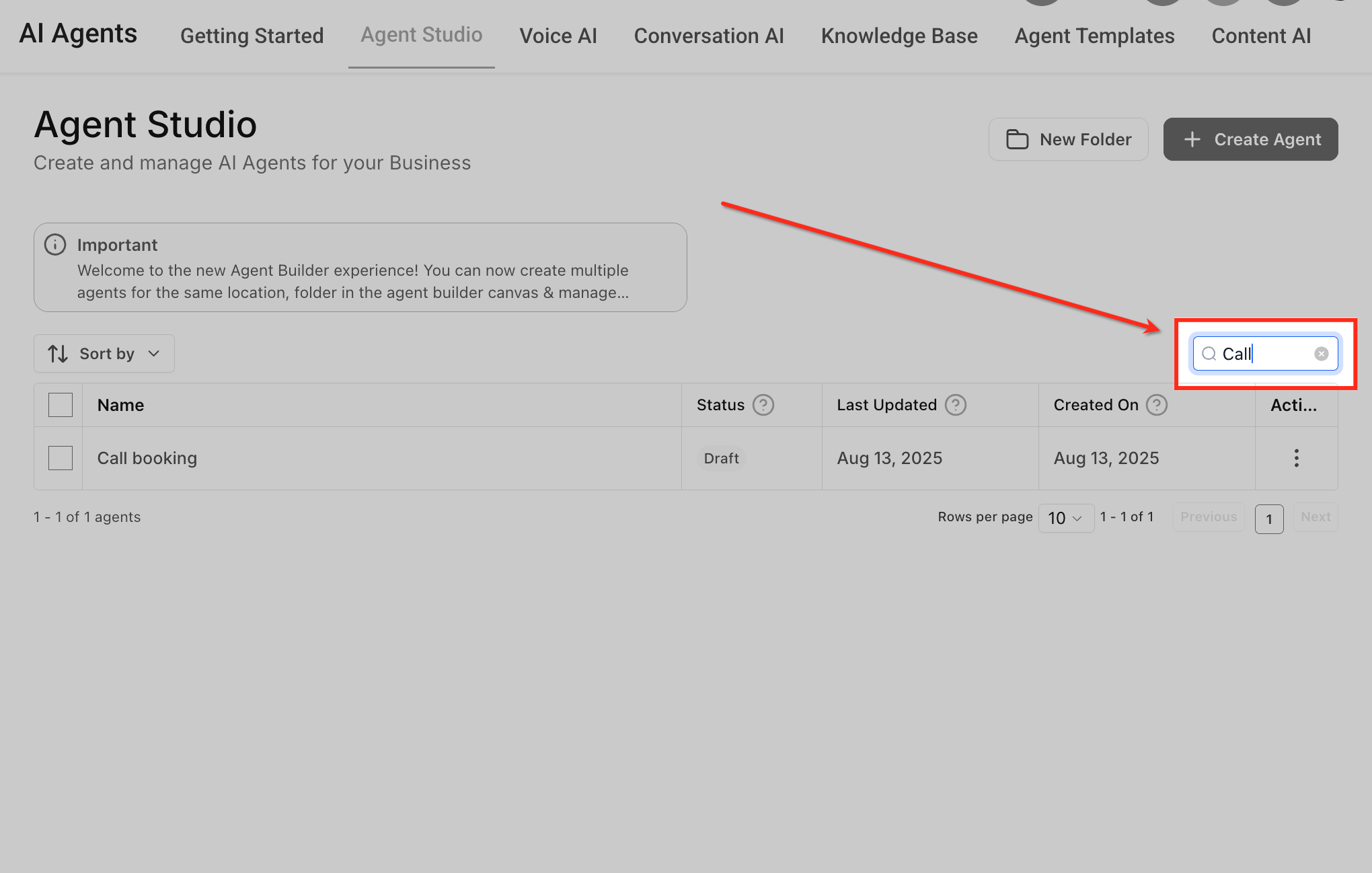
Use the search bar in the upper-right corner to filter agents by name. Results update as you type.
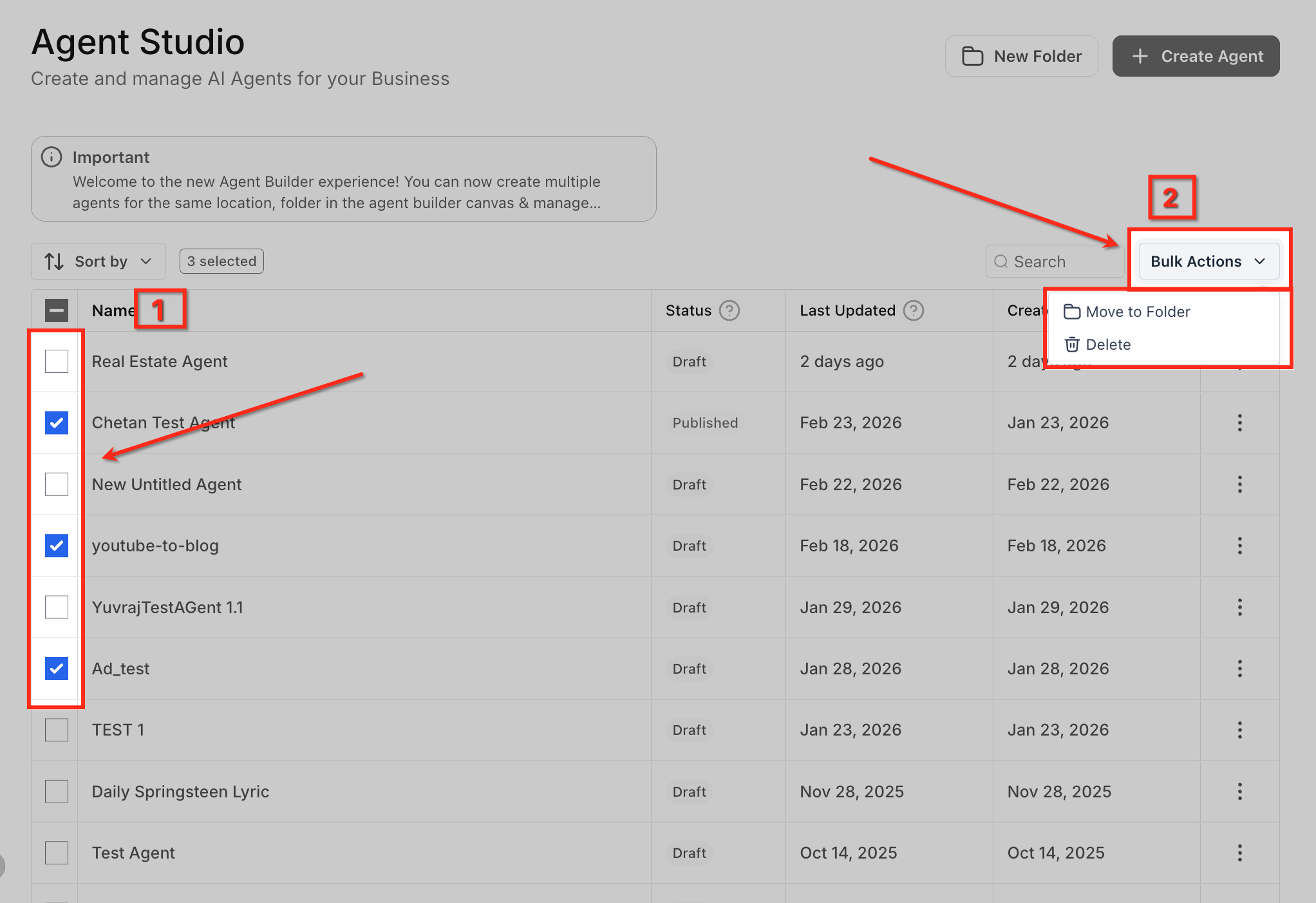
Tick the checkboxes beside agents (or folders) to enable bulk actions. The selected count appears near the top. Open the Bulk Actions dropdown and choose:
Action | What it does |
|---|---|
Move to Folder | Choose a destination folder in the confirmation window to move all selected agents |
Delete | Click Delete Agent in the confirmation to permanently delete the selected agents |
Delete folders | Clears unused folders. Agents inside are not deleted |
Confirmation windows show the exact number of items affected. Bulk actions honor user permissions, so only users with move or delete rights see them. Deleting agents is permanent, so double-check the count before confirming.
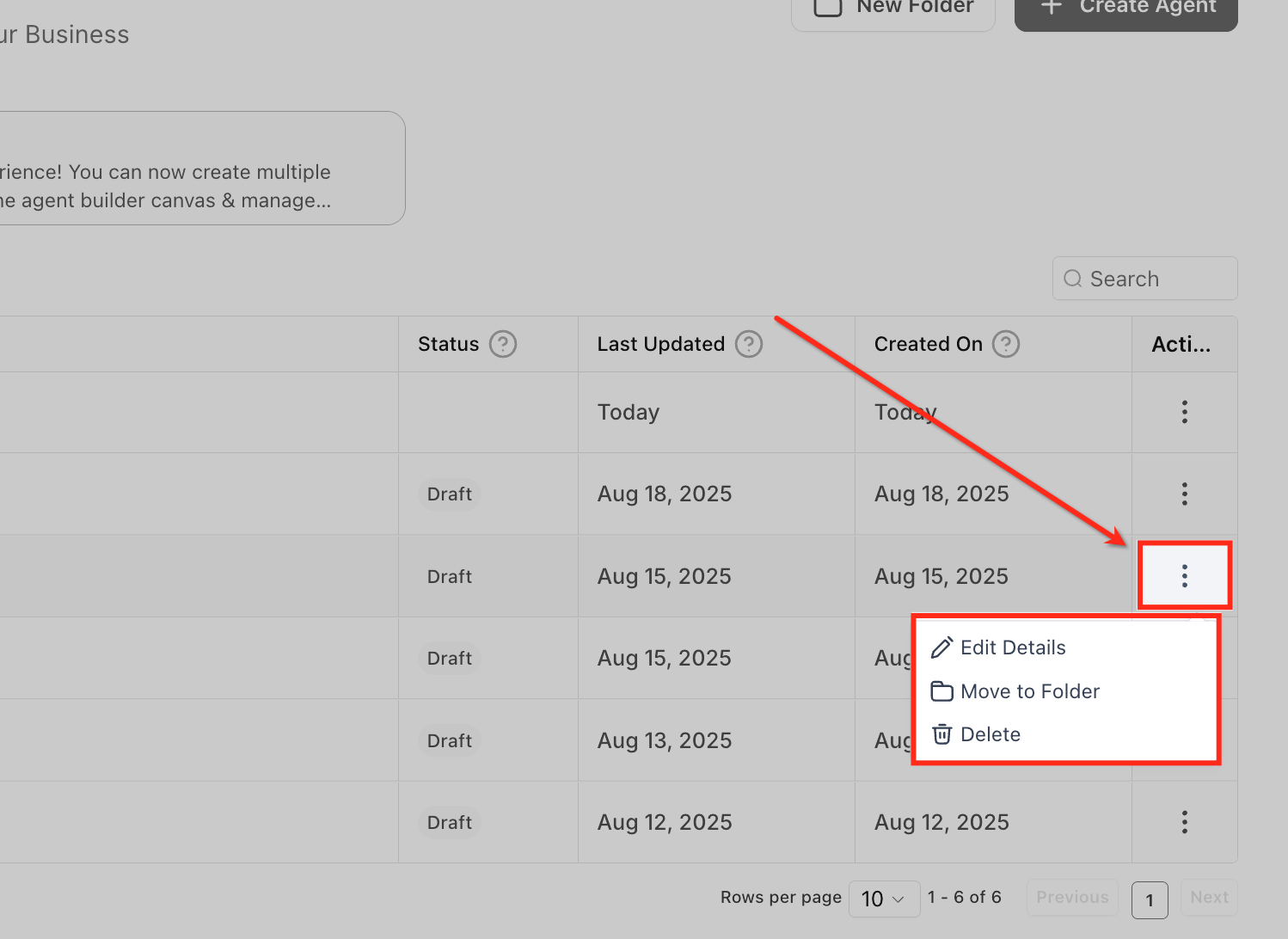
Click the three-dot menu (⋮) on an agent row to edit its details, move it to a folder, or delete it. On a folder row (marked with a folder icon), the menu lets you edit the folder's details or delete the folder.
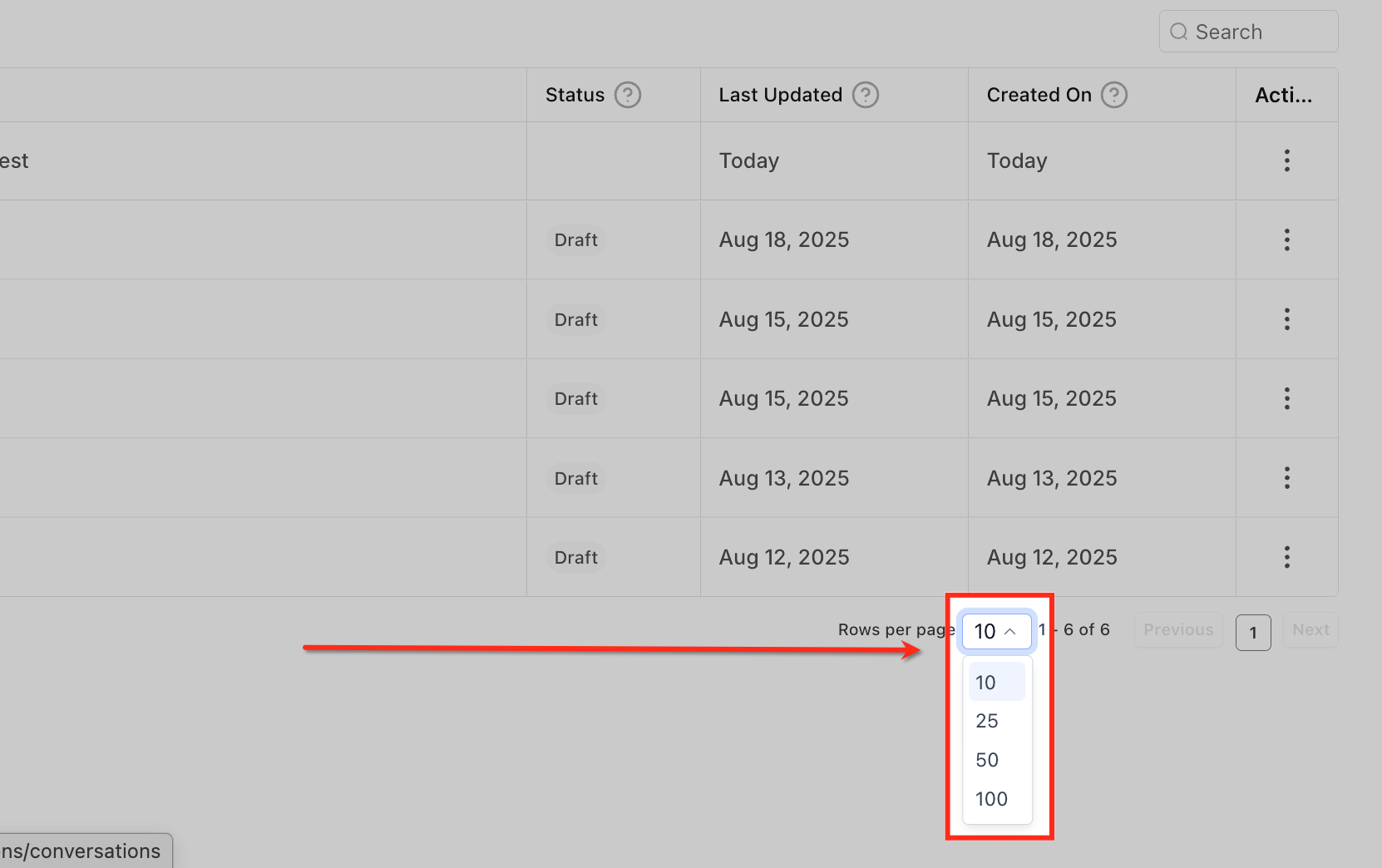
Use Rows per page at the bottom of the list to show 10, 25, 50 or 100 rows. Filters stay applied as you page through results.
Deleting a folder moves its agents to Unfiled; they stay available until you delete them separately.
If an agent shows Draft after you published it, you edited the working copy since the last publish. Publish again to update the live version.
If two people move the same agent at once, the last saved change wins and you receive a conflict notice if your view is out of date.
Aesthetix CRM does not currently offer a one-click export or import of a whole agent, so reuse inside your account is done by rebuilding or copying the parts you want. Export and import are on the roadmap.
Managed Agents
Open the agent you want to reuse and note its instructions, triggers, apps, capabilities and Knowledge Bases.
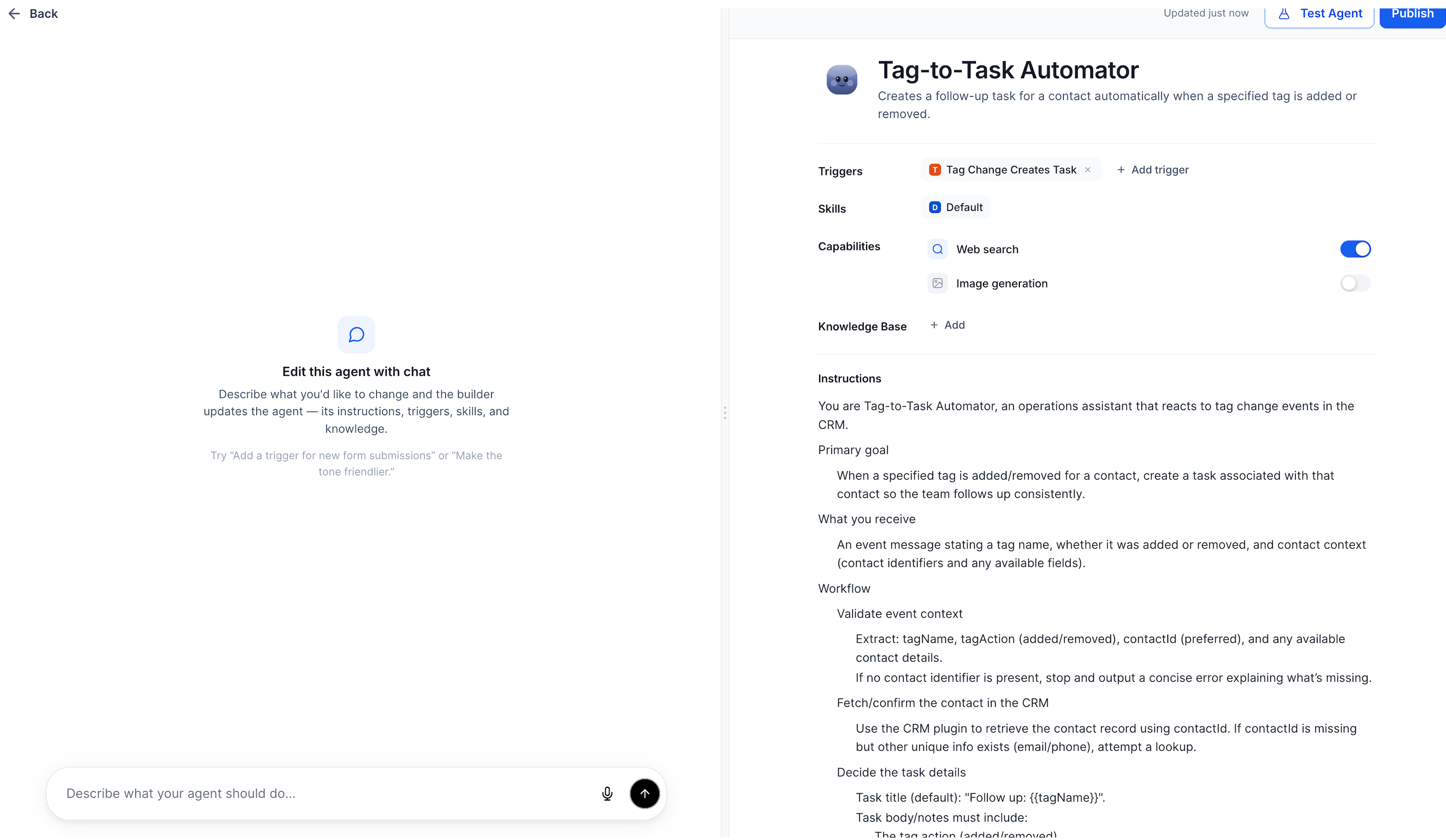
Click + Create Agent on the Managed Agents tab and describe the same role to the guided builder, or paste in the proven instructions.
Reattach the same Knowledge Bases, apps and triggers, then adjust anything that should differ (for example a different form or tag).
Test, then publish.
Flow Agents
Open the agent on the Flow Agents tab and select one node or several connected nodes on the canvas.
Copy with Ctrl + C (Windows) or Cmd + C (Mac).
Paste with Ctrl + V or Cmd + V into the same canvas, or into another agent opened in a second Agent Studio browser tab.
Pasted nodes get fresh IDs and appear slightly offset. Connections between the copied nodes are kept, but connections to nodes outside your selection must be reconnected manually.
Update node-specific settings, review the pasted nodes, then save, test and publish.
Copy and paste are designed for node groups, not for cloning an entire agent. Use the same method to remove clutter: select several nodes and delete them together once you no longer need a test branch.
Agents in your account are available to every team member who has permission to the AI Agents area, so sharing inside your account is mainly about organization and access.
Put shared agents in clearly named folders so staff can find them.
Give team members the AI Agents permission in Settings > My Staff > Roles & Permissions so they can open and manage agents. Users without the permission cannot see Agent Studio.
When you reuse an agent, remember what is and is not copied. Reused agent logic carries the structure, node settings, prompts, instructions, triggers, capabilities and the version state you recreate. Connected Knowledge Bases, workflows and custom values are separate assets and must be attached again or confirmed to exist.
Contacts, conversation history and messages never travel with an agent, because only configuration is reused.
Integrations, third-party connections, credentials and other account-specific resources need to be set up again. Re-authenticate MCP apps and re-enter API keys for custom API calls, and test before publishing.
After reusing an agent, always check the name and description, triggers, skills, capabilities, Knowledge Base configuration, instructions and required connections, then test it with sample data before publishing.
API endpoints stay available, but account-specific tokens may need updating.
Will deleting a folder delete the agents inside it?
No. The agents move to Unfiled and stay available until you delete them separately.
Can folders be nested?
Not yet. Folders support one level, and nested folders are planned.
Can I create a copy of an entire agent with one click?
Not currently. Recreate it by describing the same role to the builder, or copy and paste node groups between flow agents. Export and import are on the roadmap.
Do bulk actions respect user permissions?
Yes. Only users with move or delete rights see those actions, and confirmation windows show the exact count.
How many agents can I show per page?
Choose 10, 25, 50 or 100 rows per page. Filters stay applied as you page.
Why does a published agent show Draft?
You edited it after publishing. The working copy is Draft until you publish again.
What is not copied when I reuse an agent?
Contacts, conversation history, messages and live data are never part of an agent. Knowledge Bases, connections and credentials must be attached or authenticated again in the agent you create.
Does a pasted node connect to the rest of my flow?
Connections between the copied nodes are preserved. Connections to nodes outside your selection must be reconnected manually.
Do I need to remove patient data before reusing an agent?
Yes. AI features are not approved for PHI, so make sure instructions, files and knowledge you reuse contain none.
