Generative AI tools are processing nodes in a Flow Agent that create text, audio, images, or video while the agent runs. You add them on the agent canvas in Aesthetix CRM under AI Agents > Agent Studio, and they can use prompts, Brand Voice, Design Kit settings, and variables. Generated output is stored in a variable you can reuse later in the flow. These tools are part of Agent Studio and are separate from AI Studio.
HIPAA caution: AI features in Aesthetix CRM are not approved for processing Protected Health Information (PHI). Do not put PHI into generation prompts, Brand Voice text, variables, or test conversations. Generated media must not include patient images or PHI, and prompts must never describe a real patient's face, body, or treatment results. If you create before and after style content, follow your practice's photo consent rules and use approved, consented material only through your normal marketing process, not through these tools.
Tool | What it generates | What it stores |
|---|---|---|
Text Generation | Summaries, replies, descriptions, captions, recommendations, rewritten or structured text | The generated text in a variable |
Audio Generation | Spoken audio from a prompt | The audio URL in a variable |
Image Generation | Images from a prompt | The image URL in a variable |
Video Generation | Short video from a detailed prompt | Output handled by the configured setup (no Variable Name field) |
Benefits: automated content creation inside the flow, reusable outputs stored in variables, brand consistency through Brand Voice and Design Kit, flexible placement anywhere in the flow, and personalization from earlier variables.
This feature may not be enabled on every account yet.
In the left sidebar, click AI Agents, then open Agent Studio.
Open the Flow Agents list and select the agent (or create one).
On the canvas, find where the content should be generated.
Click Add a processing node.
In the Add node panel, go to the Generative AI section.
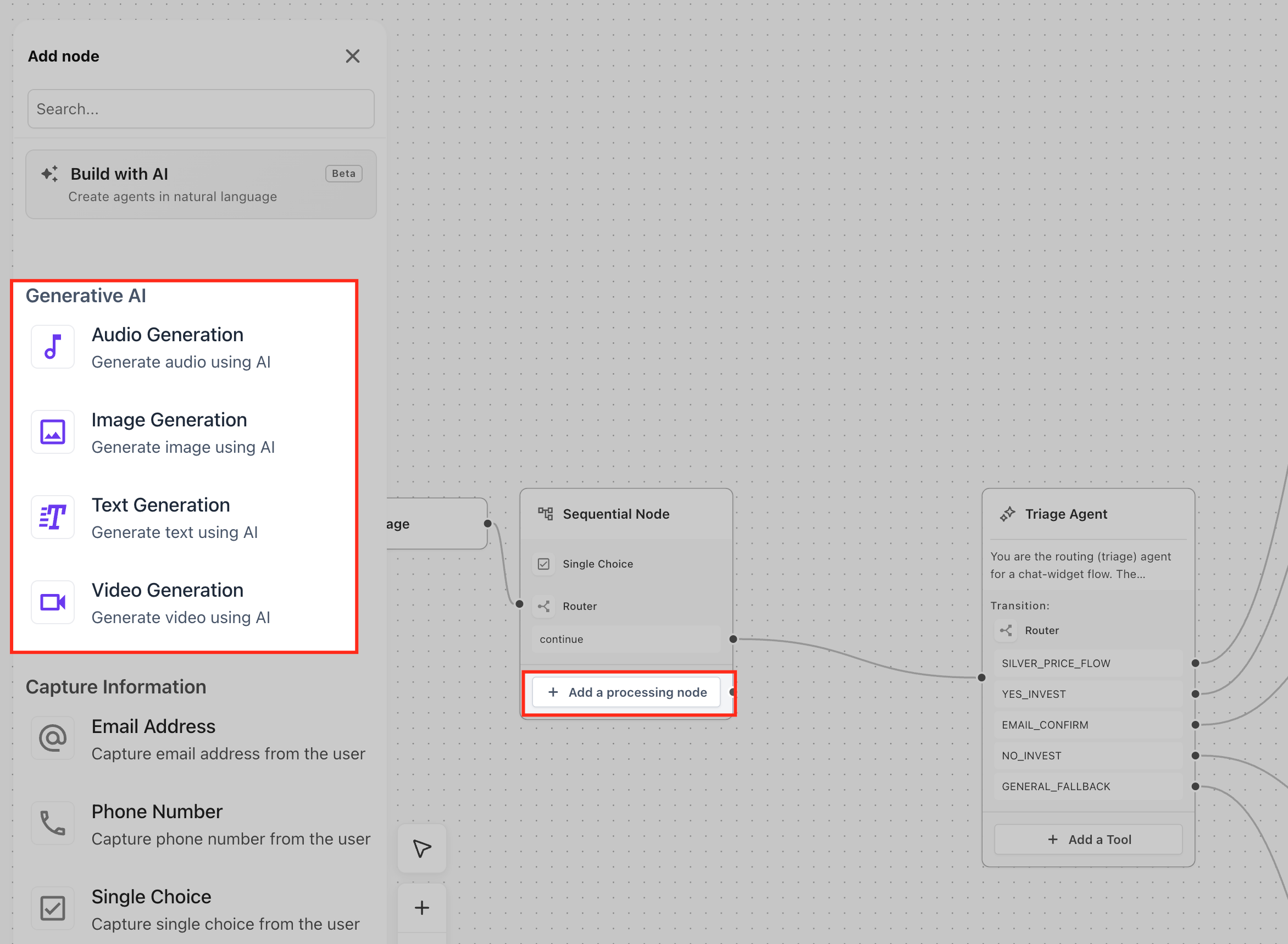
Select Audio Generation, Image Generation, Text Generation, or Video Generation.
Complete the settings in the side panel.
Click Save. The Save button stays disabled until all required fields are complete.
Node Name (required): identifies the step on the canvas. Defaults to text_generation, audio_generation, image_generation, or video_generation. Rename it to describe its job, for example generate_summary, create_audio_message, create_social_image, or generate_promo_video.
Brand voice: a dropdown with None, any saved Brand Voice, or + Add new to create one.
Prompt field: each tool has its own prompt field with a variable picker, an Enhance Prompt button that improves or expands your prompt before saving, and an expand icon that opens a larger writing area.
Write the prompt as instructions describing what to create, not the final output. Avoid vague prompts such as "write something"; describe the goal, audience, tone, and format.
Variable picker categories: Global Config (agent global configuration), Input Variables (values passed in when the agent starts or is invoked), Runtime Variables (values created or captured during the run), Account (account-level values), Custom values (saved custom values), Right now (current date and time), and Contact (contact details). Use the search bar to find a value quickly.
Use it for replies, summaries, captions, descriptions, recommendations, rewrites, and structured text.
Setting | Required | Details |
|---|---|---|
Node Name | Yes | Defaults to |
Brand voice | No | None, an existing Brand Voice, or + Add new. Leave None when no specific voice is needed. |
Text Prompt | Yes | Instructions for what to write: summarize a message, generate a reply, create a short caption, write a structured response, or rewrite in a tone. Supports the variable picker, Enhance Prompt, and the expand icon. |
Variable Name | Yes | Stores the generated text. Use a meaningful name such as |
Model | Yes | Choose a model from the Model dropdown. Use the default or recommended model for general replies, summaries, and structured content unless your setup needs another. |
Text Length | Yes | Small for short replies, captions, or brief summaries. Big for longer, more detailed content. Custom to set your own maximum character count between 5 and 20000. |
Practice example: "Write a friendly two-sentence reminder text for an upcoming consultation. Use {{contact.first_name}}. Do not mention any treatment details or medical information."
Use it for spoken replies, voice messages, and narration.
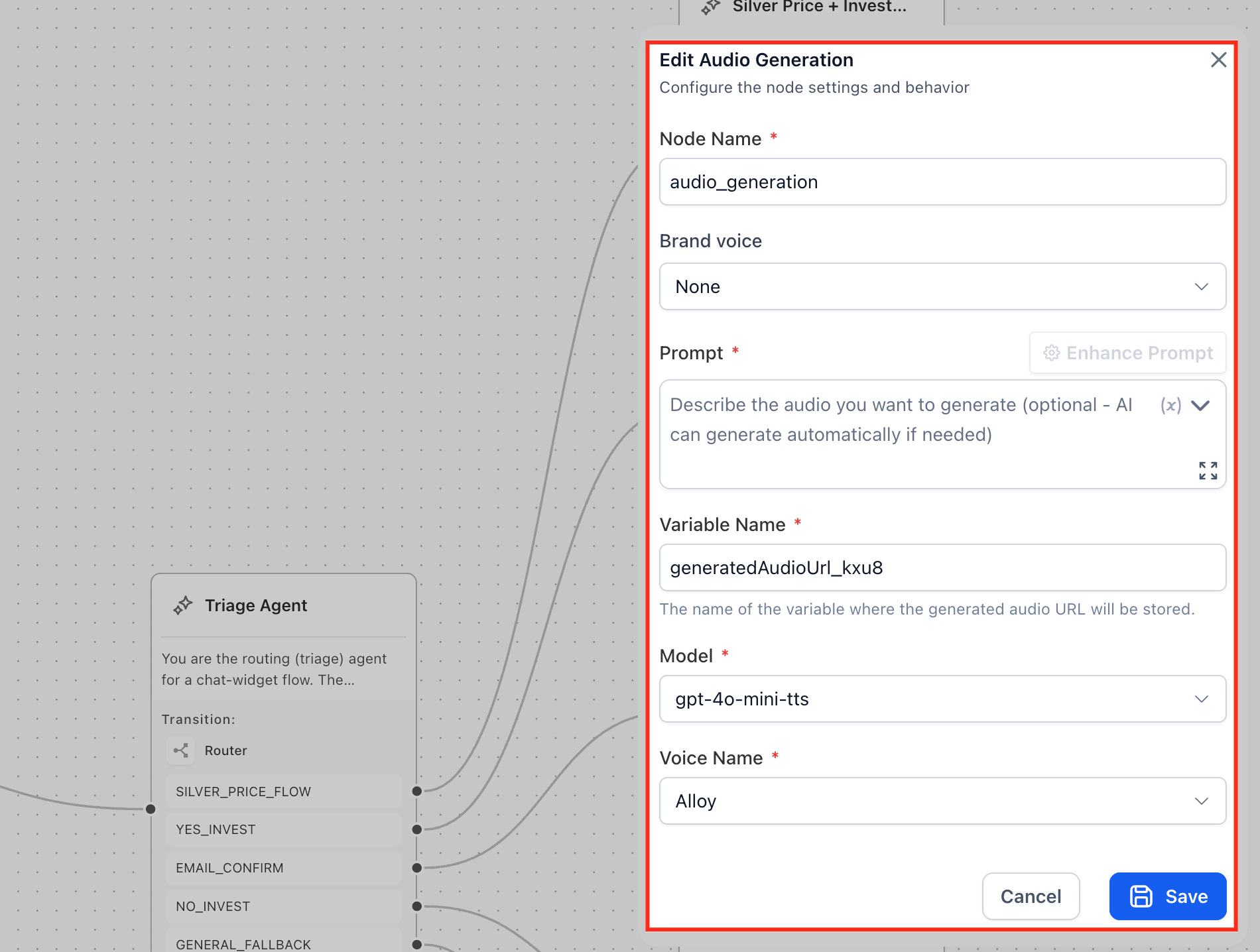
Setting | Required | Details |
|---|---|---|
Node Name | Yes | Defaults to |
Brand voice | No | Same as Text Generation. |
Prompt | Yes | The spoken message, or a description of the audio. Good prompts include the message, tone, style, pacing, and audience. Supports the variable picker, Enhance Prompt, and the expand icon. |
Variable Name | Yes | Stores the generated audio URL, for example |
Model | Yes | The text-to-speech model. Use the one selected unless another is available and needed. |
Voice Name | Yes | The voice for the audio. |
Voice | Good for |
|---|---|
Alloy | Balanced, general-purpose audio. |
Ash | When its tone fits the message. |
Ballad | A smoother or more expressive style. |
Coral | When its sound matches your brand tone. |
Echo | Conversational or spoken-response audio. |
Fable | Narrative or expressive audio. |
Nova | Clear, polished spoken content. |
Pick the voice that matches the tone you want, such as warm, professional, energetic, calm, or conversational. For a practice, warm and calm voices usually suit appointment reminders and welcome messages.
Use it for campaign visuals, social images, and concept art. Do not generate images of real patients or realistic treatment results.
Setting | Required | Details |
|---|---|---|
Node Name | Yes | Defaults to |
Brand voice | No | Use when the image prompt should follow a campaign tone or creative direction. |
Design kit | No | None, an existing design kit, or + Add new. Applies saved visual branding such as colors, fonts, and logo use, depending on the setup. |
Image Prompt | Yes | Describe the subject, setting, style, colors, composition, mood, and important details. Supports the variable picker, Enhance Prompt, and the expand icon. |
Variable Name | Yes | Stores the generated image URL, for example |
Model | Yes | Choose from the Model dropdown, which lists the available image models from providers such as OpenAI and Google. Keep the default unless your workflow needs another. |
Image Size | Yes | 1024x1024 square for general assets, thumbnails, and social posts. 1024x1792 portrait for vertical placements. 1792x1024 landscape for wide placements. |
Image Quality | Yes | Standard for general-purpose output. Hd for higher-quality, more polished assets. |
Example prompt: "A calm, bright spa treatment room with soft natural light, neutral tones, and fresh flowers, photo-style, no people."
Use it for short campaign, product, or social videos. The Video Generation panel has no Variable Name field, so review how the output is handled in your agent setup.
Setting | Required | Details |
|---|---|---|
Node Name | Yes | Defaults to |
Brand voice | No | Align the video with your tone and campaign direction. |
Design kit | No | Same as Image Generation. |
Video prompt | Yes | Describe the subject, action, scene or setting, camera angles, lighting, visual style, motion, and mood. Be specific. Supports the variable picker, Enhance Prompt, and the expand icon. |
AI Model | Yes | Choose from the dropdown: a standard model or a faster option. Pick the faster option when speed matters. Keep the default unless your workflow needs another. |
Aspect Ratio | Yes | 16:9 landscape for websites, presentations, and wide placements. 9:16 vertical for short-form social and mobile-first placements. |
Resolution | Yes | Choose from the available options (720p is offered). If the field is blank, select a resolution before saving. |
AI Model Data Use Notice | Yes (checkbox) | Must be acknowledged before saving. |
Video Generation uses third-party AI models. The notice states that these providers can temporarily retain prompts and generated content for up to 30 days for safety monitoring and service delivery, that your data is not used for model training, and that data handling varies by provider. Read it and select the checkbox. Save stays disabled until all required fields are complete and the notice is acknowledged. Because prompts are retained by third parties, never include PHI or patient identifiers in a video prompt.
Example prompt: "A slow, cinematic pan across a modern, sunlit reception area with fresh flowers and soft lighting, warm neutral colors, no people."
Brand Voice keeps tone, language, and messaging consistent. Design Kit (Brand Kit) applies your visual identity, including colors, fonts, and logos, to supported generated content. When you update your Brand Board with new messaging, logos, colors, or fonts, those changes apply automatically to future generations.
This applies to Flow Agents. Managed Agents use a different interface and do not use the Generative AI node setup described here.
Generative tool | Brand Voice | Design Kit |
|---|---|---|
Text Generation | Yes | No |
Audio Generation | Yes | No |
Image Generation | Yes | Yes |
Video Generation | Yes | Yes |
Each generative node can have its own branding settings, so one agent can use different Brand Voices or kits at different steps.
A Brand Voice is a communication guide with business information, brand values, tone and style guidelines, and the calls to action you want people to take. It helps AI tools, including Content AI, keep messaging consistent. Describe your practice's voice in general terms (for example warm, professional, reassuring). Do not include patient information.
Go to Marketing > Brand Boards > Brand Voice.
Click + Add Brand Voice.
Choose Start from Scratch.
Fill in business information, values, tone, and style guidelines.
Click Save.
Create a Brand Voice or Design Kit under Marketing > Brand Boards before you use it. You only need to create the assets you plan to use. You can also click + Add new in the dropdown inside a generative node.
Go to AI Agents > Agent Studio and open a Flow Agent.
Click Add a processing node.
Under Generative AI, pick the tool.
Choose a Brand voice (or None, or + Add new).
For Image or Video Generation, choose a Design kit.
Finish the other settings and click Save.
Test the agent to confirm the content follows your branding.
Variables work two ways with generative tools:
Input variables in prompts: insert existing values, such as {{contact.first_name}} or something collected earlier, so the output is more relevant.
Output variables from the node: Text, Audio, and Image Generation store results in their Variable Name field for later steps.
Node | Output variable holds |
|---|---|
Text Generation | Generated written content |
Audio Generation | Generated audio URL |
Image Generation | Generated image URL |
Use clear names such as generatedReply, generatedAudioUrl, generatedImageUrl, campaignCaption, or summaryText. Avoid vague names, especially when one agent has several generation steps. Reference the output variable in later nodes, such as sending the generated text in a message or an action.
Build the generation step where you need it in the flow, so content is created at the right moment.
Keep prompts focused and specific; use Enhance Prompt for a second pass.
Test after each change.
Third-party providers handle your prompts and outputs, so keep PHI and patient images out.
Video output has fewer options than text, audio, and image; check the setup shown in your account.
Where are generative AI tools available?
In Agent Studio, when you add a processing node to a Flow Agent. Choose them under the Generative AI section of the Add node panel.
What can they generate?
Text, audio, images, and video.
Do all tools store output in a Variable Name field?
Text, Audio, and Image Generation do. The Video Generation panel does not include a Variable Name field.
Do I write the final content in the prompt field?
No. The prompt holds instructions. The AI creates the text, audio, image, or video when the node runs.
What are Brand voice and Design kit for?
Brand voice aligns tone and messaging. Design kit aligns colors, fonts, and logos in images and videos.
Why do I not see any Brand Voice or Design kit options?
You may not have created one yet. Use + Add new in the dropdown, or create one under Marketing > Brand Boards.
Can I use Brand Voice with Managed Agents?
No. This setup is for Flow Agents. Managed Agents use a different interface.
Why does Video Generation show a data use notice?
It uses third-party models that can temporarily keep prompts and outputs for up to 30 days for safety monitoring and service delivery. Your data is not used for model training, and handling varies by provider.
Why is the Save button disabled?
A required field is empty. For Video Generation, the data use notice must also be acknowledged.
Can I use patient photos or describe real patients in prompts?
No. AI features are not approved for PHI, and generated media must not include patient images. Follow your photo consent rules for any before and after content.
