Flow agents are built on a canvas in AI Agents > Agent Studio. This guide covers the nodes and tools that control order and branching: the Sequential Node (fixed step-by-step execution), Capture Information tools (structured questions), the Always Exit handle (a built-in fallback route), and the Router (AI, Conditional and No Condition routing). For new autonomous agents, Aesthetix CRM recommends Managed Agents, and existing flow agents remain fully editable.
Protect patient privacy. Aesthetix CRM's AI features are not approved for Protected Health Information (PHI). Do not put PHI into an agent's instructions, prompts, files, memory or knowledge, and do not design capture steps that ask people for medical history, diagnoses, medications or health details. Capture only what you need to follow up, such as name, email, phone number and general service interest.
Appointments. If a flow uses an Action to book or change appointments, AI appointment booking works only with native Aesthetix CRM calendars, not EMR calendars.
The Sequential Node runs several steps, in a fixed order, inside one node. It starts when it receives input from a trigger or another node and executes its steps from top to bottom. Each step must finish before the next begins, with no dynamic decision-making in between. Use it when the path is predictable and controlled, such as collecting contact details, calling an API, or running a series of actions. Use an AI Agent node instead when the interaction needs conversation or flexible decisions. A trigger must be configured to start the agent before the Sequential Node can run.
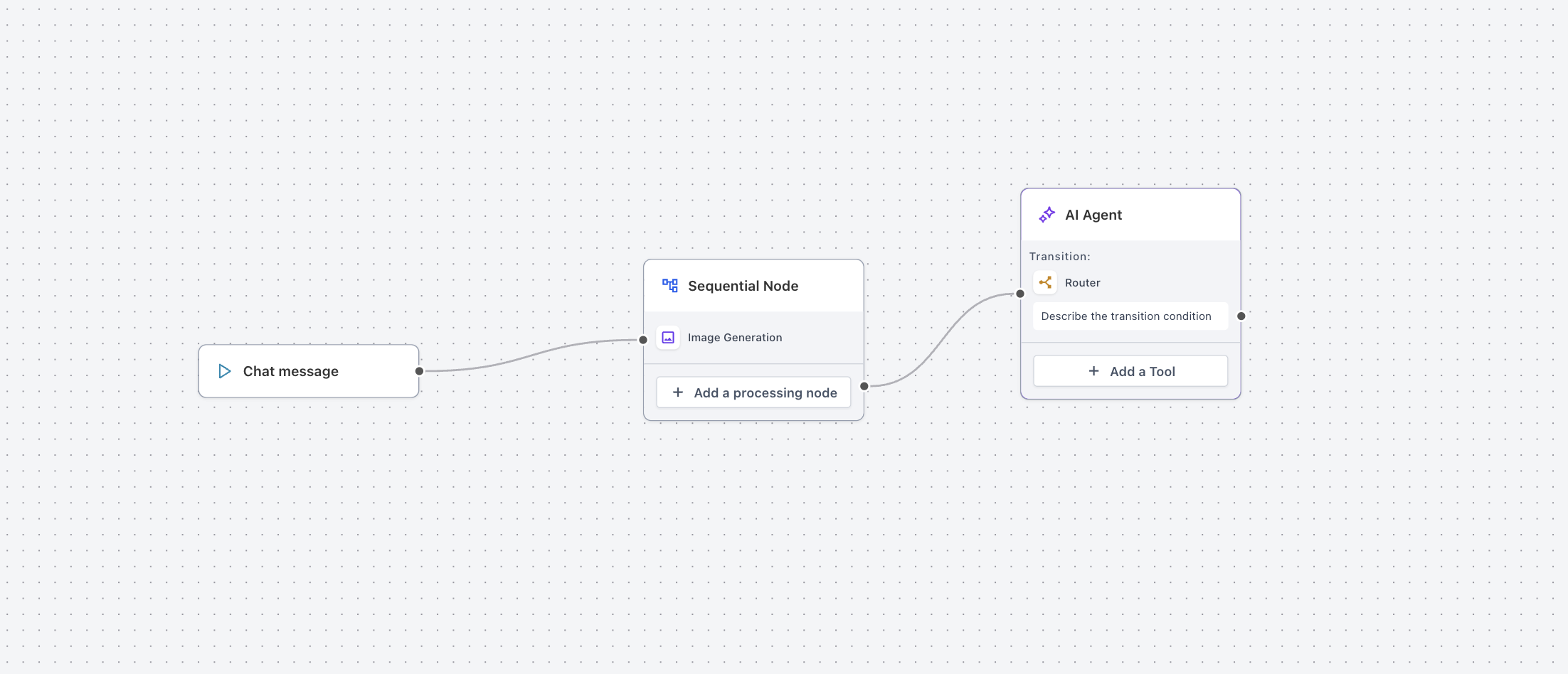
Benefits: clear predefined order, repeatable outcomes, clean data collection, and fewer separate nodes to manage.
Every step in a Sequential Node is a processing node. Types fall into three groups:
Group | Purpose |
|---|---|
Capture Information | Collect input: email, phone number, selections, text |
Actions and API | Do something with the data or send it elsewhere |
AI Generation | Generate text, images, video or audio |
Processing node | What it does | Configure |
|---|---|---|
Email Address | Captures an email and validates the format before moving on | Prompt message and error message. Stored as a runtime variable. |
Phone Number | Captures a phone number with validation, typically needing a country code | Prompt and error message. Stored as a runtime variable. |
Text Input | Free-form answer with minimum and maximum length settings | Prompt and optional length limits. Stored as a runtime variable. |
Single Choice | One option from a predefined set, shown as selectable buttons | Choices and prompt. The selection is stored for routing or processing. |
API Call | Sends a request to an external system and returns the response with no AI interpretation | Endpoint, headers, request body, with variables for dynamic values |
Actions | Performs predefined operations in the system, such as updating records or triggering workflows | The action and its settings |
Text Generation | Uses AI to write content from a prompt | Prompt, with variables to personalize |
Image Generation | Creates an image from a prompt, typically returned as a URL or visual asset | Prompt, with variables |
Video Generation | Creates a video from a prompt, with settings such as resolution and aspect ratio | Prompt and settings |
Audio Generation (text-to-speech) | Converts text to spoken audio | Text and voice settings |
For choosing models and prompts on the generation steps, see the Flow Agents: Generative AI Tools and Brand Voice guide. For the AI Agent node and its tools, see the Flow Agents: AI Agent Node, Knowledge Base, Web Search, API Call and Actions Tools guide.
Steps run in the order they were added, top to bottom.
Each processing node automatically creates a runtime variable holding its output, including API Call responses.
Insert variables with the {} icon (variable picker) in prompts, API bodies and actions.
Example: Step 1 captures an email. Step 2 sends a message: "Thanks! We will contact you at {{email}} shortly."
API Call steps run directly, so the response is returned as-is and must be explicitly used in a later step.
If you never use variables, the flow produces the same output every time.
Add the Sequential Node from the Nodes panel and connect it to a trigger or previous node.
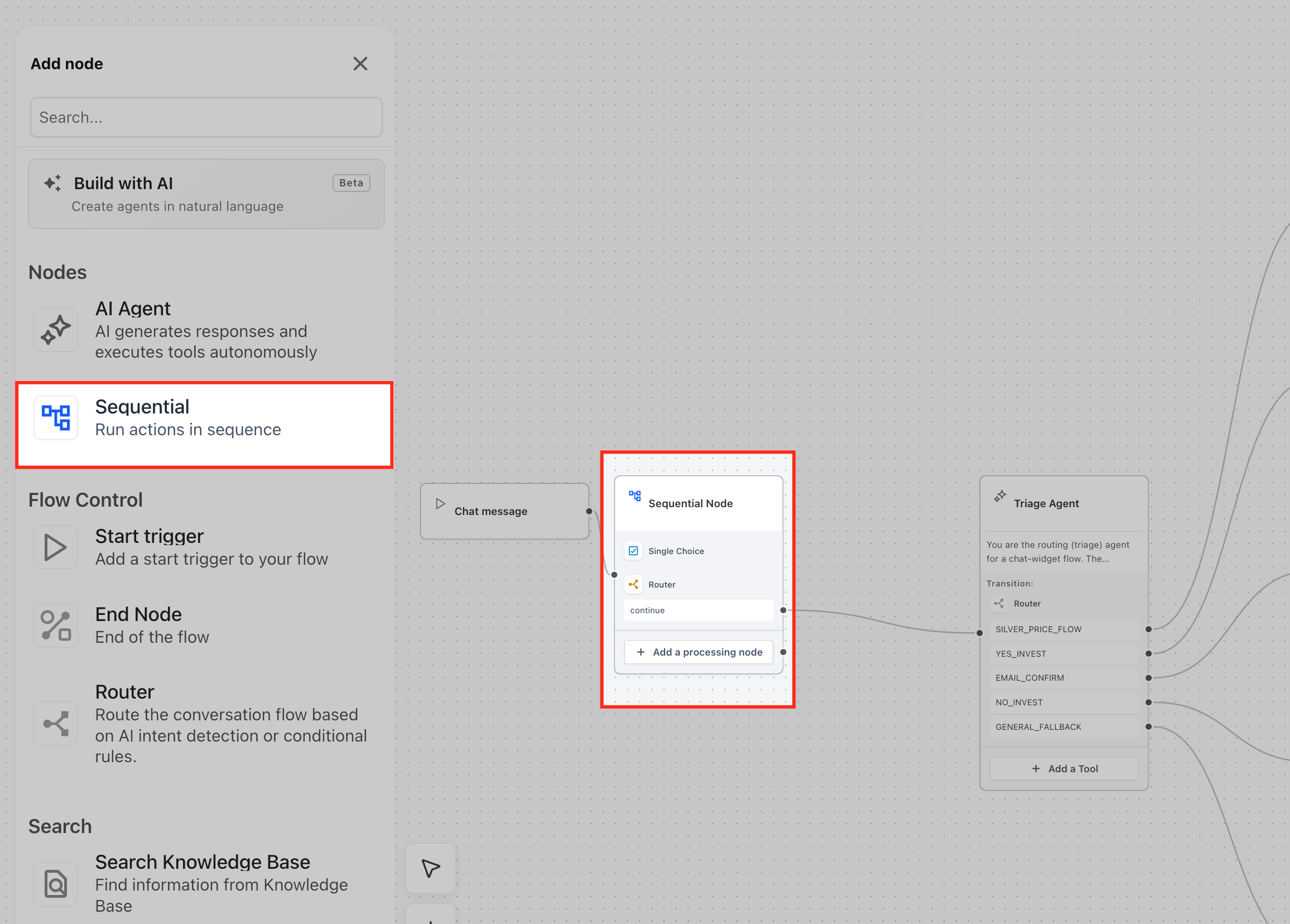
Click Add a processing node to start the sequence. You can add steps with the button or by drag and drop, click a step to configure it, and hover to delete one.
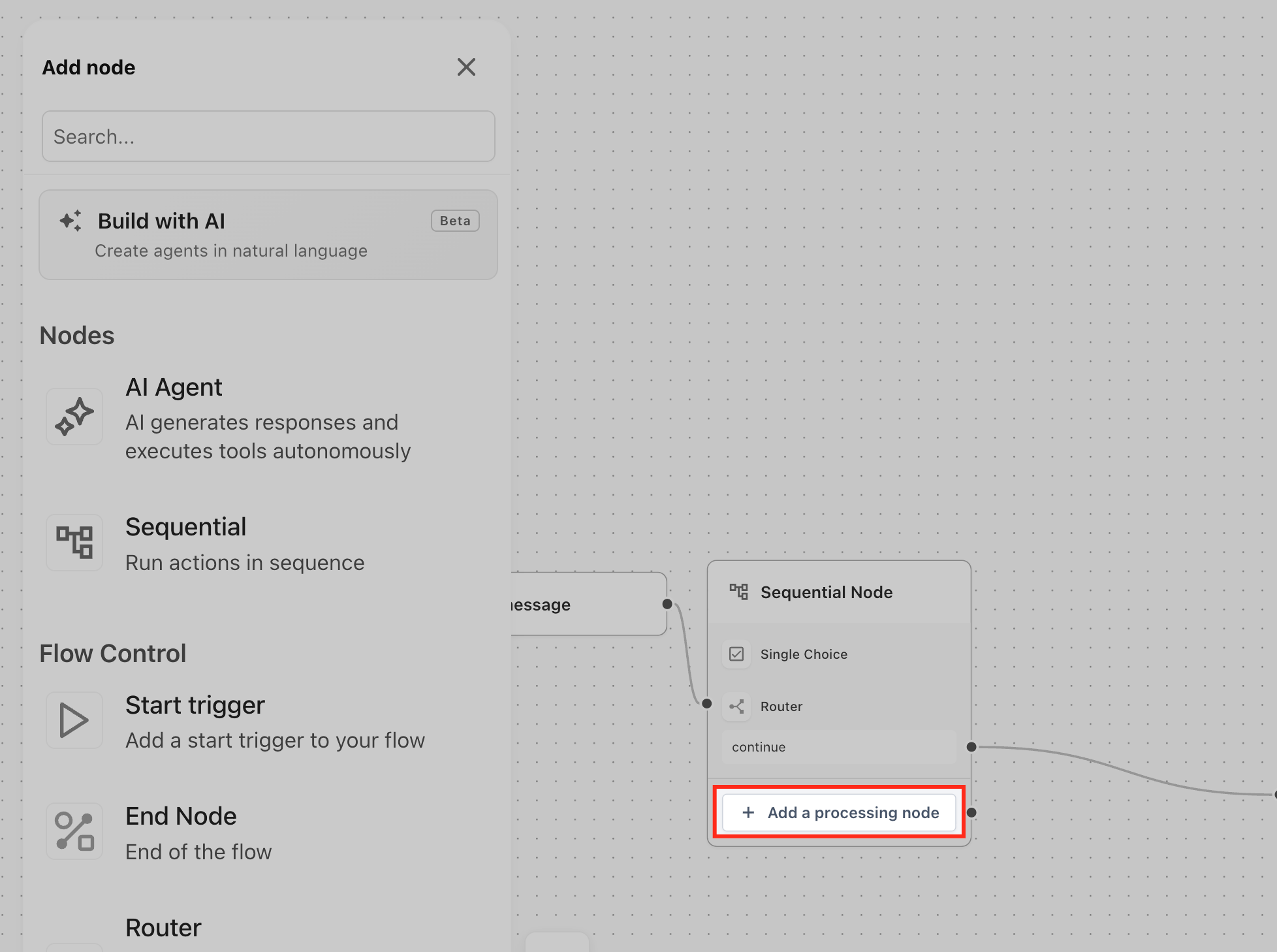
Configure each step's prompt, validation and behavior.
Check the order. Execution depends on it, and rearranging after the fact is not always straightforward, so plan the sequence first.
Use variables from earlier steps in later ones.
To add an Action or API Call, click Add a processing node, choose Actions or API Call, fill in the required fields (the operation for Actions, or endpoint, headers and body for API Calls), and insert variables with the {} picker.
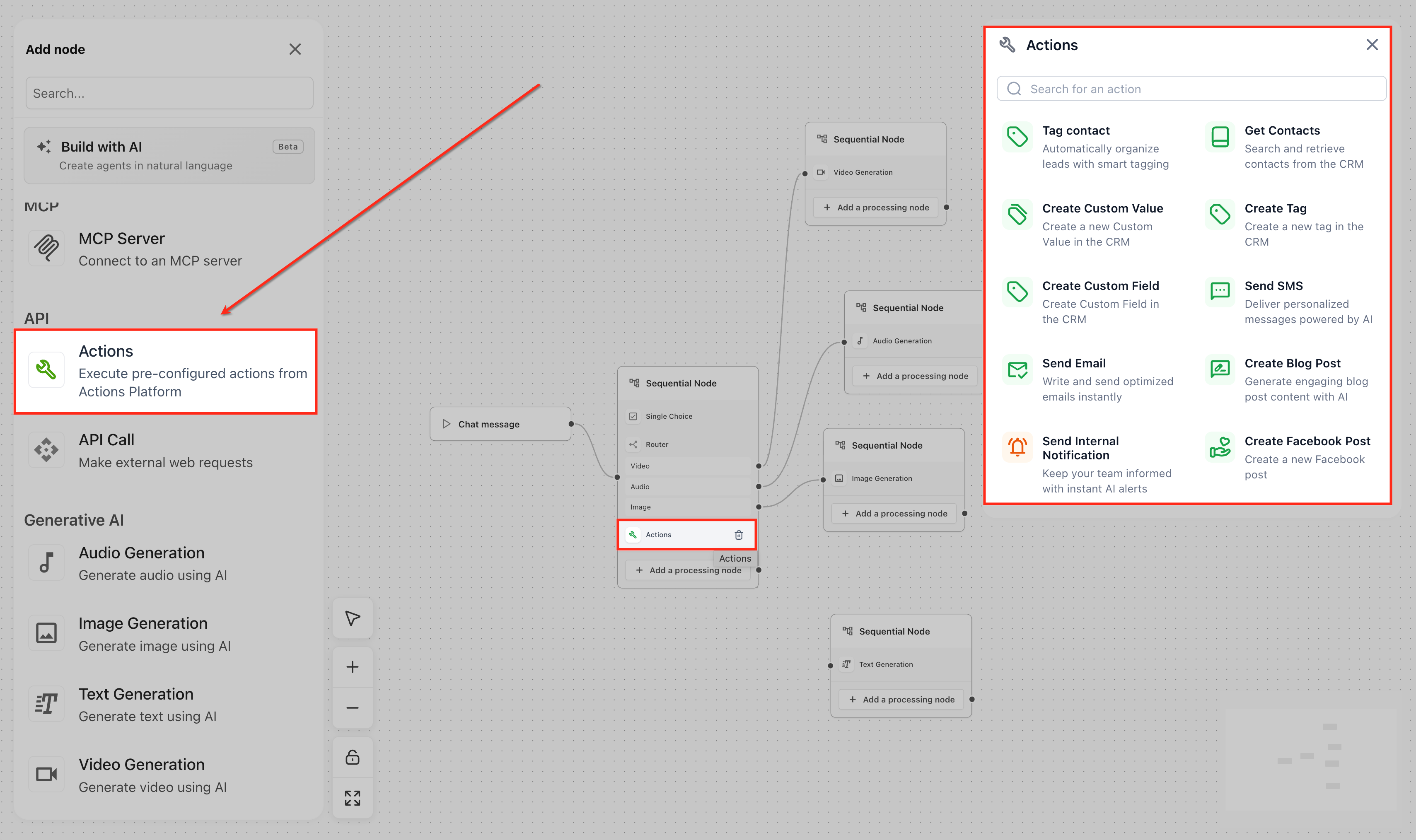
Connect the node's output to the next node.
Example: capture a lead's email, then an API Call sends the email variable to an outside system so the contact is saved automatically.
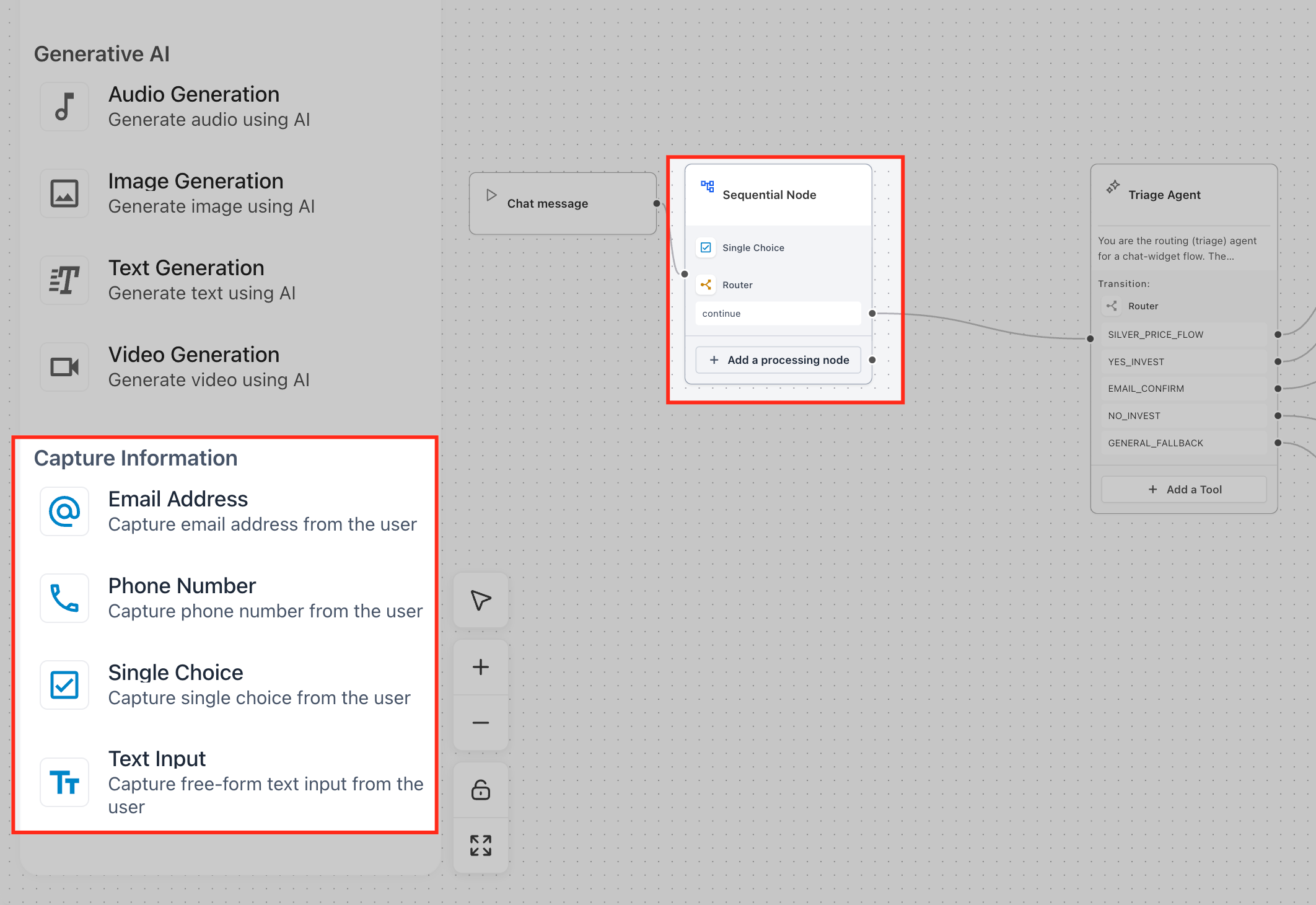
Capture Information tools ask direct questions and store answers in a structured way, instead of relying on AI to extract details from an open-ended message. They are intended for use inside a Sequential Node and do not use AI to collect the answer. Four tools are available.
Tool | Collects | Notes and example |
|---|---|---|
Email Address | A valid email | "Please provide your email address so we can send you the details." |
Phone Number | A valid phone number | Re-prompts when the number is not valid. "Please enter your phone number so our team can follow up." |
Single Choice | One option from a fixed list | "What would you like help with?" with options such as Botox consult, Laser hair removal, Facial membership, General question. Can drive routing. |
Text Input | Free-form text | "What treatment area would you like to ask about?" Use for topics, questions, descriptions or business names. |
When to use them: collecting an email before a confirmation, a phone number before routing a lead, a service choice before sending someone down the correct path, or required details before an AI Agent node generates an answer.
Open AI Agents > Agent Studio and open the agent.
Add a Sequential Node, or open an existing one.
In the left panel, open Capture Information and drag Email Address, Phone Number, Single Choice or Text Input into the node.
Write the prompt for each tool.
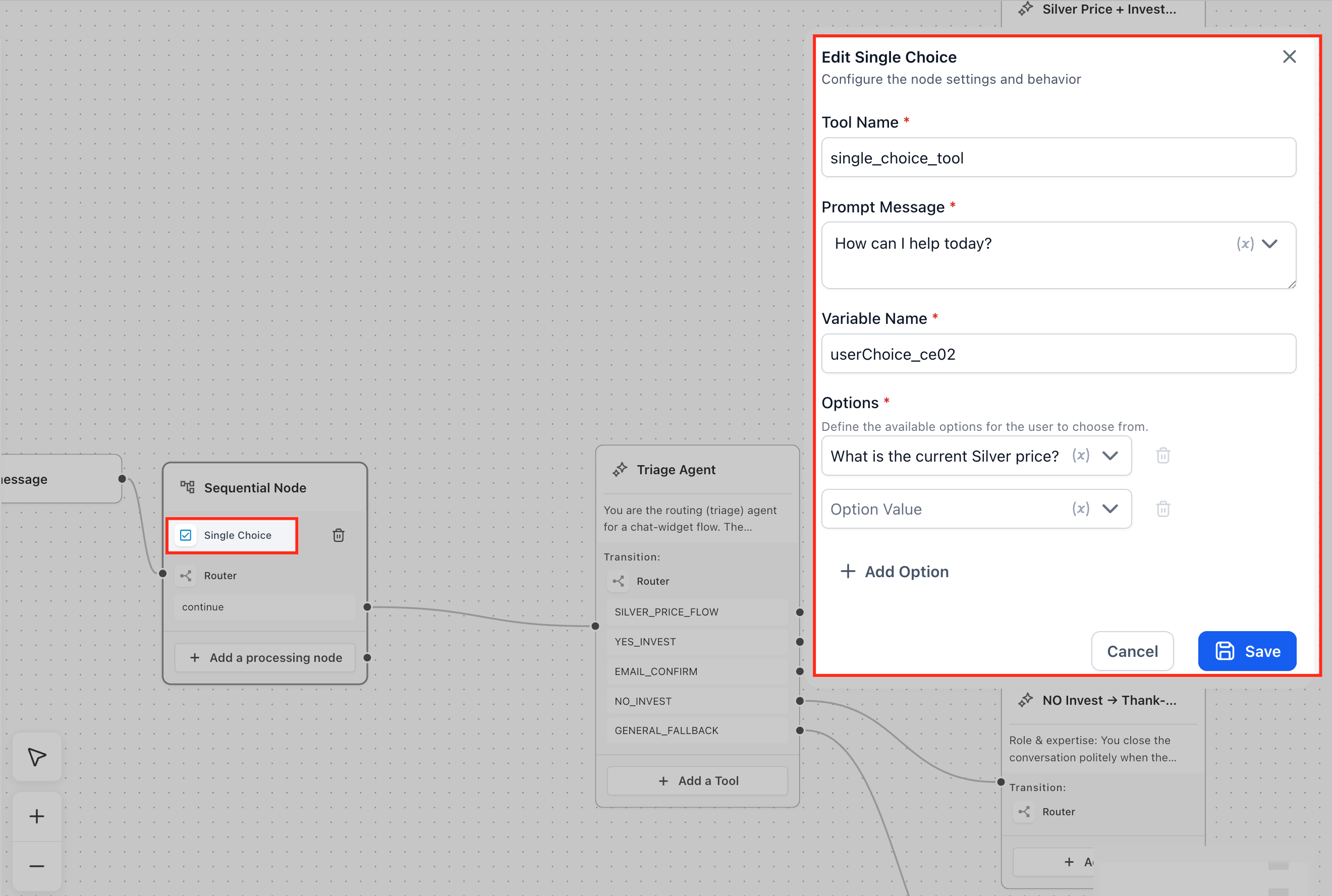
Save the response as a variable with a clear name, such as email, phone_number, selected_interest or topic.
Connect the node to the next step: a Router, an AI Agent node, a confirmation message, or another action.
Test the flow. Confirm each question appears in order, email and phone validate, Single Choice options display, answers land in the right variables, and the next node uses them.
Captured values can be reused in later prompts, messages and actions. Example: capture topic, audience, email and phone, then have an AI Agent node write a personalized patient-education blurb for the chosen topic. A typical pattern is Chat trigger, then a Sequential Node with a Single Choice tool, then a Router that sends each choice to the right agent node.
Capture tools are for Sequential Nodes. If you need reasoning, add an AI Agent node after the values are collected.
The Always Exit handle is a built-in fallback connection at the bottom-right corner of every Sequential Node. When connected to another node, it automatically uses always behavior, so you do not need to build an "always true" condition. It helps keep a flow from getting stuck when no conditional route matches.
Example: an agent routes requests to Sales or Support by intent. If neither matches, Always Exit sends the request to a General Follow-Up node.
Available on all Sequential Nodes, at the bottom-right corner, separate from conditional exits.
Supports only one outgoing connection.
Automatically configured with always execution behavior.
The connection's conditions, labels and descriptions are system-managed and cannot be edited.
Existing Sequential Node flows keep working with no changes.
Conditional exits and Always Exit work together: conditional exits handle matches and Always Exit handles everything else.
Always Exit does not replace the Router. The Router still handles conditional and AI-based routing.
Go to AI Agents > Agent Studio and open a flow-based agent.
Find the Sequential Node and the Always Exit handle at its bottom-right corner.
Drag a connection from the handle to your fallback node. No extra conditions are required.
Open the testing interface, enter an input that matches no conditional route, and confirm execution reaches the fallback node.
Save and publish using your usual deployment process.
The Router controls how an agent moves from one node to another, based on what the person means, what data has been captured, or simply "always continue". It can be used in agent flows and inside Sequential Nodes, so a mostly linear flow can branch when needed. Add it from the Flow Control panel on the left.
Mode | How it decides | Best for |
|---|---|---|
AI Router | Natural-language intent. The AI reads the person's last message and picks the matching intent you defined. | Answers that vary in wording but share meaning, interest or sentiment |
Conditional Router | Saved variables and logic rules | Known values such as Yes, No, positive or negative from a tool, form field or earlier node |
No Condition | Always continues to the next node without evaluating anything | Simple bridges between steps after information has been collected |
One Router node supports one mode at a time, but you can chain several Routers back to back.
Define the intents that become branches, for example "Patient wants to book a consultation" and "Patient does not want to book". Each intent connects to a node. No intent training is needed, because the model classifies on the fly from your intent names and the conversation. No variable is required.
Each condition has these fields:
Field | What it is |
|---|---|
Label | A clear name for the branch, shown on the connection to keep complex graphs readable |
Condition Type | AND (all rules must match) or OR (any one rule can match) |
Variable | The saved value to check, for example |
Operator | The comparison, for example equals (EQ) |
Value | The expected value, for example |
Add more than one condition to branch to different nodes. A Conditional Router needs a value that has already been captured and stored.
Turn on the No Condition toggle so the route always continues to the next connected node.
Use a Router inside a Sequential Node when a sequence should mostly run in order but still needs a decision point, such as redirecting a person to a different outcome based on an answer.
Go to AI Agents > Agent Studio and create or open an agent.
Add a trigger such as Chat Message or Form Submitted.
Add and configure an AI Agent node.
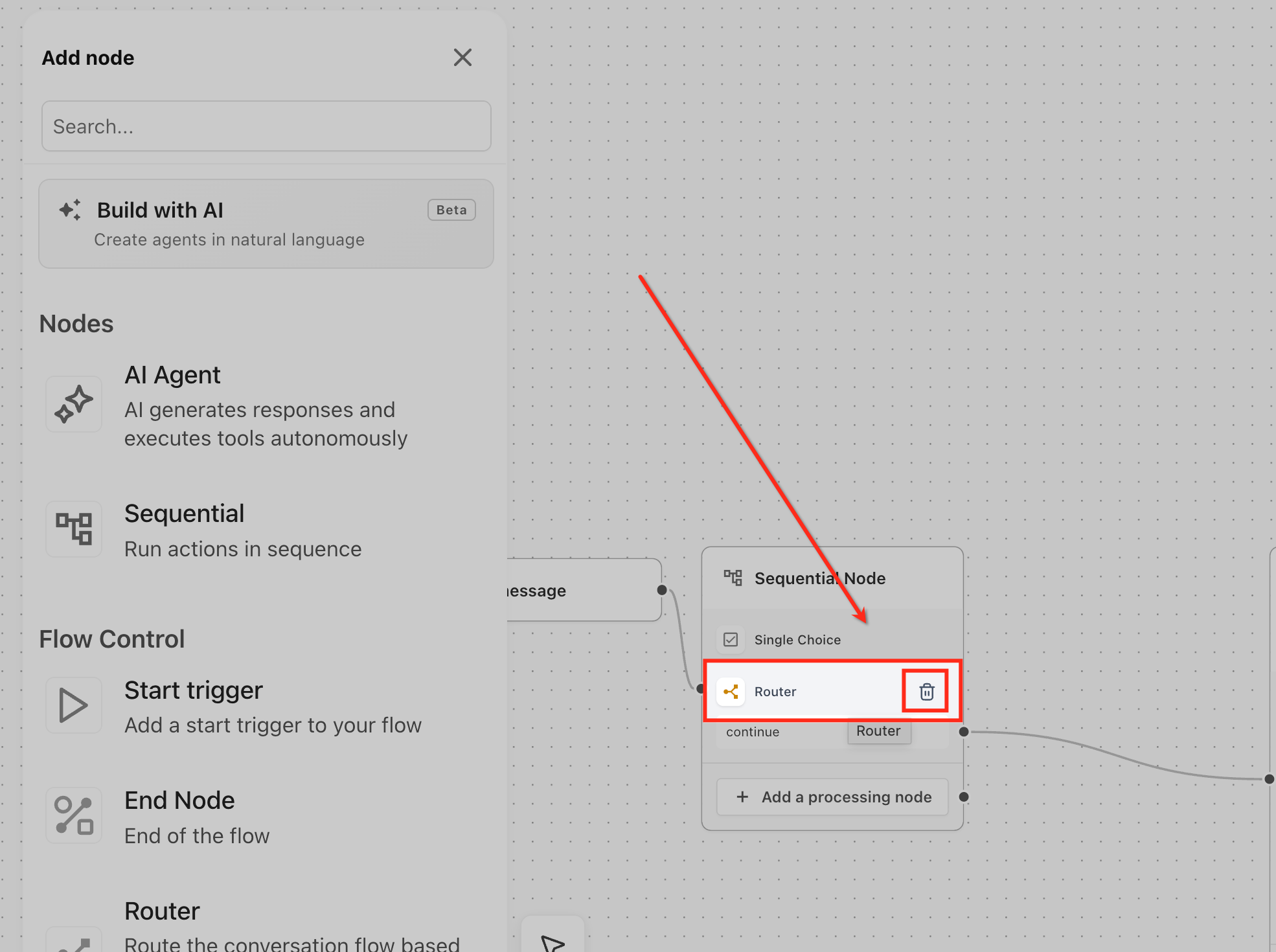
From the Flow Control panel, drag the Router node onto the canvas. The Edit Router panel opens on the right.
Under Router Type, choose AI Router or Conditional Router.
Configure it: add intents (AI Router), or add conditions with Label, Condition Type, Variable, Operator and Value (Conditional Router), or enable No Condition.
Connect each route output to its destination node.
Save the Router settings.
Test the conversation and confirm every route leads to the correct node.
Save, publish and deploy.
The agent answers a question about a treatment's typical downtime from an approved Knowledge Base.
An AI Router checks the reply: if the person wants to book a consult, continue; if not, go to a thank-you node.
The next node captures the person's email.
A No Condition route always continues to a confirmation step.
A Single Choice node asks "Would you like us to text you the booking link?"
A Conditional Router checks the saved answer: Yes goes to the send-link path, No goes to a different outcome.
Only AI Router executions count toward AI usage billing. Conditional and No Condition modes are free.
To debug a misplaced route, open the Execution Log and its Routing tab to see the detected intent, reasoning and confidence, or the evaluated condition string.
If nothing matches, the flow follows the Default edge. If none is connected, the conversation ends with an error entry in the log, so always connect a fallback.
Use AI Router when wording varies but intent is the same.
Use Conditional Router when the decision depends on a saved value.
Use No Condition when the flow should always continue.
Keep route labels clear.
Test every route path before publishing.
Include a fallback path.
When should I use a Sequential Node instead of an AI Agent node?
Use the Sequential Node for a structured, predictable flow. Use an AI Agent node when the interaction needs conversation or dynamic decisions.
Why does an API Call in a Sequential Node not adapt like an AI reply?
API Call steps run directly with no AI interpretation. They send the request and return the response as-is. Put reasoning in an AI Agent node.
Which Capture Information tools exist and do they use AI?
Email Address, Phone Number, Single Choice and Text Input. They do not use AI to collect the answer.
Can I use Capture Information tools outside a Sequential Node?
They are intended for Sequential Nodes. For reasoning, use an AI Agent node after the values are collected.
How many connections can Always Exit have, and can I edit it?
One outgoing connection only. Its conditions, labels and descriptions are system-managed and cannot be edited.
Do I need to change existing flows to use Always Exit?
No. Existing Sequential Node flows continue working unchanged.
What is the difference between AI Router and Conditional Router?
AI Router evaluates natural-language intent. Conditional Router checks a saved value using a variable, operator and value.
Does the Router cost extra?
Only AI Router executions count toward AI usage billing. Conditional and No Condition are free.
What happens if no route matches?
The flow follows the Default edge. If none is connected, the conversation ends with an error log entry, so connect a fallback such as Always Exit or a Default route.
Can I ask patients for health details with a Capture tool?
No. Aesthetix CRM's AI features are not approved for PHI. Collect only non-clinical follow-up details such as name, email, phone and general service interest, and keep health information out of prompts, instructions and knowledge.
