The Import from n8n feature reads an exported n8n workflow and prepares a Managed Agent from its triggers, logic and actions, so you do not rebuild every node by hand. You start it from AI Agents > Agent Studio > Managed Agents, review what carried over, and then save the agent as a draft or create and publish it. This feature may not be enabled on every account yet.
Protect patient privacy. Aesthetix CRM's AI features are not approved for Protected Health Information (PHI). Before importing, remove any PHI from the n8n workflow export (sample payloads, pinned test data, notes). Do not put PHI into the resulting agent's instructions, files, memory, knowledge or prompts, and do not build imported automations that pass clinical details to the agent.
The importer analyzes the workflow and prepares an agent with instructions, starting conditions, decision rules and connected actions. Conditional branches become decision rules, AI nodes become part of the agent's own reasoning, and supported app actions use Aesthetix CRM integrations, CRM actions or API calls. The Review & set up screen shows required app connections, values to fill in and starting conditions. Imported agents are placed in an Imported from n8n folder in Agent Studio. Analyzing a workflow does not create an agent. An agent is created only when you choose Save as draft or Create & publish.
An existing n8n workflow you can export.
The workflow as a .json file, or its JSON content ready to paste. File uploads are accepted up to 10 MB.
Access to the Managed Agents tab in Agent Studio, where you will see Import from > n8n (Beta).
Readiness to connect any outside apps the workflow uses.
Any required IDs, values or account-specific details on hand.
Beta. The option is labeled Beta, so availability and behavior can change.
Credentials are not transferred. n8n credentials and API keys are not imported. Required apps must be connected through Aesthetix CRM.
Some steps are adapted. Fixed logic may become agent instructions, or a different action may be used. Results can vary when behavior depends on the agent's reasoning.
Manual review may be required. The importer flags inferred decision rules and setup details to confirm before publishing.
Original IDs are flagged, not trusted. Resource IDs such as sheet, channel or list IDs from the original workflow are flagged for your review.
Create & publish may be unavailable until required setup items are resolved.
Importing is not the same as connecting n8n through MCP. The importer converts a workflow into a Managed Agent. An MCP connection keeps workflows running in n8n. They are different approaches.
Open your Aesthetix CRM account.
Click AI Agents in the sidebar, then Agent Studio.
Select the Managed Agents tab.
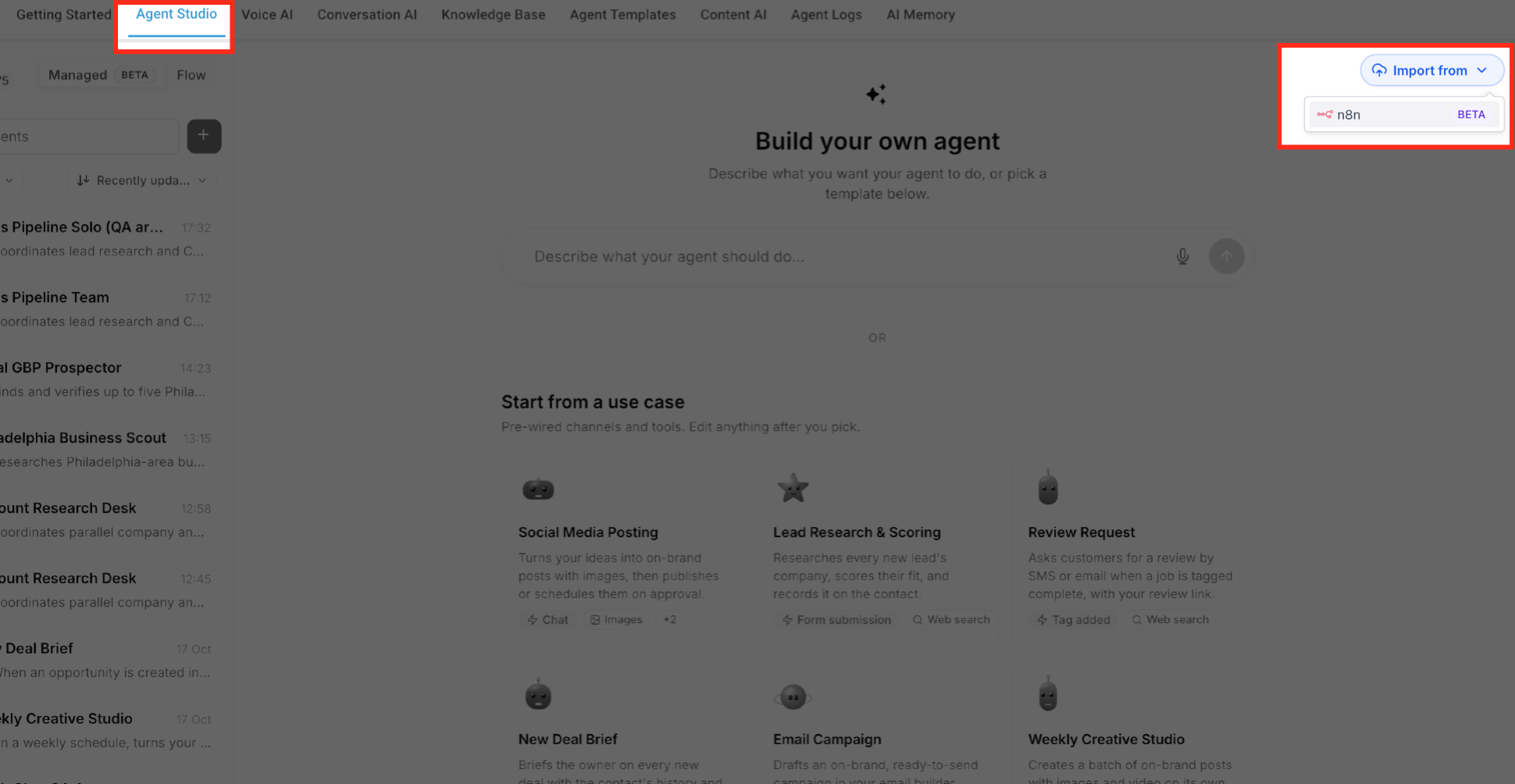
Click Import from in the upper-right area of the Agents page.
Select n8n (Beta). The Import from n8n window opens.
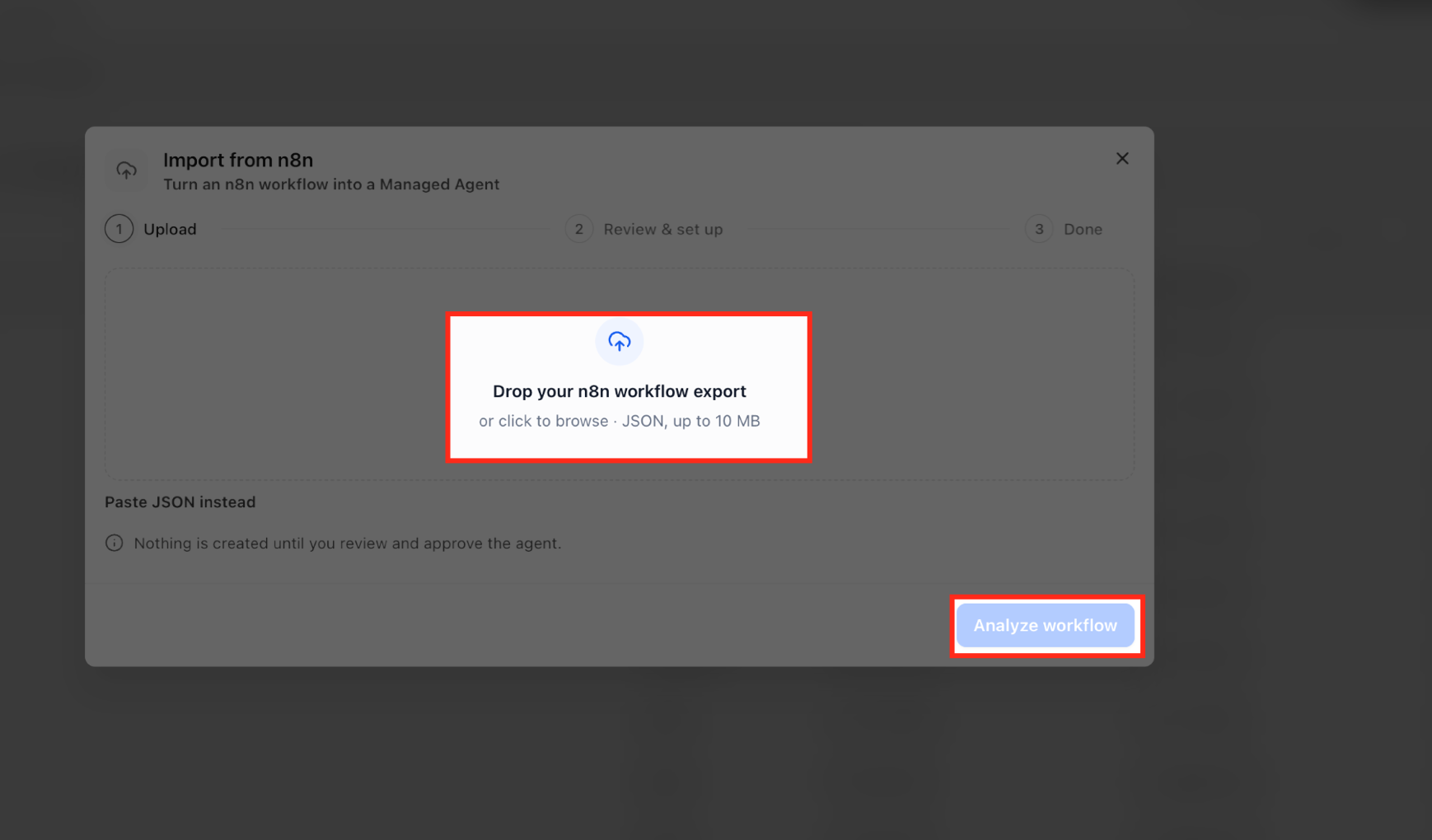
In the Drop your n8n workflow export area, drag in the exported .json file or click to browse. Alternatively select Paste JSON instead and paste the content.
Confirm file uploads are 10 MB or smaller.
Click Analyze workflow. No agent is created at this point.
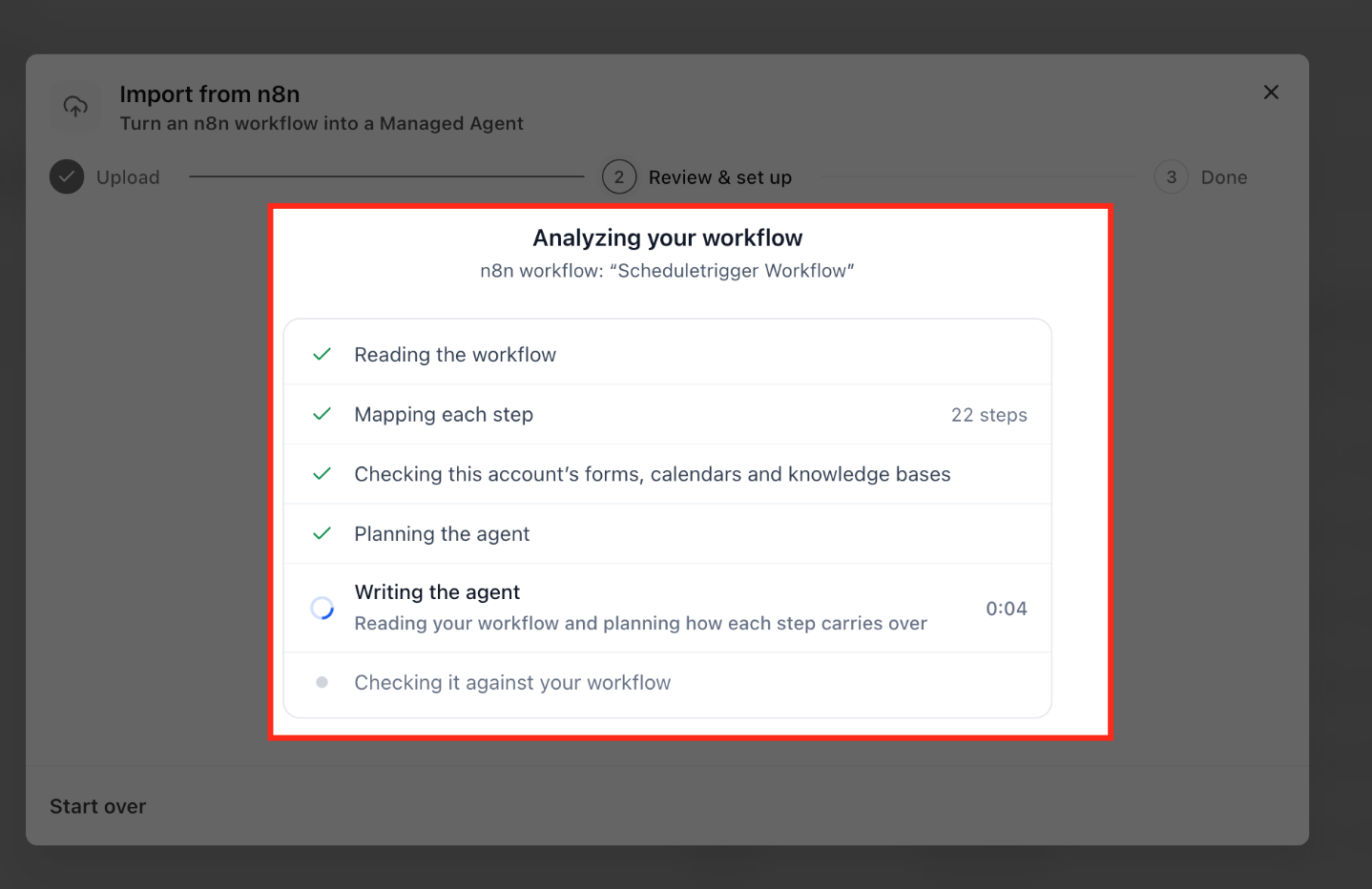
The progress screen steps through:
Stage | What happens |
|---|---|
Reading the workflow | Reads the uploaded definition |
Mapping each step | Identifies steps that need conversion |
Checking this account's forms, calendars and knowledge bases | Looks at matching resources in your account |
Planning the agent | Decides how the workflow becomes a Managed Agent |
Writing the agent | Drafts the instructions and behavior |
Checking it against your workflow | Compares the plan with the original |
The screen also shows how many workflow steps were found. When it finishes, the generated agent opens for review.
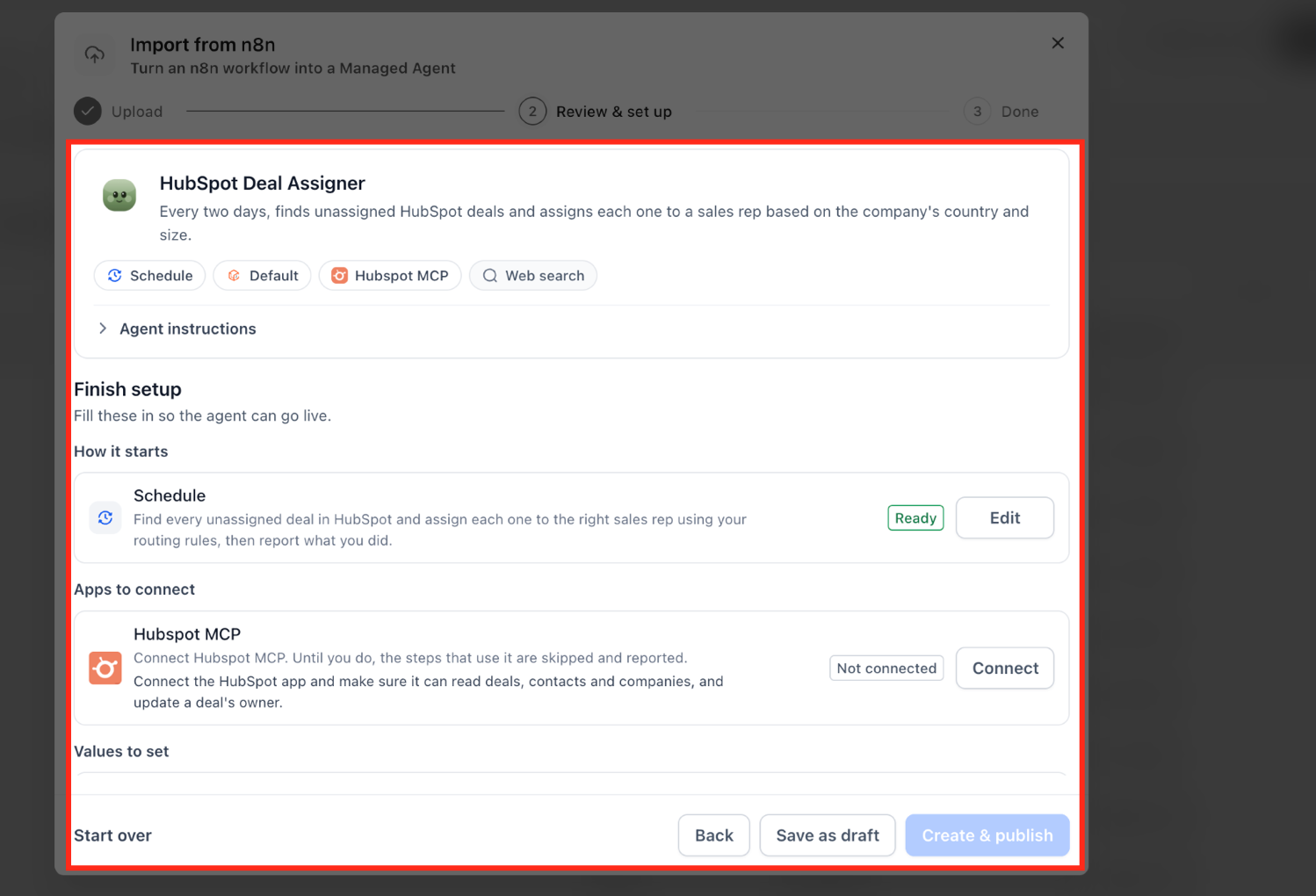
In Review & set up:
Check the agent's name and description match the workflow's purpose.
Review the starting condition, app connections and capabilities.
Expand Agent instructions to read what starts the agent, its actions, decision rules, follow-ups and stopping conditions.
Scroll to How your workflow came across and read the summary of steps carried over or adapted.
Inspect each result group:
Carried over: steps retained in the converted agent.
Adapted: steps implemented differently, with the reason shown.
Not possible / Not needed: steps the importer could not convert or does not need.
Read any warnings and items flagged for human verification. Rules that became instructions instead of fixed code can behave slightly differently, so check them against what you intend.
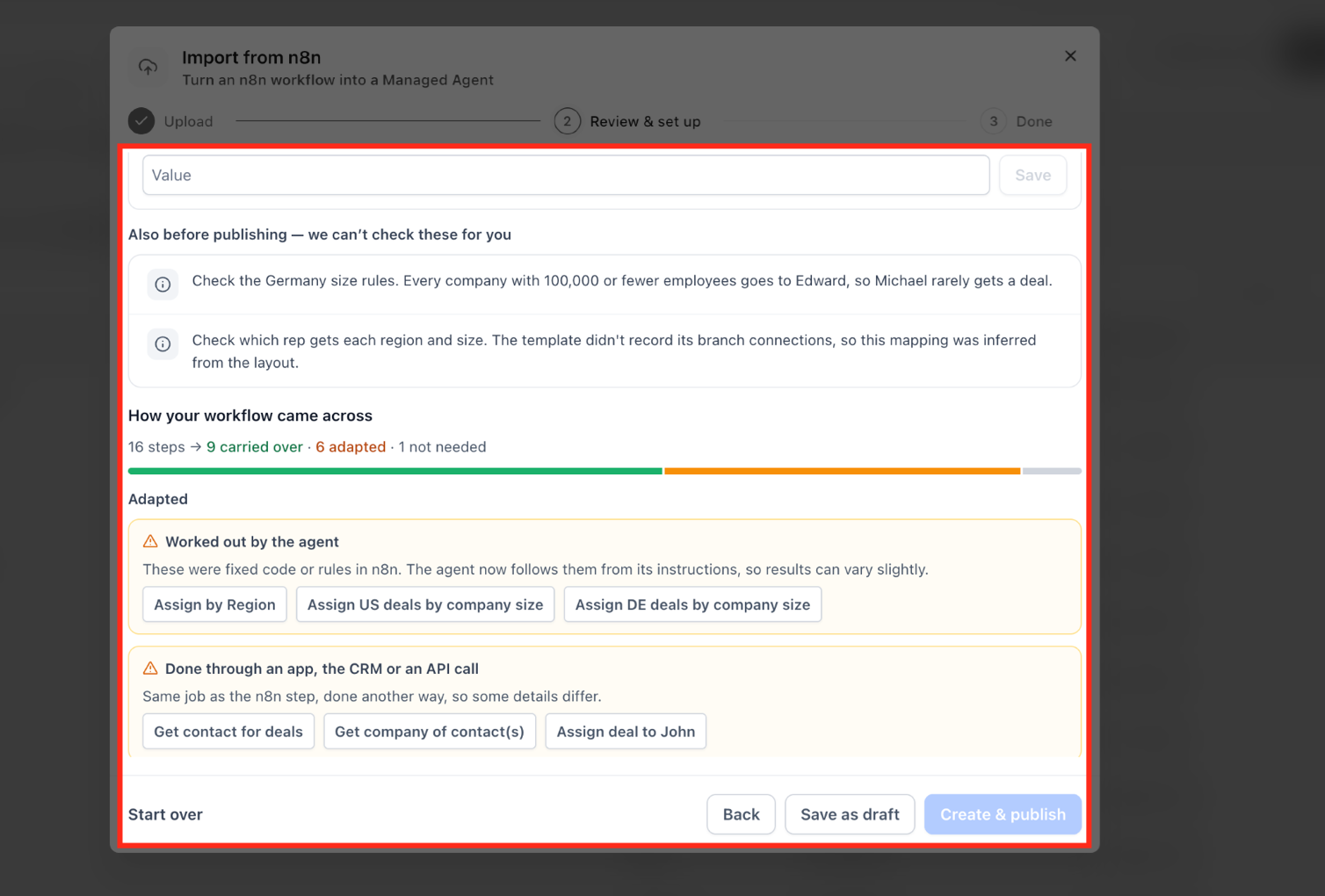
Adaptations can change how a workflow starts, when a step runs, or whether an action goes through an app, the CRM or an API call.
Under Finish setup, work through the groups the importer lists:
How it starts: review the generated starting condition and click Edit if shown. A workflow that ran periodically, for example, usually becomes a Schedule trigger. Confirm it matches the original timing or event.
Apps to connect: click Connect on any app marked Not connected, or Manage on one already connected. Until an app is connected, steps that need it are skipped and reported.
Values to set: fill in every field marked Needs input and click Save. Example: an owner or staff member ID. Decide for each flagged original ID whether to keep it or replace it with the correct link or ID for your account.
Additional requirements: complete any Knowledge Base setup the importer requests and review remaining warnings.
Return to the bottom of Review & set up.
Choose Save as draft to create the agent in Draft status and finish later, or Create & publish to create and publish it once required items are done.
After saving a draft, the Done screen shows Draft agent created, the agent's name, its Draft status and any remaining required items.
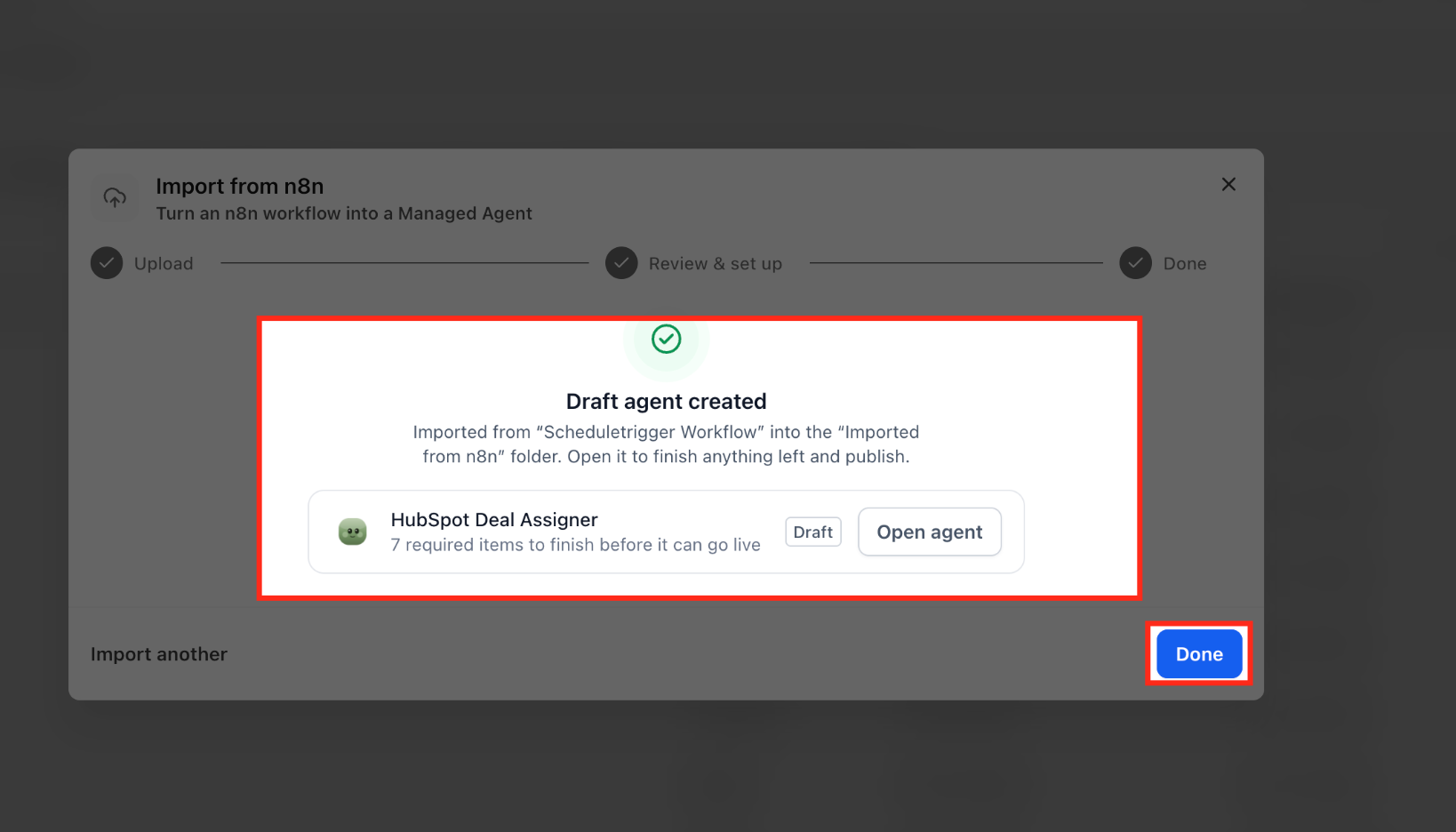
Click Open agent to continue, or Done to finish.
Go to AI Agents > Agent Studio > Managed Agents.
Open the Imported from n8n folder and select the agent (or use Open agent from the Done screen).
If setup items remain, a Finish setup notice appears. Use its links or the Replace option to address each item.
You can ask the AI builder "What's left to set up?" and it will list the outstanding items as a checklist.
When everything is complete, dismiss the Finish setup notice.
Test the agent with a test contact before publishing, then publish.
For an imported workflow that started with an external webhook, copy the agent's new webhook URL and register it in the outside system that sends the events, and tell that system which events to deliver. See the Triggers Reference guide for webhook security, payload limits and response codes.
The importer translates n8n components into agent behavior instead of recreating the node graph.
n8n component | Managed Agent conversion |
|---|---|
Webhook node | Inbound webhook trigger with its own URL |
Periodic checks | Schedule trigger |
Form-based events | Aesthetix CRM forms |
Booking events | Aesthetix CRM calendars |
Message-based events | Inbox conversations |
Outside services such as Stripe, Shopify, HubSpot and Pipedrive can send supported events to an inbound webhook. For webhook imports, the agent receives instructions about where to register the URL and which events to deliver.
If a converted booking trigger points to a calendar, remember that AI appointment booking works only with native Aesthetix CRM calendars, not EMR calendars.
n8n component | Managed Agent conversion |
|---|---|
IF node | Decision rule in the agent's instructions |
Switch node | Decision rules describing how the agent chooses a path |
Wait node | Follow-up at a defined point |
OpenAI node | Agent reasoning |
LLM chain | Agent reasoning and instructions |
AI Agent node | Agent reasoning and instructions |
AI components become the agent's own reasoning instead of a separate model-node structure. When fixed logic becomes instructions, behavior may differ slightly from the original node execution, so verify the rules the importer flags.
n8n component | Managed Agent conversion |
|---|---|
Supported app nodes | App connections |
CRM-related actions | Aesthetix CRM actions |
External API operations | API calls |
Knowledge lookups | Aesthetix CRM Knowledge Bases |
Some actions run differently from their original nodes. The importer explains when an operation will run through an app, the CRM or an API call. Required integrations and account-specific values must still be set up before the affected steps work.
Plan to handle these yourself after import:
Connect every app marked Not connected. Credentials never come across.
Fill in each Needs input value and confirm or replace every flagged original ID (sheets, channels, lists, owners).
Review the starting condition, and for webhook workflows register the new URL in the sending system.
Complete Knowledge Base configuration if requested.
Verify inferred decision rules and anything under Adapted or Not possible / Not needed.
Test with a test contact, especially for agents that can send messages or change records.
Remove PHI from any instructions, sample data or knowledge you add.
Is importing an n8n workflow the same as connecting n8n through MCP?
No. Import converts an exported workflow into a Managed Agent that runs in Aesthetix CRM. An MCP connection links Aesthetix CRM to workflows that keep running in n8n.
What happens if the imported workflow needs an app I have not connected?
The importer lists it under Apps to connect. Steps that need that app are skipped and reported until you connect it.
What happens to sheet IDs, channel IDs or other references from the original workflow?
They are flagged for your review instead of being trusted automatically. Keep the reference if it is right for your account or replace it with another link or ID.
Why might the imported agent behave differently from the n8n workflow?
Fixed code and explicit branches can be turned into instructions and decision rules the agent interprets. The review screen highlights these adaptations. Check them against the process you intend.
Are my n8n credentials imported?
No. Credentials and API keys are not transferred. Connect each app through Aesthetix CRM.
How large can the workflow file be?
Uploads can be up to 10 MB. You can also use Paste JSON instead.
Does Analyze workflow create the agent?
No. An agent is created only after you choose Save as draft or Create & publish.
Where do imported agents go?
Into the Imported from n8n folder under AI Agents > Agent Studio > Managed Agents.
Can I import workflows that contain patient information?
No. Aesthetix CRM's AI features are not approved for PHI. Strip PHI from the export and do not place it in the agent's instructions, files, memory, knowledge or prompts.
