Managed Agents can reach beyond Aesthetix CRM through three tools: catalog MCP apps, custom MCP connectors, and custom API calls. You configure all three inside the agent under AI Agents > Agent Studio > Managed Agents, in the agent's Apps area. This guide lists every supported app, explains each setup path, and covers security and troubleshooting.
HIPAA caution: AI features are not approved for processing Protected Health Information (PHI). Do not put PHI into agent instructions, files, memory, knowledge, prompts, API request bodies, or anything you send to a connected outside app. Never paste passwords, API keys or tokens into instructions; use the connector sign-in or the authentication fields described below.
A connector only gives the agent access to outside tools. It does not decide when the agent runs or what it does. Each part of the agent has its own role:
Part | Role |
|---|---|
Triggers | Decide when the agent runs, for example a contact is created, an opportunity is created, or a form is submitted |
Apps | Decide which outside systems the agent may use. One agent can have several apps |
Instructions | Tell the agent when to use a tool, what data to send, which actions are allowed, when to ask for clarification, and what to do on an error or empty result |
Capabilities and Knowledge | Media generation, Knowledge Bases and other built-in tools |
Giving an agent a connector does not mean every tool is called on every run. The agent picks tools based on its instructions and the situation.
MCP stands for Model Context Protocol, a standard way for AI agents to sign in to outside applications and use the tools those applications expose. The catalog grows over time, so the tool list shown in your account is the source of truth. Available tools can vary by connector, by the connected account and its permissions, and by connector updates. Some apps need their own account, plan or permissions.
MCP app | What it lets the agent do |
|---|---|
HubSpot | Manage contacts, deals and CRM activities |
Notion | Create pages, search content and organize knowledge in workspaces |
Apify | Run web scraping and automation tasks with Apify actors |
Make | Trigger Make scenarios and automate multi-app workflows |
Fathom | Access analytics and visitor data |
Calendly | Schedule meetings and manage availability |
Canva | Generate and manage design assets |
OpenArt | Create AI-generated artwork and visual content |
Monday.com | Manage boards, create and update items, move tasks through statuses |
Cal.com | Book, reschedule and manage meetings on connected calendars |
Higgsfield | Generate cinematic AI videos and images from text or reference inputs |
GitHub | Read code, manage issues and pull requests, trigger development actions |
Shippo | Compare carrier rates, buy and print shipping labels, track shipments |
Windsor.ai | Pull unified marketing and advertising data from 350+ sources and act on connected platforms, such as adjusting campaign budgets or pausing ads |
Vapi | Trigger and manage AI voice calls, route calls to voice assistants, retrieve call details |
Google Drive | Find, organize and manage files and folders |
Google Docs | Create, read and edit documents |
Google Sheets | Read and update spreadsheets, pull data, write rows, keep sheets in sync |
Google Slides | Create and update presentations |
Google Calendar | Create, update and look up events across connected calendars |
Atlassian | Manage Jira issues, track work, read or update Jira and Confluence pages |
Apollo | Search a B2B contact database, retrieve verified emails and company data, manage outreach sequences |
Fal | Generate image, video and audio media with hosted AI models |
Zapier | Trigger actions and automations across 8,000+ apps through a single connector |
Magnific | Upscale and enhance low-resolution images |
DataForSEO | Retrieve SERP results, keyword metrics and backlink data |
Trello | Manage boards, create and move cards, update lists |
Asana | Manage projects, create and update tasks, move work across projects |
ClickUp | Create and update tasks, docs and lists |
Fireflies | Access meeting transcripts, summaries and action items |
Kling | Turn text prompts or reference images into short AI video clips |
Stripe | Create payment links and invoices, look up customers, check transaction data |
Firecrawl | Crawl and scrape websites into clean data for research and enrichment |
Nekt | Connect 200+ data sources and serve unified data to agents on demand |
Clay | Build and enrich lead lists from 100+ data sources, enrichment waterfalls and outbound preparation tools |
Lemlist | Cold-outreach work such as lead discovery, multichannel email and LinkedIn sequences, campaign management |
Airtable | Read, create and update records across Airtable tables and views |
Composio | Reach 1,000+ tools through one managed gateway that handles supported authentication |
Reap | Repurpose long video into short clips with captioning, dubbing and translation |
Taking payments: If you are connecting a payment tool for your practice, consider AX Pay, Aesthetix CRM's own payment provider, which offers better rates than Stripe. See the AX Pay Overview and Setup Guide for setup. The Stripe connector above is for agents that need to look up or create Stripe items for accounts that already use Stripe.
Example uses: enrich a new lead with Clay before routing it, create a Notion page when a consult form is submitted, add a prospect to a Lemlist campaign, or create an Airtable record after a patient-education event signup. Keep all examples to business data, not patient records.
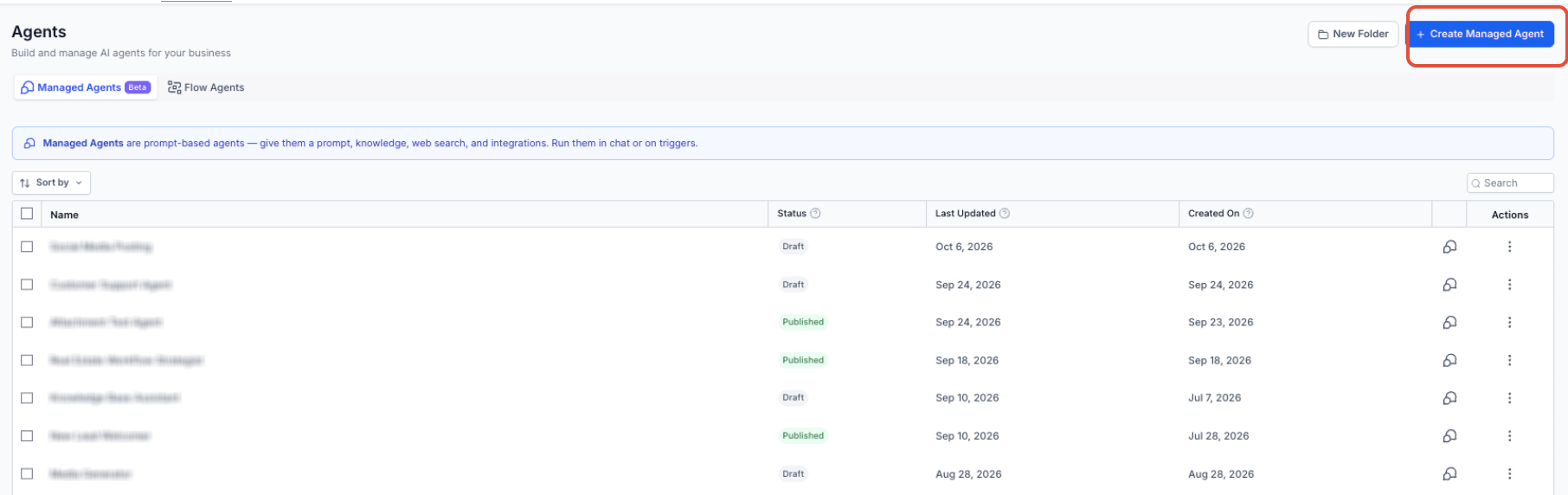
Go to AI Agents > Agent Studio and open the Managed Agents tab.
Create a new agent or open an existing one. You can also tell the guided builder to add an MCP app while it builds the agent.
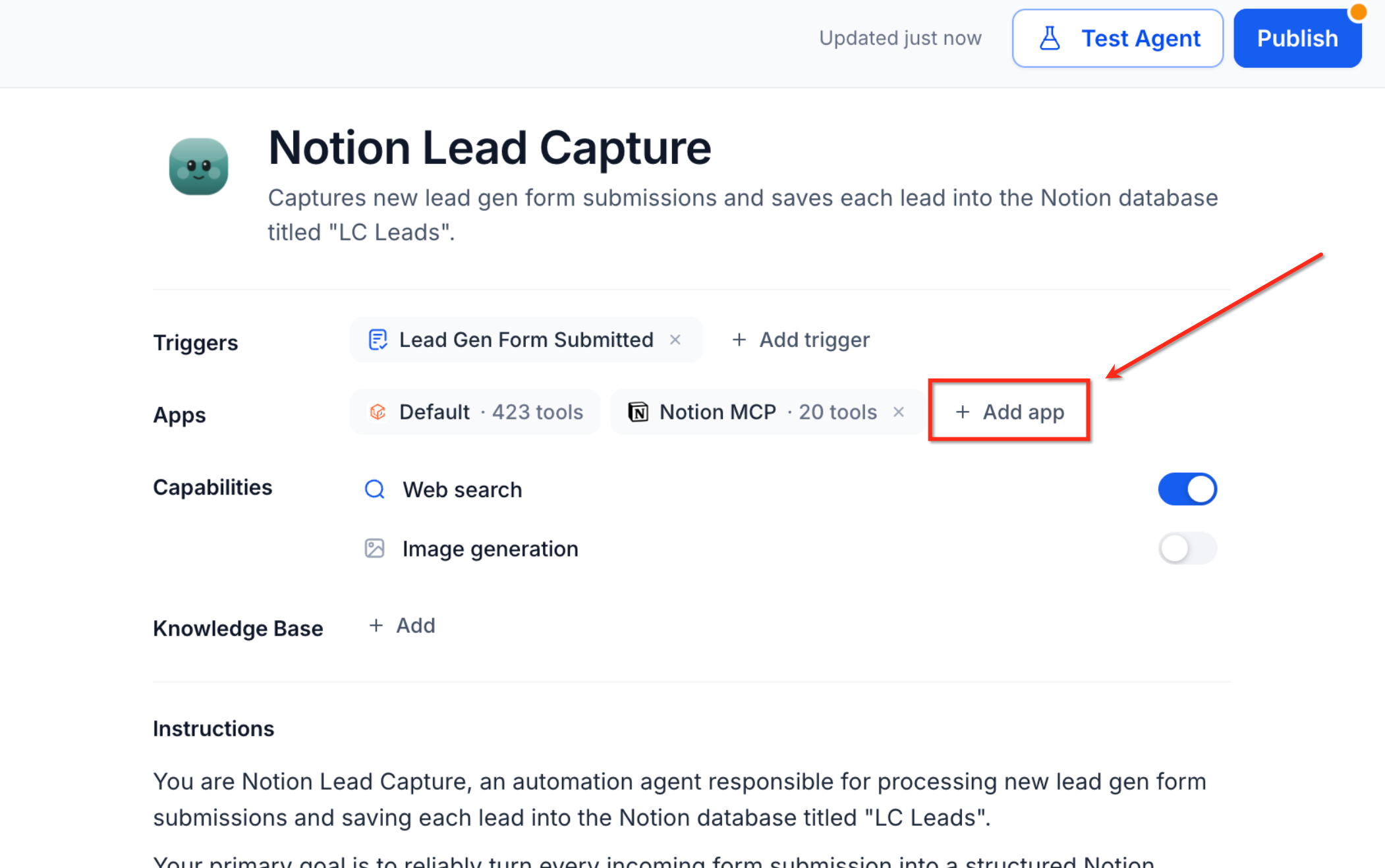
In the Apps area, click + Add app, then browse or search the catalog and select the app (for example Notion, HubSpot or Make).
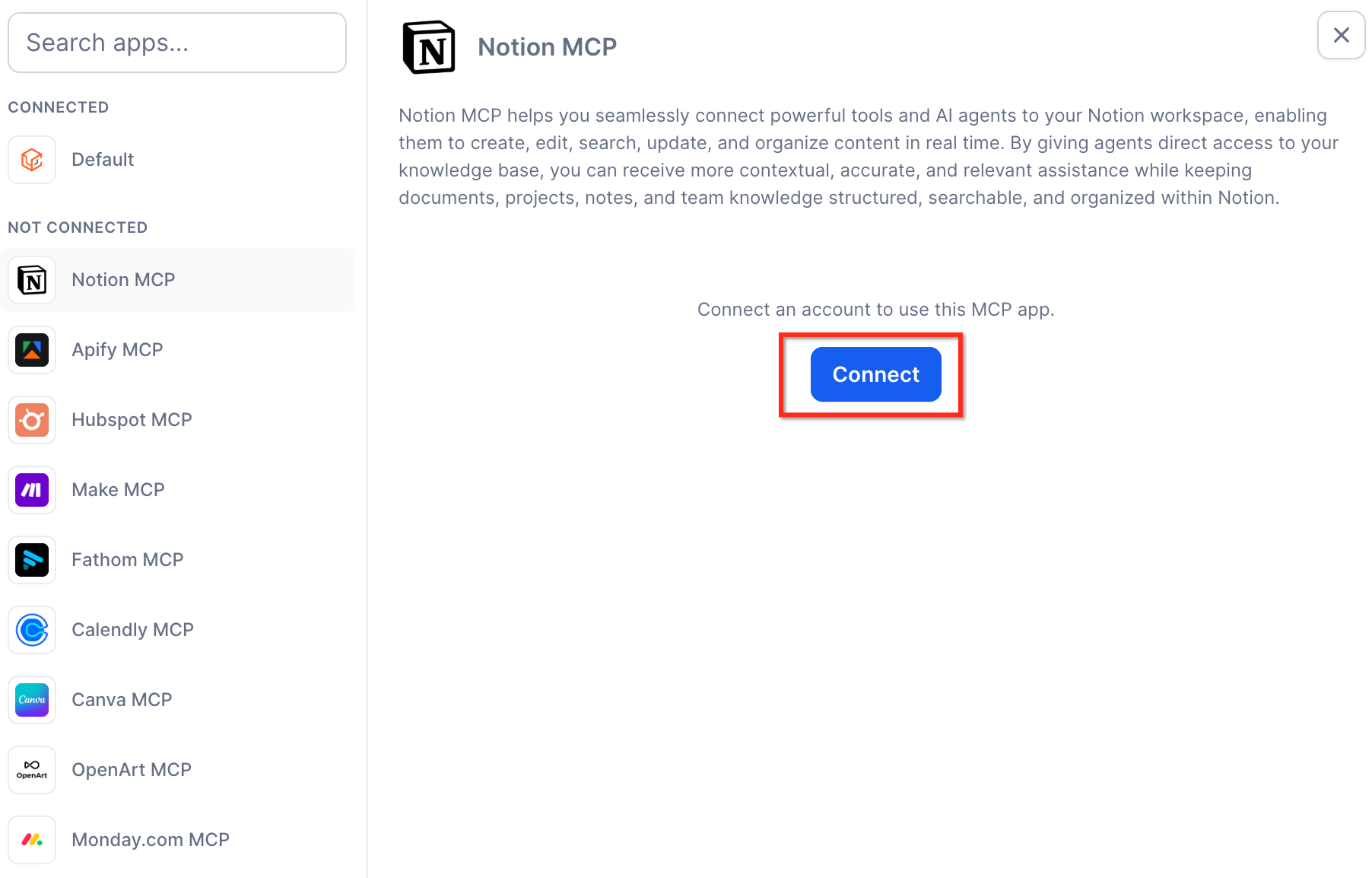
Click + Connect next to the app. Sign in using the OAuth or secure sign-in flow that appears and grant the permissions the agent needs. Use an account with only the access the agent requires.
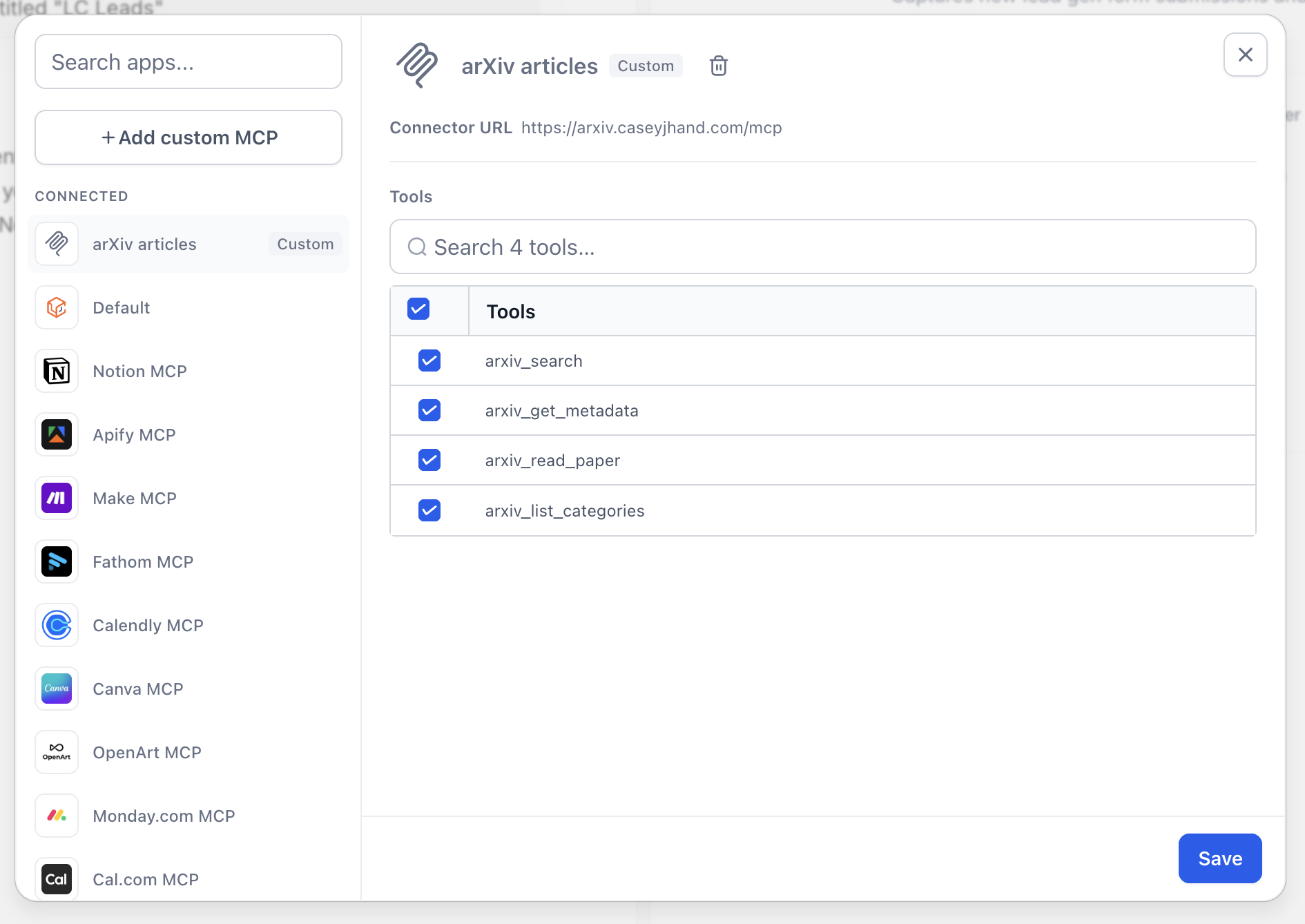
After you authenticate, the app's tool list appears. Check the boxes next to the tools the agent may use (for example notion-create-pages or notion-search). Leave unrelated tools off.
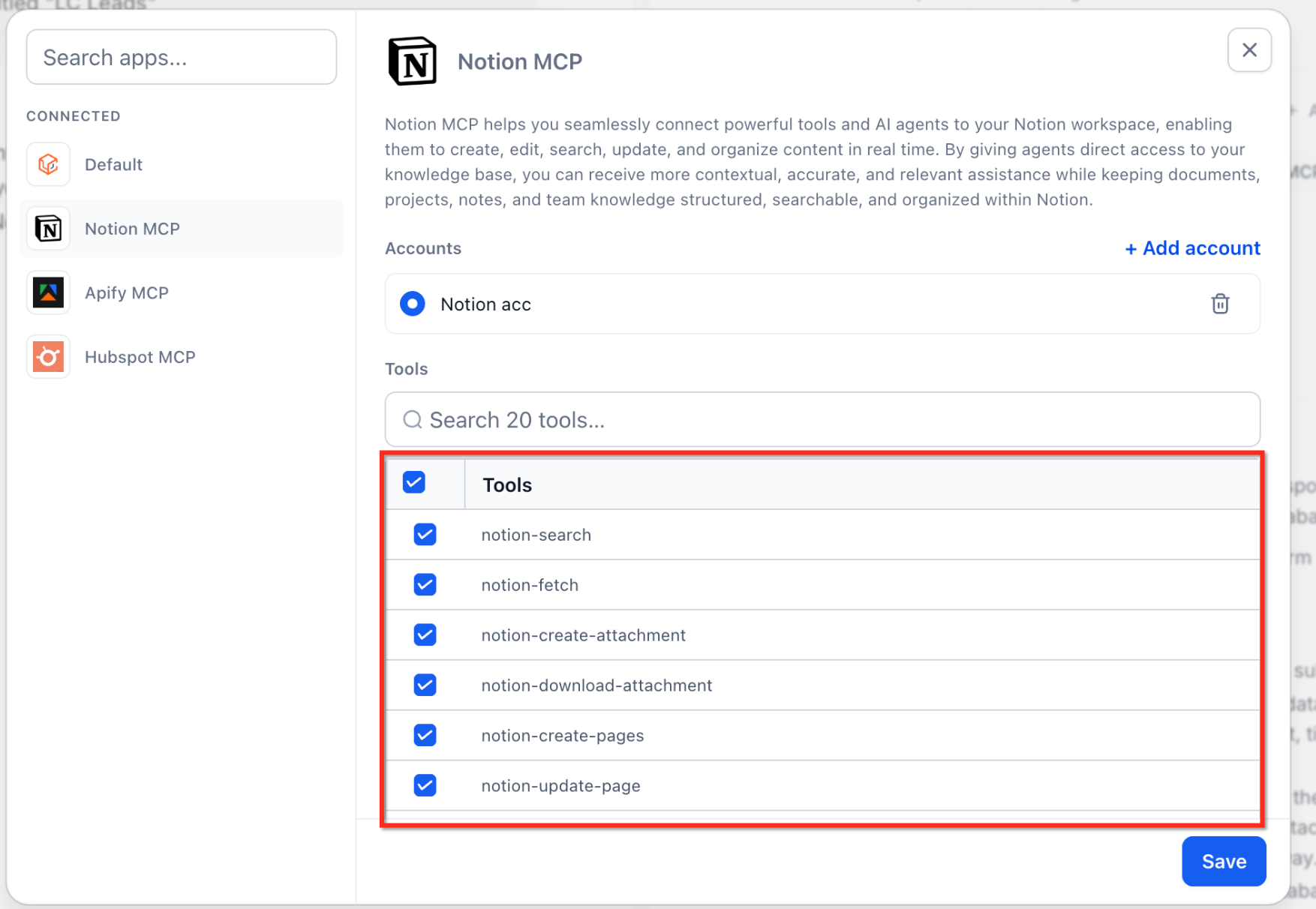
Click Save to apply the connection and the tool selection.
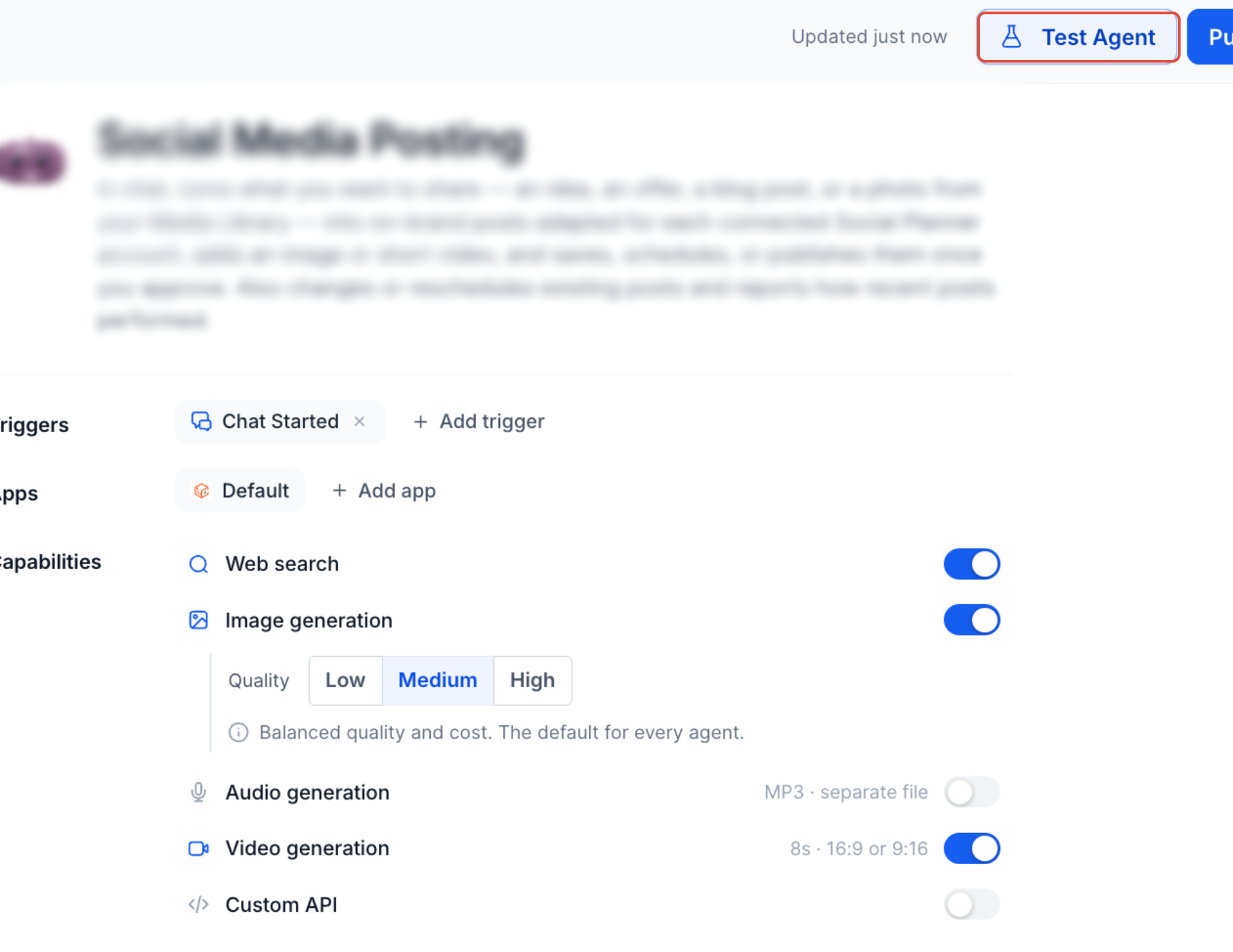
Update the agent's instructions (see below), set its trigger, click Test Agent, and publish when the results are correct.
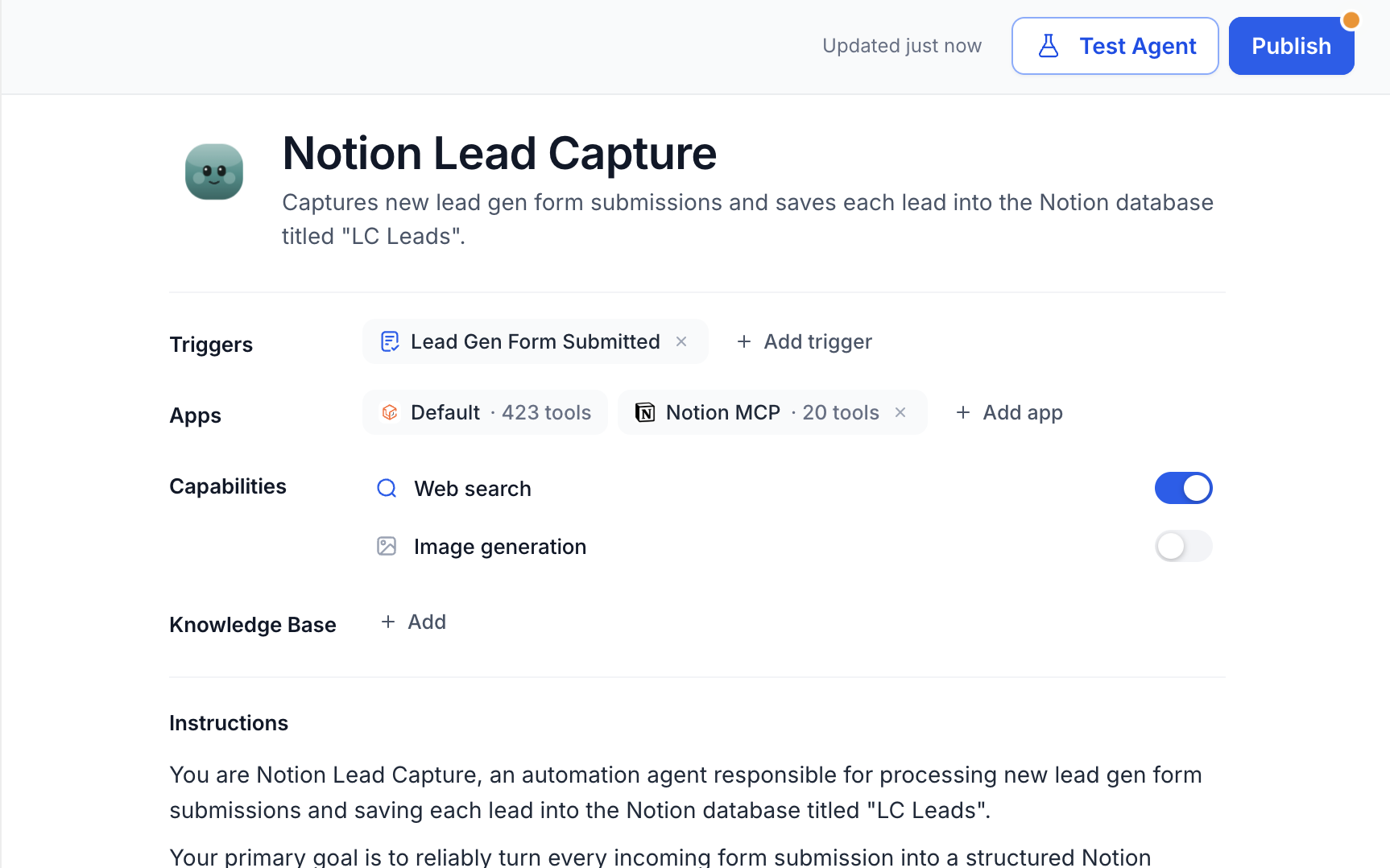
You can connect several apps to one agent; the agent chooses tools based on context and instructions. You can change tool selections at any time by editing the agent.
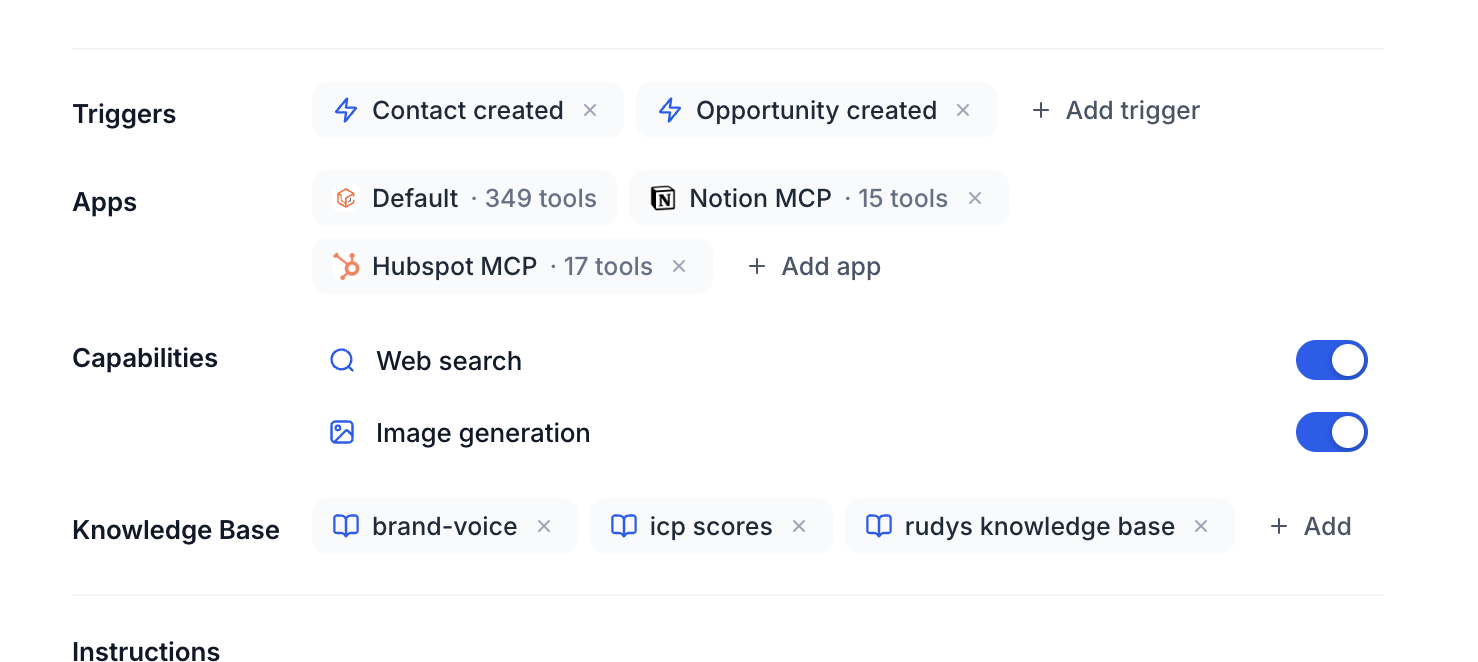
What to put in the instructions
Which situations require the outside app
What data the agent should read or send
Which actions it is allowed to take
When it should ask for clarification or hand off to staff
What to do when the connector returns an error or no result
Testing checklist
Click Test Agent and use representative sample data (never real patient records).
Confirm the correct MCP tool was called.
Check that the expected result appears in the outside app.
Tighten instructions or tool permissions if the agent chose the wrong action.
If authentication fails later or access is revoked, the agent cannot act in that app. Reconnect it from the Apps area to re-authenticate.
If the app you need is not in the catalog, add any compatible MCP server, either a third-party server or your own internal one. You need a server name (a descriptive label) and the server URL where it is hosted. If the server requires authentication, you also need the credentials from the server provider.
In Agent Studio, open the Managed Agent and go to the Apps area.
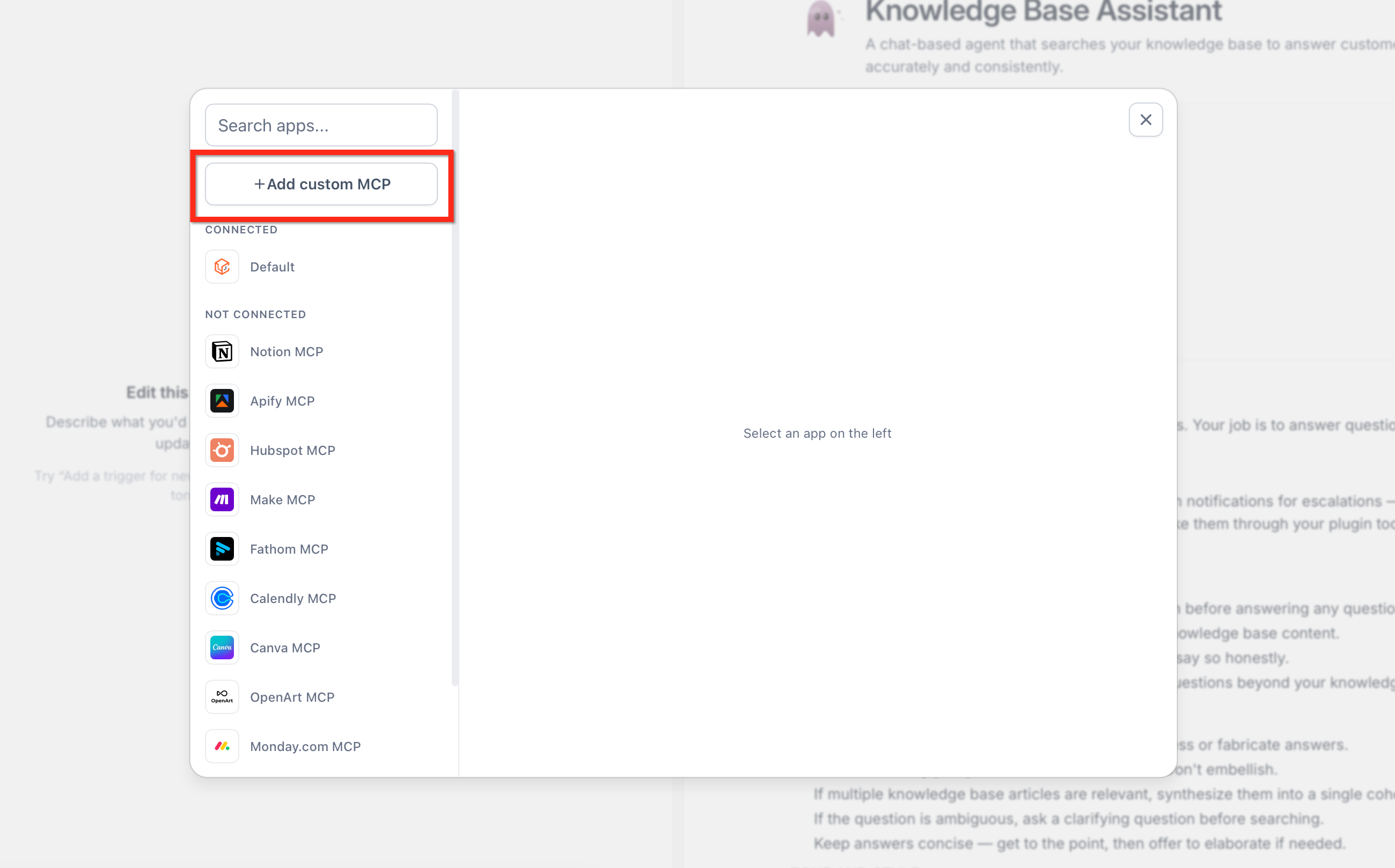
Click the option to add an MCP app, then click + Add custom MCP.
Enter a descriptive Server name and the Server URL.
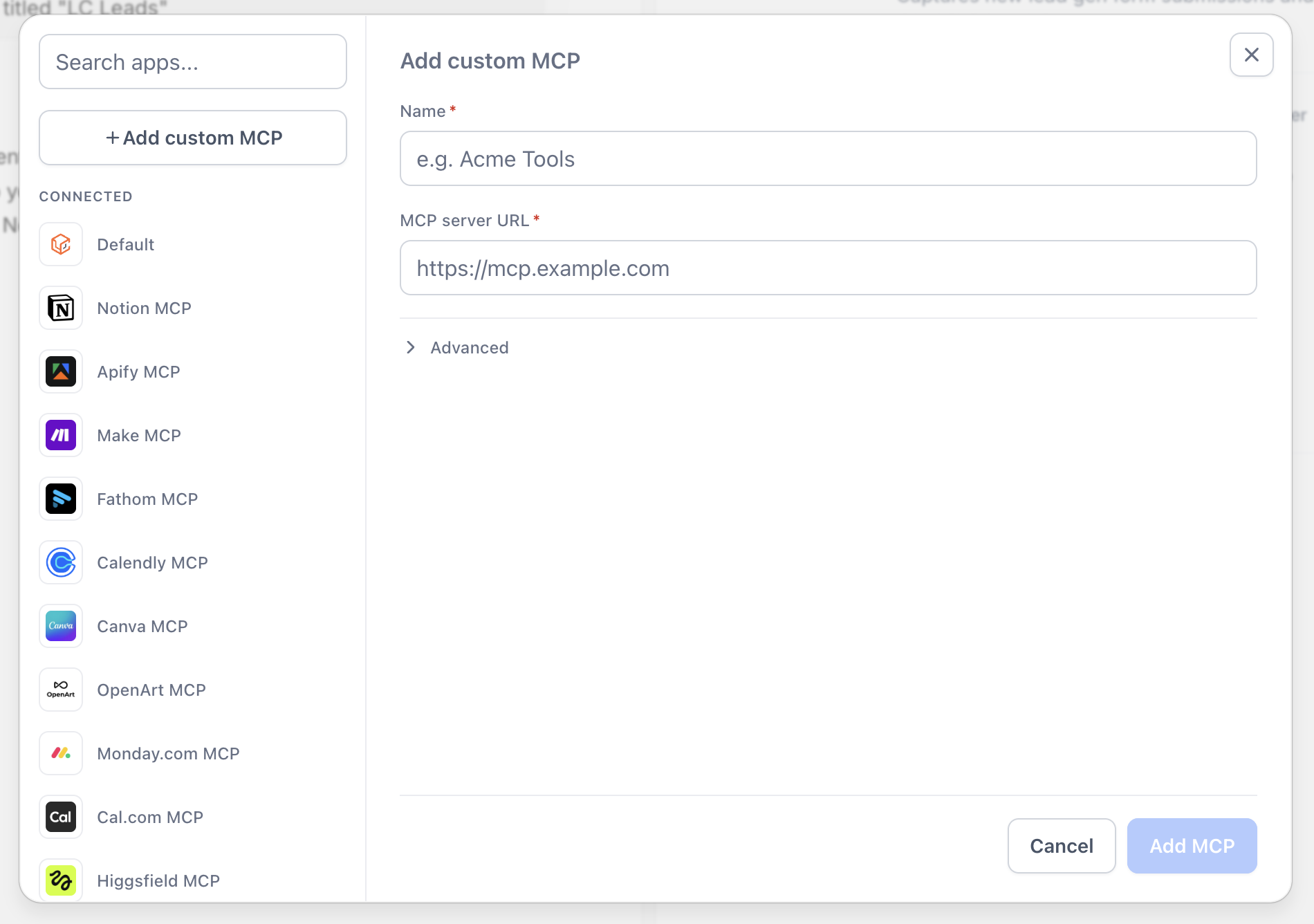
Click Add MCP to save the connector.
Wire the connector to your agent so it can use the server's tools, then select which tools the agent may use.
Authentication for custom MCP servers
When adding or editing the connector, open Advanced settings.
Enter the Client ID issued by your MCP server provider.
Enter the Client Secret issued by the provider. This field is encrypted.
Only configure credentials if the server requires them. Many do not. Check the server's documentation.
You can add several custom connectors to one agent. There is no fixed limit, but too many tools can slow the agent and make its choices less accurate, so keep only what the use case needs. You can edit or remove a custom connector at any time, and changes take effect immediately.
When an MCP connection is set up from the AI Agent action in a workflow (the connection form with Test Connection), these options are available:
Setting | Options |
|---|---|
Authentication type | None, API Key, Bearer Token, OAuth2, Custom Header |
Transport type | HTTP Streamable (default and recommended), Server-Sent Events (SSE) |
Some providers expect an API key in an HTTP header and others as a query parameter. Follow your provider's documentation. Use HTTP Streamable unless the provider says otherwise.
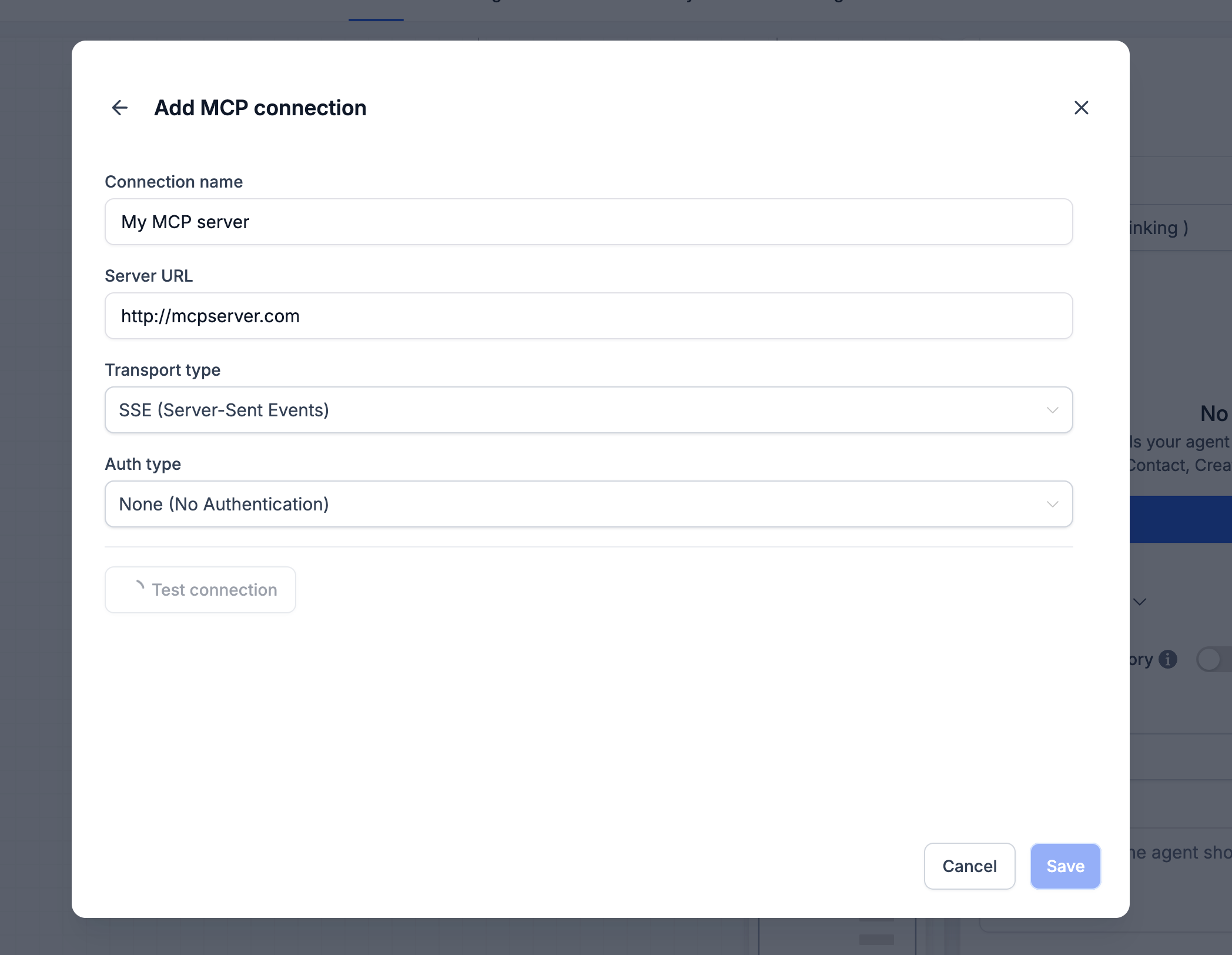
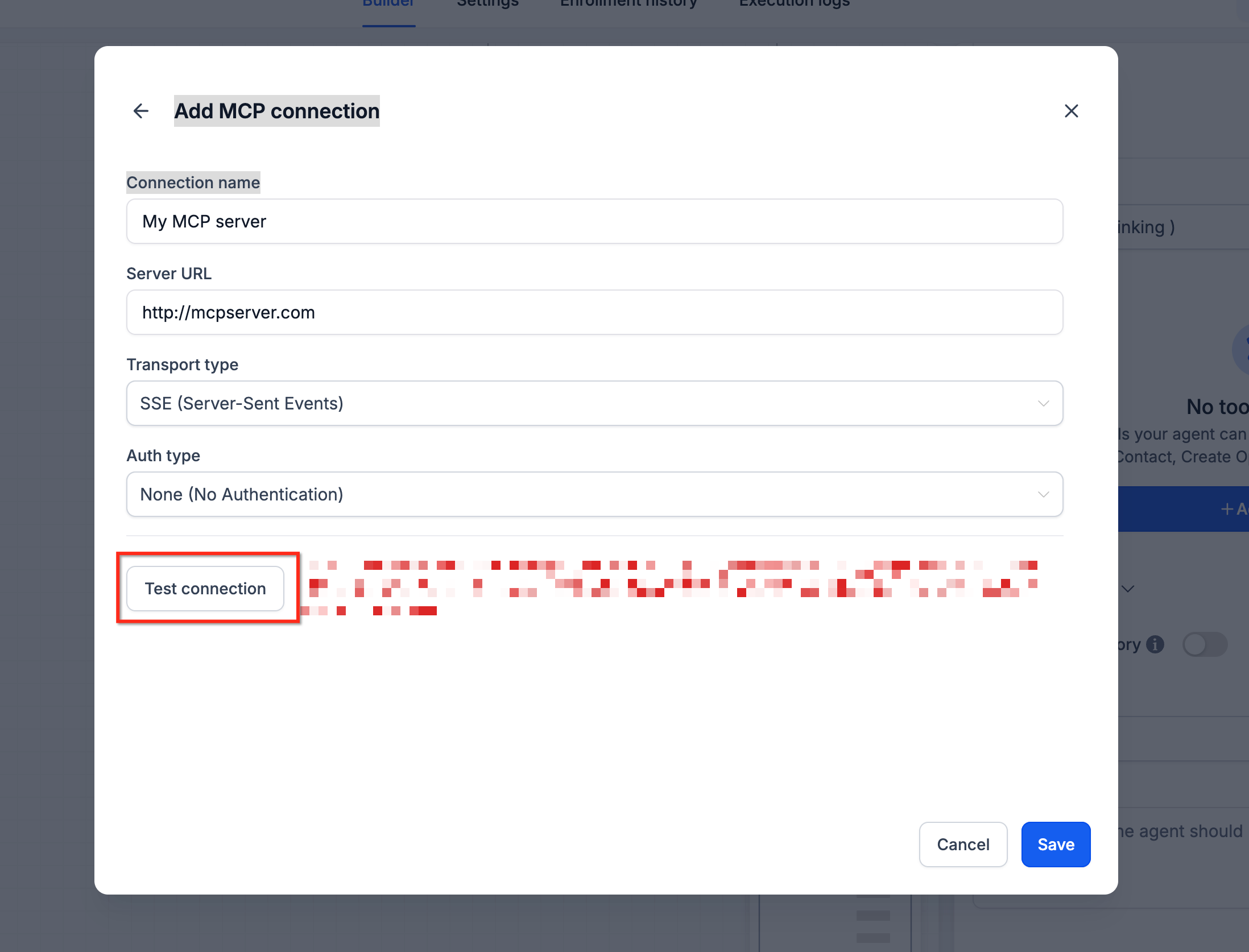
Test Connection verifies communication with the server, validates the credentials, discovers the tools the server offers and lists every tool it returns. After discovery, enable only the tools the AI agent should use and save. Tool permissions apply per AI agent, so different agents can use different tool sets from the same server.
Common examples of MCP servers are Exa (web search across companies, people and news), Tavily (real-time web search and page extraction), Browserbase (browser automation) and self-hosted servers that follow the MCP specification. Aesthetix CRM does not host or manage third-party MCP servers; their availability, pricing, authentication and tools are set by the provider, and they may need their own account or usage fees.
Custom API Calls let a Managed Agent call an external API during a conversation to read live information, send data or check availability. When the call is relevant, the agent checks whether it has the required values, asks for any that are missing, sends the configured request with your authentication, and uses the response fields you selected to continue.
Before you start, have the API documentation and credentials ready: endpoint, method, required parameters, headers, body fields and which response data the agent needs.
Option | Supported values |
|---|---|
Request methods | GET, POST, PUT, PATCH, DELETE |
Authentication | API Key, Bearer Token, Basic Authentication, No Authentication |
Request details you can configure | Method, endpoint URL, path or query parameters, headers, request body (when required), authentication, usage instructions |
Set up a Custom API Call
Go to AI Agents > Agent Studio, open Managed Agents, and select the agent.
Add or configure the Custom API Call and enter the request method, endpoint URL, parameters, headers, body and authentication.
Write clear instructions describing when the agent should use this API. This matters most when the agent has several tools or API calls.
Test the request: enter test values for the required parameters, run it, and review the status and response. The test view can show a cURL preview for reference or troubleshooting. You do not need to write cURL yourself.
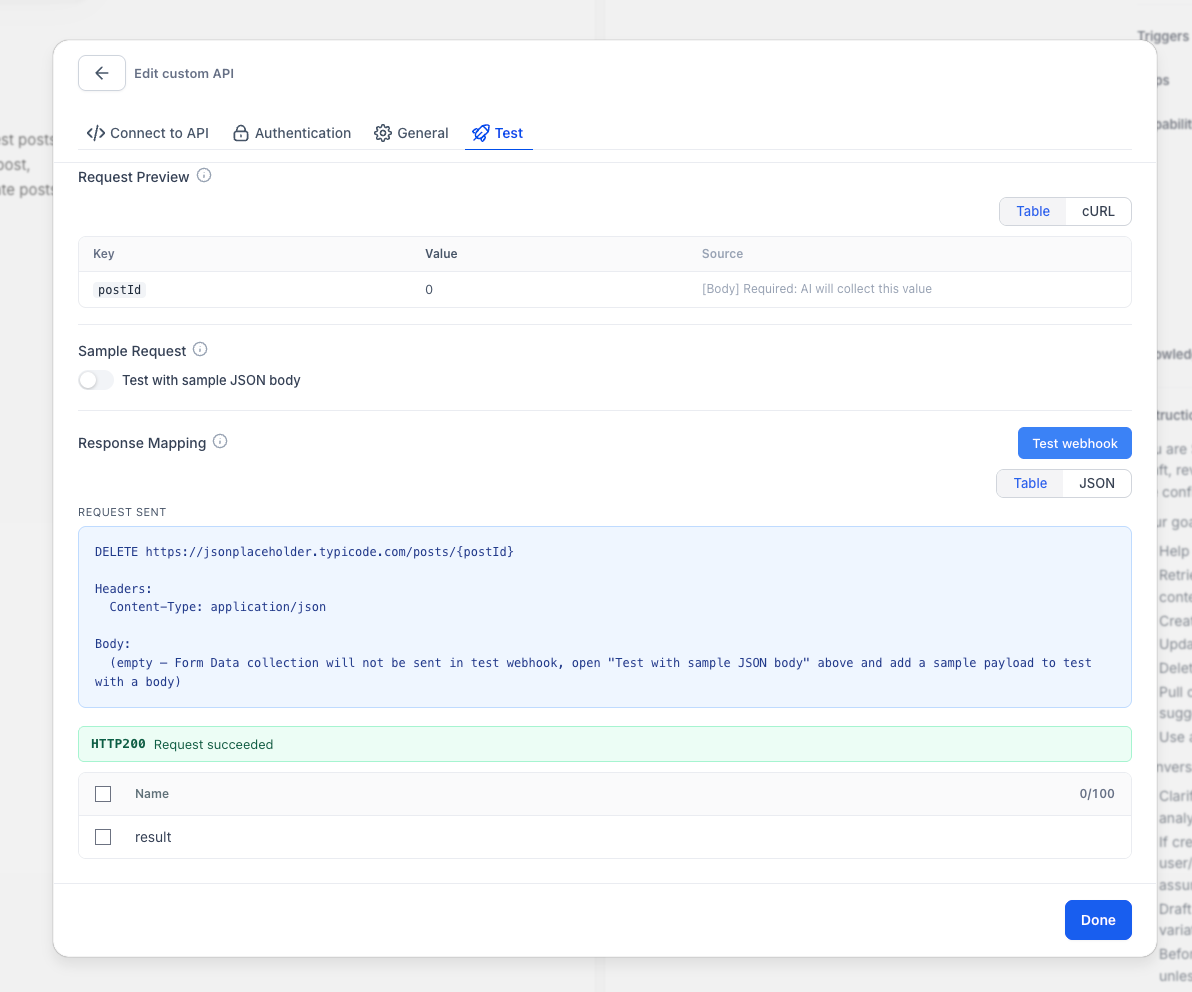
Select the response fields the agent should use. Include only the data it needs.
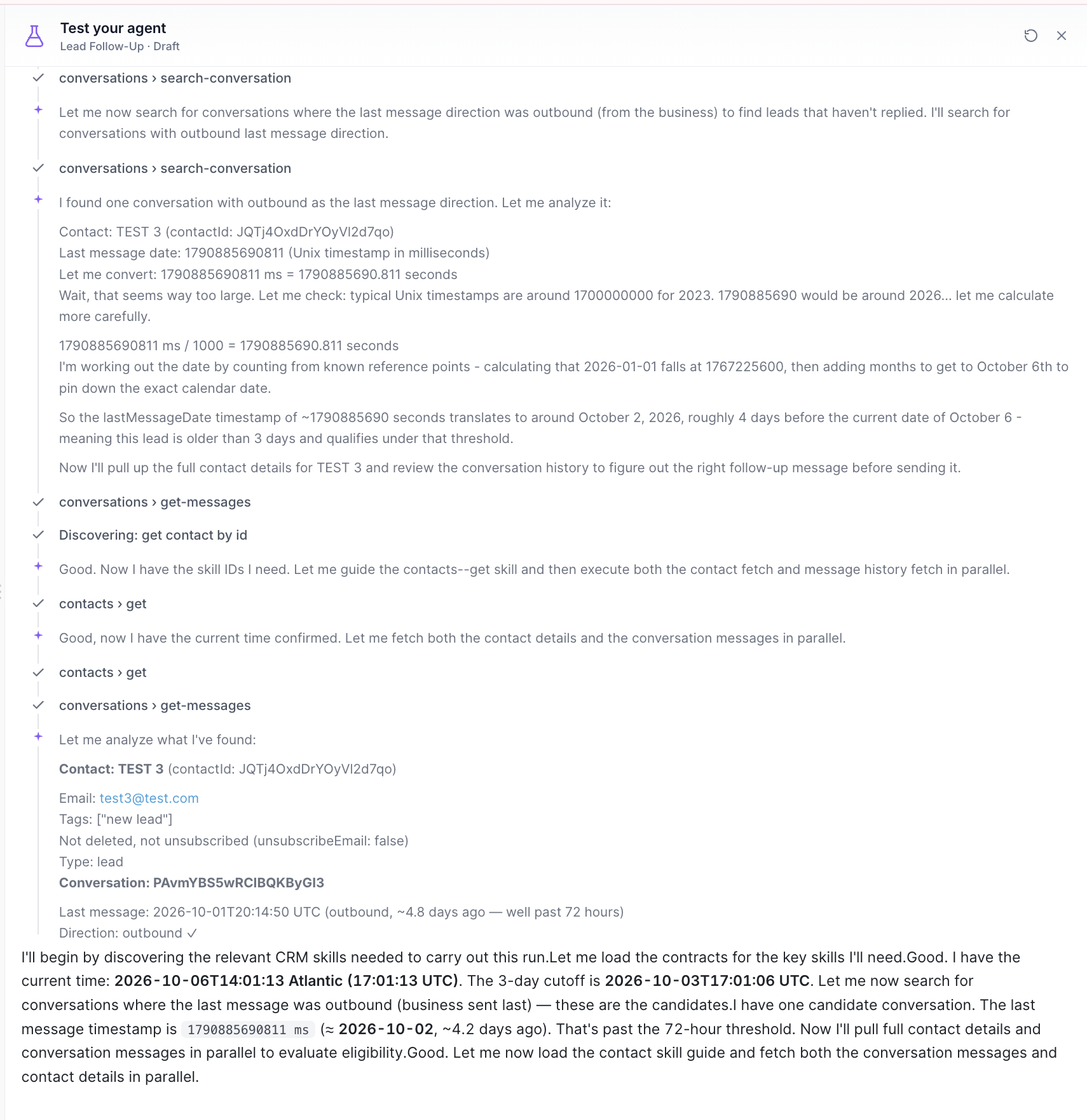
Save, then test the whole agent with realistic requests. Confirm the right API is chosen, required values are collected, the request succeeds and the expected response data is used, before you publish.
You can configure multiple API calls on one agent. Give each its own usage instructions.
Managed Agents and Ask AI can both use MCP connectors, but they work differently.
Area | Managed Agents | Ask AI |
|---|---|---|
How work starts | A configured trigger or supported agent event | You ask Ask AI to do a task |
Where you configure connectors | The agent's Apps area | In Ask AI: Customize > Connectors > Manage Connectors |
Typical use | Repeatable, event-driven automation | Interactive, user-started work |
Tool control | Select the connector's tools for the agent | Enable the connector and control which tools are allowed |
To connect an app in Ask AI: open Ask AI, go to Customize > Connectors, select Manage Connectors, find the app, connect and authenticate the account, review and enable the tools Ask AI may use, enable the connector, then start a chat that asks for something needing the app. MCP connectors are not yet available for Conversational AI or Voice AI.
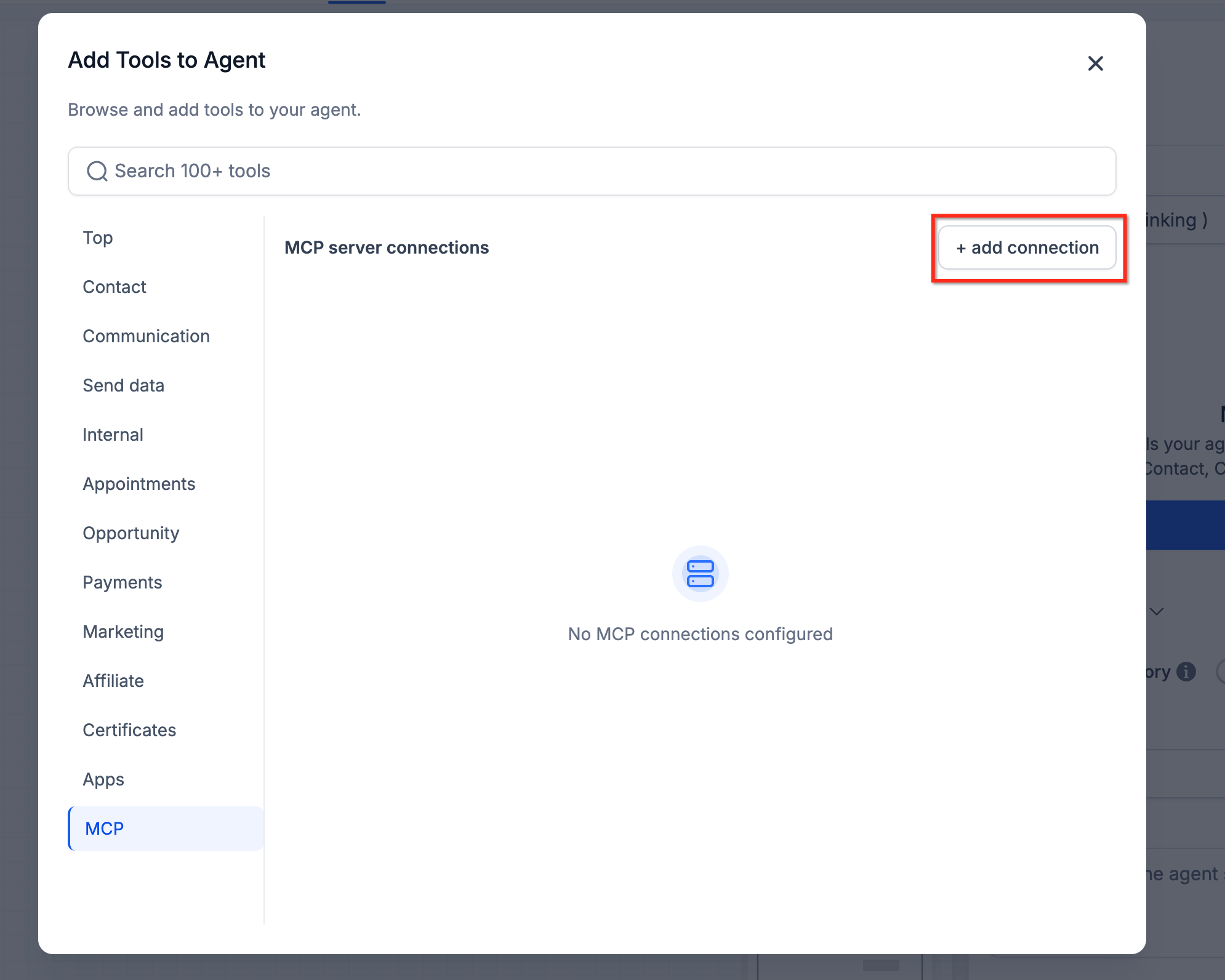
AI agents inside workflows (the AI Agent workflow action) have their own MCP connection form: open the workflow, add or edit the AI Agent action, choose Add Tools, open the MCP tab and click Add Connection. It uses the same authentication and transport options listed above.
Grant only the minimum permissions in the outside account.
Select only the tools the agent needs.
Keep credentials out of prompts. Use the sign-in flow or the authentication fields.
Write explicit guardrails: what the agent may do and when it must confirm or escalate.
Test read and write actions with realistic non-patient data before turning on live triggers.
Connect only trusted providers, give connections descriptive names and rotate credentials on your own security schedule.
Review tool lists after connector updates and review permissions periodically.
Do not send PHI to outside apps. Many third-party services are not set up for PHI.
Issue | What to check |
|---|---|
App connected but the agent cannot use it | Confirm the app is attached to the correct agent and the individual tools are enabled |
Authentication fails | Reconnect, verify the outside account, and confirm that account can authorize the requested access |
A tool does not appear | Review the connector's current tool list and the plan or permissions on the outside account |
The agent uses the wrong action | Reduce tool access and make the instructions more explicit about when to use each tool |
The agent does not run | Check the trigger is configured, the agent is published, and your test event matches the trigger |
It worked before but now fails | Authorization may have expired or been revoked; reconnect and retest |
Test Connection fails (workflow connections) | Check the server URL, authentication settings, credentials and transport type, and that the server is online |
Ask AI does not use the connector | Confirm the connector and tool are enabled and your request clearly needs the connected app |
What is the Model Context Protocol (MCP)?
MCP is a standard that lets AI agents sign in to outside applications and use their tools safely. It defines how an agent authenticates, discovers tools and runs actions.
Can one Managed Agent use more than one app?
Yes. Attach as many apps as the job needs and make the instructions clear about when to use each one.
Does adding an app make the agent run automatically?
No. The connector only supplies tools. The agent still needs a trigger and instructions to know when to run and what to do.
Are my credentials safe?
Connectors use OAuth or secure sign-in flows, and the agent receives only the permissions you grant. Client secrets for custom servers are encrypted. Never type passwords or keys into the agent's instructions.
What is the difference between catalog apps and custom connectors?
Catalog apps are prebuilt integrations you pick from the list. Custom connectors let you add any compatible MCP server by name and URL.
How do I limit what an agent can do in an app?
After connecting, check only the tools you want. You can change the selection any time by editing the agent.
Do I need an account with the outside app?
Usually yes. You sign in to an eligible account, and plans or permissions can vary by app.
Which authentication methods work for Custom API Calls?
API Key, Bearer Token, Basic Authentication, or no authentication.
What if the API needs a value the contact has not given?
The agent asks for the missing value during the conversation before sending the request.
Can I send patient information to a connected app or API?
No. AI features are not approved for PHI, and outside apps may not be set up to handle it. Use only non-identifying business data.
