Computer is a Managed Agent capability that lets an agent browse websites, create and edit files and run scripts to finish tasks that go beyond built-in CRM actions. You turn it on per agent at AI Agents > Agent Studio > Managed Agents. Approval controls, secure website sign-ins and a shared workspace keep sensitive actions under your control. This feature may not be enabled on every account yet.
Protected health information (PHI): AI features in Aesthetix CRM are not approved for processing PHI. Do not put PHI into agent instructions, prompts, files, memory or knowledge. Never let an agent sign in to your EMR, patient portal, imaging system or any site that shows patient records, and never save patient information into the Computer workspace. Use Computer for public-web and business tasks only.
Computer gives an agent a computer environment so it does not have to rely only on built-in CRM actions and connected apps. For example, an agent can browse competitor medspa websites, collect their published menu prices, compare offerings and write up a report. It can also navigate web applications, fill in forms and help with multi-step operations from one conversation.
Computer has three tools:
Browser: open websites, navigate, click, fill out forms and use web applications.
Files: create, read, edit and export files in the computer workspace.
Terminal: run commands and scripts for data processing, calculations and other advanced tasks.
It also includes secure website sign-ins, configurable approvals and activity monitoring.
Important limitation: Computer currently supports chat and manual runs only. It does not run during trigger-based executions, including workflow-triggered runs. Other Managed Agent capabilities can still be triggered automatically.
Supported activities:
Opening and navigating websites.
Reading and researching website content.
Clicking buttons and interacting with page elements.
Entering information and filling out forms.
Navigating authenticated websites after a successful sign-in.
Completing multi-step tasks across web applications.
You can watch browser activity and take control when a manual step is needed. Example request: "Visit three competitor websites, compare their published prices for the same service, and summarize the differences."
Supported activities:
Creating reports and documents.
Generating spreadsheets and other business files.
Reading and modifying workspace files.
Exporting generated files.
Reusing workspace files across conversations.
Example: "Create a spreadsheet comparing the pricing and features of the competitors you researched."
Files in the Computer workspace are different from documents attached to a chat. Chat attachments are covered in "Managed Agents: Custom Skills, Files and Memory".
Supported activities:
Running Python scripts.
Processing and analyzing datasets.
Running terminal commands.
Installing packages needed for supported tasks.
Preparing reports from processed data.
Example: "Analyze this marketing spend CSV, calculate monthly growth in new consults, and create a summary report." Terminal is off by default in the sample configuration; enable it only when the agent needs code execution.
Ask Before settings decide which activities need your permission before the agent can continue. They are set for each individual Managed Agent.
Activity | Behavior |
|---|---|
Submitting forms | Configurable |
Making payments or purchases | Always requires approval |
Sending emails or messages | Configurable |
Publishing content or going live | Configurable |
Deleting files or records | Always requires approval |
Downloading files | Configurable |
Visiting a new website | Configurable |
Configurable activities can be set to ask for confirmation or, where supported, to be allowed for the current chat.
When the agent reaches an action that needs approval, it pauses and shows a request.
Review the requested action and its destination or the affected resource.
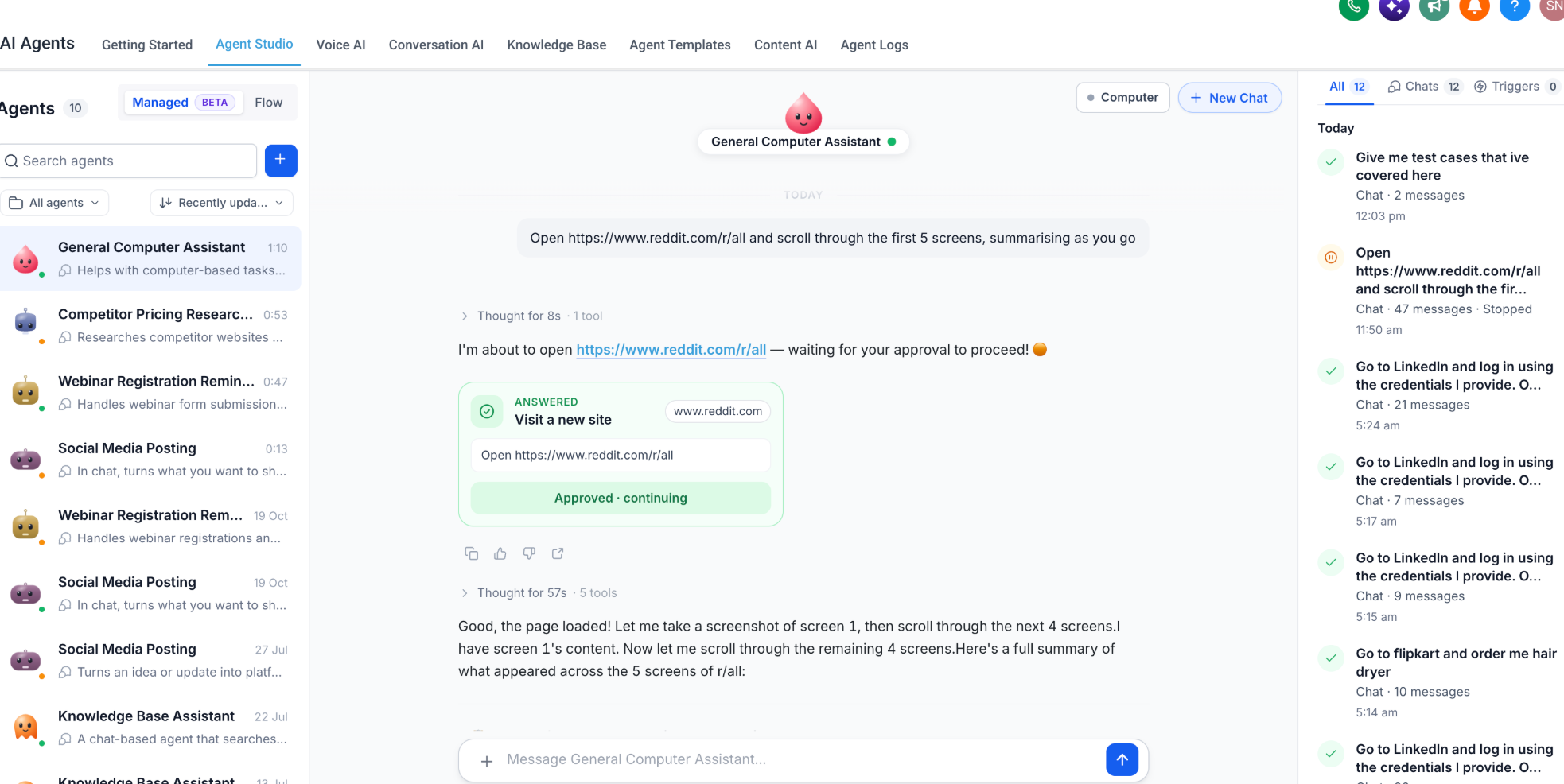
Confirm it matches the task you assigned.
Approve to let the agent continue, or decline.
If an option to allow the action for the current chat appears, choose it only when you want that permission to apply within that scope.
If the agent has accessed workspace data and then tries to send it outside the computer environment, an extra approval may be required. Always check the destination and the content of sensitive actions before approving, especially when information is going to an outside website or app.
If you do not approve a request, the agent cannot complete that action and may stay blocked on that part of the task.
Some browser tasks need a site that requires a username and password. Computer supports secure sign-ins so the agent can continue without you typing passwords into the conversation. The product describes passwords as protected and not exposed to the agent.
The agent goes to a site that requires a login.
It recognizes that a login is needed.
A sign-in request appears in the conversation or the Computer panel.
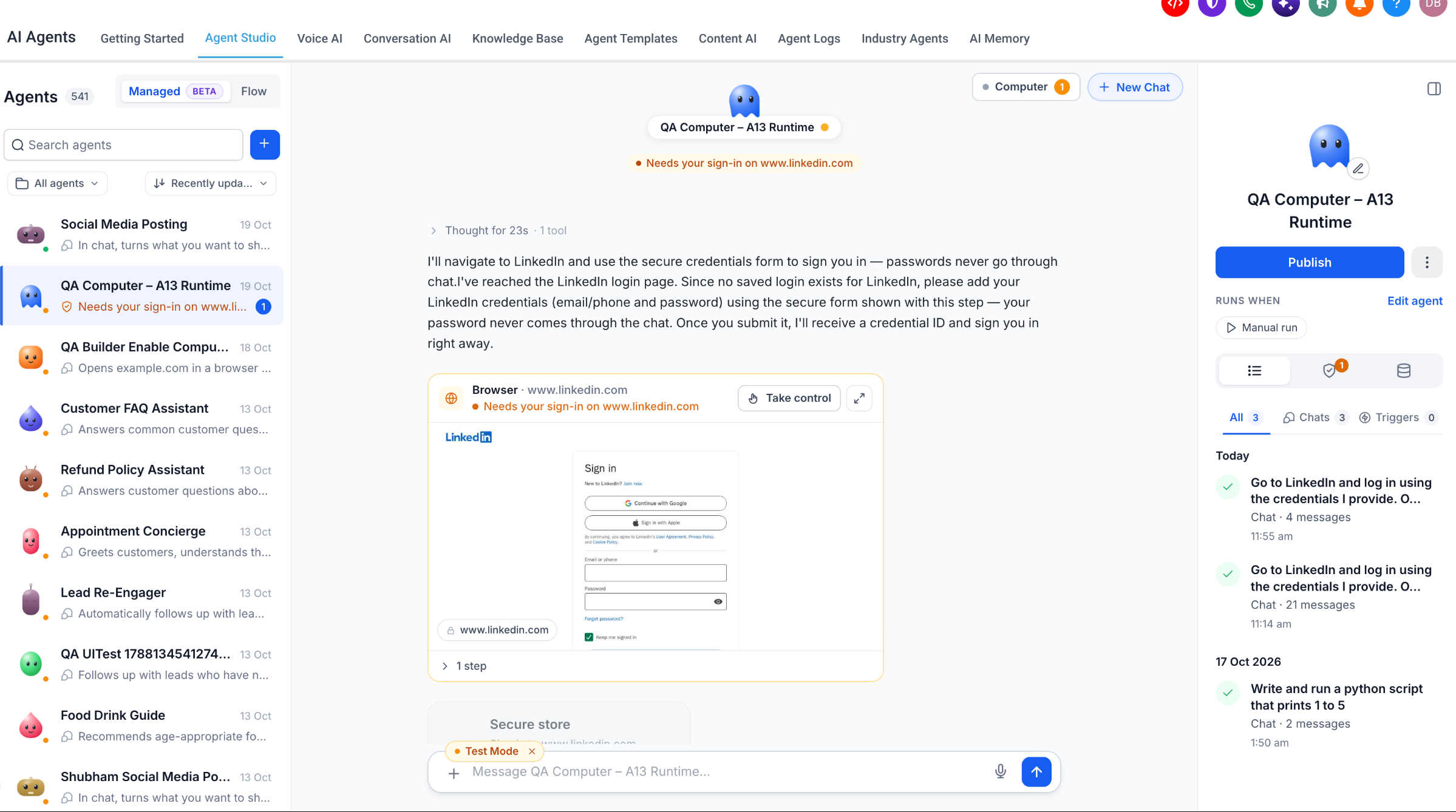
Select Add login to open the secure credentials form.
Enter the credentials in the secure form and submit.
After sign-in succeeds, the agent continues the task.
Saved sign-ins can be reused for later tasks on the same site.
Open the Managed Agent conversation.
Find the sign-in request.
Select the option to update or provide credentials.
Enter the correct credentials in the secure form and submit.
Let the agent retry.
Do not type website passwords in chat. Only add logins for business accounts that do not display patient information, such as a social media tool or a vendor site. Do not add logins to your EMR or any system that exposes patient records.
Open it with the Computer control near the top of the conversation. It shows:
Computer status: active or inactive.
Waiting on You: requests that need your approval or input.
Recent pages: sites the computer recently visited.
Allowed in this chat: website permissions granted for this chat.
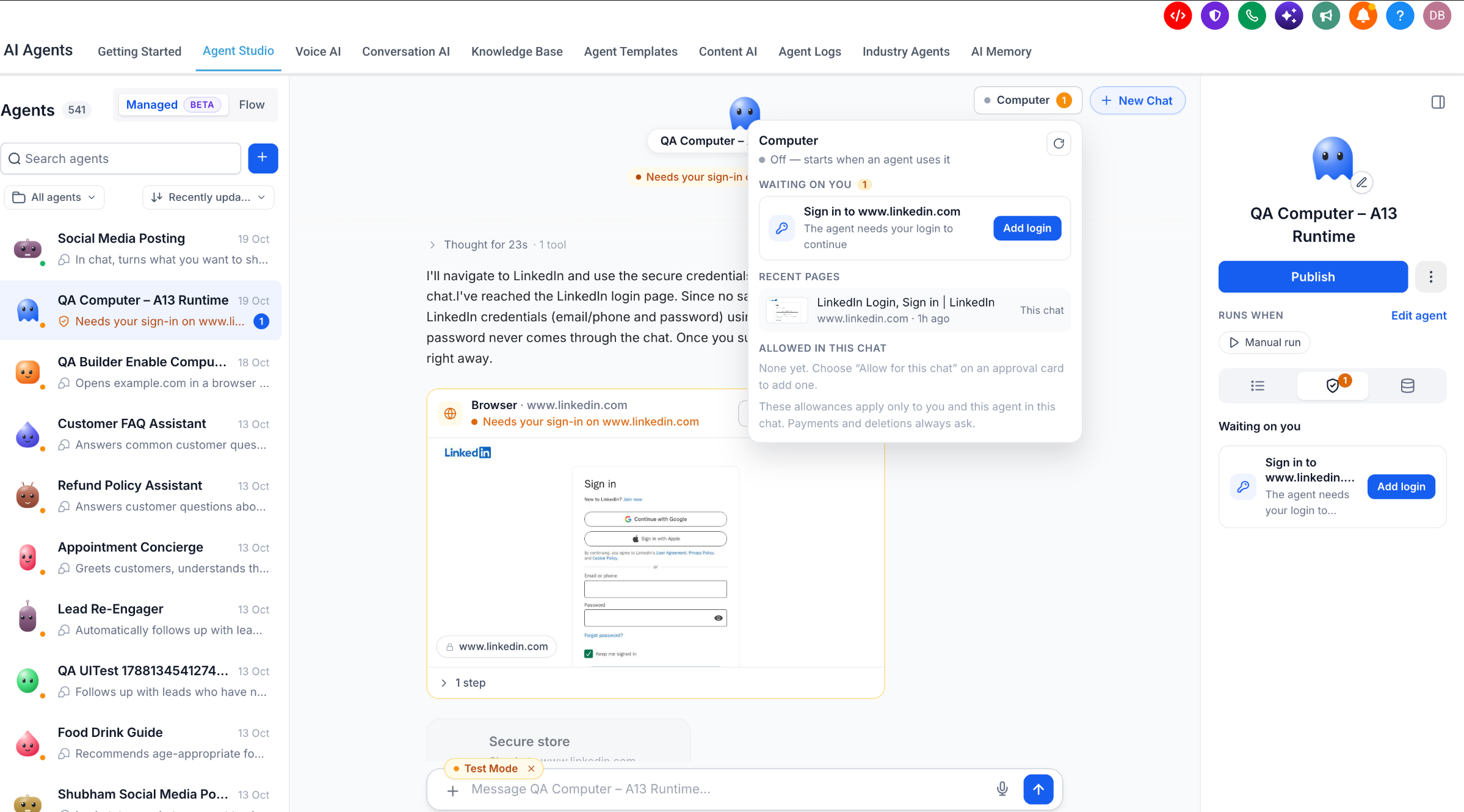
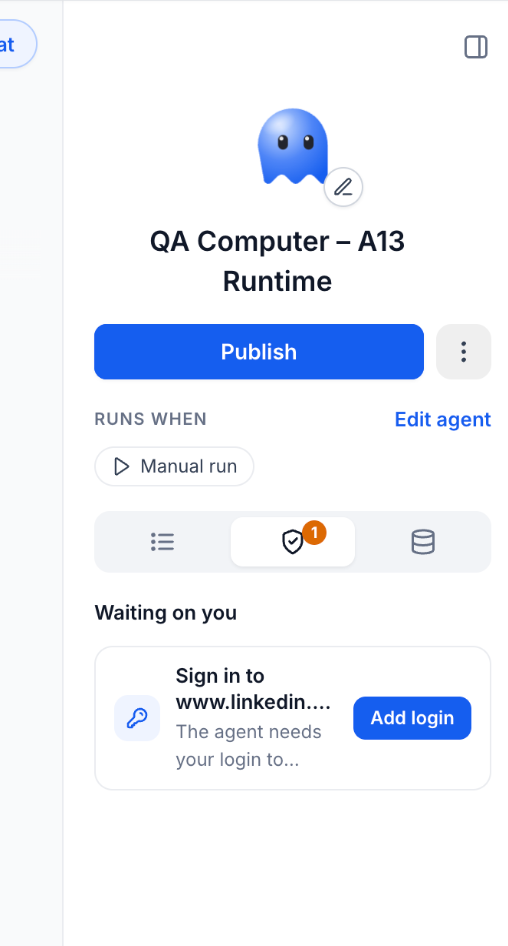
This lists requests the agent cannot continue without you: approving a sensitive action, supplying website login credentials, authorizing access to a site, or confirming something else.
Open the Managed Agent that has a pending request.
Find Waiting on You in the agent details panel or the Computer panel.
Select the request.
Review what is asked.
Provide the approval or input.
Return to the conversation to follow progress.
For example, when an agent needs to sign in to a social media tool, Waiting on You shows a sign-in request with an Add login action.
Find the Browser activity card in the conversation.
Select Take control.
Complete the manual step.
Hand control back to the agent with the controls provided so it can continue.
Use this when a site needs direct interaction or when you want to review a page before the agent proceeds.
Your account has one computer shared by all of its Managed Agents. Agents in the account use the same environment, workspace files can remain available between conversations, and the computer is isolated from other accounts. Each agent keeps its own capability and approval settings. How simultaneous computer tasks by several agents are scheduled is not specified, so do not assume how concurrent work behaves.
The computer sleeps automatically when inactive and resumes when needed. Workspace files are preserved while it sleeps, so a competitor research file created in one conversation can be used again in a later task.
Direct Managed Agent chat conversations.
Manual agent runs.
Testing through the agent testing interface.
Not supported: trigger-based executions, including workflow-triggered runs.
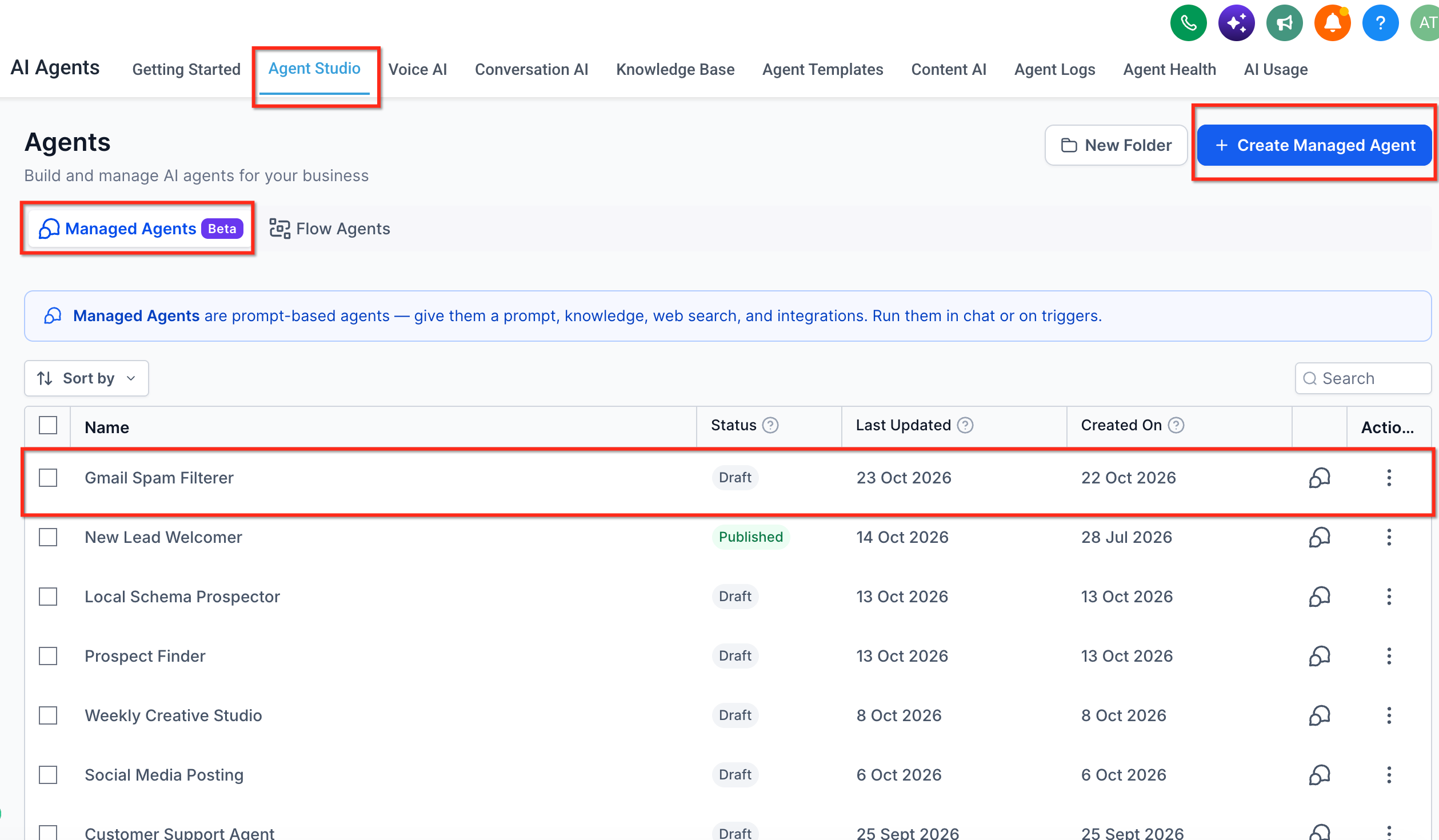
Open Agent Studio. Go to AI Agents > Agent Studio and open the Managed Agents tab. Select an agent or create one. For creating agents, see "Managed Agents: Building an Agent with the Guided Builder and Instructions".
Enable Computer. In the agent configuration panel, find Capabilities, locate Computer, and turn it on. More options appear beneath it.
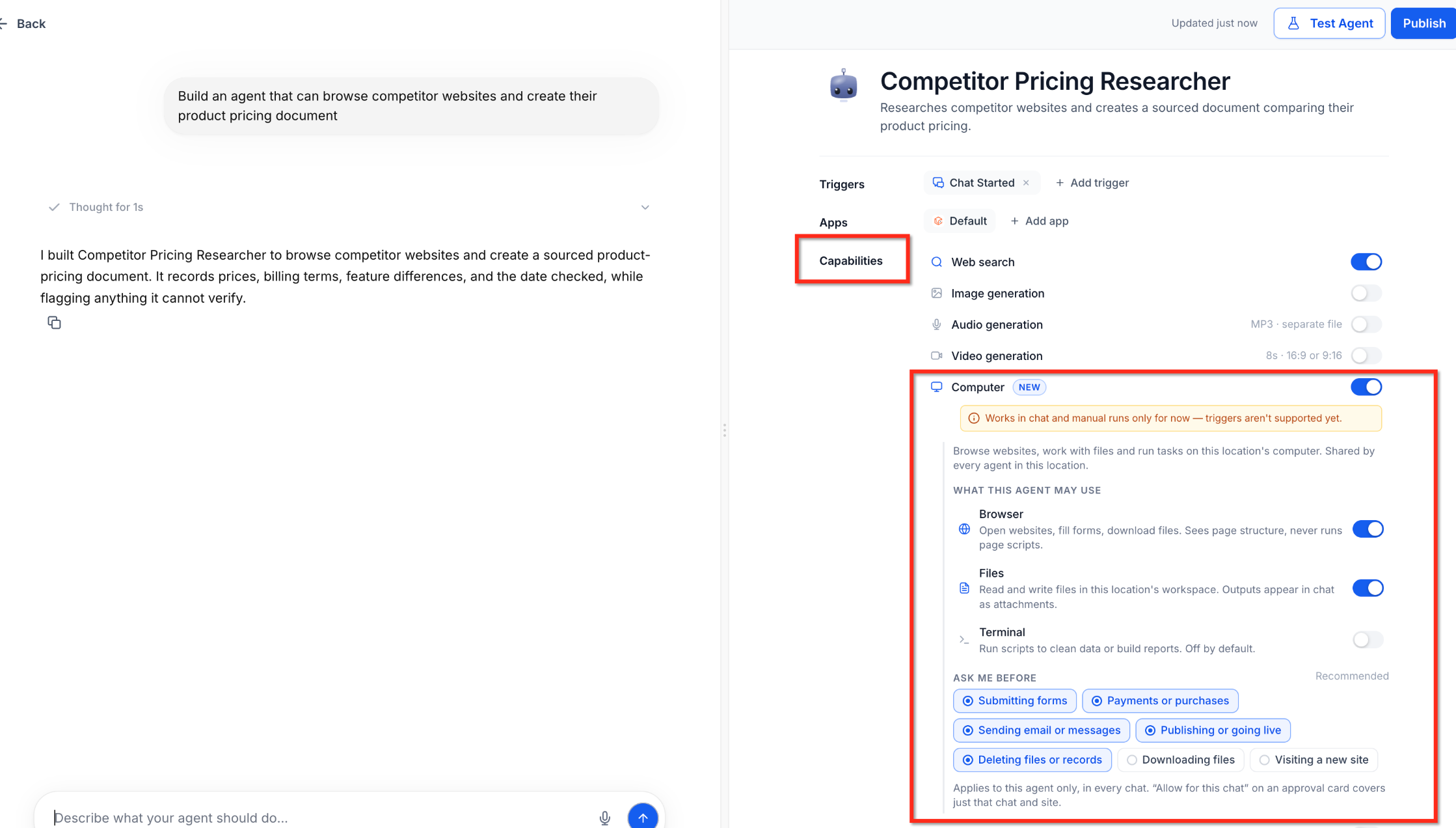
Choose tools. Under What This Agent May Use, enable Browser for navigating sites and filling forms, Files for workspace files, and Terminal for scripts and commands. Enable only what the agent needs. A competitor price research agent may need Browser and Files but not Terminal.
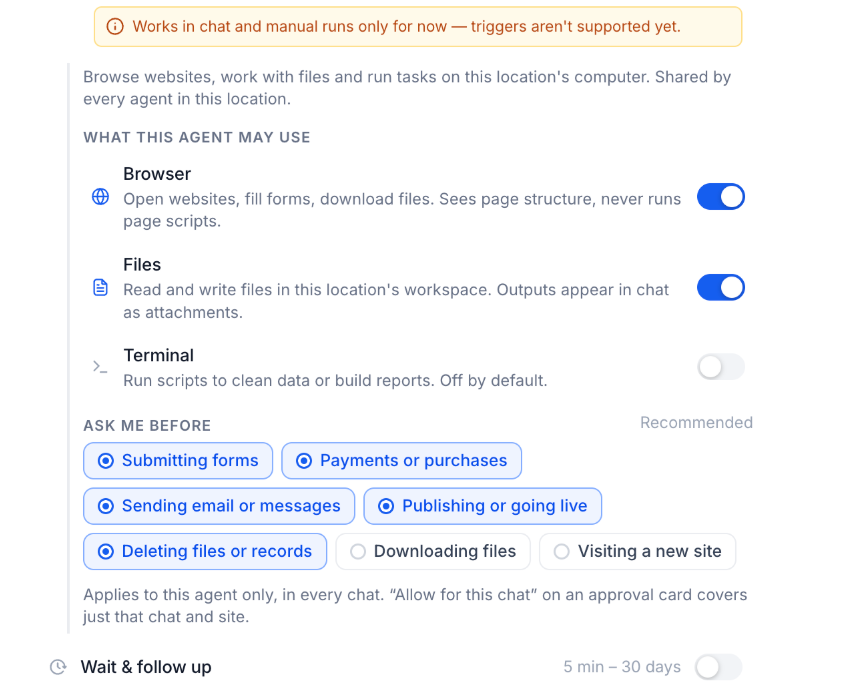
Configure Ask Before. Under Ask Me Before, review the activities and set approval requirements for your agent's job. Keep extra approvals on for anything that should be reviewed first. Payments and deletions always need approval.
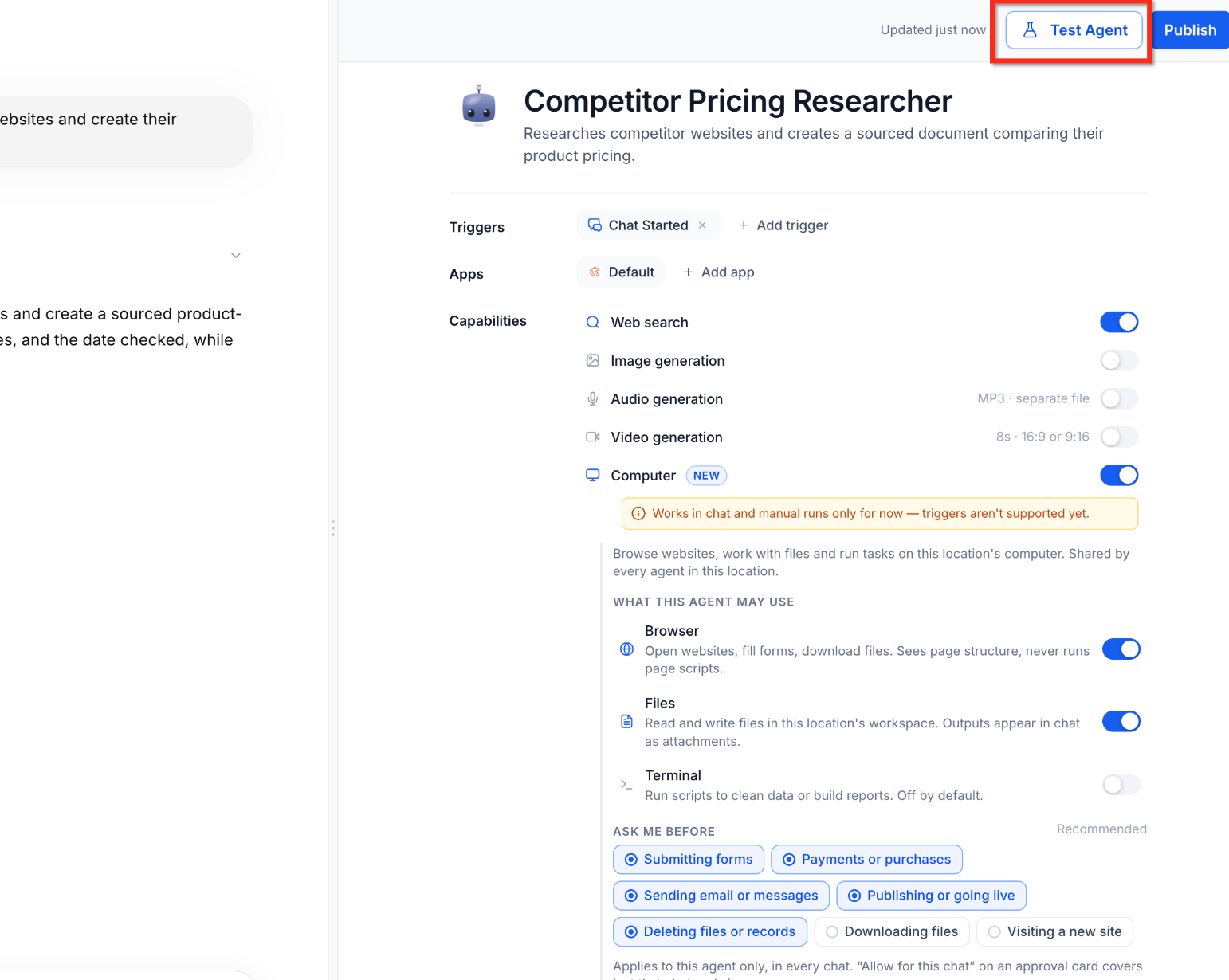
Test. Select Test Agent or open the chat, enter a task that uses an enabled tool, send it and watch the activity. Example: "Research the published prices of three competing services, compare their features, and create a spreadsheet summarizing the results."
Respond to approvals. Review requests in the conversation or in Waiting on You, approve or decline, and use Add login with the secure form if authentication is needed.
Review and publish. Read the response, inspect generated files, verify important facts before using them for business decisions, check browser activity or task history if needed, refine with follow-up instructions, and click Publish if the agent is not yet published.
Can Computer run automatically when a workflow trigger fires?
No. Computer supports chat and manual runs only. Managed Agents can use triggers for other capabilities, but Computer is unavailable during trigger-based runs.
Can several Managed Agents use Computer?
Yes. All Managed Agents in your account share one computer. Do not assume how simultaneous tasks are handled.
What happens when an agent needs to sign in to a website?
It requests a secure sign-in. Provide the credentials through the protected form and the agent continues after authentication. Never type passwords into chat.
Can I take over the browser while the agent works?
Yes. Select Take control on the Browser activity card, complete the step, then hand control back.
What if I do not approve a requested action?
The agent cannot complete it and that part of the task may stay blocked until you respond.
Will files disappear when the computer sleeps?
No. Workspace files are preserved and available when the computer resumes.
Can I enable Browser without Terminal?
Yes. Browser, Files and Terminal are separate toggles.
Are Computer files the same as files attached to a chat?
No. Computer files live in the shared workspace for creating and managing files. Chat attachments are documents or images you attach for analysis.
Can Computer replace app connectors?
Not always. Computer works through a browser, while MCP connectors give defined tools for supported apps. The better choice depends on the task. See "Managed Agents: Apps, MCP Connectors and Custom API Calls".
Can I let an agent log in to my EMR to look up patients?
No. AI features are not approved for PHI. Do not give an agent access to your EMR, patient portal or any system showing patient records.
