Custom Skills, file attachments and Memory are three ways to give a Managed Agent more context and consistency. You manage them from AI Agents > Agent Studio > Managed Agents in Aesthetix CRM by opening an agent. This guide covers all three, plus the built-in skills catalog and the permissions that control what skills can do.
Protected health information (PHI): AI features in Aesthetix CRM are not approved for processing PHI. Do not put patient names tied to treatments, diagnoses, medical history, photos, charts, intake forms or consent forms into skill instructions, attached files, or Memory. Use general business examples only. Agent Memory and chat attachments are retained, so anything you add can influence later conversations.
The word "skill" is used in two ways in Aesthetix CRM, and it helps to keep them apart.
Built-in skills are discrete capabilities the AI can use, such as looking up a contact, updating an opportunity, sending a message, searching a Knowledge Base, or calling an external service. These come with Aesthetix CRM and are shared by Voice AI, Conversational AI, flow agents and Managed Agents.
Custom Skills are reusable instructions you write yourself that tell a Managed Agent how your practice wants a specific task done. Each has a name, a description and instructions.
Custom Skills are different from the other places you can guide an agent:
Where | Best for | Example |
|---|---|---|
Custom Skills | Reusable, task-specific processes that one or more Managed Agents may need | Consult lead qualification steps, a standard follow-up email format, a consistent meeting recap |
Agent instructions | Broad behavior and rules that apply to one Managed Agent in general | Tone of voice, what the agent may never do |
Knowledge Base | Facts the agent should look up and quote | Treatment pricing policy, cancellation policy, FAQs, approved reference material |
For example, your cancellation policy belongs in a Knowledge Base, while the exact steps an agent follows to qualify a new consultation request belong in a Custom Skill.
Custom Skills are separate from Ask AI Skills. Ask AI has its own library; this guide applies only to Managed Agents.
Category | What agents can do |
|---|---|
CRM and data | Read, create and update contacts, opportunities, tasks and other records; log every call or conversation back to the contact's history |
Communication | Handle inbound and outbound calls through Voice AI (greeting, qualifying, booking); send SMS, email or chat replies through Conversational AI or workflows the agent triggers |
Knowledge and content | Search the connected Knowledge Base to answer common questions; generate and personalize content such as follow-up messages where Content AI is enabled |
Workflow and automation | Trigger workflows, move contacts through pipelines, update tags based on the agent's decisions |
External operations | Call external APIs, webhooks or AI-oriented connectors so the agent can work beyond Aesthetix CRM while respecting permissions and logging |
New skills are added over time and appear through the existing AI screens. You do not install anything separately and there is no separate switch for the skills layer.
Area | Supported capabilities |
|---|---|
Agent Studio | List Managed Agents, retrieve an agent's details, execute a Managed Agent |
Courses | Enroll a contact in a course or revoke the enrollment; list enrollments; check progress and completions |
Ad reporting | Retrieve Facebook and Google Ads reporting rows |
Example requests: "How many contacts are enrolled in my patient education course, and how far along are they?" and "Show me last week's Facebook ad reporting."
These skills introduce no new permissions and do not bypass existing access controls. The existing permissions must still be in place for the user.
Operation | Required existing permission |
|---|---|
Agent Studio operations | Settings |
Facebook ad reporting | Facebook Ads Reporting |
Google ad reporting | Google Ads Reporting |
Course operations use their existing course permissions. All operations stay scoped to your account.
Role-based access: Agent abilities are scoped by configuration (name, status, actions, behavior settings) so allowed operations can be tightly limited and audited.
Action-level permissions: Sensitive skills such as deleting records, sending outbound messages or changing billing data can be restricted or disabled.
Account isolation: Skills work only within your authenticated account. Agent memory and logs are treated as privileged data.
Logging: Actions started by an agent (calls, conversations, updates) are logged in the CRM and related logs, giving a traceable history.
Best practice: start conservatively. Enable only the minimum capabilities an agent needs for its role, test, review the logs, then expand.
Each Custom Skill has three parts:
Name: identifies the skill in the skills library and in the / picker.
Description: explains when the skill should be used. Describe the situations where it applies rather than repeating the name. For example, a lead qualifier skill can describe which kinds of consult requests it evaluates and what outcome it produces.
Instructions: the process, rules, formatting requirements and guidance to follow. These can include numbered processes, qualification criteria, required output formats, business rules, restrictions and guardrails, information to collect, and conditions for escalating or taking another action.
Open AI Agents > Agent Studio > Managed Agents.
Open the Managed Agent you want to configure.
Open Custom skills.
Select Manage skills.
Click Add skill.
Enter a clear Name.
Add a short Description explaining when the skill should be used.
Enter the detailed Instructions.
Review the instructions for clear steps, rules and expected output.
Save the skill.
A new skill is automatically enabled for the agent it was created for. Enable it for other agents as needed.
If you already have instructions saved as a reusable skill file:
Open Manage skills.
Click Upload skill.
Select the file. File requirements can vary, so use the file options shown in the upload dialog.
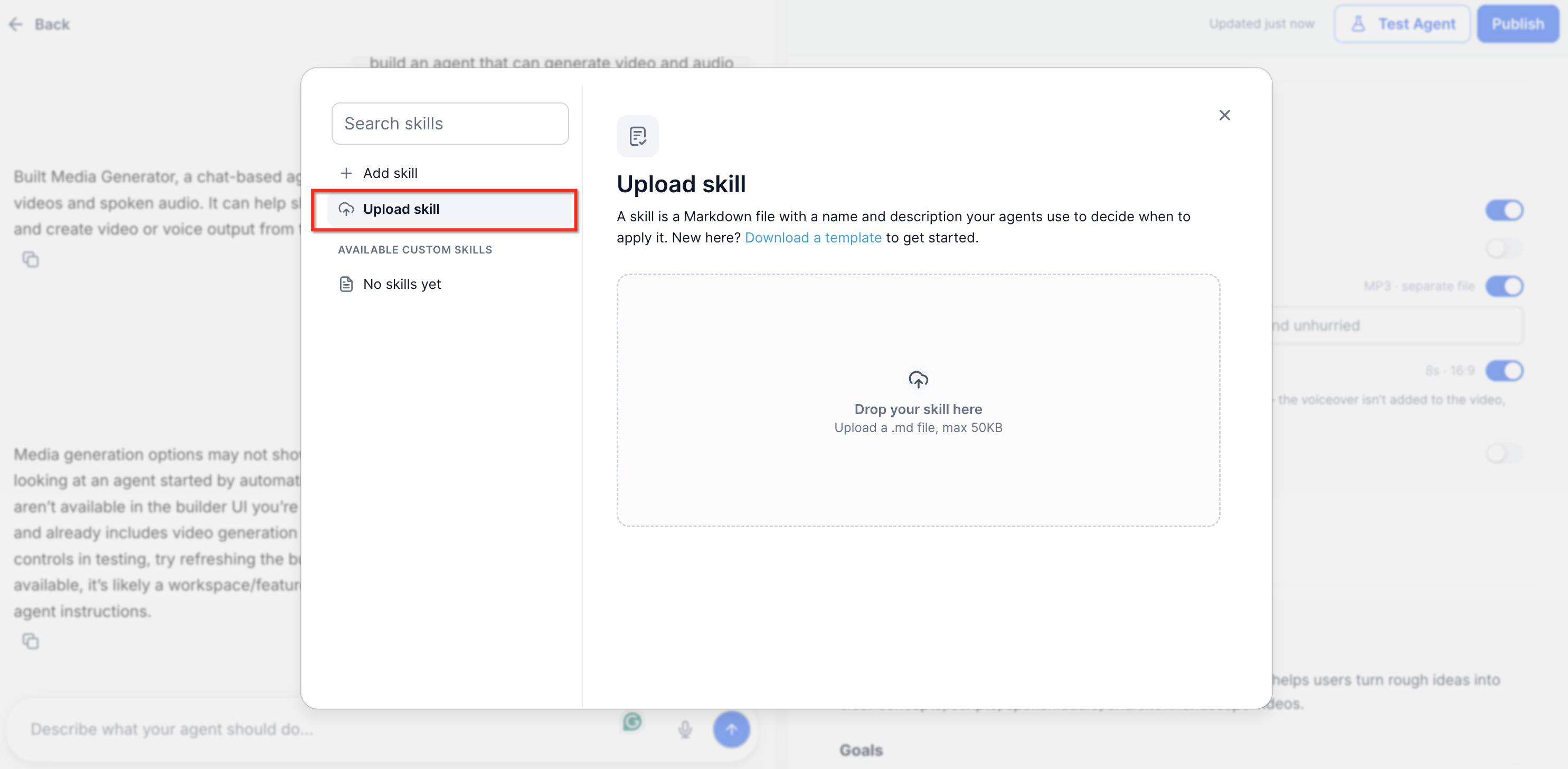
Review the imported information and confirm the name, description and instructions accurately describe the process.
Save the skill.
Enable it for any other Managed Agents that should use it.
Open the Managed Agent and select Custom skills.
Find the skill.
Turn it on or off for that agent.
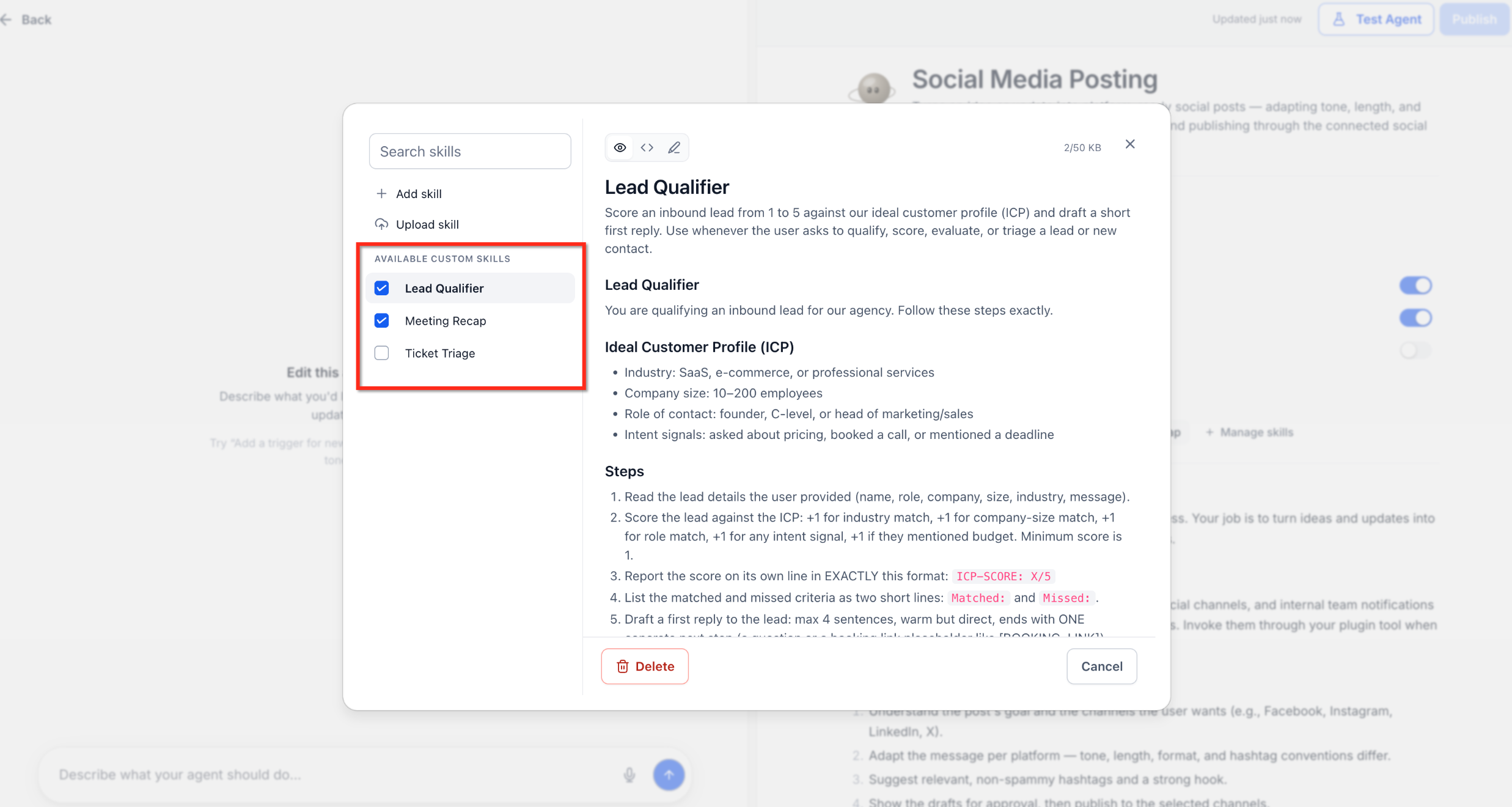
Repeat for other agents.
Disabling a skill for one agent does not delete it from the shared library. Use this when you only want to stop one agent from using it.
Open Manage skills.
Search for or select the skill and open it for editing.
Update the description or instructions.
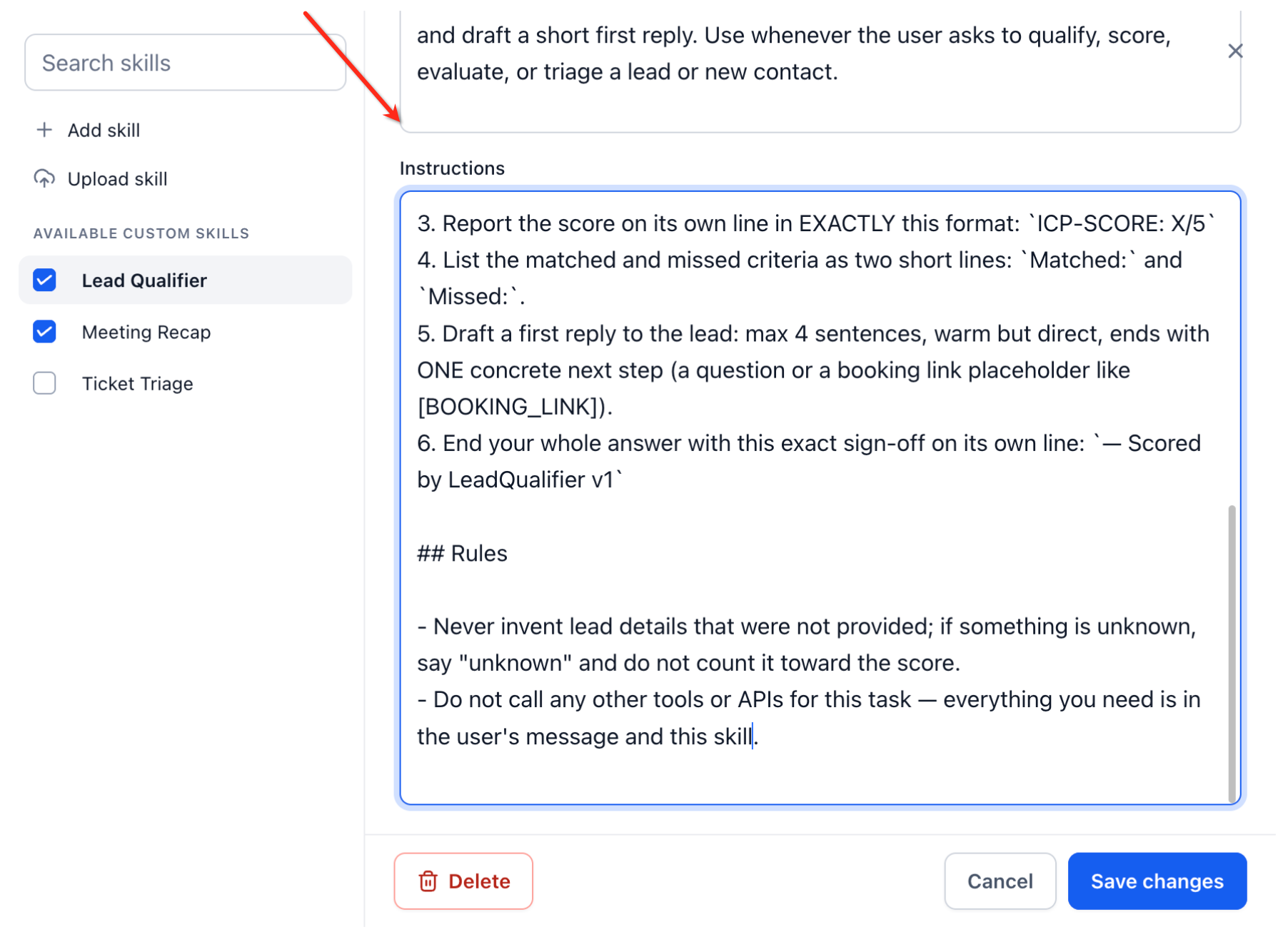
Click Save changes.
Keep descriptions specific enough to tell similar skills apart. If two skills cover similar situations, sharpen each description so the intended use cases are clearly different.
Open Manage skills.
Select the skill and click Delete.
Follow the confirmation shown.
Delete only when the skill is no longer needed anywhere. To stop a single agent from using it, disable it for that agent instead.
Managed Agents apply an enabled skill automatically when a request matches the skill's description. To choose one yourself:
Open the chat for the Managed Agent.
Click in the message composer.
Type /.
Search for or select the skill.
Add the rest of your request.
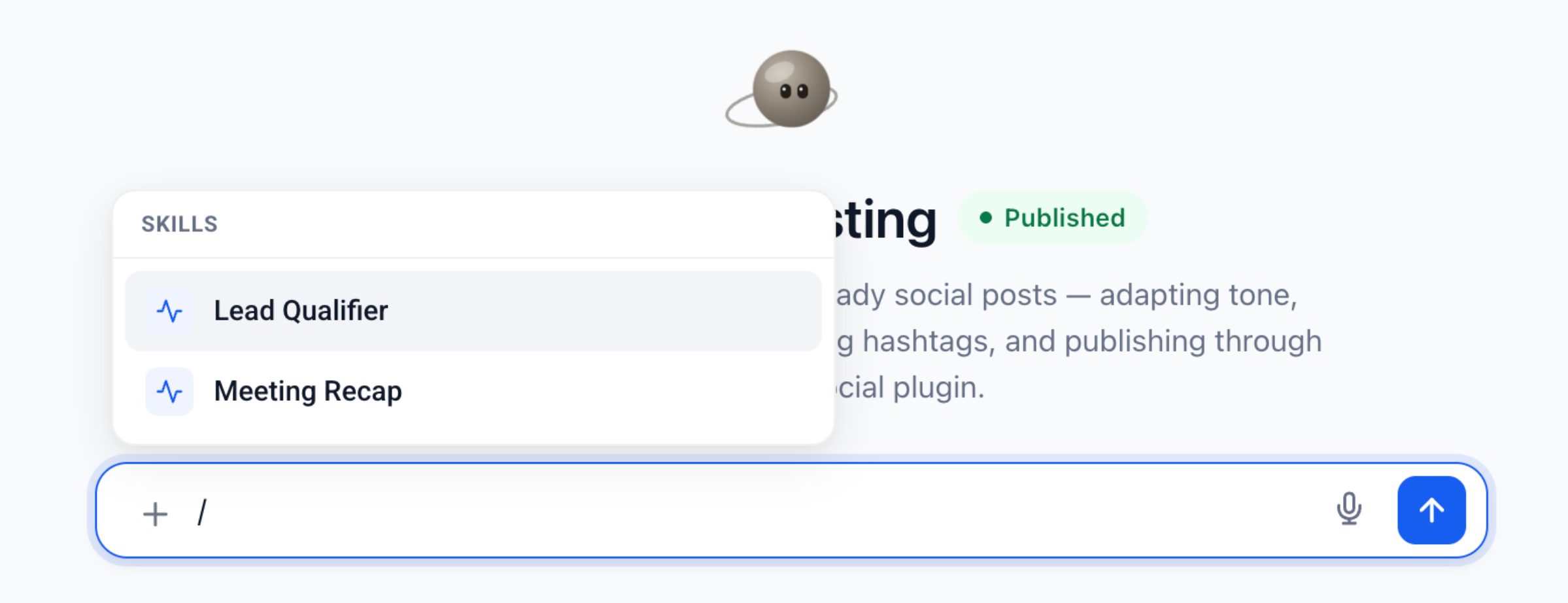
Send the message.
Useful practice skills for a medical aesthetics team include: consult request qualification (without collecting medical history), a standard reminder message format, a weekly pipeline summary format, and a review-request process that respects your messaging rules.
You can attach documents and PNG images directly to a published Managed Agent's chat. The agent reads the attachment, uses it as context and answers questions about it. For long documents it retrieves the relevant sections instead of needing the whole text pasted in. When Image generation is enabled on the agent, you can also ask it to edit an attached PNG and refine the result across follow-up messages.
File type | Extension | Supported |
|---|---|---|
| Yes | |
Microsoft Word |
| Yes |
Plain text |
| Yes |
Markdown |
| Yes |
CSV |
| Yes |
JSON |
| Yes |
Image |
| Yes |
XLS, XLSX, DOC, RTF and PPTX are not documented as supported. Do not assume they work.
Each document can be up to 5 MB.
Attachments remain available for the whole conversation, so you do not need to reattach for follow-up questions.
Image generation must be enabled on the agent to edit a PNG.
Some technically valid PDFs may be rejected depending on how their internal cross-reference data is encoded.
Earlier attachments can influence later answers in the same conversation. Start a new conversation when you move to unrelated documents.
Agent privacy or safety instructions can stop the agent from returning some extracted values.
Text extraction does not preserve Word-specific formatting, comments, tracked changes, headers or embedded objects.
The agent can still make mistakes. Check important extracted values before relying on them.
Open AI Agents > Agent Studio > Managed Agents and select the agent.
Make any needed changes and click Publish.
Click Back to return to the agent's main page and its chat.
Click the + attachment control beside the message field.
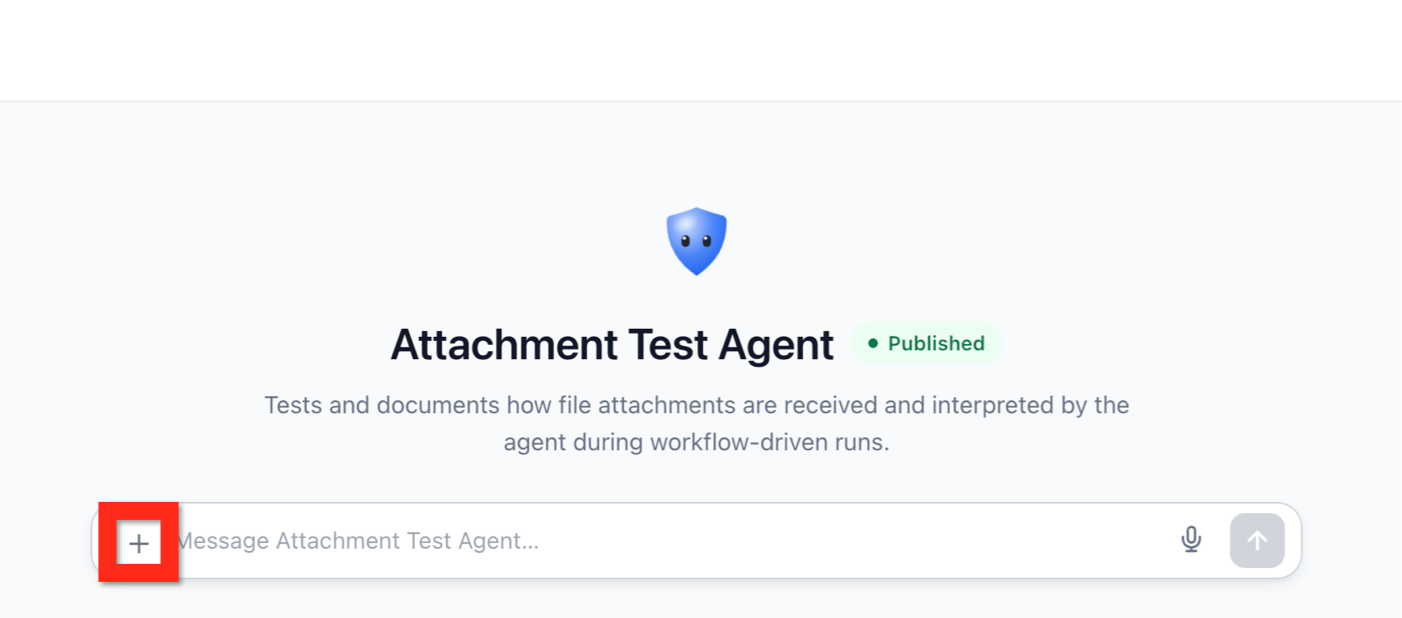
Select the supported document or PNG.
Type a question or instruction about it.
For a PNG edit, describe the exact change you want (Image generation must be on).
Send the message and review the response or edited image.
Continue with follow-ups or corrections. If the agent misreads a value, correct it in a follow-up and ask it to reconsider the file.
Examples of good requests: "Summarize the key terms in this vendor contract," "List every invoice number and total in this file," "Which rows in this CSV have a status of Pending?"
Attach several supported documents and ask a question that spans them, for example: "Compare these documents and list any vendor names, dates or amounts that appear in more than one file." You can keep refining an edited PNG without reattaching the original.
Files attached to a chat are different from files in the Computer workspace. See "Managed Agents: Using Computer (Browser, Files and Terminal)" for the workspace.
Suitable files for a practice are business documents such as marketing copy drafts, event run sheets, vendor price lists, social media calendars and policy documents. Do not attach patient photos, charts, intake or consent forms, lab results or anything that identifies a patient together with health information.
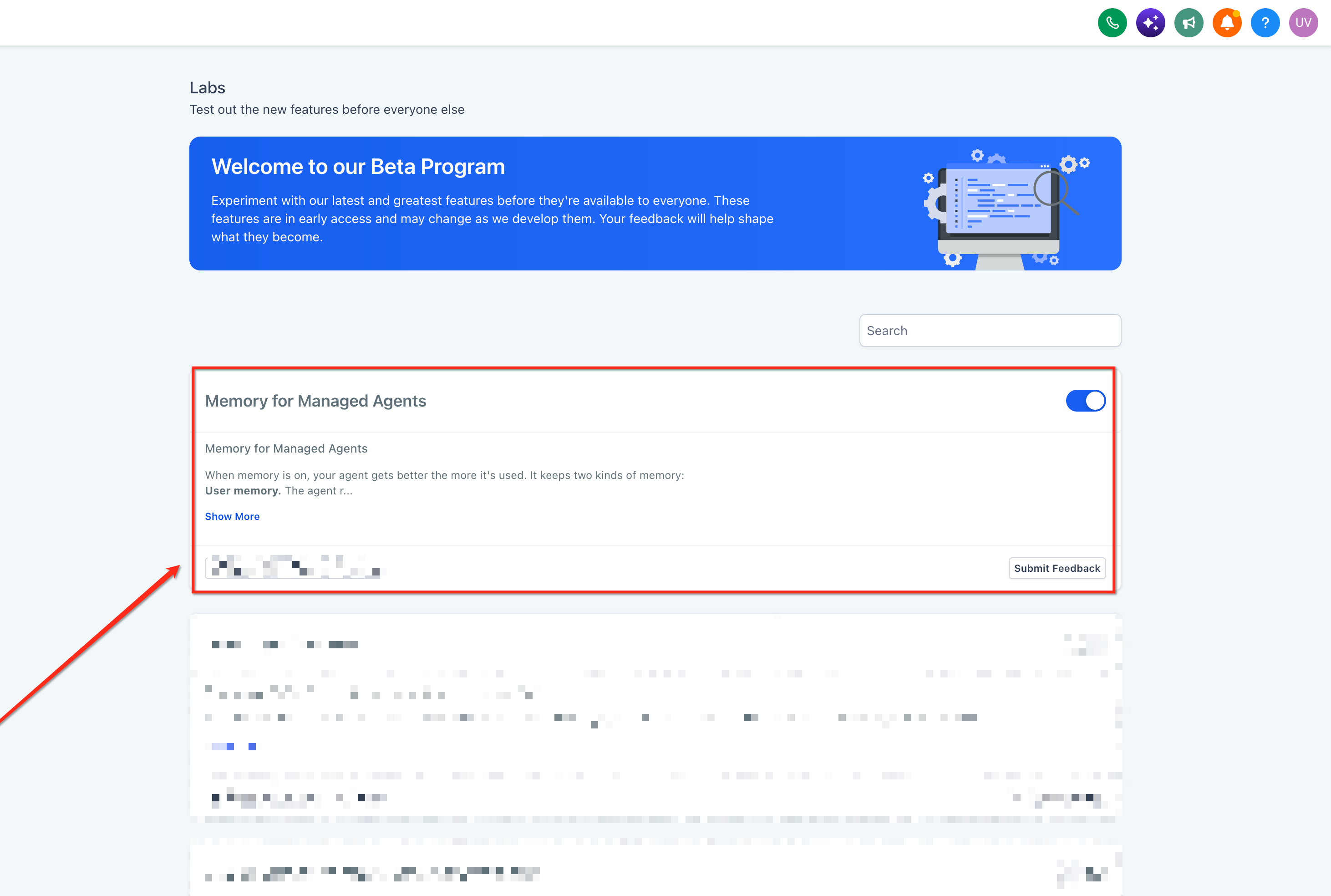
Memory lets a Managed Agent remember useful details about each person it works with and reuse steps it has learned for repeat tasks. It reduces repeated questions and unnecessary steps. Memory is introduced through Labs, so it may not be enabled on every account yet.
User Memory: keeps important details about an individual user: identity, preferences, goals and recent events.
Learned Procedures: saves the steps used to finish a task so the agent can reuse them for similar requests. Procedures load only when needed, which helps limit processing.
Memory works in agent conversations and in supported automations. For example, an agent run by a recurring workflow can reuse the steps it learned for summarizing weekly lead activity.
Every user has their own memory for each Managed Agent. What the agent remembers about one user is not shared with other users, and what one agent saves is not automatically shared with another agent. Stored facts are included automatically as context when Memory is on.
Category | What it holds | Example |
|---|---|---|
Identity | Who the user is or what they are responsible for | Manages the front desk at the Scottsdale location |
Preferences | How they like to work or communicate | Prefers short bullet-point summaries |
Goals | Ongoing priorities | Wants to improve consult booking rate |
Recent Events | Meaningful developments that give context | Recently launched a new membership program |
The agent keeps what is likely to be useful later. One-time requests, casual chat and repeated information are not meant to become permanent memories. Not every message or task creates a memory or a procedure.
Go to Settings > Labs and find the Managed Agents Memory feature. Review the description and availability notes. The exact card name may vary.
Open AI Agents > Agent Studio > Managed Agents and select the agent.
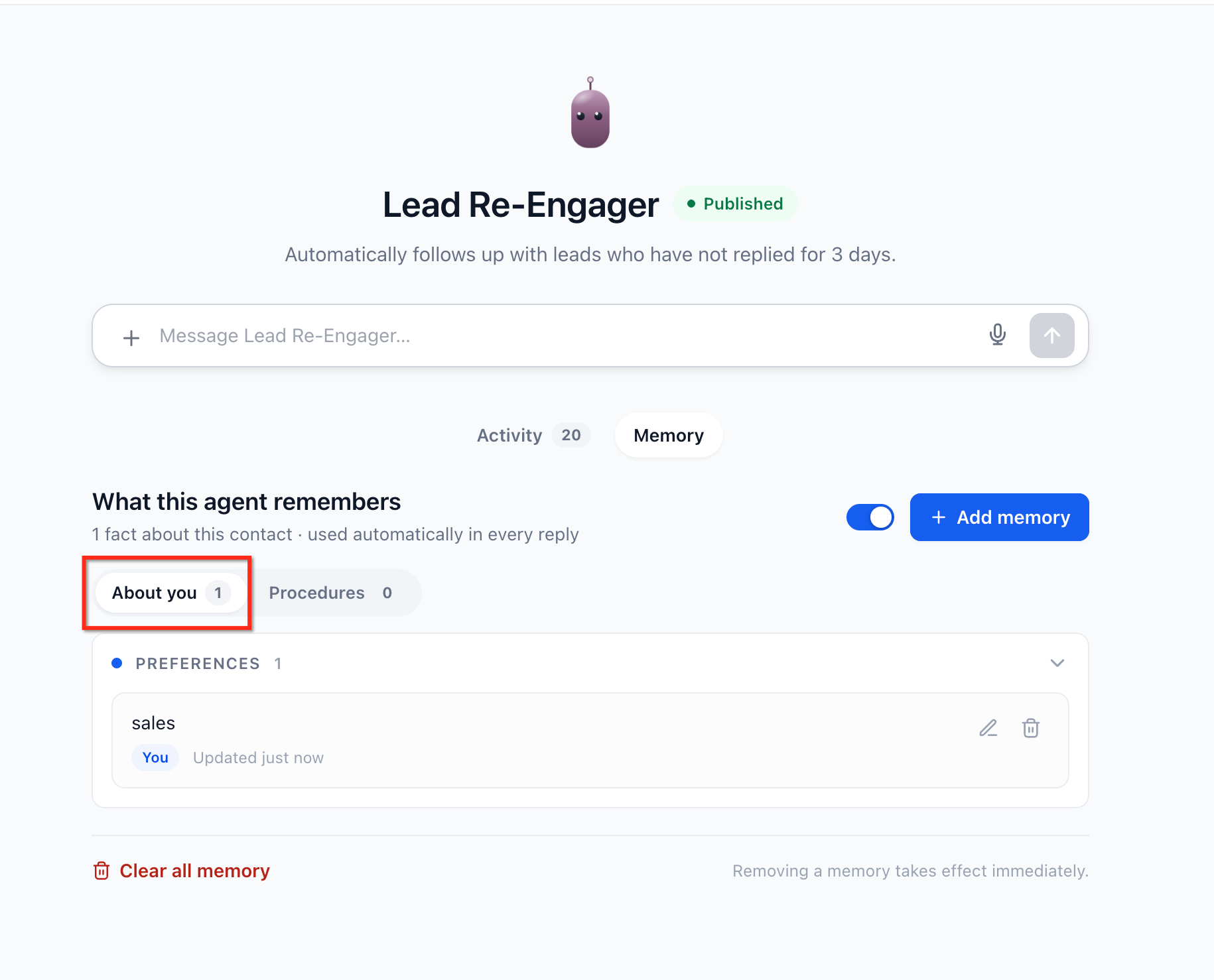
Open the agent's Memory interface.
Open About you to review stored facts. Add or update facts with the controls provided and delete anything outdated or incorrect.
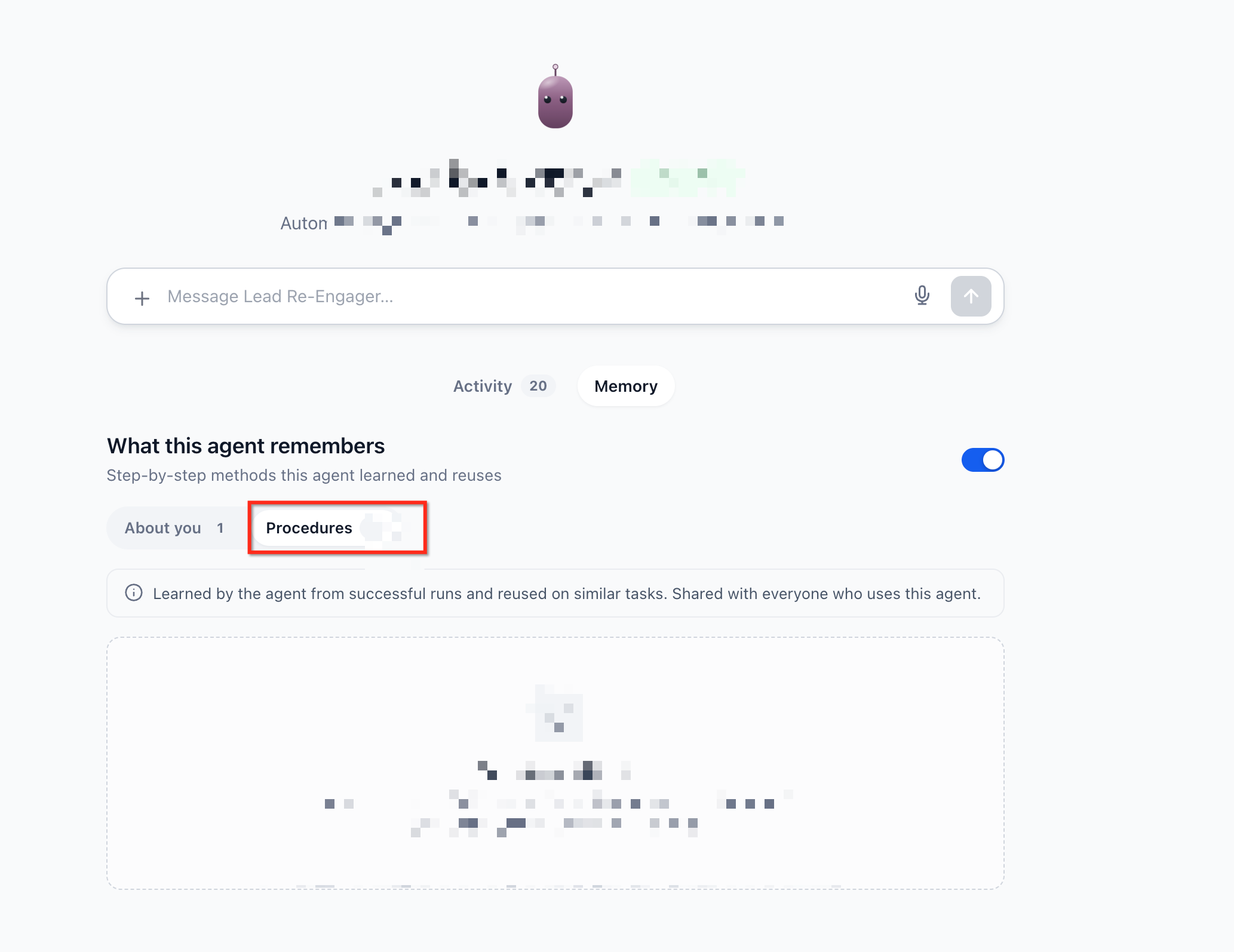
Open Procedures to review learned procedures. Check each one's source and usage count and delete any that are no longer relevant.
Test: share a preference (such as a report format) in a conversation, ask for a task that uses it, then start a new interaction with a similar request and check whether the agent applies the preference without being told again. Check the Memory tab afterward.
To test Procedures, repeat a suitable task and then look in Procedures to see whether reusable steps were saved.
Turning Memory off does not delete stored memories. They are kept and reused if you turn it on again.
Memory includes safeguards intended to keep sensitive information from being retained, but you remain responsible for what you tell the agent. Share working preferences and business goals, not patient details. If the agent remembers something wrong or something that should not be stored, edit or delete it in About you right away.
Can one Custom Skill be used by several Managed Agents?
Yes. Skills live in a shared library for your account and you choose which agents have each one enabled.
Does the agent need the / command to use a skill?
No. An enabled skill is applied automatically when a request matches its description. The / picker lets you choose one explicitly.
Should I put policies and price lists in a Custom Skill?
Usually not. Facts and reference documents are better in a Knowledge Base. Use Custom Skills for processes, rules and formats.
What file types and sizes can I attach to a Managed Agent?
PDF, DOCX, TXT, Markdown, CSV, JSON and PNG, up to 5 MB per document. XLS, XLSX, DOC, RTF and PPTX are not documented as supported.
Do I have to reattach a file for every follow-up question?
No. Attachments stay available throughout the conversation. Start a new conversation for unrelated documents so earlier files do not influence the answers.
Does Memory save every message?
No. It keeps relevant facts such as identity, preferences, goals and recent events, not a full conversation history. Temporary requests and duplicates are not meant to be stored.
Can I see and fix what the agent remembers?
Yes. Open the agent's Memory interface. Edit or delete facts under About you and delete procedures under Procedures.
Is it safe to attach patient photos or charts so the agent can summarize them?
No. AI features are not approved for PHI. Do not attach patient records, photos, intake forms or similar files, and do not store patient details in Memory or skills.
What happens to Memory when I switch it off?
Stored memories are kept, not deleted. They are used again when Memory is turned back on.
