The Media Picker is the pop-up window that opens whenever you add or change an image inside Aesthetix CRM, whether you're building a form, a survey, a quiz, a QR code, an email, a funnel page, or a social post. Instead of uploading the same logo or photo over and over, the Media Picker connects every builder to your centralized Media library so you can browse, search, and reuse assets you've already uploaded.
For a med spa, brand consistency is everything. Your logo, your before-and-after photography, your treatment icons, and your promotional graphics should look the same whether a patient sees them on an intake form, a booking survey, a QR code on a flyer, or your website. The Media Picker makes that easy:
One consistent image experience. Forms, surveys, quizzes, QR codes, funnels, and websites all use the same Media Picker, so the workflow is identical no matter which builder you're in.
Faster image selection. Browse folders, search files, preview images, and select assets without leaving the builder or hunting through your computer for the right file.
Reuse instead of re-upload. Pull previously uploaded logos, backgrounds, and treatment photos straight from your Media library, which cuts down on duplicate files and saves time.
Centralized management. Every image lives in one library where you can organize it into folders, rename it, and clean up assets you no longer use.
Better brand consistency. Your front desk, marketing team, and providers can all reuse the same approved brand assets instead of uploading their own versions.
Image-based elements in Forms, Surveys, and Quizzes
Any image element in a Form, Survey, or Quiz uses the Media Picker. Click Change Image on the element, and the picker opens so you can choose or upload a file. The same image can be reused across as many builders as you like.
Rich Text Editors
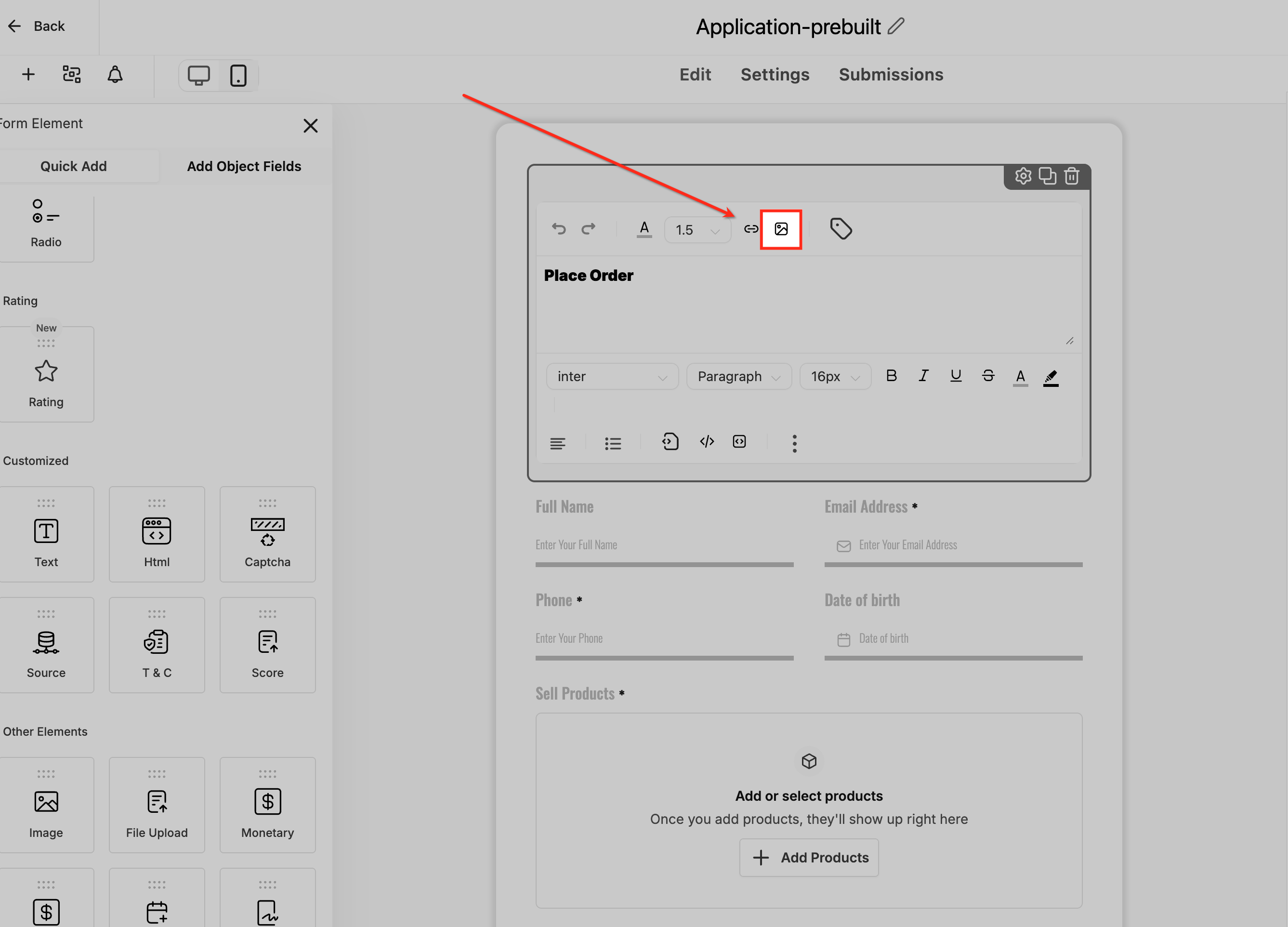
Any Rich Text Editor field (used in forms, surveys, funnels, and more) lets you insert an image inline. Click the image icon in the editor toolbar, open the Media Picker, and select or upload an image to place directly inside the text. This is handy for adding your logo or a visual instructional graphic inside a description or a patient-facing message.
Quiz Result Builder
If you're building a quiz (for example, a "which treatment is right for you" quiz), each result can have its own image. Clicking the image field for a result opens the Media Picker so you can reuse an existing graphic or upload a new one. The same image can be applied across multiple results or multiple quizzes to keep the experience consistent.
QR Codes
When you generate a QR code, you can add a logo or image overlay in the center of the code. Click the logo option on the QR code, open the Media Picker, and select or upload the image you want layered into the code. Using the same logo across your QR codes keeps your printed materials and digital campaigns visually consistent.
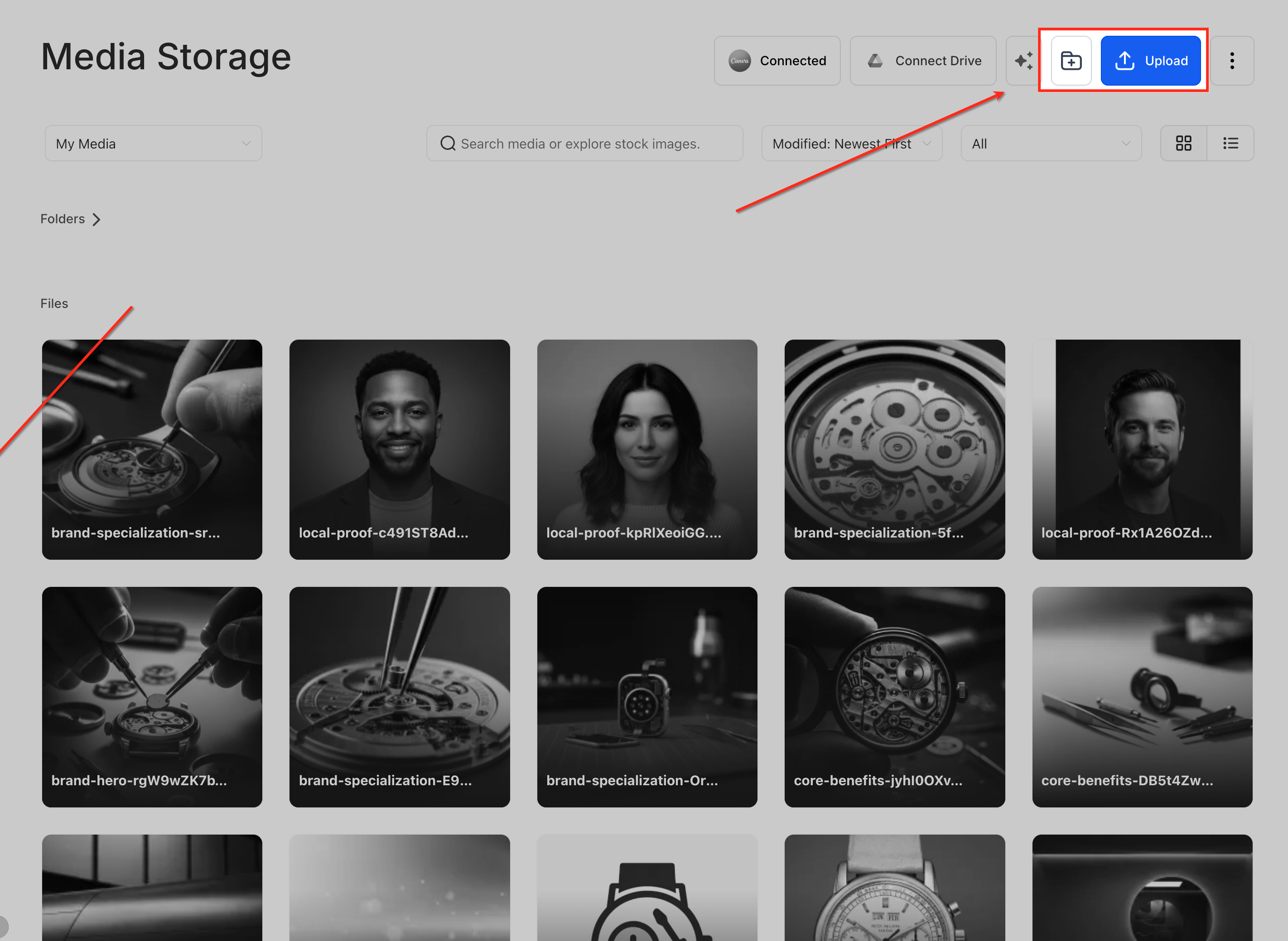
Before you start building, it helps to set up your Media library the way you want it. Open Media from the sidebar and create folders for the assets you use most, such as Logos, Treatment Photos, Forms, Quizzes, and QR Codes. Upload your most commonly used files into the right folders so they're easy to find later.
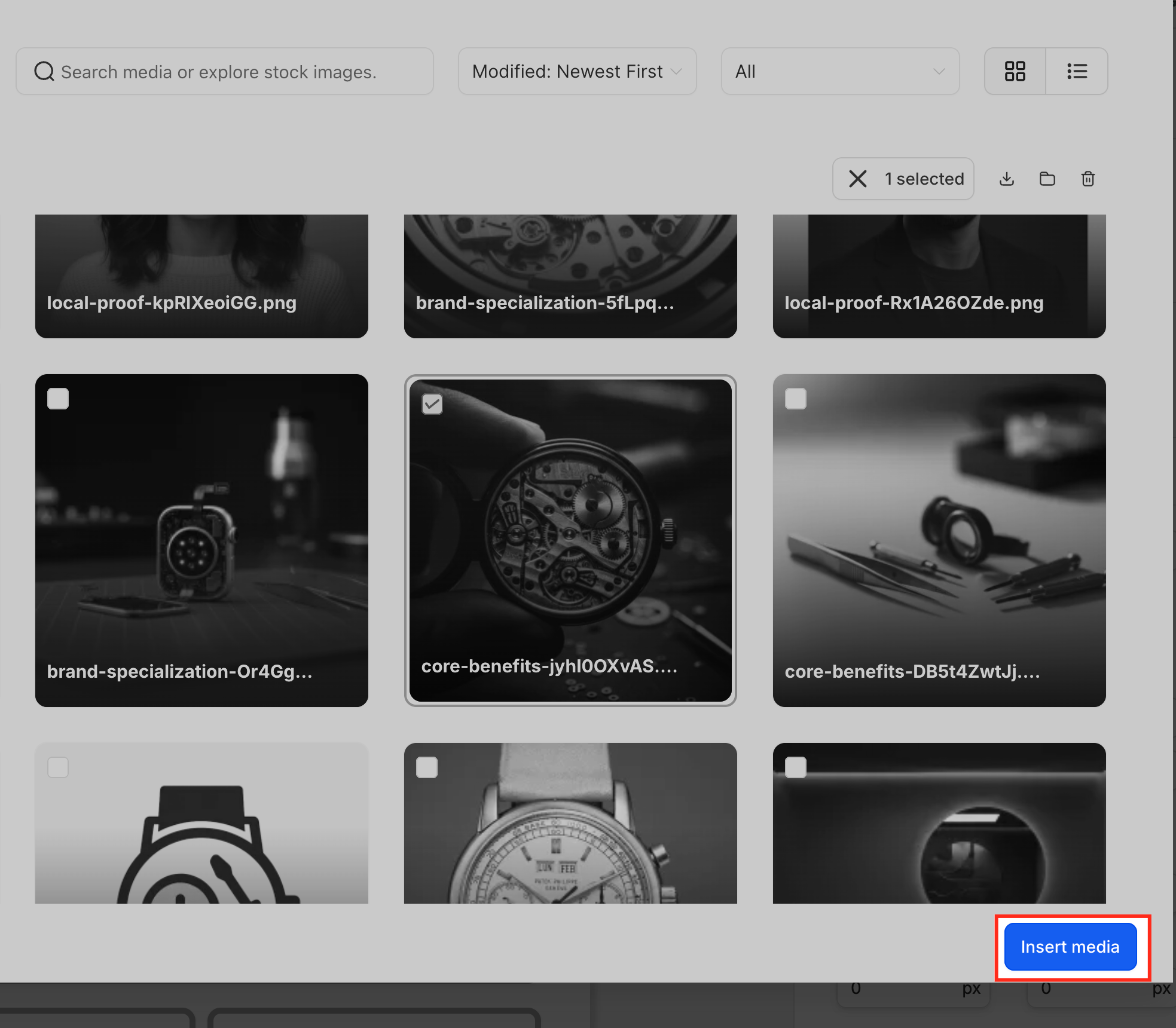
Go to Form Builder, Survey Builder, Quiz Builder, or QR Codes and create or edit an asset. Wherever an image can be added, you'll see an image icon or a Change Image option. The screenshot below shows the Media Picker being accessed inside a Rich Text Editor in the Form Builder.
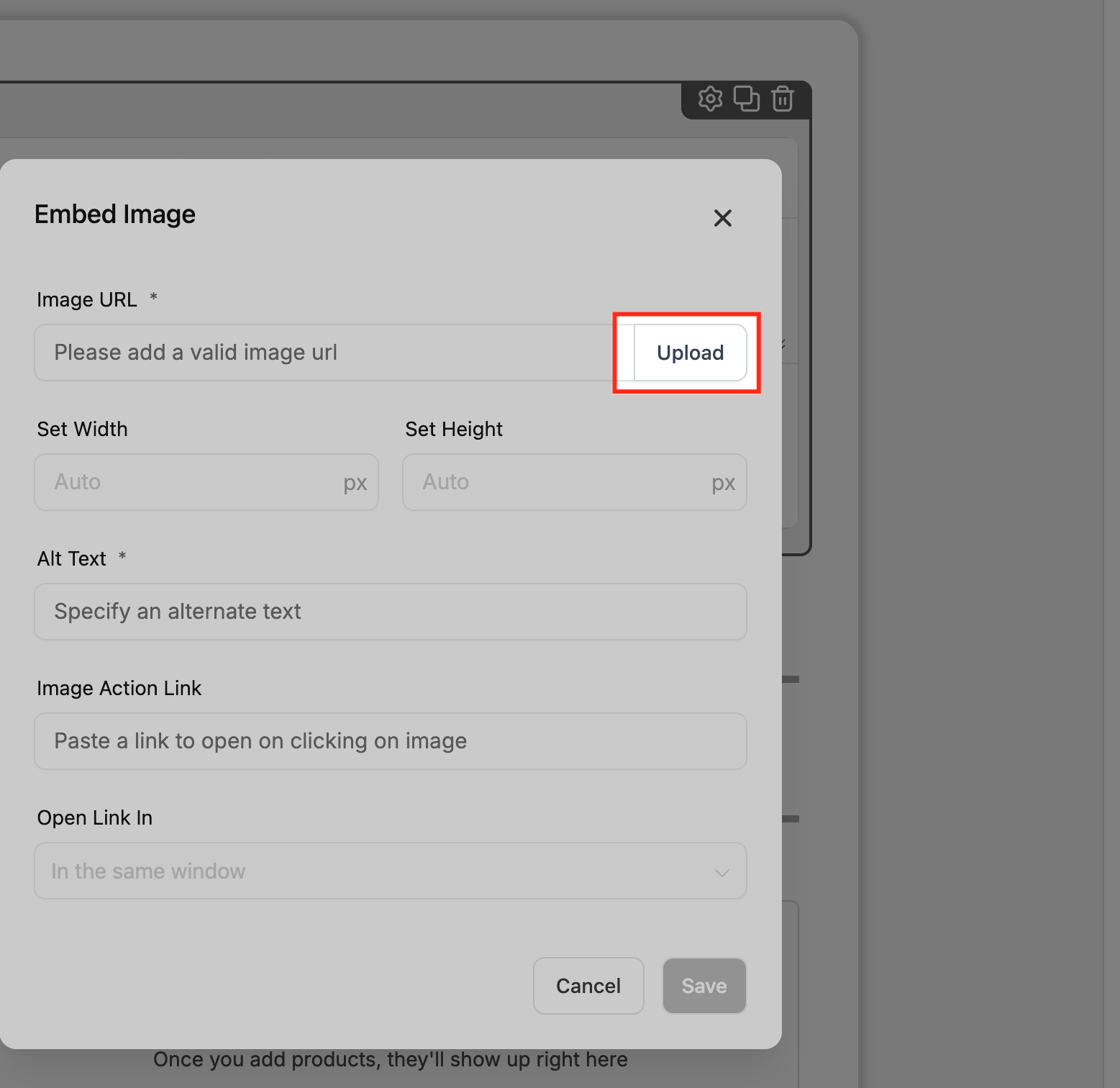
Click the image icon or Upload, and the Media Picker opens as a pop-up inside the builder. From here you can browse your existing library, search for a specific file by name, or upload a brand-new image.
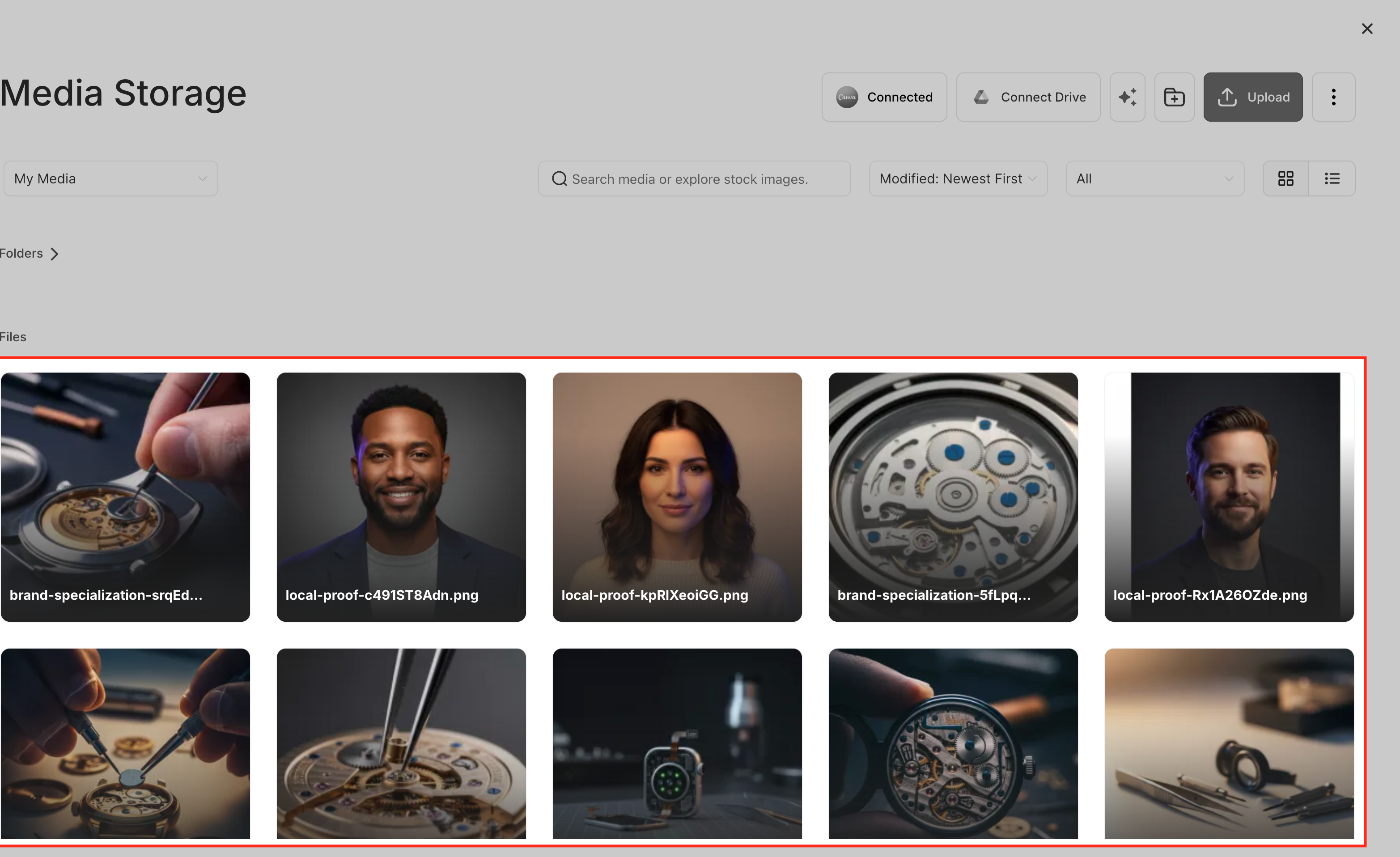
Select the image you want to use, then click Insert Media to add it to your form, survey, quiz, or QR code.
Go back into Media periodically to rename or move files, remove assets you no longer use, and edit images when needed. Any updates you make in Media are reflected wherever that asset is already in use.
HIPAA note: If you store before-and-after photos or other images tied to a specific patient in your Media library, treat that folder as PHI. Keep patient photos in a clearly labeled, access-restricted folder and avoid reusing them in public-facing marketing without documented patient consent.
Do I need to turn on the Media Picker? No. It's available by default in every supported builder, including forms, surveys, quizzes, and QR codes.
Where are my uploaded images stored? Every image you upload through the Media Picker is stored in your account's Media library and can be reused across any builder.
Does this affect files patients upload on my forms? No. Files submitted by patients through a form (such as an uploaded photo or document) follow a separate storage process and aren't part of your reusable Media library.
Can I pull images from an external source like Google Drive? Yes, if you've connected a supported external source, you can access those files through the Media Picker alongside your uploaded assets.
What happens to images I've already used if I reorganize my library? Nothing breaks. Existing images continue to work wherever they're already placed, even if you rename or move them into a different folder afterward.
If I rename or move a file, does it update everywhere it's used? Yes. Changes you make in Media, like a rename, are reflected wherever that image already appears.
Are there file size or type limits? Yes. Limits depend on your Media library settings and the specific builder you're using, so very large files may not upload successfully.
Can I edit an image from inside the Media Picker? Selecting an image happens in the picker itself, but editing (cropping, adjusting, etc.) is done through the Media library's built-in editing tools before or after you insert it.
What's the difference between the Media library and the Media Picker? The Media library is where all your files actually live and get organized into folders. The Media Picker is the pop-up window you use to browse and select from that library while working inside a builder.
Can the same image be used in multiple places at once? Yes. That's the point of the Media Picker: one upload can be reused across forms, surveys, quizzes, QR codes, emails, funnel pages, and social posts without ever re-uploading it.
