Your practice doesn't have to rely only on files you've uploaded by hand. From the Media Library you can pull in free stock photography from Unsplash, browse and import designs from Canva, and sync files straight from Google Drive, all without leaving Aesthetix CRM. To get there, click Marketing in the left menu, then select Media.
Unsplash is a library of free, high-quality stock photography, useful when you need polished imagery for a funnel, website, or social post and don't have your own practice photography on hand.
Click Marketing in the left menu.
Select Media.
Click Open Media Library.
Click the Unsplash tab.
Use the search bar to look for the kind of image you need (for example, "spa," "skincare," or "medical office"). Unsplash's search covers millions of photos, so try a few different search terms if your first one doesn't turn up what you want.
Click an image to add it to your library for use in funnels, websites, emails, and forms.
The Canva integration connects one Canva account to your Aesthetix CRM account so your team can browse, edit, download, and import Canva designs directly from the Media Library, without downloading files from Canva and re-uploading them by hand.
What you can do once it's connected:
Browse your Canva designs from a dedicated Canva tab in the Media Library
Open supported designs in the Canva editor
Download exports of your designs
Import finished designs into your Media Library so they're usable everywhere in Aesthetix CRM
Go to Marketing > Media.
Click Connect Canva.
Complete the Canva login in the new browser tab that opens.
Click Allow to grant access.
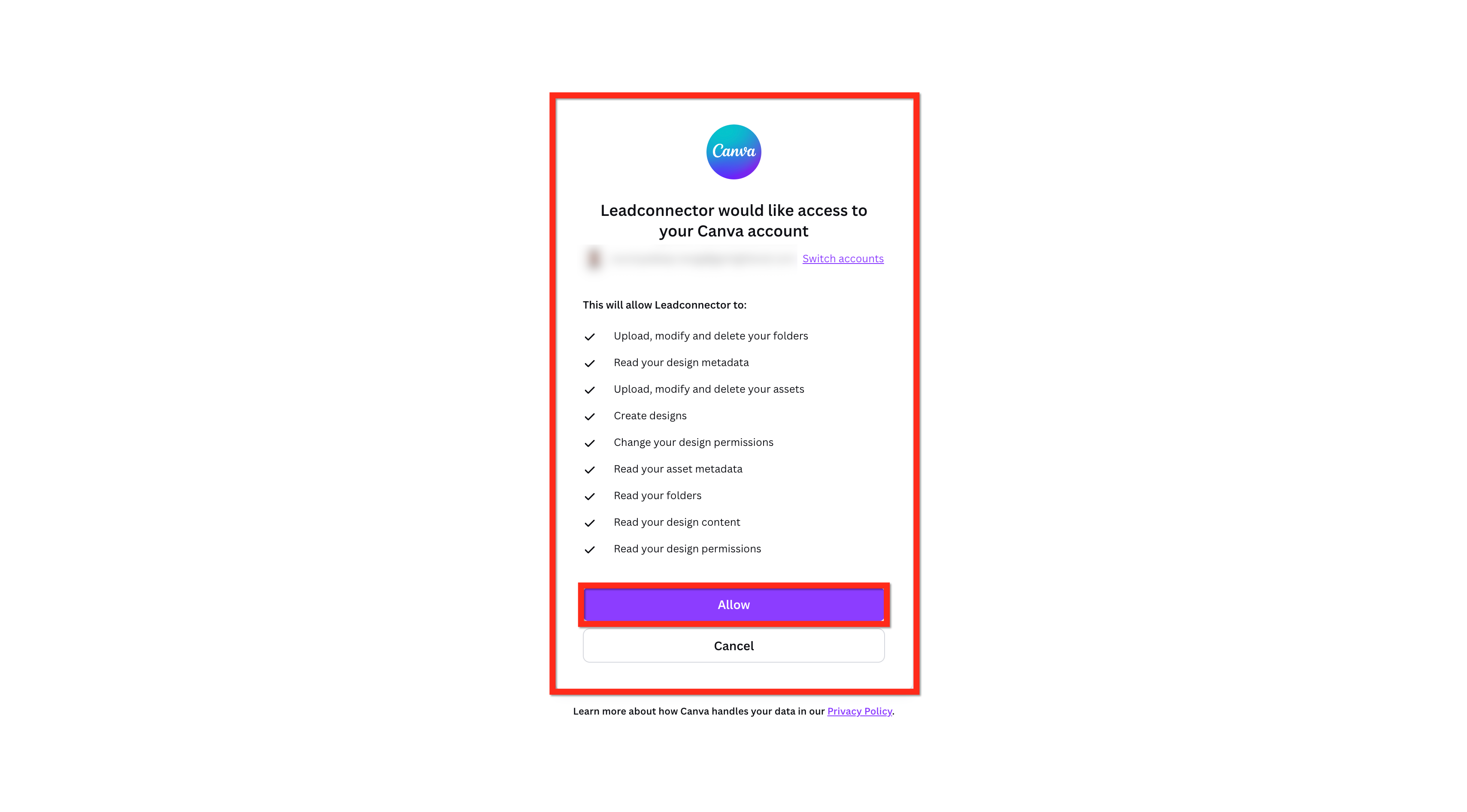
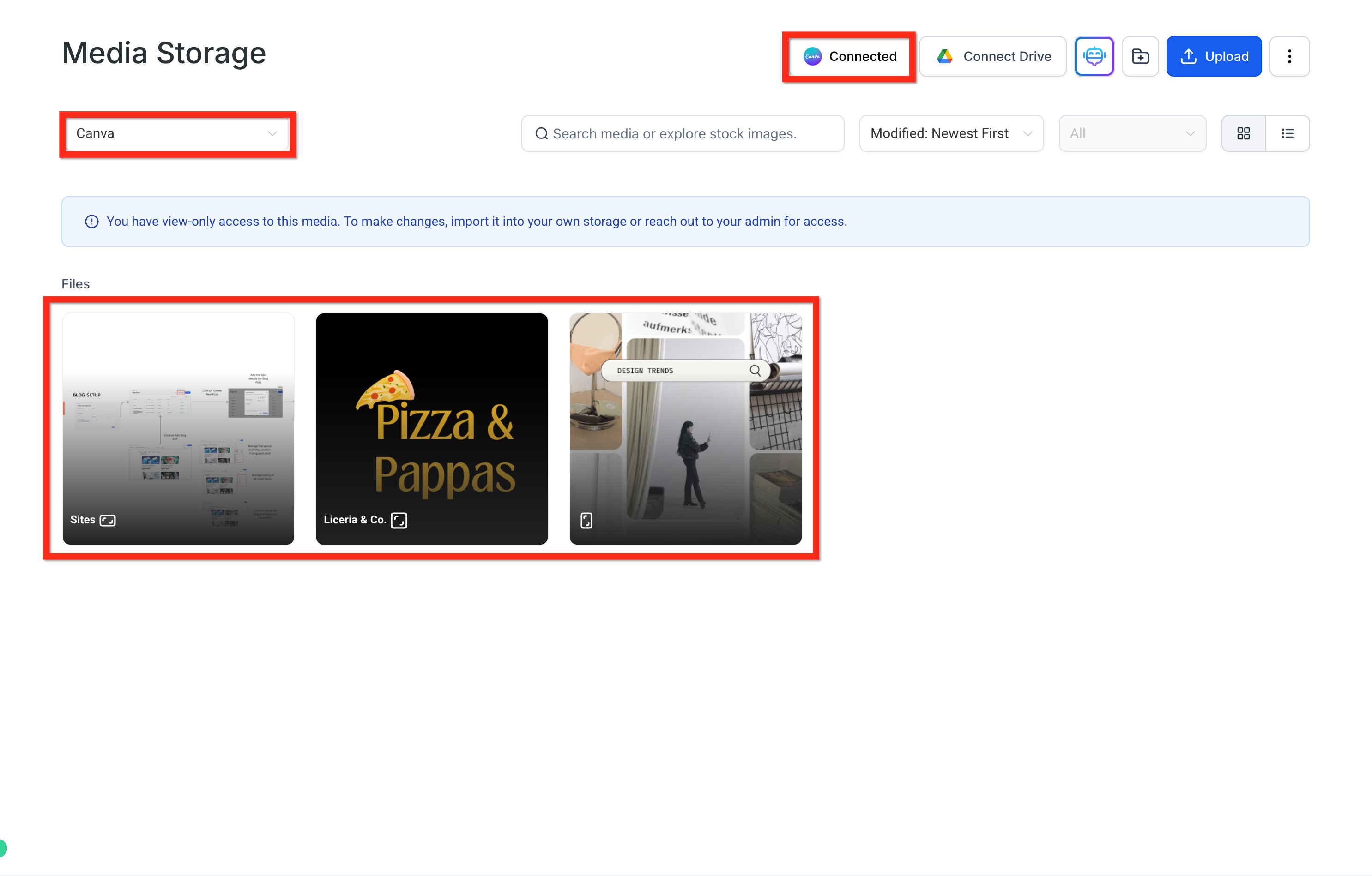
Return to the Media Library. The Canva button will now show as Connected.
Select Canva from the media dropdown to view, edit, and import your designs.
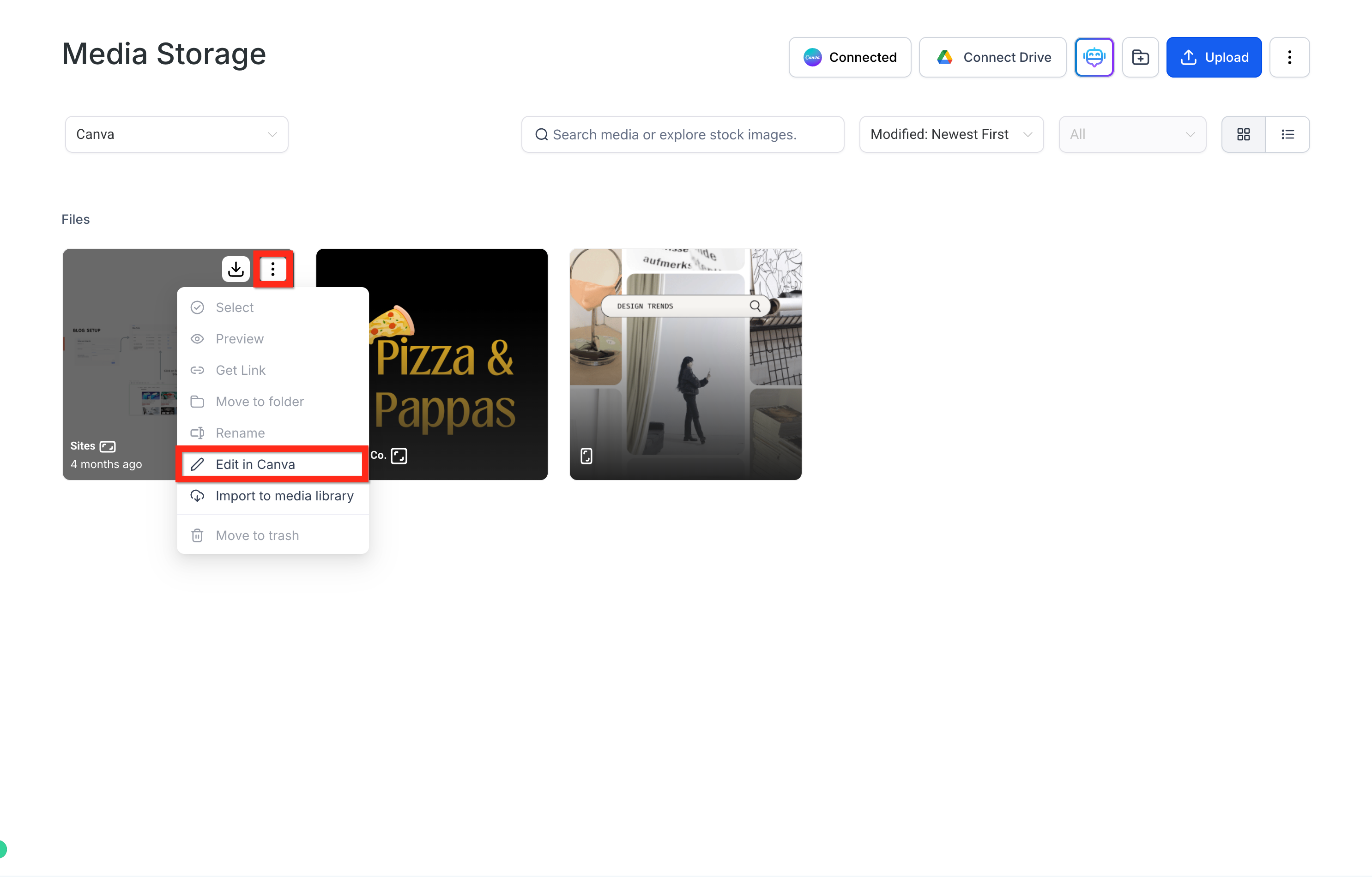
Editing opens the Canva editor in a new browser tab. Who can edit depends on who connected the account and on the individual file's Canva permissions.
You can edit:
Canva designs opened from the Canva tab (when the file allows it)
Files already imported into your Media Library, if they're PNG, JPG, or JPEG
Limitations:
Private Canva files can't be edited from Aesthetix CRM.
Only the team member who originally connected Canva has full edit access. If anyone else tries to edit a design, they'll see a message that they have view-only access and need to import their own copy or ask an admin for access.
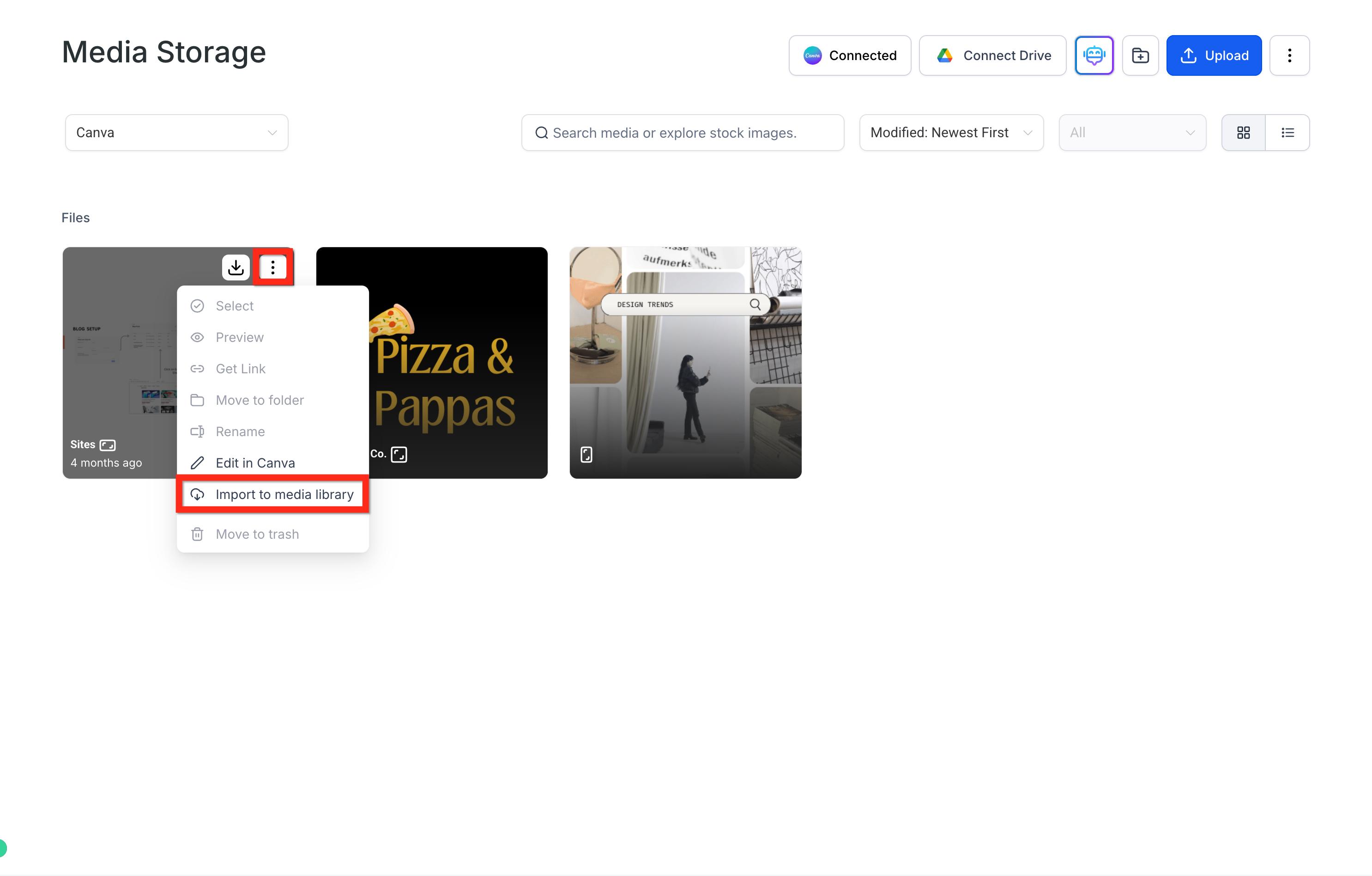
To edit a design, click the three dots on the top right of the design, then click Edit in Canva.
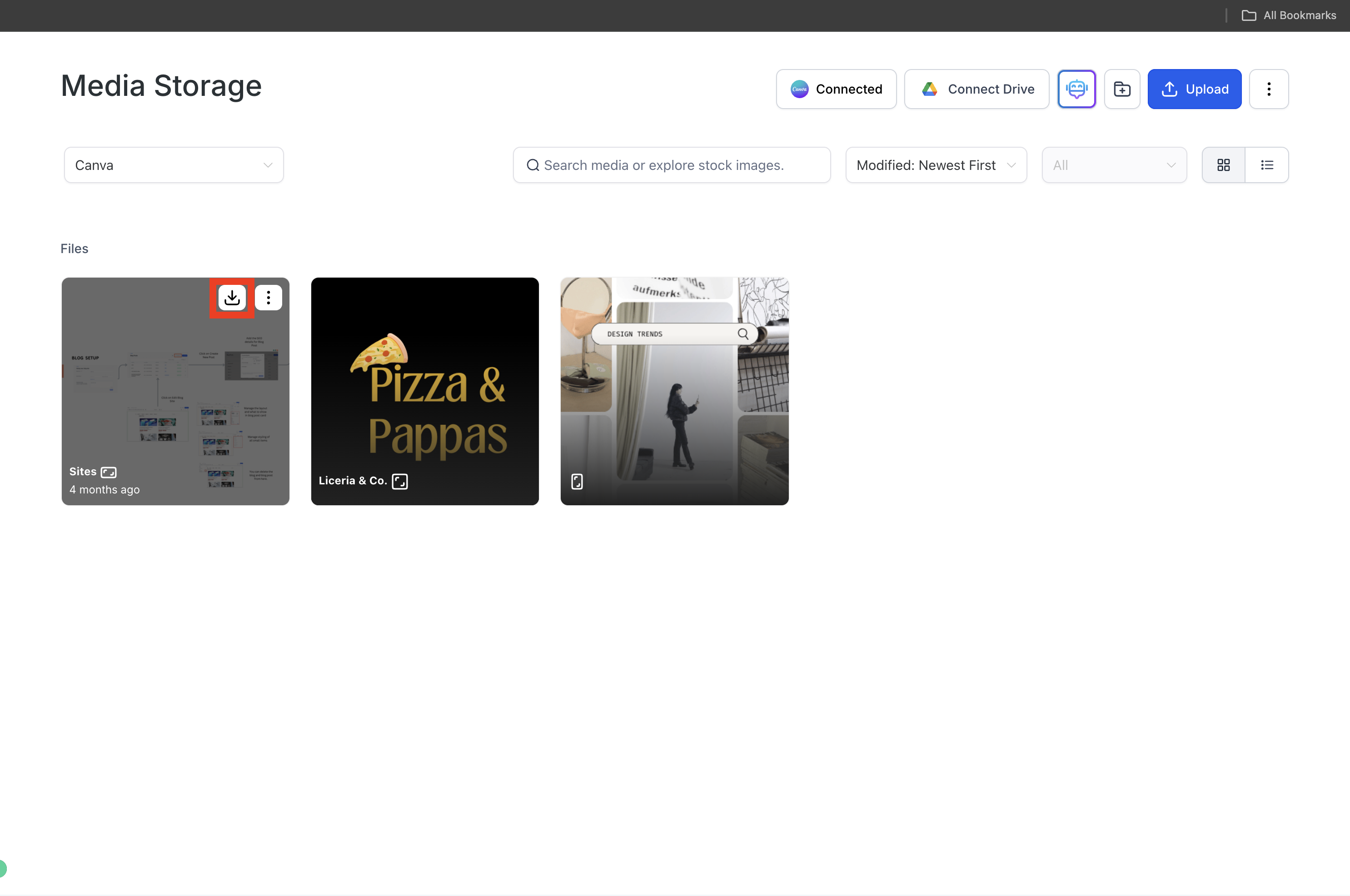
Downloading saves a copy of a Canva design to your computer. One-page designs download as PNG; multi-page designs download as PDF.
Click the Download button on the top right of the design in the Media Library.
Canva designs must be imported into your Media Library before you can use them elsewhere in Aesthetix CRM (in a funnel, form, or email, for example). Importing creates a new, independent copy: later edits made in Canva will not update the imported file. The same design can be imported more than once if you need it in multiple places.
One-page designs import as PNG; multi-page designs import as PDF.
Click the three dots on the top right of the design.
Click Import to Media Library.
Because the Canva connection is set up at the account level, access looks a little different depending on who set it up.
The team member who connected Canva has full edit access (when the file allows it) and can import designs.
Everyone else on the account can view, search, and browse Canva assets, download designs, and import designs into their own Media Library, but cannot connect a different Canva account (unless the existing connection is removed first) and cannot directly edit designs.
Team members using a "Login As" proxy session do not have access to the Canva integration.
Disconnecting removes the login connection and stops Canva designs from appearing in your Media Library, but any designs you already imported stay right where they are.
Go to Settings > Integrations, find Canva, and click Uninstall.
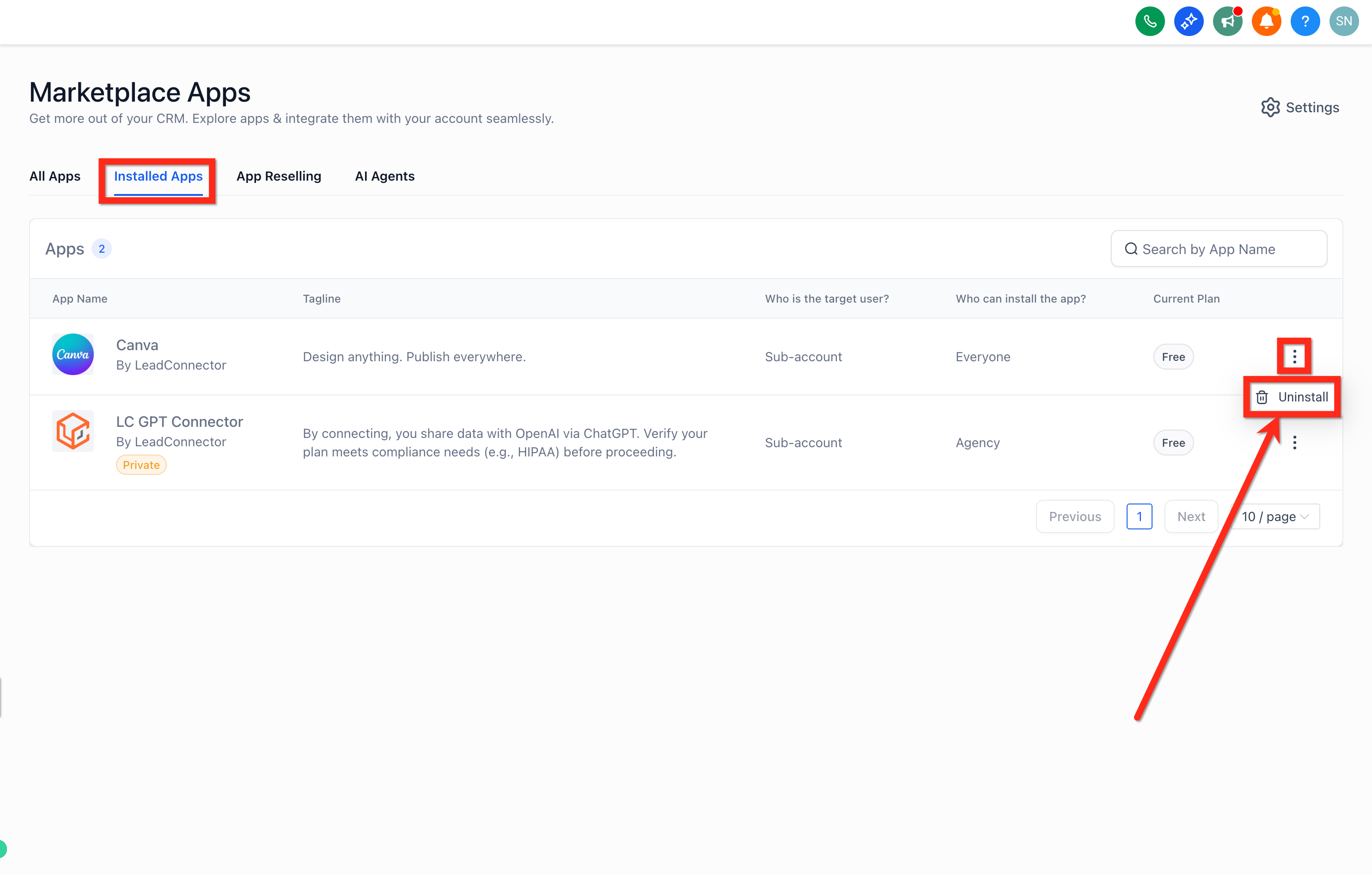
After disconnecting, the Canva tab no longer shows your designs and access is revoked. Previously imported files remain untouched. You can connect a different Canva account at any time by reconnecting.
The Google Drive integration syncs your Google Drive files into the Media Library so you can manage CRM assets, funnel graphics, and Google Drive files from one place, without manually uploading and re-uploading.
Key benefits:
Centralized management: see CRM documents, funnel assets, and Google Drive files together in one library.
Automatic sync: changes you make to files in Google Drive (uploads or deletions) sync automatically, so there's no manual re-uploading.
Folder organization: create folders and upload files in both the root directory and subfolders, from either platform.
Go to Marketing > Media.
Click Connect Google Drive in the top-right corner of the Media Library.
Follow the prompts to log in to your Google account.
Grant access when prompted.
Once connected, a number appears where the connect button used to be, showing how much space you're currently using in your Google Drive account.
Click the Google Drive icon, or select Google Drive from the media dropdown, to see your Drive files and folders alongside your native Aesthetix CRM media.
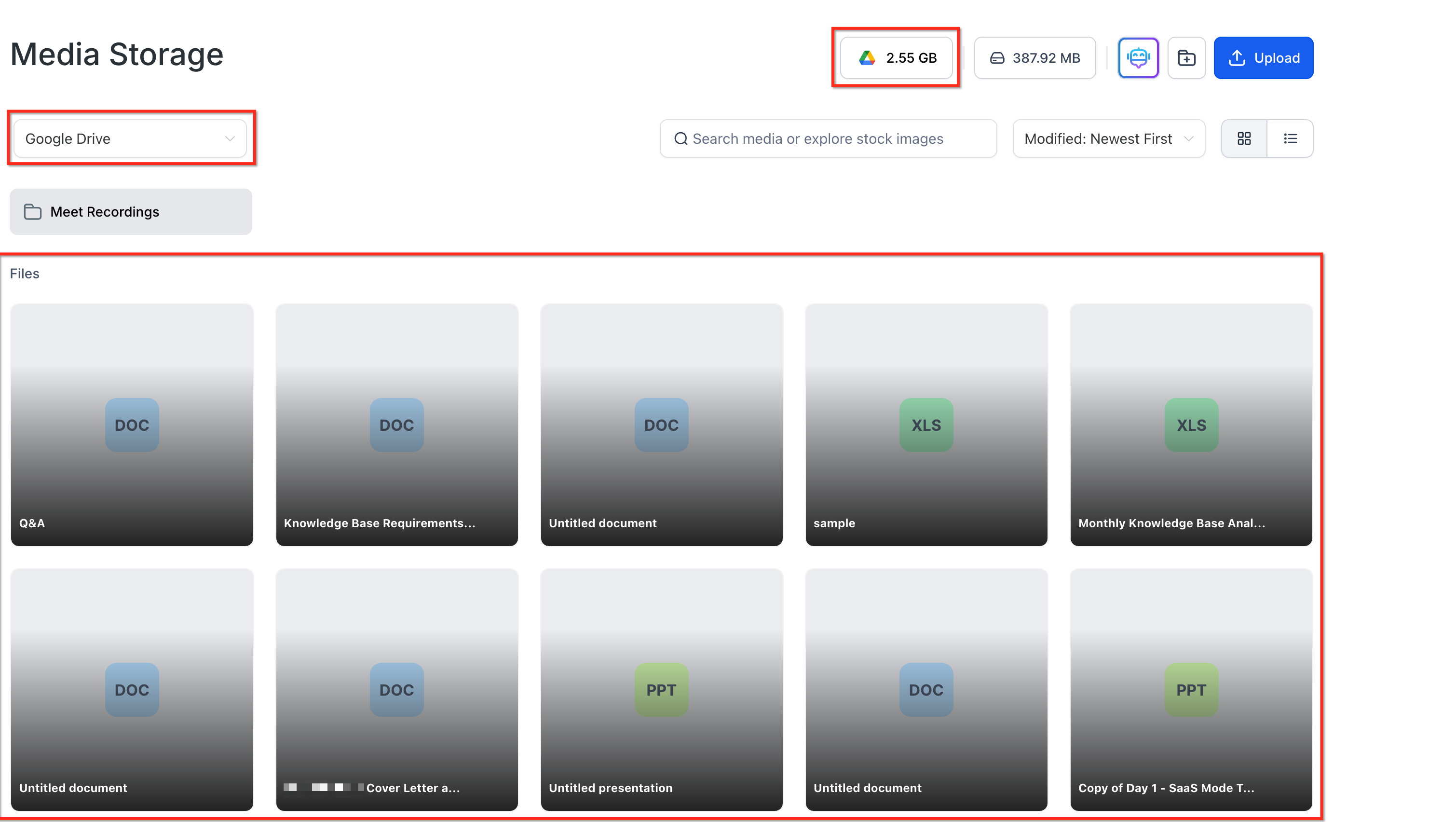
Two-way sync: changes made in Google Drive (uploads, deletions) reflect in Aesthetix CRM, and vice versa.
No renaming or deleting from Aesthetix CRM: you can't rename or delete Google Drive files from inside the CRM. This protects your Drive data from accidental changes made outside of Google's own interface.
Files stay in Google Drive: Aesthetix CRM gives you an interface to browse and use them, but the files themselves remain stored in your Google Drive account.
If any of your Google Drive folders contain patient photos or other protected health information, be cautious about syncing them into this integration. Since files sync two-way to your personal or team Google account, keep clinical patient photos in your practice's dedicated, HIPAA-covered storage instead, and reserve Drive sync for marketing and design assets.
To remove a connected Google Drive account, go to Settings > Integrations. Under Google, select Manage, then Disconnect Account. You can then connect a different Google Drive account if needed.
Do I need a paid Unsplash account to search for and use images? No. Unsplash images are free to search and add directly from the Media Library.
Is the Canva connection shared across my whole account, or just for the person who connects it? It's shared. Once one team member connects Canva, everyone on the account can view, search, browse, download, and import Canva assets. Only the person who connected it gets full edit access.
Can I connect more than one Canva account to my Media Library? No, only one Canva account can be connected at a time. To switch accounts, disconnect the current one first.
Why can't I edit a Canva design even though I can see it in my Media Library? Only the team member who originally connected Canva has direct edit access, due to how Canva's own permissions work. Everyone else can browse, download, and import a design, but will see a view-only message if they try to edit it directly.
Why do I have to import a Canva design before I can use it in a funnel or email? The Canva tab is a browsing source, not part of your usable media yet. Importing creates an independent copy in your Media Library that you can then drop into funnels, forms, emails, and websites.
If I edit a Canva design after importing it, will the imported copy update automatically? No. The imported file is a separate copy. Any changes you make in Canva afterward will not sync to the version already sitting in your Media Library.
How often does my Google Drive sync with the Media Library? In real time. Any files added, changed, or removed in Google Drive show up in the Media Library right away, and vice versa.
Can I organize my Google Drive files from inside Aesthetix CRM? Yes. You can create folders and drag and drop files to organize your Google Drive content directly from the Media Library.
Can I rename or delete a Google Drive file from the Media Library? No. Renaming and deleting are disabled from inside Aesthetix CRM to protect your Google Drive data. Make those changes from Google Drive directly.
Where are my Google Drive files actually stored? In Google Drive itself. Aesthetix CRM simply gives you a window into those files so you can browse and use them alongside your other media, without needing to switch apps.
