The Media Library is where your practice keeps every image, video, and document it reuses across Aesthetix CRM: your logo, before/after photos, treatment menu graphics, consult forms, brochures, and marketing videos. Instead of hunting through your desktop every time you build a funnel, email, or social post, you upload a file once and pull it in wherever you need it.
You can open the Media Library from the left sidebar of your Aesthetix CRM dashboard, or directly from inside a builder (Sites, Funnels, Forms, Email, Social Planner) whenever you need to insert an image or file.
To get to the Media Library, click Media Library in the left sidebar of your dashboard. From there you can browse folders, upload new files, and manage anything already stored.
Different areas of Aesthetix CRM accept different file types and sizes. The Media Library itself is the most permissive storage location; individual tools (Forms, Social Planner, Courses) apply their own limits when you insert a file into them.
The Media Library also accepts a wide range of professional file formats beyond the everyday basics below, including RAW photography files, design source files, motion graphics and audio production projects, CAD and 3D models, and database files. If you try to upload a file type the Media Library doesn't support, you'll see a specific reason for the rejection instead of a generic error, and the upload interface won't get stuck waiting on a file it can't process.
Images
PNG (.png)
JPEG (.jpg, .jpeg, .jfif, .pjpeg, .pjp)
GIF (.gif)
TIFF (.tif, .tiff)
WEBP (.webp)
SVG (.svg)
ICON (.ico, .cur)
HEIC
Videos
MP4 (.mp4)
QuickTime (.mov, .qt, .qtc, .moov)
AVI (.avi)
WebM (.webm)
Windows Media Video (.wmv, .asf)
Ogg Video (.ogv)
MPEG (.mpg)
M4V
Flash Video (.flv)
Matroska (.mkv)
AVCHD (.mts, .m2ts)
3GPP mobile video
Audio
MP3 (.mpeg, .mp3)
WAV (.wav)
AIFF (.aif, .aiff, .aifc)
MIDI (.mid, .midi)
Ogg Audio (.oga)
WebM Audio (.weba)
M4A (.m4a)
AAC
FLAC (lossless)
RealAudio
Documents and Files
PDF (.pdf)
Word (.doc, .docx)
Excel (.xls, .xlsx, .xlsm)
PowerPoint (.ppt, .pptx, .pptm)
Text (.rtf, .txt)
CSV (.csv)
Google Docs, Sheets, and Slides
Apple Numbers
ZIP archives (.zip)
JSON and CSS
Fonts
TrueType (.ttf)
OpenType (.otf)
Web Open Font Format (.woff, .woff2)
Custom font uploads (up to 100MB) let you match your practice's brand typography on websites and funnels using Custom CSS.
Design and Publishing Files
Adobe Photoshop (.psd, .psb)
Adobe InDesign (.indd, .idml)
CorelDRAW (.cdr)
Apple Keynote
OpenDocument formats (.odt, .ods, .odp)
Motion Graphics and Audio Production Files
Adobe After Effects (.aep)
Adobe Premiere Pro (.prproj)
Sony Vegas (.veg)
Ableton Live (.als)
FL Studio (.flp)
Logic Pro (.logicx)
CAD and 3D Models
AutoCAD (.dwg, .dxf)
OBJ, FBX, STL
Database and Data Files
Microsoft Access (.mdb, .accdb)
SQLite files
SQL scripts
Calendar data (.ics)
LDAP directory files (.ldif)
These professional and source-file formats are useful mainly for storing and downloading assets you already work with elsewhere. Most page and funnel builders can only render standard image and video formats inline, so a file like a PSD, an INDD project, or a CAD model won't display directly on a page the way a JPG or PNG does.
Contact Cards
vCard (.vcf)
Upload files by dragging them from your computer straight into the Media Library, no upload button required. This works both in the full Media Library view and inside the media picker modal that opens from within a builder (for example, dropping a file directly into a funnel's media modal to upload and insert it in one step).
While files upload, a progress panel shows real-time status. The header displays how many items are uploading, their combined transferred size, and the overall upload percentage. Each file in the list shows its own upload percentage and transferred size against its total file size, and a green checkmark marks it complete.
In addition to individual files, you can upload an entire folder to the Media Library while keeping its folder structure intact.
While a folder upload is in progress, the upload panel shows progress in a folder-based view so you can track nested folders and files, and a notification lets you know how many items were skipped, if any.
Folder uploads support up to 3 levels of nested folders and up to 1,000 files per upload.
To upload a folder:
Click Upload.
Select Upload Folder.
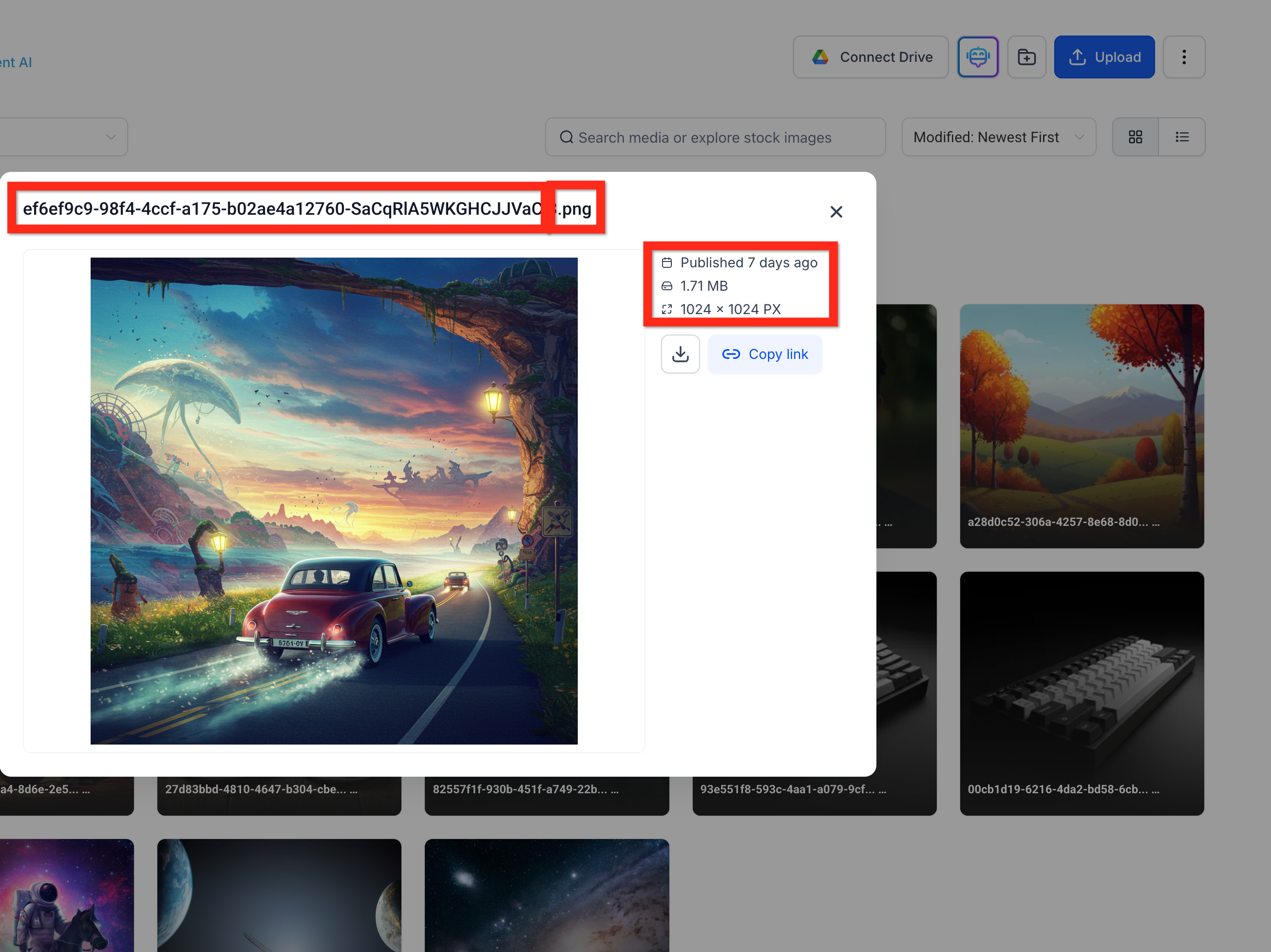
Each file in the Media Library carries a few key details worth understanding when you're deciding what to use where:
Filename: the unique name identifying the file.
File extension: the short suffix (like .png) that tells Aesthetix CRM how to read the file.
Publication date: when the file was added to the Media Library.
File size: how much storage the file uses (measured in KB, MB, or GB).
Dimensions: the file's native pixel width and height. A small image (like a 16x16 icon) stretched to fill a large space will look pixelated. SVGs are the exception, since they're drawn mathematically rather than with pixels, so they stay sharp at any size.
Beyond the file itself, how an image displays also depends on style settings you apply where you place it, such as alignment (left, right, center) and fit (stretch, tile, crop). Keep both the source file's dimensions and your display settings in mind when choosing an image for a header, background, or gallery.
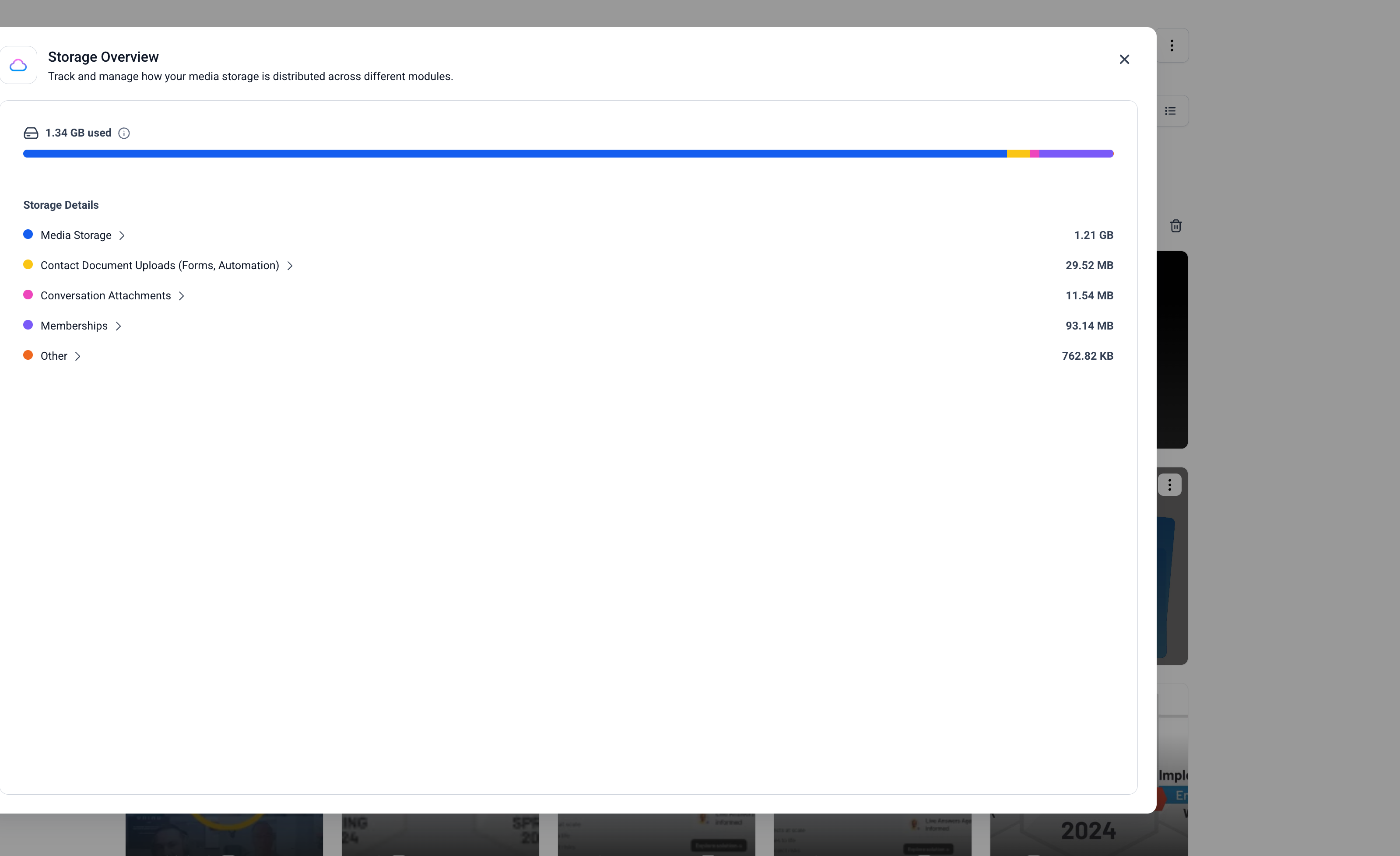
You can see exactly how much storage your account is using and where it's going.
Click the three-dot menu in the Media Library and select Storage.
Click any module (Media Library, Conversations, Memberships, Contacts, Calendar, and so on) to see a breakdown of usage by file type: images, videos, documents, and audio.
Organize your library using these sorting options:
By name: A to Z or Z to A
By size: smallest first or largest first
By modified date: newest first or oldest first
You can also toggle between Grid View and List View. Both show enhanced metadata:
Orientation badge (Grid View): each image is labeled Landscape, Portrait, or Square.
Pixel dimensions (List View): width x height appears next to each filename, useful for judging fit before you insert an image.
Note that older uploaded images may take a moment to display their dimensions while they finish processing in the background.
Use the Media Library's search bar to find files and folders across your entire library. Search results include matches from the top level of the Media Library as well as from folders and subfolders at any depth, and search stays global even when you start searching from inside a folder. The same search behavior is available whether you're browsing in Grid View or List View.
Hover over a file in the search results to see its folder path, showing exactly where the file is stored.
To jump straight to a file's location:
Find the file using the Media Library's search bar.
Click the three-dot menu for the file.
Select Open containing folder.
The Media Library opens the folder containing the file and clears the search field.
Right-click any file, or hover over it, to access quick actions without going through the top navigation bar:
Rename
Delete
Move to Folder
Preview
Insert
When you open the Media Library from inside a builder (Sites, Funnels, Email, and similar tools), it opens as a modal window rather than taking over the full screen, so you can browse and insert without losing your place. You'll also see:
An Insert option for quickly placing a single file without leaving the modal.
A Preview option from the three-dot menu for a closer look before you commit.
The ability to insert a file directly from its preview screen.
When you open a file's Preview, whether from the three-dot menu or from a builder's media picker, you can review it in more detail before using it.
Navigate between files. Use the arrow buttons in Preview, or the left and right arrow keys on your keyboard, to move between images and videos without closing and reopening each one.
Zoom and pan an image. Image previews support zooming from 100% to 400% using the toolbar, your mouse wheel or trackpad, pinch gestures, or the keyboard. Zoom follows your cursor so you can focus on a specific part of the image. While zoomed in, click and drag the image to pan around and inspect different areas.
View an image in fullscreen. Expand an image preview to fullscreen for a larger view, then press Esc to exit fullscreen and return to Preview.
Move the control bar. Drag the floating control bar to reposition it, or use the arrow keys to move it.
Zoom level, pan position, control bar placement, and fullscreen state all reset to a clean state whenever you switch files or close Preview. These interactive controls apply to image previews; other file types use their existing Preview behavior. Image Preview supports keyboard navigation and screen readers, and it respects your Reduce Motion preference.
Collapse or expand folders. If your folder structure is large, click the arrow next to Folders to collapse the list and reduce clutter. Click it again to expand it.
Move an entire folder. You can move a folder and everything inside it, including nested files and subfolders, in one action.
Click the three-dot menu next to the folder and select Move to Folder.
Choose an existing destination folder or create a new one.
Confirm the move. Subfolders and their contents stay intact.
You can download an entire folder as a single ZIP file. The download preserves the original folder structure, including nested subfolders. Folder downloads require enough free disk space in your browser environment to complete.
To download a folder:
Click the three-dot menu next to the folder and select Select.
Make sure the folder is selected, and select any additional folders you also want to download.
Click Download to save the selection as a ZIP file.
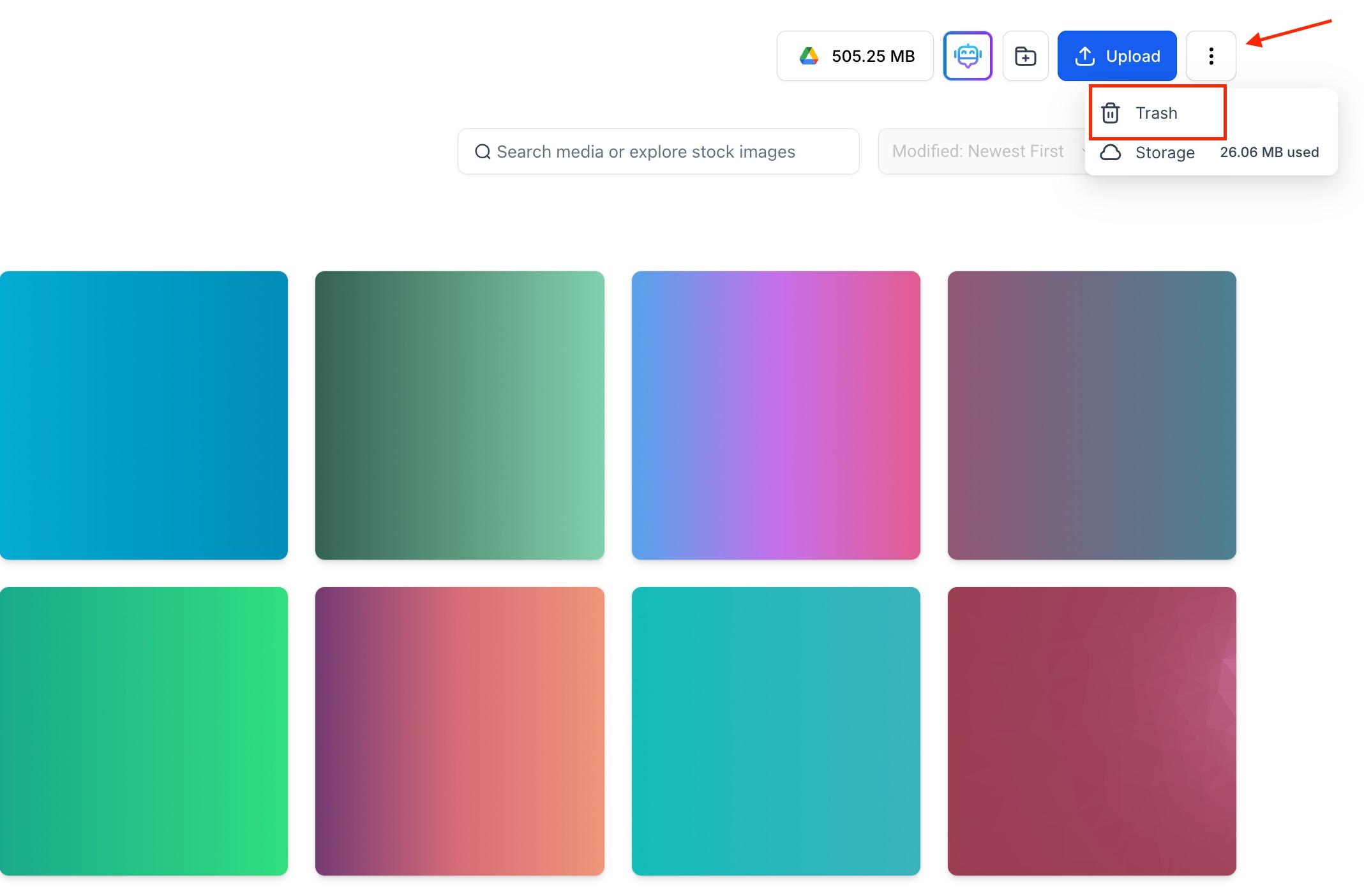
Deleting a file doesn't remove it immediately. It moves to Trash, where it stays for 30 days before permanent removal.
Click the three-dot menu and select Trash.
Choose a file to Restore or Delete Permanently.
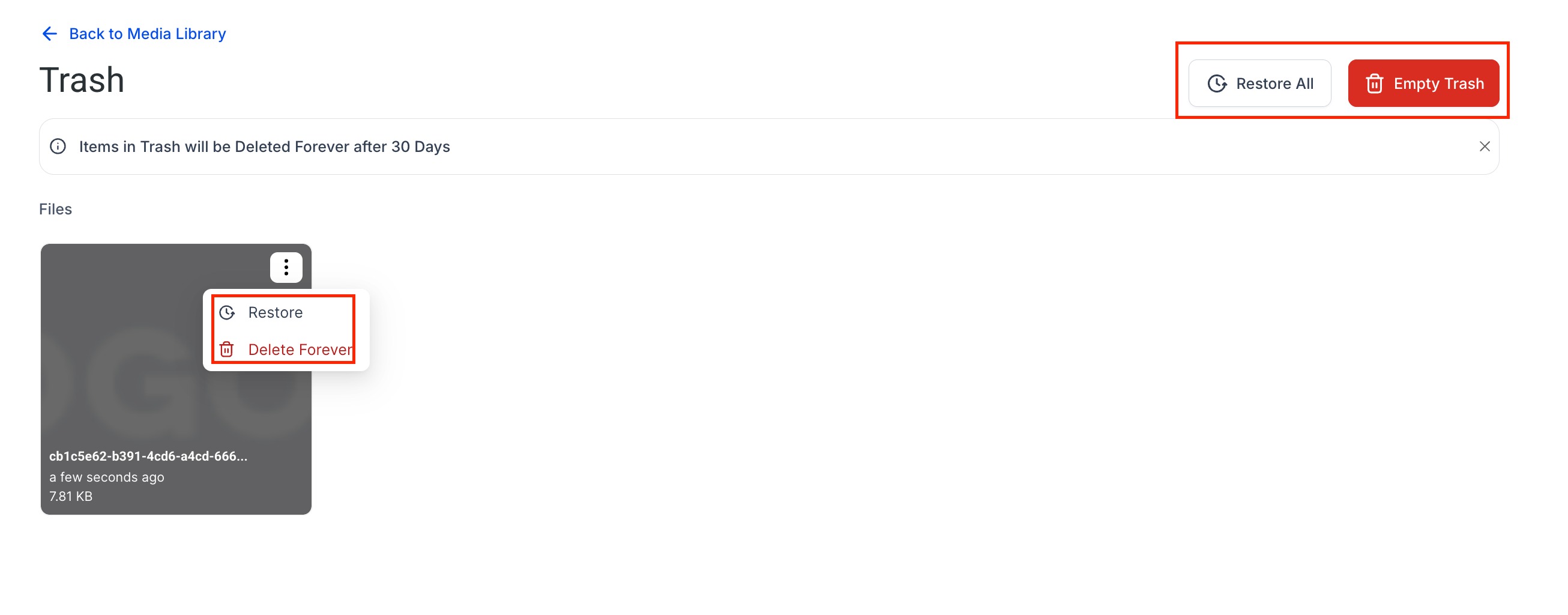
Trash is shared across your whole account: any team member logged into your account can view and restore trashed items, regardless of who deleted them. This protects you from losing files if the person who deleted them no longer has access. After 30 days, deleted files are gone for good and cannot be recovered, so double-check before you let something age out.
You can connect Google Drive to import files you already own directly into the Media Library.
Google Drive only lets Aesthetix CRM display files you own; shared files and shortcuts to shared files won't appear, because Google restricts visibility based on ownership rather than access. If a teammate shares a file with you that you need in your Media Library, ask them to send you a copy rather than a shortcut so it imports correctly.
If someone uses the "Login As" feature to access your account (for example, a support session), the Connect Drive button is disabled and your Google Drive content stays hidden from them, protecting your account's privacy.

The Media Library supports private files for Digital Products, protecting product files so they're only accessible through the correct purchase or delivery flow.
You can't manually mark a file as private from the Media Library. A file becomes private automatically when you upload it as a Digital Product file while creating or configuring a product.
A lock icon appears on the thumbnail of a private file so you can tell it apart from a standard, public file. If you uploaded a file for a Digital Product, look for the lock icon in the Media Library to confirm it saved as private.
For a private file, you can:
Download the file.
Copy Private Link to generate a temporary link for accessing the file.
Delete the file when it's no longer needed.
Private links expire after 10 minutes. If you need access again after a link expires, generate a new one from the Media Library. Because these links are temporary, don't use them as permanent URLs on websites, funnels, emails, or anywhere else that needs ongoing file access.
A file uploaded normally through the Media Library can't currently be switched to private, and a private Digital Product file can't currently be switched to public.
Every builder that touches media (Sites, Funnels, Forms, Social Planner, Courses) pulls from the same Media Library, but each applies its own size ceiling. Forms and Surveys can also collect files directly from patients through a Custom Value field of type File Upload.
File Type | Media Library | Social Planner | Sites & Funnels | Courses | Custom Value Upload (Forms) |
|---|---|---|---|---|---|
PNG (.png) | 100MB | 10MB | 100MB | 50MB | 50MB |
JPEG (.jpg, .jpeg, .jfif, .pjpeg, .pjp) | 100MB | 10MB | 100MB | 50MB | 50MB |
GIF (.gif) | 100MB | 10MB | 100MB | 50MB | 50MB |
TIFF (.tif, .tiff) | 100MB | 10MB | 100MB | 50MB | 50MB |
WEBP (.webp) | 100MB | 10MB | 100MB | 50MB | 50MB |
SVG (.svg) | 100MB | 10MB | 100MB | 50MB | 50MB |
ICON (.ico, .cur) | 100MB | 10MB | 100MB | 50MB | 50MB |
AVI (.avi) | 4GB | 1GB | 4GB | 5GB | 50MB |
QuickTime (.mov, .qt, .qtc, .moov) | 4GB | 1GB | 4GB | 5GB | 50MB |
MP4 (.mp4) | 4GB | 1GB | 4GB | 5GB | 50MB |
MPEG Video (.mpg) | 4GB | 1GB | 4GB | 5GB | 50MB |
Ogg Video (.ogv) | 4GB | 1GB | 4GB | 5GB | 50MB |
Windows Media (.wmv, .asf) | 4GB | 1GB | 4GB | 5GB | 50MB |
WebM (.webm) | 4GB | 1GB | 4GB | 5GB | 50MB |
AIFF (.aif, .aiff, .aifc) | 100MB | 100MB | 100MB | 50MB | 50MB |
MIDI (.midi, .mid) | 100MB | 100MB | 100MB | 50MB | 50MB |
WAV (.wav) | 100MB | 100MB | 100MB | 50MB | 50MB |
Ogg Audio (.oga) | 100MB | 100MB | 100MB | 50MB | 50MB |
WebM Audio (.weba) | 100MB | 100MB | 100MB | 50MB | 50MB |
MPEG Audio (.mpeg) | 100MB | 100MB | 100MB | 50MB | 50MB |
M4A (.m4a) | 100MB | 100MB | 100MB | 50MB | 50MB |
PDF (.pdf) | 100MB | 100MB | 100MB | 50MB | 50MB |
Word (.doc, .docx) | 100MB | 100MB | 100MB | 50MB | 50MB |
Excel (.xls, .xlsx, .xlsm) | 100MB | 100MB | 100MB | 50MB | 50MB |
PowerPoint (.ppt, .pptx, .pptm) | 100MB | 100MB | 100MB | 50MB | 50MB |
Apple Numbers | 100MB | 100MB | 100MB | 50MB | 50MB |
Google Sheets | 100MB | 100MB | 100MB | 50MB | 50MB |
Google Docs | 100MB | 100MB | 100MB | 50MB | 50MB |
Google Slides | 100MB | 100MB | 100MB | 50MB | 50MB |
Text (.rtf, .txt) | 100MB | 100MB | 100MB | 50MB | 50MB |
ZIP (.zip) | 100MB | 100MB | 100MB | 50MB | 50MB |
CSV (.csv) | 100MB | 100MB | 100MB | 50MB | 50MB |
TrueType (.ttf) | 100MB | 100MB | 100MB | 50MB | 50MB |
OpenType (.otf) | 100MB | 100MB | 100MB | 50MB | 50MB |
WOFF/WOFF2 (.woff) | 100MB | 100MB | 100MB | 50MB | 50MB |
vCard (.vcf) | 100MB | 100MB | 100MB | 50MB | 50MB |
The professional formats covered above (RAW, HEIF, design source files, motion graphics and audio projects, CAD and 3D models, and database files) are accepted directly into the Media Library; check with support if you need to confirm a specific size ceiling before uploading a very large file.
Uploading, listing, and previewing files works consistently across Chrome, Firefox, and Safari for all supported formats, including images (JPEG, PNG, SVG, WEBP, GIF, TIFF, HEIC), audio (MP3, WAV, OGG/OGA), video (MP4, MOV, WEBM, WMV, AVI, M4V), documents (PDF, PPT, TXT, DOC, DOCX, CSV, XLS, XLSX), ZIP archives, and JSON/CSS files.
Most formats show an inline thumbnail or preview when your browser and operating system support it. If a format can't be previewed inline, it's still available as a download. Keep individual file sizes reasonable where you can; smaller assets load and preview faster.
Where do I find the Media Library? Click Media Library in the left sidebar of your Aesthetix CRM dashboard, or open it directly from inside a builder like Sites, Funnels, Forms, or Social Planner when you need to insert a file.
What file types can I upload? Most common image, video, audio, document, and font formats are supported, including PNG, JPEG, SVG, MP4, MOV, PDF, DOCX, XLSX, and TTF/OTF/WOFF fonts. See the Supported File Types section above for the full list.
Is there one file size limit for everything? No. The Media Library itself allows up to 100MB for images and documents and up to 4GB for video, but each tool you insert a file into (Social Planner, Sites & Funnels, Courses, Forms) applies its own, usually smaller, limit. Check the file size table above for the specific product you're working in.
What happens when I delete a file? It moves to Trash, where it stays for 30 days before being permanently removed. Any team member with access to your account can restore or permanently delete trashed files during that window. After 30 days, deleted files cannot be recovered.
Can I connect Google Drive to the Media Library? Yes, but only files you own will show up. Shared files and shortcuts to shared files won't appear because of how Google Drive handles permissions. If you need a colleague's shared file, ask them to send you a copy instead of a shortcut.
Why can't I see my Google Drive files when someone logs in as me for support? When the "Login As" feature is active, the Connect Drive button is disabled and your Google Drive content stays hidden, so support access never exposes your connected Drive files.
Can I move an entire folder, not just individual files? Yes. Use the three-dot menu next to a folder and select Move to Folder. All nested files and subfolders move together and stay intact.
Can I store patient before/after photos in the Media Library? You can, but treat these as protected health information. Only upload before/after photos once you have documented patient consent, limit access to staff who need it, and avoid using identifiable photos in public-facing marketing without separate written authorization.
Do file size limits differ between Grid View and List View? No, sorting and view mode don't affect file size limits. Grid View adds an orientation badge (Landscape, Portrait, Square) and List View shows pixel dimensions next to each filename, but both draw from the same underlying files and limits.
What if a file doesn't show a preview thumbnail? Some formats and older browser/OS combinations don't generate an inline preview. The file is still stored correctly and available as a download even if a thumbnail doesn't render.
Can I see upload progress when I'm uploading multiple files at once? Yes. A progress panel shows the number of items uploading, their combined transferred size, and the overall percentage complete. Each file also shows its own progress and gets a green checkmark once it finishes.
What happens if I try to upload a file type that isn't supported? You'll see a specific reason for the rejection rather than a generic error, and the upload interface won't get stuck waiting on a file it can't process.
Can I use a RAW photo, PSD, or CAD file directly on a page or funnel? You can store and download these professional formats from the Media Library, but most page and funnel builders can only render standard image and video formats inline. Export a JPG, PNG, or MP4 version of the asset if you need it to display directly on a page.
Can I upload or download an entire folder at once? Yes. Folder uploads preserve your folder structure and support up to 3 levels of nested folders and up to 1,000 files per upload. You can also download an entire folder, including nested subfolders, as a single ZIP file.
Can I search for a file instead of browsing folders? Yes. The Media Library's search bar finds matching files and folders at any depth, even when you start searching from inside a folder. Hover over a search result to see its folder path, or use the three-dot menu and select Open containing folder to jump straight to it.
Can I zoom in on an image before I use it? Yes. Preview supports zooming an image from 100% to 400%, panning while zoomed, and viewing it in fullscreen. You can also use the arrow keys or arrow buttons in Preview to move between files without closing and reopening each one.
Are files I upload for Digital Products private? Files you upload as part of a Digital Product's setup are automatically stored as private and show a lock icon in the Media Library. You can download them, generate a temporary Copy Private Link (it expires after 10 minutes), or delete them, but you can't manually switch a file's privacy status.
