Your Aesthetix CRM store lets you add search-engine optimization (SEO) details directly to individual products and to product collections, so the treatments, memberships, and retail items you sell online are easier for prospective patients to find through search engines. These settings live under Payments > Products. Setup for payment providers, taxes, and coupons is covered in the Payments collection, this guide is scoped to how your product and collection pages present themselves to search engines.
Every product in your store can have its own SEO title, description, and URL handle. This helps search engines understand what the product is and improves how it appears in search results.
Go to the Payments section.
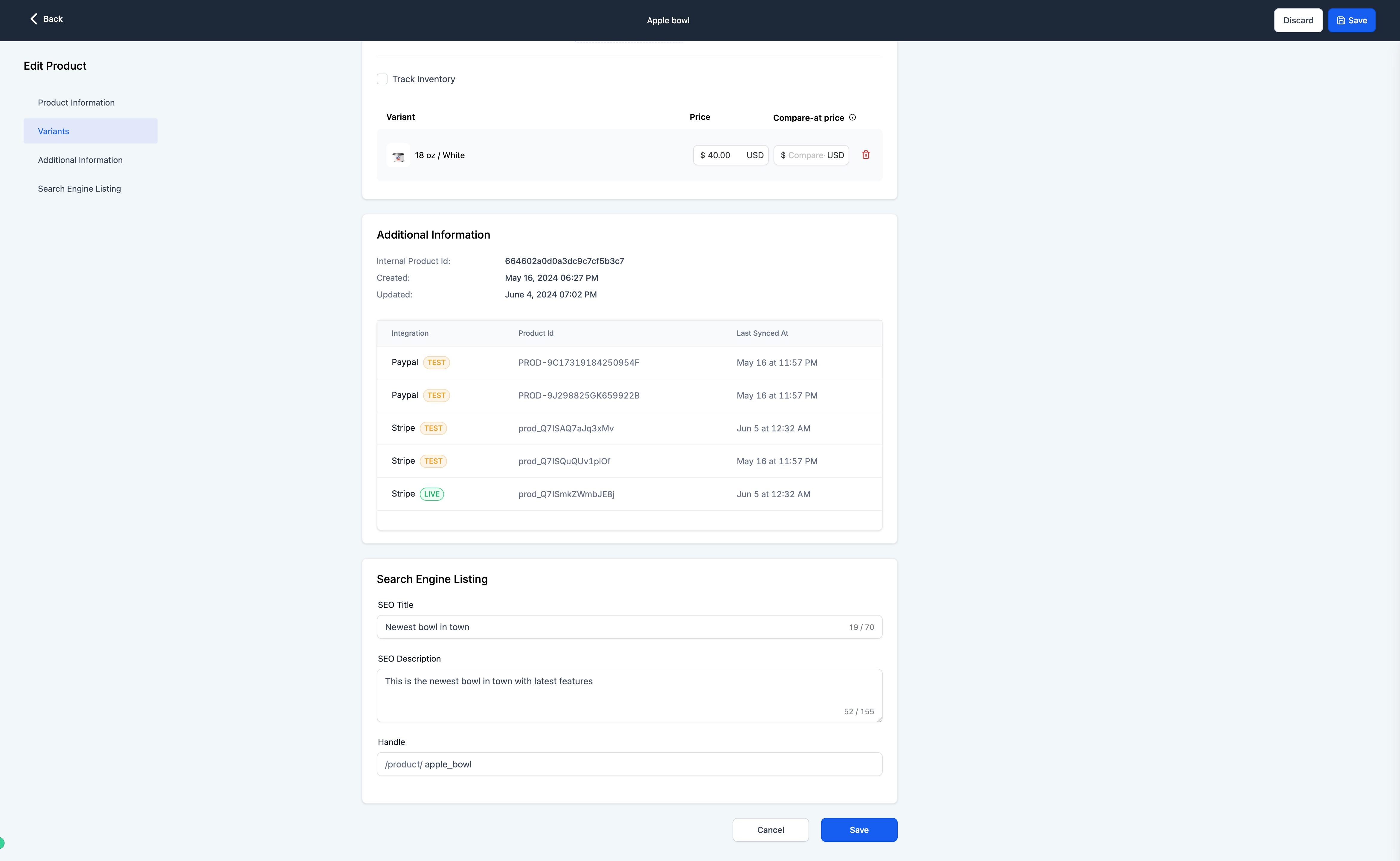
Select the Products tab.
Choose the product you want to enhance with SEO details and click the three dots next to it.
Click Edit for the selected product.
Enter the SEO Title you want search engines to show for this product.
Provide an SEO Description that summarizes the product in a way that encourages clicks from search results.
Specify the Handle, the unique slug that appears at the end of the product's URL.

Click Save to apply your changes.
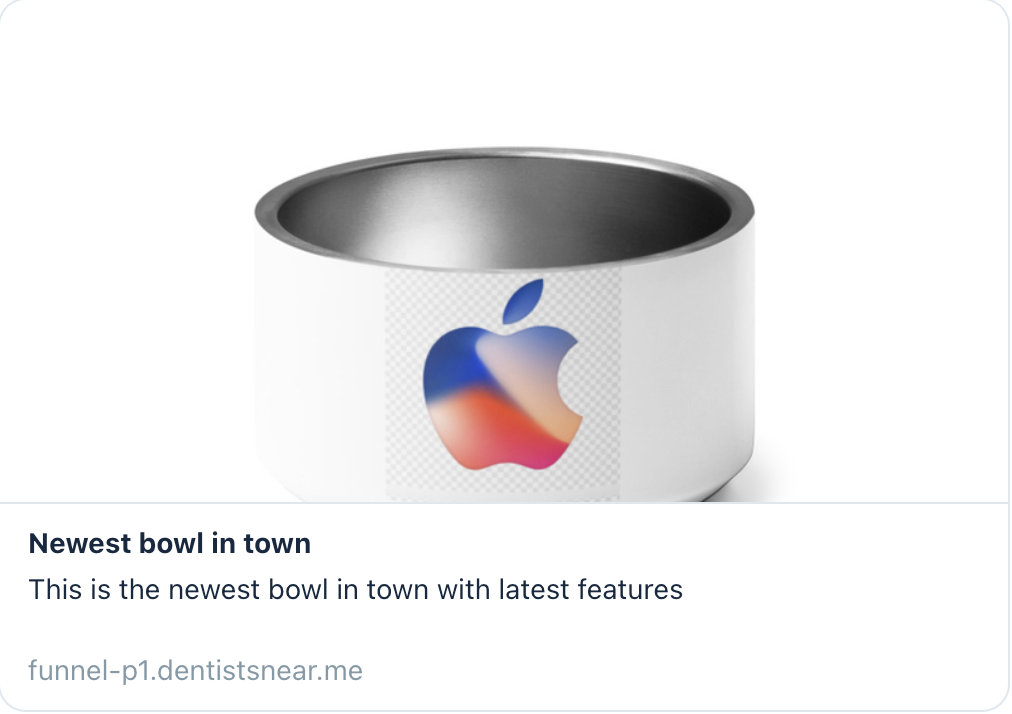
A few things to keep in mind:
Featured image doubles as the SEO preview image. Whichever image you've set as the product's featured image is the one search engines and social platforms will pull in when the product is shared or listed.
The product must be listed in your online store. SEO fields only apply, and only stay editable, when the toggle for showing that product in your online store is turned on.
Handles must be unique. You can't reuse the same handle across two different products; each one needs its own distinct URL slug.
Collections (grouped sets of products, such as "Injectables" or "Skincare Retail") can also carry their own name, image, and SEO details.
Go to Payments > Products > Collections.
Open the collection you want to configure, or create a new one.
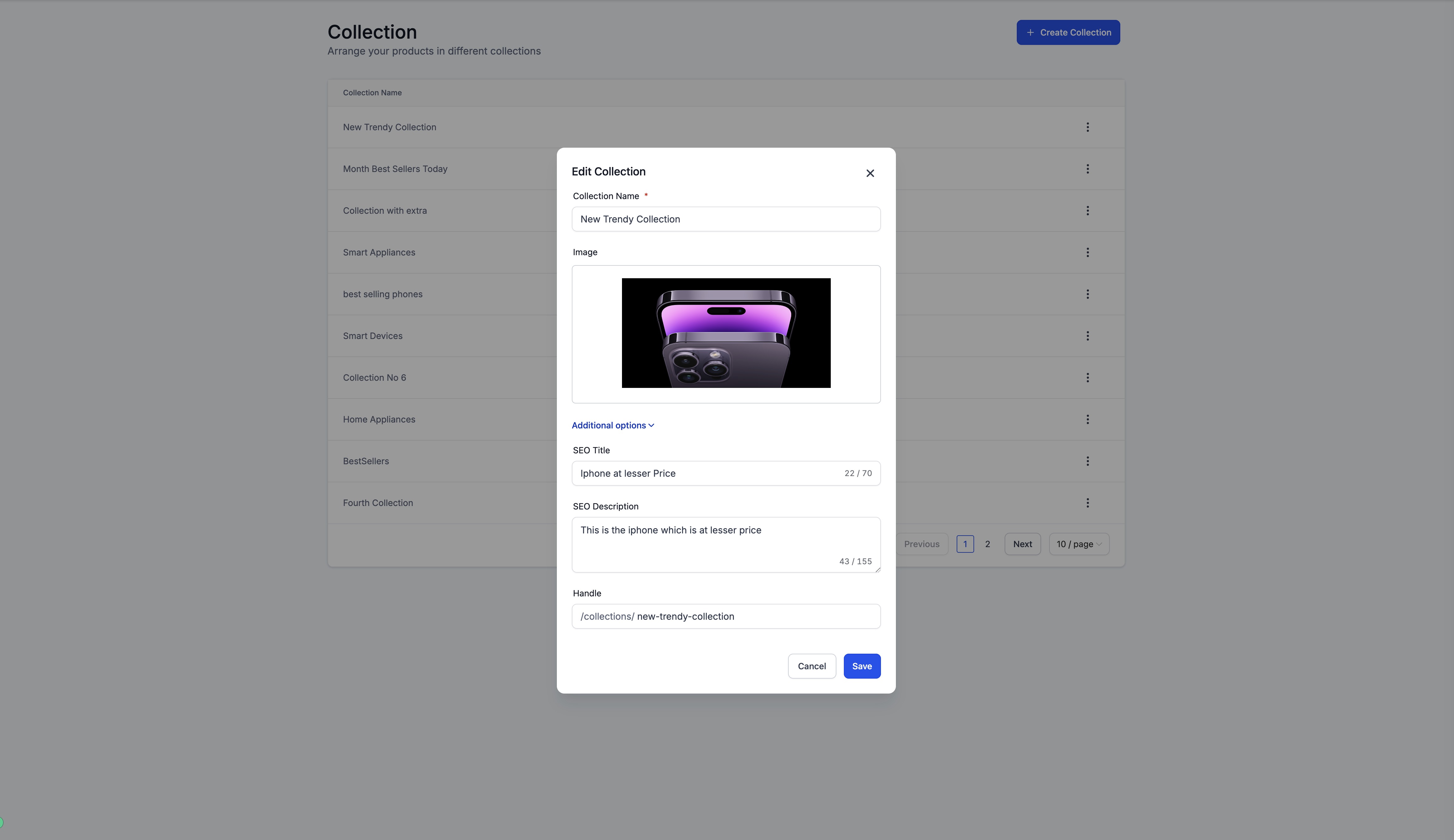
Fill in the collection's name and, optionally, an image to represent it.
Add an SEO Title, SEO Description, and Handle for the collection, the same way you would for an individual product.
Save your changes.
If you upload a collection image, that image is used both as the visual for the collection and as the preview image search engines pull for it. If you skip the image, the collection's name is centered over a background instead, and no image is available for SEO preview.
The SEO details and image you set here also feed the tags Aesthetix CRM generates for the filtered product list page when a patient browses that collection specifically, so it's worth filling these in even if you don't plan to feature the collection as its own element on a page.
Once a collection has a name, image, and SEO details, you can showcase it anywhere on your website or funnel pages using the Collection List element, found under the Store section of the page builder's element list.
Open the page builder for the page where you want collections to appear.
Add the Collection List element from the Store section.
The element drops in with three placeholder collections. Click the element to open its settings on the right and configure layout options such as heading, margin, padding, colors, borders, and fonts, the same as any other element.
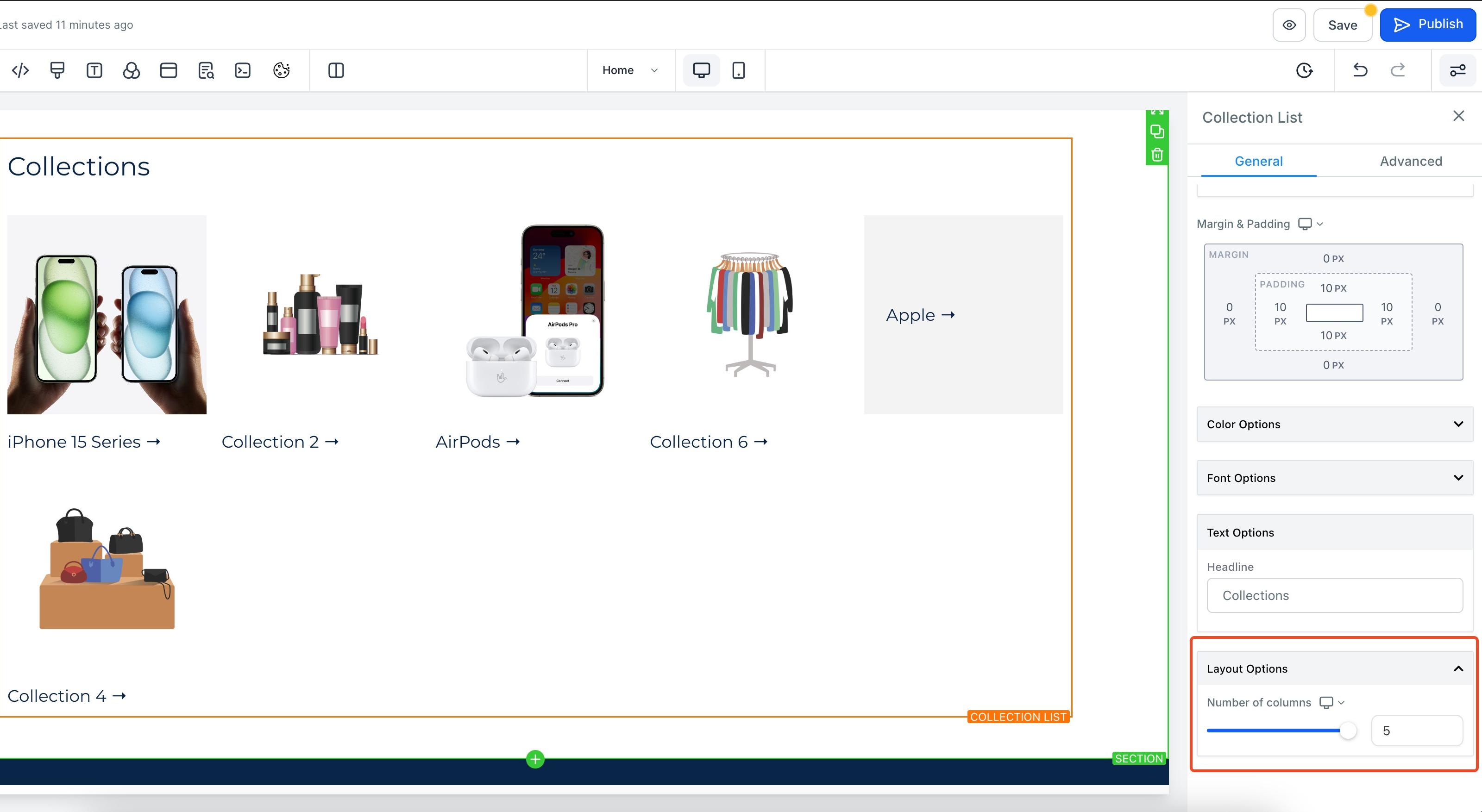
Set the Number of Columns for desktop and mobile under the Layout tab. Desktop supports up to 5 columns; mobile supports up to 2.
If you don't want a heading above the collections, leave the Headline field empty under Text options and it will be removed automatically.
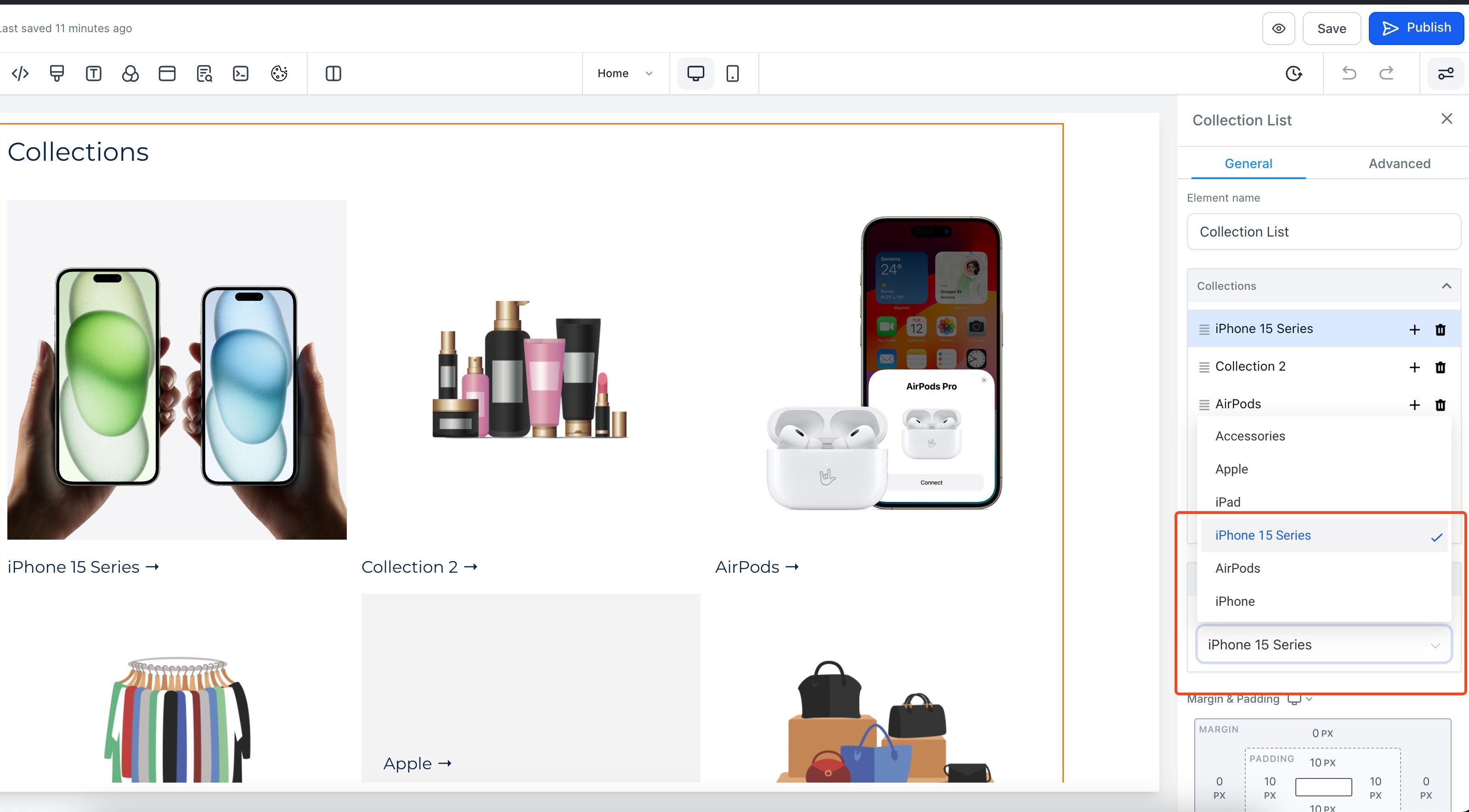
Assign a real collection to each placeholder. Click any item in the Collections group to open the selection panel and choose which collection it should display. This step is required, placeholder collections are for layout preview only and won't show anything useful on your live site.
You can also assign collections directly from the canvas: double-click an item in the Collection List element, and if it isn't mapped to a real collection yet, the selection panel opens automatically so you can assign one. If it's already mapped, the canvas highlights the matching collection instead. Changes made in the selection panel and on the canvas stay in sync in both directions, and the order you set for your items stays stable even as you add or remove collections from the element.
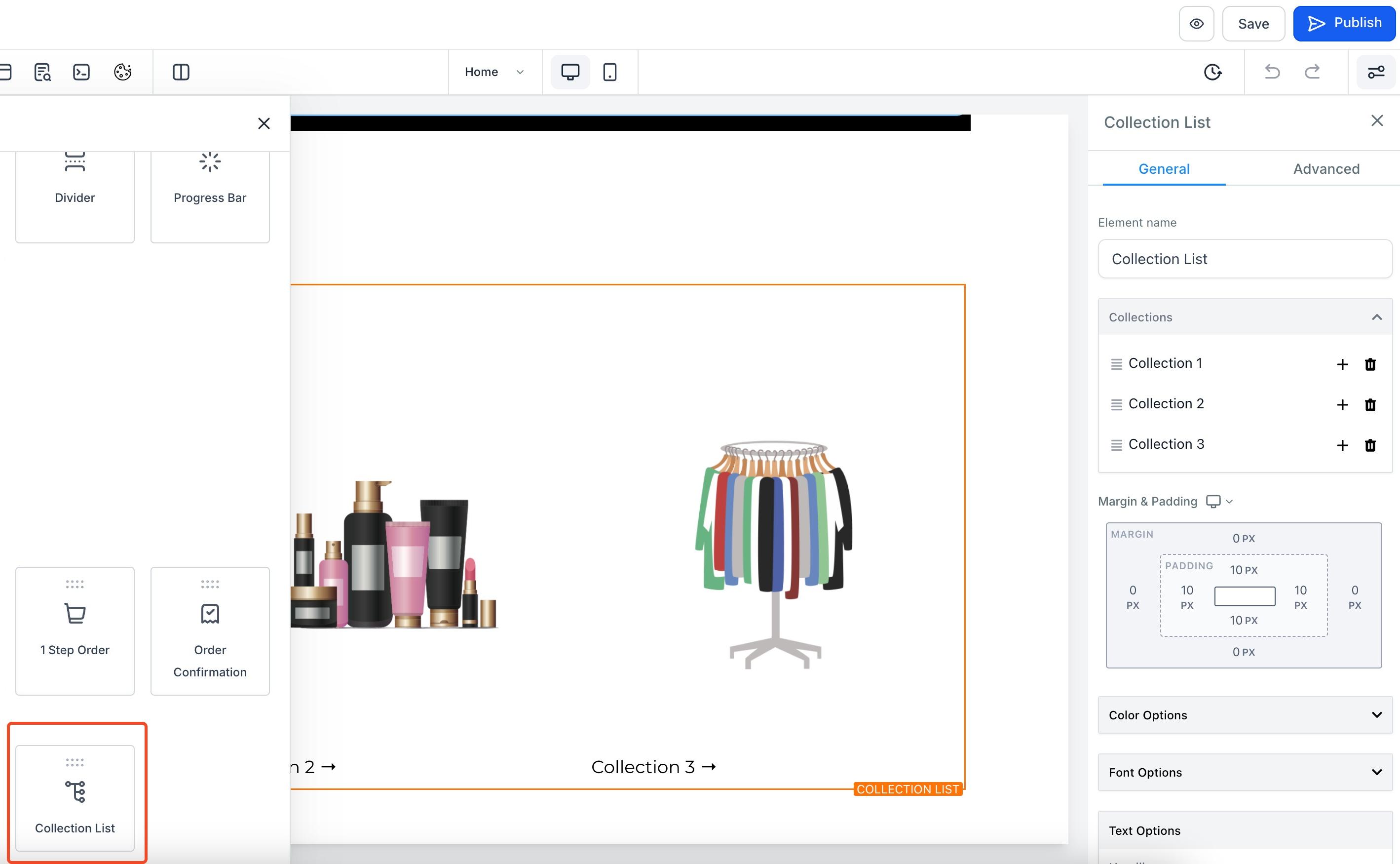
Click Save or Publish to push the changes live.
Where do I add SEO information for a product? Go to Payments > Products, open the product, click Edit, and fill in the SEO Title, SEO Description, and Handle fields.
Why can't I edit the SEO fields on a product? SEO fields are only available when the product's online-store listing toggle is turned on. Enable that toggle first, then the fields become editable.
What image shows up when a product or collection is shared or listed in search results? Whichever image is set as the product's featured image, or the collection's uploaded image, is used as the preview image.
Can two products share the same handle? No. Each product needs a unique handle, since the handle determines its URL slug.
What happens if I don't upload an image for a collection? The collection still works, but its name is displayed centered over a background instead of an image, and there's no image available for SEO previews.
How many collections can I show per row with the Collection List element? Up to 5 columns on desktop and up to 2 columns on mobile, configurable under the Layout tab.
Do placeholder collections show up on my live site? No. Placeholder collections are only there to preview layout while you're building the page. You must map each one to a real collection before publishing, or it won't display anything useful to patients.
Does this cover SEO for my entire website, or just my store? This guide covers SEO for individual products and product collections in your store. Broader site-wide SEO settings, like page metadata, sitemaps, and general site optimization, are covered separately in the Websites/SEO collection.
Where do I set up payment processing for my store? Payment provider setup, product taxes, and coupons are configured in the Payments collection, not here.
Can I use the Collection List element on any page? Yes, as long as the page has the store enabled. You can place it on any page or funnel step where the store is active.
