The Payments section is where your practice collects and tracks money inside Aesthetix CRM. You can charge a patient's card, send and record invoices, add products and services, apply taxes, and keep a clean record of every transaction for your accounting process. Payments can be collected by credit card or debit card, and manual payments (cash, check, bank transfer, and similar) can be recorded for your records.
You will find these tools in the Payments section of the left menu: Invoices, Payment Links, Transactions, Subscriptions, Products, Settings, and Integrations. This guide walks through the most common ways med spas, plastic surgery practices, and dermatology offices use Payments day to day.
To accept card payments online (deposits, treatment packages, memberships, product sales, and balances), you need a payment processor connected to your account. Aesthetix CRM supports Stripe and other processors, but the recommended option is AX Pay.
Tip: Aesthetix CRM offers AX Pay, our own payment processing with rates better than Stripe. See AX Pay Overview and Setup Guide.
You can still use the invoicing tools without a connected processor if you only need to record manual payments, but card payments require a connected processor. See the "Recording manual payments without a connected processor" section below.
Sometimes you need to take a payment on the spot, for example when a patient calls to put a deposit on a procedure or pay a balance between visits.
Step 1: Create an invoice by selecting the contact. If the contact does not exist, add the contact on the fly.
Step 2: Add the product that is being sold. If the product is not listed in the dropdown, choose "Add New Item."
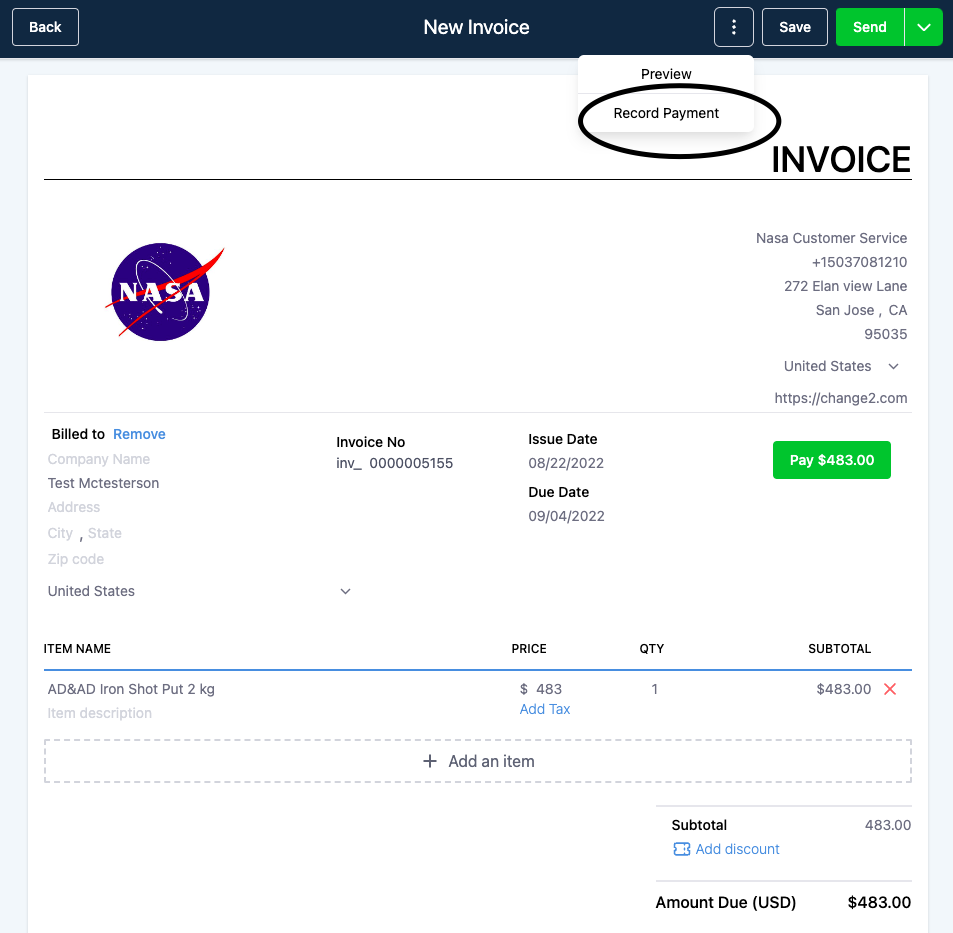
Step 3: On the invoice builder page, instead of sending the invoice, click on the three dots at the top bar. Click on "Record Payment."
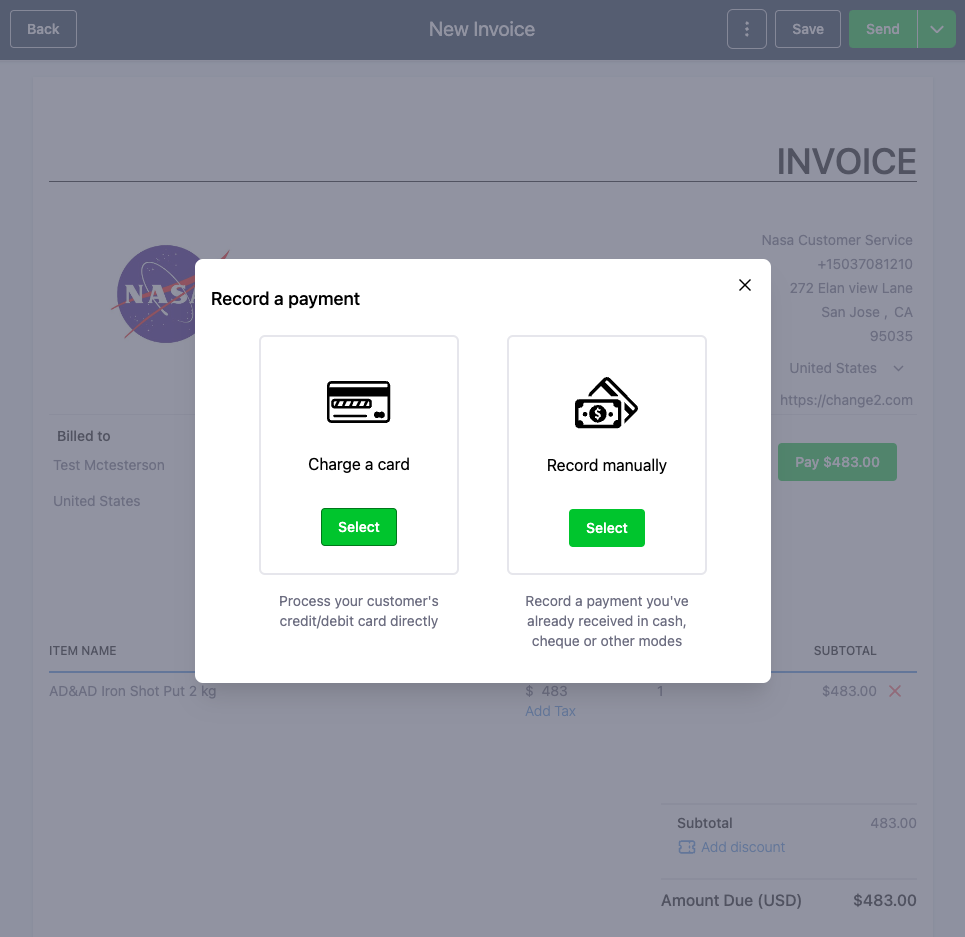
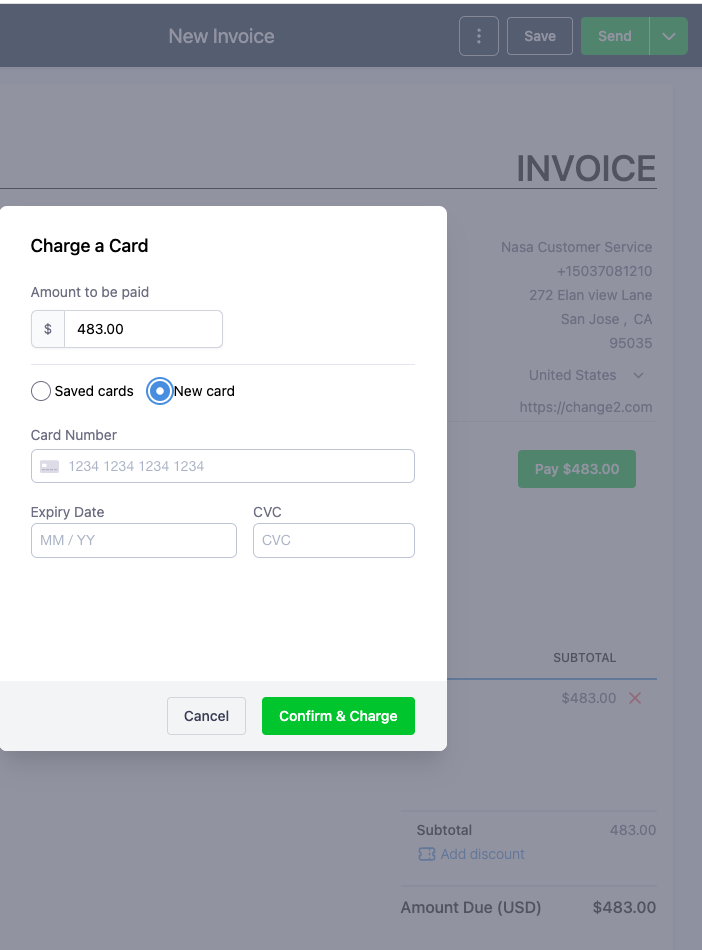
Step 4: On the next modal window, choose "Charge a card," and on the next screen, choose "New Card" if this is a first-time patient.
Step 5: If this patient has already purchased, then the saved cards section will have the card used before.
Please note: Patients being charged will not receive any automated email or text confirmation.
You can use the invoicing solution without a connected payment processor. However, to receive any payments made via credit or debit card, a connected processor (such as AX Pay or Stripe) is required.
Please note:
If you opt to use invoicing without a connected processor, you are required to manually record and collect payments.
Recording manual payments without a connected processor works only for one-time invoices.
Step 1: Navigate to Invoices under the Payments section on the left side.
Step 2: If the system prompts you to add a payment processor, close the popup.
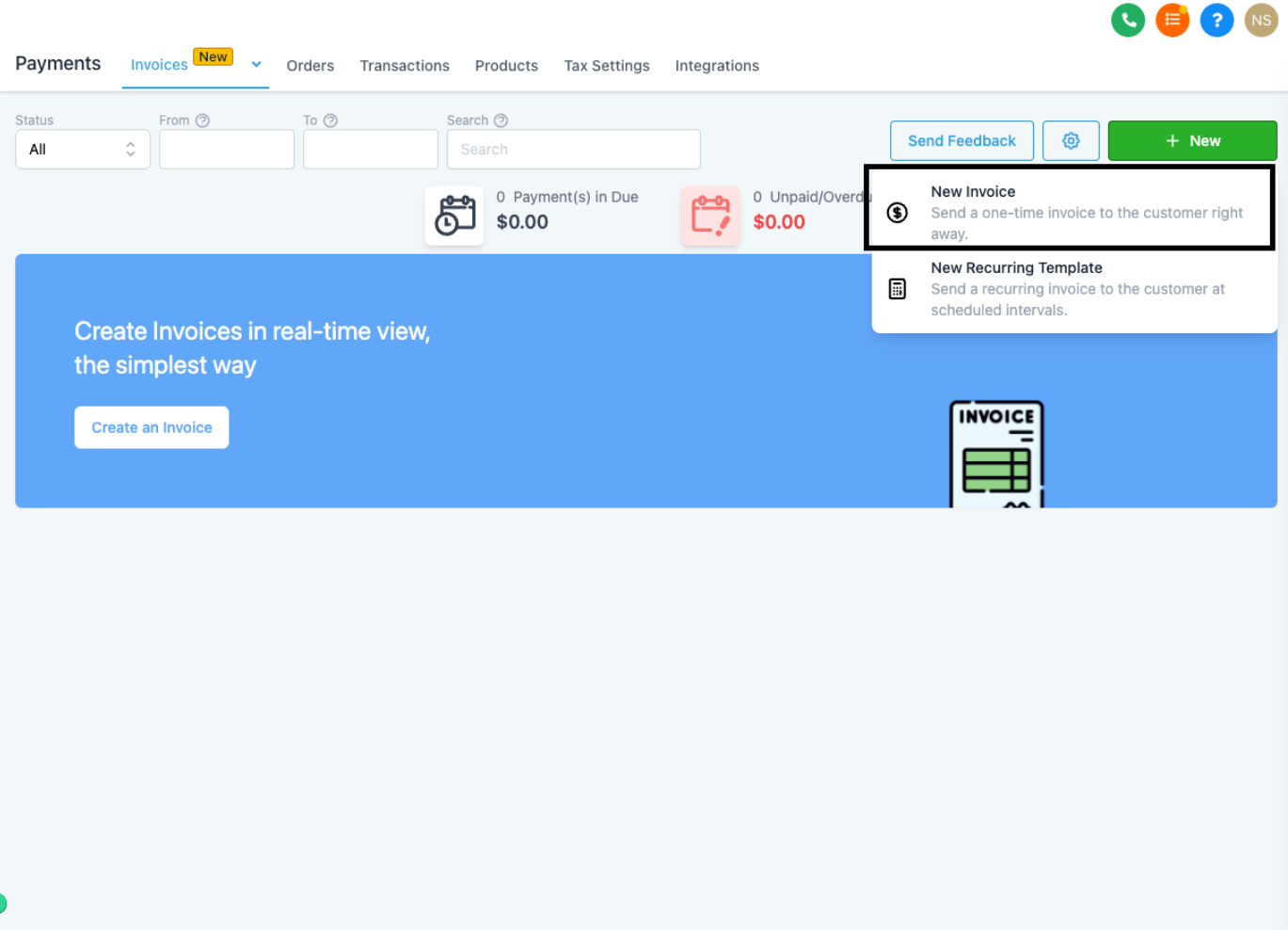
Step 3: Create a new invoice via the "New" button and choose "New Invoice."
Step 4: On the invoice builder page, add the patient details, the products or services sold, tax info, and discounts if any. Once you are ready, click on the three dots and choose the "Record Payment" option.
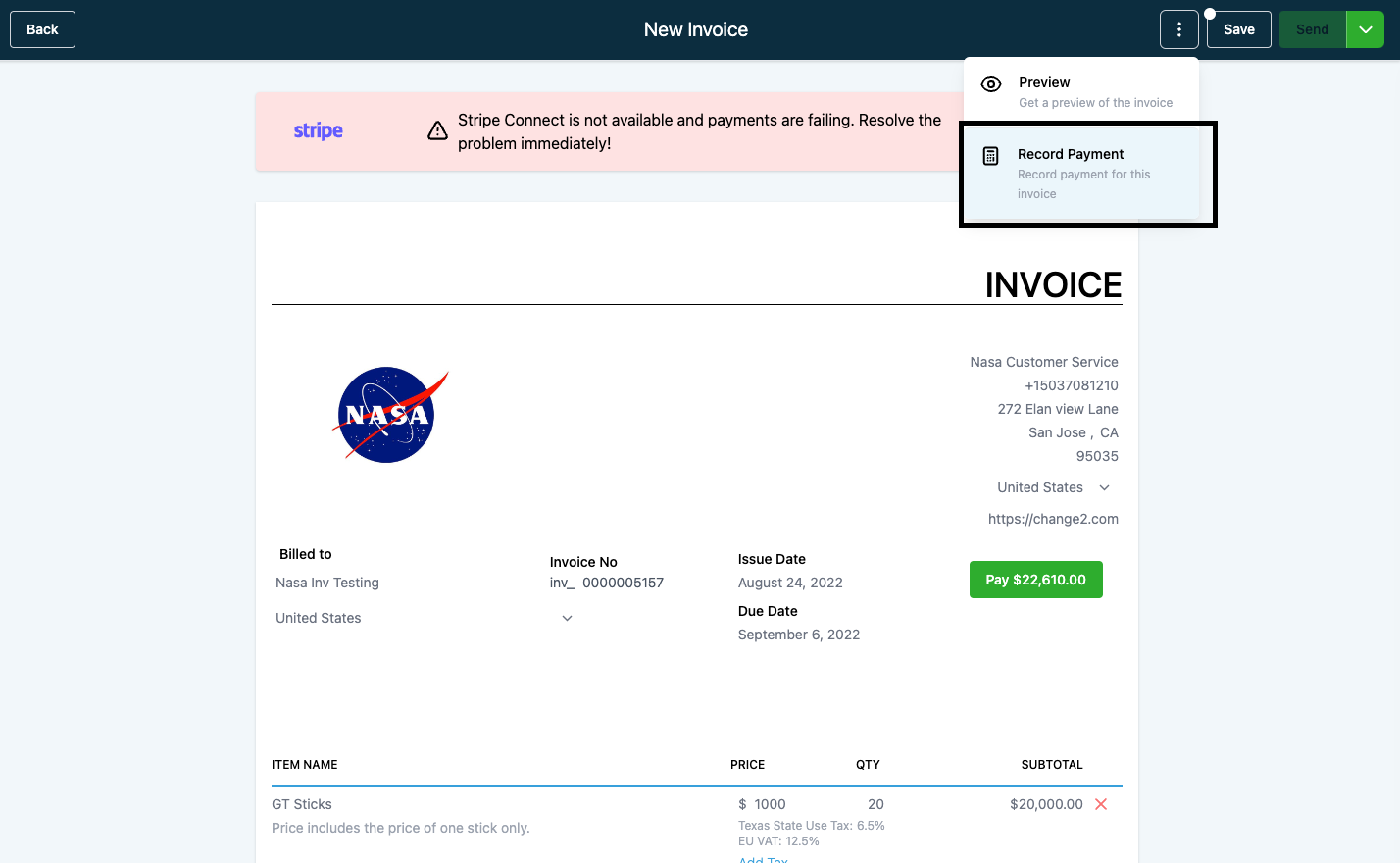
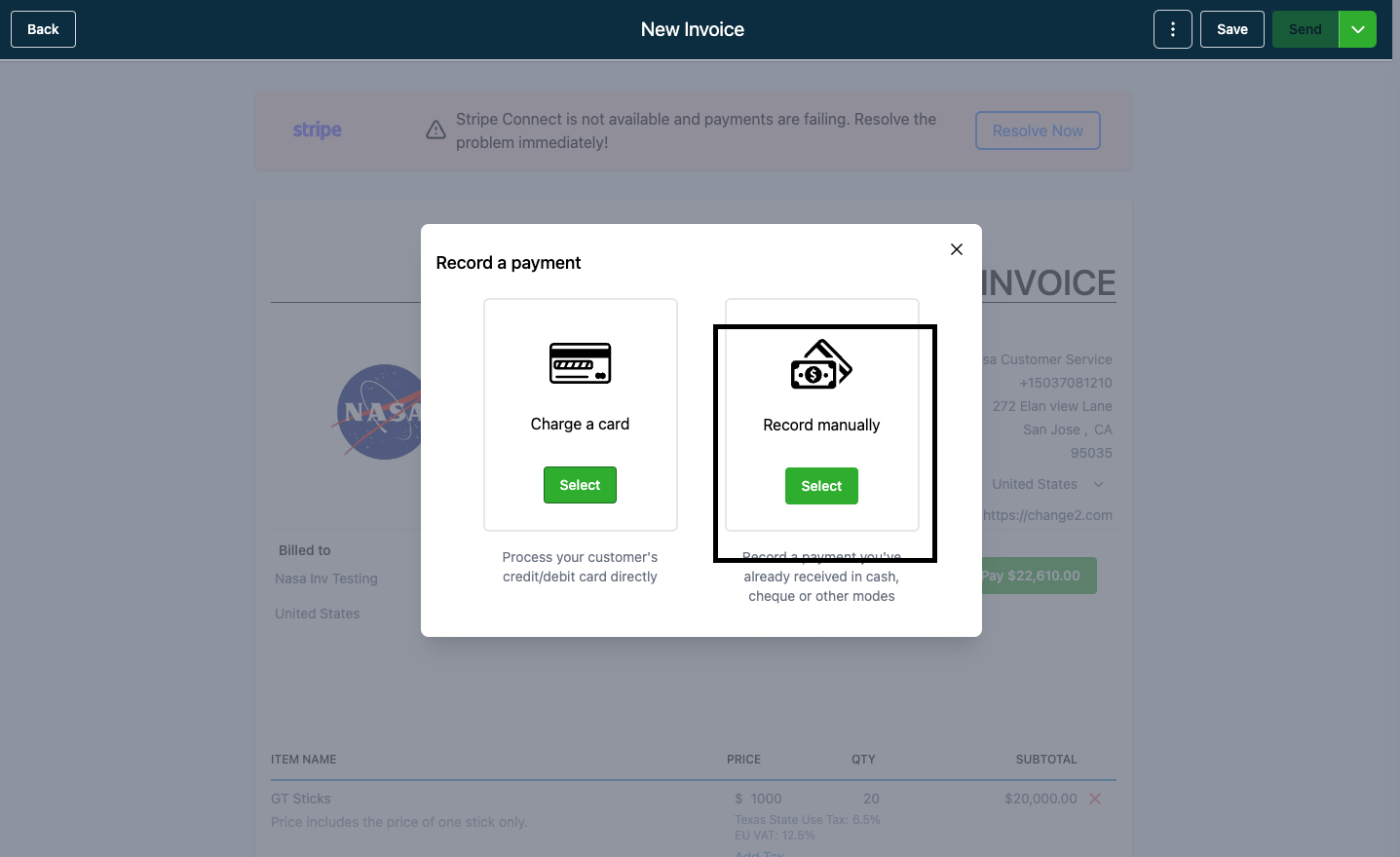
Step 5: Choose "Record Manually."
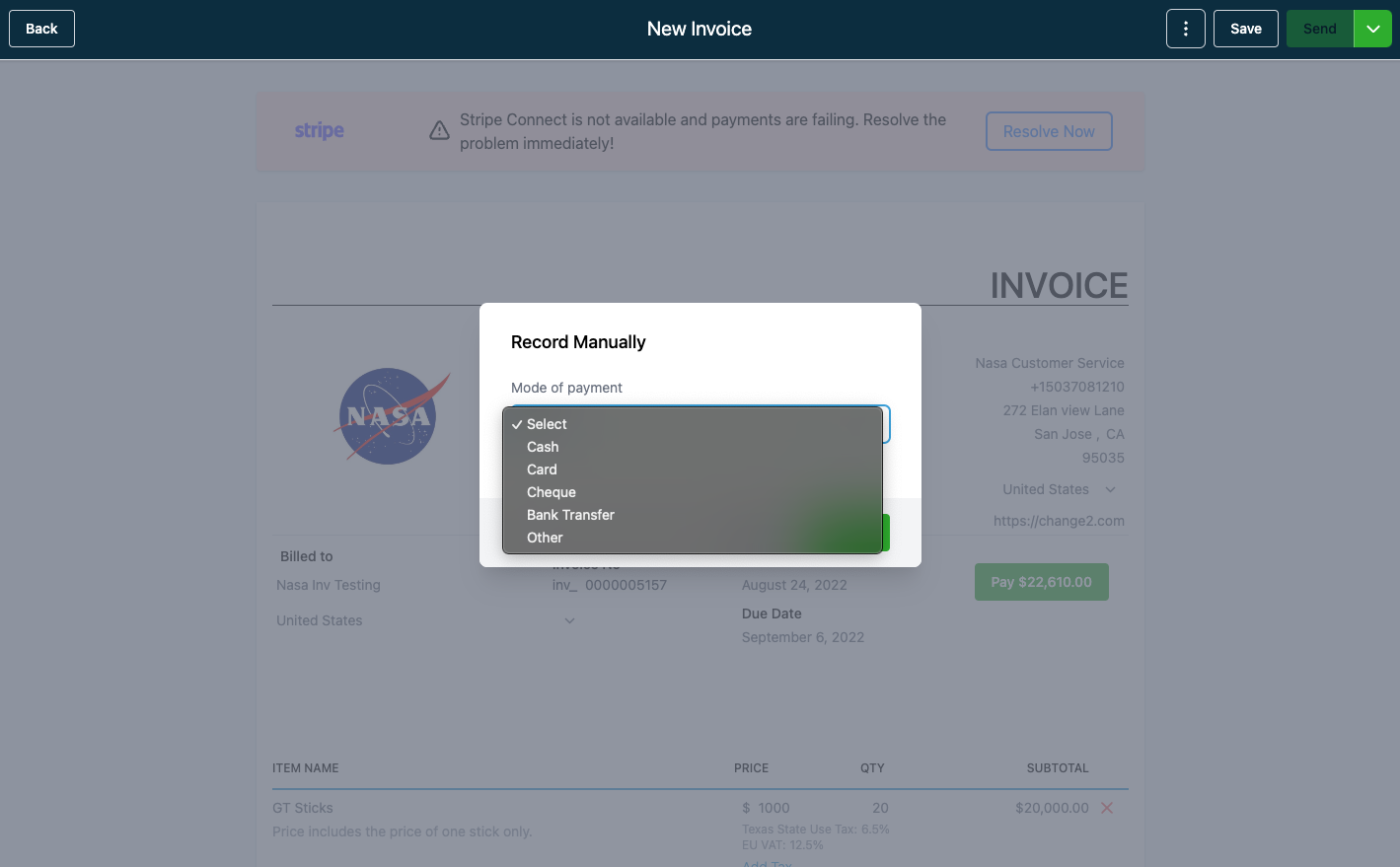
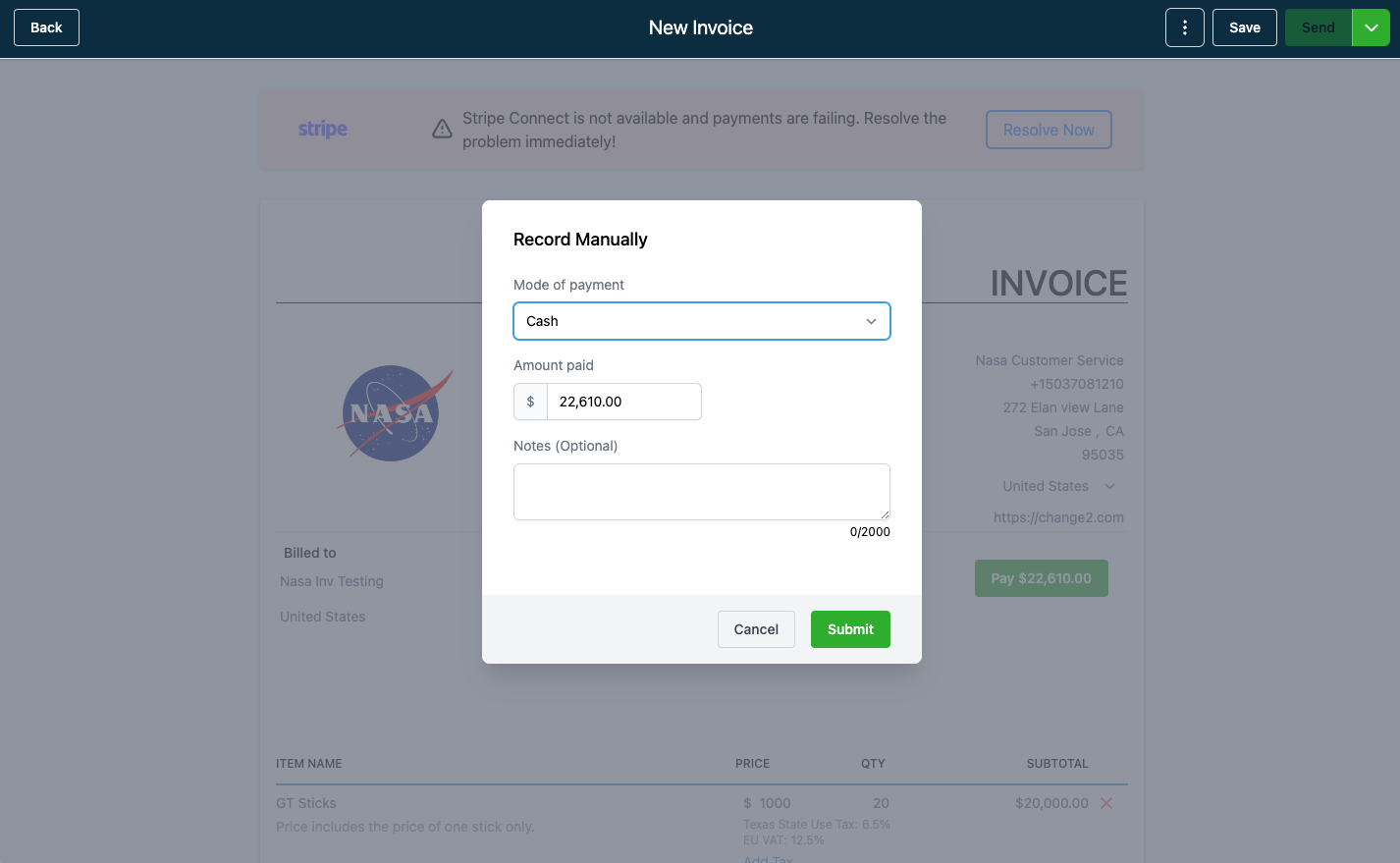
Step 6: The next screen will show options like Cash, Card, Check, Bank Transfer, and Other. Choose the option that applies and click "Submit" on the next screen.
Step 7: The invoice will now be recorded for that patient.
Please note: Patients being charged will not receive any automated email or text confirmation.
If you do not have a service or product created in your Products area and you still want to add it to an invoice, you can do so with the steps below.
Step 1: Create an invoice and click "Add an Item."
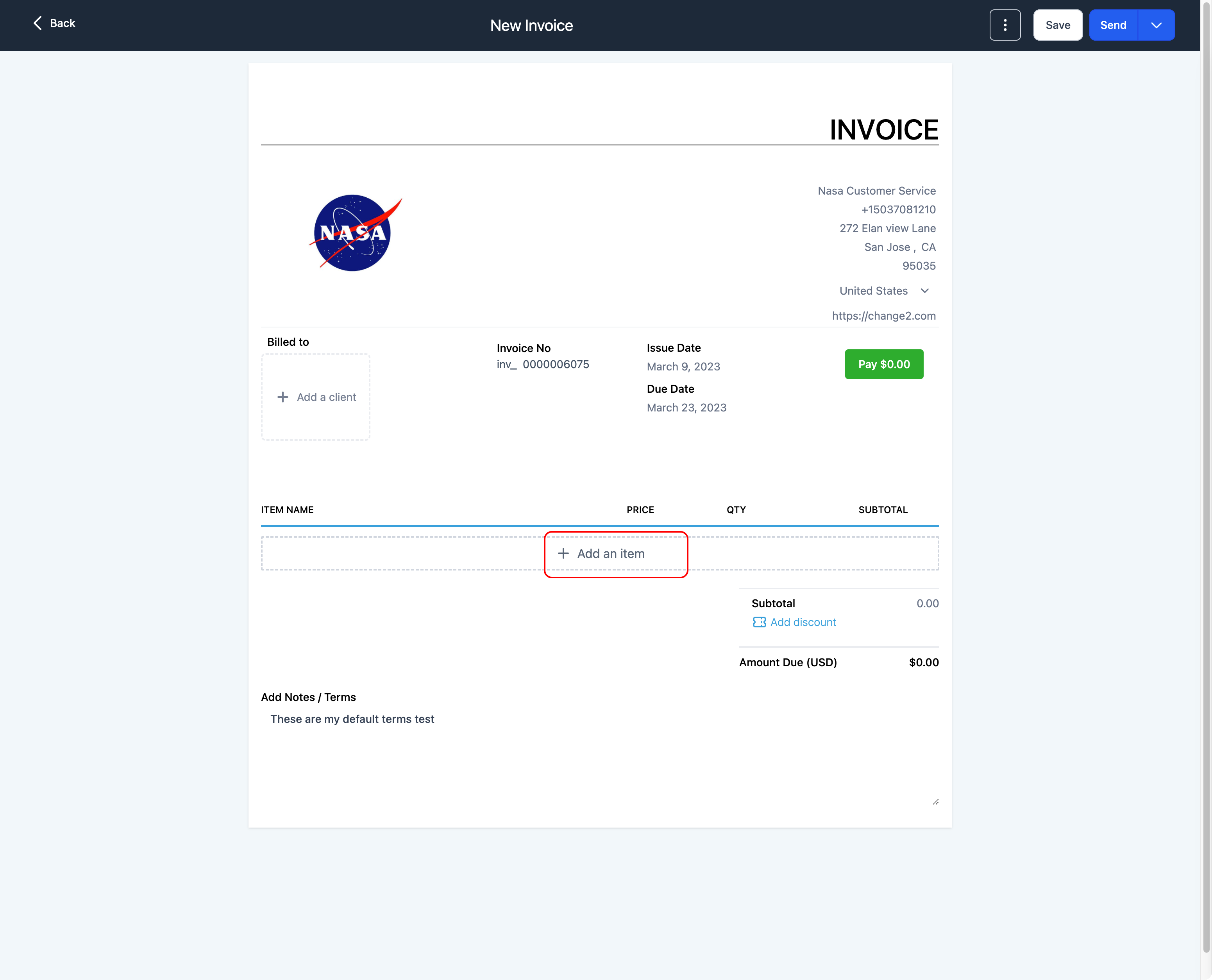
Step 2: Choose "New Item" to add an item that is not present in your Products.
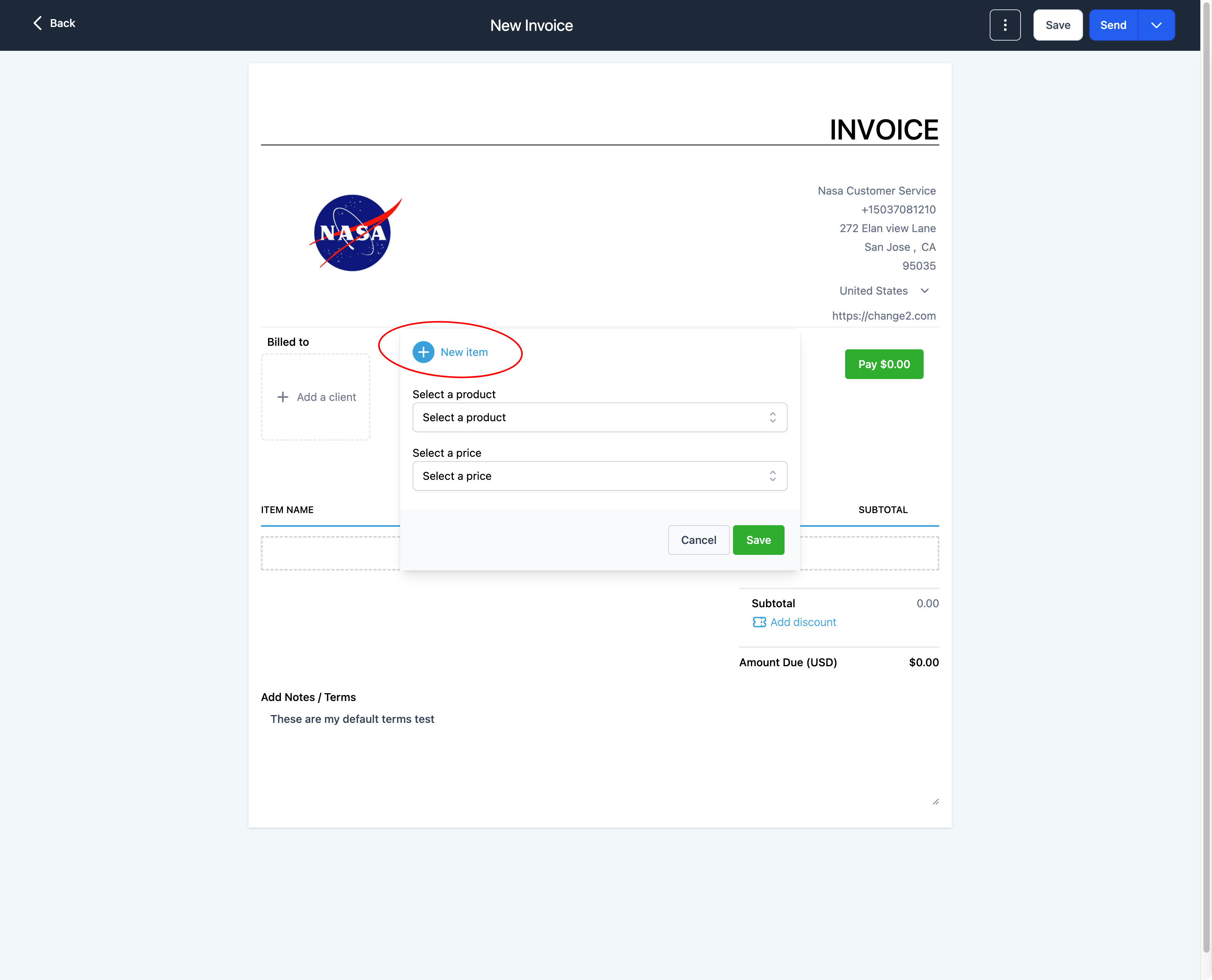
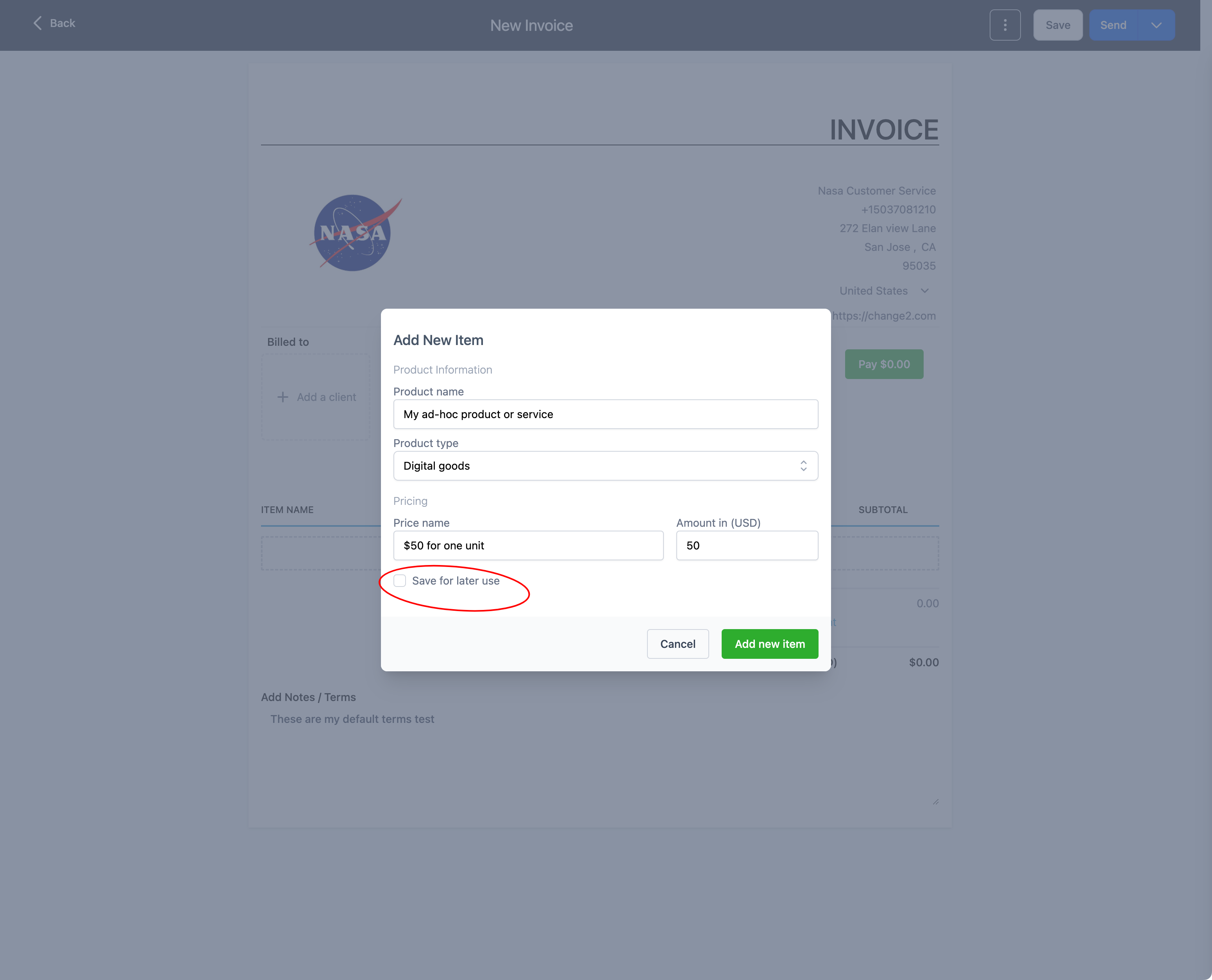
Step 3:
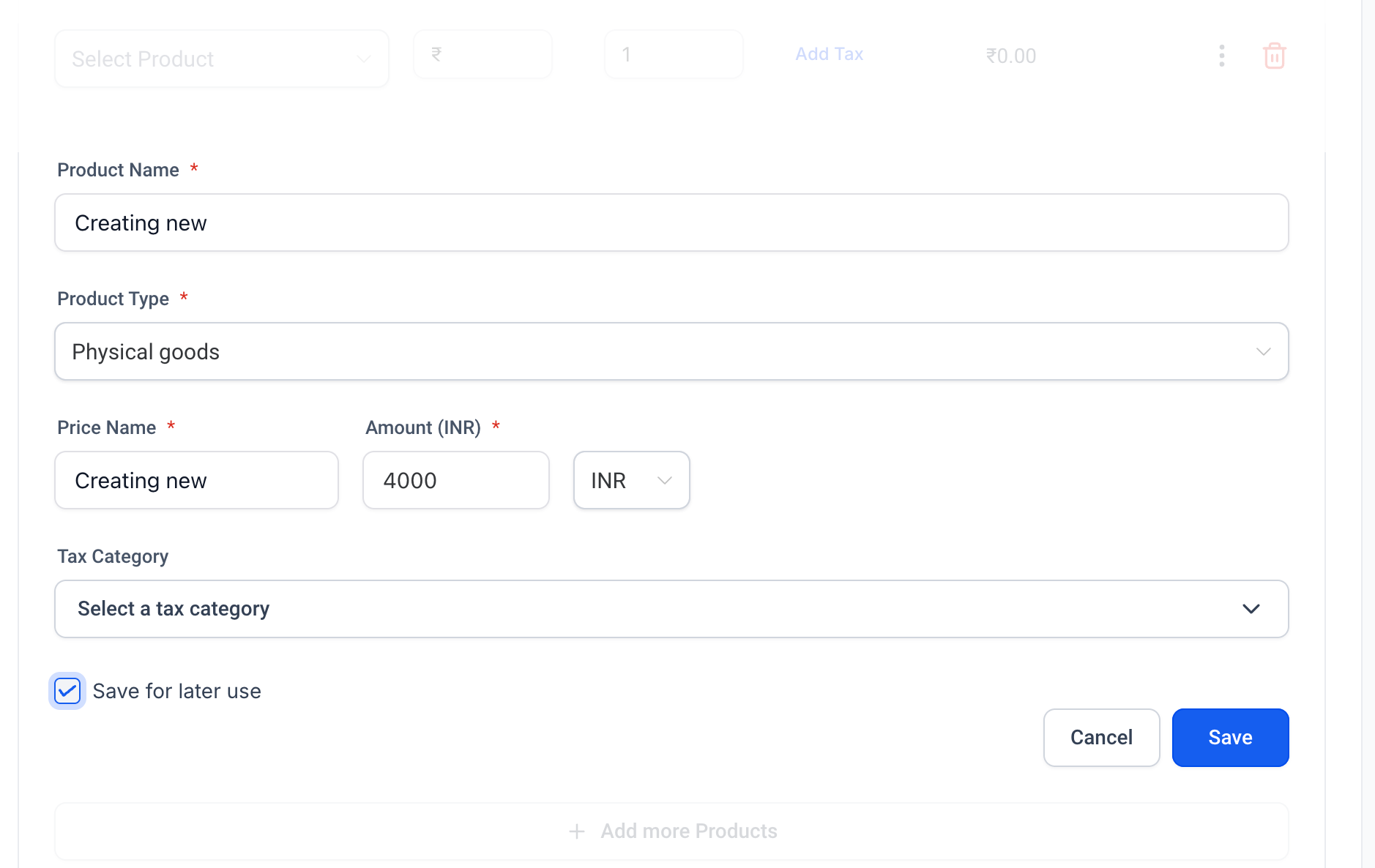
On the next screen, enter the product name and the price.
If you want to save this for later use, select the option "Save for later use." This will save this product or service in your Products area.
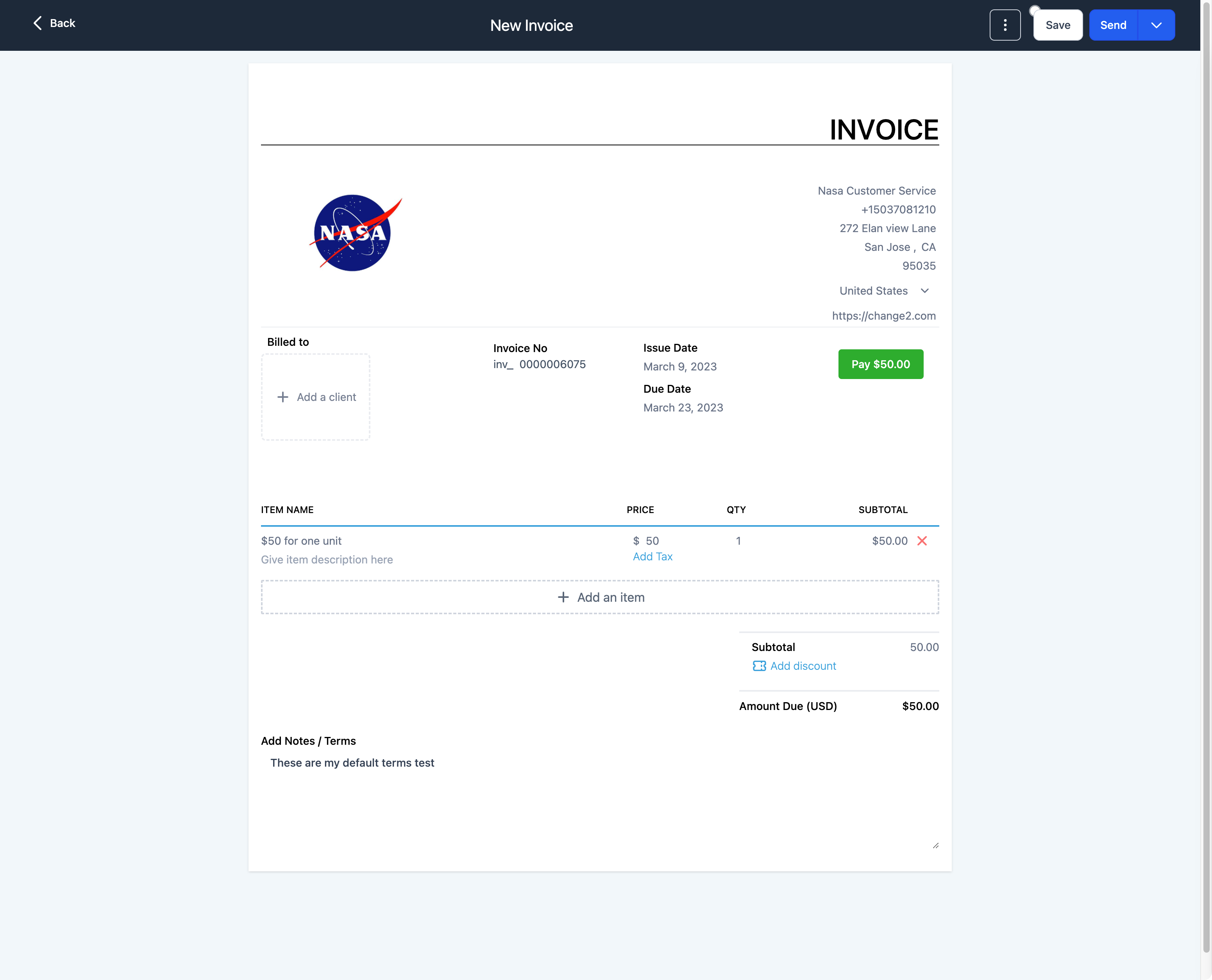
Click the "Add new item" button to add it to the invoice.
This new item will be added to your invoice and ready to be sent.
If you want to pass a card processing fee on to the patient, you can configure it as a tax and add it to an invoice.
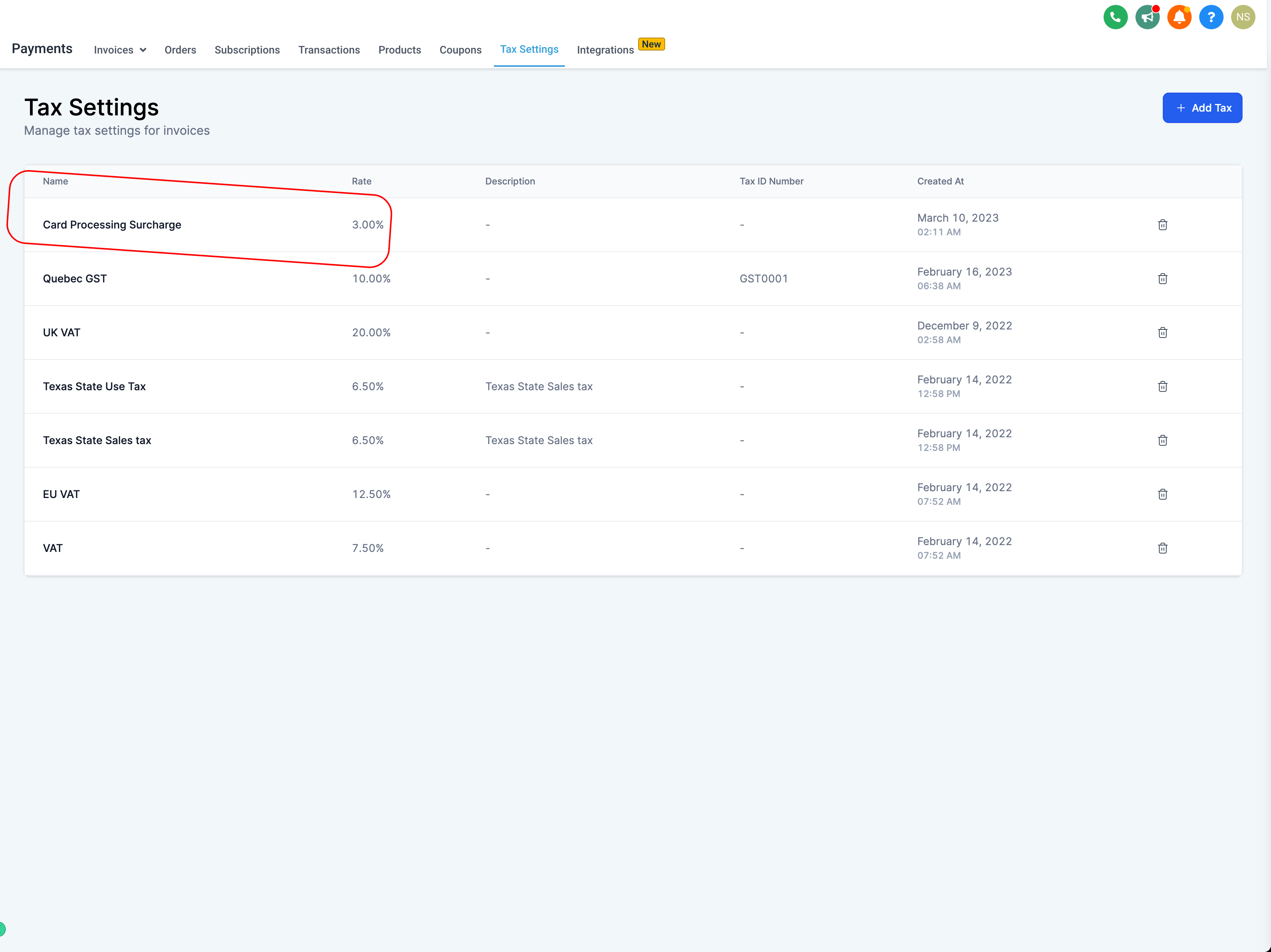
Go to Payments > Tax Settings and add a card processing fee that you would like to charge as a "tax."
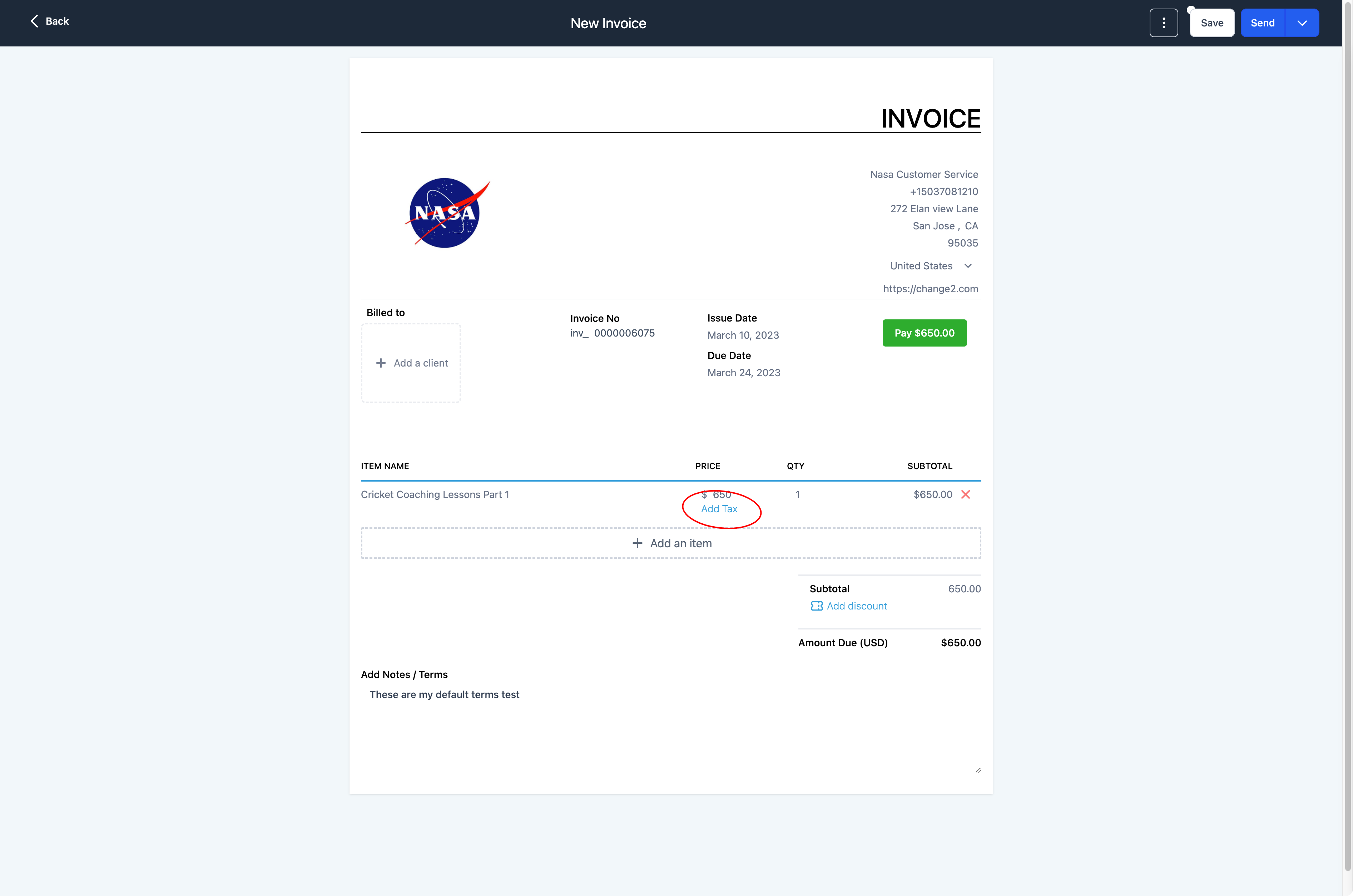
Create a new invoice and add the item that you want to charge for.
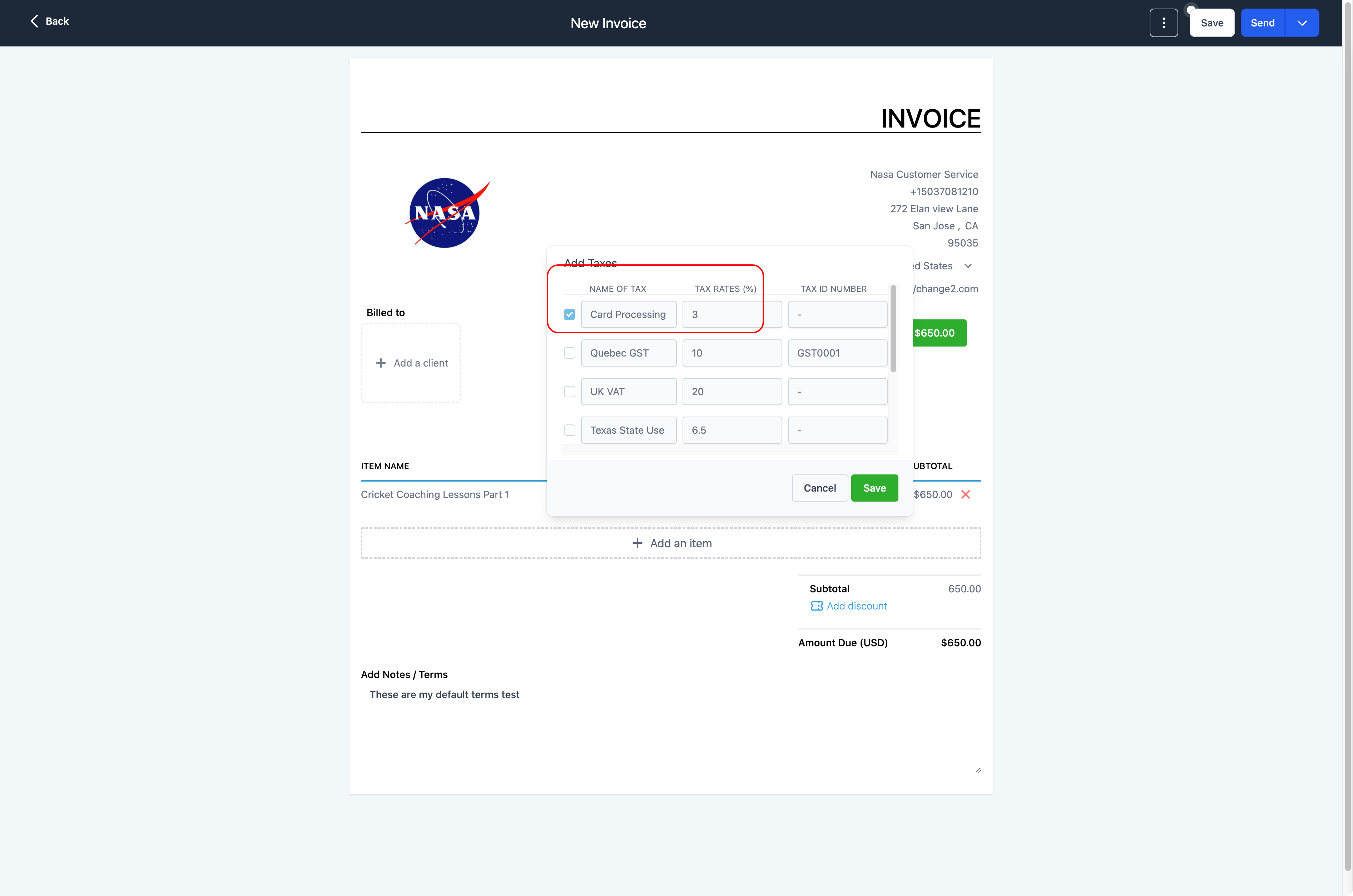
Click on Add Tax, select the card processing fee that you configured in the tax settings, and click "Save."
Once the card processing charge is added, it will show up in the invoice builder like this.
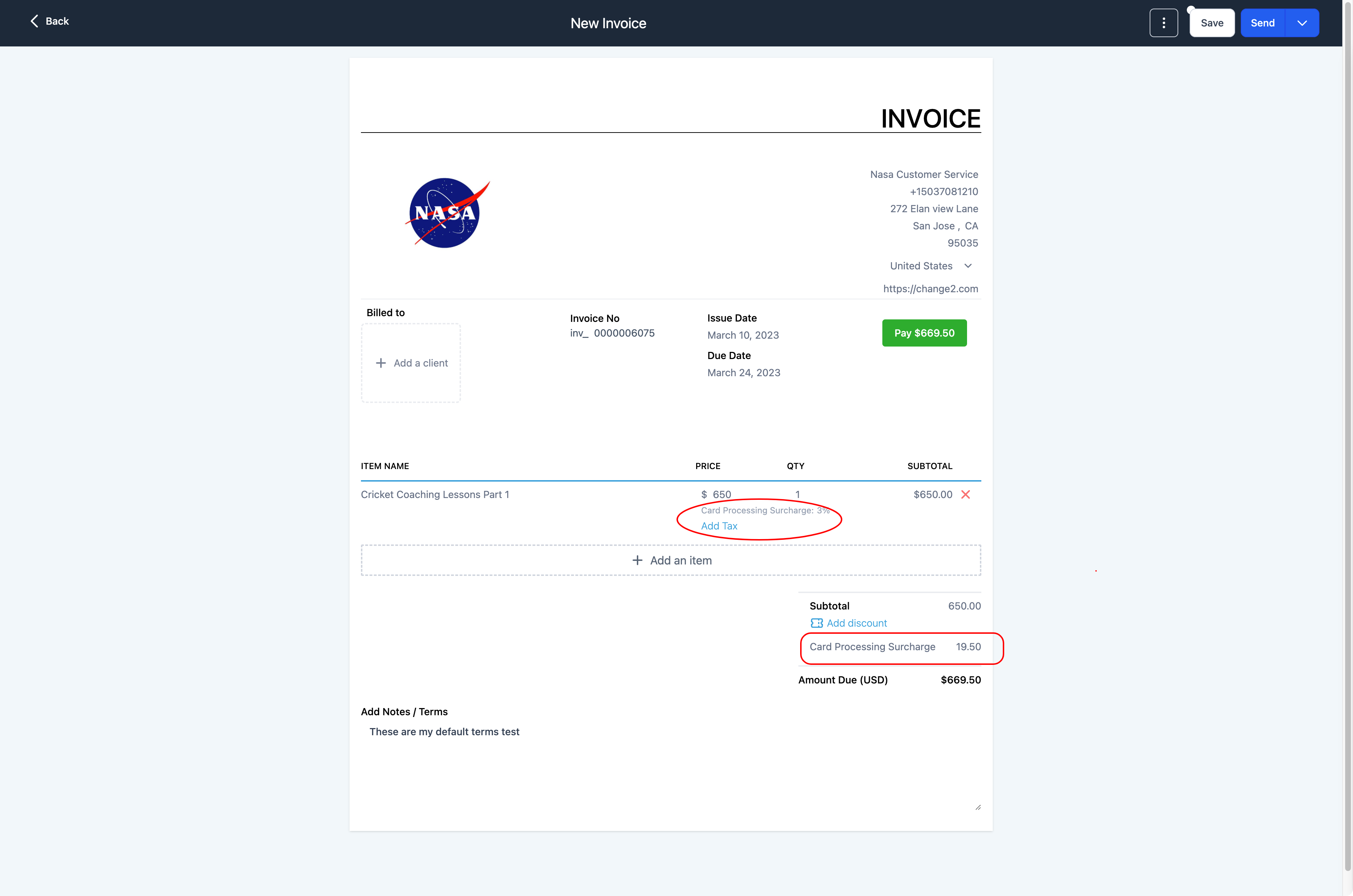
Here is what the payer would see in the invoice.
Note: A processing fee configured in Settings is not automatically applied to existing invoices. To include a new fee option, recreate any invoices made before the setting was enabled. The fee option is only visible and applicable to invoices created after the change is saved.
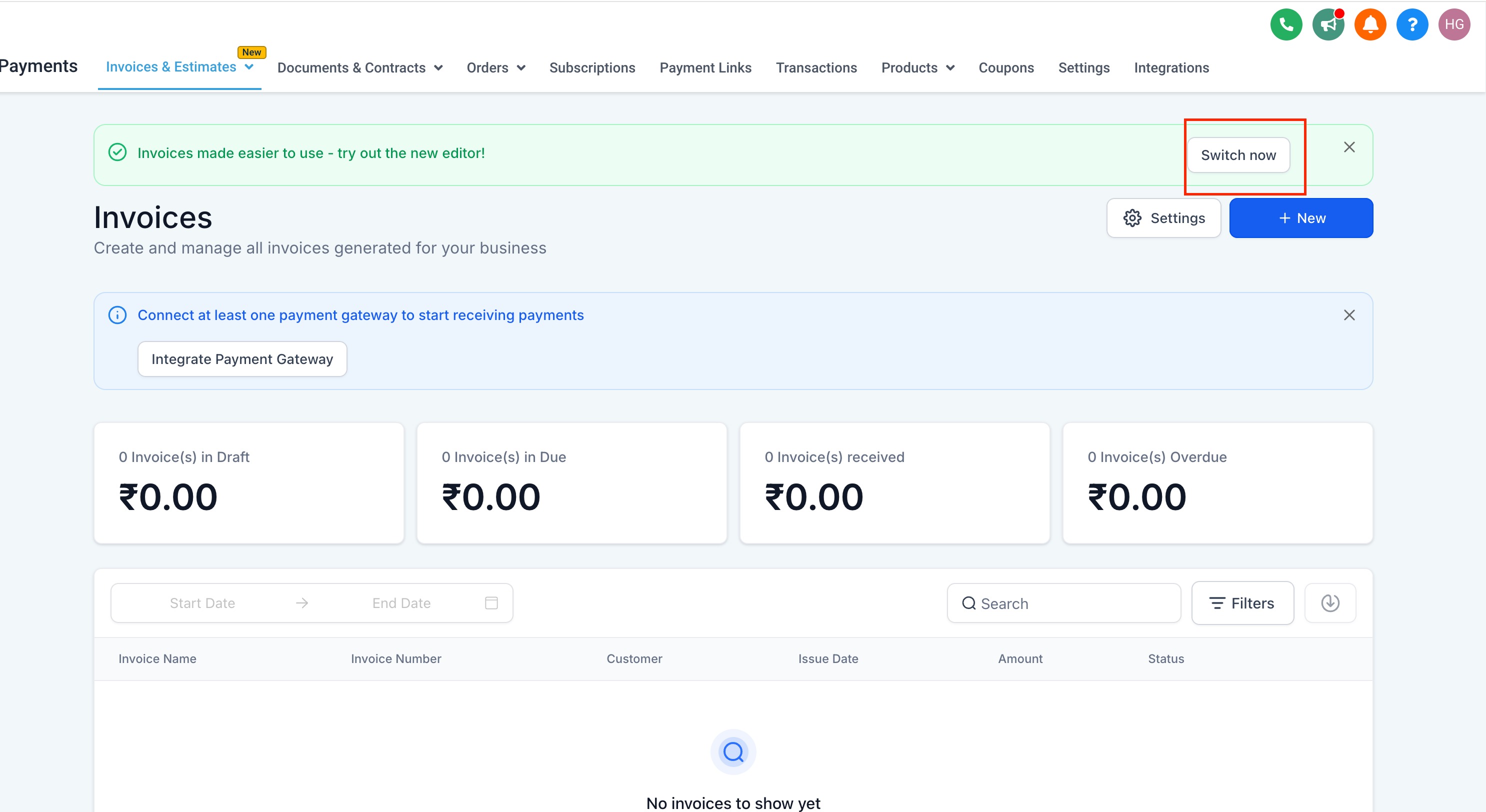
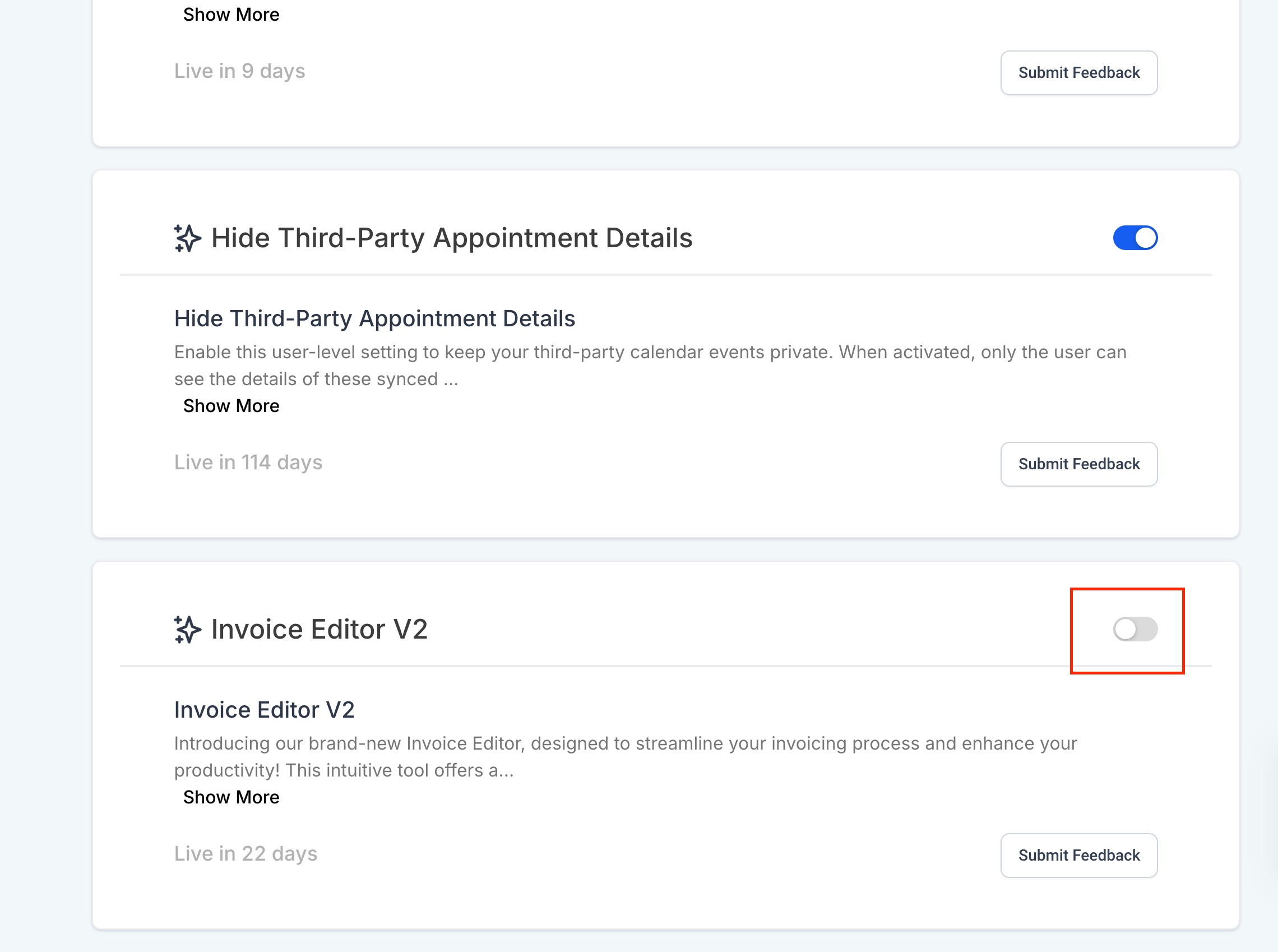
Aesthetix CRM includes an improved invoice builder with a fresh layout: a live preview on the right side and editing options on the left. This makes it easy to start and send your first invoice.
Access the design: Fill in your invoice details on the left side, such as patient information, line items, and totals.
Edit your invoice: Use the toolbar to add elements like Late Fees, Tips, and Payment Schedules, which are fully functional and available.
Inline product addition: Type a product's name and hit enter to add it on the go, making it simple to send an invoice quickly.
Preview changes: As you make edits, the real-time preview on the right side updates automatically so you can see how the invoice will look to your patient.
Recurring invoices: When you create your first recurring product, the system automatically sets the recurring nature of that invoice.
Final review and save: Once your invoice is complete, review the preview for any last-minute changes, then click "Save" to finalize and send it.
Can I track partial payments for invoices?
Yes. You can create an invoice with the full amount and update it each time a partial payment is made. This helps you keep accurate records of outstanding balances. Note that if an invoice already has a payment schedule (installments) set, partial payments are not allowed because they would conflict with the scheduled payments. Remove or modify the payment schedule first, then use Record Payment and Record Manually to enter a partial payment.
Can I customize the appearance of invoices sent to patients?
You can add custom details like your business name, logo, and notes. More advanced customization, such as adjusting layouts or colors, is not available at this time.
Can I set up recurring invoices for memberships and subscription-based services?
Yes. When you add a recurring product to an invoice, the system automatically sets the invoice as recurring. This is ideal for monthly or annual memberships and treatment payment plans.
How can I integrate a payment processor?
Connect your processor in the Payments section under Integrations. The recommended option is AX Pay, our own natively integrated processor. Aesthetix CRM also supports Stripe and other providers. Once connected, you can accept card payments directly through your invoices, payment links, and checkouts.
Why does an invoice show "Payment Processing" even after a patient has paid?
This means the payment has been initiated but not yet settled. It typically happens with bank transfers or eCheck-style methods, which can take 2 to 5 business days to clear. Once the payment is successfully processed, the invoice status automatically updates to "Paid."
A patient says the invoice link is broken or they cannot click it to pay. What happened?
The payment link is disabled because the invoice is past its scheduled due date. The system automatically deactivates the payment option once the payment date has passed. To fix it, duplicate (clone) the original invoice, adjust the payment schedule dates to a current or future date, and resend the new invoice. The link will then be active.
Why can't I void or delete an invoice that was marked as paid?
An invoice cannot be voided while it is marked as paid, even if the payment was a test. Refund the payment first: open the invoice, click the three dots, select View Transaction, click Refund and complete it, then return to the invoice, click the three dots again, and select Void. Paid invoices cannot be deleted directly, so refunding first ensures the invoice no longer affects your records, reports, or patient visibility.
Why does the payment date show an "Invalid Date" error when recording a manual payment?
This happens when the manual payment date is outside the accepted range or conflicts with the invoice timeline. Make sure the payment date is on or after the invoice issue date, refresh the page before recording the payment, and use a date that aligns with the invoice timeline.
