Google Analytics 4 (GA4) is Google's current analytics platform, and it gives you a more complete view of how prospective patients move across your website, funnels, and social channels before they book. It offers cross-device tracking, machine-learning-powered insights, and richer event tracking than older versions of Google Analytics.
Aesthetix CRM connects to GA4 in two ways: you can send custom events (like a booked consult or a completed intake form) to GA4 from a Workflow using a Measurement ID and API Secret, and you can record standard pageviews on your funnels and websites by adding a tracking script. This article covers both.
The Google Analytics workflow action supports both GA4 and the older Universal Analytics, so you can send data to either platform (or both) from the same action. This gives you a flexible way to track marketing campaigns and site traffic without leaving Aesthetix CRM.
The action itself lives inside a Workflow. For a full walkthrough of building, testing, and publishing workflows, see the Workflows collection; this article only covers the Google Analytics action's setup.
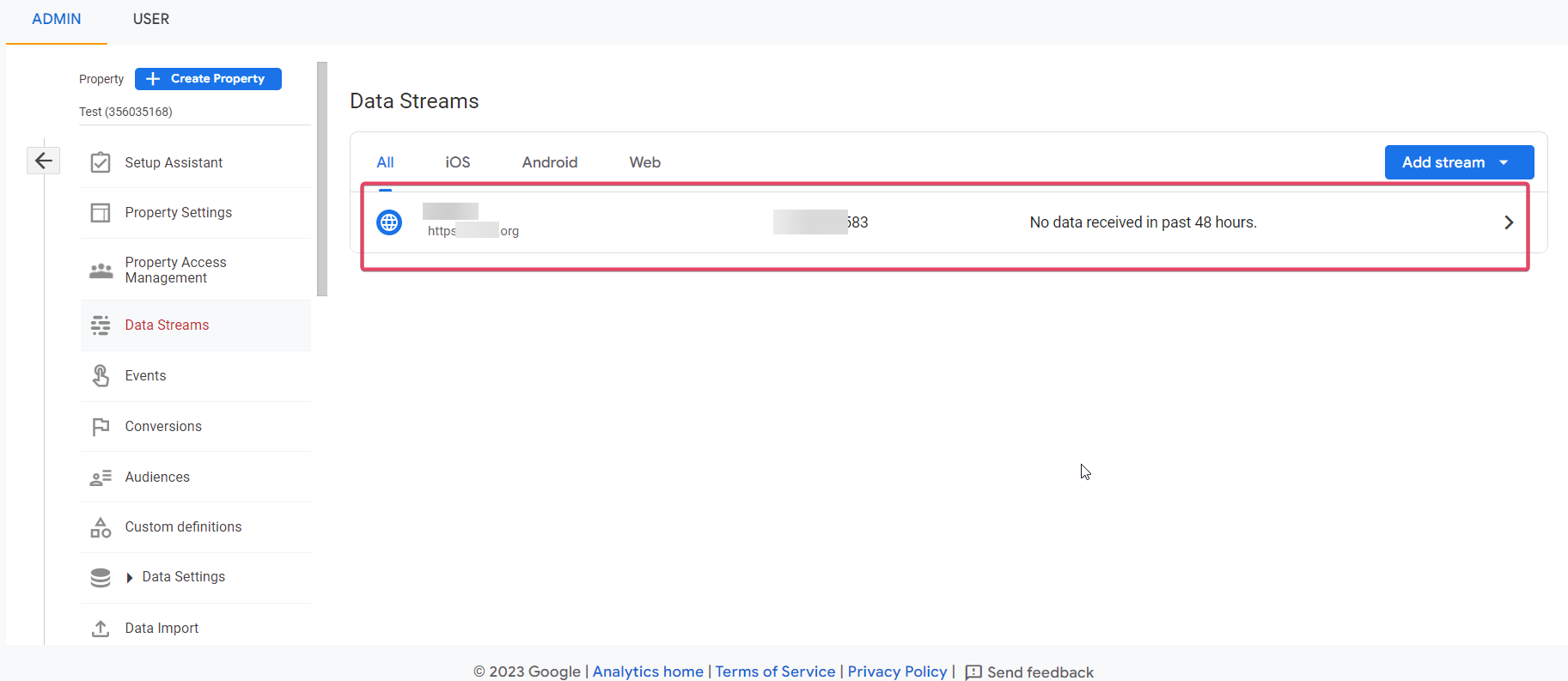
Log in to your Google Analytics account and go to Admin > Account Settings > Data Stream, then select the Data Stream you want to use. (If you have not set up a data stream yet, see Google's guide on how to set up Google Analytics.)
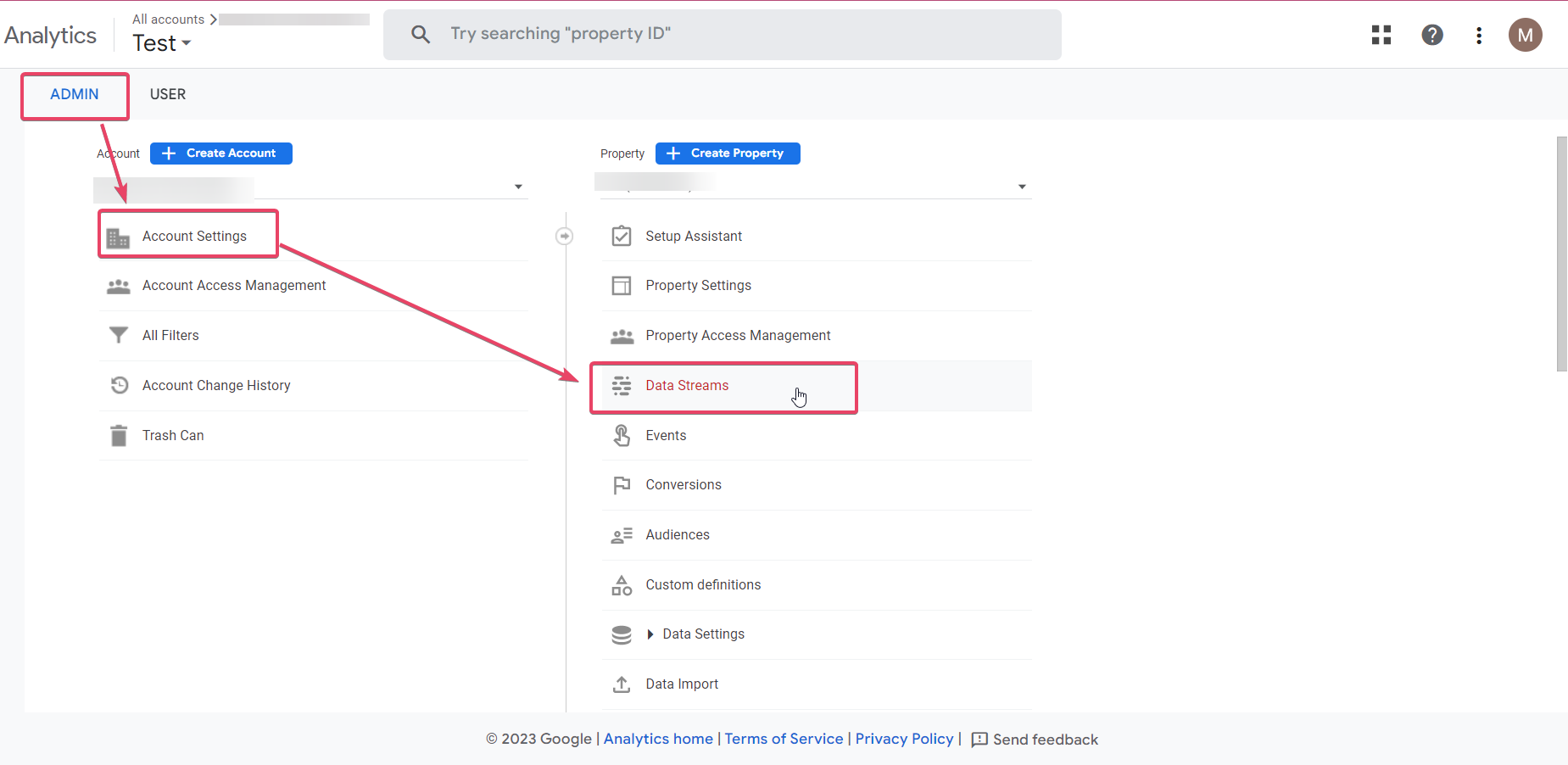
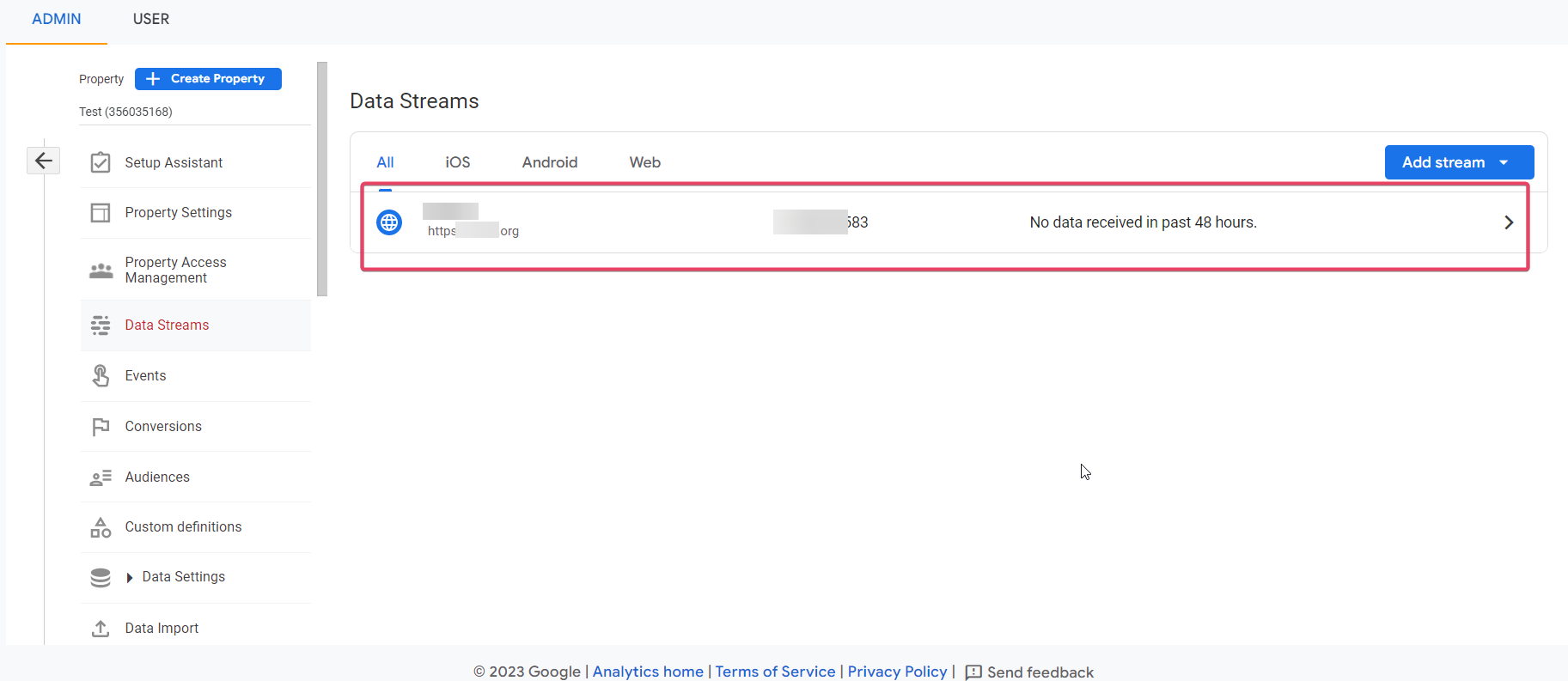
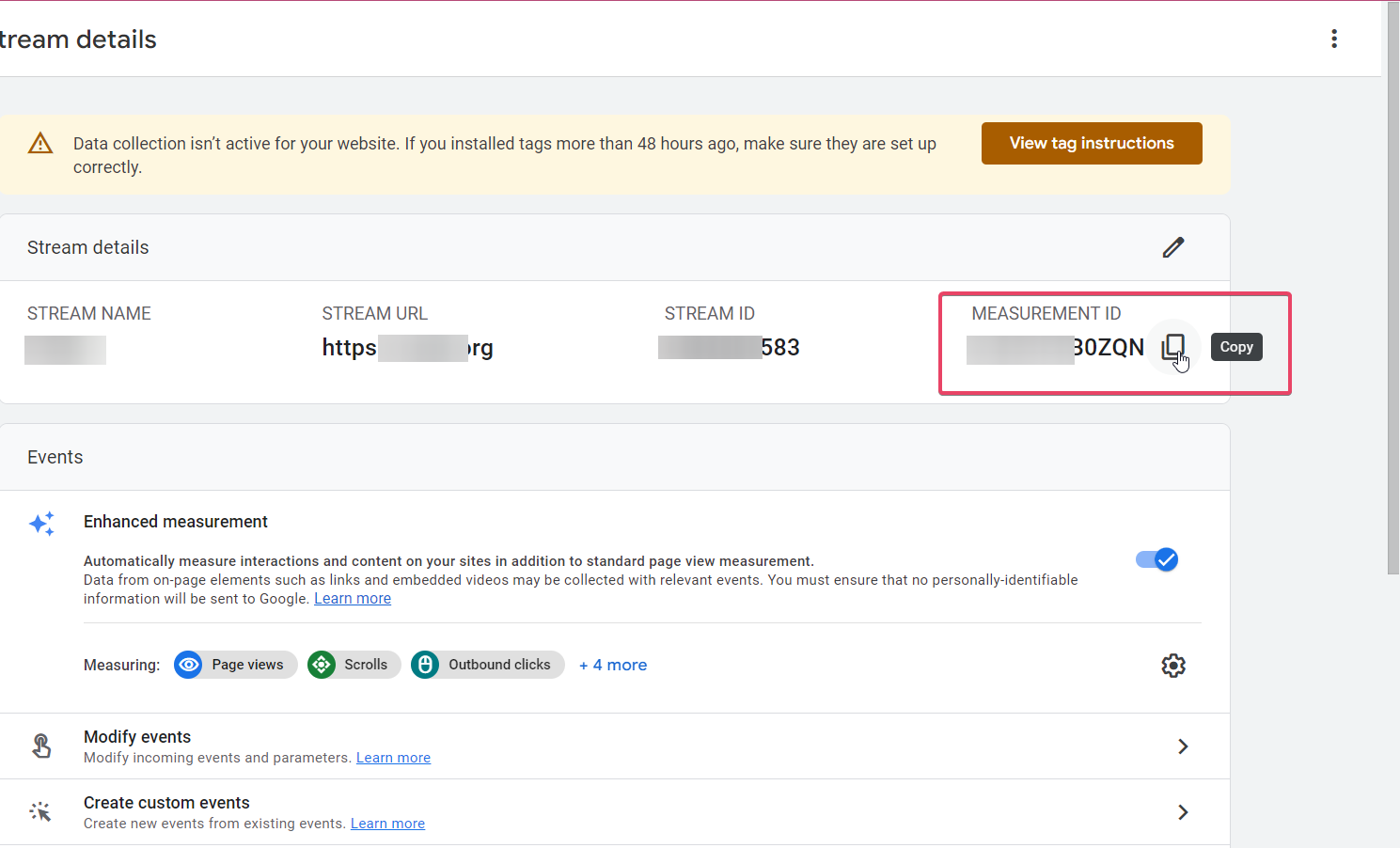
Copy the Measurement ID for the Data Stream you want to track.
In your Workflow, add or open the action Add to Google Analytics. Under Action Type, select Google Analytics 4 from the dropdown.
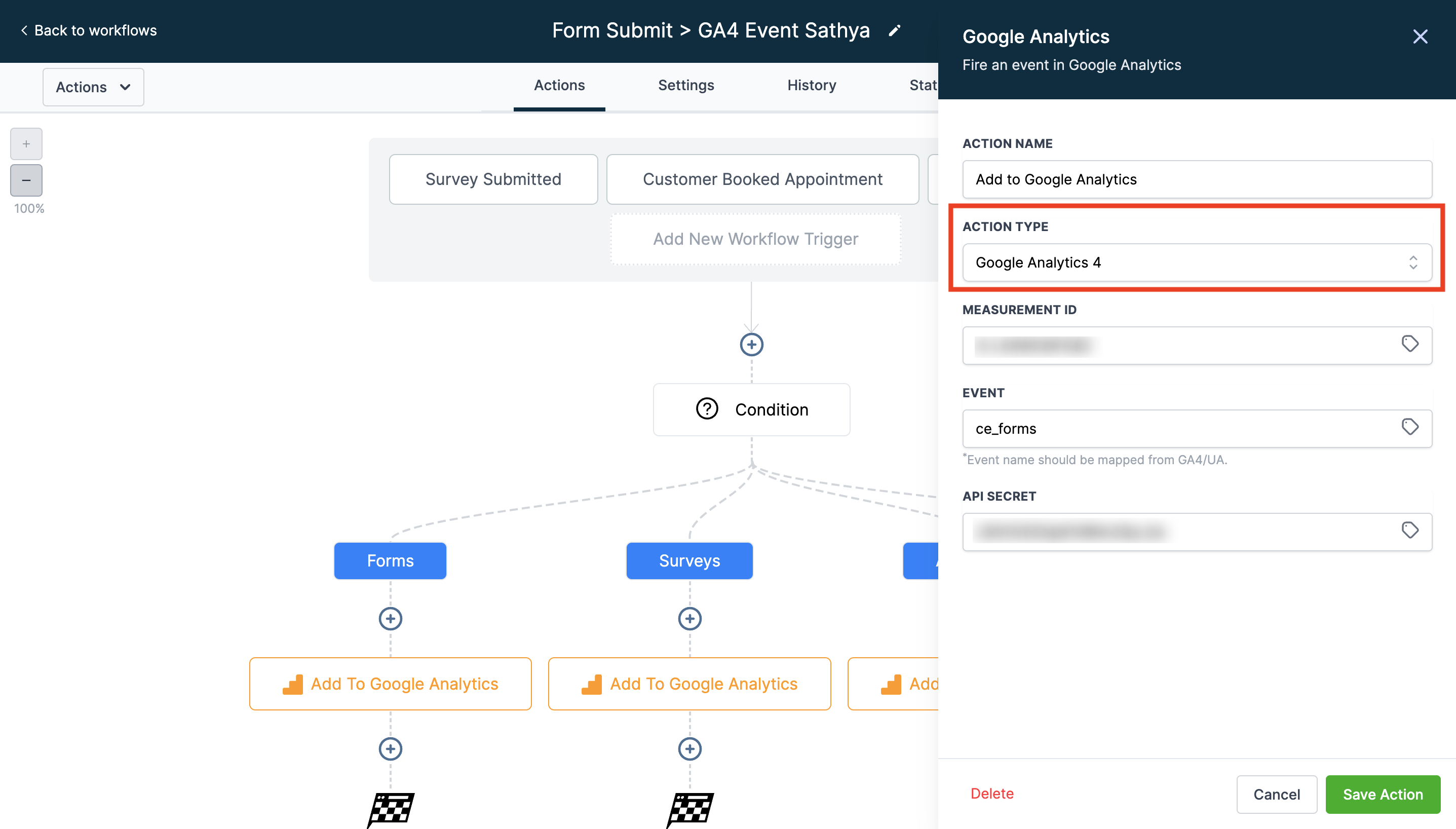
Paste the Measurement ID you copied into the Measurement ID field of the action.
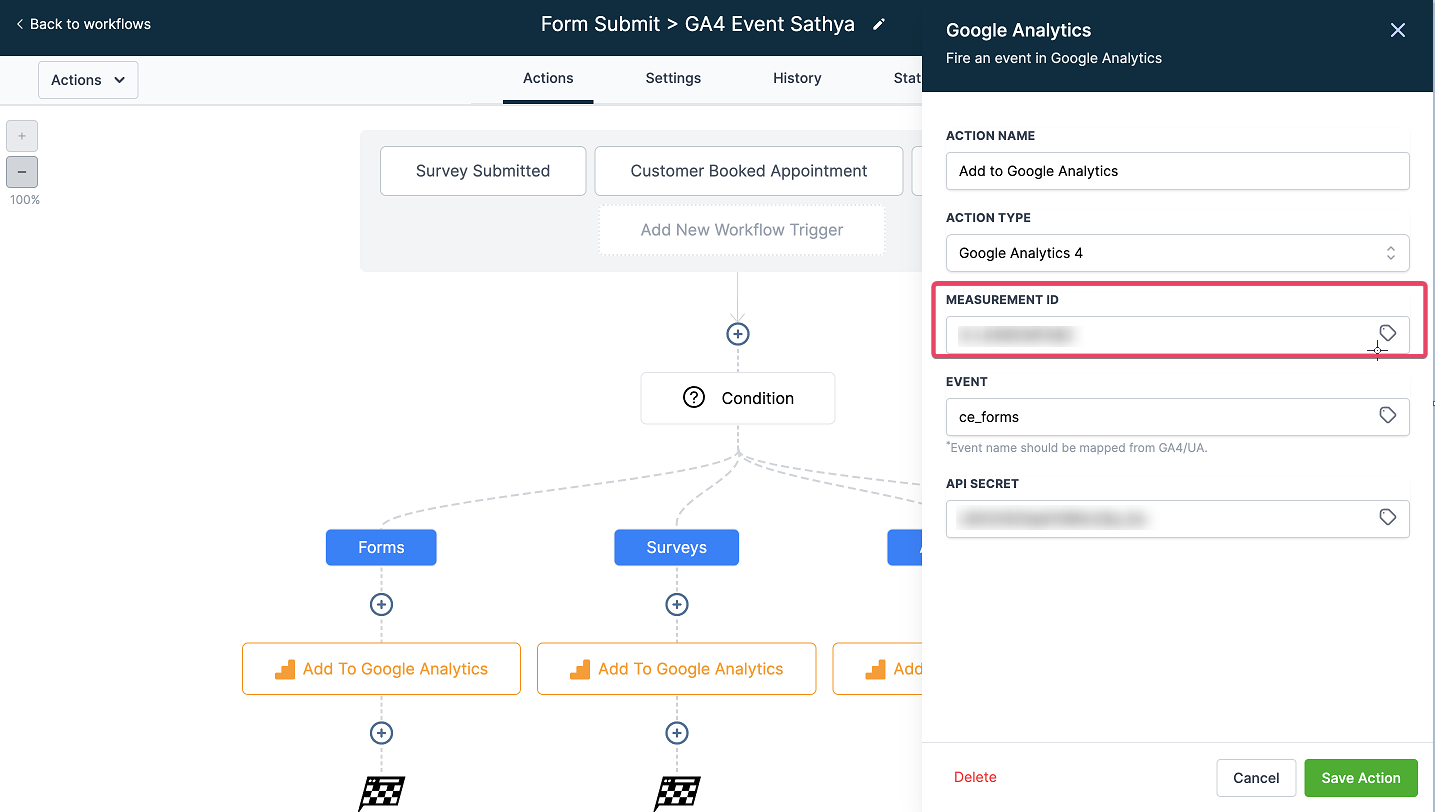
Add the event name you want to send to GA4. This name will show up in your Google Analytics dashboard alongside your other standard events. Google has specific naming rules for events, so check Google's event naming guidelines before you finalize a name.
The action also includes an optional Event Value field (it may show as event.value in the action UI). Use it to send a numeric value along with the event, such as a service price, an order total, or a lead score. You can populate it with a static number or a dynamic value pulled from earlier in the workflow. Event Value is optional; leave it blank if you don't need to send a number.
Avoid using patient names, appointment details, or other identifiable patient information in your event names or event values. GA4 is a third-party tool outside of Aesthetix CRM, so PHI should never be sent to it.
In your Google Analytics account, go to Admin > Account Settings > Data Stream > select the Data Stream > Measurement Protocol API secrets.
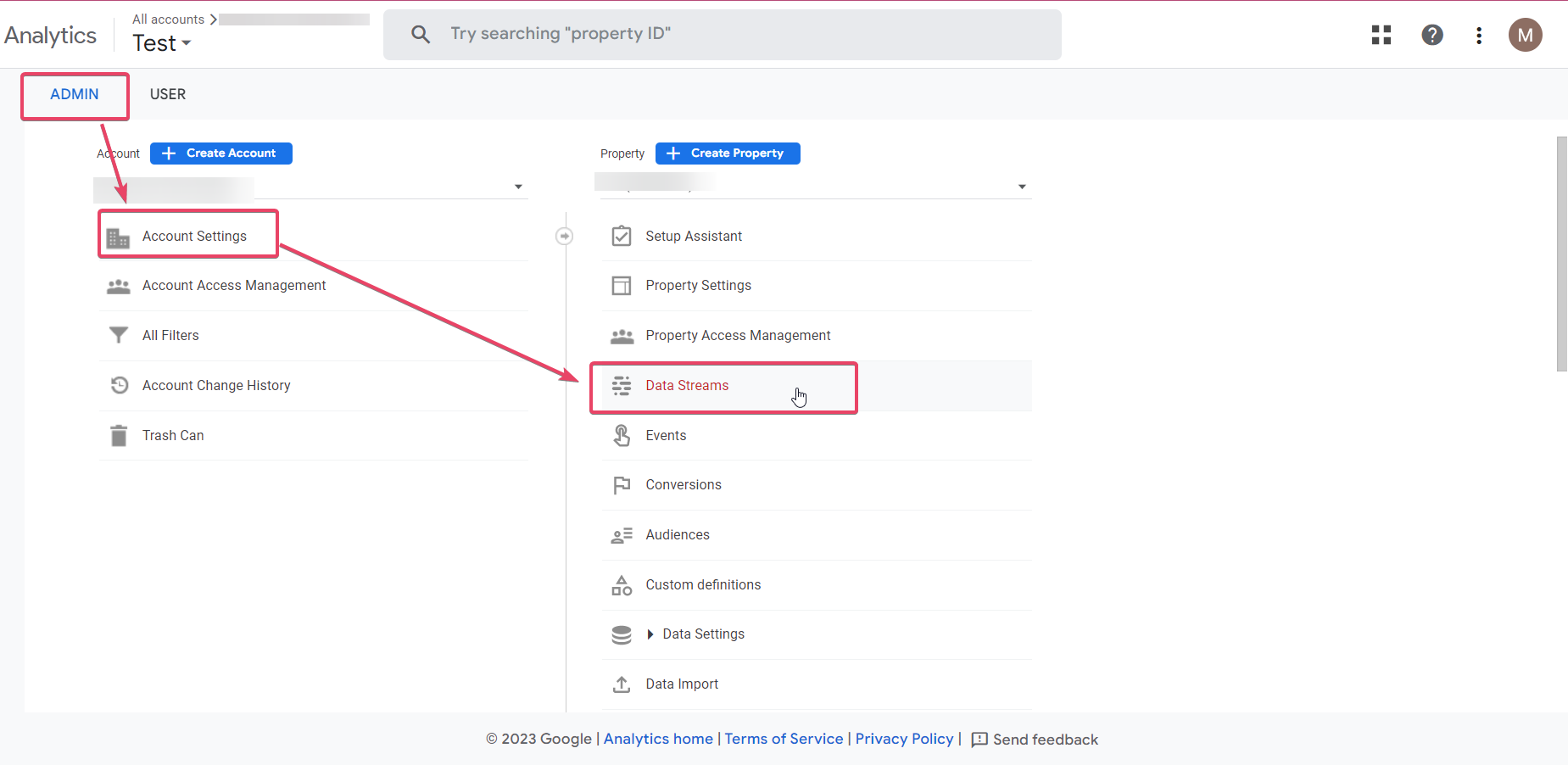
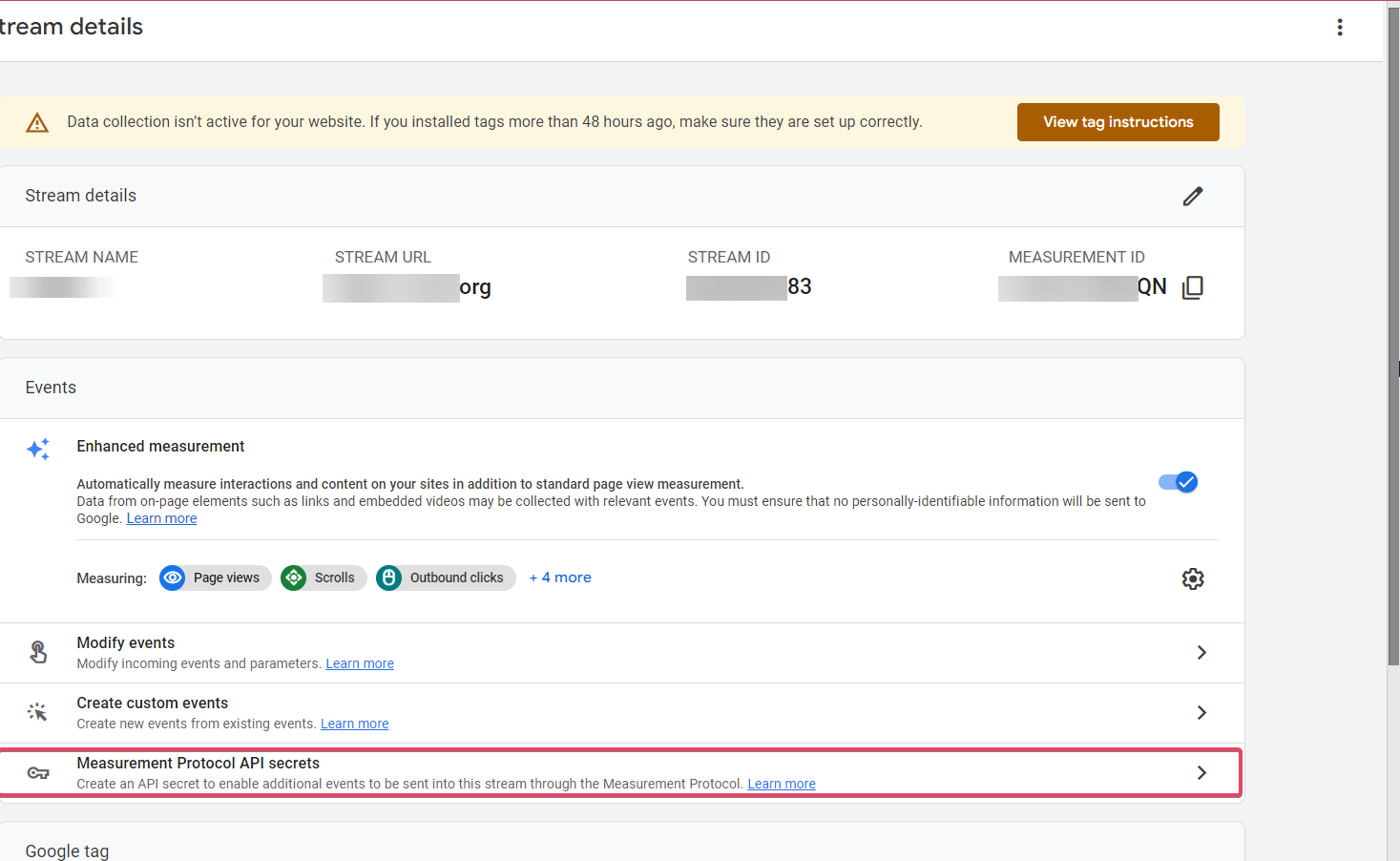
Before Google will let you create an API Secret, you need to acknowledge that you have read and understood Google's privacy disclosures regarding the collection of user data.
Click Create if you don't already have an API Secret for this stream.
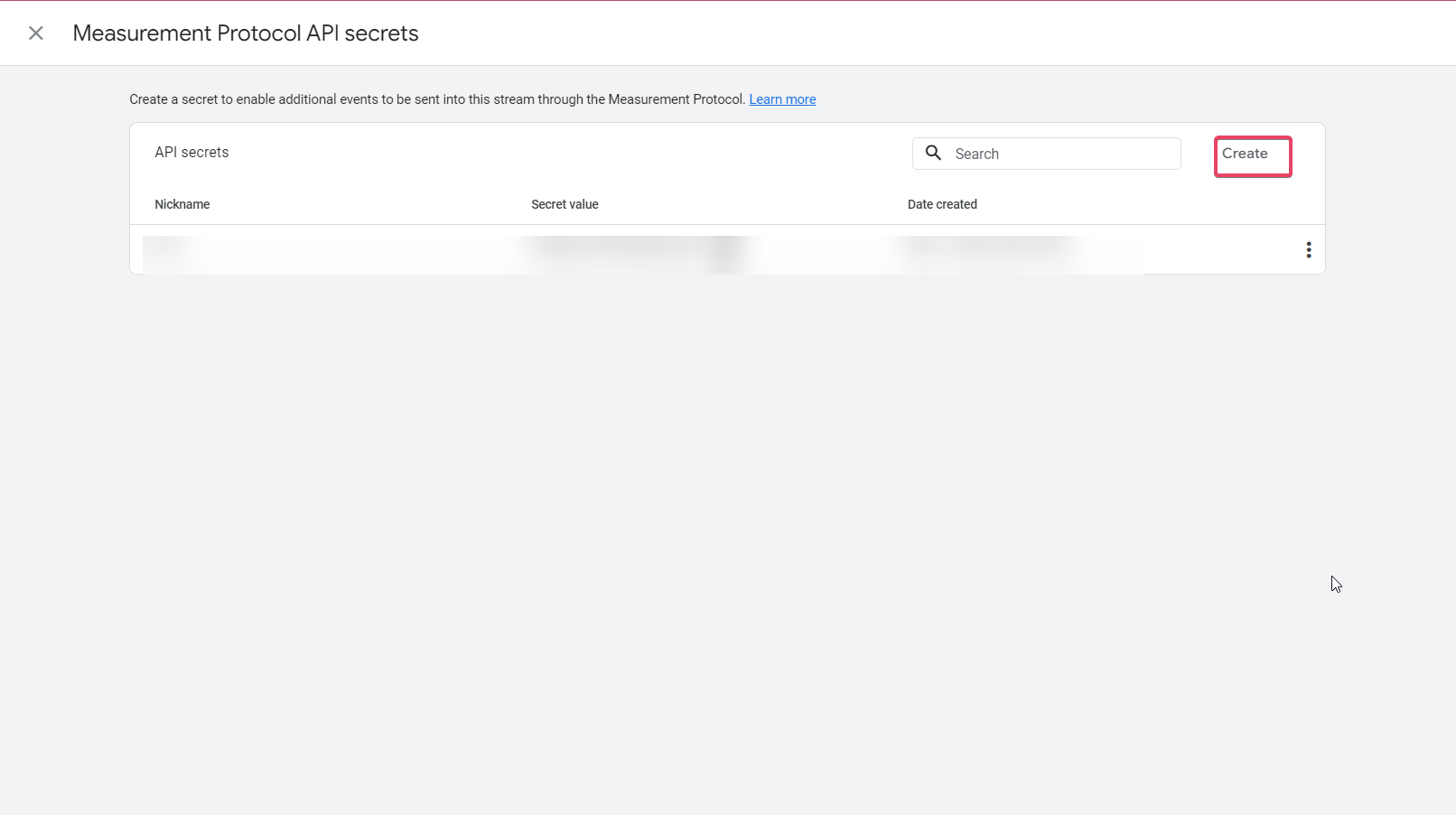
Name your API Secret and click Create. Google generates a Secret Value automatically.
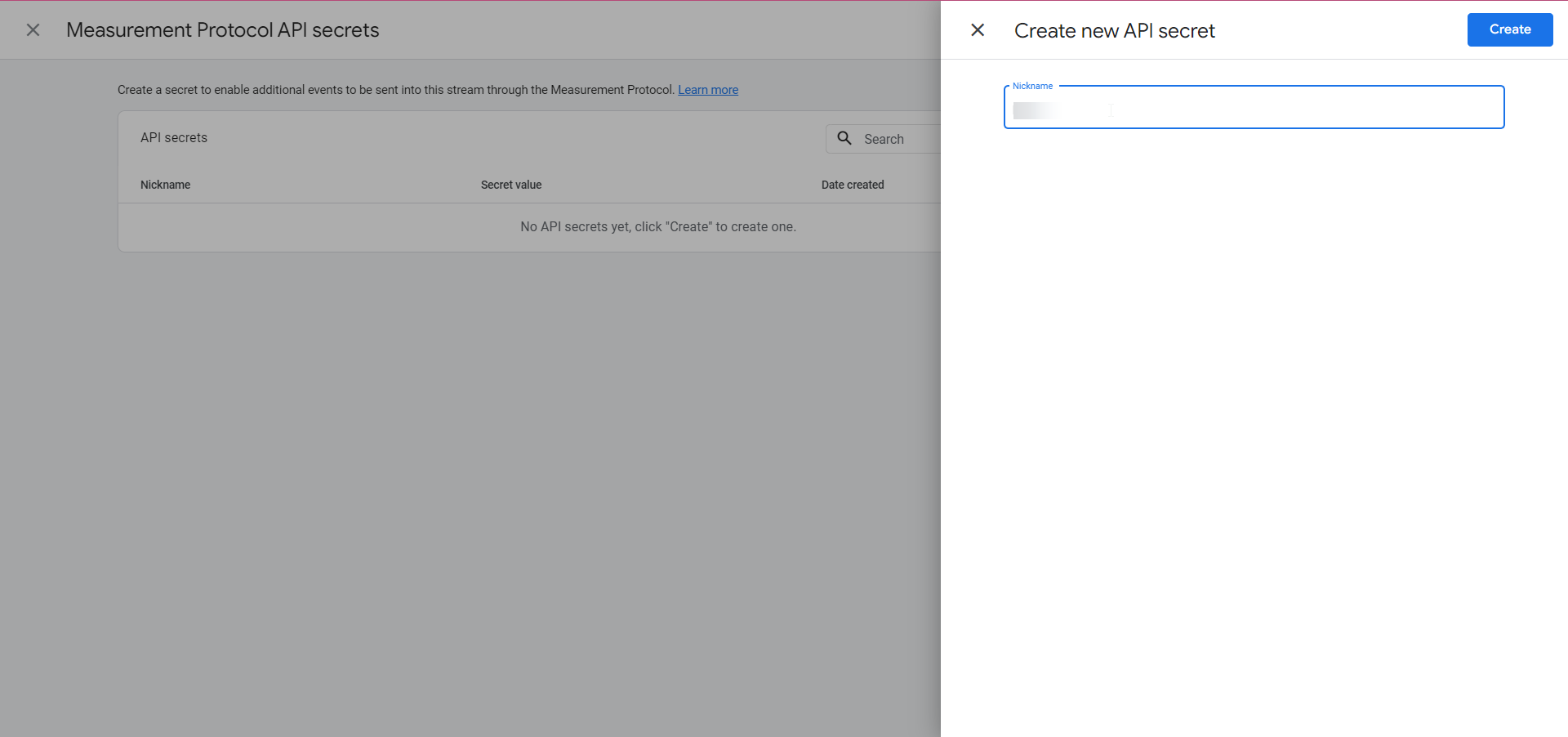
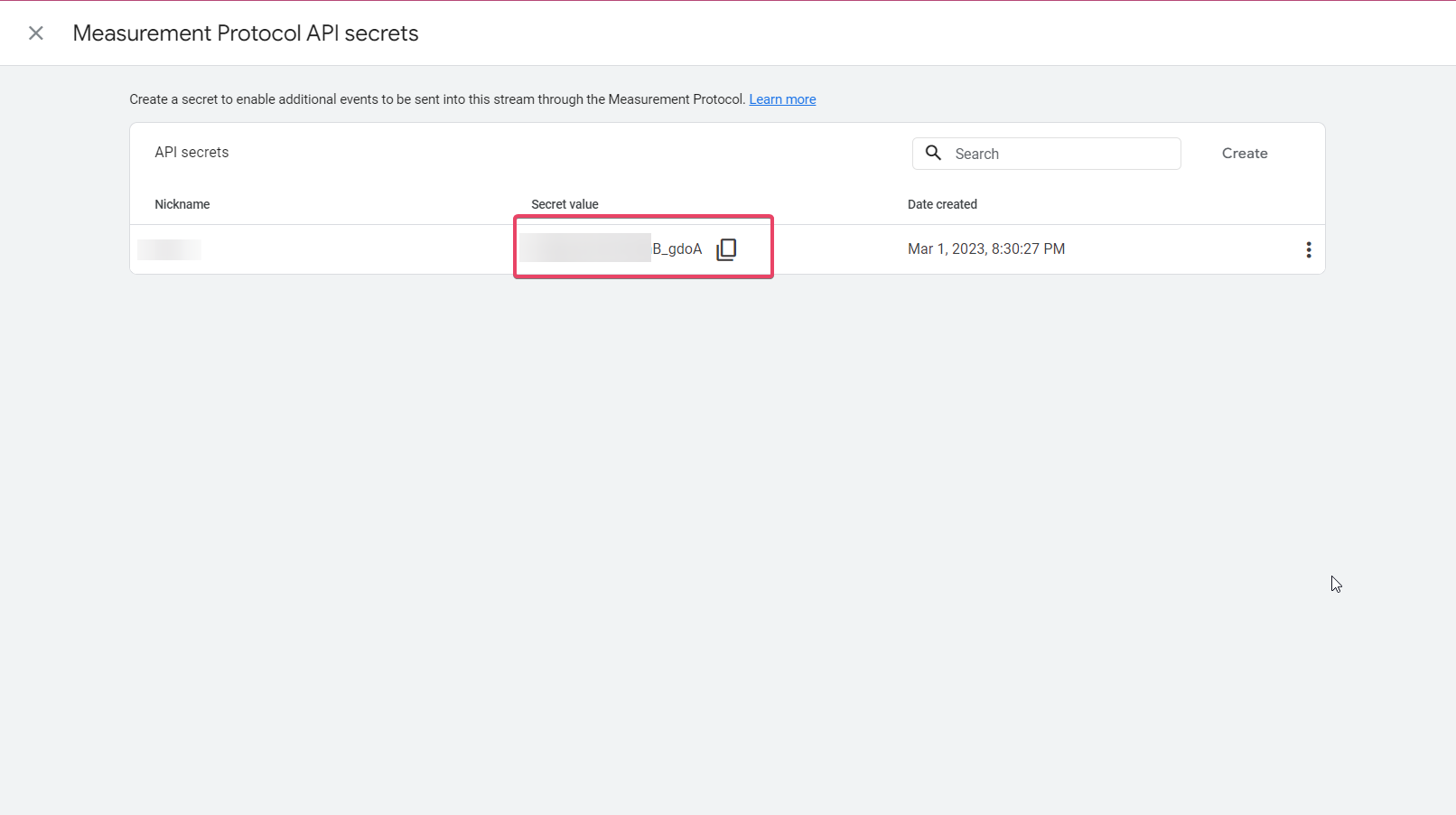
Copy the Secret Value and paste it into the API Secret field of the Google Analytics action in your workflow. Make sure there is no extra space before or after the value when you paste it, or the action will fail.
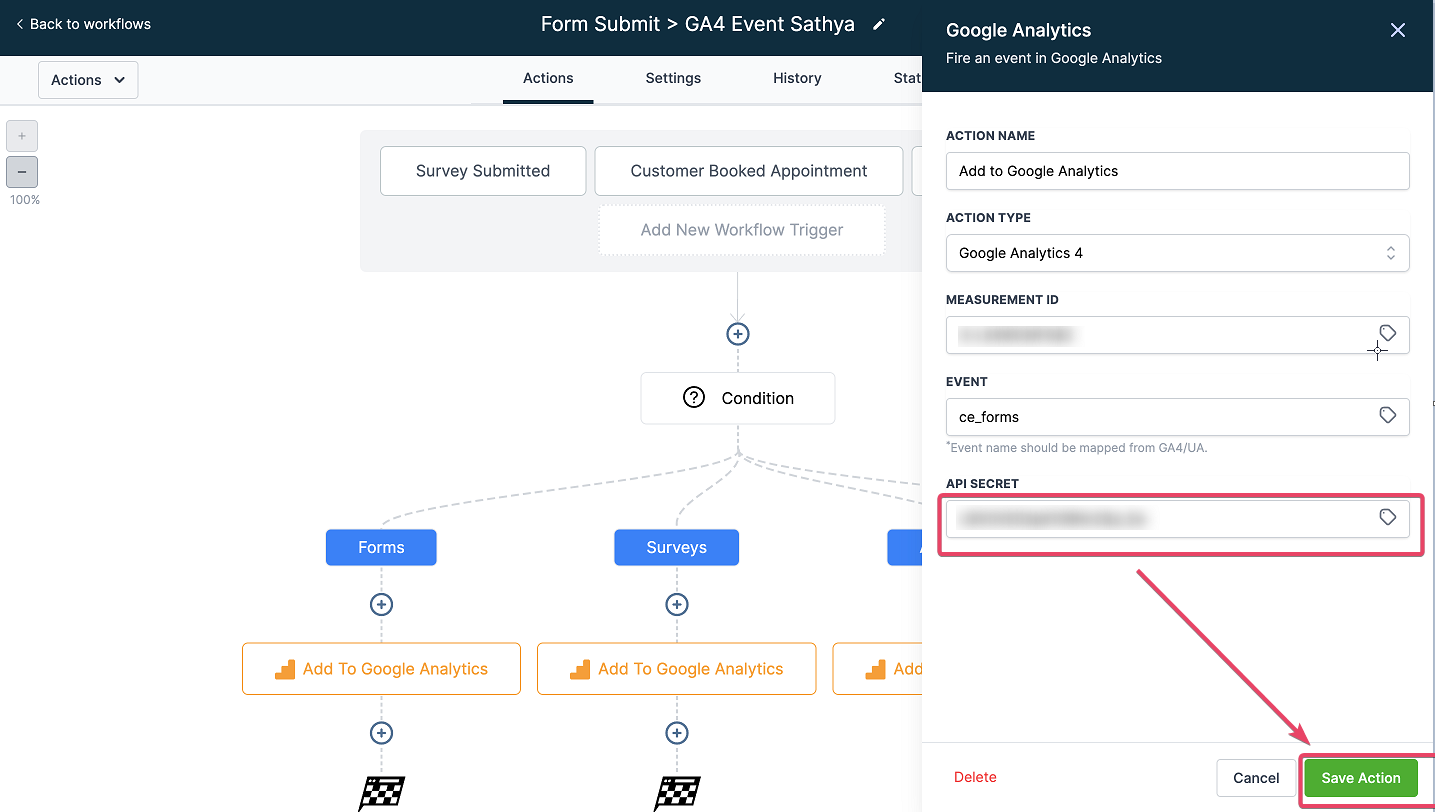
Click Save Action, then Save the workflow, then Publish it once you're ready to go live. After the workflow runs, allow 24 to 48 hours for the event data to show up in Google Analytics.
If you also want GA4 to record standard pageviews as visitors browse your funnels or website (separate from the custom events sent through a workflow), you'll add a tracking script to the page itself. This assumes you already have a basic Google Analytics account set up; if not, see Google's Beginner's Guide to Google Analytics first.
Log in to Google Analytics.
Go to Admin Settings.
Click Create Property and enter a name for the property.
Go to Data Stream in the left menu.
Choose Web, enter the URL of the funnel or website you want to track, name the stream, and click Create Stream.
Copy the Google Site Tag (gtag.js) script that Google generates and add it to the funnel or website's tracking code, or set it up through Google Tag Manager instead if you prefer to manage tags that way.
Once the tag is live on the page, GA4 will start recording pageviews for that funnel or website. As with event data, give it a day or two for the numbers to appear in your Google Analytics reports.
Do I need both the workflow action and the pageview tracking script? No, they serve different purposes. The workflow action sends specific events (like a booked consult or a submitted form) with optional values. The tracking script records general pageviews as visitors browse your funnel or website. Most practices that use GA4 seriously set up both.
How long does it take for data to show up in Google Analytics? Plan on 24 to 48 hours after a workflow runs or a pageview fires before you see it reflected in your GA4 reports.
Can I send data to both GA4 and Universal Analytics from the same action? Yes. The Add to Google Analytics workflow action supports Universal Analytics and GA4, so you can select either or use both depending on what your Google Analytics property is set up for.
Why is my Google Analytics action failing even though the Measurement ID and API Secret look correct? The most common cause is a stray space before or after the API Secret value when it was pasted into the field. Delete the field's contents and retype or carefully re-paste the value.
Is the Event Value field required? No, it's optional. Only fill it in if you want to send a numeric value, such as a revenue amount or a score, along with the event.
Should I include patient information in my GA4 event names or values? No. GA4 is a third-party Google product and isn't covered under Aesthetix CRM's HIPAA safeguards, so avoid sending patient names, appointment details, or other identifiable information as event names or values.
Where do I build and publish the workflow that contains the Google Analytics action? Workflow creation, testing, and publishing are covered in the Workflows collection. This article only covers configuring the Google Analytics action itself once you're inside a workflow.
Can I track events from a form submission, like a patient booking a consult? Yes. Add the Google Analytics action to any workflow, including one triggered by a form submission, appointment booking, or purchase, and configure the event name (and optional event value) for that specific action.
Do I need a Google Analytics account before I can set any of this up? Yes. You need an active Google Analytics account with a GA4 property and data stream created before you can pull a Measurement ID or generate an API Secret.
What's the difference between the Measurement ID and the API Secret? The Measurement ID identifies which GA4 data stream receives the data. The API Secret authenticates the request so Google knows it's coming from a trusted source. Both are required for the Google Analytics workflow action to work.
