Connecting your iCloud Calendar keeps your personal or practice Apple calendar in sync with Aesthetix CRM, so your true availability shows up when patients book and your team never gets double-booked. You manage this under Settings > Calendars > Connections.
Once connected, iCloud events can block availability on your Aesthetix CRM calendars, and new appointments booked in Aesthetix CRM can be pushed out to your linked iCloud calendar. This is available for Round Robin, Collective, Class Booking, and Service Calendars. It is not supported for Simple Calendars.
If your practice uses AI Employee to automatically book consults, keeping iCloud connected and configured correctly matters just as much there: AI-driven booking checks the same native calendar availability, so an out-of-date or misconfigured iCloud connection can lead to conflicts even when the AI is doing the scheduling.
Access to the Apple ID associated with the iCloud calendar you want to connect.
Two-factor authentication enabled on that Apple ID.
A decision on access level: if you want appointments booked in Aesthetix CRM to also appear on your iCloud calendar, the calendar needs write access. If you only want to pull your existing iCloud events into Aesthetix CRM to block time, read-only access is enough.
iCloud requires an app-specific password for third-party connections like Aesthetix CRM. This is separate from your normal Apple ID password.
Sign in to your Apple ID at appleid.apple.com and confirm two-factor authentication is turned on under the Security section.
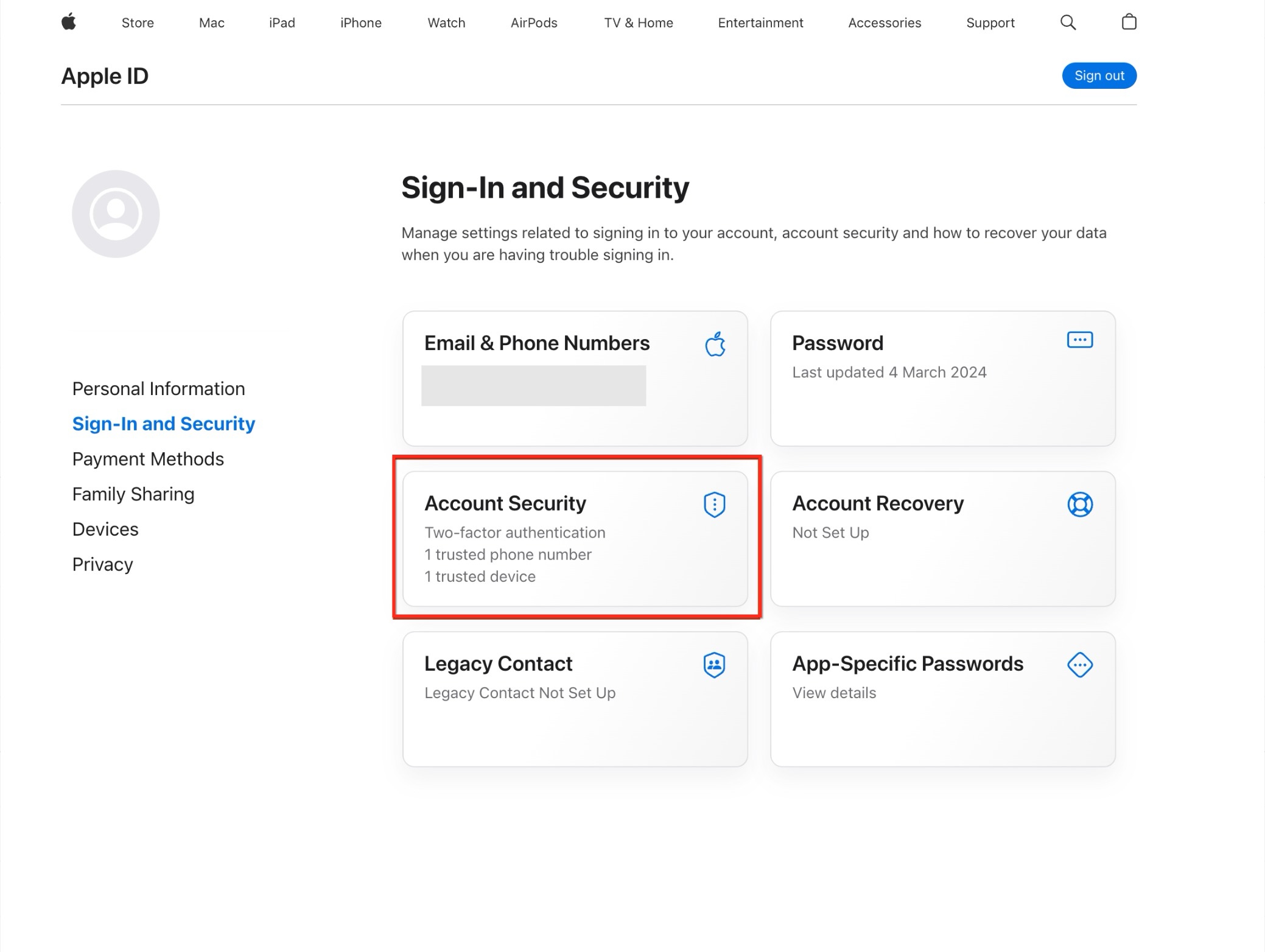
Open Sign-In and Security, then find App-Specific Passwords.
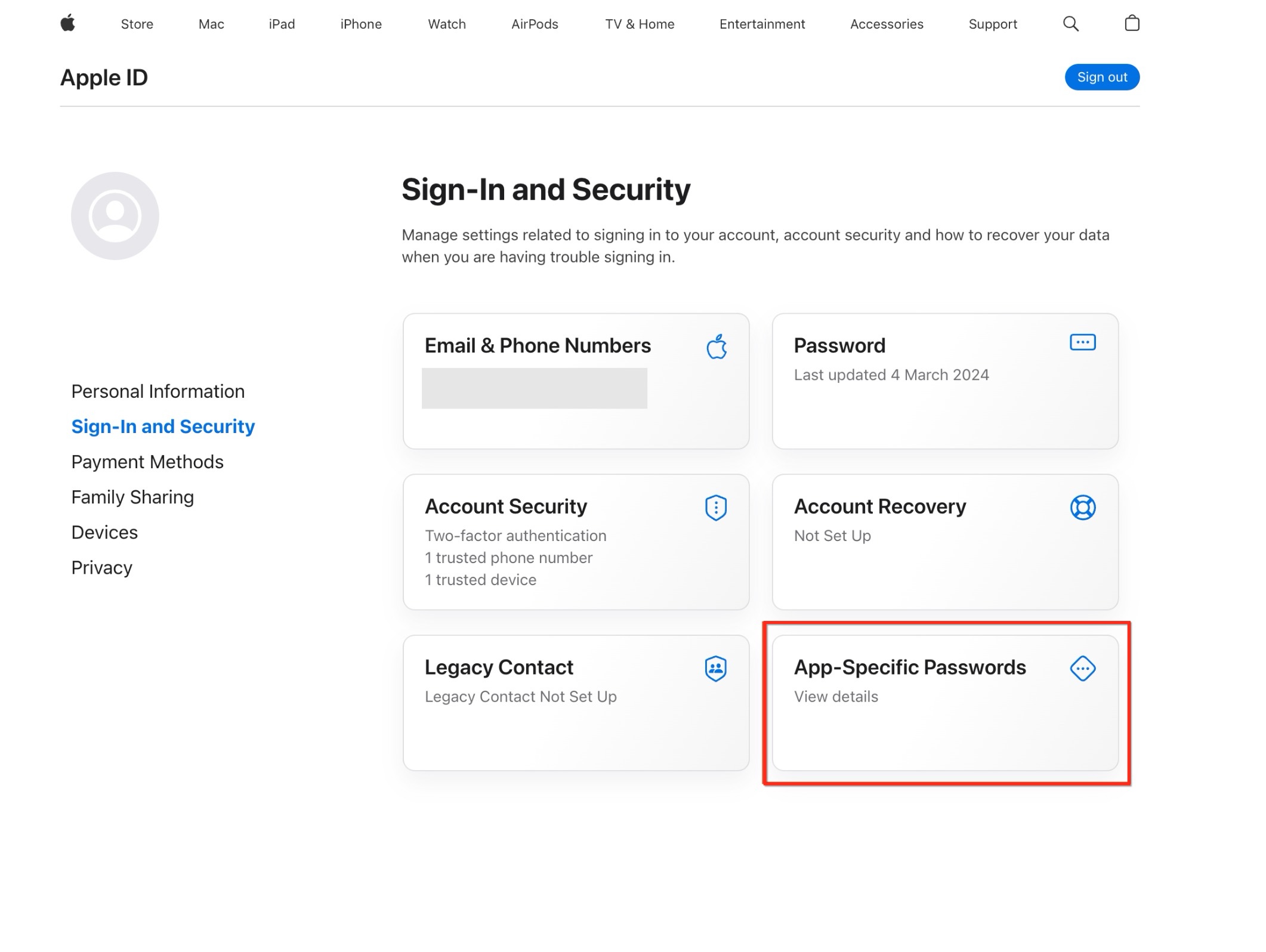
Choose to generate a new password and give it a recognizable label, such as "Aesthetix CRM iCloud Integration."
Copy the generated password and store it somewhere safe. You'll enter it in the next step.
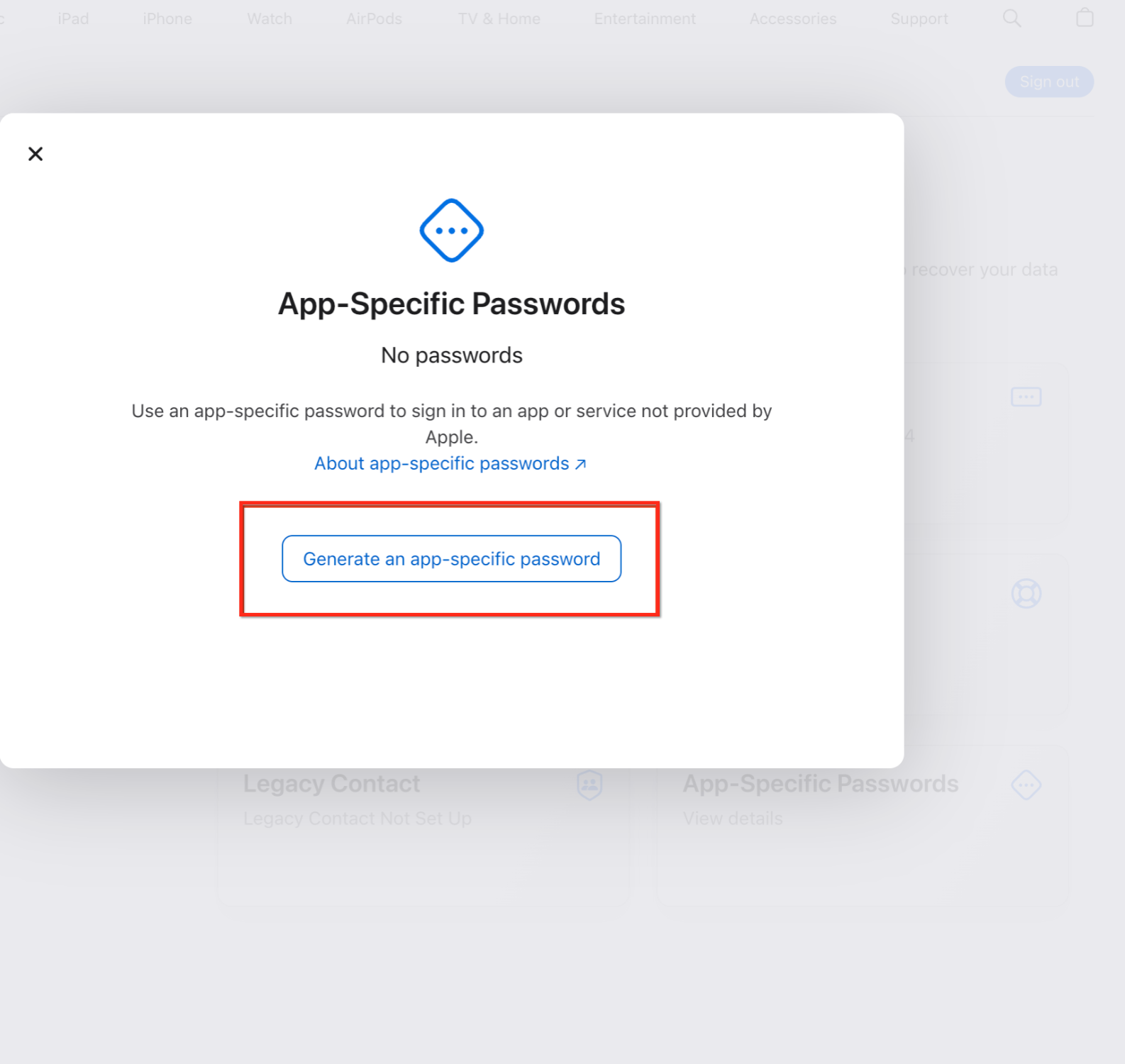
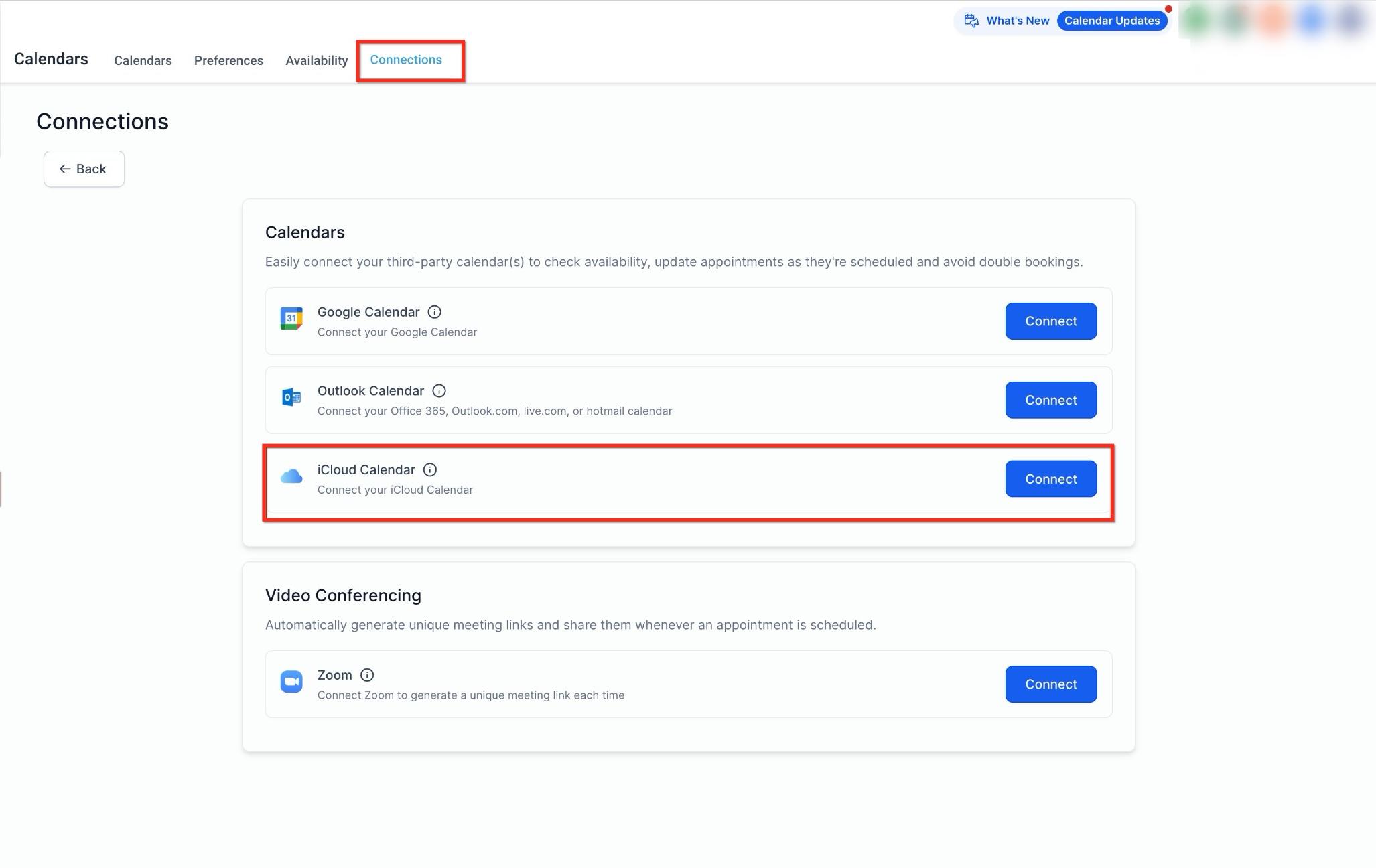
Go to Settings > Calendars > Connections and click + Add New.
Select iCloud Calendar and click Connect.
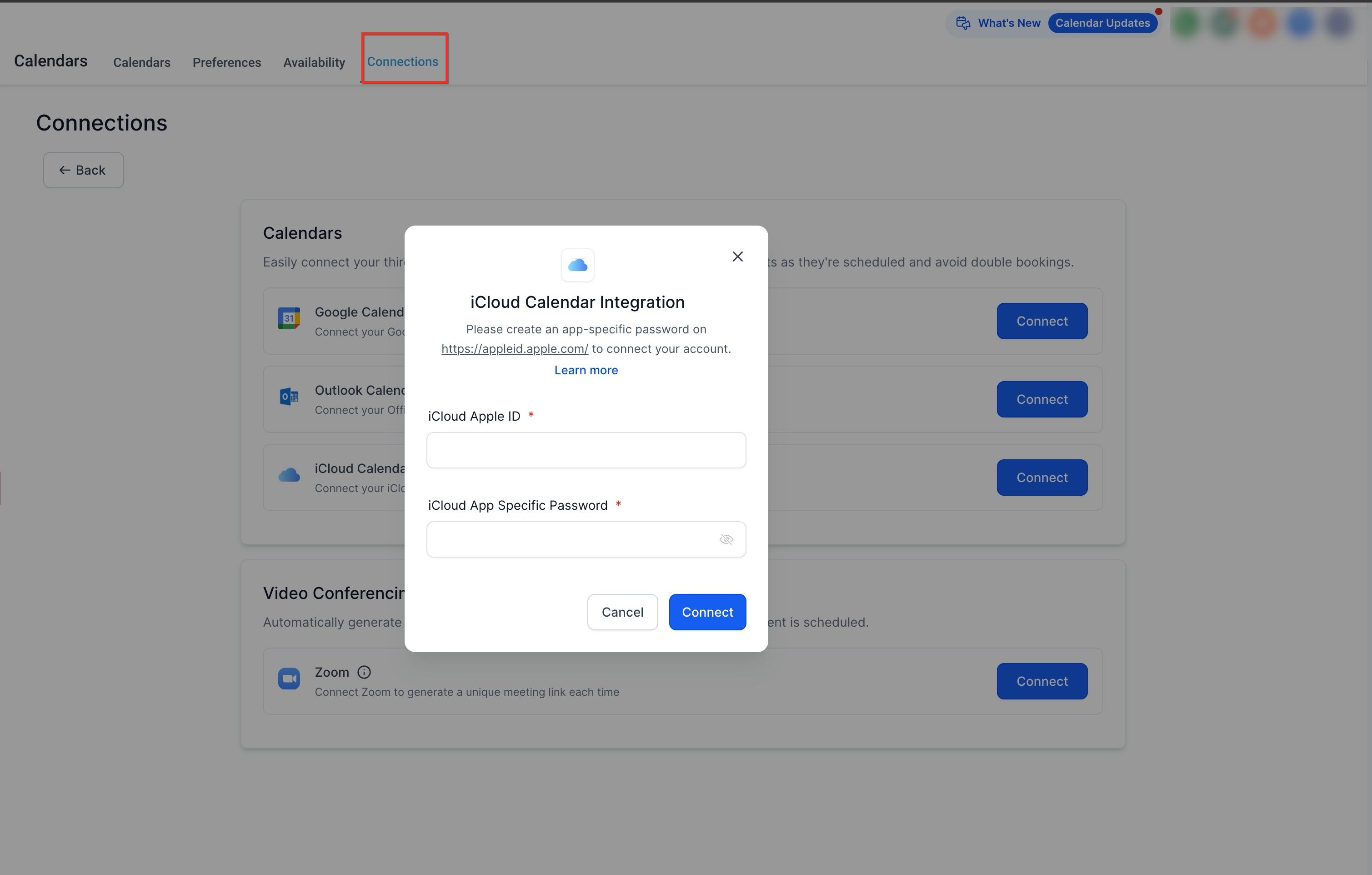
Enter your Apple ID email address and the app-specific password you generated in Step 1, then click Connect.
Once the connection succeeds, your iCloud calendar appears in the list of connected calendars.
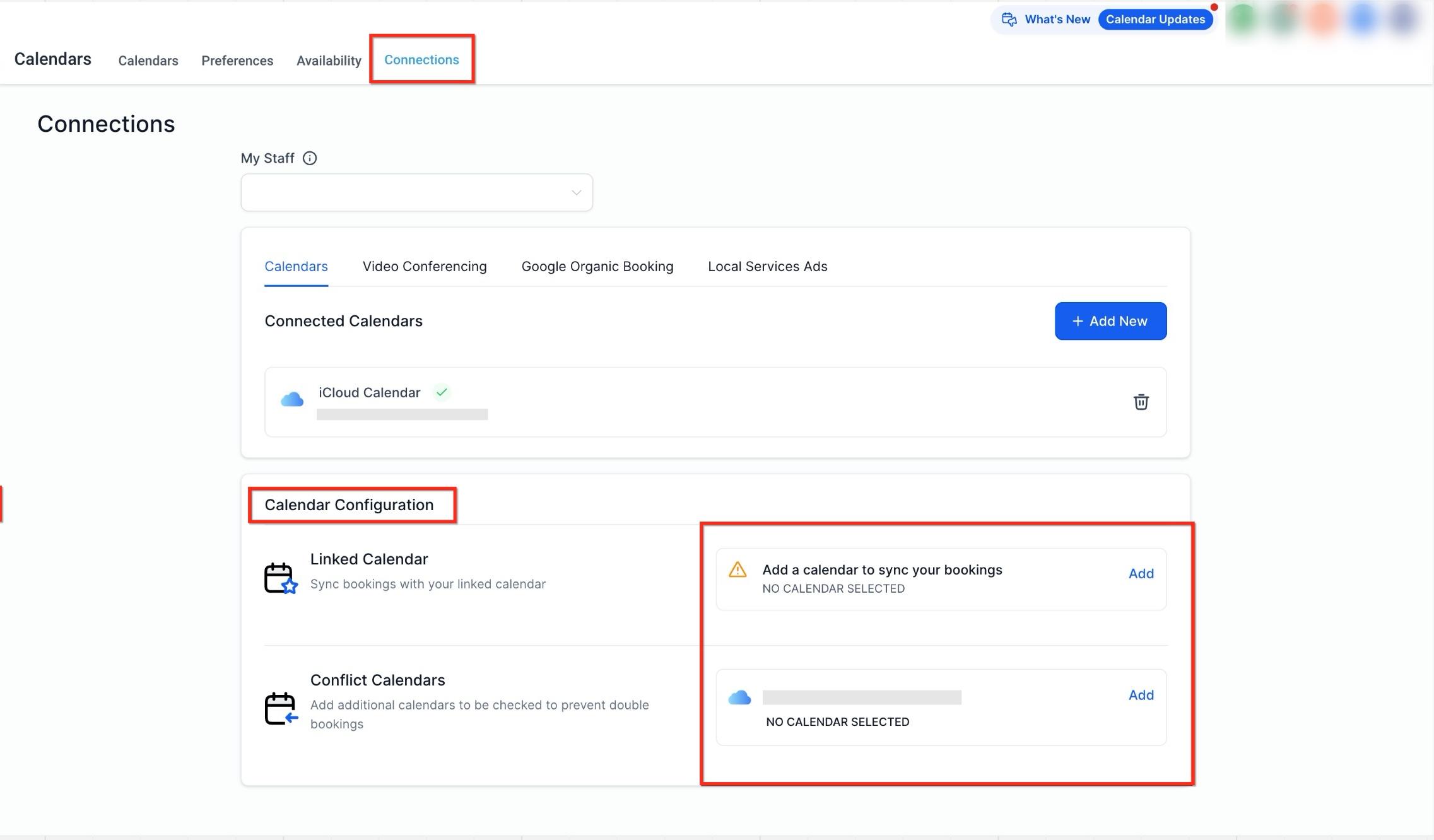
After connecting, open Calendar Configuration to set your linked calendar and conflict calendars. This is available from Settings > Calendars > Connections > Calendar Configuration, or from Settings > My Profile > Calendar Configuration, both open the same panel.
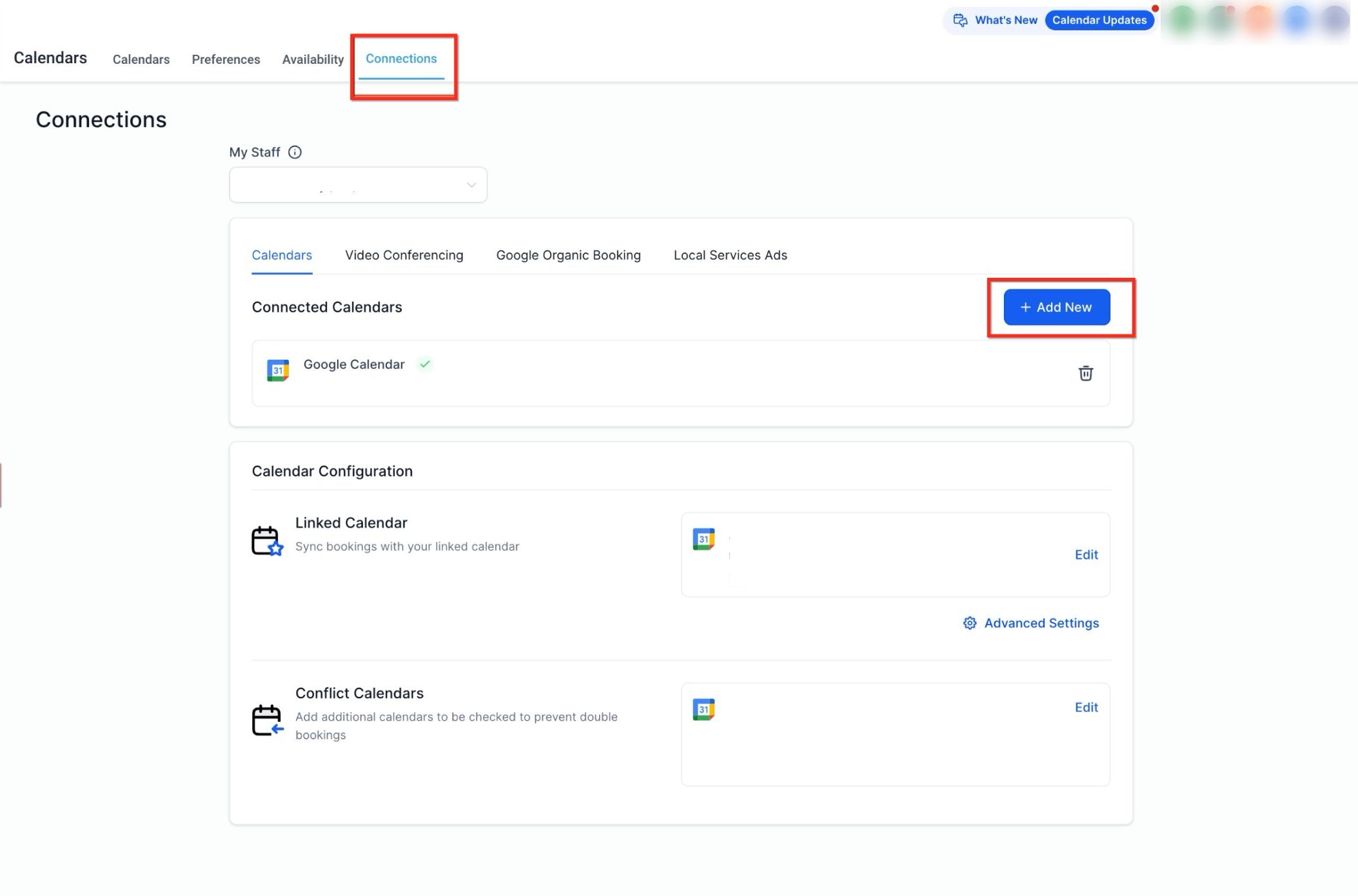
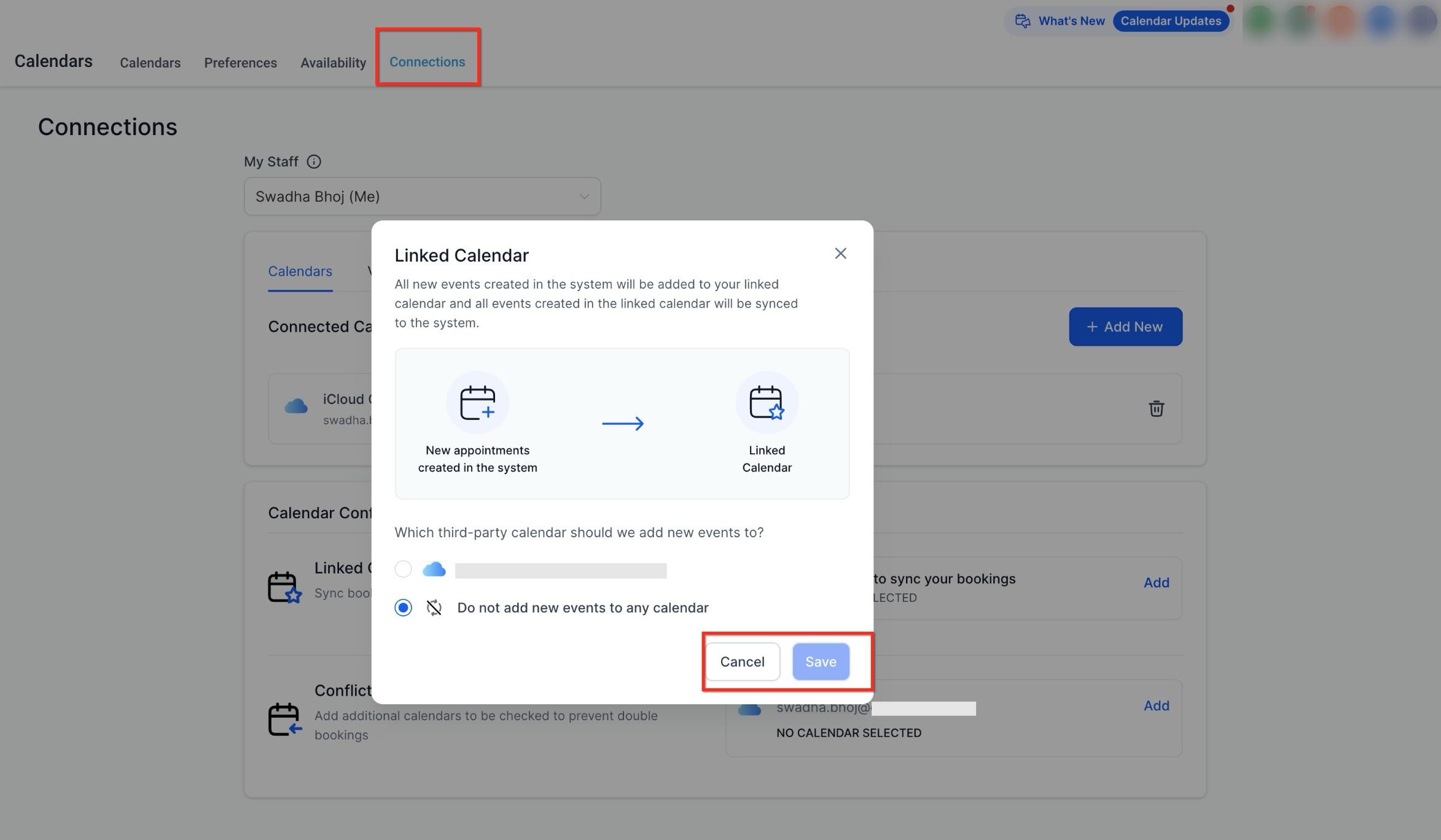
The linked calendar is where new appointments get written. Any appointment created in Aesthetix CRM syncs out to this iCloud calendar (this requires write access), and events created directly in that iCloud calendar sync back into Aesthetix CRM. By default, your linked calendar is also added as a conflict calendar.
Conflict calendars are checked to keep your availability accurate and prevent double bookings. You can add one or more calendars here, including holiday calendars, your own iCloud calendar, or a team member's calendar.
Only events marked Busy in iCloud block availability in Aesthetix CRM. Events marked Free are still pulled in, but they don't close off that time slot. You can add multiple conflict calendars if you want several calendars checked at once.
iCloud sync works differently than Google or Outlook, so it's worth understanding the limits before you rely on it:
One-way default sync only. Google and Outlook connections let you choose two-way sync from Advanced Settings, but iCloud only supports the default, one-way behavior described below.
No contact creation. Events coming in from iCloud are treated as blocked time only. Aesthetix CRM does not create contact records for guests on those iCloud events.
Blocked slots don't sync back. If you manually create a blocked slot inside Aesthetix CRM, it will not appear on your iCloud calendar.
No subscription calendars. You can't connect an iCloud calendar you've only subscribed to by URL (the kind used for public or shared calendars). It has to be a calendar in your own iCloud account.
Multiple connections are supported. Each user can connect more than one iCloud calendar per account, and the same iCloud account can be connected across multiple Aesthetix CRM accounts.
Not available on Simple Calendars. iCloud sync only works with Round Robin, Collective, Class Booking, and Service Calendars.
Because iCloud events (including event titles and any details you type into them) can carry patient names or appointment context once synced into your calendars, avoid putting sensitive clinical details directly into iCloud event titles or notes. Keep patient-specific documentation inside the patient record instead.
Authentication problems
Confirm you're using the app-specific password, not your regular Apple ID password.
Confirm two-factor authentication is enabled on the Apple ID.
If the password stops working, generate a new app-specific password from Apple and reconnect.
Calendar not syncing
Make sure the correct calendar is selected as your Linked Calendar.
Remember that events must be created on the specific iCloud calendar you linked. Events on a different calendar in the same Apple account won't sync.
Double bookings still happening
Confirm the calendars you expect to block time are added under Conflict Calendars.
Check that the conflicting iCloud events are marked Busy, not Free.
Connection stuck or not updating
Disconnect and reconnect the calendar from Settings > Calendars > Connections.
Regenerate the app-specific password if reconnecting doesn't resolve it.
Can iCloud events block my Aesthetix CRM calendar availability? Yes. Any iCloud calendar added as a conflict calendar blocks your availability for the duration of events marked Busy. Events marked Free are pulled in but don't affect your open slots.
Can I add more than one conflict calendar? Yes, you can add multiple calendars, including team members' calendars or holiday calendars, to be checked before a slot is offered to a patient.
Is iCloud sync two-way? Not in the same way Google or Outlook can be. iCloud only supports one-way default sync: incoming iCloud events become blocked time in Aesthetix CRM, but blocked slots created manually inside Aesthetix CRM won't sync back out to iCloud.
Will patient contacts be created from my iCloud events? No. Events synced in from iCloud are treated purely as blocked time. No contact record is created for anyone listed on those events.
Can I connect more than one iCloud calendar? Yes. A user can connect multiple iCloud calendars, and the same iCloud account can be connected to more than one Aesthetix CRM account.
Can I connect a shared or subscribed iCloud calendar? No. Subscription calendars (ones you've added by URL rather than owning them in your own iCloud account) can't be connected.
Which calendar types support iCloud sync? Round Robin, Collective, Class Booking, and Service Calendars. Simple Calendars are not supported.
Why do I need an app-specific password instead of my regular Apple password? Apple requires app-specific passwords for any third-party service, including Aesthetix CRM, so your main Apple ID credentials are never shared with outside applications.
