A Simple Calendar is a one-on-one booking calendar: one patient books one time slot with one provider or team member. It's the fastest way to get a single practitioner (an injector, a consult specialist, a front desk scheduler) taking appointments online. For practices that route patients to different providers or treatment rooms based on availability, a Service Calendar is usually a better fit and is covered in a separate guide, but Simple Calendars are the right choice for straightforward, single-person scheduling like a free consult line or a specific provider's personal booking link.
You'll find calendars under the Calendars menu in Aesthetix CRM.
Click on "Calendar" in the left navigation.
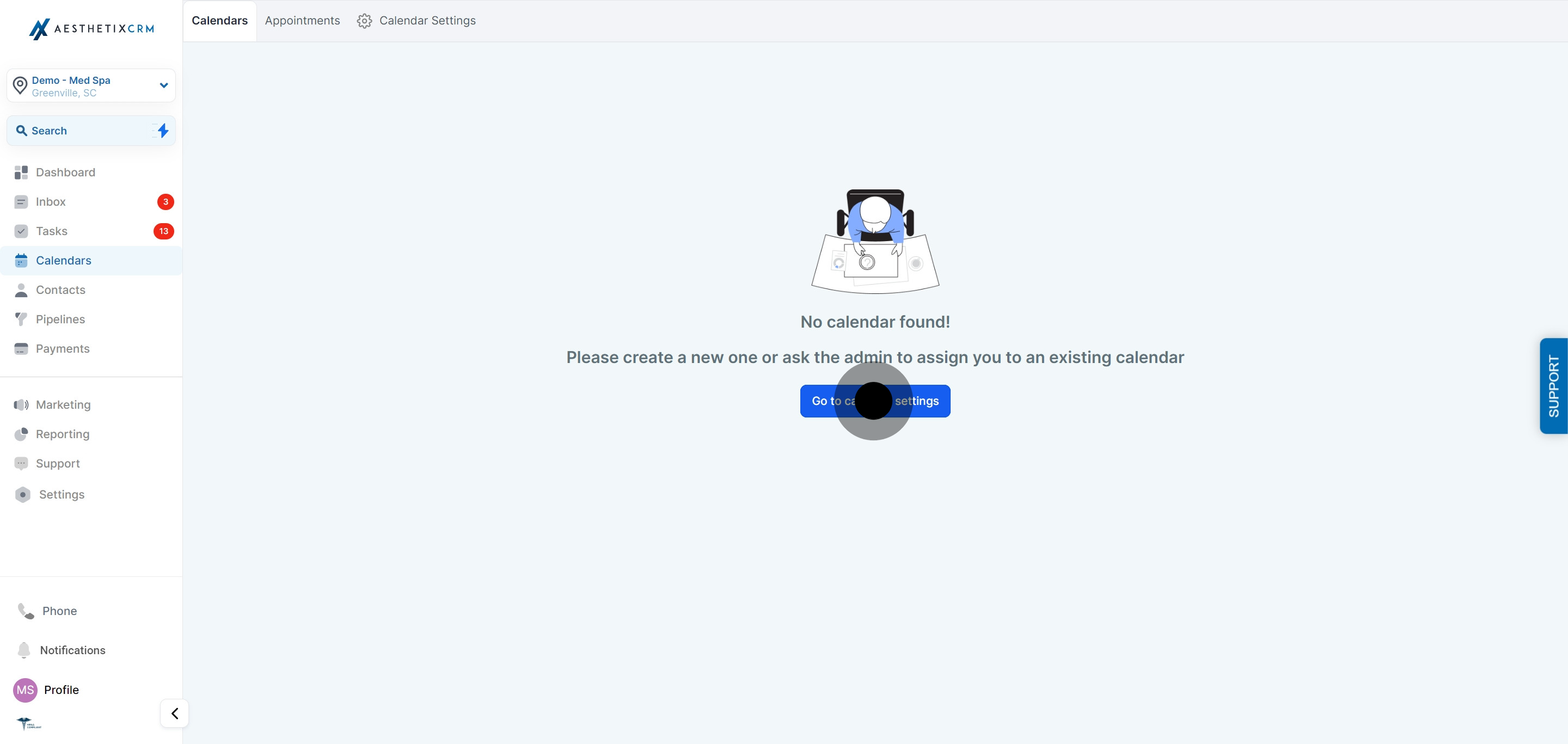
Navigate to "Calendar Settings" by selecting "Go to Calendar Settings".
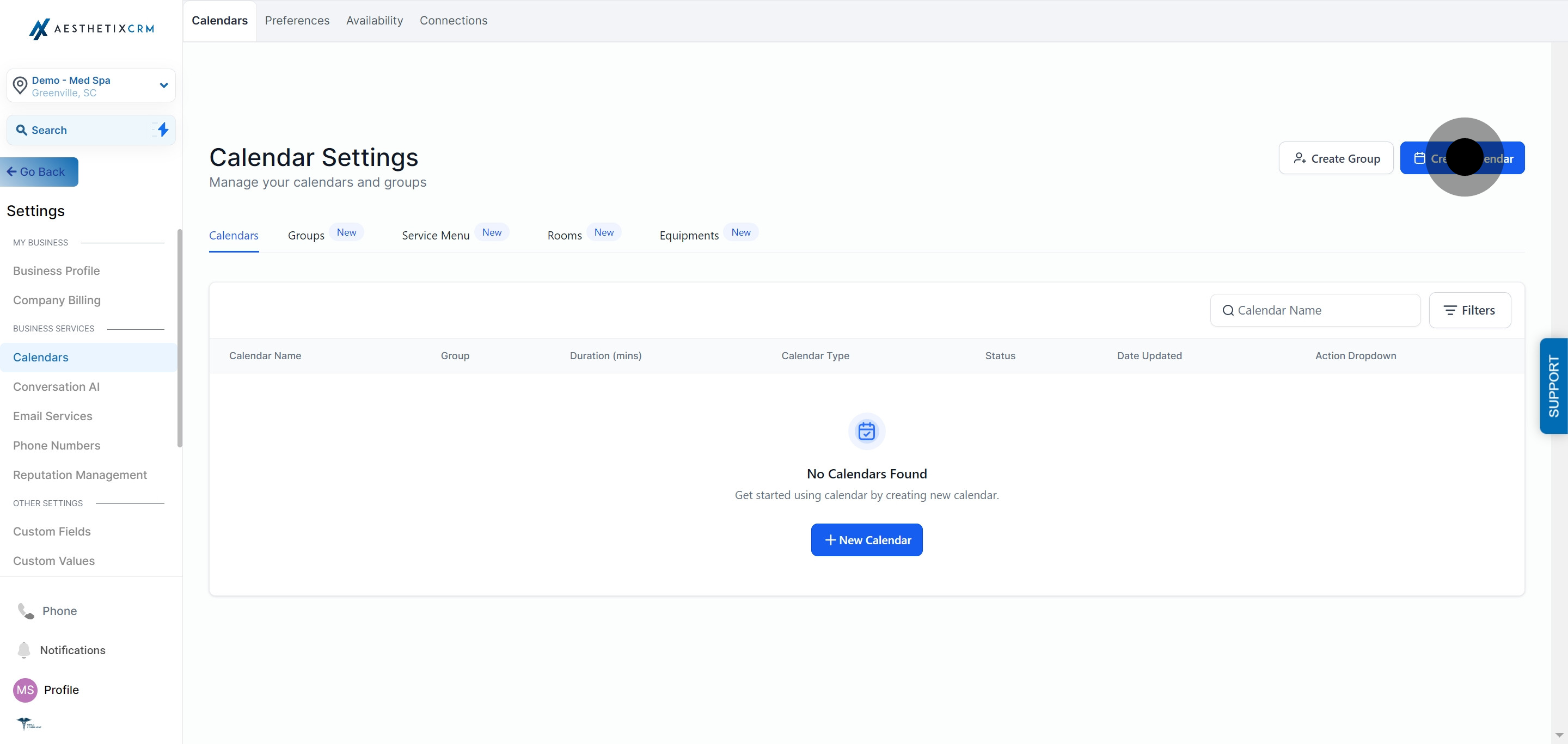
Click on "Create Calendar".
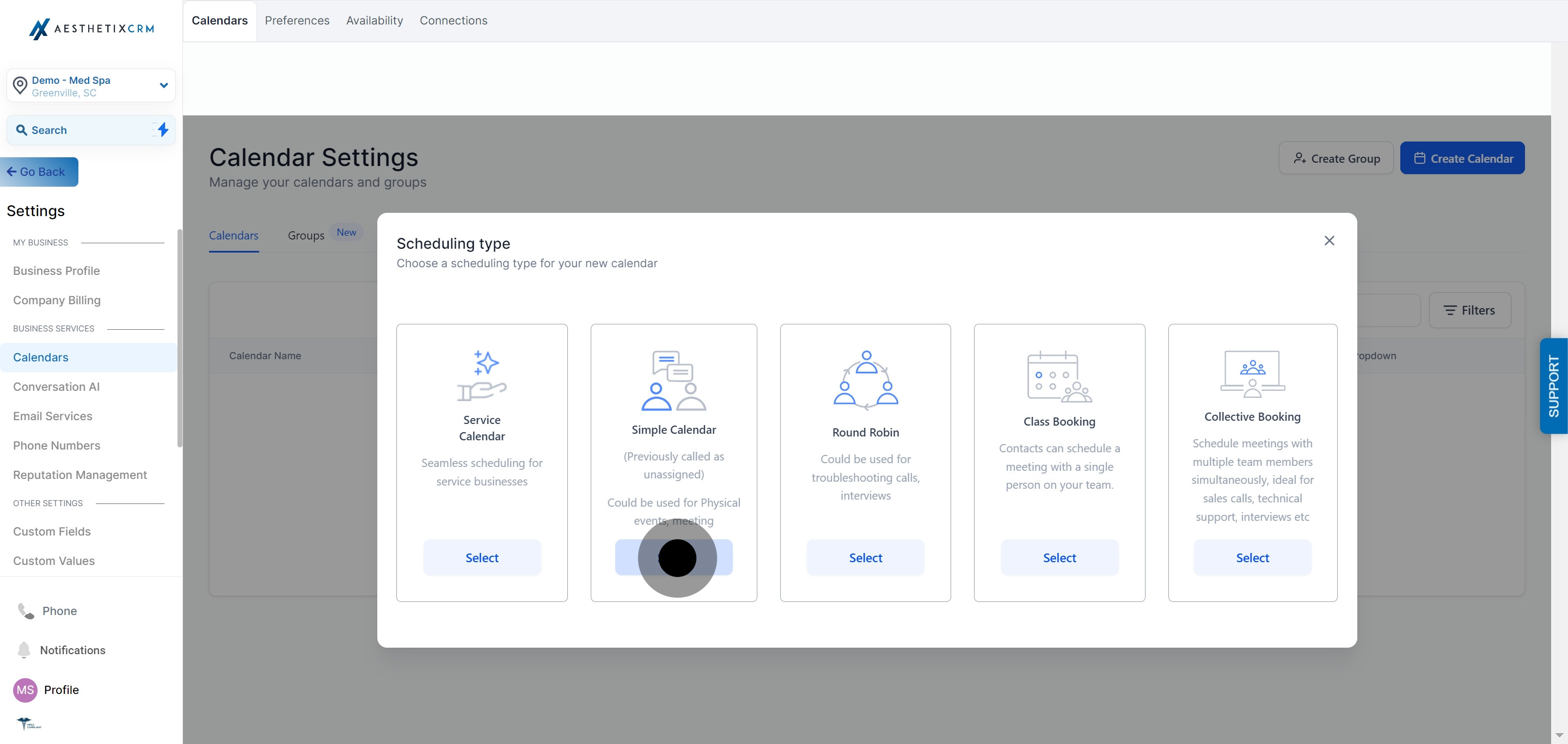
Choose "Simple Calendar" from the calendar type options.
Enter a Calendar Name. Use something patients will recognize, like "Free Consultation" or the provider's name.
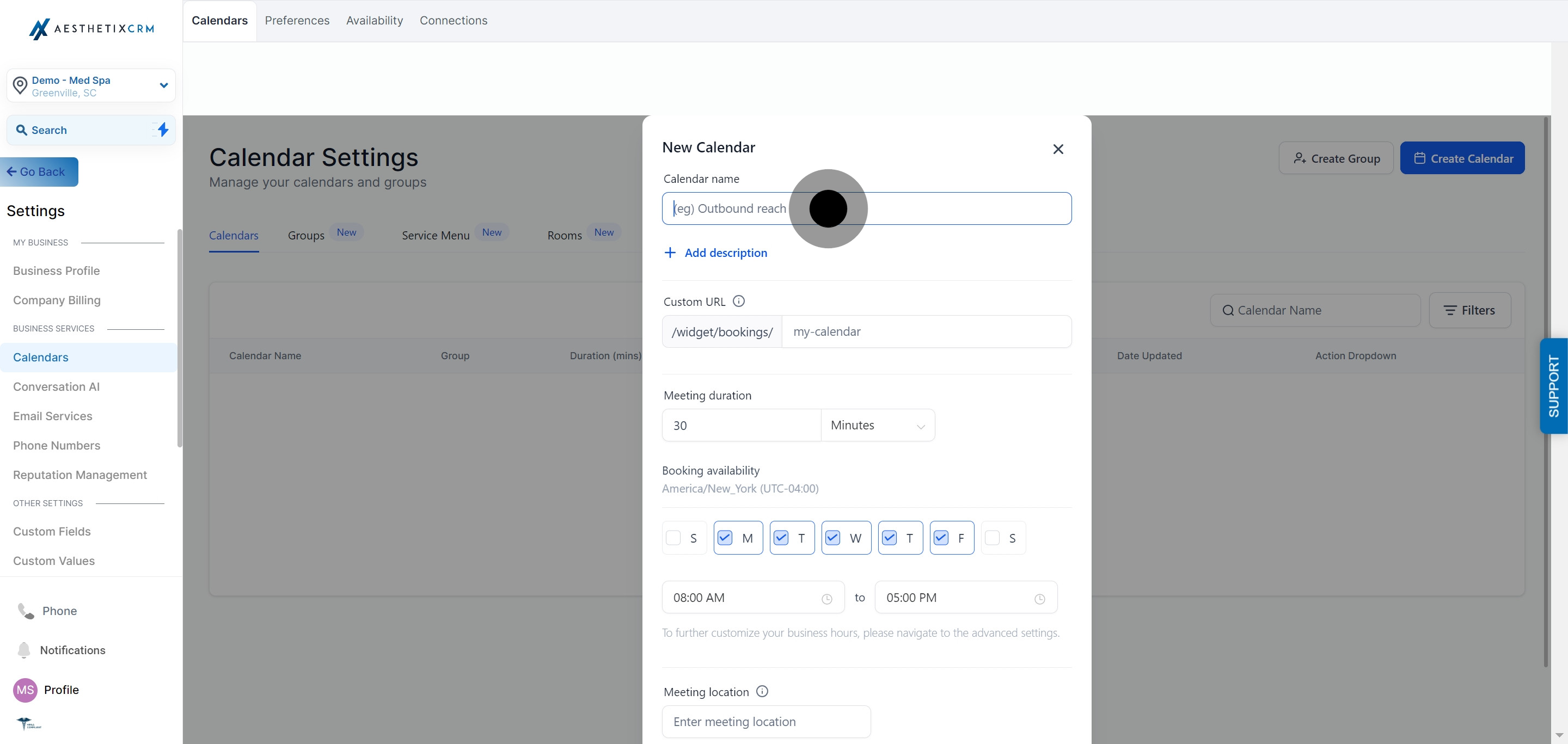
Click "Add Description".
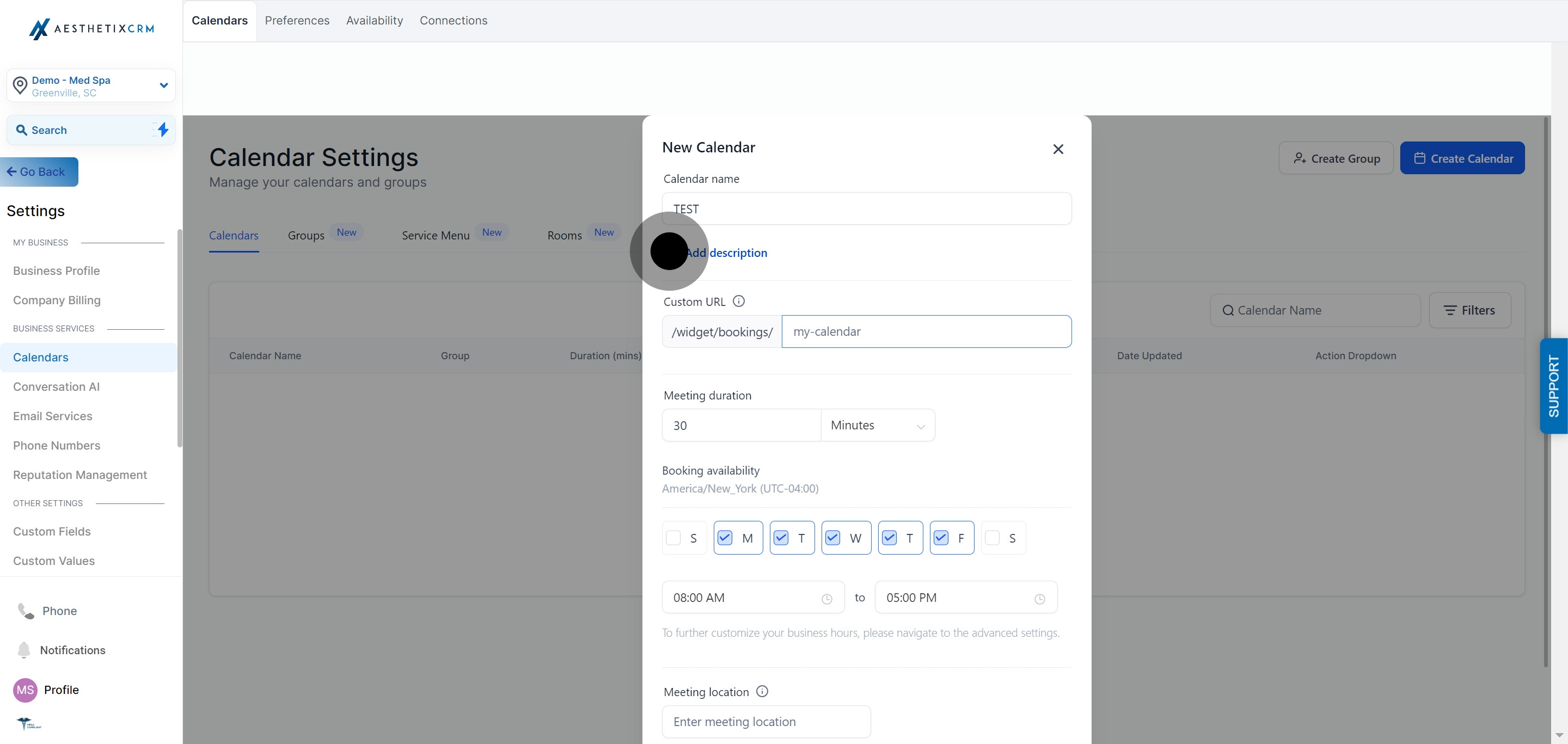
Write a short description of what the appointment covers. This shows on the public booking page, so keep it patient-facing (for example, what to expect from a consult, or what to bring).
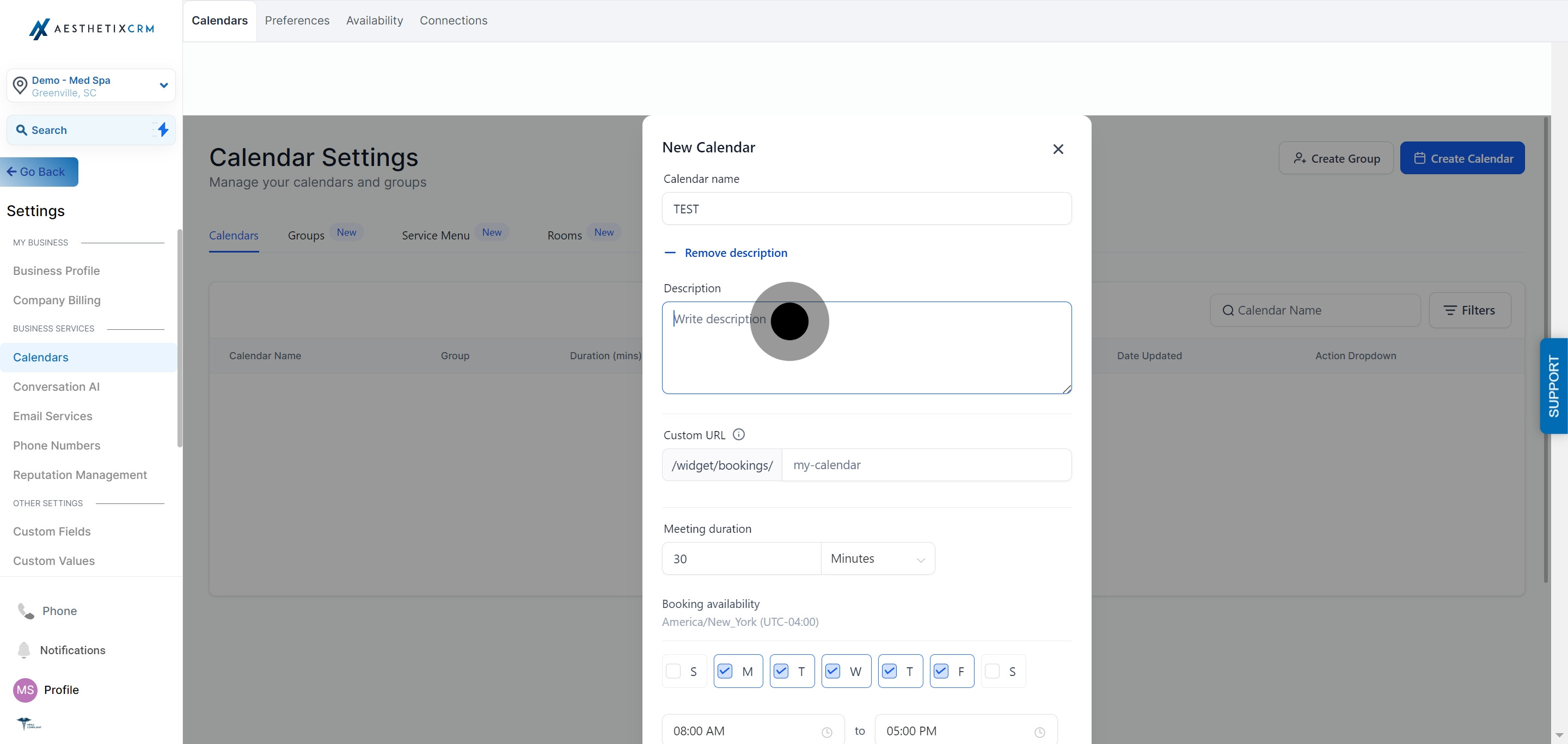
Set your custom URL slug. This becomes part of the booking link you'll share with patients or embed on your website.
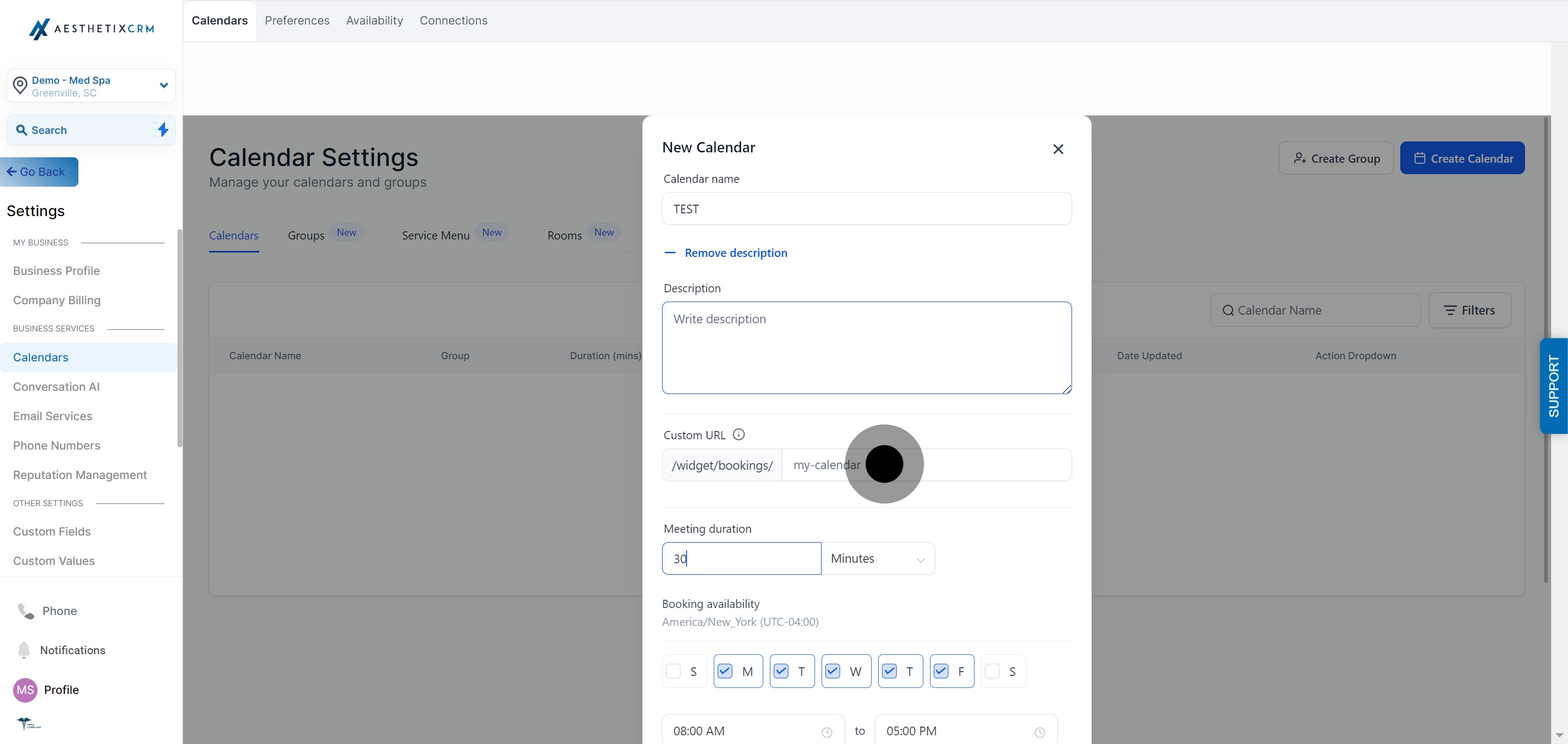
Specify the meeting duration. This is how long each appointment slot lasts on the calendar.
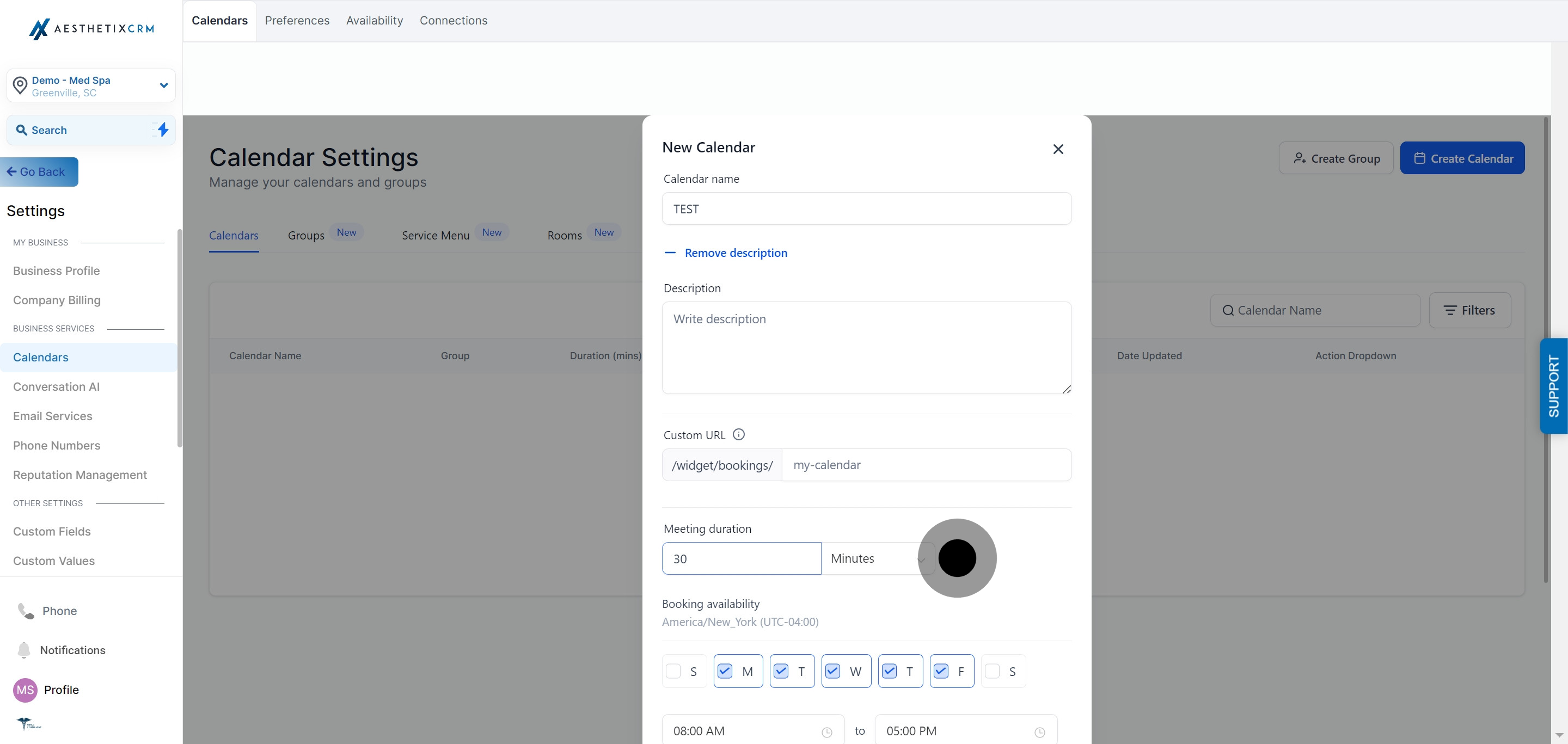
Set the Booking Availability, which controls how far in advance patients can book and how many appointments can be booked in a given window.
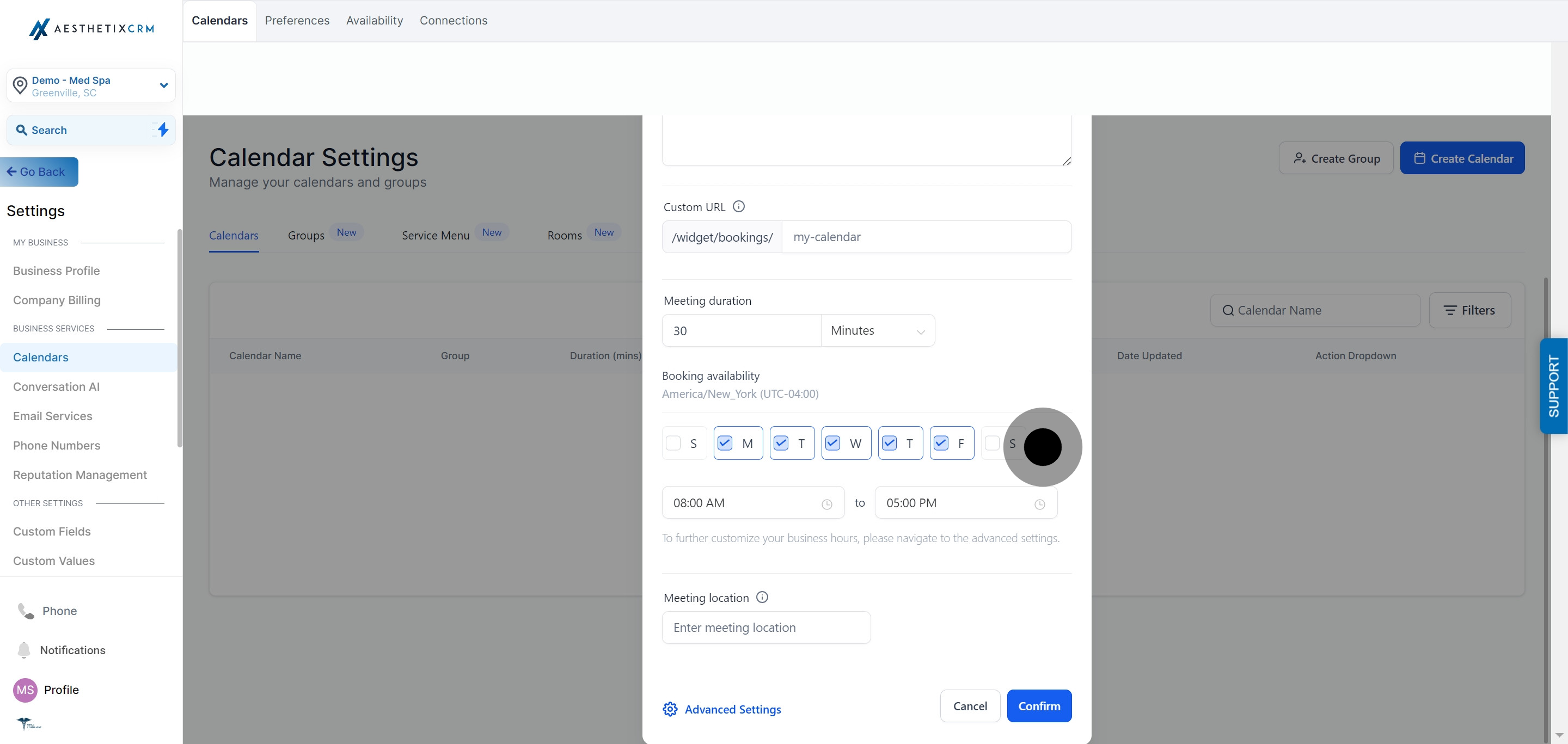
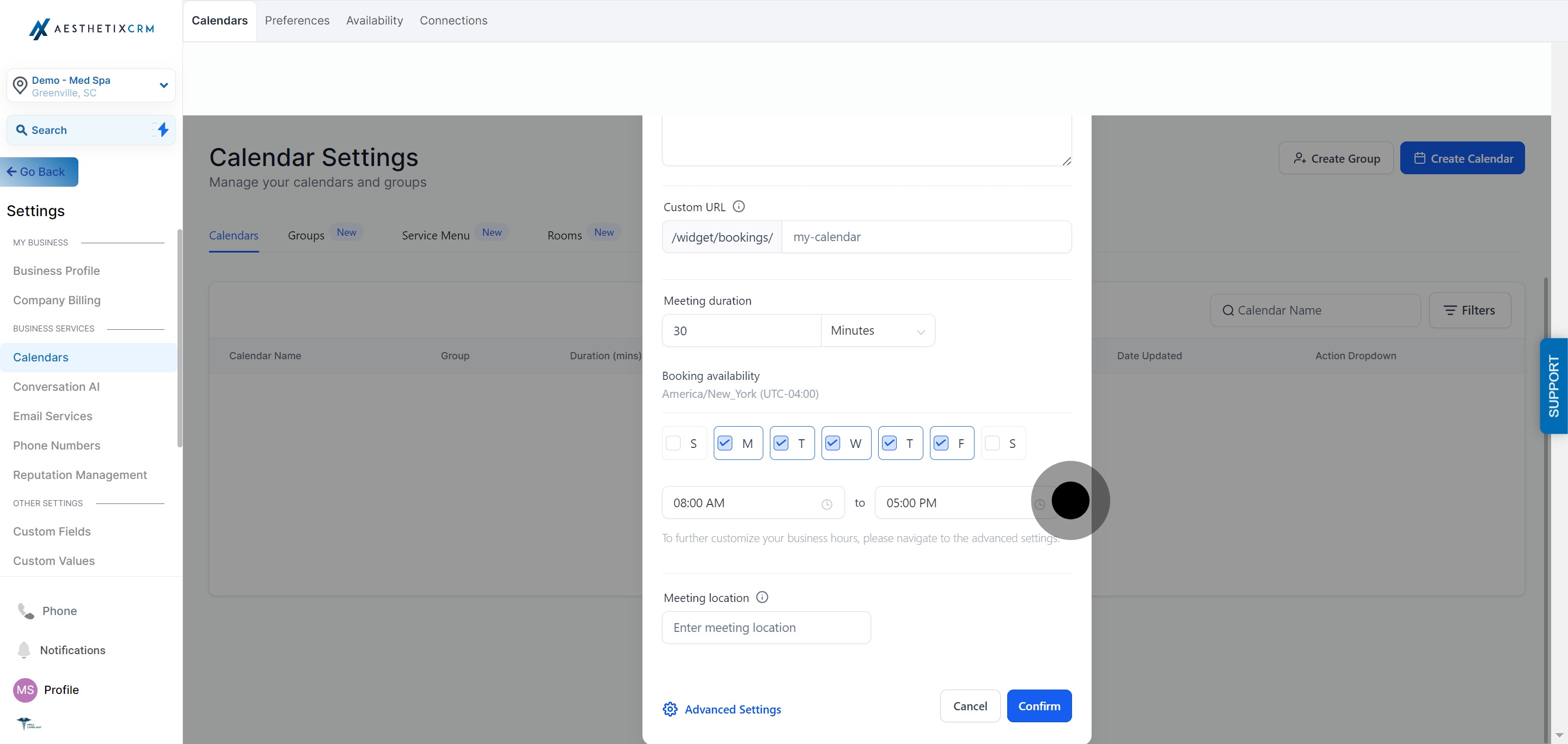
Enter the start time and end time for your available booking hours (for example, 9:00 AM to 5:00 PM).
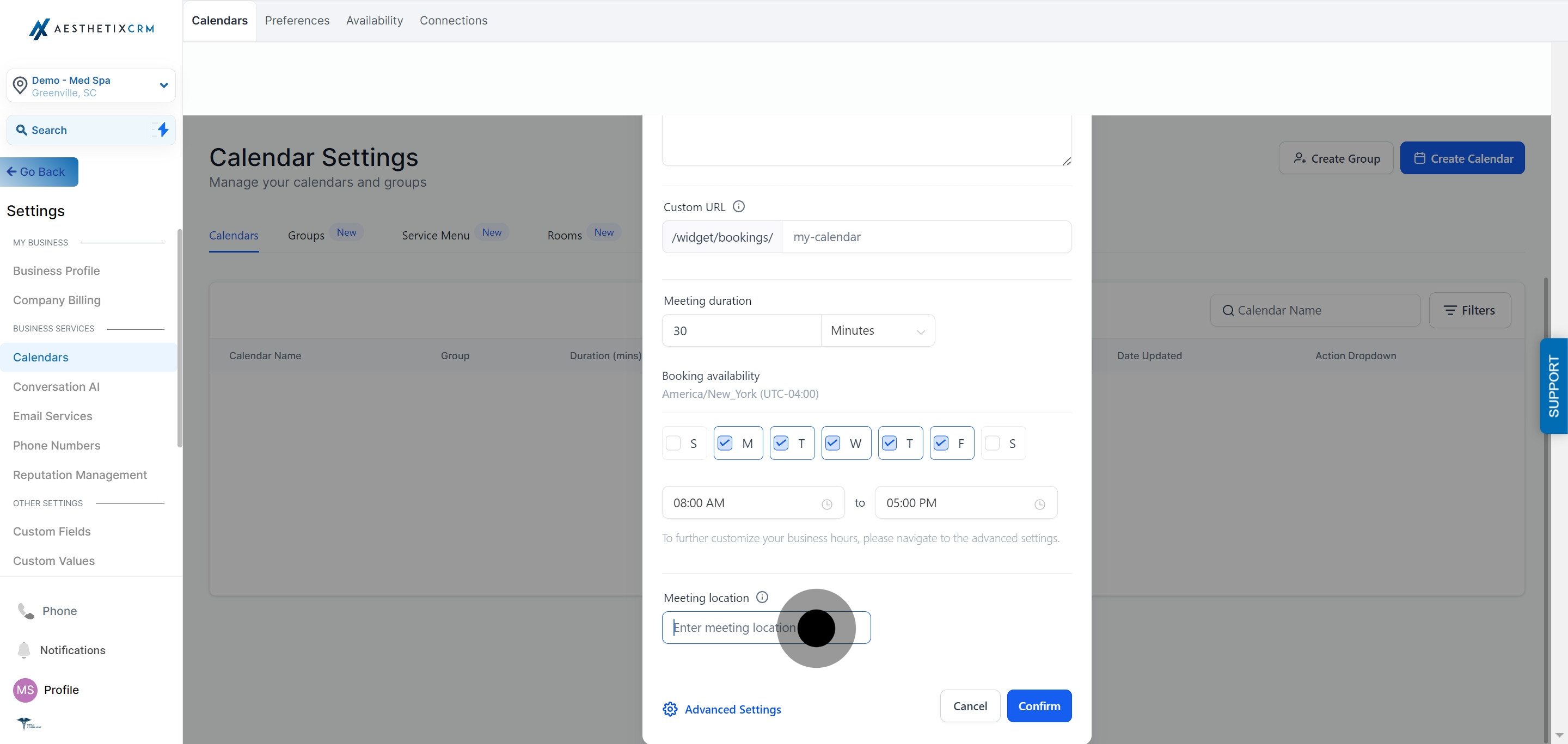
Input the meeting location. This can be your practice address, a specific room, or "Custom" text like "Video call" or "Phone consult" depending on how the appointment is conducted.
Click "Confirm" to save and activate the calendar.
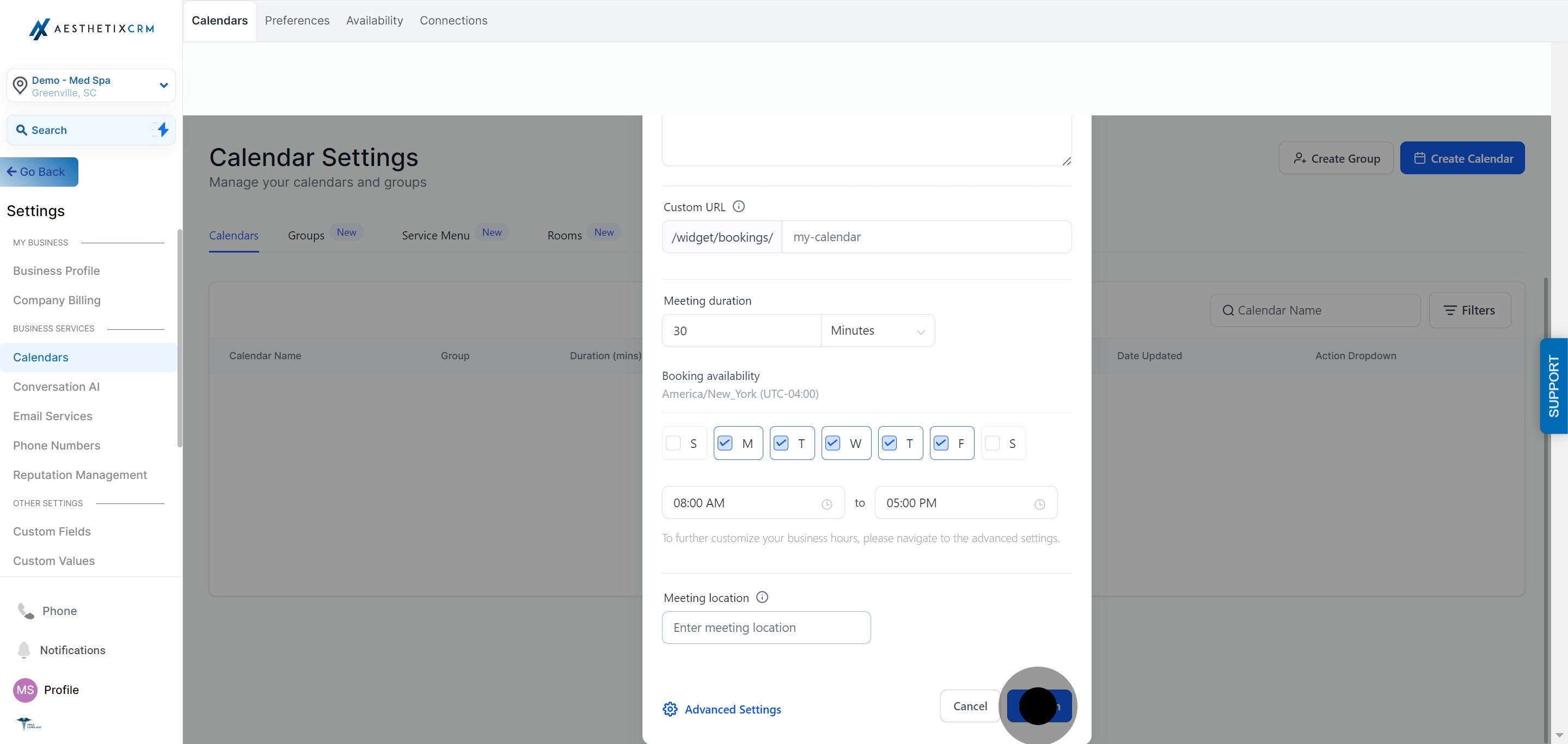
Once confirmed, your Simple Calendar is live and its booking link is ready to share, embed on your website through Funnels/Websites, or add as a step in a patient intake form.
A few things worth setting up once your Simple Calendar is live:
Sync with an external calendar. If the provider using this calendar also keeps a personal Google, Outlook, iCloud, or Zoom calendar, connect it under Calendars > Connections so appointments booked in Aesthetix CRM automatically block time on their outside calendar too, and vice versa.
Attach an intake form. Many practices attach a short intake form to the booking flow so new patients share basic information before their first visit. Build and manage these under Forms.
Automate booking with AI. If you want an AI assistant to book, reschedule, or confirm appointments on this calendar automatically, that capability lives in AI Employee and only works with native calendars like this one (it does not work against an EMR-synced calendar).
What's the difference between a Simple Calendar and a Service Calendar? A Simple Calendar books one patient to one specific person or resource for a fixed duration. A Service Calendar can route a patient to any available team member offering that service, which is useful when several providers can perform the same treatment. Most med spas use Service Calendars for treatment bookings and Simple Calendars for single-provider use cases like consults or a specific injector's personal link.
Can I have more than one Simple Calendar? Yes. You can create a separate Simple Calendar for each provider, service, or booking scenario, each with its own name, description, URL, and availability.
Does the custom URL need to be unique? Yes, each calendar's URL slug must be unique within your account since it forms part of the public booking link patients use.
Can patients book outside the hours I set in step 11? No. The start and end times you configure define the outer bounds of when appointments can be offered on that calendar, combined with whatever availability rules you set in Booking Availability.
Where do I add buffer time between appointments or block off lunch breaks? Buffer and blocked time are managed within the calendar's Availability settings, alongside the start/end time and booking window covered above.
Can I take payment when a patient books through a Simple Calendar? Yes, calendars can be configured to collect a deposit or payment at the time of booking.
If you take payment on bookings, consider routing it through AX Pay, Aesthetix CRM's built-in payment processor, which offers better rates than Stripe. See the AX Pay help article for setup details.
How do I embed this calendar on my website? Once the calendar is created, you can embed its booking widget into any page built with Funnels/Websites, or simply share the direct booking link.
Can I change the meeting duration after patients have already booked? Yes, you can edit the duration at any time from Calendar Settings, but changes only apply to new bookings, not appointments already on the calendar.
What happens if I set the meeting location to a video call? Selecting a video/custom location lets you display virtual meeting instructions to the patient instead of a physical address, which is useful for telehealth-style consults.
Do I need a separate calendar for every provider? Not necessarily. If your practice only needs one shared booking calendar, a single Simple Calendar works fine. Separate calendars per provider make sense once patients need to choose a specific person to see.
