Service Calendars are the calendar type built for practices that book patients into specific treatments instead of one generic appointment slot. Each Service Calendar represents a single treatment, such as a Botox consult, a HydraFacial, or a laser session, and Aesthetix CRM automatically ties its availability to the staff member performing it, along with any rooms or equipment it needs. You'll find Service Calendars under Calendars > Calendar Settings in your Aesthetix CRM account.
Aesthetix CRM's calendar system supports two scheduling types, and it helps to know which one you're looking at:
Meetings covers personal, round robin, collective, and class calendars. It's built for internal or consult-style bookings, sales calls, and anything that isn't tied to a specific treatment.
Services is purpose-built for treatment-based bookings. It supports service variations, add-ons, multiple services in one appointment, and staff-specific pricing, which is what most med spas need.
If both types are turned on for your account, a dropdown appears at the top of the Calendar view so your front desk can switch between them. The layout, filters, and events shown always match whichever type is selected, so a busy Services calendar won't clutter a Meetings view or vice versa. If only one type is enabled, that view loads automatically and the dropdown stays hidden.
Service-based scheduling has to be turned on once before "Service Calendar" appears as a creation option.
Go to Calendars > Calendar Settings.
Click Preferences.
Under In-App Preferences, toggle Service Menu on.
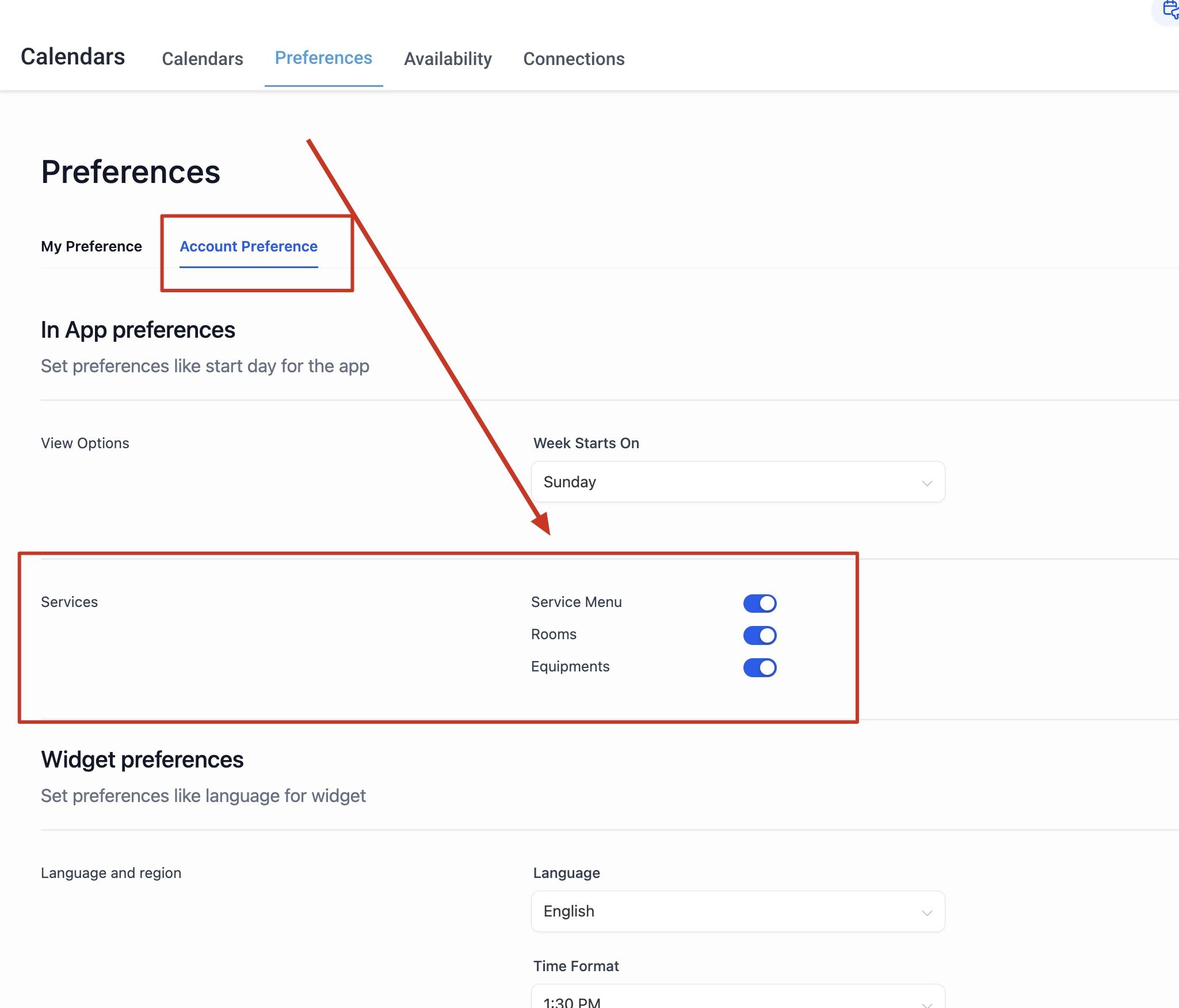
Only account admins can access this setting. If you don't see it, check with whoever manages your Aesthetix CRM account.
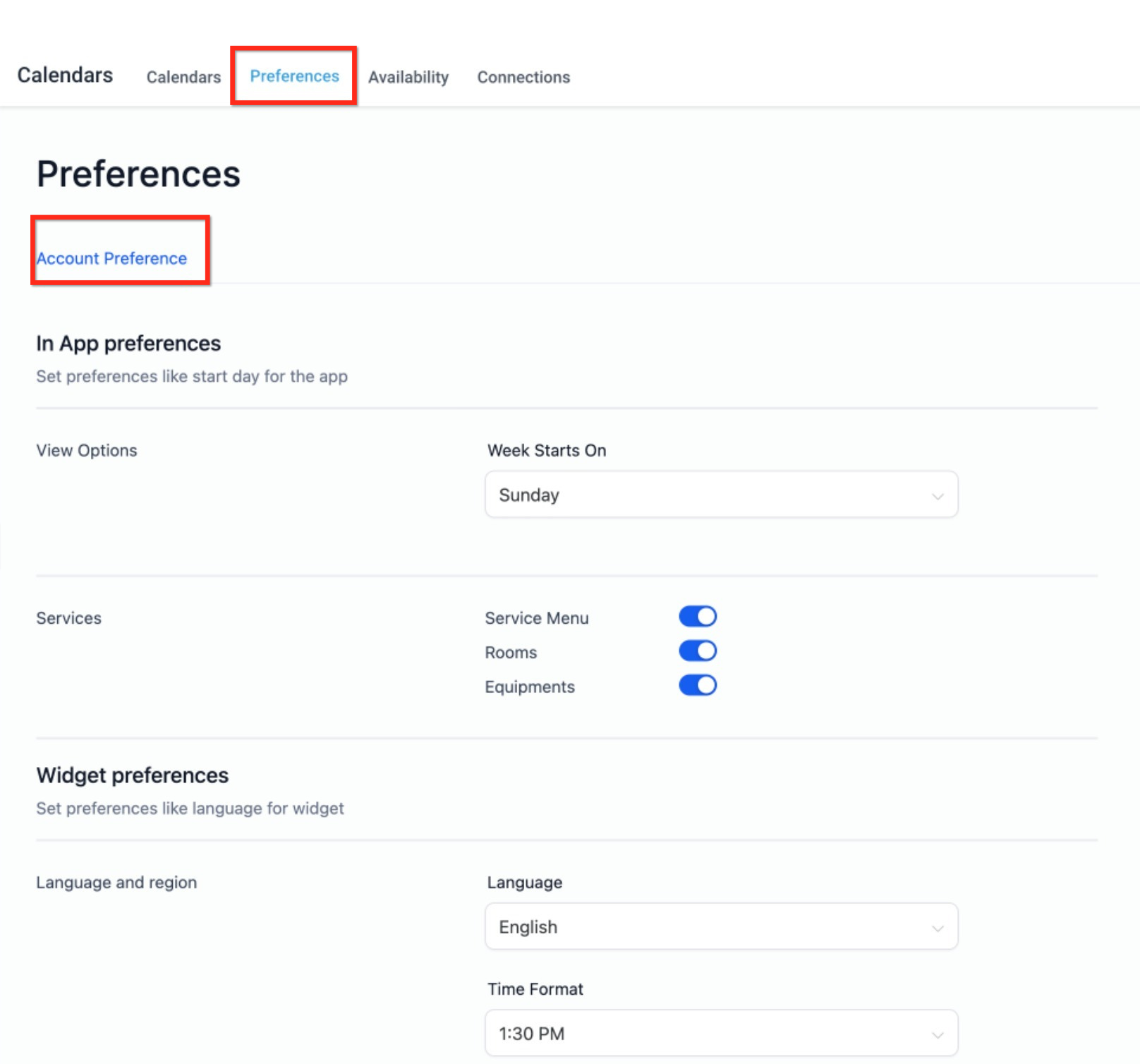
Once enabled, additional options such as service menus, rooms, and equipment become available whenever you create or edit a calendar.
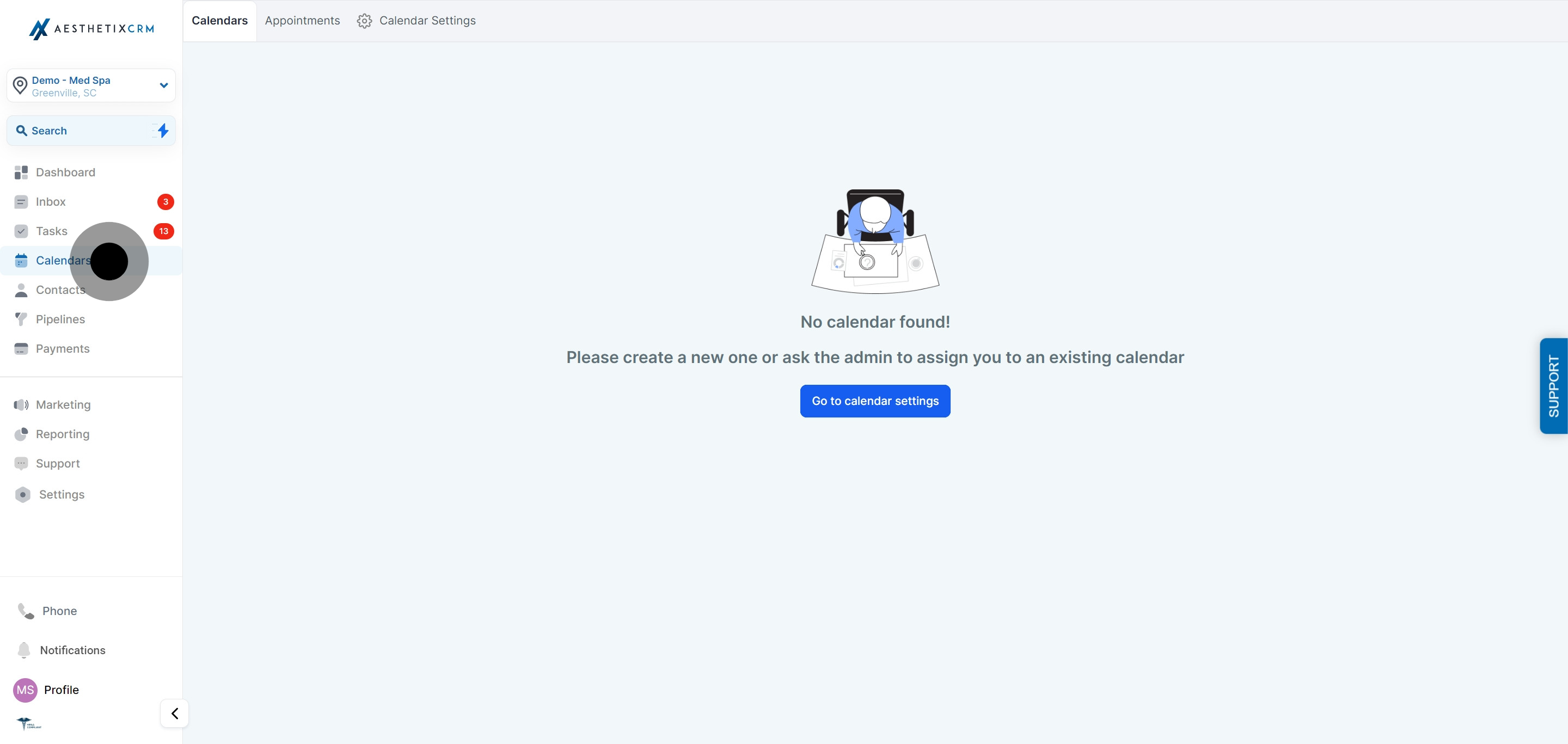
From the left menu, click Calendar.
Go to Calendar Settings.
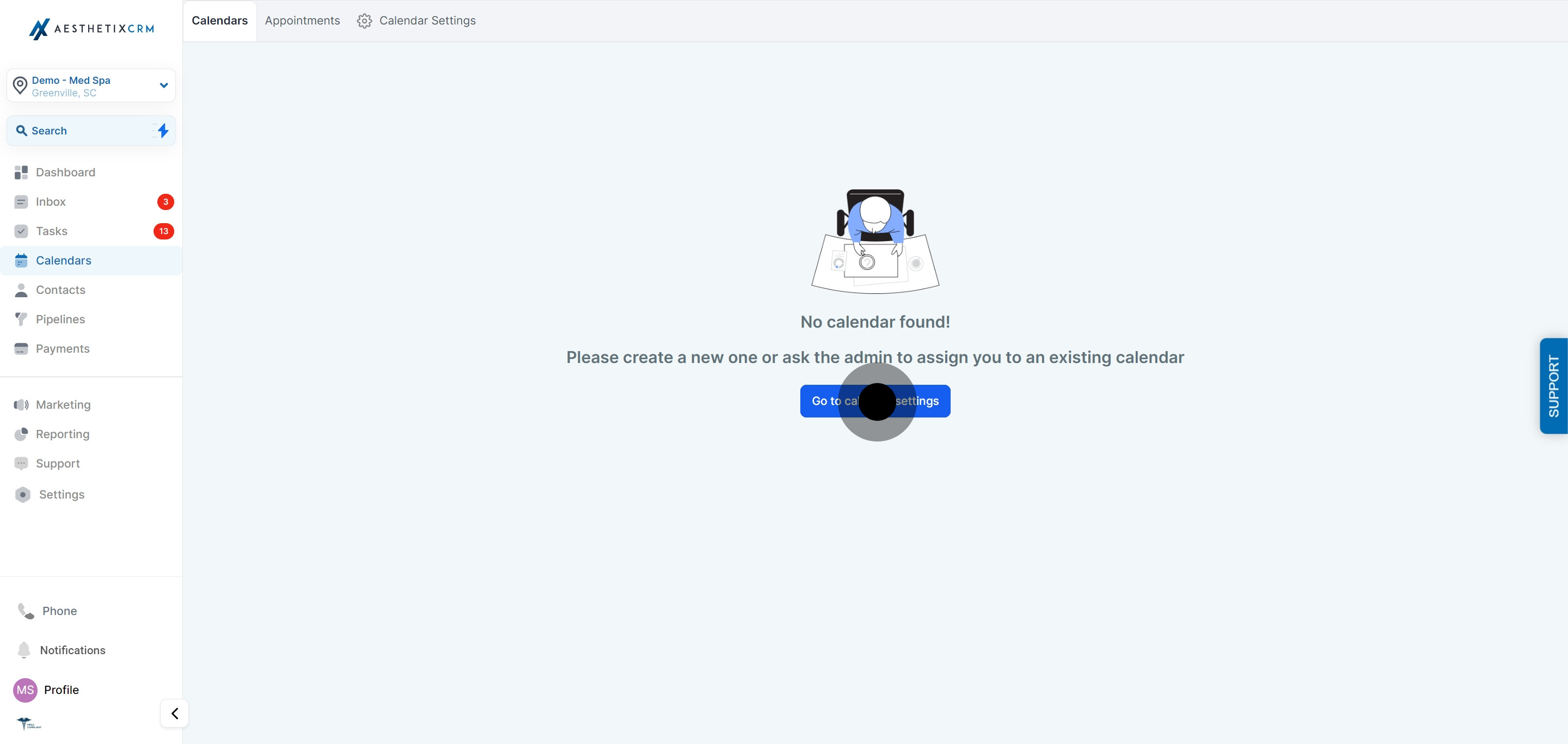
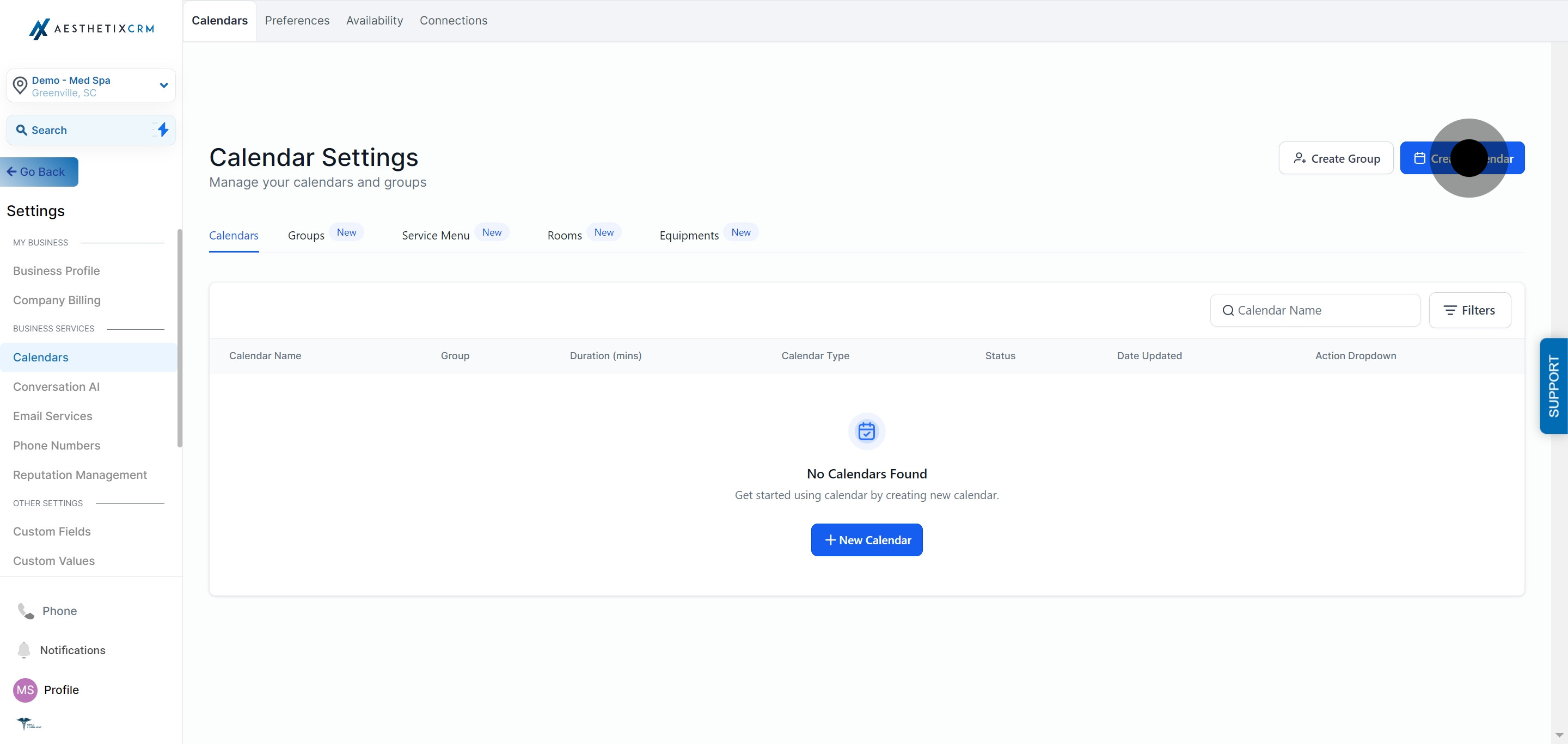
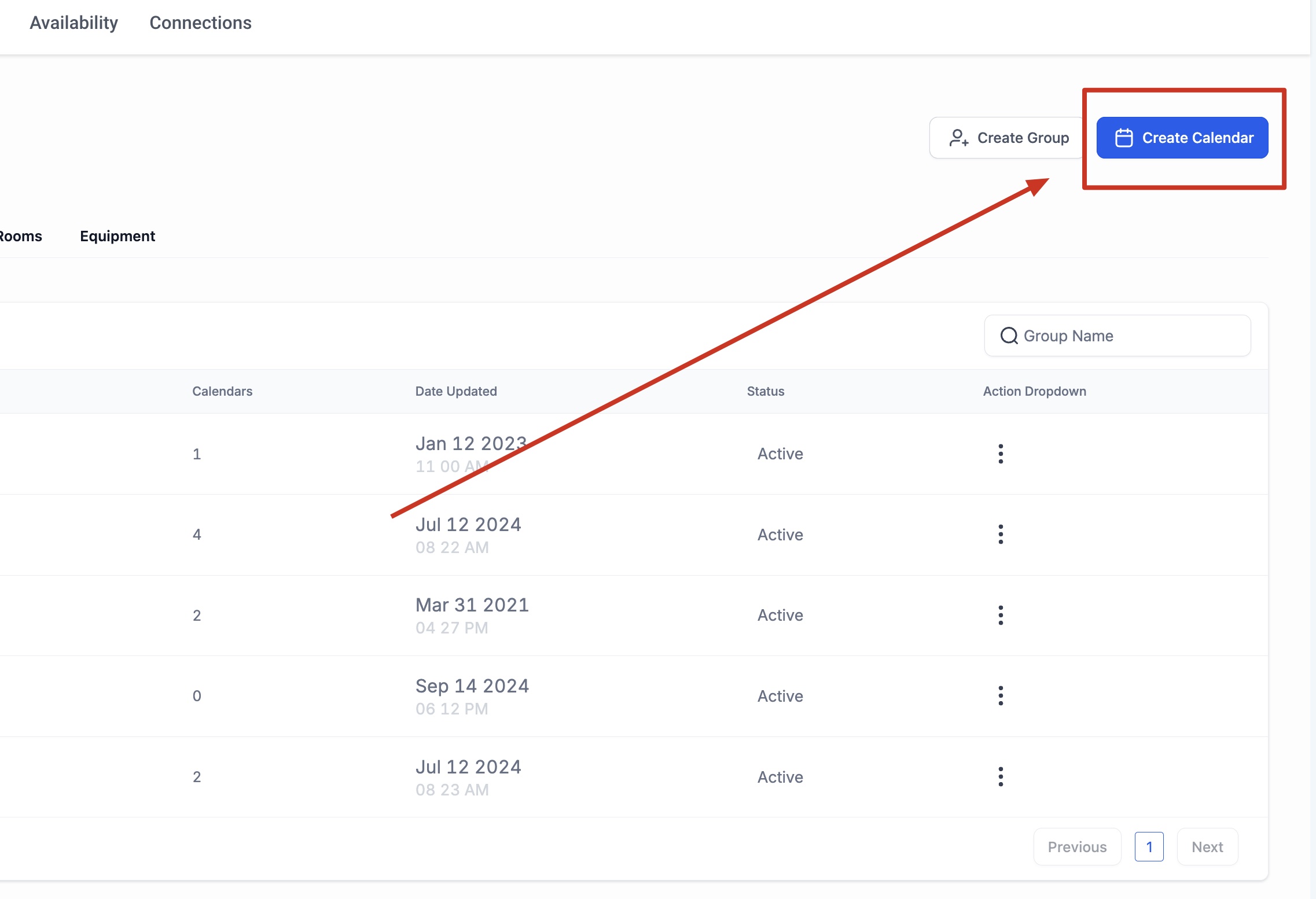
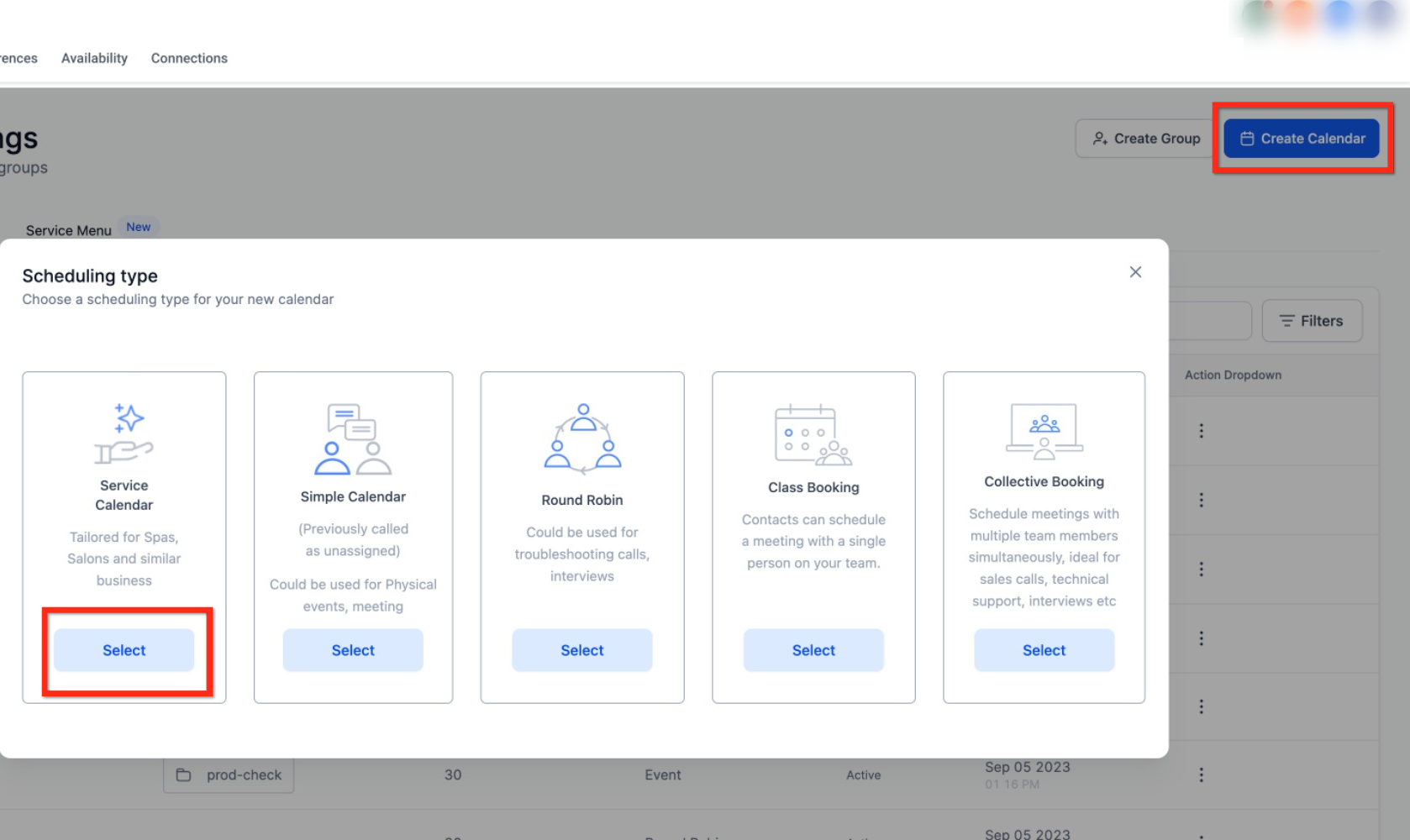
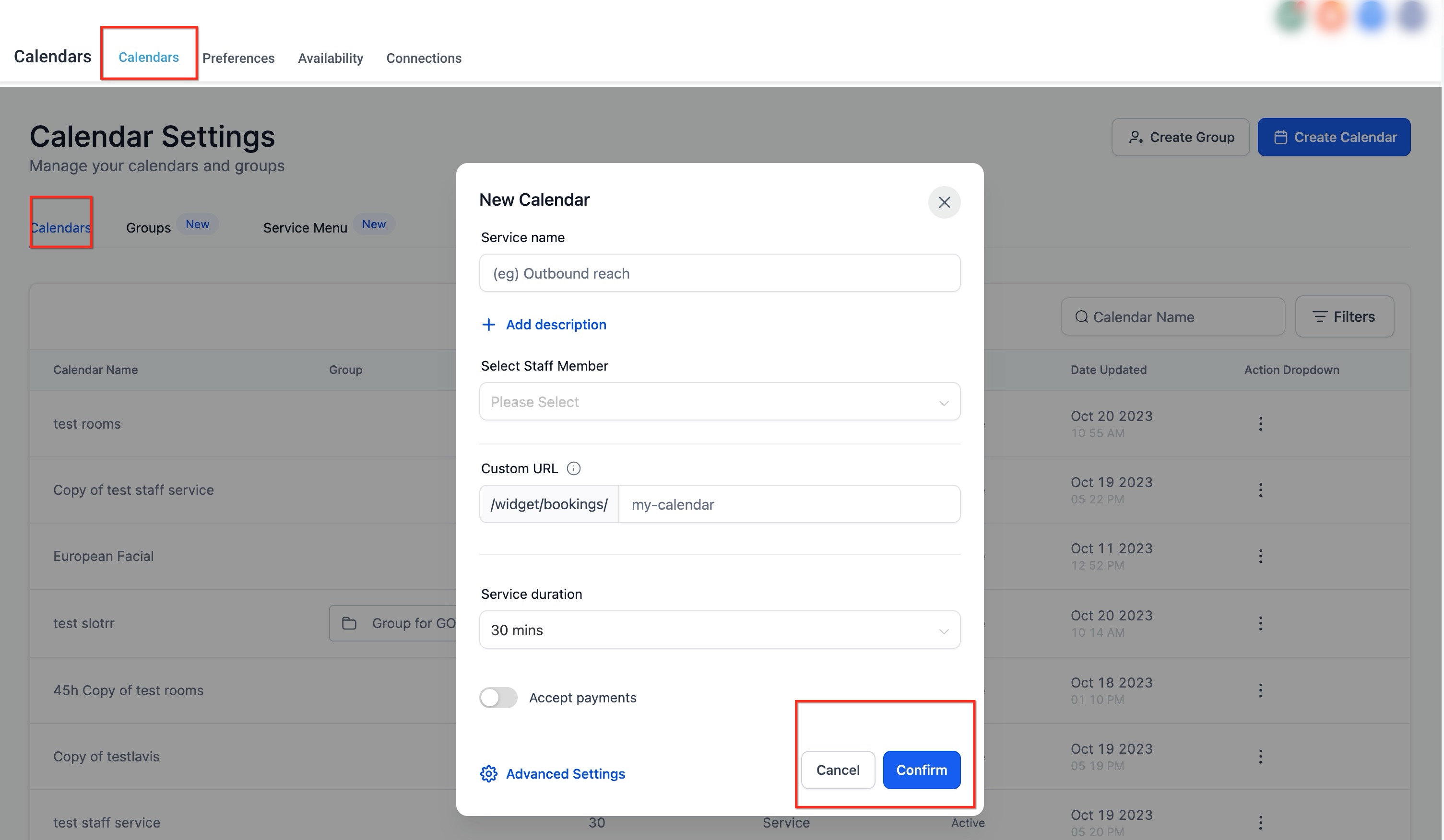
Click Create Calendar.
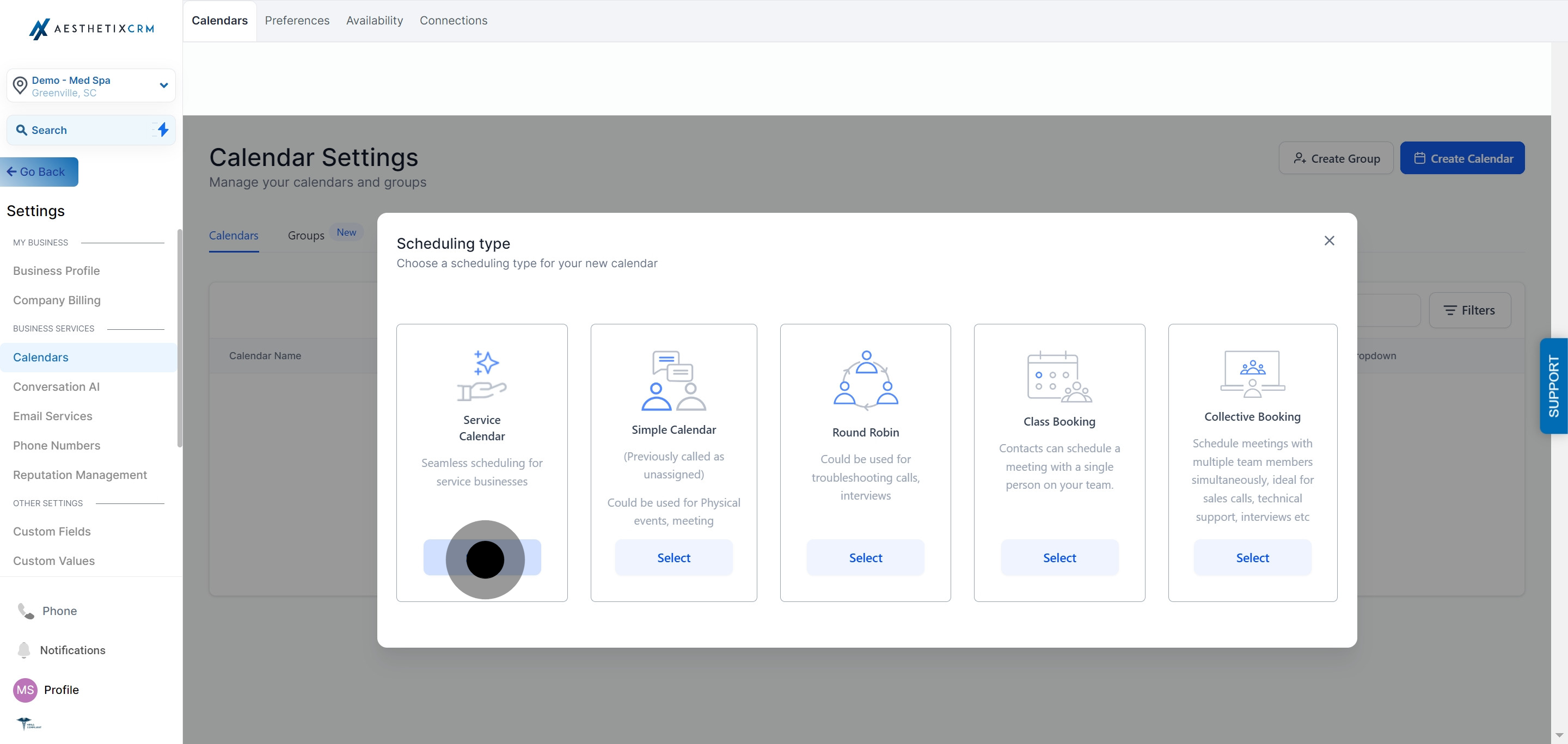
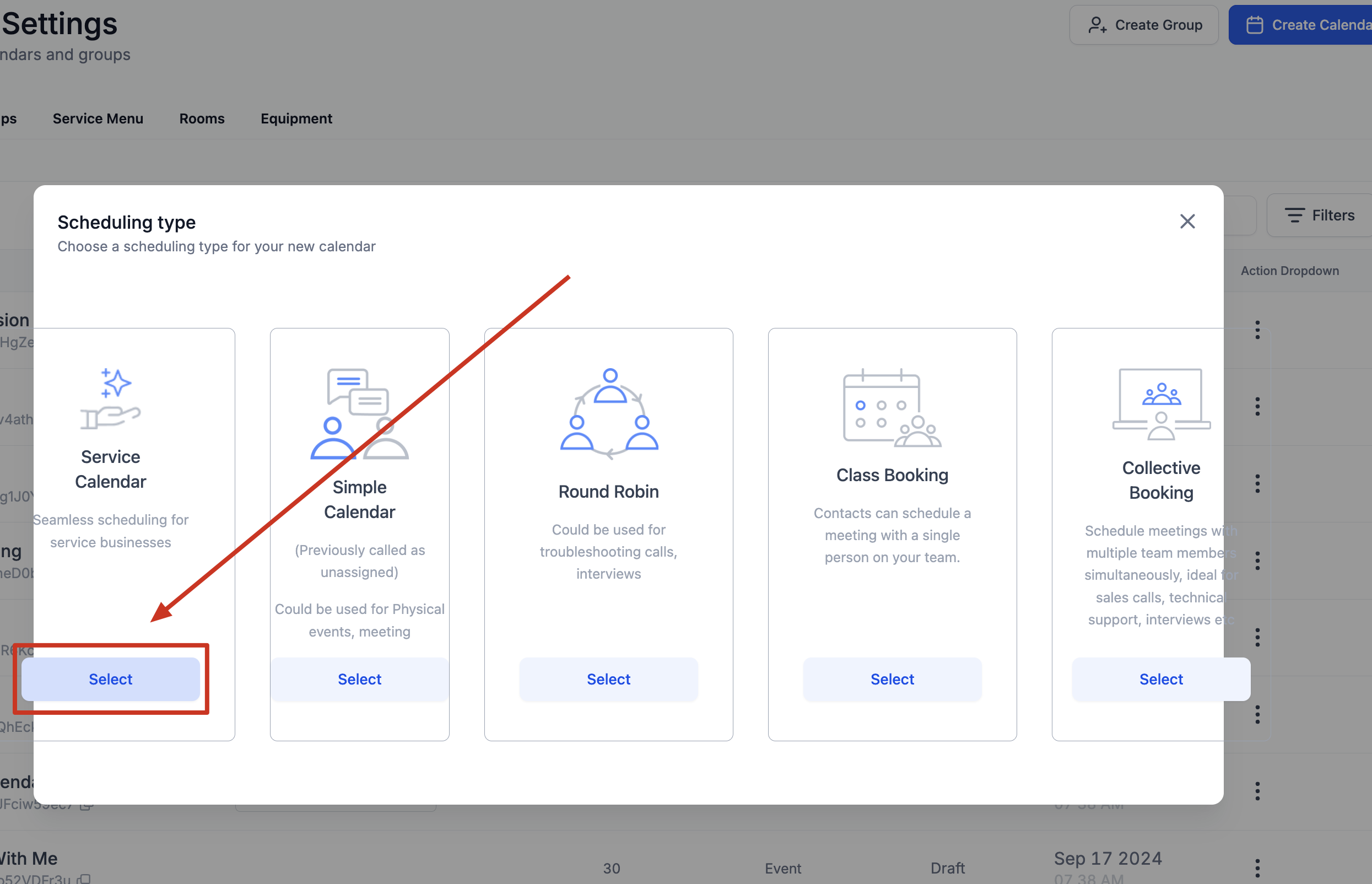
Choose Service Calendar from the list of calendar types.
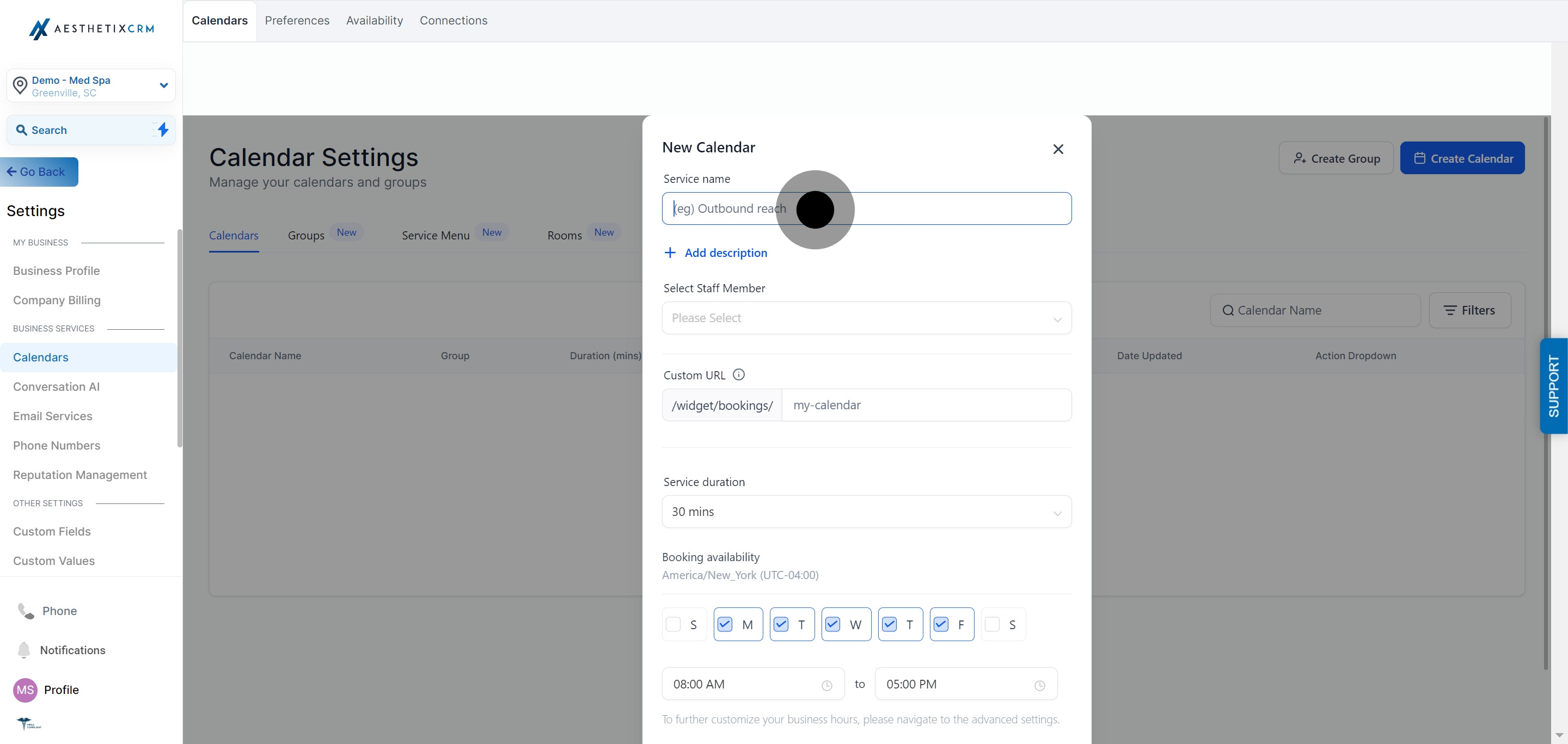
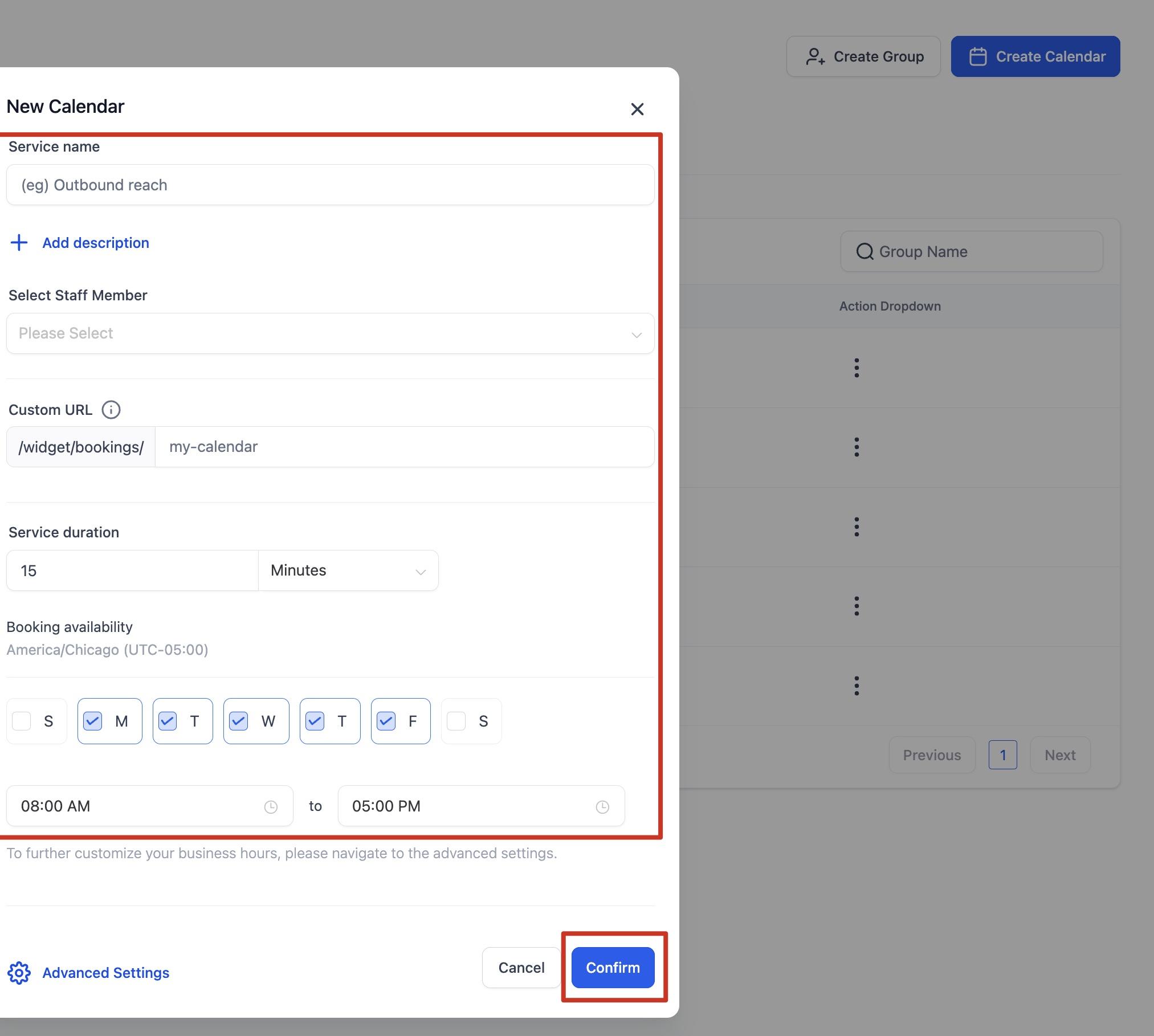
Enter a Service Name patients will recognize, such as "Botox Consult" or "HydraFacial, 60 min."
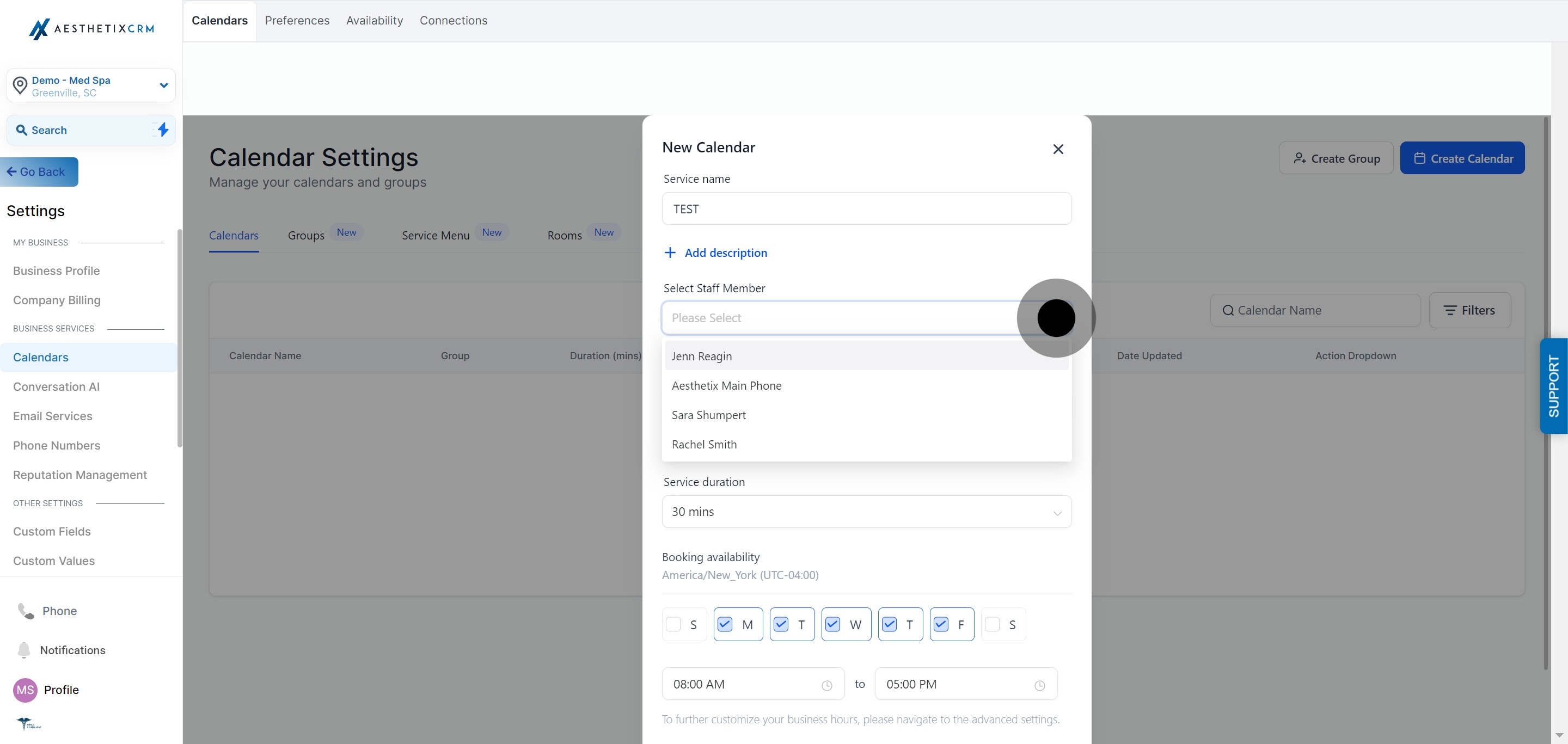
Assign the Staff Member who performs this treatment.
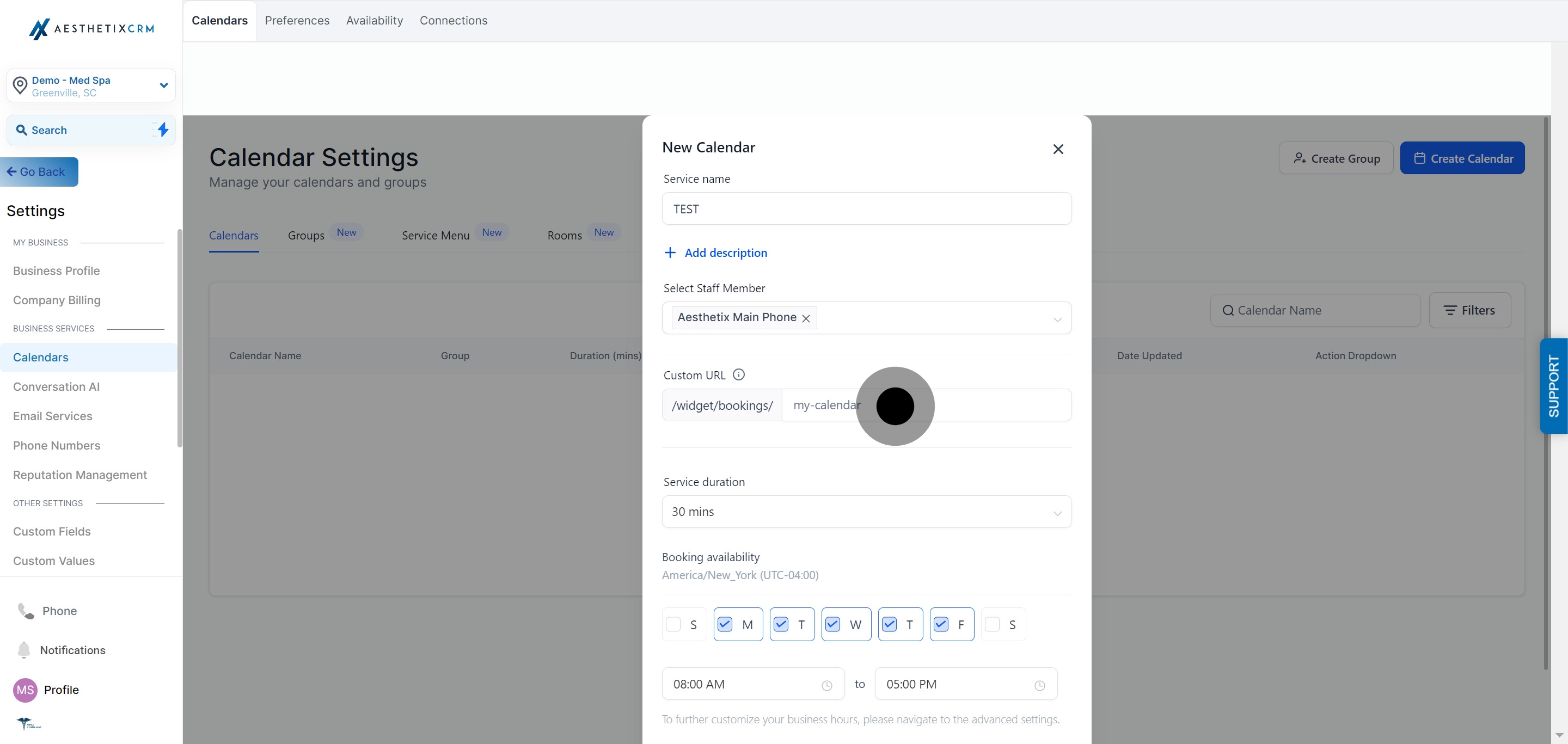
Set the custom URL/slug patients will use to book this specific service.
Enter the Service Duration.
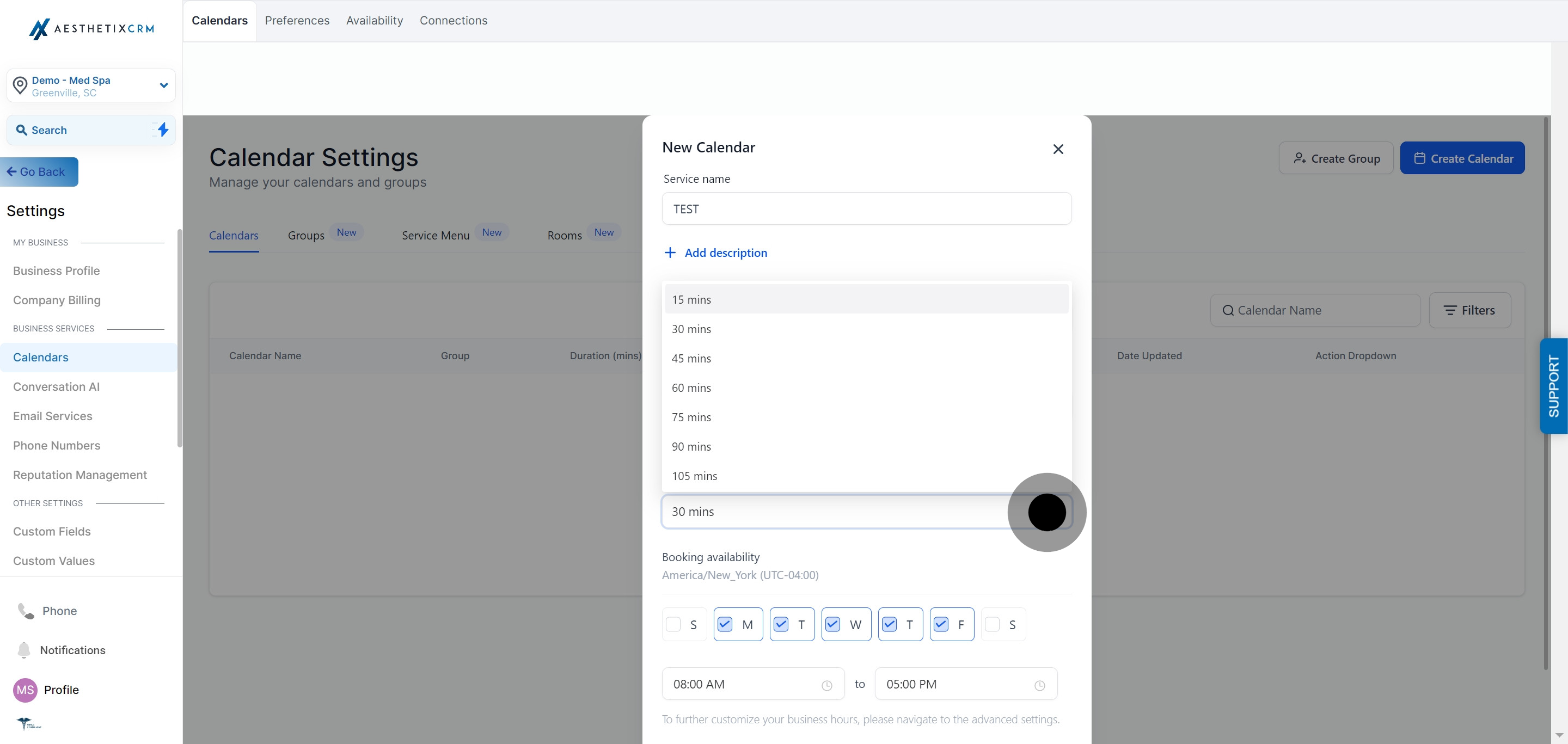
Turn on Booking Availability.
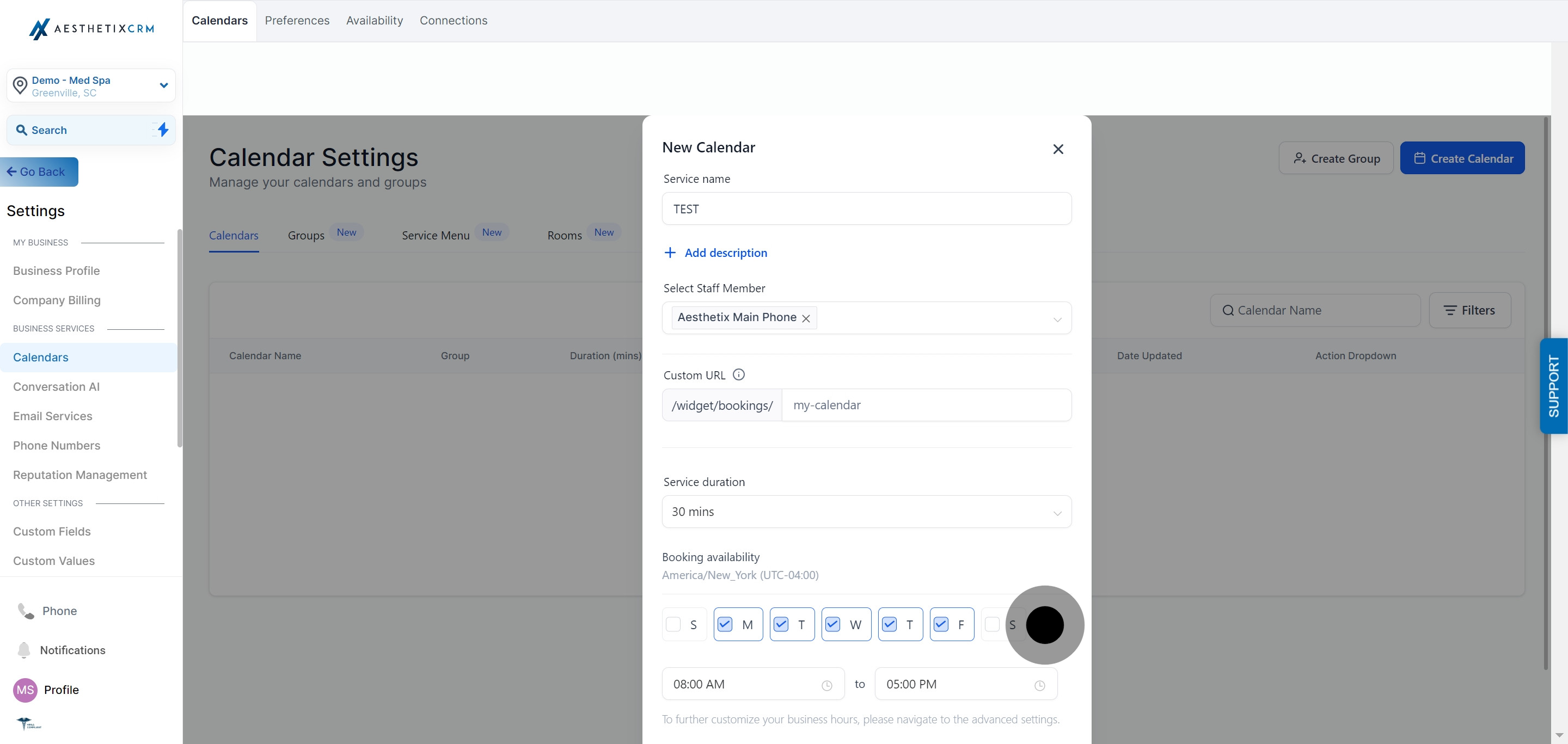
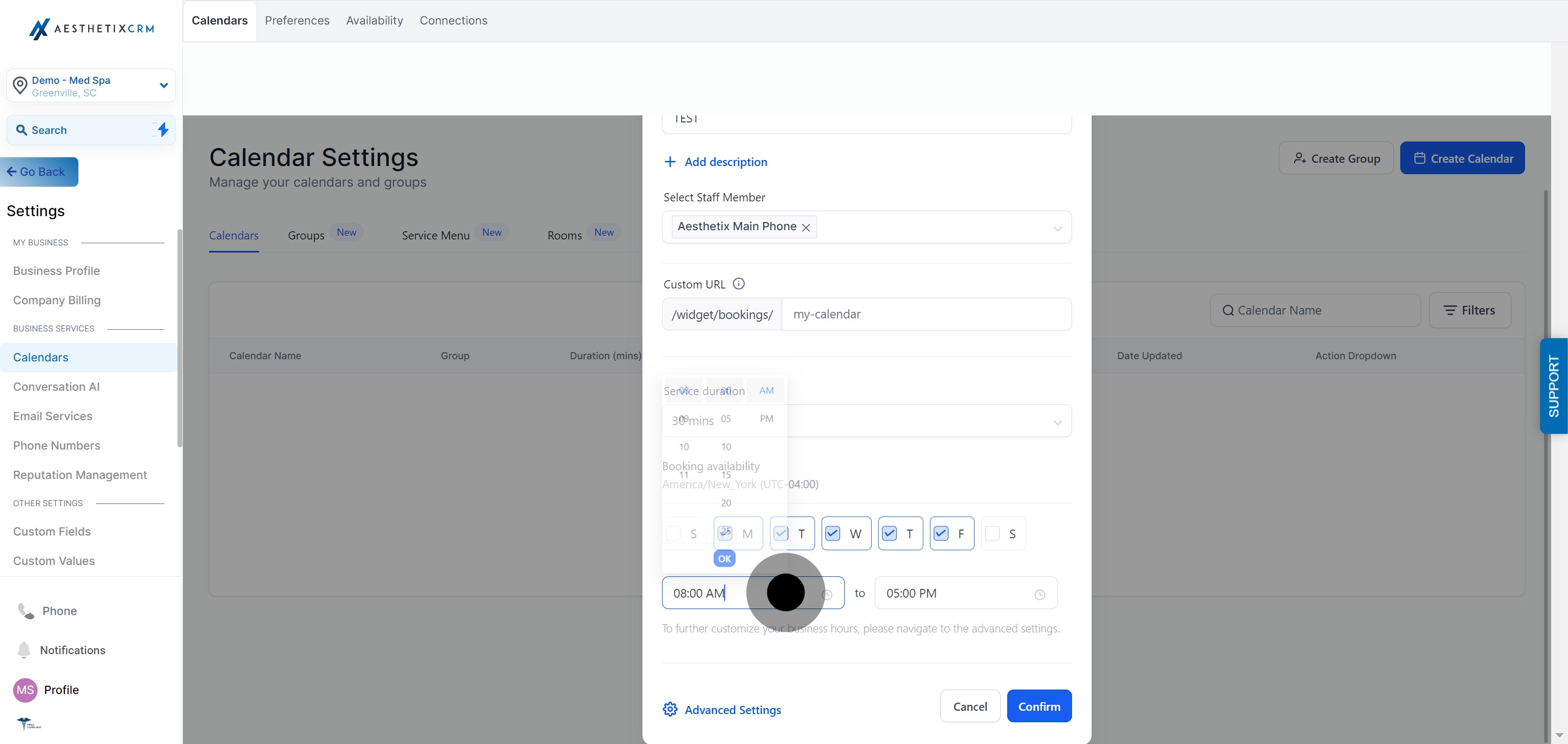
Enter the start time for availability.
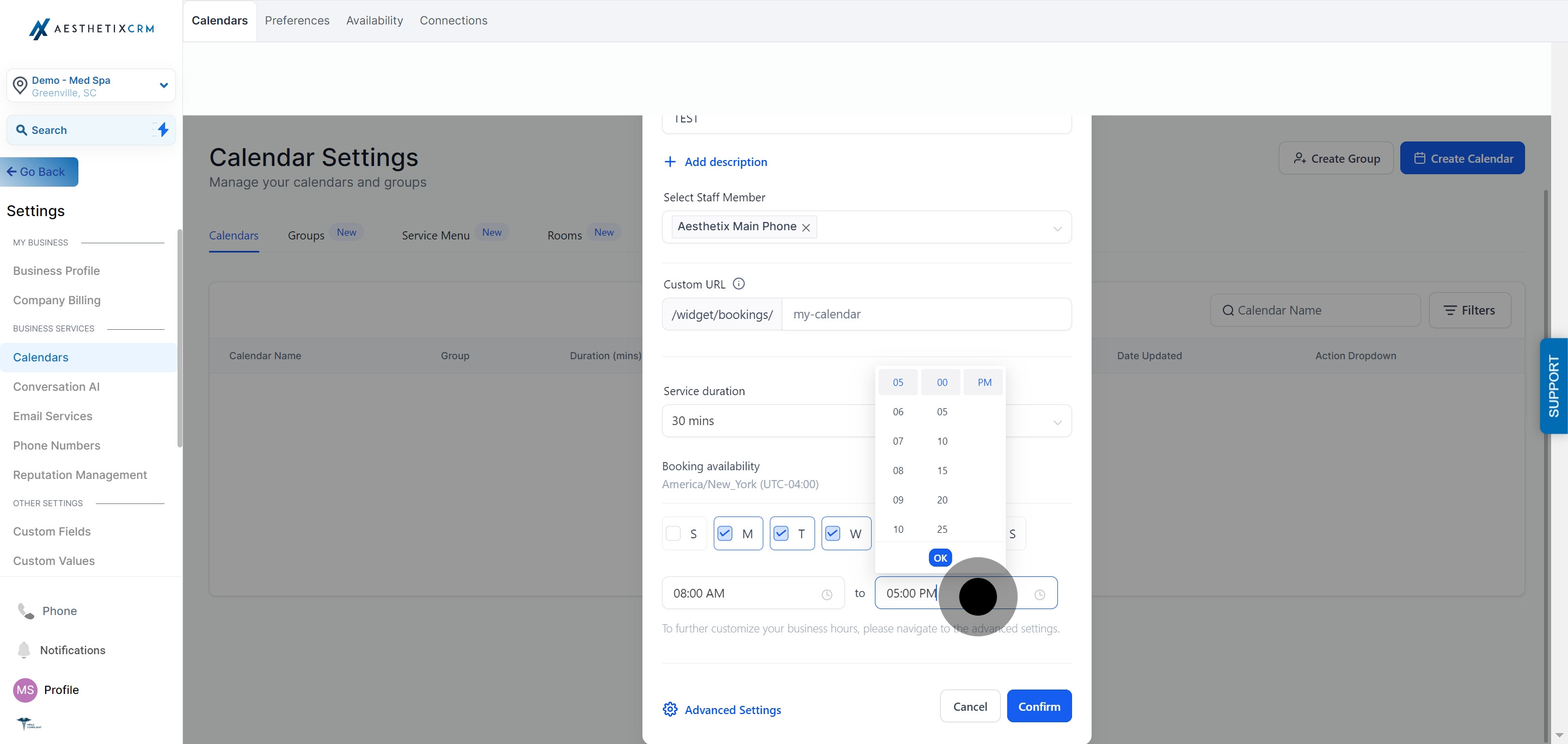
Enter the end time for availability.
Click Confirm (or Save) to finish.
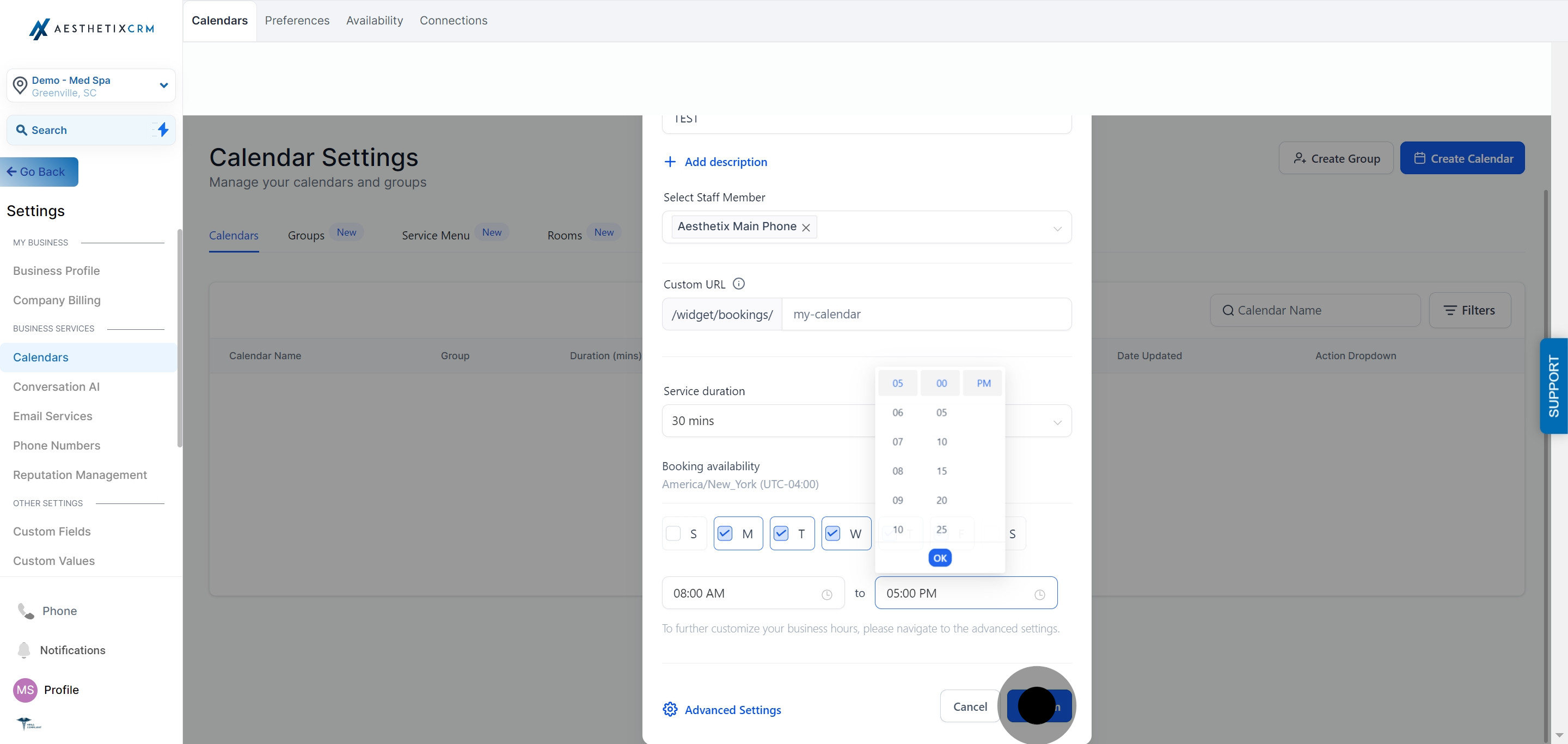
That's enough to get a bookable Service Calendar live. The sections below cover the settings you'll want to fine-tune for a real med spa workflow: staff and locations, availability rules, forms, payments, notifications, and rooms/equipment.
Each Service Calendar represents one treatment. Here you define the service name, description, booking link, assigned staff, and duration, all of which patients see when they browse or book.
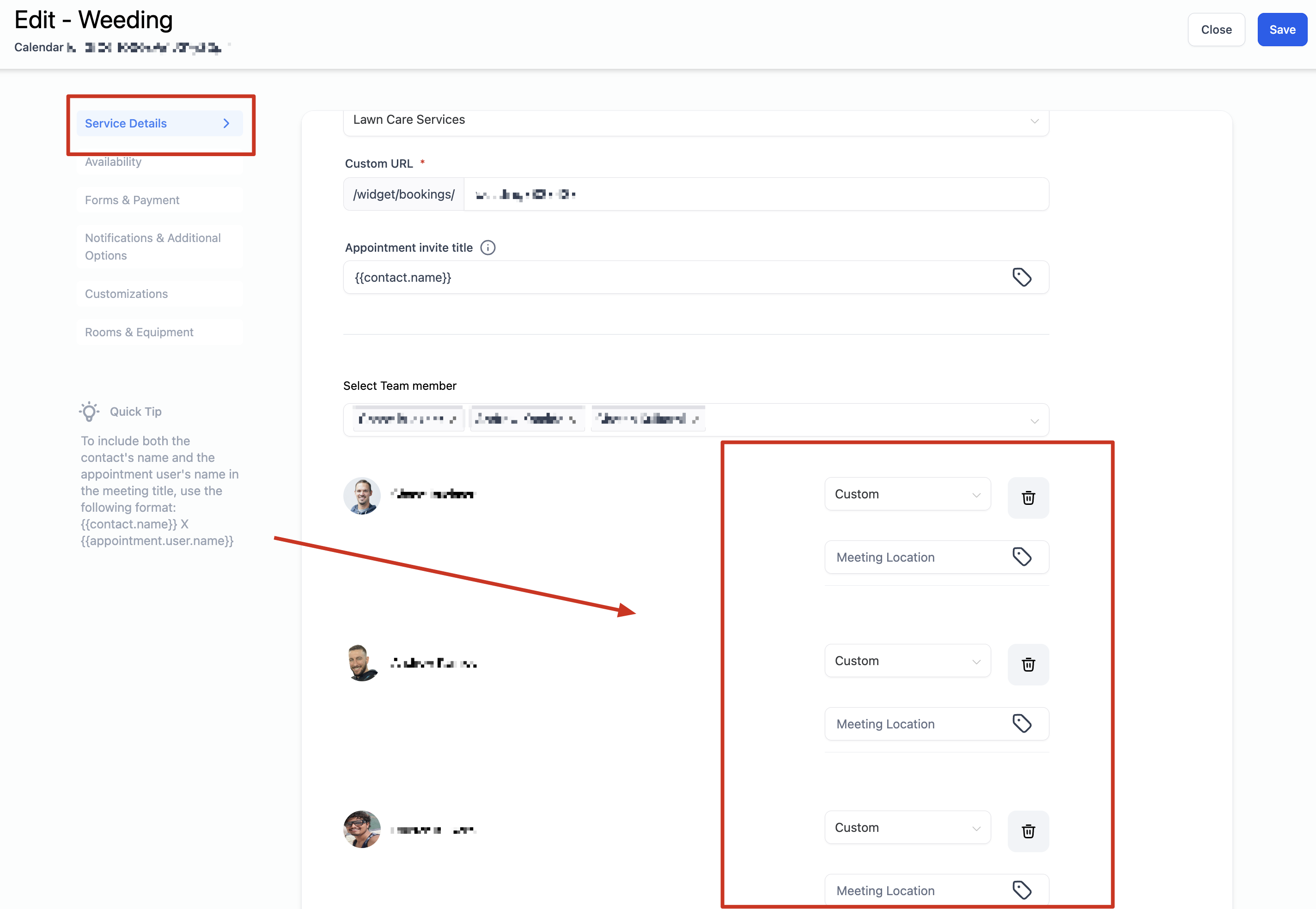
Meeting Location (set per staff member from Advanced Settings):
Location type | Behavior |
|---|---|
Phone | Defaults to your practice's phone number; editable per staff member. |
Address | Defaults to your practice's business address; editable if a treatment happens at a different location. |
Custom | Free text: a room name, a note for patients, or a static video link. |
Zoom | Generates a unique Zoom link automatically if Zoom is connected under My Profile > Calendar Settings > Video Conferencing. |
Google Meet | Generates a unique Google Meet link automatically if Google Calendar is connected as the linked calendar. |
Calendar connections for Google, Outlook, iCloud, Zoom, and Calendly are managed separately under Calendars > Connections. Set those up first if you want dynamic video links to populate here.
Finish the core setup with your URL/slug, duration, and availability:
Service Logo: shown on the booking widget for this individual service calendar.
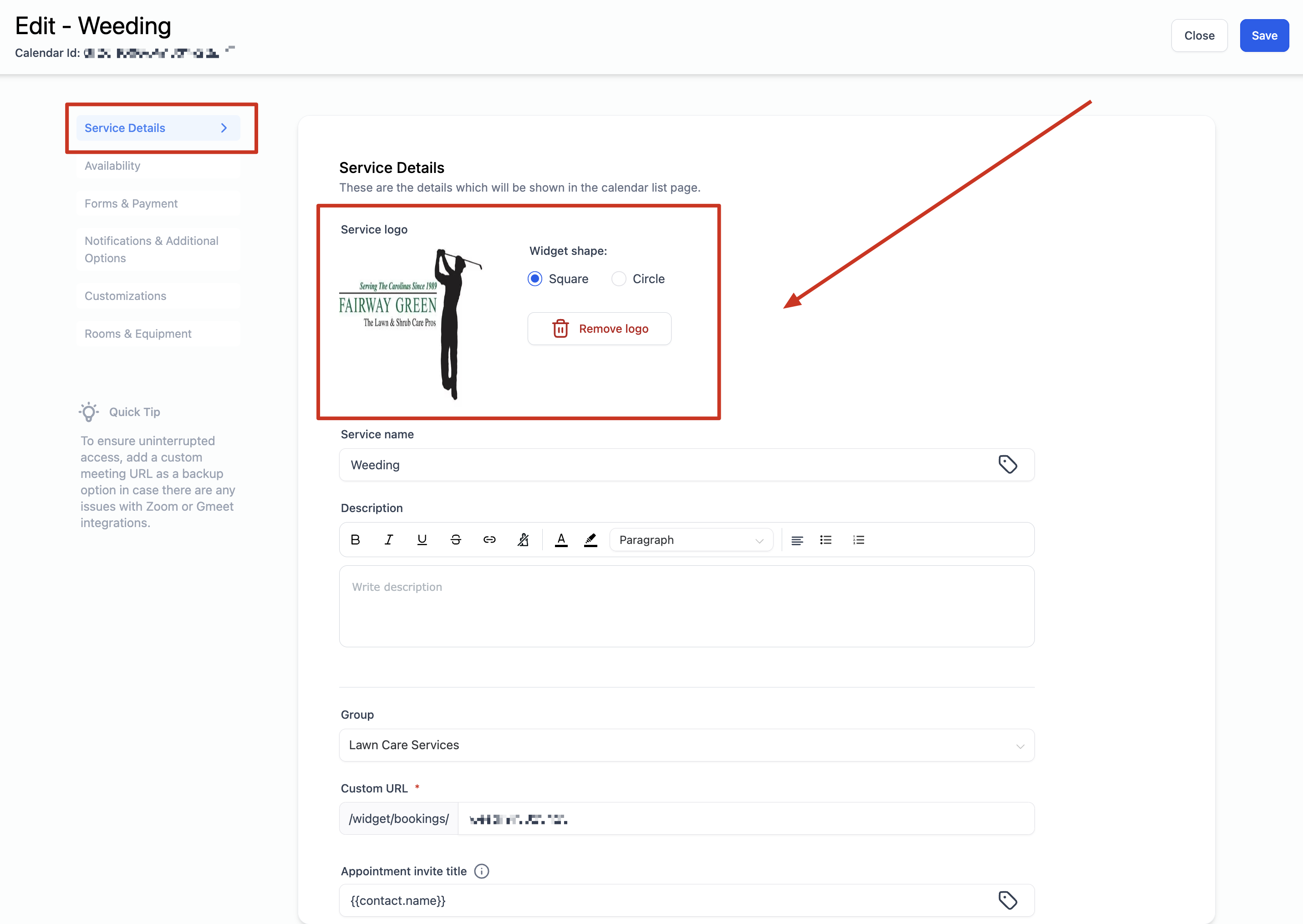
If you're grouping treatments into a Service Menu, use a Service Cover Image instead. The logo only shows on a single service calendar's own widget, not a grouped menu.
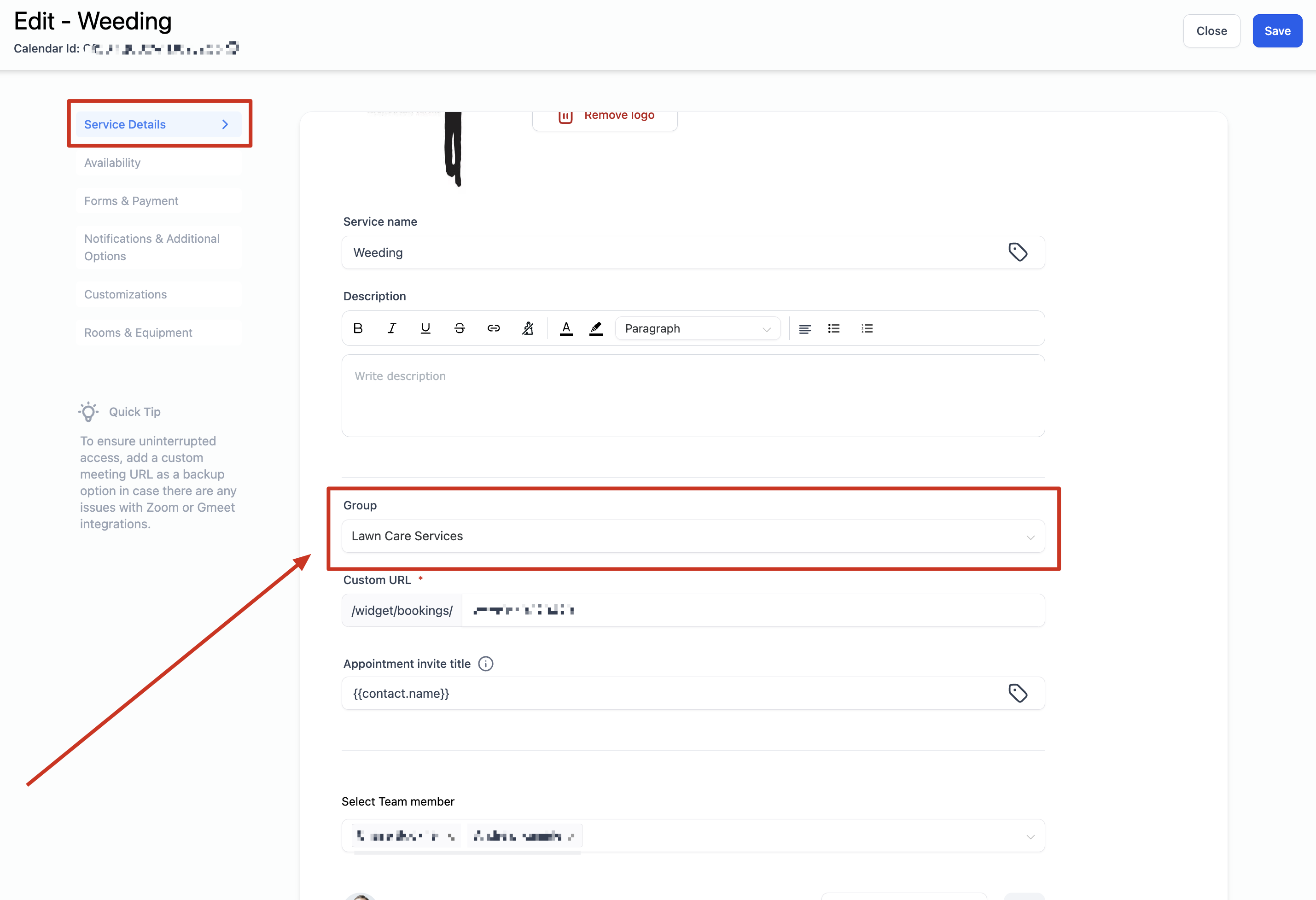
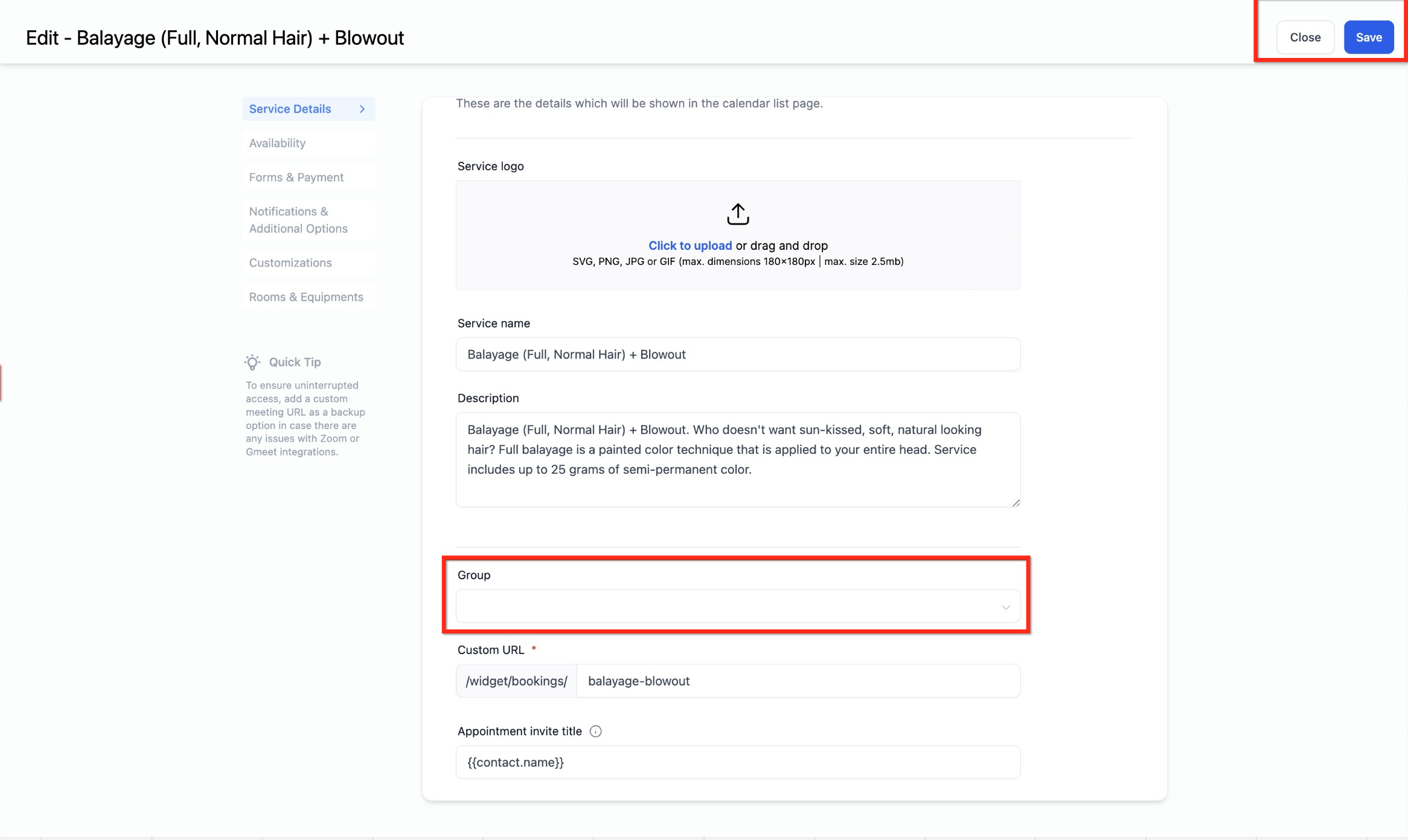
Link to Service Menu: if this treatment should appear alongside others on one shared booking page, assign it to a group. Think of a group as a category, for example "Injectables," with "Botox," "Filler," and "Dysport" assigned underneath it. A Service Calendar can belong to a group and still be booked on its own.
Appointment Invite Title: the title patients see on the calendar event in Google Calendar, Outlook, or Apple Calendar.
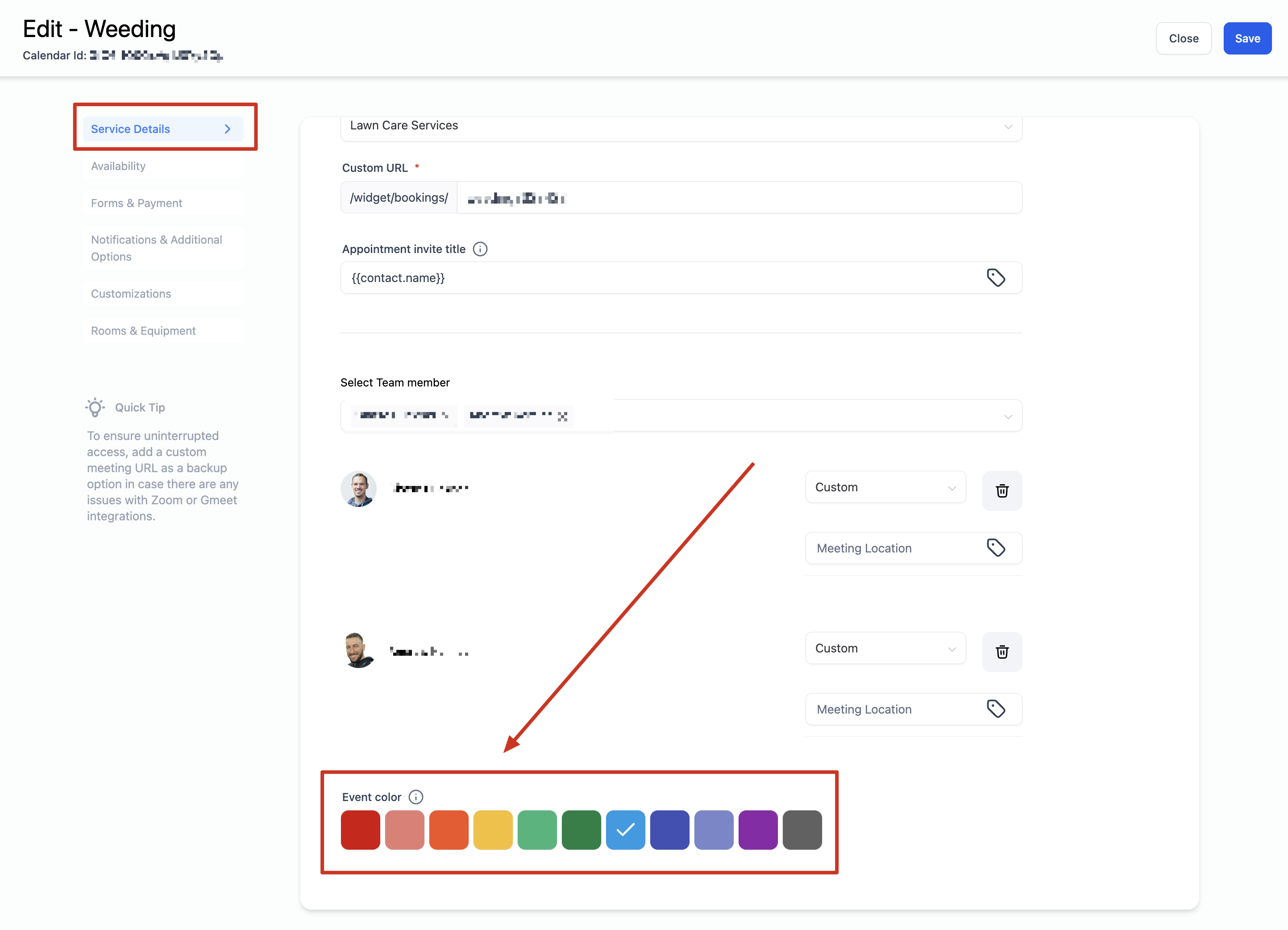
Event Color: used inside Aesthetix CRM only and does not sync to the event color in Google Calendar.
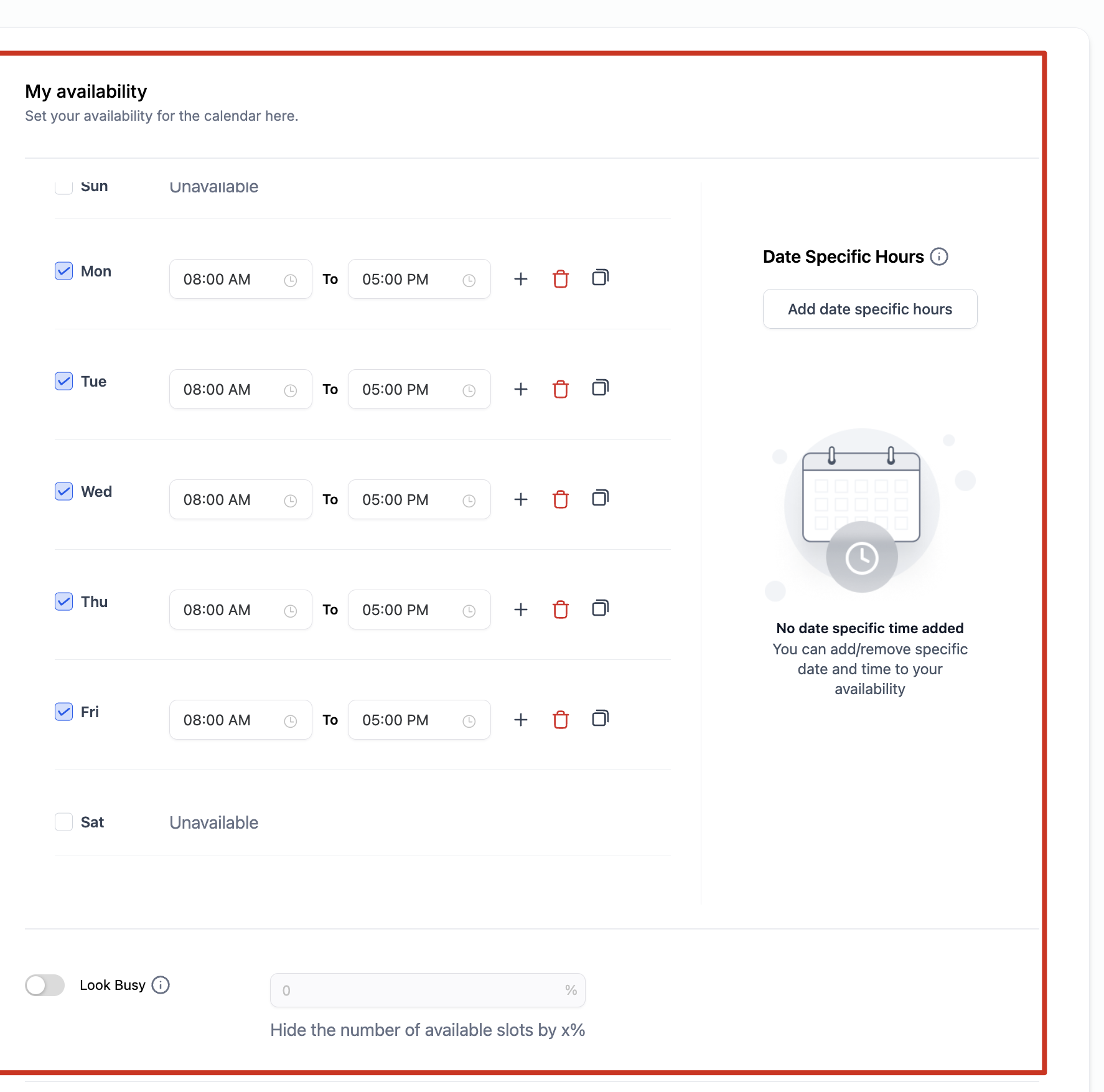
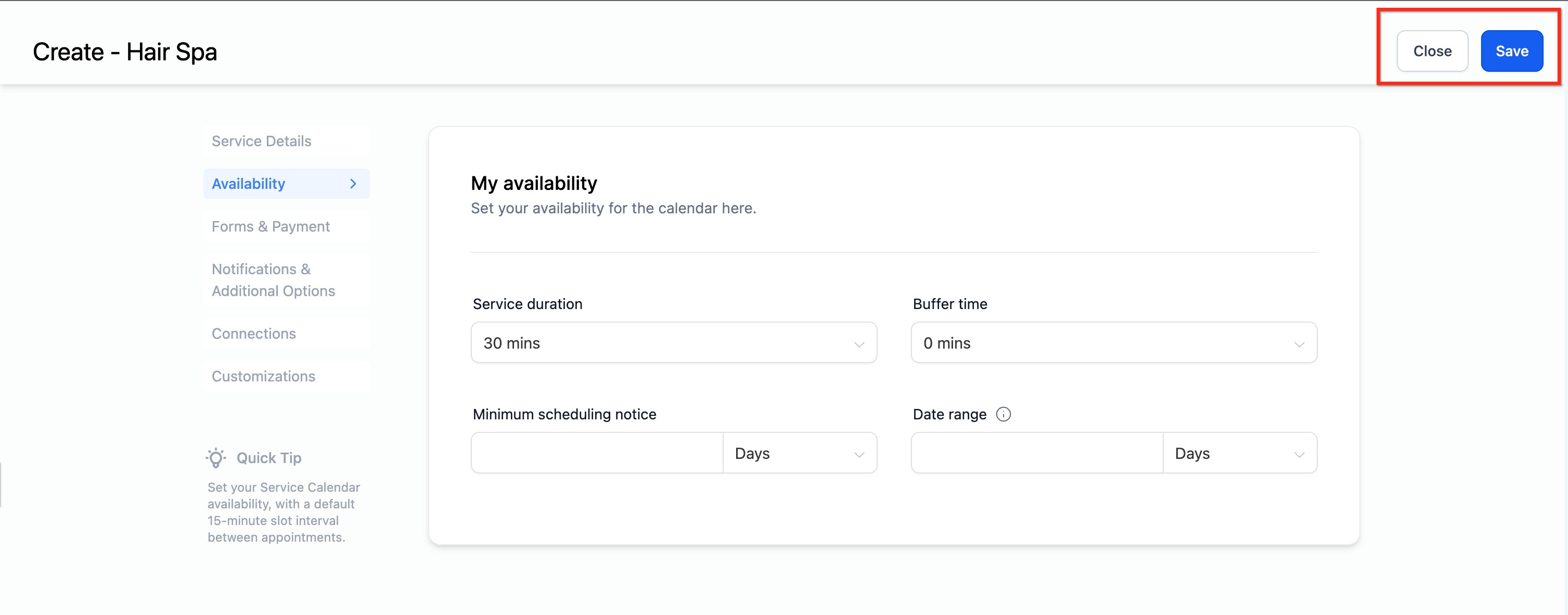
Availability on a Service Calendar is entirely driven by the assigned staff member's schedule. There's no separate calendar-level availability to configure: if a staff member is unavailable, the calendar reflects that automatically.
Weekly Working Hours: your default schedule that repeats every week.
Date Specific Hours: overrides for individual dates, useful for holiday hours or a provider's day off.
Service Duration: length of the appointment.
Service Interval: spacing between available booking slots.
Post Buffer Time: extra time after the appointment for room turnover or charting.
Minimum Scheduling Notice: how far in advance a patient must book.
Date Range: how far into the future the calendar accepts bookings.
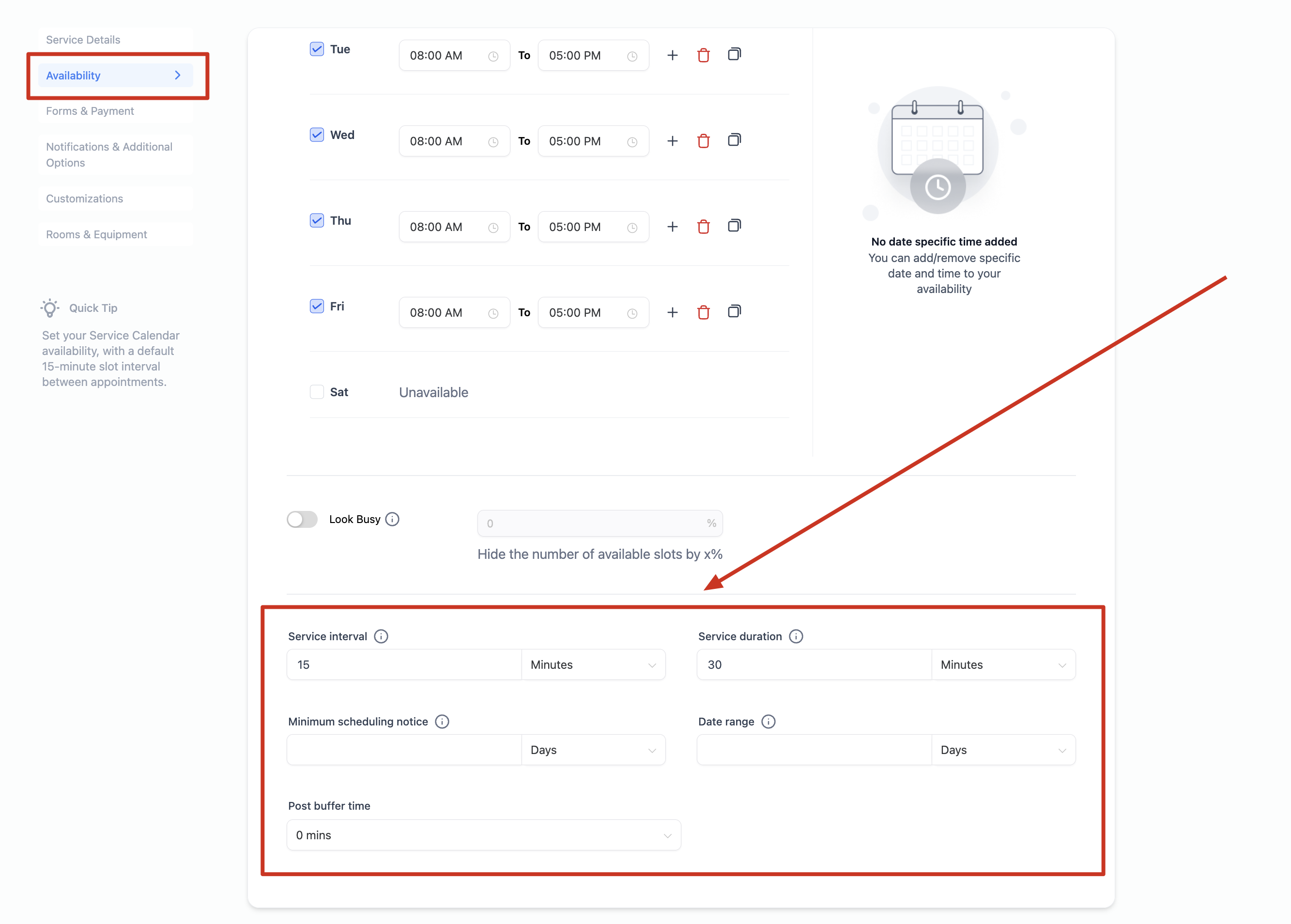
Use post-buffer time to give your staff room to prep between treatments, and adjust the account-wide Service Interval in Global Settings if you want booking slots spaced further apart or closer together.
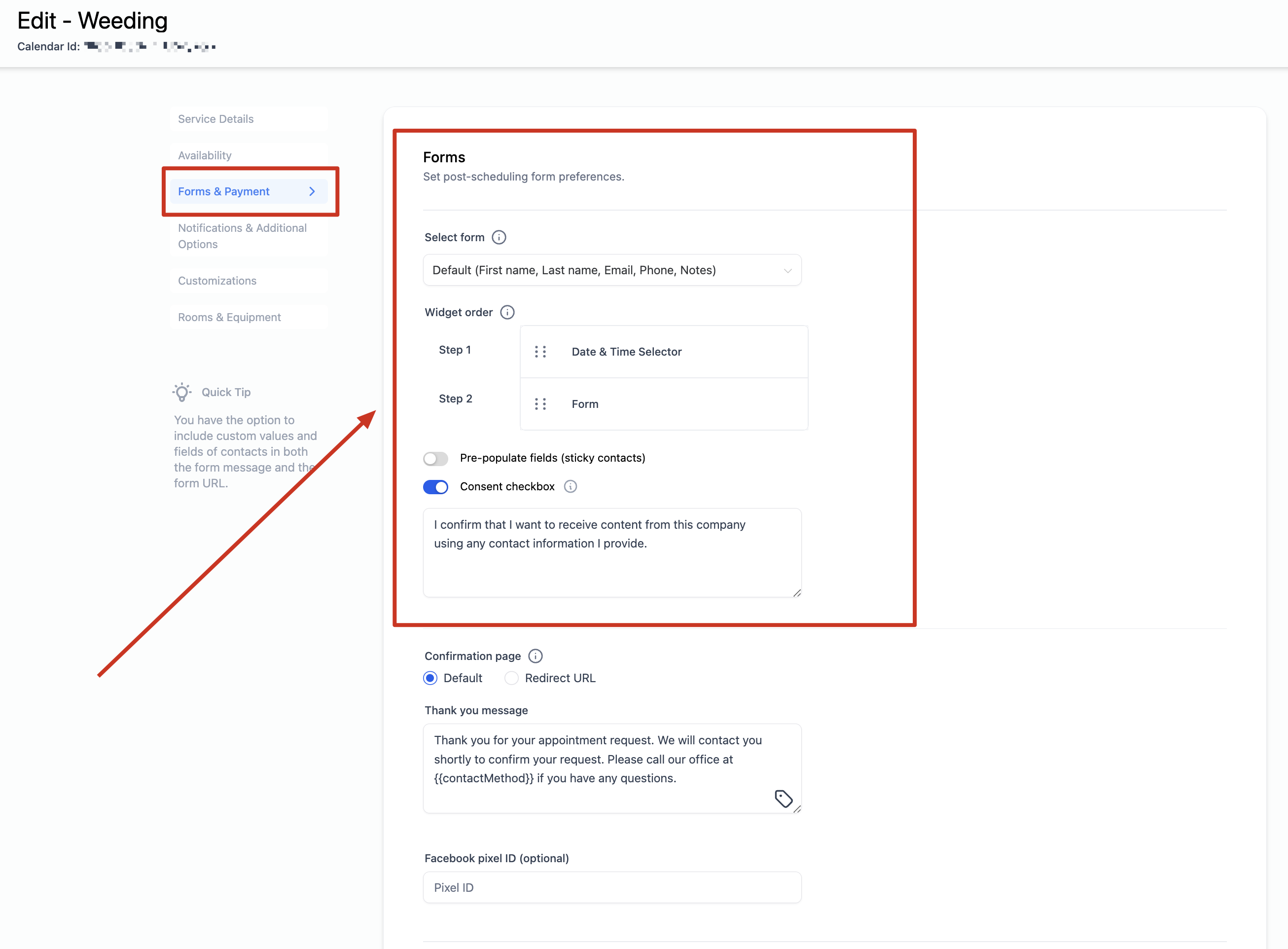
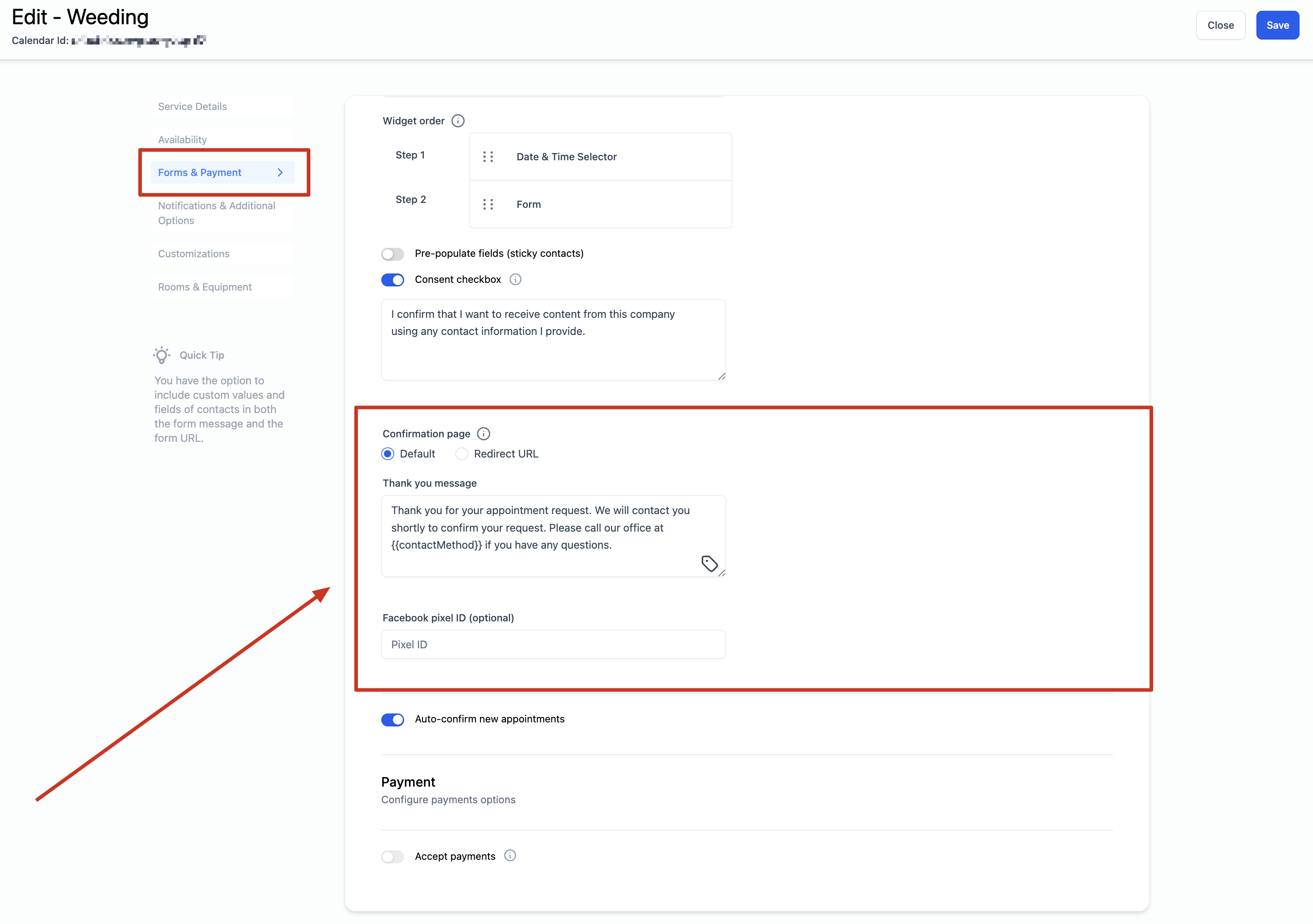
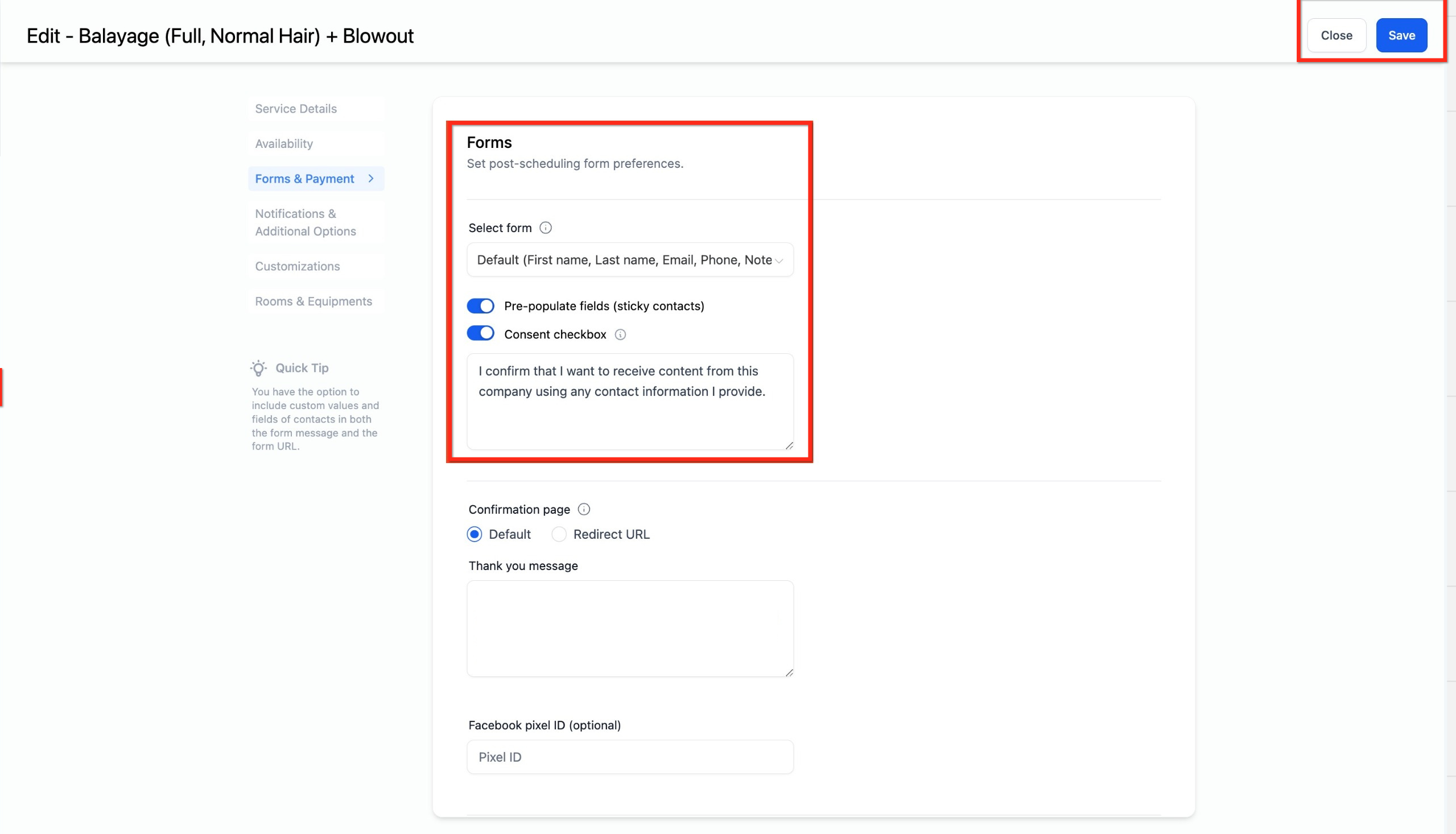
Forms: use the default intake form (name, email, phone) or build a custom one in Funnels/Websites > Forms and select it from the dropdown. Custom forms only apply to direct bookings on this Service Calendar; bookings made through a Service Menu always use the default form. You can also toggle the consent checkbox and customize its message.
Booking forms that collect patient information (name, contact details, treatment consent) carry PHI. Keep consent language accurate for what you're actually collecting, and make sure only staff who need it can view submitted form responses.
Confirmation Page: show a thank-you message after booking, or redirect to a URL of your choice.
Payments: connect a payment provider to collect a deposit or full payment at the time of booking. Payment only applies to the main attendee, not any guests added to the appointment.
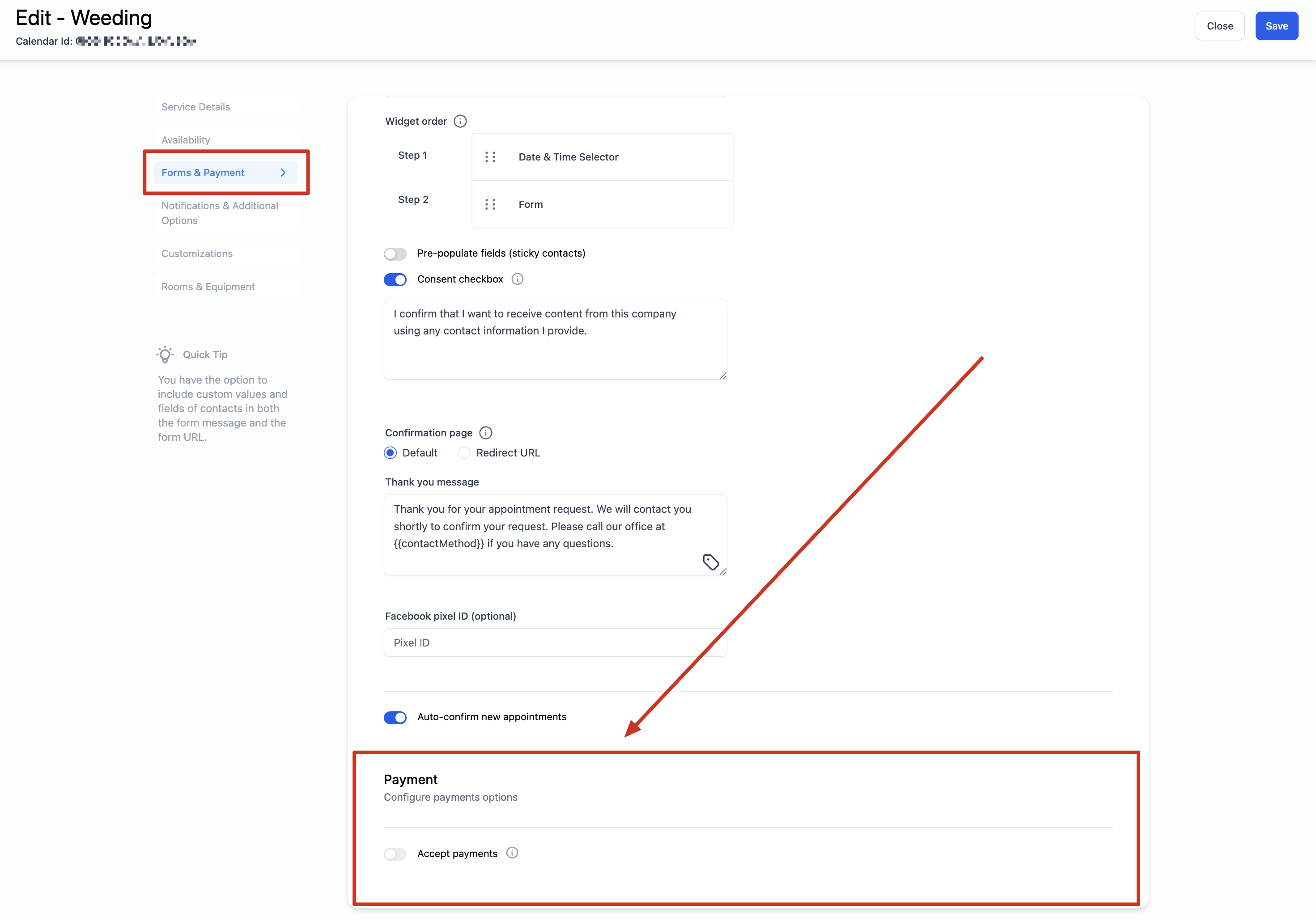
Before connecting a payment provider for treatment bookings, consider AX Pay, Aesthetix CRM's own payment processor. AX Pay offers better rates than Stripe with no extra integration steps. See the AX Pay help article for setup details.
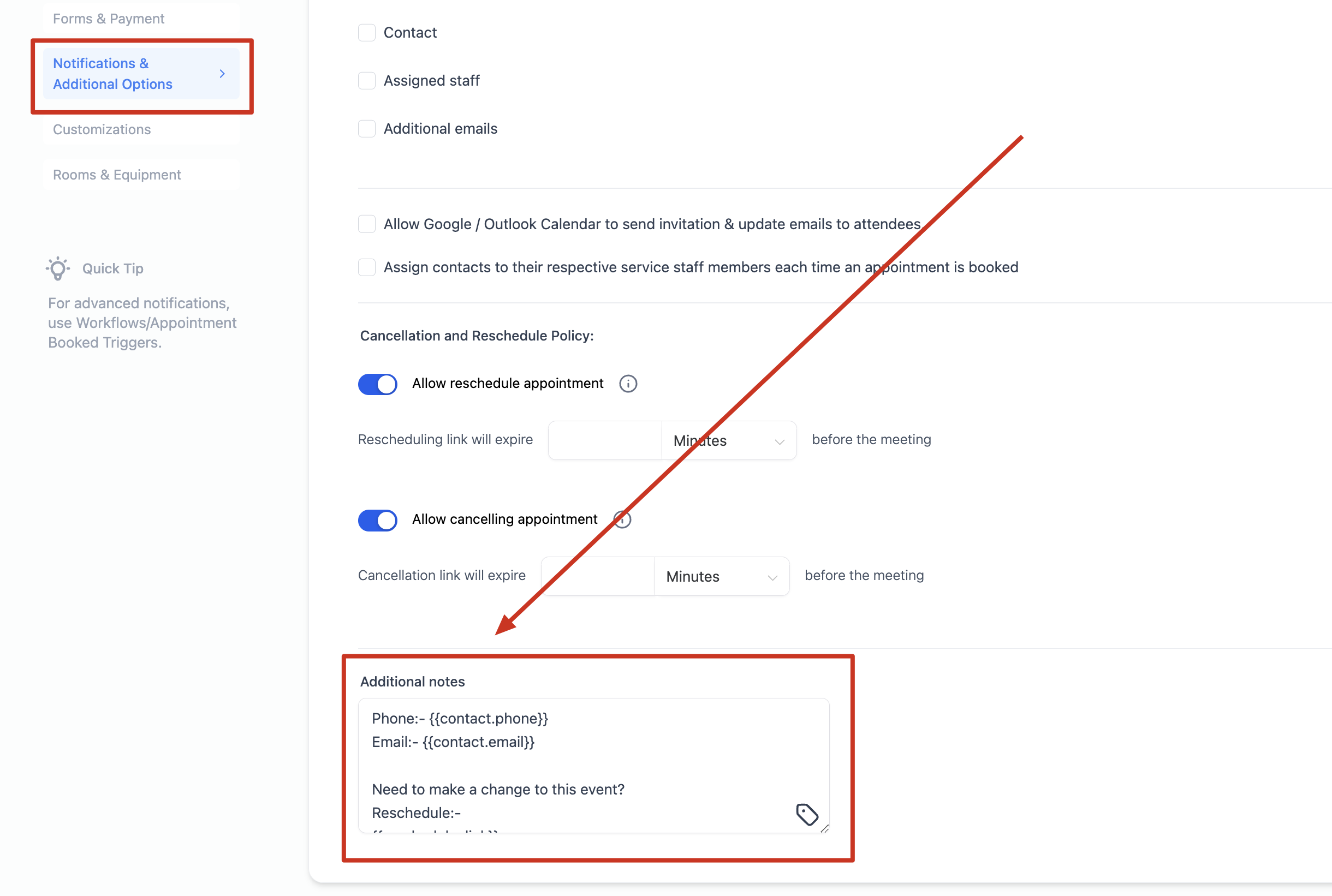
Notifications: choose who receives appointment notifications, whether Google can send invitation and update emails to attendees, and whether contacts get automatically assigned to the staff member who performed their booking.
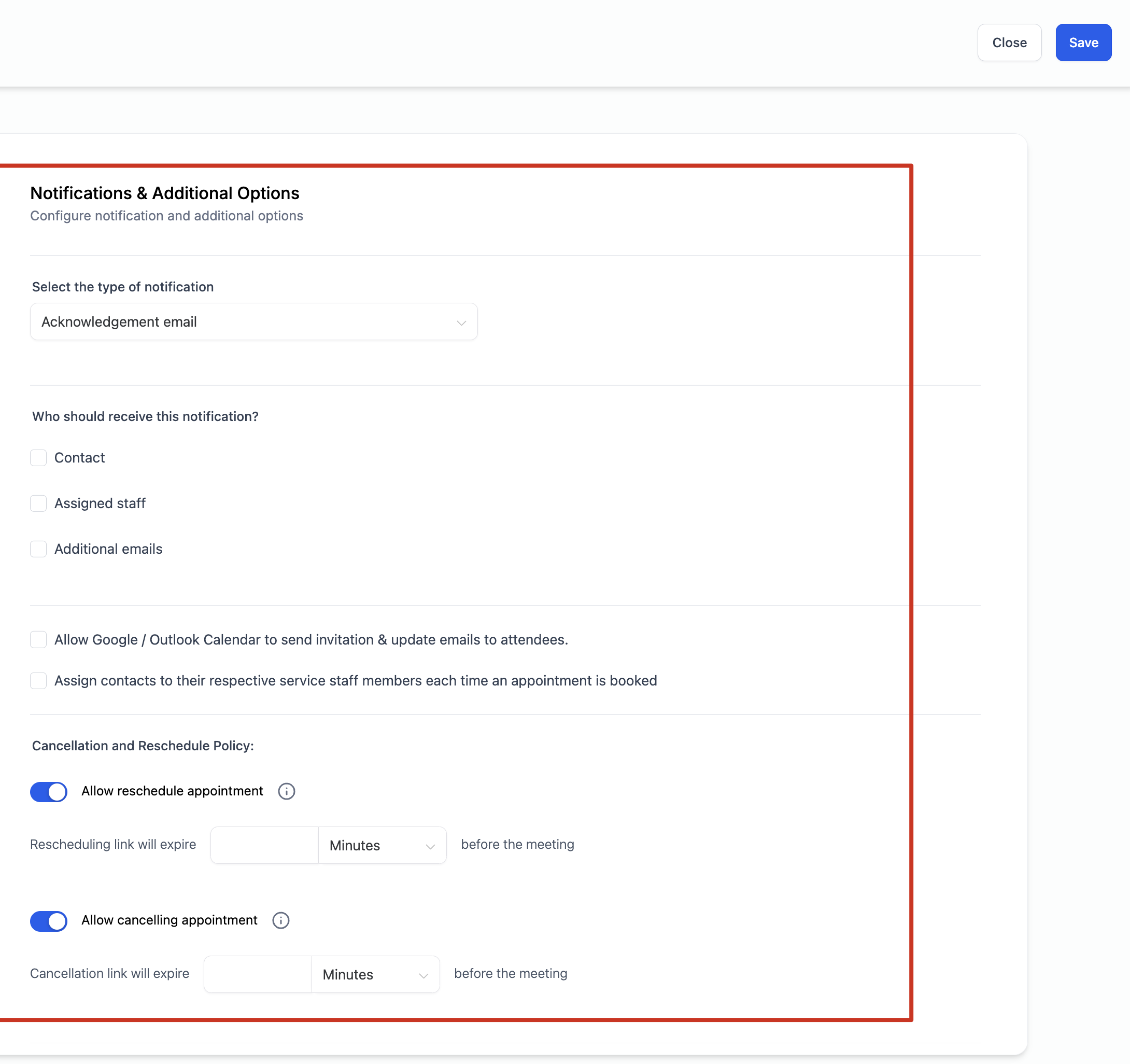
Additional Notes: text added here appears in the Google Calendar invitation. This only works if "Allow Google Calendar to Send Invitations" is turned on under Notifications.
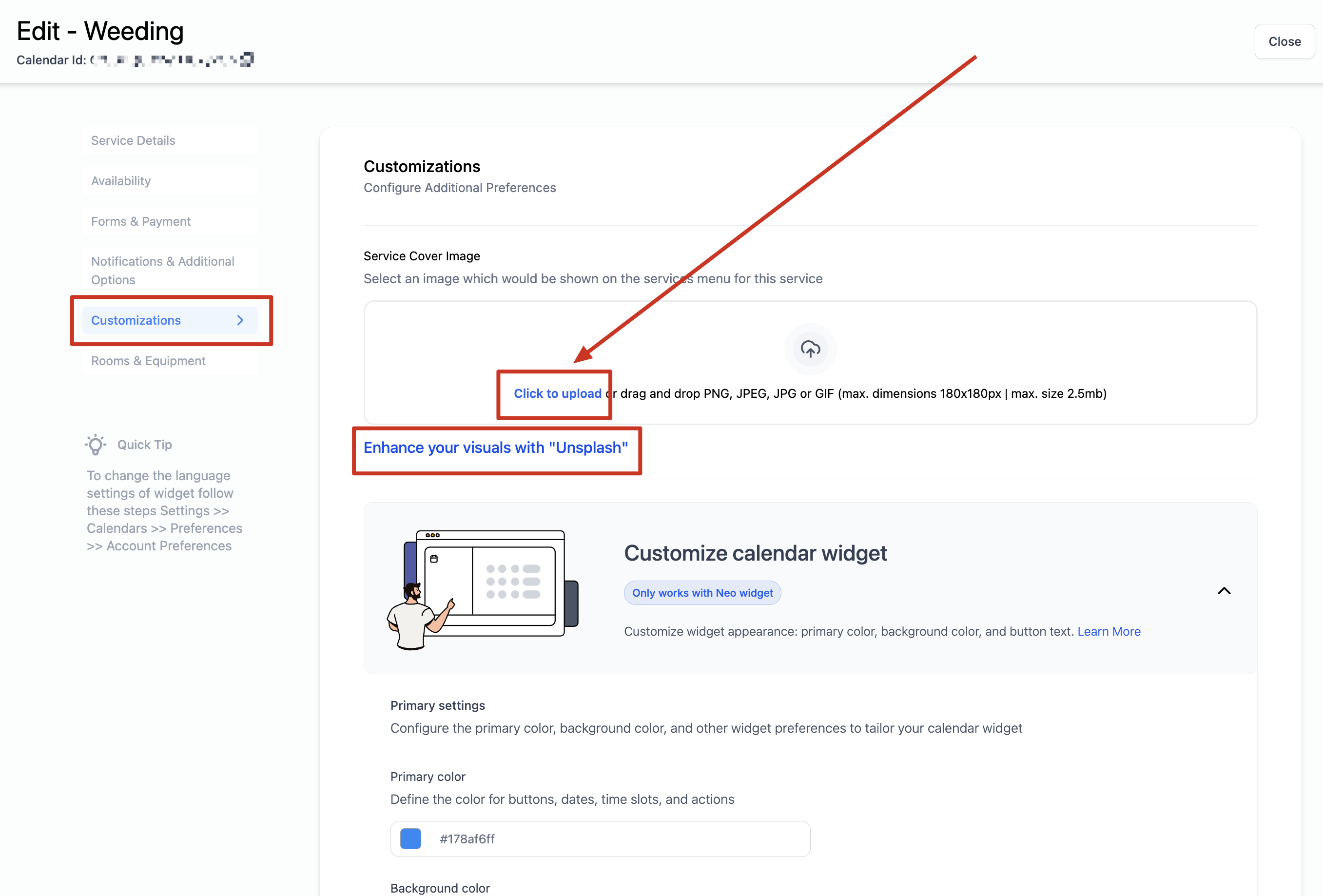
Service Cover Image: the image shown for this service when it's part of a Service Menu display.
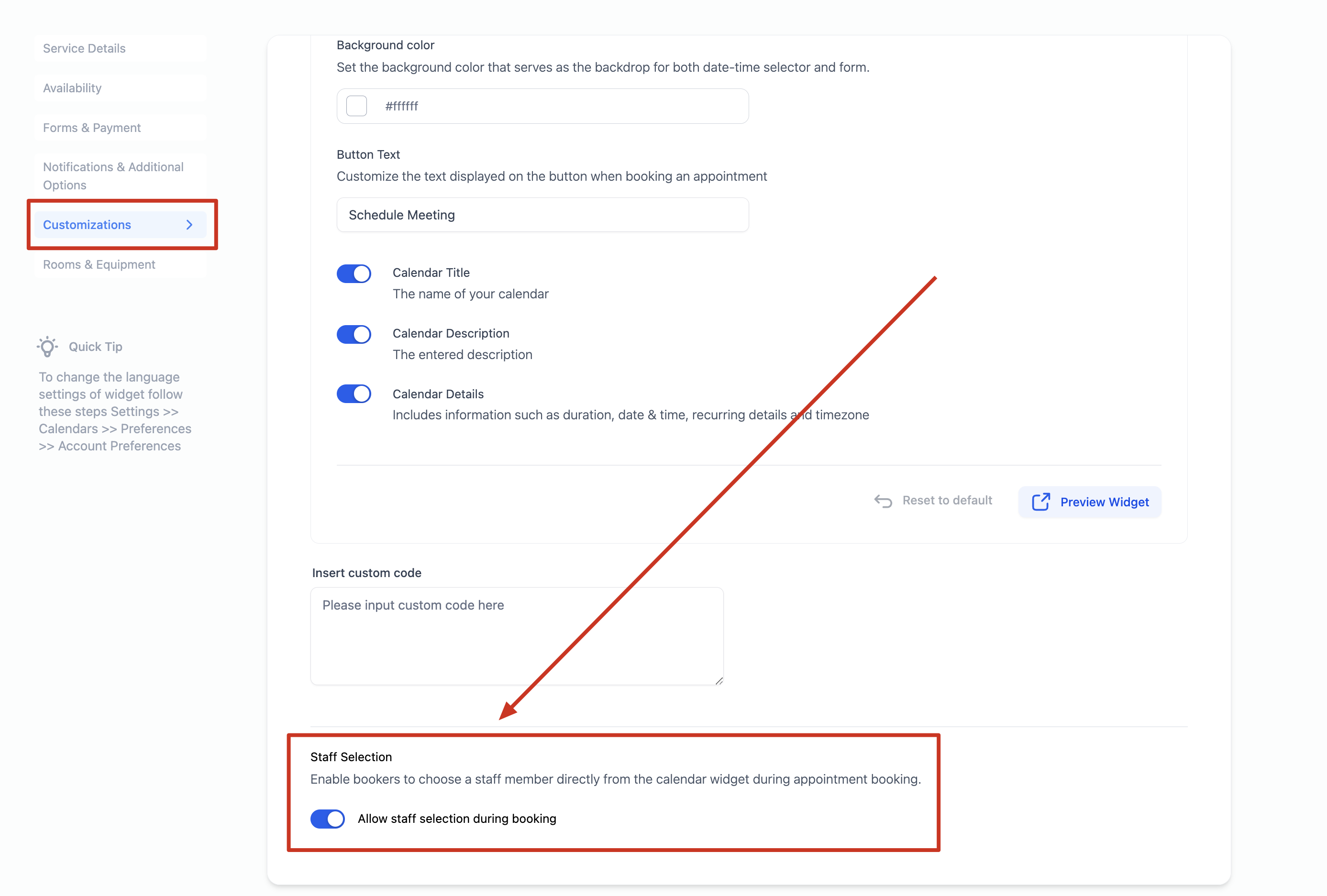
Staff Selection: enable or disable letting patients pick a specific staff member on the booking widget itself.
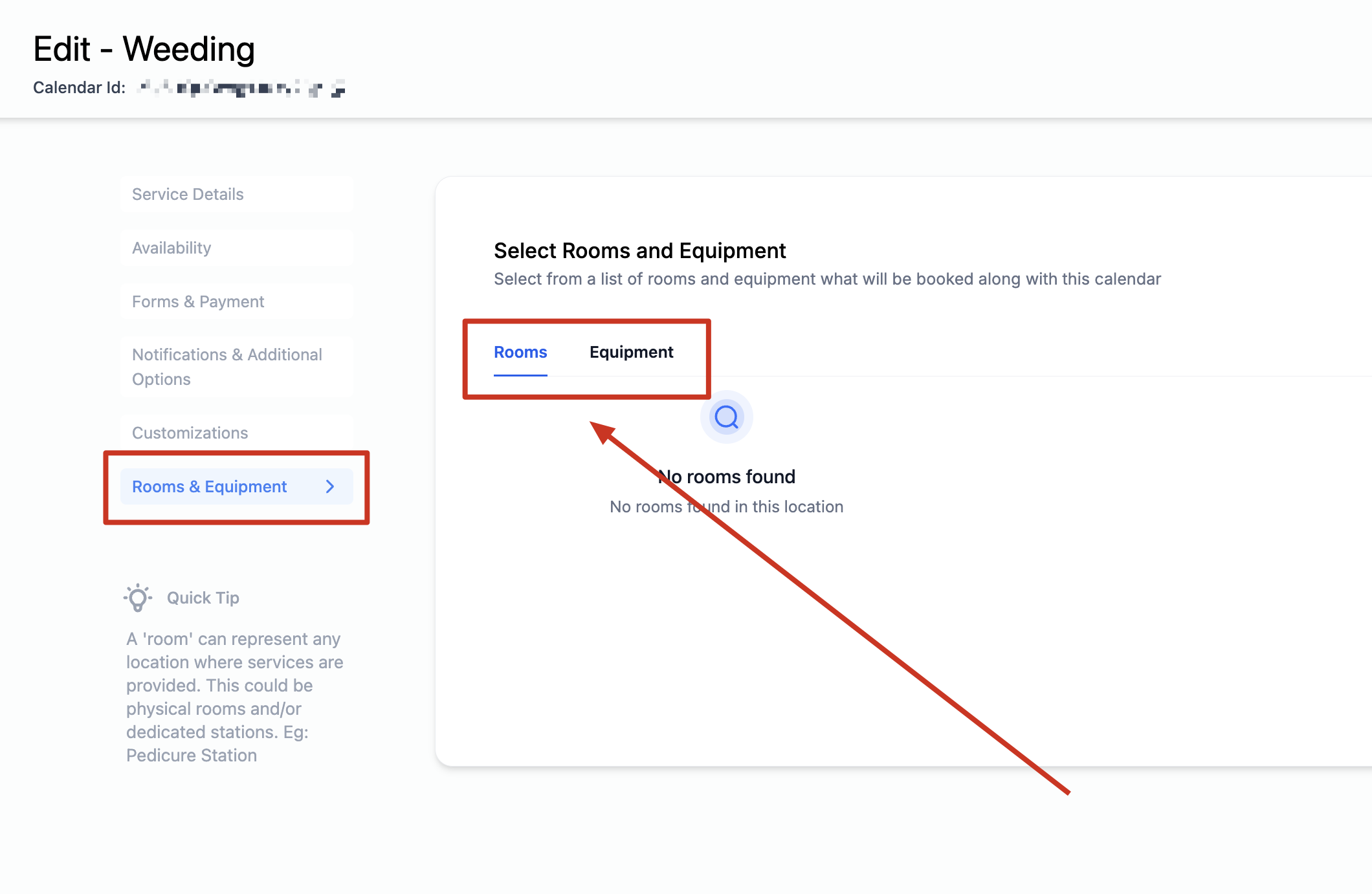
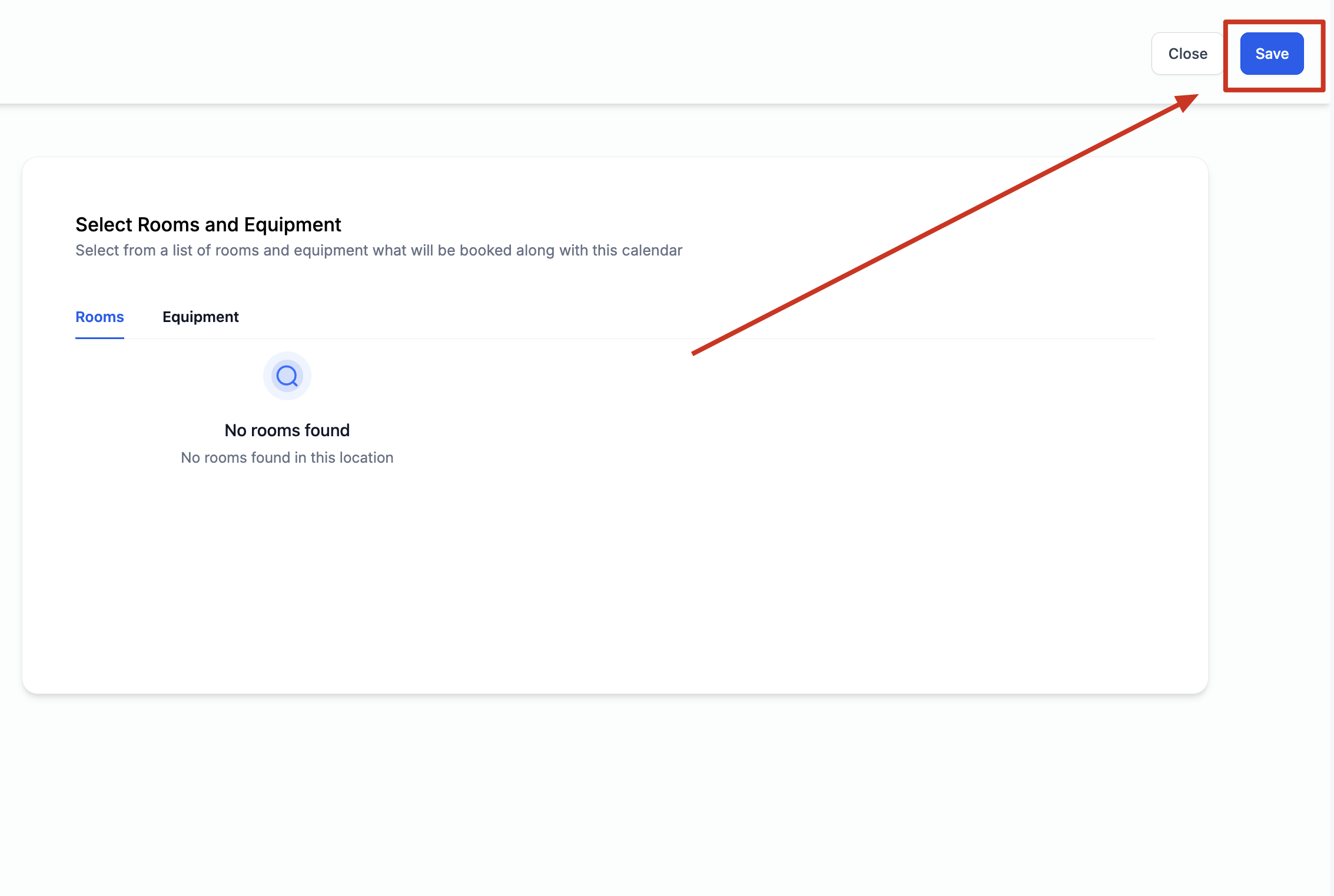
If a treatment needs a dedicated room or piece of equipment (a laser device, a treatment room), assign it to the Service Calendar. Aesthetix CRM reserves that resource automatically whenever the calendar is booked, so you can't accidentally double-book a room or a machine across two providers.
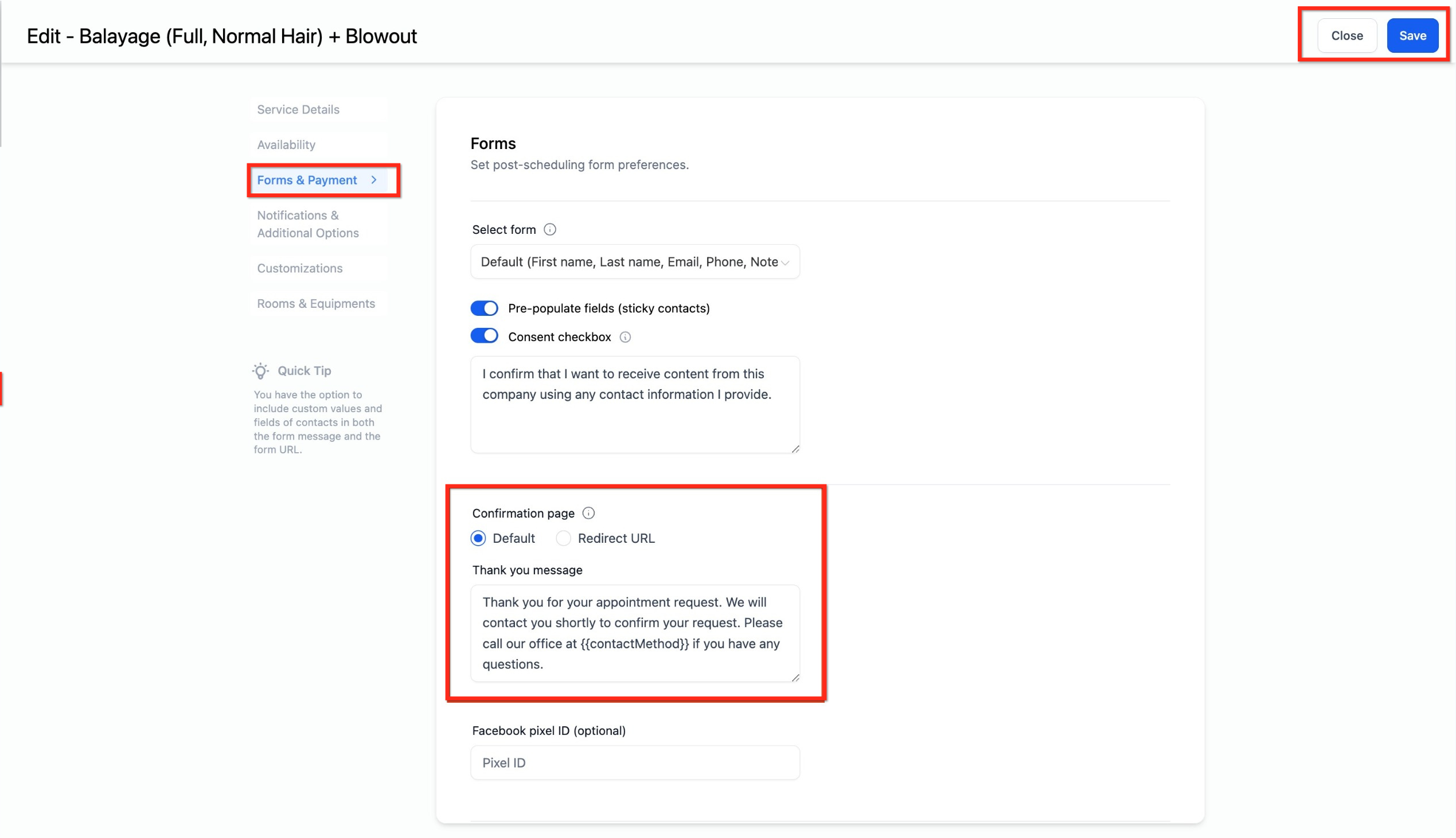
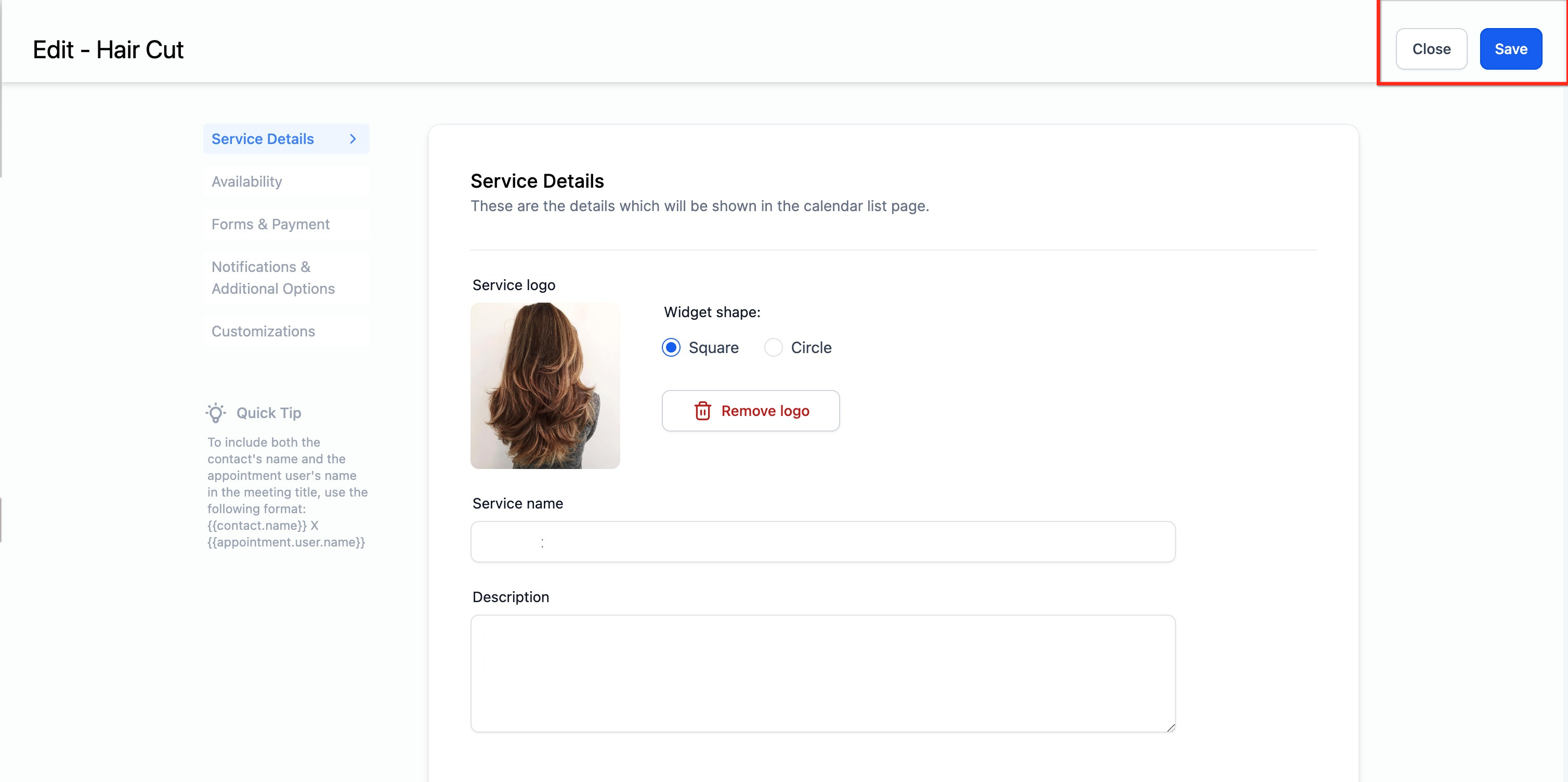
Click Save once everything is configured and the Service Calendar is ready to be booked.
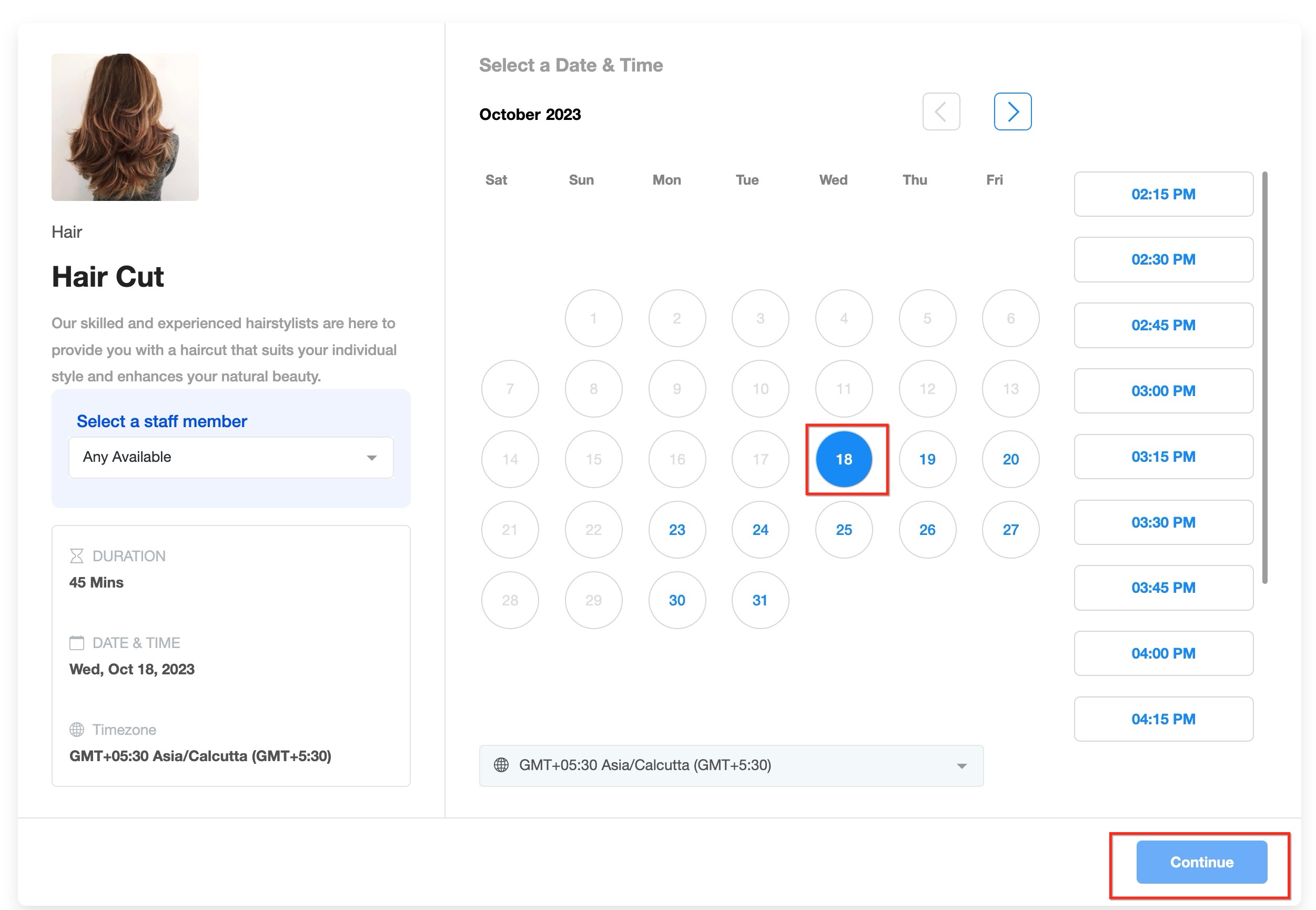
When a patient opens the booking link, they see the available treatment(s), can select a staff member if that's enabled, and pick a date and time. Availability updates in real time based on staff schedules, so a slot that just got booked disappears immediately for other patients.
If you're using AI-driven booking through your AI Employee, keep in mind it only works with native calendars like Service Calendars, not calendars synced from an EMR.
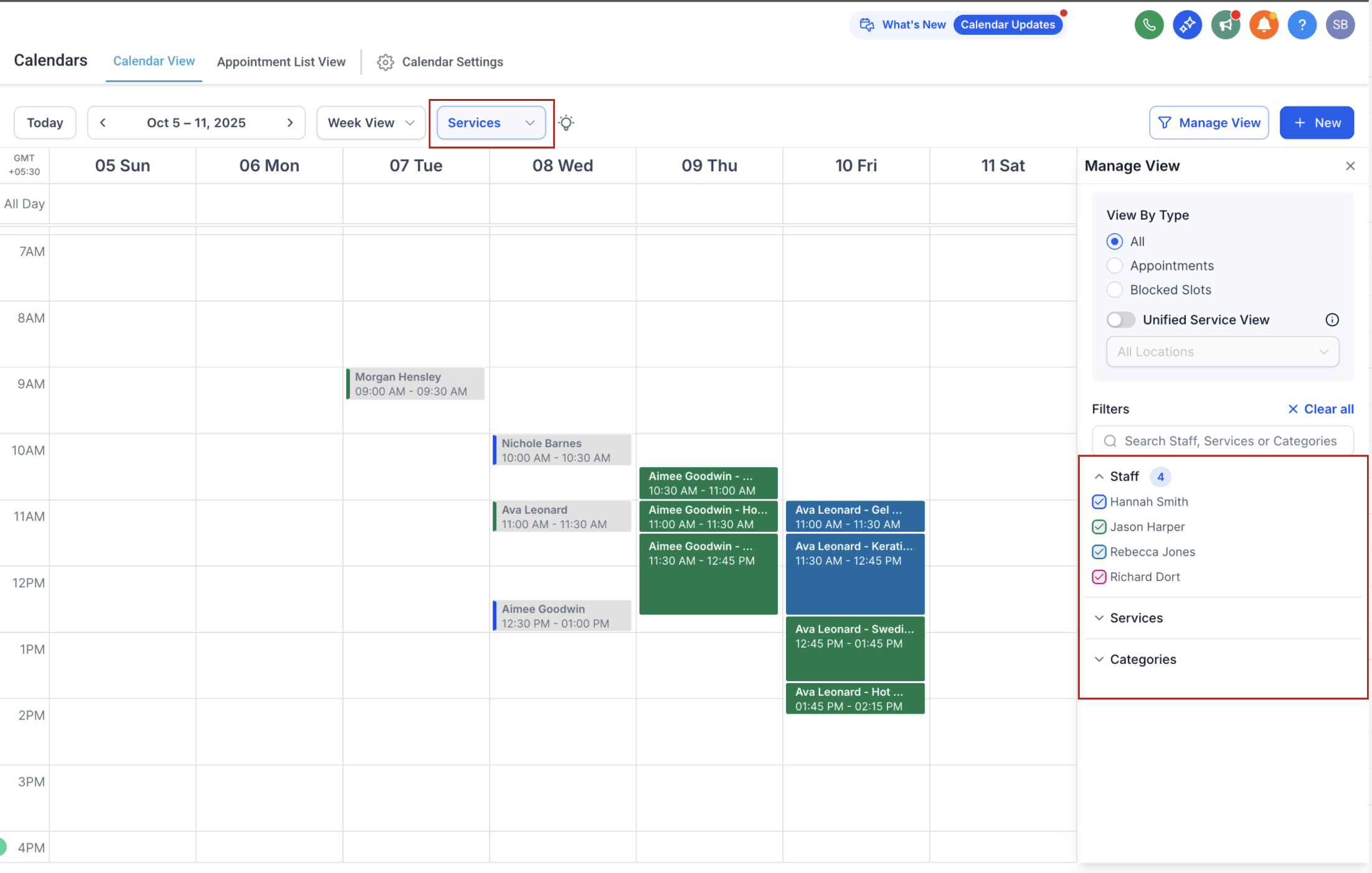
Once your Service Calendars are live, the main Calendar view adapts based on whether you're looking at Meetings or Services.
Services View filters:
Staff: show events by assigned staff member.
Services: show bookings tied to specific services.
Categories: narrow results by service category.
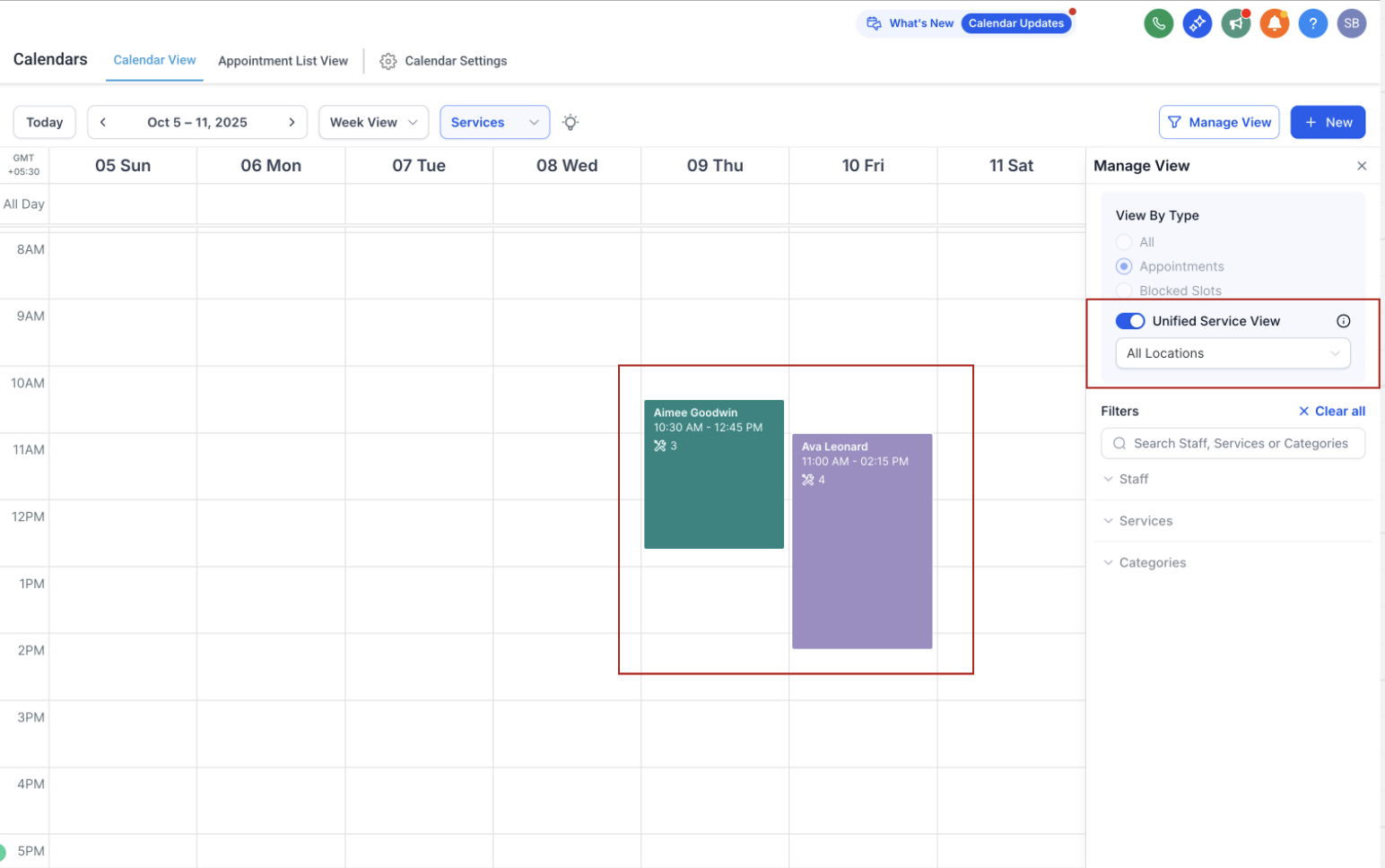
Unified Service Booking View: when turned on, each booking appears as a single block with all its appointments grouped inside. Staff, Service, and Category filters aren't available in this view since everything is shown together, but a Location filter appears instead, letting you filter by which location the appointment was booked at.
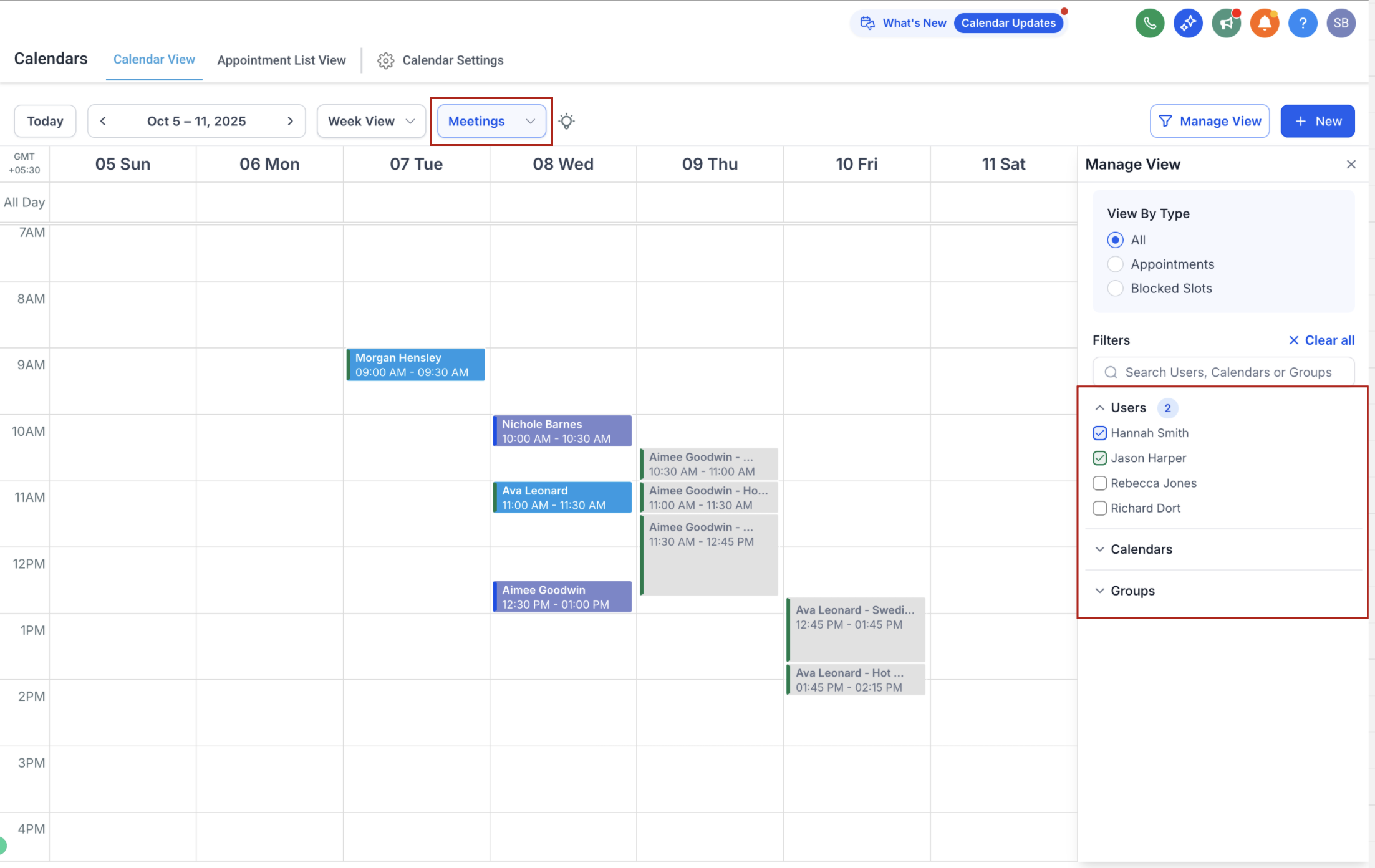
Meetings View filters (for comparison, if you also use Meetings-type calendars):
Users: show calendars linked to specific users.
Calendars: toggle individual calendars on or off.
Groups: filter events by calendar group.
Additional controls:
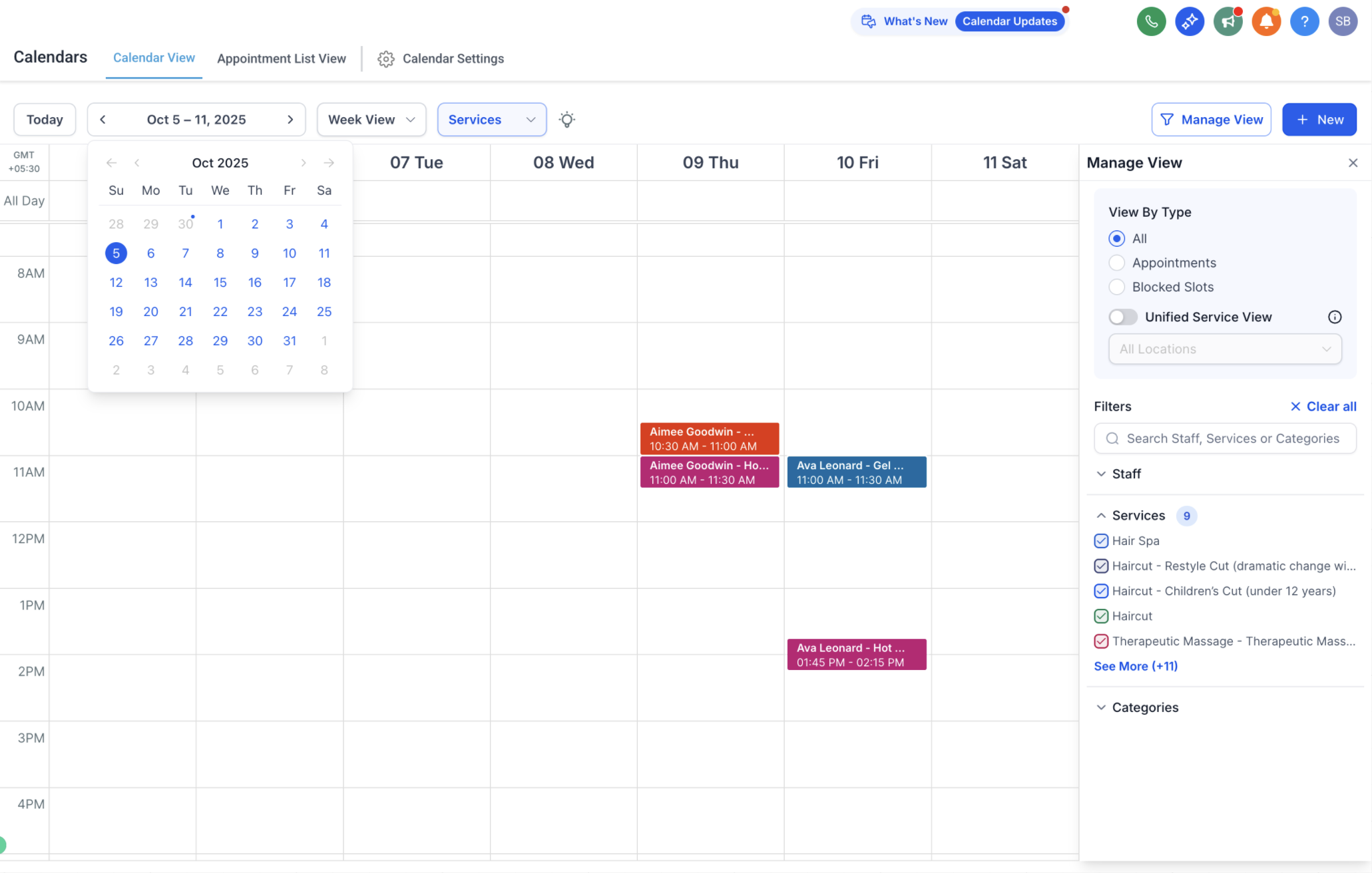
Month view: click the date under the main calendar to expand a mini month view for quick navigation.
Manage View: hides or shows the right-hand filter panel for more screen space.
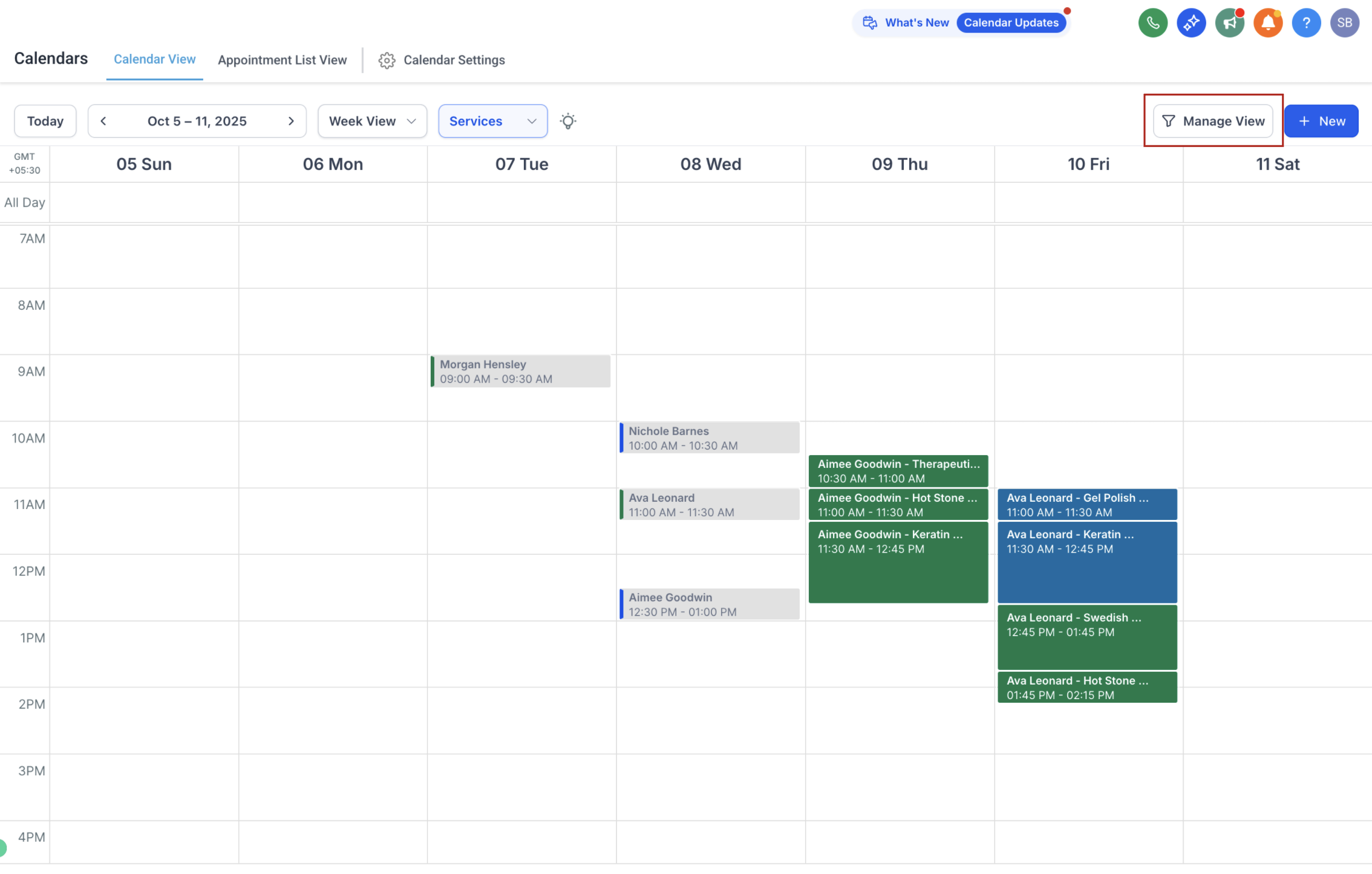
One limitation worth knowing: in Services View, changes made directly on a connected third-party calendar (Google Calendar, Outlook, or iCal) are not reflected back inside Aesthetix CRM. Always reschedule, cancel, or edit appointments from within Aesthetix CRM so your records stay accurate.
Global Settings apply account-wide, across every Service Calendar you create, so you can set consistent rules once instead of repeating them on each calendar. You'll find them under Calendars > Calendar Settings > Global Settings. They cover five areas: In-App Settings, Booking Page Settings, Payment Settings, Service Settings, and Notification Settings.
Use Global Settings for defaults you want applied everywhere (booking page layout, payments, notifications, scheduling windows). Edit an individual Service Calendar for that treatment's own details, such as price, duration, assigned staff, or resources. Direct booking links for a specific service, staff member, or category are filtered views of the same booking experience, so changes you make in Global Settings apply to them automatically.
In-App Settings:
View Options: choose which day your calendar view starts on: Monday, Saturday, or Sunday.
Enable Multiple Locations: turn this on if your practice operates in more than one location, so patients can choose where to book from your booking page.
Enable Resources: turn this on if you track rooms, spaces, or equipment across services. It adds a Resources tab and prevents double-booking the same resource.
Enable Add-ons: turn this on if services offer add-ons or extras at booking, useful for upselling. It adds an Add-ons tab for configuration.
Booking Page Settings:
Company Name & Logo: your practice name and logo, shown on the booking page.
Service Images: choose whether service cards show uploaded images or a text-focused layout instead.
Account Slug: the unique identifier used as the base for all your service booking URLs.
Browse By: let patients browse by category first, or see all services upfront with category filters available.
Booking Page Order: for practices with multiple locations, choose whether patients pick a service or a location first.
Booking Page Layout: card view, list view, or let patients choose their preferred view.
Filter & Sort Menu Placement: horizontal dropdown, vertical sidebar, or category tabs at the top.
Theme, Language, Primary Color, Background Color: control the look of your booking page and which language it displays in.
Service Selection Button Label and Final Booking Button Label: customize the button text patients see (for example "Book" and "Schedule Appointment").
Preview: preview the booking page with your changes applied before sharing links.
Insert Custom Code: add custom CSS for further styling.
Allow customers to pick who they book with: when off, Aesthetix CRM auto-assigns a staff member based on availability and round robin logic instead.
Hide the "Any Available" option: if staff selection is on, this requires patients to pick a specific staff member rather than "Any Available."
Allow Multiple Service Selection: lets patients book more than one service in the same session.
Auto-Assign Staff Based On: the rule Aesthetix CRM follows to assign a staff member when the patient doesn't choose one.
Allow Customers to Explore Other Services: lets patients who land on a direct service or category link browse and add services from other categories during the same booking.
Forms: choose the default form used at booking (the Default Form collects First Name, Last Name, Phone, and Email) or a custom form built in Funnels/Websites > Forms. Pre-populate Fields (Sticky Contacts) remembers a returning patient's info via browser cookies, so only enable it when patients fill out the form themselves on their own device. The Consent Checkbox is available with the Default Form and its message is customizable.
Confirmation Page: show a default thank-you message or redirect patients to a URL after booking. If you let a custom form's own submit action (thank-you message or redirect URL) override this, that takes priority; otherwise the confirmation page settings here apply as the fallback. A custom form's own show/hide field conditions always apply during booking regardless of this setting.
Payment Settings:
Test Mode vs. Live Mode: simulate the booking and payment flow in Test Mode before switching to Live Mode to accept real payments.
Currency: the currency used for payments across all services; update each service's pricing if you change currencies.
Booking Payment Options: choose Online Payment (charged at booking, with an option to let patients choose deposit or full payment when a deposit is configured), Pay in Person (no card details collected at booking), or Card on File Only (card saved securely but not charged at booking). Connect a payment provider before enabling online payment; AX Pay is Aesthetix CRM's own processor and offers better rates than Stripe (see the AX Pay callout above for setup details).
Hide Payment Amount: hides the price on the booking page when payment is set to Pay in Person or Card on File.
Coupon Codes: let patients apply a coupon at booking. Create the coupons first under Payments > Coupon Codes; when this is off, the coupon field is hidden.
Taxes: configured at the individual service or its linked product, not in Global Settings.
Price Display Format: show a price range (lowest to highest) or a starting price (the lowest available price) when a service has multiple prices. The final price is calculated once the patient selects variations or add-ons.
Service Settings:
Service Interval: how often booking slots are shown, for example every hour or every 30 minutes.
Minimum Scheduling Notice: the minimum lead time before a slot can no longer be booked, for example a 2-hour notice blocks a 10 AM slot from being booked after 8 AM the same day.
Booking Window: choose Range Based (a rolling number of days from today, so the window keeps moving forward) or Date Based (a fixed start and end date). With Range Based windows, the Count Available Days Only toggle counts only the days your staff are actually available, applying your minimum scheduling notice first, then counting forward from the first available day so patients still see the full number of configured days rather than a mostly-blank calendar. This toggle does not apply to Date Based windows.
Service Booking Title: customize the title used on appointments booked through your Services page, including merge fields like {{contact.name}} to personalize it. If left empty, the mobile app falls back to the contact's name for new service bookings.
Cancellation & Reschedule: turn on Allow Cancellation and Allow Rescheduling to give patients self-service links, each with its own expiration window before the appointment. Auto Confirm New Appointments marks new bookings confirmed automatically; turn it off to review and confirm bookings manually.
Additional Settings:
Contact Assignment: optionally reassign a contact's assigned user to whichever staff member they book with, or skip reassignment for contacts who already have an assigned user.
Facebook Pixel ID: track booking events for ad campaigns.
Lock Timezone on the Booking Page: keeps the displayed timezone fixed, useful for in-person services so slots always show in your practice's timezone regardless of where the patient is browsing from.
Notifications:
Six notification types are available: Appointment Booked (Unconfirmed), Appointment Booked (Confirmed), Cancellation, Reschedule, Reminder (sent before the appointment, for example 1 hour or 1 day ahead), and Follow-Up (sent after the appointment). Notifications can go out by Email, In-App alert, SMS, or WhatsApp. WhatsApp notifications currently support booking-level custom values but not per-service custom values, so a multi-service booking can reference details about the overall booking but not each individual service within the WhatsApp message.
Third-Party Calendar Settings:
Calendar Sync & Invites: let Google or Outlook automatically add appointments to attendees' calendars, with invitations and updates sent on booking, reschedule, or cancellation.
Appointment Notes: custom notes that appear directly in the third-party calendar invite, useful for meeting links or preparation details.
Patients can book multiple services in one appointment, for themselves or for guests, depending on how the calendar is configured.
Service Interval controls how often booking slots appear and is set account-wide under Global Settings > Service Settings; post-buffer time adds spacing between appointments on top of that interval.
Availability always reflects the assigned staff member's schedule. There's no separate calendar-level availability to configure.
To show multiple treatments on one booking link, create the group first, then create your service calendars and assign them to it, then build the Service Menu.
Service Menus don't support meeting locations, including virtual ones like Zoom or Google Meet. Any location set on an individual Service Calendar won't carry over once it's grouped into a Service Menu.
What's the difference between Global Settings and an individual Service Calendar's settings?
Global Settings apply defaults across every Service Calendar in your account, covering booking page layout, payments, scheduling windows, and notifications. Editing an individual Service Calendar lets you override those defaults for that treatment's own price, duration, staff, or resources.
Does "Count Available Days Only" work with a fixed date range?
No. That toggle only applies to Range Based booking windows. With a Date Based window the start and end dates stay fixed as configured, and the toggle has no effect.
What's the difference between a Service Calendar and a regular booking calendar? A Service Calendar is built around a specific treatment and ties availability to the staff member performing it, plus any rooms or equipment it needs. A Meetings-type calendar (personal, round robin, collective, class) works better for consults, sales calls, or internal scheduling that isn't tied to a treatment menu.
Can I change how often booking slots appear? Yes. Service Interval controls how often available times are shown, for example every 30 minutes or every hour, and it's set account-wide under Global Settings > Service Settings. Use post-buffer time on an individual Service Calendar to add extra spacing between appointments beyond that interval.
Can patients book more than one treatment at once? Yes. Depending on how the calendar is configured, patients can combine multiple services in a single booking or add services for guests.
Can I offer virtual consults through a Service Calendar? Individual Service Calendars support Zoom and Google Meet as a meeting location if those apps are connected. Service Menus, however, don't carry meeting locations over, so a grouped booking page won't show a virtual option even if the underlying calendar has one.
Does availability update automatically if a staff member's schedule changes? Yes. Because availability is tied directly to staff schedules, any change you make to a provider's hours is reflected on every Service Calendar they're assigned to.
Can I use a custom intake form instead of the default one? Yes, for bookings made directly on the Service Calendar. Build the form in Forms and select it from the calendar's Forms dropdown. Bookings made through a Service Menu always use the default form.
Do I have to accept payment at the time of booking? No, payments are optional. If you do want to collect a deposit or full payment, connect a payment provider first. AX Pay is Aesthetix CRM's own option, with better rates than Stripe.
Will AI-powered booking work with a calendar synced from my EMR? No. AI Employee booking automation only works with native Aesthetix CRM calendars like Service Calendars, not calendars pulled in from an EMR.
What happens if I reschedule an appointment directly in Google Calendar instead of in Aesthetix CRM? In Services View, changes made on a connected third-party calendar (Google Calendar, Outlook, iCal) won't sync back into Aesthetix CRM. Always make reschedules, cancellations, and edits from within Aesthetix CRM.
Can a Service Calendar require a specific room or piece of equipment? Yes. Assign the rooms or equipment a treatment needs when you set up the calendar, and Aesthetix CRM reserves them automatically for every booking, preventing double-booking across providers.
