The Affiliate Created trigger starts a workflow the moment a new affiliate is added to your Affiliate Manager, whether that happens through a referral form, a manual add, or an approved application. Use it to onboard patient and partner affiliates automatically instead of handling each signup by hand. You'll find it in Workflows under Automation, where you can add it as the trigger for a new or existing workflow.
This trigger fires whenever a new affiliate is created in your account. It doesn't matter how the affiliate record was created: the trigger watches for the creation event itself, so any workflow attached to it runs right away.
Example: Say your practice runs a referral campaign and several patients sign up as affiliates over the course of a week. As soon as each one is added, this trigger picks it up and moves them into your onboarding workflow automatically, with no manual follow-up needed on your end.
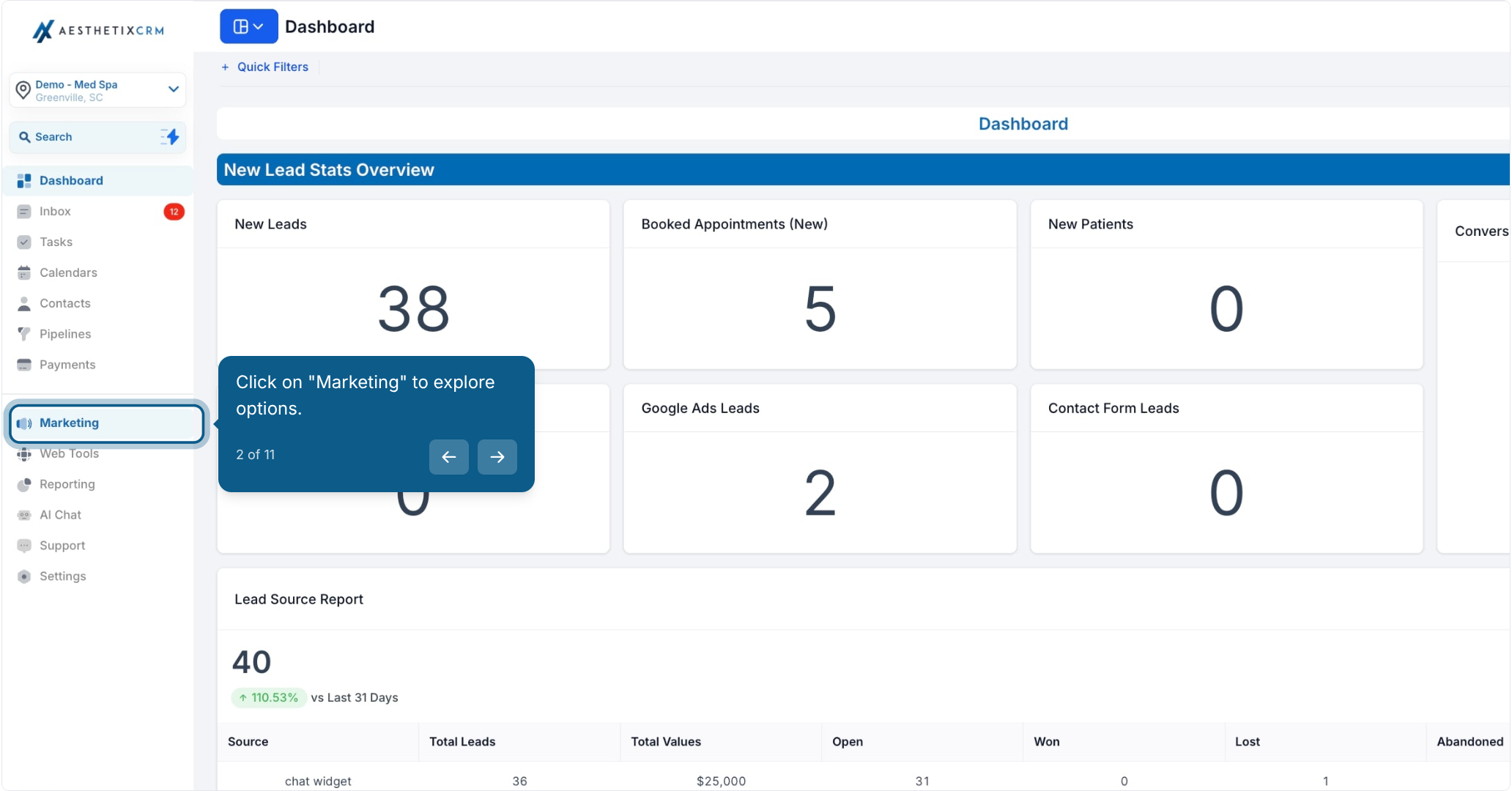
From the main menu, click "Marketing" to explore your options.
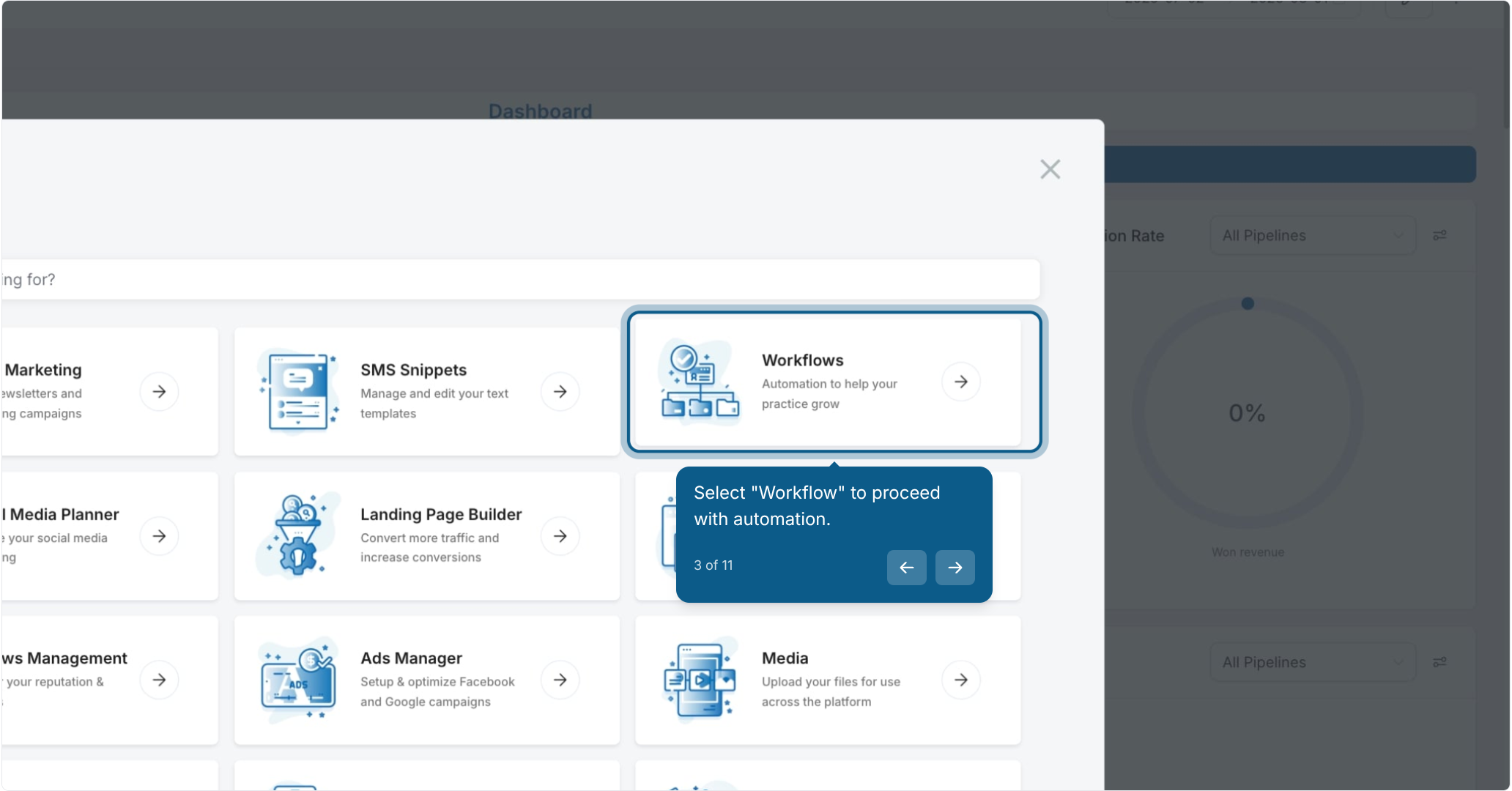
Select "Workflow" to proceed with automation.
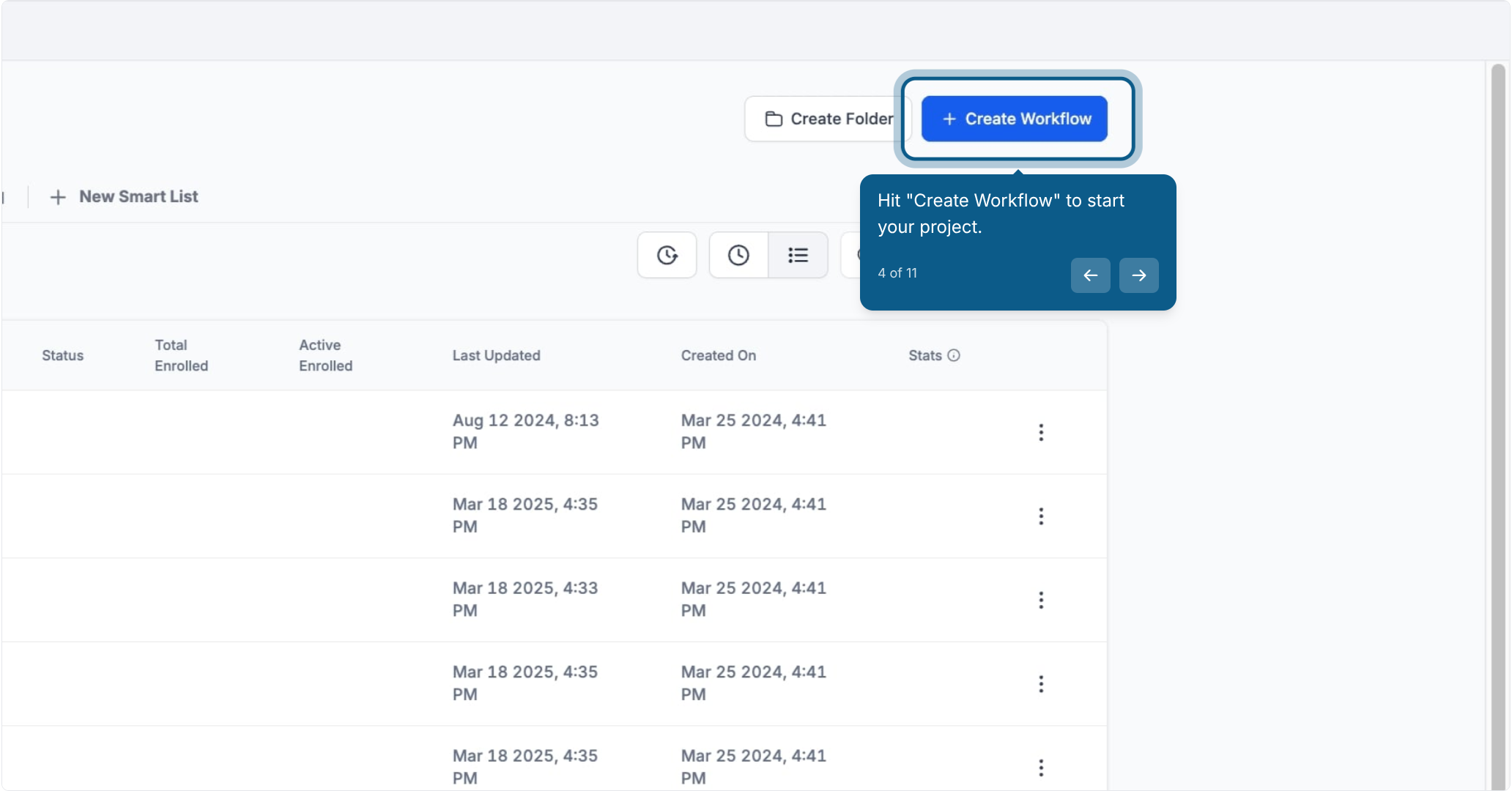
Hit "Create Workflow" to start your project.
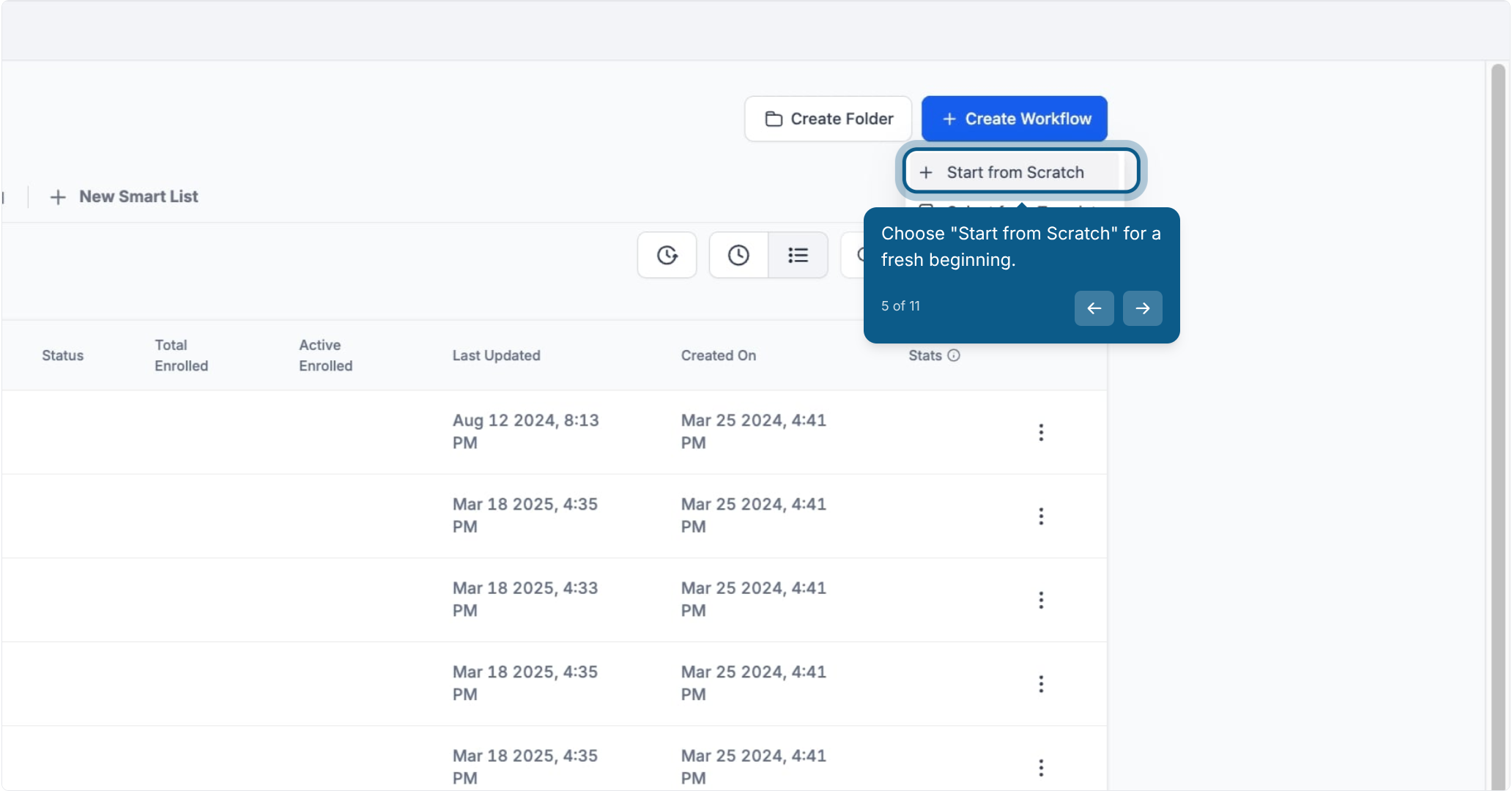
Choose "Start from Scratch" for a fresh beginning.
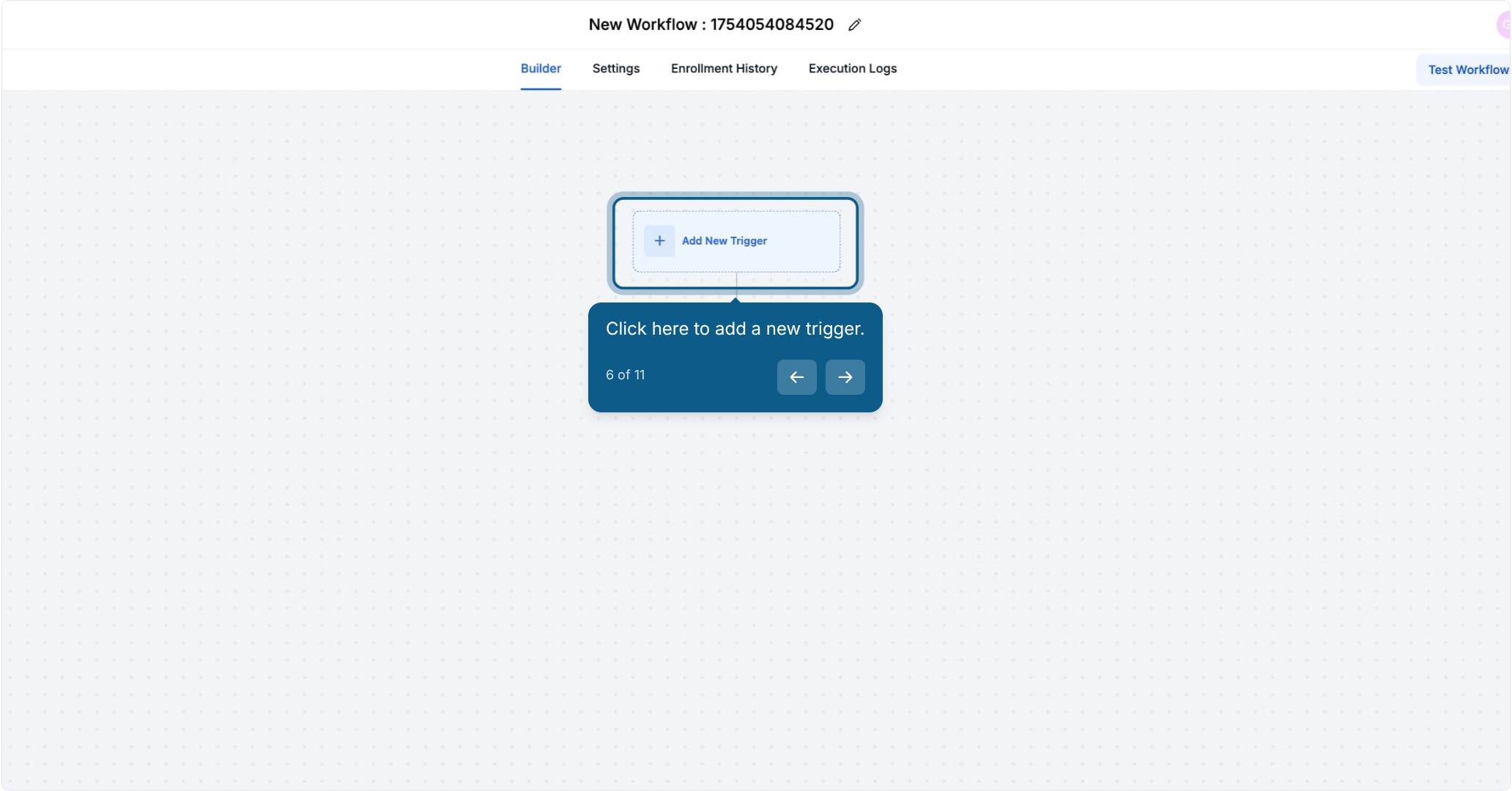
Click to add a new trigger.
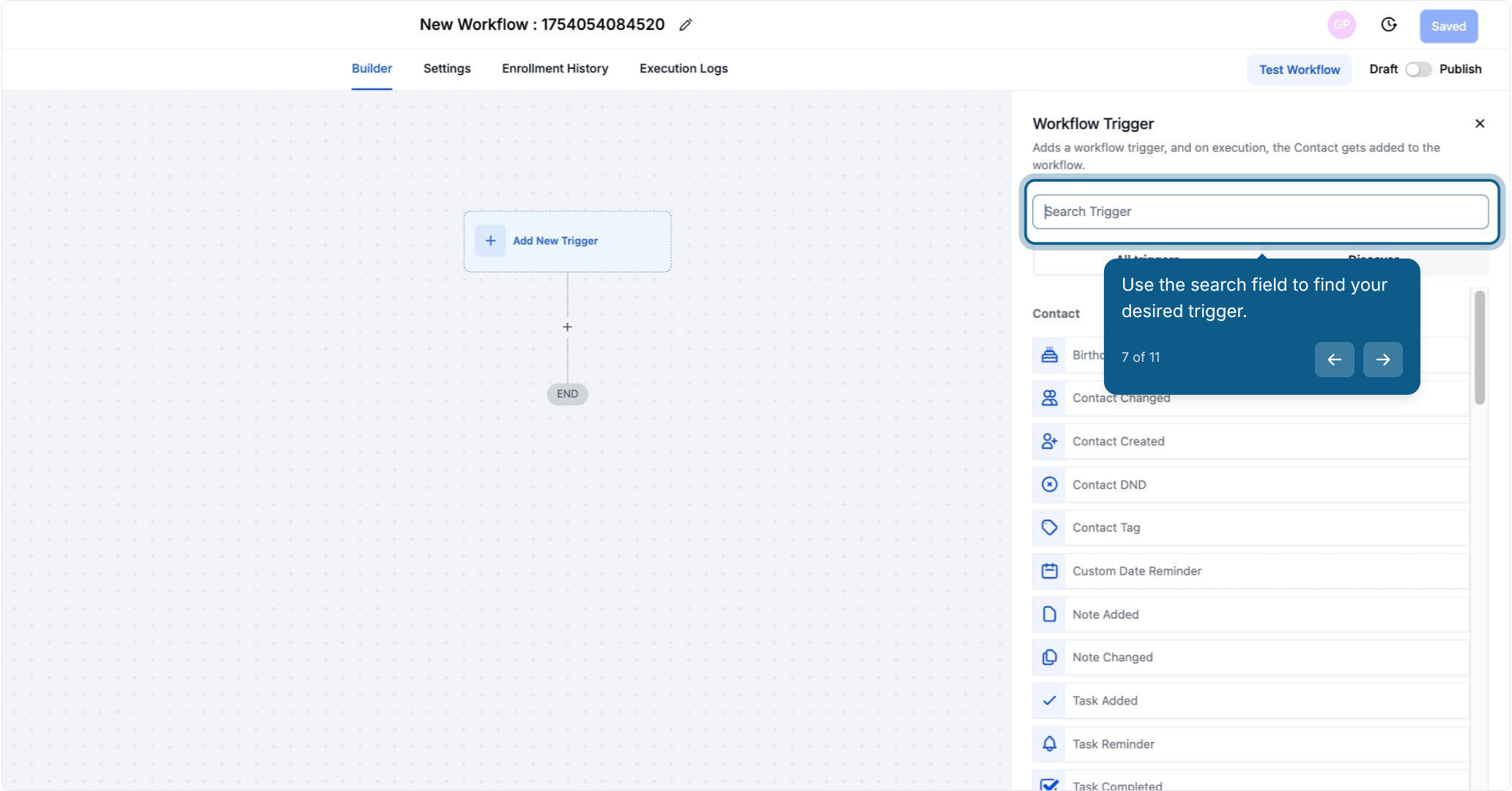
Use the search field to find the trigger you want.
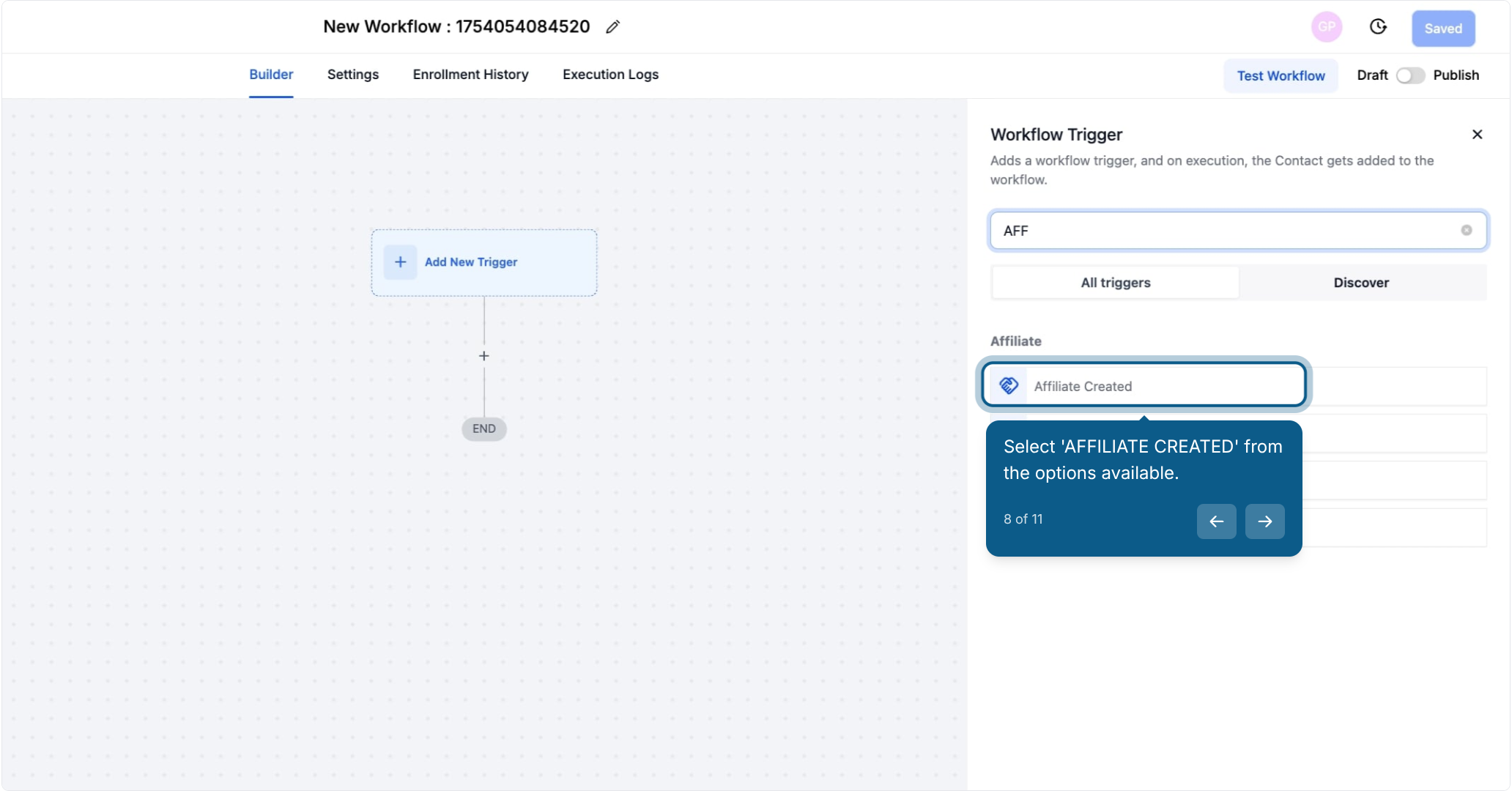
Select "Affiliate Created" from the options available.
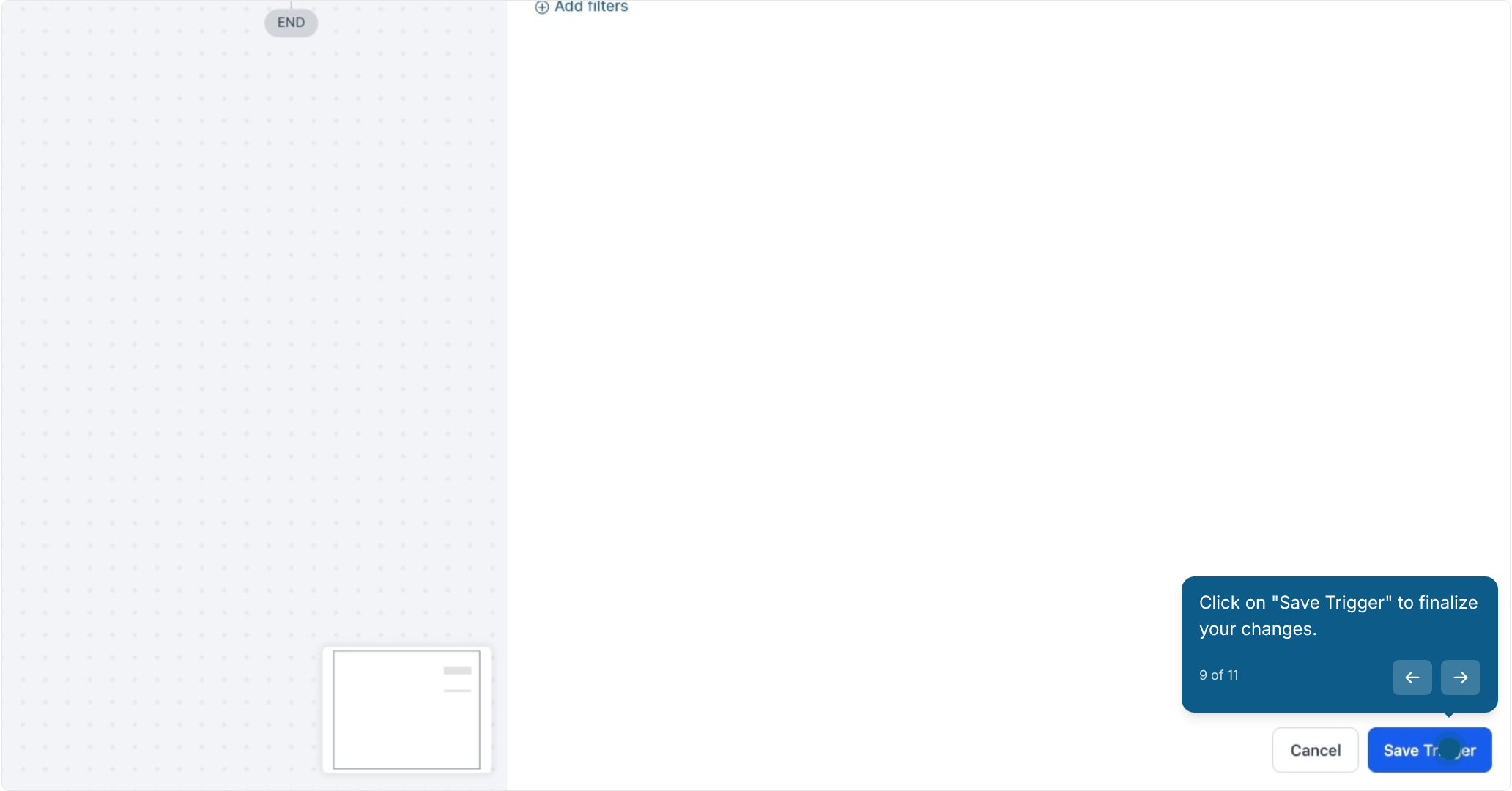
Click "Save Trigger" to finalize your changes.
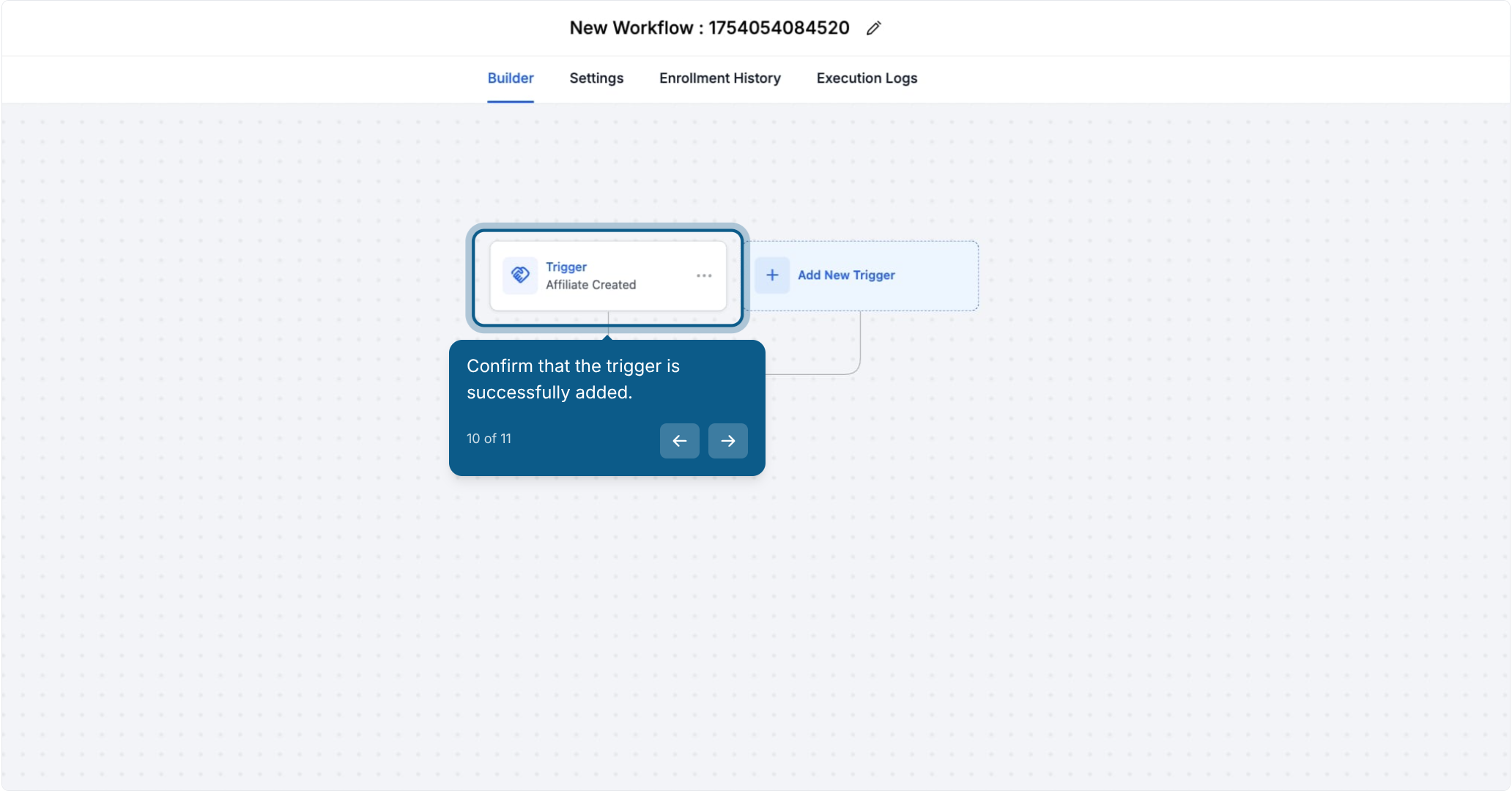
Confirm that the trigger is successfully added.
Save and publish your workflow.
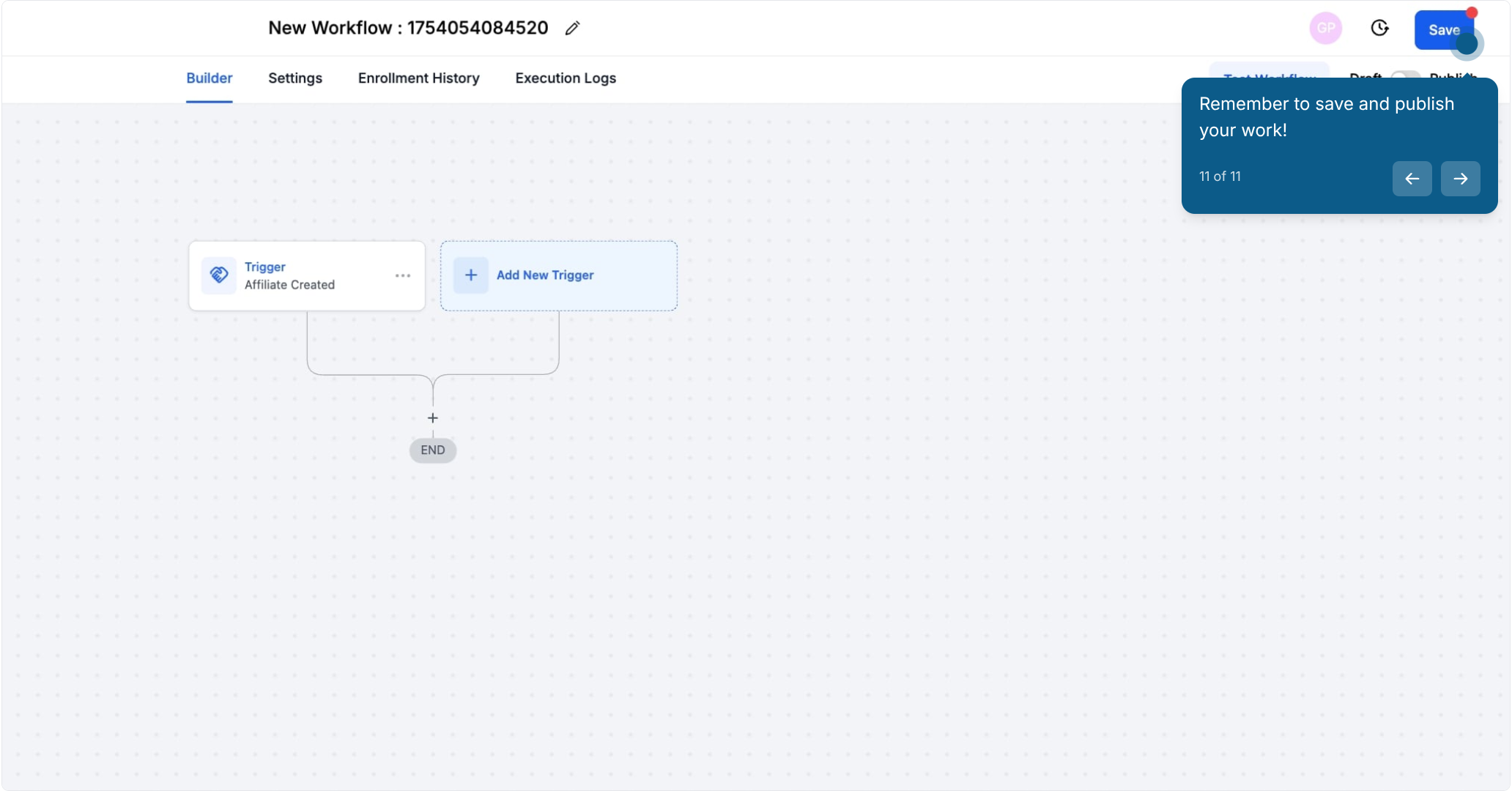
Once published, every new affiliate that gets created will automatically enter this workflow, and anything you build after the trigger, such as a welcome email, an internal notification, or a task for your team, runs without you having to touch it.
Affiliate Created is most useful as the starting point for a workflow, not the whole workflow. Once it fires, you'll typically chain one or more of the following actions after it to finish onboarding the affiliate automatically:
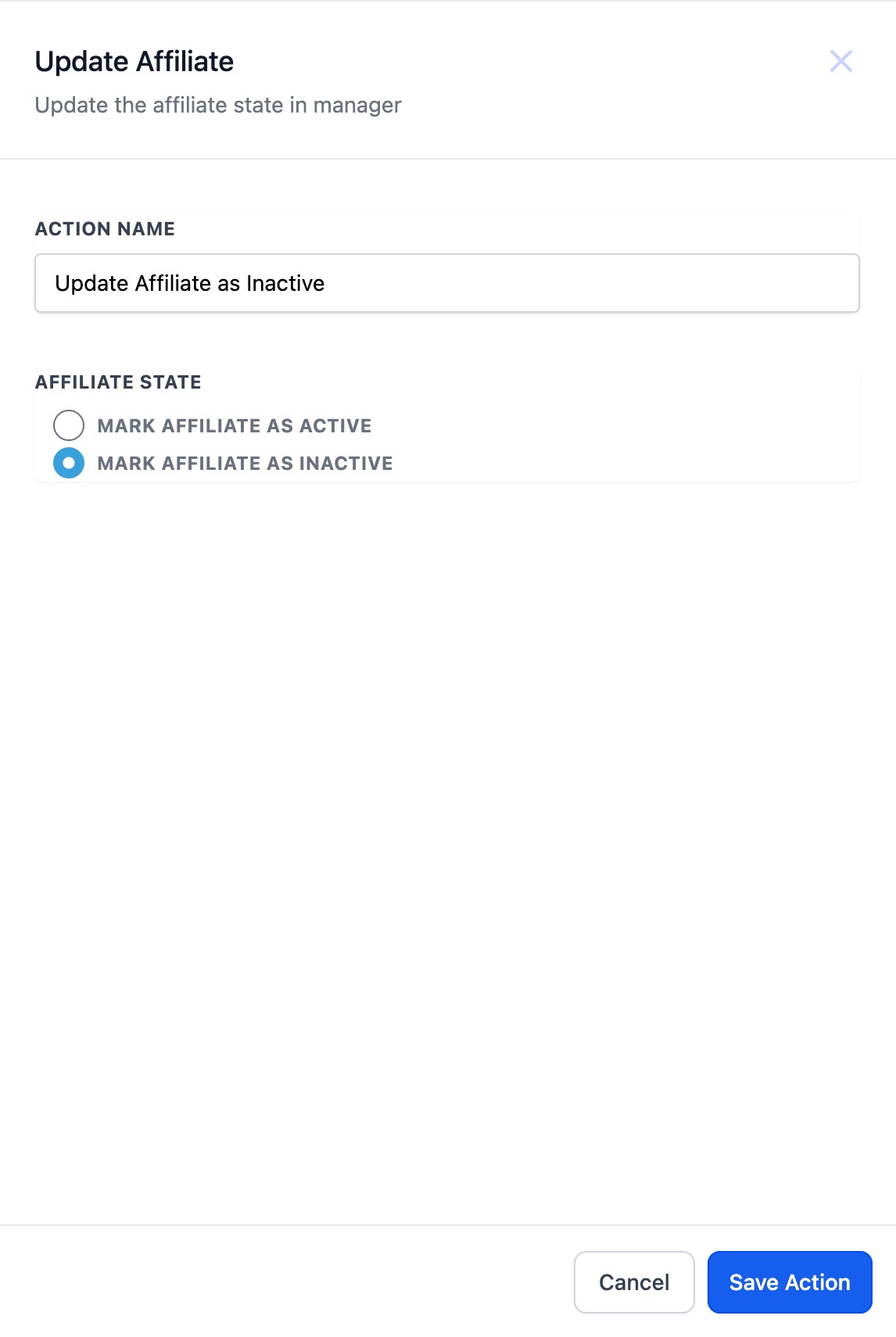
Add to Affiliate Manager. Automatically adds the contact to your Affiliates list with their status set to active, so there's no gap between when someone signs up and when they're recognized as a live affiliate in your system. If a potential partner signs up, they're immediately added to your list of active affiliates, keeping their onboarding on track without delay.
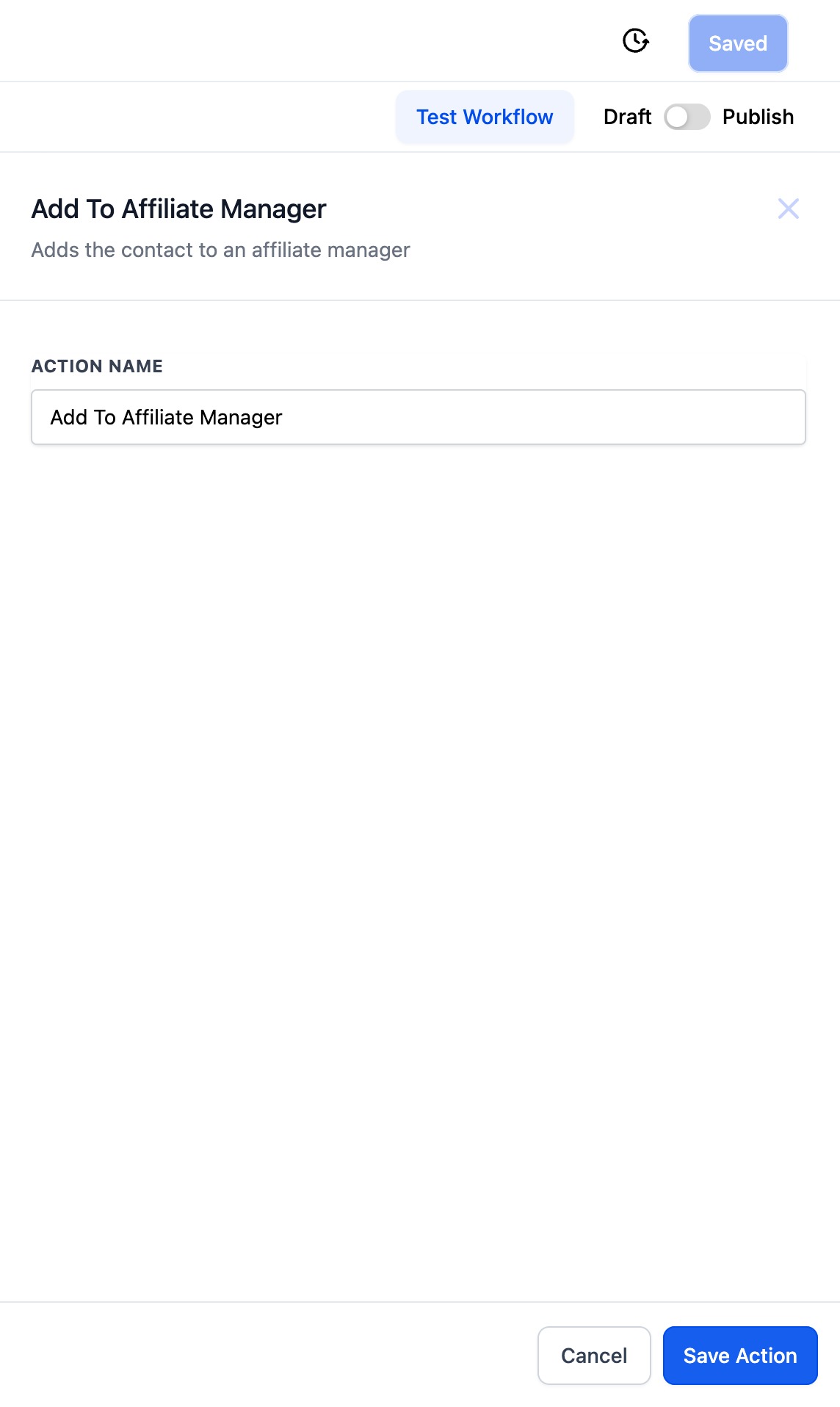
Update Affiliate. Changes an affiliate's status to active or inactive. This is useful further down a workflow, for example if an affiliate hasn't hit an activity threshold after a set period and you want their status downgraded automatically.
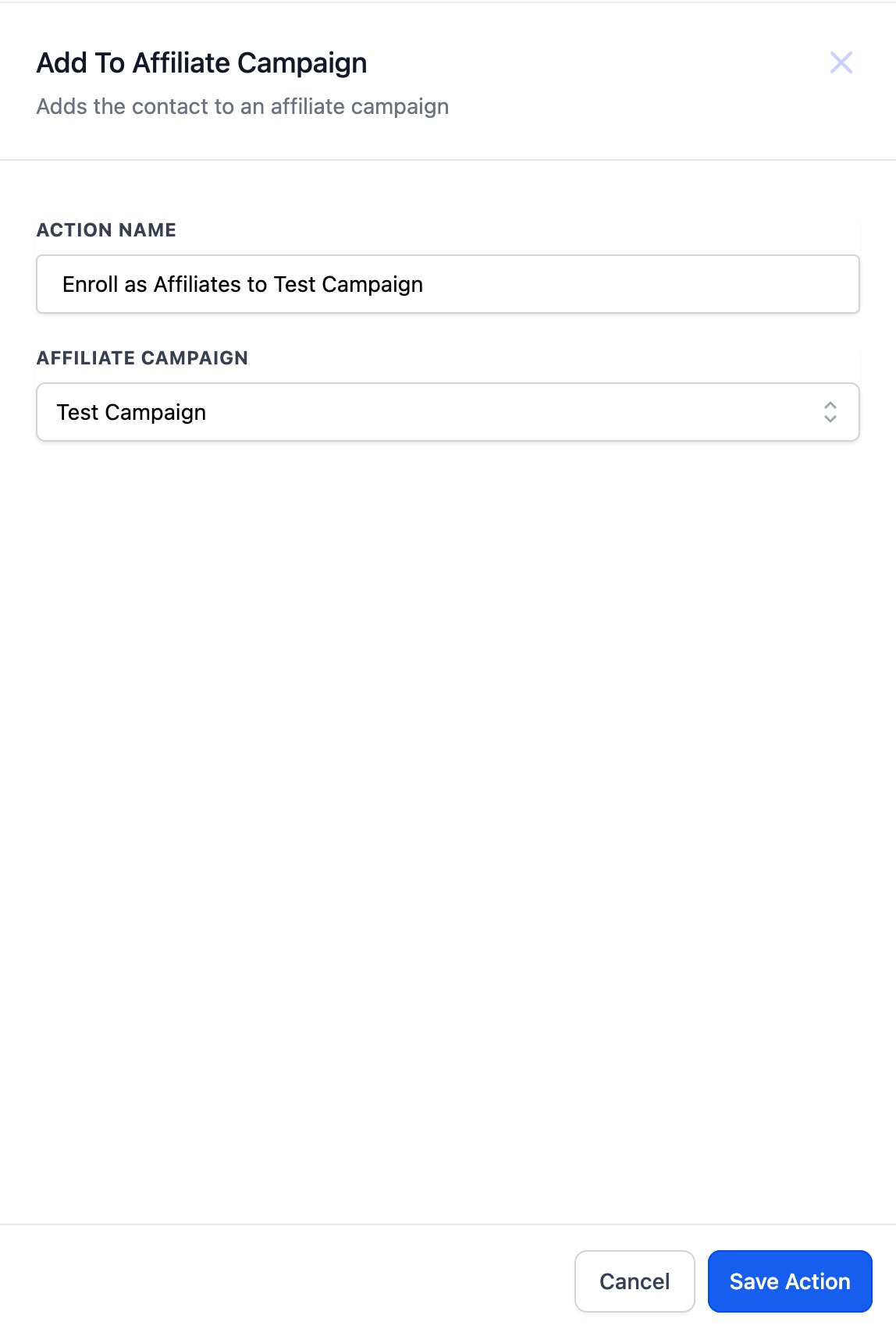
Add to Affiliate Campaign. Enrolls the affiliate into a specific campaign from your Affiliate Manager's Campaigns tab. Pick the campaign from a dropdown when you configure the action. This is the fastest way to get every new affiliate promoting a current offer without adding them to the campaign by hand.
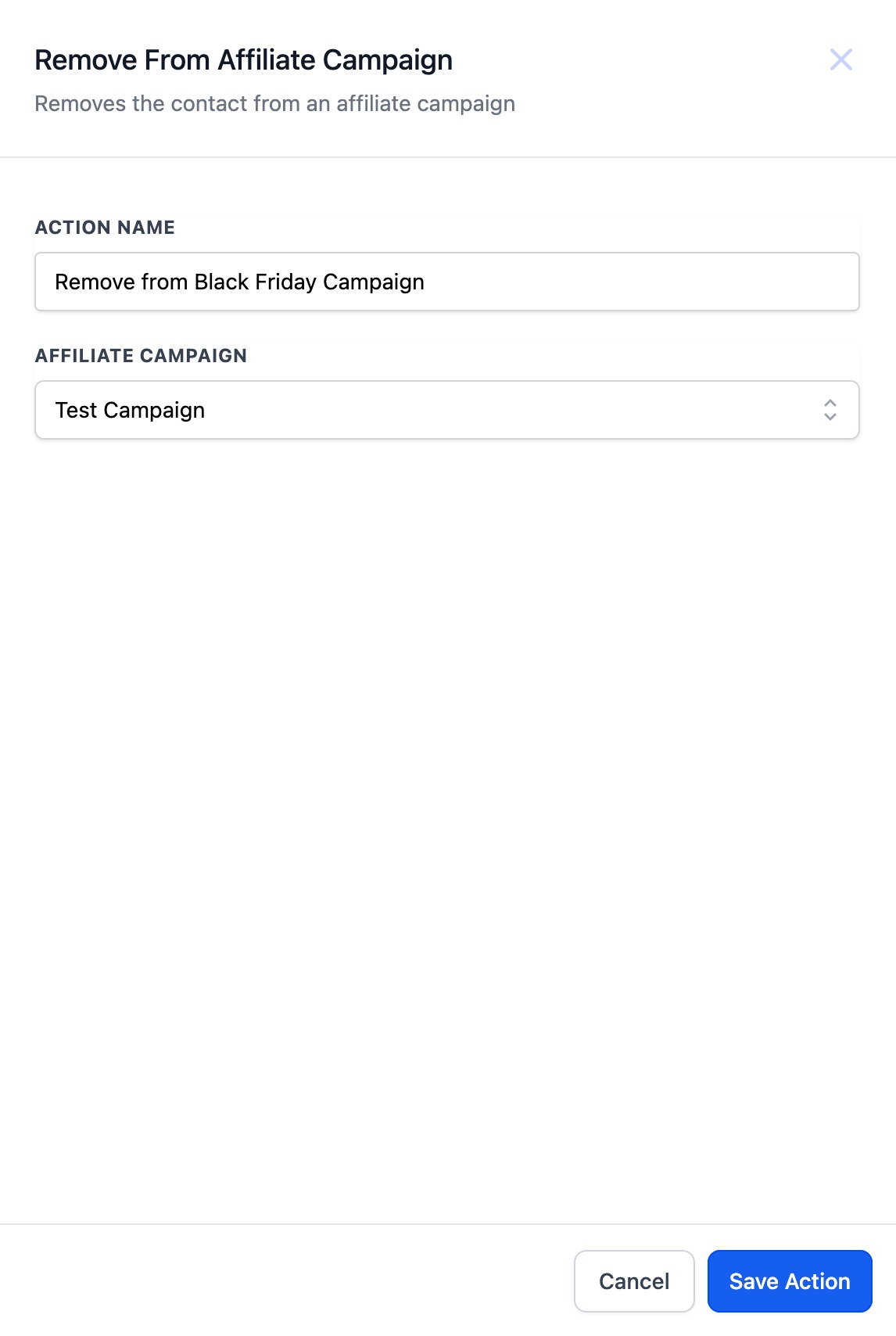
Remove from Affiliate Campaign. Takes an affiliate out of a campaign, also chosen from a dropdown. Use this when an affiliate no longer qualifies for a promotion or a campaign has ended, so their access is cut off automatically instead of relying on someone to remember.
Because these are standard workflow actions, you configure and reorder them the same way you would any other step in Workflows. See your Workflows documentation for the full set of available triggers and actions if you want to combine affiliate automation with other parts of your practice's marketing.
By automating the trigger and the actions that follow it, you can focus on growing your referral program instead of manually processing every new affiliate that signs up.
What counts as a "new affiliate" for this trigger? Any contact that gets added as an affiliate in your Affiliate Manager, regardless of whether they came in through a form, a manual add, or an approval step you built elsewhere in your workflow.
Do I need to add any actions after the trigger, or does it do anything on its own? The trigger only starts the workflow. You need to add at least one action, such as Add to Affiliate Manager or a notification email, for anything to actually happen when it fires.
Can I use this trigger in more than one workflow at a time? Yes. You can attach the Affiliate Created trigger to as many separate workflows as you need, for example one that handles internal notifications and another that sends the affiliate a welcome sequence.
Will this trigger fire for affiliates who already existed before I built the workflow? No. It only fires on new affiliate creation going forward. Existing affiliates won't retroactively trigger the workflow unless you re-add them or enroll them manually through a different method.
What's the difference between Add to Affiliate Manager and Update Affiliate? Add to Affiliate Manager creates the affiliate record and sets their status to active for the first time. Update Affiliate changes the status of an affiliate who already exists, either to active or inactive.
Can I automatically remove an inactive affiliate from a campaign? Yes. Chain the Update Affiliate action (setting status to inactive) with the Remove from Affiliate Campaign action so an affiliate who no longer qualifies is automatically pulled from any campaign they were part of.
Where do I find the Affiliate Created trigger if I can't locate it in the search field? Make sure you're searching from inside a workflow's trigger picker (Marketing > Workflow > Create Workflow > add trigger) and search "Affiliate" rather than "Created," since the search matches on the full trigger name.
Does this trigger work with campaigns I haven't published yet? The trigger itself only depends on the affiliate being created, not on any campaign status. However, any Add to Affiliate Campaign action you chain after it will only enroll the affiliate successfully if that campaign already exists in your Affiliate Manager.
