Affiliates, referring patients, partner providers, or anyone promoting your practice for a commission, can be enrolled into a workflow either by hand or automatically. The Affiliate Manager lives under Marketing > Email Marketing > Affiliate Manager, and the automation pieces (the trigger and actions that move affiliates through a workflow) are built in the Workflows collection under Automation.
Use this method when you already have an affiliate on your list and want to drop them into an existing workflow, for example, one that sends a welcome sequence, delivers referral links, or tracks commission milestones.
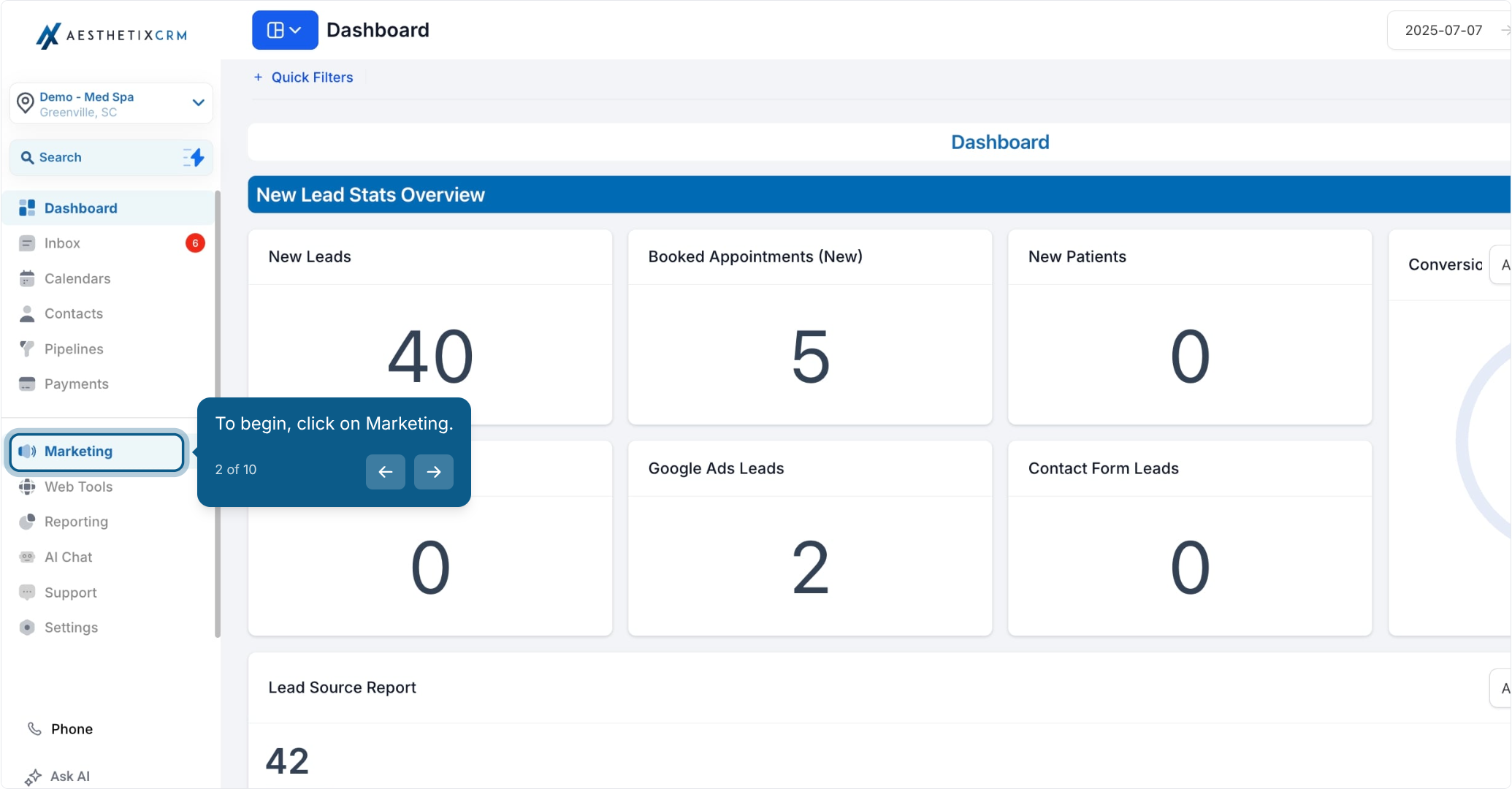
Click on Marketing.
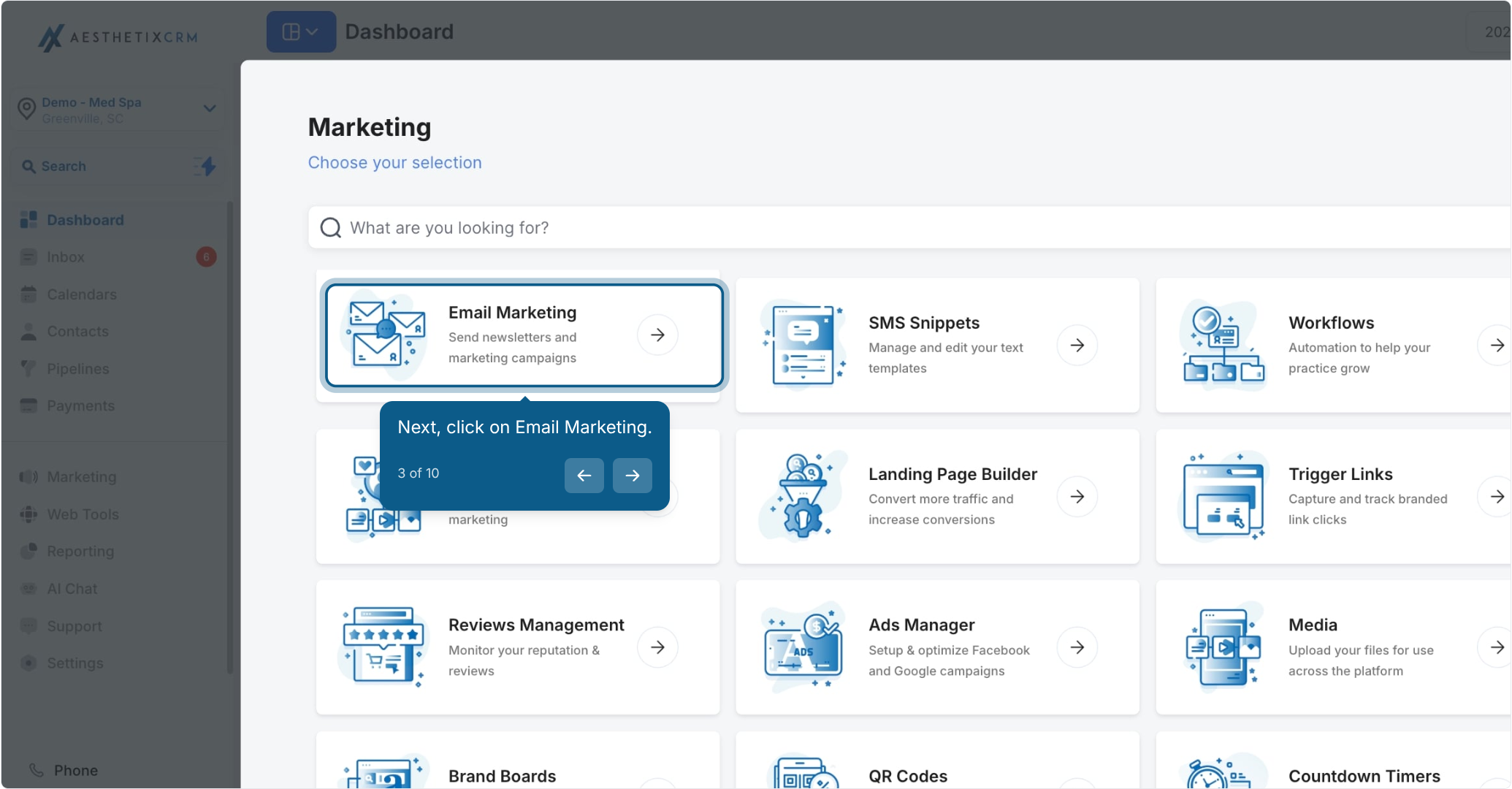
Click on Email Marketing.
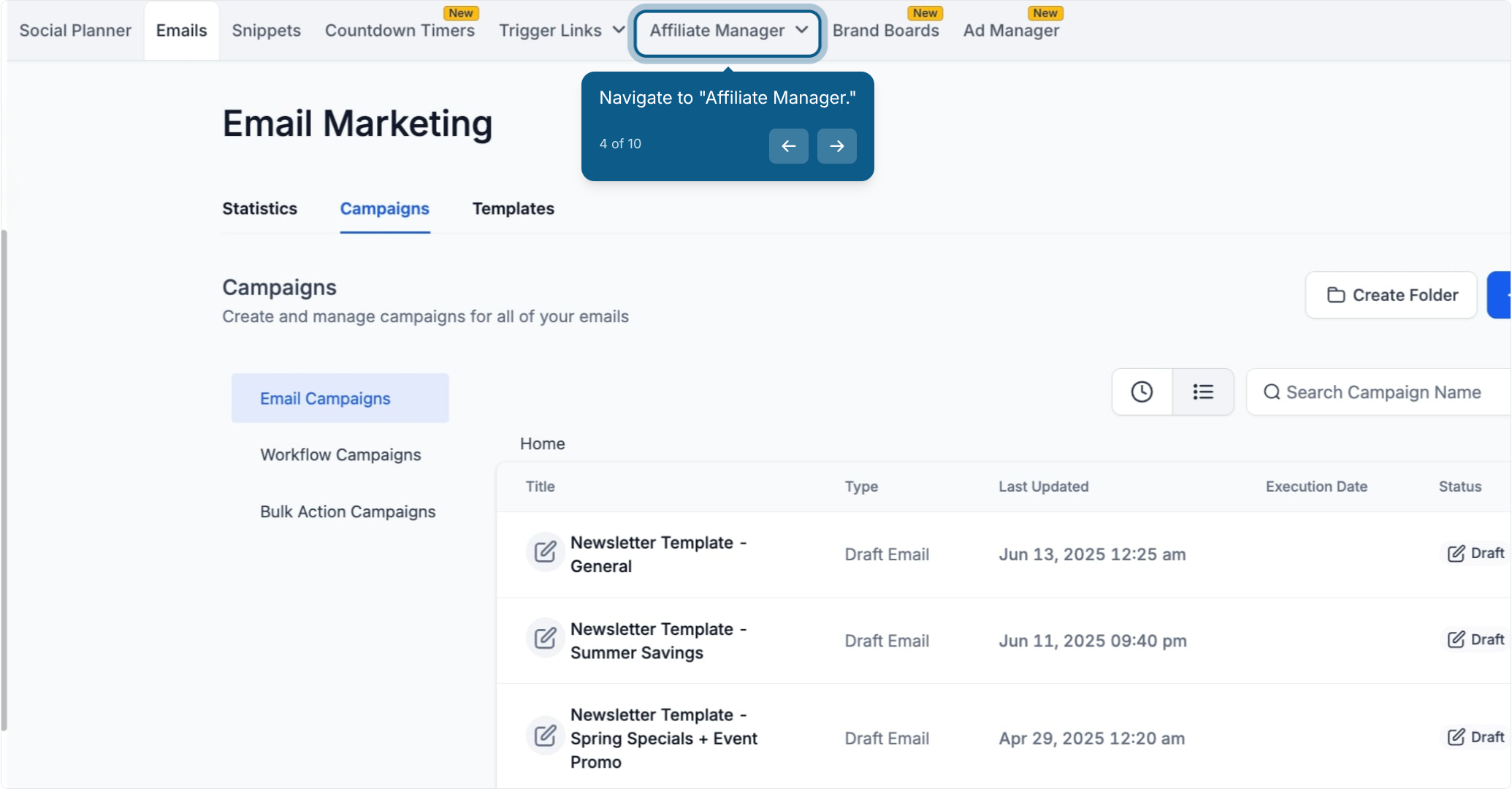
Navigate to Affiliate Manager.
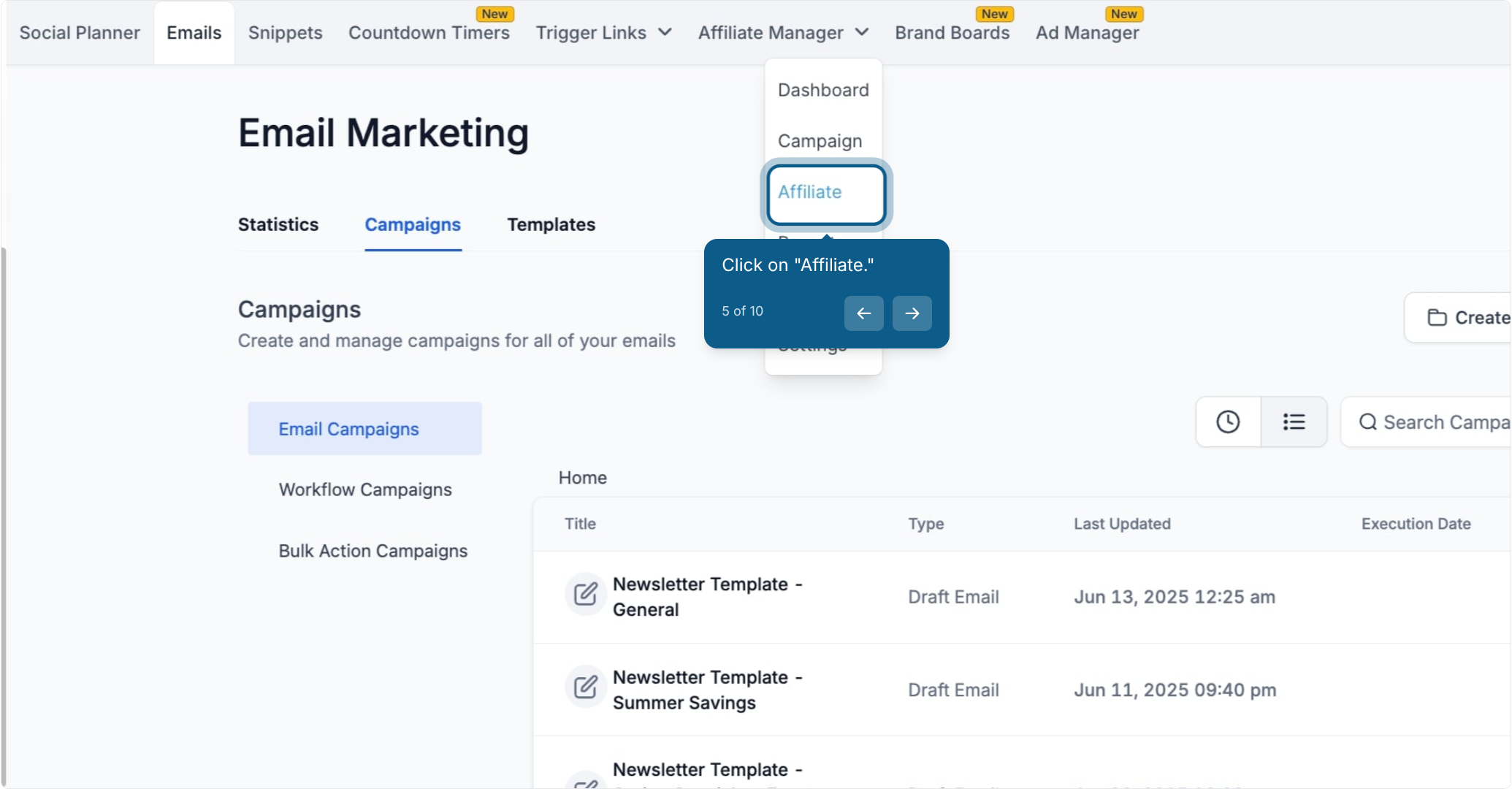
Click on Affiliate.
Click the checkbox beside the affiliate's name.
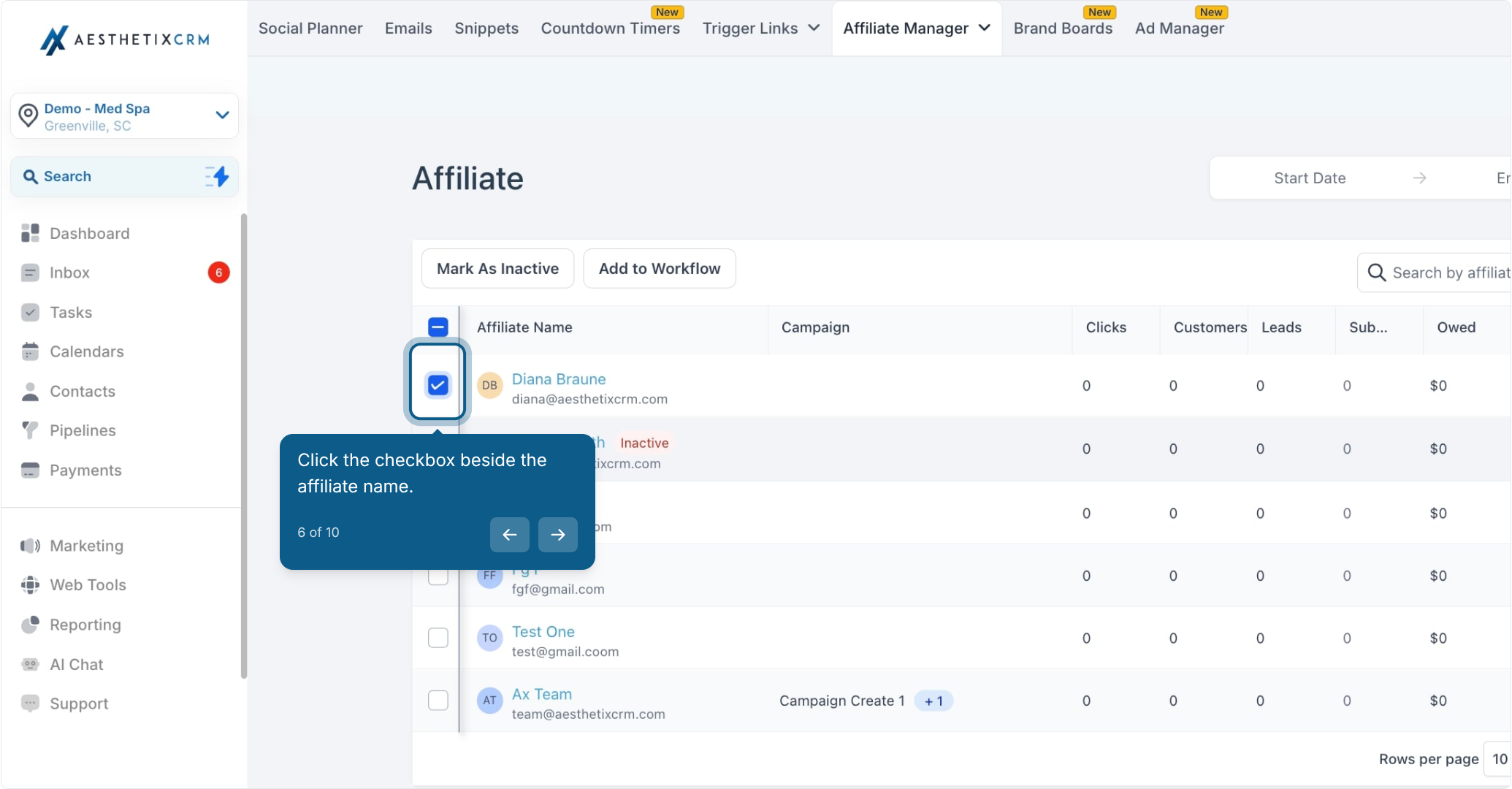
Click Add to Workflow.
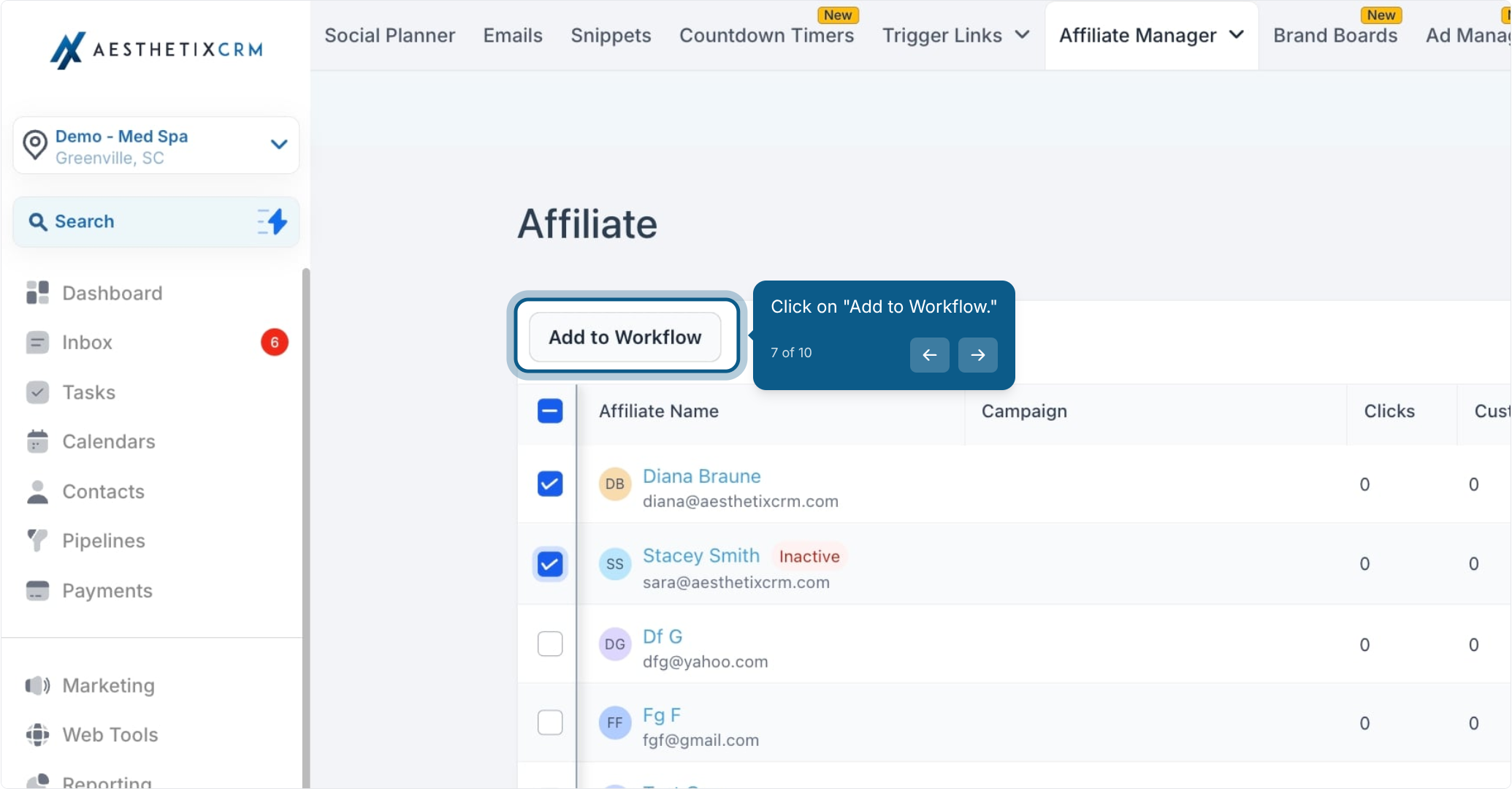
Select an affiliate campaign from the dropdown.
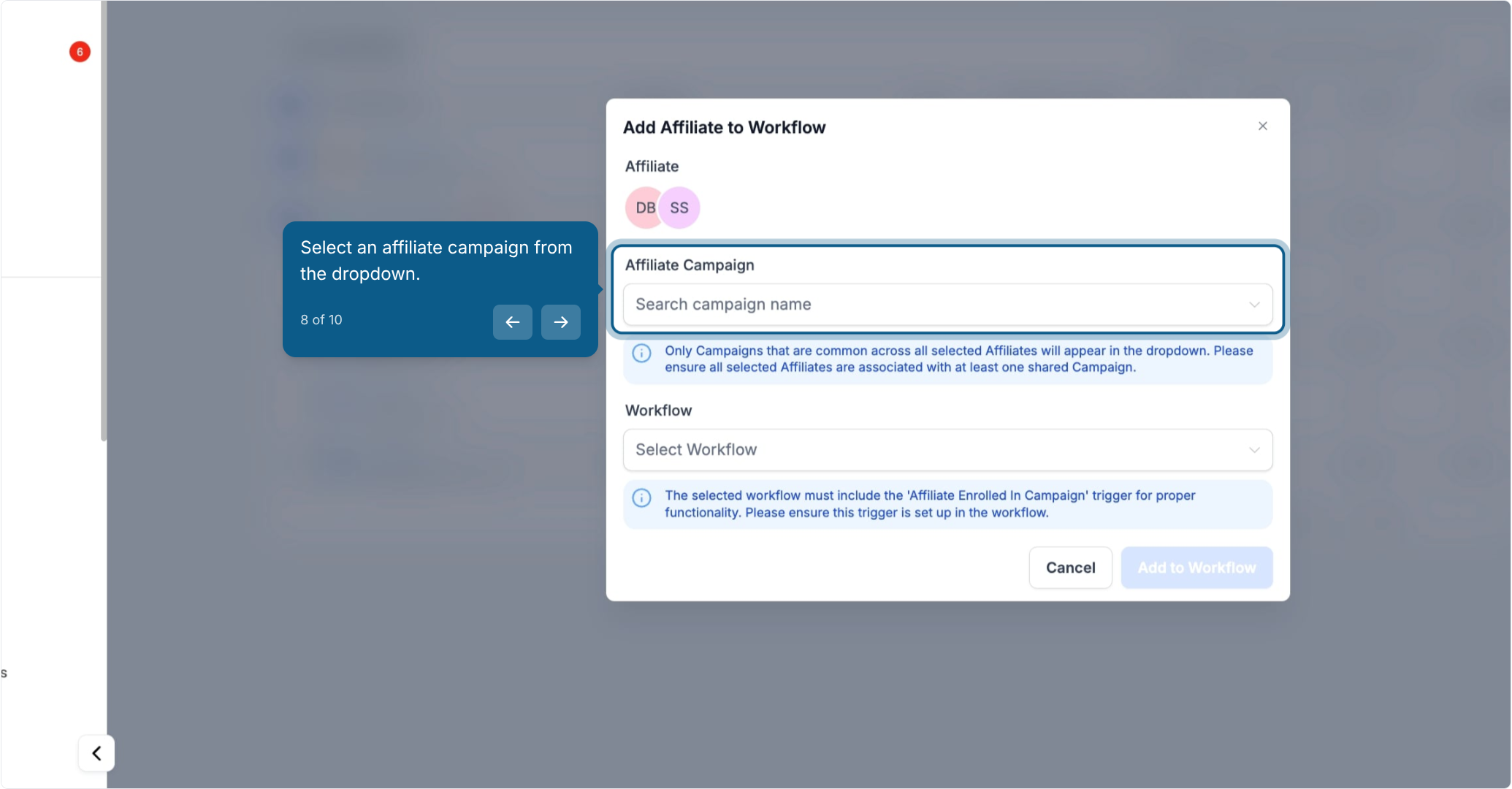
Choose a workflow that contains an affiliate trigger.
Click to confirm and add the affiliate to the workflow.
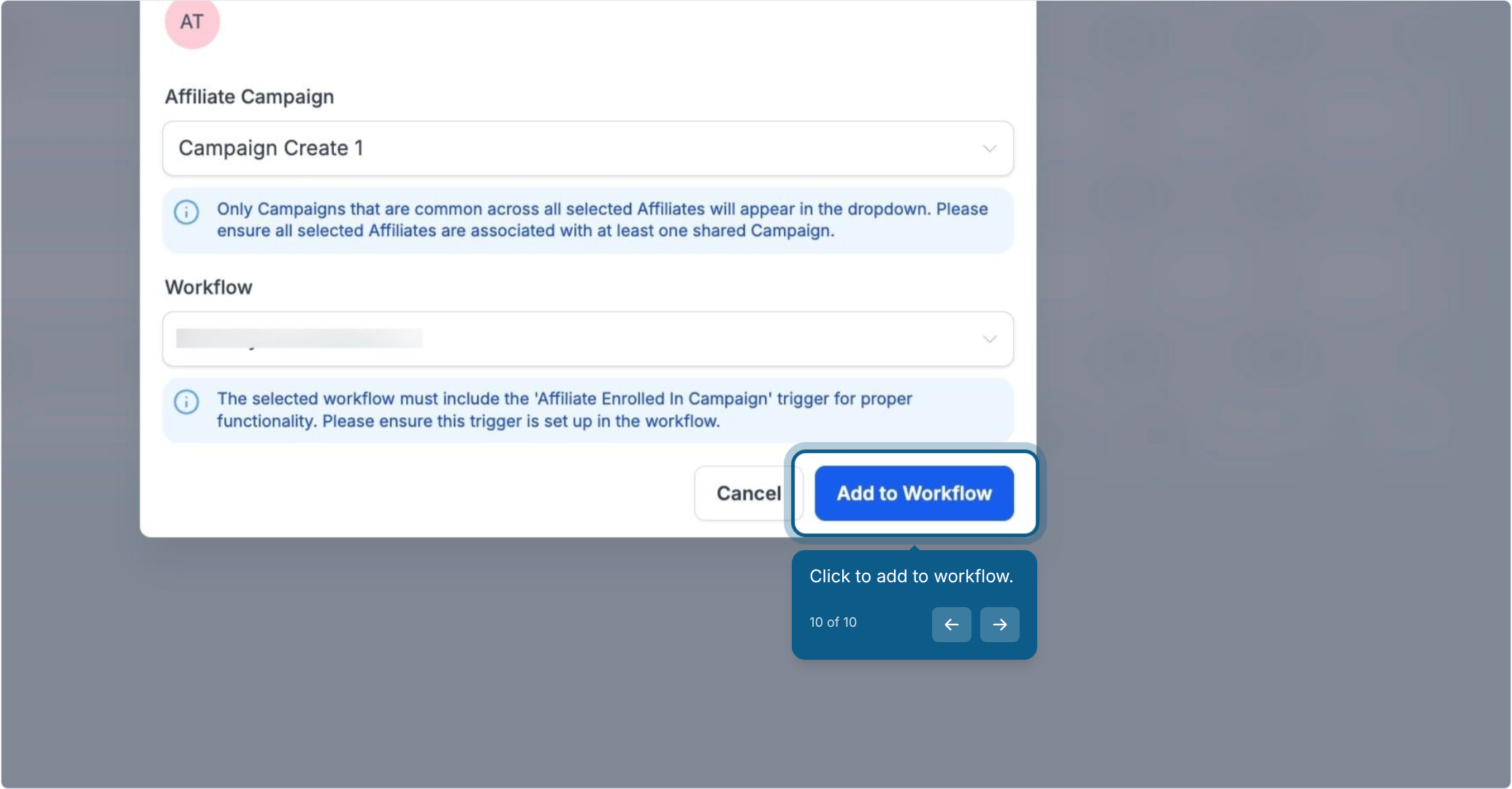
Once added, the affiliate moves through the workflow the same way any other contact would, receiving the emails, tasks, or status updates you've built into it. For step-by-step instructions on building the workflow itself, see the Workflows collection.
Rather than adding affiliates one at a time, you can let a workflow enroll them automatically. This is useful when you want to turn engaged patients or partners into affiliates the moment they meet a condition, such as being tagged, referring a certain number of people, or replying to a promotion.
The Affiliate Manager adds a trigger and a set of actions you can use inside any workflow, built the same way as every other workflow trigger and action. Full setup instructions for building workflows live in the Workflows collection under Automation; this section only covers what the affiliate-specific pieces do.
Affiliate Created (trigger): Starts the workflow the moment a new affiliate is created in your account. Use it to send a welcome sequence or assign onboarding tasks as soon as someone joins your referral program.
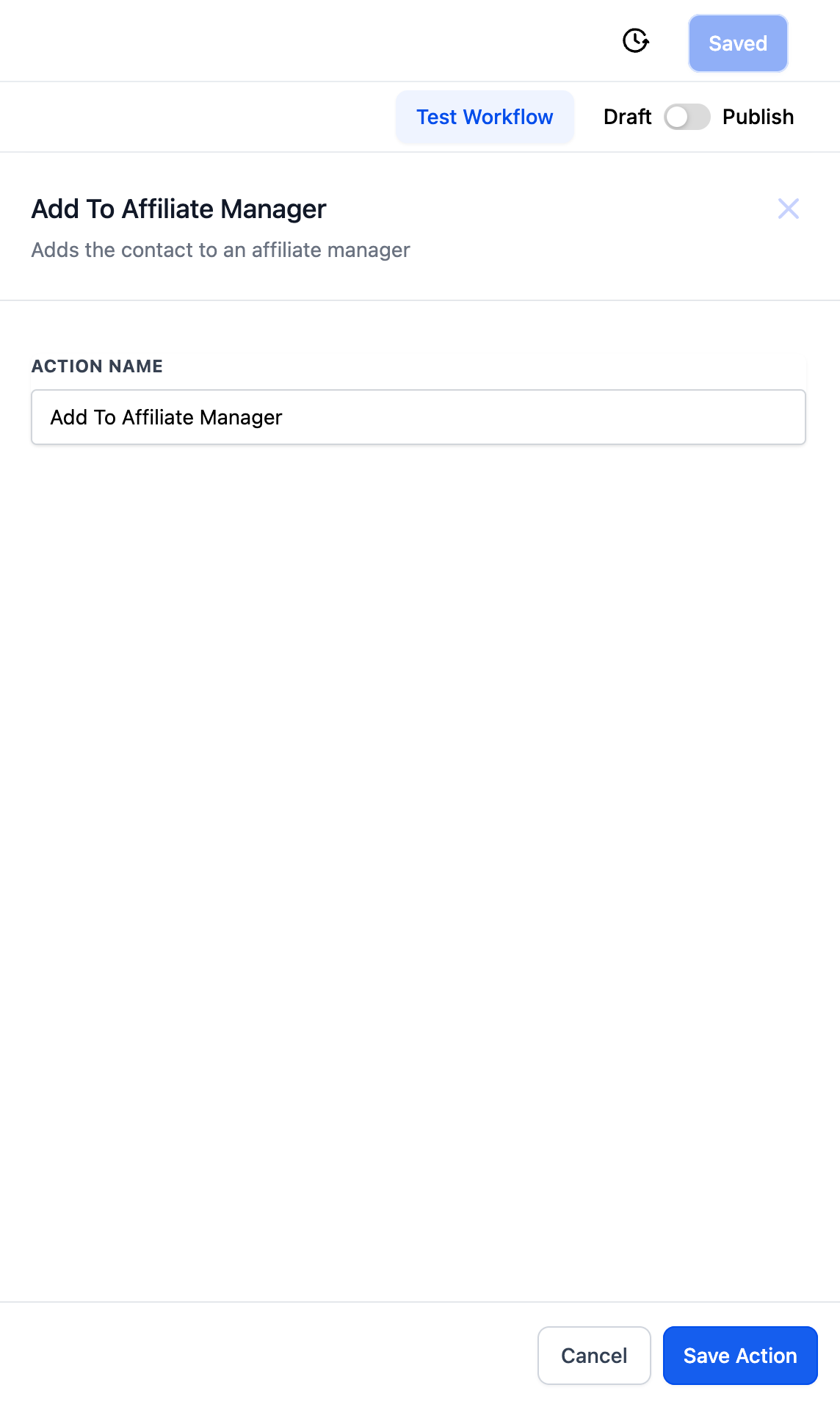
Add To Affiliate Manager (action): Converts an existing contact into an affiliate with an active status by default. This is the action to use when you want a tag, form submission, or other event to automatically enroll a patient or partner as an affiliate, without anyone touching the Affiliate Manager by hand.
When you add this action to a workflow, name it something descriptive so it's easy to recognize later, such as "Convert Contacts to Affiliates."
Update Affiliate (action): Marks an existing affiliate as active or inactive. Useful for pausing an affiliate's participation without removing their history.
Add to Affiliate Campaign (action): Adds an affiliate to a specific campaign under Affiliate Manager > Campaigns. You'll pick the campaign from a dropdown when you configure the action.
Remove from Affiliate Campaign (action): Removes an affiliate from a campaign, also chosen from a dropdown.
Say you want to reward patients who've been actively referring friends. You add a tag such as "Affiliate" to those contacts as you spot them, and a workflow does the rest.
Workflow trigger: Contact Changed, with a filter for the tag "Affiliate" being added.
Workflow action: Add To Affiliate Manager.
Outcome: Any time you (or another workflow) apply the "Affiliate" tag to a contact, that contact is automatically converted into an active affiliate, no manual steps required.
Manually adding affiliates to workflows works fine for a handful of partners, but automation pays off as your referral program grows:
Saves time. New affiliates get enrolled the moment they qualify, without someone checking the list every day.
Keeps things organized. Affiliates are consistently assigned to the right campaigns instead of relying on memory.
Reduces mistakes. Automation applies the same rule every time, so no one gets missed or double-enrolled.
Frees up staff. Your team can focus on growing the referral program instead of managing enrollment by hand.
Do I have to add affiliates to a workflow manually, or can it happen automatically? Both are supported. You can select an affiliate and add them to a workflow by hand from the Affiliate Manager, or use the Add To Affiliate Manager workflow action to enroll contacts automatically based on a trigger like a tag being added.
What status does a new affiliate get by default? Active. Whether you add someone manually or through the Add To Affiliate Manager action, they're marked active unless you change it.
Can I set an affiliate back to inactive without deleting them? Yes. Use the Update Affiliate action (or update it manually from the Affiliate Manager) to mark them as active or inactive without losing their record or history.
What does the Affiliate Created trigger actually fire on? It fires the moment a new affiliate is created in your account, whether that happened manually or through an automation. It's a good starting point for onboarding sequences.
Can I add an affiliate to more than one campaign? Yes. Use the Add to Affiliate Campaign action (or the manual campaign dropdown) as many times as needed. Use Remove from Affiliate Campaign if you need to take them out of one later.
Where do I actually build the workflow and its trigger or actions? In the Workflows collection under Automation. This article covers what the affiliate-specific trigger and actions do; the Workflows collection covers how to build and structure a workflow from scratch.
Why would I choose the manual method instead of automating it? Manual enrollment is quick for one-off cases, like adding a single new partner you just signed up in person. Automation is better once you have a repeatable rule, such as tagging engaged patients as affiliates.
Does adding someone to a workflow this way notify them automatically? Only if the workflow itself includes a notification step, such as an email or SMS. Adding an affiliate to a workflow just starts them on that workflow's path; what happens next depends on how the workflow is built.
Can I remove an affiliate from a workflow after adding them? The workflow itself controls what happens to a contact once they're in it. To stop an affiliate from progressing, remove them from the relevant campaign or update their status to inactive, and adjust the workflow's own exit conditions as needed.
