Every patient or partner who signs up or purchases through one of your affiliates shows up as a "customer" on that affiliate's profile. From there you can review who's attributed to an affiliate, remove or disable customers, clean up commissions, move a customer to a different affiliate, and fix cases where an affiliate got linked to the wrong CRM contact. All of this lives in Affiliate Manager, on the individual affiliate's profile page.
Go to your Affiliate page in Affiliate Manager.
Locate the affiliate whose customer you want to work with and click their name to open the profile.
Open the Customers tab. Use the search bar or filters to quickly find a specific customer if the list is long.
A customer record here reflects real purchase activity tied to a patient or contact, so treat names, emails, and purchase history the same way you'd treat any other patient information in your account.
Removing a customer breaks the link between that customer and the affiliate. Use this when a customer was attributed incorrectly or shouldn't be tracked under that affiliate anymore.
Open the affiliate's profile and go to the Customers tab.
Find the customer you want to delete using the search bar or filters.
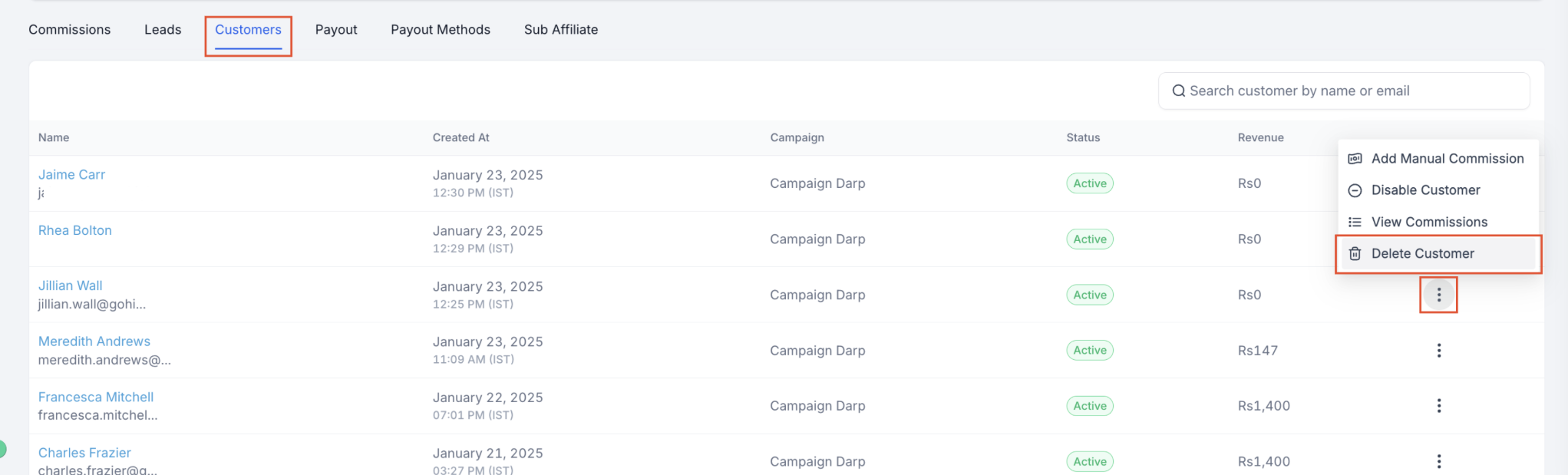
Click the Delete button next to the customer's name and confirm the action when prompted.
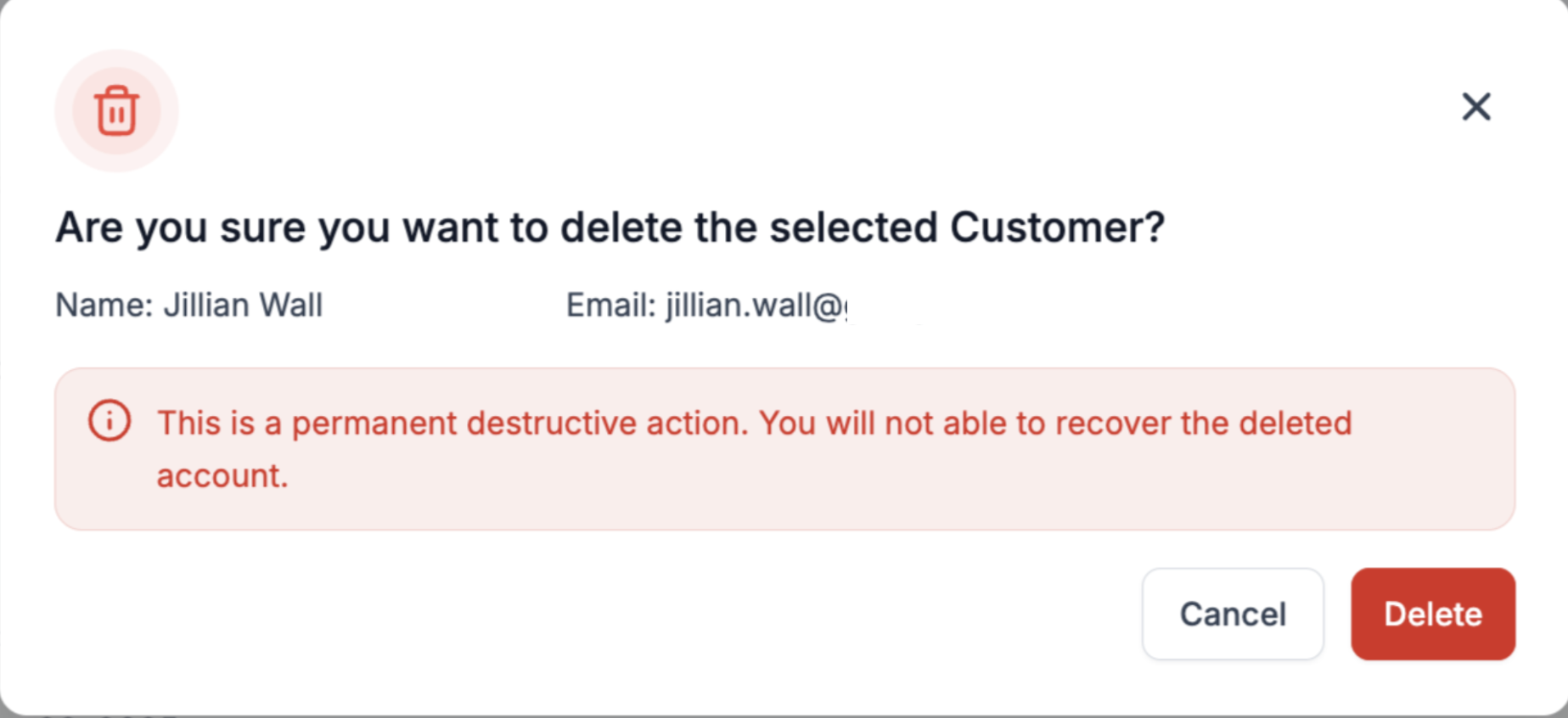
What happens after you delete a customer:
The customer is no longer associated with that affiliate.
Any future commissions from that customer will no longer be generated.
Deleting a customer here does not delete the underlying contact record, only the affiliate attribution.
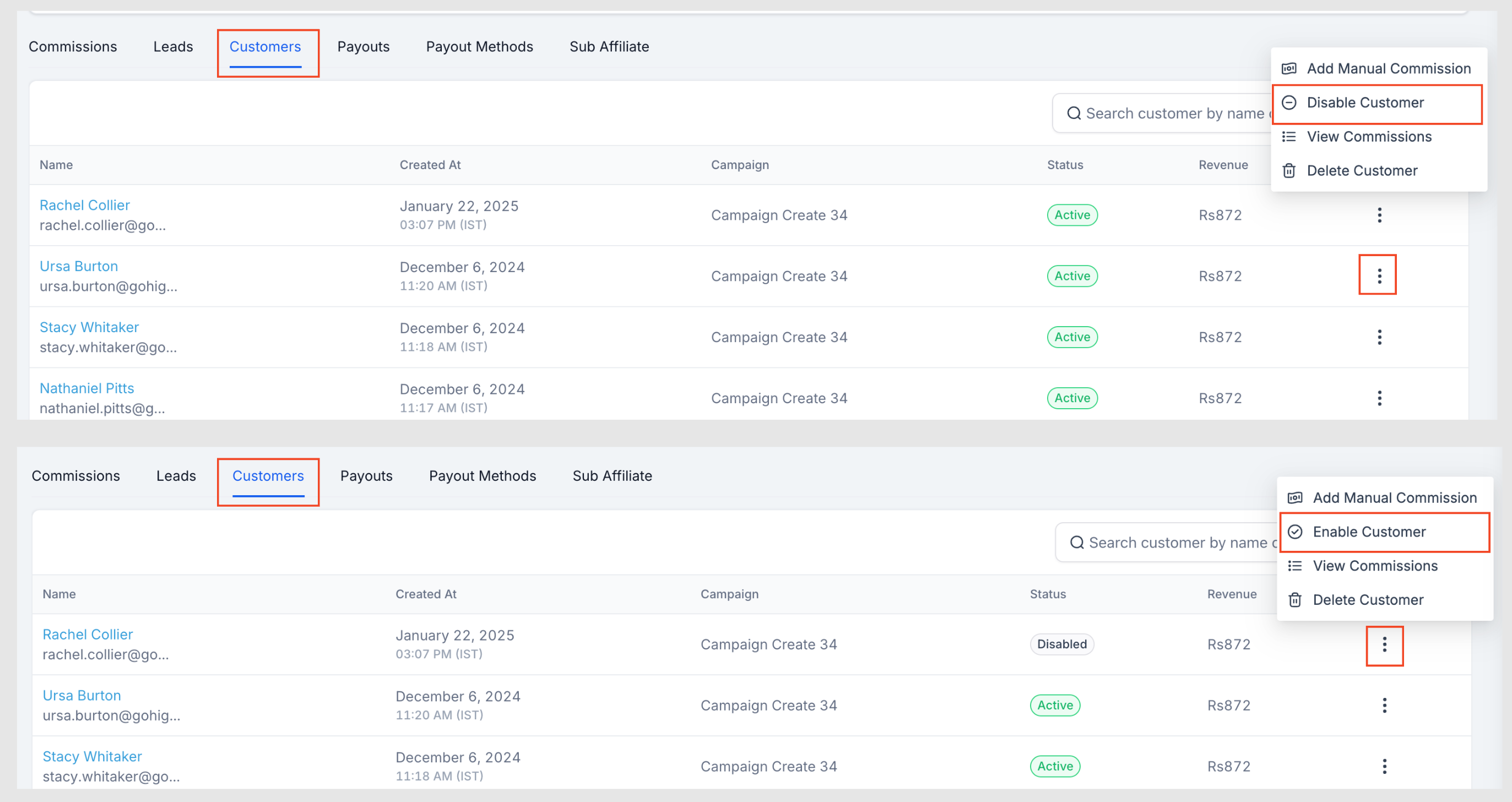
Disabling a customer stops future sales from being tracked and stops new commissions from generating, without removing the customer from the affiliate entirely. This is useful for handling suspected fraudulent signups or pausing commission eligibility for a specific customer.
Open the affiliate's profile and go to the Customers tab.
Find the customer you want to disable or enable.
Click the three-dot menu next to the customer and select Disable Customer, then confirm. The status tag changes to Disabled.
To bring the customer back, follow the same steps and click Enable Customer. Only customers that are currently disabled can be re-enabled.
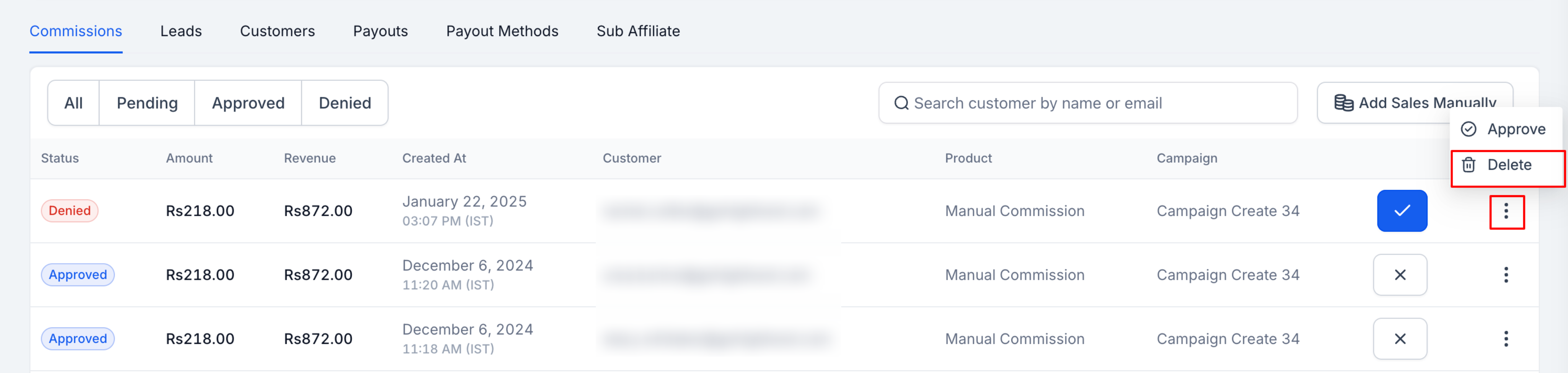
Only Denied commissions can be deleted. If the commission you want to remove hasn't been denied yet, deny it first.
Open the affiliate's profile and go to the Commissions tab.
Find the commission you want to delete. If it isn't already Denied, deny it first.


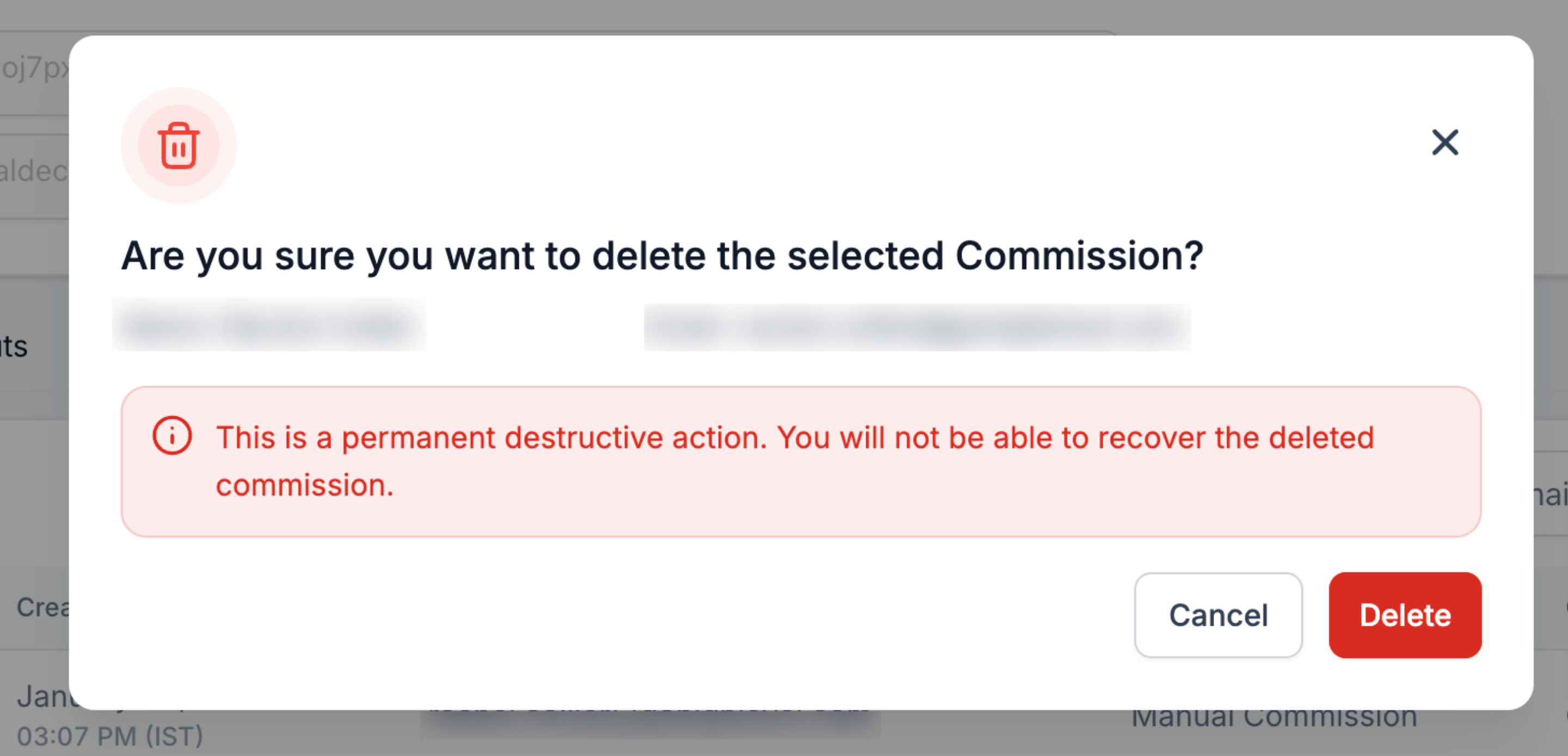
Once the commission shows as Denied, click the three-dot menu again and select Delete.
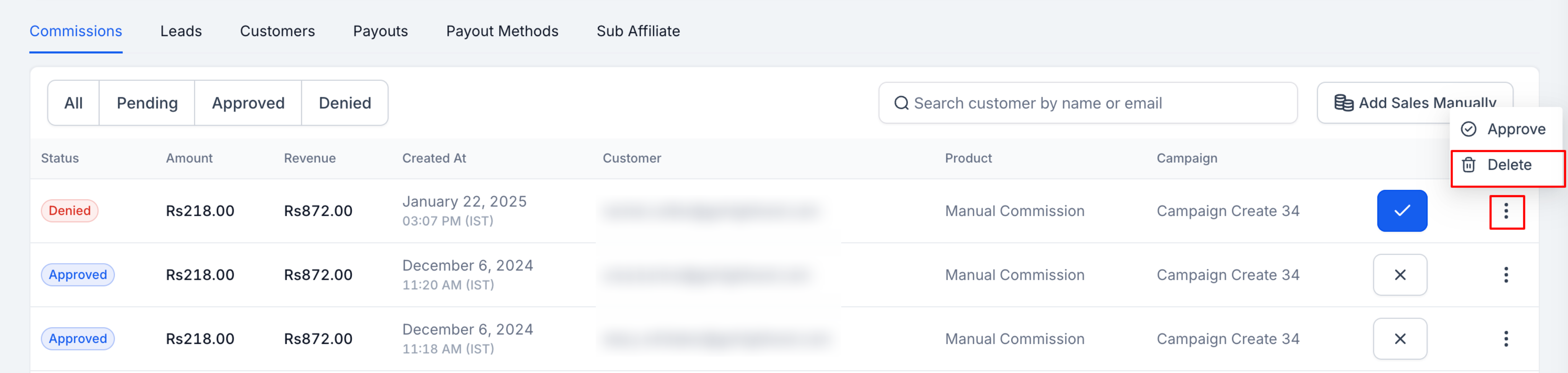
Confirm the action.
Use this when a customer should be credited to a different affiliate, for example if a patient was originally attributed to the wrong referral partner.
Two things to keep in mind before you move a customer:
You can only move a customer within the same campaign.
If you choose to move commissions along with the customer, only unpaid commissions transfer. Paid commissions stay with the original affiliate.
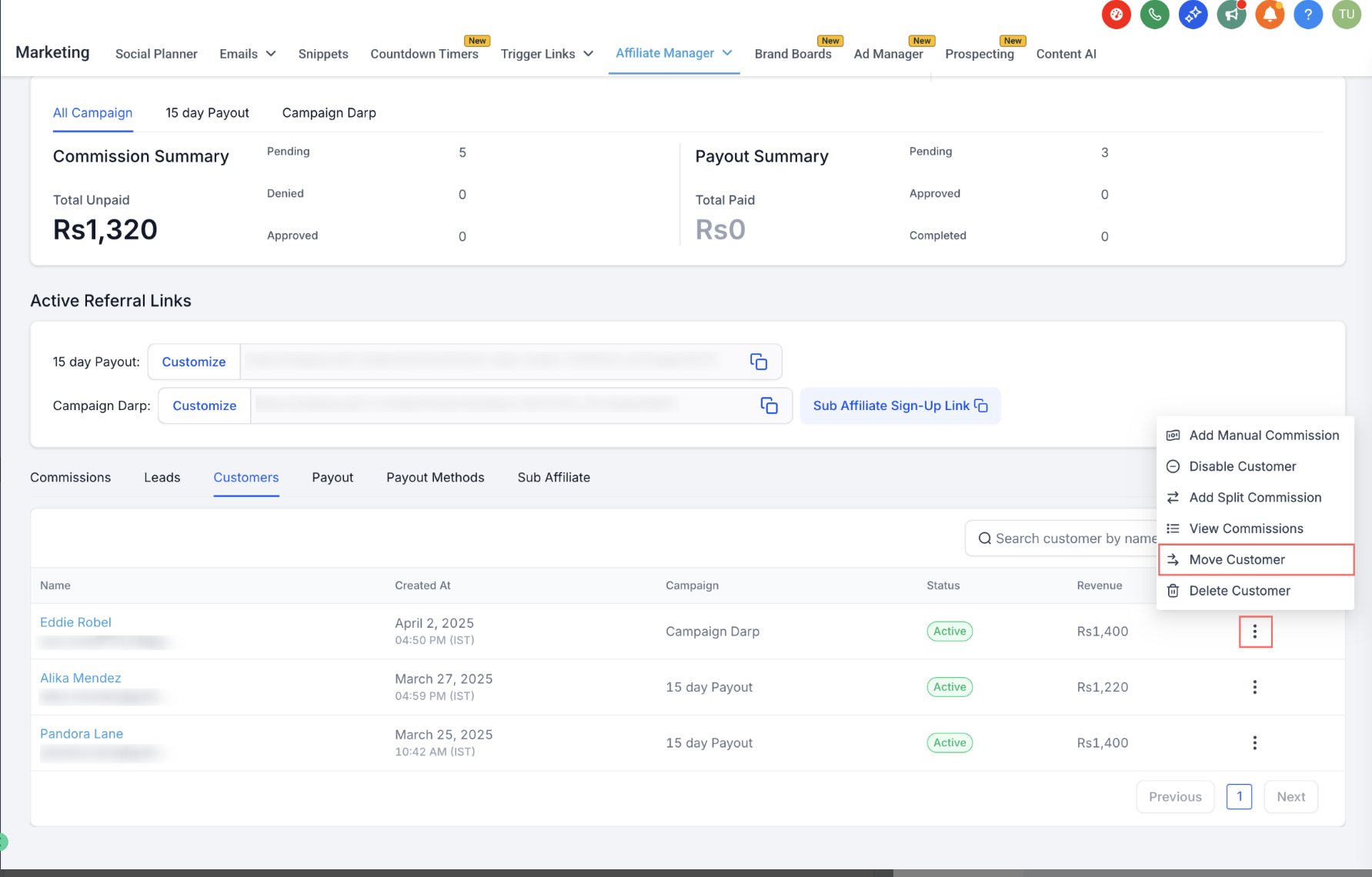
Open the profile of the affiliate the customer is currently assigned to.
Scroll to the Customers tab.
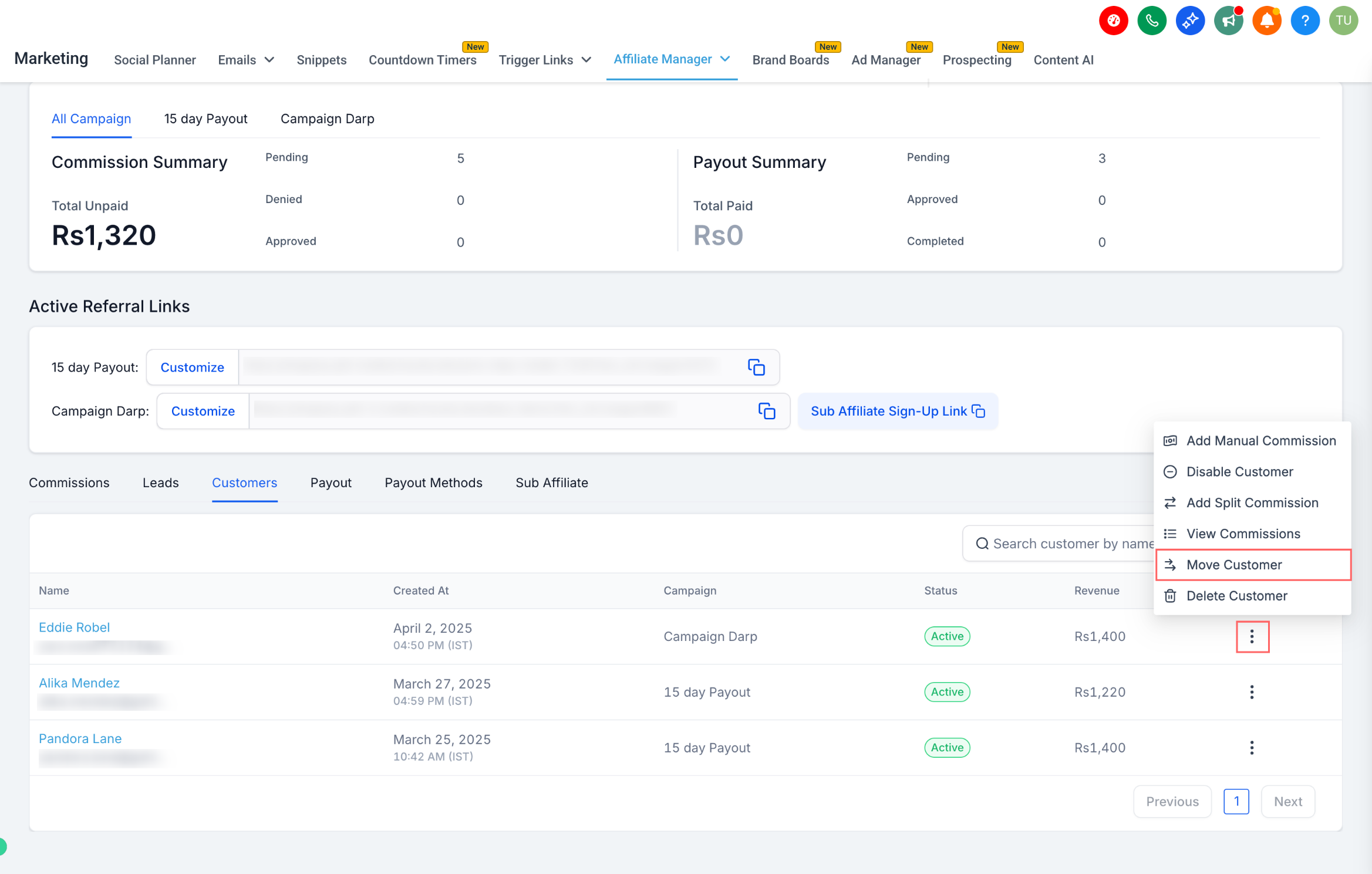
Click the three-dot menu next to the customer you want to move.
Select Move Customer from the dropdown.
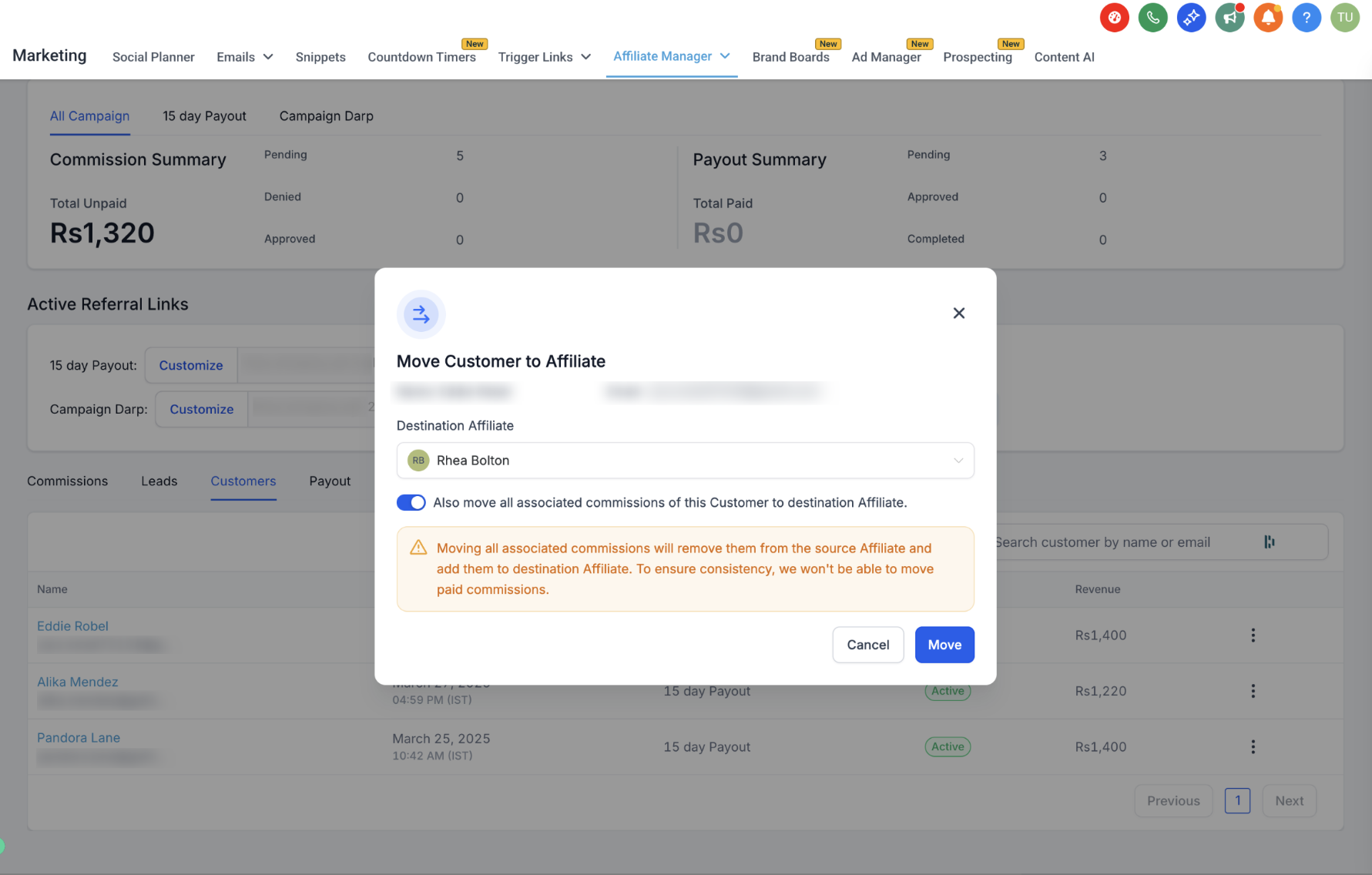
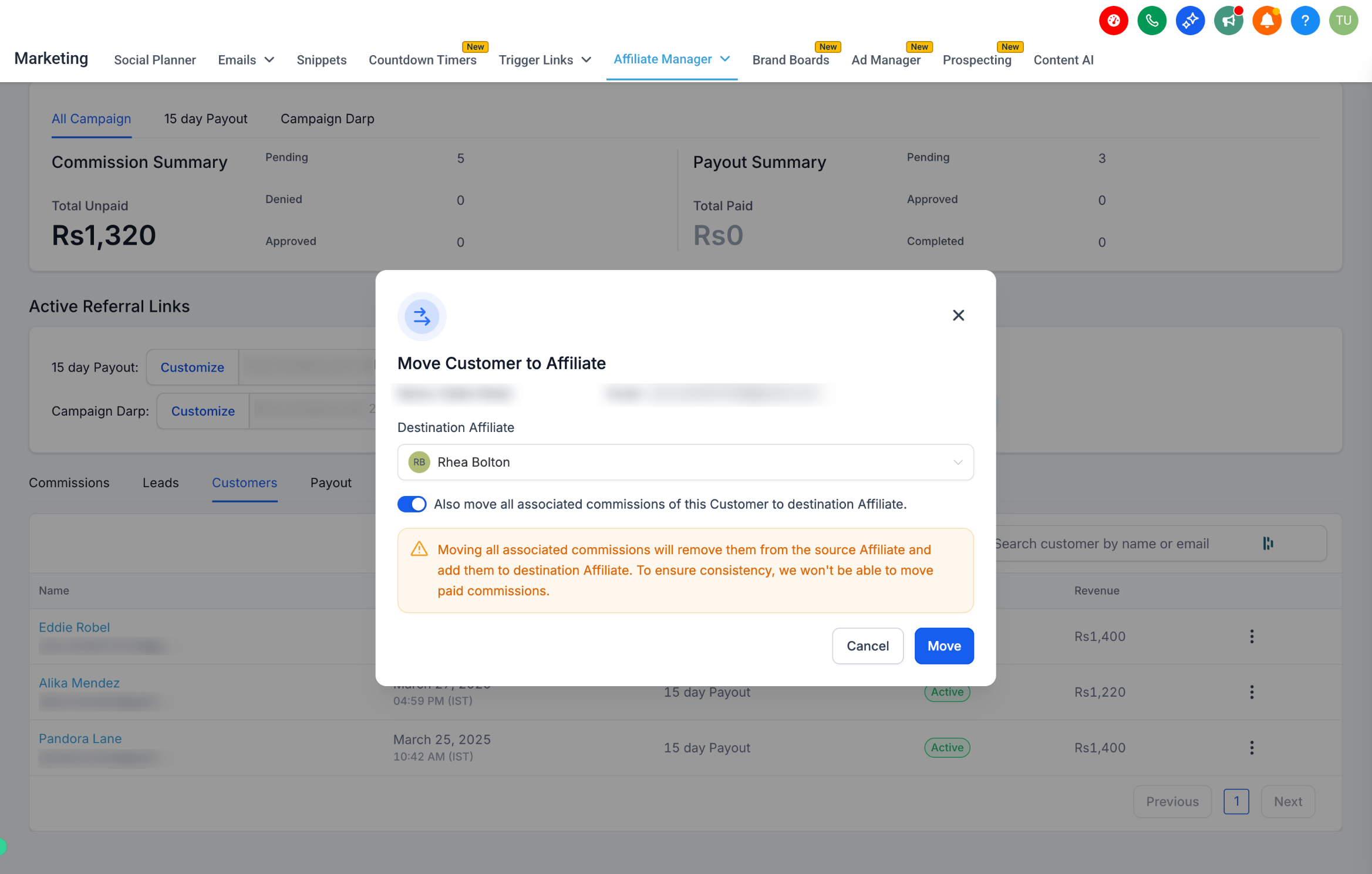
In the pop-up, select the destination affiliate. Toggle on Also move all associated commissions of this Customer to destination Affiliate if you want to transfer unpaid commissions along with the customer. Click Move to finish.
Occasionally an affiliate ends up linked to the wrong CRM contact record, usually because duplicate contacts exist for the same person (often sharing the same email). When that happens, reassigning the affiliate's linked contact corrects attribution going forward without deleting data or merging contacts.
Why reassign:
Aligns the affiliate to the correct person's CRM profile so activity history and contact details stay consistent.
Keeps future lead attribution and reporting pointed at the right record.
Prevents automations from stalling or acting on the wrong contact.
Avoids an unnecessary contact merge or customer move when the affiliate-to-contact link is the only problem.
Before you start: you need permission to view and manage both Affiliate Manager and Contacts, and you should confirm you're working in the correct location if your practice manages more than one.
What changes after you reassign:
Reporting: future metrics reflect the updated linkage. Some historical charts may not recalculate, so check report by report.
Commissions: new commissions follow the updated contact. Commissions already calculated or paid generally stay as they are.
Automations: ongoing workflows that reference the affiliate's contact continue running against the newly linked profile.
Affiliate portal: the affiliate's portal reflects the current linkage going forward; historical views may vary by widget.
If you actually need to consolidate two contact records into one, do that through a contact merge, either before or after reassignment depending on your goal.
Action | Use When | What Changes | Reversible? | Where to Do It |
|---|---|---|---|---|
Reassign affiliate's linked contact | The affiliate is linked to the wrong contact, usually a duplicate of the same person. | Which contact the affiliate points to going forward. | Limited: you'd need to reassign again to change it back. | Affiliate Manager, affiliate profile. |
Merge contacts | Two or more contact records should really be one profile. | Consolidates records into one, with field-level conflict resolution. | Not easily reversible. | Contacts, merge flow. |
Move customer under affiliates | A customer should belong to a different affiliate for campaign or relationship reasons. | The customer-to-affiliate assignment (not the affiliate's own contact link). | Can be changed later. | Affiliate Manager, Customers tab (see above). |
Reassignment works most cleanly when the duplicate contacts share the same email address.
If the duplicates have different emails or are phone-only duplicates but represent the same person, consider a merge instead so you get a single unified history.
If a contact was recently merged, double check you're linking to the surviving record, not an archived one.
Bulk reassignment isn't supported. Affiliates have to be reassigned one at a time.
There's no single-click undo. To reverse a reassignment, run the process again and point it at a different contact.
If you don't see the reassignment option, check your location and role permissions.
Review your deduplication settings for contacts to cut down on avoidable duplicates in the first place.
If you use a workflow action like Add To Affiliate Manager, make sure the trigger logic identifies the canonical contact (normalize emails, use exact-match rules). Affiliate workflow triggers and actions are managed in Workflows.
When importing affiliate data from an outside platform, resolve any contact conflicts (merge vs. skip) during the import, then double check affiliate linkages afterward and reassign where needed.
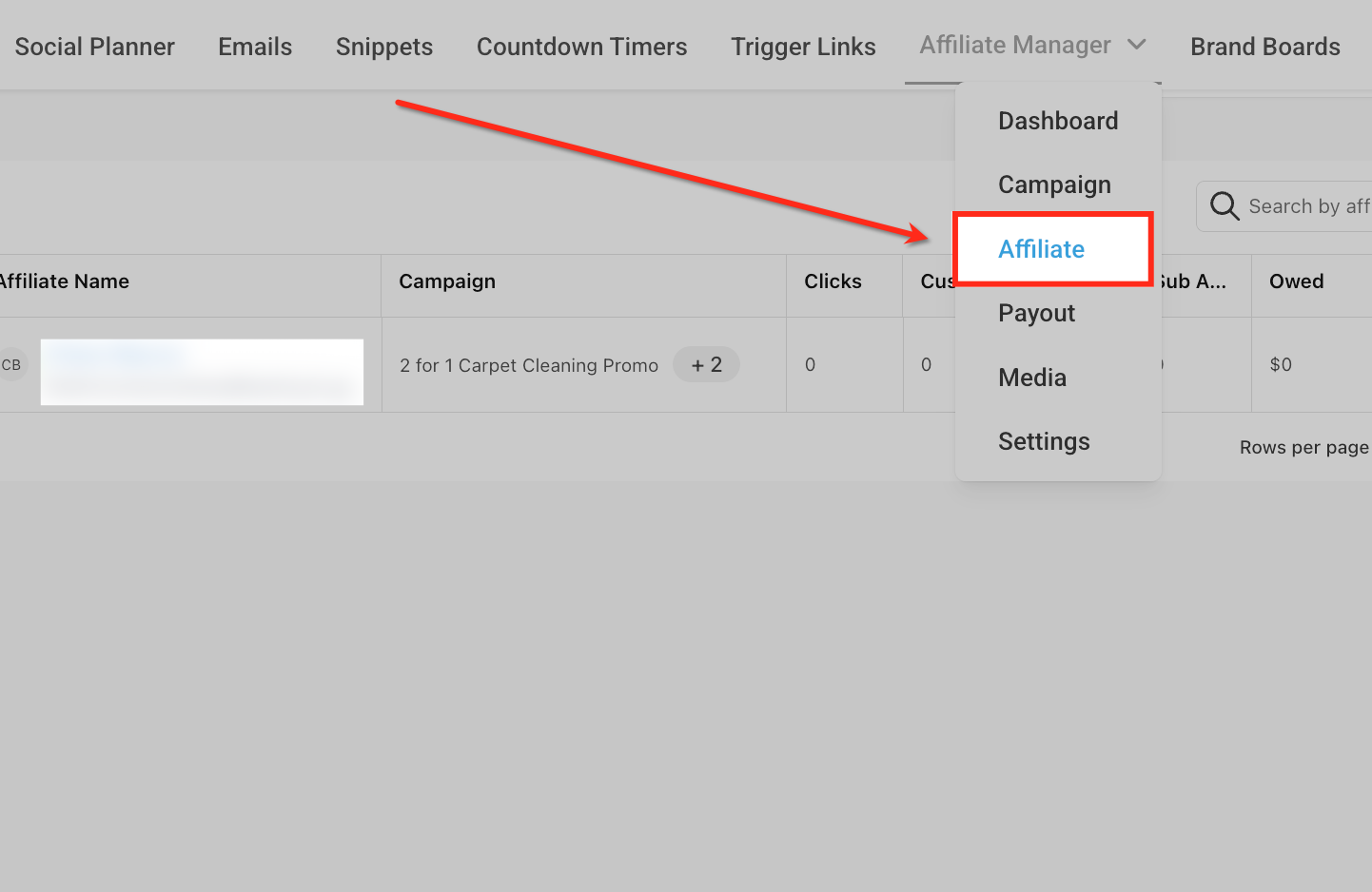
From the correct account, open Affiliate Manager.
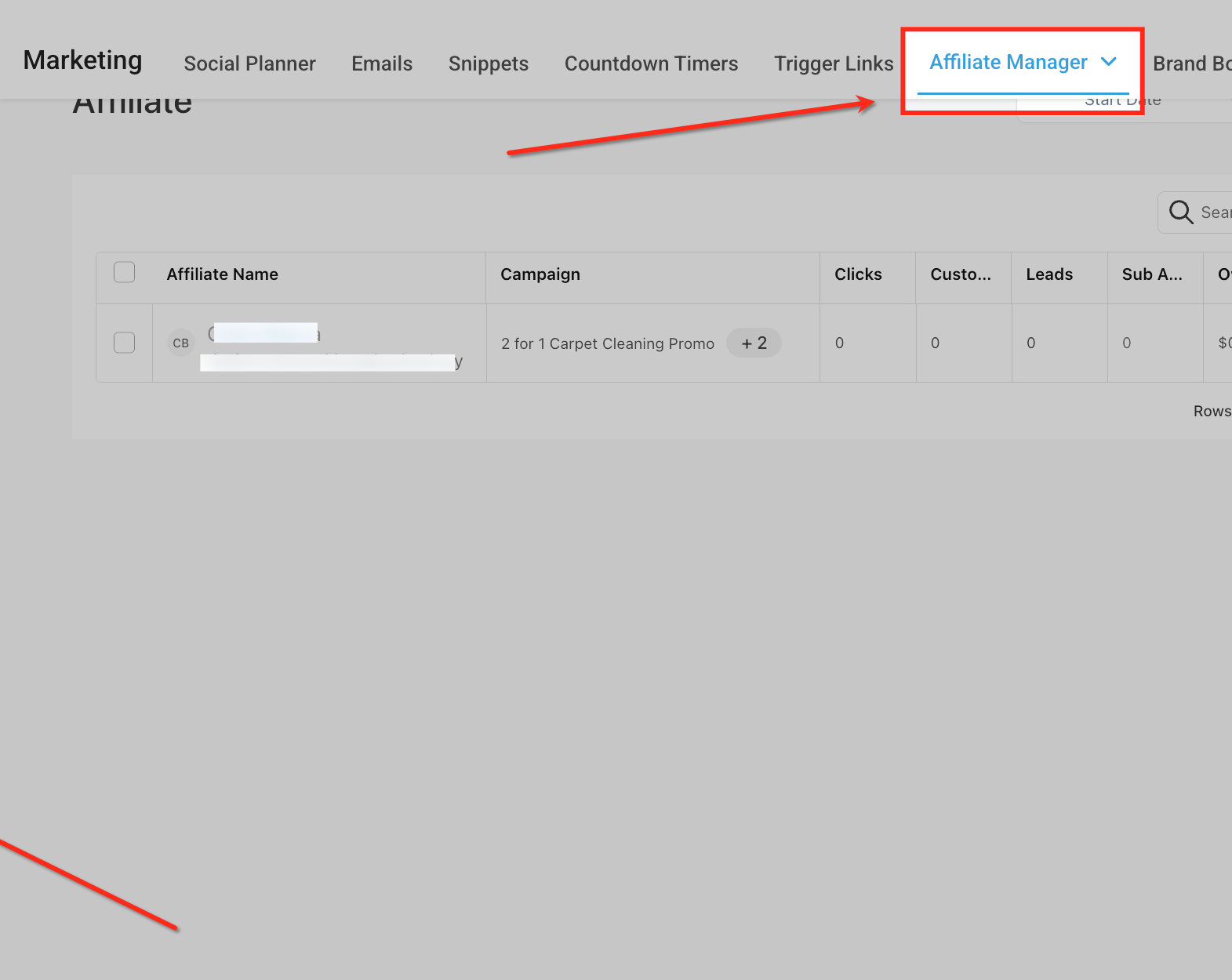
Open the Affiliate Manager dropdown and choose Affiliate to view the full affiliate list.
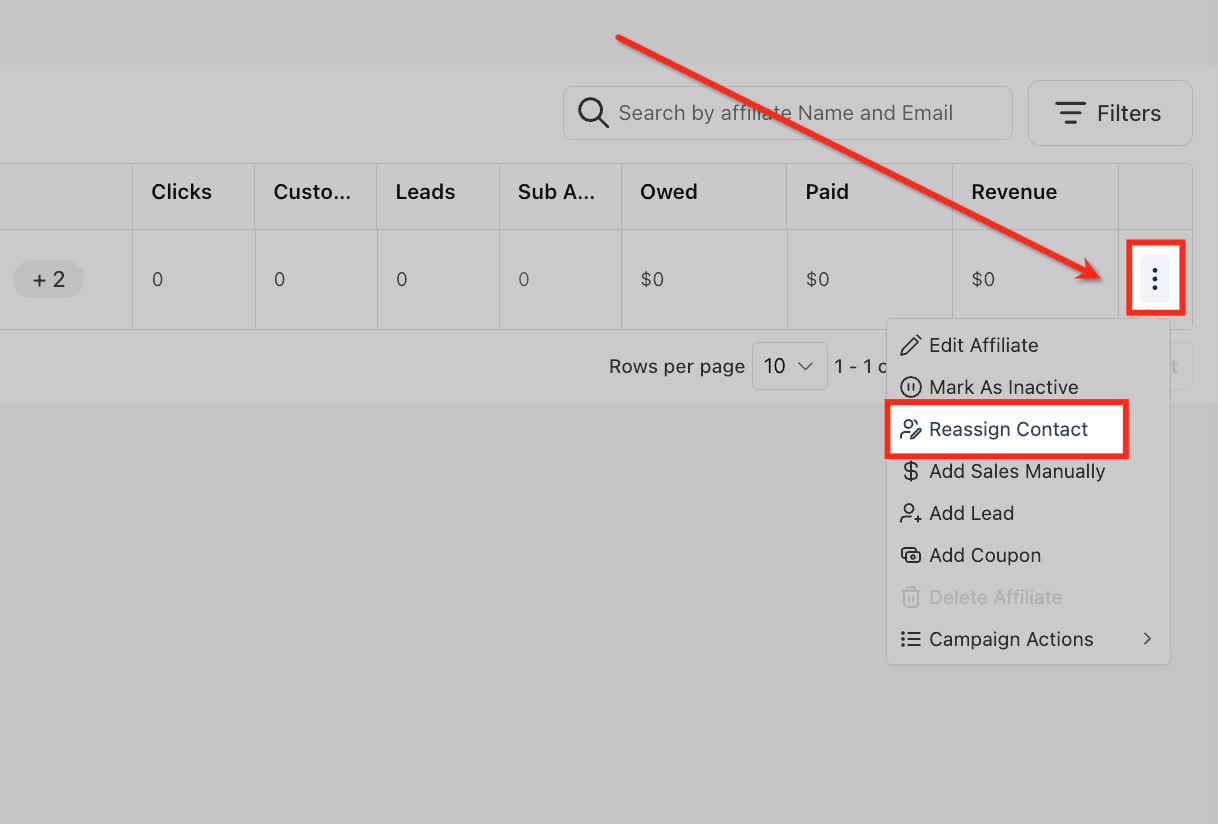
On the target affiliate's row, click the three-dot menu and select Reassign Contact.
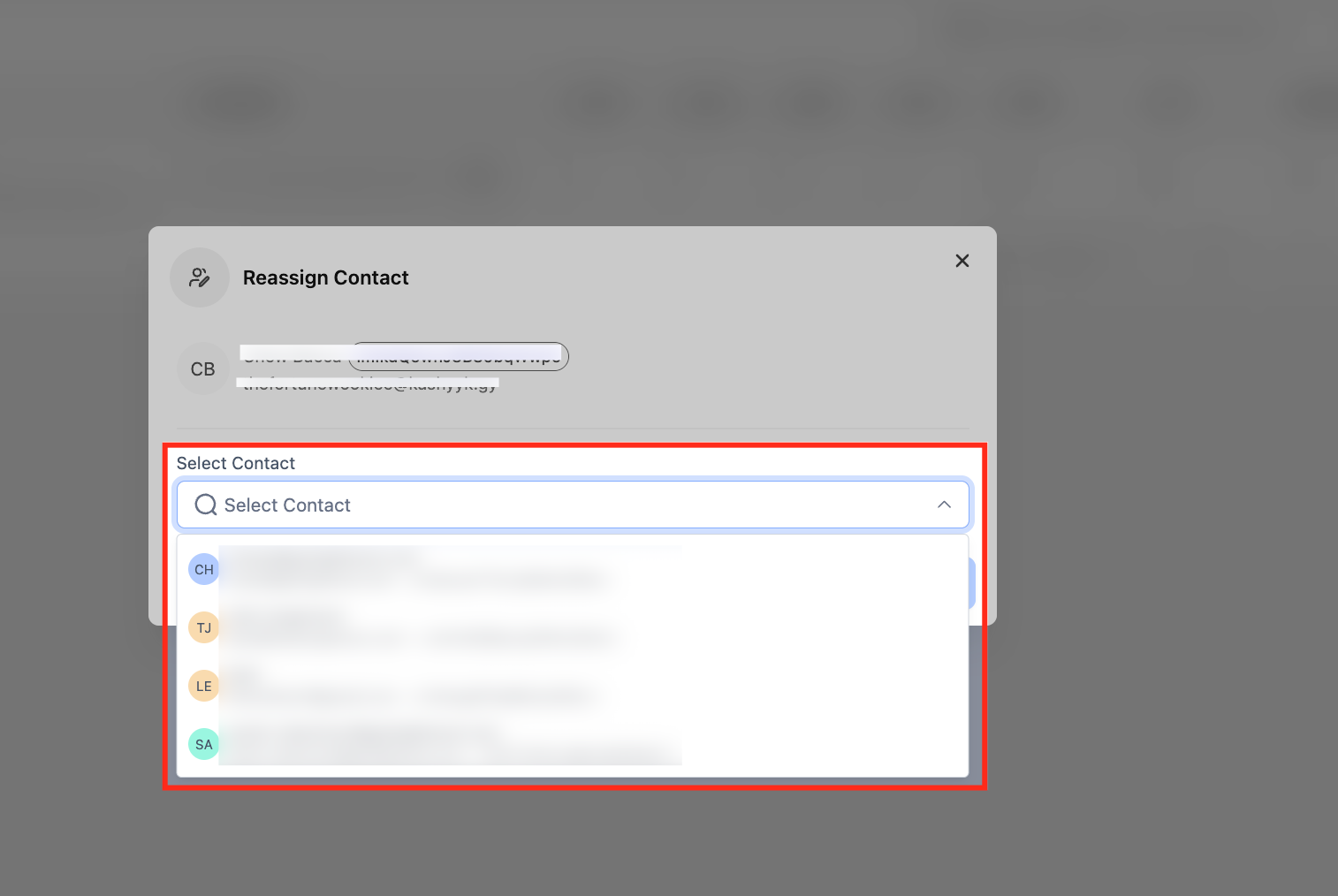
In the Reassign Contact pop-up, use Select Contact to search by name or email, then choose the correct CRM record from the matches.
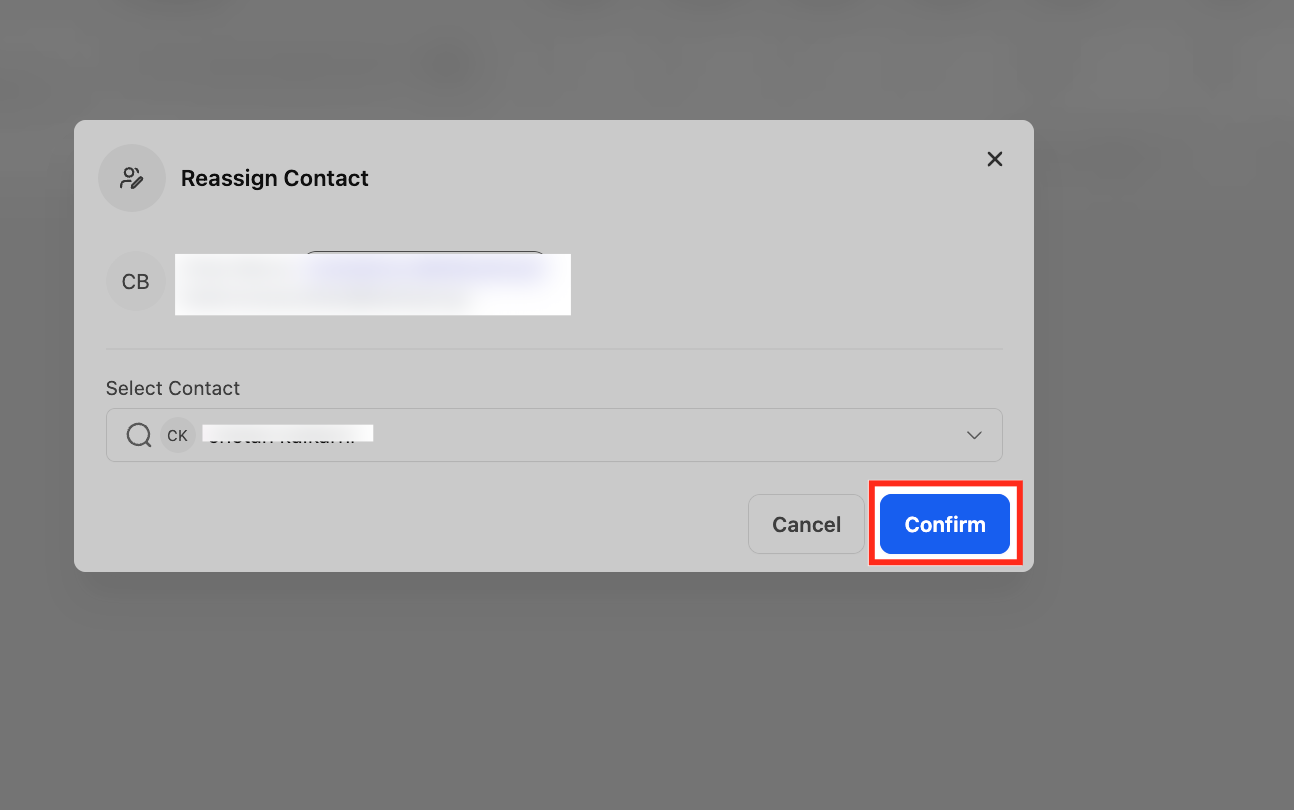
Click Confirm to apply the change, or Cancel if you picked the wrong record or want to double check first.
What happens to future commissions after I delete a customer from an affiliate? The customer is no longer associated with that affiliate, and any future purchases from them will not generate new commissions.
Why would I disable a customer instead of deleting them? Disabling stops sales from being tracked and stops new commissions without removing the customer entirely. It's a good option for suspected fraud or when you want to pause commission eligibility temporarily, since you can re-enable a disabled customer later.
Can I delete any commission, or only certain ones? Only commissions with a status of Denied can be deleted. If a commission is still Pending or Approved, deny it first, then delete it.
Can I move a customer to any affiliate? No, you can only move a customer to another affiliate within the same campaign.
If I move a customer, do their commissions move too? Only if you turn on the option to move associated commissions, and only unpaid commissions transfer. Paid commissions always stay with the original affiliate.
Does reassigning a contact link change historical commissions? No. New activity follows the updated linkage, but commissions that were already calculated or paid typically remain unchanged.
Can I undo a reassignment? There's no single-click undo. You can run the reassignment flow again and point the affiliate to a different contact.
What if the duplicate contacts have different emails but are the same person? Consider merging the contacts into a single record first, then make sure the affiliate points to the surviving contact.
Will my workflows break after I reassign a contact? Workflows that reference the affiliate's linked contact will continue running against the newly linked profile. It's worth double checking any workflow that cached a specific contact ID.
Is bulk reassignment available for affiliates? Not currently. Reassignments have to be done one affiliate at a time.
