The Affiliate Portal is where the people who refer new patients to your practice (affiliates, referral partners, or promoters) track their own performance. It's a self-serve dashboard your affiliates log into on their own, separate from your Aesthetix CRM account, so you don't have to manually pull referral numbers for them.
Once logged in, an affiliate can:
Grab their unique referral link (and any sub-links for tracking different channels).
See how many leads, customers, and cancellations came from their link.
Check their earned commissions, total revenue generated, and payout status.
View and manage their sub-affiliates, if your program allows affiliates to recruit their own referral partners.
Update their payout method and upload tax forms, if you require them.
This keeps your affiliates informed without pulling them into your Aesthetix CRM account, and it cuts down on "how much did I earn this month" messages to your team.
From Affiliate Manager in the left-hand menu of your account, add the affiliate to an active campaign. Make sure the Invite Email option is toggled on in the campaign settings so they automatically receive an invitation email with a link to the portal.
You can also automate a welcome email or SMS with onboarding instructions for new affiliates. Set that up in Workflows using the affiliate triggers, rather than relying only on the built-in invite email.
The affiliate clicks the link in their invitation email, which takes them to a sign-up page to create their account. Once they've signed up, they can log back in any time with their credentials or a one-time password.
If an affiliate can't sign up, double-check their email address on file and ask them to check for a strong internet connection. If they can't log in, have them use the "Forgot Password" option to reset their credentials.
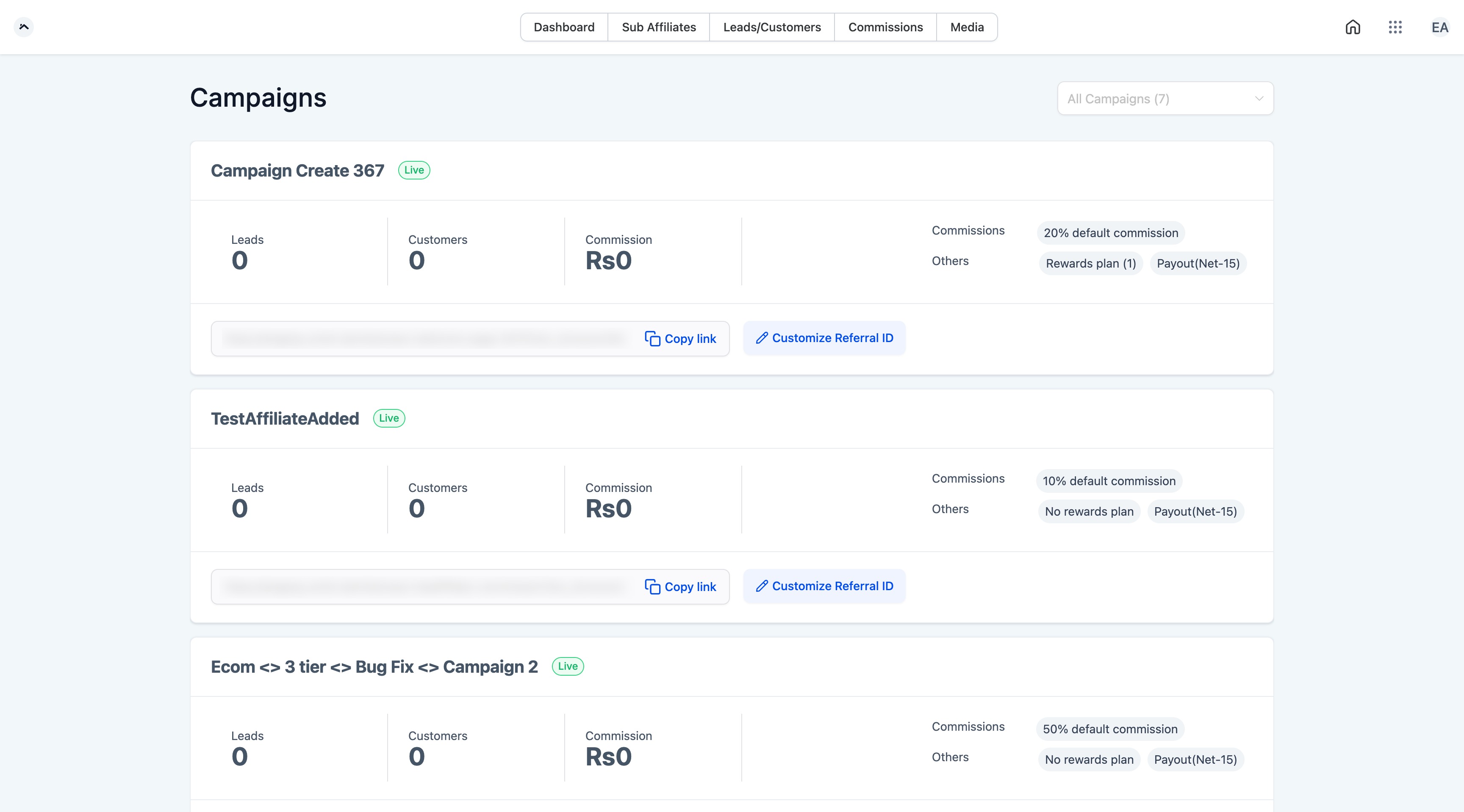
After logging in, the affiliate lands on their Affiliate Dashboard, where they'll see their referral links and stats for every campaign they're part of.
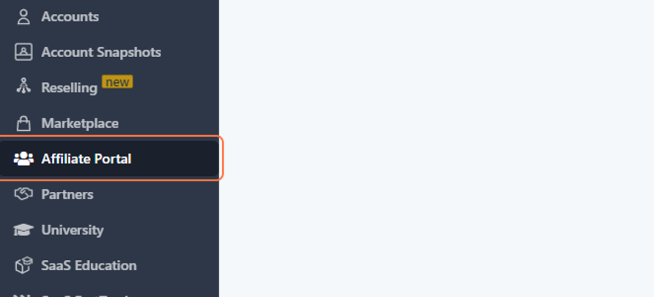
If the dashboard isn't visible right away, the affiliate can click the grid icon in the top right corner and choose "Affiliates" to get there.
An affiliate's main referral link lives right on their Dashboard. If they're part of more than one campaign, they'll see "All Campaigns" listed so they can pick the one they want a link for.
Affiliates can personalize the tail end of their link (the referral code/token) to make it easier for their audience to remember. From the campaign view in the portal, they click "Customize Token" and enter a new code.
Heads up: changing the code breaks any link the affiliate has already shared or posted publicly. Encourage affiliates to customize their code early, before they start promoting it.
An affiliate only has one referral code, but they can append different Sub IDs to it to create link variations for each channel they promote on (email, Instagram, a landing page, and so on). This lets them see which channel is actually driving referrals, instead of lumping everything into one number.
The Dashboard shows every campaign the affiliate belongs to, along with key metrics such as leads, customers, clicks, and commissions, plus quick access to their referral link.
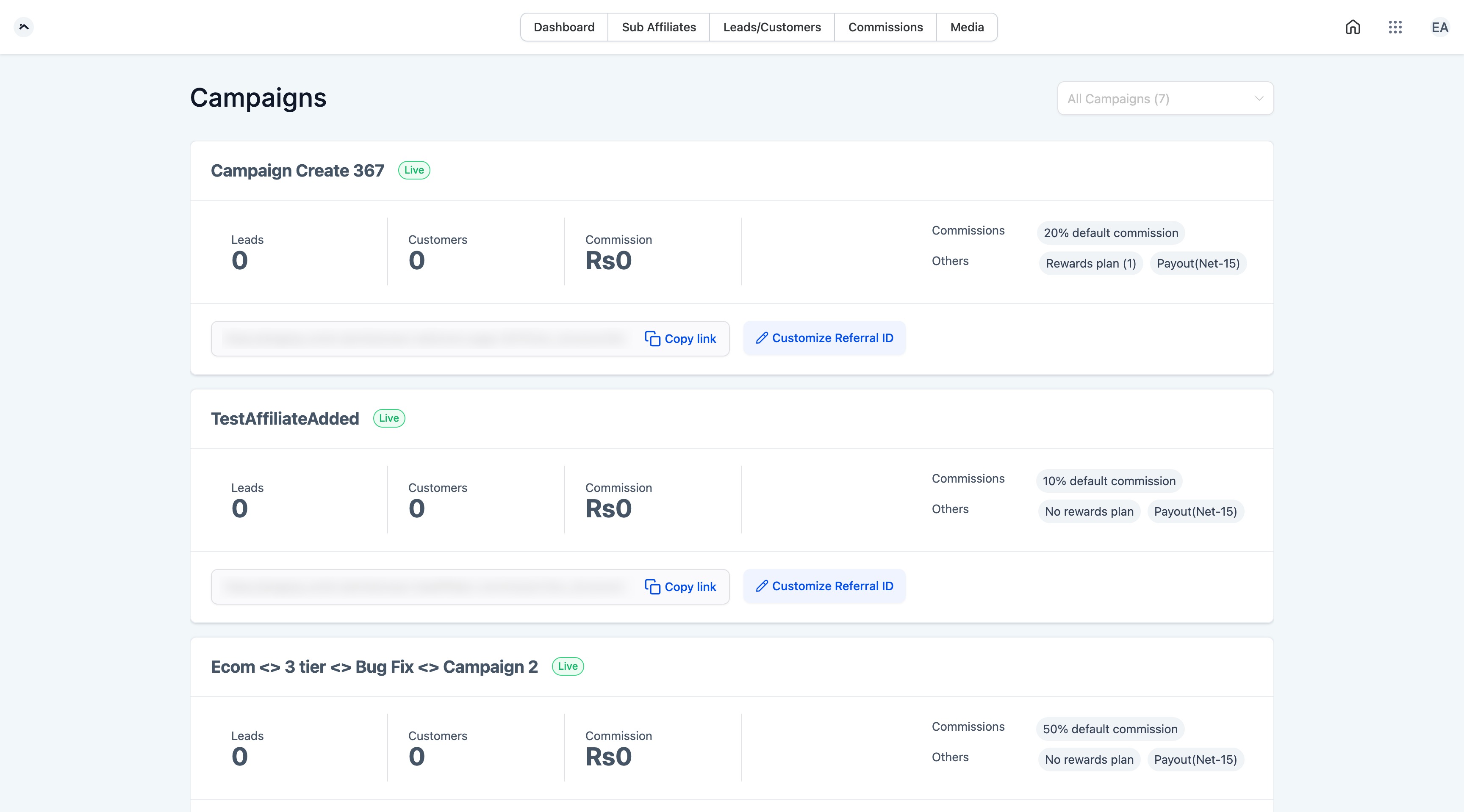
This screen breaks down everyone who signed up or became a customer through the affiliate's link, so they can see exactly how their promotion is performing.
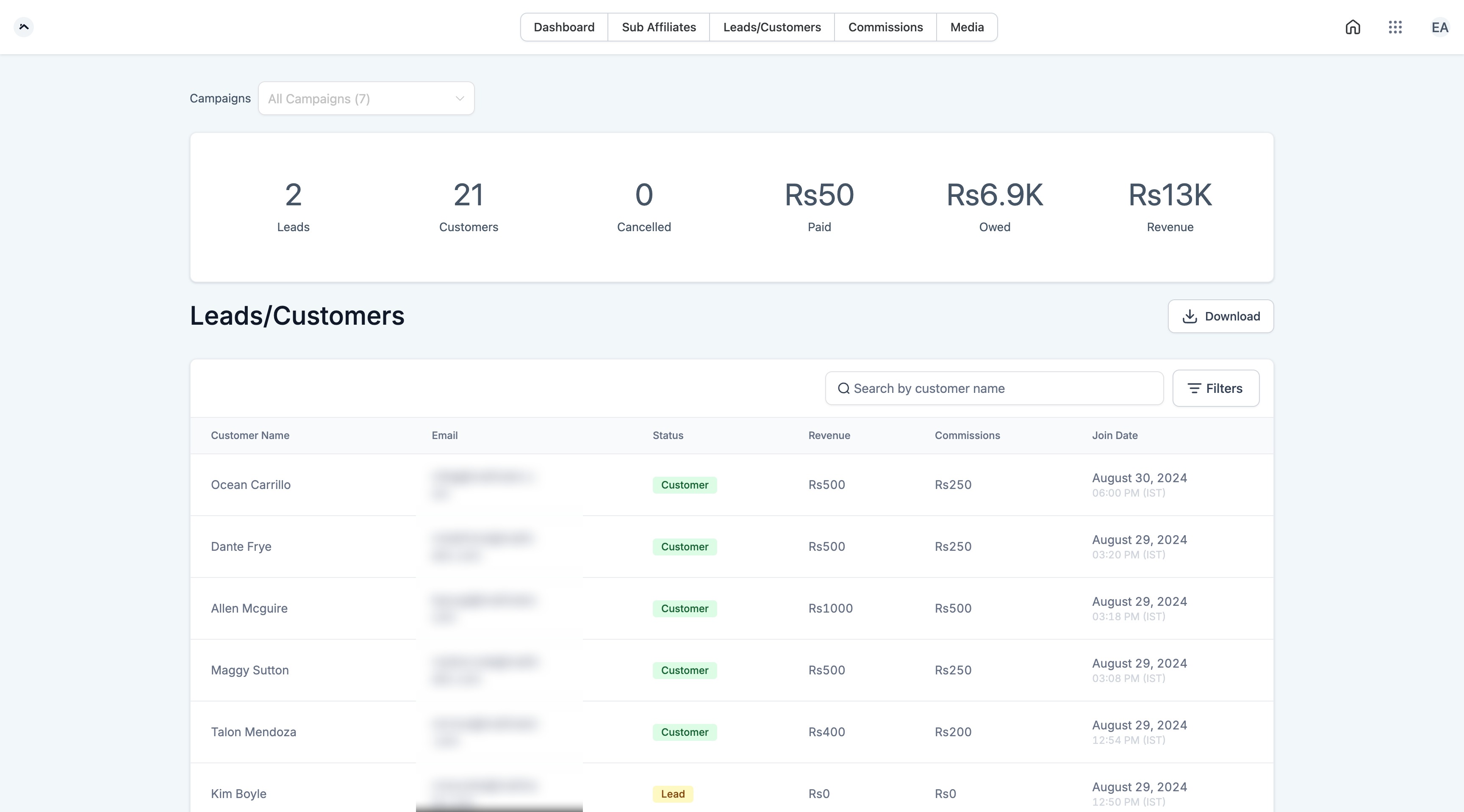
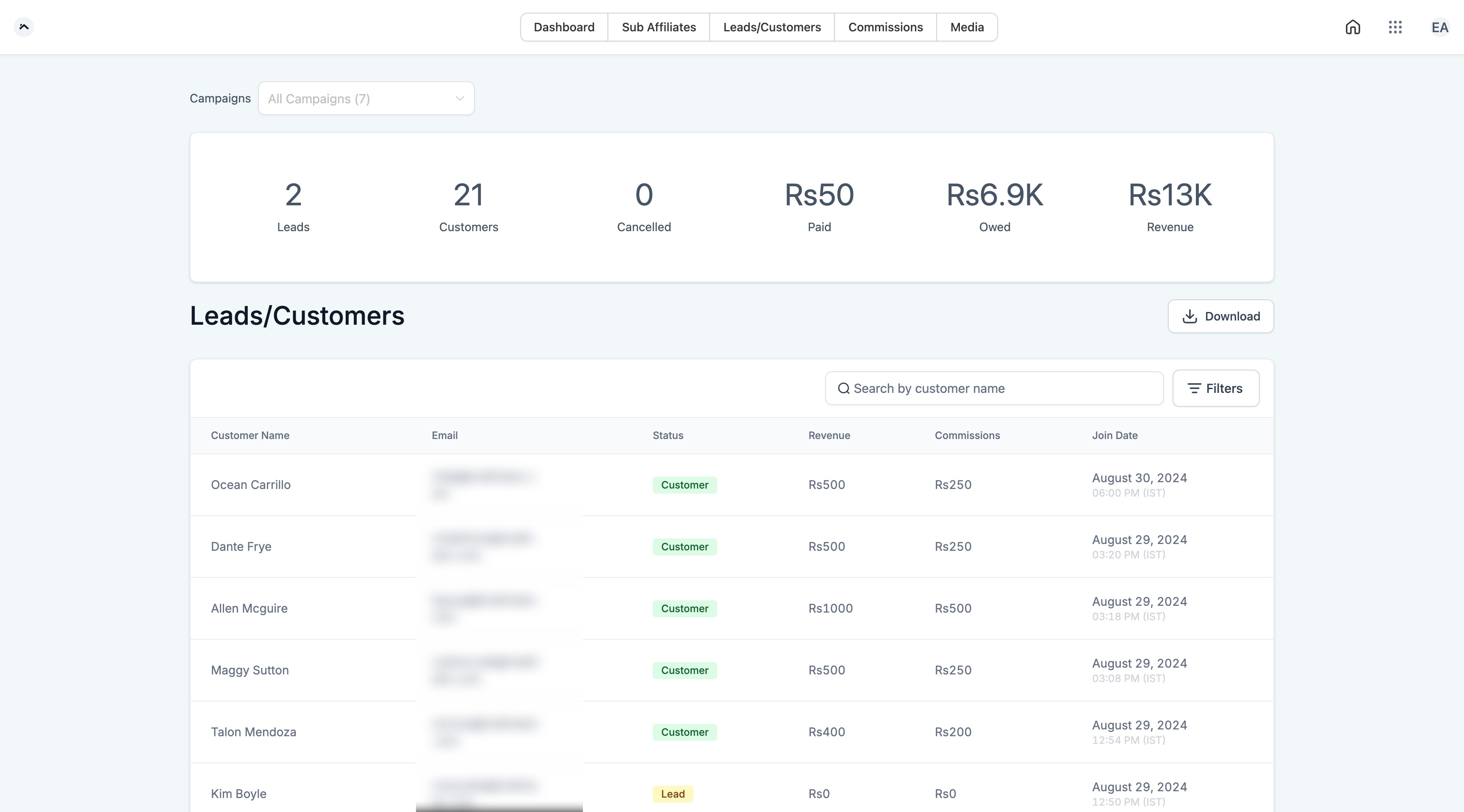
Referrals are grouped into status categories so affiliates can quickly see where each contact stands:
Status | What it means |
|---|---|
Any | Every referred contact across every status. |
Active/Paying | Currently active, paying customers. Affiliates earn commission on these as long as they remain active. |
Signup | Completed sign-up and are in an active trial, but haven't become a paying customer yet. |
Lead (Subscribed) | Started the sign-up process but hasn't completed it. |
Canceled | Was a paying customer but has since canceled. No commission is earned while a referral is in this status; if they come back and start paying again, they move back to Active/Paying. |
Affiliates only earn commission while a referral is active and paying. Pauses, cancellations, and refunds all stop commission for that referral until (and unless) it resumes.
Here, affiliates see the commissions they've earned, the total revenue they've generated for your practice, and the status of their payouts.
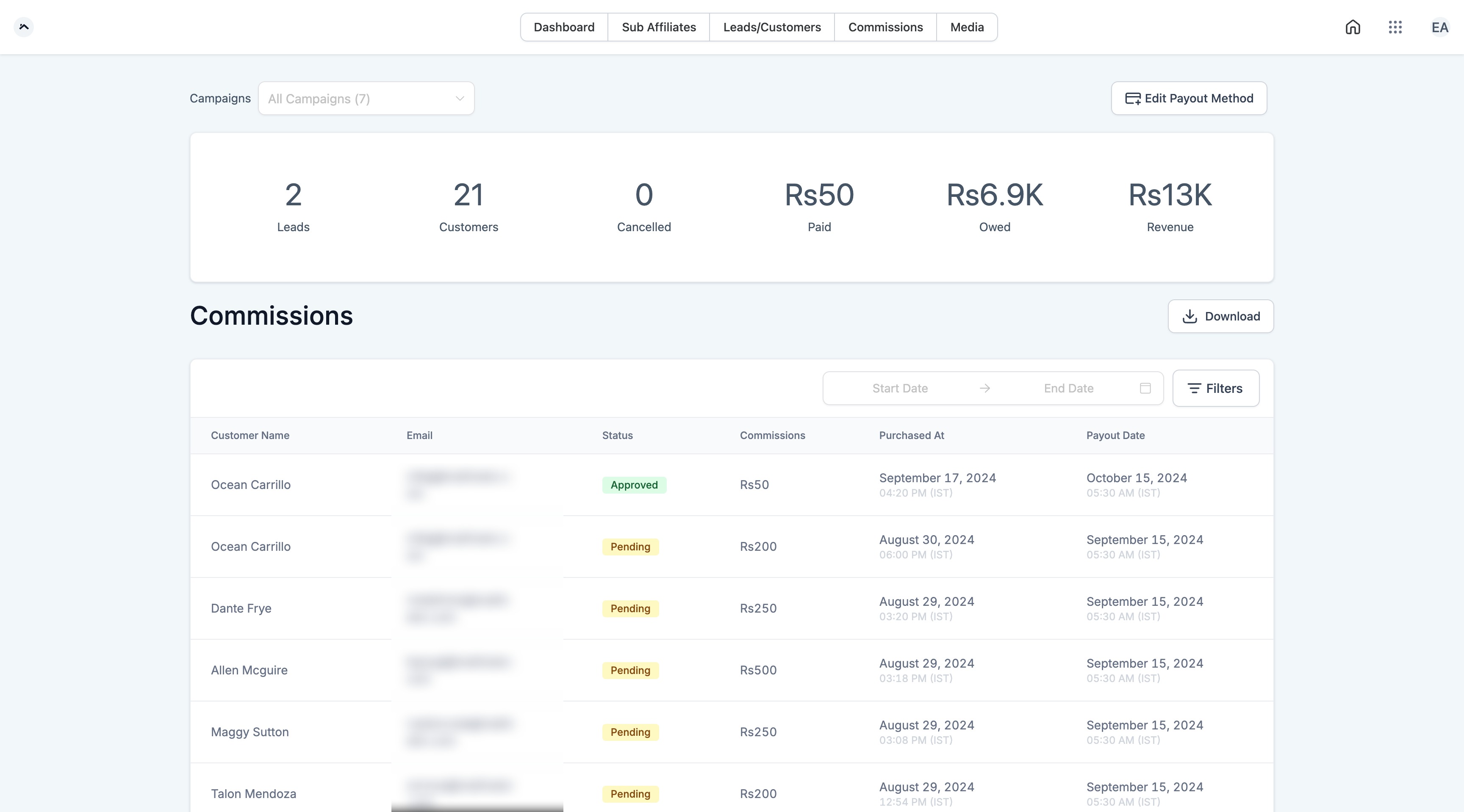
If your practice runs more than one referral campaign (for example, a general patient referral program and a separate partner or influencer program), an affiliate who belongs to multiple campaigns needs to switch views to see referrals and commissions tied to each one. This is also the first place to check if a referral seems to have "disappeared": it may simply live under a different campaign.
From the portal, the affiliate clicks "View Campaign" under the other program to switch into it.
From there, they click into Referrals to see the sign-ups tracked under that specific campaign.
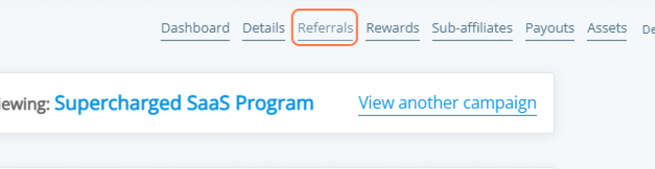
Each campaign shows the same set of referral status tabs described above.

If your program allows affiliates to recruit their own referral partners (sub-affiliates), the affiliate can see those sub-affiliates listed here. If sub-affiliate sign-up is enabled, they'll also get a form URL they can share to bring on their own referral partners.
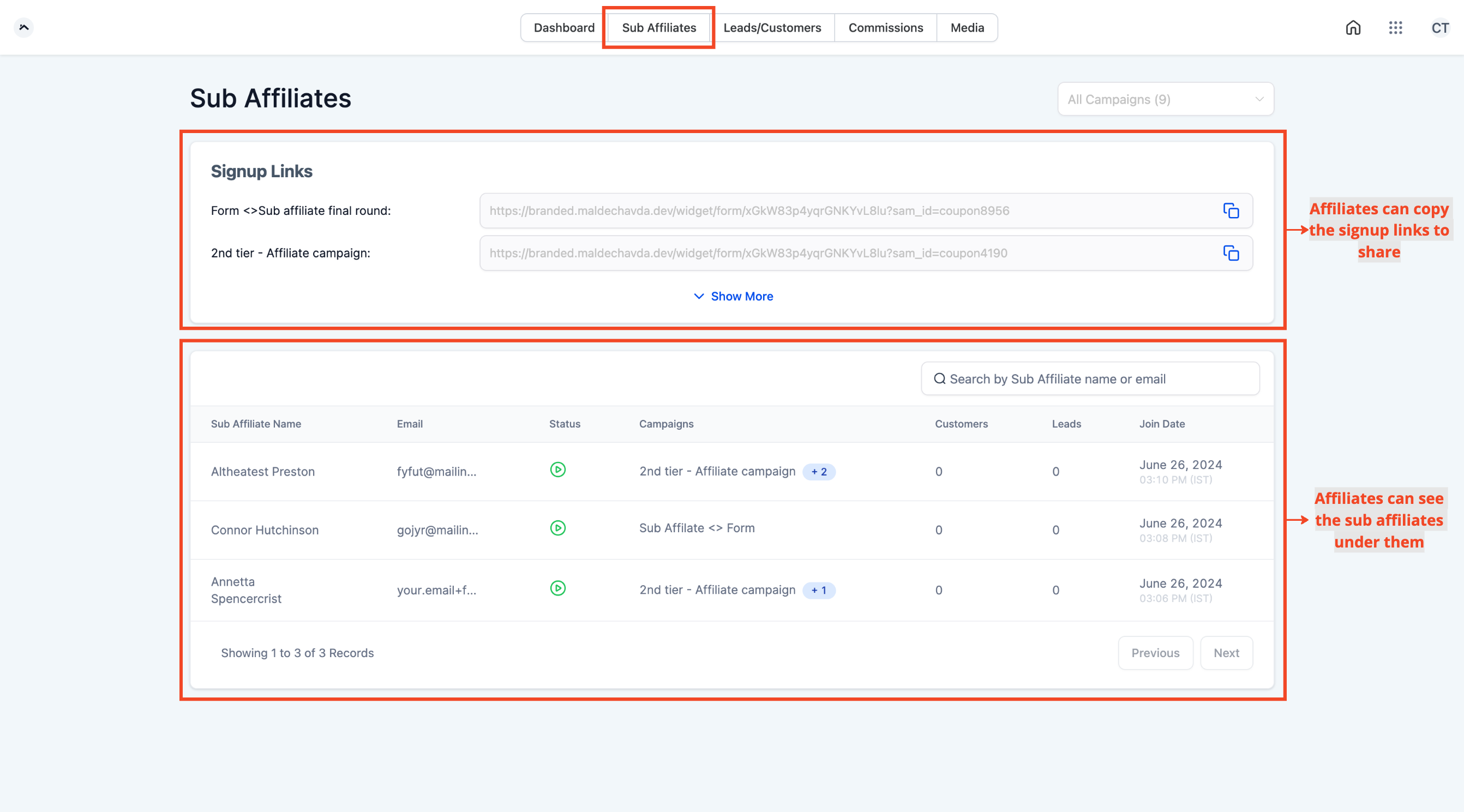
Sub-affiliates give affiliates a way to earn a secondary commission on referrals brought in by the partners they personally recruited, on top of what they earn from their own direct referrals. Your practice controls the commission structure for both direct and secondary referrals when you set up the campaign.
Note: any affiliate already active in your program is automatically listed as a sub-affiliate under the account that referred them. Only use manual sub-affiliate recruiting for partners who should be able to log into their own dashboard without needing a separate account of their own.
Affiliates set their own payout preferences from the Payment Details section of the portal, including which payout method they want to use and any required tax forms.
Typical payout methods include direct deposit/ACH, PayPal, or a debit card, depending on which methods your practice has enabled (see Configuring Affiliate Portal below). An affiliate can't receive a payout until they've completed setup with a valid method on file.
Note: payout details are visible to anyone with admin-level access to Affiliate Manager. If you don't want certain team members seeing this information, adjust their user role under your account's team management settings.
Commissions are calculated on completed, paid transactions, not on trial sign-ups or pending leads. Payouts typically run on a fixed date each month for everything earned the prior month, and there can be a short delay (a day or two) before funds actually arrive, depending on the payout method.
Affiliate payouts are a separate system from how your practice accepts payment from patients.
If you're also looking at payment providers for patient checkout, order forms, or paid bookings, AX Pay (Aesthetix CRM's own payment provider) offers better rates than Stripe. See the AX Pay help article for setup details.
The Affiliate Portal Settings section controls what affiliates see and can do inside their dashboard, including uploading tax forms and setting up payout methods.
Navigate to Affiliate Manager from the left-hand menu of your account.
Click the Settings tab at the top.
Switch to the Affiliate Portal Settings tab.
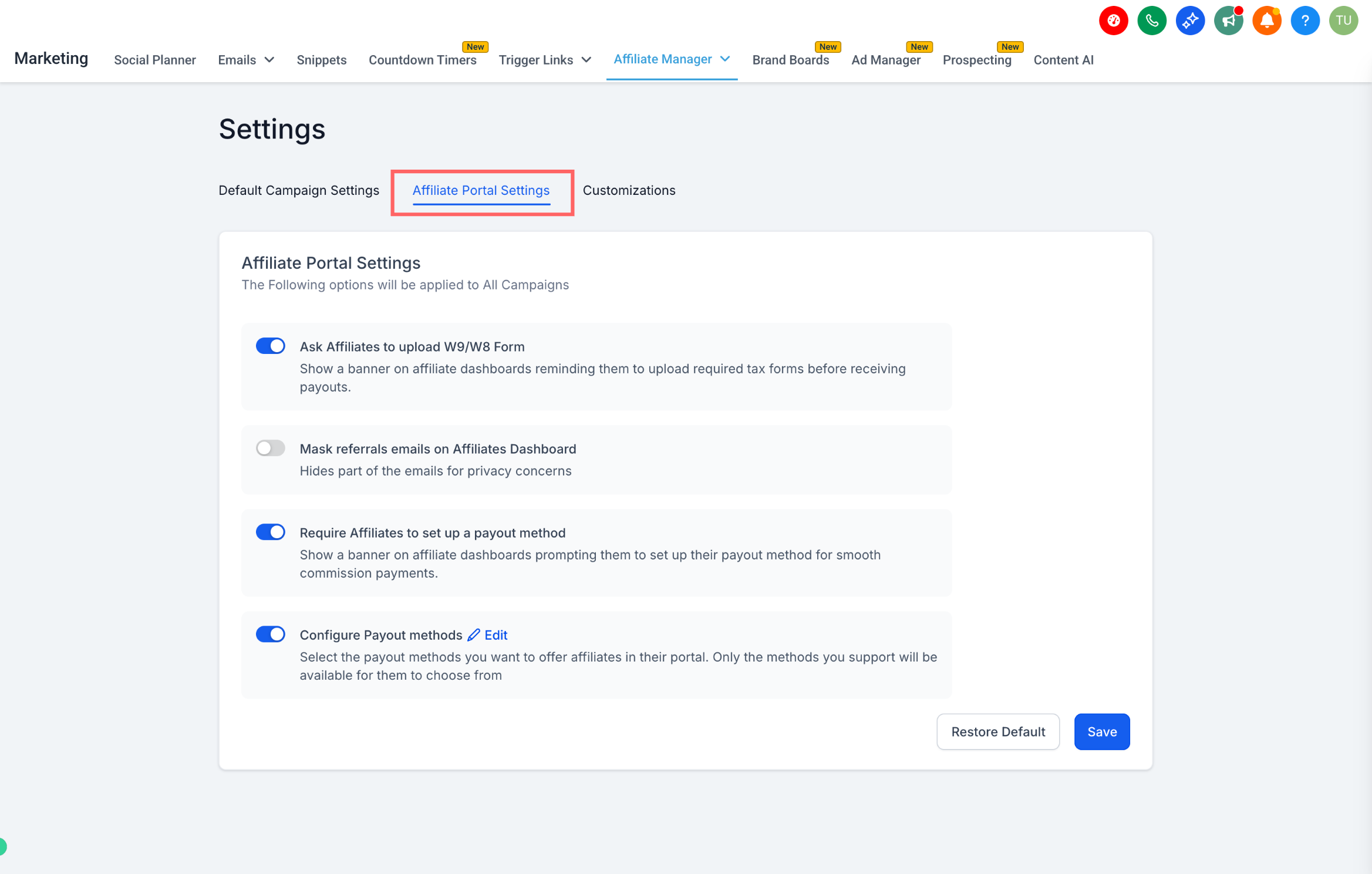
Setting | What it does | Why it matters |
|---|---|---|
Ask Affiliates to Upload W9/W8 Forms | Shows a banner on the affiliate dashboard prompting them to upload the required tax form. | Keeps you tax-compliant and prevents payout delays. |
Require Affiliates to Set Up a Payout Method | Shows a banner nudging affiliates to add a valid payout method before they can be paid. | Cuts down on manual follow-up and keeps payouts on schedule. |
Mask Referral Emails on Affiliate Dashboard | Partially hides referred contacts' email addresses (for example, john****@gmail.com) from the affiliate's view. | Protects the privacy of the leads and patients being referred. |
Configure Payout Methods | Controls which payout methods (direct deposit, PayPal, debit card, etc.) are available for affiliates to choose from. | Gives your practice control over how commissions actually get paid out. |
In the Affiliate Portal Settings tab, find the toggle for the setting you want to change.
Click the toggle to turn it on (green) or off (gray).
Scroll to the bottom and click Save.
Always keep at least one payout method enabled so affiliates aren't left without a way to get paid.
Turn on email masking if your referral data is sensitive or you'd rather limit how much lead detail affiliates can see.
Remember that referral data is only as accurate as what's entered into your account, so keep contact and campaign data current for reliable affiliate stats.
Where do affiliates log in? Affiliates log into their own Affiliate Portal using the credentials from their invitation email, separate from your Aesthetix CRM login. They don't need (or get) access to your account itself.
Can an affiliate see stats for a campaign that's no longer active? Yes. Affiliates in an inactive campaign can still view their historical stats, but their referral link for that campaign is disabled until you reactivate it.
Can affiliates see why a referral canceled? No. The portal shows the count of canceled referrals but doesn't include the reason. If you need that detail, you'll have to track it separately in your account.
How often do the affiliate's stats update? Referral and commission data updates in real time, so affiliates always see current numbers when they log in.
Do affiliates earn commission during a referral's trial period? No. Commission is only tracked once a referral actually becomes a paying customer, not during a free trial or pending sign-up.
What happens if an affiliate loses their password? They can reset it themselves from the login screen using the "Forgot Password" option. There's no need to contact your team for a manual reset.
Can I limit who on my team sees affiliate payout details? Yes. Payout information is visible to anyone with admin access to Affiliate Manager. Adjust a team member's user role if you want to restrict their visibility into this data.
Do I need to build sub-affiliate tracking manually? No. Any affiliate already active in a campaign is automatically added as a sub-affiliate of the person who referred them. You only need to use the manual sub-affiliate recruiting flow for partners who need their own login separate from an existing affiliate account.
Where do I set up the automated invite email affiliates receive? That's controlled by the "Invite Email" toggle in your campaign settings. For anything beyond the default invite (like a welcome SMS sequence), build it out in Workflows using the affiliate triggers.
