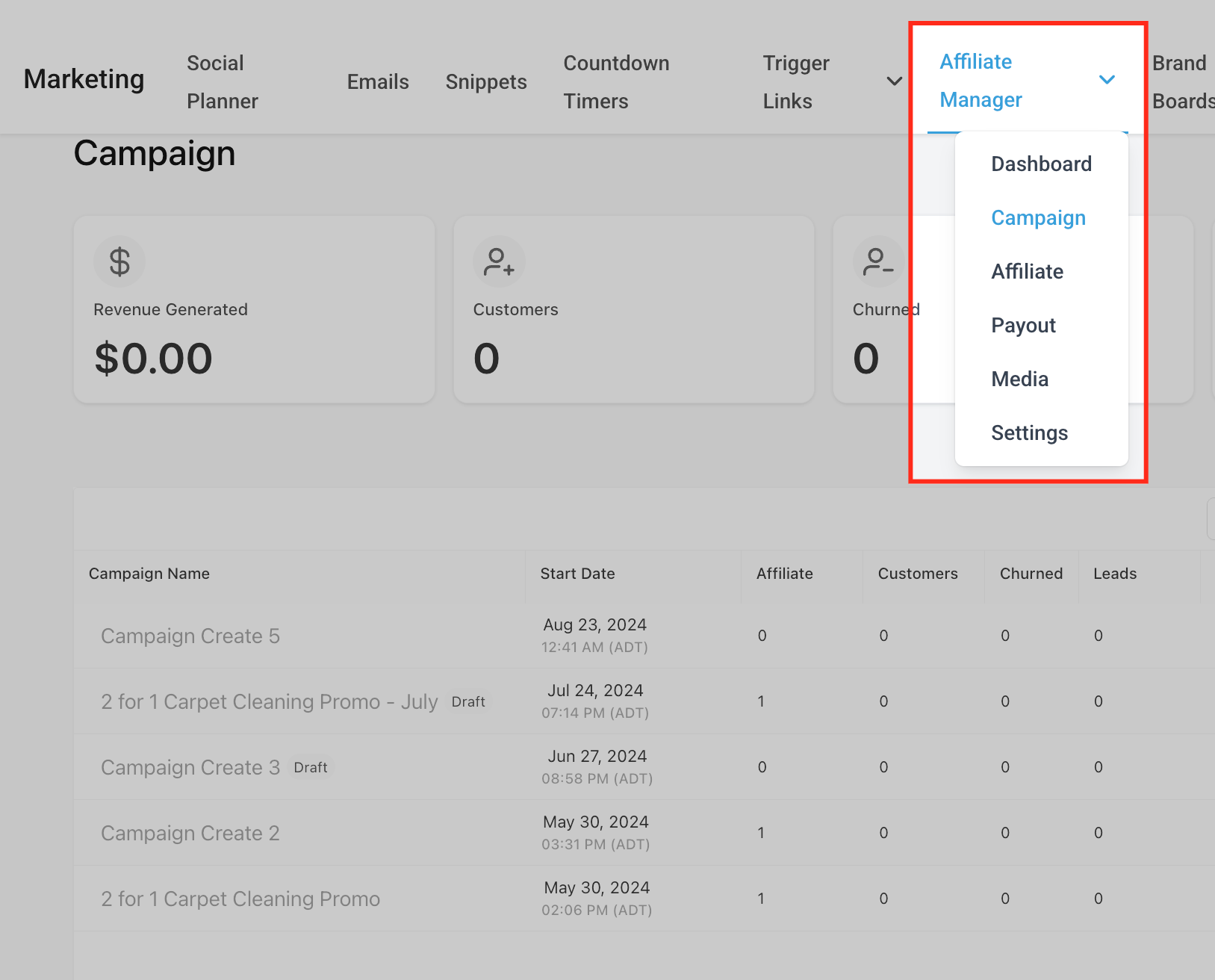
If your practice ran its patient referral or partner program on FirstPromoter, you can bring your campaigns, affiliates, and commission history into Affiliate Manager instead of rebuilding everything from scratch. There are two ways to do this: a guided import that connects directly to your FirstPromoter account (recommended), or a manual CSV export and upload. Both live under Marketing > Affiliate Manager.
The guided import is an API-based workflow that connects your FirstPromoter workspace to Affiliate Manager. After a quick credential check, you select which campaigns to bring over and resolve any contact conflicts before importing. This is the faster path and it preserves your referral and commission history without you having to touch a spreadsheet.
Why use the guided import:
Fast setup: a three-step, no-code wizard walks you through connecting, selecting, and importing.
Historical continuity: past referrals and commissions come over so your trend and payout reporting stays accurate.
Clean contacts: duplicate-email detection lets you merge or skip conflicts instead of ending up with messy patient/partner records.
Control over payouts: choose whether to include pending commissions and set payout terms so imported items match your practice's payment cadence.
Unified reporting: imported campaigns and affiliates show up in Affiliate Manager dashboards alongside the rest of your performance metrics.
Go to Marketing > Affiliate Manager > Campaigns > Import.
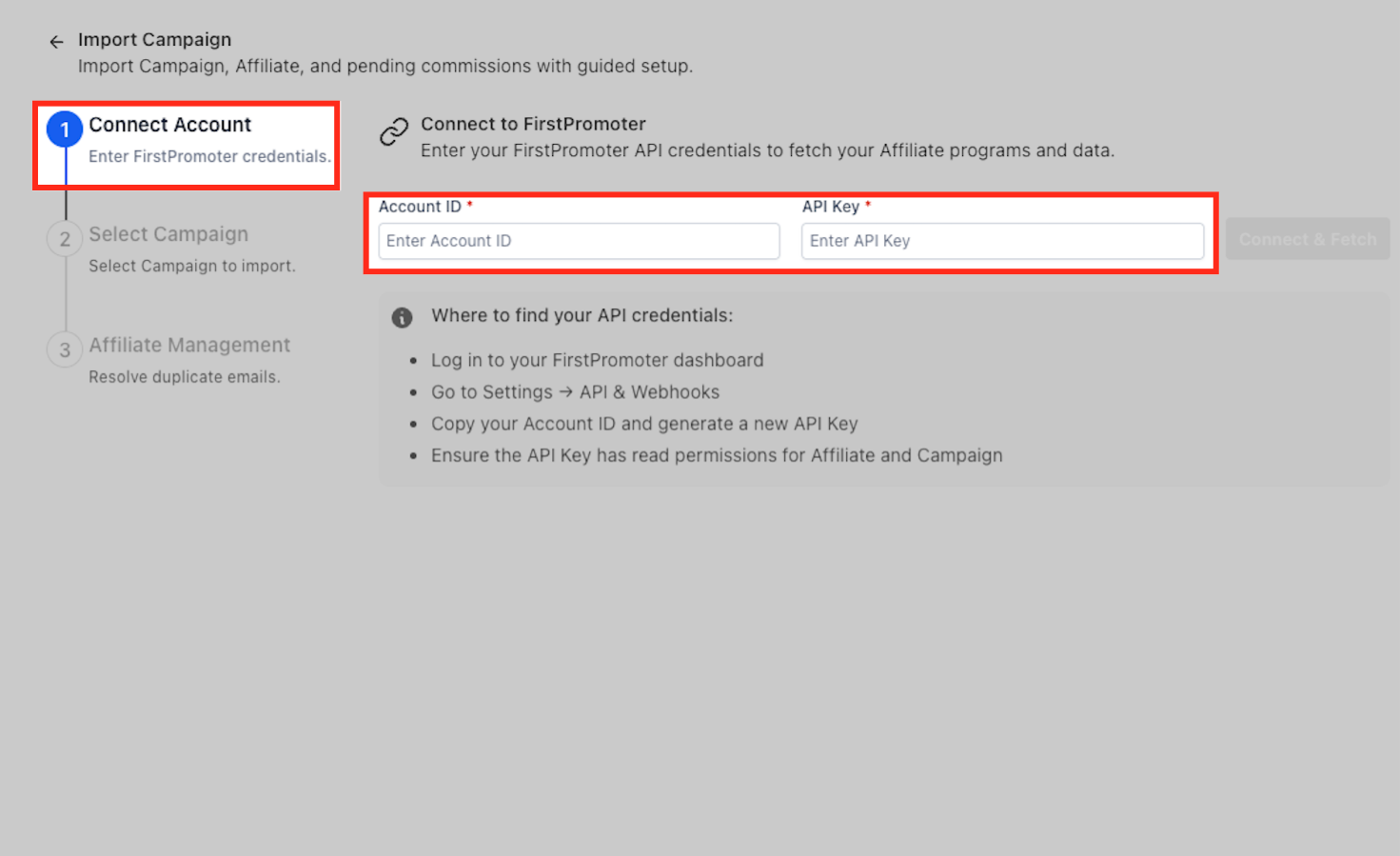
In FirstPromoter, go to Settings > API & Webhooks and generate an API key with read permissions for affiliates and campaigns. Copy your Account ID as well.
Back in Affiliate Manager, paste your Account ID and API Key, then select Connect & Fetch.
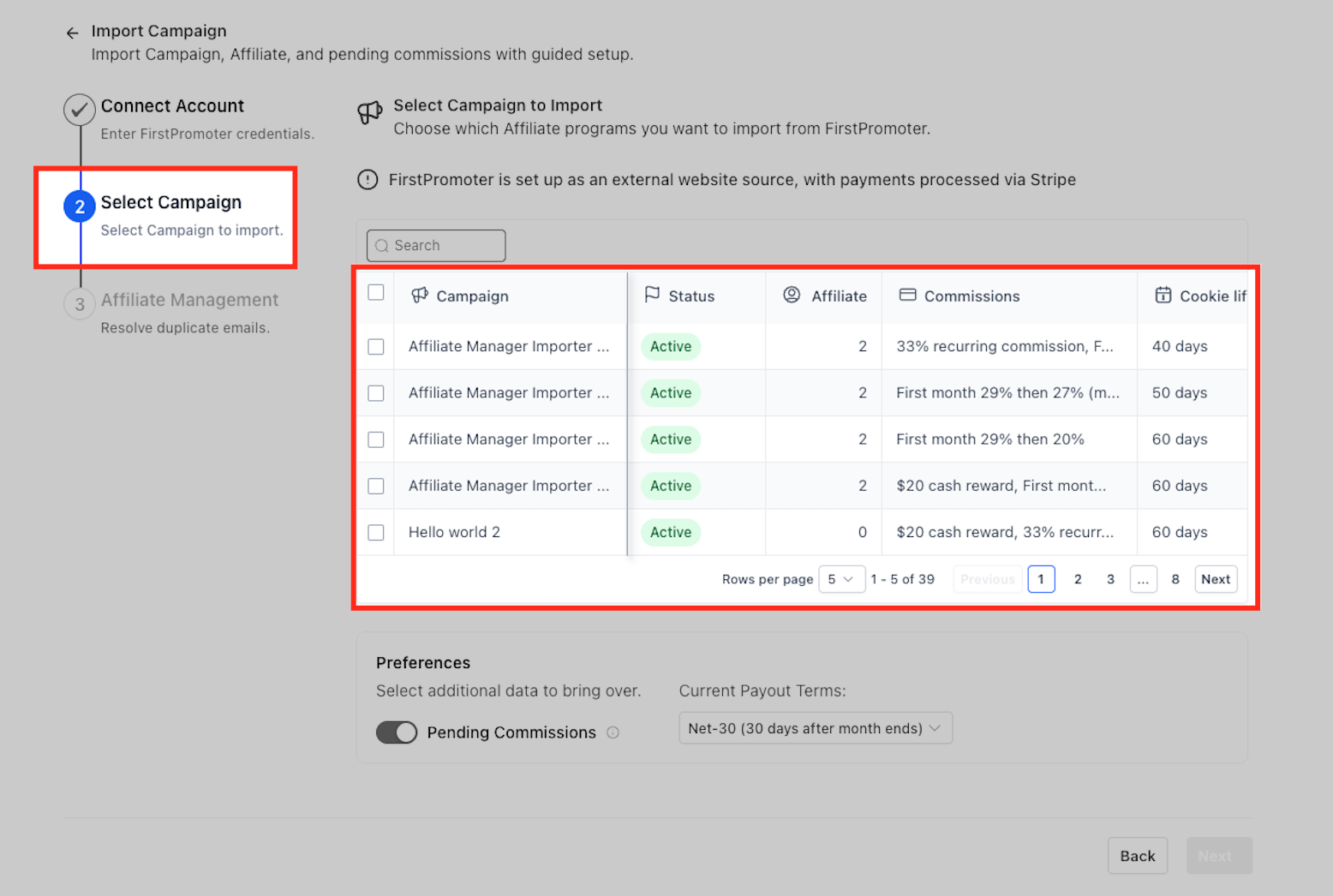
Check the boxes next to the campaigns you want to migrate. Review the Status, Affiliate, Commissions, and Cookie life columns for each one before you commit, so you don't accidentally import the wrong program.
If FirstPromoter shows payments as processed through Stripe, that simply reflects how your original FirstPromoter account was configured; it does not change how Affiliate Manager itself handles payouts going forward.
Paying affiliates going forward: Once your commissions live in Affiliate Manager, consider using AX Pay, Aesthetix CRM's built-in payment provider, to process affiliate payouts and any related transactions. AX Pay offers better rates than Stripe and keeps your payment processing inside the same platform as your referral program. See the AX Pay help article for setup details.
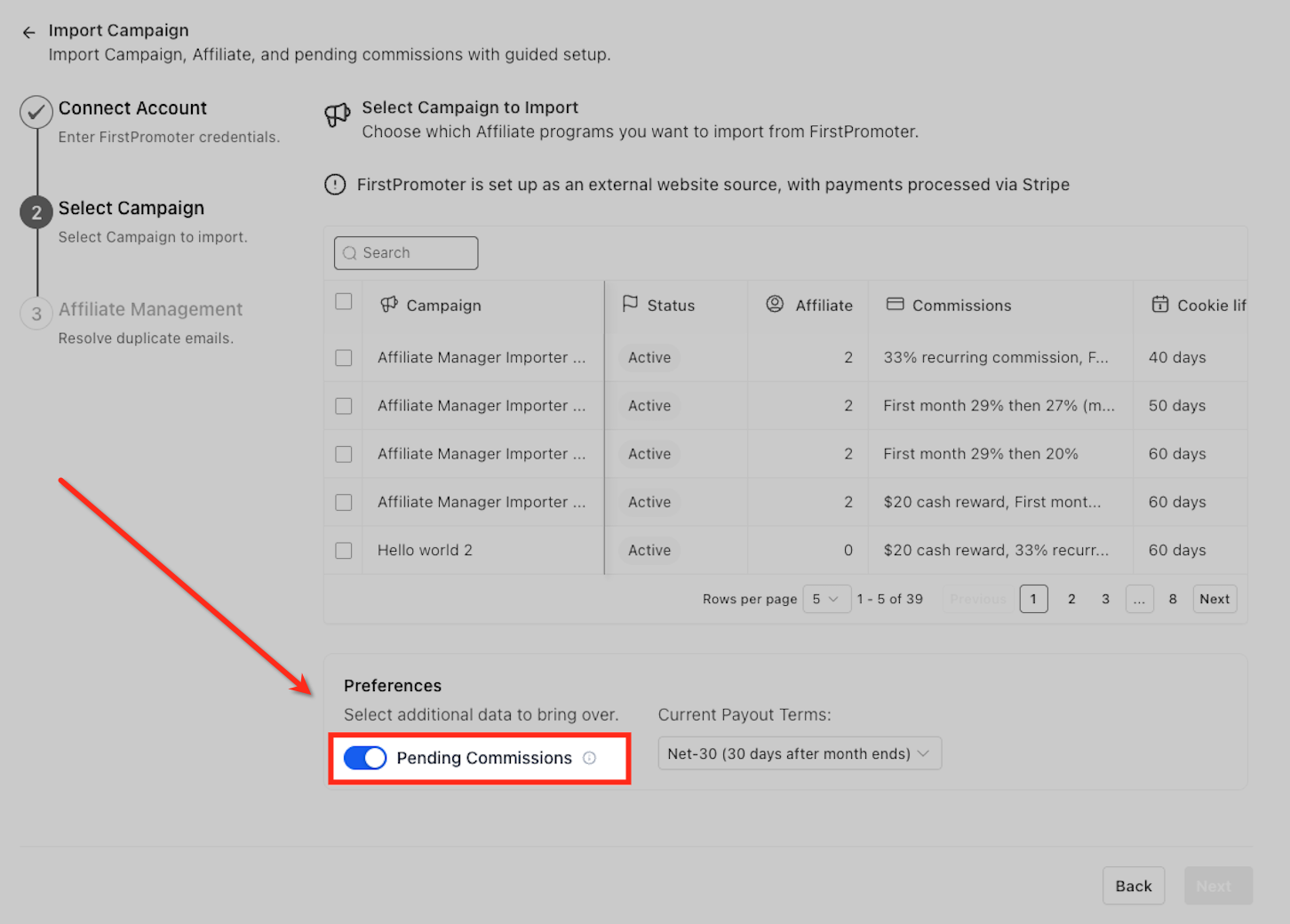
Decide how imported commission data should behave before it lands in your account:
Pending Commissions (toggle): turn this on to bring over unpaid commissions from FirstPromoter so they're tracked immediately in Affiliate Manager.
Payout Terms (dropdown, e.g. Net-30, meaning 30 days after the month ends): sets when imported commissions become due inside Affiliate Manager.
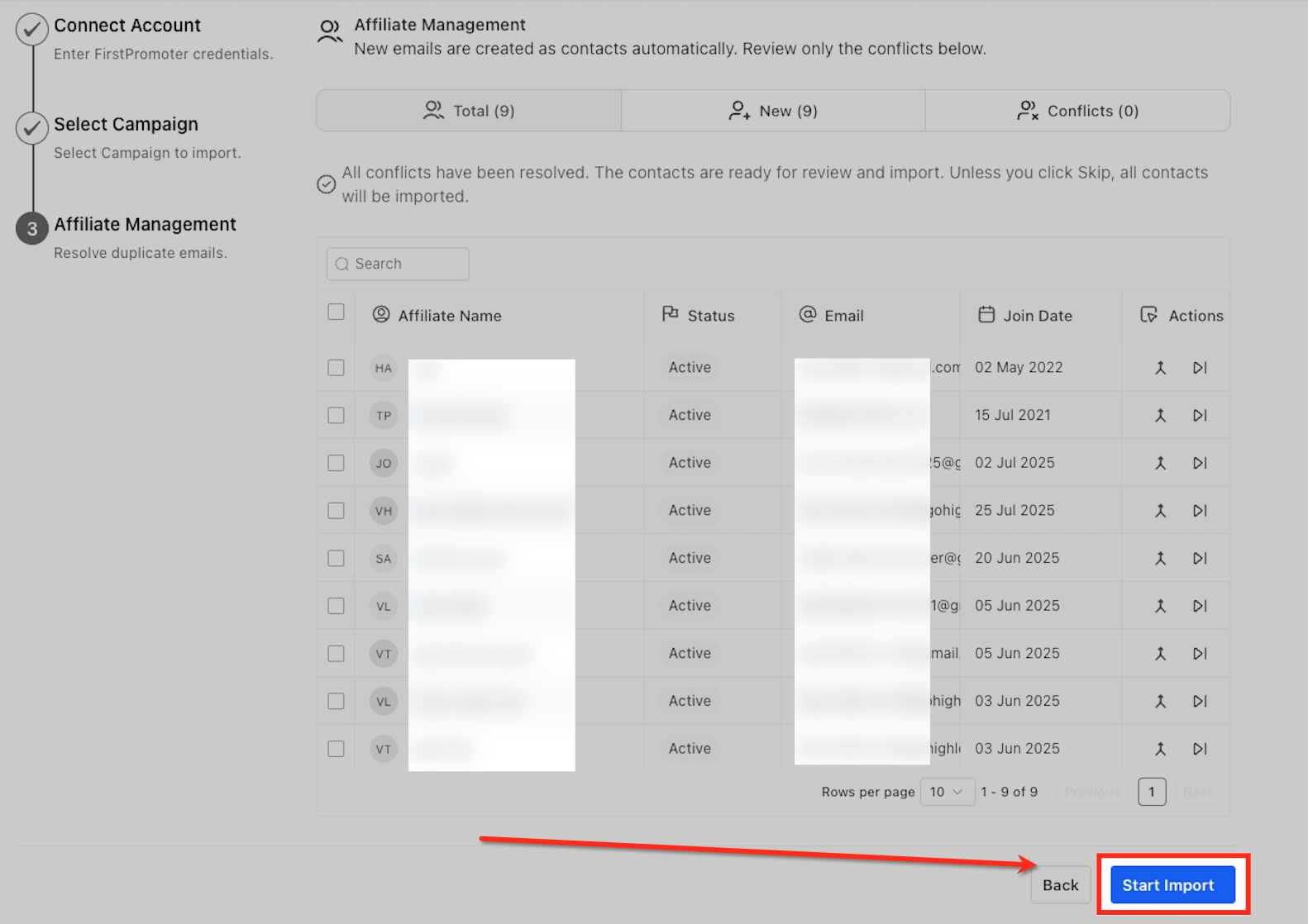
On the Affiliate Management screen, resolve any conflicts under the Total, New, and Conflicts tabs. New affiliates are automatically created as contacts in your account. If an email address already exists as a contact, you'll need to resolve the conflict to keep a single, clean profile:
Merge: keeps the existing contact and attaches the affiliate data to it.
Skip: leaves that affiliate out of this import.
Compare Affiliate Name, Status, Email, and Join Date when deciding between the two.
Select Start Import. You can keep the page open or navigate away; processing continues in the background and you'll be notified when it's done. A summary shows the number of campaigns, total affiliates, and historical referrals queued for import.
Once the import finishes, open each campaign and use the campaign list's ⋯ menu to find and add its tracking scripts before you activate it. Product-based commission rules aren't brought over automatically; set those up directly inside Affiliate Manager after the import completes. You can also re-run the wizard later to bring in additional campaigns or affiliates; anything already imported won't be duplicated.
If you'd rather move your data by hand, or only need to bring over your affiliate list without campaign and commission history, use the manual CSV method.
Log in to your FirstPromoter dashboard.
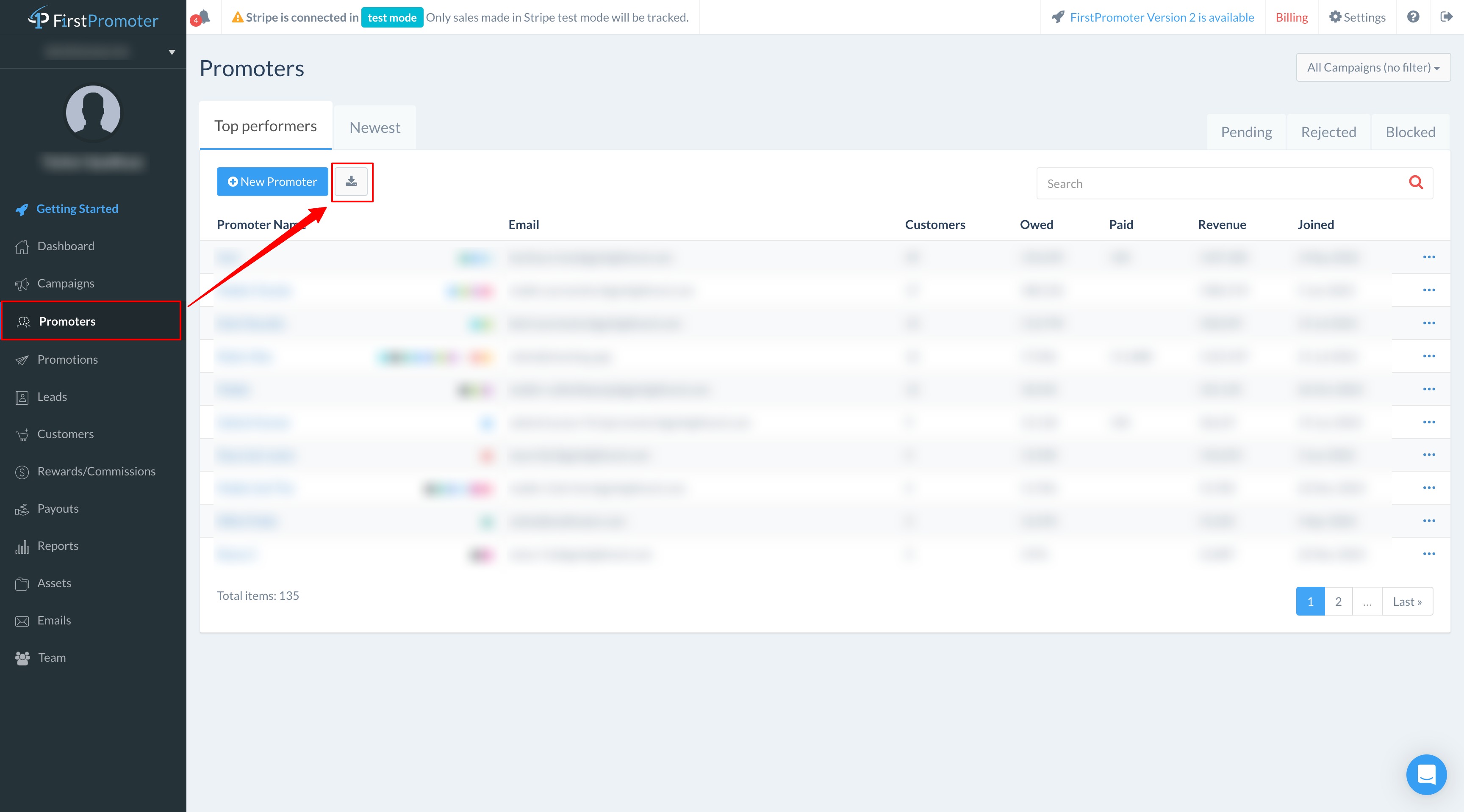
Go to the Promoters tab in the menu.
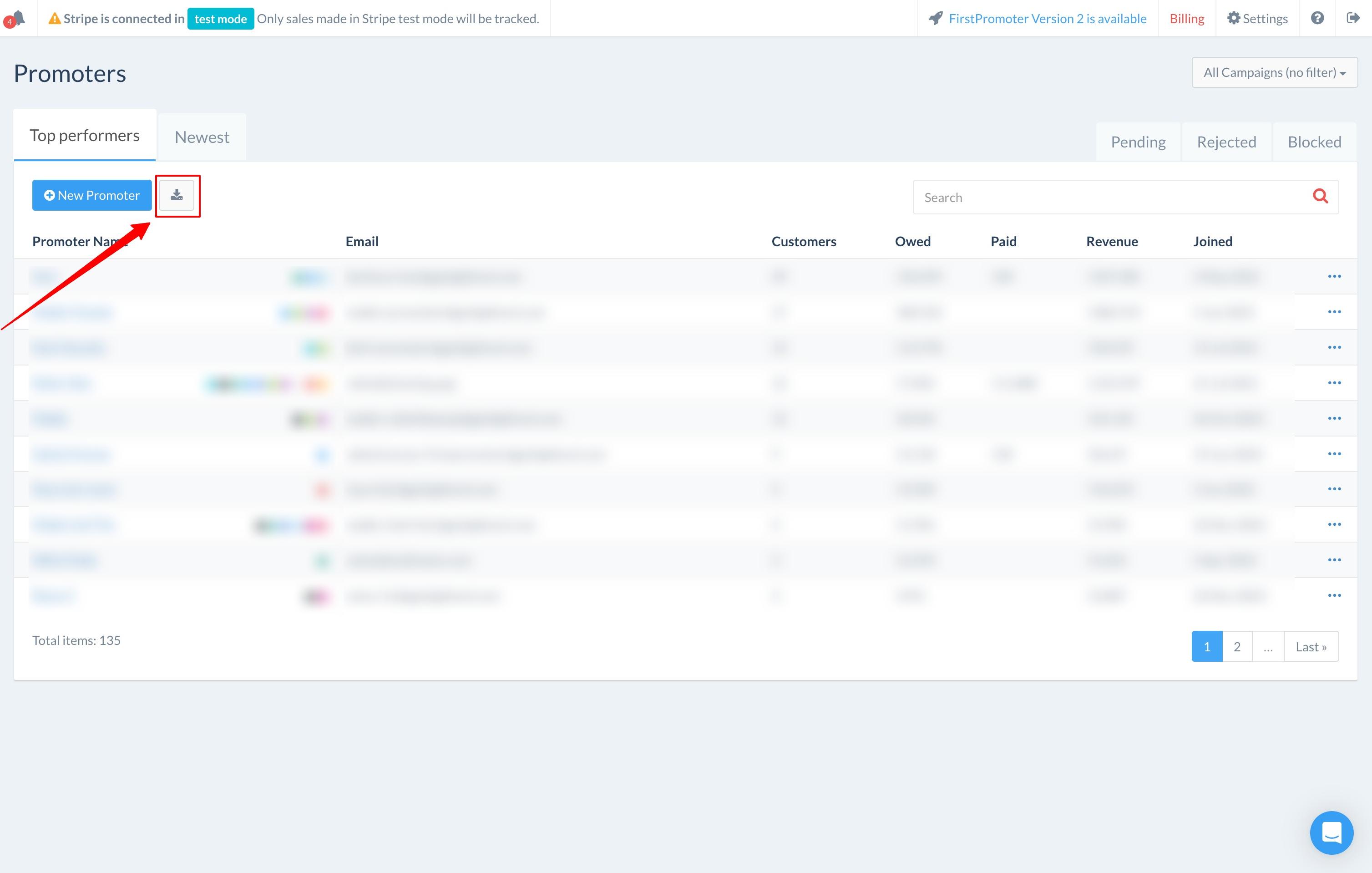
Select Export to download your affiliate list.
Once the export finishes, download the file in CSV format and make sure the columns match Affiliate Manager's supported import format.
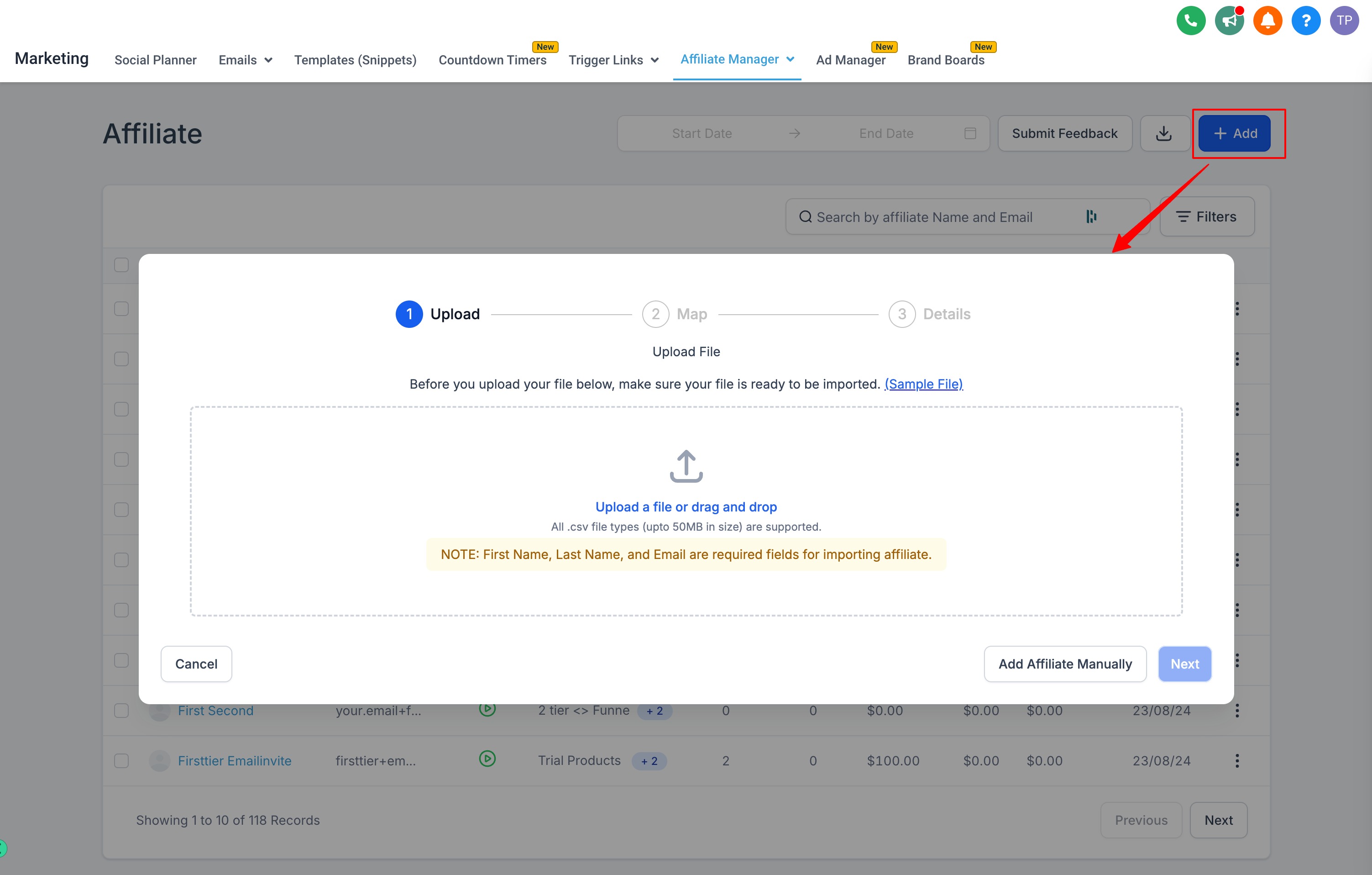
Go to Marketing > Affiliate Manager > Affiliate.
Select Add, then choose Upload Affiliate. Make sure your file matches the sample file format Affiliate Manager provides.
Once your file is ready, upload it and select Next.
Once your affiliates are imported, you can start managing them by creating new Affiliate Campaigns or editing existing ones. Use the Add button to set up a new campaign or open an existing one to adjust its settings.
Affiliate workflow triggers and actions (for example, notifying a patient referral partner when they earn a commission) are set up separately in Workflows.
Do I still need CSV exports from FirstPromoter if I use the guided import? No. The guided import connects directly through the FirstPromoter API and replaces manual CSV transfers for campaigns, affiliates, and commissions. CSV export is only needed if you choose the manual method.
What happens to commission statuses during a guided import? Each commission keeps its original status, such as Pending or Approved. Payout timing then follows whatever Payout Terms you set during the import.
Can I bring over unpaid commissions? Yes. Turn on the Pending Commissions toggle during setup to include unpaid items so they appear in Affiliate Manager's payout workflow.
Will importing create duplicate contacts? No. Duplicate email addresses are flagged for review. Choose Merge to keep one contact record with the affiliate data attached, or Skip to leave that entry out.
Can I run the guided import more than once? Yes. You can re-run the wizard to bring in additional campaigns or affiliates. Anything already imported won't be duplicated.
Are product-based commission rules imported automatically? No. Configure product-based commission rules directly in Affiliate Manager after the import finishes.
Where do I add tracking scripts after a guided import? Open the imported campaign and use the campaign list's ⋯ menu to locate and add its tracking scripts before you activate the campaign.
Does the manual CSV method bring over commission history? No. The manual CSV upload only imports your affiliate list. Use the guided import if you need campaigns and historical commissions to carry over as well.
Which method should most practices use? The guided import is faster and preserves more data, so it's the better option for most practices. Use the manual CSV method only if you just need a quick affiliate list upload or the guided import isn't available for your setup.
