Aesthetix CRM gives you two conveniences that make texting from the Inbox faster: Group SMS lets you message a small group of contacts from a single thread, and auto-saved drafts keep whatever you started typing so you can pick it back up later. Both work on desktop and in the Aesthetix CRM mobile app.
Group SMS lets you create a group and send text messages to multiple contacts in one conversation. Instead of juggling several one-on-one threads, you can coordinate with a small group, such as a patient and their partner, a family scheduling appointments together, or members of your own team, in one place. SMS in Aesthetix CRM runs on native Twilio.
Note: Group SMS supports sending and receiving attachments. Images appear inline and files show as a downloadable chip.
Collaborative conversations: Bring several contacts into one thread for a single, shared discussion.
Streamlined communication: Keep everyone on the same page without repeating the same message across chats.
Better patient coordination: Group related contacts, such as a patient and a family member handling scheduling.
Mobile convenience: Start, manage, and continue group conversations from the mobile app.
Real-time responsiveness: Everyone in the thread can view and reply as messages come in.
Phone number: You must use an Aesthetix CRM (native Twilio) number enabled for SMS and MMS.
Region: All participants must have US or Canada phone numbers.
Access: Team members with access to only their assigned data can create and view groups that include only contacts assigned to them, and can send messages only if they have access to the phone number used to create the group.
Review these before you create a group.
Group size: Group SMS supports 2 to 9 participants.
Do Not Disturb: Contacts marked Do Not Disturb (DND) cannot be added to or messaged in a group. If a participant turns on DND after the group is created, that thread can no longer be used. Create a new group that excludes the DND contact to keep messaging.
No edits after creation: Once a group is created you cannot add or remove participants or change the sending number. Create a new group when members need to change.
If a contact changes: Messages keep routing to the numbers added at creation, even if a contact is later deleted or their number is edited. Updated or Deleted tags appear beside affected contacts.
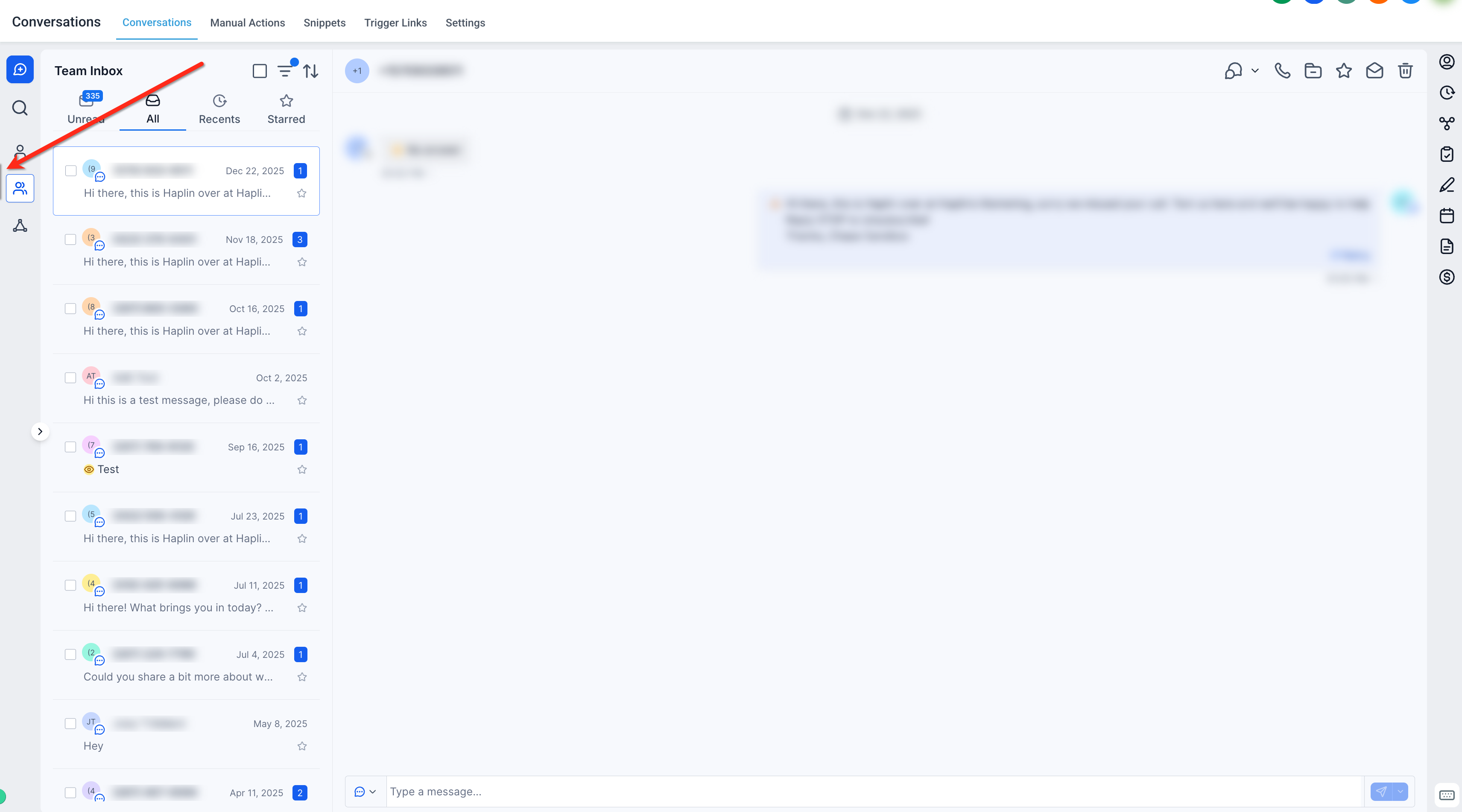
Open the Inbox from the left sidebar.
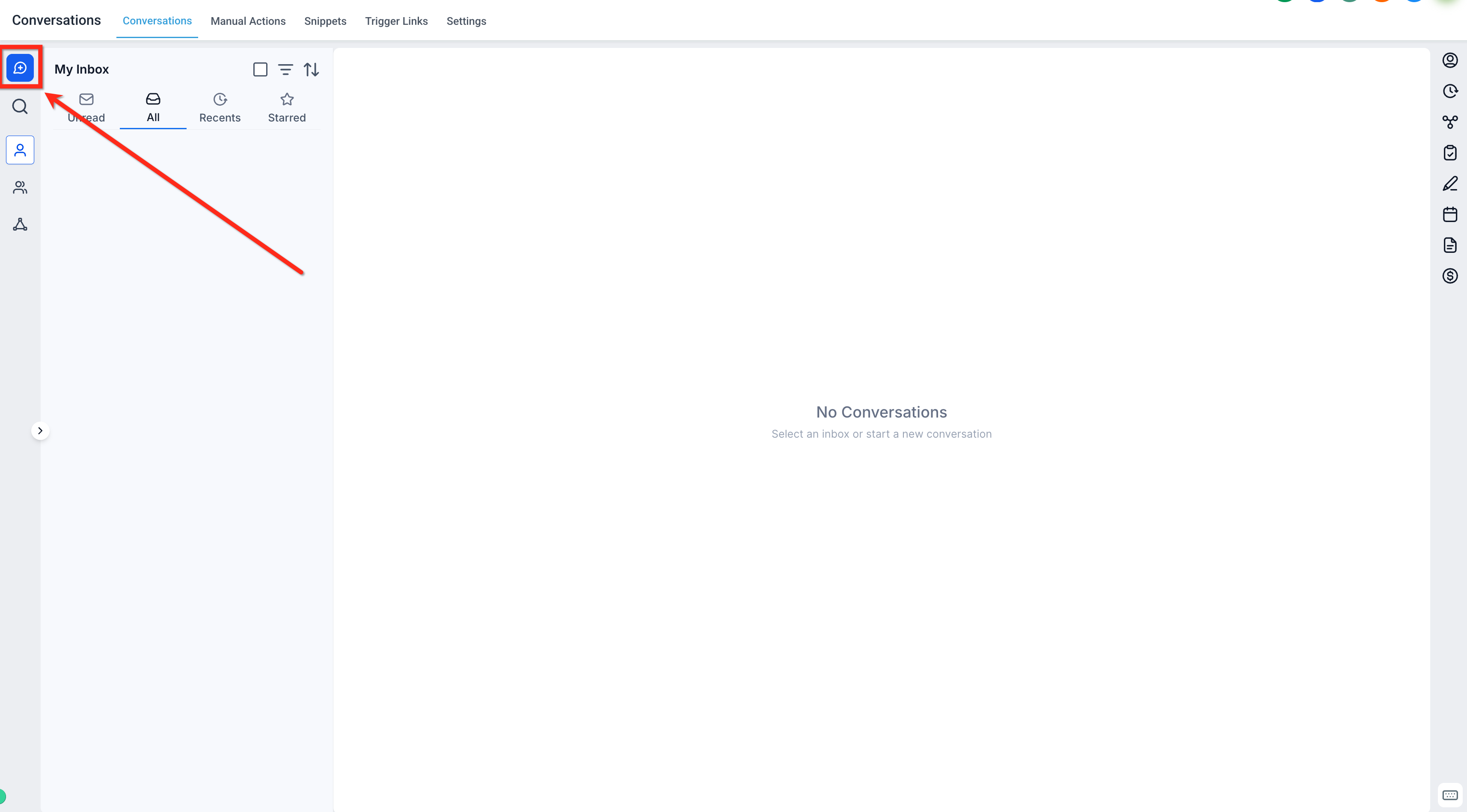
Click the blue Create New Message button.
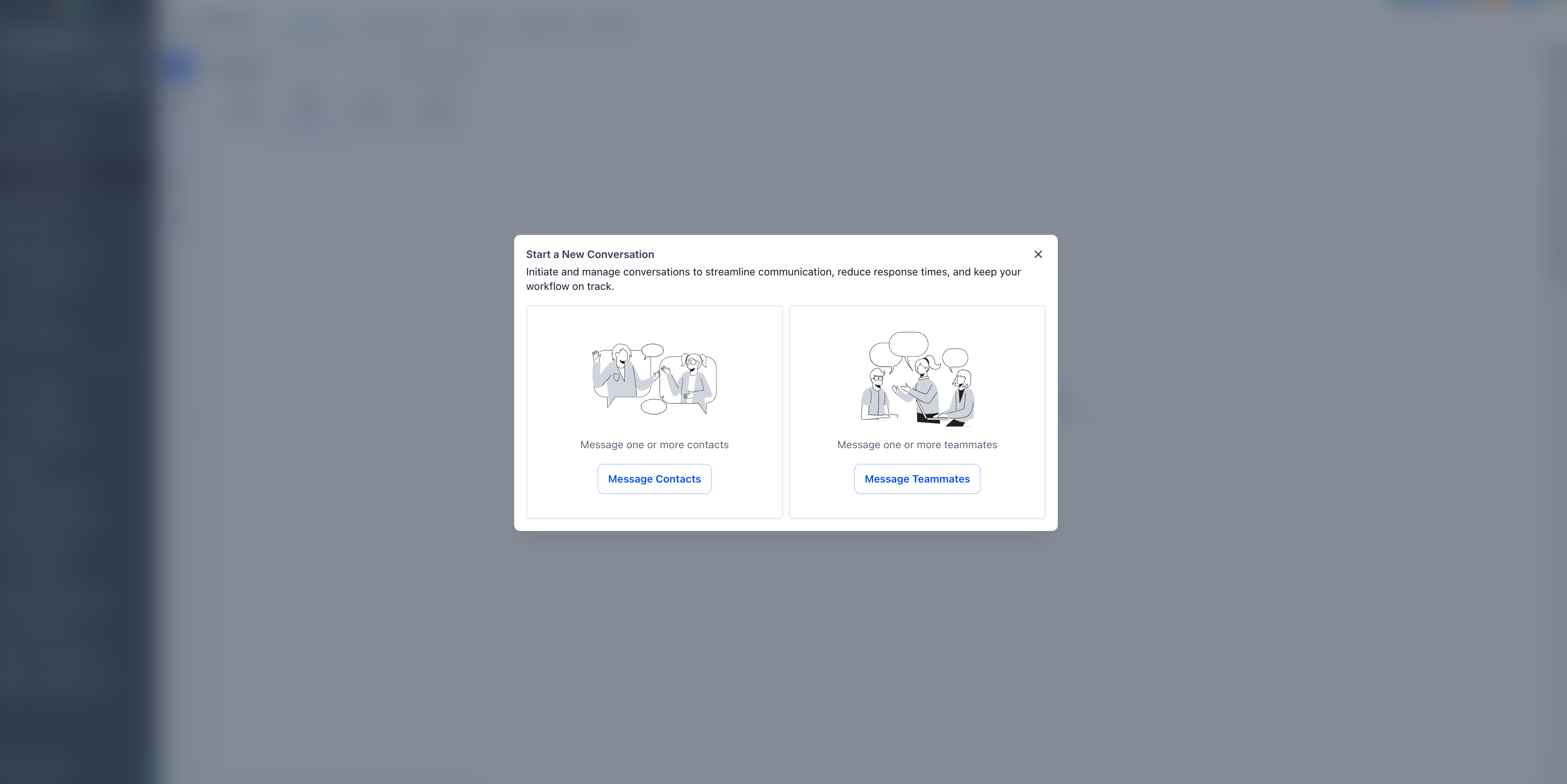
Choose Message Contacts, or Message Teammates for an internal group.
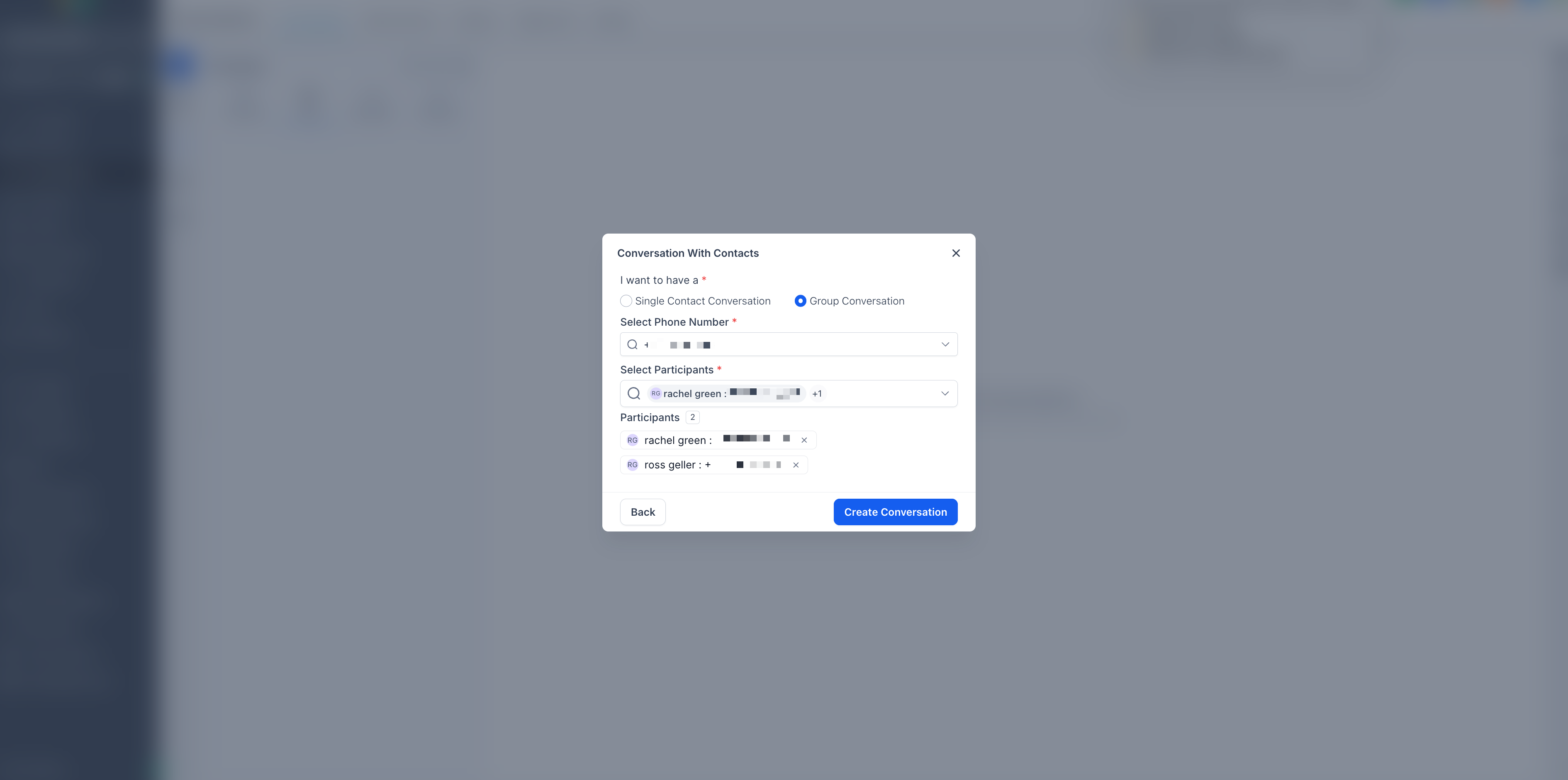
Select Group Conversation, choose the number to send from, add 2 to 9 participants, then click Create Conversation.
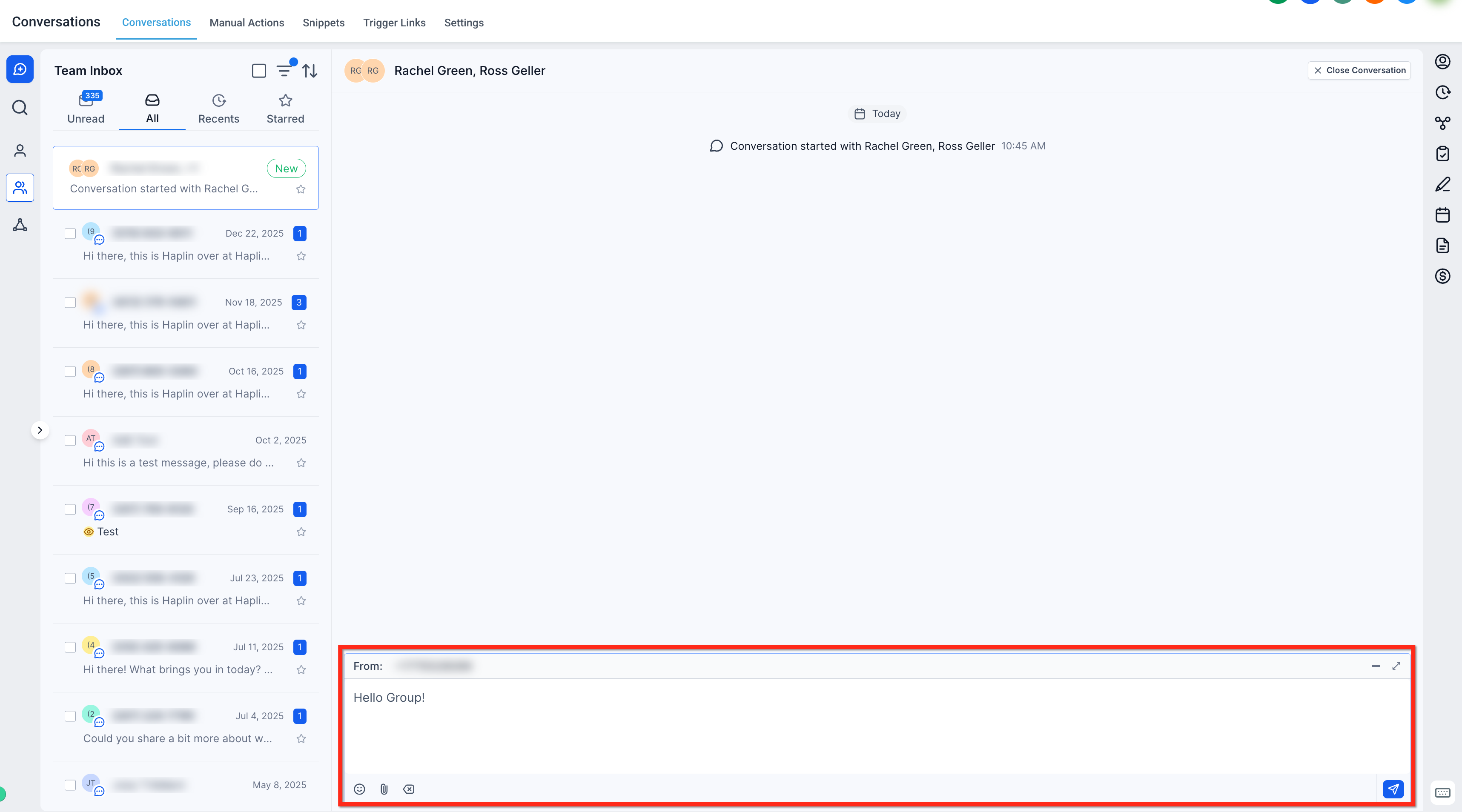
Type your message and click Send.
Open the Aesthetix CRM mobile app on your iOS or Android device and tap the Inbox tab at the bottom of your screen.
Choose Group Chat as the conversation type.
Select your phone number and add contacts to the group. You must add at least 2 and no more than 9 participants.
Optionally name the group so it is easy to identify later.
Tap Start Chat to launch the conversation.
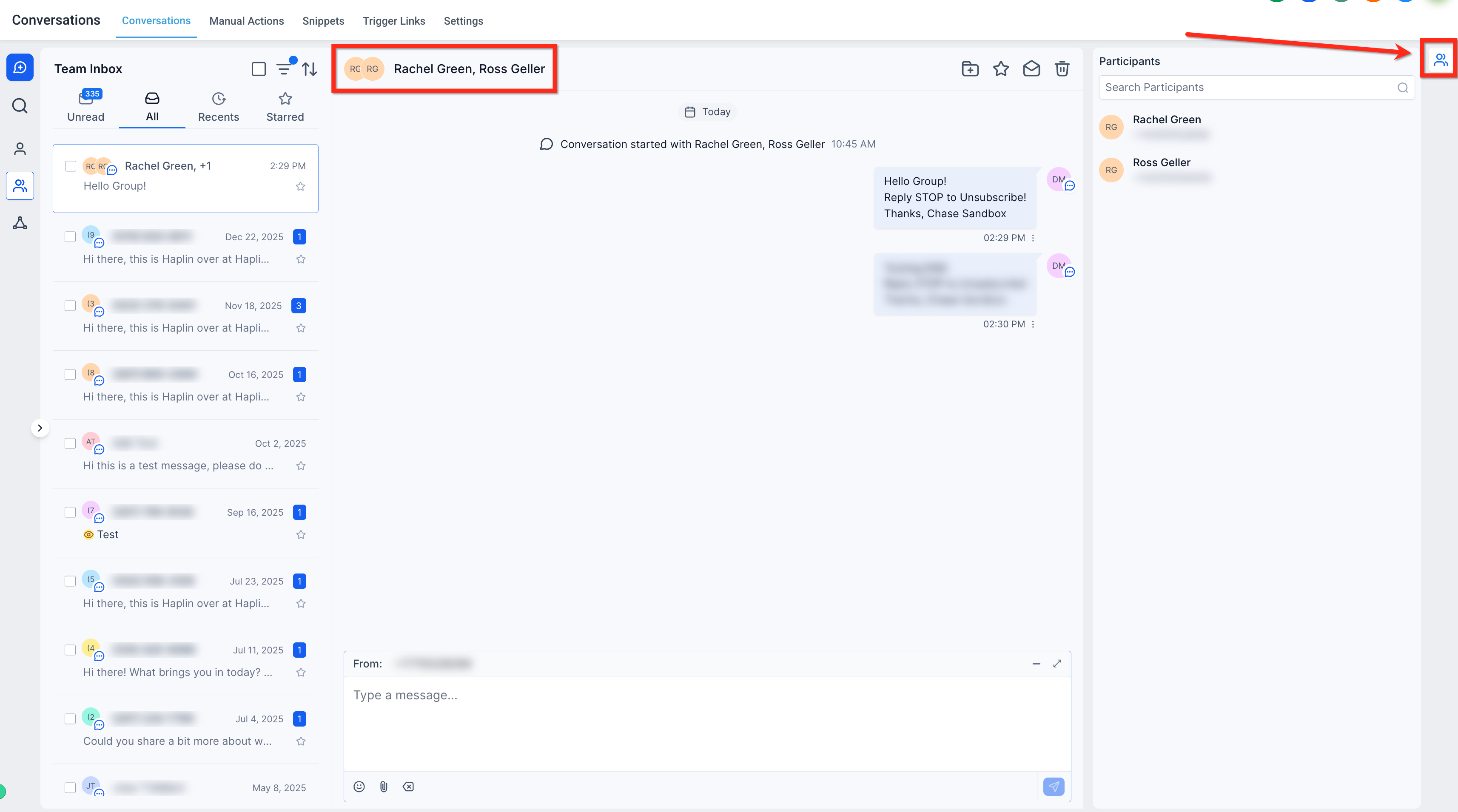
Once a group is live, it works like a one-on-one thread. You can send and receive messages, share images or files, and view all participants. At the top of the group window you can see all contacts. Click the Chat Participants icon to search by name or phone number.
Aesthetix CRM automatically retains unsent messages in the Inbox, so you can step away and resume without losing your progress.
Message drafts in the Inbox save automatically.
If you start typing and leave before sending, your draft is still there when you return.
Internal comment drafts persist when you switch channels, collapse or expand the composer, or move between conversations.
The composer remembers your last selected channel when you collapse it.
This keeps context intact so your team can pick up a half-written reply and finish it later.
HIPAA note: Group SMS threads and saved drafts can contain patient details. Only include the contacts who need to be in a thread, remember that everyone in a group can read the full history, and keep in mind that standard SMS is not an encrypted channel. Avoid putting sensitive clinical information in a text and follow your practice's patient consent and communication policies.
Can I edit participants or the sending number after creating a group? No. Create a new group with the updated set of recipients.
Do attachments work in Group SMS? Yes, within carrier file-size limits. If delivery fails, try compressing the file before resending.
What happens if a participant turns on Do Not Disturb after the group is created? Messaging to that thread is blocked. Create a new group that excludes the DND contact, or have them opt back in to continue.
Can I manage Group SMS from the mobile app? Yes. You can create, view, and reply to group threads in the Aesthetix CRM mobile app.
How do notifications work in a group thread? Notifications behave like one-on-one chats, with a mobile push alert for every new message in the group.
Can all participants see past messages? Yes. Every member of the group can view the complete message history.
Do I have to do anything to save a draft? No. Drafts save automatically. If you leave before sending, your text is waiting for you when you return.
Will my internal comment draft survive if I switch channels? Yes. Internal comment drafts persist when you switch channels, collapse or expand the composer, or move between conversations.
