Connecting Facebook and Instagram to Aesthetix CRM brings your social conversations, lead ads, and ad reporting into one workspace. For a medical-aesthetics practice, that means a new lead from a Facebook ad for a filler special, a direct message asking about laser pricing, and an Instagram comment about your next event can all land in the same Inbox your team already works from. This guide walks you through connecting your Facebook Page, linking your Instagram Business account, and turning on messaging so nothing slips through the cracks.
Unified messaging: Send and receive Facebook Messenger and Instagram direct messages directly from the Aesthetix CRM Inbox.
Lead capture: Receive Facebook and Instagram Lead Form submissions automatically as contacts, ready for follow-up.
Automation: Trigger workflows the moment a lead form is submitted so new inquiries get an instant response.
Ad reporting: Access reporting on your Facebook Ads without leaving the CRM.
To connect successfully, confirm the following on the Facebook side:
You are an Admin of the Facebook Page you want to connect, and of the Business Manager it belongs to.
You are logged into the correct Facebook profile, the one that has access to the Pages you want to connect.
If you plan to run Lead Ads, the same user should own the Facebook Page and the ad account.
If you want Instagram messaging and posting, your Instagram profile is a Business or Creator account and is linked to your Facebook Page (Facebook, which owns Instagram, requires this for permissions to be granted).
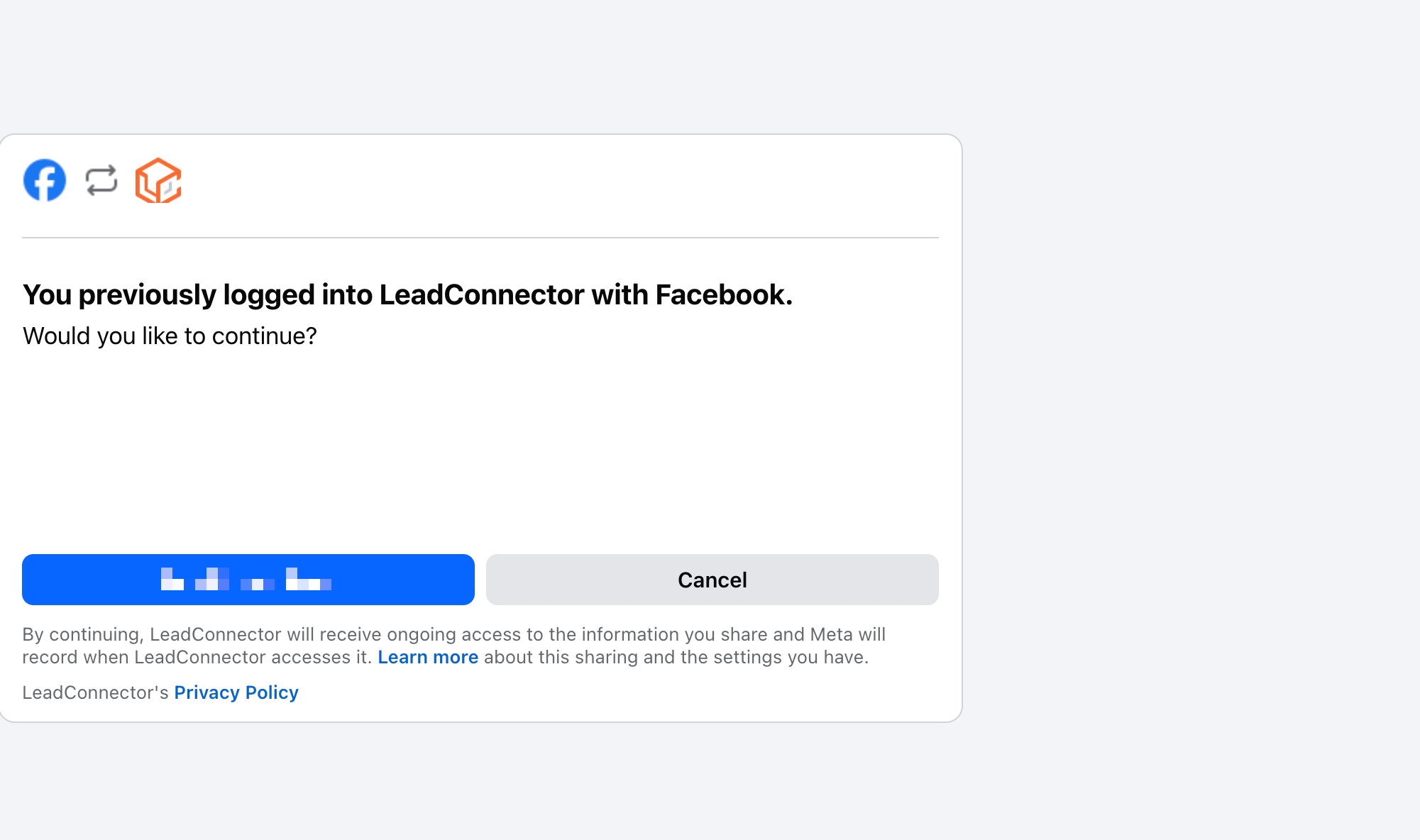
During the connection, Facebook's login and permissions screen may show the name LeadConnector rather than Aesthetix CRM, and it may ask you to grant full access to LeadConnector inside Meta Business Suite. This is expected and safe. The connection is powered by our underlying integration provider, so seeing that name on Meta's authorization screen is normal. Continue and approve the requested permissions to complete the connection.
Follow these steps to link your Facebook Page (and any connected Instagram Business account) to Aesthetix CRM.
From the left-hand menu of Aesthetix CRM, click Settings.
In the Settings menu, scroll down and click Integrations.
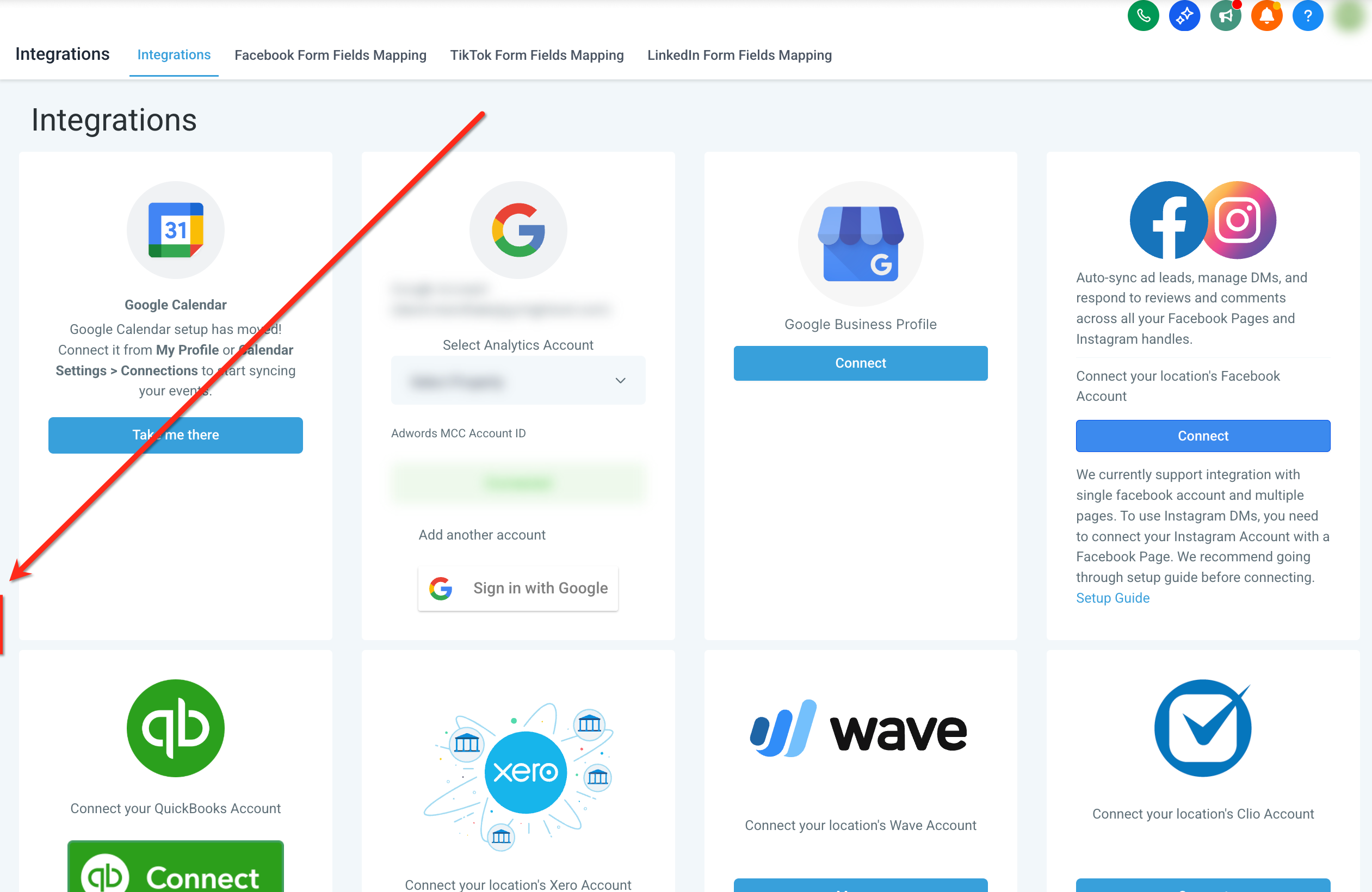
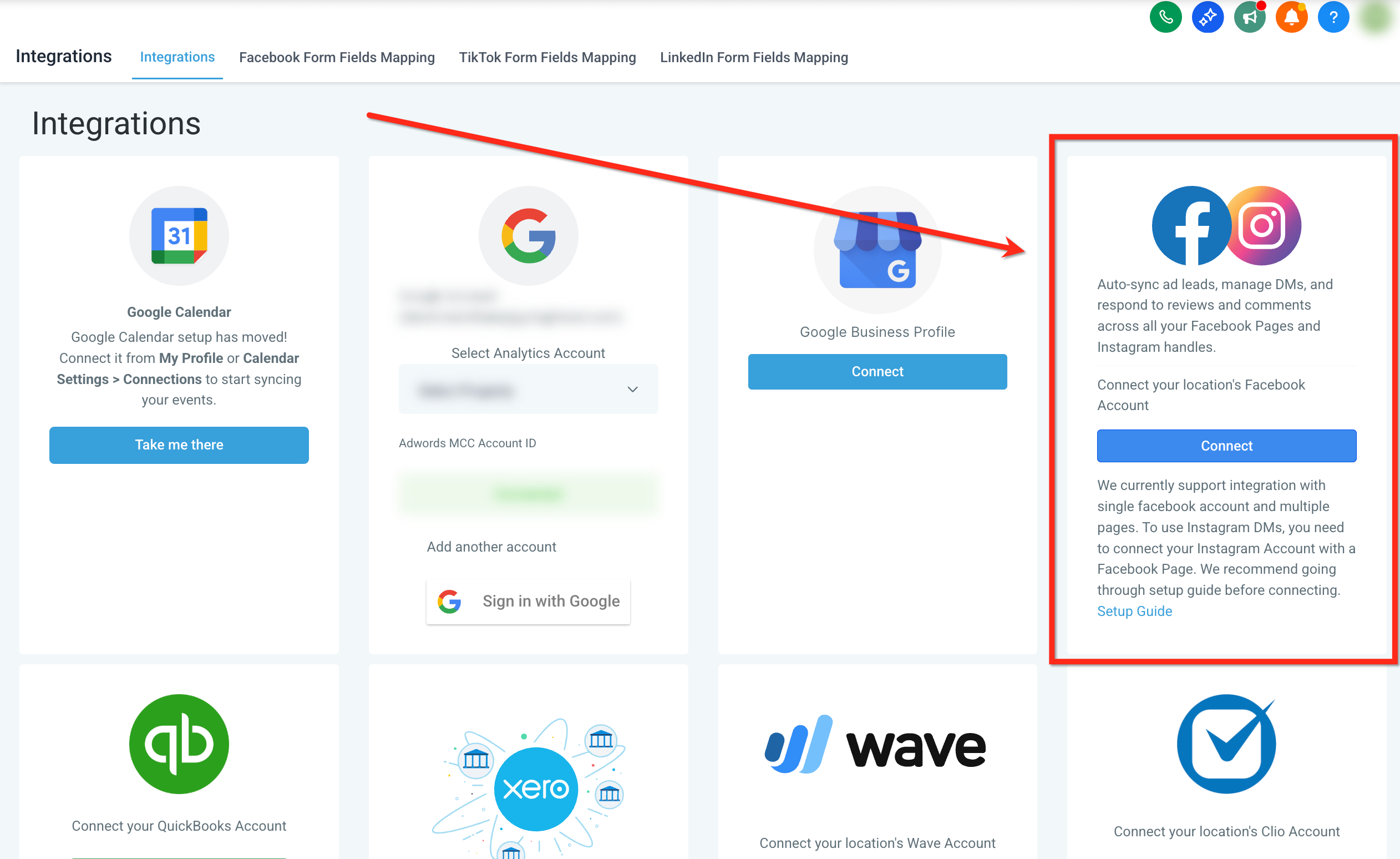
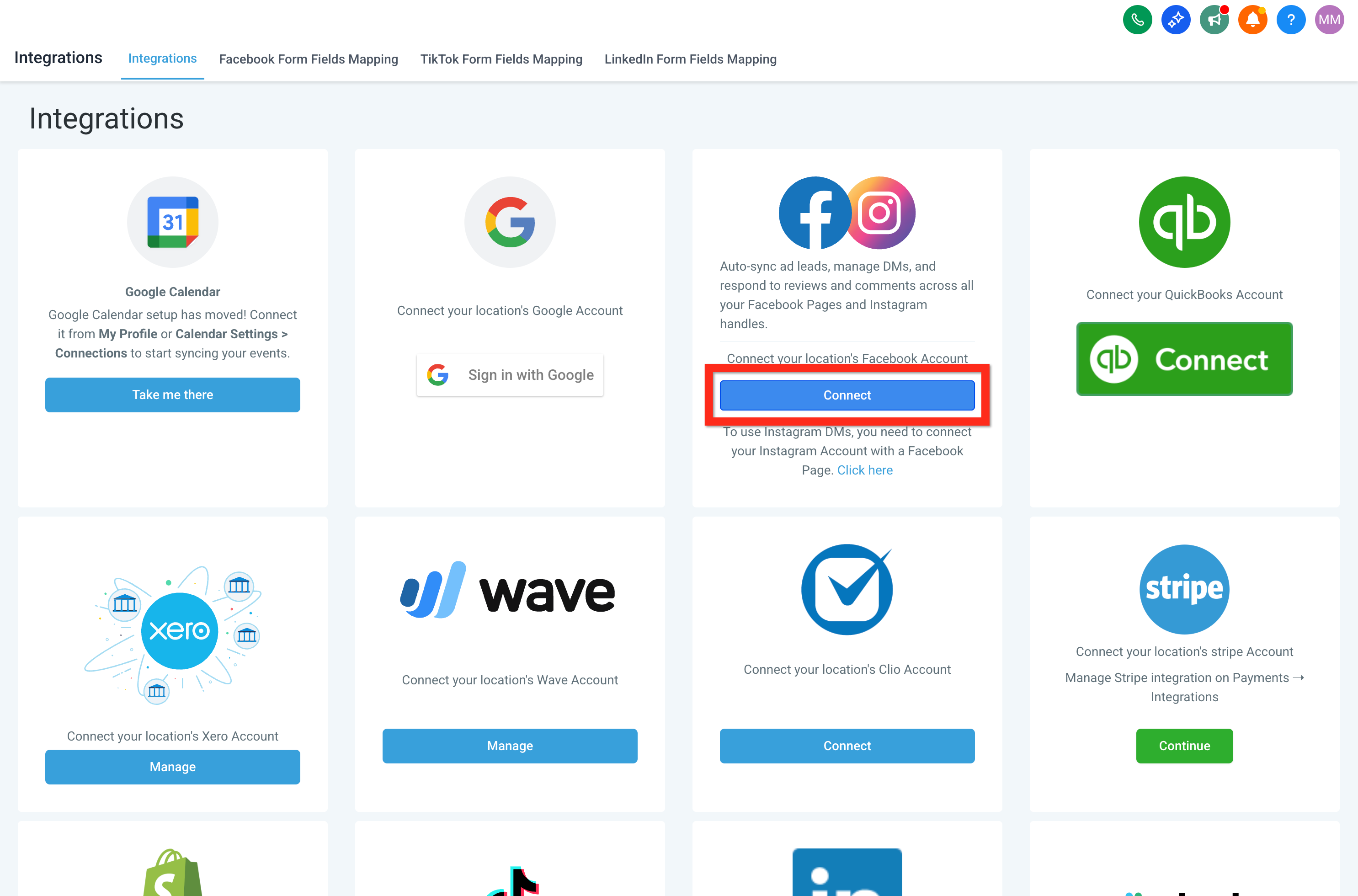
Find the Facebook and Instagram card in the Integrations screen and click Connect.
A pop-up window asks you to log into your Facebook account. Make sure to:
Log into the correct Facebook account.
Approve all requested permissions, especially access to leads and Page data.
Continue through the LeadConnector permission screen described above.
After logging in, select the Facebook Page you want to integrate, then choose a lead sync preference:
All Leads: Pull in historical leads plus all new leads going forward.
New Leads Only: Sync only leads submitted after this integration is set up.
You can search your Facebook Pages (and ad accounts, when available) by name to find the right one faster. Search becomes available after your Pages finish loading, because Meta does not provide native search for this step. Accounts with many Pages may take longer to load before search appears.
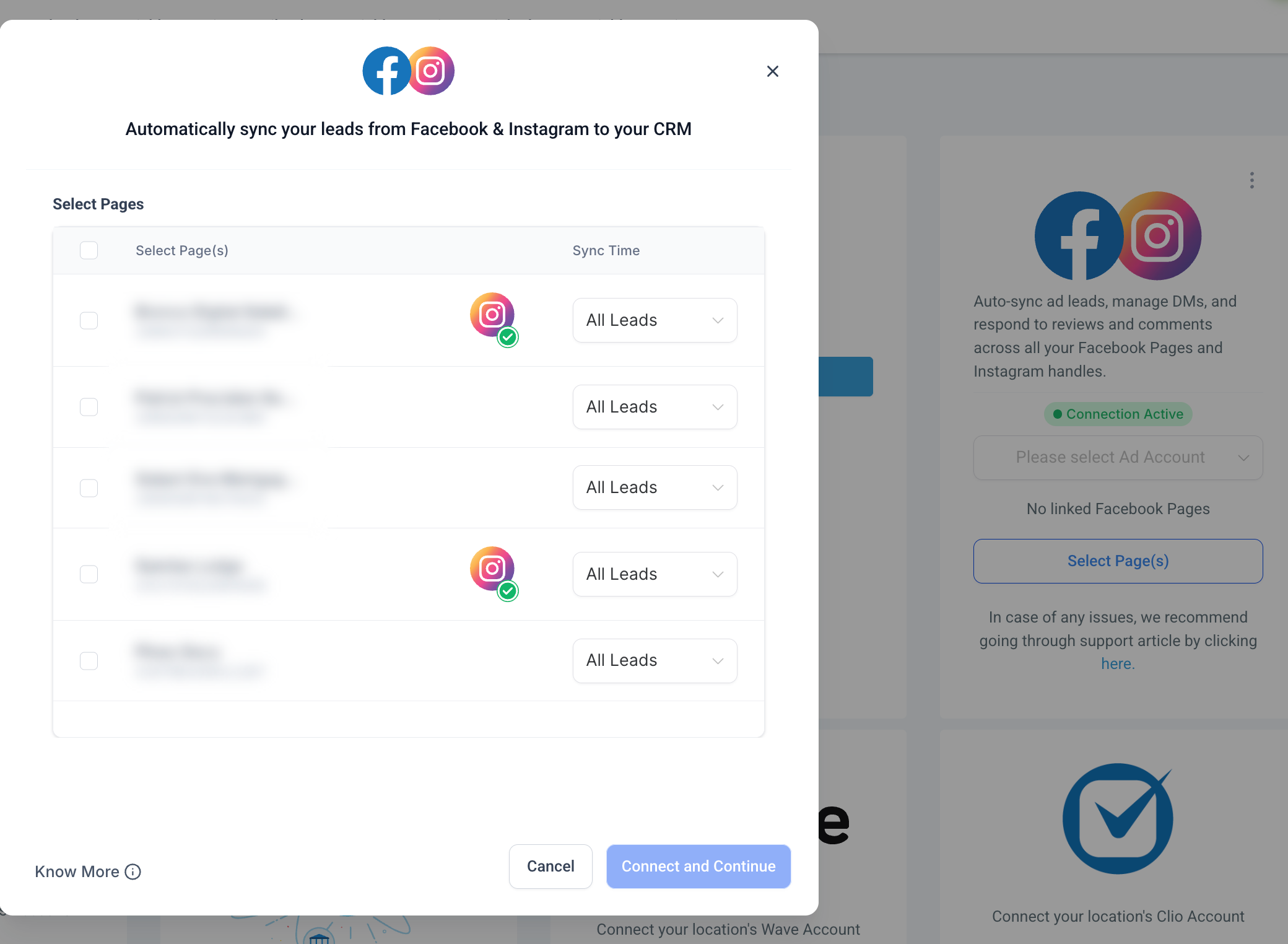
Click Connect and Continue to finalize. You will see a green Integration successful banner in the upper-right corner.
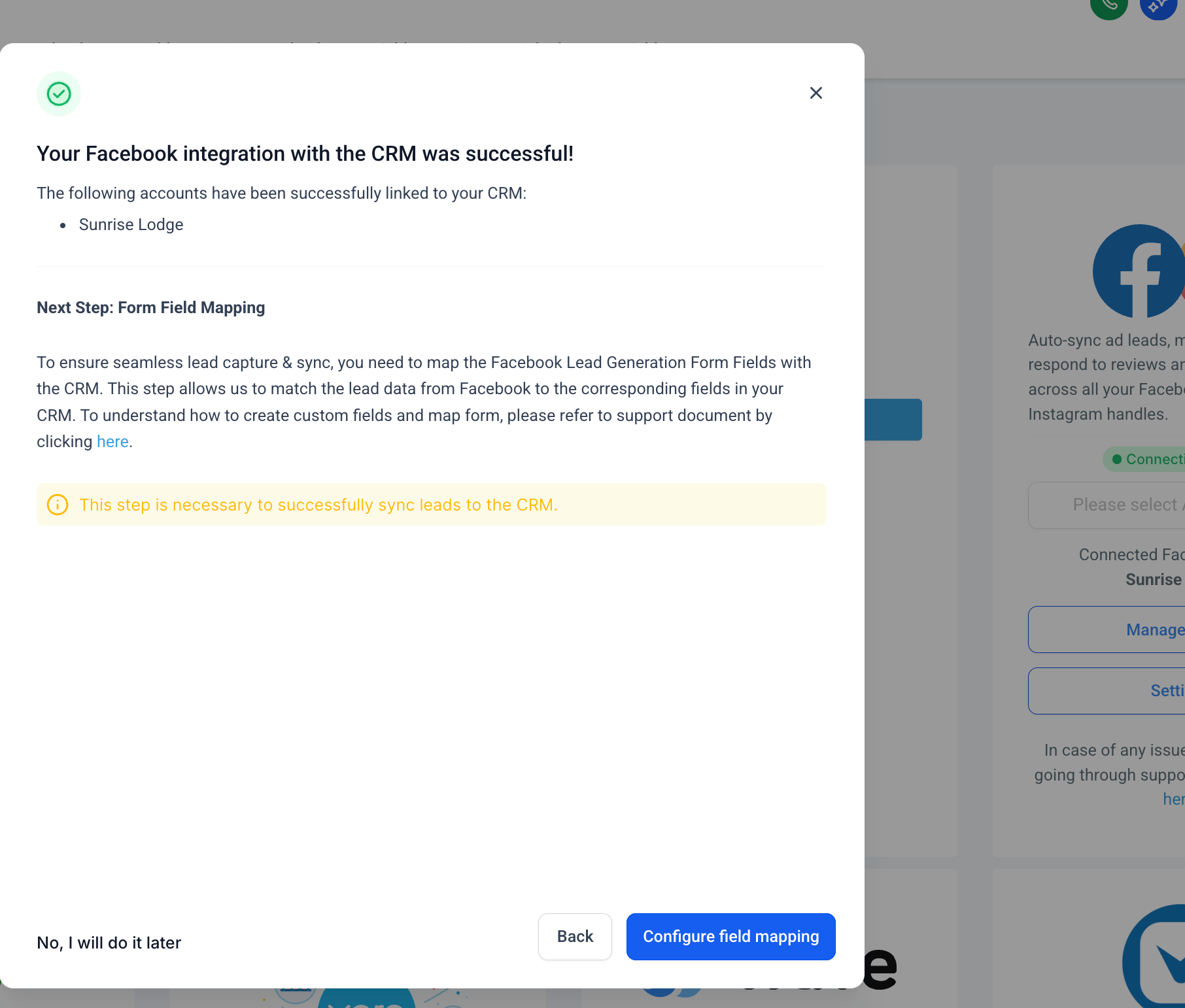
Map your Facebook Lead Form fields to the matching Aesthetix CRM contact fields so every lead's name, email, and phone land in the right place. For the full field-mapping walkthrough, see the Facebook Lead Ads: Integration & Field Mapping article in this collection.
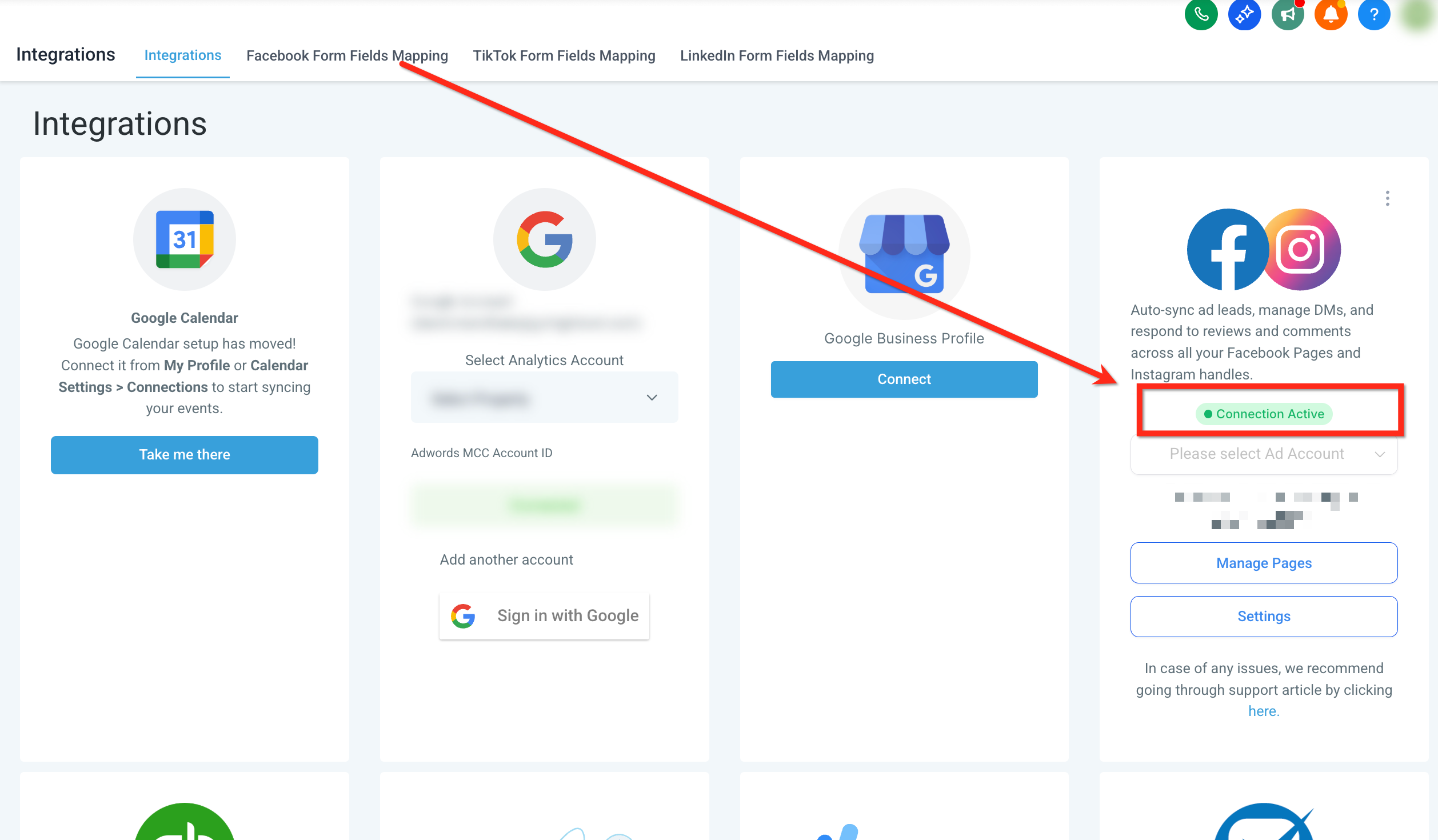
Once connected, direct messages from both Facebook and Instagram flow into your Aesthetix CRM Inbox, and lead form submissions arrive as contacts.
If your goal is to answer Messenger and Instagram DMs from one place, confirm messaging is turned on after connecting.
Go to Settings > Integrations and click Connect under Facebook and Instagram (if you have not already).
Log in to Facebook and choose the Page that is connected to Instagram.
Click Connect Facebook and Instagram, then Sync Leads.
To make sure Instagram messages flow in as well, link Instagram to your Facebook Page:
Log in to your Facebook Page.
Go to Account > Settings and search for Linked Accounts.
Select Instagram and click Connect, keeping the toggle on to enable Instagram messages in your Inbox.
Authenticate your Instagram login credentials.
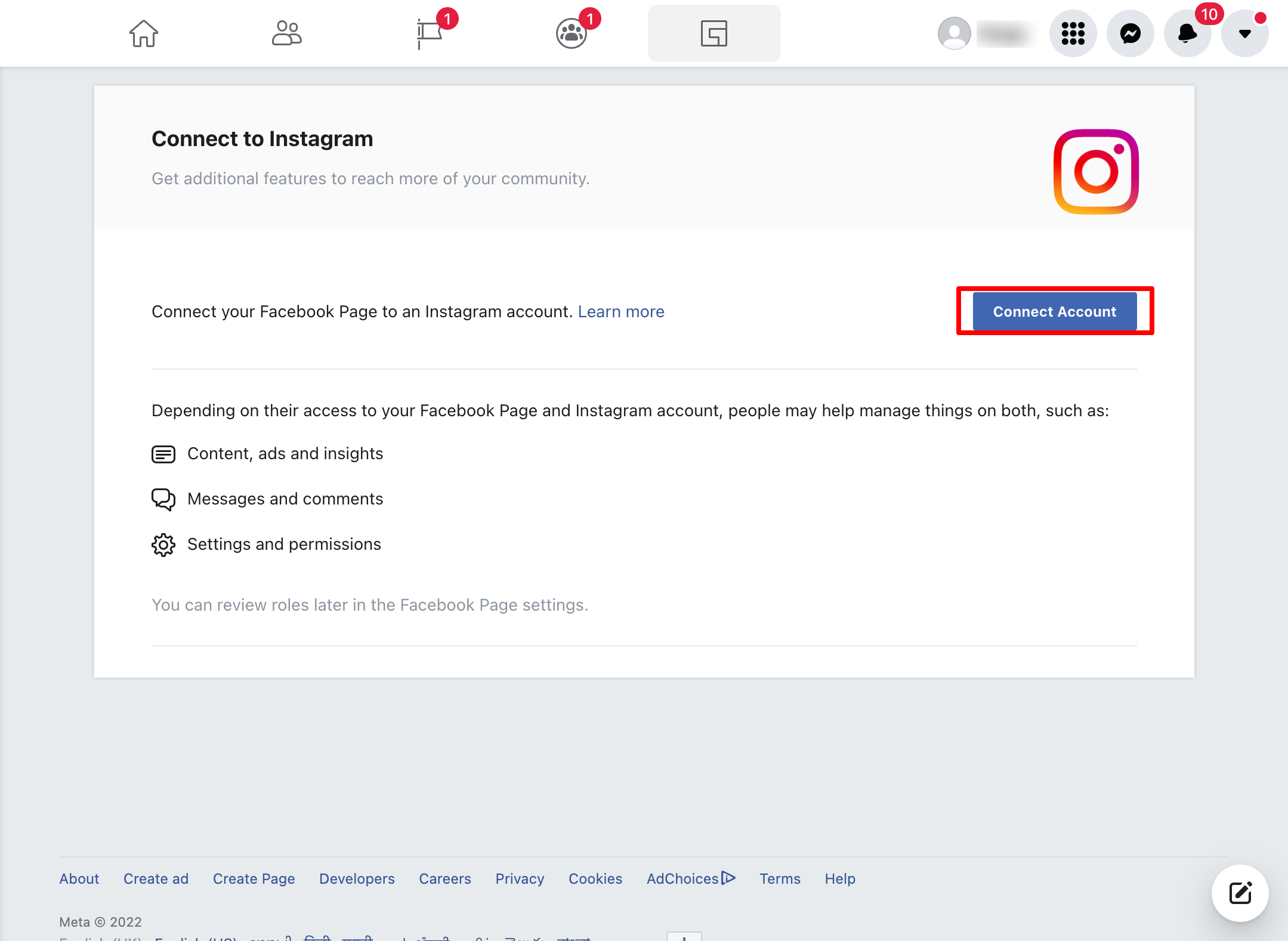
After connecting, send a test message to confirm incoming messages are reaching your Inbox correctly.
Tip: Send the test message from a different Facebook or Instagram account, not the one you used to connect Aesthetix CRM. This gives you a more accurate picture of what your patients will experience.
To test Facebook Messenger:
From a different Facebook account, open your practice's Facebook Page.
Click Message and send a test message to the Page.
In Aesthetix CRM, open the Inbox and locate the new conversation.
Open the conversation and confirm the Facebook Messenger test message appears in the message history.
To test Instagram messaging:
From a different Instagram account, open your practice's Instagram profile.
Send a new direct message to the account.
In Aesthetix CRM, open the Inbox and locate the new conversation.
Open the conversation and confirm the Instagram test message appears in the message history.
Your connection is working correctly when the test message appears in the Inbox under the correct contact and conversation, and you can open it to view the incoming message.
For an end-to-end check, reply to the test message from within the Inbox, then confirm the reply arrives back in the Facebook Messenger or Instagram account you used for testing. If both the incoming message and your reply go through, the connection is working as expected.
If a test message does not appear in the Inbox:
Go to Settings > Integrations and confirm the correct Facebook Page and Instagram account are connected.
Confirm messaging access is enabled for the connected account.
Verify the appropriate Facebook and Instagram permissions have been granted.
For Instagram, confirm the Instagram account is correctly linked to the Facebook Page.
Send another test message after verifying the connection and permissions.
When someone messages your practice on Facebook or Instagram for the first time, Aesthetix CRM creates or updates a contact based on your Contact Deduplication Preferences. If the person later shares an email or phone number that matches an existing contact and Allow Duplicate Contact is turned off, the messenger contact is merged into that existing record so you keep one complete patient profile. If Allow Duplicate Contact is turned on, the automatic merge does not run and separate records may exist for the same person.
To post to and message from Instagram through Aesthetix CRM, your Instagram Business profile must be connected to a Facebook Page. You do not have to publish to the Page, but the permissions to manage your Instagram profile are granted through Facebook, which is Facebook's requirement.
Confirm two things first:
Your Instagram profile is a Business profile. If it is a personal profile, convert it to a Business profile in the Instagram app.
You have an Admin or Editor role on the Facebook Page (or Facebook access with full or partial control on a New Page type). If the Page is a Business Manager asset, you also need management access to it in Business Manager.
To link them:
Log in to Facebook, click your profile photo in the top right, click See all profiles, and switch into the Page you want to use.
Click your Page's profile picture, then click Settings & privacy.

Click Settings, then under Permissions, click Linked accounts.

Select Instagram and click Connect account, then follow the prompts and enter your Instagram credentials. Your Instagram Business profile is now linked to your Facebook Page.

If you manage assets through Meta Business Suite instead, you can add an Instagram account to your business portfolio under Settings > Business assets > Add assets > Instagram account, then claim the account by entering your Instagram credentials. Note that adding an Instagram account to your portfolio does not by itself connect it to a Facebook Page, so complete the linking steps above as well.
Connecting here handles lead ads and messaging. To schedule and publish posts, stories, and reels to your Facebook Page and Instagram account, use the Social Media Planner. The Social Planner also supports Direct Instagram Integration, which lets you connect a Business or Creator account for posting without linking a Facebook Page. For posting setup and scheduling, see the Social Media Planner collection.
If you want to link your Facebook ad account, you can do so in the same Integrations area. Connecting your ad account ensures Facebook Lead Forms map directly into Aesthetix CRM and that ad reporting is available.
If you do not yet have a Meta Business Manager and ad account, create one at business.facebook.com using your business name and email, then add your Facebook Page, Instagram account, and ad account as assets. Verifying your business under Business Settings > Business Info (with your legal name, address, and official documents) reduces the chance of restrictions and makes account recovery easier later.
What permissions do I need to connect a Facebook Page?
You must be an Admin of the Facebook Page and its associated Business Manager. If you see a "page not visible" message, check these permissions and try again.
Why does the Facebook permission screen say LeadConnector?
LeadConnector is our underlying integration provider. The screen is expected and safe to approve, and it does not change how the connection behaves inside Aesthetix CRM.
Can I connect more than one Facebook Page?
Yes. You can connect multiple Facebook Pages to your account, with leads and conversations attributed to the correct source Page.
Does this also connect Instagram?
Yes, as long as your Instagram Business account is connected to your Facebook Page. Instagram DMs and Instagram Lead Form leads will then flow into Aesthetix CRM.
Can I trigger a workflow when a Facebook form is submitted?
Yes. Use the Facebook Lead Form Submitted workflow trigger to launch automations, such as an instant text or an assignment to a team member, the moment a new lead comes in.
How do I test that the integration is working?
Use Facebook's Lead Ads Testing Tool or submit a test form manually, then confirm the lead appears as a contact in Aesthetix CRM.
My Facebook connection expired. What happened?
Facebook tokens can break when a password changes, permissions change, a user logs out of Facebook, or the token naturally expires. Reconnect under Settings, then Integrations, by disconnecting and reconnecting the Facebook and Instagram card.
Do I need a Facebook Page to post to Instagram?
For the classic connection, yes. For posting only, the Social Media Planner also offers Direct Instagram Integration, which supports Business and Creator accounts without a linked Facebook Page.
