Aesthetix CRM should not normally run slowly. When it does, the cause is usually something on the browser or device side that is easy to identify and fix. This guide walks through the quick checks to try first, the system and browser setup we recommend, and how to gather diagnostic data for our team if the problem continues.
Work through these checks in order. Many slowdowns are resolved before you reach the end of the list.
Clear your browser cache and cookies. An overloaded cache can slow performance.
Make sure your browser is up to date, and use Google Chrome or another recommended browser for the best experience.
Check for browser extensions that might conflict with the CRM. Running Aesthetix CRM in an incognito or private window helps you confirm whether an extension is the cause.
Limit the number of open tabs. Heavy multitasking can slow things down.
Noticing the pattern helps pinpoint the cause. Ask yourself:
Are specific actions or areas of the system slower than others?
Does the slowness happen at certain times of day or during certain actions?
Is it affecting everyone on your team, or just one account?
High CPU or memory usage on your computer can contribute to slowness. A quick restart of your system often helps.
Aesthetix CRM is a browser-based platform, so performance depends heavily on your device's memory, processor, browser setup, and internet connection.
Minimum: 20 Mbps download / 10 Mbps upload
Recommended: 50+ Mbps download / 20+ Mbps upload
Use a wired (Ethernet) connection whenever possible. Wi-Fi can add latency.
Disable unnecessary extensions, especially ad blockers, Grammarly, or other script-heavy tools.
Enable hardware acceleration in your browser.
Keep only essential tabs open.
Clear cache and cookies regularly.
Minimum specifications (basic use with a few tabs open):
Processor: Intel i5 (8th Gen) or AMD Ryzen 3 (3000 series)
RAM: 8 GB
Storage: SSD (not HDD)
Operating system: Windows 10 / macOS 11+
Recommended specifications (heavy multitasking, multiple accounts, automations, calendars, and similar):
Processor: Intel i7 (10th Gen+) or AMD Ryzen 5/7 (4000 series+)
RAM: 16 GB (32 GB if running multiple tools such as Zoom or Loom at the same time)
Storage: NVMe SSD (fast read/write reduces lag)
GPU: Not critical, though integrated Intel Iris or AMD Vega+ is sufficient.
Google Chrome (most optimized for Aesthetix CRM)
Mozilla Firefox (a good, reliable choice)
Microsoft Edge (Chromium-based) as a strong alternative, with lower RAM usage in some cases
Brave for Chrome-level speed with improved resource handling
Not recommended:
Safari (limited compatibility with advanced Aesthetix CRM features)
Monitor setup: Dual monitors or an ultrawide reduce tab-switching and improve workflow speed.
Input devices: Low-latency keyboards and mice make multitasking smoother.
System cooling: Make sure laptops have proper cooling. Overheating can throttle CPU performance.
Power plan (Windows): Set to High Performance mode for maximum efficiency.
Use separate browser profiles for different accounts or clients to prevent cross-account lag.
Perform regular system maintenance, such as disk cleanup, software updates, and malware scans.
For larger teams, cloud hosting solutions (for example, AWS WorkSpaces or Azure Virtual Desktops) can centralize resources and reduce individual system bottlenecks.
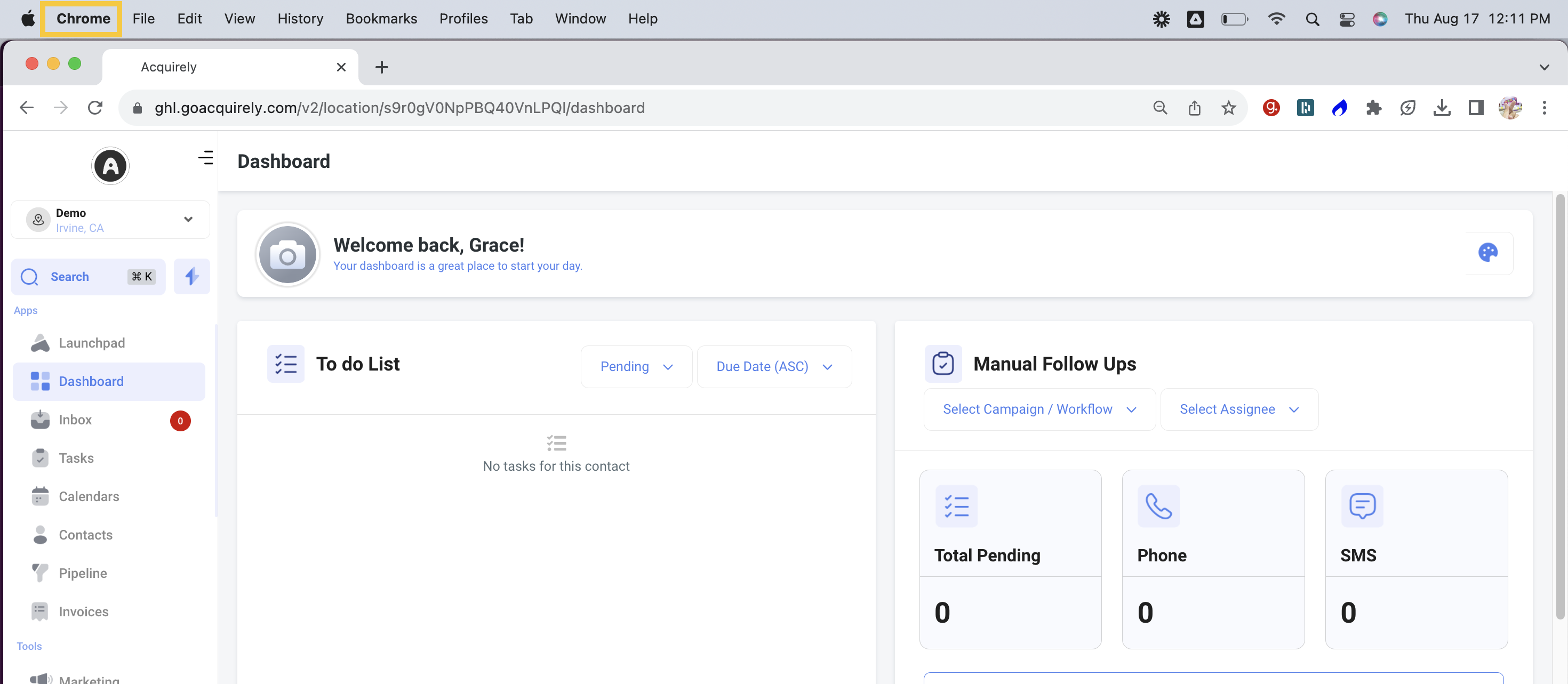
A cache is a saved version of a webpage from an earlier visit. Your browser assumes the page has not changed and loads the saved copy instead of fetching a fresh version from our servers, which makes browsing faster. Most caches update on their own over time, but when you want to make sure the latest changes appear, or you are diagnosing a display problem, clearing the cache manually forces a fresh load.
How you clear the cache depends on your browser. Select yours for detailed instructions:
If you are still seeing slow loading or other technical issues after the steps above, our development team may need diagnostic data from your browser to investigate. Follow these steps to capture and submit it.
Open Aesthetix CRM in Google Chrome (our recommended browser).
Right-click anywhere on the page.
Select Inspect from the menu.
In the developer tools panel, click the Console tab at the top.
With the Console open, try to recreate the problem you are experiencing, such as slow loading, errors, or glitches.
Keep the Console visible the whole time.
Use a screen recording tool such as Loom to capture the issue along with the Console output.
Make sure the recording shows the right-click, Inspect, and Console steps.
Create a support ticket through Aesthetix CRM's help desk.
Attach the Loom link or upload the recorded file.
Include a brief description of the issue and any steps you have already tried.
Once your ticket is submitted, our team reviews the Console data and works on a resolution as quickly as possible. Thank you for helping us improve your experience with Aesthetix CRM.
Why is Aesthetix CRM running slowly? Slowness is usually caused by the browser or device rather than the platform itself. Start by clearing your cache, updating your browser, closing extra tabs, disabling conflicting extensions, and restarting your computer.
Which browser should I use? Google Chrome is the most optimized for Aesthetix CRM. Mozilla Firefox is also a good choice, and Microsoft Edge and Brave are strong alternatives. Safari is not recommended for advanced features or real-time updates.
Every click is taking 30 seconds or more. What should I do? Switch to Google Chrome, clear your cache and cookies, close unused tabs and extensions, and confirm your internet connection meets the recommended speeds. If the delay continues, capture Console diagnostics and submit a support ticket.
Do I meet the system requirements? For basic use, you need at least an Intel i5 (8th Gen) or AMD Ryzen 3, 8 GB of RAM, and an SSD. For heavy use across multiple accounts and automations, 16 GB or more of RAM and a faster processor are recommended.
How do I clear my browser cache? The steps depend on your browser. Use the browser-specific links in the "Clearing your cache" section above for Chrome, Firefox, Edge, and Safari.
How do I send diagnostic information to support? Open the Chrome Console (right-click, then Inspect, then Console), reproduce the issue while recording your screen with a tool like Loom, and attach the recording to a support ticket with a short description.
