Once a payment link is built, you can deliver it straight to a patient with their details already filled in, or request a payment on the spot from an SMS conversation with a text-to-pay link. Both options reduce friction and help you collect faster, whether you are following up on a treatment package quote or taking a deposit while a patient is on the phone.
Tip: Aesthetix CRM offers AX Pay, our own payment processing with rates better than Stripe. See AX Pay Overview and Setup Guide.
Personalized links arrive with the patient's name, email, and phone already filled in, which improves the experience and boosts conversions. You can send to one patient or to many at once.
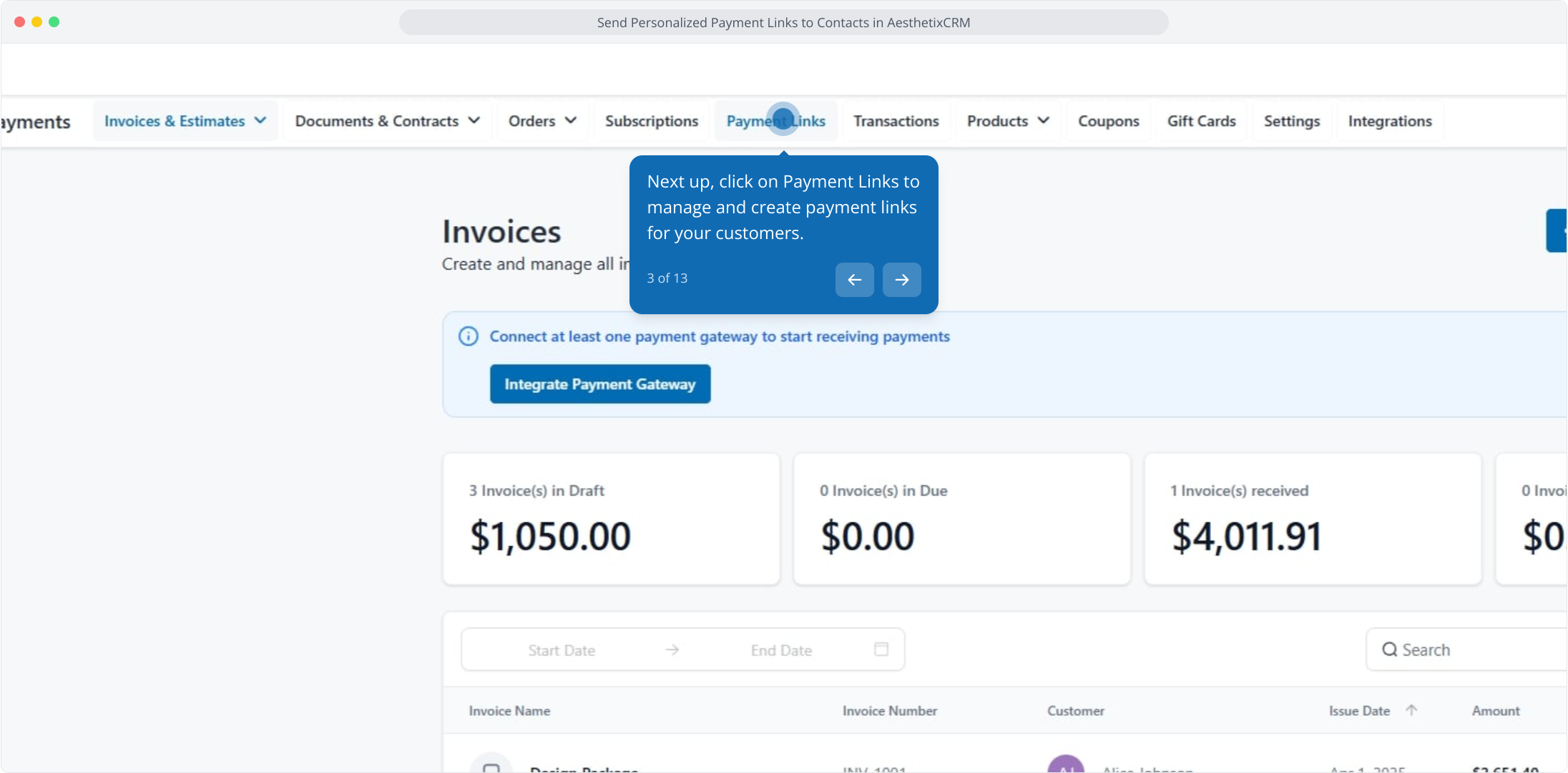
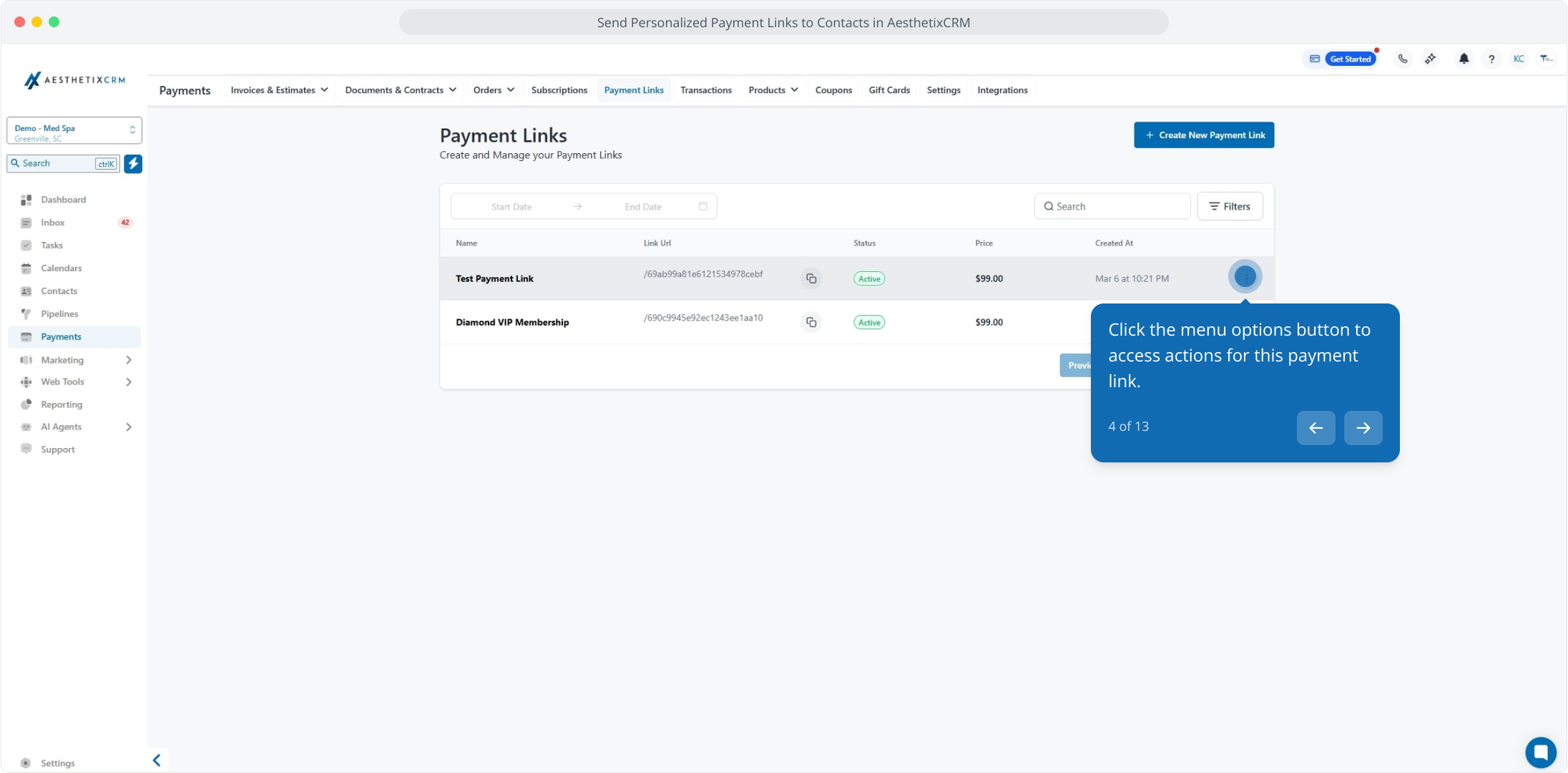
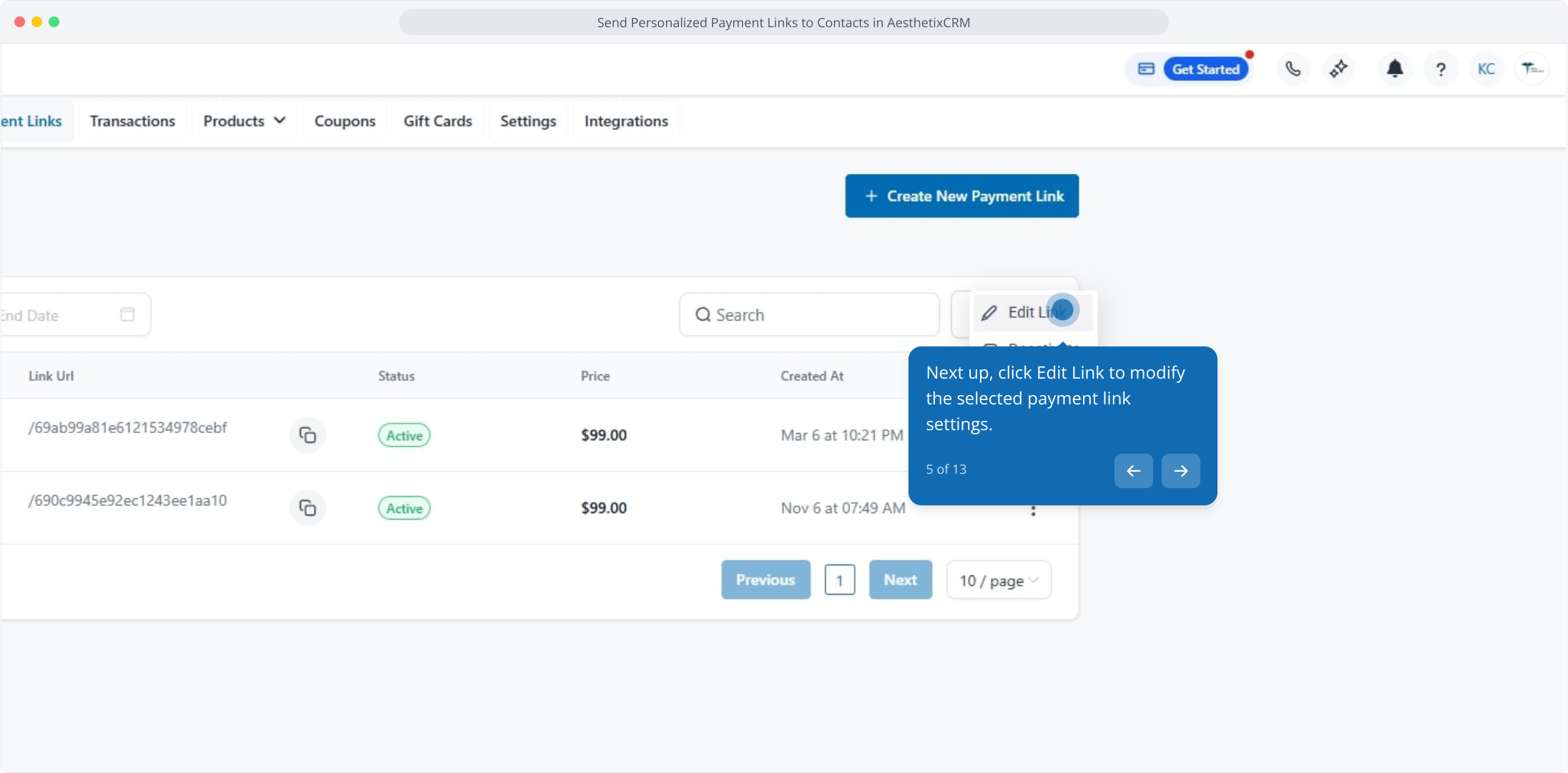
In the Payments section, open Payment Links. Find the link you want to send, click its menu options button, and choose Edit Link. You must save a link before this feature is available, and it is also available on any previously saved link.
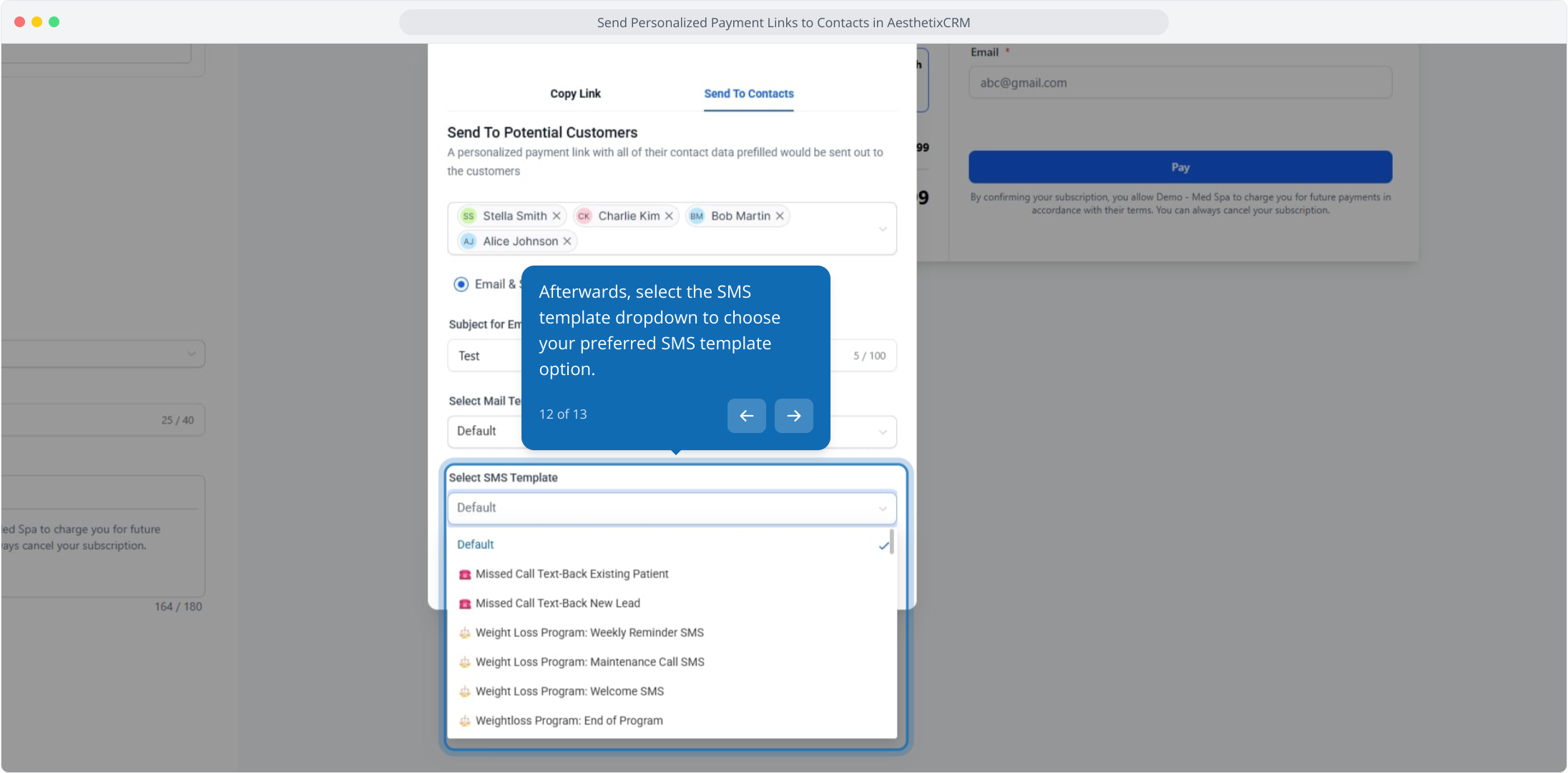
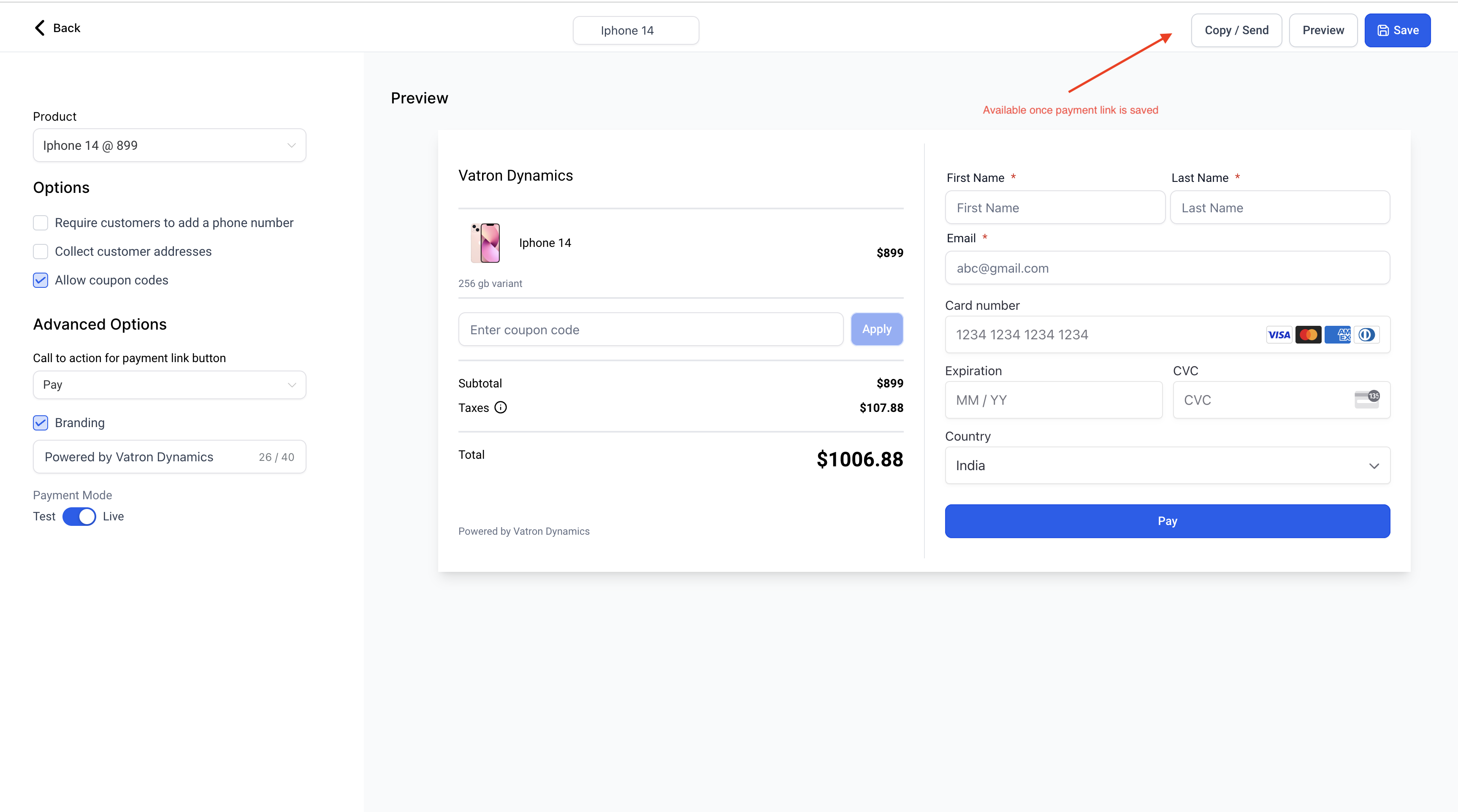
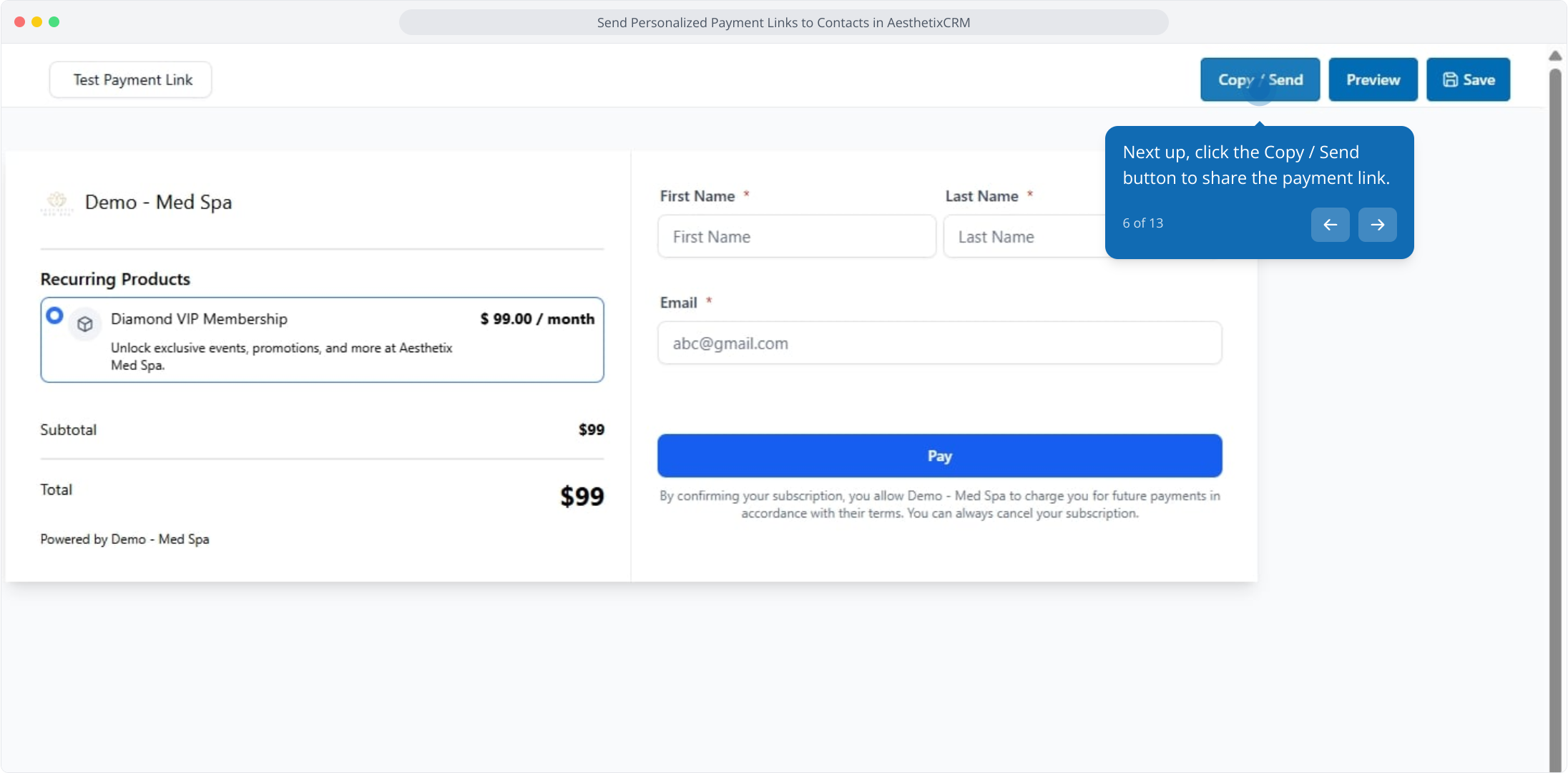
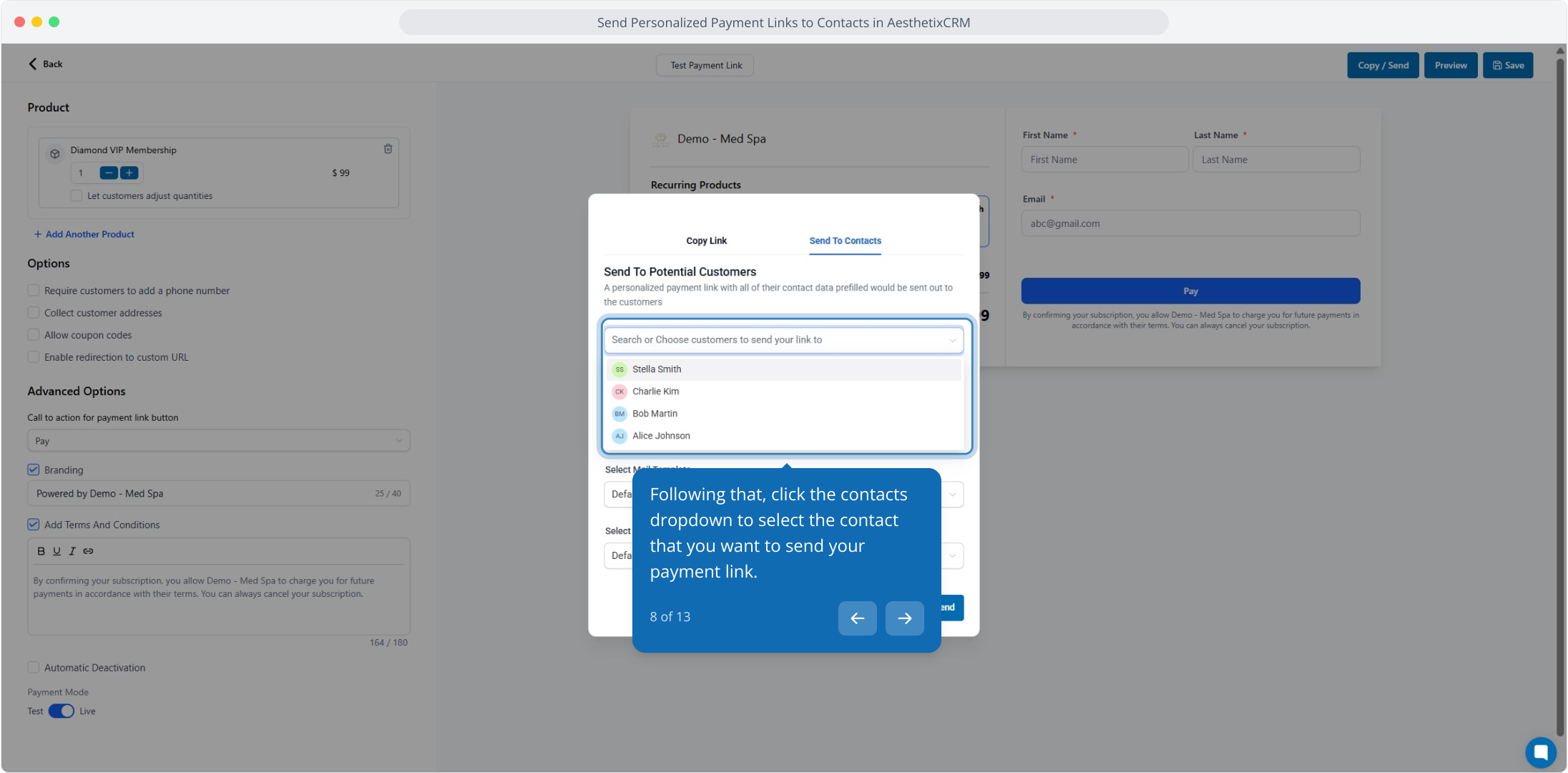
Click the Copy / Send button in the top right, then choose Send To Contacts. From here you can also copy a standard link, or select a contact from the dropdown to grab a personalized link for that patient.
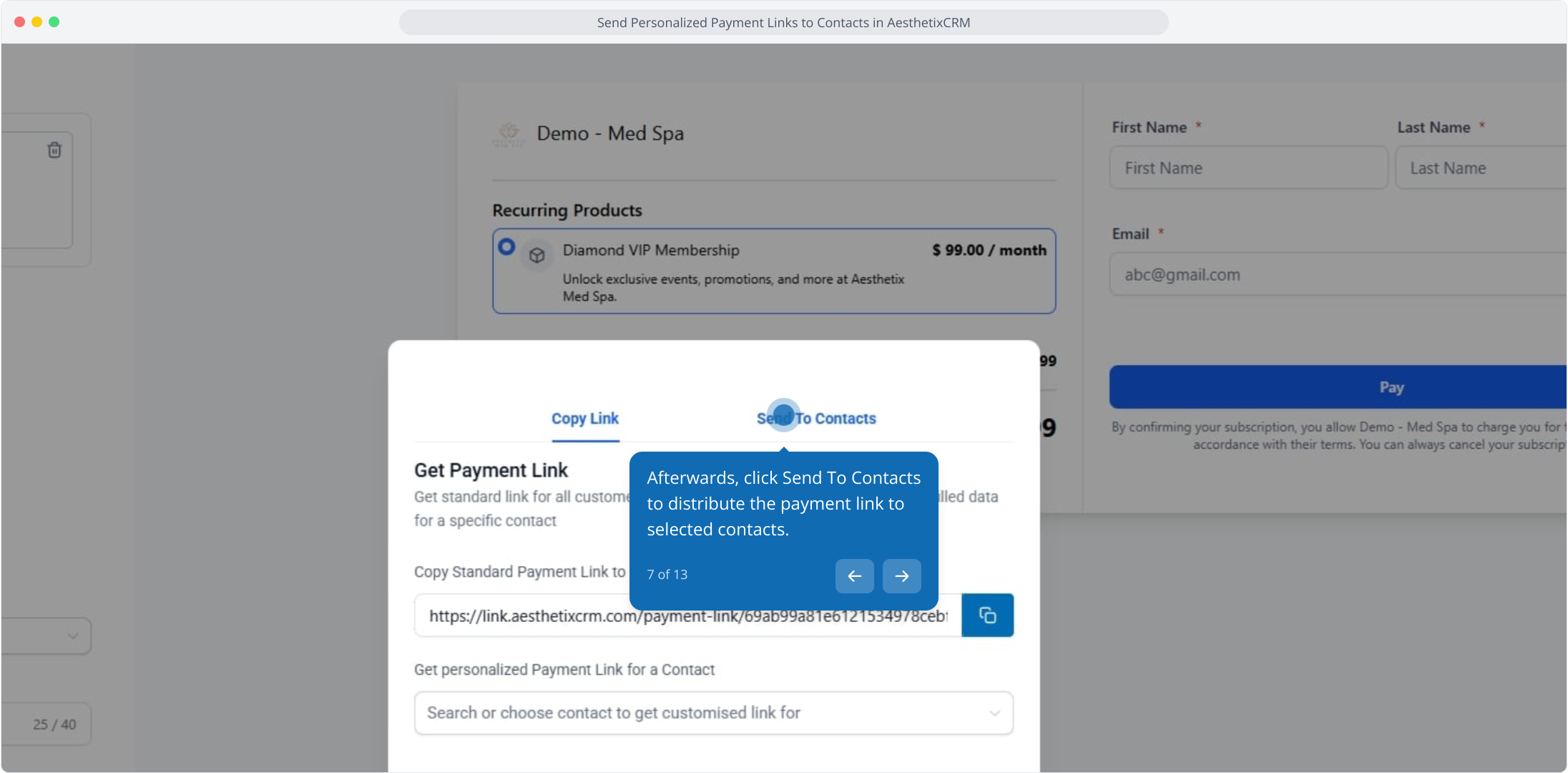
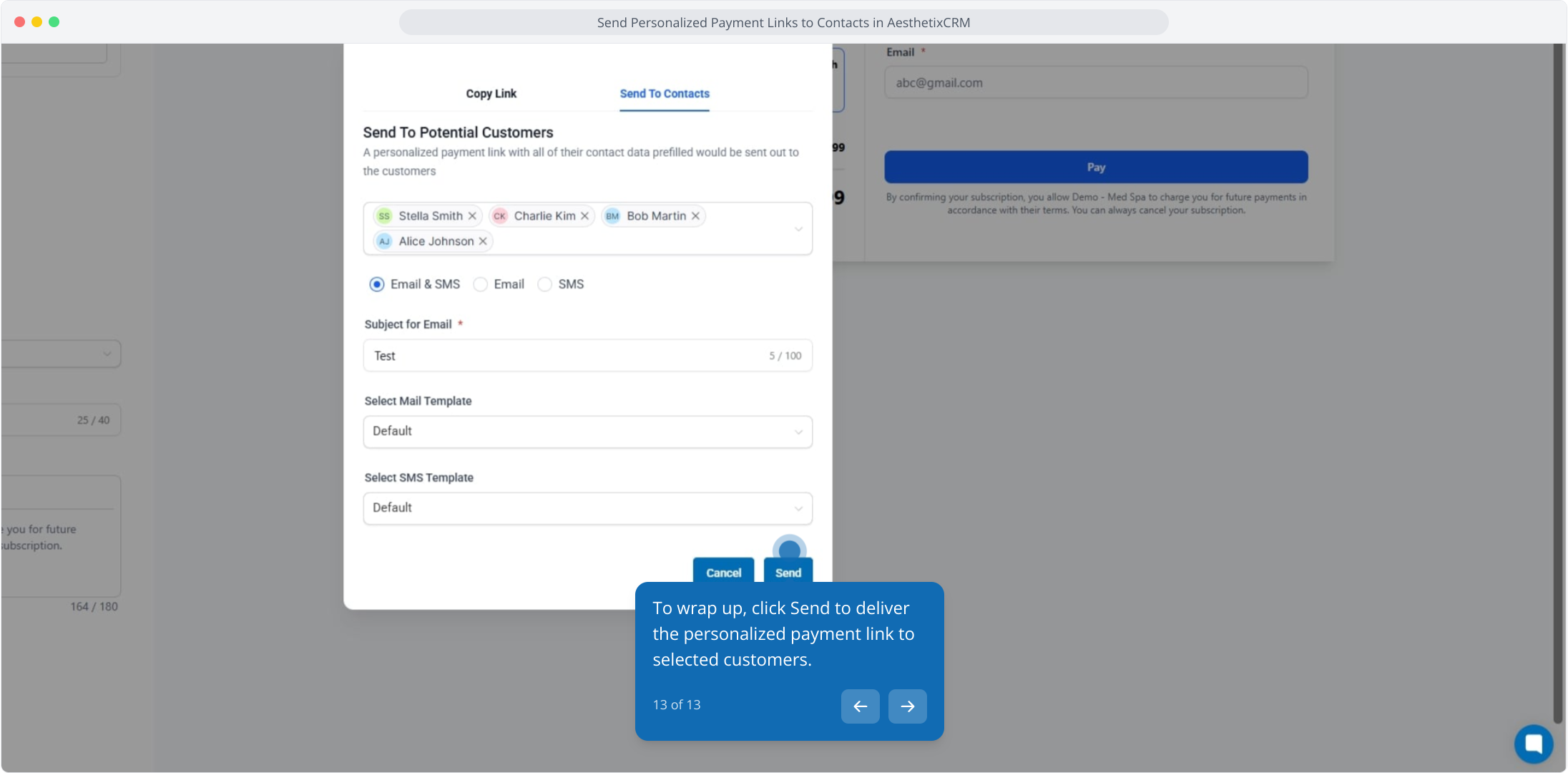
Open the contacts dropdown and select the patient (or patients) you want to send to, then choose the channels to send through: email, SMS, or both.
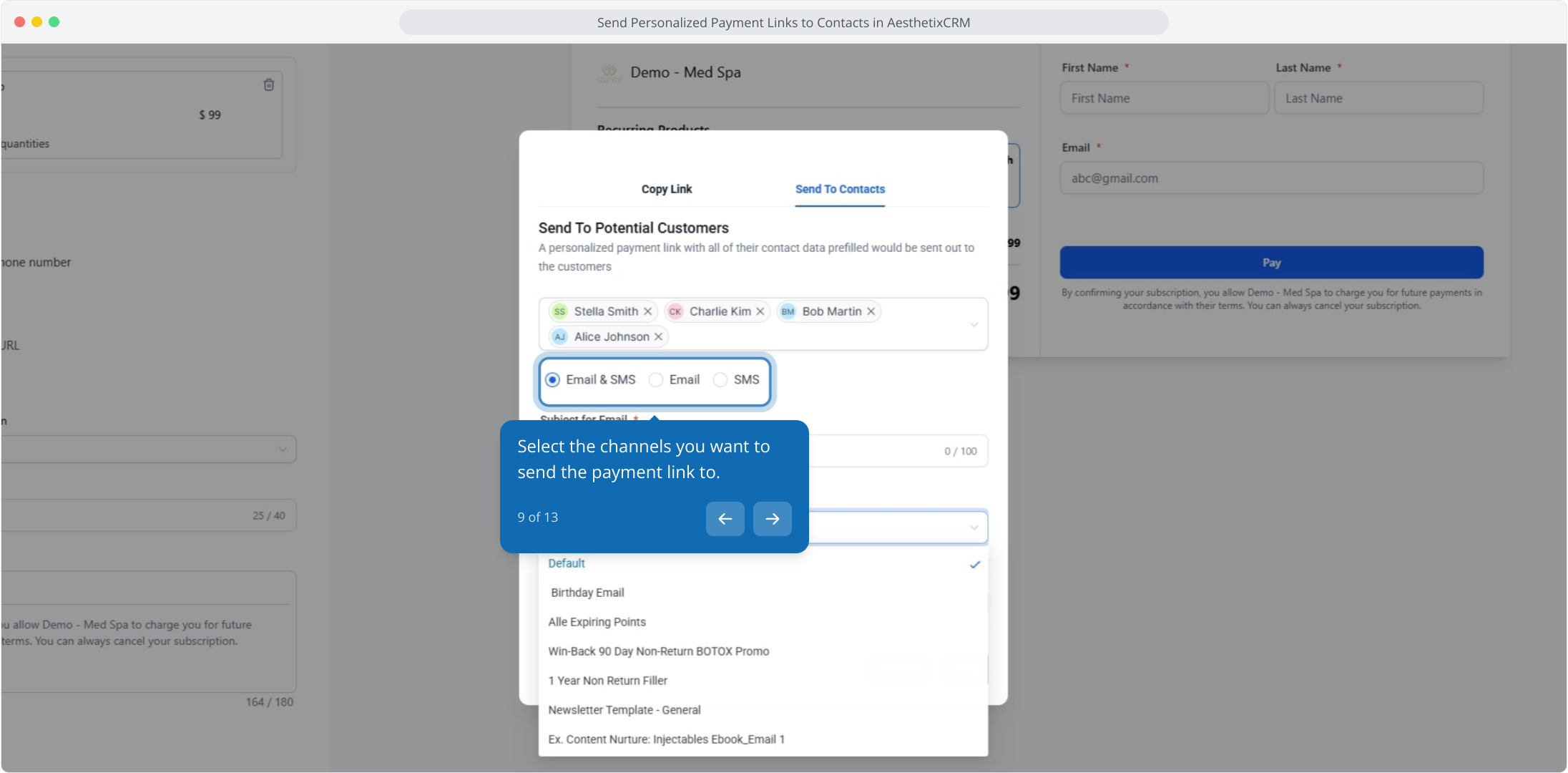
Enter an email subject line, then choose your email template and SMS template. You can configure your own templates or use the defaults provided.
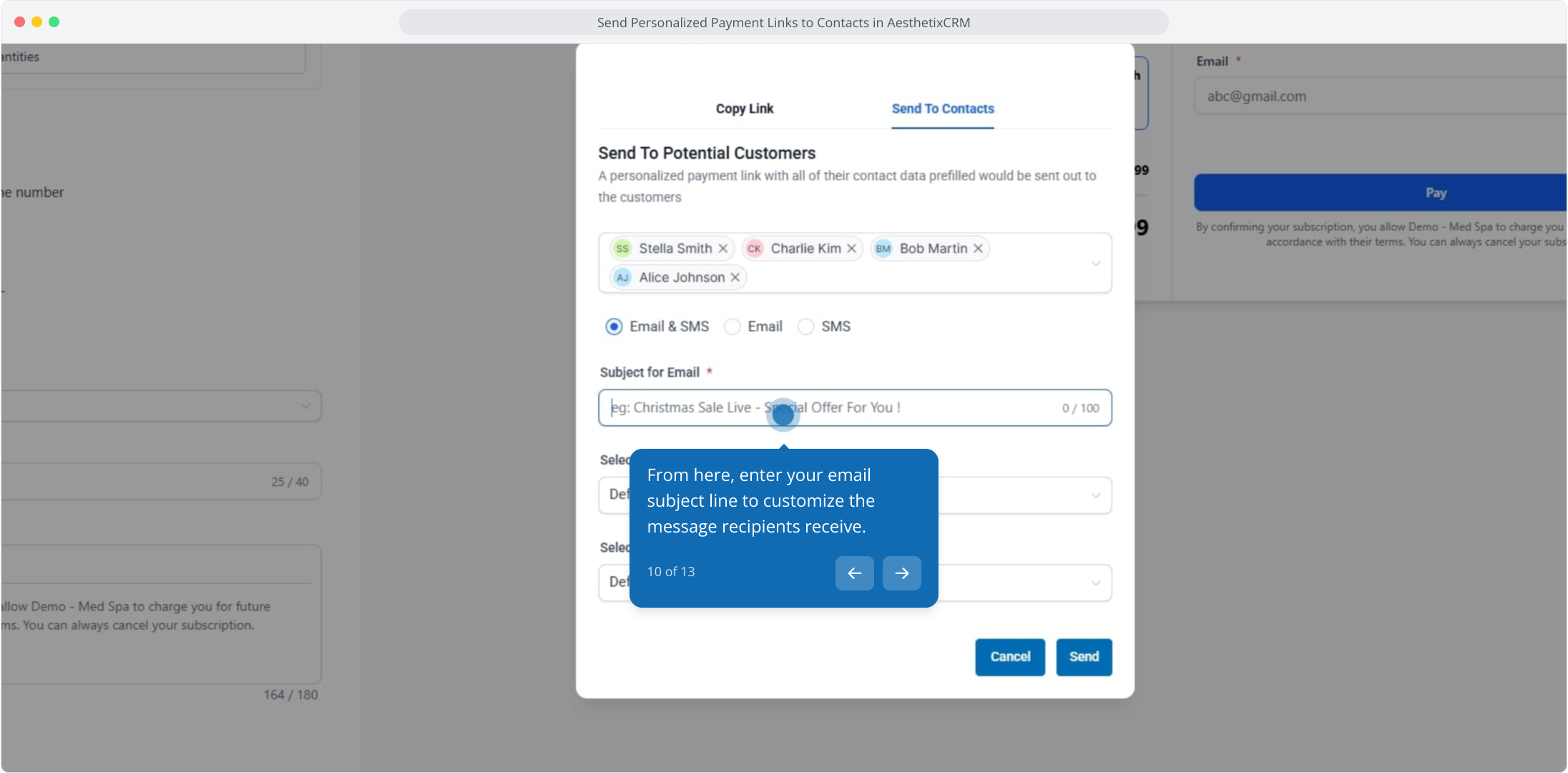
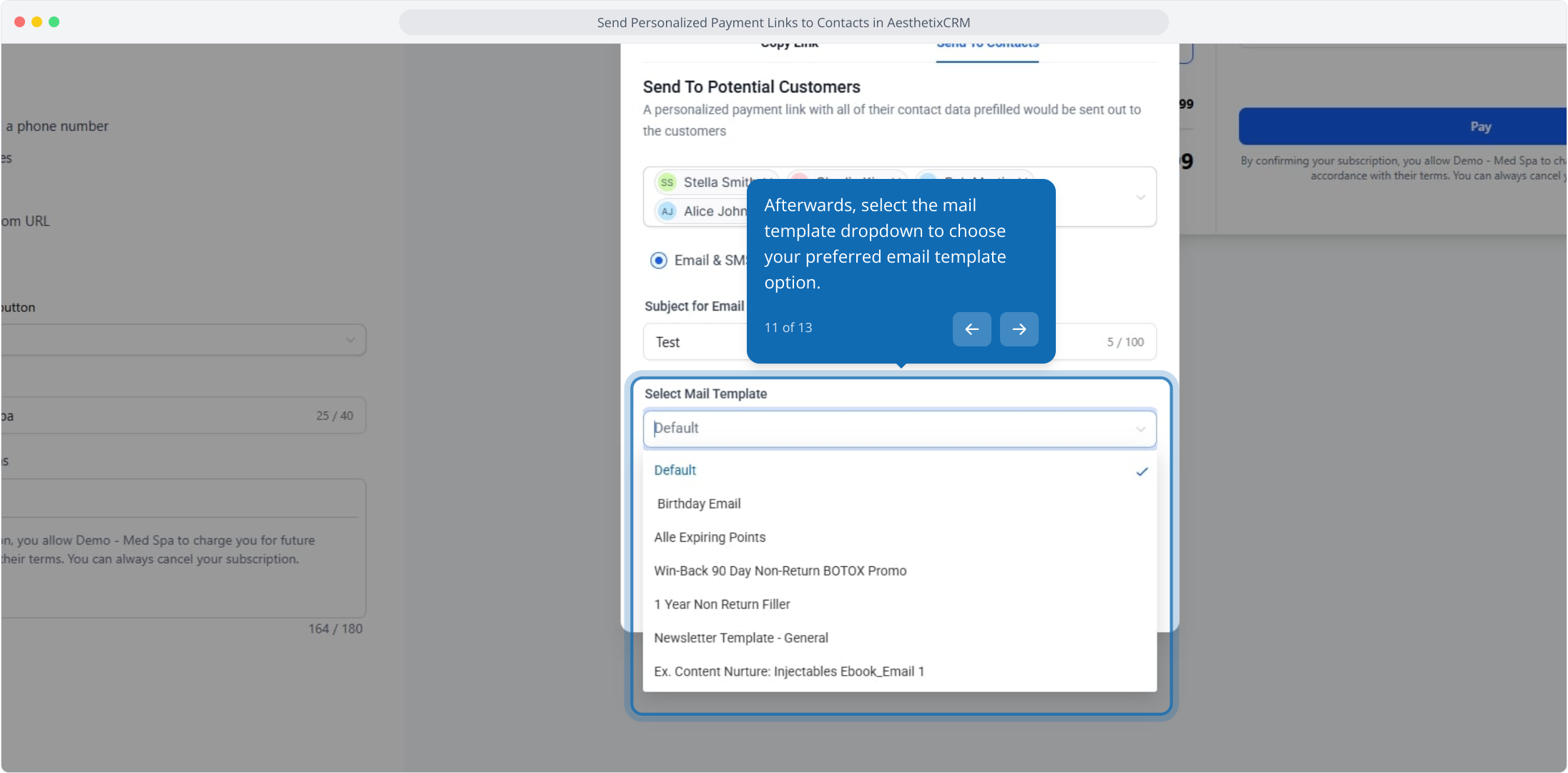
Click Send to deliver the personalized link to the selected patients. When the patient opens the link, their name, email, and phone are already filled in for a smoother checkout.
You can send to a maximum of 50 contacts in one bulk send.
A personalized link is only sent to a contact who has both a valid email address and a valid phone number.
Links are not sent to contacts who have DND (Do Not Disturb) enabled.
Text-to-pay lets you request and collect payment by SMS directly from a conversation, so a patient can pay in a few taps. The payment activity stays tied to the contact thread for easy follow-up and tracking.
An active payments (processor) connection on your account.
An active phone number on your account.
At least one active product.
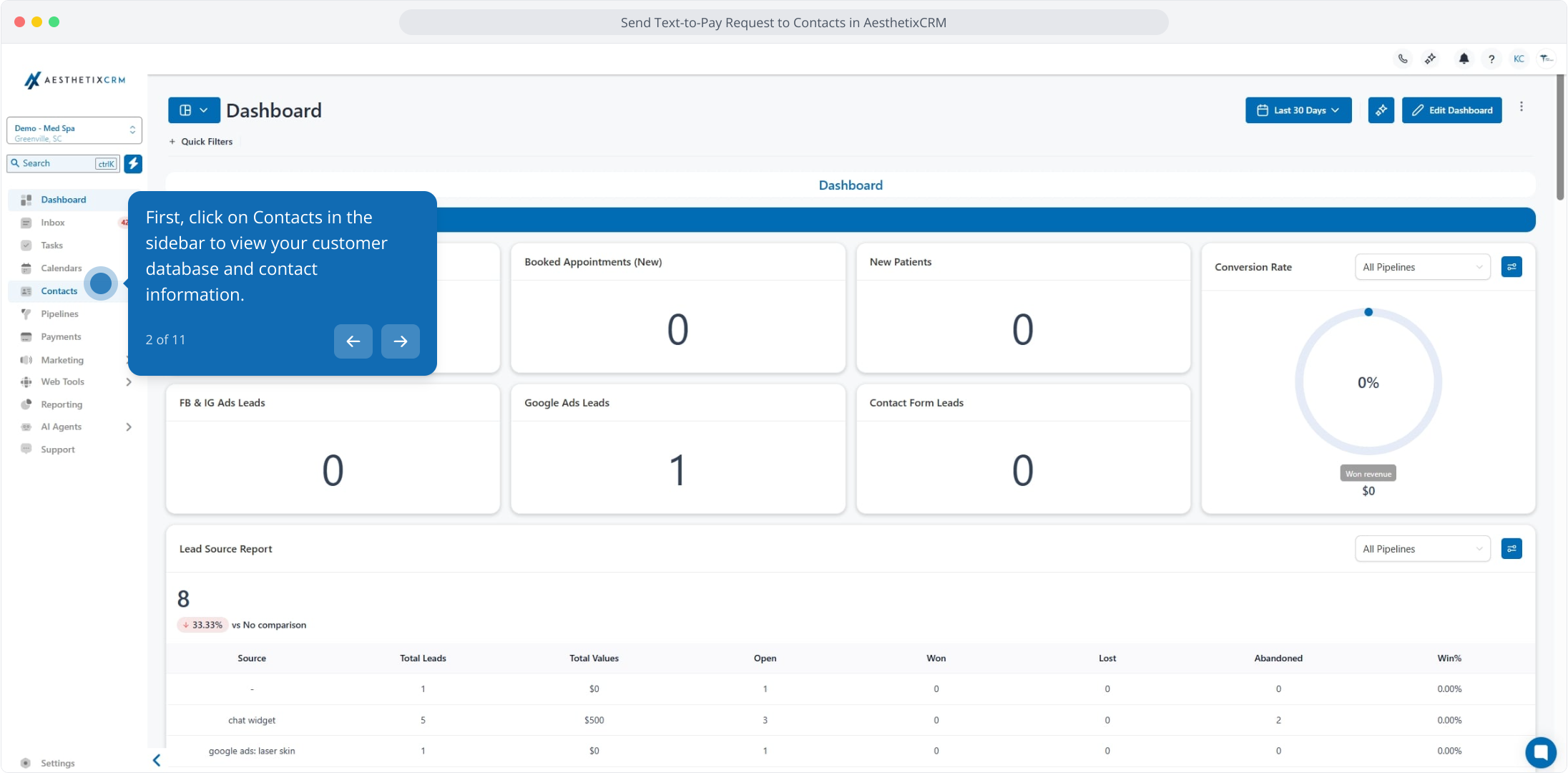
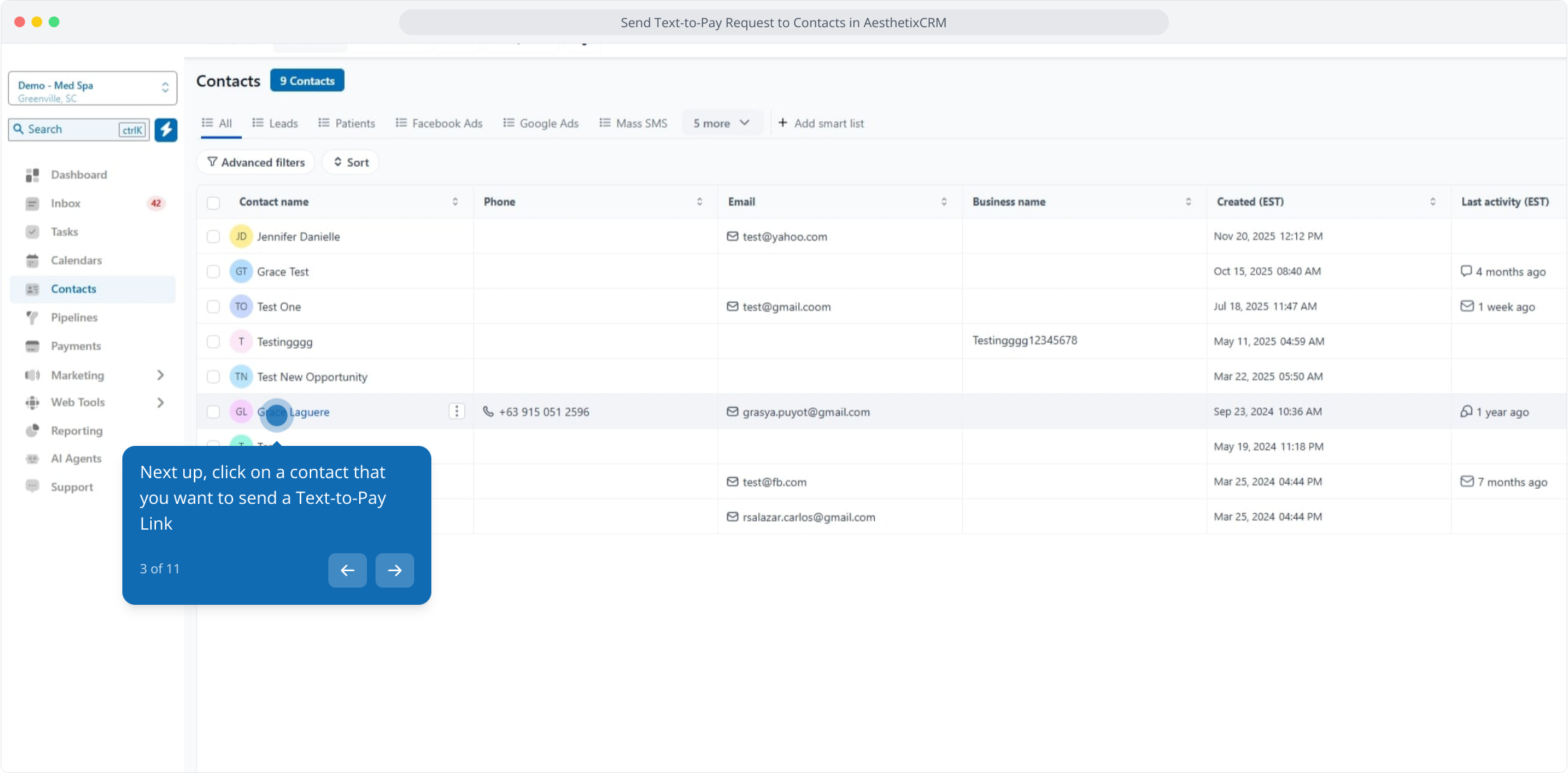
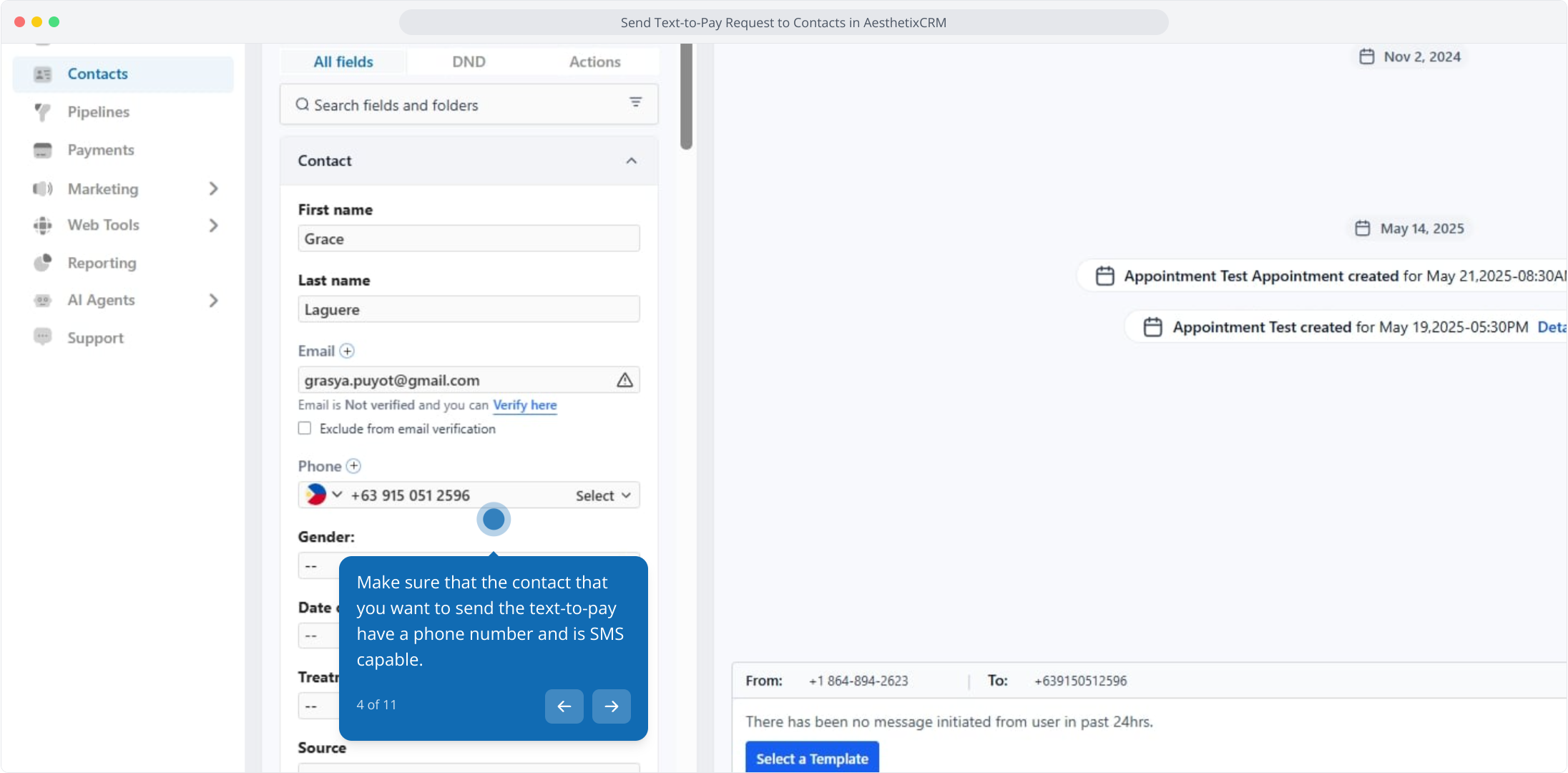
Open Contacts and select the patient you want to send a text-to-pay link to, or open the conversation with that patient directly. Confirm the contact has a phone number and is SMS capable.
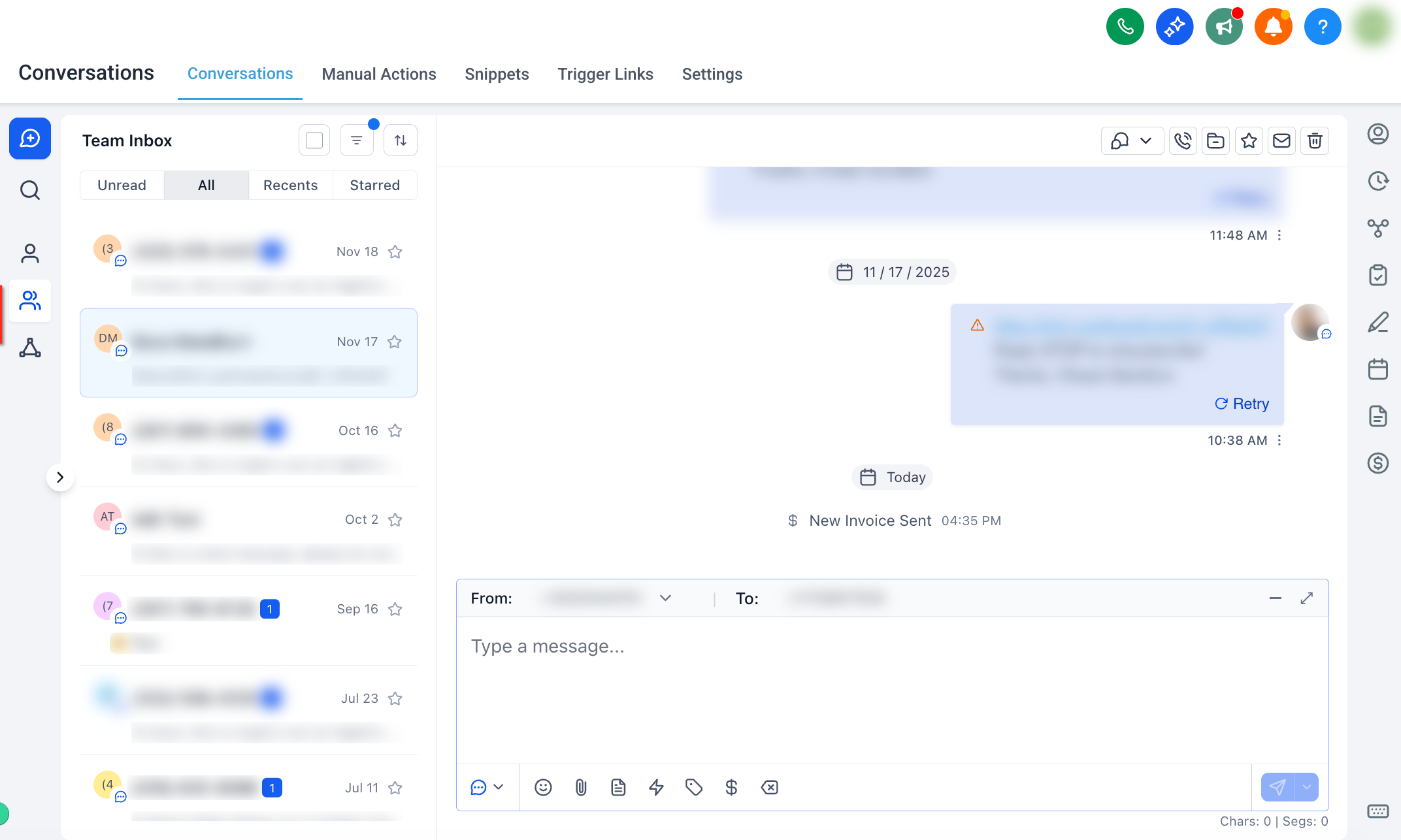
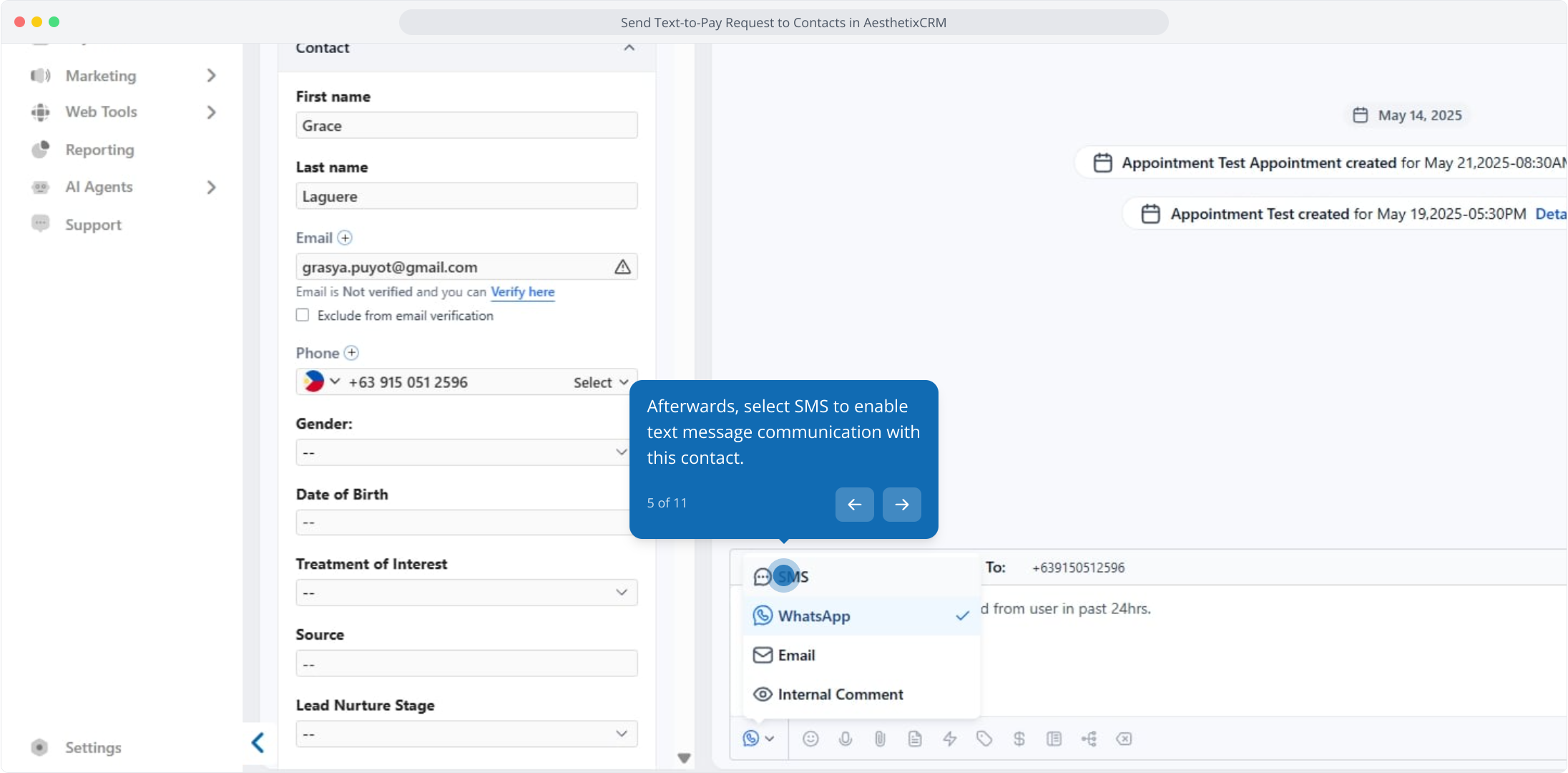
In the channel picker at the message box, select SMS to enable text messaging with this patient.
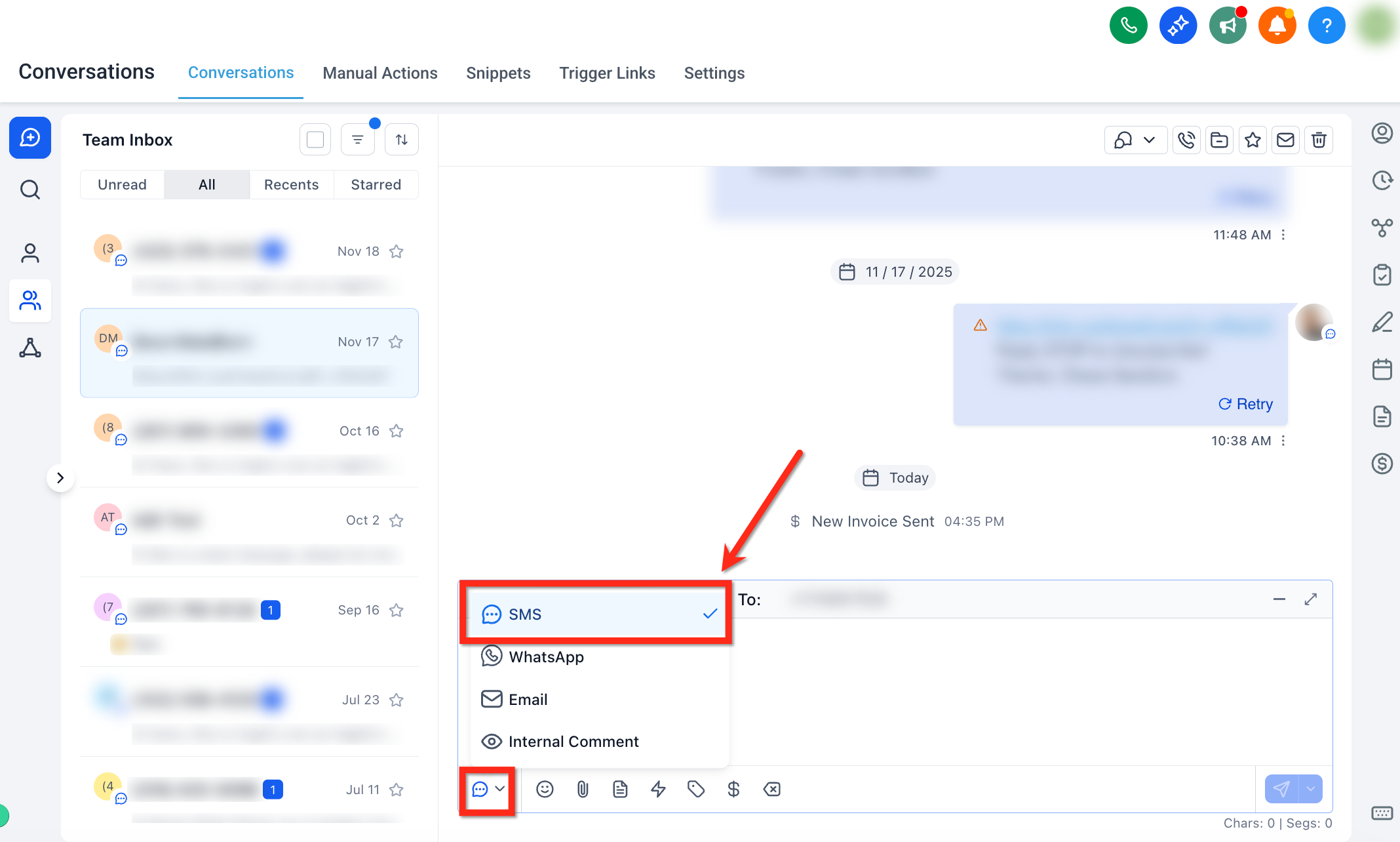
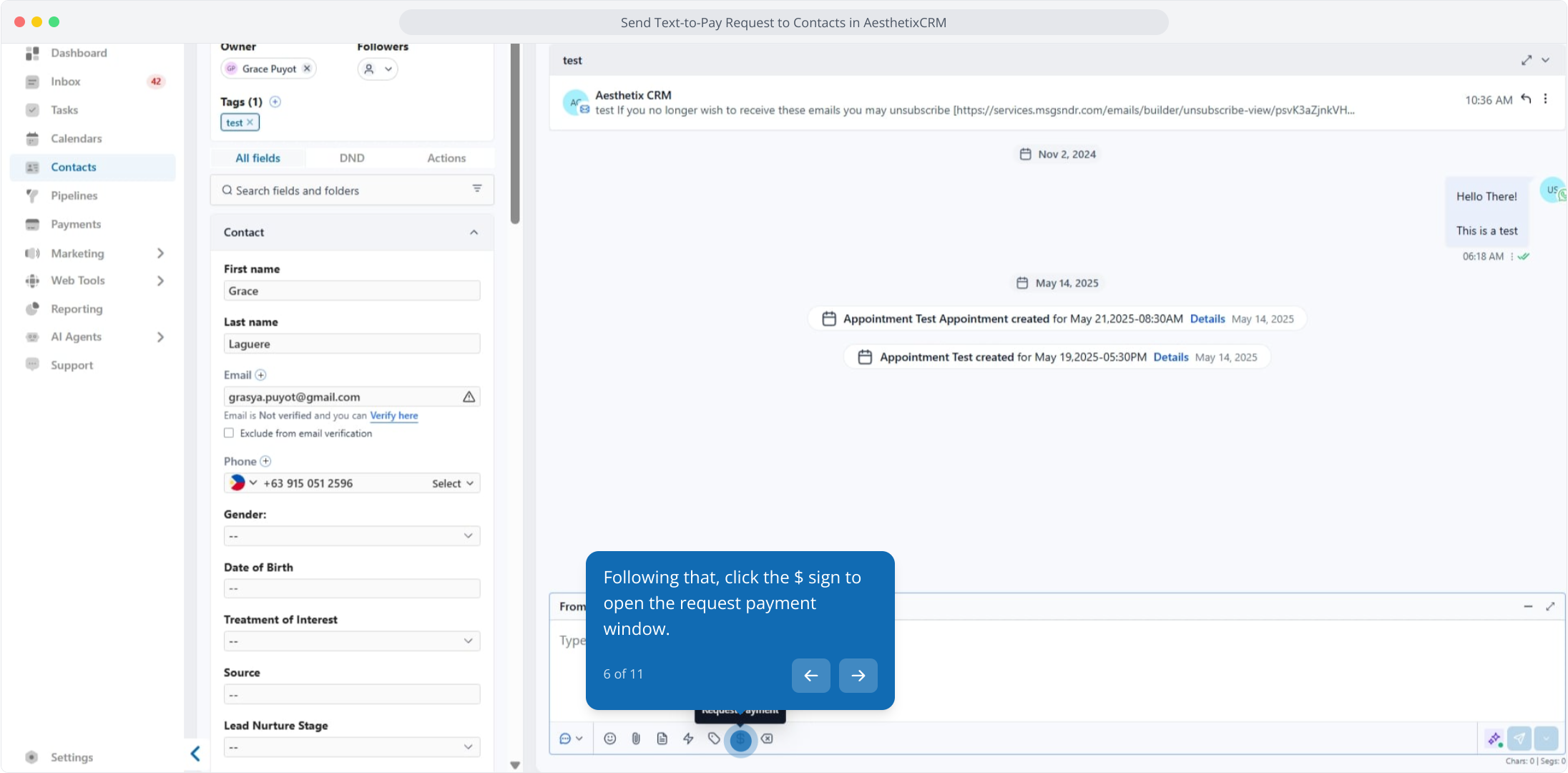
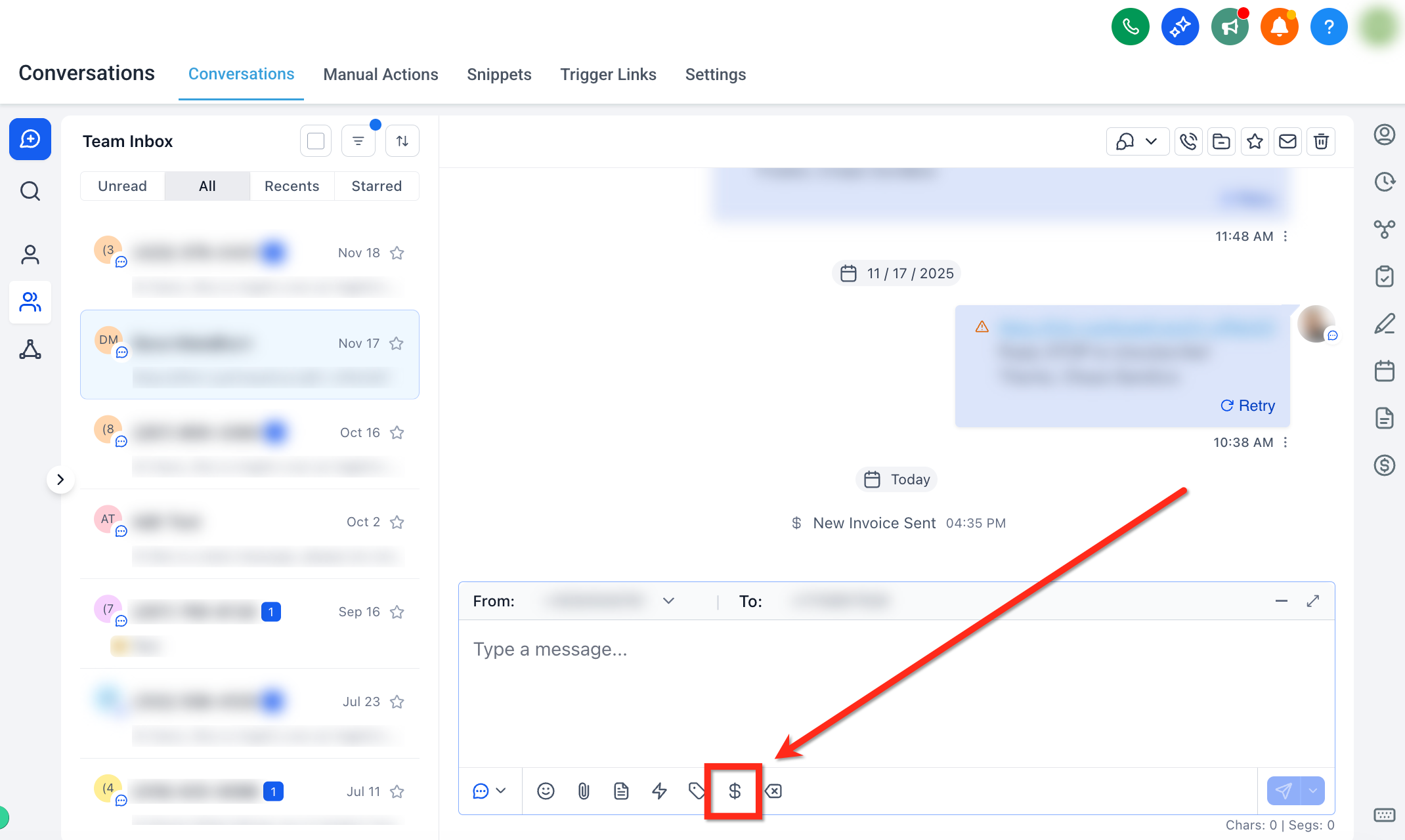
Click the $ (Request Payment) icon below the message editor to open the payment request window.
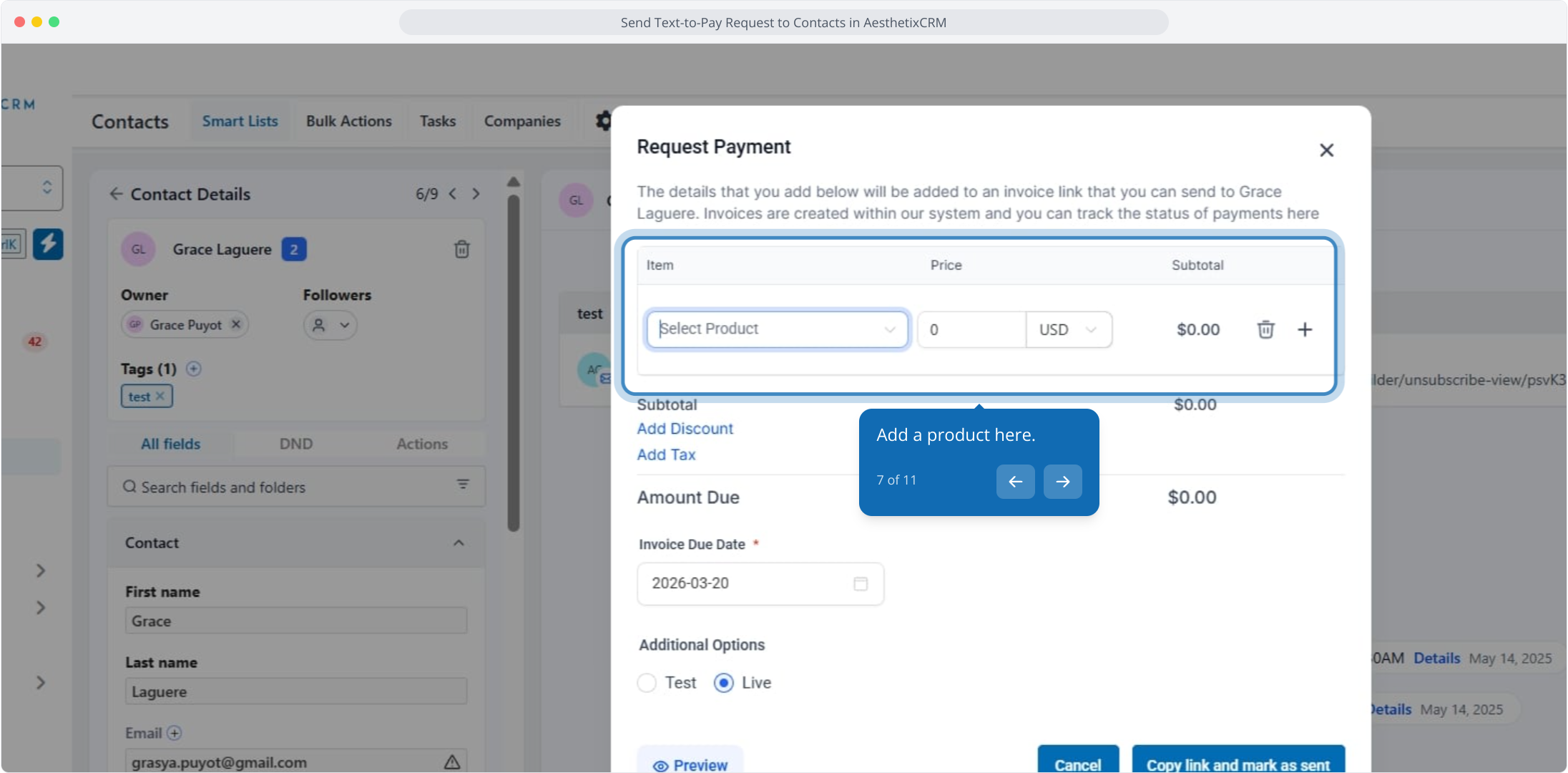
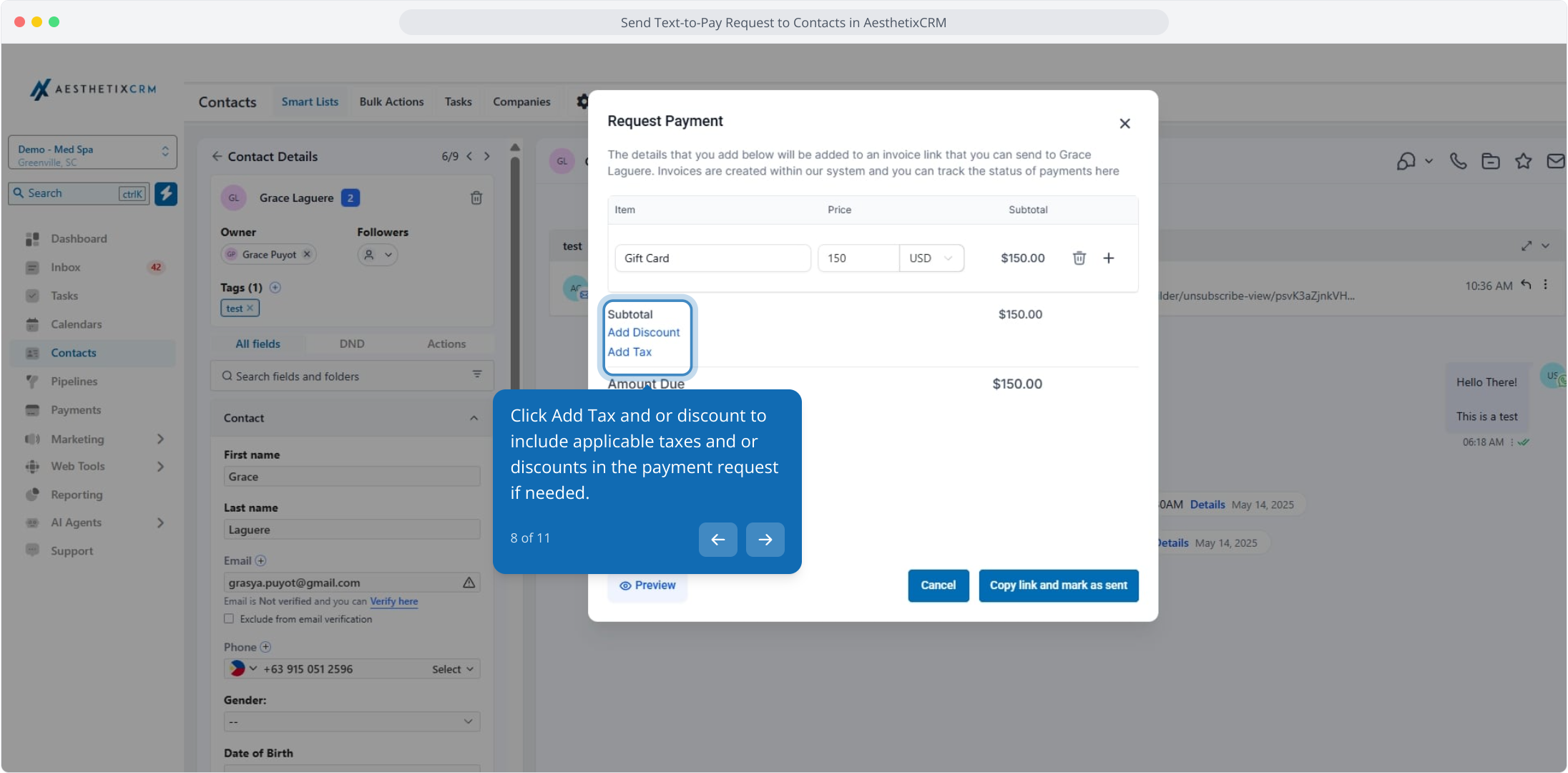
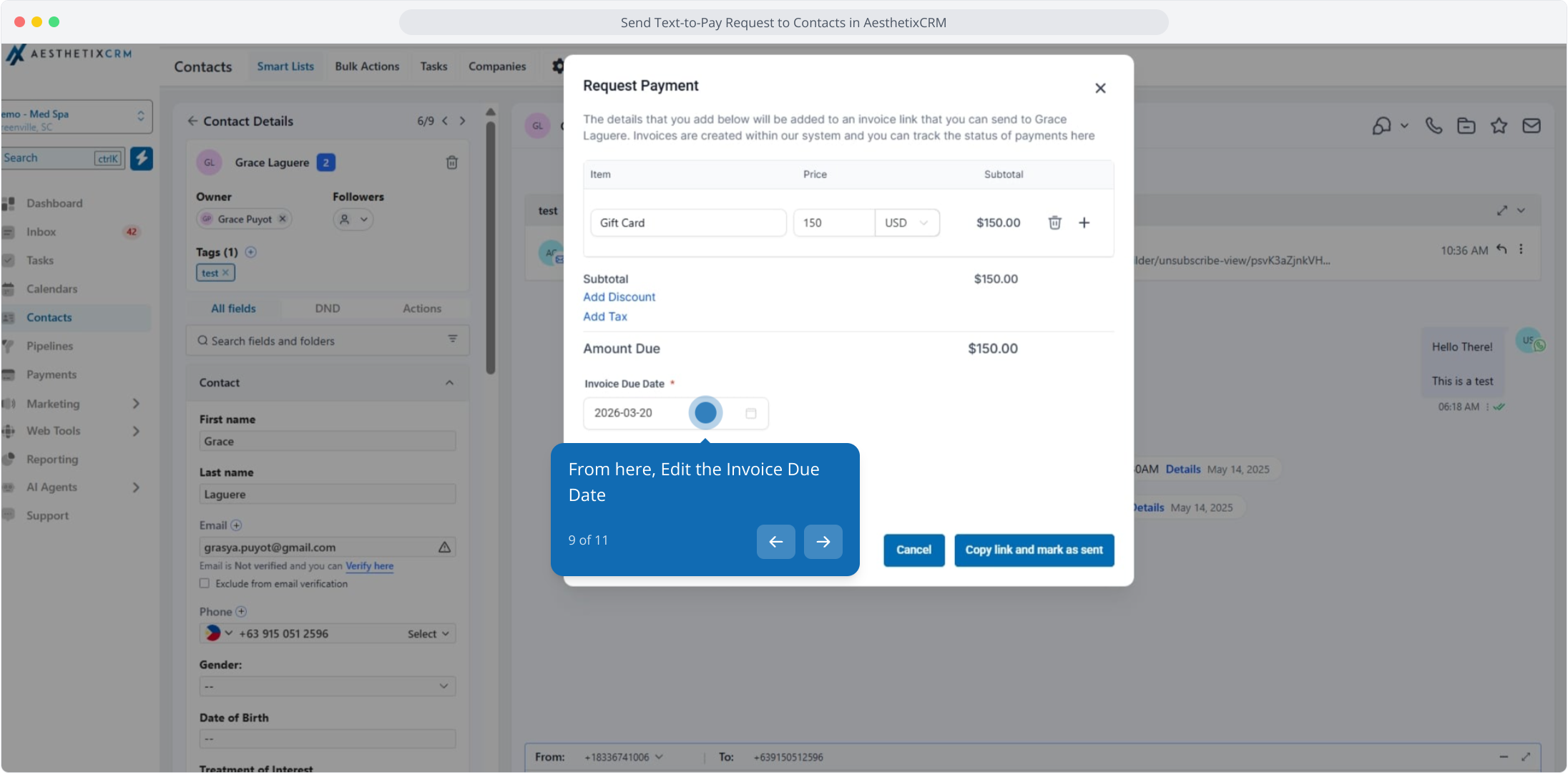
In the Request Payment window, add the product (or item) and confirm the price. Then:
Click Add Tax and/or Discount to include applicable tax or discounts.
Edit the invoice Due Date to set expectations for payment.
Choose between Test and Live mode (use Test for non-production checks).
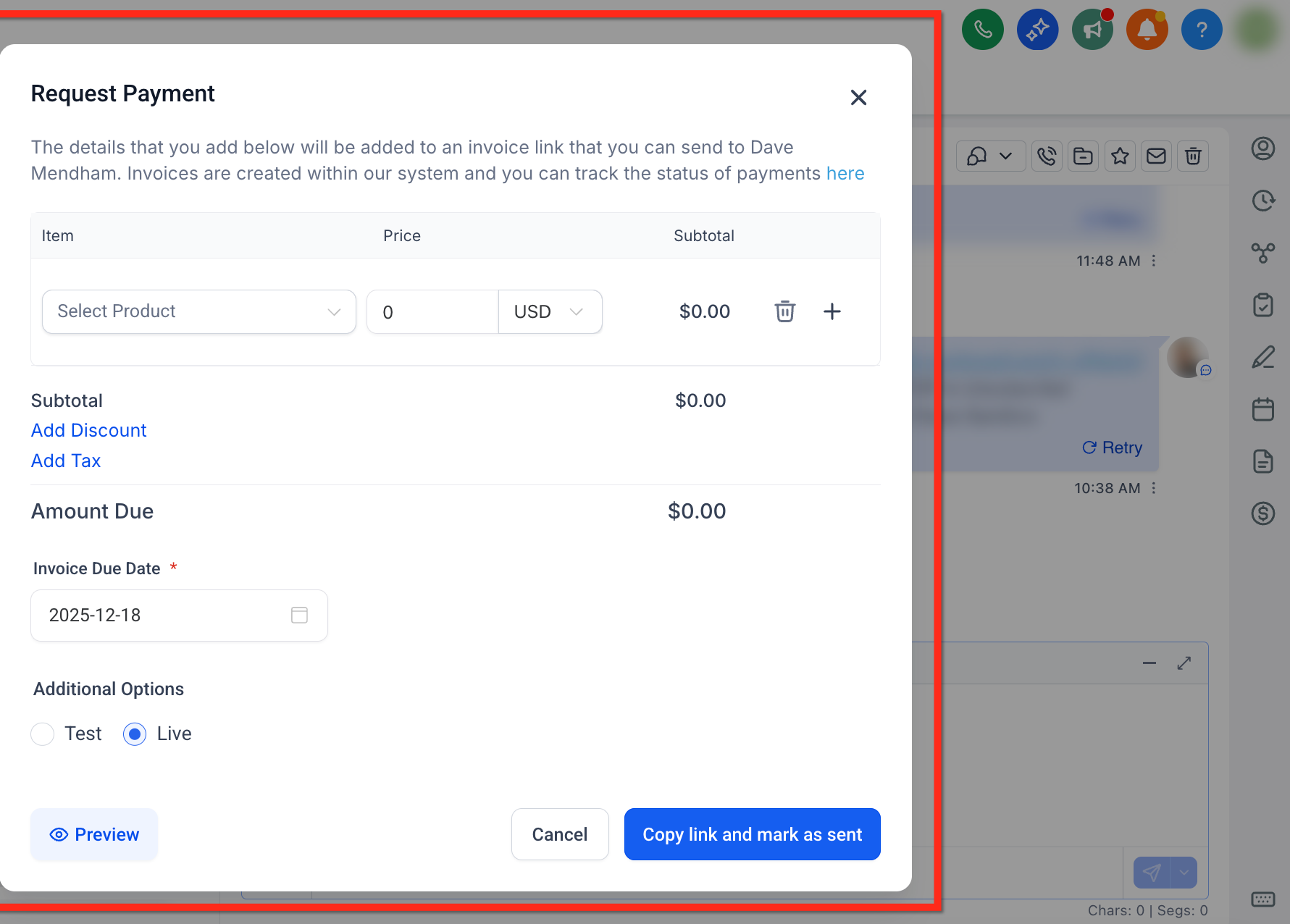
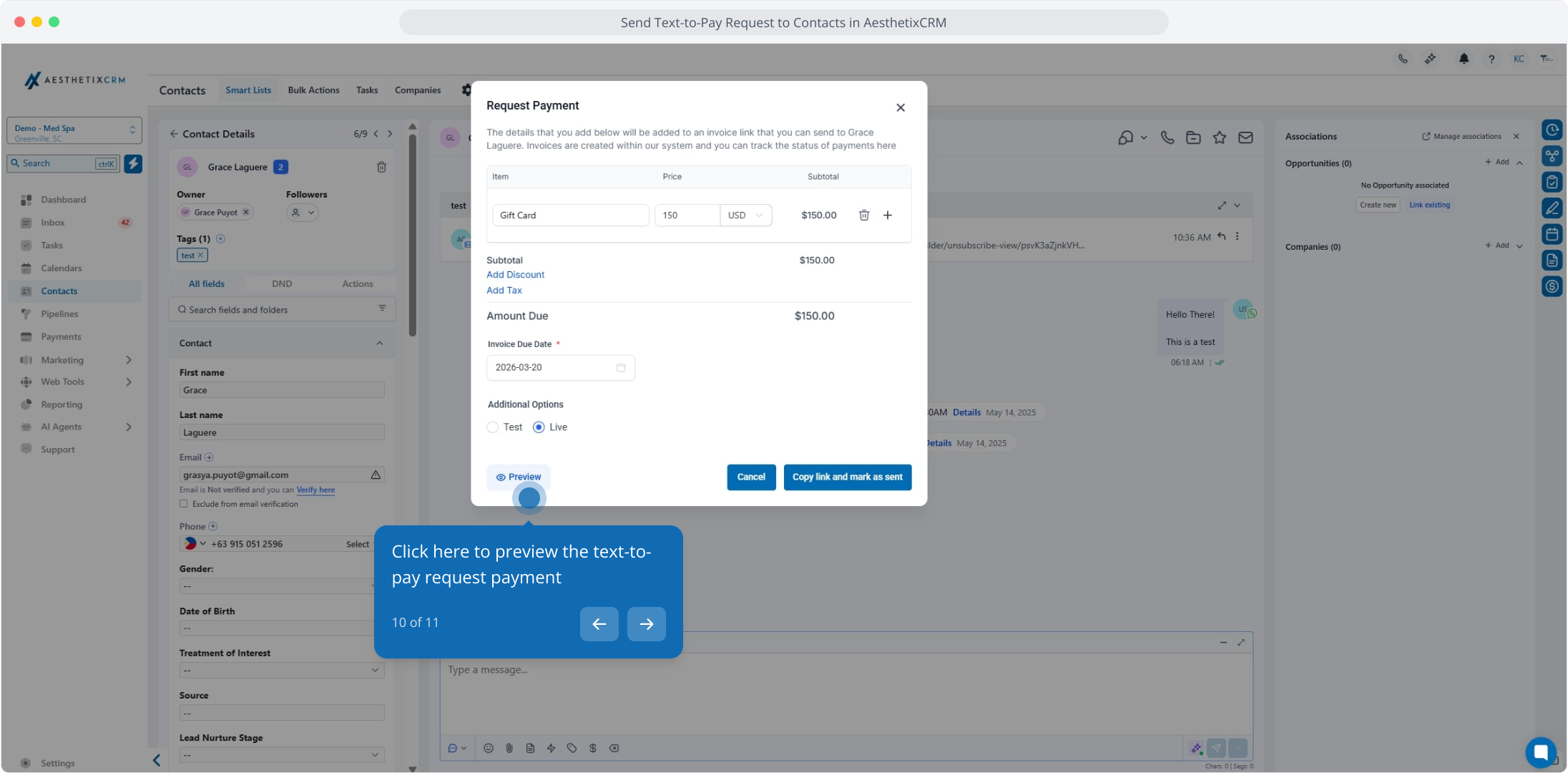
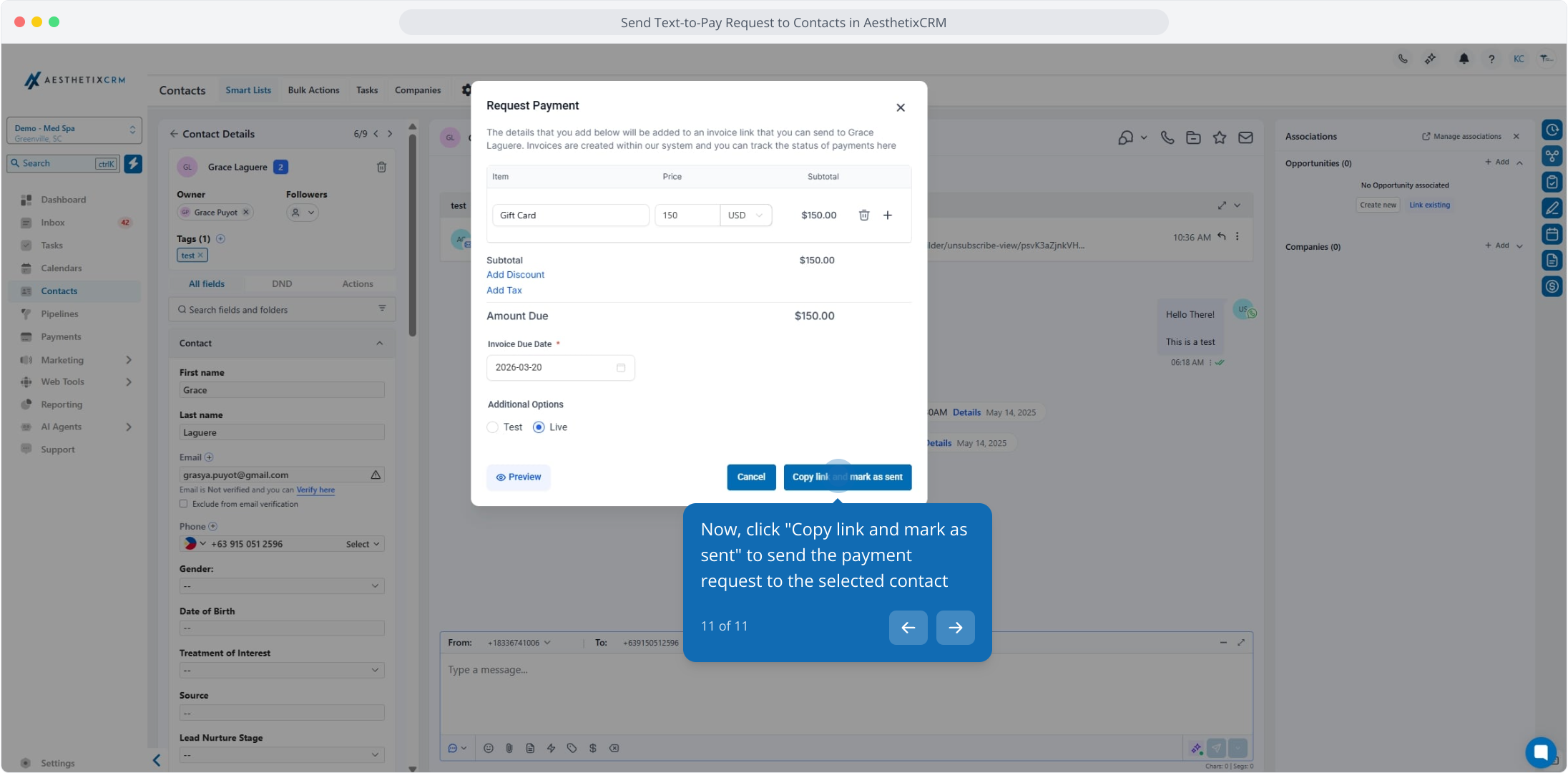
Click Preview to review the checkout, or click Copy link and mark as sent to send the request to the patient. Click Send to deliver the text-to-pay link.
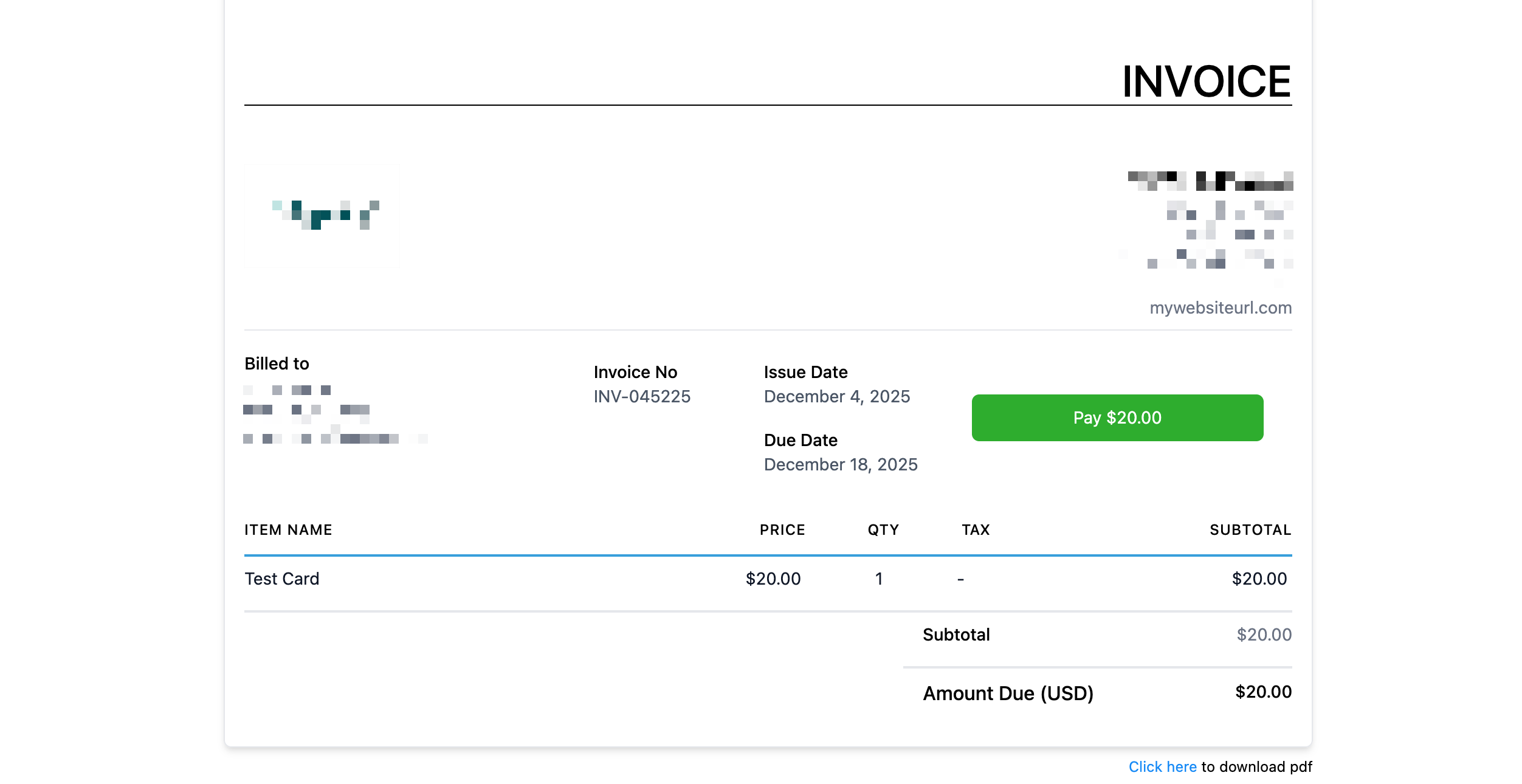
You can customize the checkout page patients see when they open the link. See the guide on customizing payment link branding.
What is the difference between a personalized payment link and a text-to-pay request? A personalized payment link sends an existing saved payment link to one or more patients with their details pre-filled. A text-to-pay request builds a one-off payment on the fly from within a single SMS conversation, without needing a saved link.
How many patients can I send a personalized link to at once? Up to 50 contacts per bulk send. Each contact needs a valid email and phone number, and links are skipped for contacts with DND enabled.
What do I need before I can send a text-to-pay link? An active payments connection, an active phone number, and at least one active product on your account.
Does the patient need to be SMS capable? Yes. For text-to-pay, confirm the contact has a phone number and is SMS capable before sending the request.
Can I add tax or a discount to a text-to-pay request? Yes. In the Request Payment window, use Add Tax and/or Discount to adjust the amount before sending.
Can I set a due date on a text-to-pay request? Yes. Edit the invoice due date in the Request Payment window to encourage timely payment.
Can I test a payment before charging a patient? Yes. Use the Test mode option in the Request Payment window to simulate the checkout, then switch to Live to collect a real payment.
Can I customize the checkout page patients see? Yes. Payment link branding, including colors and your brand board, is configured in Payments settings. See the payment link branding guide for details.
