Adding the chat widget to your practice website gives visitors an easy way to reach you and turns curious browsers into booked consultations. The process is the same everywhere: copy one embed code from Aesthetix CRM, then paste it into your website platform. Only the paste location changes from platform to platform.
Before you begin, copy the chat widget embed code so it is ready to paste.
In Aesthetix CRM, go to Sites > Chat Widget > Get Code.
Copy the full embed code to your clipboard.
You will paste this same code into whichever platform hosts your website. Each platform section below begins with a reminder of where to grab the code, followed by where to paste it.
Add the widget by editing your theme's theme.liquid file.
Obtain the embed code from Sites > Chat Widget > Get Code.
Log in to your Shopify account.
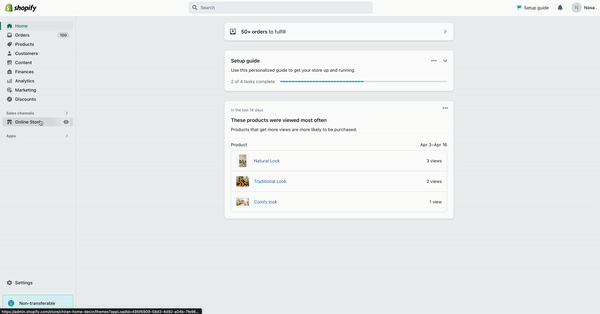
From your Shopify dashboard, navigate to the Online Store section.
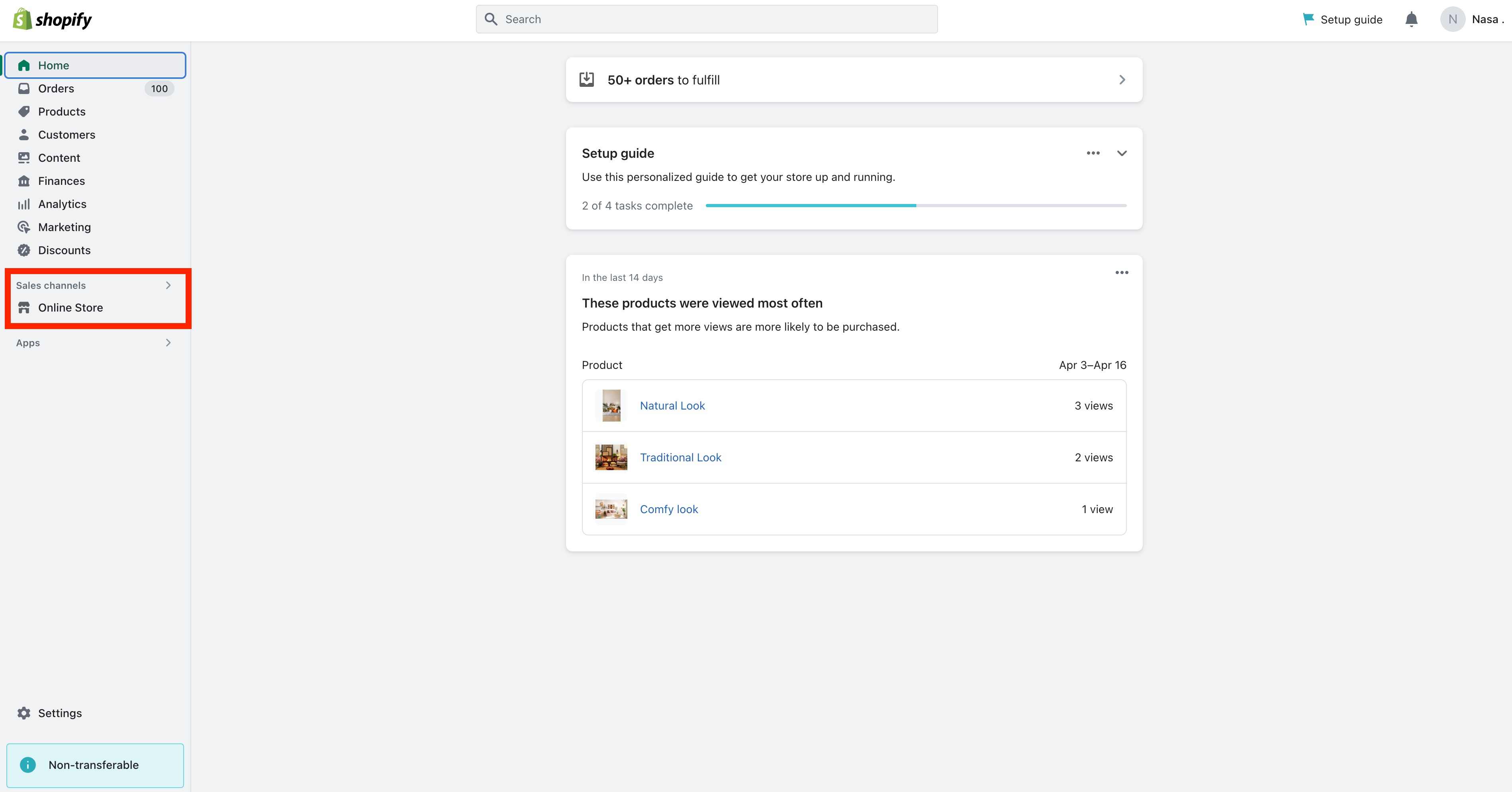
Select the theme you want to edit, click the Actions button, and choose Edit code from the drop-down menu.
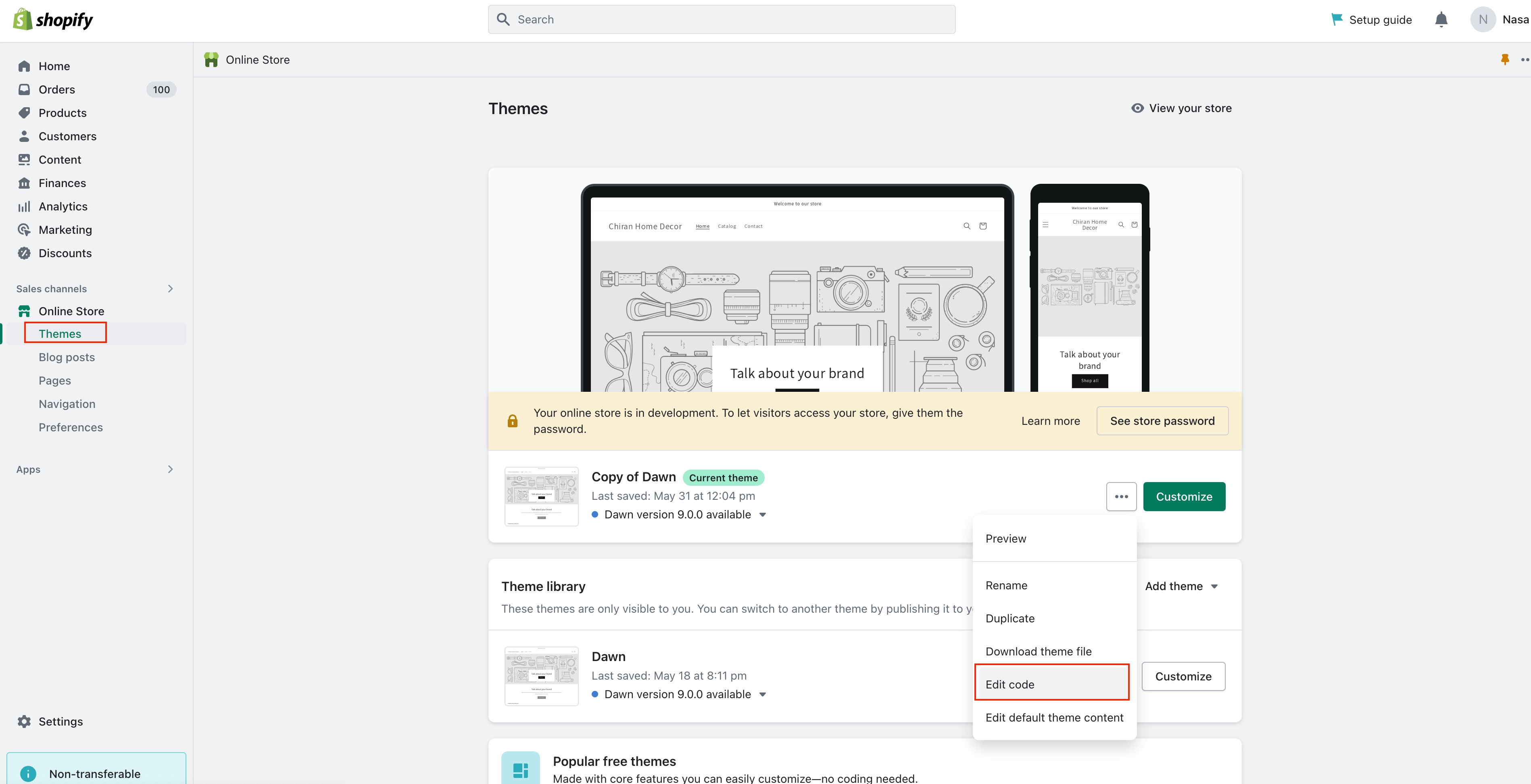
In the list of files, open the Layout folder and select the theme.liquid file.
Locate the </body> tag within theme.liquid and paste the embed code directly above it.
Click Save to apply your changes.
Refresh your website. The chat widget should now be visible.
Test it to confirm it is working correctly.
Wix offers two methods. Method 1 uses Custom Code and places the widget on every page. First, obtain the embed code from Sites > Chat Widget > Get Code.
Log in to your Wix account and open the website's dashboard.
Click Settings in the left menu, then select Custom Code under the Advanced tab.
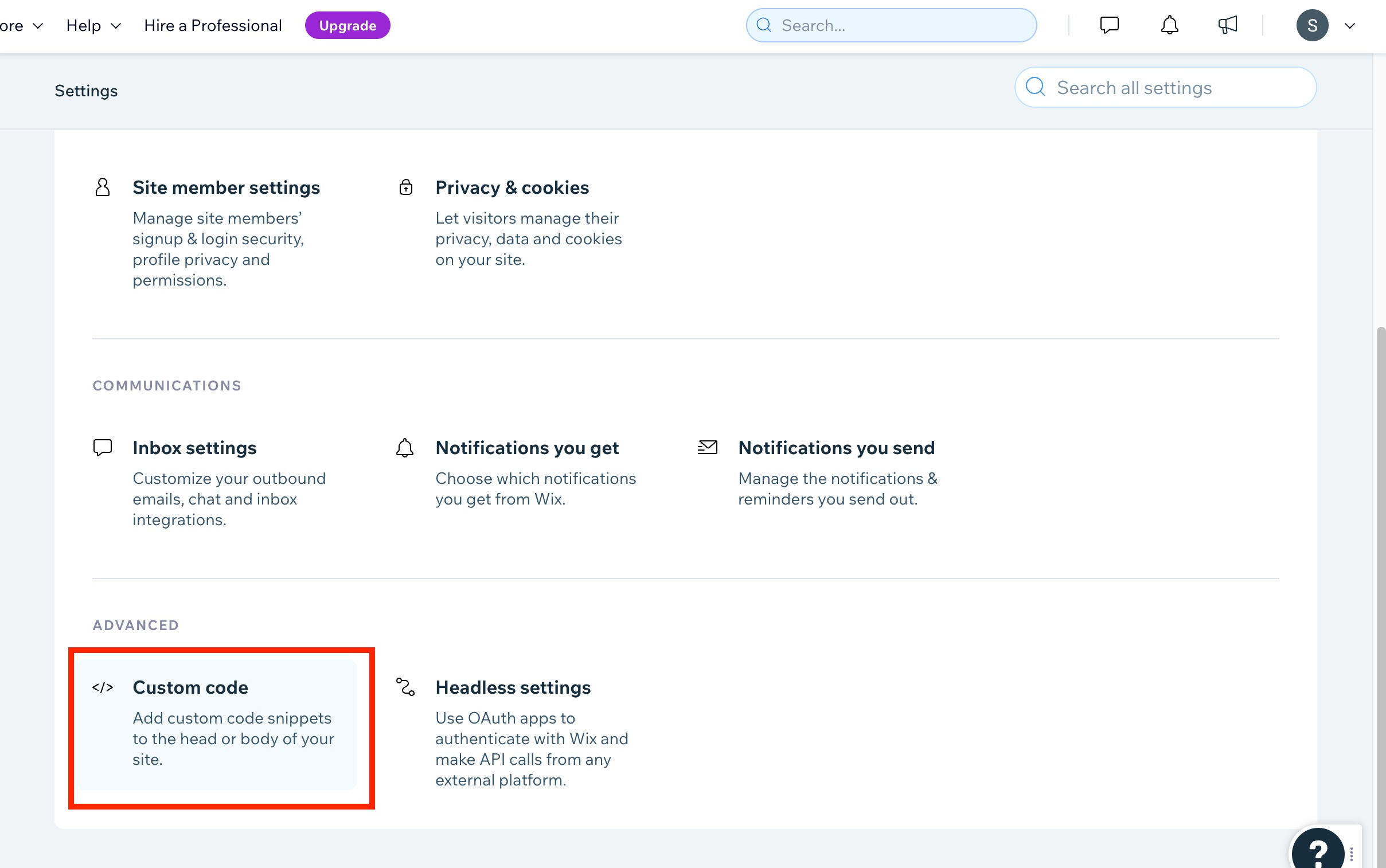
Click Add Custom Code in the section.
Paste the embed code in Code Settings within the pop-up window.
Configure the options:
Name: Enter a name for your code.
Add Code to Pages: Choose All Pages and select Load code once.
Place Code In: Choose Head.
Click Apply to save your changes.
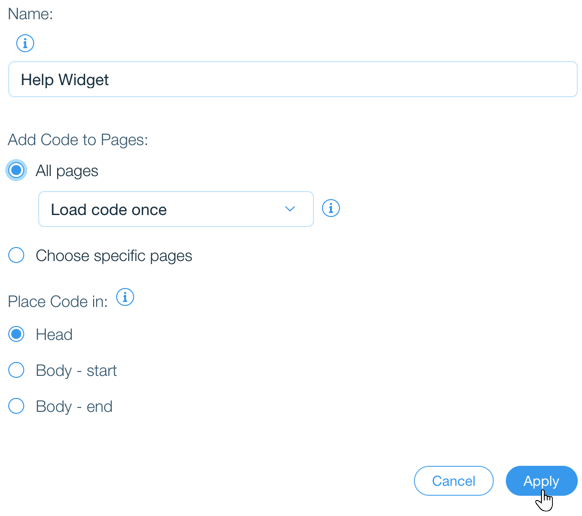
The widget will now appear on every page of your Wix site.
Sign in to your Wix account and click Edit Site from the dashboard to launch the Wix Editor.
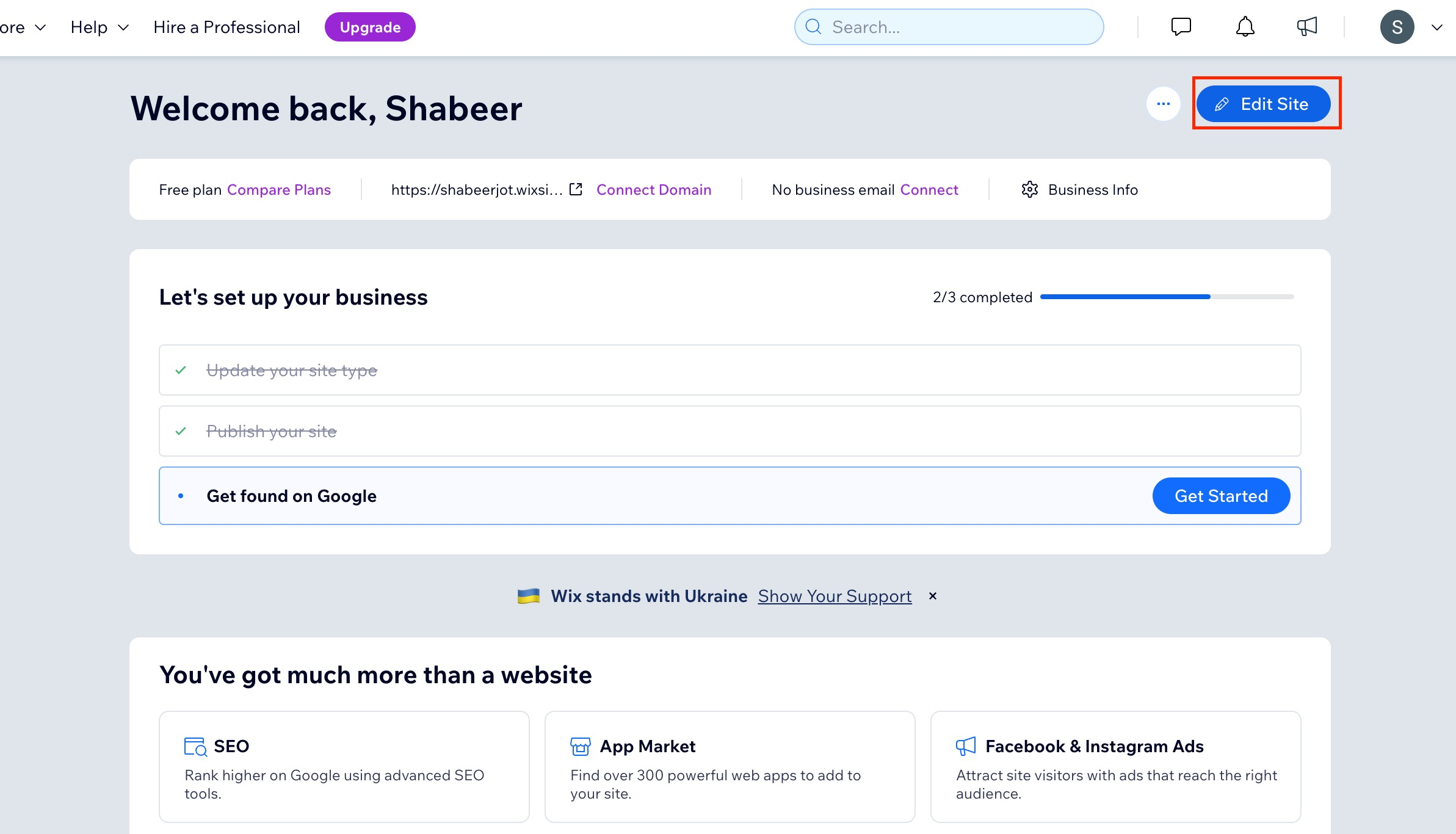
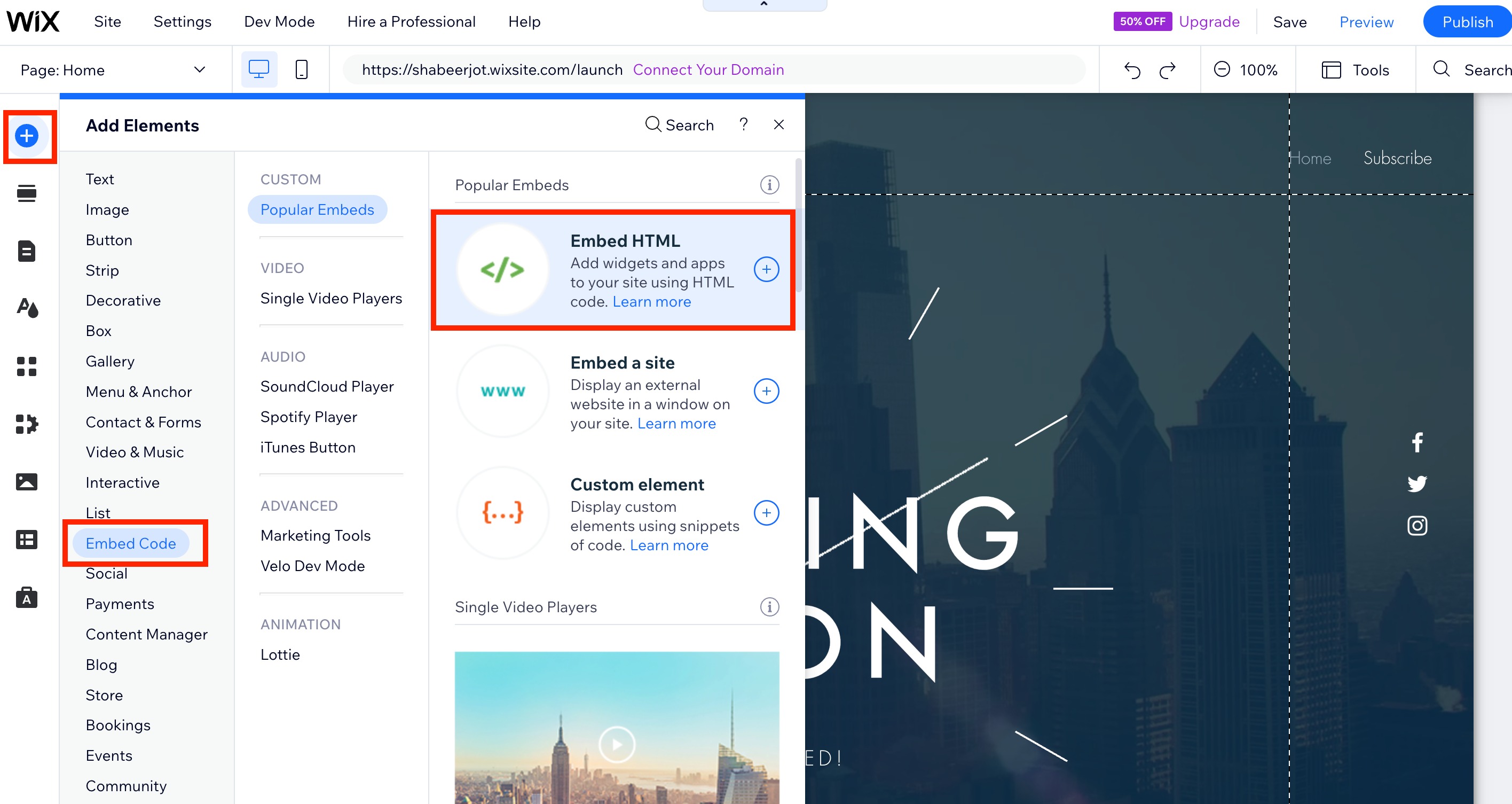
Click the plus (+) icon in the left-side menu to open Add Elements.
Choose Embed from the left sidebar menu.
Select Embed HTML under Popular Embeds.
Click Code in the new HTML box that appears.
Paste the widget code into the text field and press Update.
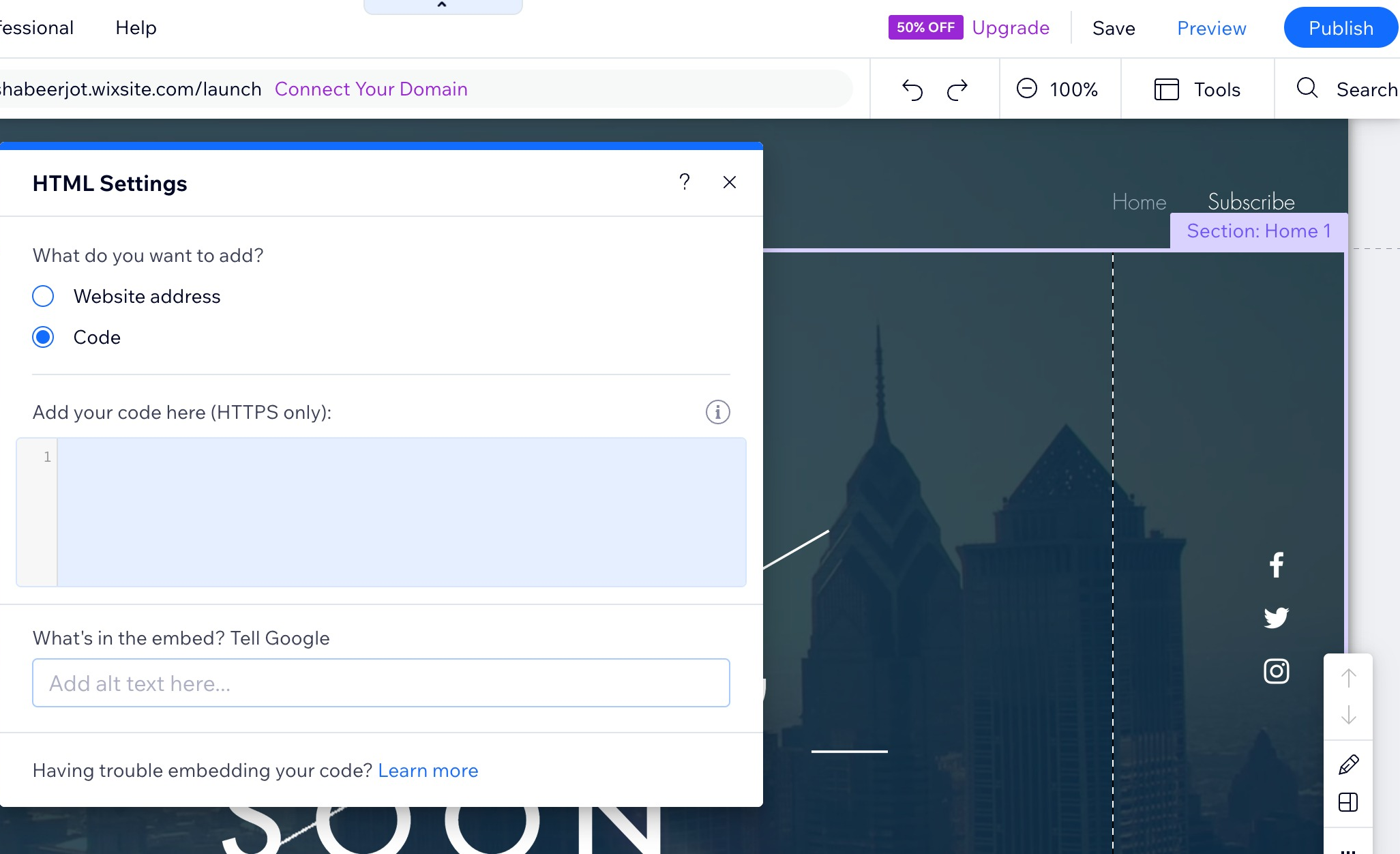
Close the HTML Settings box. The widget will now be visible in the HTML box on your page.
Squarespace offers two methods. Method 1 uses Code Injection for a site-wide widget. First, obtain the embed code from Sites > Chat Widget > Get Code.
Log in to your Squarespace account and navigate to the website where you want to add the chat widget.
Click Settings in the main menu.
Select Developer Tools in the Website section.
Click Code Injection.
Paste the chat widget code in the Header or Footer field.
Click Save to apply your changes.
Preview your website to confirm the chat widget appears correctly.
Log in to your Squarespace account and navigate to the page where you want to add the chat widget.
Open the page editor and select the section where you want the widget.
Click the plus icon to add a new content block and select Embed from the drop-down menu.
Paste the chat widget code in the Code Snippet field.
Click Apply to apply your changes.
Preview your website to confirm the chat widget appears correctly.
Duda offers two methods. Method 1 uses Head HTML for a site-wide widget. First, obtain the embed code from Sites > Chat Widget > Get Code.
Log in to your Duda dashboard and open your website's editor mode.
Navigate to the site you want to add the chat widget to and click the Edit Site button.
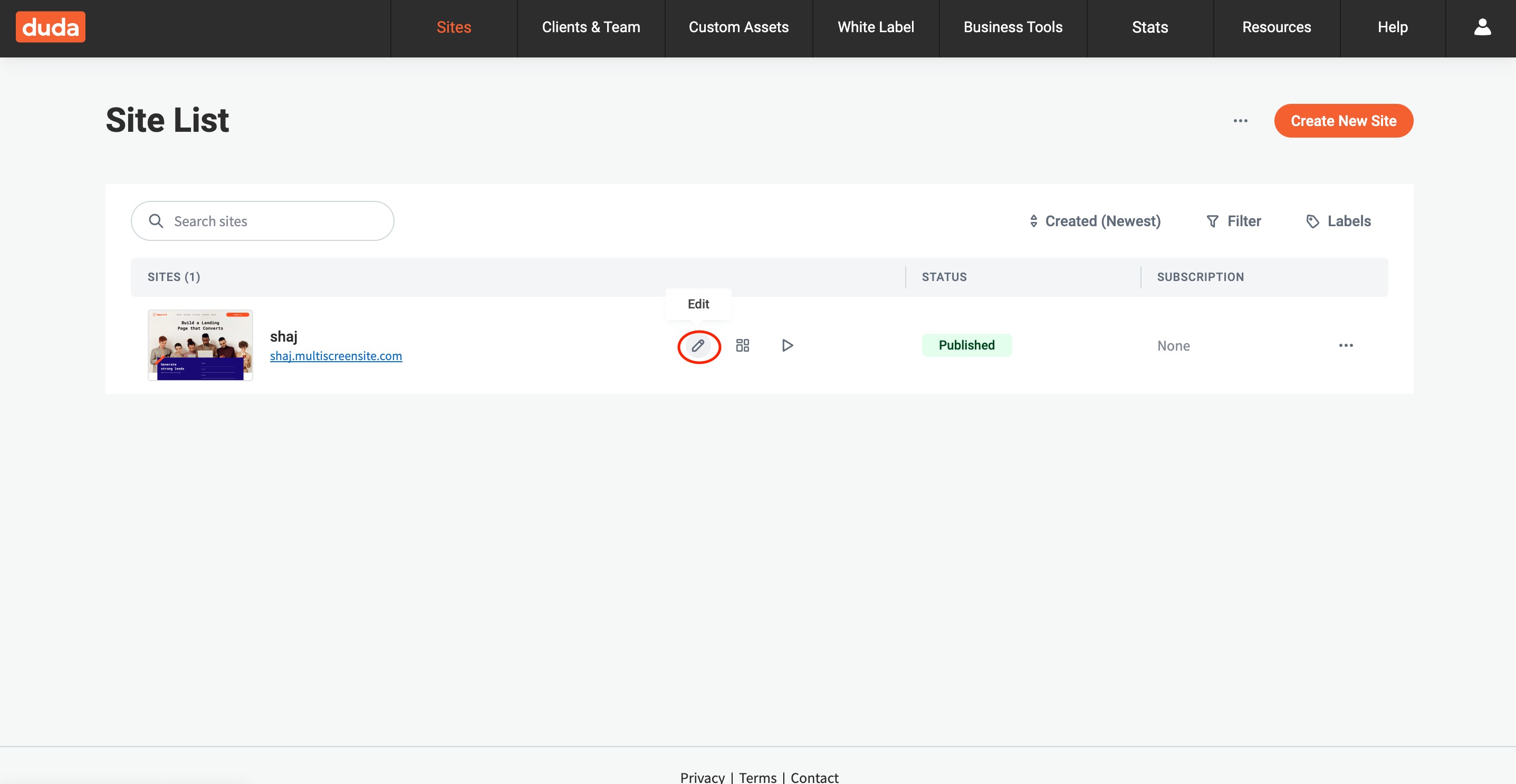
In the left column, click Settings.
Click Head HTML.
Paste the chat widget's embed code into the editor.
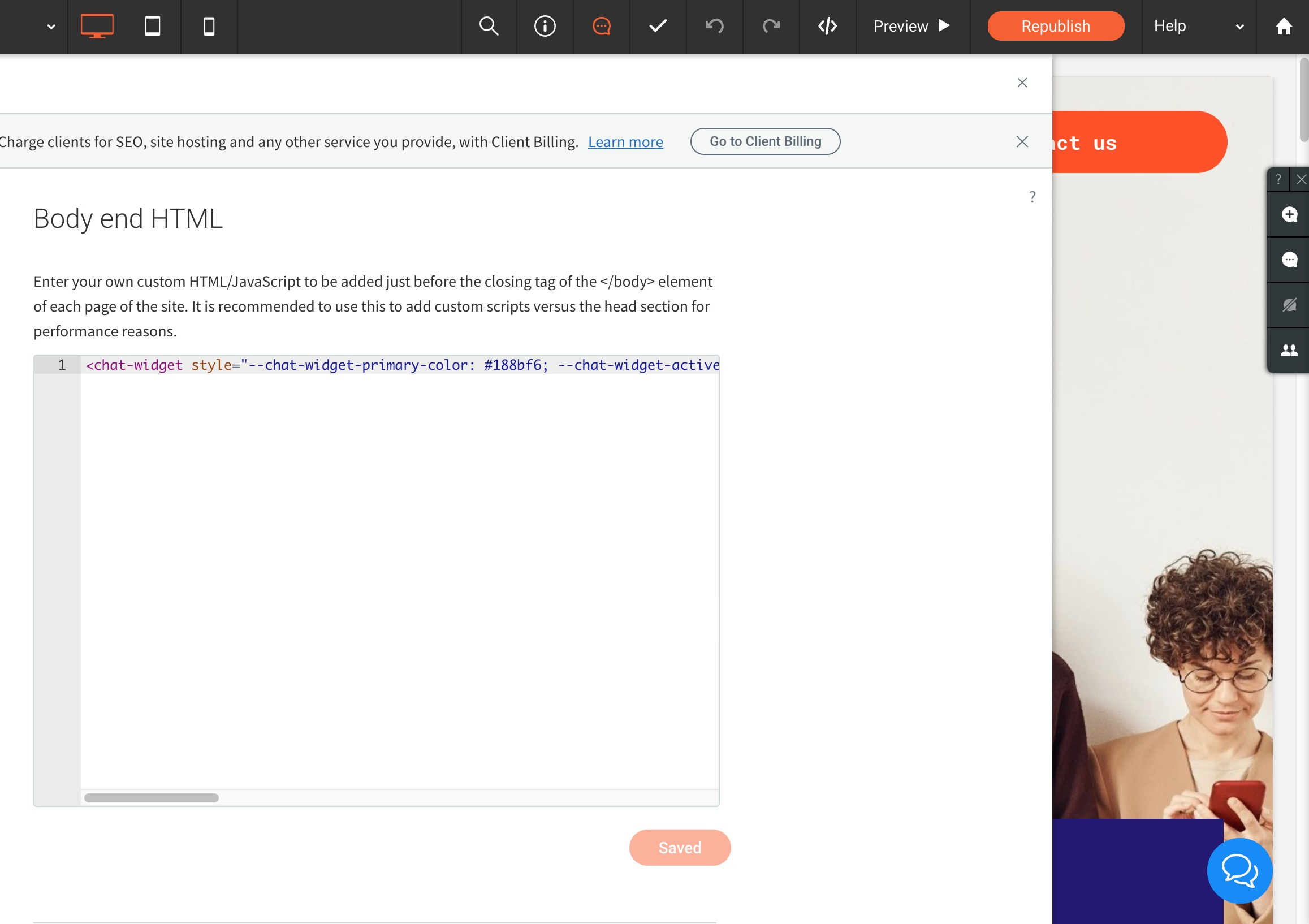
Click Save to apply your changes.
Preview your site to ensure the widget appears in the correct location and works as expected.
In the editor, drag and drop an HTML element onto the page where you want the chat widget to appear.
Double-click the HTML element to open the HTML editor.
Paste the embed code into the HTML editor.
Click Save to apply your changes.
Weebly offers two methods. Method 1 uses Header Code Injection for a site-wide widget. First, obtain the embed code from Sites > Chat Widget > Get Code.
Log in to your Weebly account and navigate to the website editor.
Click Settings.
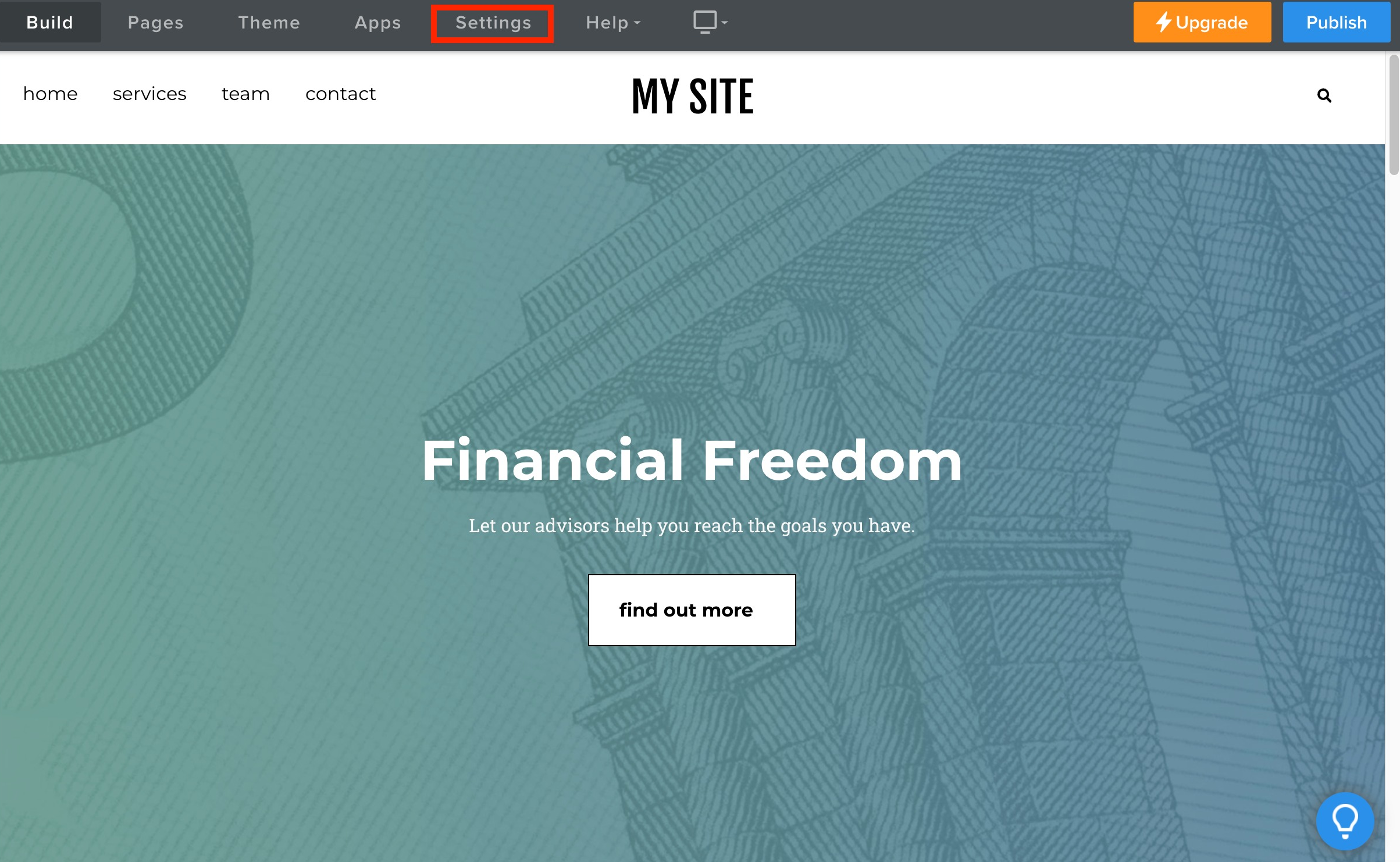
In the left-hand menu, select SEO from the options.
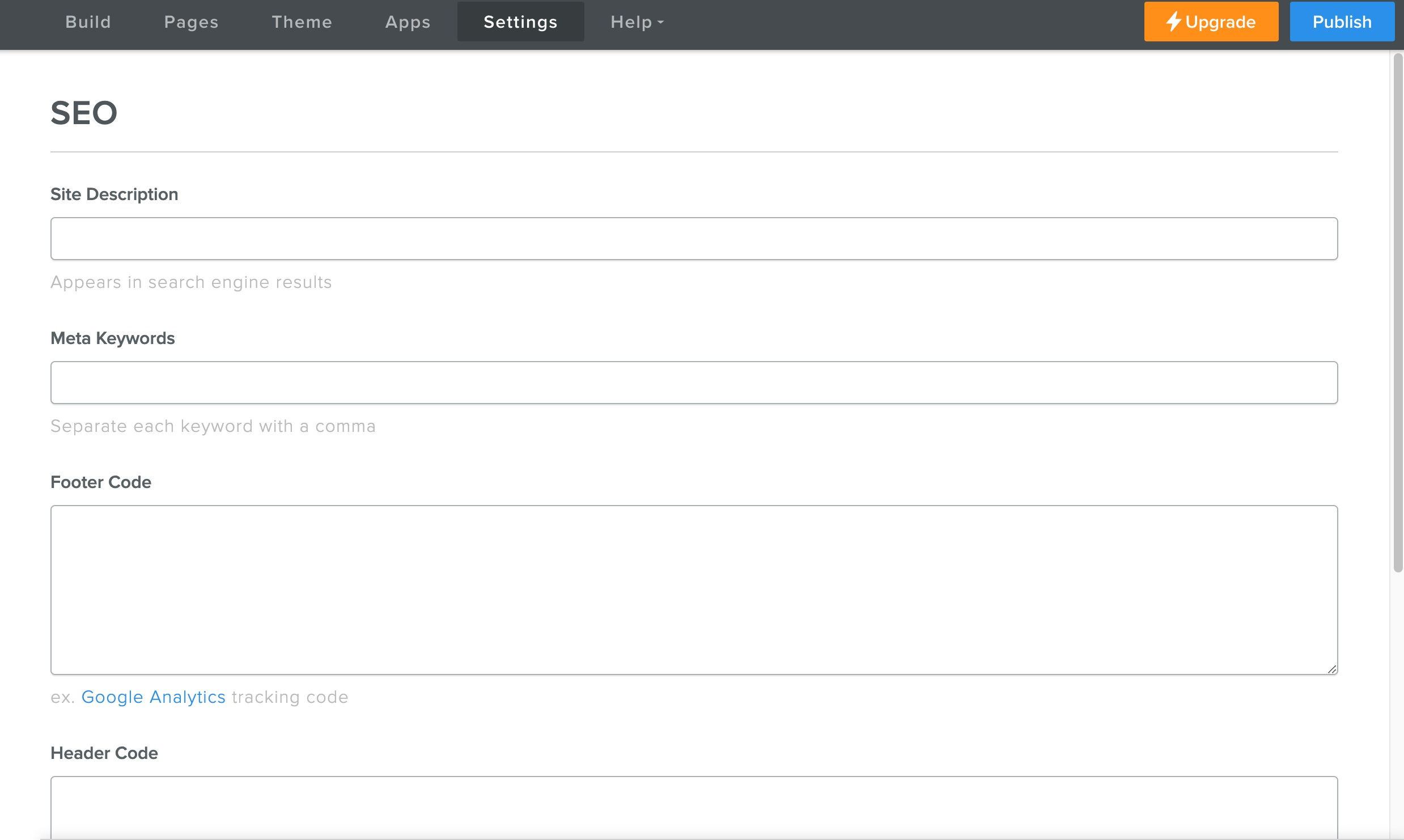
Scroll down to the Header Code Injection section and click Edit.
Paste the code into the Header Code Injection box.
Click Save to apply your changes.
Log in to your Weebly account and navigate to the website editor.
Click Elements in the left-hand menu and select Custom HTML/Embed Code from the options.
Drag and drop the Custom HTML element onto your page where you want the chat widget to appear.
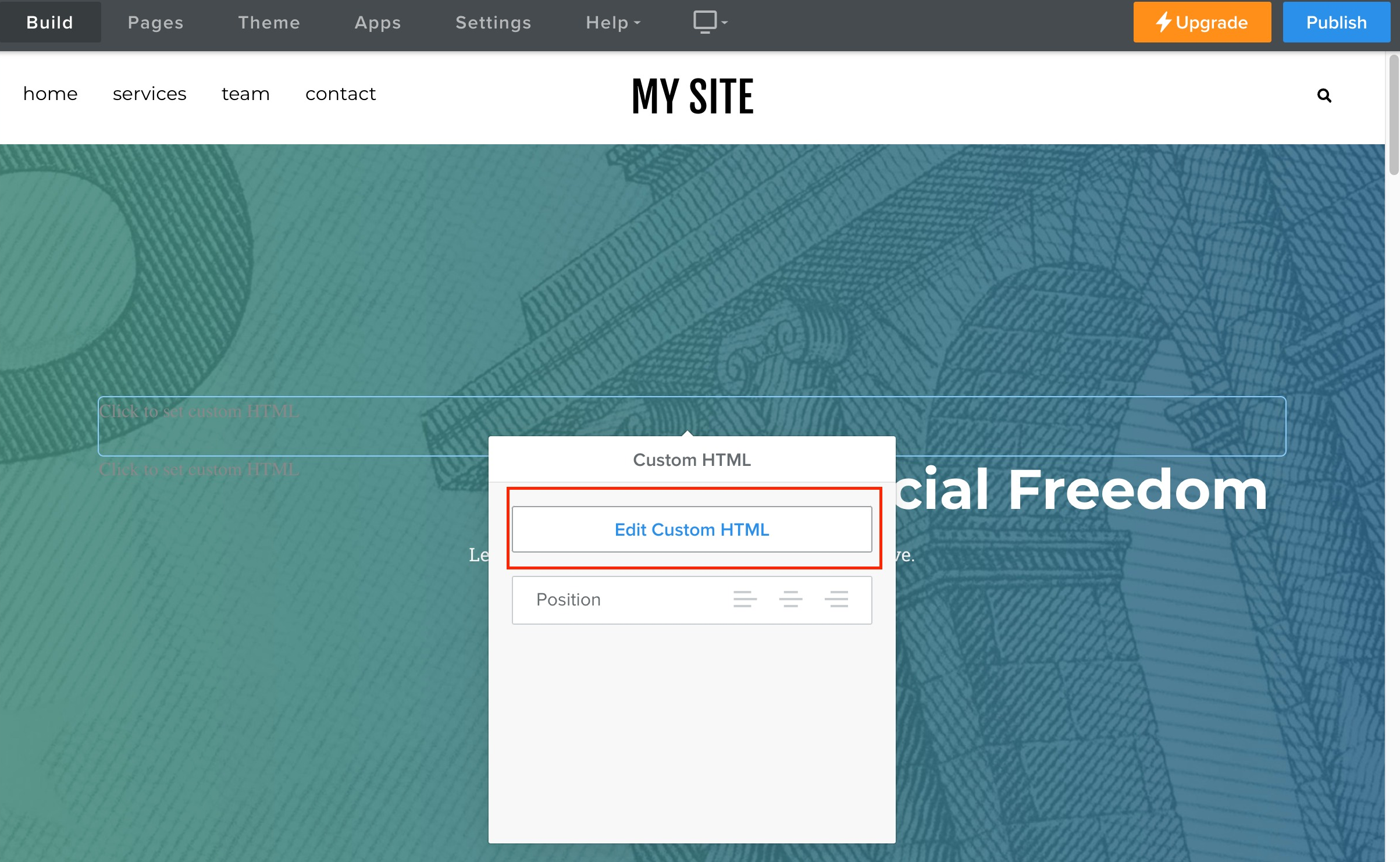
Paste the chat widget code into the Custom HTML element.
Click Publish to save your changes.
Any website platform that lets you add custom code will work with the chat widget. The embed code you copied from Sites > Chat Widget > Get Code is standard HTML, so the approach is the same everywhere.
On WordPress, paste the embed code into your theme's header or footer (often under Appearance > Theme File Editor, or via a header-and-footer scripts plugin) so it loads on every page.
On any other platform, look for a Custom Code, Code Injection, Header/Footer, or Embed HTML option and paste the code there.
For a widget that appears site-wide, place the code in the site header. To limit it to a single page, use an embed or HTML block on that page.
Note: After embedding, always refresh your live website and test the widget to confirm it loads and opens as expected. If it does not appear, double-check that the full embed code was pasted and saved, and that it was placed in a site-wide location such as the header.
Where do I find the embed code? In Aesthetix CRM, go to Sites > Chat Widget > Get Code and copy the full code. This is the same code for every website platform.
Is the embed code different for each platform? No. The embed code is identical everywhere. Only the location where you paste it changes from platform to platform.
Will the widget show on every page of my site? It depends on where you paste the code. Placing it in a site-wide location such as the header or a "load once on all pages" setting makes it appear everywhere. Pasting it into a single-page embed or HTML block limits it to that one page.
Should I use the header or footer for the code? Either works for most platforms. The header is the most common choice and ensures the widget loads reliably across your site.
The widget is not appearing after I embedded it. What should I check? Confirm that you copied and pasted the entire embed code, that you saved or published your changes, and that the code was placed in a site-wide location. Then refresh your live site rather than the editor preview.
Can I add the widget to a platform not listed here? Yes. Any platform that allows custom HTML or code injection will work. Look for a Custom Code, Code Injection, or Embed HTML option and paste the code there.
Do I need to change the code if I update my chat widget settings? Generally no. Widget appearance and behavior update automatically. If you regenerate or replace the widget in Aesthetix CRM, copy the new embed code and replace the old one.
