Chat notifications keep your front desk and coordinators on top of every incoming message, whether a patient reaches out through Live Chat, an internal team thread, or another conversation in your account. This article covers two related settings: the notifications that alert your team when a new chat arrives, and the notification sound that plays for visitors on your website widget. Setting both correctly means faster replies, fewer missed inquiries, and a smoother experience for patients booking treatments or asking questions.
Chat notifications alert your team whenever a new message is received in your account. Notifications appear through the channels you choose in your profile settings, such as in-app alerts, email, or SMS. Managing all notifications in one place makes it easy to stay organized and ensures important messages are not missed.
This feature works alongside your existing conversation notifications, so you do not need to manage chat alerts separately. Whether your team is at the front desk, away from the office, or using the mobile app, notifications help maintain quick response times, improve patient engagement, and keep conversations moving without delay. It is especially valuable for practices handling multiple inquiries, since it keeps everyone informed in real time.
Stay Informed: Receive alerts for every new chat message so your team responds in a timely manner.
No Separate Setup: Chat notifications use the same settings as other conversation types.
One Place to Manage: All conversation notifications, including chat, are managed in your profile settings.
Team Awareness: Team members with conversation notifications enabled will also receive chat alerts.
Flexible Preferences: Choose the type and frequency of notifications that work best for each user.
Chat notifications are managed through your conversation notification settings. When conversation notifications are enabled, chat alerts are automatically included. Follow these steps to set them up and tailor them to your needs.
Open Settings
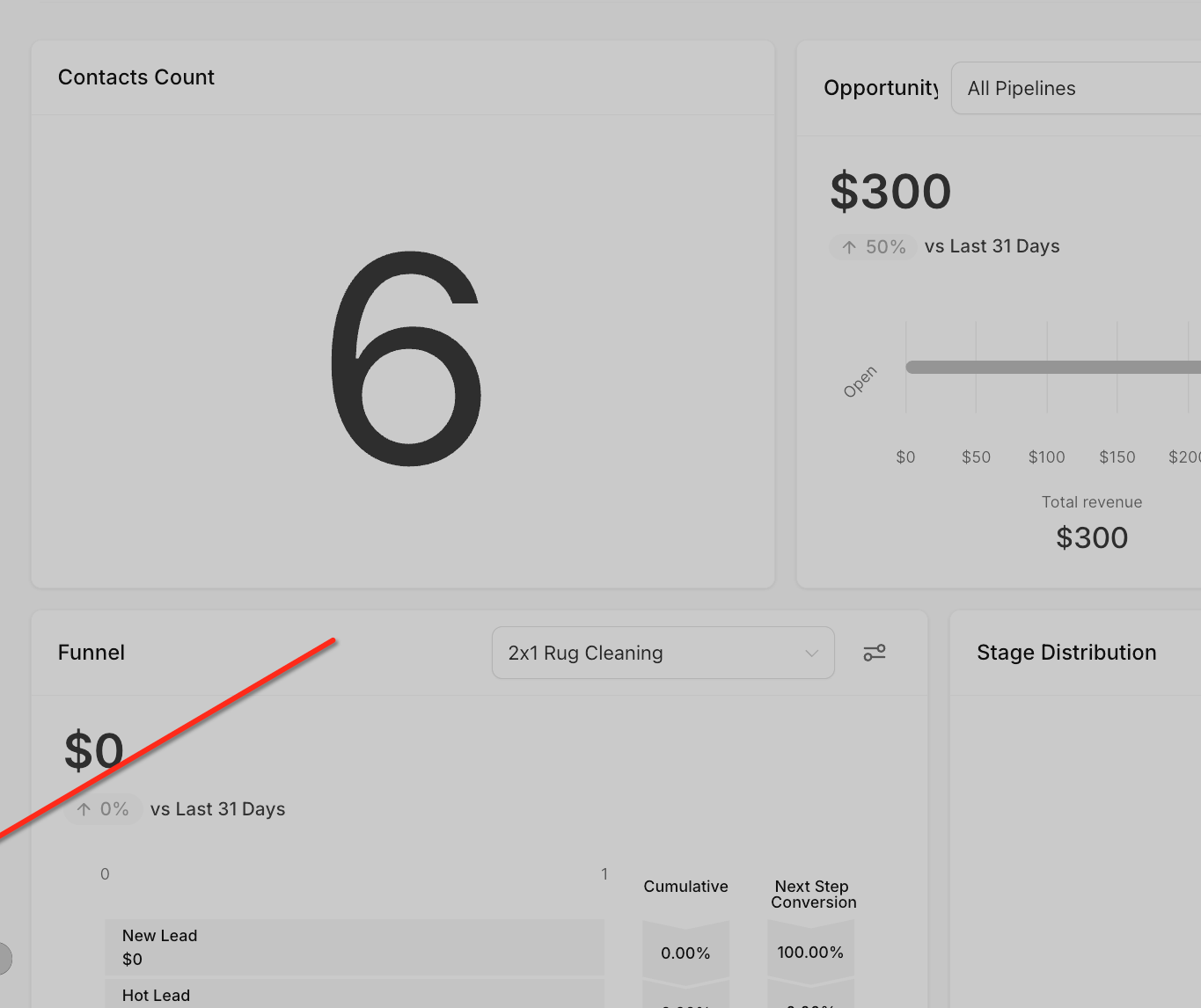
From your dashboard, click the Settings option in the left-hand menu. This is where you can access all account and profile preferences, including your notification settings.
Access My Profile
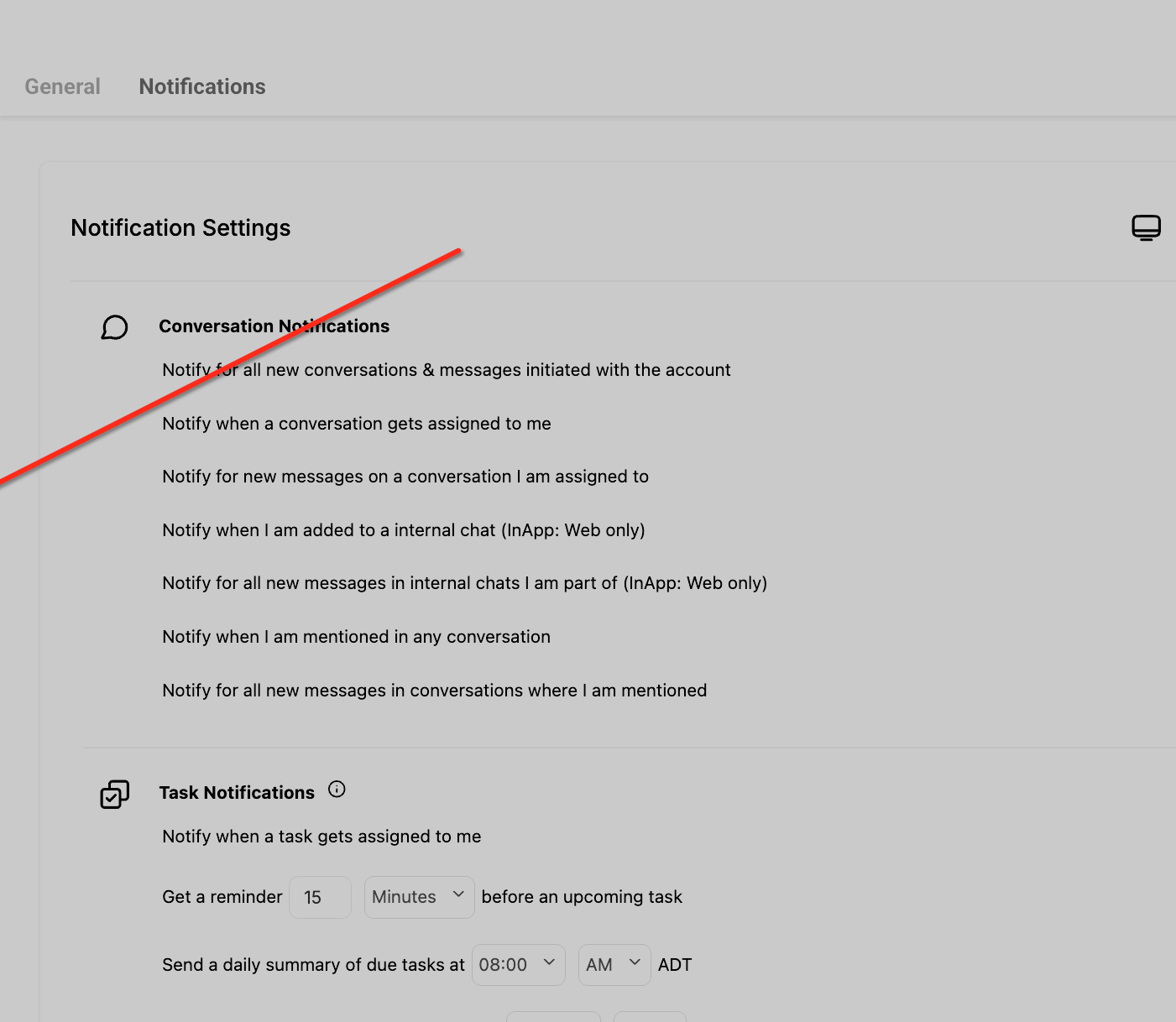
In the Settings menu, select My Profile. This section contains your personal account preferences, including notification settings that control how you receive alerts for chat messages.
Open the Notifications Tab
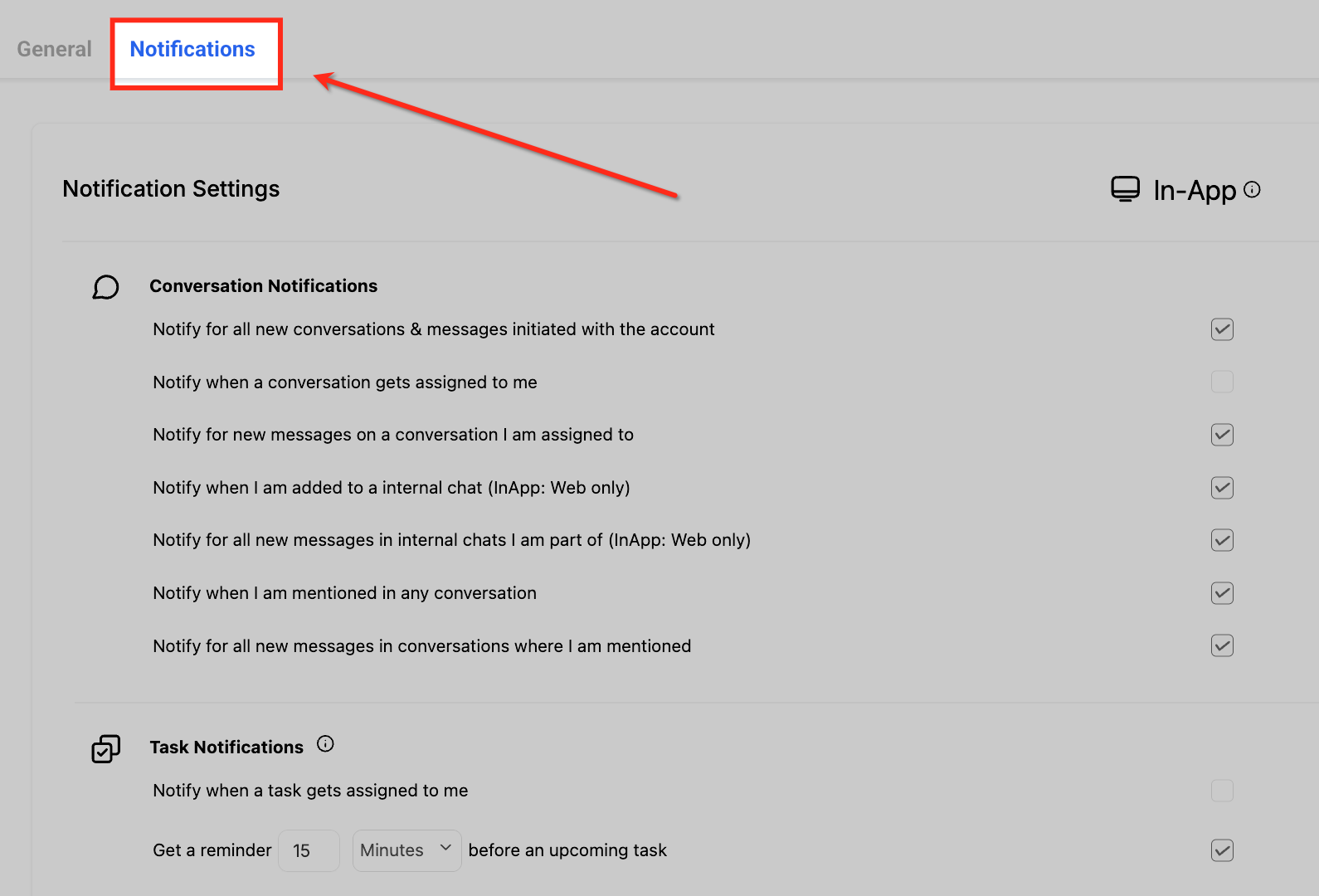
Click the Notifications tab at the top of the page. This is where you manage all conversation alerts, including chat, and choose how you would like to be notified.
Choose Your Conversation Notification Options
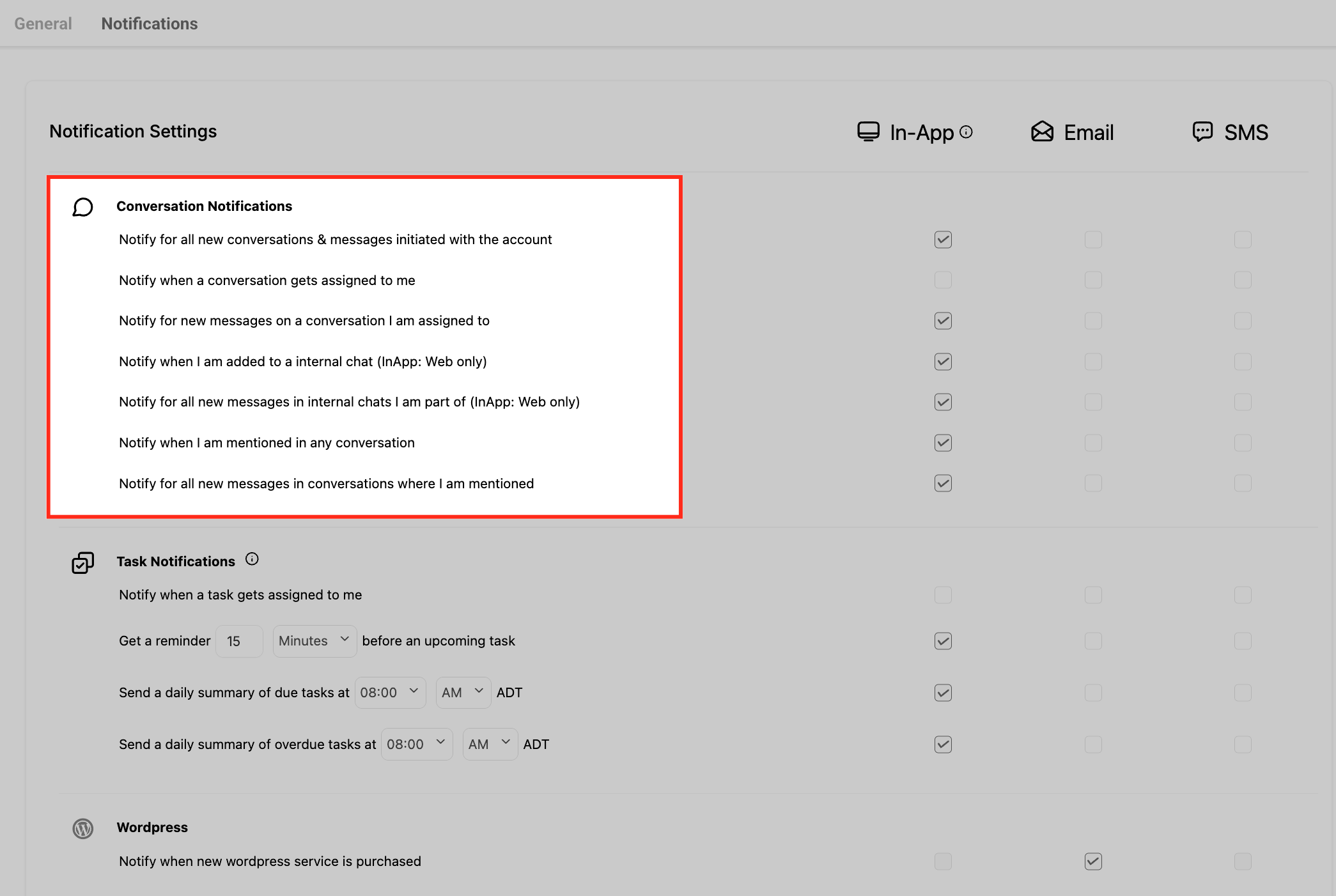
These settings control when and how you are alerted about messages and conversations in your account. Here is what each option means:
Notify for all new conversations & messages initiated with the account: You get alerts whenever anyone starts a new conversation with your account, no matter who it is for. This helps your team stay aware of all incoming communication.
Notify when a conversation gets assigned to me: You are notified when a conversation is specifically given to you to handle, so you know exactly when something is your responsibility.
Notify for new messages on a conversation I am assigned to: If you are assigned to a conversation, you get alerts every time a new message is added to it, so you can keep up without missing anything.
Notify when I am added to an internal chat (In-App: Web only): This sends a notification if you are added to a private chat within your team. These alerts appear only inside the web app.
Notify for all new messages in internal chats I am part of (In-App: Web only): If you are already in a private internal chat, you are notified about every new message sent there. Like above, this is for the web app only.
Notify when I am mentioned in any conversation: You are alerted if someone tags or mentions you directly in a message. This is useful for catching things that need your attention even when you are not assigned to the conversation.
Notify for all new messages in conversations where I am mentioned: Once you have been mentioned in a conversation, you keep getting alerts for all new messages in that thread, making it easier to follow up.
Select Your Notification Channels
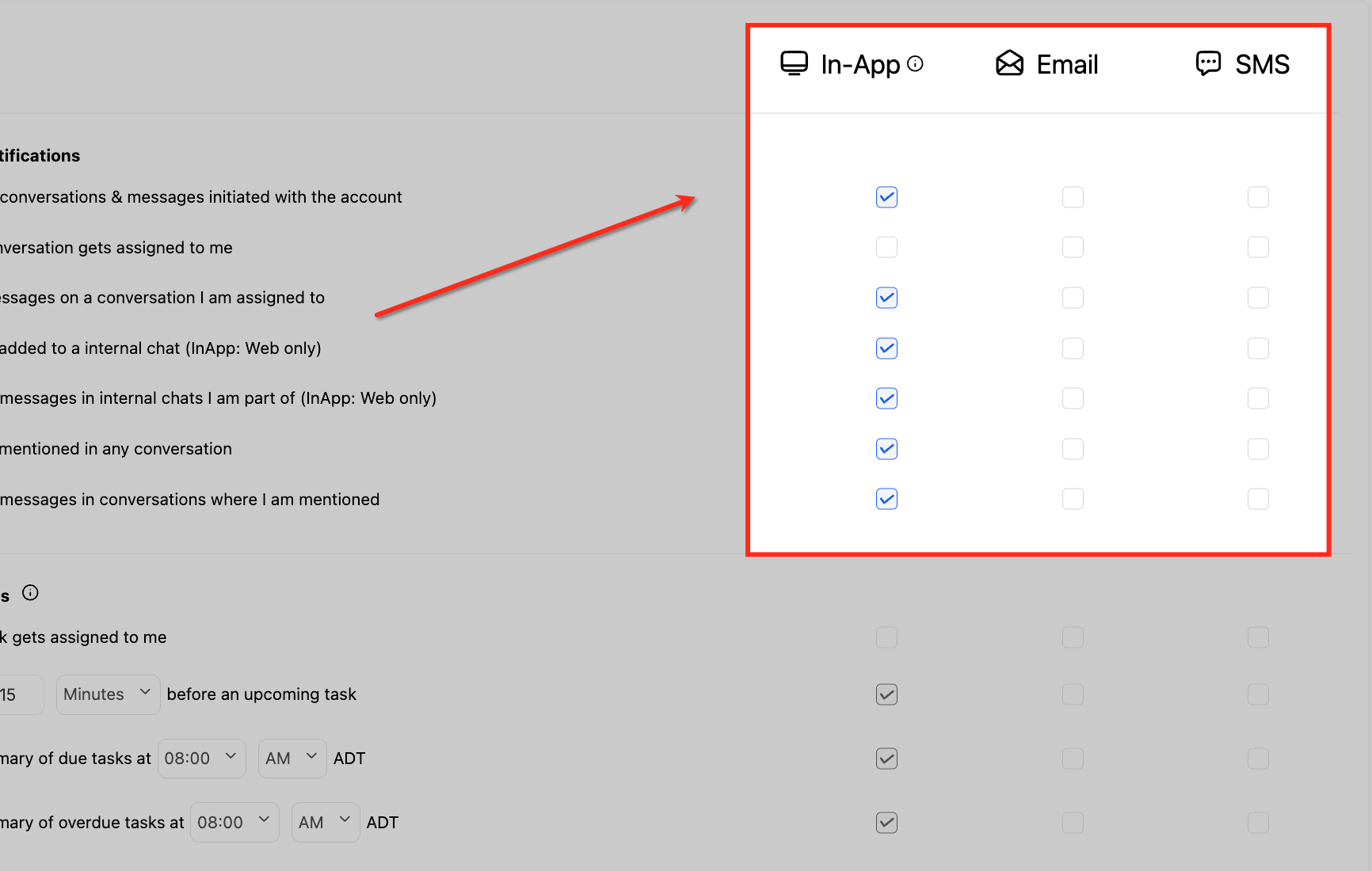
These options control how you receive alerts when the selected notification events happen. You can turn on one or more channels depending on what works best for you:
In-App Notifications: These appear inside your dashboard while you are logged in. They are useful if your team spends most of the day working directly in the platform and wants to see updates right away.
Email Notifications: These send alerts to your registered email address. This is helpful when you are often away from the dashboard but still want to stay informed about new activity.
SMS Notifications: These send alerts to your mobile phone via text message. They are best for urgent updates or when you want to be notified instantly without checking email or logging in.
Save Your Changes
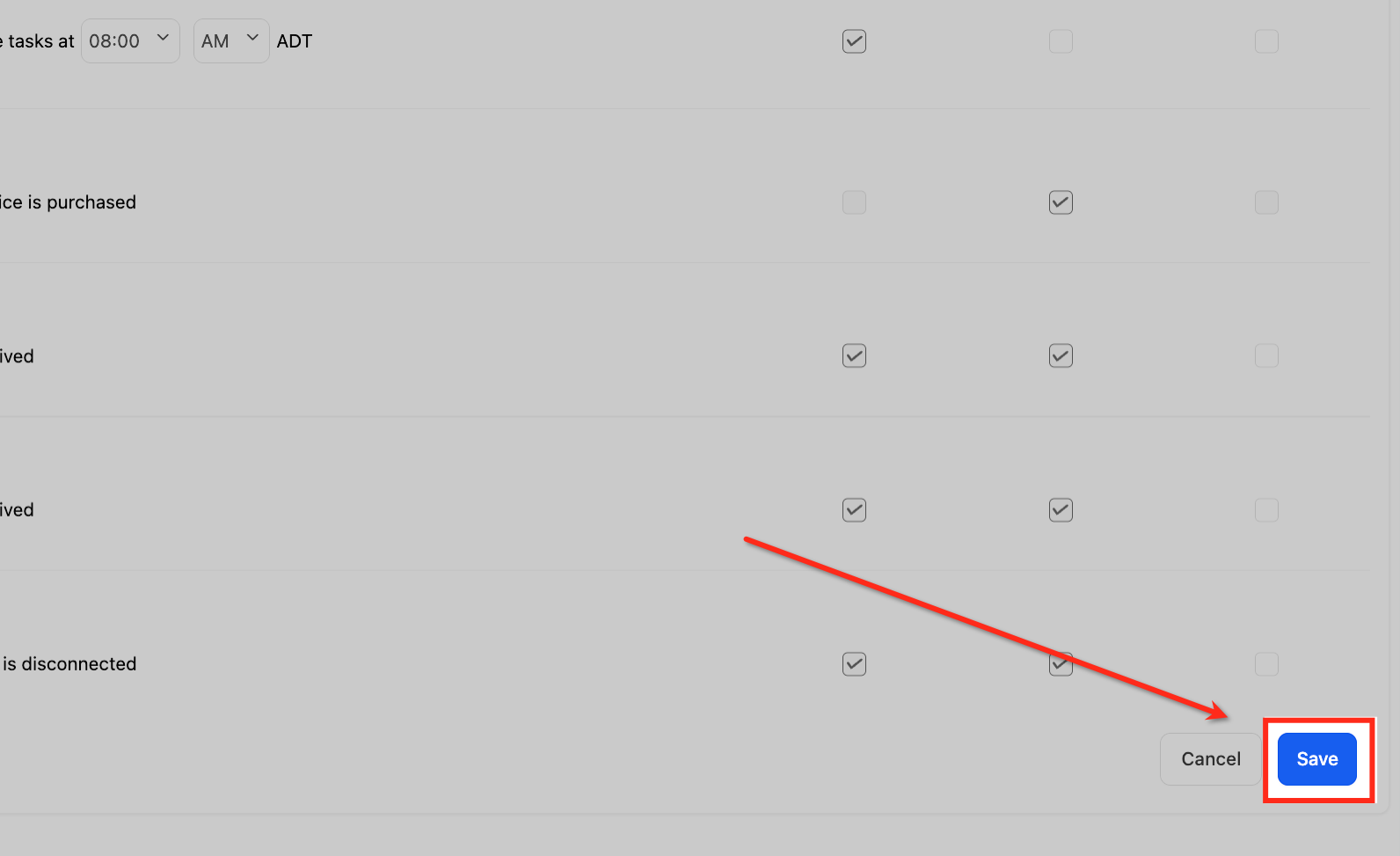
After setting your preferred notification options and channels, click the Save button at the bottom of the page. This stores all your updates so your notification settings work as configured. If you skip this step, your changes will not be applied.
Note: Notification preferences are specific to each user profile and do not affect other team members in your account. Each user can set their own preferences for conversation types, notification events, and channels.
Notification Sound is a setting in the Chat Widget builder that controls visitor-facing alerts for new messages on your website. It applies to All-in-One and Live Chat widgets and is ON by default. When Notification Sound is ON, the widget will:
Play a sound whenever a supported message is shown to the visitor, including chat messages and other widget messages (for example, welcome messages, form-related prompts, and redirects).
Show visual cues (such as popups, notification badges, and browser tab title updates) to help visitors notice updates.
When turned OFF, the chat widget continues to receive messages silently without sound or visual interruptions.
Visitor Awareness: Visitors are immediately alerted to new messages, reducing missed replies and drop-offs.
Higher Engagement: Timely audio and visual cues keep the conversation moving.
Brand Alignment: Choose whether audible cues fit your practice's tone.
Zero Code: No changes to your embed code are required to adjust this setting.
When Notification Sound is ON, sound notifications can play for these additional system and lifecycle message types:
Live chat and session flow: The live chat intro message (at chat start and after a successful contact form submission) and the acknowledgement message (when a chat is acknowledged or ended).
Business hours handling: The outside office hours welcome message (when business hours are disabled, when the contact form is shown, and when received during an active session).
System and greeting messages: The subheading message (initial greeting for new visitors, when no previous chats are available, and during inline mode initialization).
Forms and redirects: The contact details requested message (when the contact form is displayed) and the redirect message (after form submission when redirect is enabled).
Configure Notification Sound for supported chat types, All-in-One and Live Chat, directly in the Chat Widget builder. The setting is ON by default for supported widgets and can be turned OFF per widget to create a quieter experience. The steps below show where to find the control and save your changes.
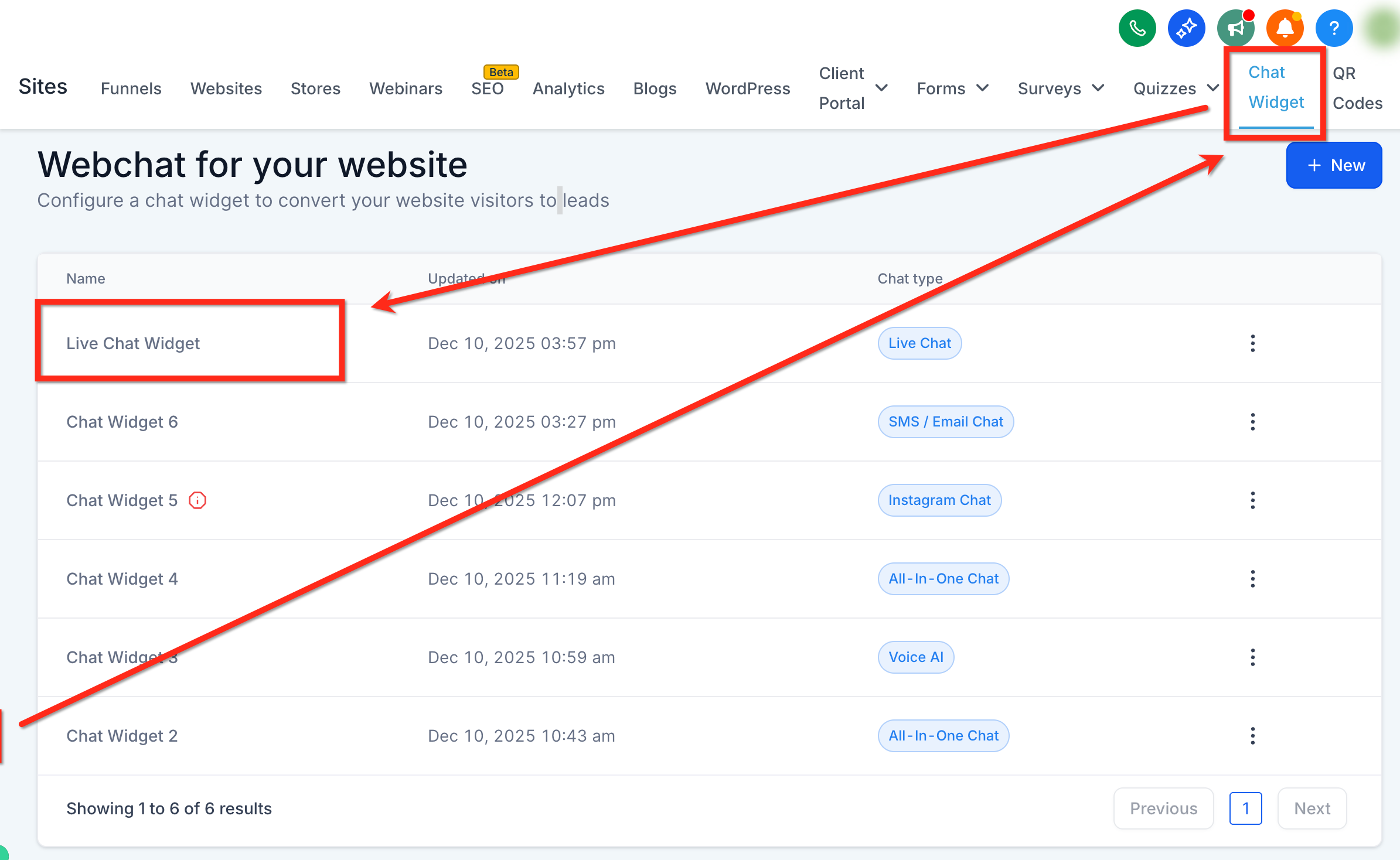
Go to Web Tools ➝ Chat Widget and open the widget you would like to edit.
In the left side menu, select the Chat Window tab, then open the Additional Options dropdown.
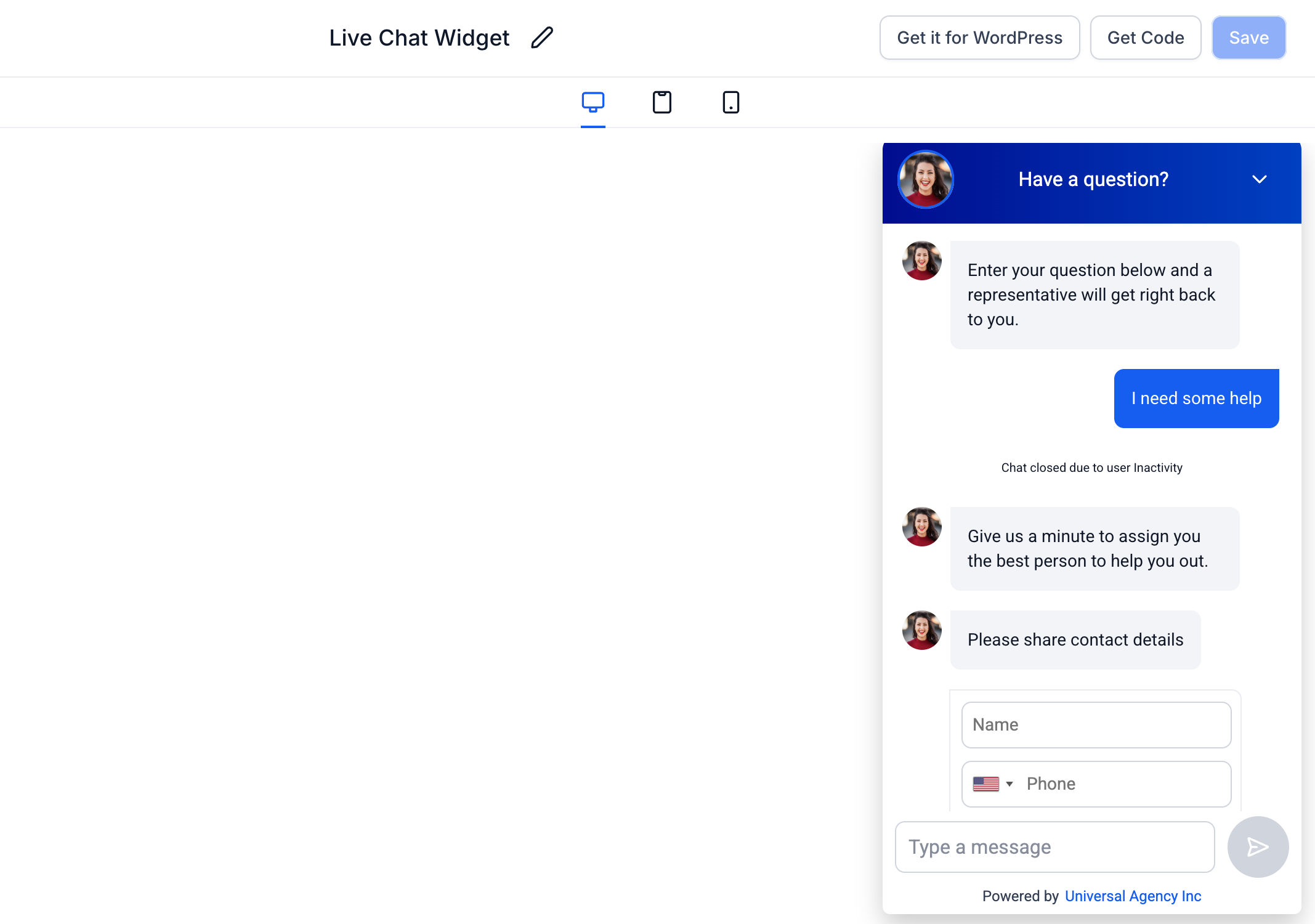
Toggle the Notification Sound to ON (recommended) or OFF based on your page strategy.
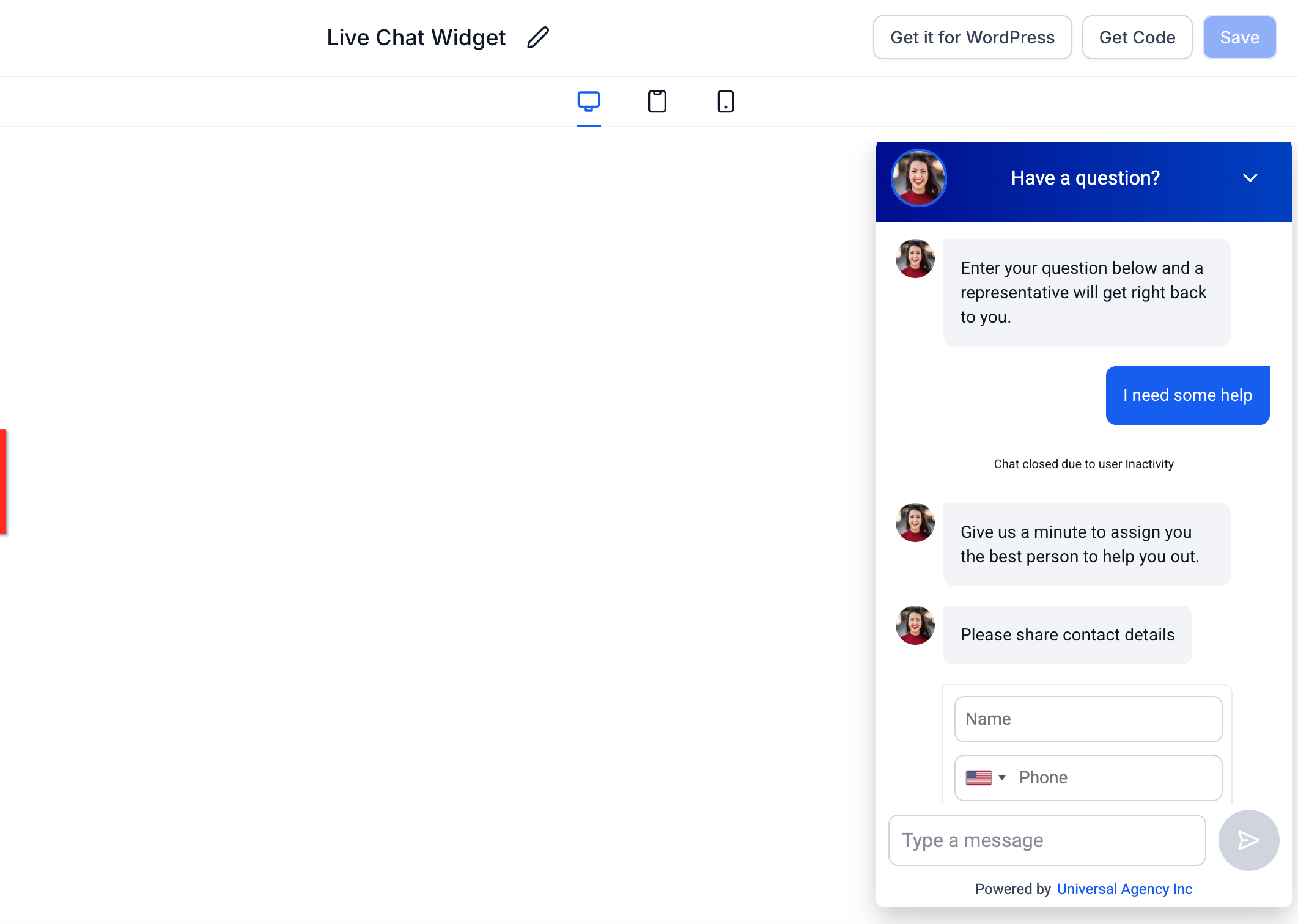
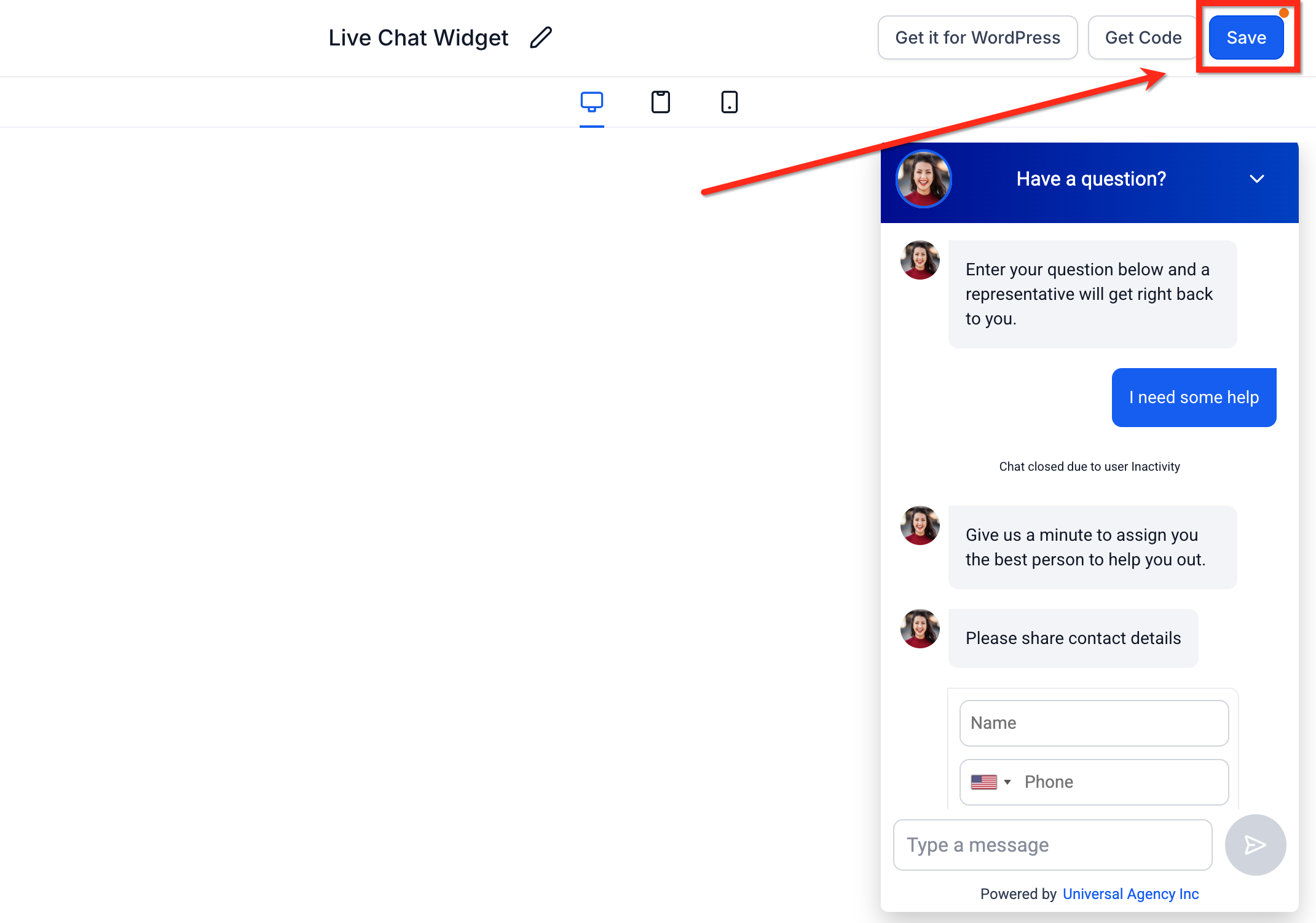
Click Save in the top right. If the embed code is already on your site, refresh the page to see the applied changes.
Note: The Notification Sound setting applies per widget. If you have multiple widgets on your site, each one follows its own ON/OFF toggle.
If I disable "Notify for all new conversations & messages initiated with the account," will I still receive notifications for conversations assigned to me?
Yes. Disabling this option only stops alerts for conversations that are not assigned to you. If you keep "Notify when a conversation gets assigned to me" or "Notify for new messages on a conversation I am assigned to" enabled, you will still receive notifications for conversations you are directly responsible for.
Can I receive notifications only through SMS without enabling in-app or email notifications?
Yes. Notification channels (In-App, Email, SMS) are independent of each other. You can enable or disable any combination of channels for each conversation notification type. For example, you can select only SMS for urgent updates while leaving in-app and email unchecked.
How do "Notify when I am mentioned in any conversation" and "Notify for all new messages in conversations where I am mentioned" work together?
The first option sends you a notification only at the moment you are mentioned in a conversation. The second option continues to send notifications for every new message in that conversation after the mention, even if you are not directly tagged again. To follow a conversation after being mentioned, enable both options.
If I change my notification preferences, will it affect other users in my account?
No. Notification preferences are specific to your user profile and do not affect other users. Each user can set their own preferences for conversation types, notification events, and channels.
Does the widget Notification Sound change my team's chat notifications?
No. The Notification Sound setting only controls visitor-side alerts in the website widget. Team notifications are managed separately in your user notification settings.
Can I upload a custom sound or change the volume for the widget?
Not at this time. The feature is a simple ON/OFF toggle.
Will turning the Notification Sound OFF still show badges or popups to visitors?
No. OFF is a silent mode, meaning there is no sound and no visual interruptions.
Which widgets support Notification Sound?
Only the All-in-One and Live Chat widgets support Notification Sound.
