The Chat Widget lets you set business office hours for Live Chat, so patients see when your team is available to chat in real time. During your hours, visitors get your welcome message and can start a conversation right away. Outside those hours, the widget shows an offline message and collects their contact details so your team can follow up.
Office hours are configured on the Live Chat widget from your account.
Go to Web Tools > Chat Widget.
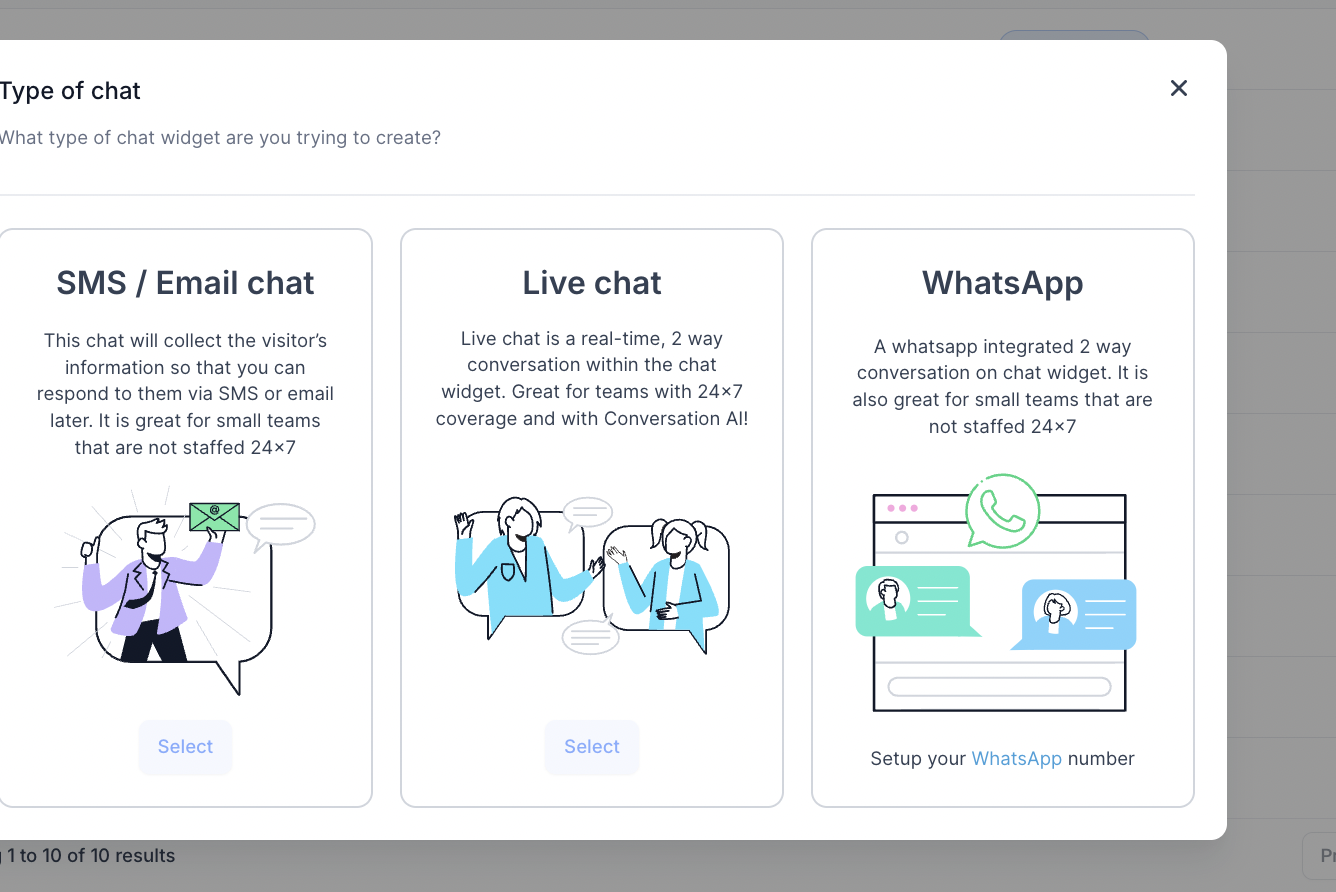
Select Live Chat as the type of chat widget.
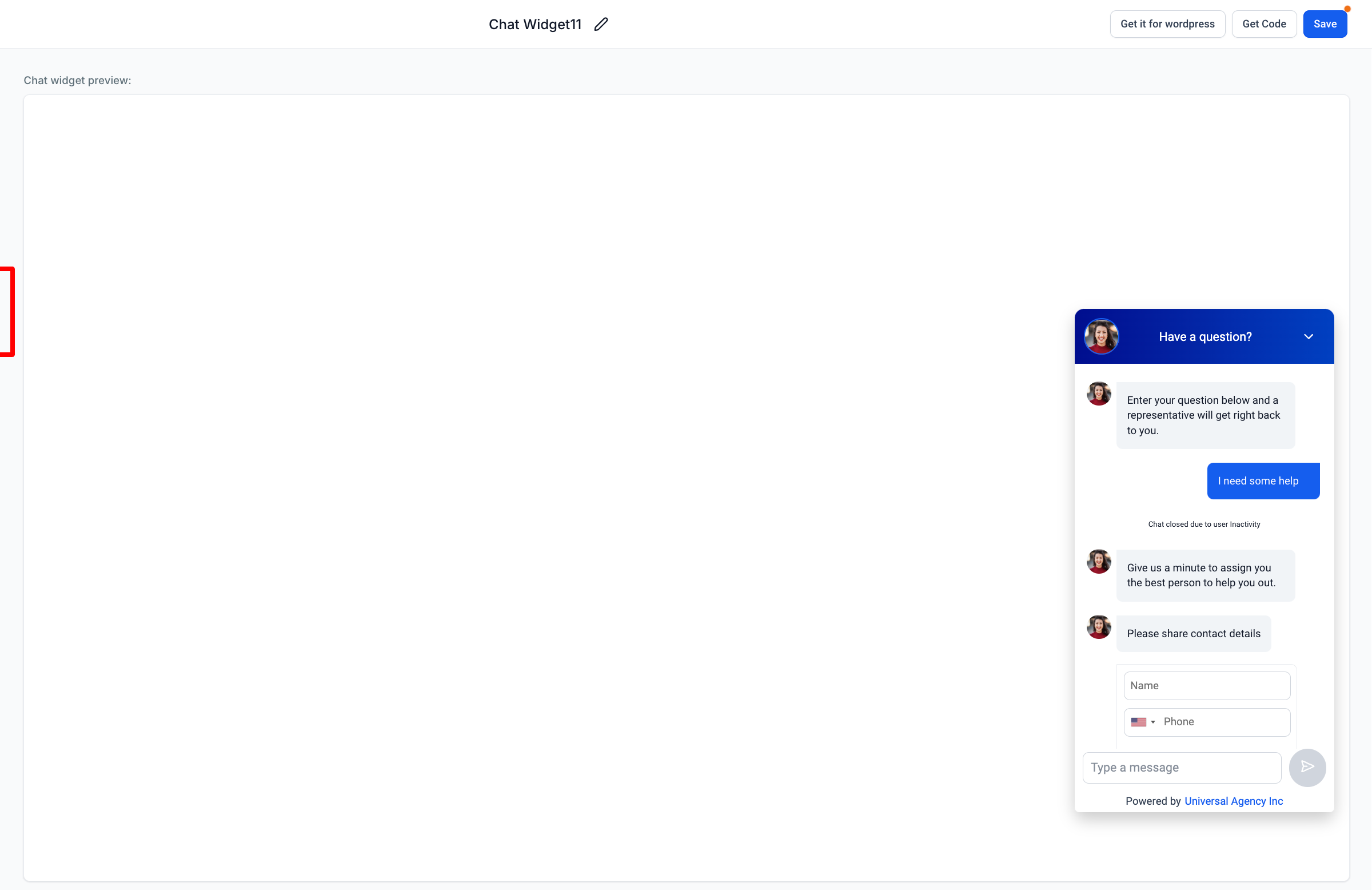
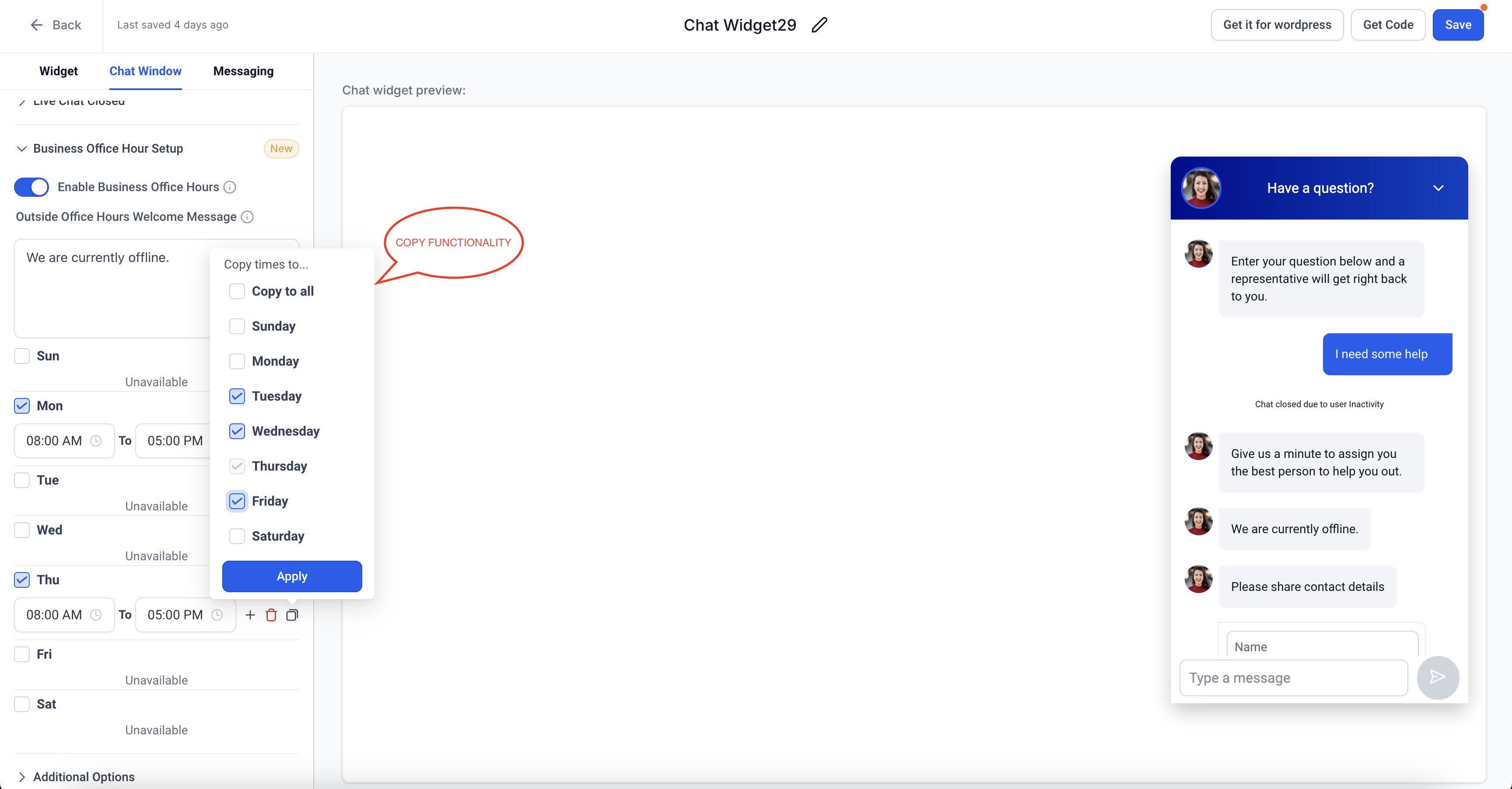
In the chat widget settings, open the Chat Window tab, where you will find the Business Office Hour Setup option.
Customize the message visitors see outside your hours using the Outside Office Hours Welcome Message option. The default message is "We are currently offline."
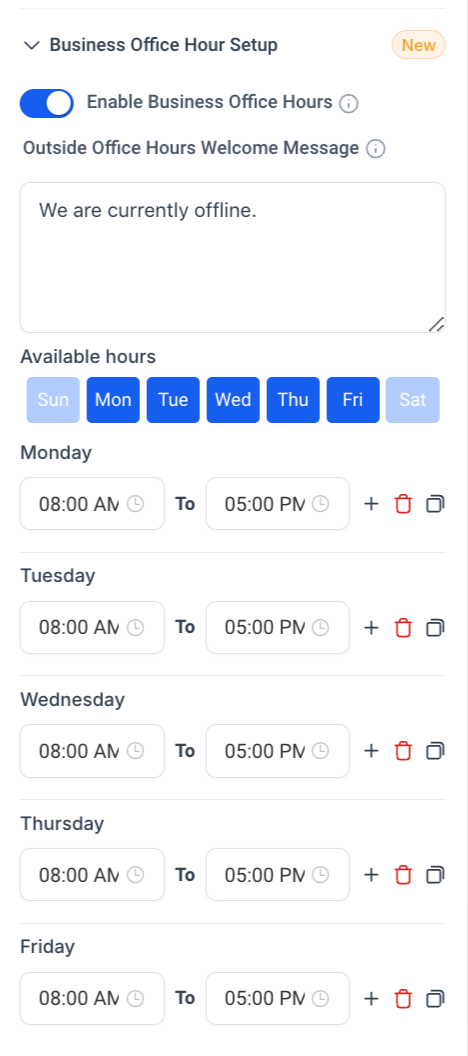
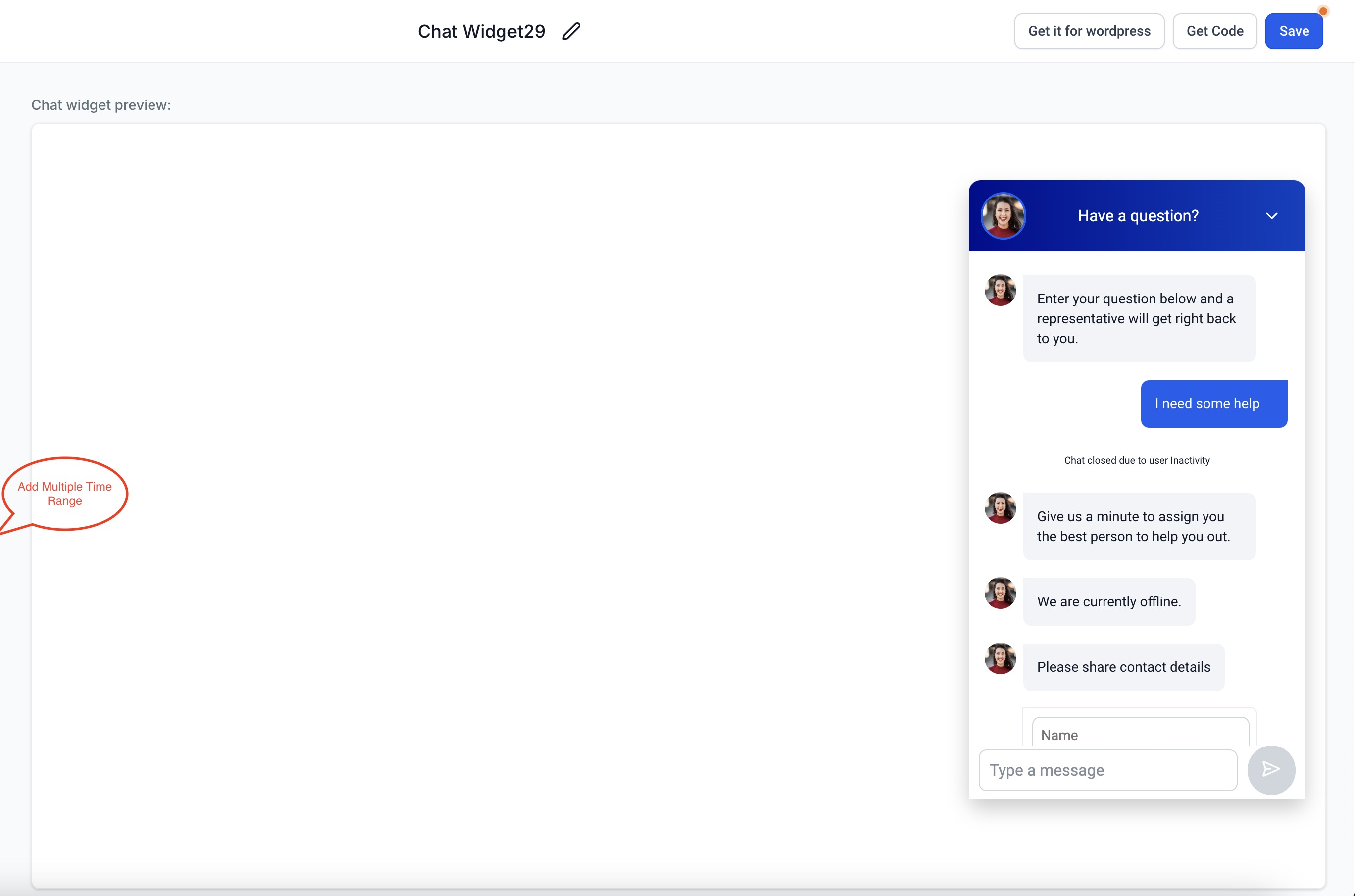
Set your time ranges for each day from Sunday through Saturday. You can add multiple time ranges per day, and overlapping ranges are not allowed.
To save time, copy time settings to one or more days, including multiple day selections at once. This works the same way as calendar availability settings.
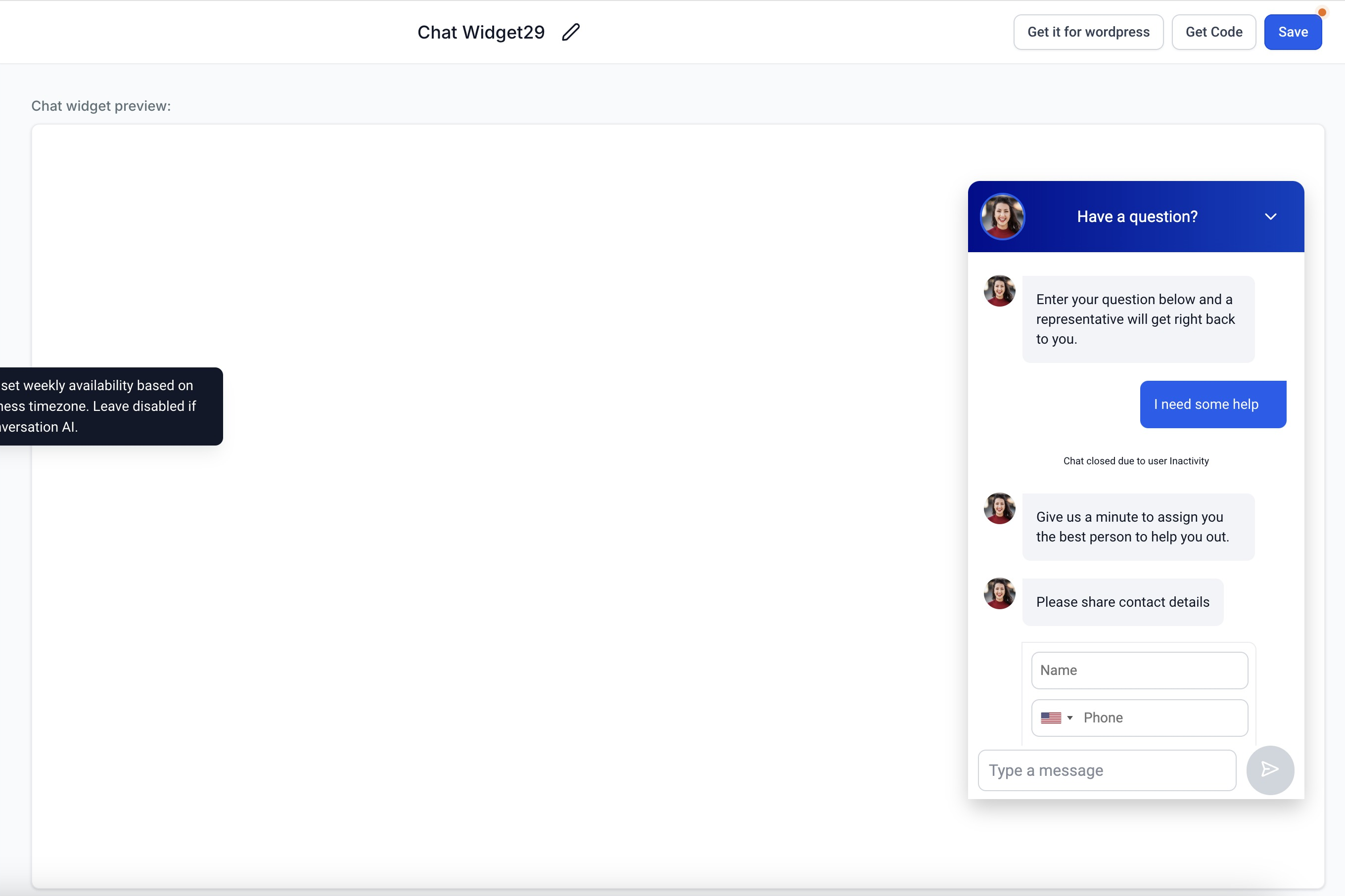
The timezone is based on your business timezone.
When Business Office Hours is enabled and a visitor's time falls within your set hours, the widget displays your Live Chat welcome message so they can start chatting.
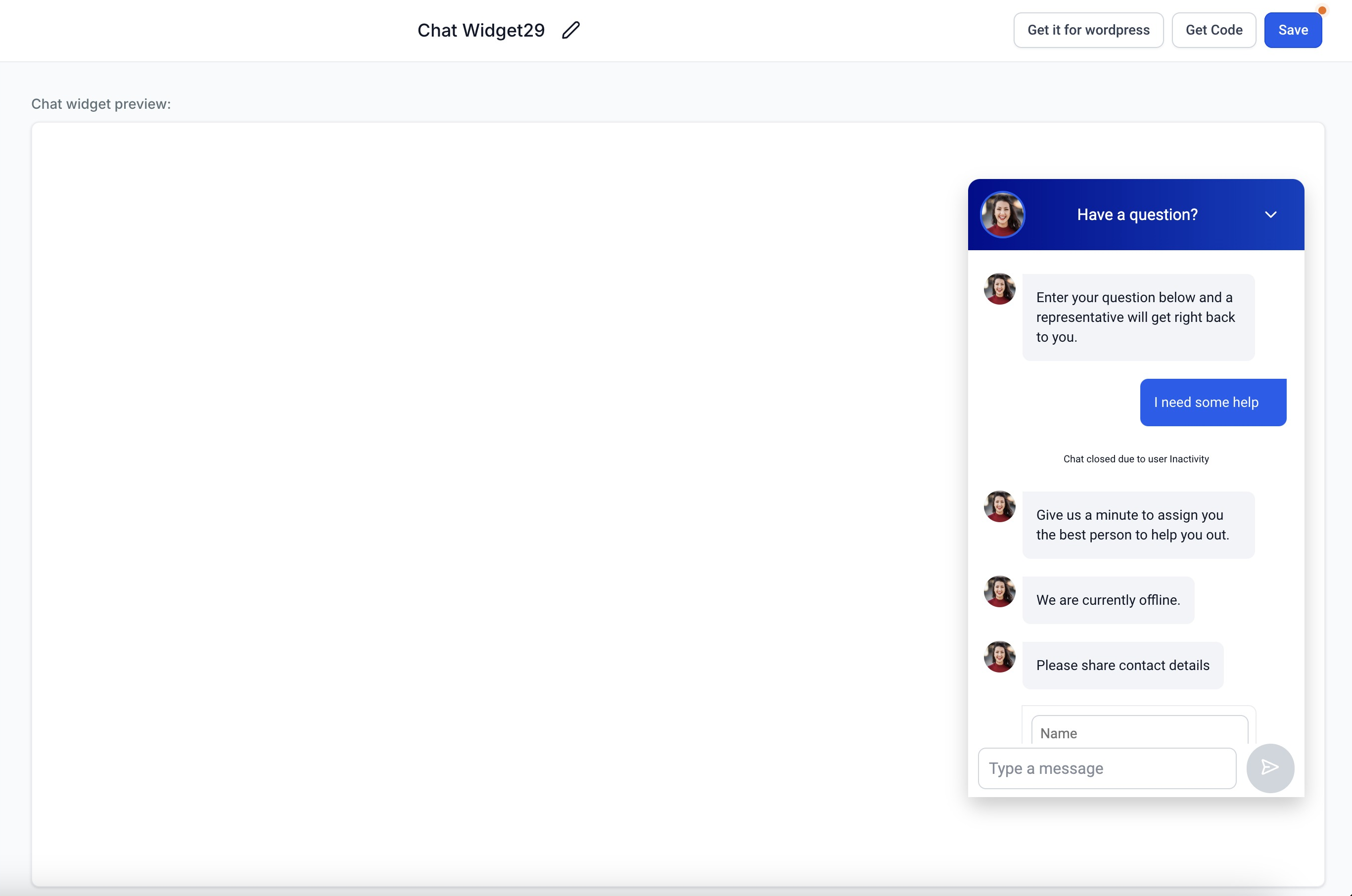
Outside your office hours, the widget shows the Outside Office Hours Welcome Message and sends the visitor a contact details form instead.
Once the visitor submits the contact form, the chat automatically closes so your team can follow up.
Note: If Notification Sound is enabled for the widget, visitors may hear a sound when the Outside Office Hours Welcome Message appears.
Where do I set up office hours for my chat widget?
Go to Web Tools > Chat Widget, choose the Live Chat widget type, then open the Chat Window tab to find the Business Office Hour Setup.
What happens when a patient messages outside my office hours?
The widget displays your Outside Office Hours Welcome Message and presents a contact details form. Once the visitor submits it, the chat closes automatically so your team can follow up later.
Can I change the message shown when we are offline?
Yes. Use the Outside Office Hours Welcome Message option to customize it. If you leave it as the default, visitors see "We are currently offline."
Which timezone do office hours use?
Office hours follow your business timezone, so availability is calculated based on your practice's local time.
Can I set different hours for different days?
Yes. You can set time ranges individually for each day from Sunday through Saturday, and you can add multiple time ranges within a single day. Overlapping ranges on the same day are not allowed.
Is there a faster way to apply the same hours to multiple days?
Yes. You can copy a day's time settings to one or more other days at once, including selecting multiple days together, which works like calendar availability settings.
Will visitors hear a sound outside office hours?
If Notification Sound is enabled for the widget, visitors may hear a sound when the Outside Office Hours Welcome Message appears.
