The Chat Widget contact form does more than collect a name and phone number. By adding custom fields, you can gather the specific information your practice needs the moment a prospective patient reaches out, whether that is a preferred treatment, an appointment date, or a referral source. Custom fields work alongside the standard fields on SMS/Email and WhatsApp widget types, giving you a richer intake without adding friction.
To manage your widget, go to Web Tools → Chat Widget.
Every Chat Widget contact form supports these standard fields:
Name (mandatory)
Phone or Email (one is required to create a contact; Phone is the default and will remain if you try to remove it)
Message
Standard fields are mandatory when they are added to the form.
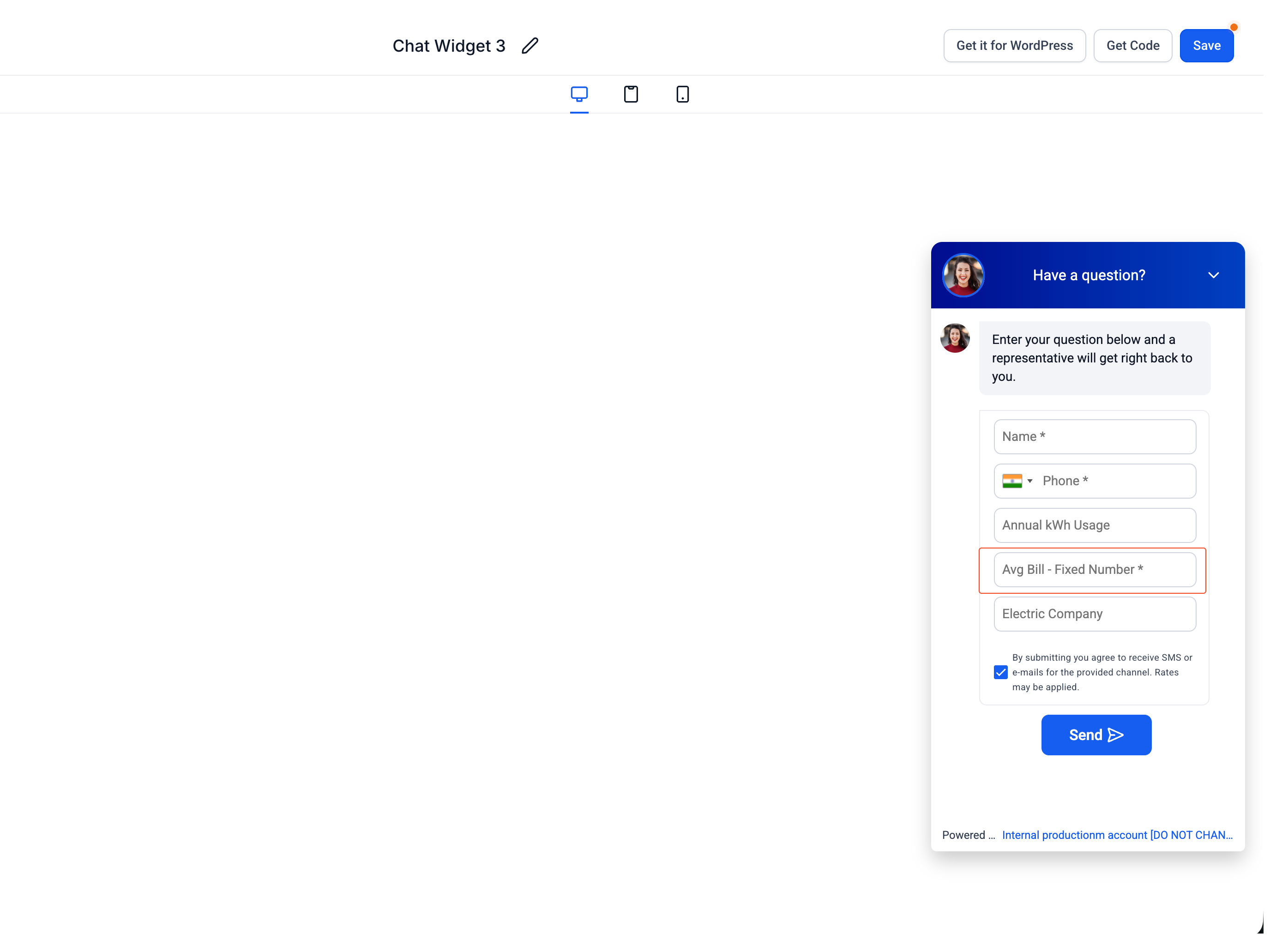
Inside the Chat Widget builder, you can add custom contact fields in addition to the standard fields. These let your practice collect extra details during conversations on the SMS/Email and WhatsApp widget types.
The widget supports the following custom field data types:
Single Line
Multi Line
Monetary
Numeric
Phone
Date Picker
Dropdown (Single)
You can add a total of up to 5 fields, including both standard and custom fields. Either Phone or Email must be included.
You can mark custom contact fields as required in the contact form so visitors provide the details you need before starting a conversation.
Required fields display an asterisk (*) in the widget.
Visitors cannot submit the form until they complete all required fields.
Required field enforcement applies when:
A visitor starts a conversation through the widget contact form.
An agent requests contact details during an active conversation.
Input validation applies to custom fields:
Phone fields validate based on country code.
Email fields validate for correct email format.
Note: Existing widgets remain unchanged unless you mark fields as required.
If you add two or more phone number fields, the Chat Widget lets the visitor select a country code for international phone number formatting. Only one country flag can be selected across all phone fields, so if a visitor changes the country flag in one field, the flag updates automatically in the other phone field(s).
What is the maximum number of fields I can add to the contact form? You can add up to 5 fields total, which includes both standard and custom fields. Either Phone or Email must be one of them.
Which widget types support custom fields? Custom fields are supported on the SMS/Email and WhatsApp Chat Widget types.
Which standard fields are always available? Name, Phone or Email, and Message. Name is mandatory, and one of Phone or Email is required to create a contact.
Can I make a custom field required? Yes. You can mark custom contact fields as required. Required fields show an asterisk in the widget, and visitors cannot submit the form until every required field is completed.
When is a required field enforced? Required fields are enforced when a visitor starts a conversation through the widget contact form, and when an agent requests contact details during an active conversation.
How does validation work for phone and email fields? Phone fields validate based on country code, and Email fields validate for correct email format.
Will adding required fields affect my existing widgets? No. Existing widgets remain unchanged unless you mark fields as required.
What happens if I use more than one phone field? The widget lets the visitor choose a country code for international formatting. Only one country flag applies across all phone fields, so changing the flag in one field updates it in the others.
