Once a chat widget is live on your practice website, you can revisit its settings at any time to refine how it looks and behaves. Whether you want to update the welcome message, adjust the branding to match a new promotion, or fine-tune the chat window, editing an existing widget takes only a few clicks. This guide walks you through opening a widget for editing in Aesthetix CRM.
Follow these steps to access and edit an existing chat widget.
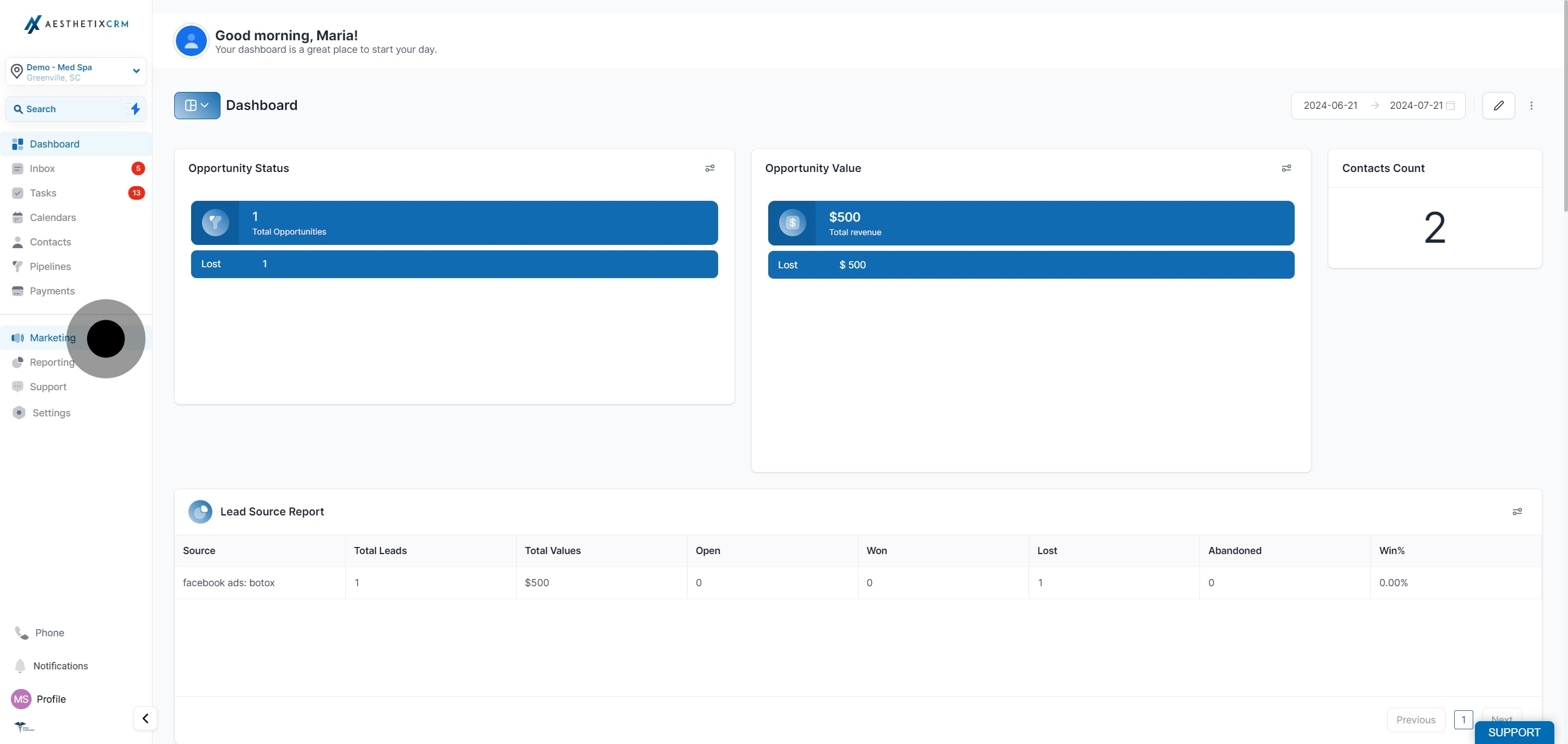
From the left navigation menu, select Web Tools.
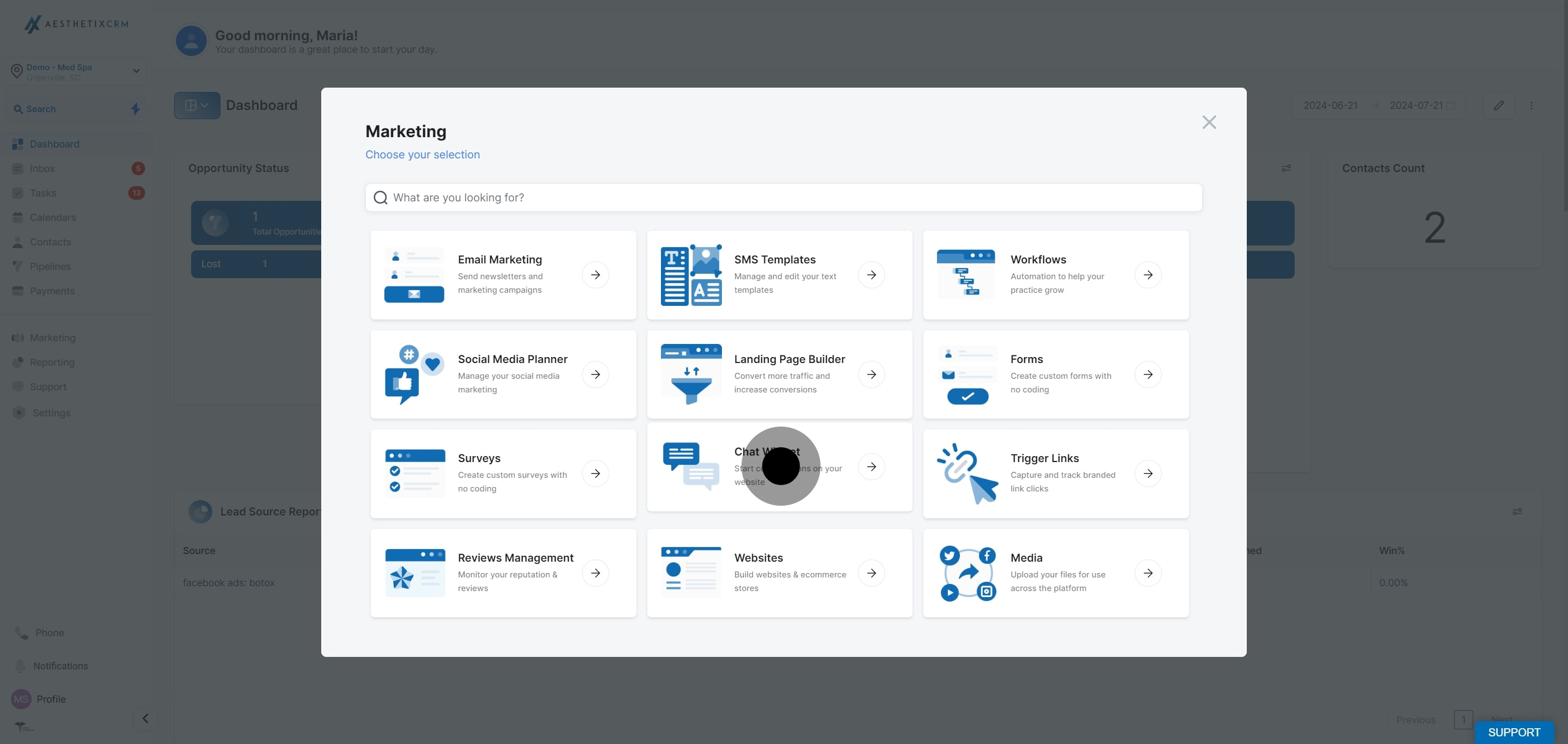
Choose Chat Widget to open the list of widgets in your account.
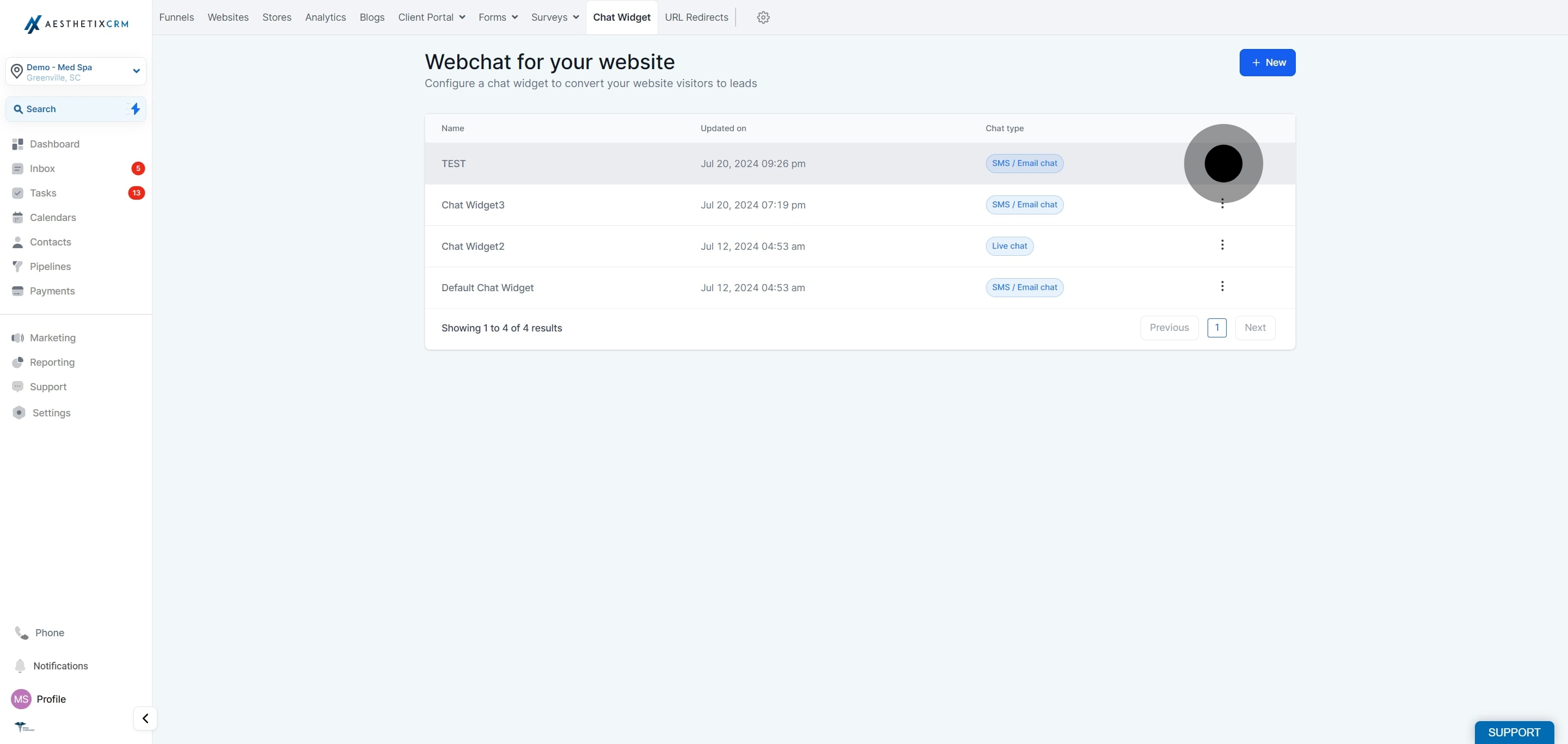
Locate the chat widget you want to update, then click the three dots next to it.
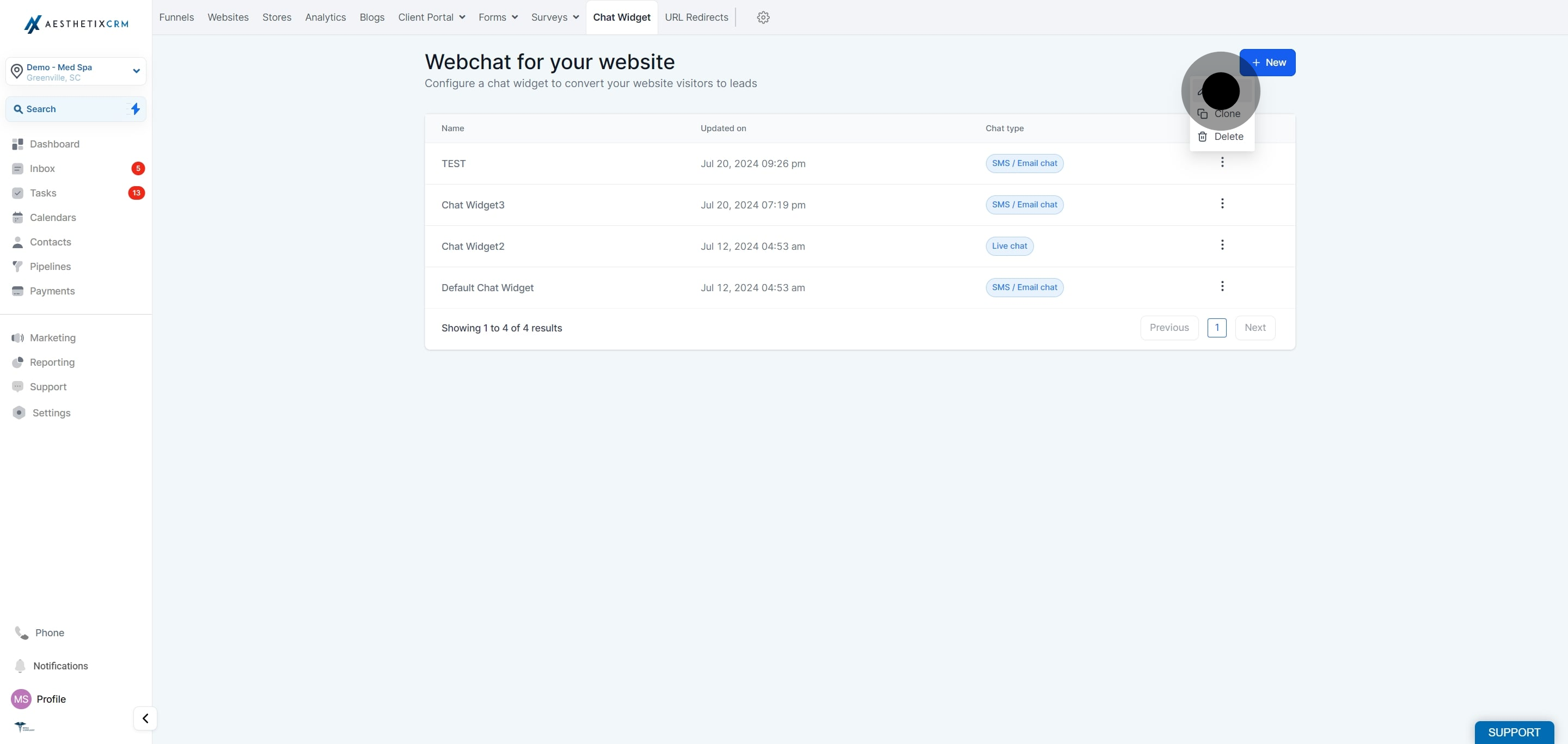
From the menu that appears, select Edit.
You can now make any changes you need to the chat widget, such as adjusting the Chat Window, updating messaging, or refining the appearance.
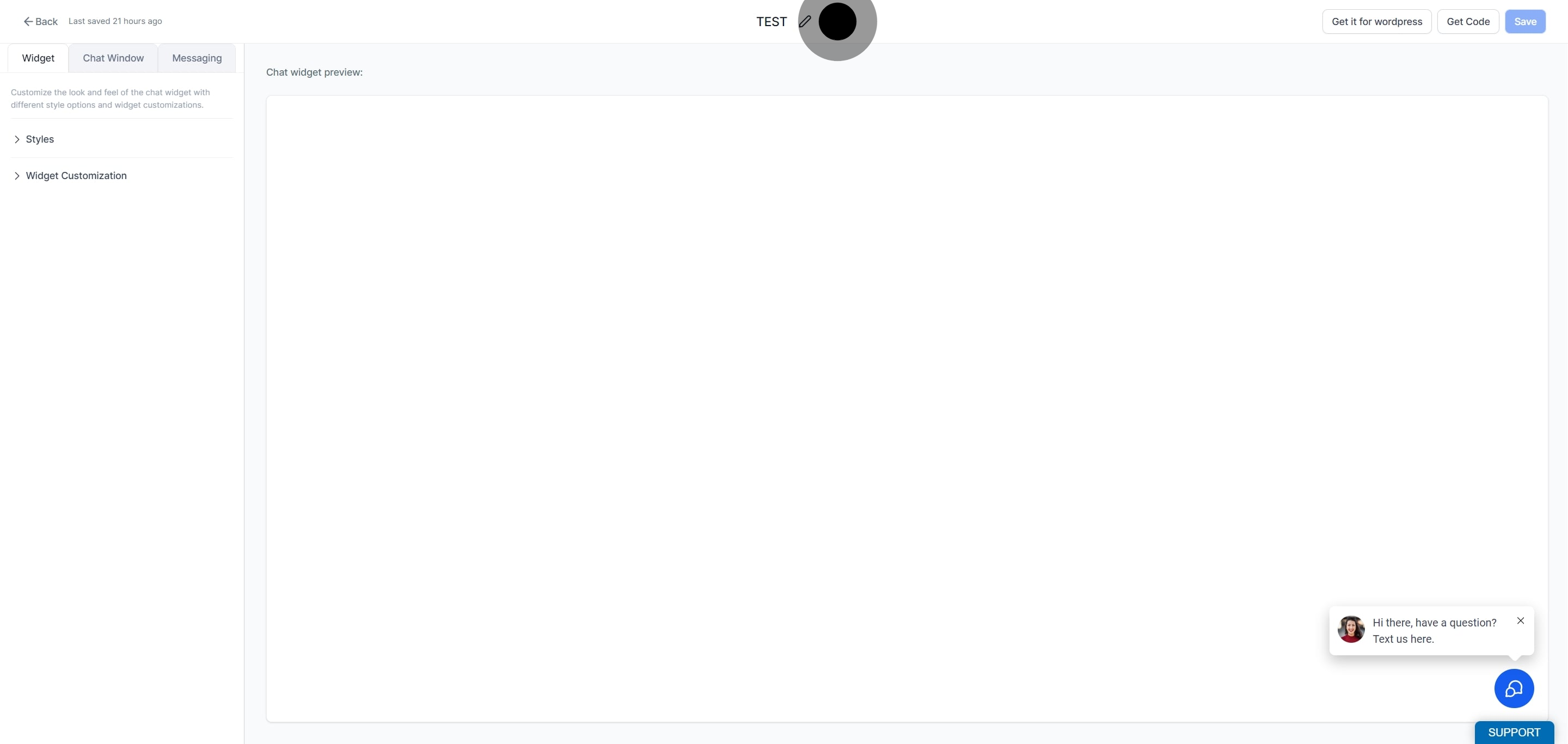
Note: Be sure to save your changes before leaving the editor so your updates take effect on your live widget.
Chat widget forms can attract a high volume of fake or bot-generated submissions, which waste messaging credits and can hurt your sender reputation. Spam Protection automatically detects and tags these submissions, without adding a CAPTCHA or slowing down real visitors.
When a submission is flagged as suspicious, Aesthetix CRM still creates the contact record, but it:
Tags the contact with chat_widget_high_volume_flag
Pauses outbound messaging on the channel(s) you choose (SMS, email, or both)
Leaves calls, inbound messages, and every other Do Not Disturb (DND) setting untouched
The check runs on the server side, so it never adds extra form fields, a CAPTCHA, or a visible delay for genuine visitors.
Choose one of four protection levels for each widget:
Tag Only - Flags the contact but does not pause any messaging.
Pause SMS - Flags the contact and pauses SMS only. Email stays enabled.
Pause Email - Flags the contact and pauses email only. SMS stays enabled.
Pause Both - Flags the contact and pauses SMS and email. This is the default for new widgets.
From the left navigation menu, select Web Tools, then Chat Widget.
Open the widget you want to configure.
In the builder sidebar, expand the Spam Protection section.
Toggle Spam Protection on, then choose a protection level.
Click Save. Protection applies to submissions received after you save.
Note: New chat widgets have Spam Protection enabled by default with Pause Both selected. Existing widgets default to off until you turn it on.
If you expect a legitimate spike in submissions, such as a product launch, paid ad campaign, or press mention, you can temporarily turn Spam Protection off before the event and turn it back on once submission volume returns to normal.
Flagged contacts appear in your Contacts list with the tag chat_widget_high_volume_flag. Review them periodically to catch genuine leads that were flagged by mistake:
Go to Contacts and filter by the tag chat_widget_high_volume_flag.
Open a contact and check its activity log for the entry "DnD enabled by chat widget spam protection" to see which channel was paused.
If the lead is genuine, remove the DND setting on the paused channel(s) and remove the tag. Messaging resumes immediately.
If the lead is confirmed spam, delete the contact.
Where do I find my chat widgets in Aesthetix CRM? Your chat widgets live under Web Tools > Chat Widget. This is where you can view, create, and edit every widget in your account.
Can I edit a widget that is already published on my website? Yes. Editing an existing widget updates its settings, and your changes apply to the live widget on your website once saved. You do not need to re-embed the widget code.
What kinds of settings can I change when editing a widget? You can update the chat window, welcome and greeting messages, colors and branding, spam protection, and other behavior and appearance options for the widget.
Do I need to update my website code after editing a widget? No. As long as you are editing an existing widget rather than creating a new one, the embed code stays the same and your edits appear automatically on your site.
How do I open the edit options for a specific widget? Click the three dots next to the widget you want to change, then choose Edit from the menu.
Will my changes take effect immediately? Your edits apply once you save them in the widget editor. Refresh your website to confirm the updated widget appears as expected.
Does Spam Protection add a CAPTCHA or extra steps to my chat widget? No. Spam Protection runs on the server side and does not change the visitor-facing form. Legitimate visitors see no CAPTCHA, no extra fields, and no delay.
Are flagged submissions deleted automatically? No. Flagged contacts are still created and tagged with chat_widget_high_volume_flag. Outbound messaging is paused on the channel(s) you selected, but the contact stays in your account for you to review and restore if it is genuine.
