A live chat widget lets website visitors get instant answers, which keeps prospective patients engaged and turns them into booked appointments. This guide walks you through creating a chat widget in Aesthetix CRM and installing it on your practice website.
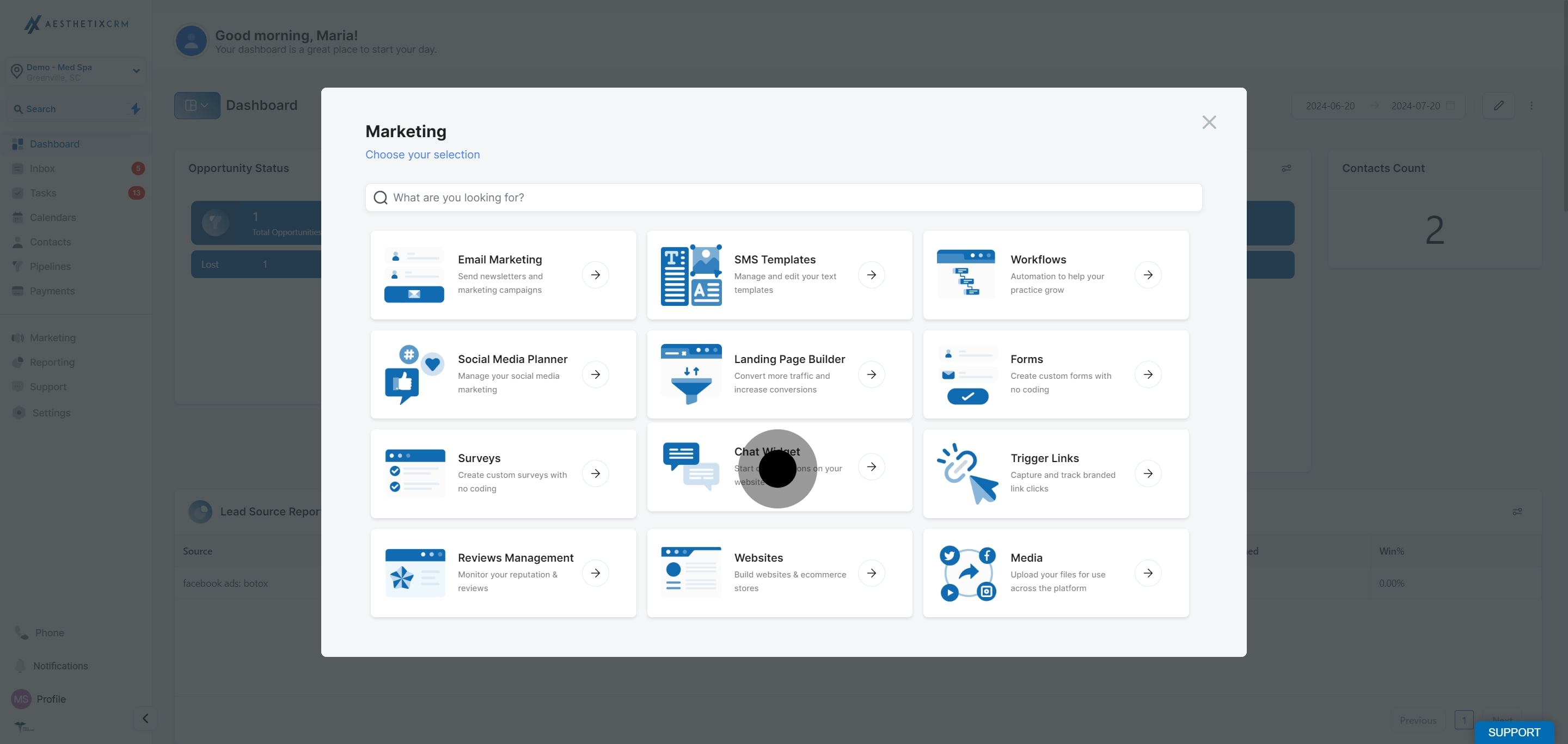
From the left menu, open Web Tools.

Click Chat Widget.
Click New.

Choose the type of chat you want. Your options are All-in-one chat, SMS / Email chat, Live Chat, and WhatsApp.
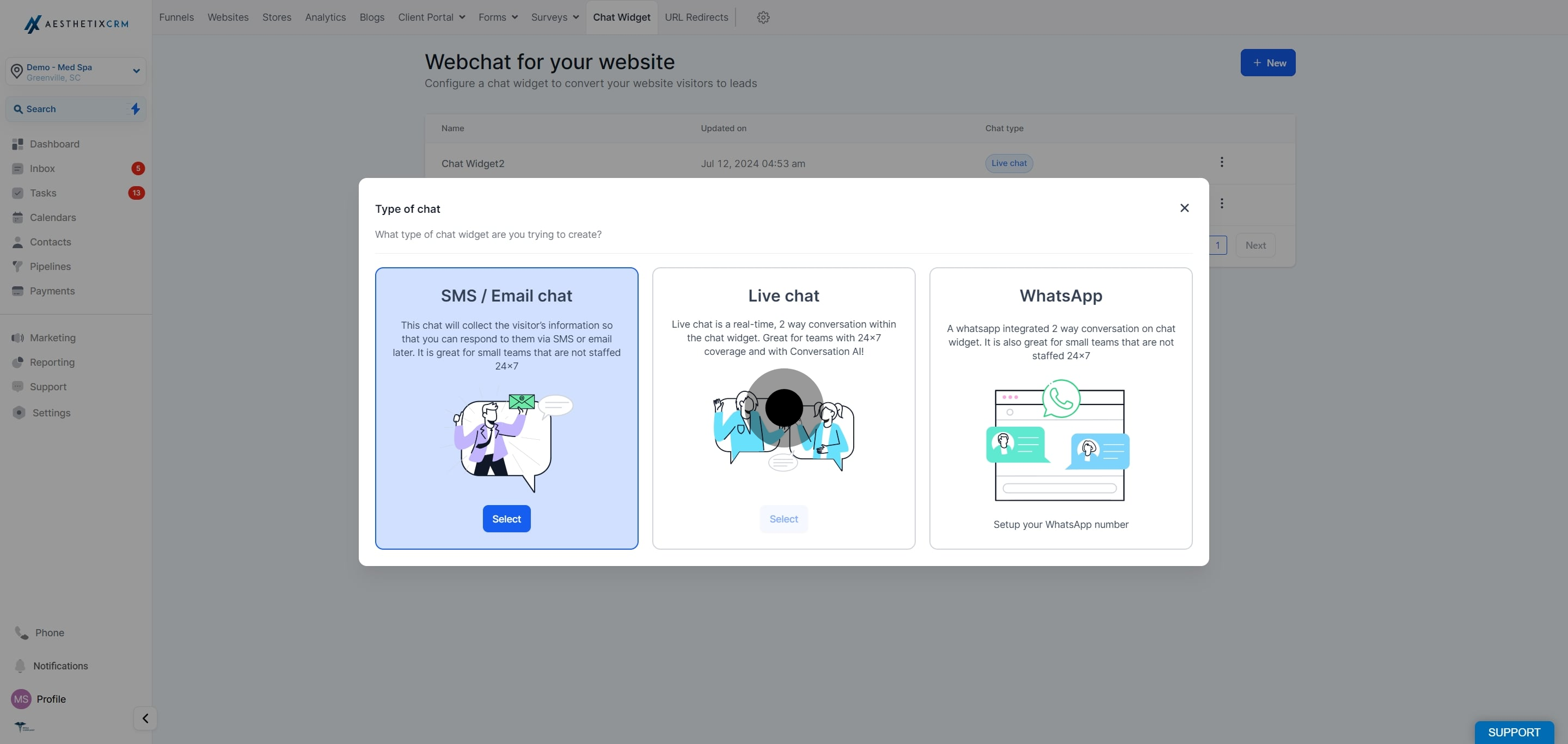
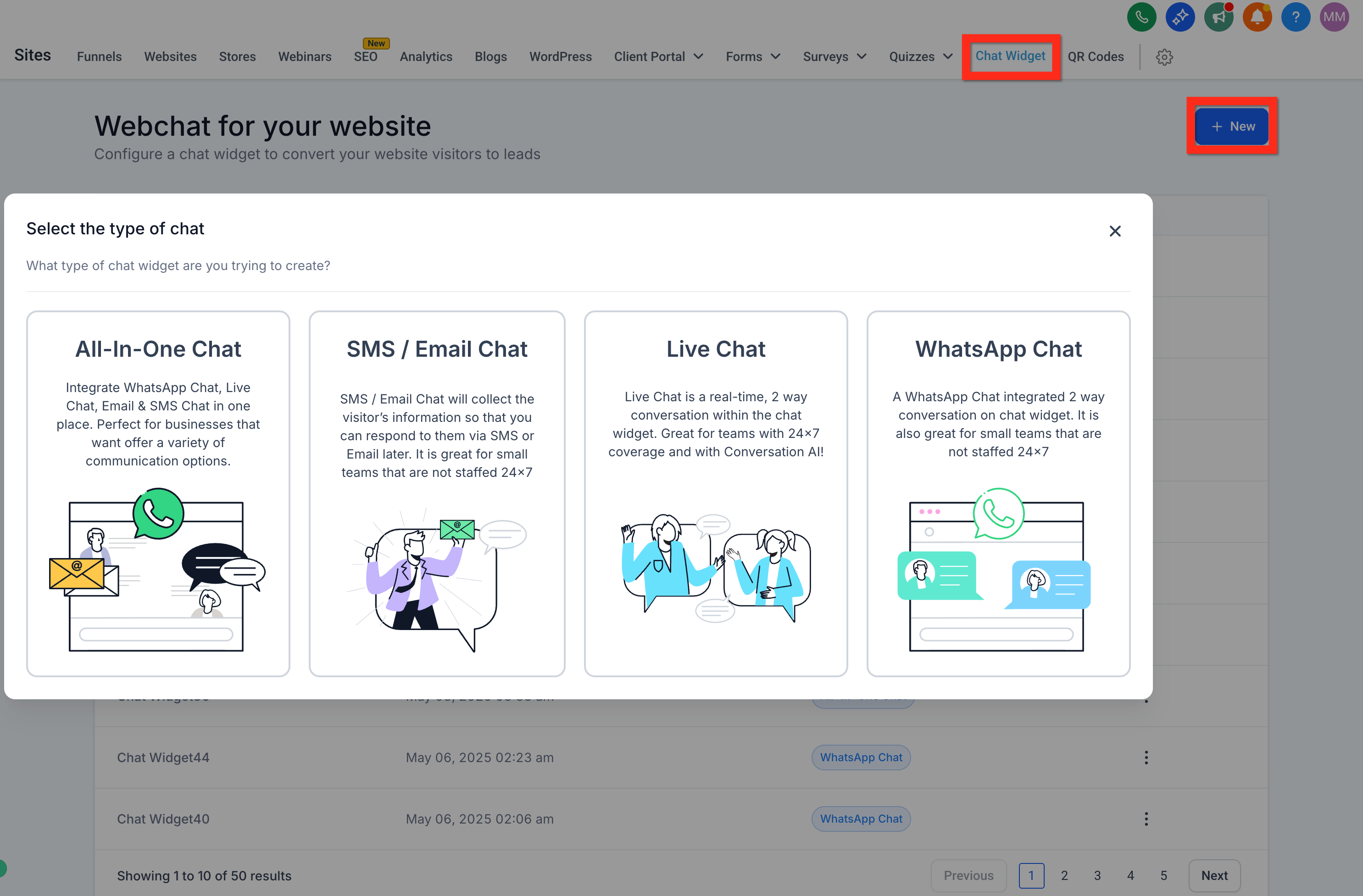
For a standard chat experience, select Live Chat.
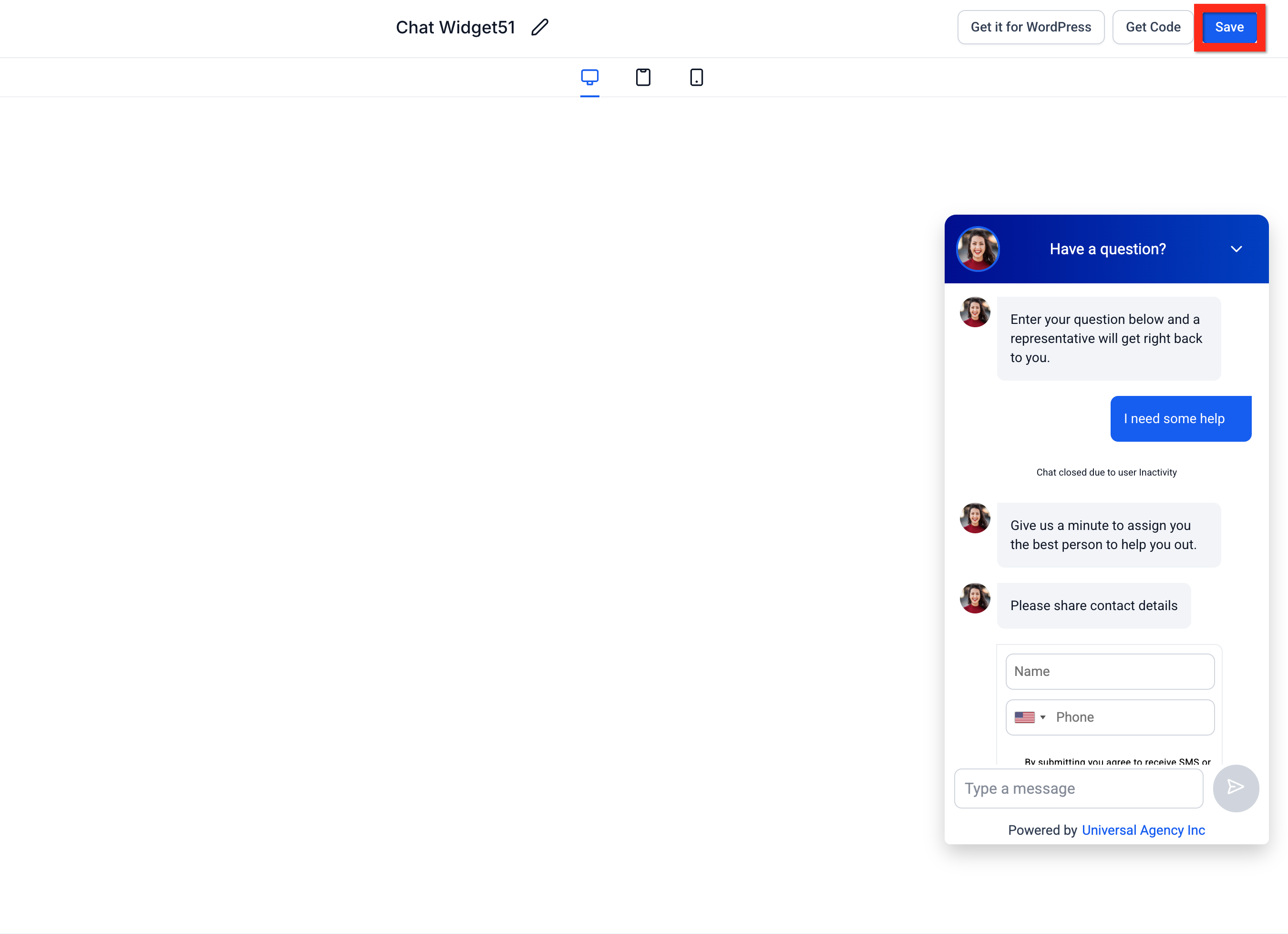
Customize the widget to fit your practice's branding.
Click Save.
**
**
If you plan to install on a WordPress site, click Get it for WordPress.
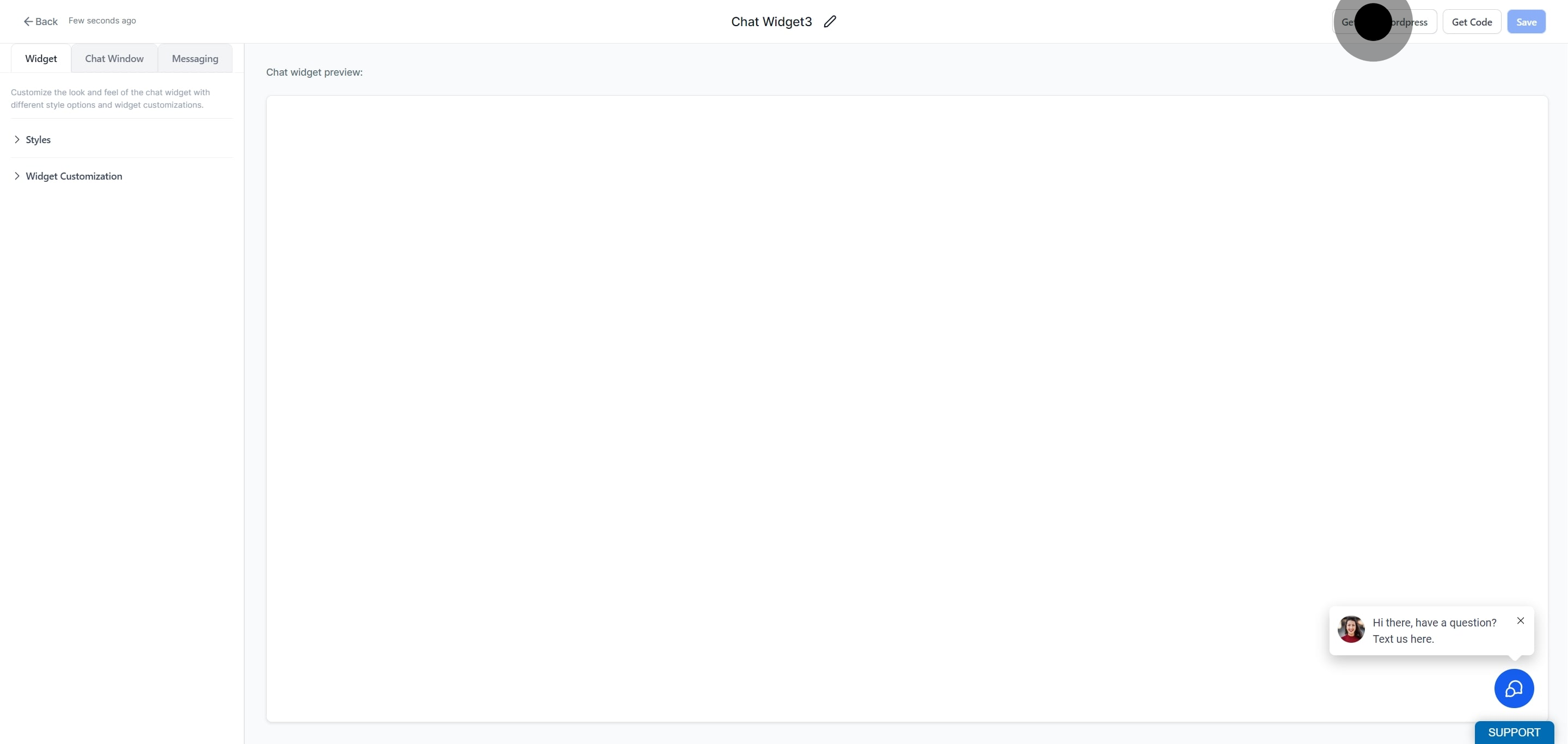
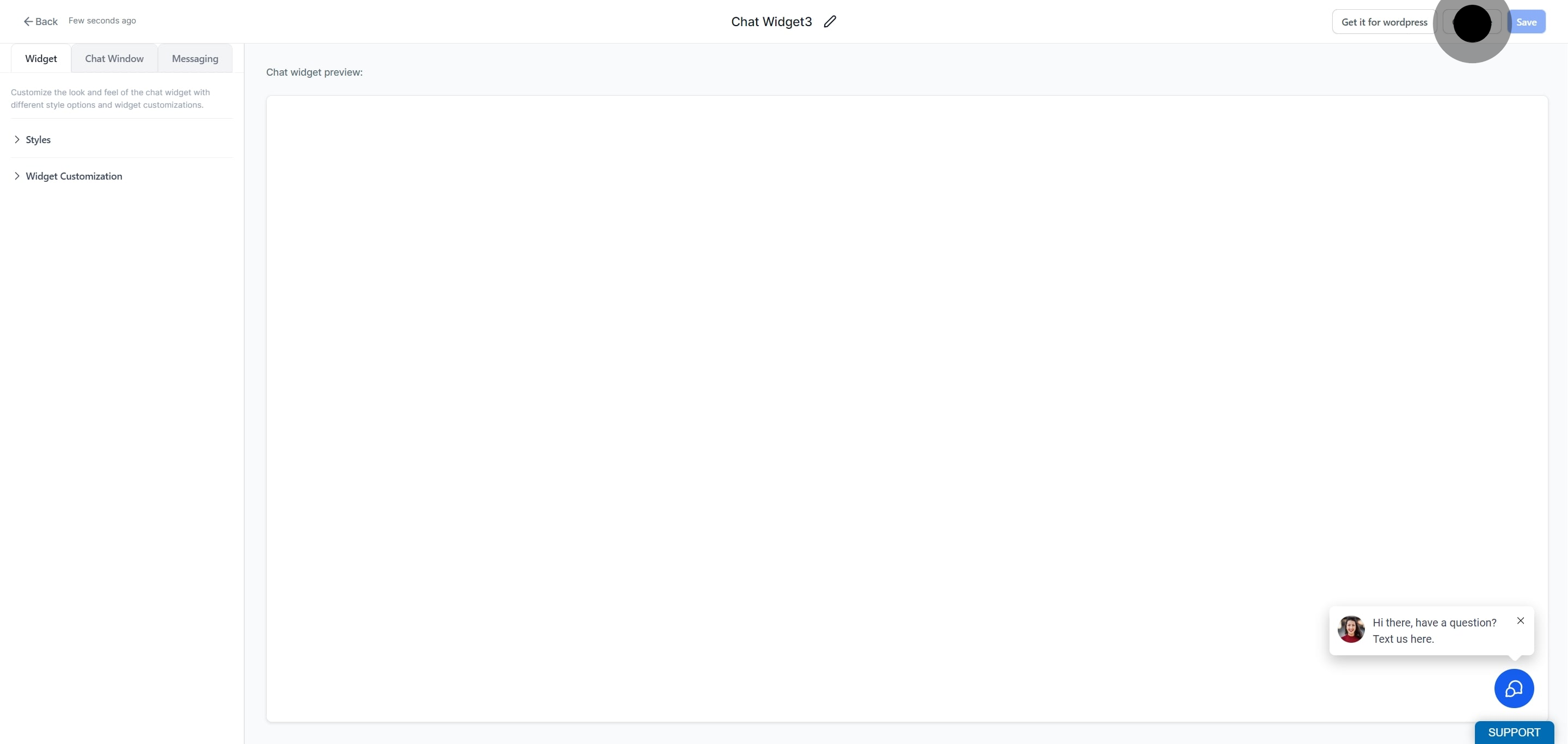
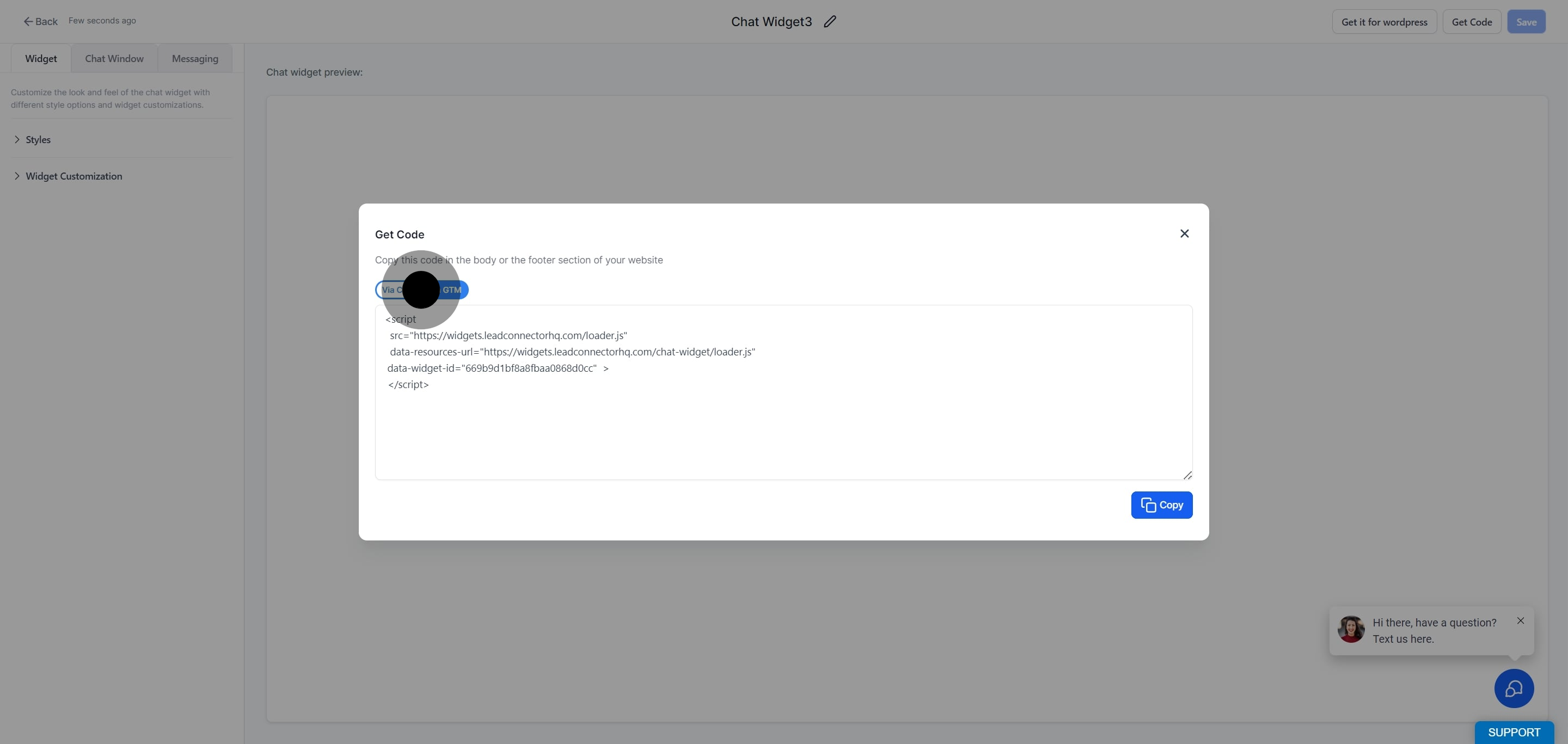
Click Get Code.
Your chat widget code appears in a panel.
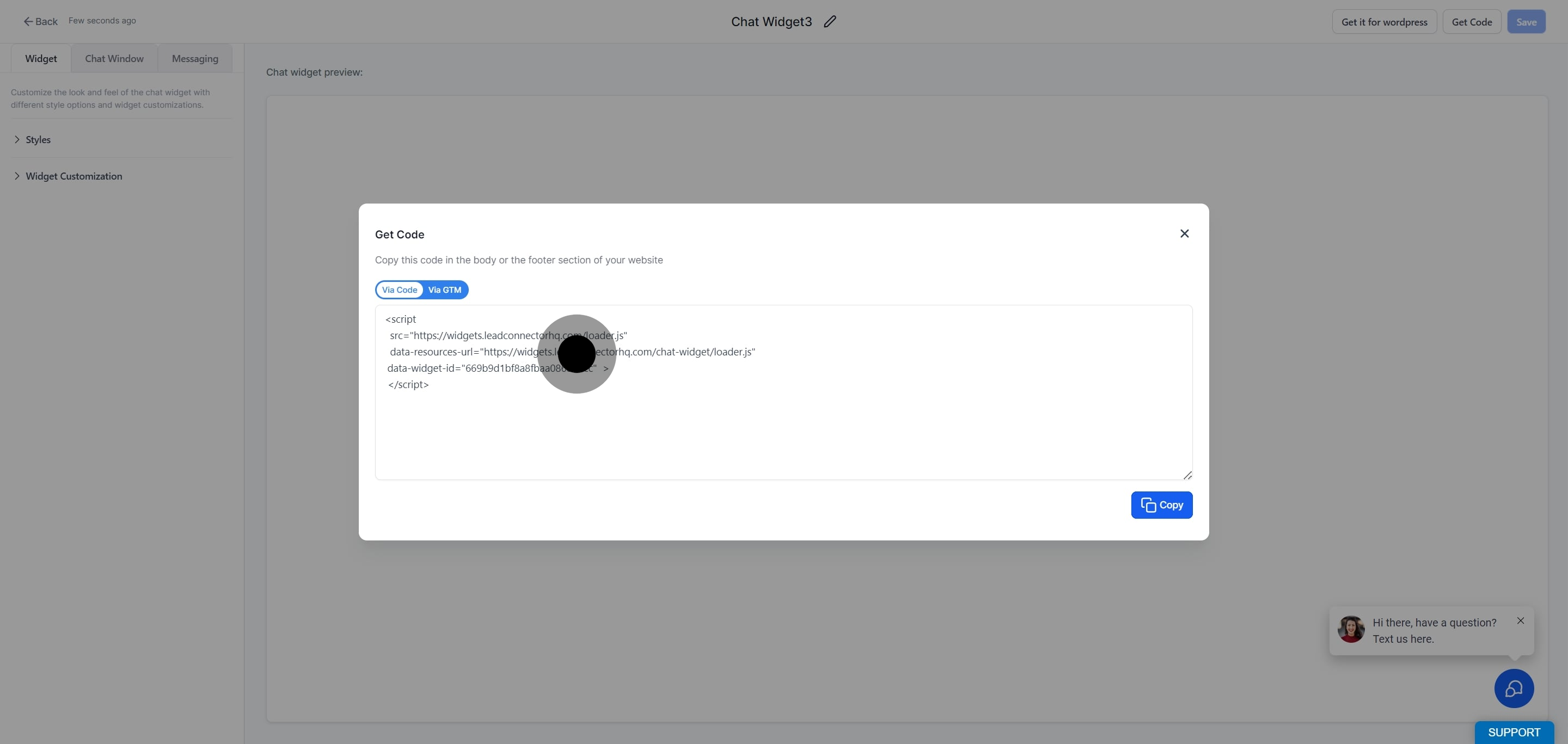
Click Copy to copy the embed code.
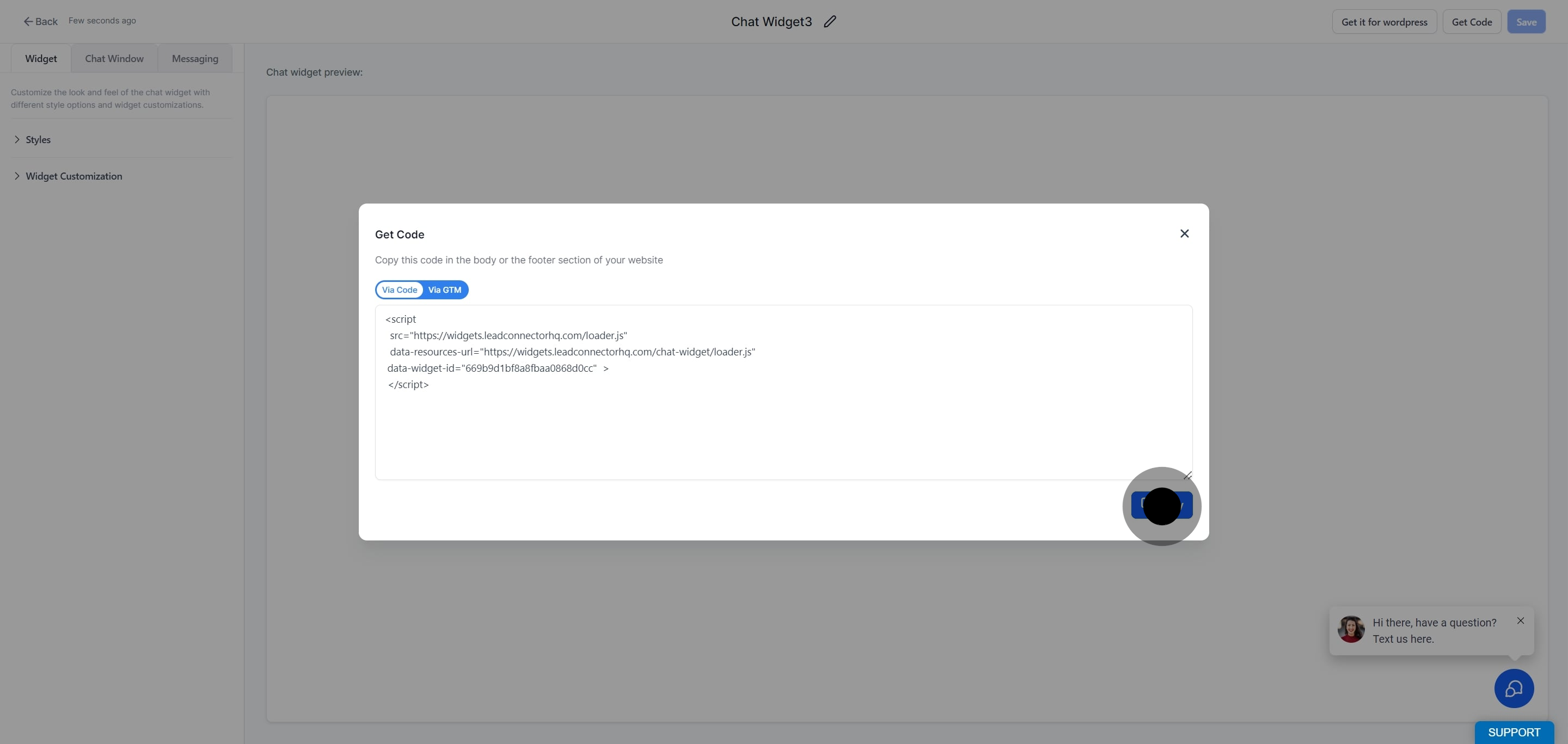
Note: You have the freedom to choose your preferred method for installing the code. You can either use Google Tag Manager or directly copy and paste the raw code into the header of your website or application.
If you are comfortable adding scripts directly into your website or funnel, you can embed the chat widget right in the editor.
Open your website or funnel and open it for editing.
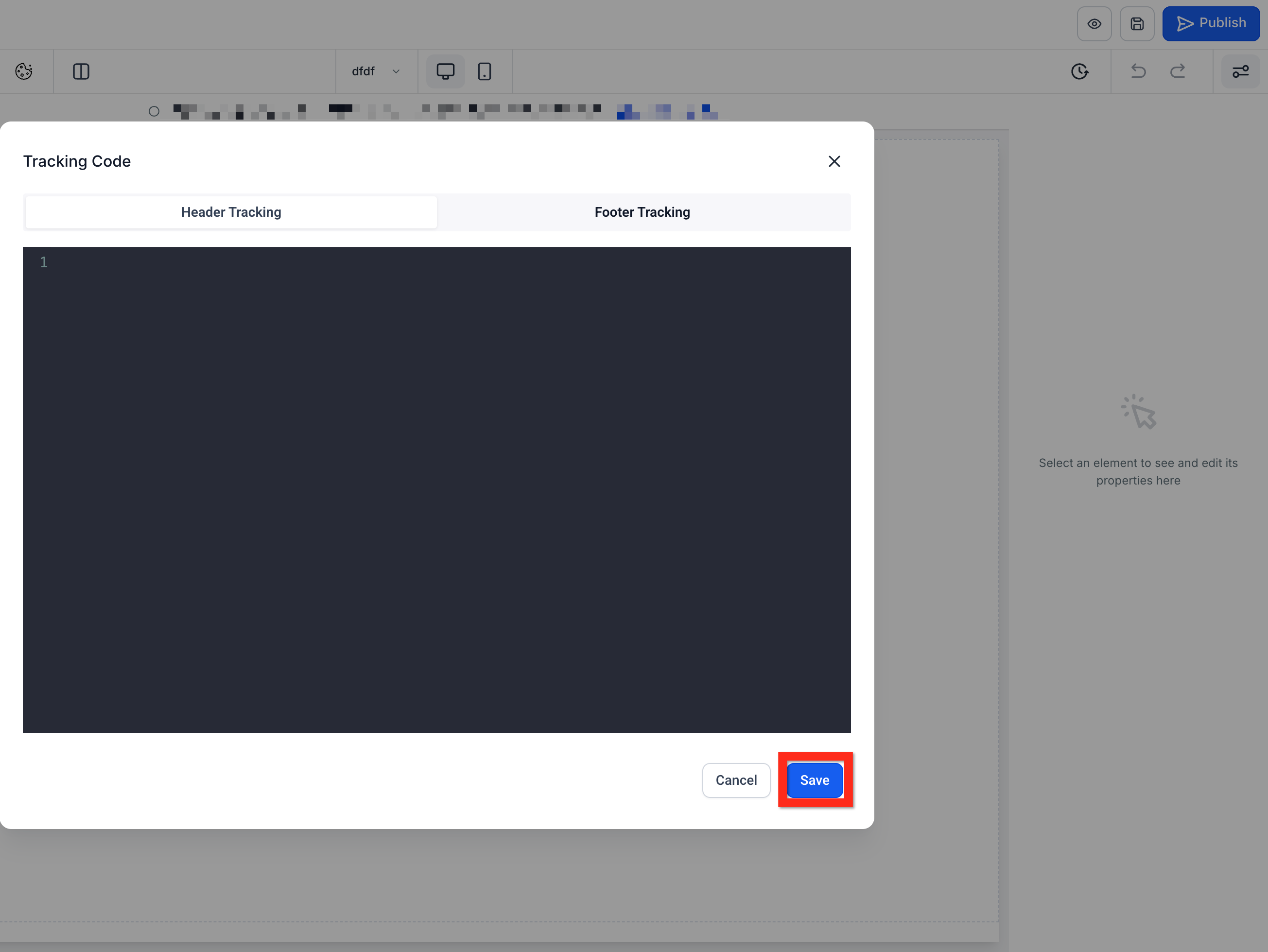
In the editor, click the Tracking Code icon (</>).
Paste the copied chat widget code.
Click Save.

**
**
Prefer to skip the code entirely? You can deploy your widget straight from your website settings, which is ideal if you would rather not work with code.
Open your website or funnel and open its settings.
Under the Chat Widget section, select your live chat widget.
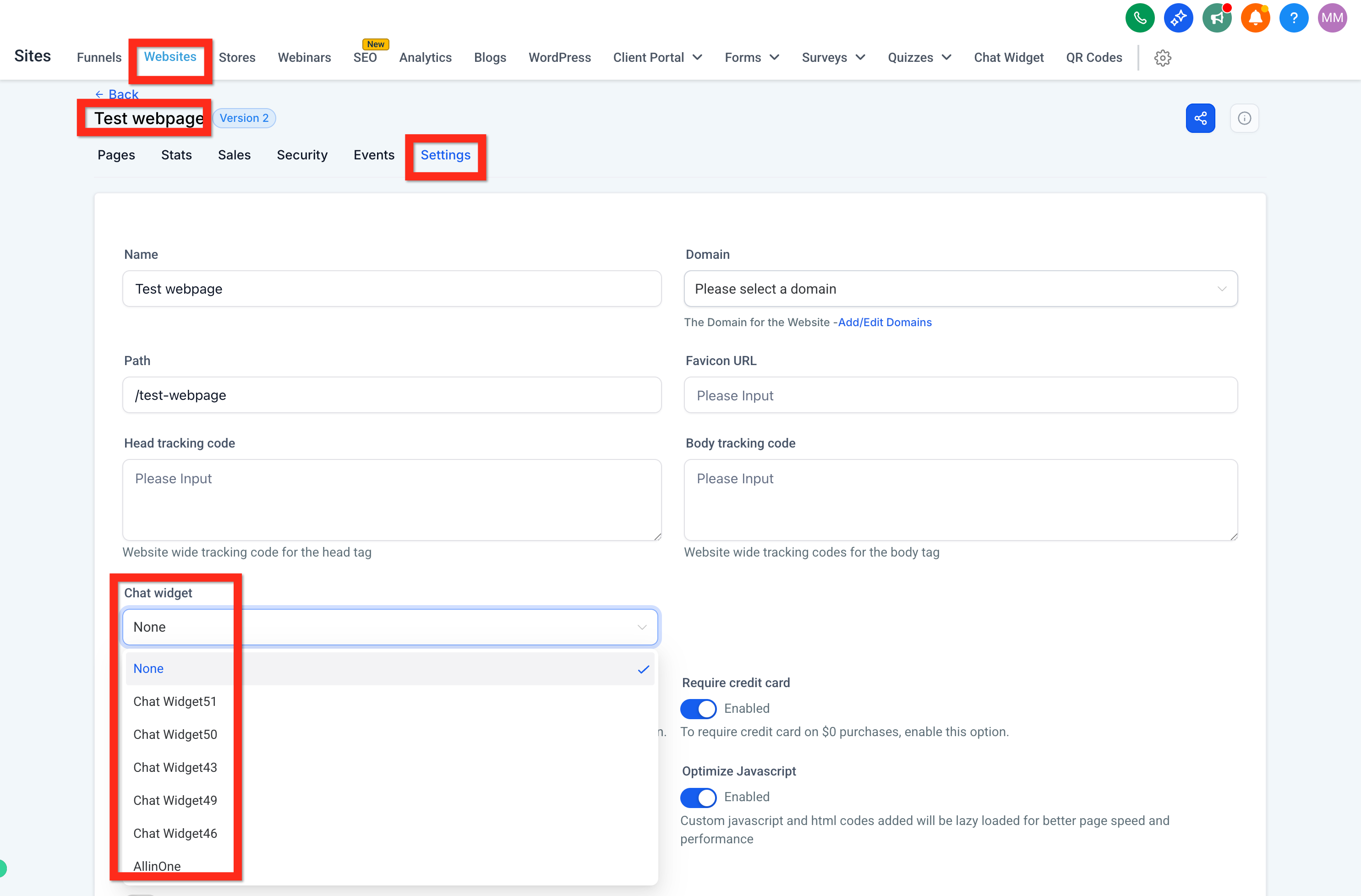
Click Save.
**
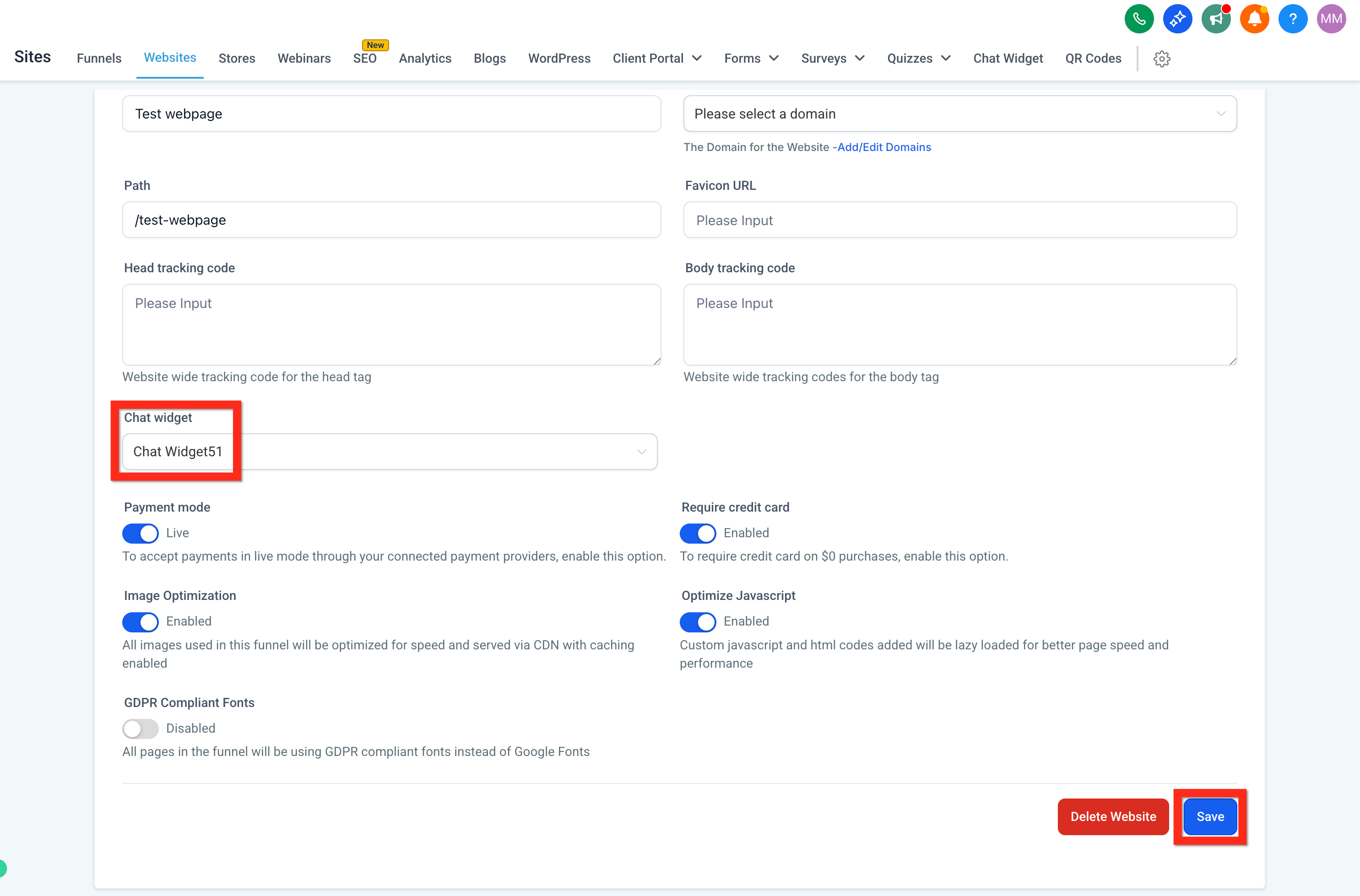
**
Once installed, incoming conversations from your widget arrive in your Inbox, where your team can respond in real time.
Where do I find the Chat Widget in Aesthetix CRM? Open Web Tools from the left menu, then click Chat Widget. From there you can create new widgets and manage existing ones.
What types of chat widgets can I create? When you click New, you can choose from All-in-one chat, SMS / Email chat, Live Chat, and WhatsApp. Select the option that best fits how you want patients to reach you.
Do I have to use code to install the widget? No. You can either paste the embed code directly into your website's header using the Tracking Code editor, or deploy the widget through your website settings without touching any code.
Can I install the widget on a WordPress site? Yes. When getting the code, click Get it for WordPress for instructions tailored to WordPress, or use the standard embed code with a plugin or your site's header.
Can I use Google Tag Manager to install the widget? Yes. You can add the widget code through Google Tag Manager, or copy and paste the raw code directly into the header of your website or application.
Where do patient messages from the widget go? Conversations started through your chat widget appear in your Inbox, so your team can view and reply to them in one place.
Can I customize how the widget looks? Yes. When creating or editing a widget, you can customize it to match your practice's branding before saving.
Can Conversational AI answer chats from this widget? Yes. A Live Chat widget can be connected to your team, Conversational AI, or both, so visitors get a response even when your team is unavailable. See the "Chat Widget Overview" guide to set this up.
