The Chat Widget is a messenger box you embed on your practice website so visitors can start a real-time conversation with your team. It gives prospective and current patients an easy, low-pressure way to ask questions, request pricing, or book a consultation right from the page they are already on. Every message routes directly into your Inbox, so your front desk can respond from one place.
Adding a chat widget is one of the most effective ways to turn website visitors into booked patients. It lets you offer immediate help when and where patients need it, which builds trust and keeps interested visitors from leaving to find another practice.
The Chat Widget is an embeddable messenger that lets website visitors start conversations with your team through several channels, including Web Chat (labeled as Live Chat in setup), Email/SMS, Facebook, Instagram, WhatsApp, and Voice AI. No matter which channel a patient uses, the conversation is delivered straight into your Inbox, where your team can read, reply, and follow up.
Because everything lands in one place, you never have to watch multiple apps or accounts. A message from your website, your Facebook page, and your Instagram profile all arrive in the same Inbox thread view.
A chat widget helps your practice engage patients, improve responsiveness, and book more consultations. Key advantages include:
Real-time support: Patients get instant answers to their questions, reducing wait times and improving their experience with your practice.
A better patient experience: Questions can be resolved immediately, which increases satisfaction and loyalty.
More booked consultations: Offering help at the moment a visitor is interested encourages them to reach out instead of leaving your site.
Higher engagement: Proactively greet visitors based on their behavior, such as spending time on a specific treatment page.
Time savings: Automating answers to common questions reduces the volume of inquiries your team handles manually.
Greater efficiency: Your team can handle multiple conversations at once, all from the Inbox.
Note: Patients may type personal or health details directly into a live chat. Handle these conversations per your practice's HIPAA policies, and avoid requesting protected health information (PHI) through chat.
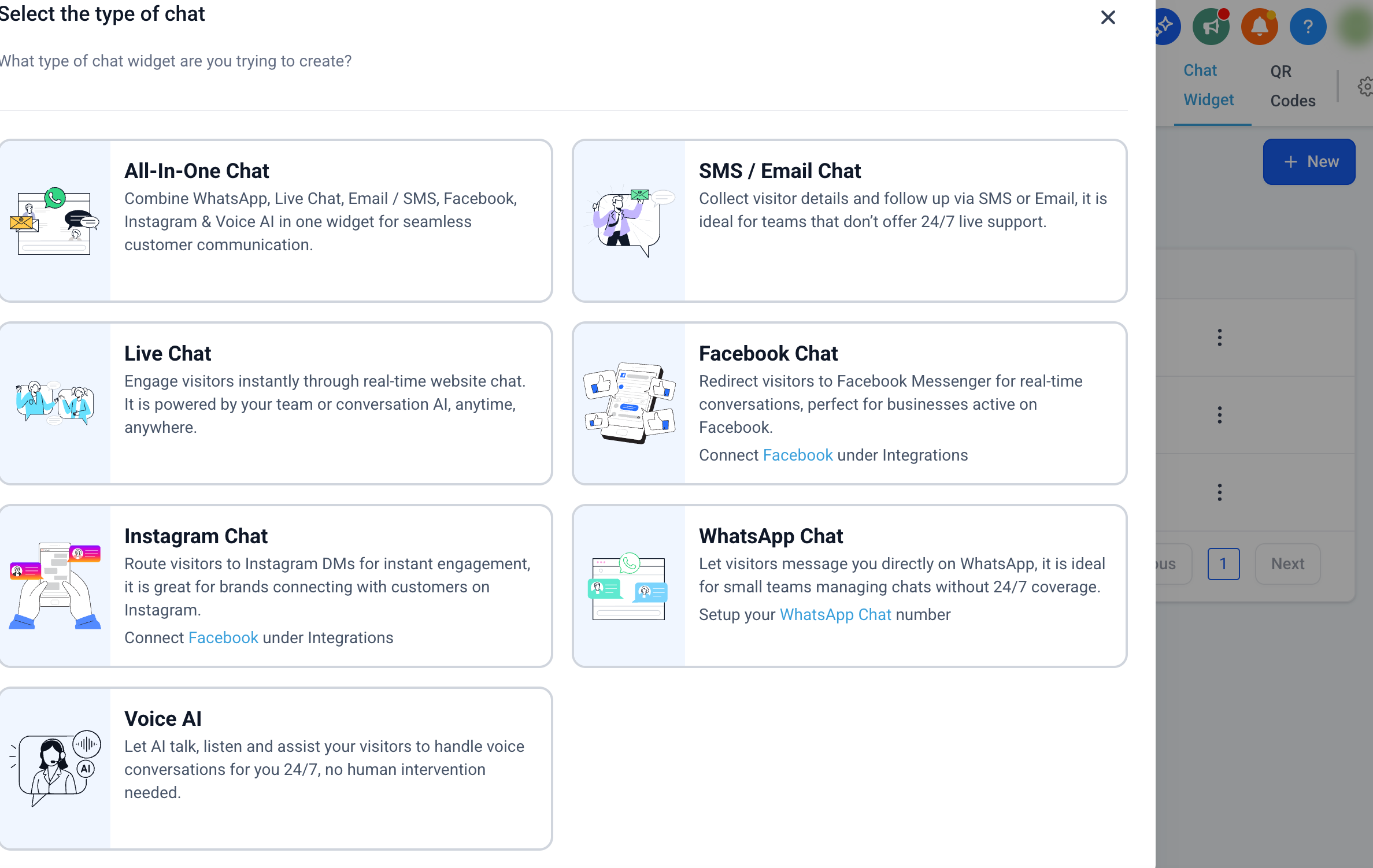
The Chat Widget is available in several types. You choose one when you create a new widget, and each type routes conversations into your Inbox.
The All-In-One Chat widget combines multiple channels (Live Chat, Email/SMS, WhatsApp, Facebook, Instagram, and Voice AI) into a single chat experience. In the Style tab, use the Chat Type multi-select to choose which of your connected channels appear in the widget.
**
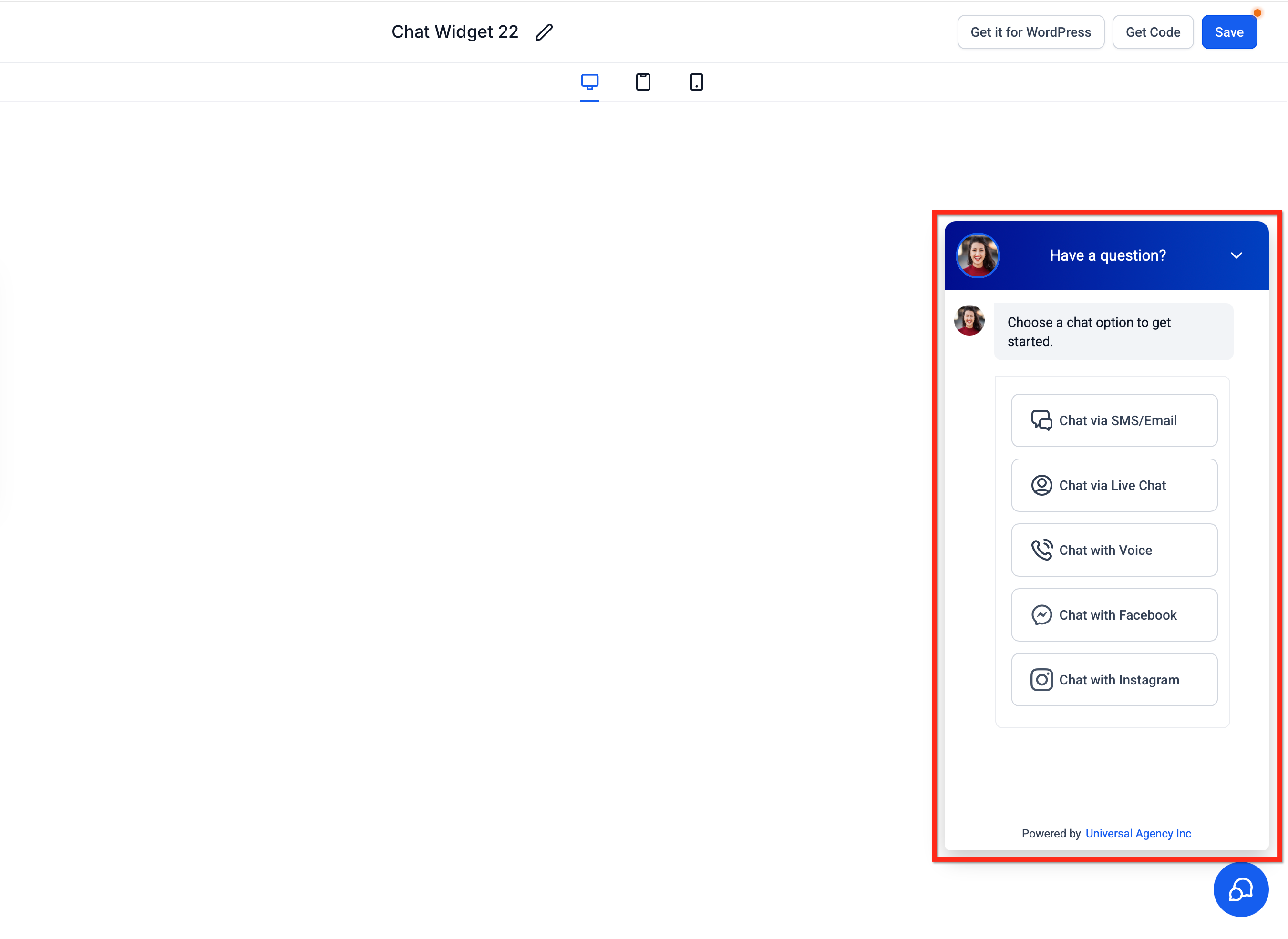
This chat collects the visitor's contact information so you can respond by SMS or email later. It is a great fit for smaller teams that are not staffed around the clock.
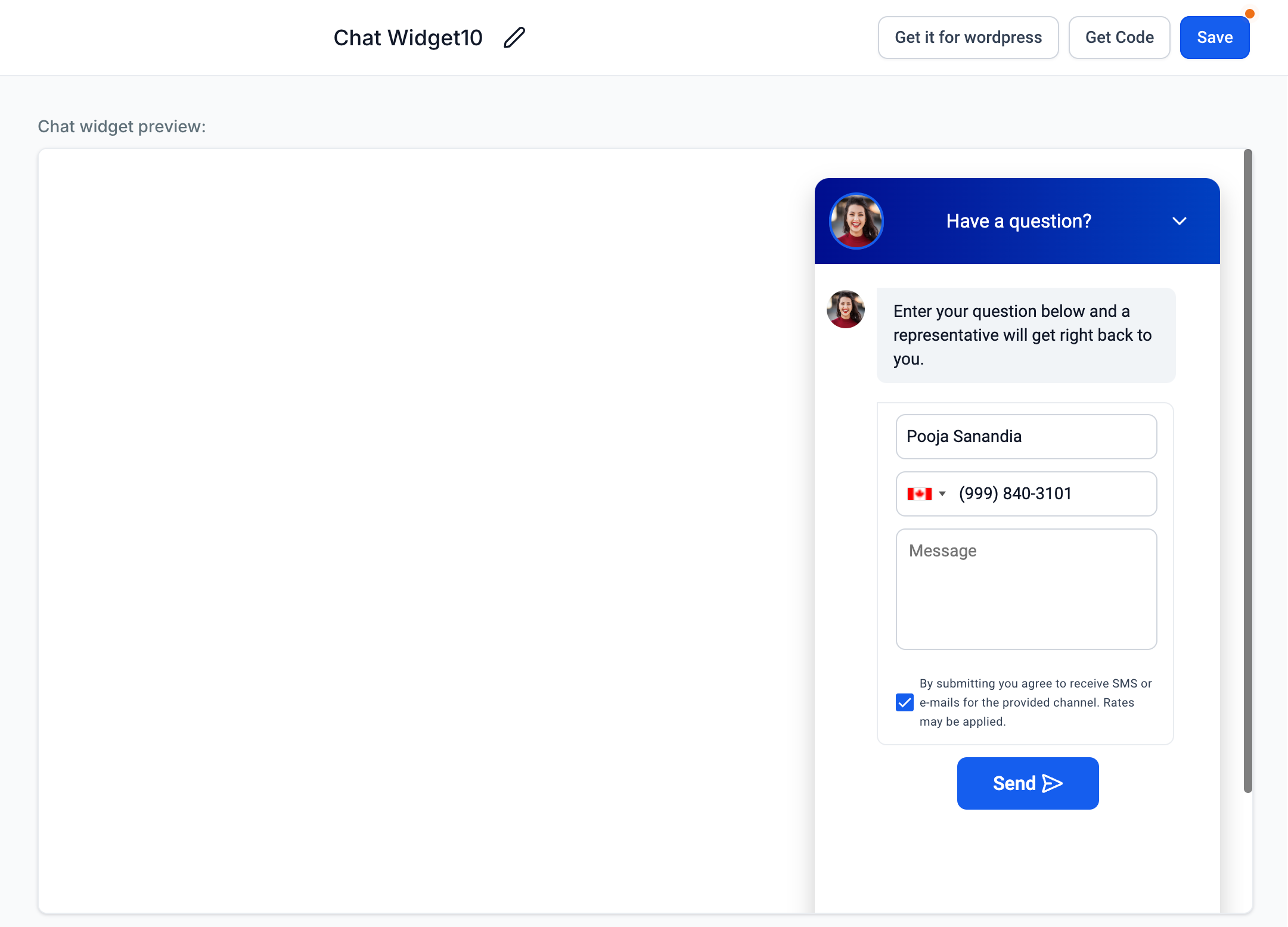
Live Chat (Web Chat) is a real-time, two-way conversation inside the chat widget that routes website visitor messages directly into your Inbox. This option is labeled "Live Chat" during setup but refers to the Web Chat channel used for website messaging. It is ideal for teams that can offer real-time coverage.
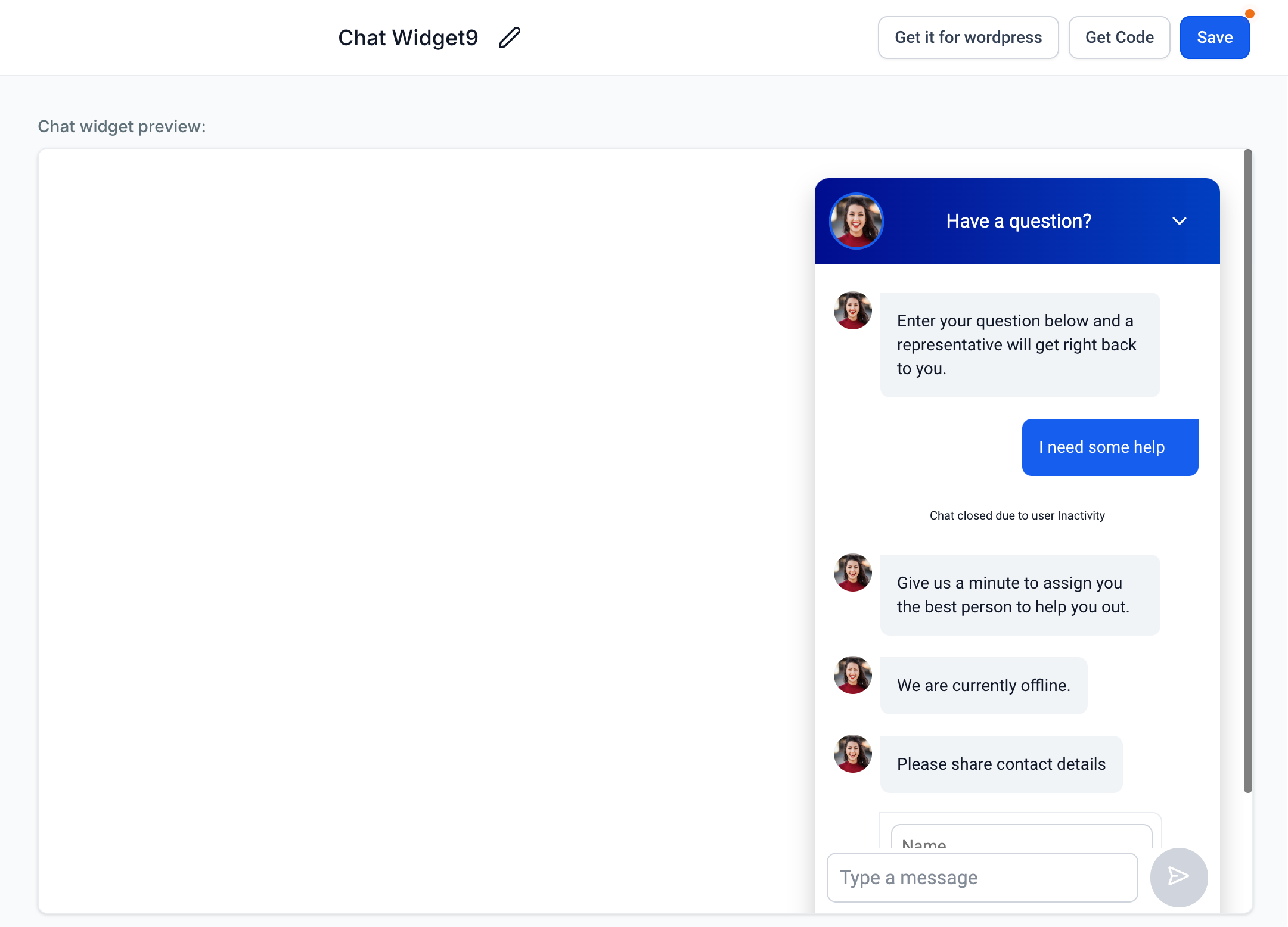
Facebook Chat lets visitors start a Messenger conversation with your connected Facebook page directly from your website. It is a great fit for practices that get a lot of inquiries and DMs through Facebook.
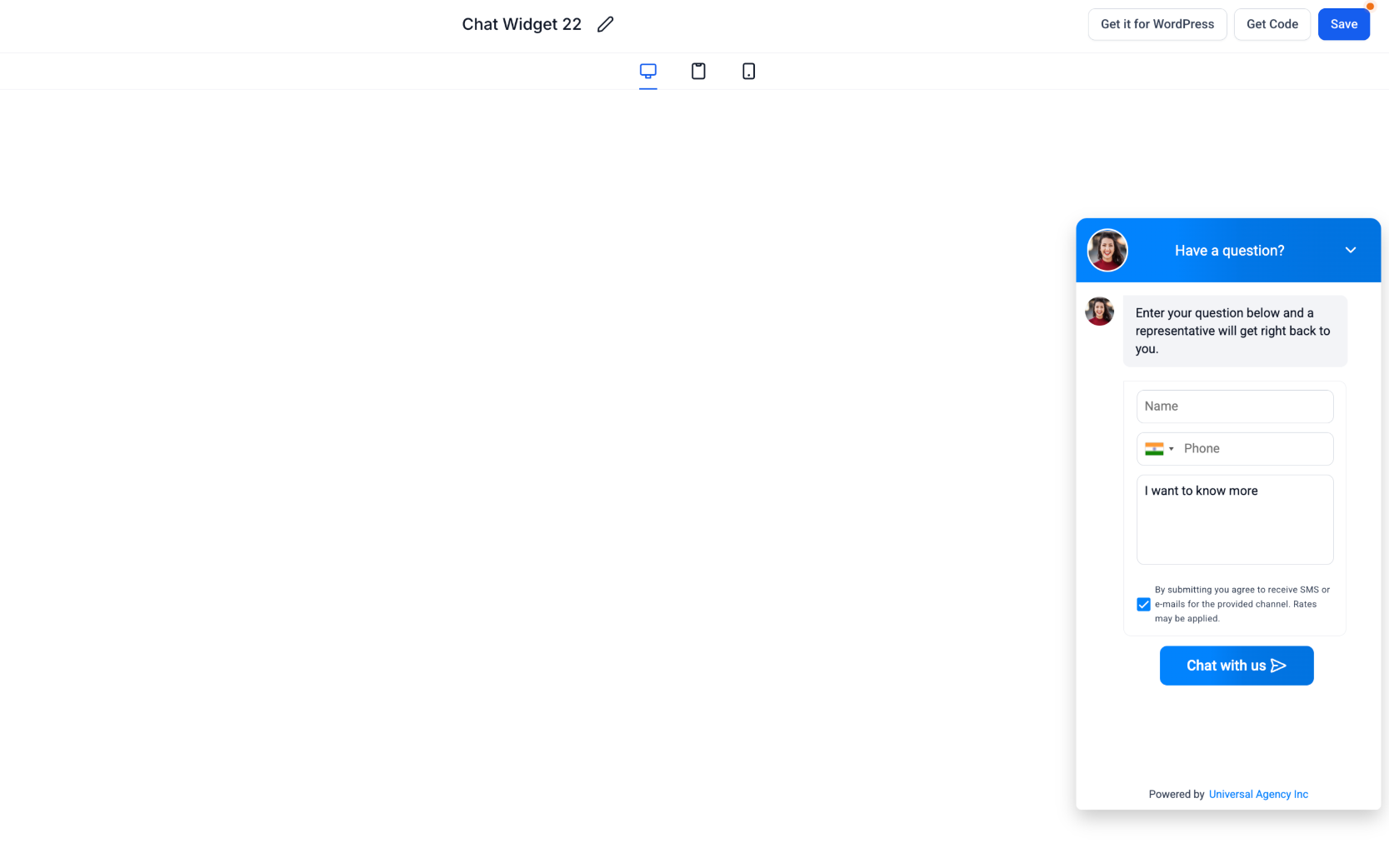
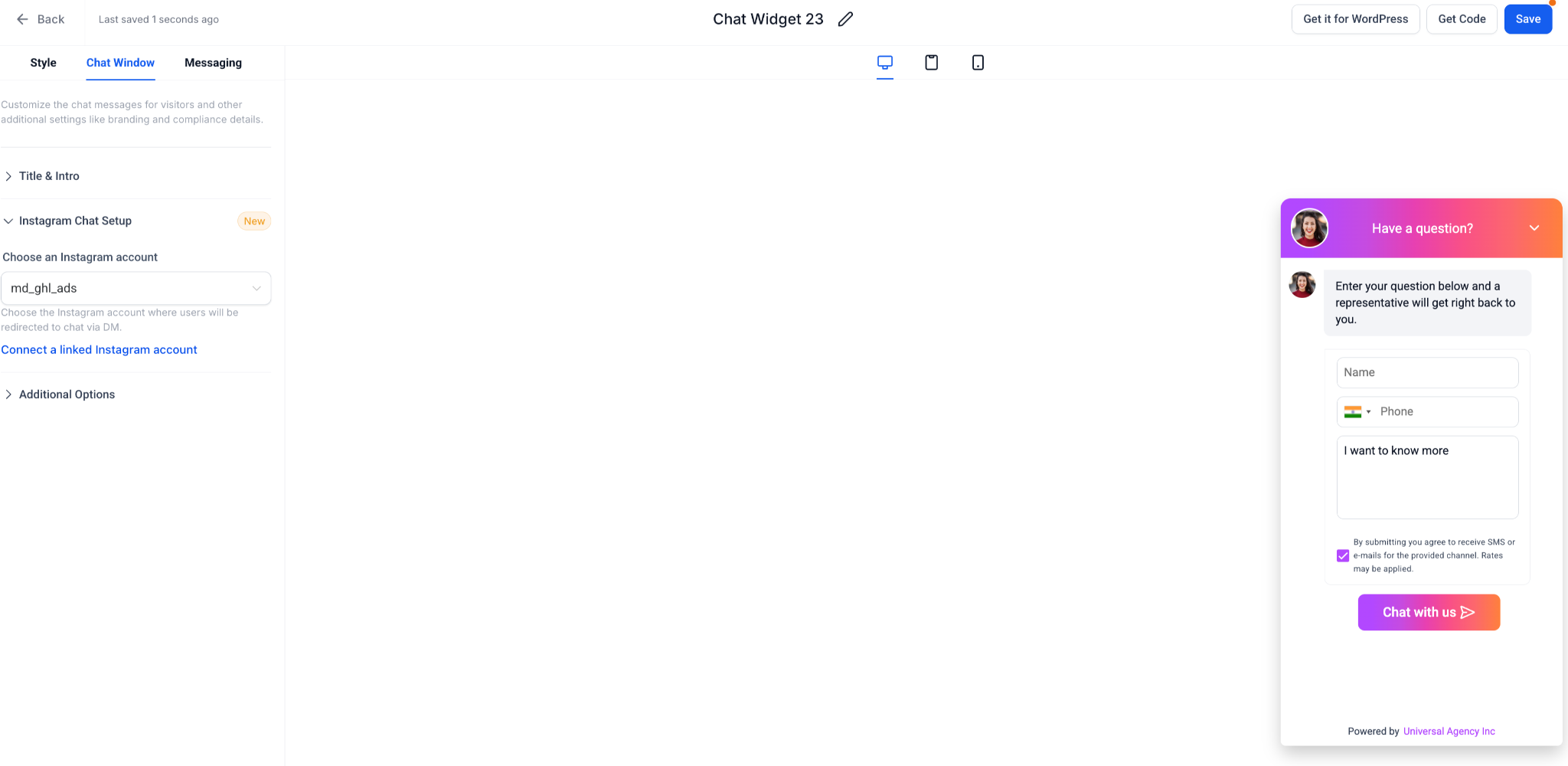
Instagram Chat lets website visitors start an Instagram DM thread with your connected Instagram Business account. After the first message, the conversation lives in both Instagram and your Inbox. This is ideal if most of your audience engages with you on Instagram.
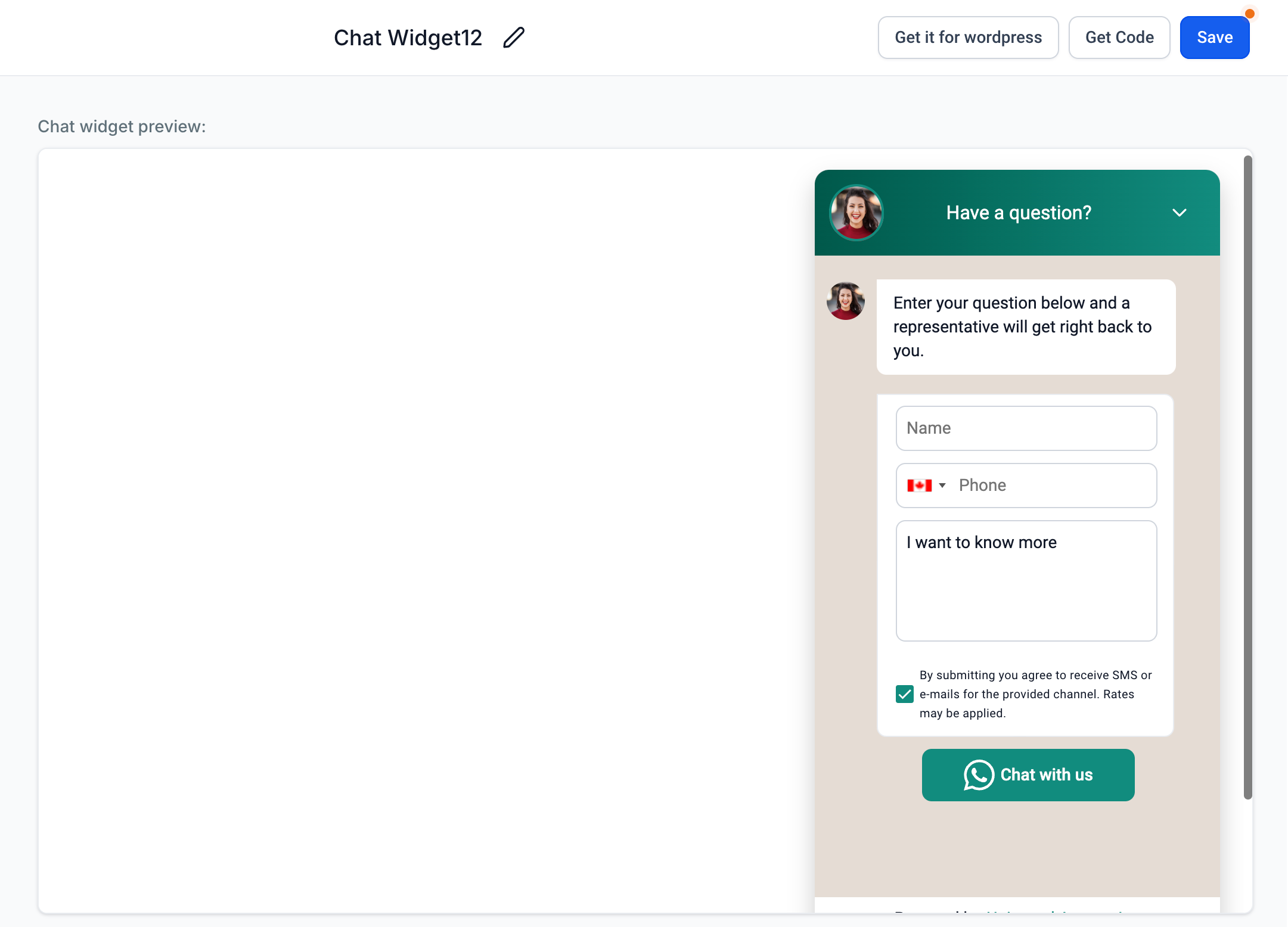
WhatsApp Chat provides a two-way conversation through WhatsApp inside the chat widget. You need a WhatsApp-approved number to use it. Like Email/SMS Chat, it works well for smaller teams that are not staffed around the clock.
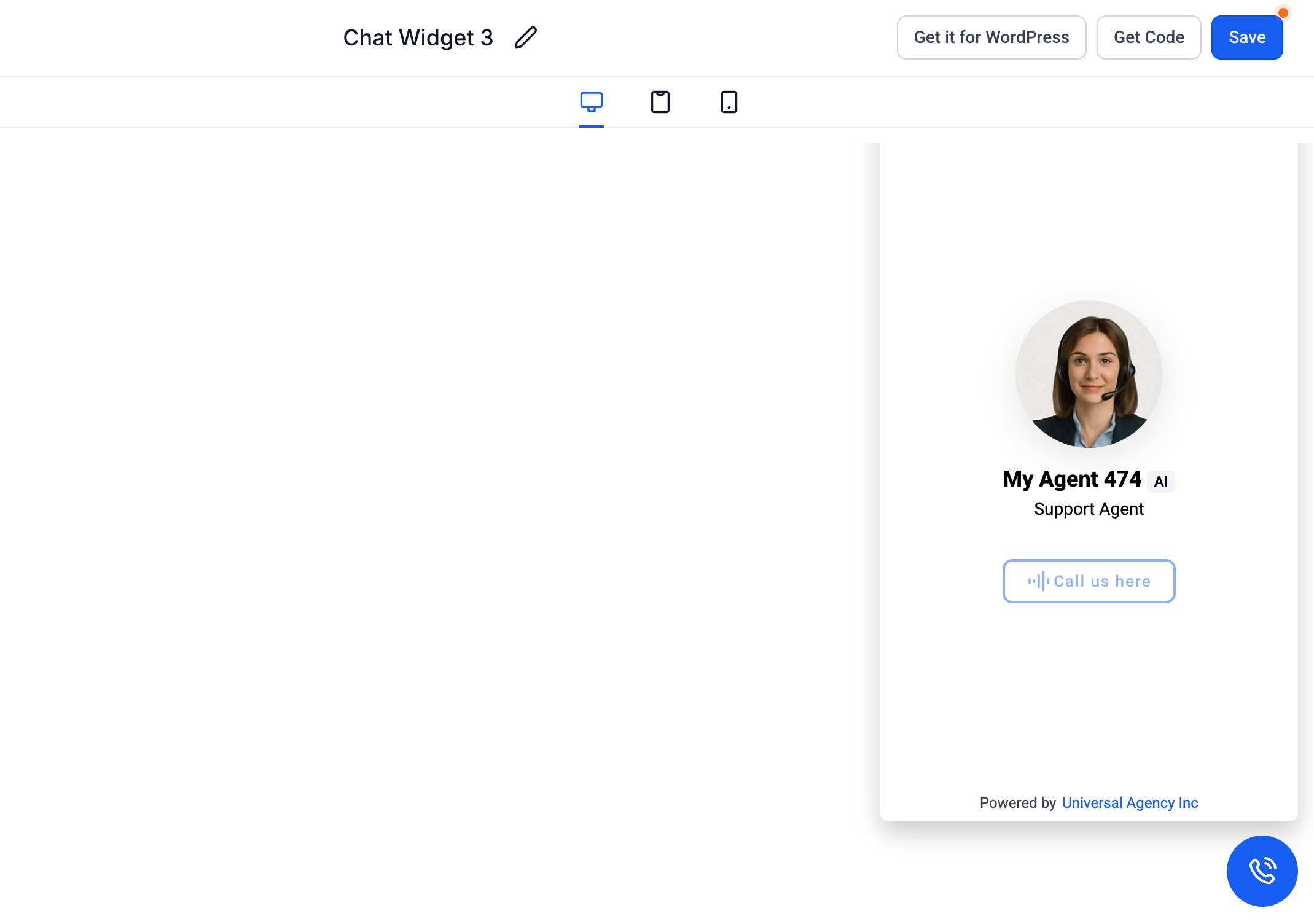
Voice AI Chat is a voice-first chat type that lets visitors talk to an AI agent through their browser. It is designed for around-the-clock, human-like voice conversations that can capture, qualify, and route new patient inquiries automatically. This is great if you want a "phone call" style interaction without needing a live receptionist.
You can use Conversational AI directly inside the chat widget to greet visitors and deliver instant answers around the clock, so every inquiry gets a response even when your team is away. Setup and advanced options are covered in your Conversational AI documentation.
Navigate to Web Tools > Chat Widget.
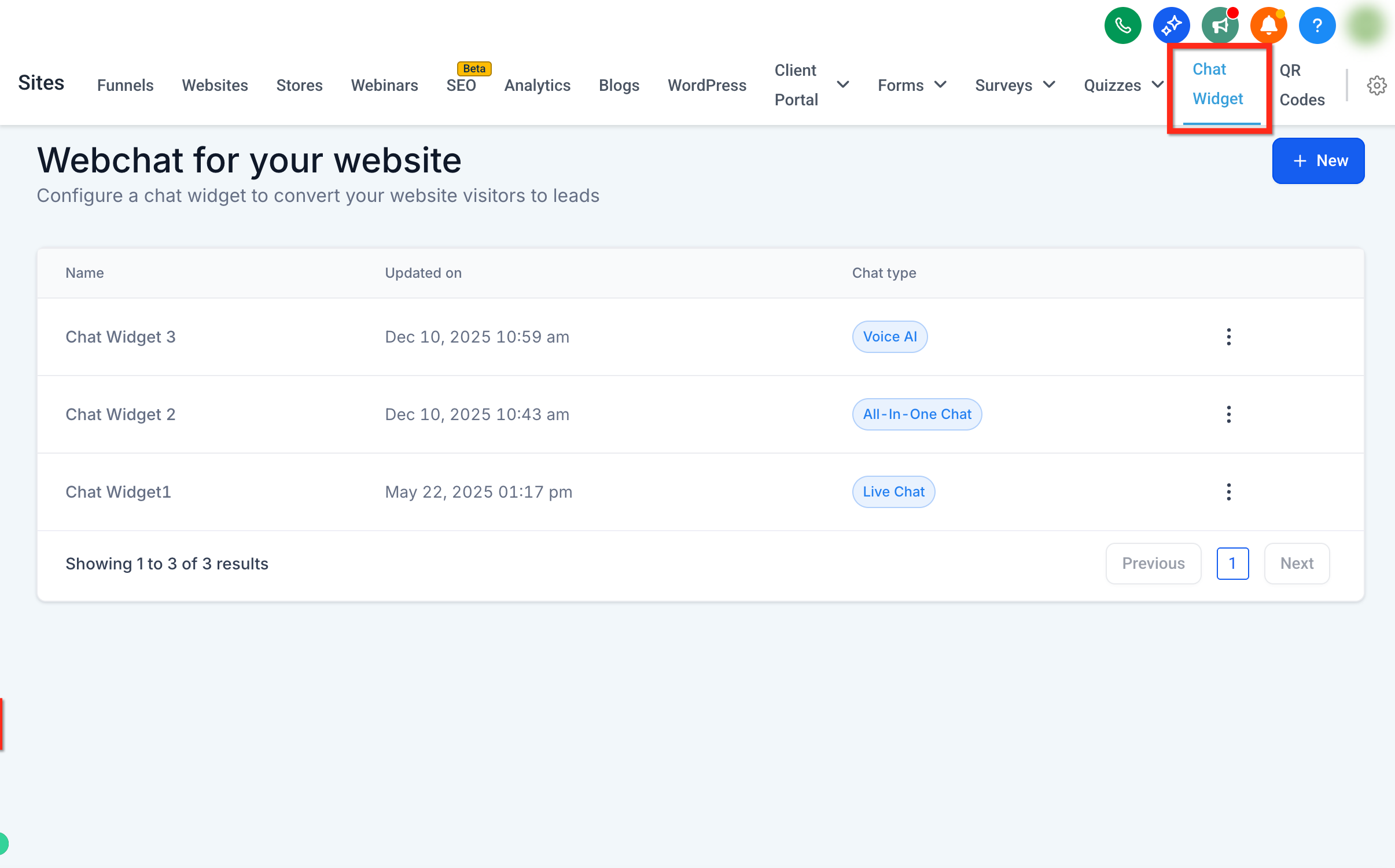
Click the New button to start building your chat widget.
Choose the chat type that fits your practice: All-In-One Chat, SMS/Email Chat, Live Chat (Web Chat), Facebook Chat, Instagram Chat, WhatsApp Chat, or Voice AI.
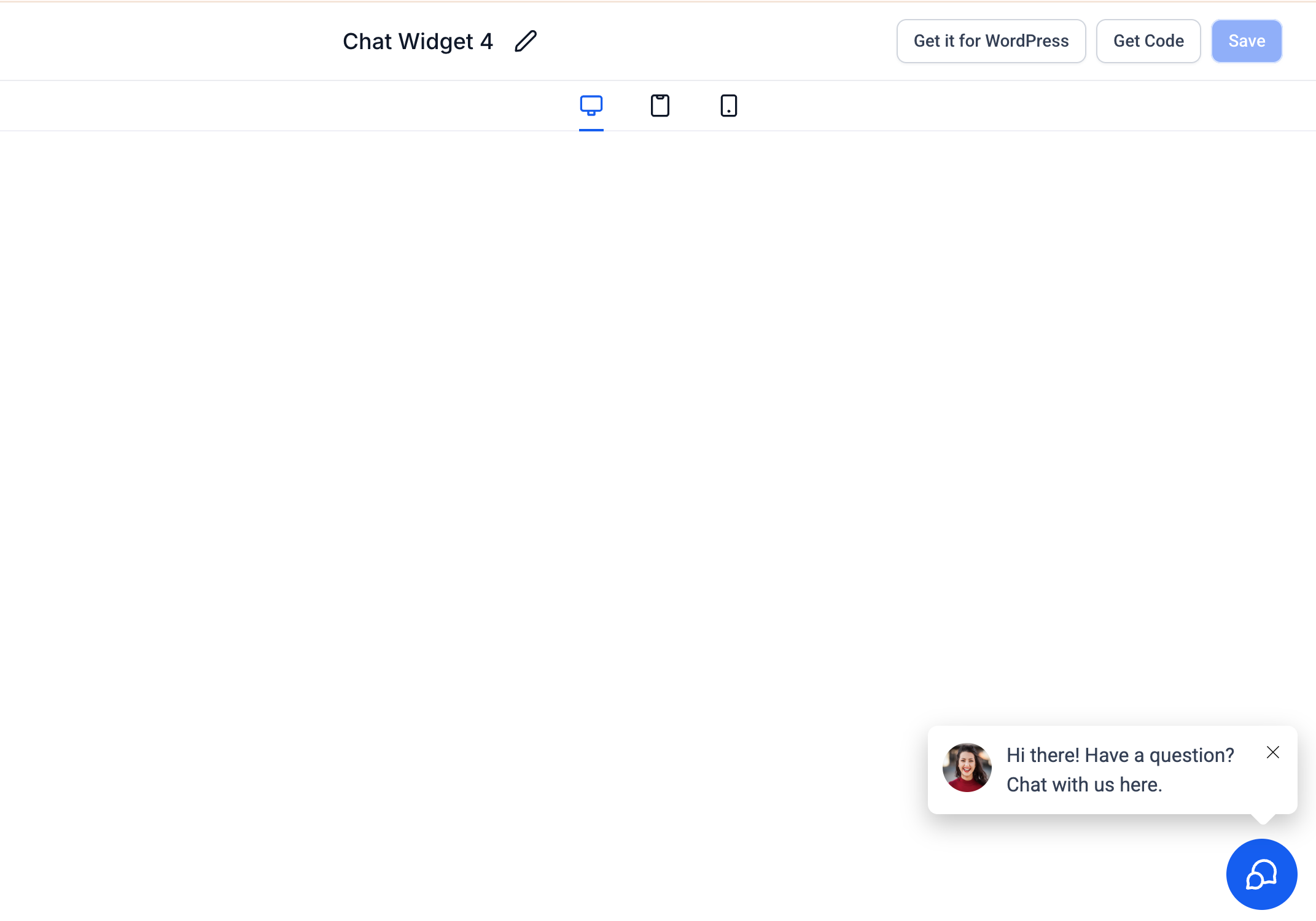
Once you select a chat type, there are three pages to configure before the widget is deployed (four if the chat type supports AI). The available options change based on the chat type you selected.
Style: Choose themes, icons, and welcome messages. You can also set the avatar and the placement of the widget on your website, and configure different widget sizes.
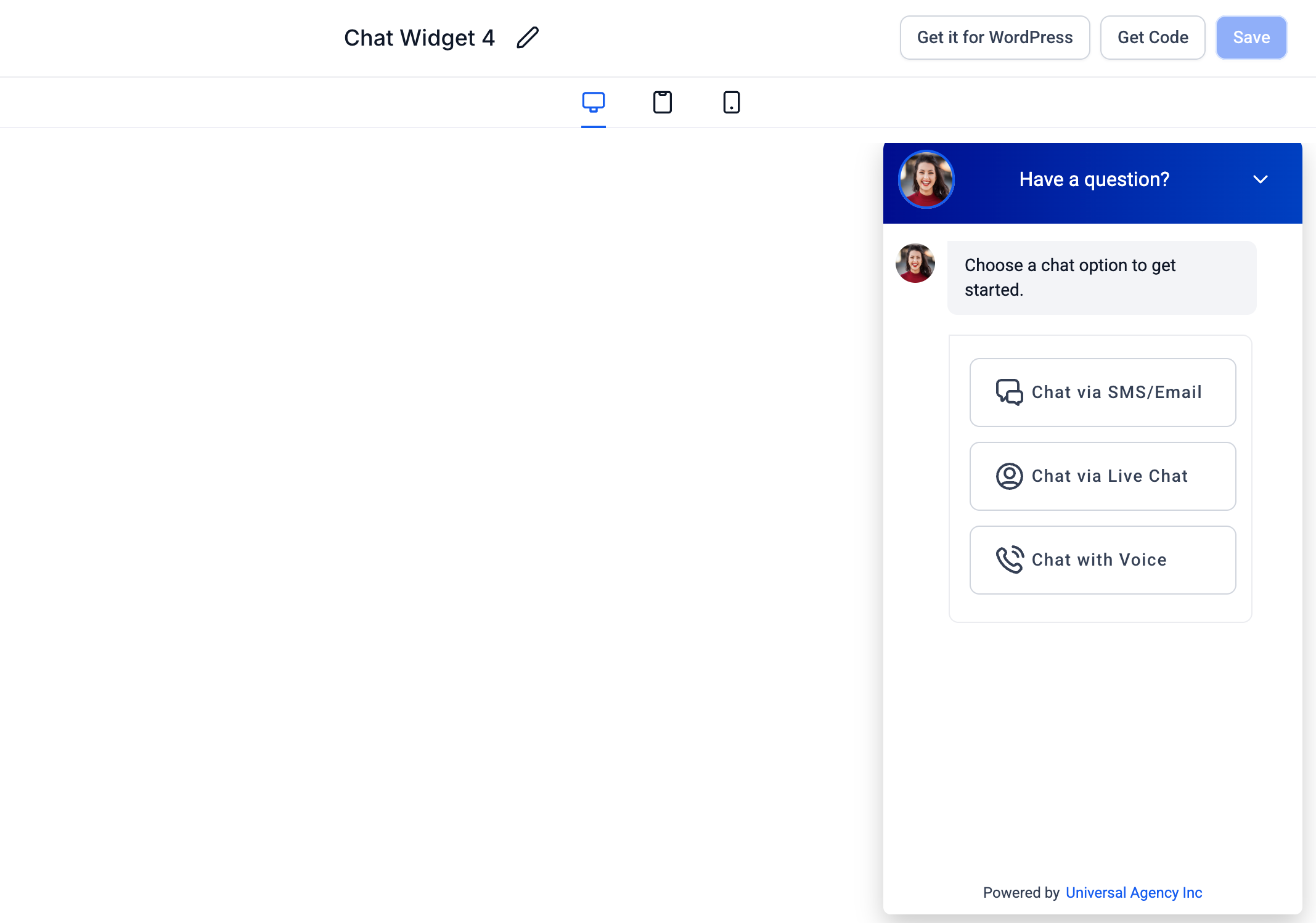
Chat Window: Customize the title, intro message, and contact form fields. You can also add your own brand URL for more visibility and use checkboxes to meet compliance requirements, including legal consent language for HIPAA.
Tip: To improve initial page load performance, enable Load on user interaction in Chat Window > Additional Options. The widget then loads after a visitor interacts with the page (scroll, click, or touch), or automatically after a short fallback delay of about 8 seconds if no interaction occurs.
**
**
Messaging: Configure message acknowledgements, support contact details, greetings, and icons. You can also set the language of the chat widget.
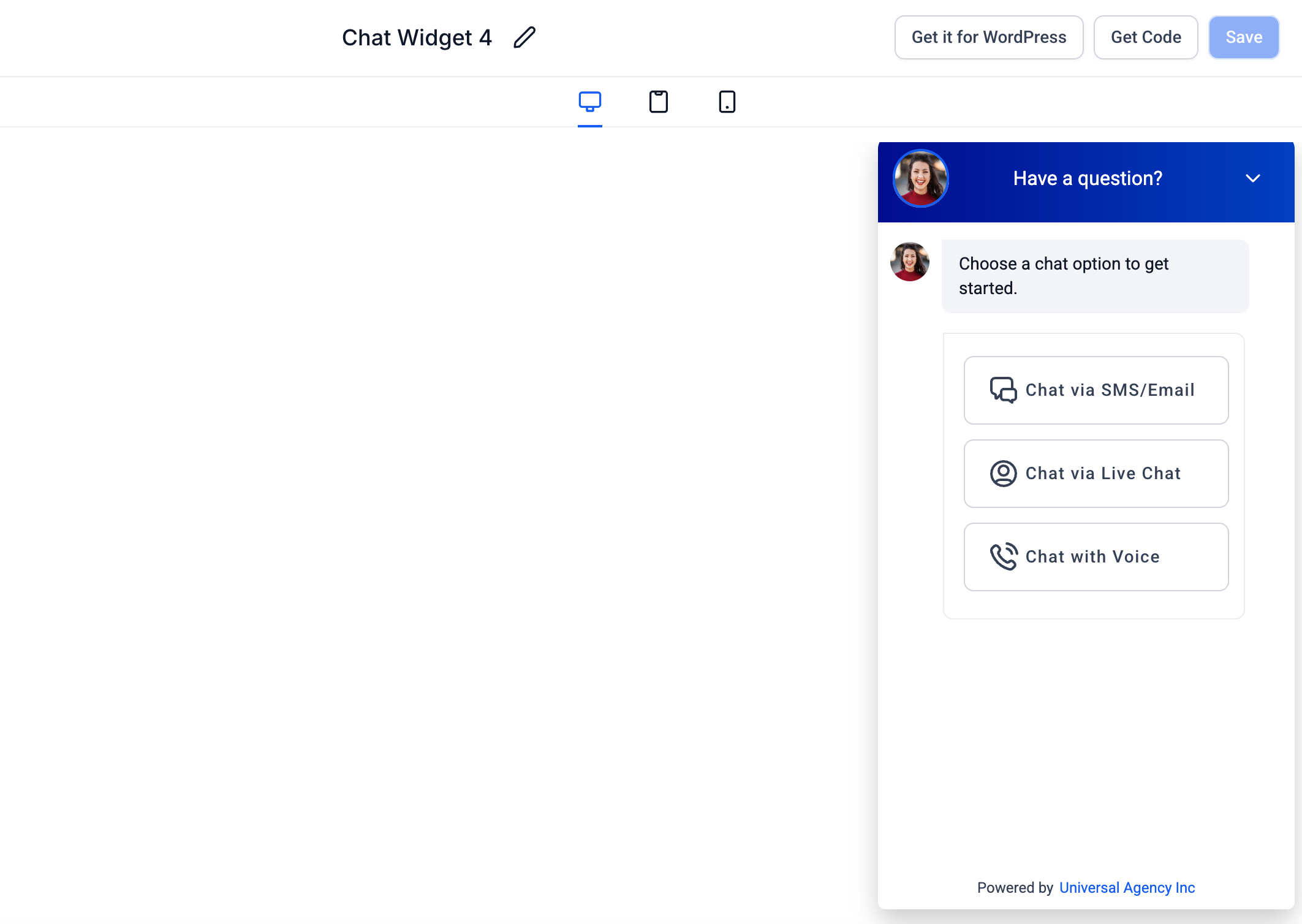
Agent: Choose the voice agent you want patients to speak with, and set the agent's name and description. This page only appears for chat types that support AI.
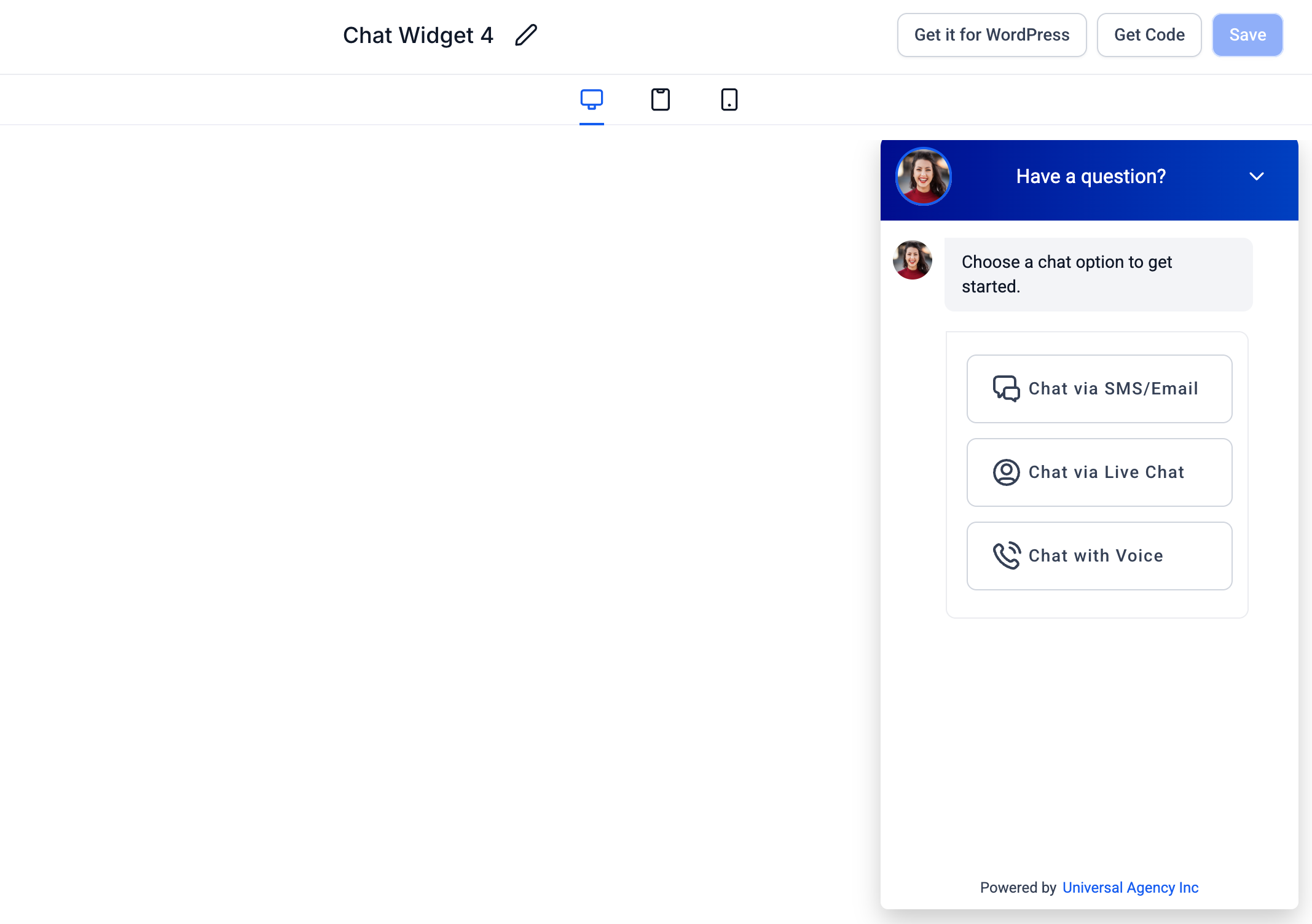
Once the widget is configured, copy the code and add it to your website. You can install it on a landing page, through Google Tag Manager, or on a WordPress site. You can also add the widget directly when building Funnels, Websites, and Blogs by selecting the chat widget type.

The Chat Widget offers extensive options to match your practice's brand and website design. When you open the widget builder, you can adjust the look, feel, and placement across the Style, Chat Window, and Messaging pages.
On the Style page, you can control:
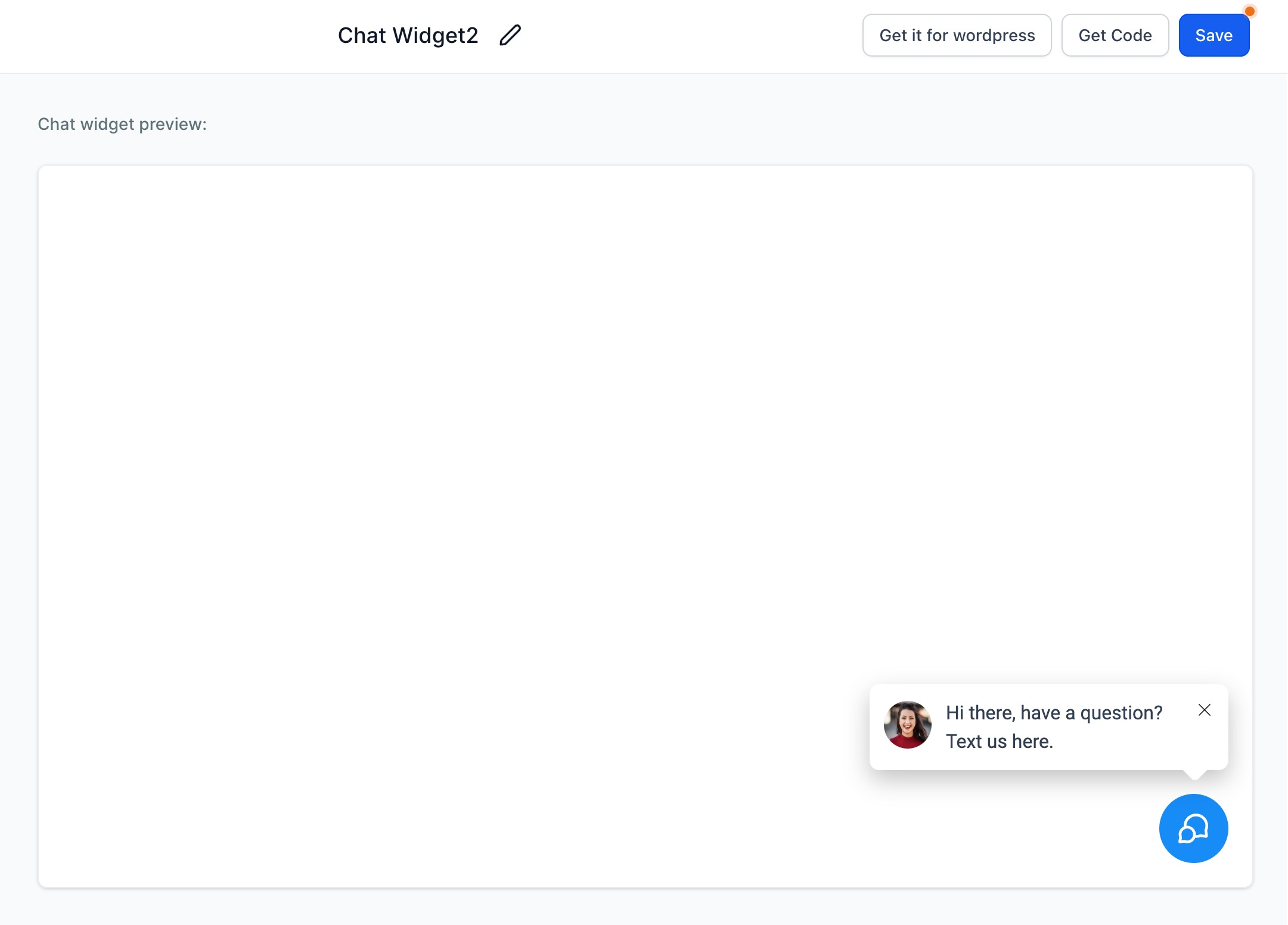
Chat launcher: Add a launcher with or without a prompt message to encourage visitors to engage.
Chat icon: Choose the icon that best matches your brand and website experience.
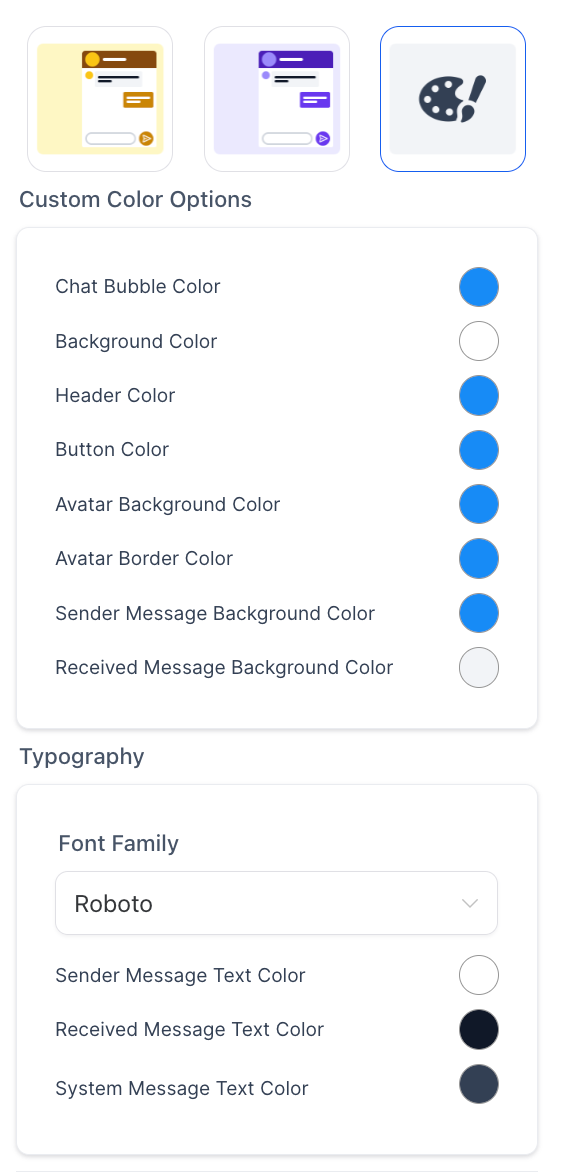
Theme: Select a predefined theme or fully customize the widget colors and styling to align with your brand identity.
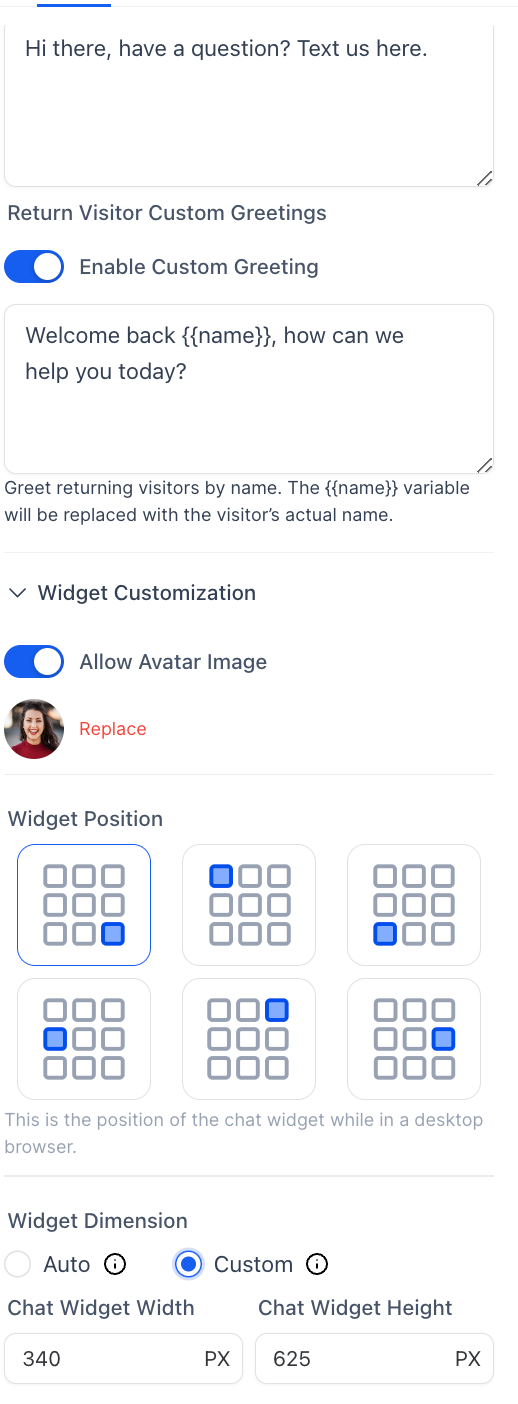
First-time and returning visitor messages: Configure personalized messages for new and returning visitors to create a more engaging experience.
Avatar images: Add avatar images for your team to create a more professional, human interaction.
Widget placement: Choose where the widget appears, such as the bottom-left or bottom-right corner.
Widget dimensions: Keep dimensions set to auto or customize the width and height to fit your website layout.
Embedded (inline) placement: Instead of a floating launcher in a page corner, display the full conversation experience directly within your page content. Embedded placement is available for All-In-One Chat, Email/SMS Chat, WhatsApp Chat, Facebook Chat, Instagram Chat, Live Chat (Web Chat), and Voice AI Chat.
Dimension minimums: Custom width and height values can start as low as 200px and are no longer limited by older placement-based minimums. The widget also adjusts its display to stay within the available space on your page.
On the Chat Window page, all of the static messages visitors see are configured. Each chat type adds its own extra fields, and this is where you handle branding and compliance:
Add the chat window title and intro message, enable email collection, and change the call-to-action button.
Add your own branding and legal consent language for HIPAA compliance.
Enable Load on user interaction to delay loading the widget until a visitor interacts with your site. When enabled, the widget loads after a scroll, click, or touch, or automatically after about 8 seconds if no interaction occurs. When disabled, the widget loads immediately.
For WhatsApp Chat, Email/SMS Chat, All-In-One Chat, and Voice AI Chat, set a prefilled starting message that visitors can edit before sending. Live Chat (Web Chat) keeps its standard free-form message box.
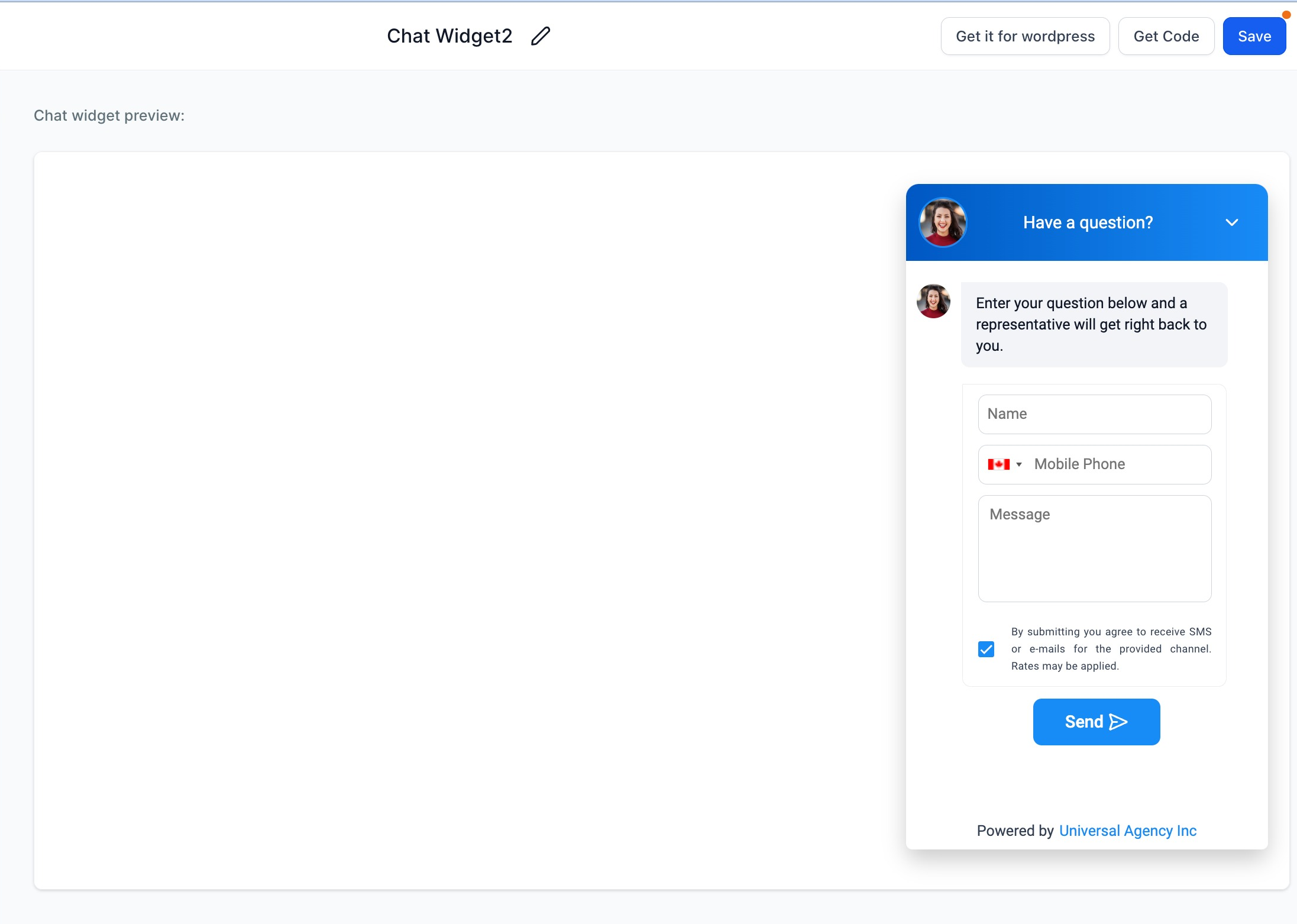
Go to Chat Widget > Chat Window > Additional Options > Compliance Notice & Consent to configure the legal notice and consent checkbox visitors see on your widget's contact form:
Show legal notice: Display a read-only disclosure below the contact form. Visitors do not need to take any action on it.
Add a consent checkbox: Display a checkbox with custom consent text for visitors to acknowledge or opt in.
Make this checkbox required: Require visitors to select the consent checkbox before they can submit the form. Leave this off to make consent optional.
Pre-check the box by default: Show the consent checkbox as already selected when the form loads.
Each form submission records whether the visitor gave consent, whether consent was required, and the consent text shown, inside the contact's Activity details.
If you already have a chat widget in place, its existing legal text carries over automatically and it keeps its current compliance behavior until you open and save it in the builder. New widgets start with the legal notice enabled and the consent checkbox enabled, with required consent turned off by default.
On the Messaging page, you can customize acknowledgement and language settings:
Add support contact details, an acknowledgement message, and greetings.
Select the language for the chat widget.
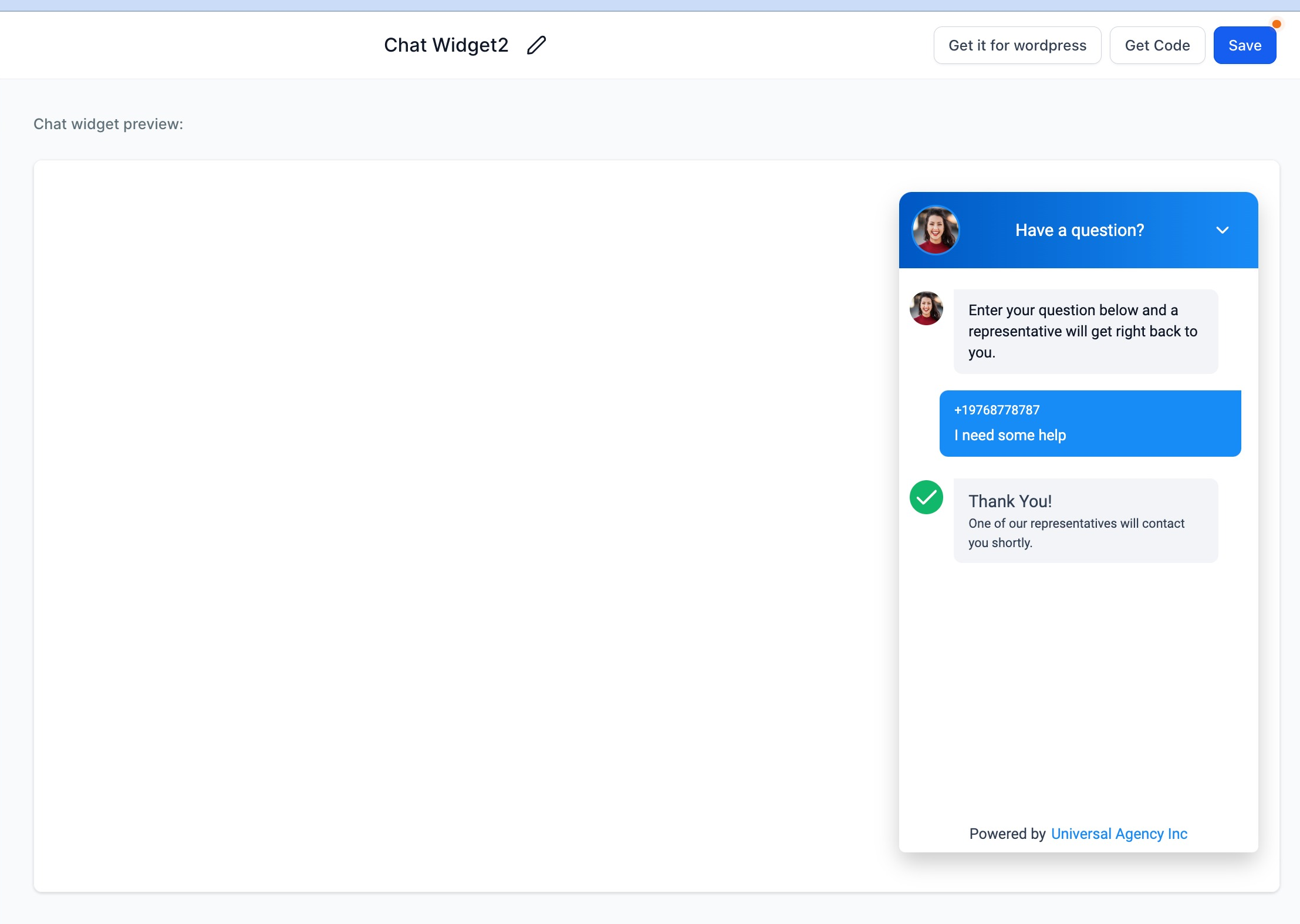
Note: If you were already using a chat widget, it appears in the Style page's theme options highlighted in light blue.
Can I customize my chat widget messaging per page?
Not currently. The chat widget does not support dynamic, page-specific messaging. You can use the same widget on multiple pages, but the messaging stays consistent with your initial setup.
Can I create more than one chat widget in my account?
Yes. You can add multiple chat widgets and install them on the same website or across different pages.
What is the difference between Web Chat and Live Chat?
They refer to the same thing. Web Chat is website-based, real-time messaging that routes into your Inbox. During setup, this option is labeled "Live Chat," but it configures the Web Chat channel used for website messaging.
Will changing the chat type affect existing conversations?
No. Updating or reconfiguring chat types does not impact existing conversations. All messages continue to route into your Inbox based on the selected channel.
Where do chat conversations show up?
Every conversation from your chat widget, regardless of channel, is delivered into your Inbox, where your team can read and respond from one place.
Can I use AI to answer chats automatically?
Yes. You can use Conversational AI inside the chat widget to greet visitors and answer common questions around the clock, and use Voice AI for voice-first conversations in the browser.
Can I install the widget on a WordPress or non-Aesthetix site?
Yes. You can copy the widget code and add it to a WordPress site, install it through Google Tag Manager, or embed it on most websites. You can also add it directly to Funnels, Websites, and Blogs you build in your account.
Can I customize each chat widget differently?
Yes. Each chat widget has its own configuration, so you can set a different theme, placement, and messaging for every widget in your account.
Can I use an embedded widget instead of a floating widget?
Yes. Supported chat types offer Embedded (inline) placement, which shows the full conversation inside your page content, in addition to the standard floating (Sticky) placement.
Do I need to replace my website embed code after changing the widget design?
No. Saved configuration changes update your existing widget automatically, so you do not need a new embed code.
Why did my custom widget dimensions reset?
Switching a widget between Sticky and Embedded placement resets custom dimensions to the recommended defaults for the newly selected placement.
Can I customize the message a visitor starts with?
Yes. WhatsApp Chat, Email/SMS Chat, All-In-One Chat, and Voice AI Chat support a prefilled starting message that visitors can edit before sending. Live Chat (Web Chat) uses its standard free-form message box.
