WhatsApp actions inside workflows do more than send messages. You can hold a contact until Meta returns a delivery status, then branch your automation based on whether the message reached the recipient. Once a workflow is running, the statistics view gives you a full breakdown of every WhatsApp message triggered by an action, so you can measure how your patient communication is performing and follow up on anything that did not land.
Before you can use WhatsApp delivery status in a workflow, WhatsApp needs to be subscribed and enabled on your account.
If you want to send business-initiated conversations, make sure you have an approved WhatsApp template in place first.
Delivery status support lets you add conditional logic to your automations based on whether a WhatsApp message was delivered. This is useful for building failover paths, such as reaching a patient by SMS or email when a WhatsApp message does not go through.
You can use the pre-built WhatsApp Delivery Status recipe under Automations to get a head start.
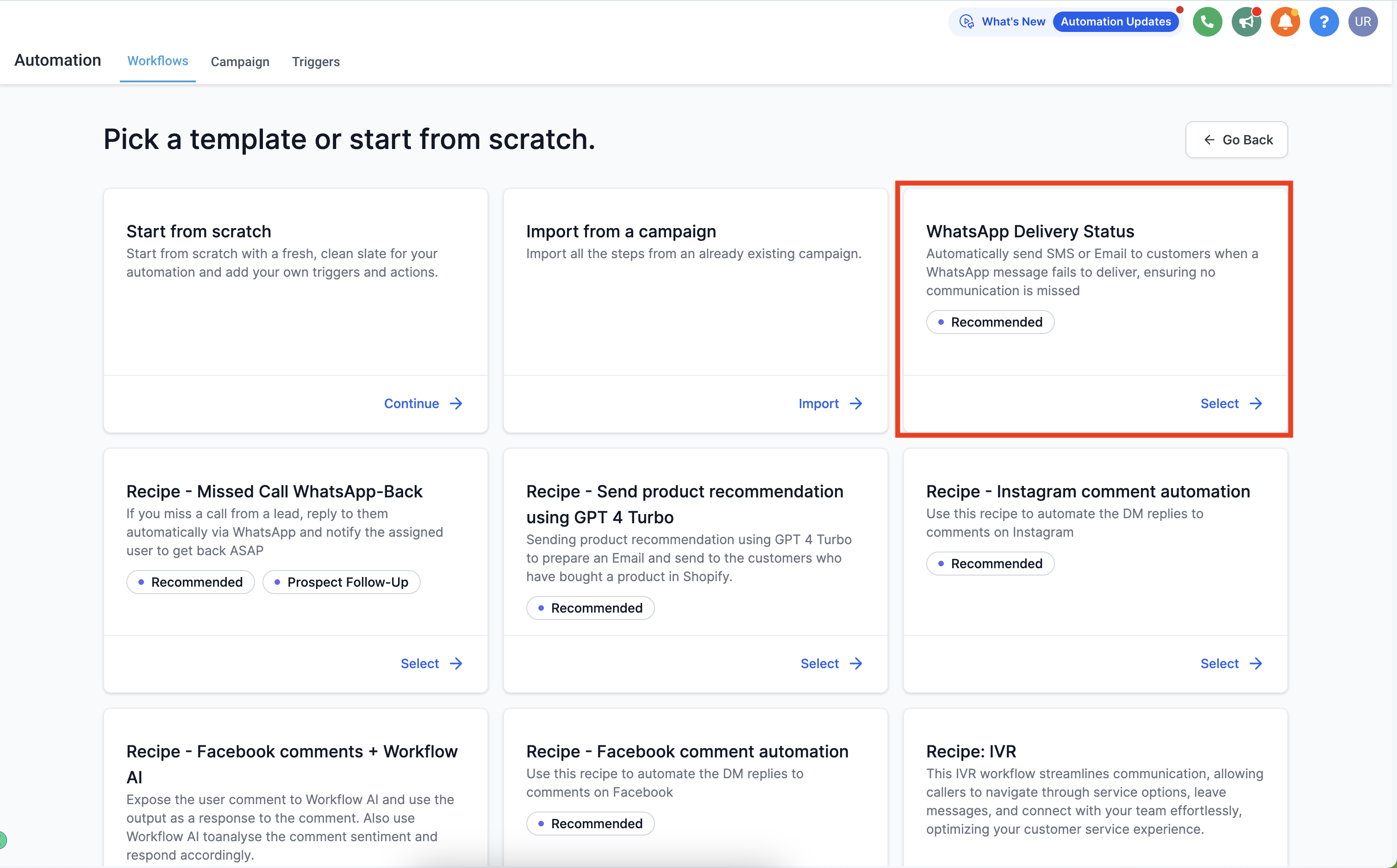
Step 1: Go to Automation > Create Workflow > Start from Scratch.
Step 2: Add a Trigger, then add the WhatsApp Action and select your WhatsApp template.
Step 3: Enable the Wait for WhatsApp Message Delivery Status toggle, then save the action.
Step 4: Add an Action and choose If/Else.
Step 5: Select Contact Details > Valid WhatsApp, then add conditions for the True and False branches.
Step 6: Add a failover to SMS or email on the False and None branches.
Note: The delivery status toggle holds the contact in the workflow until a delivery status is received from Meta. This ensures the workflow waits for the status before moving to the next step.
Workflow statistics provide comprehensive analytics for your WhatsApp actions, including total messages sent, pending messages, successfully sent messages, delivered messages, messages read by patients, and failed messages. This breakdown lets you track the performance and effectiveness of your WhatsApp communication within a workflow.
Step 1: Navigate to Automations and select the Workflow that includes a WhatsApp action.
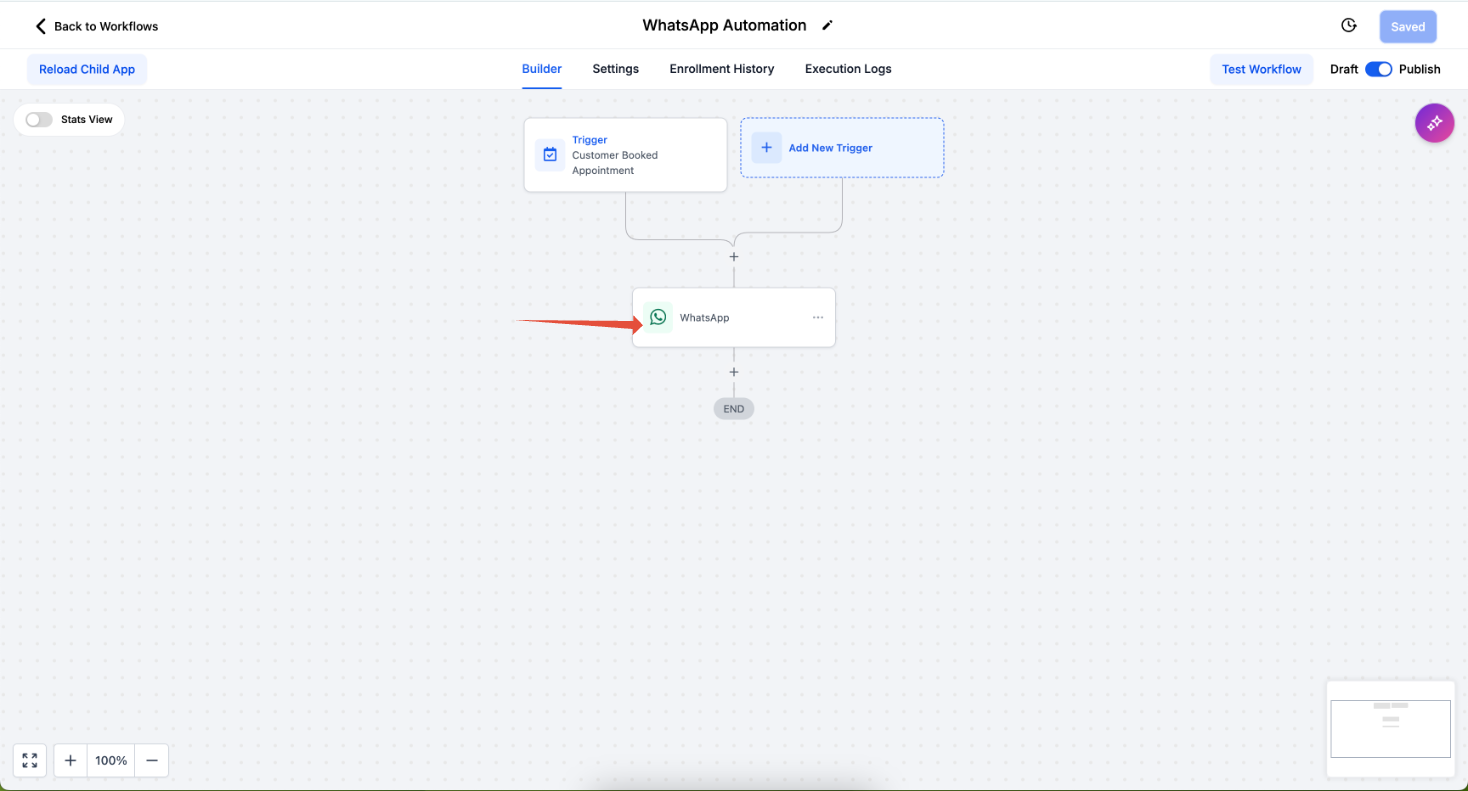
Step 2: Click on the WhatsApp Action, then open Statistics.
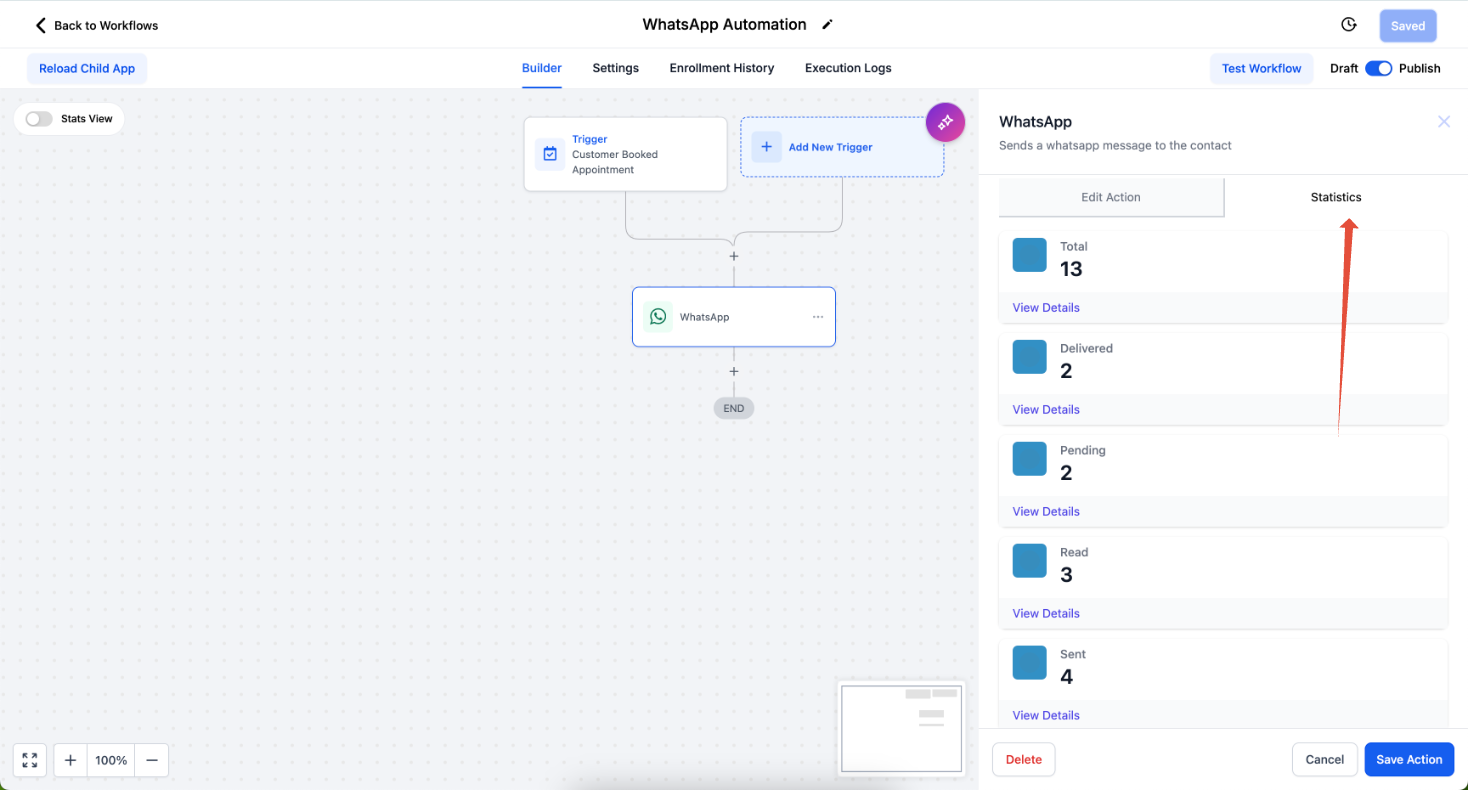
Step 3: Select the Statistics tab to view the performance metrics.
You will now see a detailed breakdown of all WhatsApp messages triggered from that specific action.
Status | Description |
|---|---|
Total | Total number of WhatsApp messages triggered through this action for the selected date range. |
Pending | Messages that are queued but have not yet been triggered. |
Sent | Messages that have been sent to WhatsApp but are awaiting delivery. Represented by a single tick in WhatsApp. |
Delivered | Messages successfully delivered to the recipient's device. Represented by double ticks. Includes users who have disabled read receipts. |
Read | Messages that have been opened or read by the recipient. Represented by blue ticks. |
Failed | Messages that could not be delivered for reasons such as a non-WhatsApp number, a blacklisted template, a blocked account, or per-user marketing template message limits. |
Note: Patients who have turned off read receipts will appear under the Delivered status, even if they actually read the message. This is due to WhatsApp's privacy settings.
You can download a full record of message details for reporting.
Step 1: Go to Automations and open the Workflow that has a WhatsApp action.
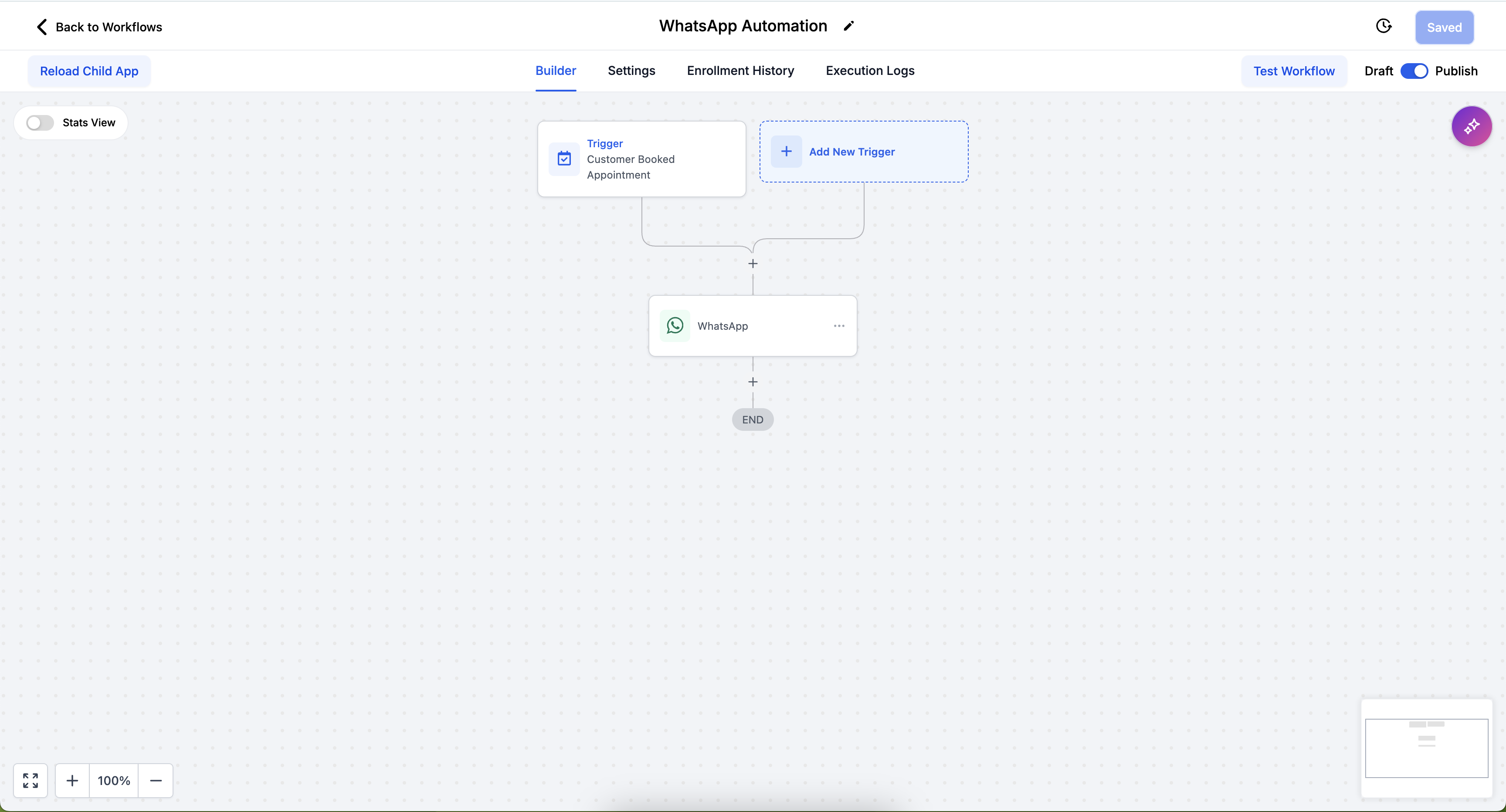
Step 2: Click on the WhatsApp Action, then open Statistics.
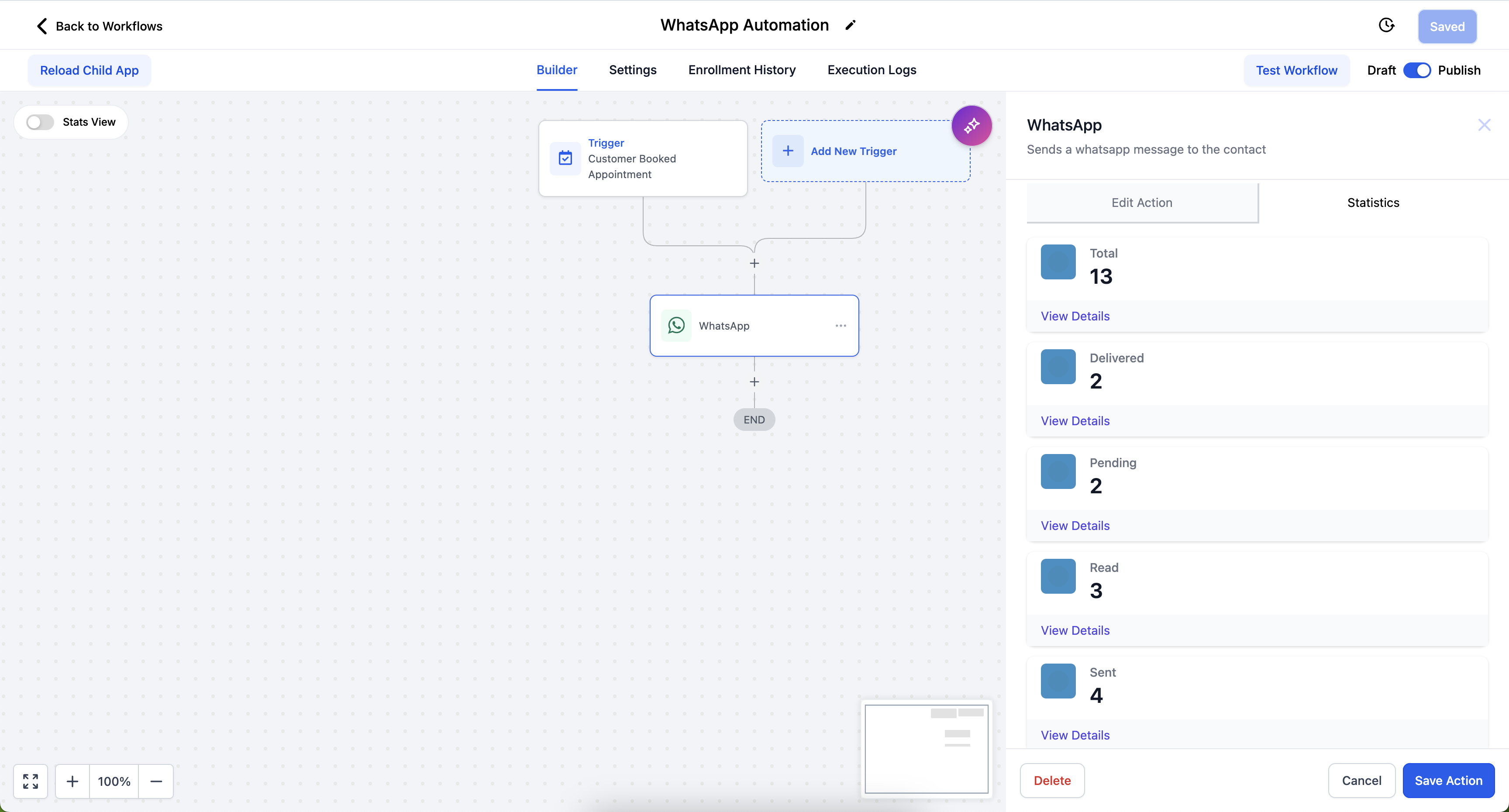
Step 3: View all statistics.
Step 4: Click Export.
A file will be downloaded containing all relevant message details, including recipient name, phone number, status, and timestamp.
What is WhatsApp delivery status support in workflows?
Delivery status support lets you incorporate conditional logic into your automations based on whether a WhatsApp message was delivered. This makes your patient communication more dynamic and responsive.
How do I use WhatsApp delivery status in my workflows?
Add a WhatsApp action with the delivery status toggle enabled, then use If/Else conditions based on the Valid WhatsApp status to determine the next steps in your workflow.
What does the toggle for holding contacts do?
It holds the contact in the workflow until a delivery status is received from Meta, ensuring the workflow waits for that status before proceeding to the next step.
How do I access WhatsApp message statistics in a workflow?
Go to Automations, select the workflow, click on the WhatsApp action, and then click Statistics.
What does the "Total" number indicate?
It reflects the total number of WhatsApp messages triggered through that action for the selected date range.
What is the difference between "Sent" and "Delivered"?
"Sent" means the message was sent from the system to WhatsApp, shown as a single tick. "Delivered" means the message reached the recipient's device, shown as double ticks.
What happens if the recipient has read receipts turned off?
The message will appear as Delivered even if it was read, because of WhatsApp's privacy settings.
What causes a message to fail?
Failures may result from invalid or non-WhatsApp phone numbers, blacklisted templates, blocked WhatsApp accounts, or per-user marketing message limits.
Can I download the statistics for reporting?
Yes. Use the Export button within the Statistics view to download a CSV of message details.
Will the export include individual message logs?
Yes. Each row contains details such as contact name, phone number, status, and timestamp.
