Interactive WhatsApp messages let you add buttons, lists, location cards, and contact cards to the WhatsApp messages you send from Workflows. WhatsApp Flows take this further with guided, multi-step conversations, such as letting a patient book an appointment without ever leaving the chat. This article covers both: how to configure each interactive message type and how to build and send an in-app appointment booking flow.
Aesthetix CRM supports interactive WhatsApp messages directly inside Workflows. A dedicated action, WhatsApp Interactive Messages, lets you send rich, tappable experiences to your patients on WhatsApp. With this feature, you can send:
Interactive Reply Buttons – Up to 3 quick-reply buttons your patients can tap.
Location Messages – Send a map location with latitude and longitude.
Contact Messages – Send rich contact cards with names, phone numbers, addresses, and emails.
List Messages – Present structured menus with multiple sections and rows.
The points below explain the practical advantages of using interactive WhatsApp messages in your workflows.
Higher Reply Rates: Patients answer faster because responding is a single tap, with no need to type.
Cleaner CRM Data: Choices are standardized, cutting typos and mismatches so reporting stays accurate.
Lower Messaging Costs: Window-aware sending helps you avoid unnecessary spend.
More Conversions: Direct calls-to-action move patients toward booking, checkout, or payment with less friction.
Fewer Mistakes and Misunderstandings: Predefined options minimize typos and ambiguity, so conversations stay accurate and on track.
Before you send interactive WhatsApp messages, you must ensure the WhatsApp 24-hour Customer Service Window is open.
When a WhatsApp user sends your business a message, a 24-hour Customer Service Window begins. During this window:
You can send interactive WhatsApp messages as free-form messages. Each phone number includes 1,000 free service messages a month, and messages beyond that allowance are billed per message.
There are no restrictions on free-form messaging.
You have two options in Workflows.
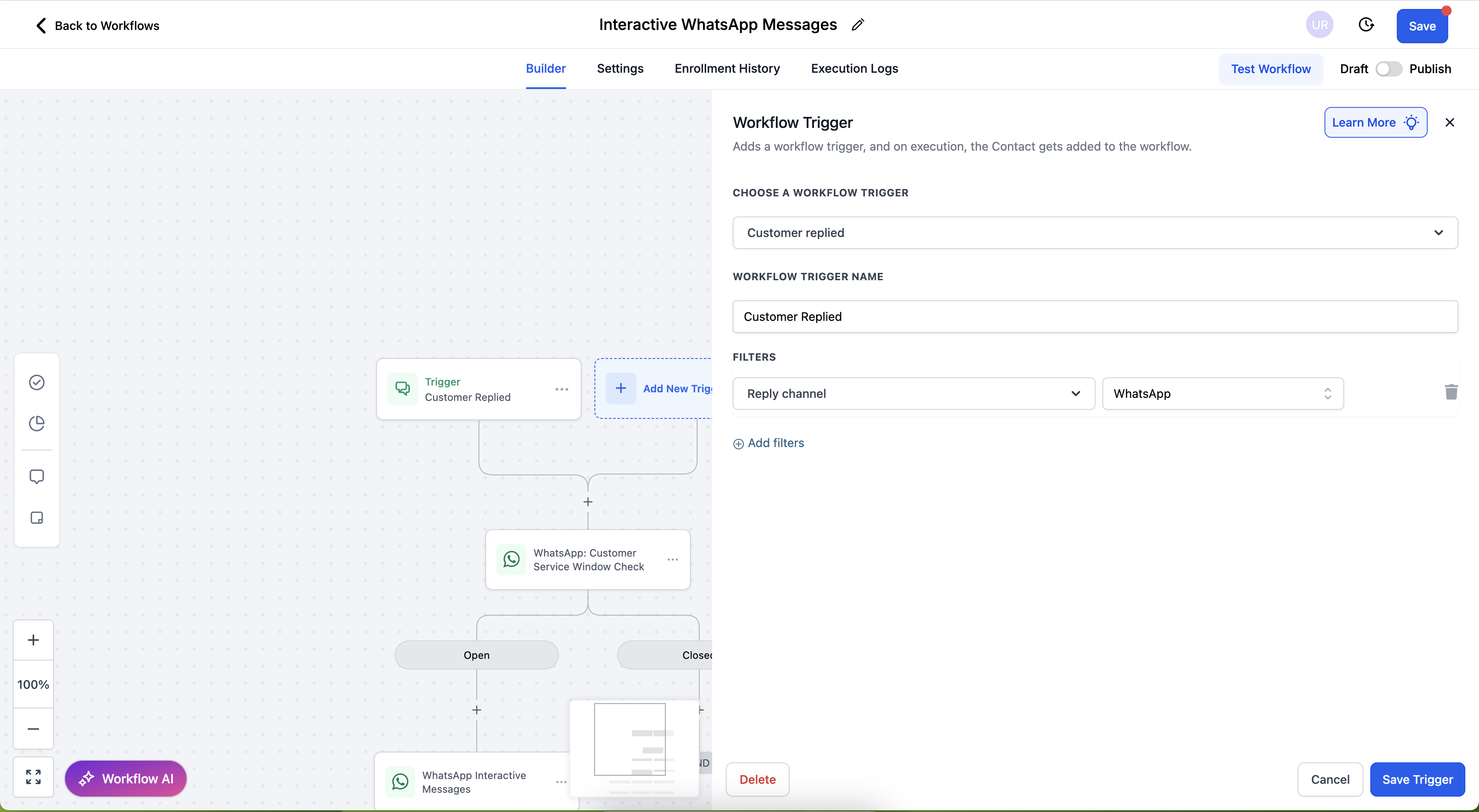
The Customer Replied via WhatsApp trigger ensures the workflow only starts when the patient sends a WhatsApp message, which automatically opens the 24-hour window. Configure this trigger as follows:
Workflow Trigger: Customer Replied
Filters: Set Reply Channel = WhatsApp
Use the WhatsApp: Customer Service Window Check action to evaluate whether the 24-hour window is open before sending your interactive message. Configure this action as follows:
Action Name: WhatsApp: Customer Service Window Check
Conversation Phone Number: Choose the WhatsApp number you're sending from.
Configure Branches:
Branch Name: Open – Condition: Customer Service Window is Open
Branch Name: Closed – Condition: Customer Service Window is Closed
Note: If the window is closed, you must send a Marketing or Utility Template message to reopen the conversation.
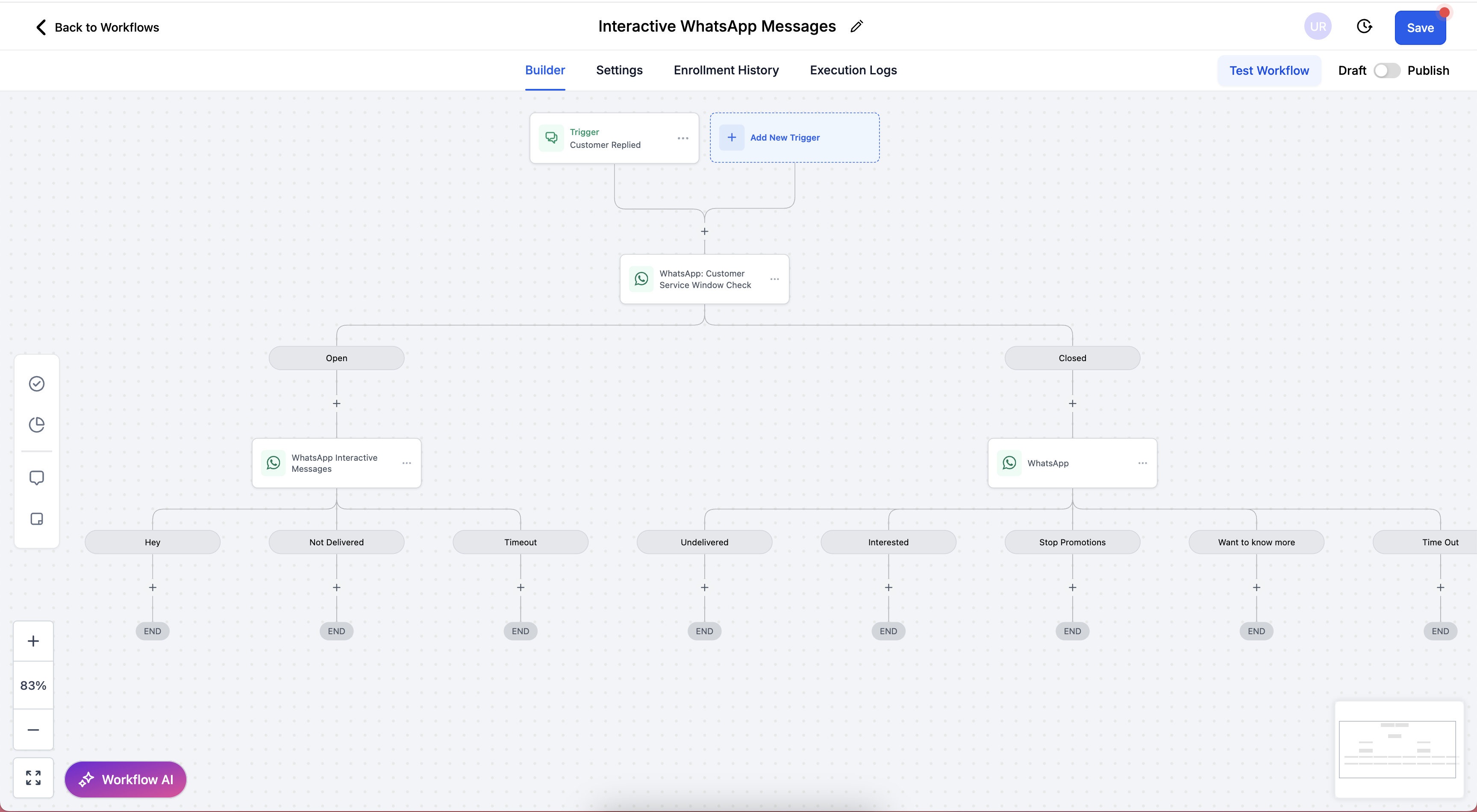
Once you've confirmed the Customer Service Window is open, you can add the Interactive Messages action.
Go to Marketing → Workflows and open your workflow.
Click Add Action (+).
Select WhatsApp Interactive Messages.
(Optional) Rename the Action Name for clarity. The default is WhatsApp Interactive Messages.
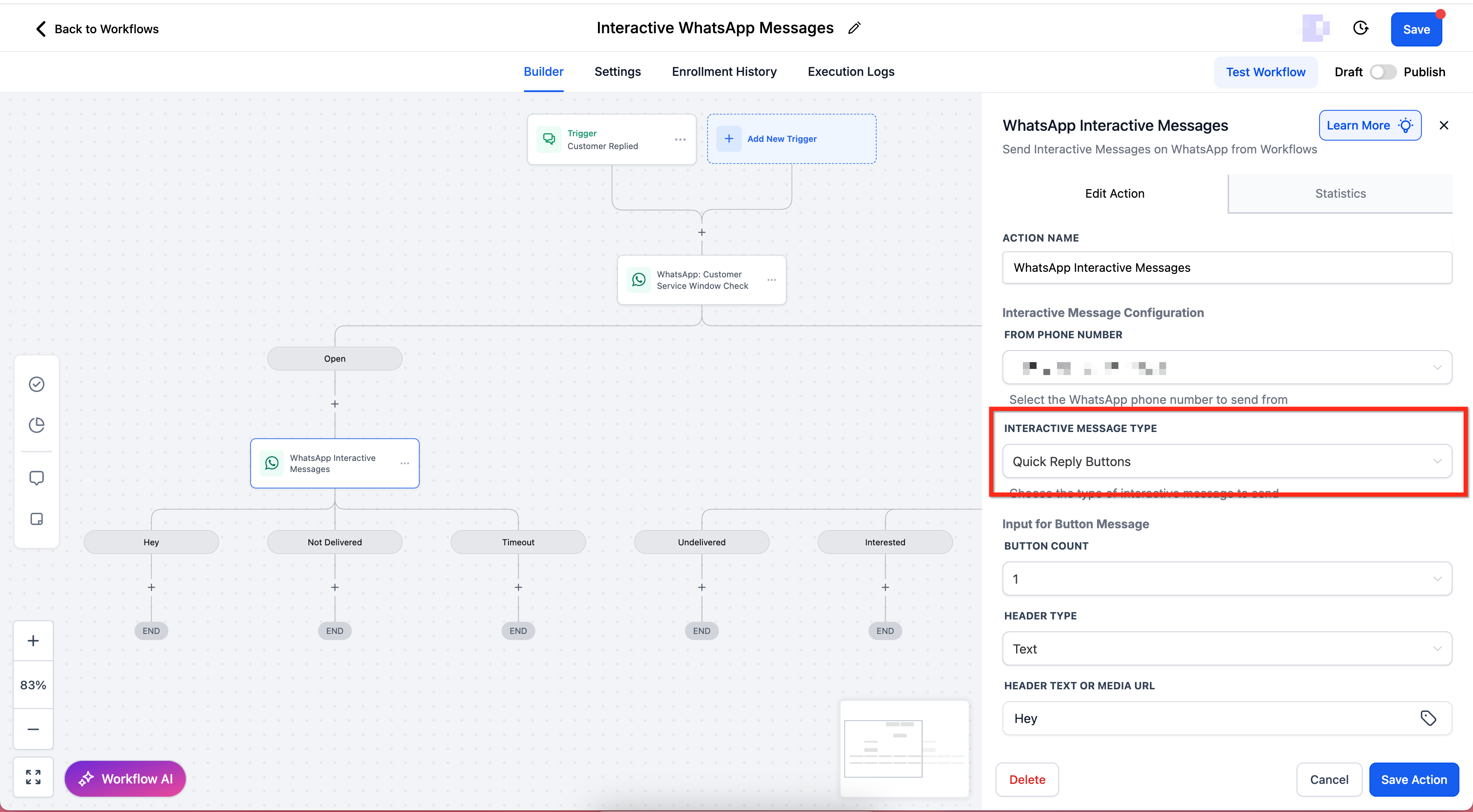
In Interactive Message Configuration, select the From Phone Number, then choose the Interactive Message Type.
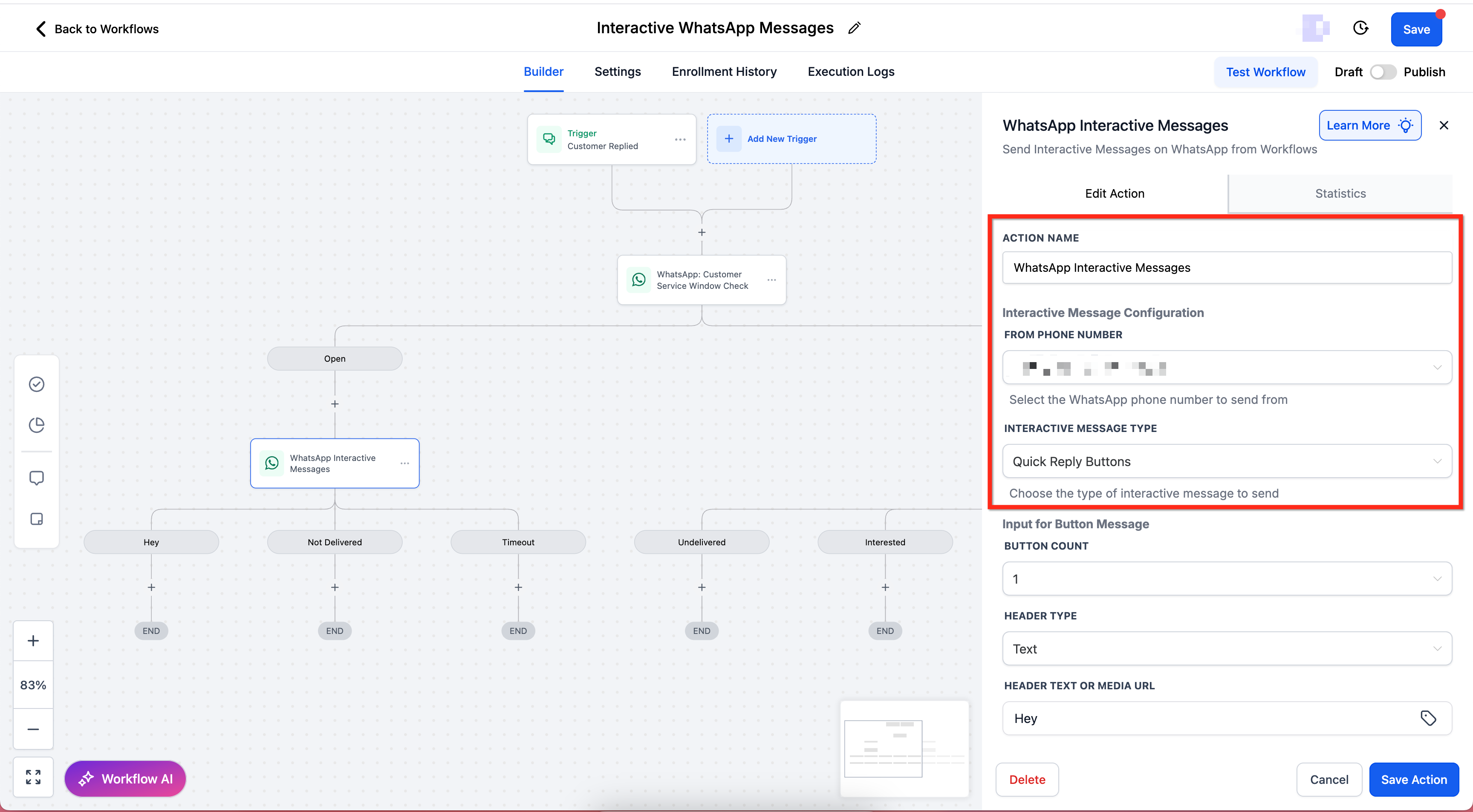
Interactive Reply Buttons let you present up to 3 predefined responses. Patients tap a button, and their selection can trigger branches, tags, or follow-up actions in your workflow.
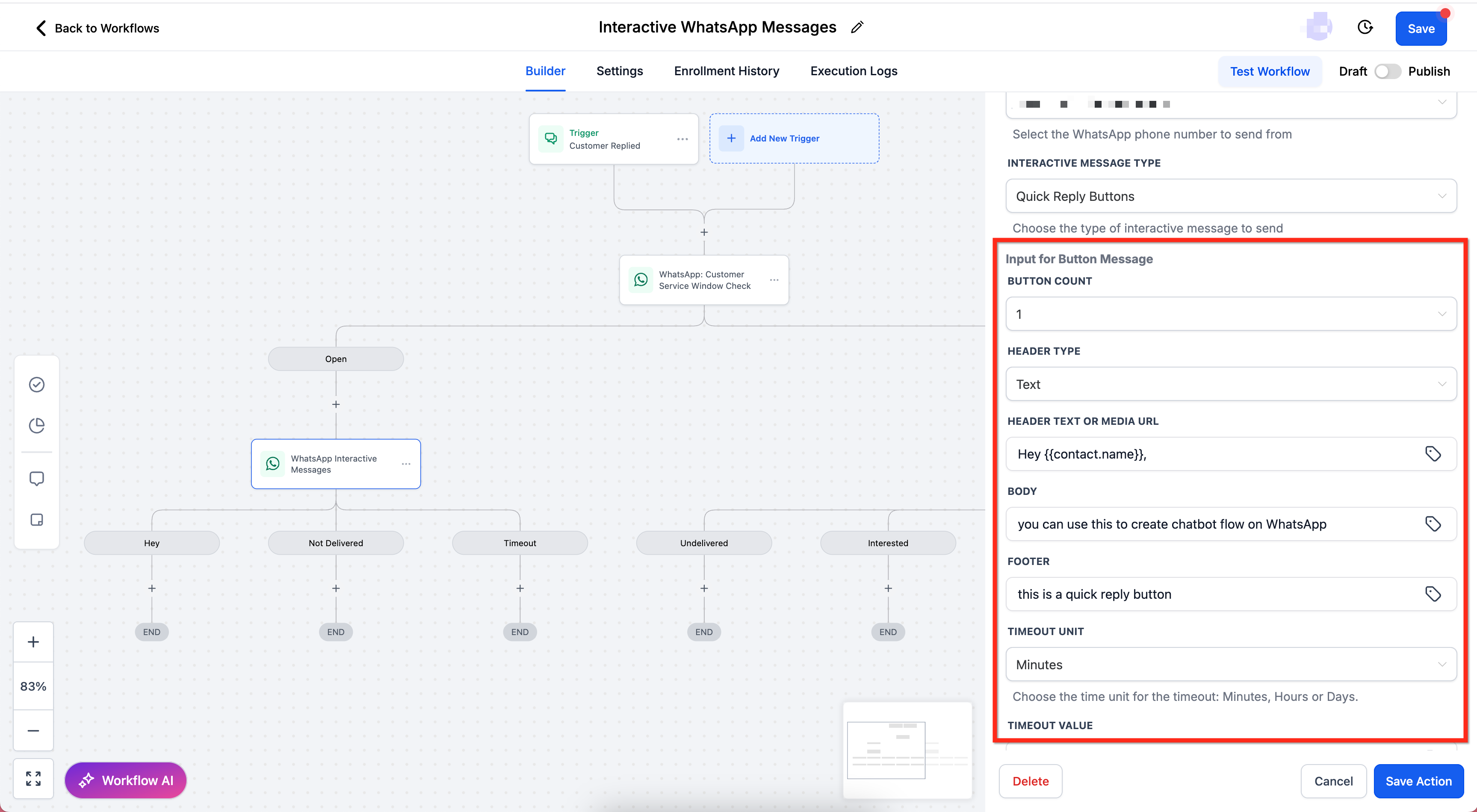
Set Interactive Message Type = Quick Reply Buttons.
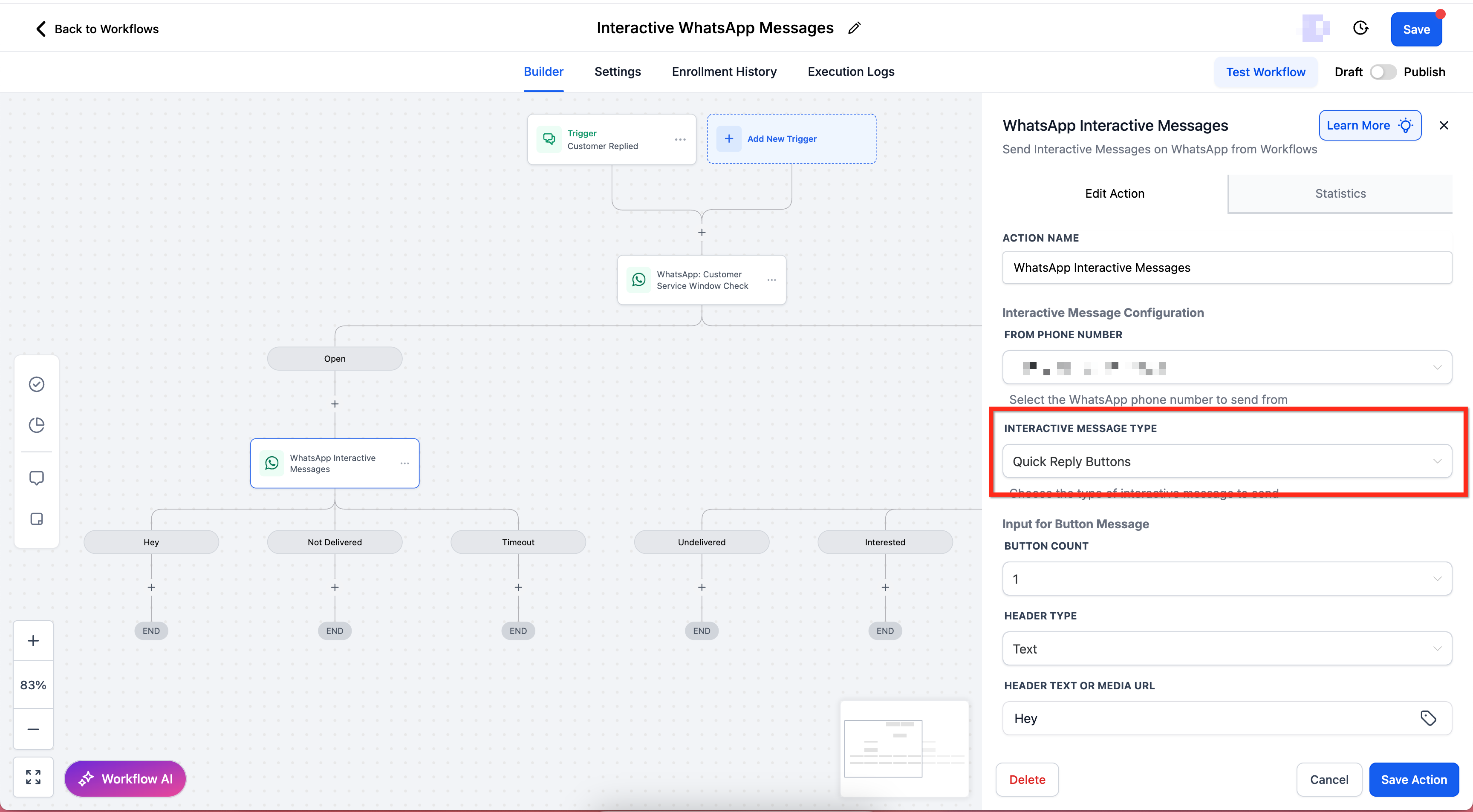
The required fields for Quick Reply Button messages are:
Input for Button Message – The main message text.
Button Count – Choose up to 3.
Header Type – Text, Image, Video, or Document.
Header Text or Media URL – Enter text or a media link.
Body – Required; main message body.
Footer – Optional; short supporting text.
Timeout Unit – Minutes, Hours, or Days.
Timeout Value – Enter the number of units.
Button Titles – Add label text for each button.
Once all information has been added, be sure to save and test your workflow.
Note: Keep body text concise so buttons are visible without scrolling.
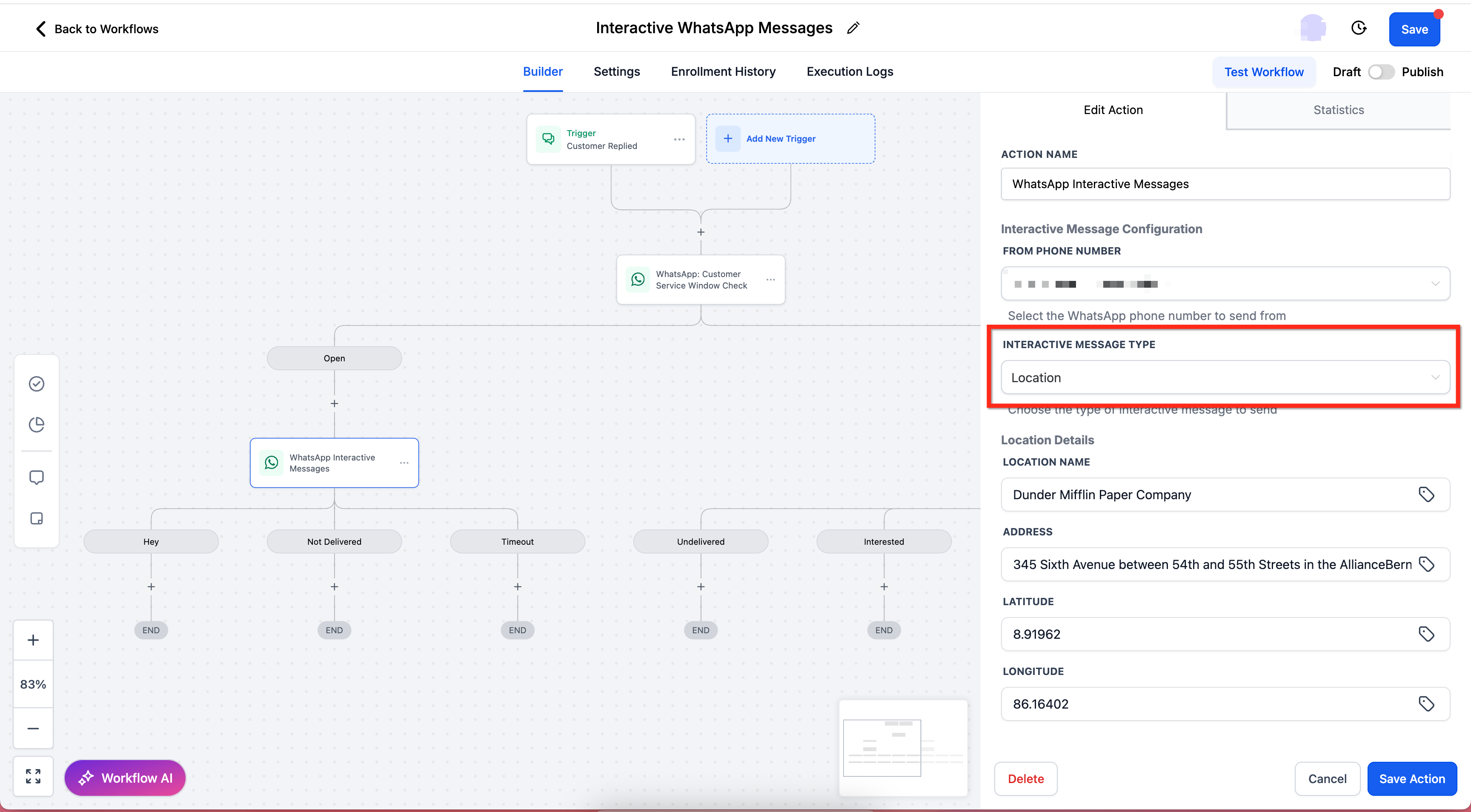
With the Location message type, you can send patients a location card that includes a clickable map preview.
Set Interactive Message Type = Location.
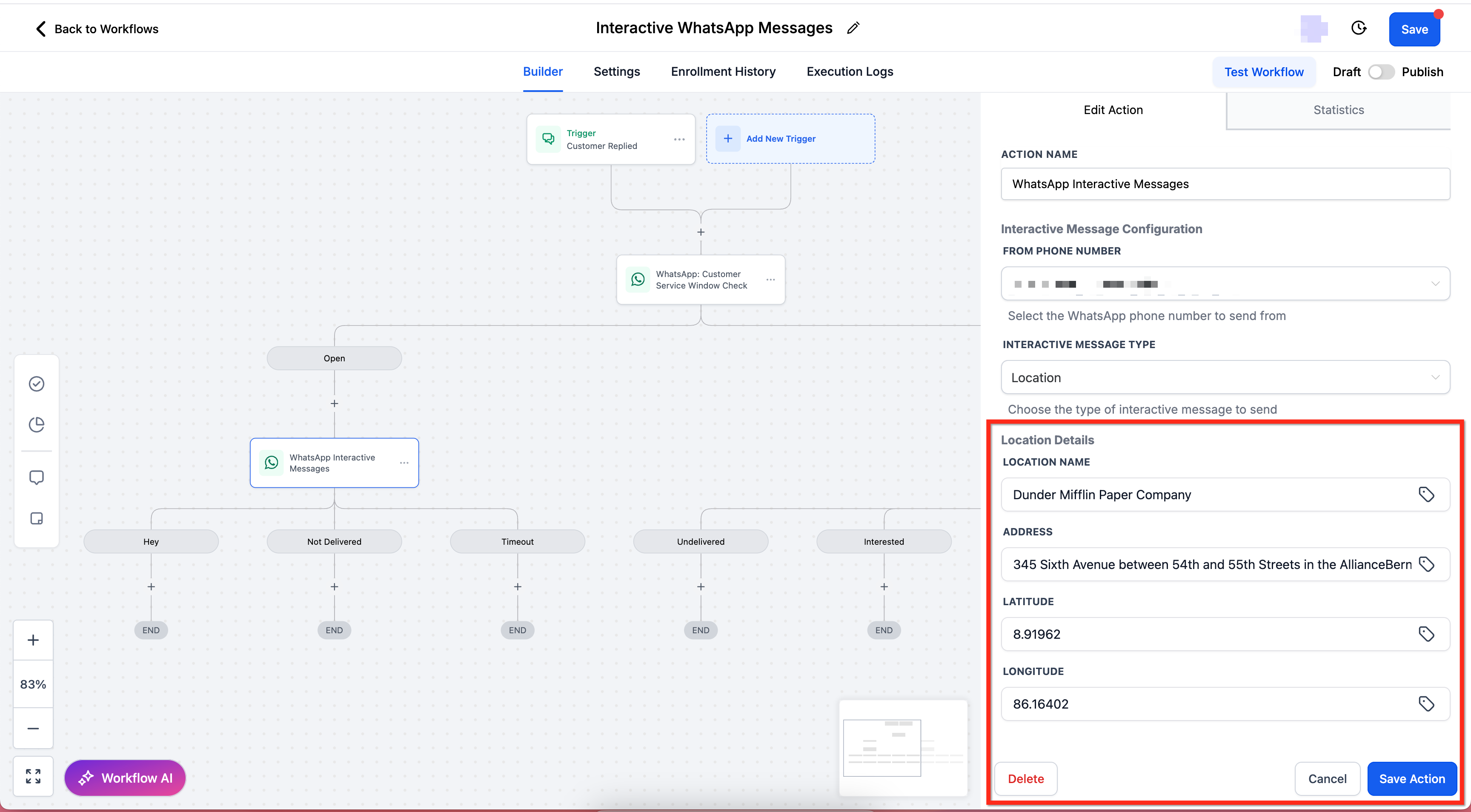
Fill out the required fields in Location Details:
Location Name – Example: Aesthetix Med Spa.
Address – Example: 1 Hacker Way, Menlo Park, CA 94025.
Latitude – Example: 37.758056.
Longitude – Example: -122.425332.
Save and test to confirm the location renders correctly in WhatsApp.
Note: Always double-check that coordinates match your business address to avoid confusion.
With the Contact message type, you can send patients a rich contact card they can save to their device.
Set Interactive Message Type = Contact.
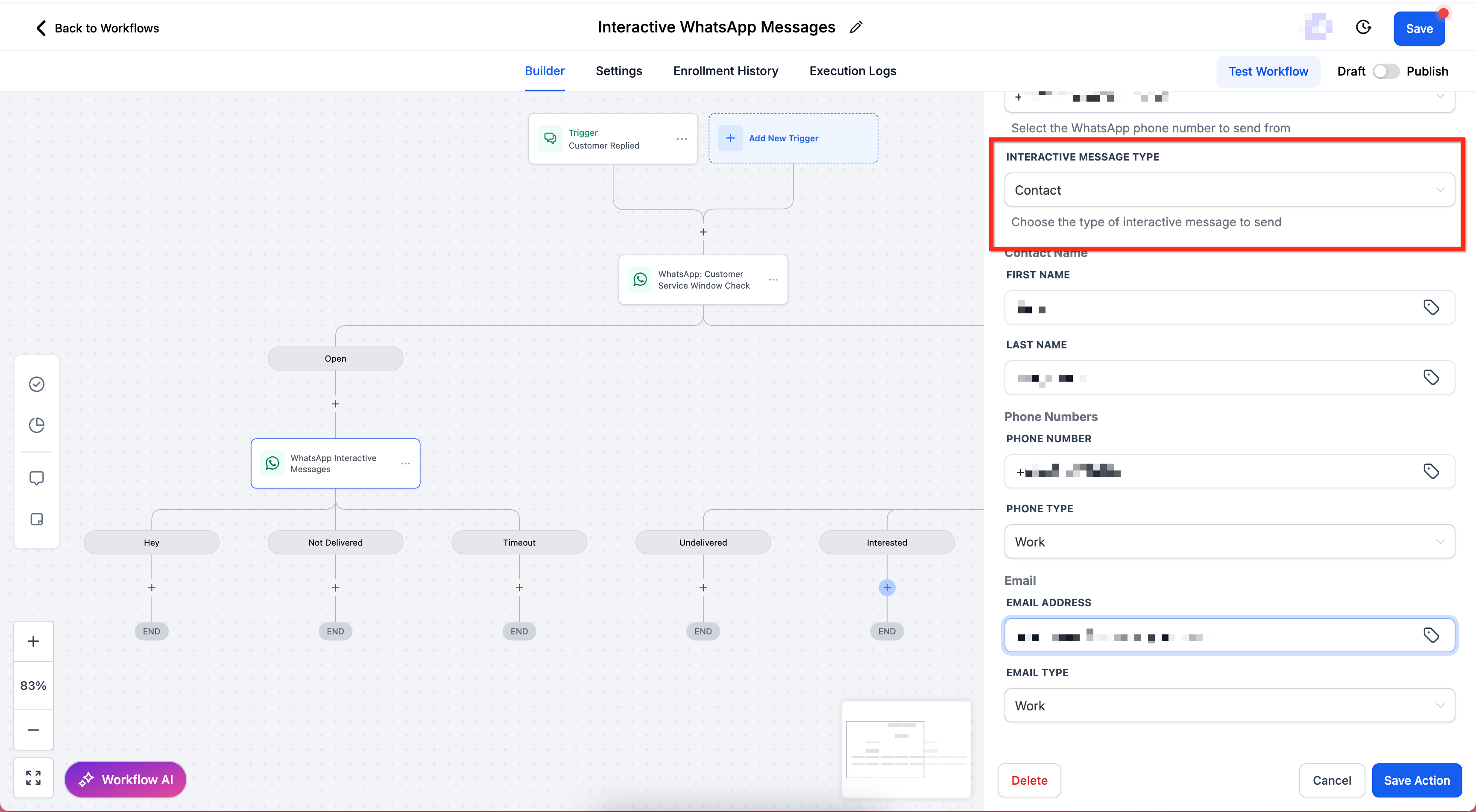
Fill out the required fields:
Contact Name
First Name (required). Example: John.
Last Name (required). Example: Jones.
Phone Numbers
Phone Number (required). Example: +16505551234.
Phone Type – Choose Work, Mobile, or Home.
Email Address (optional). Example: [email protected].
Email Type – Choose Work or Home.
Save and test the workflow to confirm the contact card appears properly in WhatsApp.
Use the Request Contact Info action to ask a patient to share their phone number directly inside a WhatsApp conversation. This is useful for patients who message in using a WhatsApp username and don't have a number on file yet.
Go to Marketing → Workflows and open your workflow. Click Add Action (+), select WhatsApp Interactive Messages, then click Request Contact Info and write the body text of the message the patient will see.
Publish the workflow, then run a test to confirm the message sends and displays as expected. Test with a username-only contact specifically, since that's the scenario where the result below is easiest to confirm.
When the patient taps to respond, WhatsApp opens their native Send Contact Info screen. This lets them choose exactly which details to share back, such as their phone number, username, or other contact card fields, before tapping Send.
Open the conversation for the test patient. The To field updates to reflect whatever the patient chose to share. If they leave their username checked and tap Send, their username appears there, since this is the patient's own confirmation and not something Aesthetix CRM fills in automatically. If they uncheck a field before sending, that detail won't come through.
Note: Not every WhatsApp patient will have a phone number on file. Some are only reachable by their username. The Request Contact Info action gives you a direct, in-chat way to ask these patients to share their number instead of relying on them to volunteer it.
List messages let you send structured menus with multiple sections and rows, giving patients clear options to choose from. Each selection can trigger a separate branch in your workflow.
Set Interactive Message Type = List.
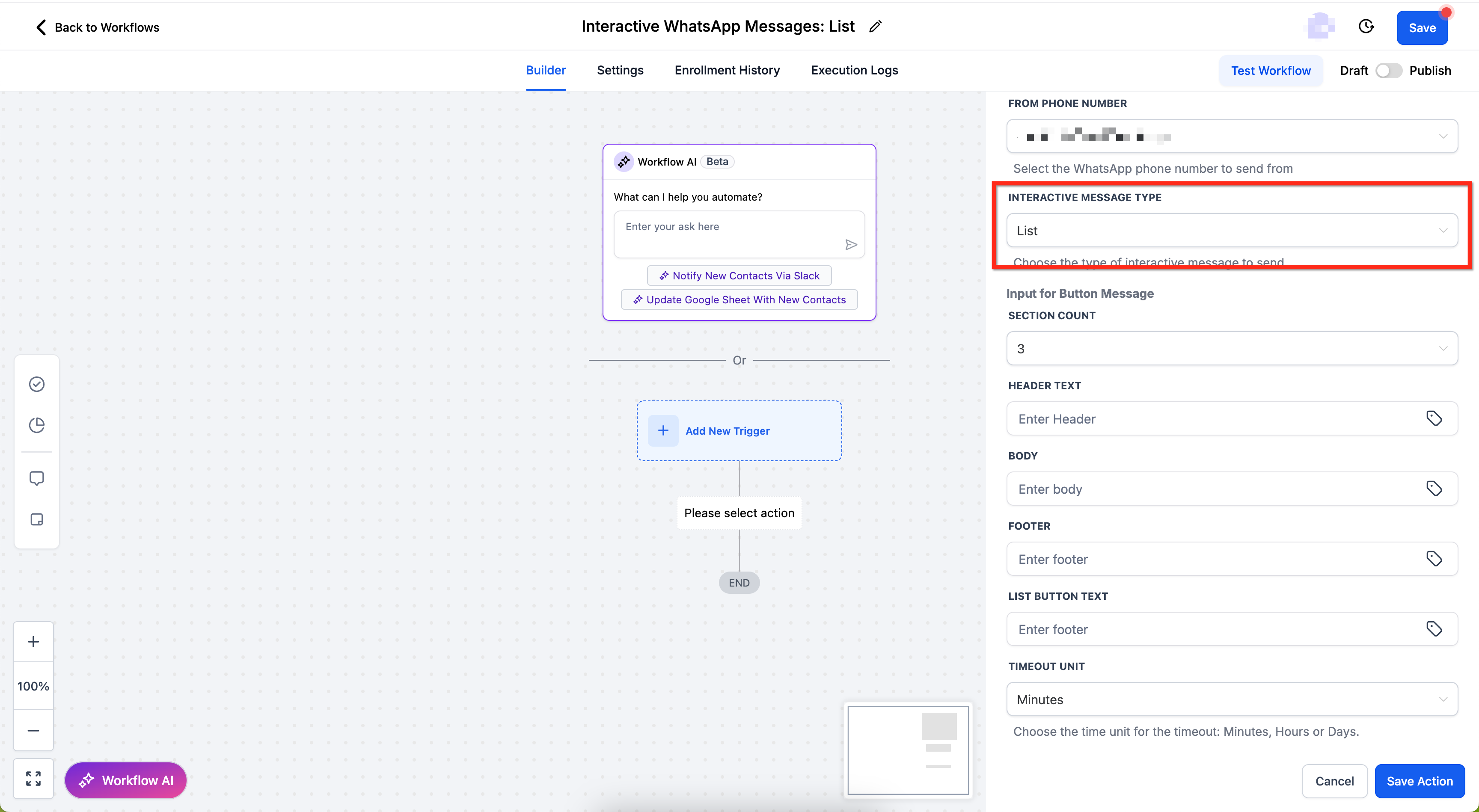
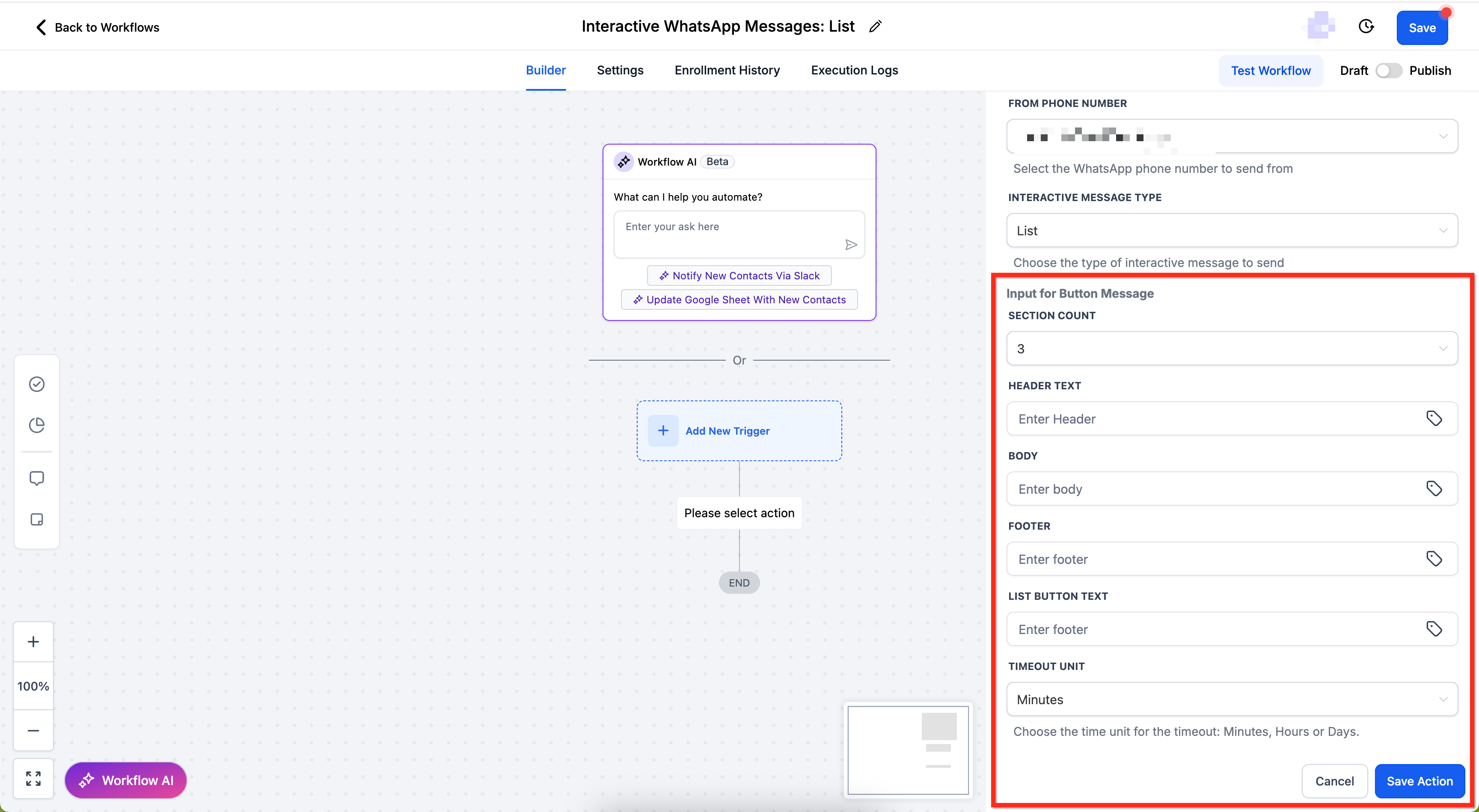
Fill out the required fields:
Input for Button Message – The main prompt text for the menu.
Section Count – Choose how many sections you want (for example, 3).
Header Text – Optional; short header title.
Body – The main message body.
Footer – Optional; supporting text.
List Button Text – The button label that opens the list (for example, "View Options").
Timeout Unit & Value – Choose the timeout (5 minutes to 2 days).
Configure each section:
Section Title – Example: "Treatments" or "Services".
Row Count – Number of rows in the section.
Row Title – Option label (for example, "Botox Consultation").
Row Description – Optional description for the option.
Add branching for each row:
Example: Section1 Row1, Section2 Row1, and so on.
Additional branches are available for Not Delivered and Timeout.
Save and test to confirm the menu appears and selections trigger the correct branches.
Note: Use section titles to group related options (for example, "Treatments" and "Add-ons") for better clarity.
WhatsApp users may be hesitant to tap long or complex URLs in plain text messages. Interactive CTA URL Button Messages solve this by mapping any URL to a clean, tappable button, creating a smoother and more trustworthy experience. When tapped, the button opens the specified URL in the user's default browser.
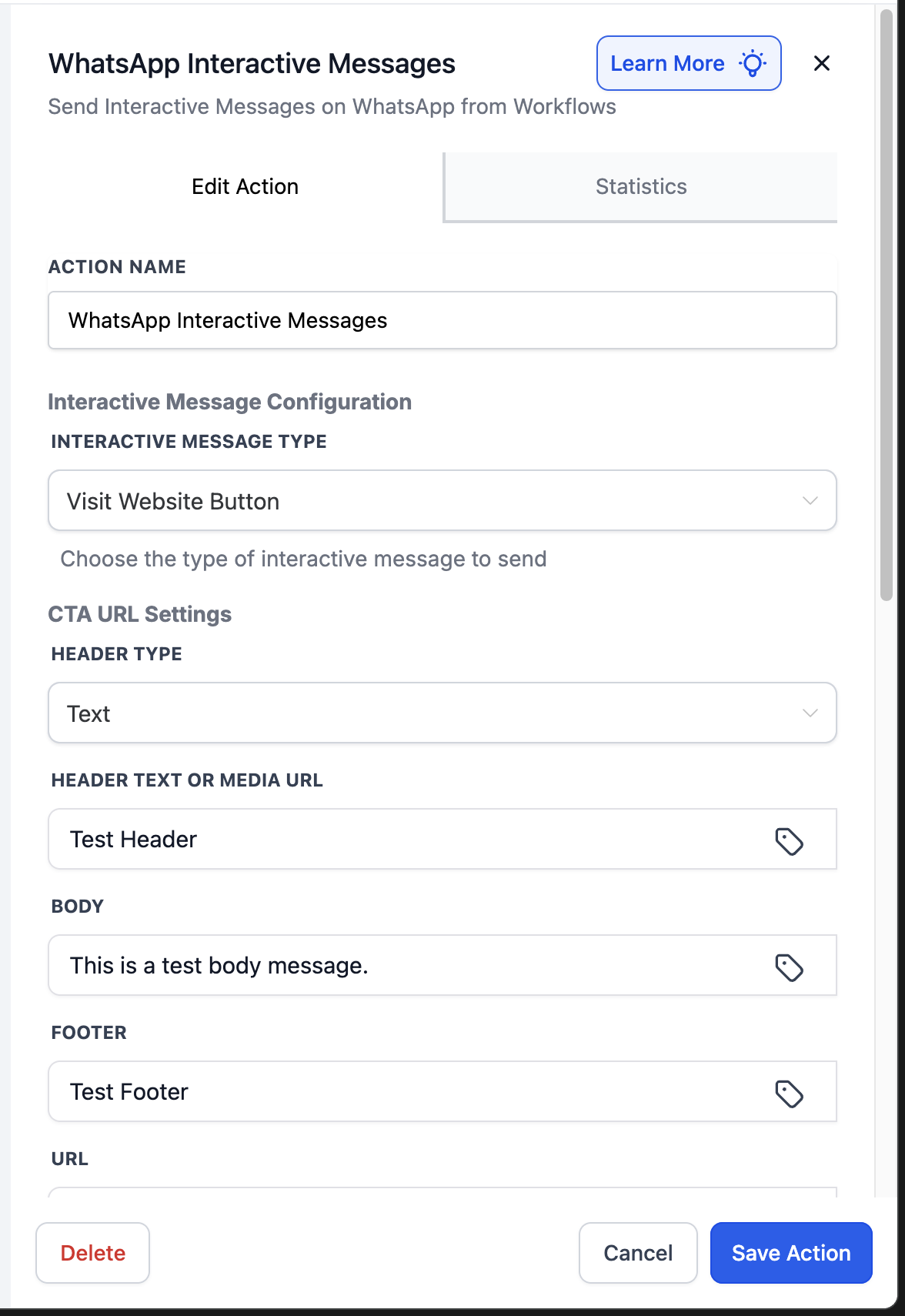
Set Interactive Message Type = Visit Website Button.
Complete the required fields:
Header Type – Choose Text, Image, Video, or Document.
Header Text or Media URL – Provide the header text or media link.
Body – Enter the main message body (max 1024 characters).
Footer – Optional short supporting text (max 60 characters).
URL – Enter the destination URL.
Button Text – Enter the text that appears on the button (max 20 characters).
Timeout Unit & Value – Choose Minutes, Hours, or Days (allowed range: 5 minutes to 2 days).
Save and test with a sample contact to confirm the button displays correctly and links open in the browser.
|
|
You can dynamically personalize URLs by embedding CRM fields, including contact fields and custom values.
Example:
https://www.google.com/?name={{contact.name}}&calendar={{custom_values.agent_calendar}}In this example:
{{contact.name}} dynamically inserts the contact's name.
{{custom_values.agent_calendar}} inserts the assigned provider's calendar link.
This lets you build personalized booking links, payment URLs, or campaign landing pages.
Header (Text): Consultation Details
Body: Tap below to book your slot.
Footer: Spots are limited.
URL: https://mybusiness.com/booking?name={{contact.name}}
Button Text: Book Now
Timeout Value: 30 Minutes
Result: Each patient sees a unique button linking to their personalized booking page.
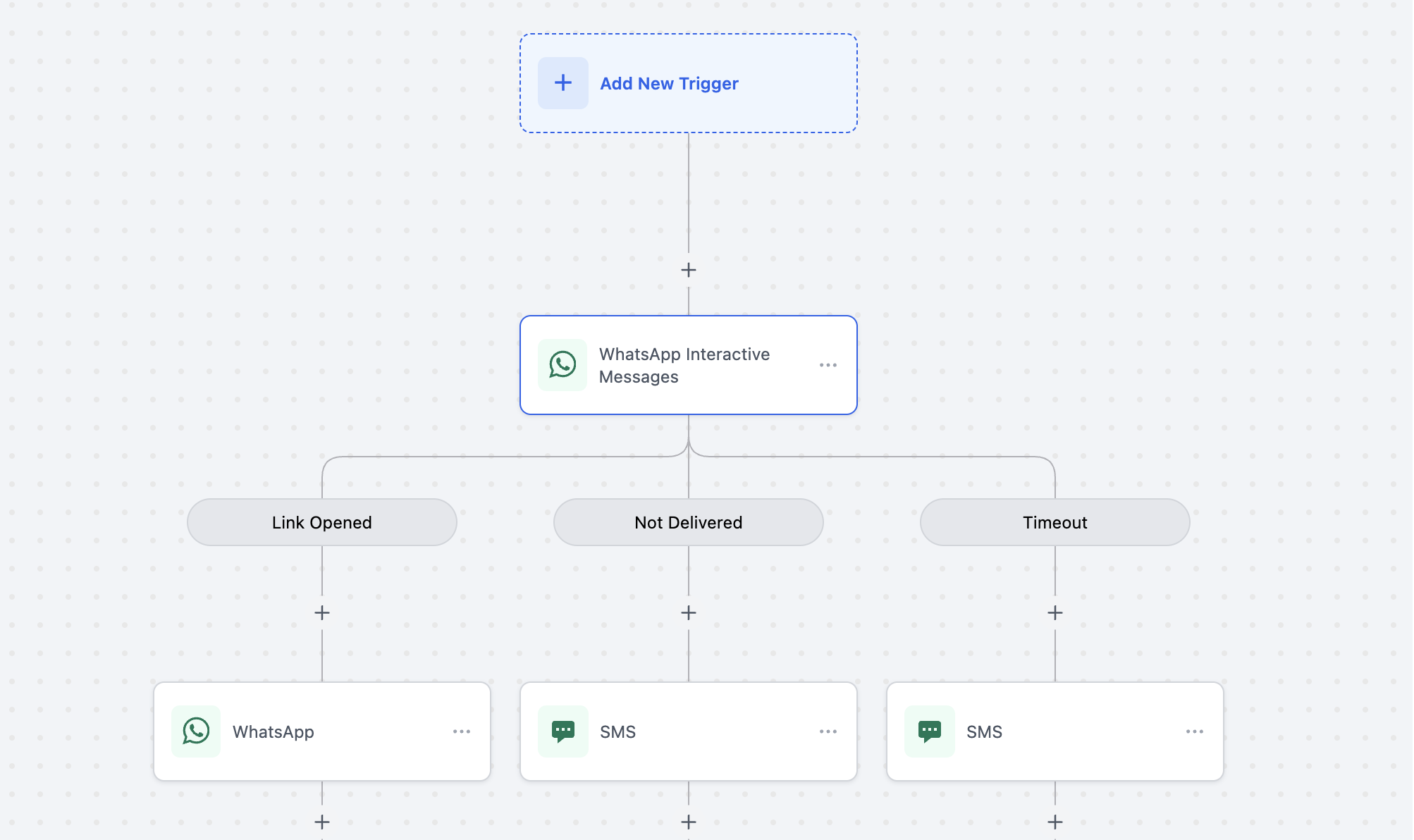
You can branch workflows based on the button's delivery and interaction:
Link Opened – Triggers when the link is successfully opened.
Not Delivered – Triggers if the message fails to deliver.
Timeout – Triggers if the message expires without interaction.
This lets you automate follow-up actions based on whether patients engage with the link.
Always use trusted or branded URLs for better click-through rates.
Use CRM variables to reduce friction (for example, pre-fill forms or auto-assign calendars).
Combine interactive messages with the Customer Service Window Check to ensure the message is sent during an open session.
WhatsApp Flows let you create interactive, guided conversations inside WhatsApp. They enable structured, multi-step interactions that collect information, provide choices, and guide patients through a specific process, such as booking an appointment, without leaving the chat.
Reduced Friction: Patients complete the entire booking process within WhatsApp, eliminating the need to switch to external websites or apps.
Familiar Interface: WhatsApp is a widely used platform, so patients are already comfortable with the interface.
Immediate Interaction: Patients can start booking instantly from a conversation, capitalizing on their initial interest.
Personalization: Patient details can be pre-filled.
Reduced Load Times: Because Flows operate within WhatsApp, interactions typically load faster than external websites.
Step 1: Go to Settings → WhatsApp → Flows.
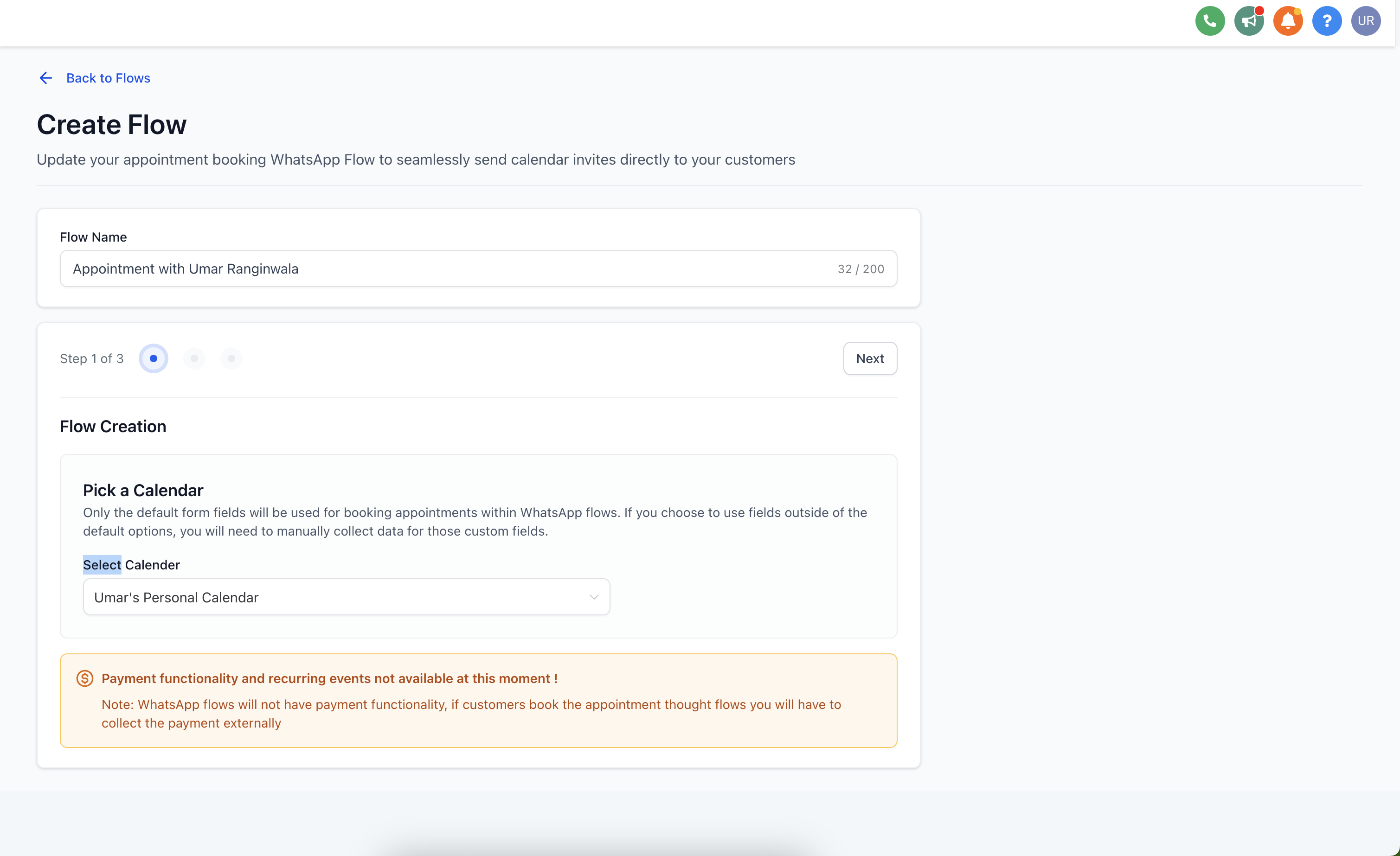
Step 2: Click Create New Flow, add a flow name, pick the calendar where you want appointments booked, then click Next.
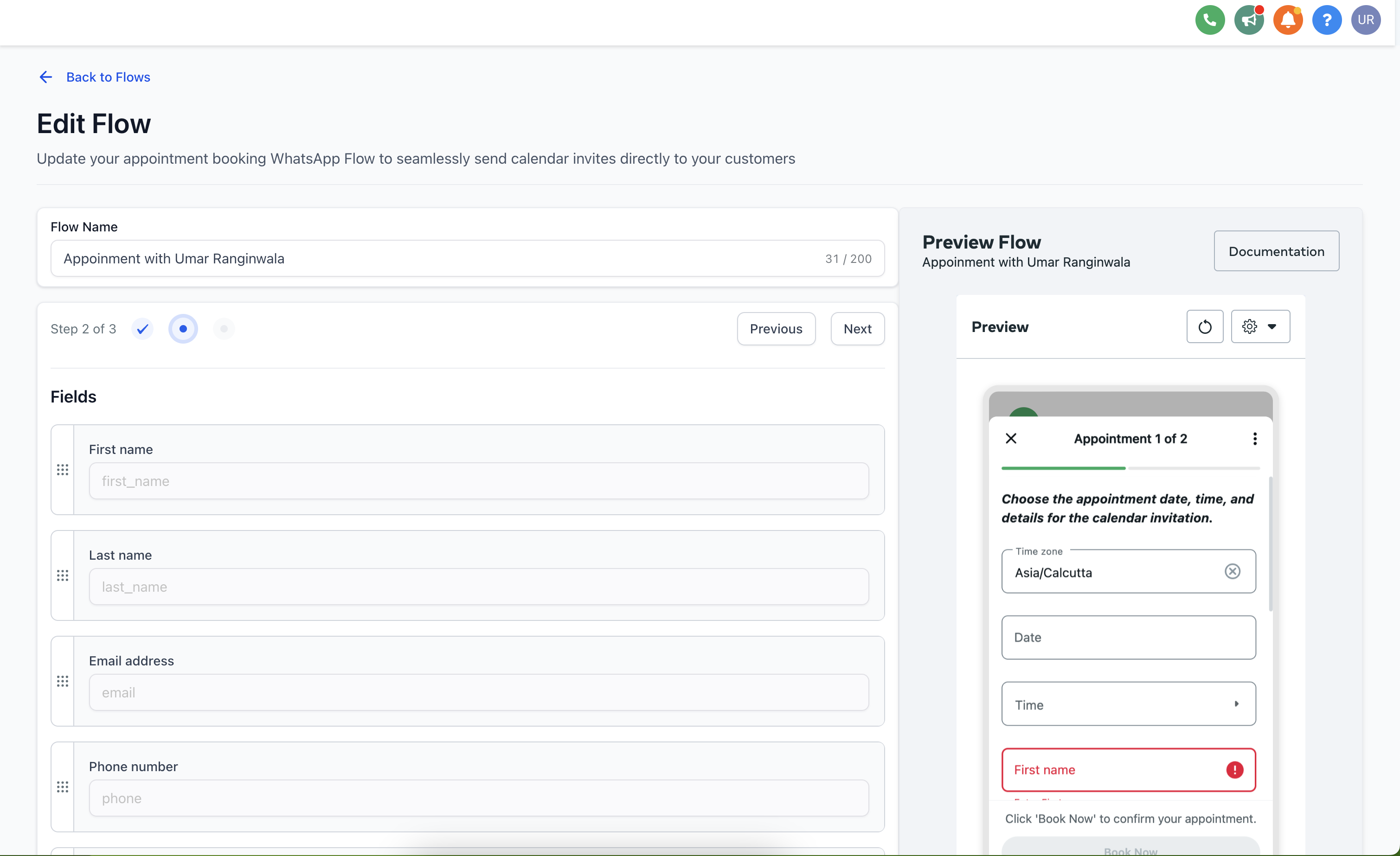
Step 3: Arrange the default form fields.
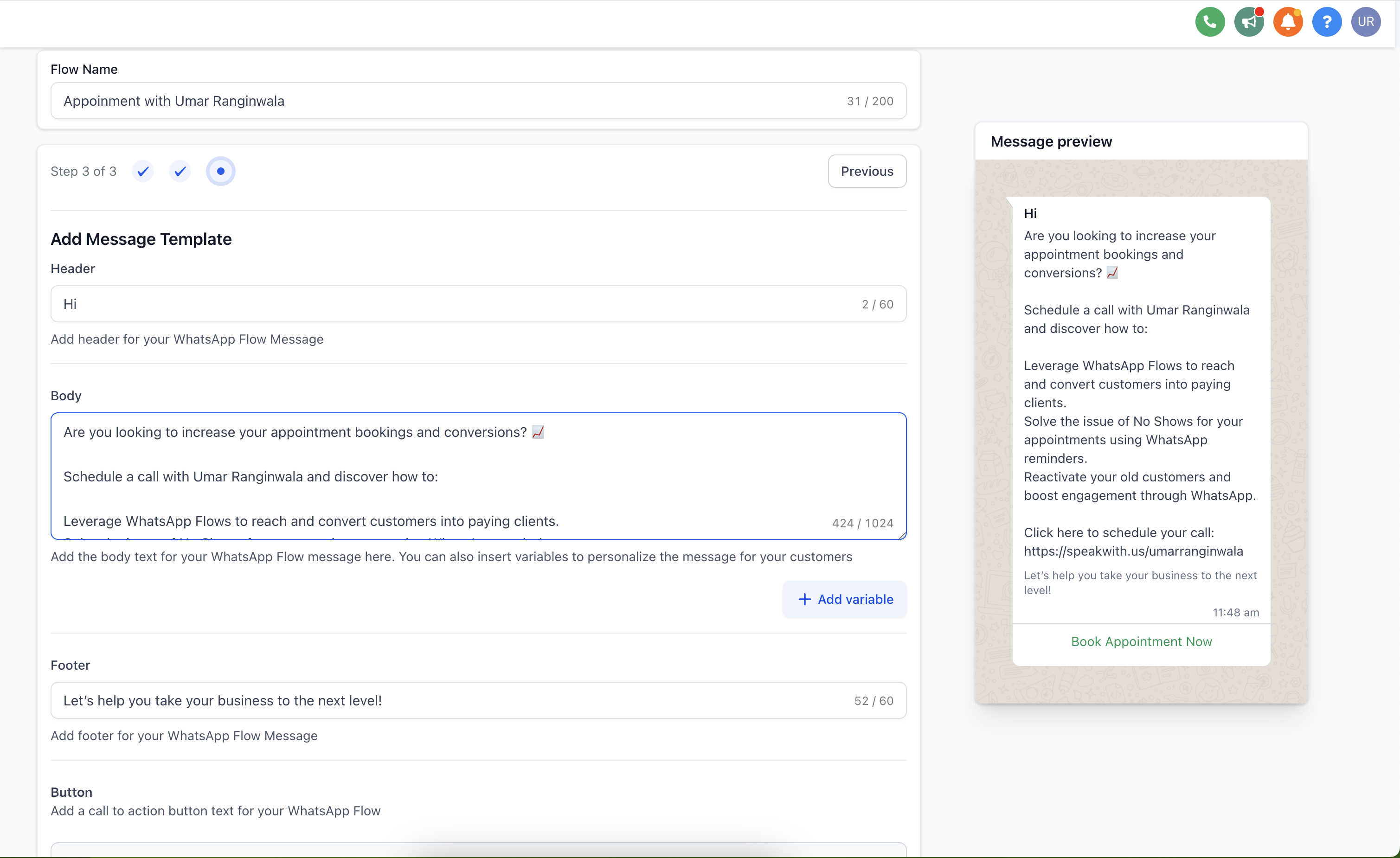
Step 4: Add the header, body, footer, and button text, then click Publish.
Note: Calendars that have payments enabled are not supported through WhatsApp Flows, since WhatsApp currently does not have payment capabilities.
Step 1: Go to WhatsApp → Templates → Create Template.
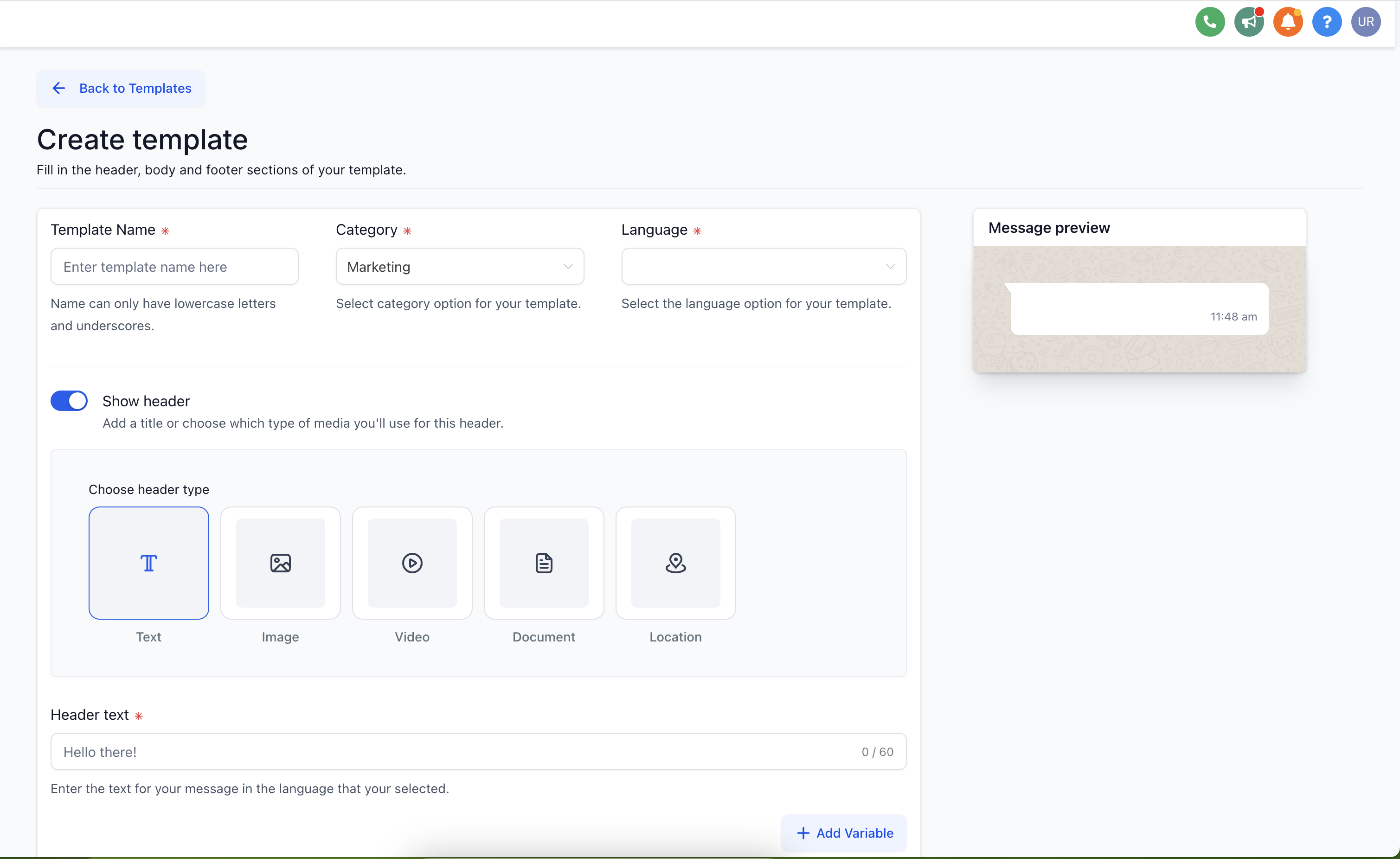
Step 2: Add a template name, category, language, header text, body, and footer.
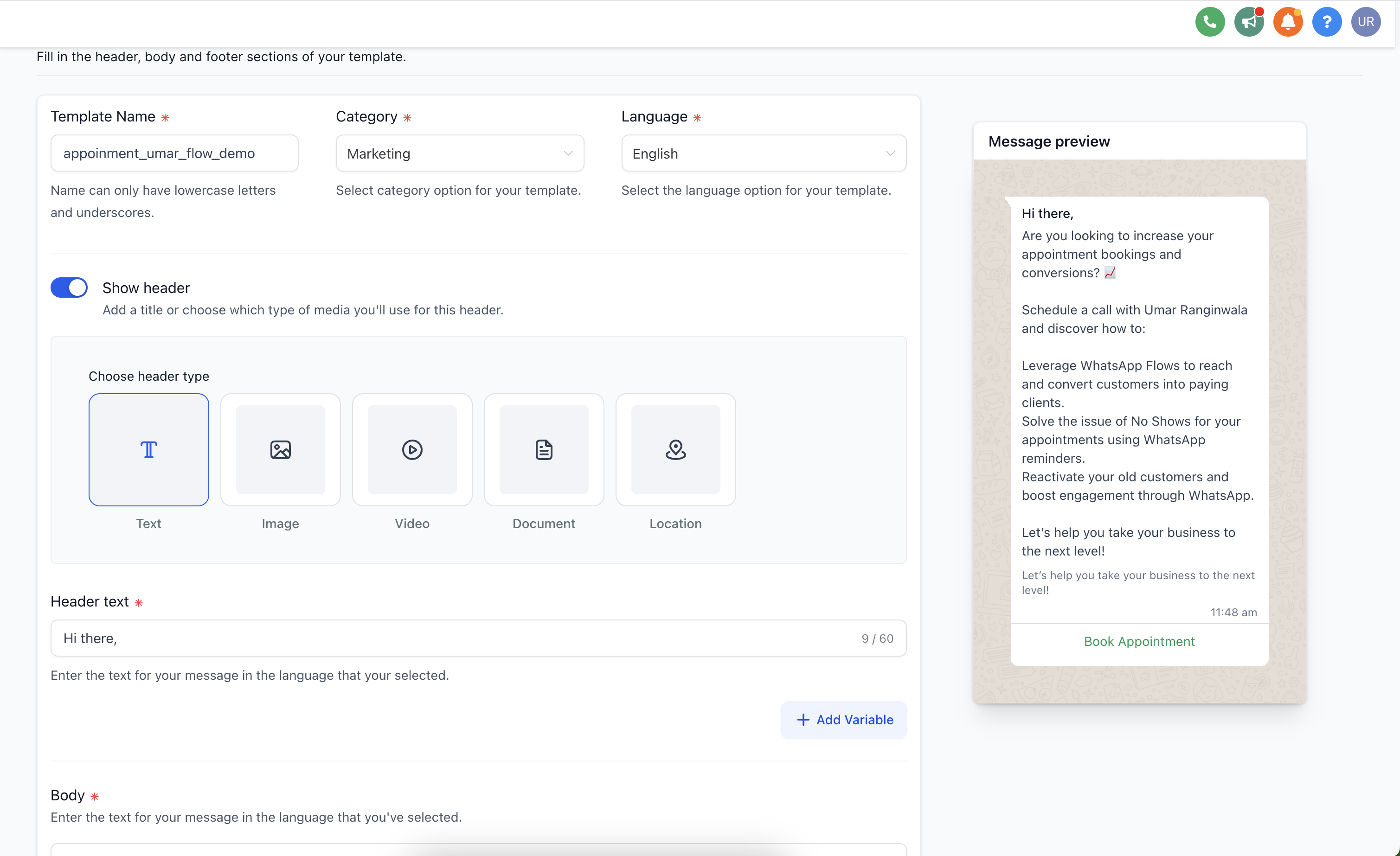
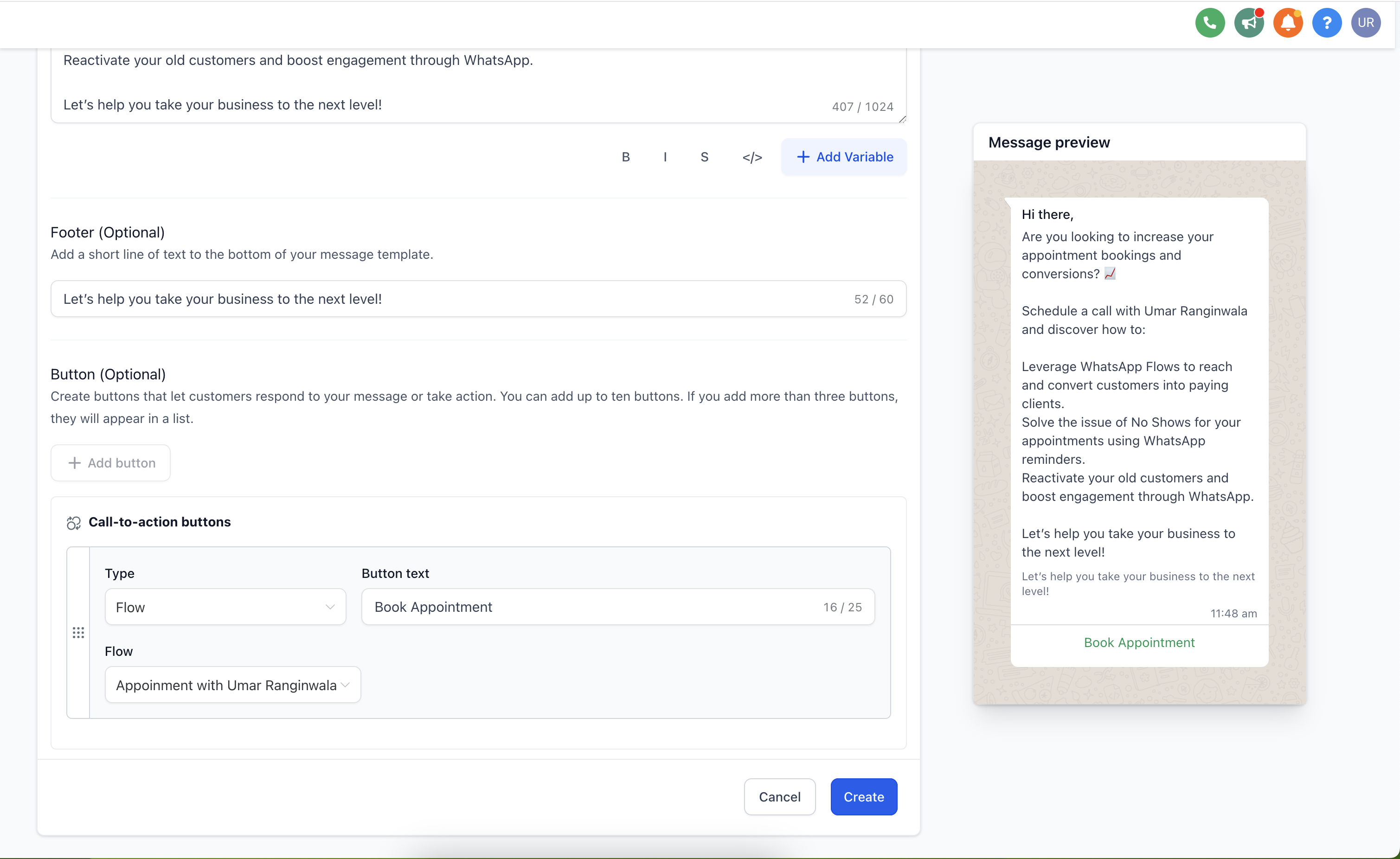
Step 3: Add a button, then select Flow.
Note: Recurring calendar events are currently not supported through WhatsApp Flows.
Step 1: Go to Marketing → Workflows, create a workflow, and start from scratch.
Step 2: Add a WhatsApp Action, select the template that contains your WhatsApp Flow, then save the action.
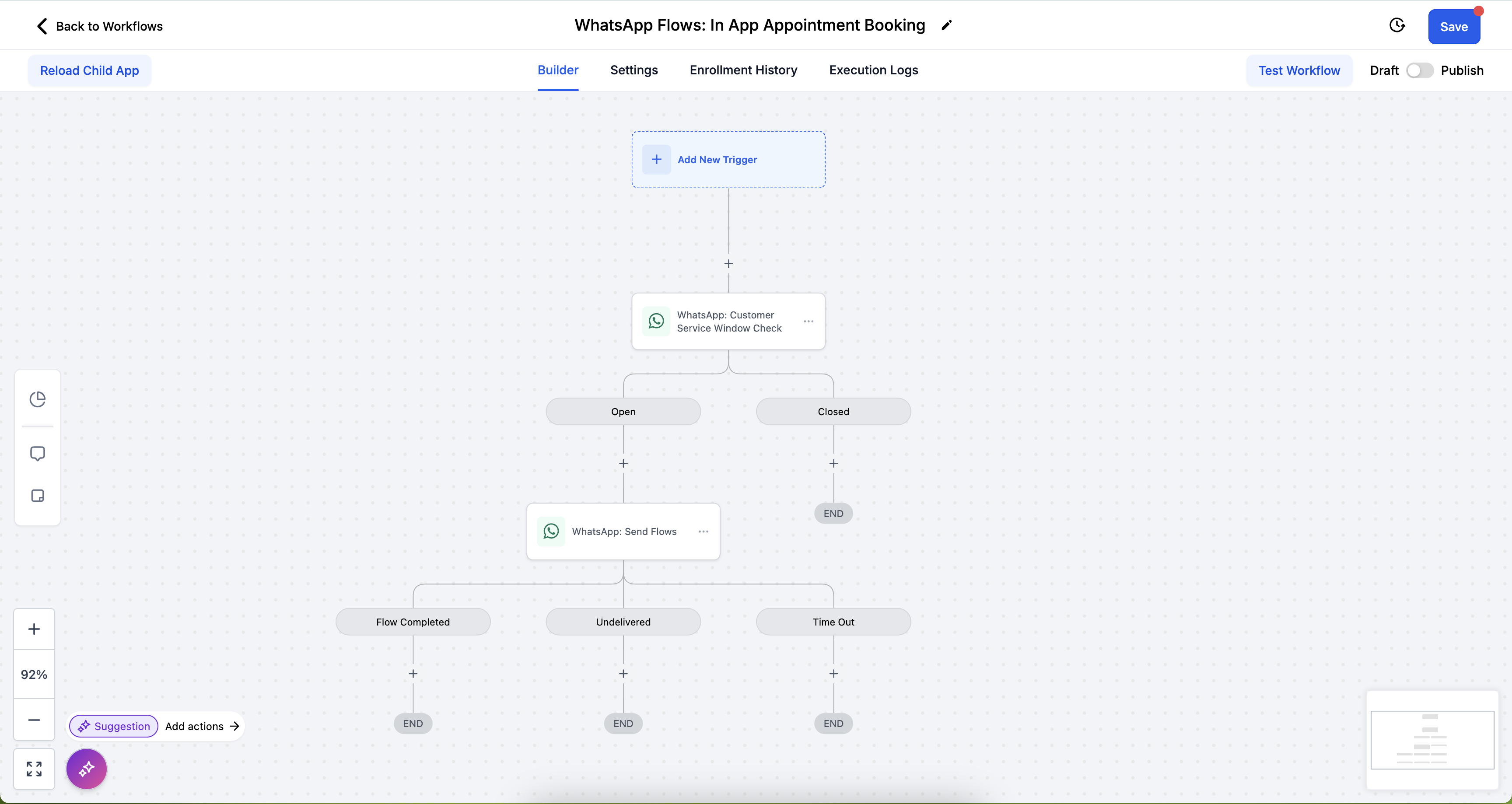
Step 1: Go to Marketing → Workflows, create a workflow, and start from scratch.
Step 2: Click the + button, add WhatsApp: Customer Service Window Check, then save the action.
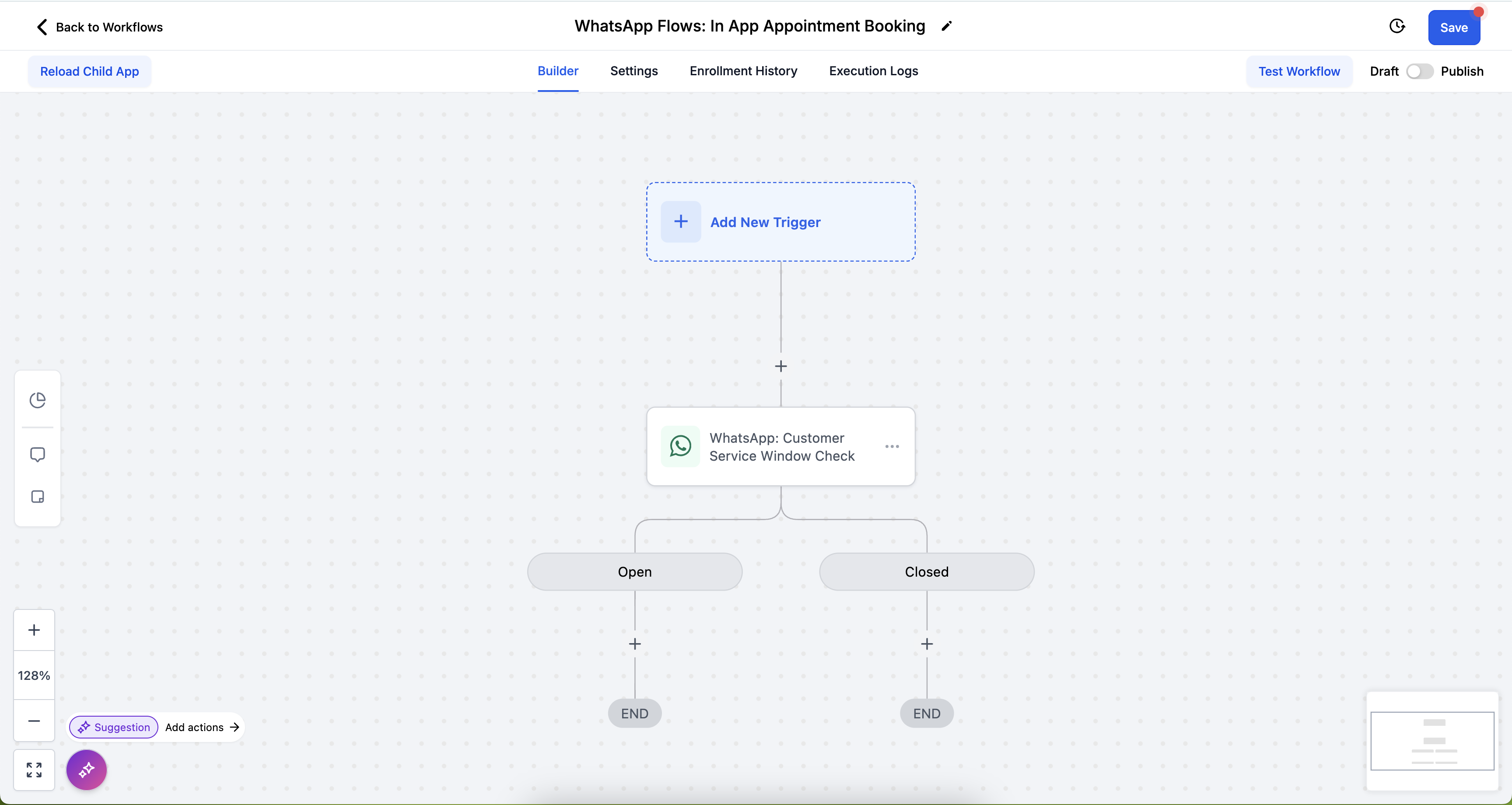
Step 3: Under the Open branch, add WhatsApp: Send Flows and select the WhatsApp Flow to send.
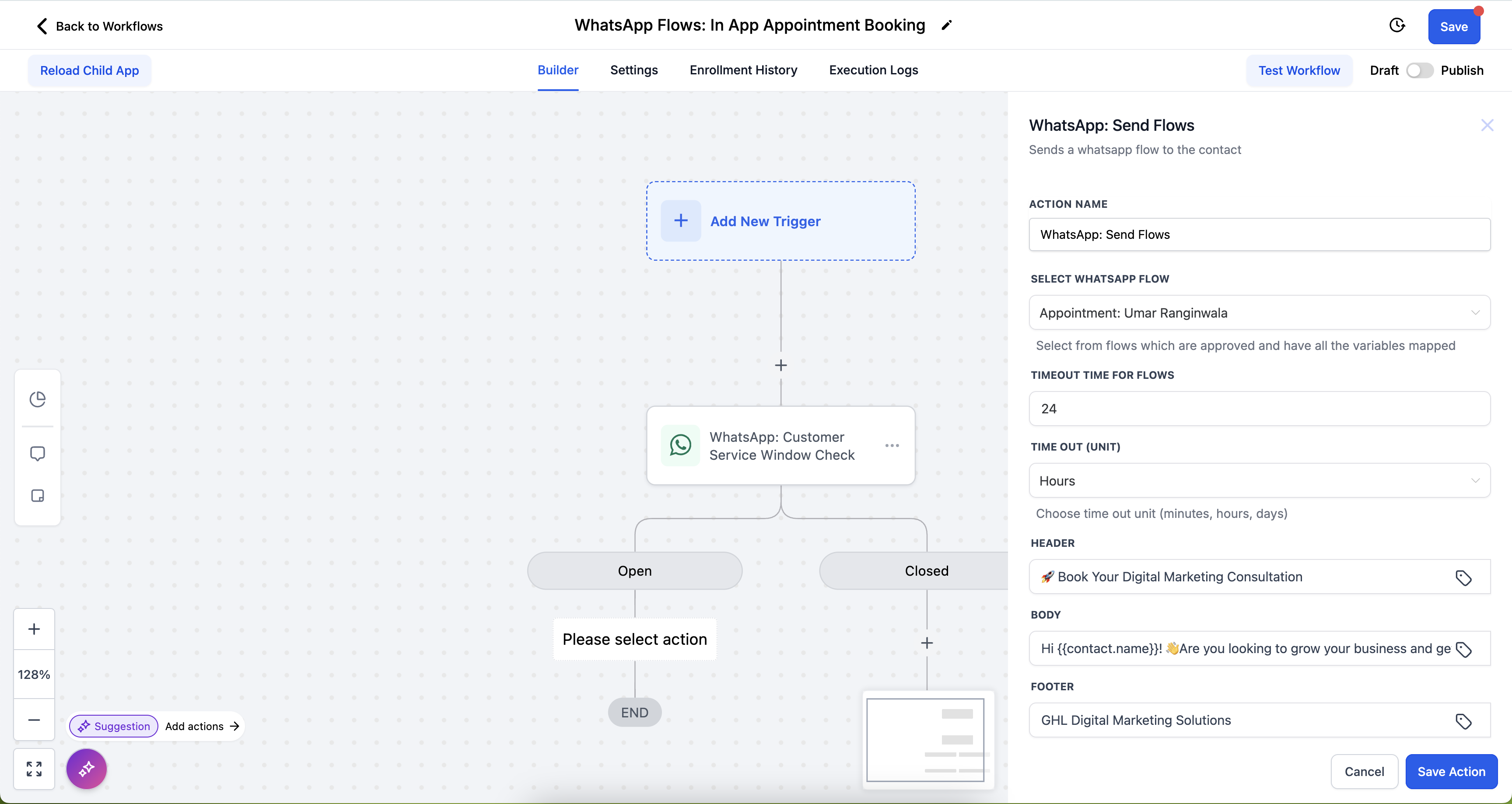
Step 4: Save the action.
Do interactive WhatsApp messages cost extra?
There is no extra charge for making a message interactive. While the 24-hour Customer Service Window is open, the message counts as a service message: the first 1,000 per phone number each month are free, and messages beyond that allowance are billed per message as of October 1, 2026.
What happens if I try to send an interactive message outside the 24-hour window?
If the Customer Service Window is closed, you must send a Marketing or Utility Template message first to reopen the window.
How many buttons can I add in a Quick Reply message?
You can add up to 3 reply buttons. Each must have unique text (20-character limit).
Can I use both headers and footers in a Quick Reply message?
Yes. Headers support Text, Image, Video, or Document. Footers support short text only (max 60 characters).
What happens if I enter the wrong coordinates for a Location message?
The location card may drop the pin in the wrong place. Always verify latitude and longitude before saving.
Can I send multiple contacts in a single Contact message?
No. Each Contact message supports one contact card. To send multiple, create separate actions.
Can I ask a patient to share their phone number if I only have their WhatsApp username?
Yes. Use the Request Contact Info action inside WhatsApp Interactive Messages to ask the patient to share their details from WhatsApp's native Send Contact Info screen. What shows in the To field afterward depends on which fields the patient chooses to share, such as their phone number or username.
How many sections and rows can I add in a List message?
You can configure multiple sections, each with one or more rows. Each row requires a title (mandatory) and can include an optional description. The timeout must be set between 5 minutes and 2 days.
Can I personalize URLs in Visit Website Button messages?
Yes. You can use CRM variables, including contact fields and custom values, inside URLs, for example: https://www.google.com/?name={{contact.name}}&calendar={{custom_values.agent_calendar}}. This lets you create personalized booking links, payment pages, or campaign landing pages.
What are the timeout rules for interactive messages?
Timeouts define how long an interactive message (buttons, lists, or Visit Website buttons) stays active. The minimum is 5 minutes and the maximum is 2 days. After timeout, the interactive element becomes inactive, and you can use the Timeout branch in workflows for follow-ups.
Can I send multiple interactive types in one message (for example, a List and a Visit Website Button)?
No. WhatsApp only allows one interactive message type per message. You can, however, send multiple actions sequentially in workflows.
What limitations should I be aware of with WhatsApp Flows for appointment booking?
Payments are not supported, so appointments requiring payment cannot be booked through the flow. Only default form fields are supported (custom fields must be handled manually), recurring calendar events are not supported, and guest booking is not available within the flow. In addition, if your WhatsApp integration is COEX, Flows is not supported because Meta does not support flows for COEX integrations.
Are there any costs associated with sending WhatsApp Flows for appointment booking?
Sending a flow inside an open window counts as a service message. The first 1,000 service messages per phone number are free each month, and messages beyond that are billed per message. Sending a flow in a template costs the template rate for that category. See the WhatsApp pricing page for current rates.
