WhatsApp templates in Aesthetix CRM support two kinds of tracked, automation-ready buttons: trigger-link buttons that capture clicks so your workflows can respond to real intent, and countdown-timer buttons that add live deadlines to limited-time offers. Both track natively inside your account with no extra integrations, so you can route contacts, send timely follow-ups, and measure engagement directly from your templates.
This guide covers what each button type does, how to add them to a WhatsApp template, and how to track clicks through a workflow.
Trigger link support lets you place tracked CTAs in your WhatsApp templates. When a contact taps a trigger link, whether as a button or an inline link in the message body, your account records the click so your workflows can branch immediately, similar to trigger links in email and SMS. This powers targeted offers, timely reminders, and measurable engagement.
Works with: the WhatsApp sending action inside Workflows
Tracks: which CTA or link a contact tapped
Automates: branches on Trigger Link Clicked, sends follow-ups, sets tags, updates fields, and more
Design options: a trigger-link button (recommended) or an inline trigger link in the body text
These benefits help you decide when to use trigger links and how to structure templates for the best conversion and clean analytics.
Click-level attribution: see exactly which CTA a contact tapped for precise routing.
Smarter automation: branch workflows on the clicked link and send tailored next steps.
Faster testing: run controlled A/B tests on button labels or link destinations to improve conversion.
Clean handoffs: use tags and fields from clicks to personalize sales or service follow-ups.
No extra tools: track everything natively, with no external tracking required.
Confirm access and approvals first so your templates send and track correctly.
An active WhatsApp connection and completed Meta onboarding.
Access to your account with permission to create Templates and edit Workflows.
One or more trigger links created under Marketing → Trigger Links → Links.
Approved or approvable WhatsApp templates, with the category, sample content, and variables filled in correctly.
You can place tracked CTAs as buttons or inline links. Buttons are cleaner and easier to tap; inline links are useful when your copy needs a sentence-level link.
Trigger-link button (recommended): add a button whose type is Trigger Link and map it to your link.
Inline trigger link (body text): insert a variable and map it to a trigger link so the link appears inside the message body.
Keep CTAs clear and compliant to maximize clicks and prevent confusion.
Limit: total buttons per message must be 2 or fewer (trigger-link buttons plus normal buttons).
Prefer one or two focused CTAs to reduce choice overload.
Use descriptive labels (for example, "See Pricing" or "Book Consultation") that map cleanly to workflow branches.
Provide sample content for variables during template creation to streamline Meta approval.
If you plan to send a follow-up template later when there is no reply yet, prepare and approve that template in advance.
Follow the sequence below, from creating trigger links to building click-based branches, so you can test quickly and deploy safely.
Go to Marketing → Trigger Links → Links.
Click Add Link, name it (for example, "20% Off Introductory Offer"), and paste the destination URL, such as a landing page with a form.
Click Save.
Go to Settings → WhatsApp → Templates and click Create Template.
Fill in the Template name, set the Category (for example, Marketing), and choose the Language.
(Optional) Add a Header, such as an image logo, for visual impact.
Write the Body copy. Add variables where needed, such as the contact's First Name, and include sample content for approval.
(Optional) Add a Footer, such as "Reply STOP to opt out."
Option A: Trigger-Link Button (recommended)
In the template editor, add a Button and set its Type to Trigger Link.
Select the trigger link you created in Step 1.
Keep total buttons at 2 or fewer.
Click Create.
Option B: Inline Trigger Link (body text)
Place the cursor in the Body where the URL should appear.
Click Add variable, then map that variable to your trigger link (for example, "20% Off Introductory Offer").
Add sample content by pasting the destination URL for Meta approval.
Click Create or Save to submit the template to Meta for approval.
After approval, your template shows as Active.
Go to Automation → Workflows → Create from scratch and name it (for example, "Track 20% Offer – WhatsApp").
Click Add New Trigger.
Select Trigger Link Clicked as the workflow trigger.
Click Add Filters and, from the drop-down, choose Trigger Link.
Select the link you previously created and used in the WhatsApp template.
Click Save Trigger.
Publish the workflow and monitor results in Workflow History and Template Analytics, including delivery, read, and button-click data.
Countdown timer buttons let you place the same timers you already use in emails, funnels, and websites inside a WhatsApp template button. When a recipient taps the button, they are routed to your active or expired link based on the timer's live status, giving every message a built-in deadline that boosts click-through and conversions.
The feature supports fixed-date timers, recurring timers, and fully personalized dynamic timers that start for each contact the moment the WhatsApp message is sent or delivered.
Urgency and conversions: real-time countdowns motivate immediate action and purchases.
Multiple timer types: choose Fixed, Recurring, or Dynamic timers to match your promotion model.
Active and expired routing: automatically send visitors to the correct page before and after expiry.
Workflow branching: branch automations based on timer-button clicks.
Selecting the right timer type keeps your message, page, and automation in sync across time zones and send times.
Fixed: ends at a specific date and time, ideal for one-time campaigns with a hard deadline such as a holiday promotion.
Recurring: repeats on a schedule such as daily or weekly, ideal for evergreen or weekly-special offers.
Dynamic: a personal, per-contact duration that starts on a trigger such as message sent or delivered. Great for personalized, time-limited offers like "Redeem within 12 hours of receiving this message."
Follow these steps to attach a timer to your template, configure Dynamic behavior, and guarantee proper routing before and after expiry.
Navigate to Settings → WhatsApp.
In the secondary navigation ribbon, select the Templates tab.
Click the blue + Create Template button to create a new template, or select an existing one to edit.
Fill in the Template Details, including Name, Category, Language, Header, Body, and Footer.
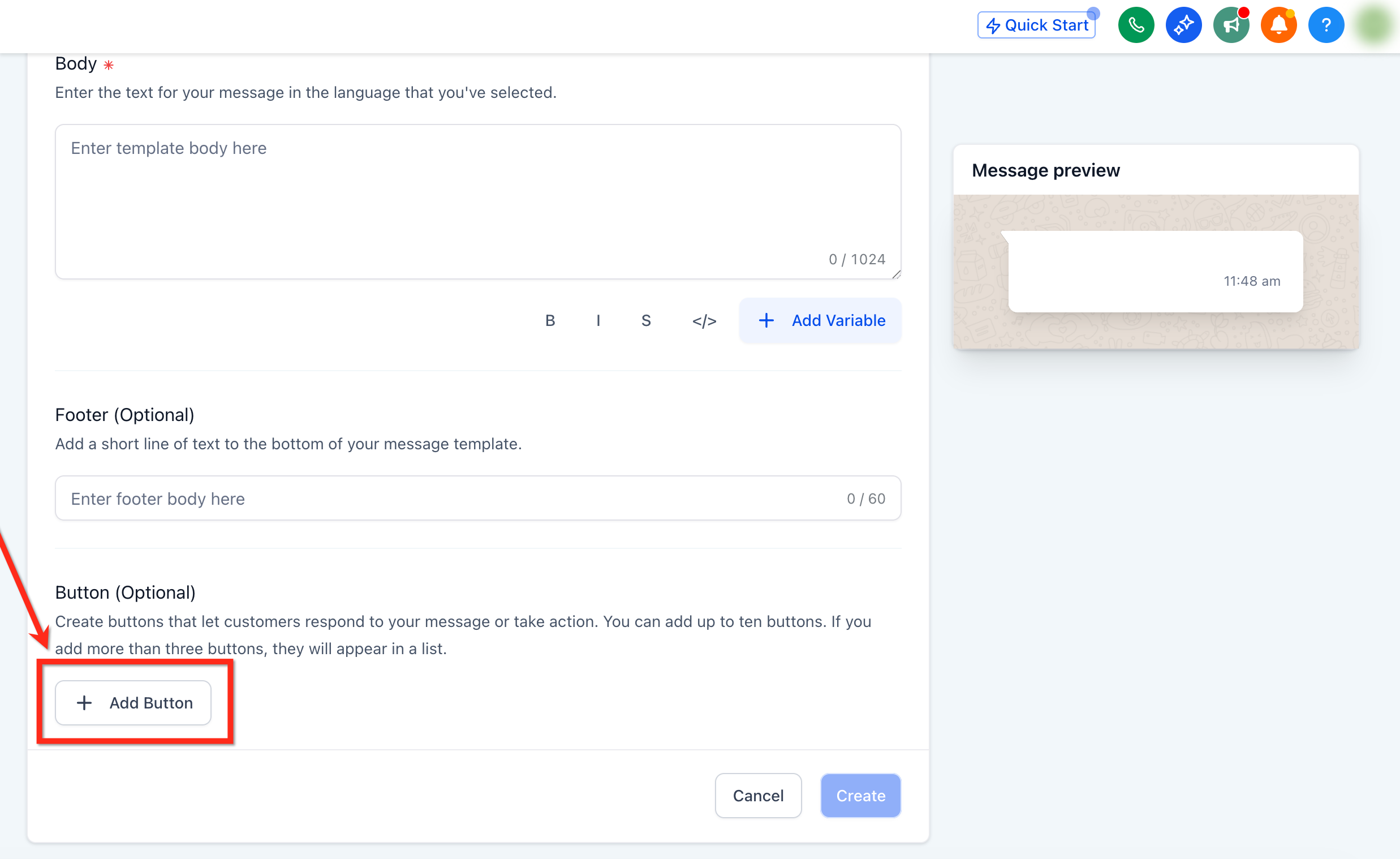
Under the Button section, click + Add Button, then select Countdown Timer from the dropdown.
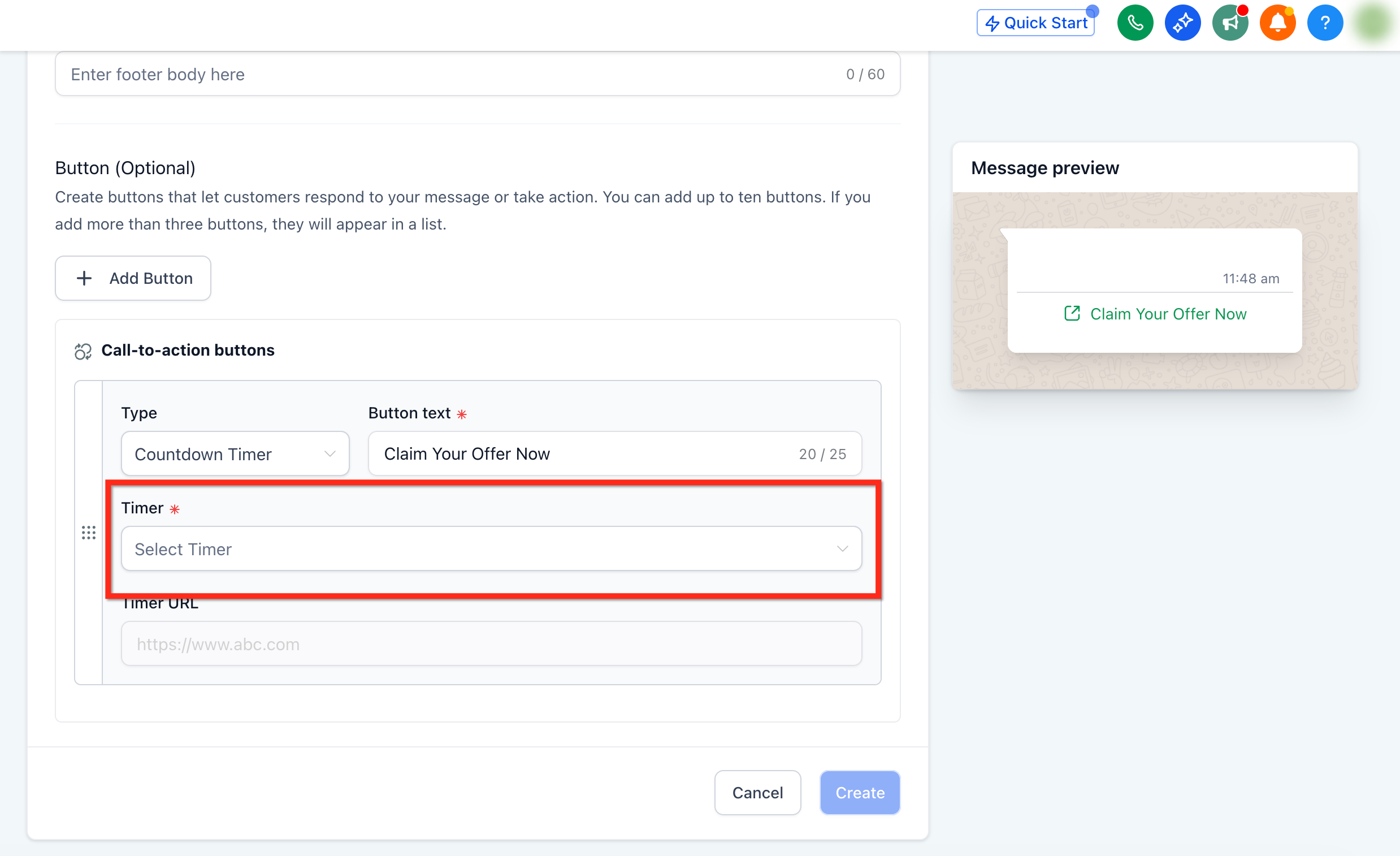
Open the Timer dropdown and either select an existing timer or click + Create New.
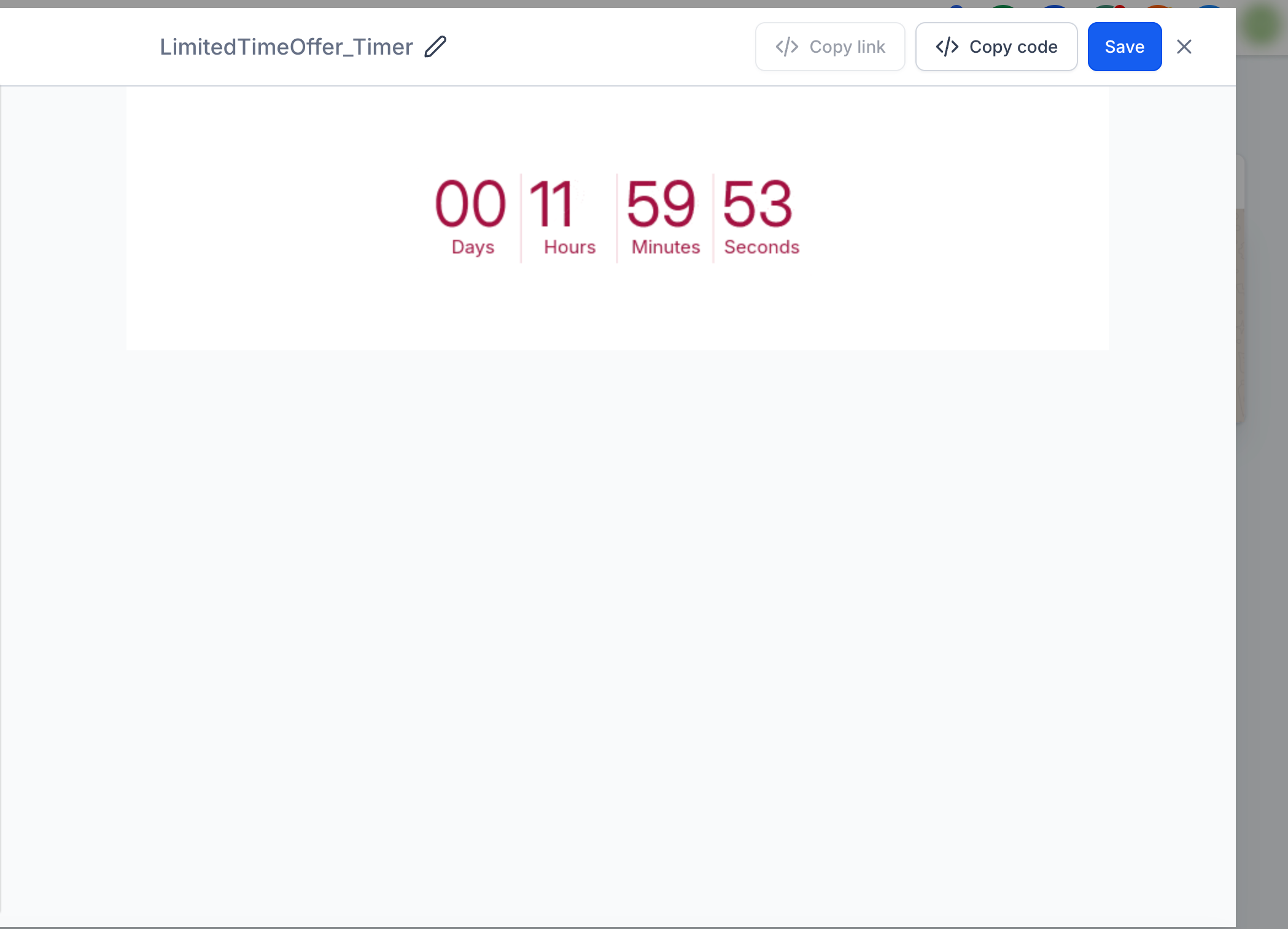
After selecting the timer, click Edit Timer under Timer URL. This opens the timer settings, where you can adjust:
Timer Type: Fixed, Recurring, or Dynamic.
Countdown duration: set the duration or a specific end time.
Start timer when: for Dynamic timers, choose a trigger such as:
WhatsApp message is sent
WhatsApp message is delivered
Active link: the live offer, checkout, or booking page used before expiry.
Expired link: a fallback page shown after expiry, such as a waitlist or alternative offer.
Review the message preview to see how your template will appear.
Click the blue Create button to finalize your WhatsApp template.
Note: For a countdown timer button to power workflow branches, use a trigger link as the timer URL so clicks are tracked and can drive branches in your workflows.
Do I need integrations to track button clicks?
No. Trigger links are tracked natively inside your account and can power workflow branches without any external tools.
What is the difference between a trigger-link button and an inline trigger link?
Buttons are cleaner and easier to tap, while inline links live in the body text. Both track clicks and can trigger workflow branches.
How many buttons can I use in one message?
The combined total of trigger-link buttons and normal buttons is two. This limit also applies to countdown timer buttons, which can be combined with "Visit Website" or "Trackable Website" buttons up to the same total of two.
Can I follow up if the contact has not replied yet?
Yes, but use an approved template for outbound messages that fall outside a reply window.
How do I know which CTA performed best?
Use Template Analytics and Workflow History to compare button and link clicks and downstream conversions.
Can I personalize the template, for example with a first name?
Yes. Insert variables and include sample content for Meta approval; the variable renders per contact at send time.
What happens when a countdown timer expires?
Once expired, the contact is redirected to the expired offer page based on your timer settings.
Can I edit a timer after creating it?
Yes. Click Edit Timer to change the duration, style, or triggers at any time.
Do dynamic timers show different countdowns per user?
Yes. Each contact gets a unique countdown based on their trigger event, such as when the WhatsApp message was sent.
Why do I see "No link found" under Timer URL?
It means your timer does not yet have a redirect link. Click Edit Timer and add a dynamic link or URL.
What are active and expired links?
The active link points to your offer page, such as the page with discounts, offers, or free registration. The expired link is where the contact lands after the offer expires. Make sure your offer page uses the same timer so it expires automatically and redirects to the expiry page.
Can I branch workflows based on a countdown timer button click?
Yes. Use a trigger link as the timer URL so clicks are tracked and can power branches in your workflows.
